

'%3e%3cpath%20d='M8%200C12.4183%200%2016%203.58172%2016%208C16%2012.4183%2012.4183%2016%208%2016C3.58172%2016%200%2012.4183%200%208C0%203.58172%203.58172%200%208%200ZM11.6162%204.38379C11.2257%203.99337%2010.5927%203.99338%2010.2021%204.38379L8%206.58594L5.79785%204.38379C5.40732%203.99334%204.77429%203.99329%204.38379%204.38379C3.99331%204.77429%203.99335%205.40733%204.38379%205.79785L6.58594%208L4.38379%2010.2021C3.99348%2010.5927%203.99341%2011.2257%204.38379%2011.6162C4.77426%2012.0066%205.40734%2012.0065%205.79785%2011.6162L8%209.41406L10.2021%2011.6162C10.5927%2012.0066%2011.2257%2012.0067%2011.6162%2011.6162C12.0067%2011.2257%2012.0066%2010.5927%2011.6162%2010.2021L9.41406%208L11.6162%205.79785C12.0066%205.40735%2012.0066%204.77429%2011.6162%204.38379Z'%20fill='%23080E17'%20fill-opacity='0.46'/%3e%3c/g%3e%3cdefs%3e%3cclipPath%20id='clip0_3761_713'%3e%3crect%20width='16'%20height='16'%20fill='white'/%3e%3c/clipPath%3e%3c/defs%3e%3c/svg%3e)




'%3e%3cpath%20fill-rule='evenodd'%20clip-rule='evenodd'%20d='M21.4999%2010.9993C21.4999%205.20009%2016.7986%200.498901%2010.9993%200.498901C5.19994%200.498901%200.498657%205.20009%200.498657%2010.9993C0.498657%2016.2404%204.33858%2020.5844%209.35855%2021.3722V14.0346H6.69238V10.9993H9.35855V8.68594C9.35855%206.05427%2010.9262%204.60062%2013.3248%204.60062C14.4736%204.60062%2015.6753%204.80571%2015.6753%204.80571V7.38979H14.3512C13.0468%207.38979%2012.64%208.19921%2012.64%209.0296V10.9993H15.5523L15.0867%2014.0346H12.64V21.3722C17.66%2020.5844%2021.4999%2016.2404%2021.4999%2010.9993Z'%20fill='%231568EA'/%3e%3c/g%3e%3c/svg%3e)


'%3e%3cpath%20d='M2.42045%2022.1876H6.31818V12.7217L0.75%208.54553V20.5171C0.75%2021.4414%201.49892%2022.1876%202.42045%2022.1876Z'%20fill='%234285F4'/%3e%3cpath%20d='M19.682%2022.1876H23.5797C24.5041%2022.1876%2025.2502%2021.4387%2025.2502%2020.5171V8.54553L19.682%2012.7217'%20fill='%2334A853'/%3e%3cpath%20d='M19.682%205.48293V12.7216L25.2502%208.54543V6.31816C25.2502%204.25236%2022.8921%203.07469%2021.2411%204.31361'%20fill='%23FBBC04'/%3e%3cpath%20d='M6.31824%2012.7217V5.48303L13.0001%2010.4944L19.6819%205.48303V12.7217L13.0001%2017.733'%20fill='%23EA4335'/%3e%3cpath%20d='M0.75%206.31816V8.54543L6.31818%2012.7216V5.48293L4.75909%204.31361C3.10534%203.07469%200.75%204.25236%200.75%206.31816Z'%20fill='%23C5221F'/%3e%3c/g%3e%3cdefs%3e%3cclipPath%20id='clip0_2954_7305'%3e%3crect%20width='24.5'%20height='18.375'%20fill='white'%20transform='translate(0.75%203.8125)'/%3e%3c/clipPath%3e%3c/defs%3e%3c/svg%3e)


The spinning beach ball appears while Mail still says “Checking for new messages,” Finder windows lag, and a simple save in a document takes twice as long. A slow Mac is rarely one mystery setting—it is usually memory pressure, a full startup disk, too many login items, or an app that needs an update. This guide shows how to fix a slow Mac by checking Activity Monitor first, then working through disk space, startup apps, and software updates before you reinstall anything.
How to Fix a Slow Mac: Diagnose Storage, CPU, and RAM (2026 Guide)
Diagnose a slow Mac with Activity Monitor
Quitting random apps wastes time if the real bottleneck is disk space or CPU load. Activity Monitor shows all three in one place.
Press Cmd + Space, type Activity Monitor, and press Return.
Open the Memory tab and read Memory Pressure. Yellow or red means RAM is stressed; green usually means you should check CPU or disk next.
Switch to the CPU tab and sort by % CPU. A single process pinned near 100% can make the whole Mac feel slow.
Choose Window > GPU History or check the Disk tab if fans spin but CPU and memory look calm—heavy swap or a failing drive can still cause stutter.
Write down which tab looked worst before you change settings. That order keeps fixes targeted instead of reinstalling tools you do not need.

Activity Monitor Memory tab on Mac


Free startup disk space on a slow Mac
macOS needs free space on the startup disk for virtual memory and updates. When the bar in System Settings > General > Storage stays red, the system spends more time moving data and the Mac feels sluggish even with light apps open.
Empty Trash and remove large downloads you no longer need.
Move photo or video libraries to an external drive if local copies are only archives.
Use Storage recommendations to offload unused files to iCloud when that fits your workflow.
Aim to keep at least 10–15% of the startup disk free; on smaller SSDs, even a few gigabytes of headroom can smooth out swap.
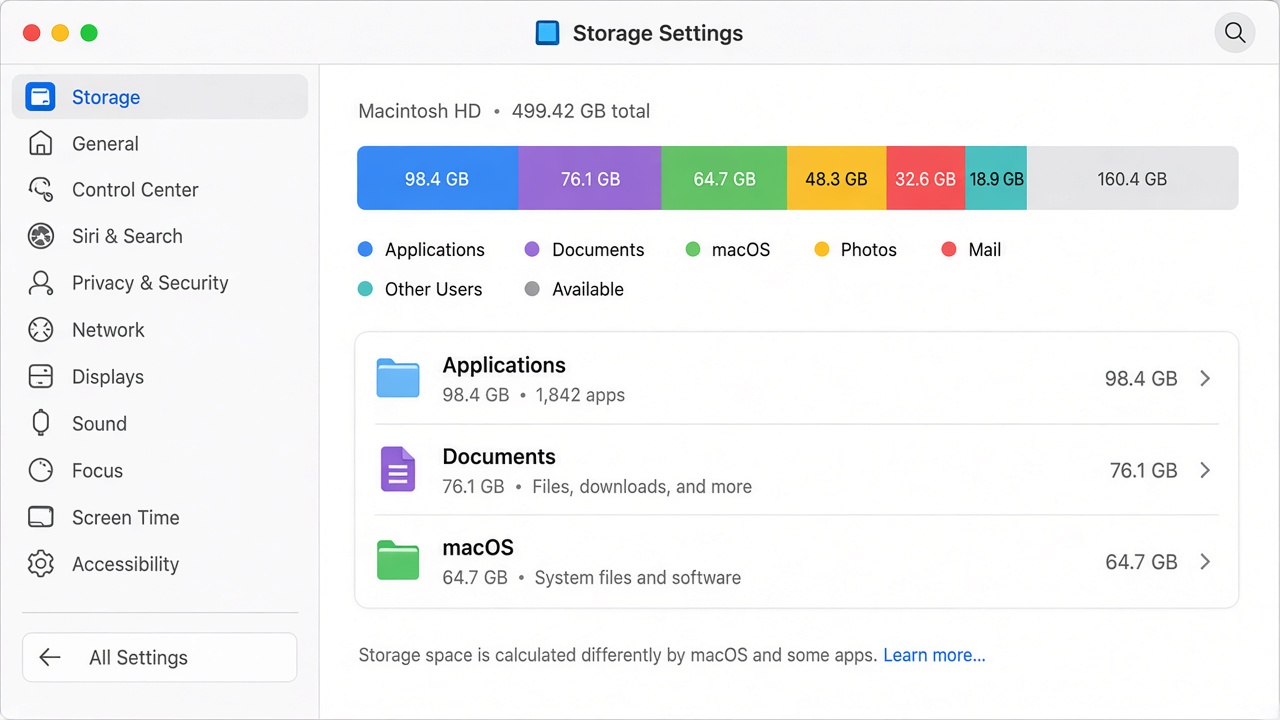
Mac System Settings Storage panel
Reduce login items on a slow Mac
Apps that open at login compete for CPU and disk before you start real work. Trimming them is one of the fastest ways to fix a slow Mac after an update.
Login items at startup
Go to System Settings > General > Login Items. Remove helpers you do not recognize or no longer use. Keep security tools you installed on purpose.
Desktop clutter
Each desktop icon costs rendering work. Group files into a few folders so Finder draws less on every redraw.
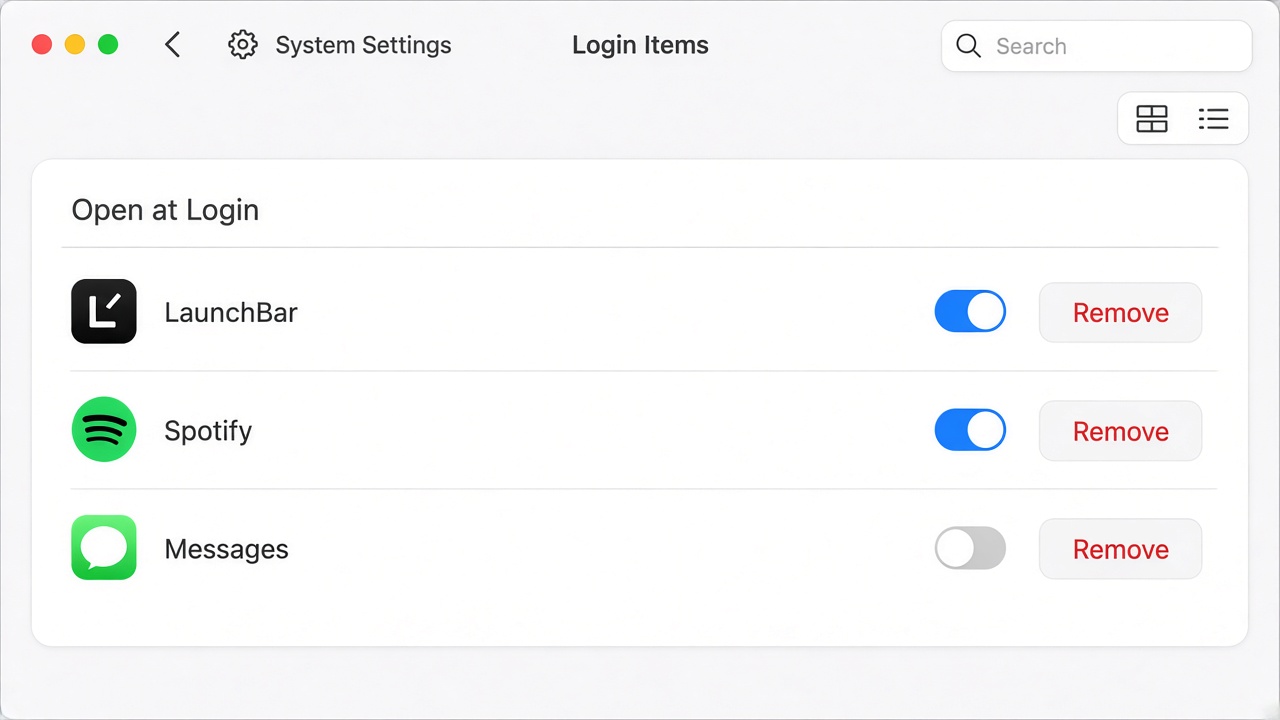
Mac System Settings Login Items
Update macOS and apps on a slow Mac
A Mac can feel slow right after a major macOS release while apps catch up. Installing pending updates fixes memory bugs, graphics glitches, and security patches that also affect performance.
Open System Settings > General > Software Update and install offered macOS updates.
Open the App Store > Updates tab and update apps you use daily.
For apps installed outside the store, check each vendor’s update menu after a macOS upgrade.
Restart once after updates finish so background daemons reload with the new builds.
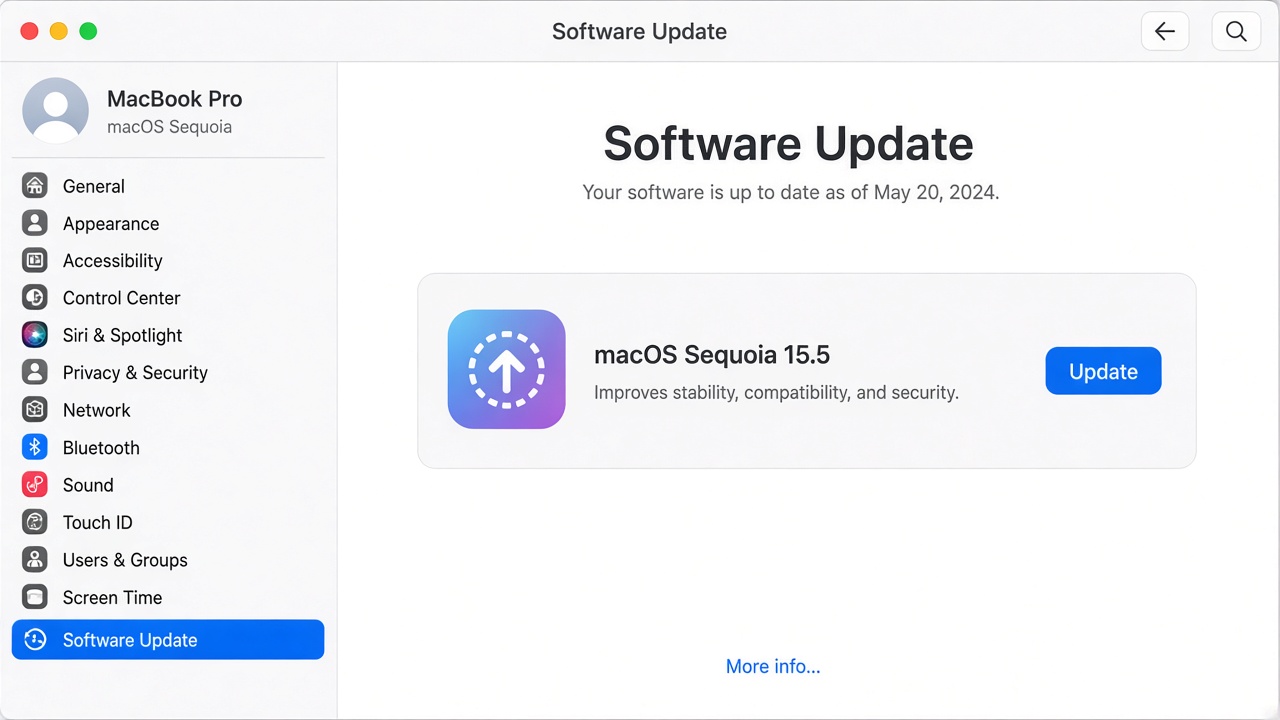
macOS Software Update in System Settings
When a slow Mac is a RAM problem
If Memory Pressure in Activity Monitor stays yellow or red after you free disk space, the slowdown is memory-related. Force-quitting unused apps, closing heavy browser tabs, and restarting often help—but you do not need to repeat every RAM trick here.
Follow the step-by-step native fixes in our guide to free up memory (RAM) on Mac, including how to spot leaking processes and when a restart is the cleanest reset.
When Memory Pressure stays high even after those steps, sort Activity Monitor by Memory again. If Word processors, spreadsheets, or PDF tools sit near the top, the slowdown is often workload-related—not a missing macOS setting.
When document and PDF apps stress your Mac: WPS Office
Running a separate viewer, editor, and office suite for everyday files can keep several heavy processes in memory at once. WPS Office puts Writer, Spreadsheet, Presentation, and PDF in one install, so you open fewer apps for the same work and Activity Monitor often shows less duplicate overhead.
That does not replace the disk, login, and update fixes above—but if large PDFs or long editing sessions are what push Memory Pressure into yellow or red, handling those files in WPS PDF can free headroom without another round of system troubleshooting. For a concrete workflow, see how to edit a PDF on Mac free.
WPS Office lightweight suite for Mac
FAQs
Do Mac cleaner apps fix a slow Mac?
Most cleaner utilities delete caches macOS would reuse anyway. Freeing disk space, trimming login items, and quitting heavy apps usually help more than a paid “RAM booster.”
How much free disk space does macOS need?
Keep roughly 10–15% of the startup disk free. macOS uses free space for swap and updates; running nearly full makes every app feel slower.
Will an SSD upgrade fix a slow Mac?
On Macs still using a spinning hard drive, moving to an SSD is the largest hardware gain. Macs that already ship with SSDs benefit more from RAM and software fixes than from another internal swap.
Why is my Mac slow after a macOS update?
Background reindexing, pending app updates, and Spotlight rebuilding can lag the system for a day or two. Install app updates, reboot once, and recheck Activity Monitor before deeper troubleshooting.
When should I erase and reinstall macOS?
Treat a clean install as a last resort after disk space, login items, updates, and RAM checks. Back up with Time Machine first; many slowdowns clear without wiping the Mac.


'%3e%3cpath%20d='M19.9911%204.11386V6.471H18.5894C18.0775%206.471%2017.7322%206.57814%2017.5536%206.79243C17.3751%207.00671%2017.2858%207.32814%2017.2858%207.75671V9.44421H19.9019L19.5536%2012.0871H17.2858V18.8639H14.5536V12.0871H12.2769V9.44421H14.5536V7.49779C14.5536%206.39064%2014.8632%205.53201%2015.4822%204.92189C16.1013%204.31177%2016.9257%204.00671%2017.9554%204.00671C18.8304%204.00671%2019.509%204.04243%2019.9911%204.11386Z'%20fill='%23333333'/%3e%3c/g%3e%3cdefs%3e%3cclipPath%20id='clip0_2938_8199'%3e%3crect%20width='16'%20height='16'%20fill='white'%20transform='translate(8%204.00671)'/%3e%3c/clipPath%3e%3c/defs%3e%3c/svg%3e)
'%3e%3cpath%20d='M17.5237%2010.7813L23.4811%204H22.0699L16.8949%209.88693L12.7648%204H8L14.2469%2012.9029L8%2020.0133H9.4112L14.8725%2013.7952L19.2352%2020.0133H24M9.92053%205.04213H12.0885L22.0688%2019.0224H19.9003'%20fill='%23333333'/%3e%3c/g%3e%3cdefs%3e%3cclipPath%20id='clip0_2938_8200'%3e%3crect%20width='16'%20height='16.0134'%20fill='white'%20transform='translate(8%204)'/%3e%3c/clipPath%3e%3c/defs%3e%3c/svg%3e)


