

'%3e%3cpath%20d='M8%200C12.4183%200%2016%203.58172%2016%208C16%2012.4183%2012.4183%2016%208%2016C3.58172%2016%200%2012.4183%200%208C0%203.58172%203.58172%200%208%200ZM11.6162%204.38379C11.2257%203.99337%2010.5927%203.99338%2010.2021%204.38379L8%206.58594L5.79785%204.38379C5.40732%203.99334%204.77429%203.99329%204.38379%204.38379C3.99331%204.77429%203.99335%205.40733%204.38379%205.79785L6.58594%208L4.38379%2010.2021C3.99348%2010.5927%203.99341%2011.2257%204.38379%2011.6162C4.77426%2012.0066%205.40734%2012.0065%205.79785%2011.6162L8%209.41406L10.2021%2011.6162C10.5927%2012.0066%2011.2257%2012.0067%2011.6162%2011.6162C12.0067%2011.2257%2012.0066%2010.5927%2011.6162%2010.2021L9.41406%208L11.6162%205.79785C12.0066%205.40735%2012.0066%204.77429%2011.6162%204.38379Z'%20fill='%23080E17'%20fill-opacity='0.46'/%3e%3c/g%3e%3cdefs%3e%3cclipPath%20id='clip0_3761_713'%3e%3crect%20width='16'%20height='16'%20fill='white'/%3e%3c/clipPath%3e%3c/defs%3e%3c/svg%3e)




'%3e%3cpath%20fill-rule='evenodd'%20clip-rule='evenodd'%20d='M21.4999%2010.9993C21.4999%205.20009%2016.7986%200.498901%2010.9993%200.498901C5.19994%200.498901%200.498657%205.20009%200.498657%2010.9993C0.498657%2016.2404%204.33858%2020.5844%209.35855%2021.3722V14.0346H6.69238V10.9993H9.35855V8.68594C9.35855%206.05427%2010.9262%204.60062%2013.3248%204.60062C14.4736%204.60062%2015.6753%204.80571%2015.6753%204.80571V7.38979H14.3512C13.0468%207.38979%2012.64%208.19921%2012.64%209.0296V10.9993H15.5523L15.0867%2014.0346H12.64V21.3722C17.66%2020.5844%2021.4999%2016.2404%2021.4999%2010.9993Z'%20fill='%231568EA'/%3e%3c/g%3e%3c/svg%3e)


'%3e%3cpath%20d='M2.42045%2022.1876H6.31818V12.7217L0.75%208.54553V20.5171C0.75%2021.4414%201.49892%2022.1876%202.42045%2022.1876Z'%20fill='%234285F4'/%3e%3cpath%20d='M19.682%2022.1876H23.5797C24.5041%2022.1876%2025.2502%2021.4387%2025.2502%2020.5171V8.54553L19.682%2012.7217'%20fill='%2334A853'/%3e%3cpath%20d='M19.682%205.48293V12.7216L25.2502%208.54543V6.31816C25.2502%204.25236%2022.8921%203.07469%2021.2411%204.31361'%20fill='%23FBBC04'/%3e%3cpath%20d='M6.31824%2012.7217V5.48303L13.0001%2010.4944L19.6819%205.48303V12.7217L13.0001%2017.733'%20fill='%23EA4335'/%3e%3cpath%20d='M0.75%206.31816V8.54543L6.31818%2012.7216V5.48293L4.75909%204.31361C3.10534%203.07469%200.75%204.25236%200.75%206.31816Z'%20fill='%23C5221F'/%3e%3c/g%3e%3cdefs%3e%3cclipPath%20id='clip0_2954_7305'%3e%3crect%20width='24.5'%20height='18.375'%20fill='white'%20transform='translate(0.75%203.8125)'/%3e%3c/clipPath%3e%3c/defs%3e%3c/svg%3e)


Want to know how to merge PDF with Sejda? Or looking for a way to mix and alternate odd and even PDF pages after scanning?
Sejda PDF is a popular online tool that makes combining PDF files incredibly straightforward. In this guide, we will walk you through the step-by-step process of using Sejda to merge and alternate your PDFs. Furthermore, we will also introduce a powerful, secure, and limit-free desktop alternative—WPS Office—for when you are dealing with confidential business files or large documents.
Step-by-Step: How to Merge PDF for Free with Sejda
Sejda’s Merge tools are especially useful for quick online tasks. Below is the standard merge flow, plus Sejda’s unique Alternate & Mix option for odd/even scanned pages. For a wider overview of Sejda’s PDF toolkit, see our guide to the sejda pdf editor.
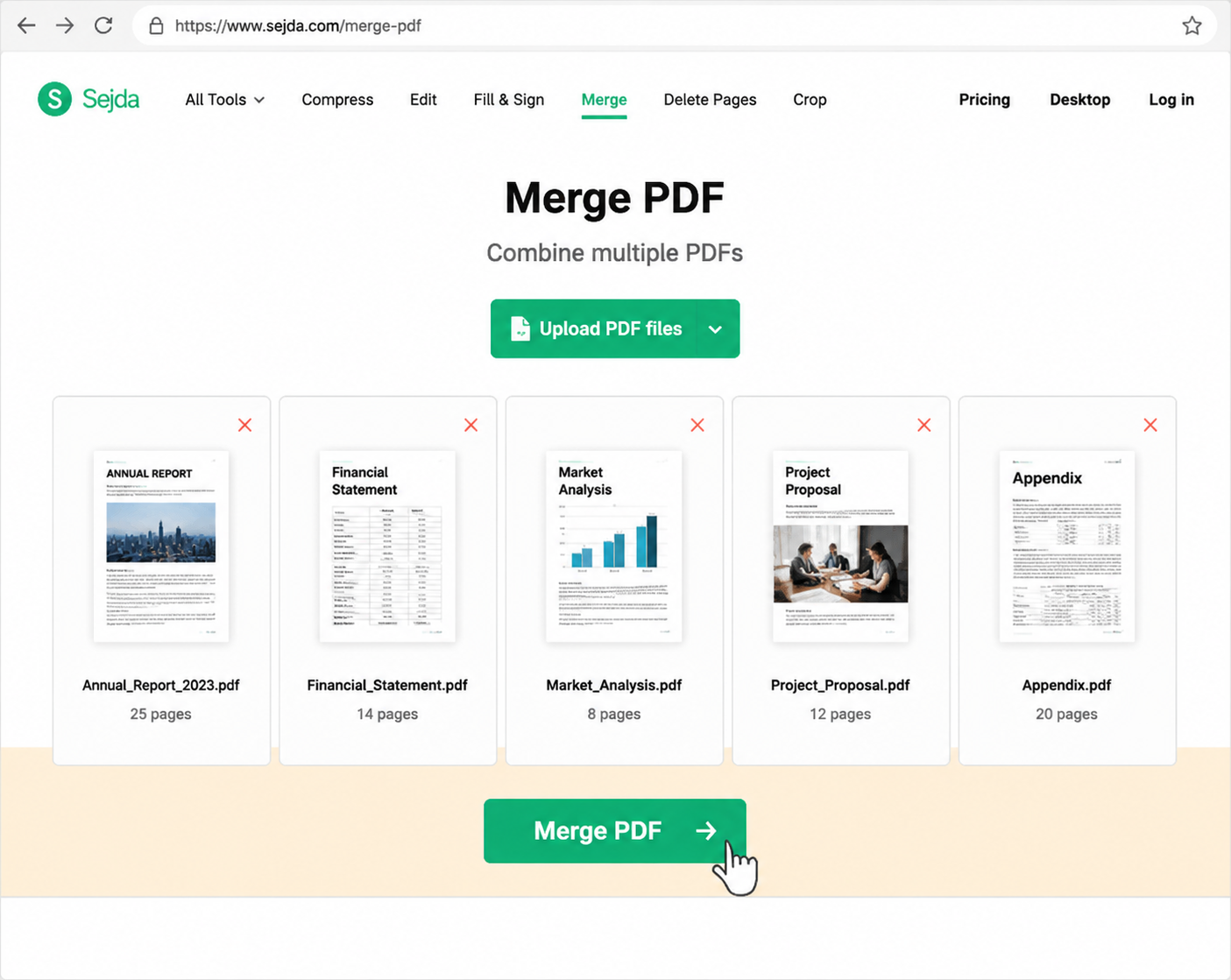
Standard PDF Merging
Use this path when you simply need to combine multiple PDFs (and supported images) into one file:
Open Sejda Merge: Go to Sejda’s website, open All Tools, and choose Merge (or open the Merge PDF page directly).
Upload your files: Click Upload PDF files or drag and drop PDFs from your computer. JPG/PNG images can also be included. Cloud imports from Dropbox, Google Drive, or OneDrive are available via the upload dropdown.
Adjust the order: Drag files to set the merge sequence. Sort by filename if needed, or use Pages view to remove/rearrange individual pages.
Merge and download: Click Merge PDF files, wait for processing, then download the combined PDF.
Optional settings under More options can help polish the result—same page size, cover/title handling, bookmarks, table of contents, filename footers, or form-field handling (including flatten). If you often need locked filled forms after combining pages, a dedicated sejda pdf flatten workflow is worth knowing as well.


How to Mix and Alternate Odd and Even PDF Pages
After duplex scanning, you may end up with one PDF of odd pages and another of even pages. Sejda’s Alternate & Mix tool is designed for this exact case:
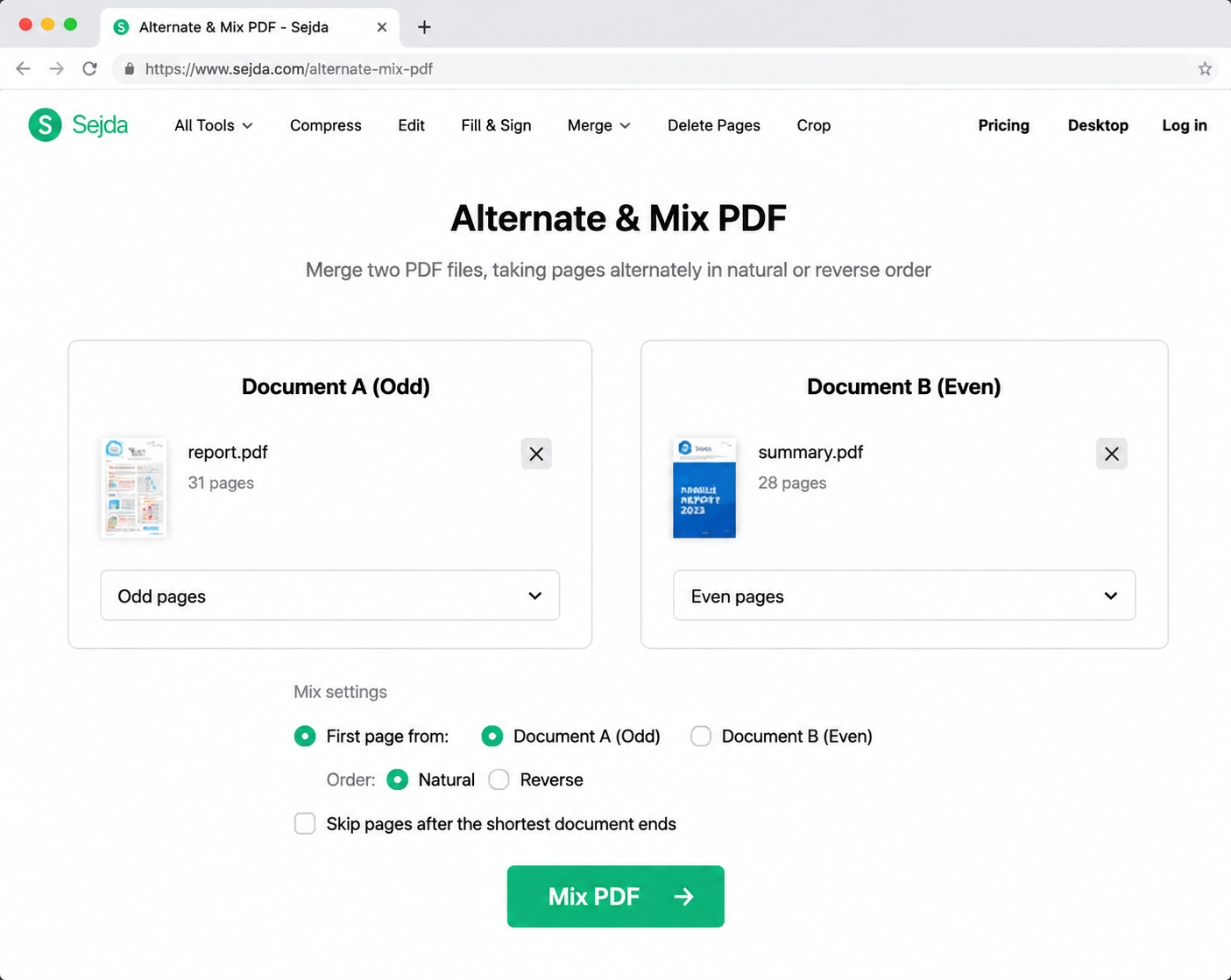
Open Alternate & Mix: From Sejda’s tools list, select Alternate & Mix (Mixes pages from 2 or more documents, alternating between them).
Upload the odd-page PDF and even-page PDF: Add both scanned files in the correct roles/order for alternation.
Set the alternating rule: Confirm the mix pattern so pages interleave correctly (odd → even → odd → even).
Generate and download: Run the task and download the recombined duplex-ready PDF in one pass.
This odd/even auto-mix flow is one of Sejda’s strongest merge-related advantages for scanned paperwork.

The Hidden Limits of Sejda Free Version
While Sejda is an excellent tool for quick, one-off tasks, its free version comes with limitations that matter for business and heavy document work:
Limits on files: Free online use is typically capped at about 3 tasks per hour, with documents around a maximum of 50 MB or 50 pages per task.
Privacy concerns: Files must be uploaded to cloud servers. For contracts, financial statements, HR packets, or other confidential PDFs, cloud processing always carries security trade-offs—so it is fair to ask whether is sejda safe for your compliance needs.
Internet dependent: Large uploads can be slow, and you cannot finish the job if the connection drops.
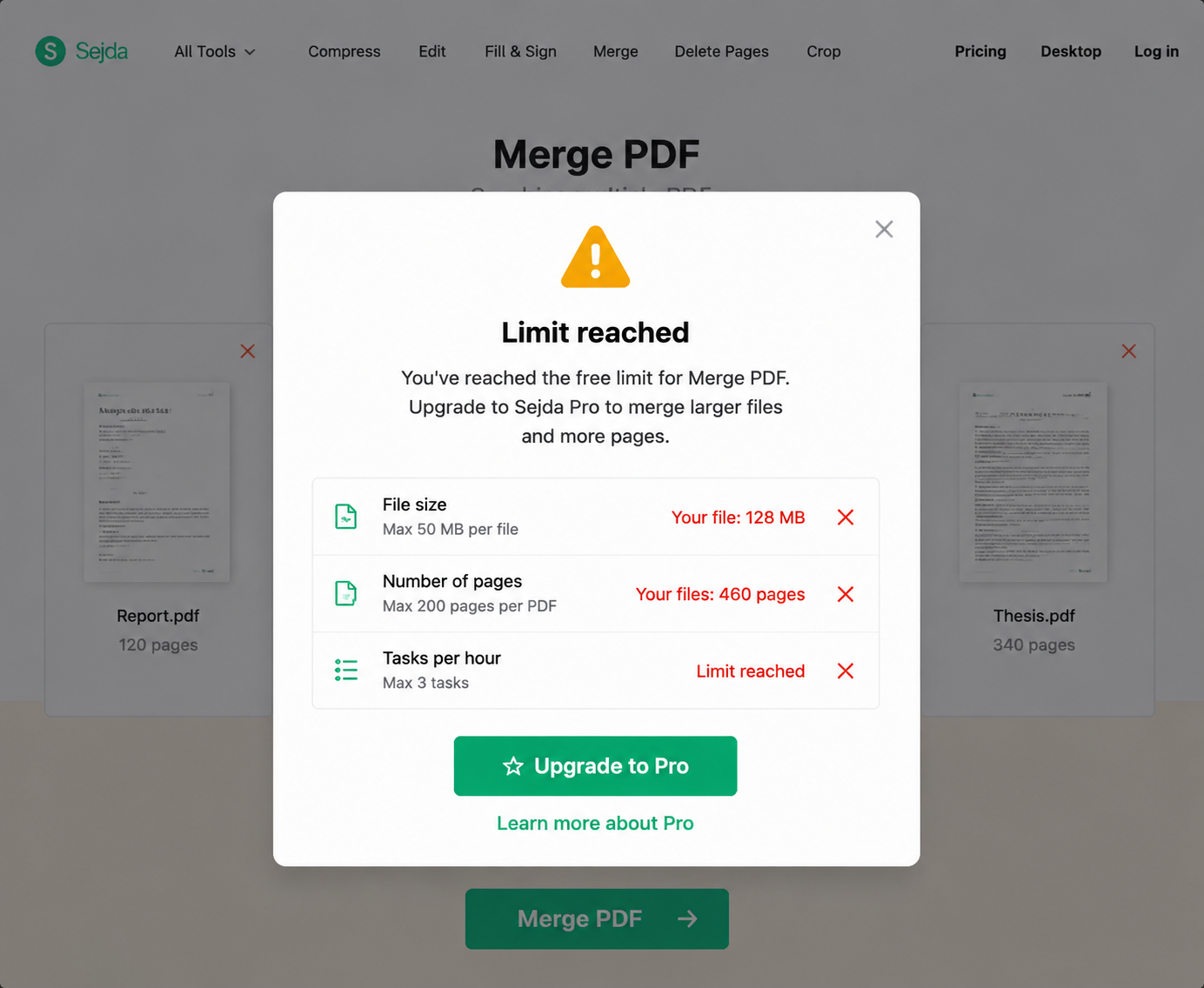
sejda pdf merge free limit warning
What if you need to merge a massive 500-page report, or what if your PDF contains highly sensitive corporate data or personal financial records? Uploading confidential documents to online servers always carries security risks.
So, how do you merge PDF files offline without those free-web ceilings? What is the best secure, free alternative to Sejda PDF merge for large or confidential files?
If you are looking for a completely safe, local, and limit-free desktop solution, WPS Office is your best answer.
WPS Office: The Best Safe & Limit-Free Sejda Alternative
WPS Office gives you a practical desktop path to combine PDFs locally—especially when online limits, privacy, or file size become blockers.
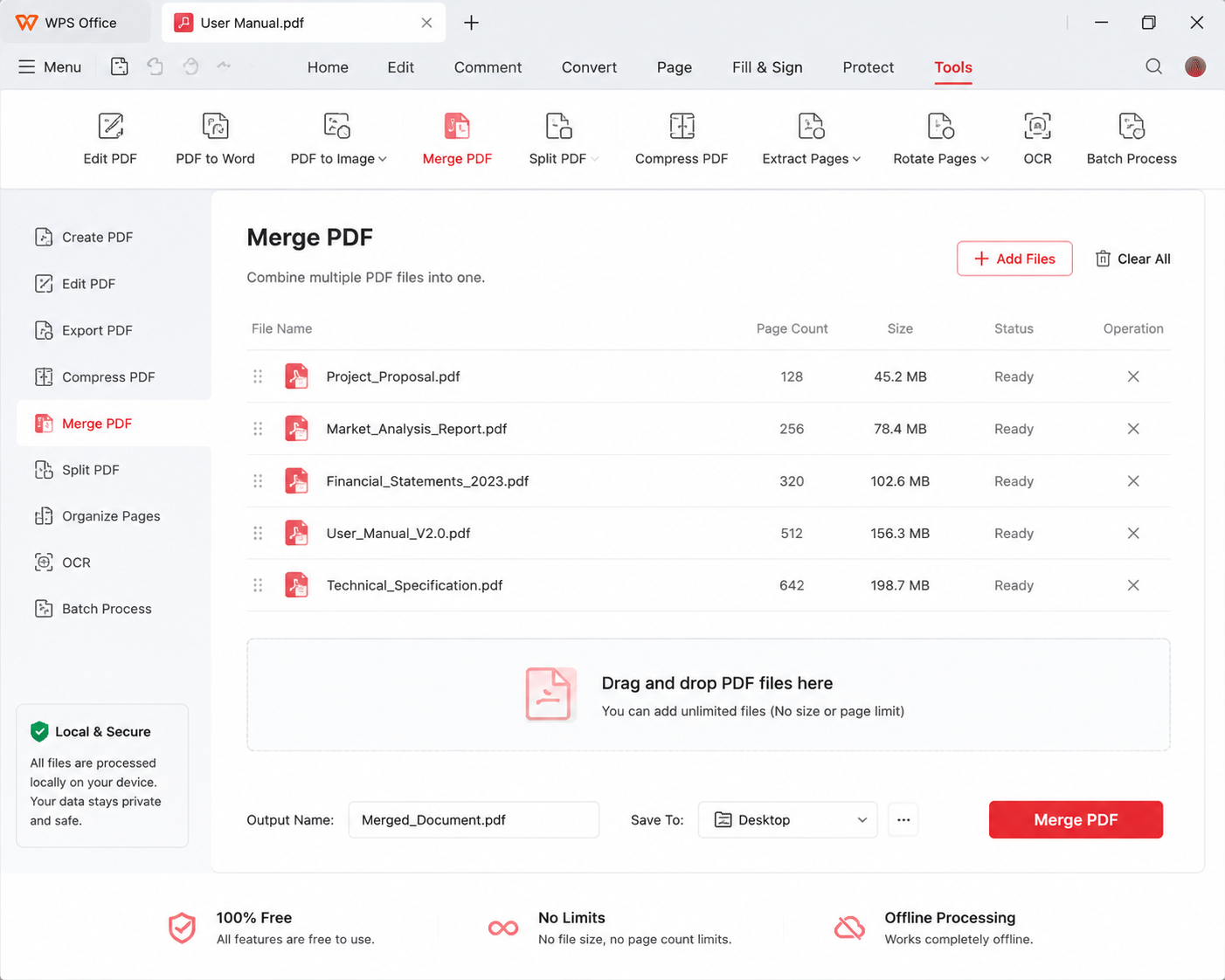
100% Secure & Private: Local Processing
With WPS, merge tasks can run on your computer. Sensitive PDFs do not need to leave your device for a quick combine job, which reduces cloud-exposure risk for financial files, contracts, resumes, and internal reports. This local-first approach better supports personal privacy and company security expectations.
No Limits! Merge Large PDFs Free & Offline
Need how to merge PDF files offline without watching a 50 MB / 50-page free counter? In the WPS desktop client, you can combine large, long PDFs locally—often much faster than uploading giant files to a browser tool—and keep working even without an internet connection.
All-in-One Office Suite: Edit, Convert, and Manage
Sejda is primarily a focused online PDF toolkit. WPS is a full office suite. After you merge, you can stay in one place to edit PDF text, compress files, run high-fidelity OCR, and convert between PDF, Word, Excel, and PowerPoint when your workflow needs more than a one-step online merge.
Quick WPS merge path: Open WPS Office → go to PDF → choose Combine → add files → rearrange thumbnails → click Merge and save. That is a clean, ad-light desktop entry for everyday combining.
Quick Comparison: Sejda vs. WPS Office
Use this table to decide quickly based on odd/even mixing needs, privacy, size limits, editing depth, and offline use:
| Feature | Sejda (Online) | WPS Office (Desktop) |
|---|---|---|
| Odd/Even Page Merging | Excellent (Auto-Mix via Alternate & Mix) | Manual rearrange via drag-and-drop |
| Data Privacy | Files uploaded to the cloud | 100% local processing option |
| File Size & Page Limits (Free) | About max 50 MB / 50 pages, ~3 tasks/hour | No free-web-style 50 MB / 50-page ceiling for typical desktop merges |
| PDF Editing & Conversion | Basic / browser-based | Advanced editing + high-fidelity OCR conversions |
| Offline Usability | No (online dependent) | Yes |
FAQ
Common questions about Sejda PDF merge and when a desktop alternative may fit better:
Is Sejda PDF merge free to use?
Yes. Sejda PDF merge offers a free online option for combining PDFs, but free use typically comes with task-frequency and file size/page caps (around 3 tasks per hour and about 50 MB / 50 pages). For heavier or frequent merge jobs, a desktop tool like WPS Office can avoid those free-web ceilings.
How do I use Sejda PDF merge to combine multiple files?
Open Sejda’s Merge tool, upload your PDFs (or supported images), drag files into the order you want, then click Merge PDF files and download the result. Optional settings can help with page size, bookmarks, a table of contents, or form-field handling.
Can Sejda PDF merge mix odd and even scanned pages?
Yes. For duplex scans split into odd-page and even-page PDFs, Sejda’s Alternate & Mix workflow (alongside Sejda PDF merge use cases) can interleave pages automatically—often faster than manually rearranging thumbnails.
Is Sejda PDF merge safe for confidential documents?
Sejda PDF merge processes files in the cloud, so uploads leave your device. For contracts, financial statements, or other sensitive PDFs, many teams prefer a local desktop merge path such as WPS Office, where files can stay on the computer.
When should I choose WPS instead of Sejda PDF merge?
Choose WPS when you need offline merging, larger files, stricter privacy, or deeper PDF editing/conversion after the merge. Keep Sejda PDF merge for quick browser tasks—especially odd/even auto-mix—when cloud limits and uploads are acceptable.
'%3e%3cpath%20d='M19.9911%204.11386V6.471H18.5894C18.0775%206.471%2017.7322%206.57814%2017.5536%206.79243C17.3751%207.00671%2017.2858%207.32814%2017.2858%207.75671V9.44421H19.9019L19.5536%2012.0871H17.2858V18.8639H14.5536V12.0871H12.2769V9.44421H14.5536V7.49779C14.5536%206.39064%2014.8632%205.53201%2015.4822%204.92189C16.1013%204.31177%2016.9257%204.00671%2017.9554%204.00671C18.8304%204.00671%2019.509%204.04243%2019.9911%204.11386Z'%20fill='%23333333'/%3e%3c/g%3e%3cdefs%3e%3cclipPath%20id='clip0_2938_8199'%3e%3crect%20width='16'%20height='16'%20fill='white'%20transform='translate(8%204.00671)'/%3e%3c/clipPath%3e%3c/defs%3e%3c/svg%3e)
'%3e%3cpath%20d='M17.5237%2010.7813L23.4811%204H22.0699L16.8949%209.88693L12.7648%204H8L14.2469%2012.9029L8%2020.0133H9.4112L14.8725%2013.7952L19.2352%2020.0133H24M9.92053%205.04213H12.0885L22.0688%2019.0224H19.9003'%20fill='%23333333'/%3e%3c/g%3e%3cdefs%3e%3cclipPath%20id='clip0_2938_8200'%3e%3crect%20width='16'%20height='16.0134'%20fill='white'%20transform='translate(8%204)'/%3e%3c/clipPath%3e%3c/defs%3e%3c/svg%3e)


