

'%3e%3cpath%20d='M8%200C12.4183%200%2016%203.58172%2016%208C16%2012.4183%2012.4183%2016%208%2016C3.58172%2016%200%2012.4183%200%208C0%203.58172%203.58172%200%208%200ZM11.6162%204.38379C11.2257%203.99337%2010.5927%203.99338%2010.2021%204.38379L8%206.58594L5.79785%204.38379C5.40732%203.99334%204.77429%203.99329%204.38379%204.38379C3.99331%204.77429%203.99335%205.40733%204.38379%205.79785L6.58594%208L4.38379%2010.2021C3.99348%2010.5927%203.99341%2011.2257%204.38379%2011.6162C4.77426%2012.0066%205.40734%2012.0065%205.79785%2011.6162L8%209.41406L10.2021%2011.6162C10.5927%2012.0066%2011.2257%2012.0067%2011.6162%2011.6162C12.0067%2011.2257%2012.0066%2010.5927%2011.6162%2010.2021L9.41406%208L11.6162%205.79785C12.0066%205.40735%2012.0066%204.77429%2011.6162%204.38379Z'%20fill='%23080E17'%20fill-opacity='0.46'/%3e%3c/g%3e%3cdefs%3e%3cclipPath%20id='clip0_3761_713'%3e%3crect%20width='16'%20height='16'%20fill='white'/%3e%3c/clipPath%3e%3c/defs%3e%3c/svg%3e)



'%3e%3cpath%20fill-rule='evenodd'%20clip-rule='evenodd'%20d='M21.4999%2010.9993C21.4999%205.20009%2016.7986%200.498901%2010.9993%200.498901C5.19994%200.498901%200.498657%205.20009%200.498657%2010.9993C0.498657%2016.2404%204.33858%2020.5844%209.35855%2021.3722V14.0346H6.69238V10.9993H9.35855V8.68594C9.35855%206.05427%2010.9262%204.60062%2013.3248%204.60062C14.4736%204.60062%2015.6753%204.80571%2015.6753%204.80571V7.38979H14.3512C13.0468%207.38979%2012.64%208.19921%2012.64%209.0296V10.9993H15.5523L15.0867%2014.0346H12.64V21.3722C17.66%2020.5844%2021.4999%2016.2404%2021.4999%2010.9993Z'%20fill='%231568EA'/%3e%3c/g%3e%3c/svg%3e)


'%3e%3cpath%20d='M2.42045%2022.1876H6.31818V12.7217L0.75%208.54553V20.5171C0.75%2021.4414%201.49892%2022.1876%202.42045%2022.1876Z'%20fill='%234285F4'/%3e%3cpath%20d='M19.682%2022.1876H23.5797C24.5041%2022.1876%2025.2502%2021.4387%2025.2502%2020.5171V8.54553L19.682%2012.7217'%20fill='%2334A853'/%3e%3cpath%20d='M19.682%205.48293V12.7216L25.2502%208.54543V6.31816C25.2502%204.25236%2022.8921%203.07469%2021.2411%204.31361'%20fill='%23FBBC04'/%3e%3cpath%20d='M6.31824%2012.7217V5.48303L13.0001%2010.4944L19.6819%205.48303V12.7217L13.0001%2017.733'%20fill='%23EA4335'/%3e%3cpath%20d='M0.75%206.31816V8.54543L6.31818%2012.7216V5.48293L4.75909%204.31361C3.10534%203.07469%200.75%204.25236%200.75%206.31816Z'%20fill='%23C5221F'/%3e%3c/g%3e%3cdefs%3e%3cclipPath%20id='clip0_2954_7305'%3e%3crect%20width='24.5'%20height='18.375'%20fill='white'%20transform='translate(0.75%203.8125)'/%3e%3c/clipPath%3e%3c/defs%3e%3c/svg%3e)


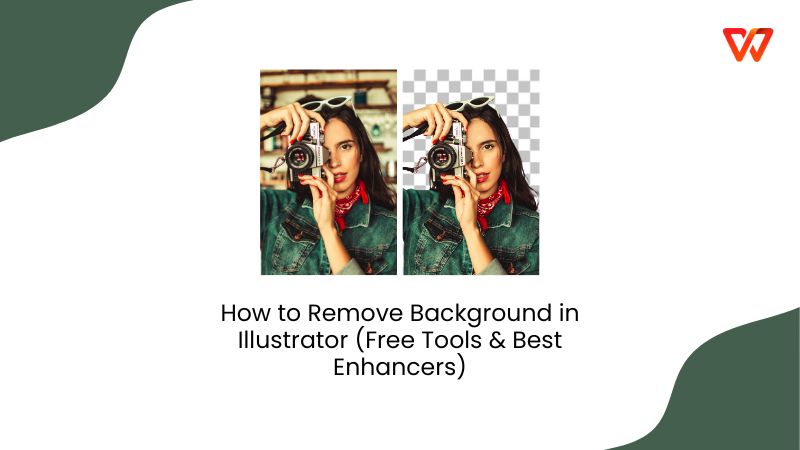
Removing backgrounds is one of the most common tasks in graphic design, often required in projects like marketing, logos, and content creation. However, many users don’t know how to achieve clean results without going through much hassle. So, how can you remove backgrounds in Illustrator without much hassle? In this guide, I’ll be walking you through how to remove background in Illustrator and how to enhance your images using WPS Photo.
Why People Need to Remove the Background in Images
Removing backgroundsfrom cluttered images helps designers like me to isolate subjects for marketing posts, promotional posters, or even social media content. I can remove the backgrounds of my photos to make polished PNGs, or just change the background to something of my own. In this section, I’ll be highlighting some of the most important points that make background removal an essential in graphic design.
Importance of Background Removal
Allows designers to isolate elements and edit them individually.
Provides versatility to images, especially when layering them over different backgrounds.
Helps in creating cleaner, more polished visuals.
Allows seamless integration of images into various designs or layouts.
Top 5 Image Background Removers
Manually erasing the background from your photos can be time-consuming and may take a lot of time, especially if you’re a beginner with no experience. Using automatic background removal tools Illustrator can help simplify the process and save you a lot of time and hassle. In this section, I’ll be highlighting 5 of the most reliable and effective tools for AI background removal for Illustrator, which will help you figure out how to make background transparent in Illustrator.
1. Adobe Background Remover
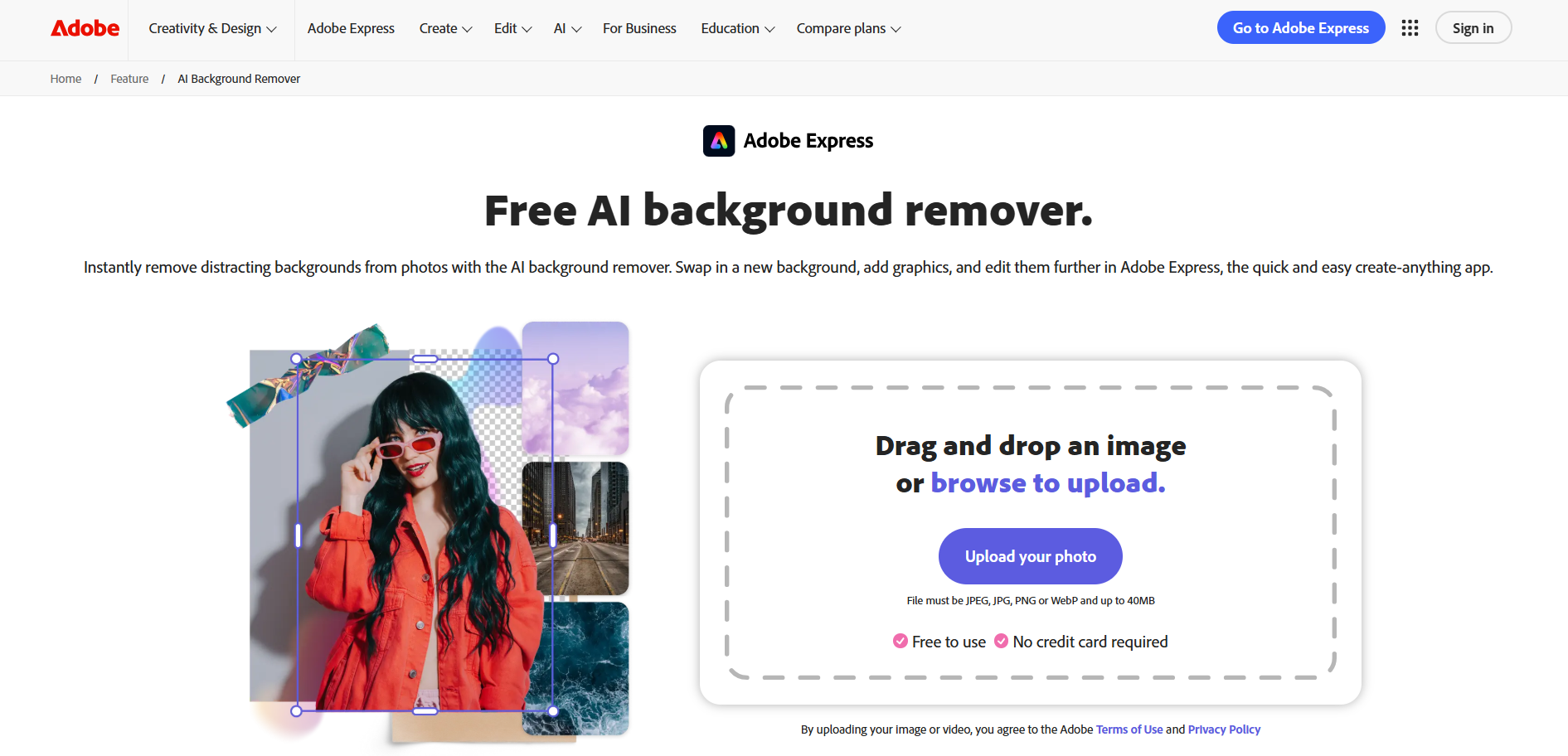
Adobe Express offers many built-in tools to help you polish and professionally edit your images, including an automatic background remover that features a simple and beginner-friendly drag-and-drop interface. I’ve found it to be a great option for those looking for a quick and reliable background removal solution without putting in too much effort.
Features
AI-Powered Background Removal
Smooth Image Processing
Pros
Easy To Use
Fast and Efficient
Seamless Integration with Adobe Tools
Cons
Requires an Adobe account for full functionality
If you feel like Adobe Background Remover is the right choice for your background removal needs, these are the steps you need to follow to get polished results.
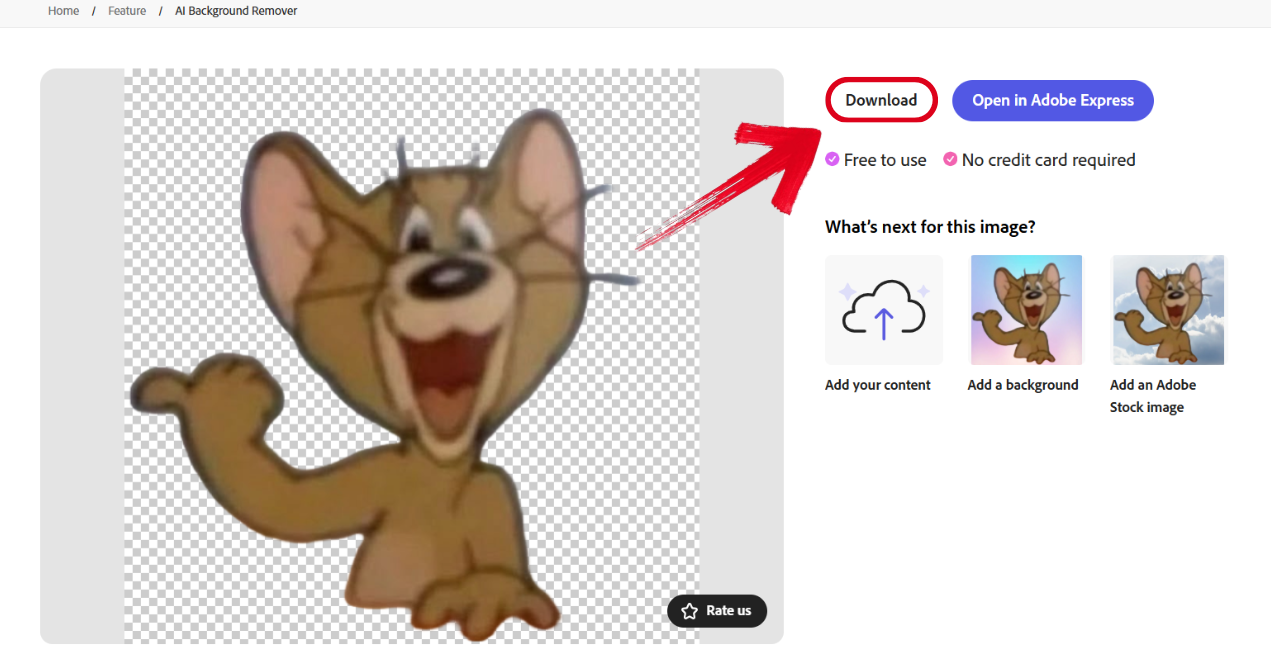
Step 1: Open Adobe Background Remover in your web browser and upload the image you want to edit.
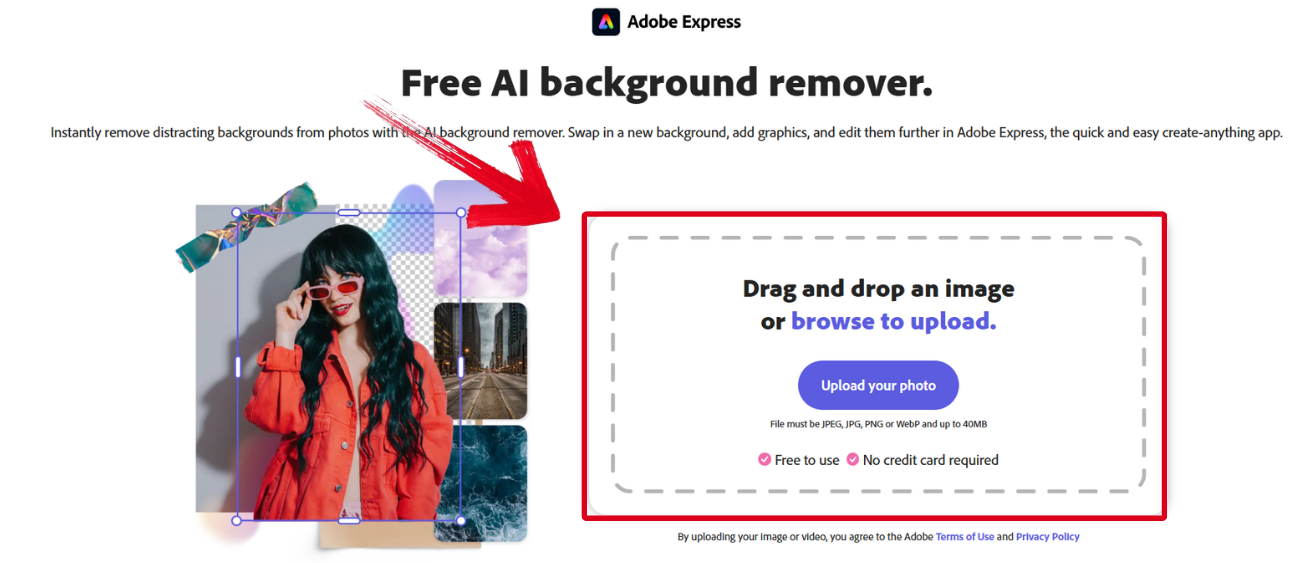
Step 2: Once your image has been processed successfully, simply press Download to save it to your device.
2. Photoroom
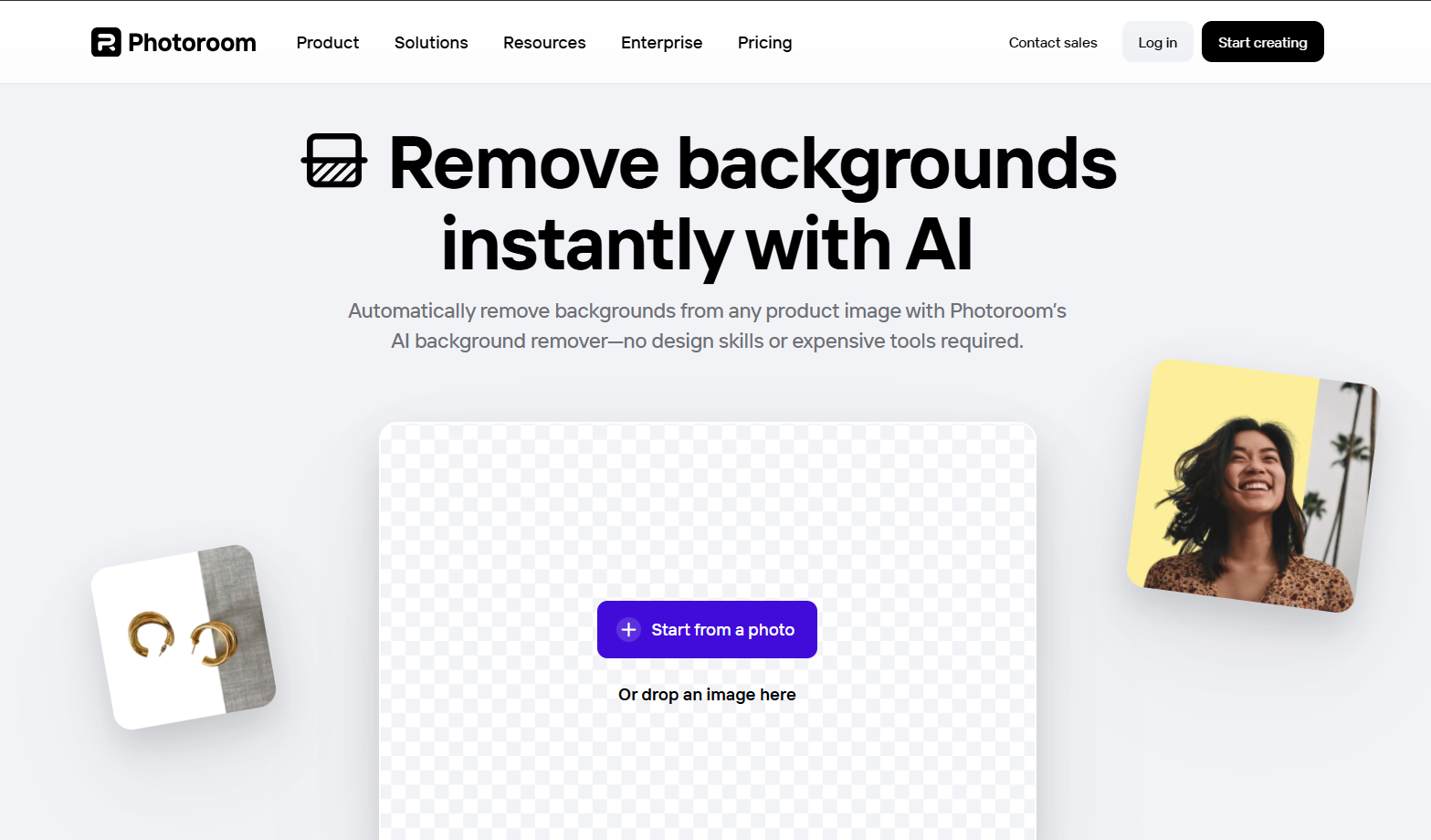
Photoroom is a reliable and versatile tool that helps me remove backgrounds from my images and enhance product images for e-commerce and social media posts. I found the experience to be seamless and very reliable, an excellent choice for businesses or content creators looking for quick and professional results.
Features
AI-Powered Background Removal
Image Enhancements
Background Customization
Pros
Professional-Grade Results
Ideal for Product Photography
Cons
Limited Free Functionality
If Photoroom feels like the right choice for you and your photo editing needs, I’ll highlight the steps you need to follow to remove your background with ease.
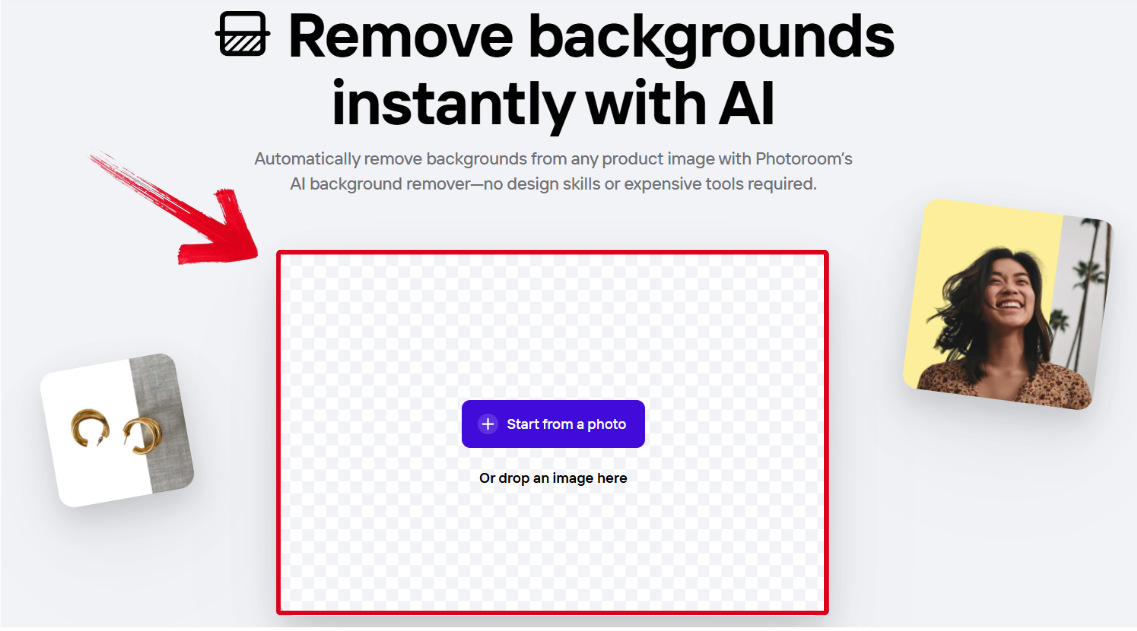
Step 1: Open Photoroom Background Remover in your browser and upload the photo you want to edit.
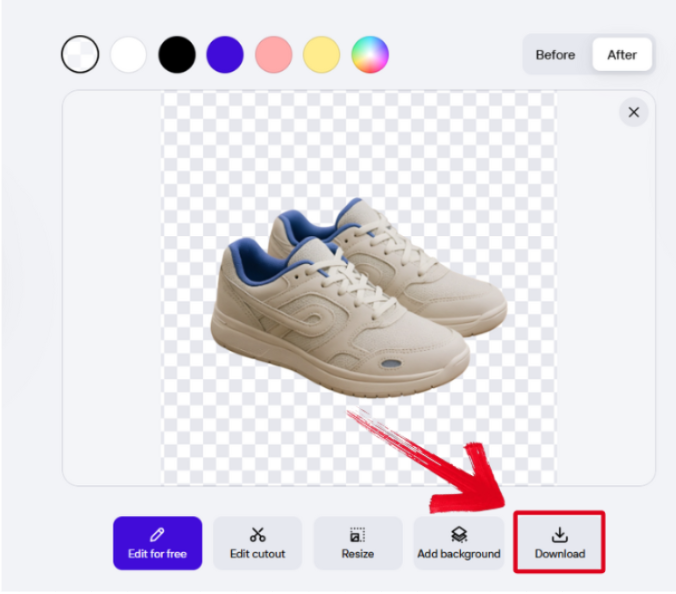
Step 2: After the image has been processed completely, simply press Download to export it.
3. Removal.ai
Removal.ai is a professional background-removal tool powered by AI, delivering fast, clean results that don’t disappoint. I’ve found it to be the best option for quick, automated results, but it does require a subscription for more advanced features, which can be inconvenient for those on a tight budget.

Features
Automated Background Removal
Image Masking
Transparency Support
Pros
Professional-Grade Quality
Great for Bulk Editing
Quick Results
Cons
Limited Free Functionality
If Removal.ai is right for your photo editing needs, here are the steps to remove your background effectively.
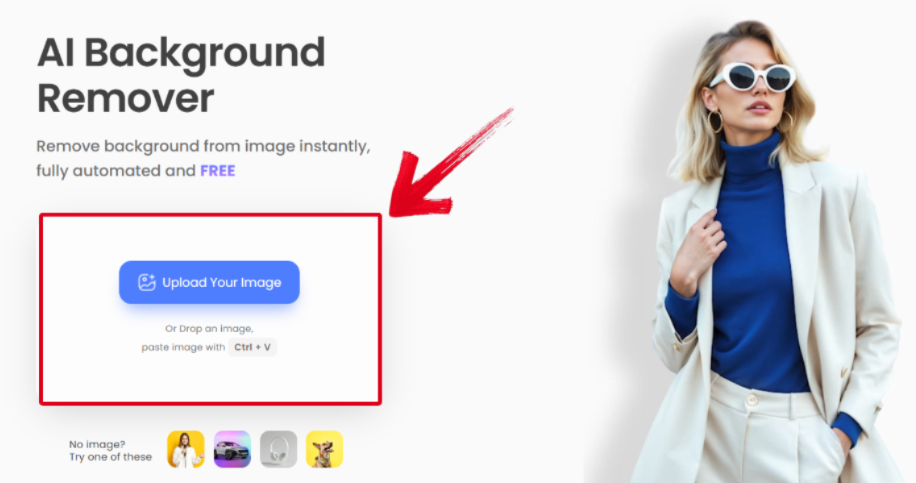
Step 1: Visit Removal.ai and upload the image you want to remove the background of.
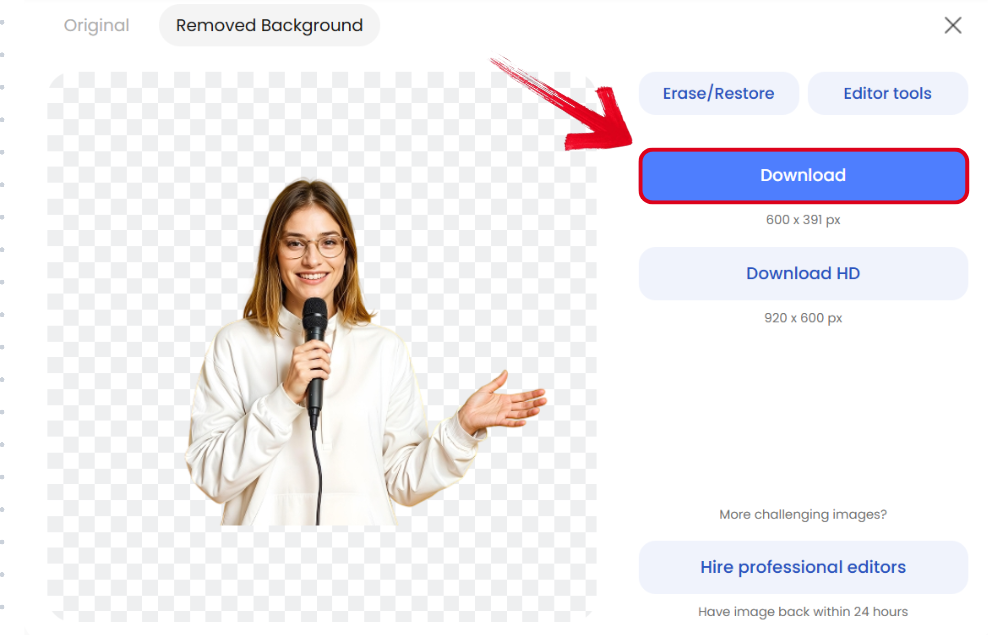
Step 2: Once your image has been processed, press the Download button to export it to your device.
4. Remove.bg
Remove.bg is one of the most popular and straightforward tools that’s specifically designed for fast and hassle-free background removal using AI-powered technology. In my experience, it’s one of the best choices for quick and straightforward background removal, especially if you’re working on a personal project.

Features
One-Click Background Removal
Large File Support
Batch Processing
Pros
Quick and Accurate
Great for Bulk Editing
Easy to Use
Cons
Limited Free Functionality
Watermarks
Using Remove.bg for your background removal needs is incredibly simple, and these are the steps you need to follow to ensure a smooth and hassle-free process.
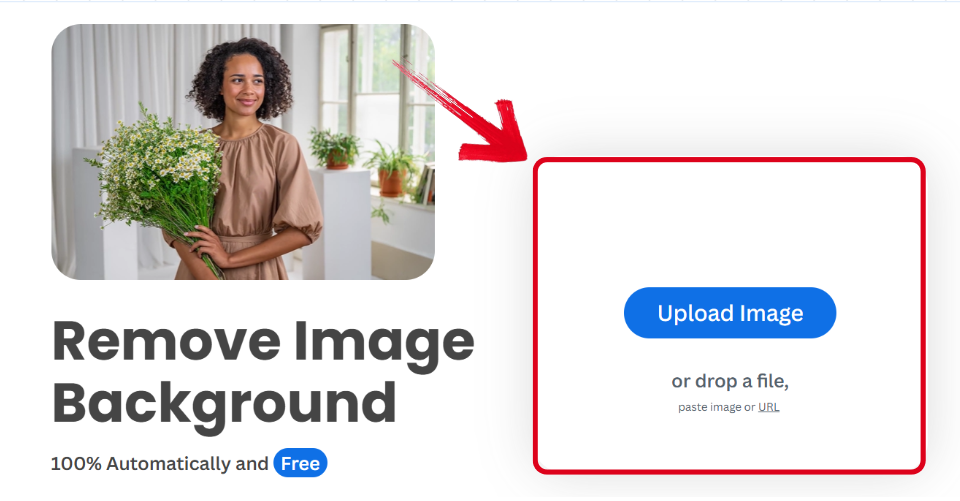
Step 1: Open Remove.bg on your browser and upload the image you want to remove the background of.
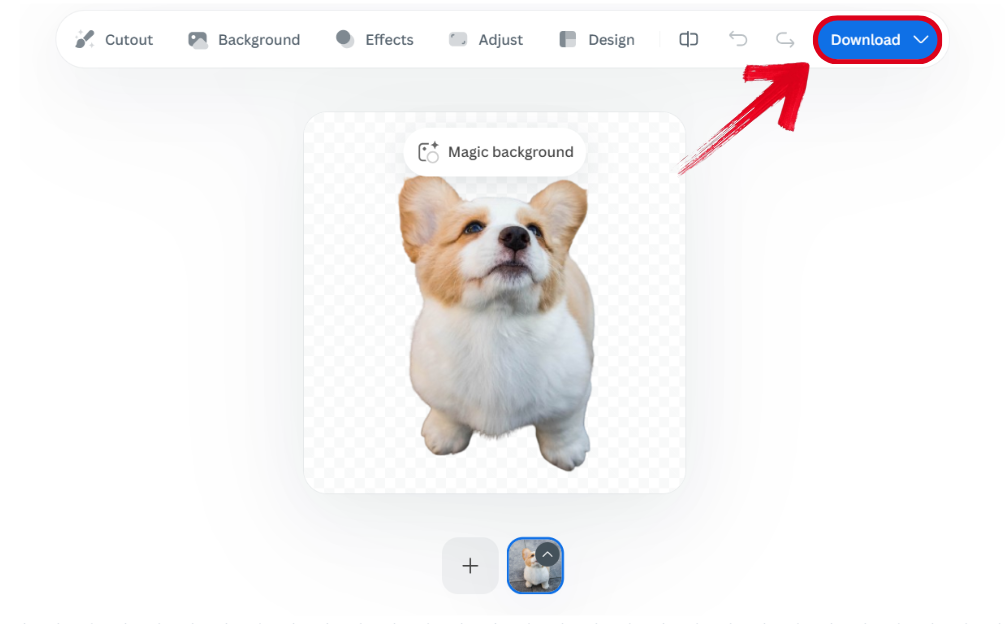
Step 2: Once your image has been processed, press the Download button to export it to your device.
5. Pixelcut.ai
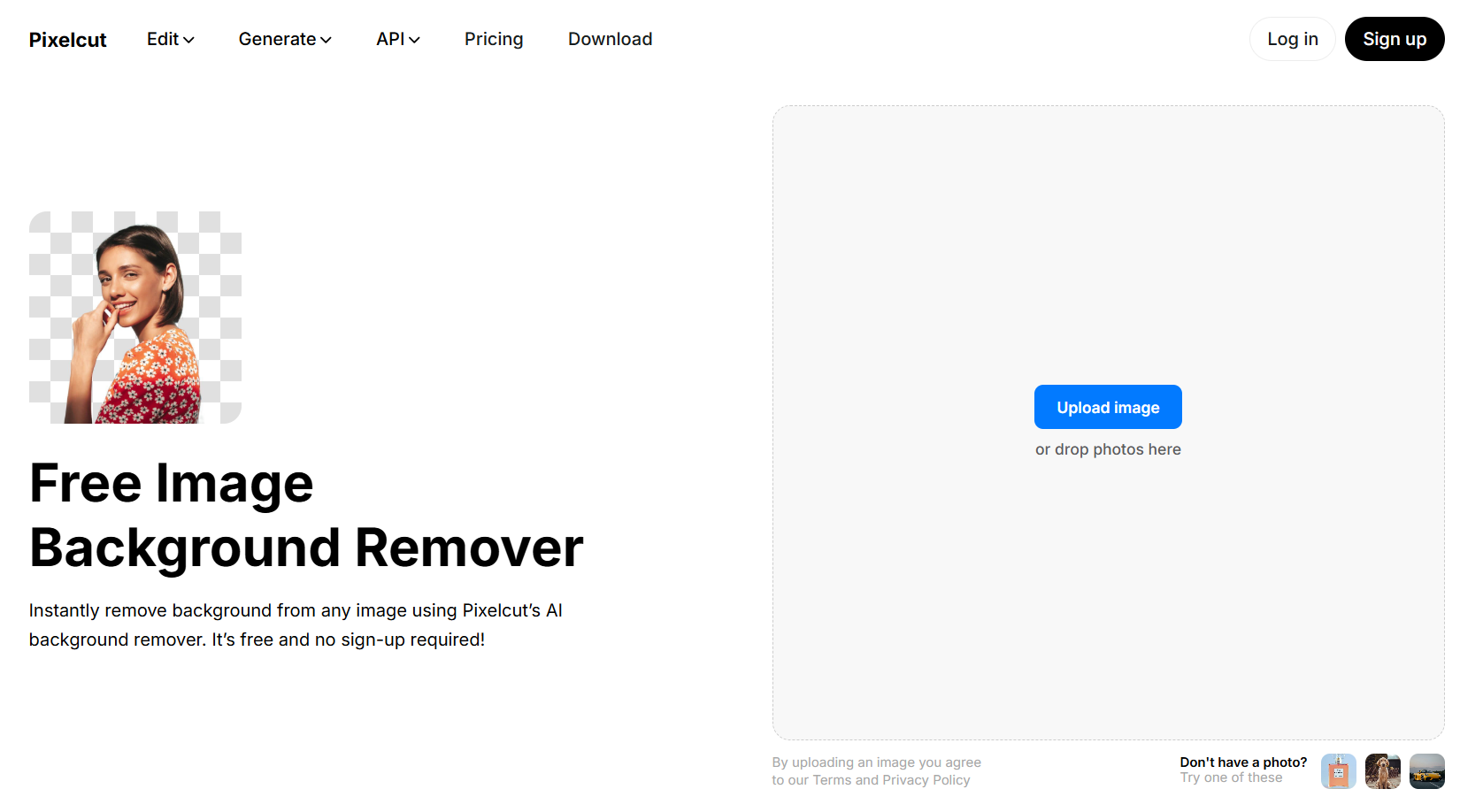
Pixelcut.aiis a free, efficient tool developed by Pixelcut that helps me remove backgrounds and make my images polished and ready for digital use. It’s an ideal option for beginners who need quick and straightforward background removal, without too many confusing steps to confuse them.
Features
Automatic Background Removal
Simple User Interface
Support for Various File Formats
Pros
Fast Processing Speeds
Free to Use
Cons
Struggles with complex images and edges
You can use Pixelcut.ai to easily remove the background from all of your images in just a few minutes, and all you need to do is follow the steps I’ve highlighted below.
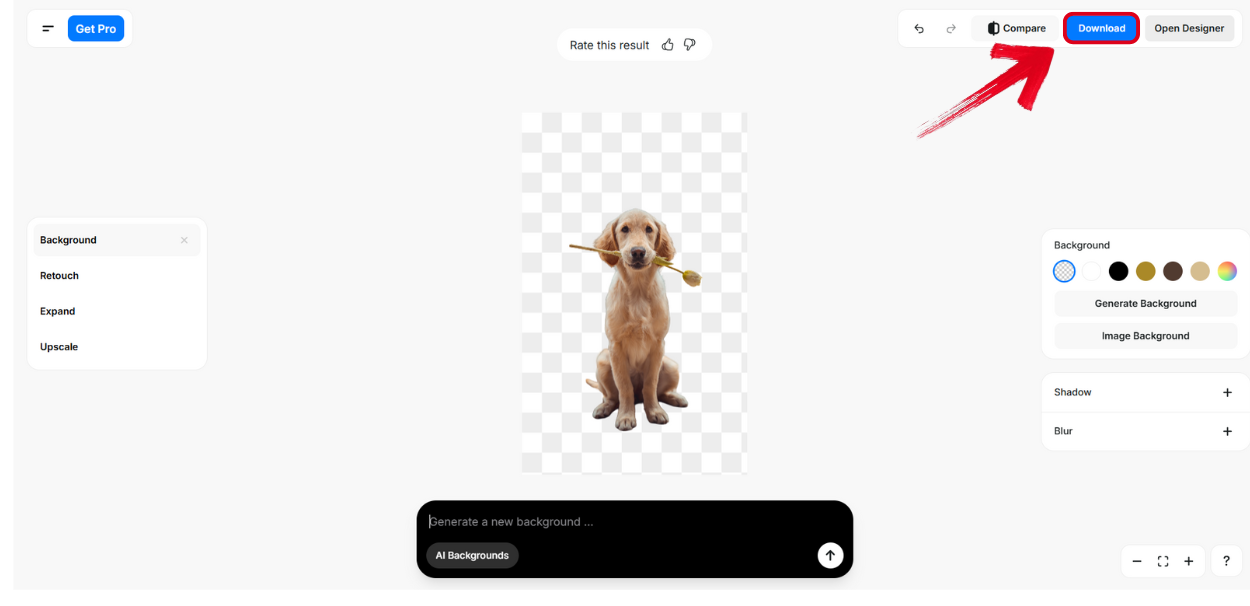
Step 1: Open Pixelcut.ai and upload the image you want to edit to get started.

Step 2: Once your image’s background has been removed successfully, simply press Download to save it to your device.
Quick Comparison Table of Image Background Removers
Every tool highlighted in this guide has been personally tried and tested by me, and all of them helped me simplify background removal. Professional tools like Adobe Background Remover and Photoroom stood out for their high-quality results and advanced customizationoptions, while straightforward options like Removal.ai and Remove.bg excelled at providing speed and simplicity for quick edits. In this section, I’ll compare each tool side-by-side so you can decide which one works best for your needs.
| Feature | Adobe Background Remover | Photoroom | Removal.ai | Remove.bg | PIxelcut.ai |
|---|---|---|---|---|---|
| Best For | Quick background removal | Social media content, e-commerce | Fast automated processing | Simple background removal | Quick personal use |
| Customization | Basic editing options | High customization | Limited customization | Basic editing | Limited customization |
| AI/Template Help | Yes (AI) | Yes (AI) | Yes (AI) | Yes (AI) | Yes (AI) |
| Free Export | Yes | Yes | Limited | Yes | Yes |
| Ease of Use | 5/5 | 5/5 | 4/5 | 5/5 | 4/5 |
Enhance Your Photos After Removing Background with WPS Photo
Once I’m done removing backgrounds from my photos, the next thing I do is enhance their quality and make edits to polish them using online tools. However, most of the options I’ve tried have either disappointed me with unreliable results or restricted their functionality behind paywalls. This is why WPS Photohas become the go-to choice for all my photo editing needs.
Features
AI Magic Eraser: Remove any unwanted objects, people, or even text with its built-in AI erasing features.
Instant Background Removal: Remove your background and replace it with your own, making it perfect for social media posts and e-commerce.
One-Click Enhancement: Restore your old pictures with low quality or too much blur to bring back the original clarity and even the color.
Batch Productivity: Save time by editing multiple photos at the same time using the batch editor.
Using WPS Photo is a wise choice for anyone trying to elevate their photo editing workflow without much hassle. I’ll highlight the steps you need to follow to elevate and enhance your images using the AI-powered features provided by WPS.
Step 1: Open the photo you want to edit using WPS Photo to get started.
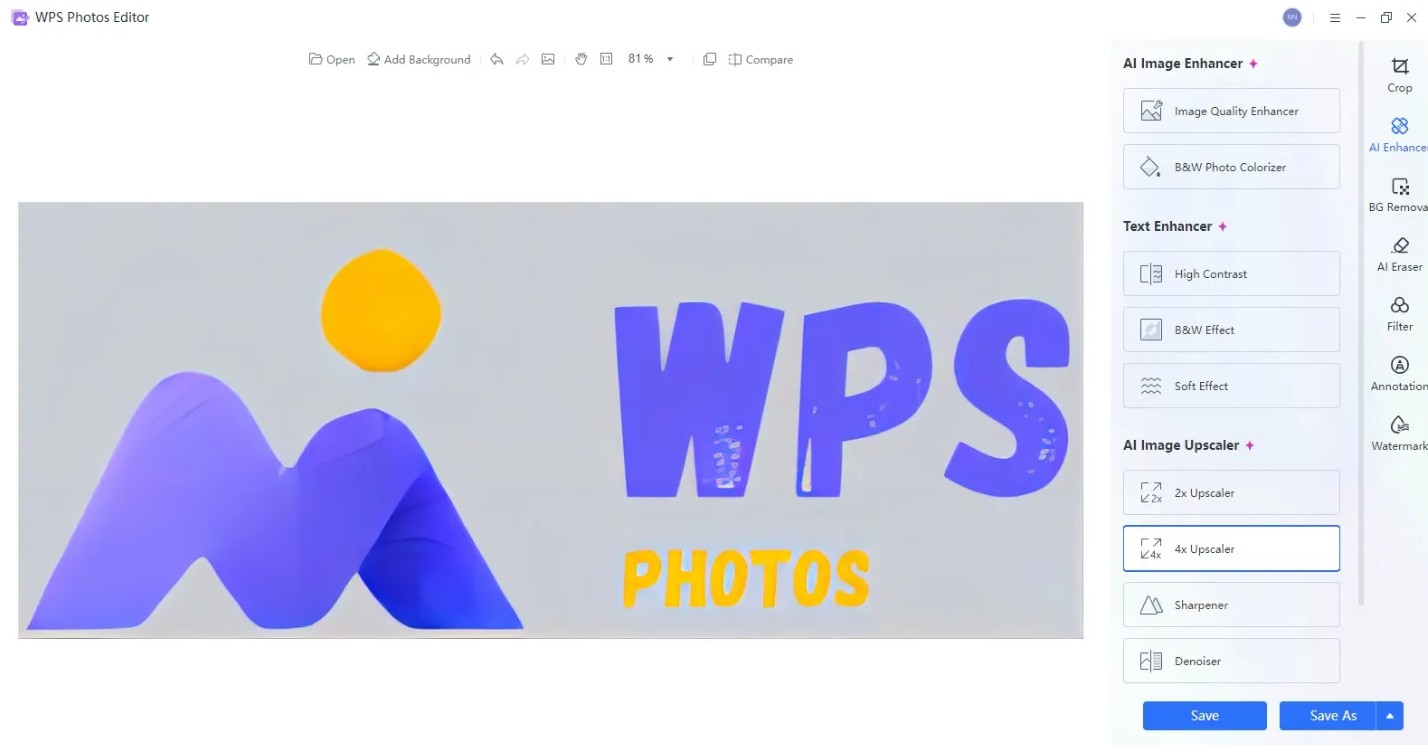
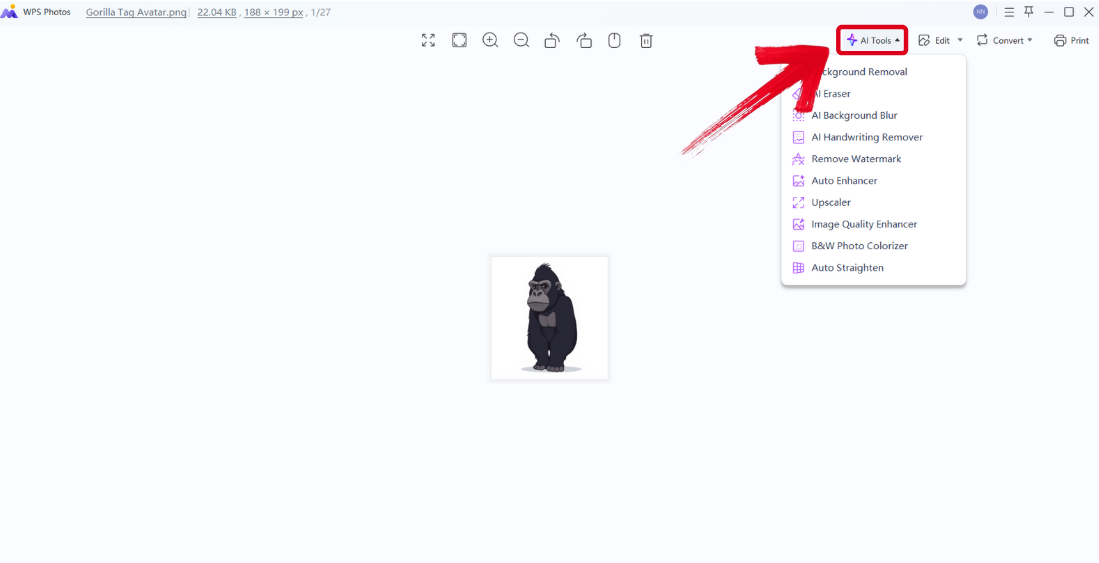
Step 2: In the WPS Photo window, you’ll see a variety of different editing features given to you, each one helping you enhance your photos reliably.
AI Image Enhancer: Improve the quality of your image instantly using AI enhancement.
AI Upscaler: Restore your old photos and bring life back to them with the AI upscaler.
AI Watermark Removal: If there are any watermarks on your template, you can elevate the visual appeal with the watermark removal tool.
AI Background Blur: Emphasize focus on the main subjects of your photo by blurring the background.
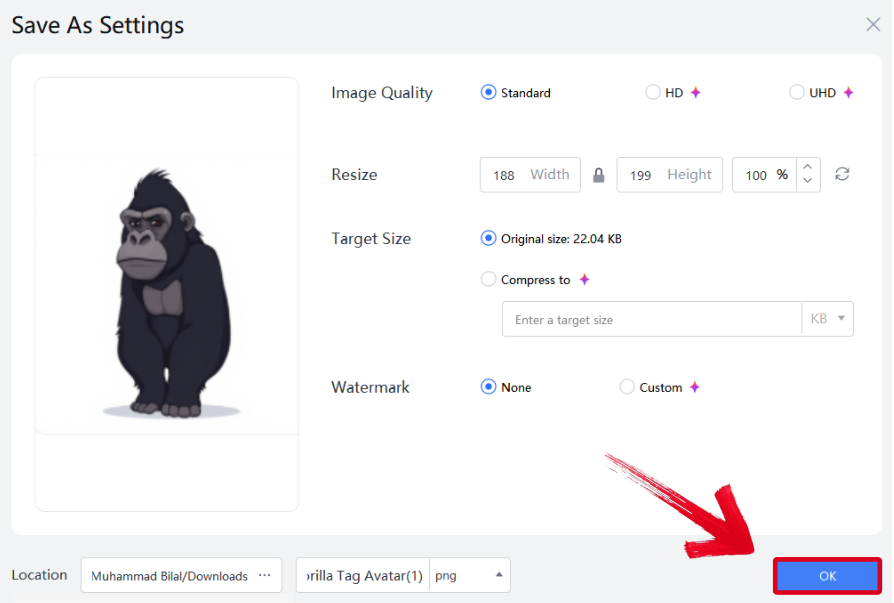
Step 3: Press Ctrl + S to open theSave As window. Adjust the image quality, size, and format, and then press OK to finish.
FAQs
Q1. What is the best tool for removing backgrounds in Illustrator?
The best tools for removing backgrounds in Illustrator include Adobe Express for quick AI-powered background removal and Photoroom for more complex design enhancements.
Q2. Can I remove the background from images in Illustrator without using other software?
Yes, Adobe Illustrator itself offers multiple tools like the Pen Tool and Image Trace to help with background removal, although it’s more manual than using dedicated AI tools.
Q3. How can I improve the quality of my image after removing the background?
Use tools like WPS Photo to enhance your image. With its AI enhancement features, you can improve sharpness, brightness, and saturation for better quality.
Q4. Are there free tools for removing backgrounds in Illustrator?
Yes, tools like Remove.bg and Free Image Background Remover offer free services to remove backgrounds quickly, although some advanced features may require paid versions.
Q5. Can I remove backgrounds in Illustrator for all types of images?
Yes, background removal works for most types of images, including photos and vector designs, though more complex images may require finer control through manual editing.
Simplifying Background Removal
Finding the right tools to help you figure out how to remove background in Illustrator can be a stressful chore. I’ve been there, and I know how frustrating it can get, especially with the excess of unreliable options available online. This is why I’ve narrowed the options down to 5 of the most reliable tools, helping you choose the right one for yourself. You can further enhance your photos using AI-powered tools like WPS Photo. It has every feature you need to professionally edit your photos, all for completely free.

'%3e%3cpath%20d='M19.9911%204.11386V6.471H18.5894C18.0775%206.471%2017.7322%206.57814%2017.5536%206.79243C17.3751%207.00671%2017.2858%207.32814%2017.2858%207.75671V9.44421H19.9019L19.5536%2012.0871H17.2858V18.8639H14.5536V12.0871H12.2769V9.44421H14.5536V7.49779C14.5536%206.39064%2014.8632%205.53201%2015.4822%204.92189C16.1013%204.31177%2016.9257%204.00671%2017.9554%204.00671C18.8304%204.00671%2019.509%204.04243%2019.9911%204.11386Z'%20fill='%23333333'/%3e%3c/g%3e%3cdefs%3e%3cclipPath%20id='clip0_2938_8199'%3e%3crect%20width='16'%20height='16'%20fill='white'%20transform='translate(8%204.00671)'/%3e%3c/clipPath%3e%3c/defs%3e%3c/svg%3e)
'%3e%3cpath%20d='M17.5237%2010.7813L23.4811%204H22.0699L16.8949%209.88693L12.7648%204H8L14.2469%2012.9029L8%2020.0133H9.4112L14.8725%2013.7952L19.2352%2020.0133H24M9.92053%205.04213H12.0885L22.0688%2019.0224H19.9003'%20fill='%23333333'/%3e%3c/g%3e%3cdefs%3e%3cclipPath%20id='clip0_2938_8200'%3e%3crect%20width='16'%20height='16.0134'%20fill='white'%20transform='translate(8%204)'/%3e%3c/clipPath%3e%3c/defs%3e%3c/svg%3e)


