

'%3e%3cpath%20d='M8%200C12.4183%200%2016%203.58172%2016%208C16%2012.4183%2012.4183%2016%208%2016C3.58172%2016%200%2012.4183%200%208C0%203.58172%203.58172%200%208%200ZM11.6162%204.38379C11.2257%203.99337%2010.5927%203.99338%2010.2021%204.38379L8%206.58594L5.79785%204.38379C5.40732%203.99334%204.77429%203.99329%204.38379%204.38379C3.99331%204.77429%203.99335%205.40733%204.38379%205.79785L6.58594%208L4.38379%2010.2021C3.99348%2010.5927%203.99341%2011.2257%204.38379%2011.6162C4.77426%2012.0066%205.40734%2012.0065%205.79785%2011.6162L8%209.41406L10.2021%2011.6162C10.5927%2012.0066%2011.2257%2012.0067%2011.6162%2011.6162C12.0067%2011.2257%2012.0066%2010.5927%2011.6162%2010.2021L9.41406%208L11.6162%205.79785C12.0066%205.40735%2012.0066%204.77429%2011.6162%204.38379Z'%20fill='%23080E17'%20fill-opacity='0.46'/%3e%3c/g%3e%3cdefs%3e%3cclipPath%20id='clip0_3761_713'%3e%3crect%20width='16'%20height='16'%20fill='white'/%3e%3c/clipPath%3e%3c/defs%3e%3c/svg%3e)



'%3e%3cpath%20fill-rule='evenodd'%20clip-rule='evenodd'%20d='M21.4999%2010.9993C21.4999%205.20009%2016.7986%200.498901%2010.9993%200.498901C5.19994%200.498901%200.498657%205.20009%200.498657%2010.9993C0.498657%2016.2404%204.33858%2020.5844%209.35855%2021.3722V14.0346H6.69238V10.9993H9.35855V8.68594C9.35855%206.05427%2010.9262%204.60062%2013.3248%204.60062C14.4736%204.60062%2015.6753%204.80571%2015.6753%204.80571V7.38979H14.3512C13.0468%207.38979%2012.64%208.19921%2012.64%209.0296V10.9993H15.5523L15.0867%2014.0346H12.64V21.3722C17.66%2020.5844%2021.4999%2016.2404%2021.4999%2010.9993Z'%20fill='%231568EA'/%3e%3c/g%3e%3c/svg%3e)


'%3e%3cpath%20d='M2.42045%2022.1876H6.31818V12.7217L0.75%208.54553V20.5171C0.75%2021.4414%201.49892%2022.1876%202.42045%2022.1876Z'%20fill='%234285F4'/%3e%3cpath%20d='M19.682%2022.1876H23.5797C24.5041%2022.1876%2025.2502%2021.4387%2025.2502%2020.5171V8.54553L19.682%2012.7217'%20fill='%2334A853'/%3e%3cpath%20d='M19.682%205.48293V12.7216L25.2502%208.54543V6.31816C25.2502%204.25236%2022.8921%203.07469%2021.2411%204.31361'%20fill='%23FBBC04'/%3e%3cpath%20d='M6.31824%2012.7217V5.48303L13.0001%2010.4944L19.6819%205.48303V12.7217L13.0001%2017.733'%20fill='%23EA4335'/%3e%3cpath%20d='M0.75%206.31816V8.54543L6.31818%2012.7216V5.48293L4.75909%204.31361C3.10534%203.07469%200.75%204.25236%200.75%206.31816Z'%20fill='%23C5221F'/%3e%3c/g%3e%3cdefs%3e%3cclipPath%20id='clip0_2954_7305'%3e%3crect%20width='24.5'%20height='18.375'%20fill='white'%20transform='translate(0.75%203.8125)'/%3e%3c/clipPath%3e%3c/defs%3e%3c/svg%3e)


Speech bubbles are a fun and creative way to make your photos, comics, and memes more visually expressive. However, many people don’t know how to find reliable free speech bubble generators for high-quality results. So, are there any reliable options that are worth trying out? In this guide, I’ll be introducing speech bubbles and reviewing 5 of the most reliable speech bubble meme makers I found for professional-looking results.
What Is a Speech Bubble?
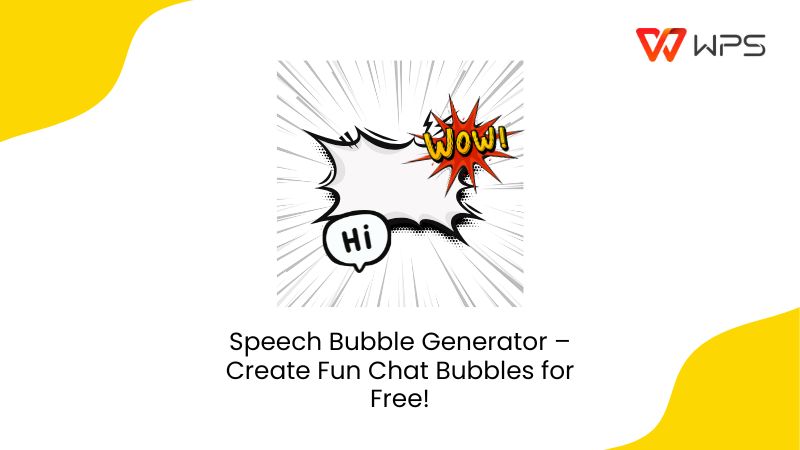
A speech bubble is a visual element that’s usually used to show the spoken words or thoughts of a character in memes and comics. I’ve found that using speech bubbles appropriately helps me connect the text visually with the speaker, addingcontext and a deep sense of immersion to the scene. In this section, I’ll be highlighting the types and uses of speech bubbles to help you understand them better.
Types
Speech Bubble: Regular roundor oval shape, pointing to the speaker’s mouth.
Thought Bubble: Cloud-like shape that is used to represent inner thoughts.
Shout Bubble: Sharp and jagged edges to show shouting or extreme excitement.
Whisper Bubble: Dotted outlines for quiet tones.
Why Use Speech Bubbles?
It helps you add humor or emotion to blank photos.
Creates a sense of immersion in storytelling.
Can help visually elevate educational posters, social media, and marketing content.
Top 5 Speech Bubble Generators
If you want to use speech bubblesto enhance your images, adding them in manually can be very time-consuming and repetitive. I personally use AI speech bubble editortools to simplify this process and save myself a lot of time. But it’s not easy trying to find a reliable option for yourself, especially if you’re a beginner. This is why I’ll be highlighting 5 of the most convenient options I found and reviewing them to help you choose the right one for yourself.
1. Phraseit
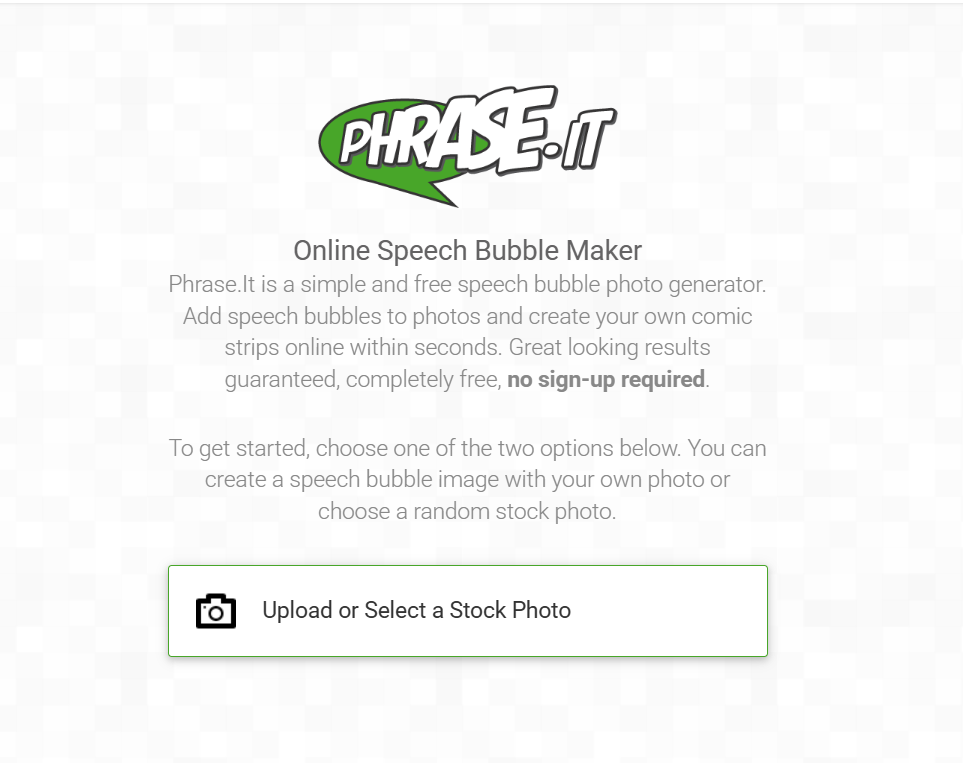
Phraseitis a free online tool that allows users like me to upload completely blank photos and add fully customizable speech bubbles in an instant. I found it to be a reliable and quick option to help me make my memes more visually expressive, ensuring a smooth and hassle-free editing process. It is ideal for content creators who need quick, simple bubbles without going through complicated steps.
Features
Drag-and-Drop Bubble Placement
Fully Customizable Text
Easily Downloadable Results
Pros
Fast Processing Speeds
Beginner-Friendly Interface
No Registration Requirement
Cons
Limited Font Customization
Lack of Variety in Bubble Styles
If you feel like Phraseit is the right tool for your editing needs, I’ll highlight the exact steps you need to follow to add your speech bubbles effectively.
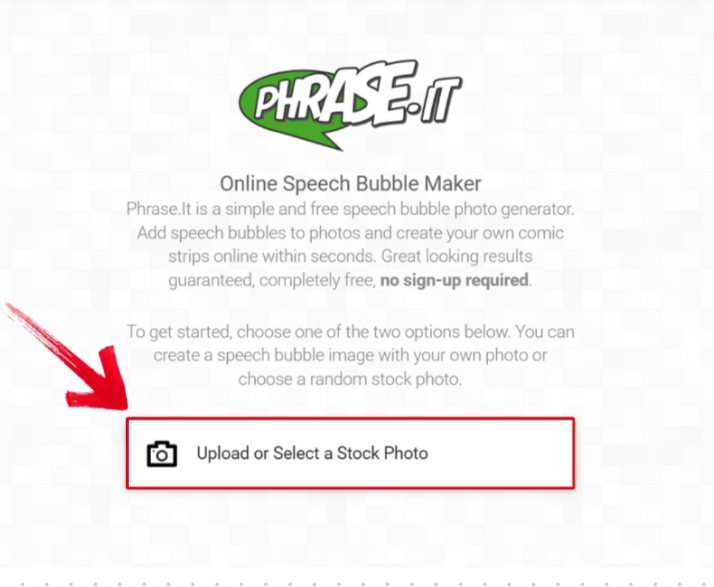
Step 1: Visit Phraseit on your web browser and then upload the picture you want to edit.
Step 2: Select the speech bubble you want to use and then add in your text.
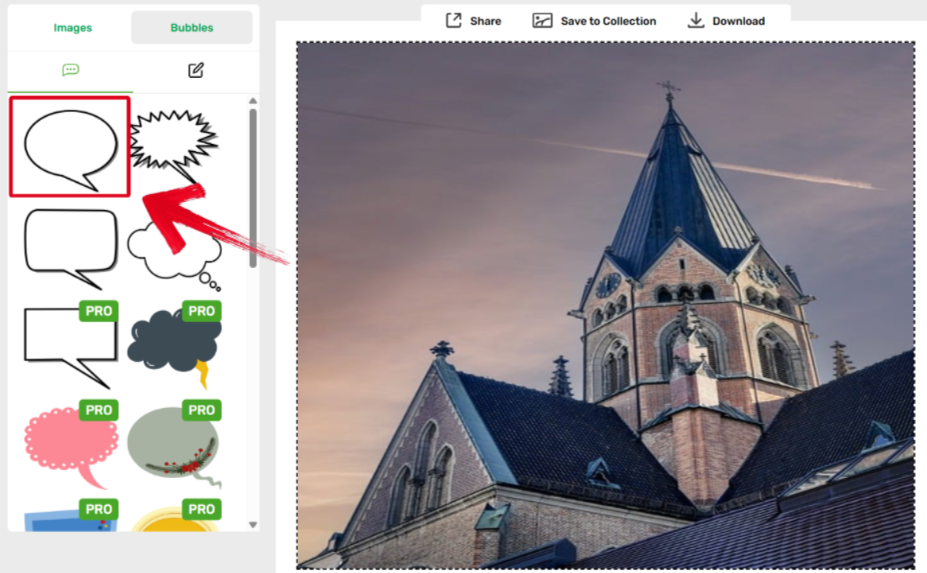
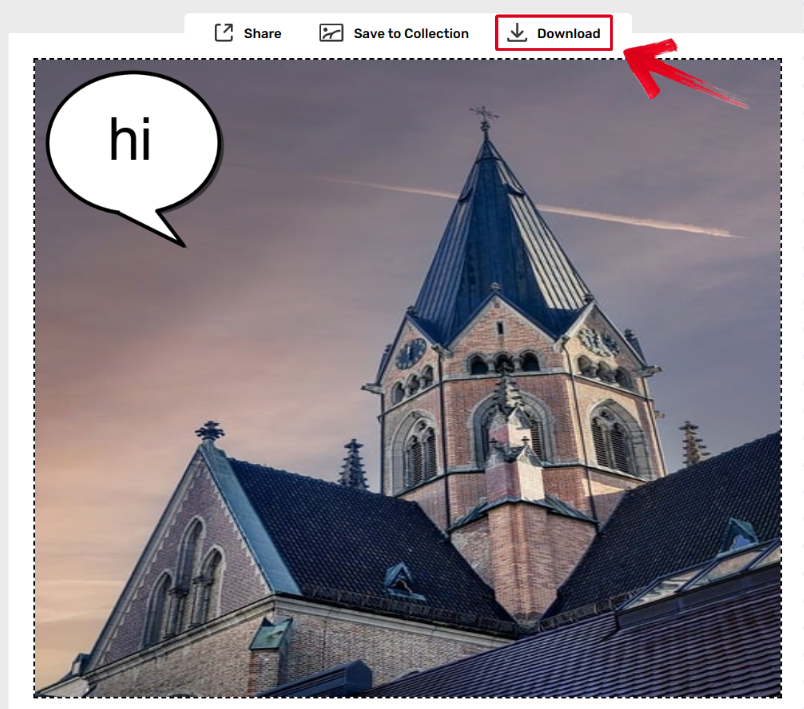
Step 3: Press the Download button to start exporting your edited photo.
2. Rockimage
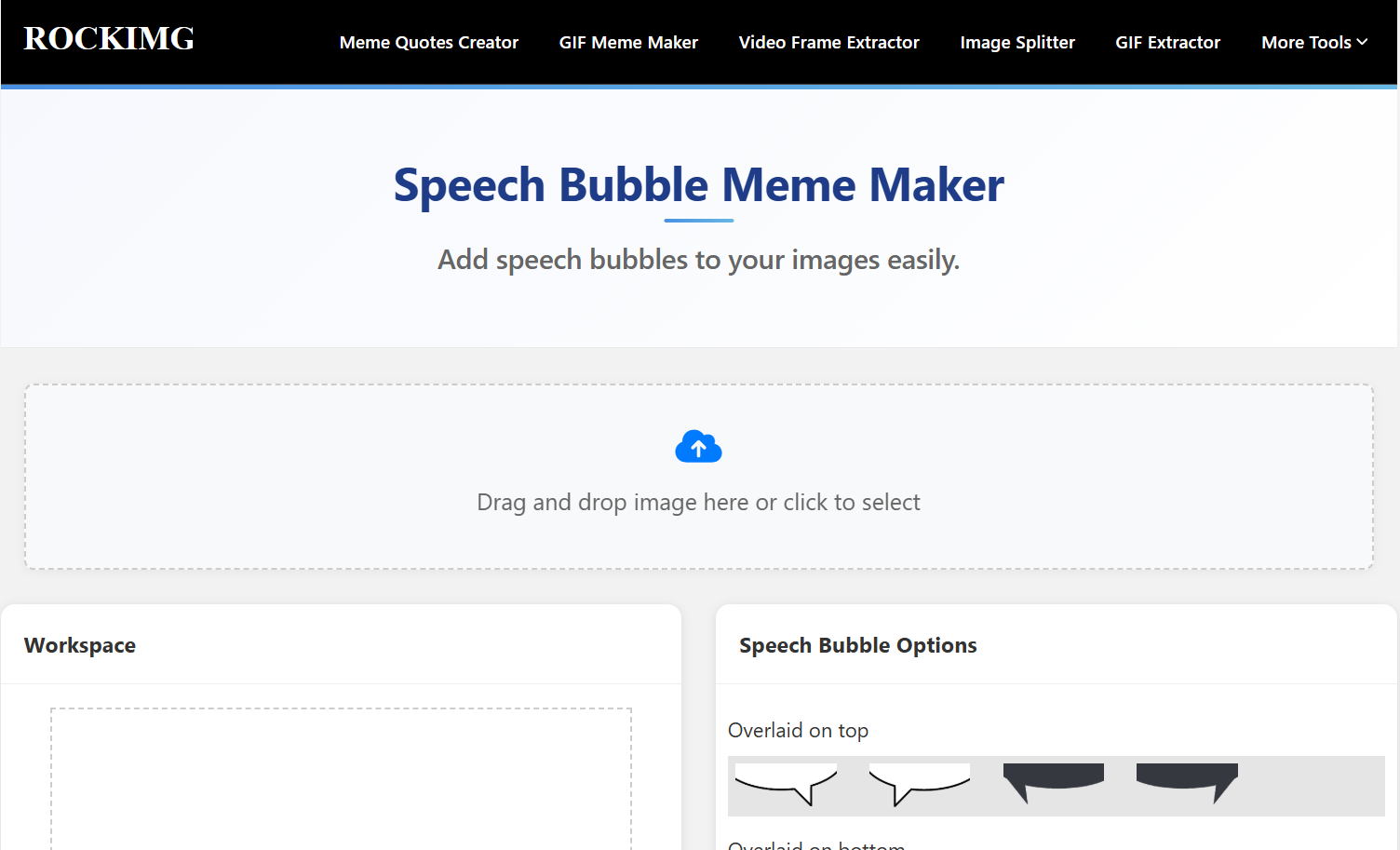
Rockimageis a free meme and speech bubble maker for those looking to add speech bubble to photo online, letting me directly edit all my photos in my browser. It offers a wide range of customization options for me to choose from, making sure each speech bubble is unique in its own way. I found it to be a great option for fast meme-style creations, with an overall streamlined experience except for the cluttered interface.
Features
Variety of Bubble Templates
Wide Range of Font Choices
Customized Repositioning Options
Pros
Fully Customizable Text Boxes
Support for Common Meme Layouts
No Download Requirement
Cons
Contains Ads
Limited Image Export Quality
If you feel like Rockimage is the right option for you, the process is incredibly straightforward, and I’ll walk you through the exact steps you need to follow to add your speech bubbles easily.
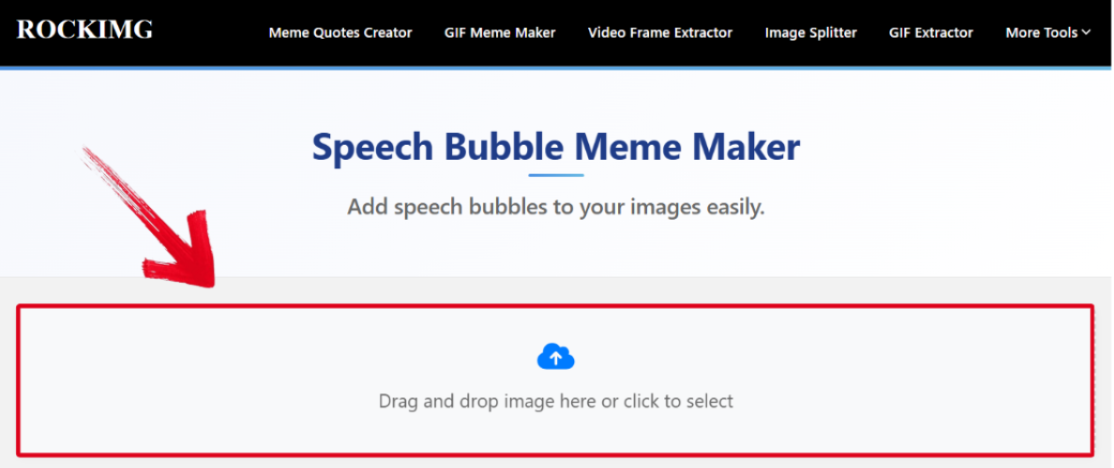
Step 1: Open the Rockimage homepage and upload the picture you want to edit.
Step 2: Add any speech bubble you want from the variety of options given in the Dialog box.
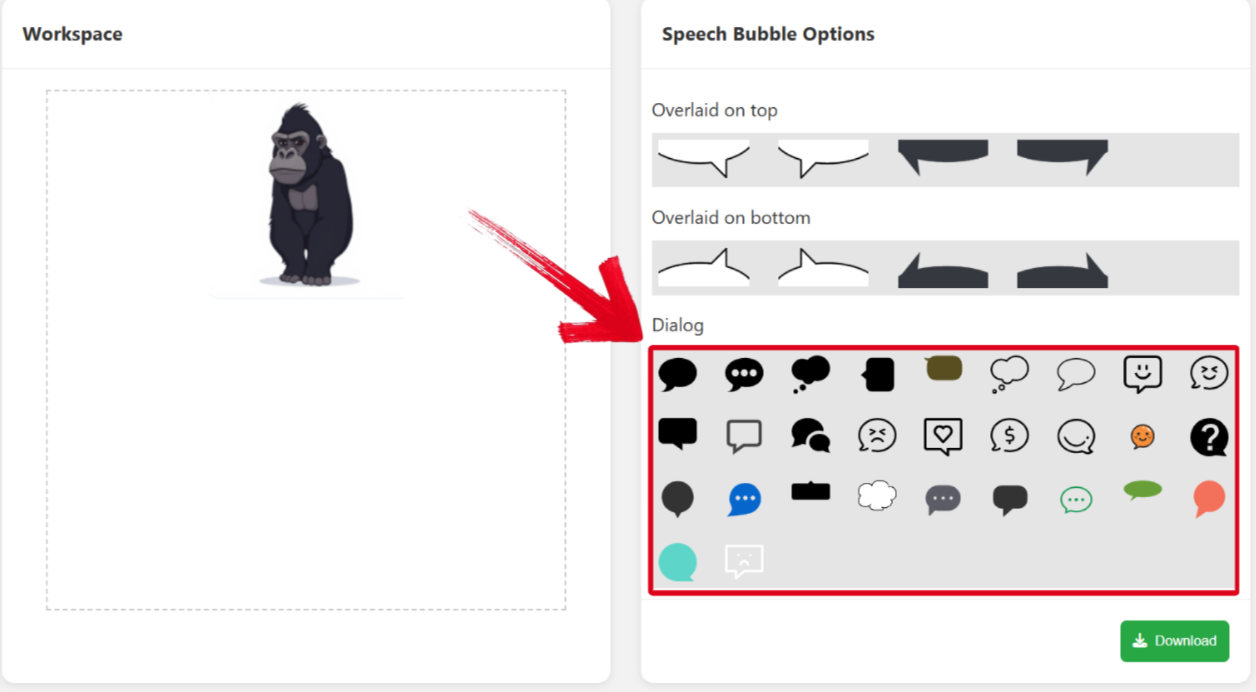
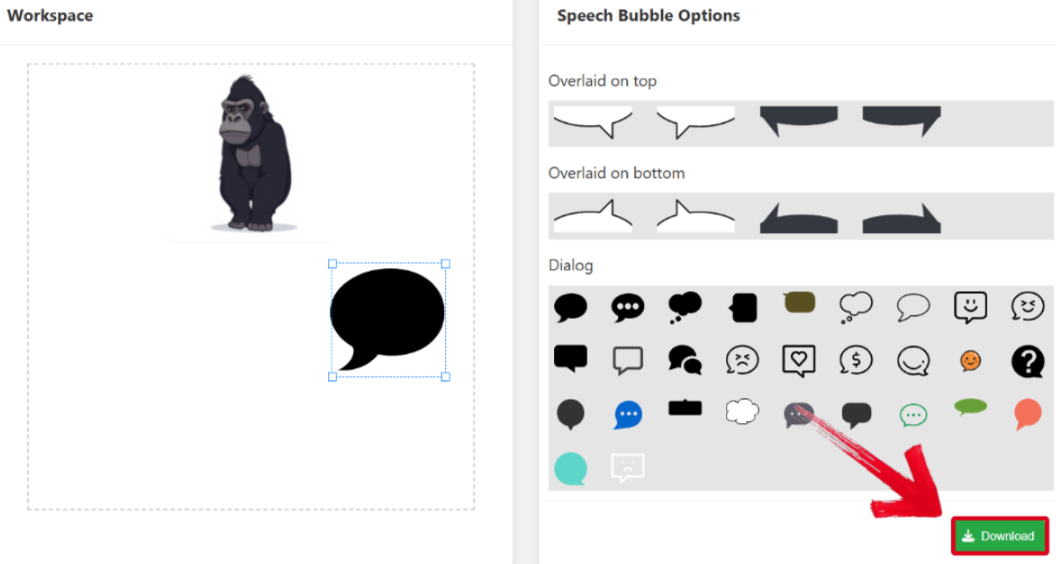
Step 3: After adding the speech bubble and adjusting it according to your preferences, press Download to save your newly edited photo.
3. Canva
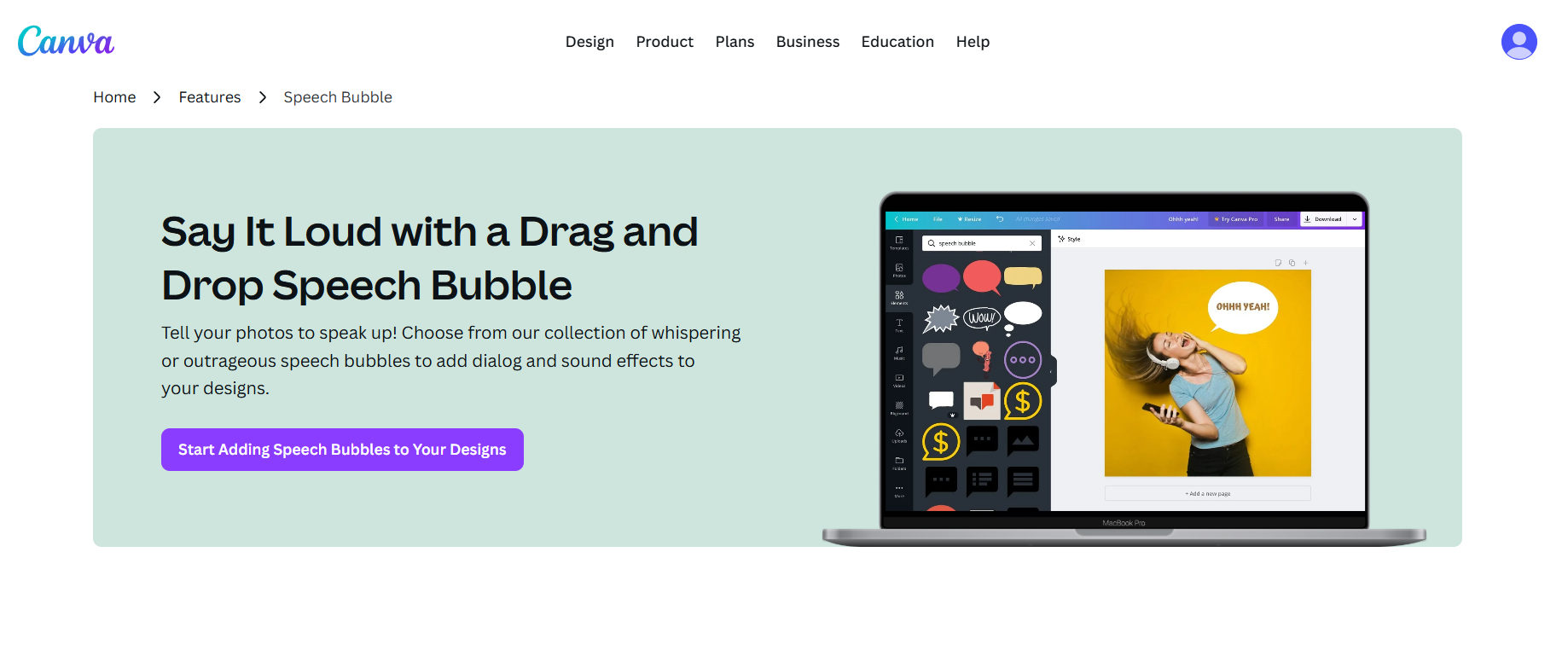
Canva is one of the most popular and widely used professional design platforms out there, with a reliable built-in speech bubble element to help me elevate my images in just a few simple steps. I found it to be the best option for those who want complete control over their images, while also maintaining professional design quality.
Features
Thousands of Template Options
Drag-and-Drop Interface
AI-Assisted Design Suggestions
Pros
Extremely Versatile
Easy Customization
Fast and Efficient Editing
Cons
Some premium templates are locked behind a paywall
If you feel like Canva is worth using for your editing needs, you can add your speech bubbles in just a few minutes. I’ll walk you through the exact steps you need to follow to add your speech bubbles effectively.
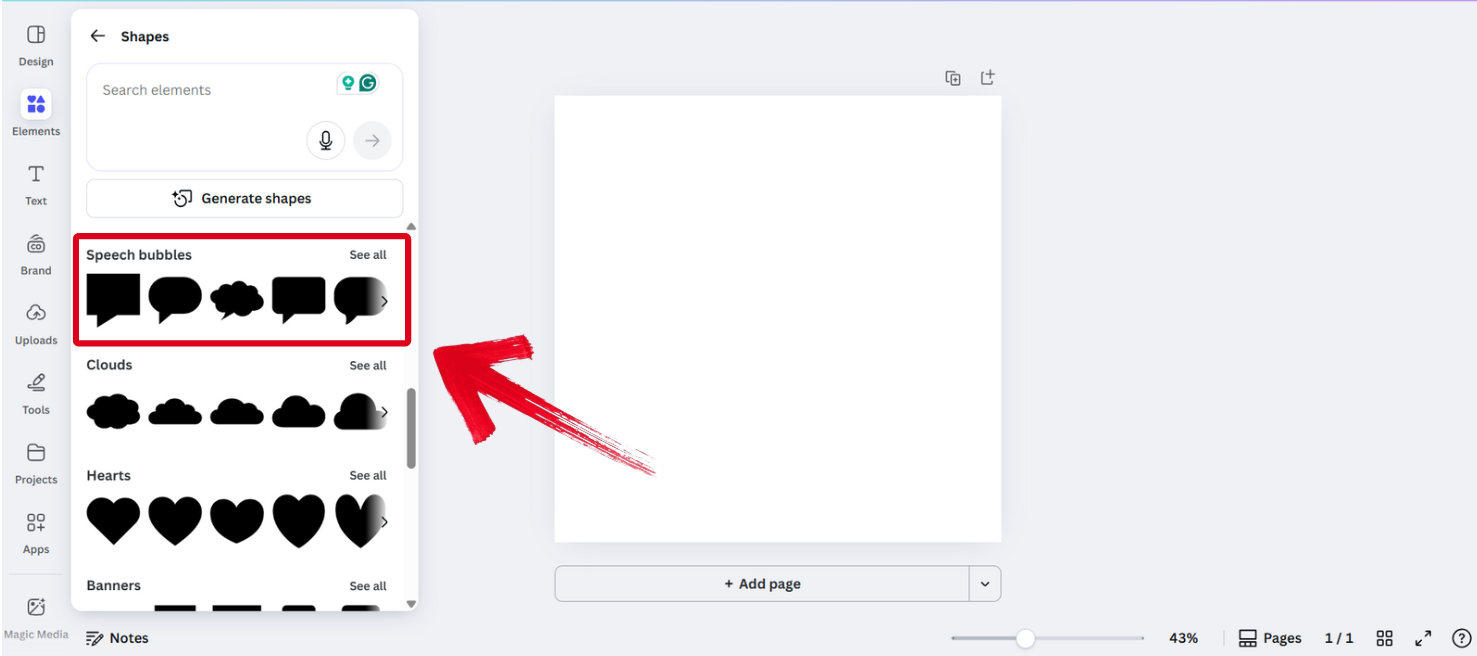
Step 1: Open Canva on your computer and add the speech bubble you want to the canvas.
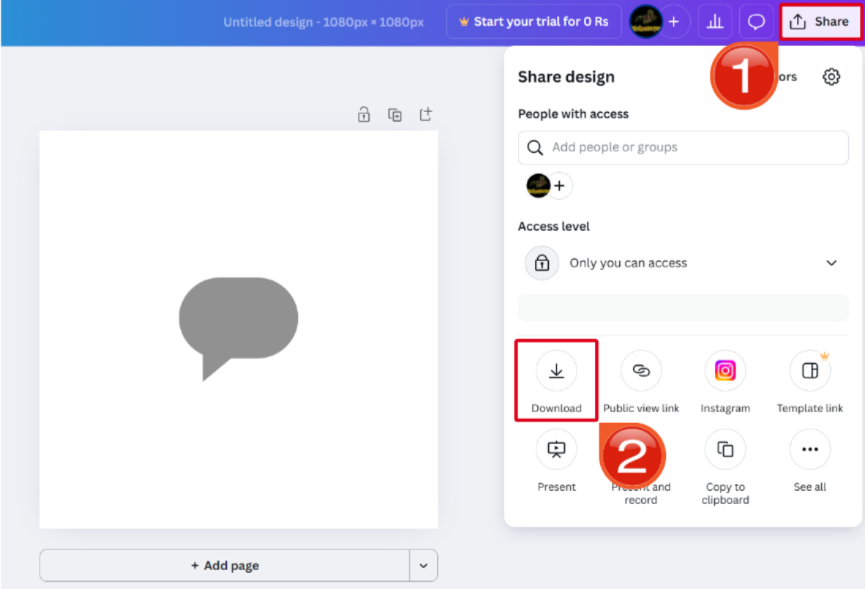
Step 2: Once you’ve added it and adjusted it to your liking, go into the Share options and pressDownload to export your photo.
4. Pixel Speech Bubble
If you’re looking for something a little less common for your speech bubble generation, Pixel Speech Bubble is a niche generator that specializes in pixelated bubbles for uniquely expressive images. I found it to be the perfect choice for users who are gamers or digital artists, offering nostalgic and old-school designs for all your speech bubbles.
Features
Easy Bubble Shape Selection
Fully Customizable Colors
Wide Range of Text Styles
Pros
Unique Aesthetic
Easy Downloading Process
No Sign-Up Requirement
Cons
Limited to Pixel-Style Speech Bubbles
Lacks Advanced Editing Tools
If you want to go for something different, like Pixel Speech Bubble for your photo editing, then these are the steps you need to take to add your own speech bubbles effectively.
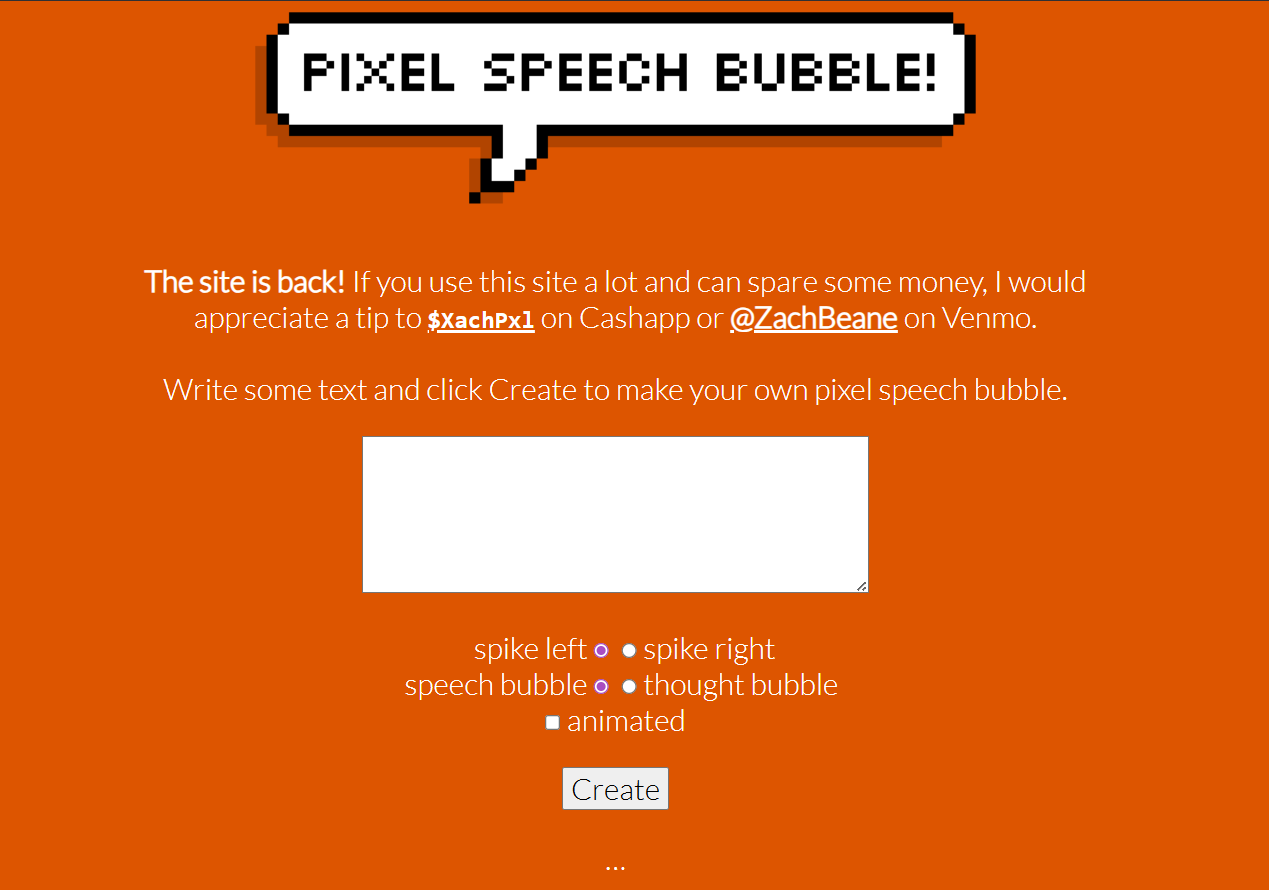
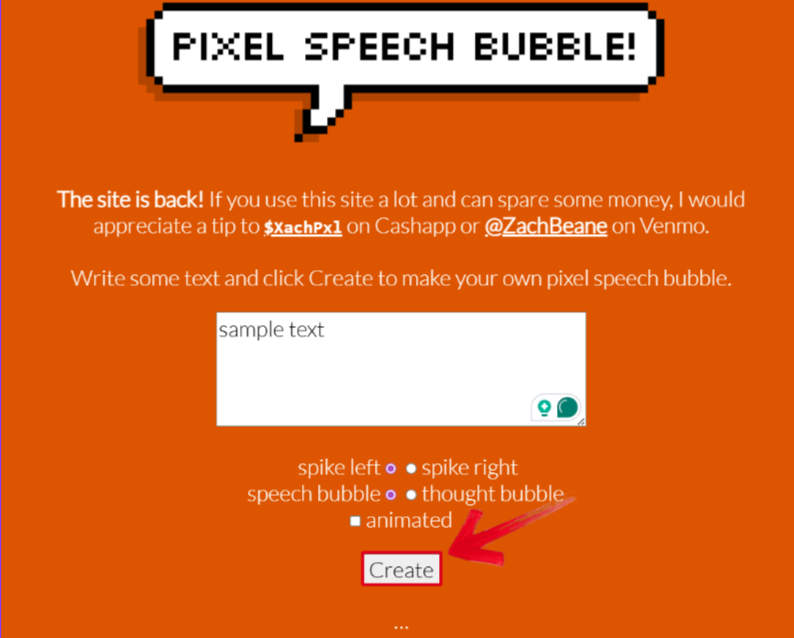
Step 1: Visit Pixel Speech Bubble on your browser, add the text you want in your text box, and then pressCreate.
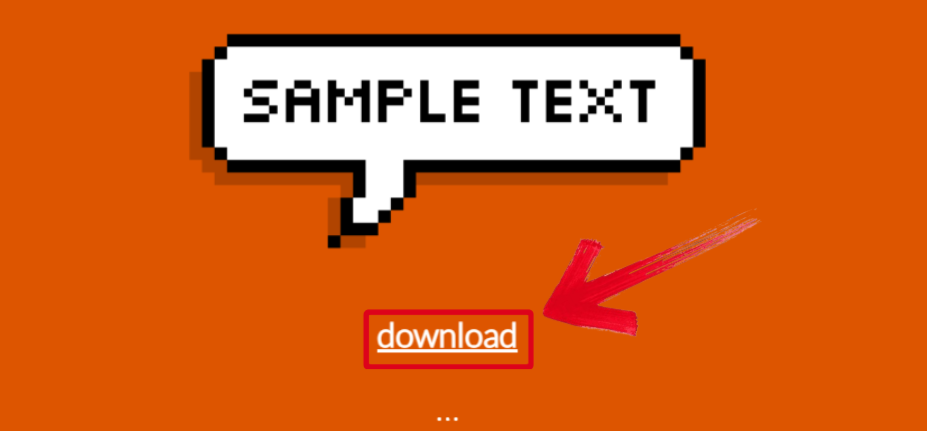
Step 2: Once your pixelated speech bubble has been generated successfully, press Download to export it to your device.
5. SpeechMeme
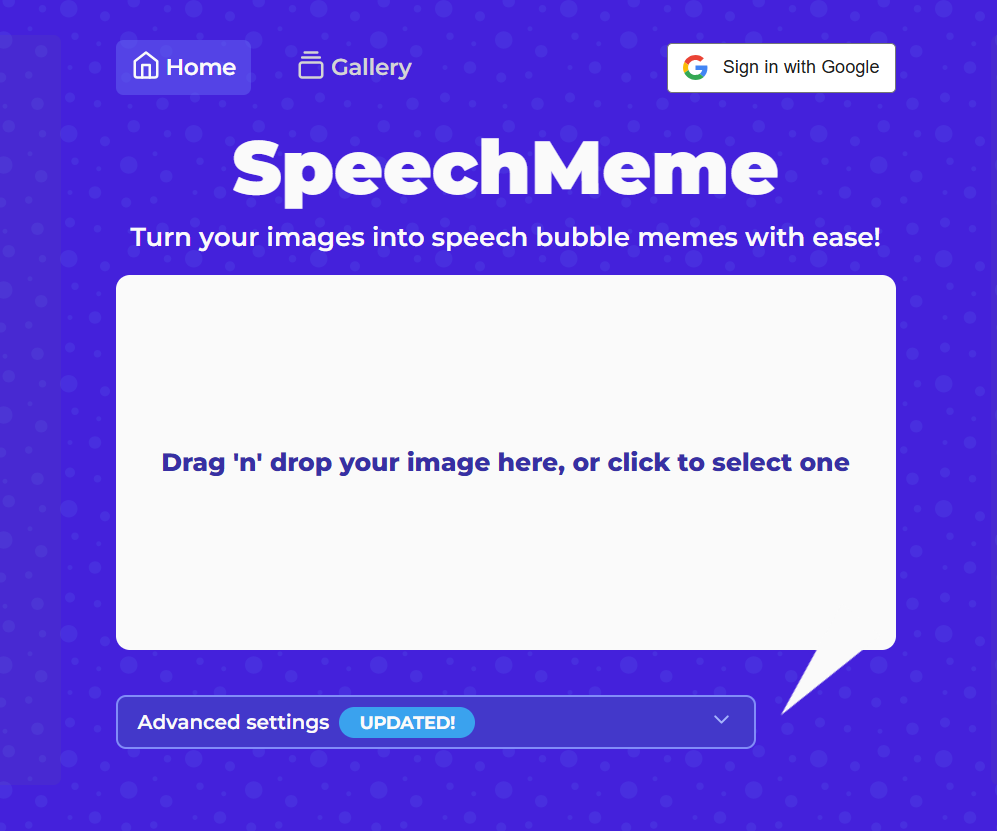
SpeechMeme is a simple and reliable online tool I found for funny and sarcastic speech bubbles to add to my memes. It’s an excellent option for adding a humorous touch to my memes or social media posts, but I’ve found that the limited editing features make it not a viable option for professional editing.
Features
Built-in Meme Templates
Direct Social Media Sharing Support
Pros
Instant Meme Creation
Fast and Efficient Exports
Cons
Basic Interface
Lacks Advanced Editing Tools
If you want to add speech bubbles to your memes without going through much hassle with SpeechMeme, these are the steps you need to follow.
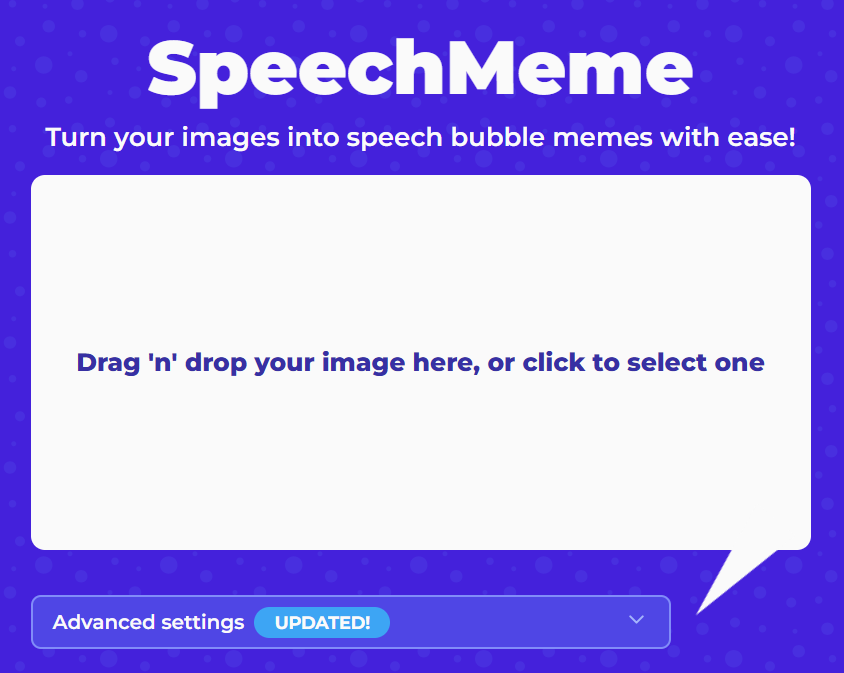
Step 1: Launch SpeechMeme on your web browser and upload the image you want to add the speech bubble to.
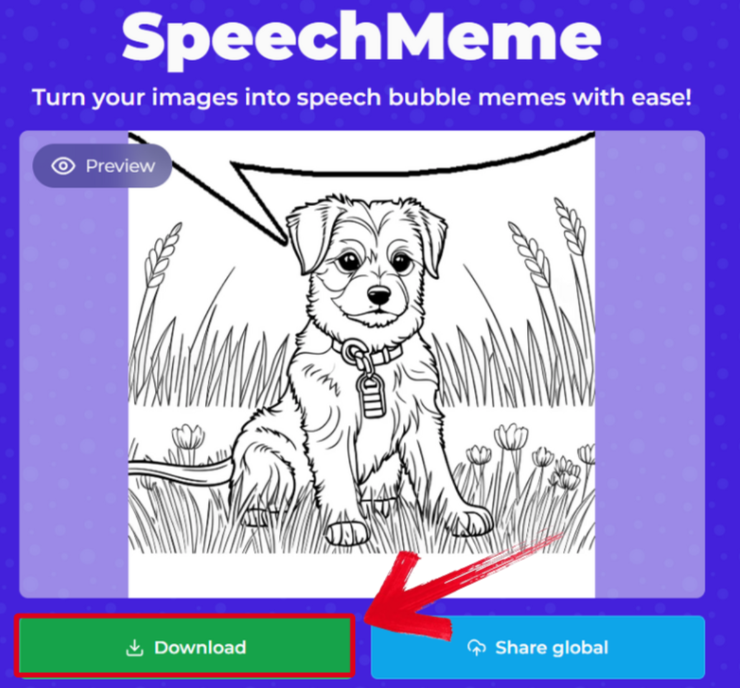
Step 2: The speech bubble will automatically be added to your uploaded image. Press Download to export it to your computer.
Quick Comparison Table
I’ve used all the tools I covered in this guide myself, and all of them helped me make my pictures more exciting and visually appealing without making me jump through any hoops. A professionaltool like Canva leads in design flexibility and AI assistance, while casual tools like Phraseit and Pixel Speech Bubble are better for fast, casual projects. In this section, I’ll compare each of these toolsside-by-side to help you decide the right tool for your speech bubble needs.
| Feature | Phraseit | Rockimage | Canva | Pixel Speech Bubble | Speechmeme |
|---|---|---|---|---|---|
| Best For | Quick memes, casual edits | Meme creation | Professional design | Retro/gaming aesthetics | Fun social sharing |
| Customization | Moderate | Good | Excellent | Limited (pixel only) | Basic |
| AI or Template Help | No | No | Yes (AI Design) | No | No |
| Free Export | Yes | Yes | Partly Free | Yes | Yes |
| Ease of Use | 4/5 | 3/5 | 5/5 | 4/5 | 3/5 |
Enhance Your Speech Bubble by WPS Photo
Once you’ve added your speech bubble to your comic, meme, or social media post, the next step is to enhance your image using a professional photo editing tool. There aren’t many free options available online, and the ones that are tend to be extremely unreliable. This is why WPS Photois my go-to choice whenever I need to polish my images easily. It’s free, lightweight, and gives me all the features I need for professional editing.
Unique Advantages
AI Optimization: Auto-corrects brightness, contrast, and tone.
Free Core Tools: Key AI functions are free on all platforms.
One-Click Editing: Ideal for final polishing before posting online.
Features
AI Magic Eraser: Remove any unwanted objects, people, or even text with its built-in AI erasing features.
Instant Background Removal: Remove your background and replace it with your own, making it perfect for social media posts and e-commerce.
One-Click Enhancement: Restore your old pictures with low quality or too much blur to bring back the original clarity and even the color.
Batch Productivity: Save time by editing multiple photos at the same time using the batch editor.
If you feel like WPS Photo is the right tool for your photo editing needs, then getting started is incredibly simple, and these are the steps you need to follow.
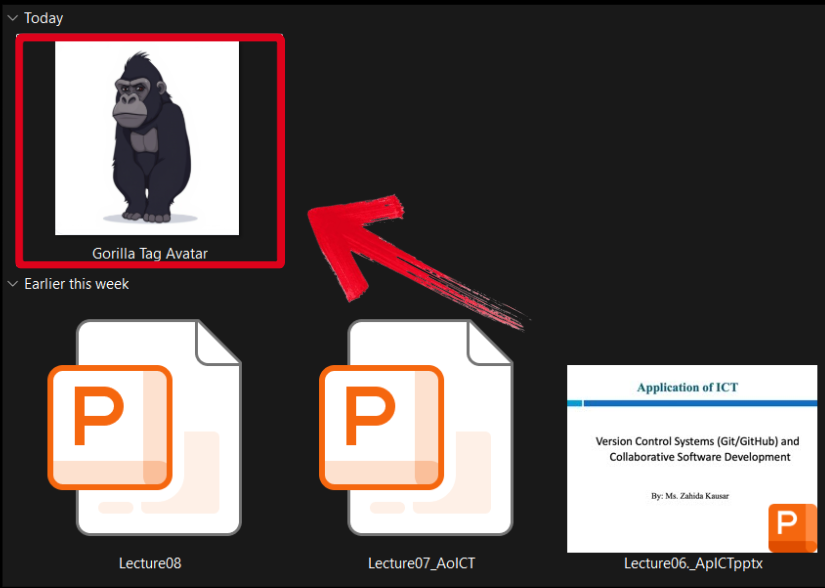
Step 1: Open the image you want to edit through WPS Photos to get started.
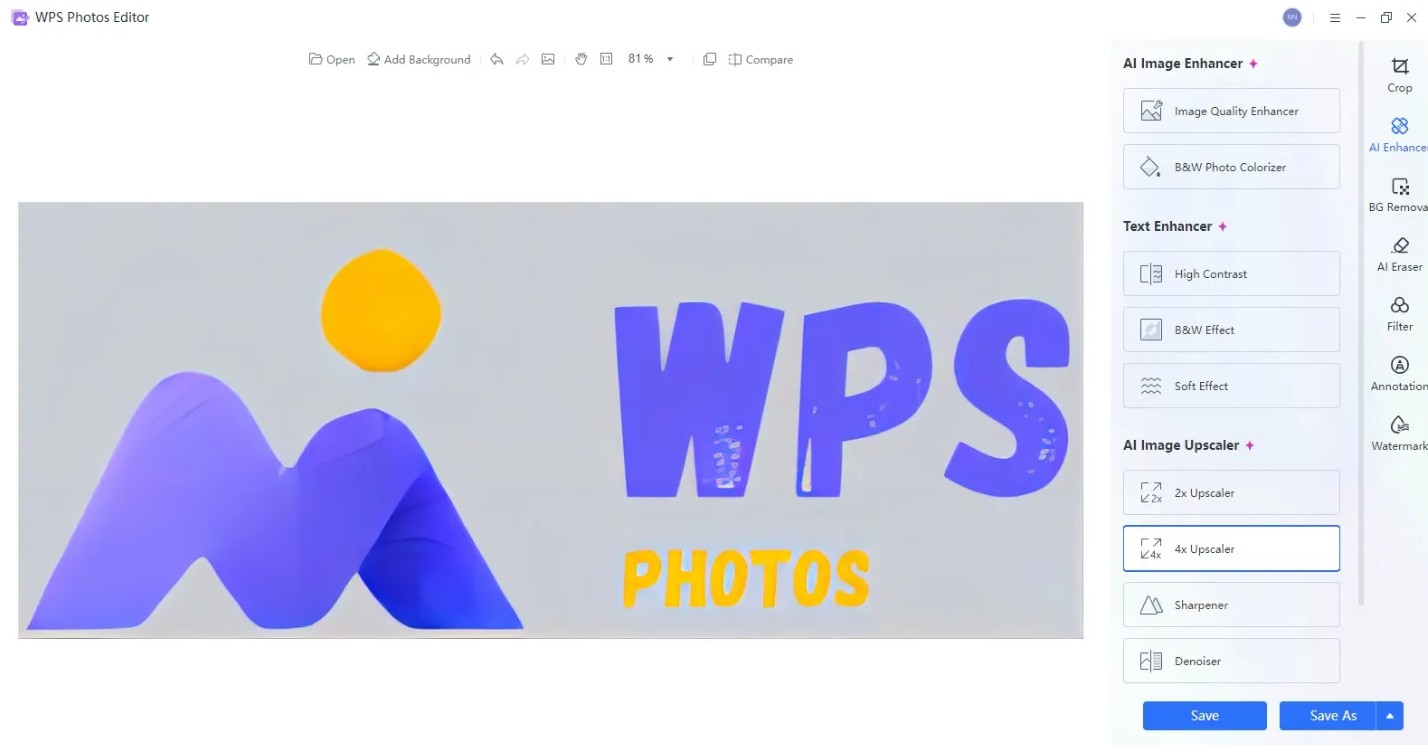
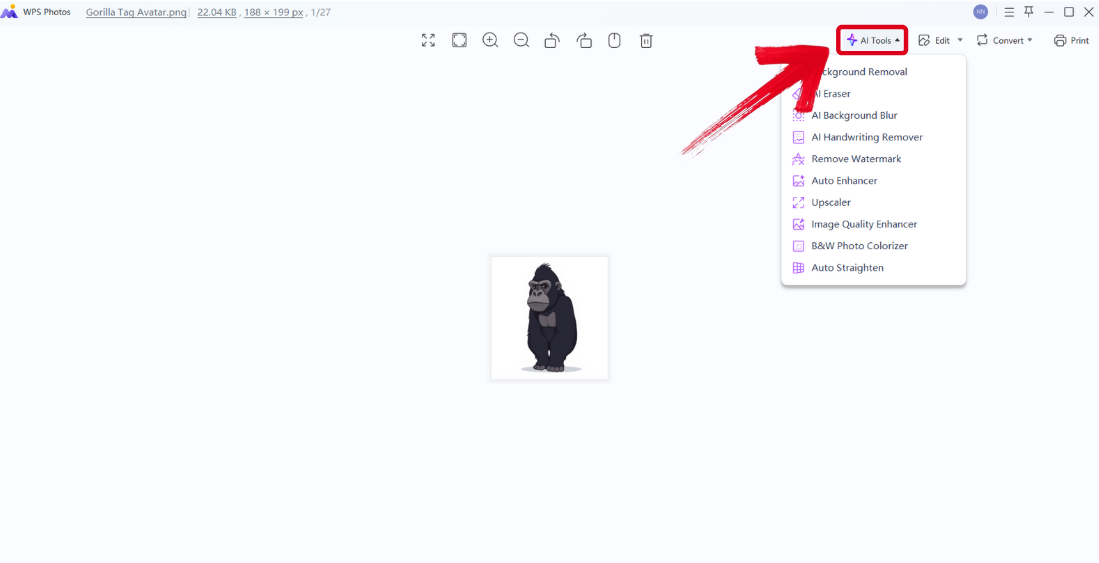
Step 2: In the WPS Photos window, you’ll see a bunch of editing tools given to you, including smart AI Toolsto help you enhance your photos.
AI Image Enhancer: Improve the quality of your image using AI enhancement.
AI Upscaler: Bring life back into old photos by restoring them through the AI upscaler.
AI Watermark Removal: If there are any watermarks on your template, you can elevate the visual appeal with the watermark removal tool.
AI Background Blur: Emphasize focus on the main subjects of your photo by blurring the background.
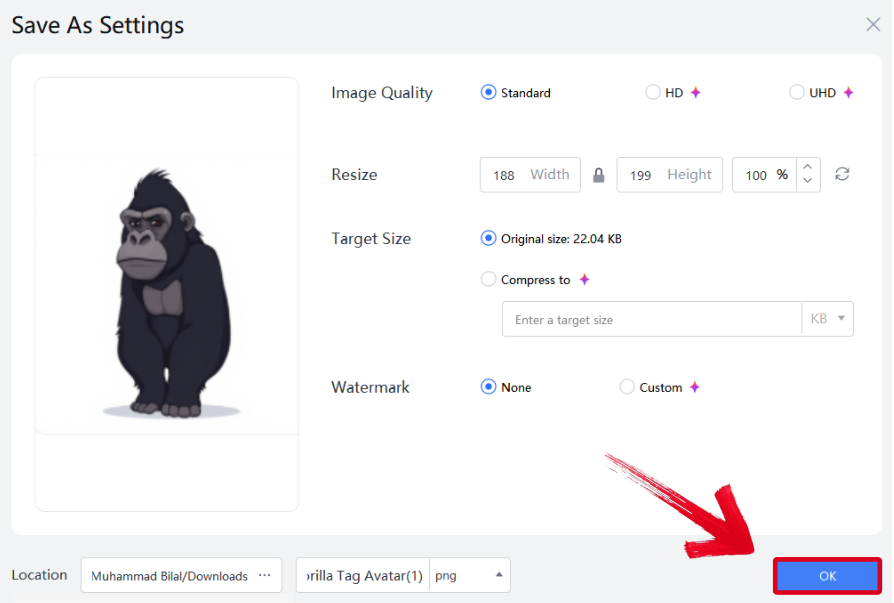
Step 3: Press Ctrl + S to open theSave As window. Adjust the image quality, size, and format, and then press OK to finish.
FAQs
Q1. Which speech bubble generator is best for beginners?
From my experience, Phraseit is the easiest tool for first-time users. You can upload any image, drag and drop bubbles, and instantly add text without creating an account. It’s perfect if you want quick, fun edits without diving into design details.
Q2. Can I customize the bubble style and font freely?
Yes! Tools like Canva and Rockimage allow you to choose from dozens of bubble shapes, fonts, and colors. I found Canva especially useful because you can even layer bubbles, change opacity, or match the bubble tone to your photo’s theme — great for creating unique meme styles.
Q3. How do I make my speech bubbles look high-quality instead of blurry?
Even if you use a free generator, your final image can lose quality when exported. That’s where WPS Photo comes in handy. I usually import my edited image there and use the AI Enhance feature to sharpen edges, fix lighting, and boost color contrast. The result looks crisp and professional, even for memes.
Q4. Can I use speech bubble generators for marketing or teaching materials?
Absolutely! I often use them for educational posters, presentation slides, and social media campaigns. Tools like Canva let you add branded fonts and logos, while Phraseit works well for quick classroom materials or visual storytelling.
Q5. What’s the best file format to export my speech bubble image in?
If you want the cleanest results, always export as PNG. This format keeps your speech bubble’s transparency and sharp edges intact. After exporting, you can open the file in WPS Photo to make final adjustments like resizing or removing noise before posting online.
Simplifying Speech Bubble Generation
Figuring out how to add speech bubbles to your images can be difficult, especially when you cannot find the right tool for it online. I’ve been there myself, and I know how frustrating it can feel. This is why I’ve highlighted 5 reliable speech bubble generators in this guide, breaking them down by their strengths and weaknesses to help you choose the right one. You can polish your memes or comics further through WPS Photo. It’s free, reliable, and has everything you need for professional-grade editing.

'%3e%3cpath%20d='M19.9911%204.11386V6.471H18.5894C18.0775%206.471%2017.7322%206.57814%2017.5536%206.79243C17.3751%207.00671%2017.2858%207.32814%2017.2858%207.75671V9.44421H19.9019L19.5536%2012.0871H17.2858V18.8639H14.5536V12.0871H12.2769V9.44421H14.5536V7.49779C14.5536%206.39064%2014.8632%205.53201%2015.4822%204.92189C16.1013%204.31177%2016.9257%204.00671%2017.9554%204.00671C18.8304%204.00671%2019.509%204.04243%2019.9911%204.11386Z'%20fill='%23333333'/%3e%3c/g%3e%3cdefs%3e%3cclipPath%20id='clip0_2938_8199'%3e%3crect%20width='16'%20height='16'%20fill='white'%20transform='translate(8%204.00671)'/%3e%3c/clipPath%3e%3c/defs%3e%3c/svg%3e)
'%3e%3cpath%20d='M17.5237%2010.7813L23.4811%204H22.0699L16.8949%209.88693L12.7648%204H8L14.2469%2012.9029L8%2020.0133H9.4112L14.8725%2013.7952L19.2352%2020.0133H24M9.92053%205.04213H12.0885L22.0688%2019.0224H19.9003'%20fill='%23333333'/%3e%3c/g%3e%3cdefs%3e%3cclipPath%20id='clip0_2938_8200'%3e%3crect%20width='16'%20height='16.0134'%20fill='white'%20transform='translate(8%204)'/%3e%3c/clipPath%3e%3c/defs%3e%3c/svg%3e)


