

'%3e%3cpath%20d='M8%200C12.4183%200%2016%203.58172%2016%208C16%2012.4183%2012.4183%2016%208%2016C3.58172%2016%200%2012.4183%200%208C0%203.58172%203.58172%200%208%200ZM11.6162%204.38379C11.2257%203.99337%2010.5927%203.99338%2010.2021%204.38379L8%206.58594L5.79785%204.38379C5.40732%203.99334%204.77429%203.99329%204.38379%204.38379C3.99331%204.77429%203.99335%205.40733%204.38379%205.79785L6.58594%208L4.38379%2010.2021C3.99348%2010.5927%203.99341%2011.2257%204.38379%2011.6162C4.77426%2012.0066%205.40734%2012.0065%205.79785%2011.6162L8%209.41406L10.2021%2011.6162C10.5927%2012.0066%2011.2257%2012.0067%2011.6162%2011.6162C12.0067%2011.2257%2012.0066%2010.5927%2011.6162%2010.2021L9.41406%208L11.6162%205.79785C12.0066%205.40735%2012.0066%204.77429%2011.6162%204.38379Z'%20fill='%23080E17'%20fill-opacity='0.46'/%3e%3c/g%3e%3cdefs%3e%3cclipPath%20id='clip0_3761_713'%3e%3crect%20width='16'%20height='16'%20fill='white'/%3e%3c/clipPath%3e%3c/defs%3e%3c/svg%3e)



'%3e%3cpath%20fill-rule='evenodd'%20clip-rule='evenodd'%20d='M21.4999%2010.9993C21.4999%205.20009%2016.7986%200.498901%2010.9993%200.498901C5.19994%200.498901%200.498657%205.20009%200.498657%2010.9993C0.498657%2016.2404%204.33858%2020.5844%209.35855%2021.3722V14.0346H6.69238V10.9993H9.35855V8.68594C9.35855%206.05427%2010.9262%204.60062%2013.3248%204.60062C14.4736%204.60062%2015.6753%204.80571%2015.6753%204.80571V7.38979H14.3512C13.0468%207.38979%2012.64%208.19921%2012.64%209.0296V10.9993H15.5523L15.0867%2014.0346H12.64V21.3722C17.66%2020.5844%2021.4999%2016.2404%2021.4999%2010.9993Z'%20fill='%231568EA'/%3e%3c/g%3e%3c/svg%3e)


'%3e%3cpath%20d='M2.42045%2022.1876H6.31818V12.7217L0.75%208.54553V20.5171C0.75%2021.4414%201.49892%2022.1876%202.42045%2022.1876Z'%20fill='%234285F4'/%3e%3cpath%20d='M19.682%2022.1876H23.5797C24.5041%2022.1876%2025.2502%2021.4387%2025.2502%2020.5171V8.54553L19.682%2012.7217'%20fill='%2334A853'/%3e%3cpath%20d='M19.682%205.48293V12.7216L25.2502%208.54543V6.31816C25.2502%204.25236%2022.8921%203.07469%2021.2411%204.31361'%20fill='%23FBBC04'/%3e%3cpath%20d='M6.31824%2012.7217V5.48303L13.0001%2010.4944L19.6819%205.48303V12.7217L13.0001%2017.733'%20fill='%23EA4335'/%3e%3cpath%20d='M0.75%206.31816V8.54543L6.31818%2012.7216V5.48293L4.75909%204.31361C3.10534%203.07469%200.75%204.25236%200.75%206.31816Z'%20fill='%23C5221F'/%3e%3c/g%3e%3cdefs%3e%3cclipPath%20id='clip0_2954_7305'%3e%3crect%20width='24.5'%20height='18.375'%20fill='white'%20transform='translate(0.75%203.8125)'/%3e%3c/clipPath%3e%3c/defs%3e%3c/svg%3e)


AI tattoo generators have completely changed the way people design tattoos. Nowadays, you can visualize an idea in seconds from abstract symbols to lifelike portraits. There is one problem though. Turning those digital concepts into skin-ready art is not easy as many AI designs are breathtaking on screen but too intricate to stencil or ink accurately. So in this article, I’ll share five of the best free AI tattoo generators you can use right now and show you how to enhance your tattoo using WPS Photo for perfect clarity and detail.
What Is an AI Tattoo Generator
An AI tattoo generator from text/photo is a digital tool that uses artificial intelligence to turn your ideas into tattoo-ready designs. These platforms rely on deep learning models trained on thousands of tattoo images, so they can recognize various styles, shading techniques, and line work.
Essentially, the AI learns what makes a tattoo visually appealing and translates your concept into a design that’s both unique and feasible for inking. For example, you might type something like “minimalist butterfly with geometric lines” or upload a photo of a pet, and within seconds, the AI produces a design ready for a stencil.
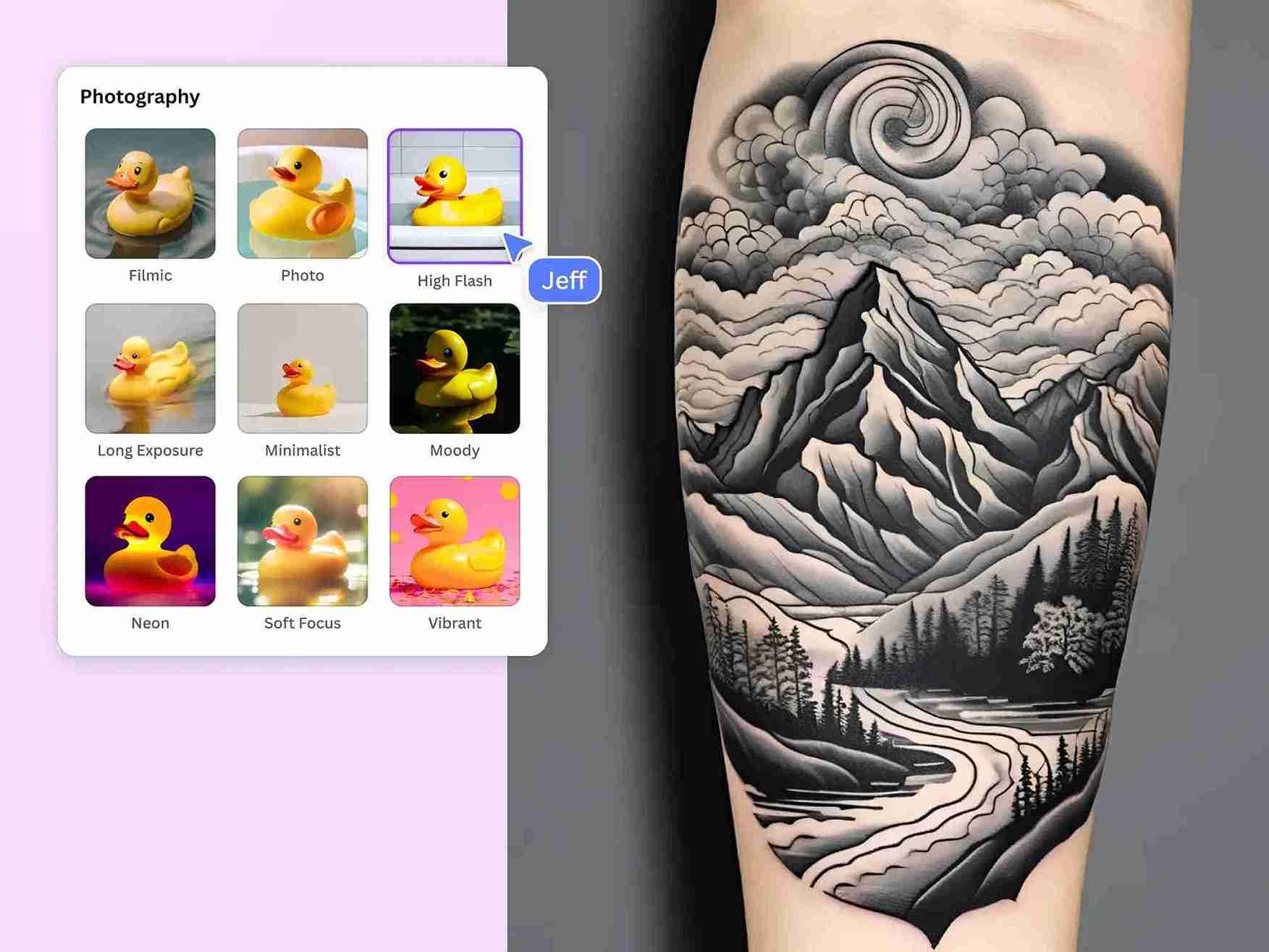
Many tools also allow you to select specific styles like tribal, Japanese, realism, neo-traditional, fine line and change parameters like color intensity, shading, complexity, and size. I’ve found it incredibly satisfying to experiment with unusual combinations, like mixing floral designs with geometric shapes, something that would take hours to sketch by hand.
What makes AI tattoo generators so practical is their speed, versatility, and accessibility because you no longer have to rely solely on a tattoo artist’s sketches or your own drawingskills. You can try out dozens of variations, see what works best, and refine your favorite designs before even stepping foot in a studio. From my experience, having a few AI-generated drafts on hand makes consultations with tattoo artists much more productive, because they have a clear visual reference of what you want.
Top 5 AI Tattoo Generators
When AI tattoo generators were launched on the Internet, everyone was amazed at how quickly a simple idea could take shapeon screen. It’s one thing to imagine a design, but seeing it materialize with details, shading, and proportions already applied makes the creative process much more tangible. I’ve played with a lot of different platforms to understand which ones handled complexity, style variety, and usability best. Based on my experience, I’ve selected five AI tattoo generators that consistently deliver practical and high-quality designs.
Tattoo AI
Tattoo AI is built specifically for tattoo design. The platform supports over 30 tattoo styles according to its App Store listing including fine‑line and traditional black‑work. You type in your concept, for example “small lotus flower with dot‑work halo”, and choose from preset styles, then the AI generates design options that feel ready for stencil use. The clarity of the line work makes it one of the more usable tools for translating concepts to ink-ready art.
Features:
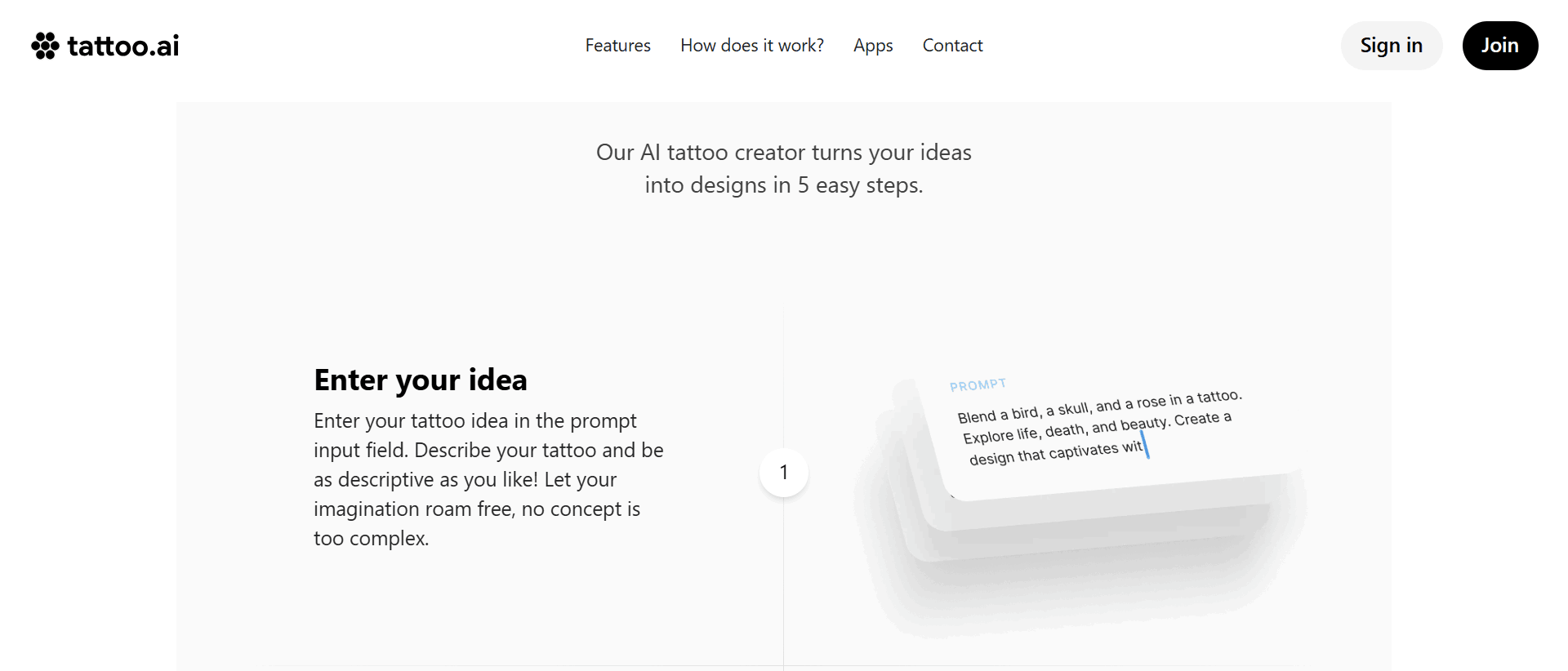
It allows you to enter a text description of your idea and then instantly generates multiple custom tattoo design drafts for you to review.
The platform supports selection of tattoo style and colour variations so you can choose from over 18 different styles and adjust colour settings to match your vision.
After generating a design, you can download it as a web‑friendly image file so you can share it with your tattoo artist or print it as a stencil.
Pros:
Clean, tattoo-ready line work suitable for stencils.
Fast design generation with multiple variations.
Easy for beginners; no drawing skills needed.
Wide range of tattoo styles and customization options.
Cons:
The free version has watermarks and limited downloads.
Designs may need refinement for real-world tattooing.
Limited high-resolution export options in free/basic tier.
Now that you have a clear idea of what Tattoo AI offers and its limitations, the next step is to see how you can actually use it to bring your tattoo concept to life. Understanding the features and style options is useful, but the real value comes from putting the tool into practice. Here’s how to use it.
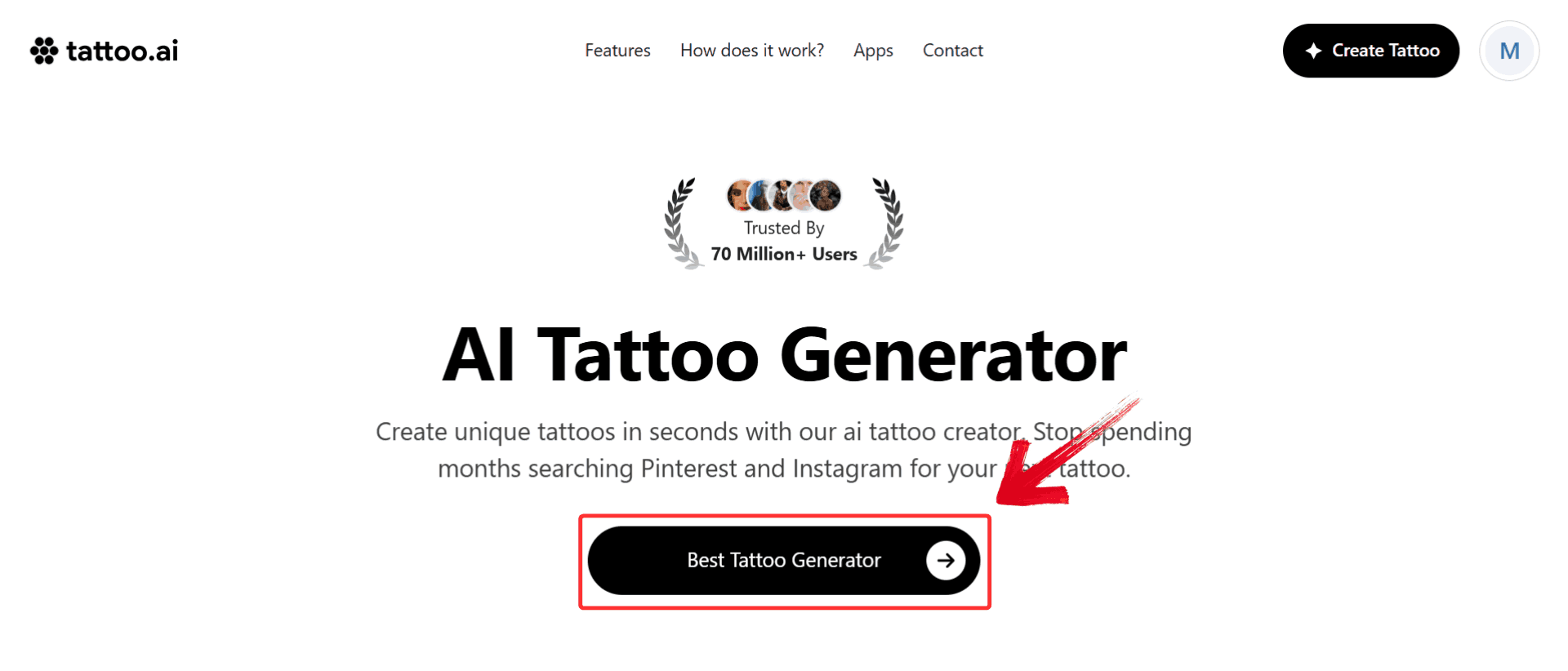
Step 1: Head over to Tattoo AI’s website and click on the “Best Tattoo Generator” option.
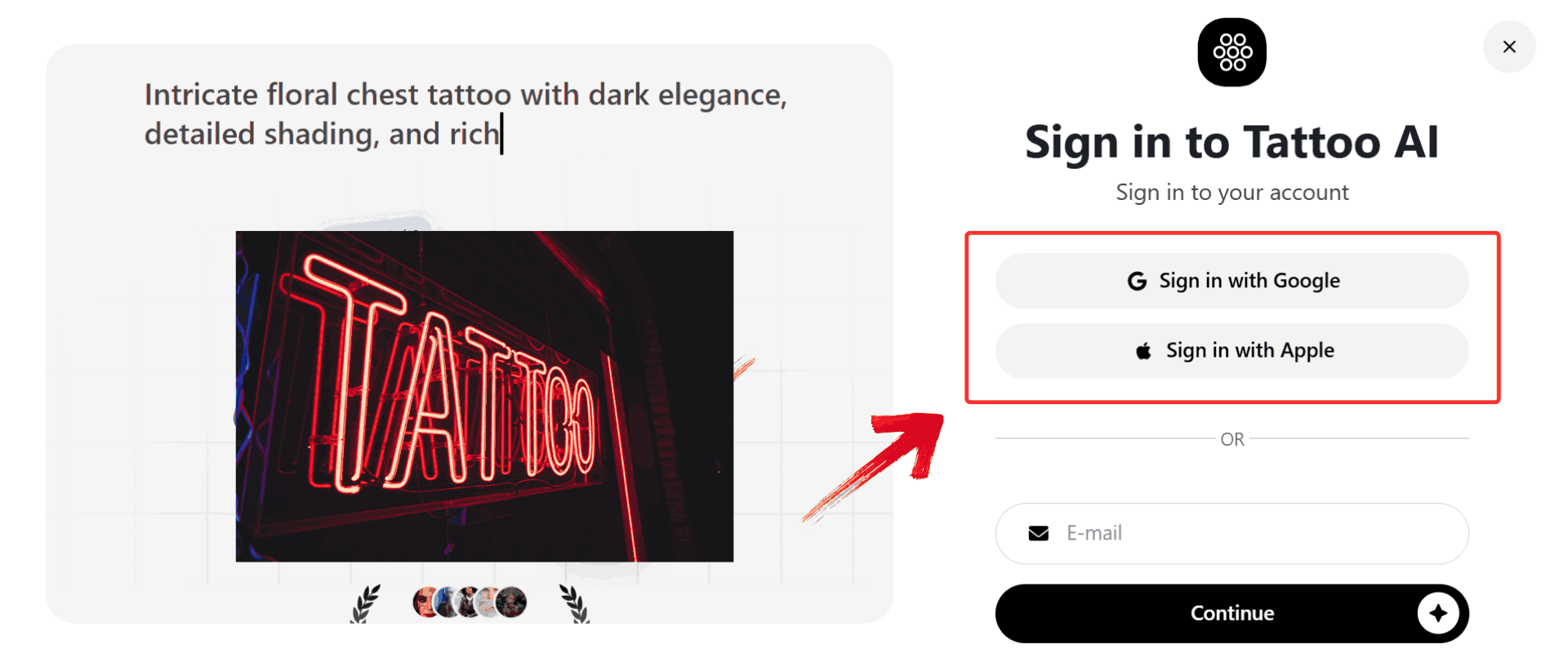
Step 2: Sign in using either your Google account or Apple ID. The login is quick and lets you save your generated designs for future reference.
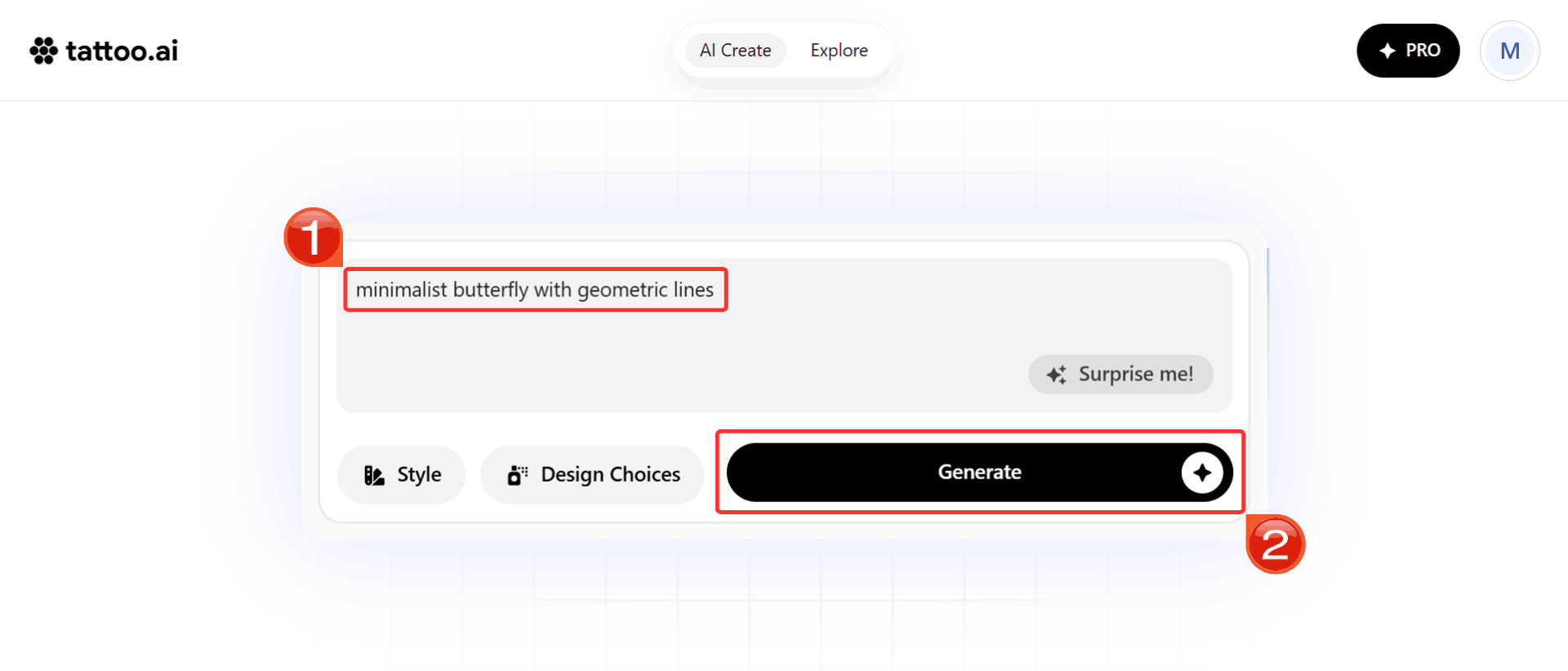
Step 3: Write your tattoo prompt in the text box and then click “Generate”. The AI will start processing your request and create a design based on the description and style you chose.
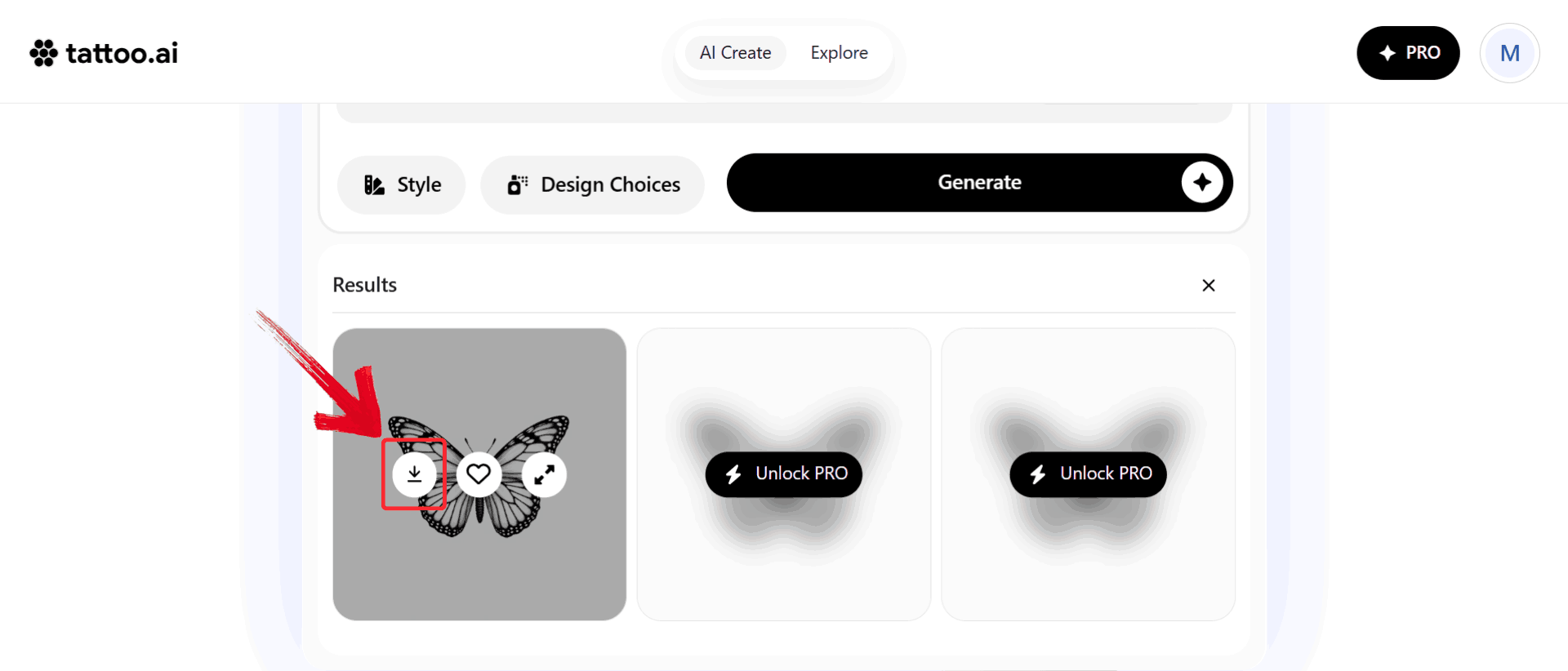
Step 4: Find the design you like and click the“download icon” to save your tattoo design. You can repeat this process to experiment with different prompts or styles until you find your perfect design.
Phot.AI
Phot.AI’s dedicated AI Tattoo Art Generator allows you to either submit a text prompt or upload a photo reference to create custom tattoo‑style designs. The platform offers multiple artistic styles such as traditional, realism, and fine line, and generates several design variations per prompt. You can adjust parameters like color, complexity, and shading intensity. Once designs are generated, you can download them in standard formats for sharing or further editing. Phot.AI also supports iterative refinement, allowing you to tweak prompts and regenerate until satisfied.

Features:
Phot.AI’s Tattoo Art Generator lets you create a tattoo design either by describing your idea in text or by uploading a photo reference, giving you more control over imagery.
You can customize parameters such as shading intensity, color palette, style genre, and then download those variations for further use.
The generator also offers a gallery or feed of tattoo designs to help overcome creative blocks and inspire your next idea.
Finally, Phot.AI supports standard image‑downloads, making it straightforward to share the design with your artist or edit it further in other tools.
Pros:
Can generate from text prompts and photo uploads.
Offers a wide range of tattoo styles to choose from.
Good for blending reference images and textual ideas.
Downloads designs in standard formats for editing or sharing with artists.
Cons:
Free or basic usage may limit number of credits, styles, or resolution
Some generated details may still require correction for actual tattoo usability.
Interface may include many other non‑tattoo tools, which can be distracting.
By following a few simple steps, you can take an idea from a text prompt or reference photo to a tangible tattoo concept ready for refinement or download. Let’s break down how to get your first designs ready.
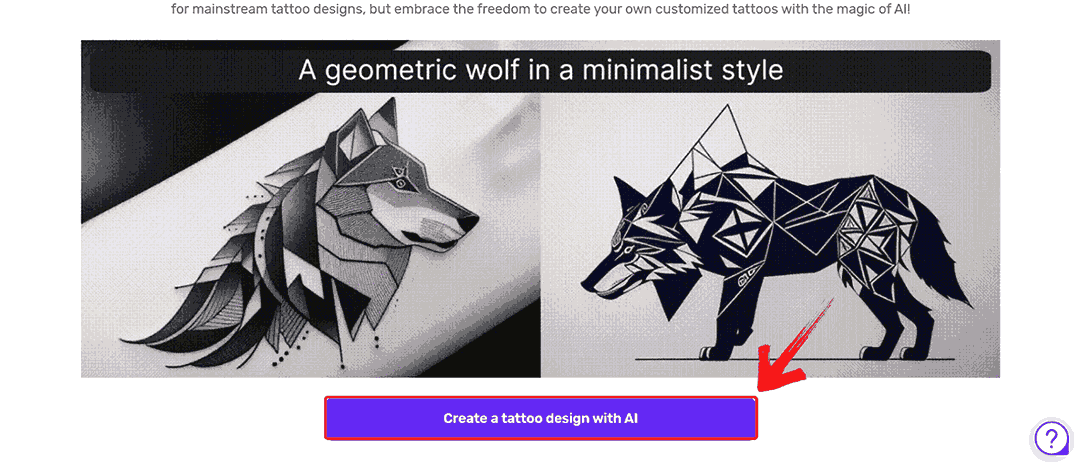
Step 1: Head over to the Phot.AI website and click the purple button that says “Create a Tattoo Design with AI”. This will take you directly to the tattoo generator interface.
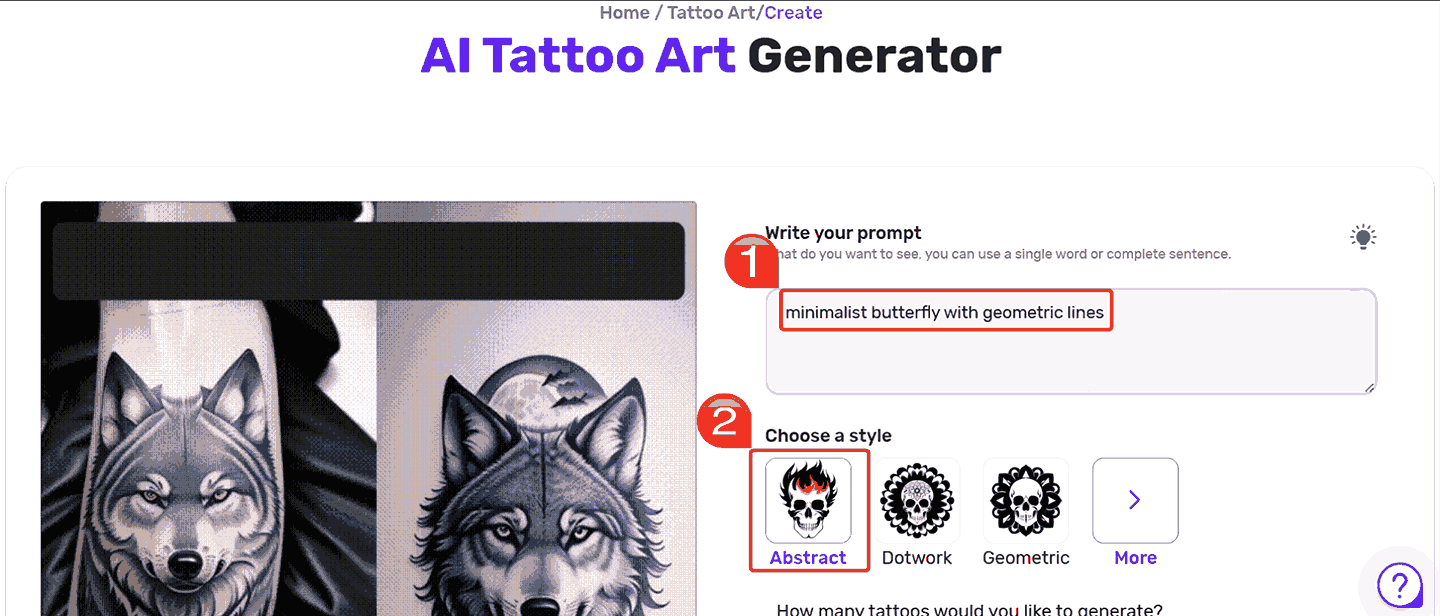
Step 2: Write your tattoo prompt in the text box, describing the design you want. Then choose a style from the dropdown menu, like “abstract, dotwork, or geometric”.
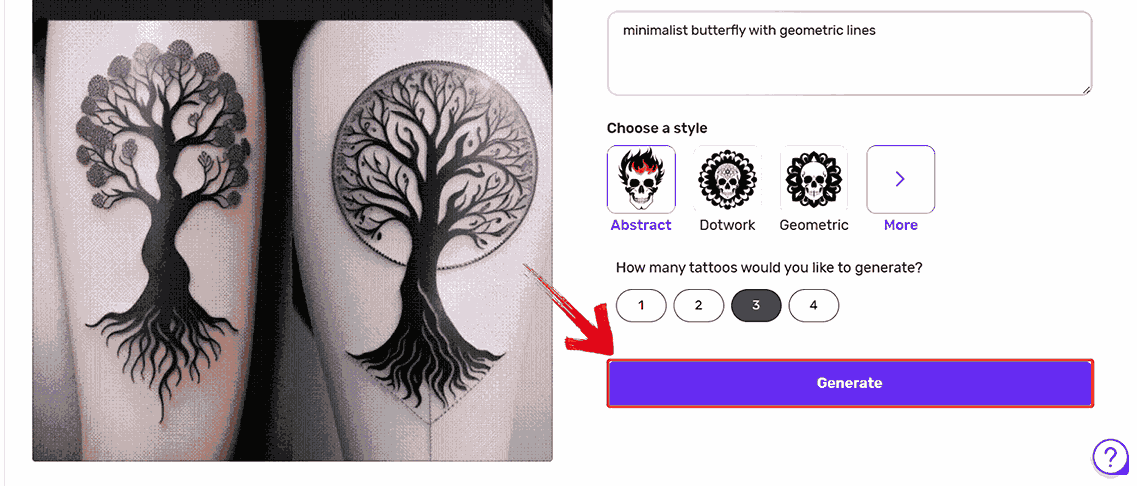
Step 3: Click the “Generate”button. You can also select the number of designs you want the AI to produce at once, which is great if you want multiple variations to compare.
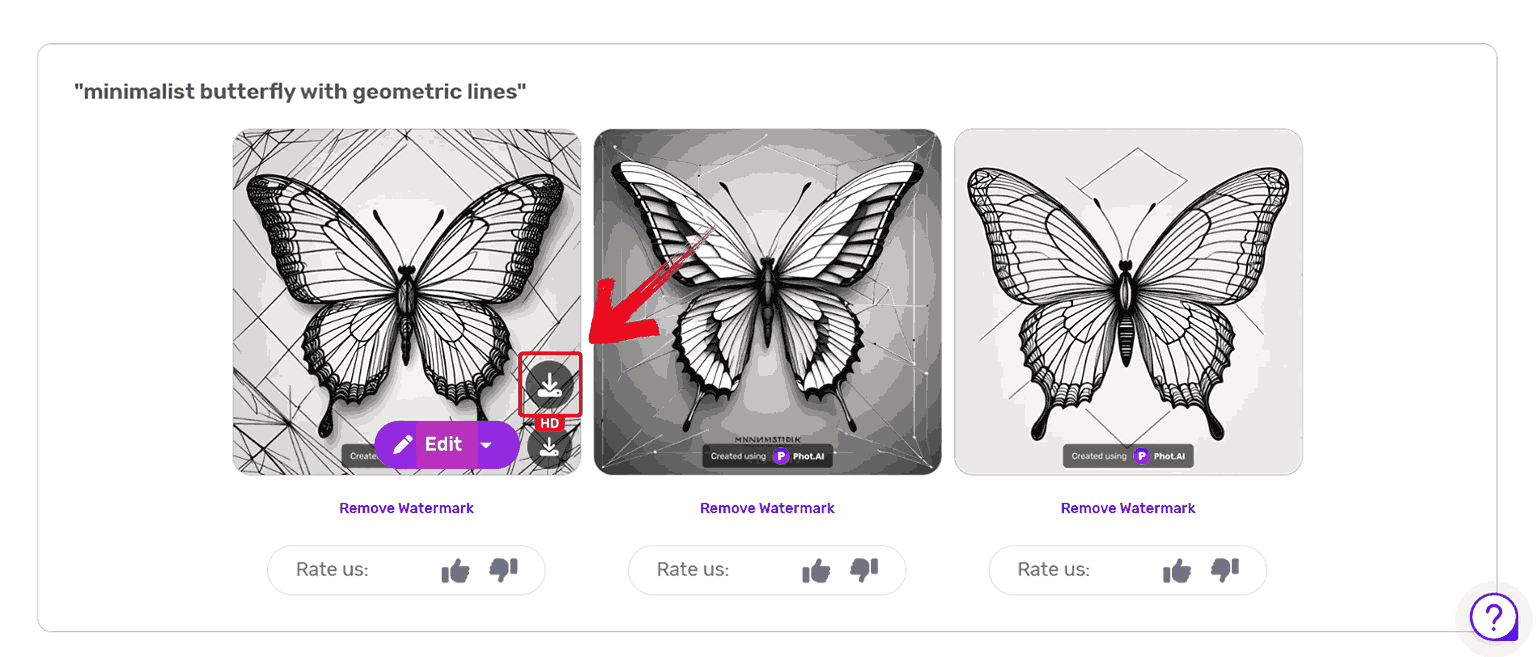
Step 4: Once the designs are generated, browse through them and click the download icon on any design you want to save.
BlackInk AI
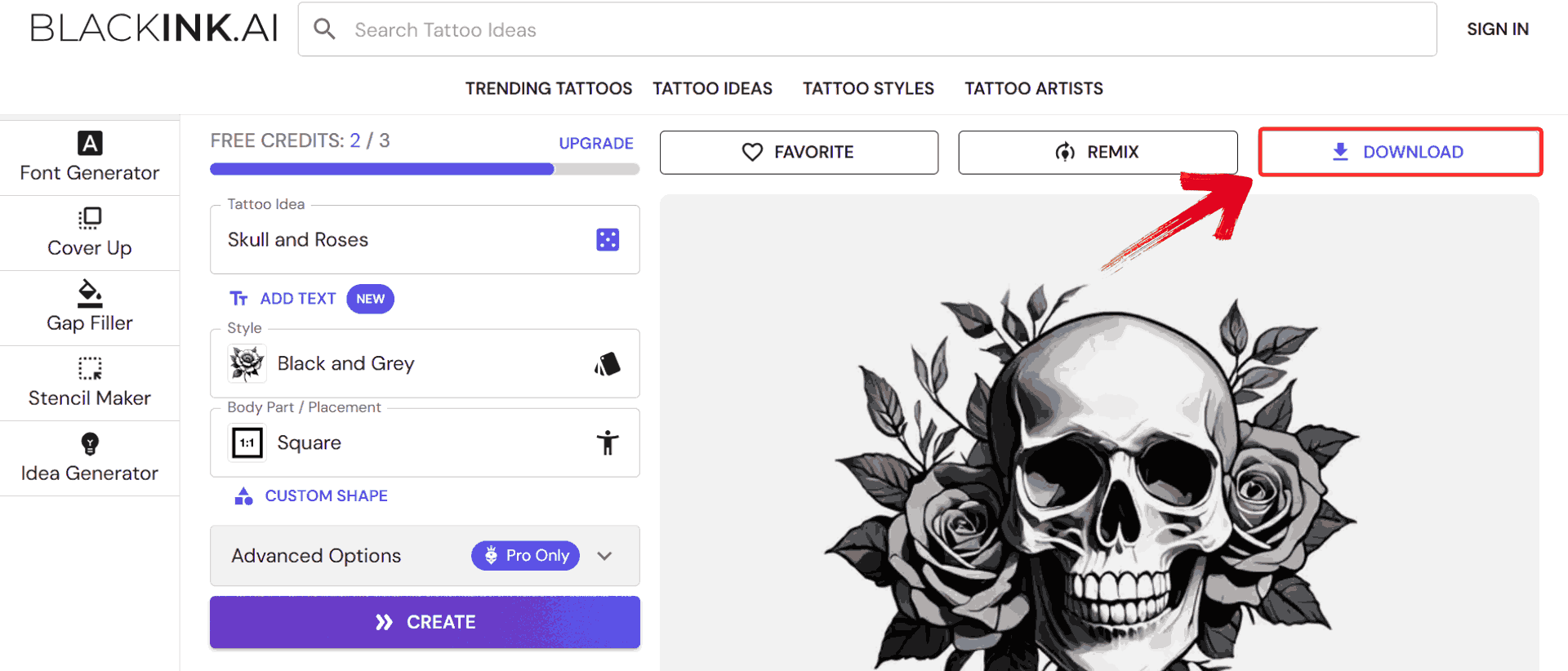
BlackInk AI focuses on realistic tattoo previews and body placement simulation. You can enter a descriptive prompt or upload an image to generate tattoo designs, then visualize how they would look on different body parts like arms, chest, or back. The tool provides customization options for style, line weight, shading, and detail level. Multiple design variations are created with each prompt, letting you select the one that best fits your vision. It also outputs high-resolution images suitable for further editing or printing as references. Users can refine prompts or adjust style parameters to explore different creative directions.
Features:
BlackInk AI’s core feature is text‑to‑tattoo generation: you enter a description, and it generates custom designs based on your style, shape and complexity preferences.
The platform offers placement templates by body part: you can choose design aspects‑ratios tailored for sleeves, forearms, chest, or other specific areas.
Users can upload an existing image to convert into a tattoo‑stencil via the “Image‑to‑Stencil” tool, enabling you to remix or refine your own artwork.
The app supports high‑resolution downloads when you upgrade, meaning you can get print‑quality files.
Pros:
Allows body‑placement simulation, visualising how the tattoo will wrap around your body.
Supports style customization which is useful for planning.
Offers high‑resolution export options for more serious design work.
Cons:
Free trial is very limited before you need a subscription.
Some users report interface or generation limitations for lettering/text tattoos specifically.
Results may require more time to load or process than simpler tools.
The tool is designed for both exploration and practicality, so you can move from concept to visual mockup quickly. Here’s how to use it.
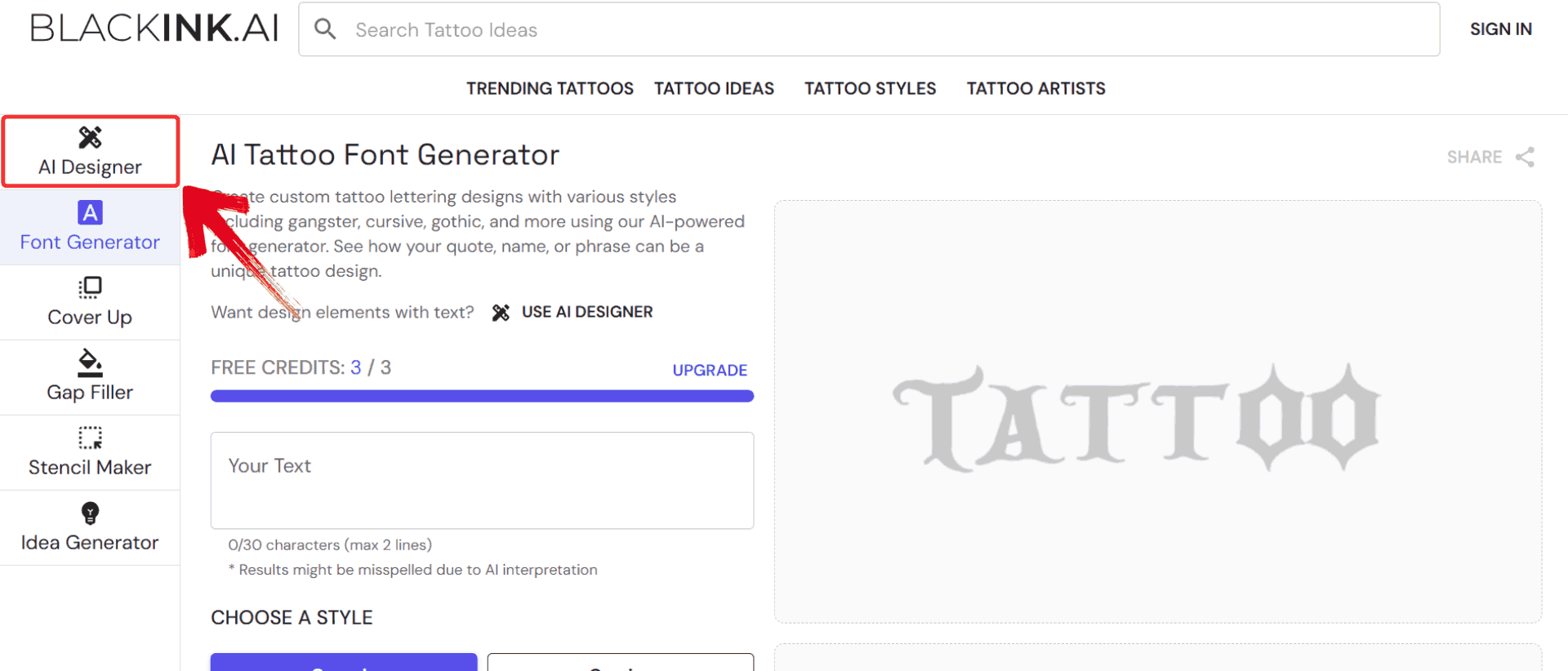
Step 1: Head over to BlackInk AI’s website and click on the “AI Designer” option on the homepage.
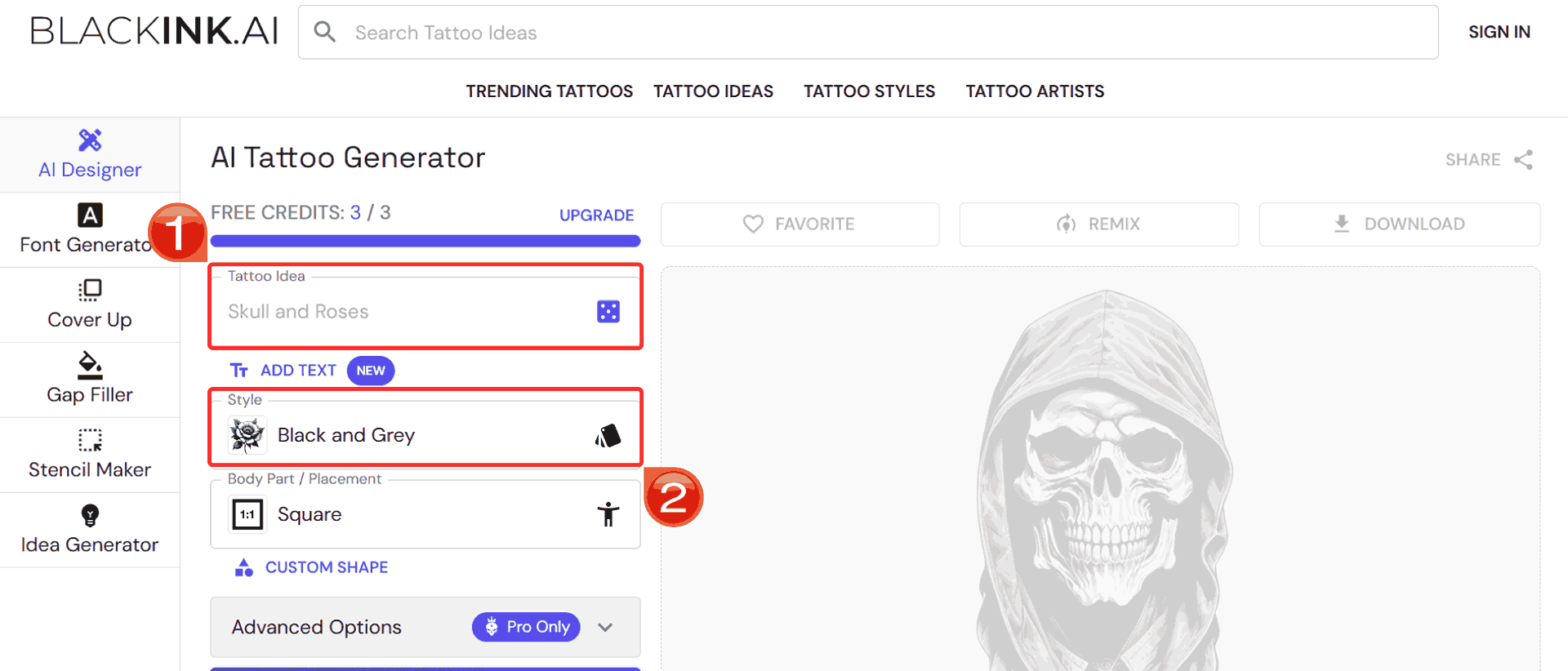
Step 2: Describe your tattoo idea in detail and select your preferred style from the available options.
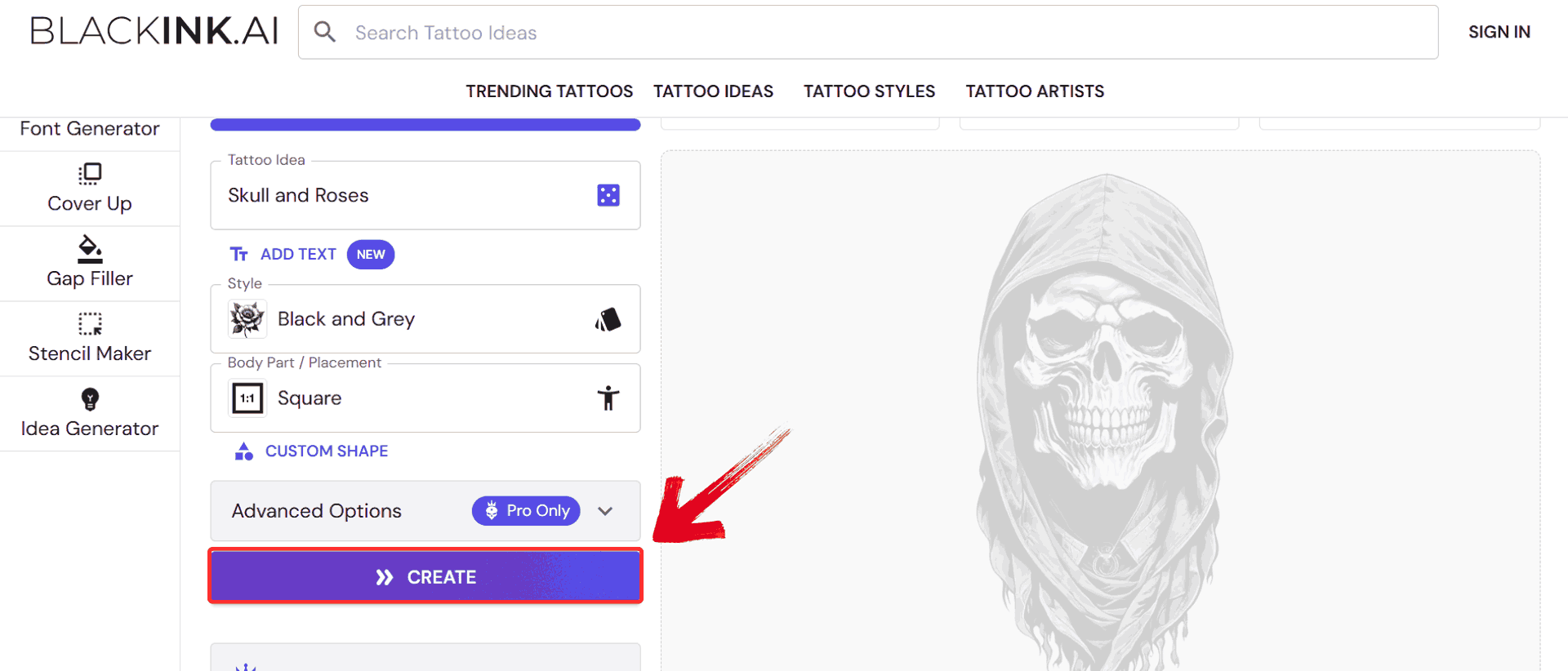
Step 3: Click the “Create” button to start generating your tattoo design.
Step 4: Once your designs are ready, click the“Download" button on the one you like to save it to your device.
Ink Studio AI
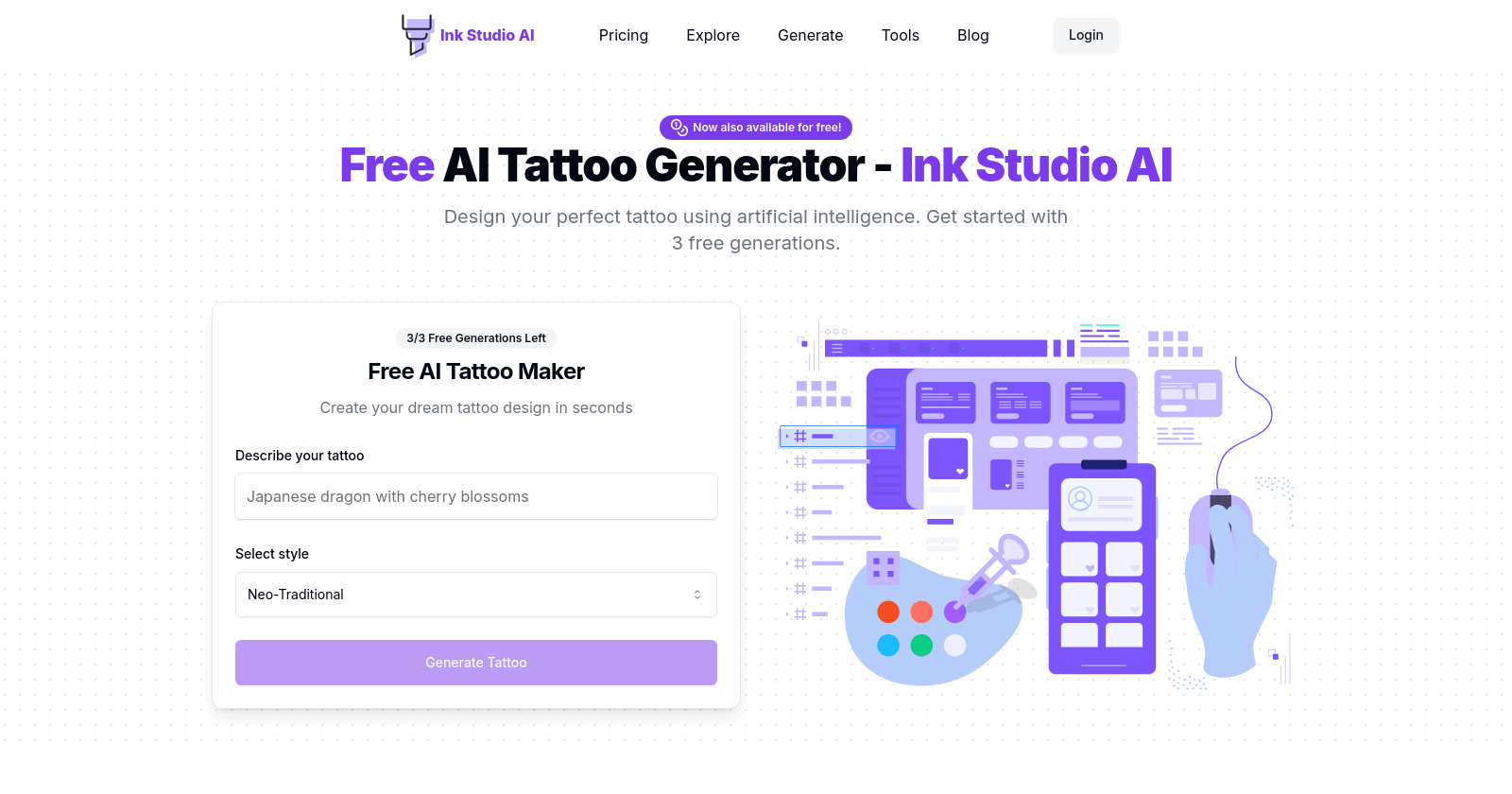
Ink Studio AI combines AI-powered tattoo design with practical planning tools. You can input a text description or upload a photo, select a tattoo style, and generate multiple design variations. The platform includes information on suggested placement, size, and complexity, helping you visualize the design in real-world terms. It supports various tattoo styles, from neo-traditional to Japanese or fine line, and allows users to refine designs iteratively. Generated images can be downloaded in standard formats, ready for sharing with a tattoo artist or for further enhancement.
Features:
Ink Studio AI allows you to describe your tattoo idea in a prompt or upload an image, and then select from a wide variety of tattoo styles to generate multiple designs.
The platform includes tools beyond just design generation such as a size calculator, price estimator, and a “Try Tattoo” preview to help you visualize placement.
Color options and background choices are given: you can choose whether you want black‑and‑grey or full color, and manage background transparency for easier editing.
After generation, you download the design in a high-quality format and show it to your tattoo artist, ready for further editing or direct inking.
Pros:
Combines design generation with practical tools for realistic tattoo planning.
Supports uploading images to convert into tattoo‑ready outlines.
Good variety of styles and design customisations, suitable for serious design work.
Cons:
The free tier is very limited before paid access is required.
Some advanced features are locked behind a paywall.
Interface may include more planning tools which can add complexity
With Ink Studio AI, the combination of style presets, size planning, and image-to-design options makes it an efficient tool for serious tattoo planning. Before you hand over ideas to your artist, generating a few versions and visualizing size and placement is key. Here’s how to get started:
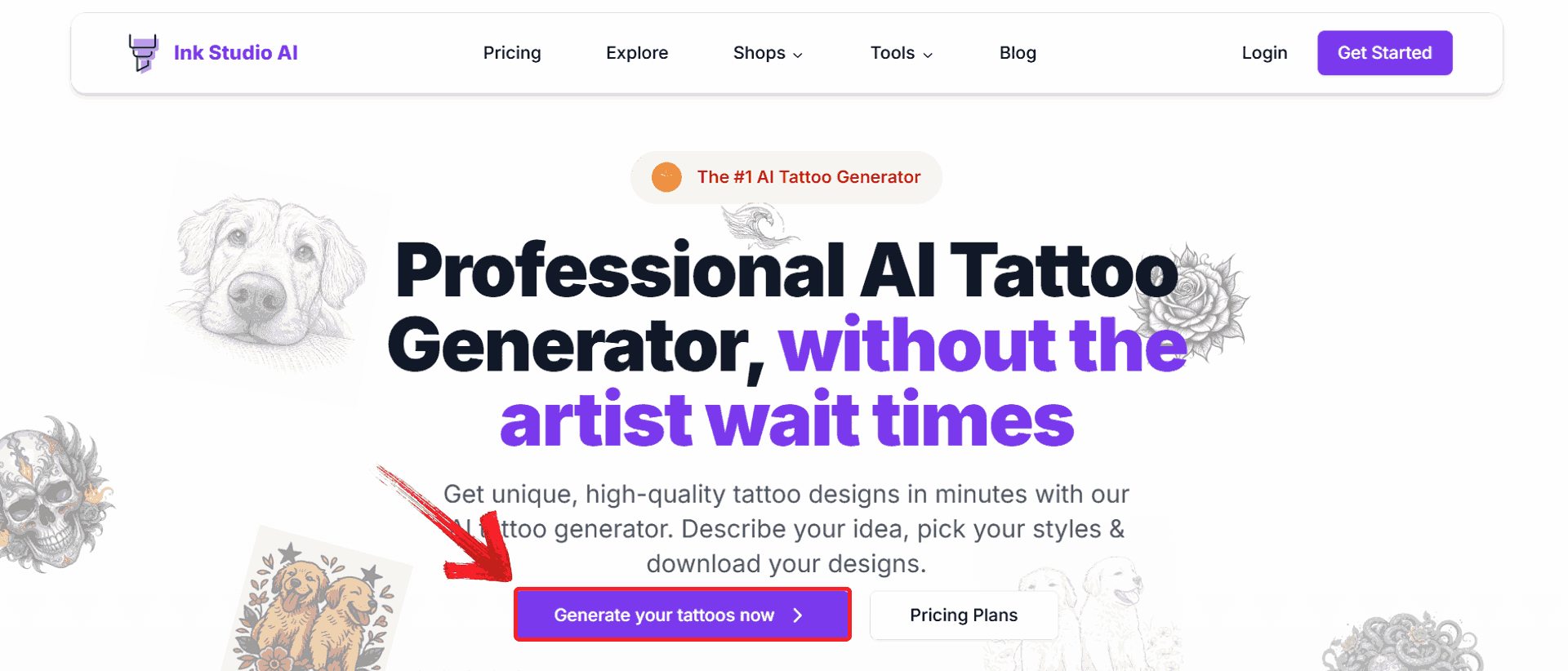
Step 1: Go to Ink Studio AI’s website and click on the “Generate your tattoos now” button on the homepage.
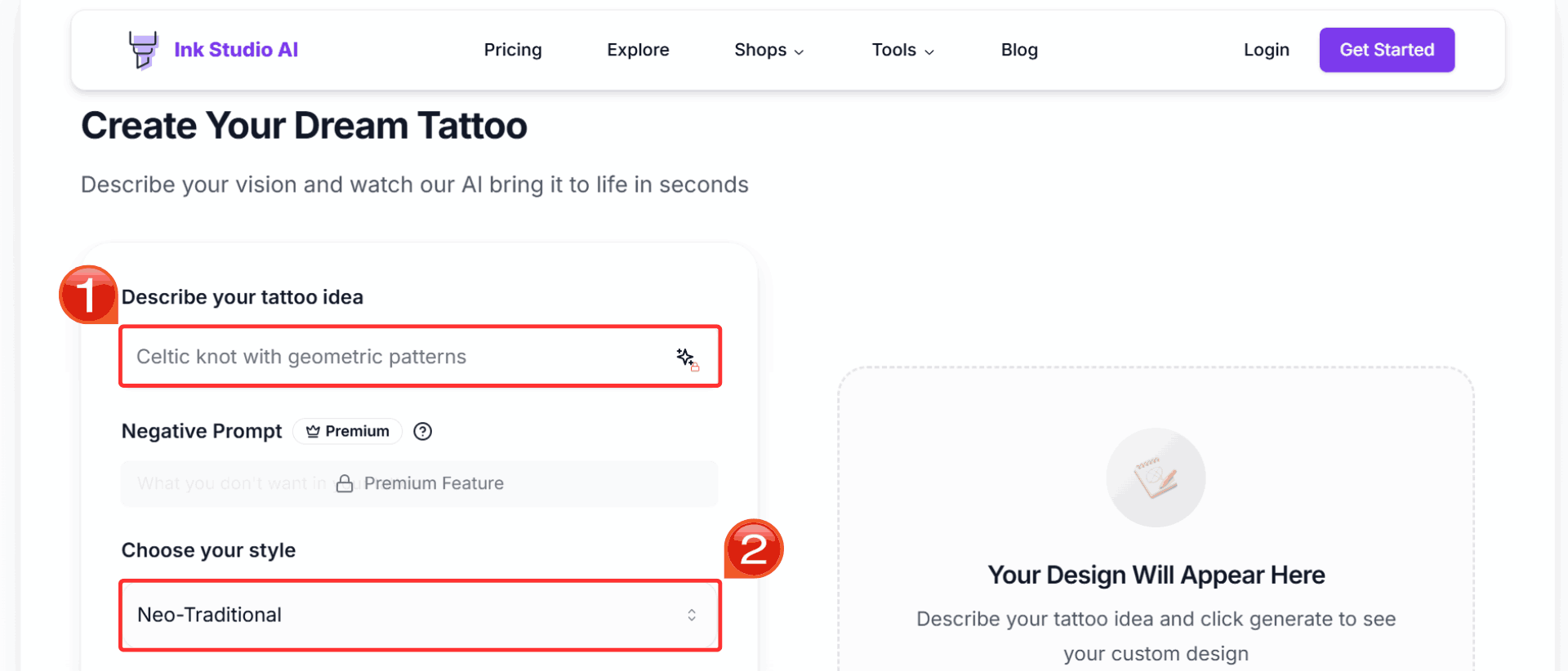
Step 2: Write a prompt that describes your tattoo idea in detail and select your preferred style.
Step 3: Click the “Generate My Tattoo” button to start creating your tattoo design.
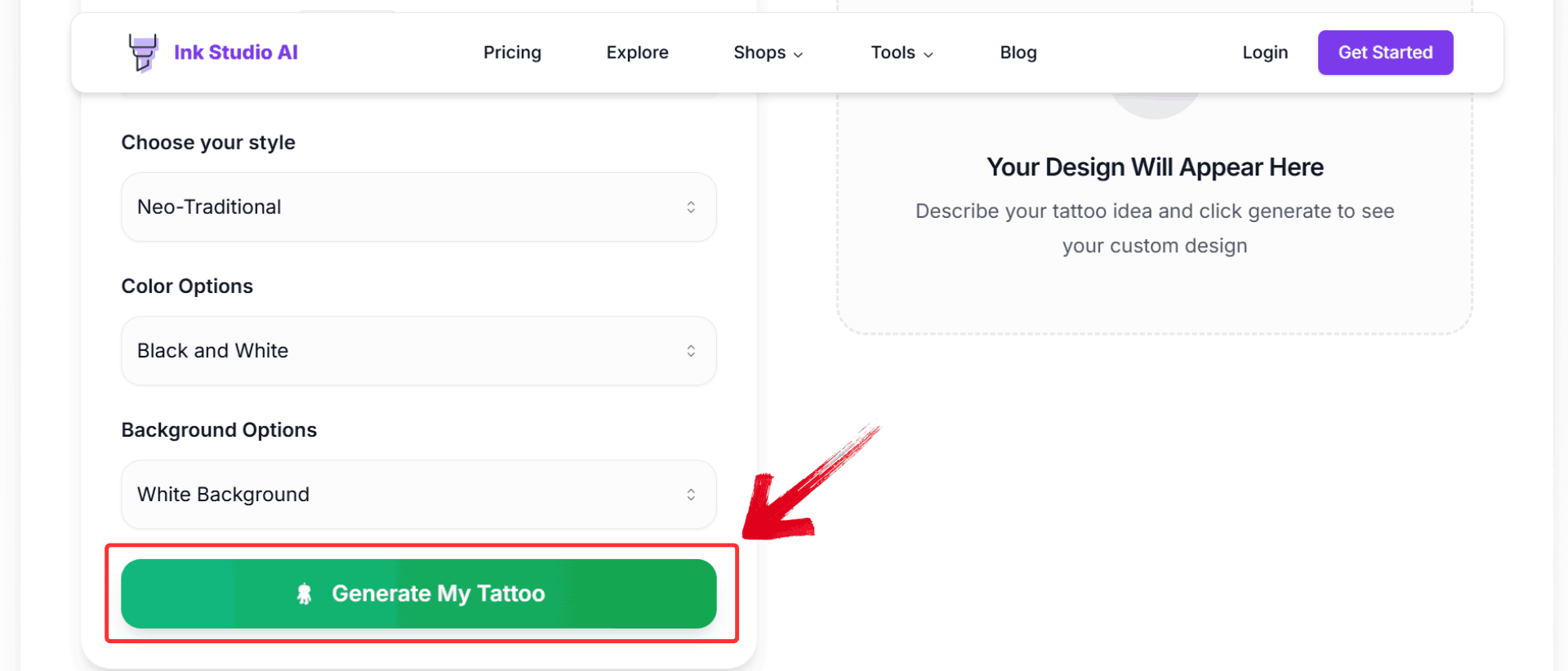
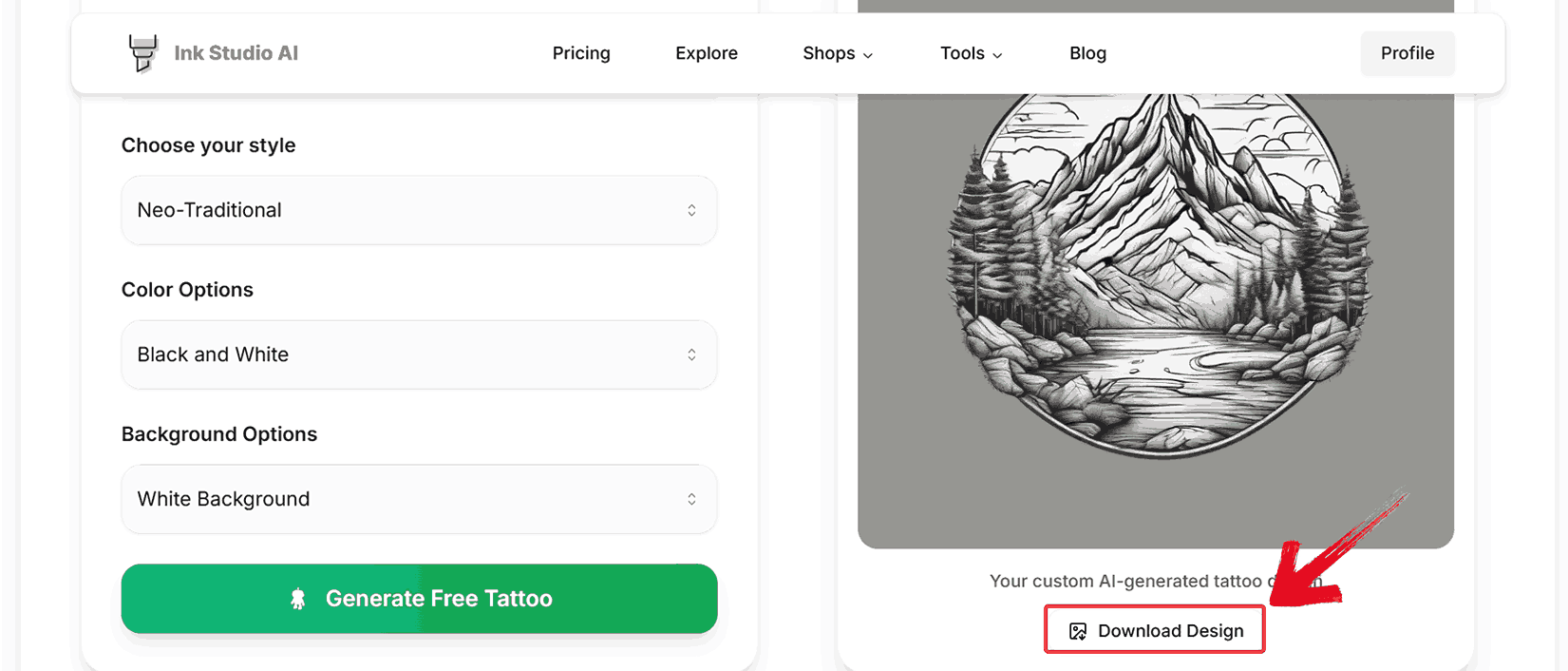
Step 4: Once your designs are ready, click the“Download Design" button to save it to your device.
Canva AI Tattoo Generator
Canva’s AI Tattoo Generator is part of the broader Canva design platform. You can create tattoo designs using text prompts or images and immediately edit layout, color, and composition within Canva’s interface. The tool supports multiple style interpretations, allowing you to experiment with concepts quickly. Generated designs can be adjusted, layered, and exported for sharing or refinement. While it’s primarily aimed at concept creation, the AI outputs provide a solid starting point for brainstorming tattoo ideas. Users can iterate designs by changing prompts or editing generated images directly in Canva.
Features:
The Canva AI Tattoo Generator lives within the broader Canva design suite, allowing you to use text prompts or image uploads to create preliminary tattoo‑style visuals.
After generation, you can tweak composition, layer elements, adjust color or contrast, and mock up how the design might look in different placements or styles.
Generated designs can be exported in standard image formats and used as a starting point for refinement either yourself or with your tattoo artist.
Because it’s part of Canva, you benefit from a familiar UI and quick edits, while also having the flexibility to use other Canva tools around the tattoo concept.
Pros:
Fully free entry‑level tool within Canva’s familiar design ecosystem
Excellent for early stage mock‑ups and layout ideas.
Allows easy editing of generated designs without switching apps.
Cons:
Not as tailored to tattoo‑specific technical needs as specialised tools.
Output may require additional refinement before it’s ink‑ready.
You may have to work through design options to match a pure tattoo‑studio workflow.
Here’s a step-by-step guide to generating, customizing, and downloading your initial tattoo concepts in Canva.
Step 1: Go to Canva’s Tattoo Generator and write your tattoo prompt directly on the homepage.
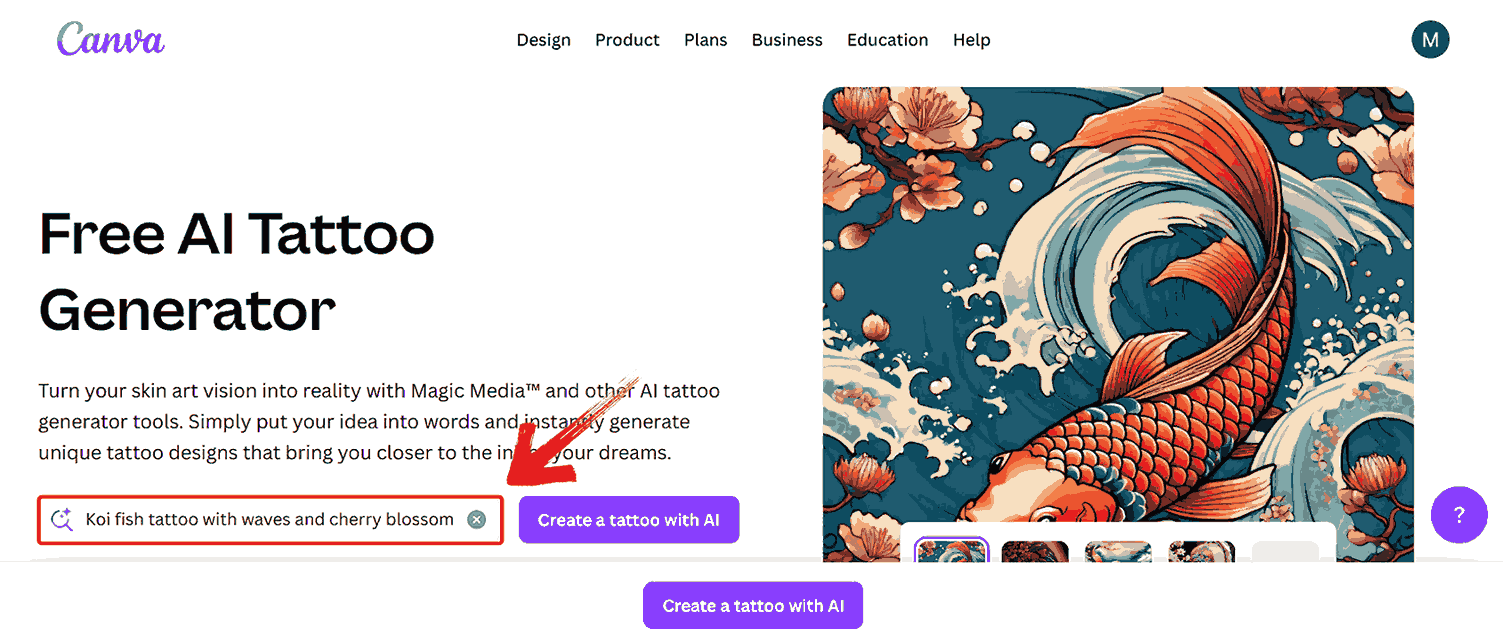
Step 2: Once you’ve entered your idea, click the“Create a tattoo with AI” button to generate designs.
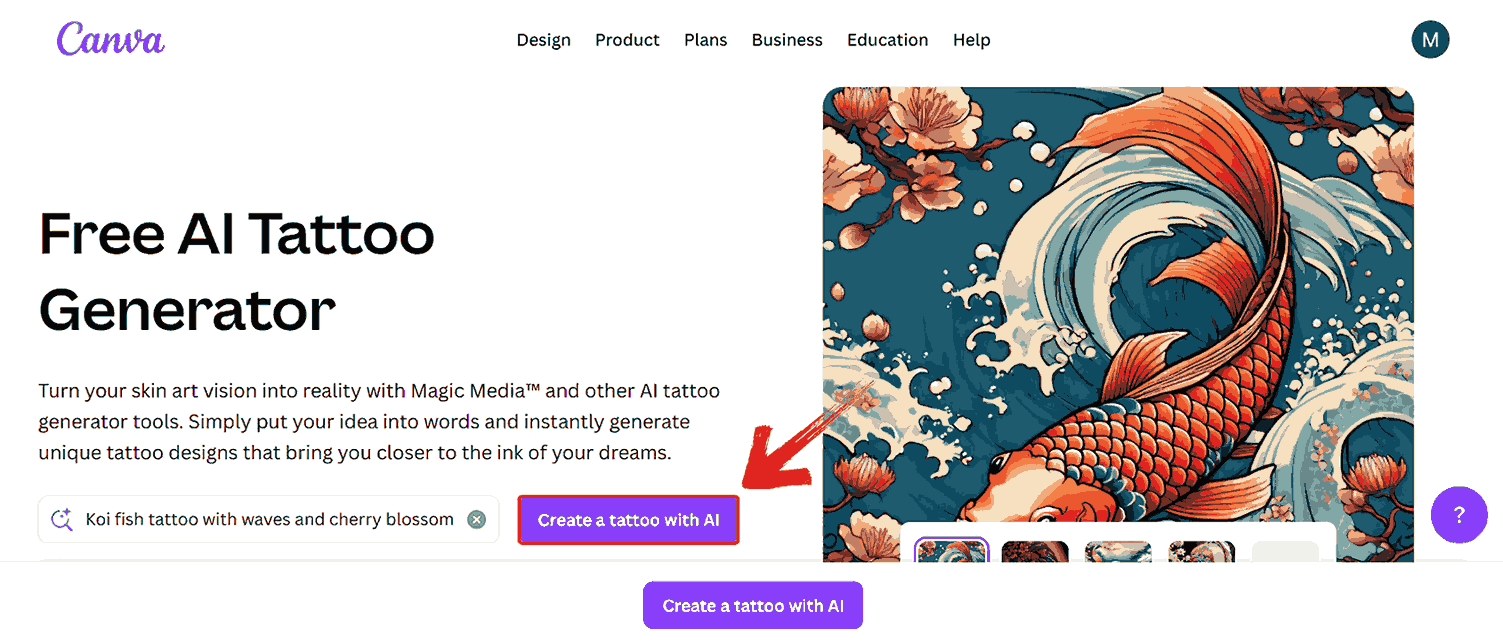
Step 3: Browse through the results and select any design you like from the options displayed on the left menu.
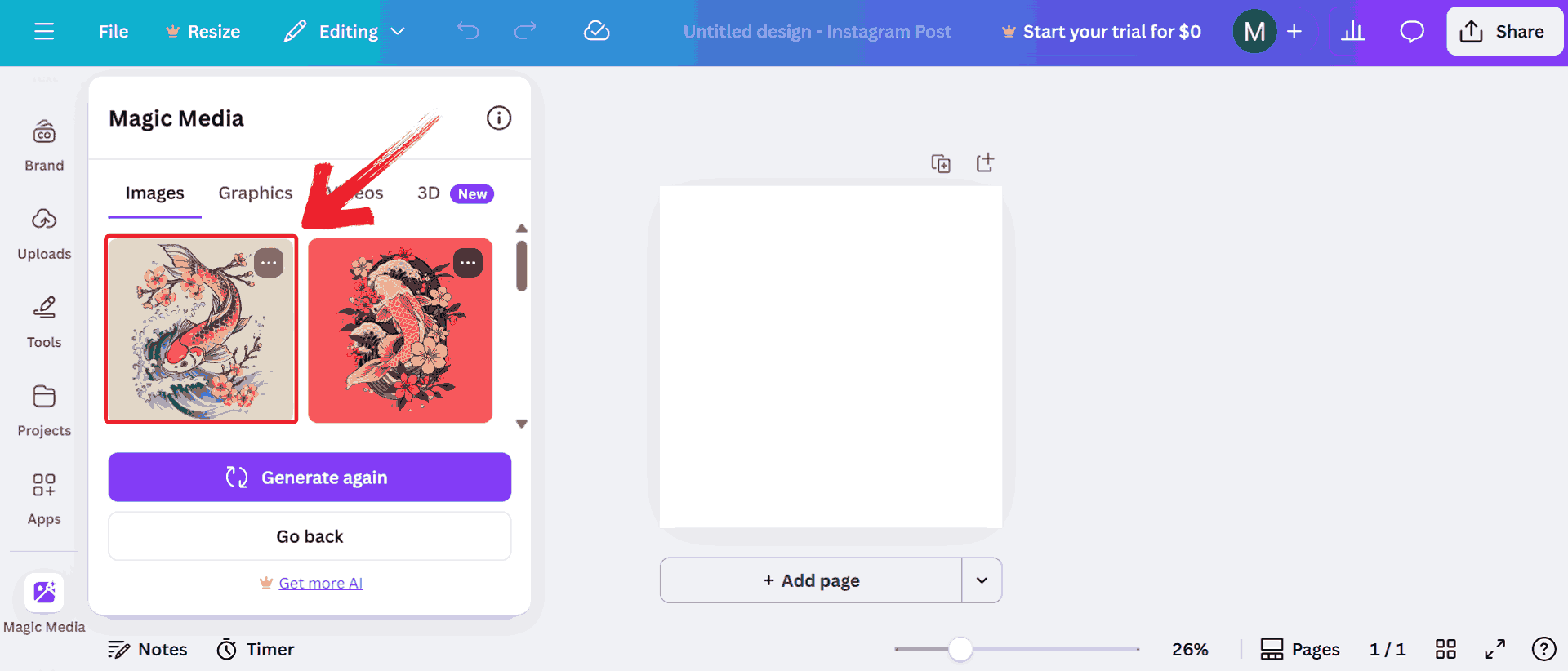
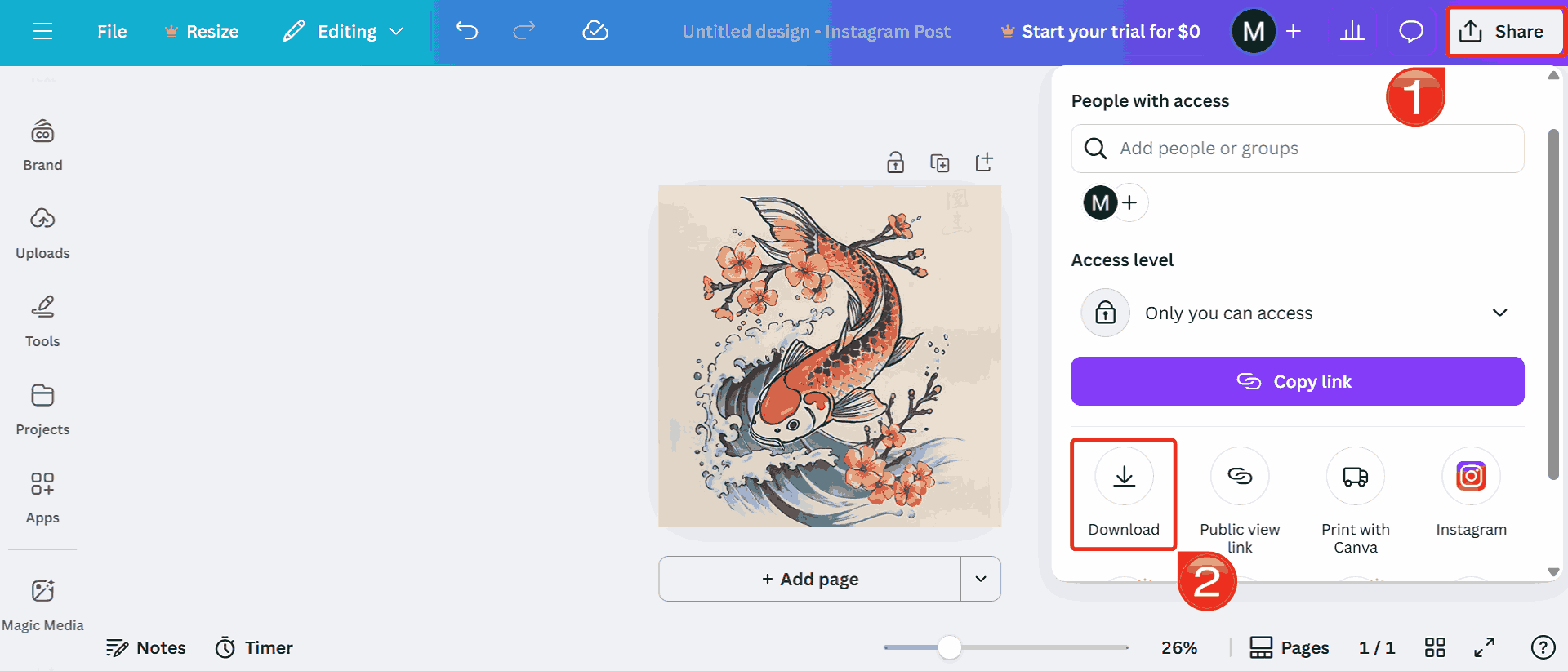
Step 4: Click the white “Share”button at the top right corner, then select “Download”to save your chosen tattoo design.
Quick Comparison Table
It is clear that each platform stands out for something practical like TattooAI gives the most realistic shading, Fotor has flexible editing options, and Canva wins for easy post-generation changes. But when you’re actually deciding which one to use, small differences likeexportquality, prompt accuracy, and pricing matter more than fancy features. I’ve broken down the key points of each tool in a quick comparison table below, the kind that actually helps you pick the right one instead of just summarizing specs.
| AI Tattoo Generator | Key Features | Free Version | Best For | Limitation |
|---|---|---|---|---|
| Tattoo AI | Tattoo-focused models, preview tool | Yes | Clean, stencil-ready tattoos | Watermarked downloads |
| Phot.AI | Text + photo generation | Yes | Combining photos & text prompts | Slight blurriness |
| BlackInk AI | Realistic skin previews | Yes | Hyper-realistic designs | Limited free credits |
| Ink Studio AI | Cost & time estimates | Yes | Practical tattoo planning | Limited styles |
| Canva AI | Built-in editor, easy UI | Yes | Beginners & casual designs | Lower realism |
From my experience, Tattoo AI and Phot.AI deliver the most consistently usable outputs, while BlackInk AI shines in realism. Ink Studio AI is the best planning companion, and Canva is the simplest entry point for experimentation.
Enhance Your Tattoo Design With WPS Photo
Even with high-quality AI generators, tattoo designs often need refinement before they’re ready for a stencil. AI models tend to produce gradients that don’t translate well to ink, or lines that look soft when printed. WPS Photo happens to be one of the post-editing tools that can help with that.
It’s part of the WPS Office suite and offers intelligent enhancement tools powered by AI. It’s designed to upscale low-resolution images, improve lighting, and refine edges making AI-generated tattoos refined and printable. The built-in enhancement filters help define outlines, balance shadows, and bring out micro details that tattoo artists rely on for clean tracing.
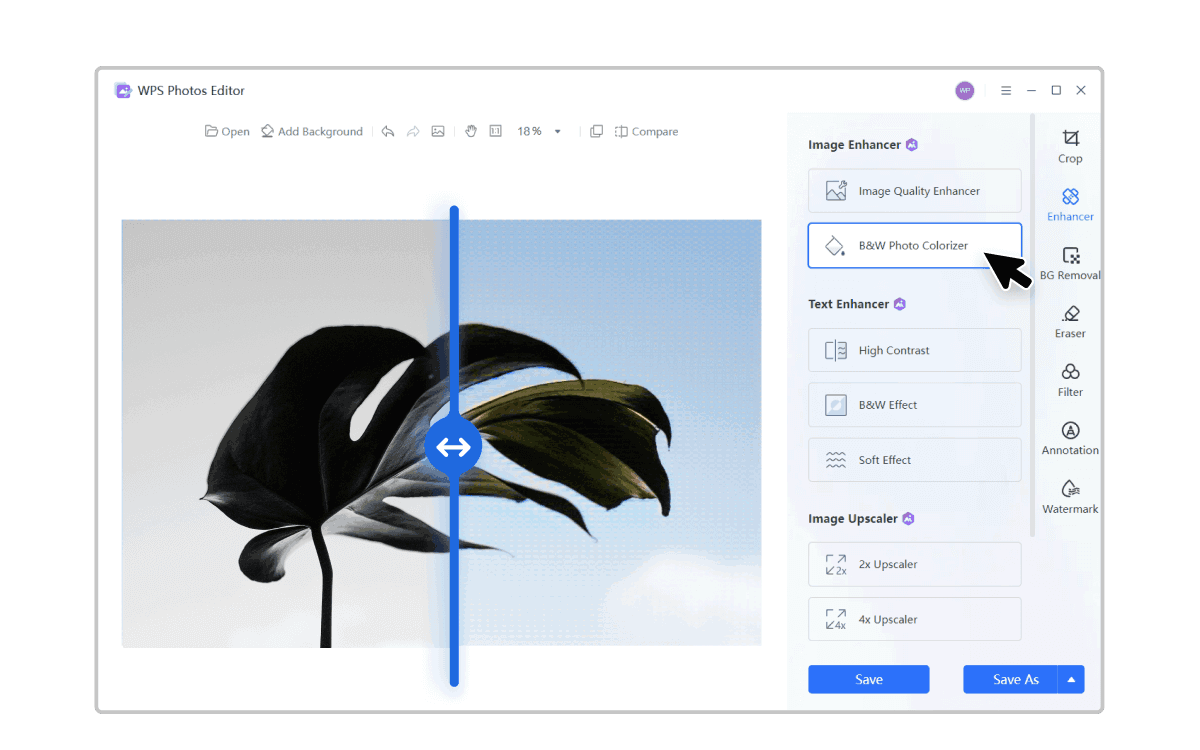
Features
AI Enhancer: Automatically improves image resolution and line sharpness, making fine tattoo details look cleaner and more defined for stencil use.
Noise Remover: Smooths out grainy or pixelated areas in your design, ensuring gradientsand shading appear more natural when printed.
Background Eraser: Lets you easily isolate your tattoo from its background, perfect for exporting stencil-ready designs or mockups.
Free Features: Most core editing tools, including enhancement and cleanup options, are available in the free plan without needing a subscription.
With these tools, WPS Photo makes it easy to prepare any AI-generated tattoo for printing or tracing. The interface is simple enough for quick edits but detailed enough for professional touch-ups. You don’t need advanced design skills, just a few focused adjustments can turn a digital image into a precise, ink-ready layout. Here’s how you can do it step by step
Step 1: Right-click on the template you want to edit, then click on “Edit Photo” to open it in WPS Photo Editor.

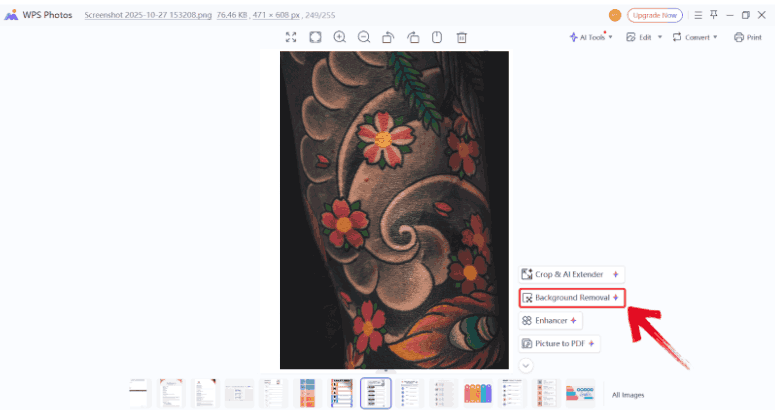
Step 2: Make whatever changes you like to the tattoo design, such as using the “Background Removal” for a refined look.
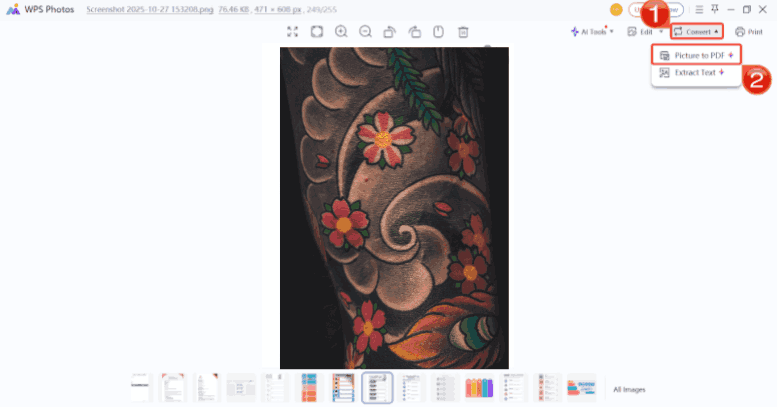
Step 3: Click on “Convert”, then select “Print to PDF” to save your changes and print your edited tattoo design.
FAQs
1. Why are the AI-generated designs often blurry or pixelated?
Most AI tattoo platforms focus on quick rendering rather than resolution. This results in low-DPI images that aren’t ideal for printing. You can use WPS Photo’s AI Enhancer to upscale and sharpen your design before finalizing.
2. Will my tattoo design be unique?
Mostly yes. Each design is generated through AI’s unique data combinations. However, similar prompts can lead to similar outputs, so try experimenting with specific details to ensure originality.
3. Can I sell AI-generated tattoos?
It depends on the generator’s licensing terms. Most platforms allow personal use but restrict commercial resale unless stated otherwise.
4. Can I ask my tattoo artist to modify the AI design?
Absolutely. In fact, it’s recommended. Artists can refine AI outputs to suit your skin type, size, and ink style.
5. Are AI tattoos safe to use as final references?
Yes, but make sure your artist reviews the design’s feasibility. Some details may need simplification before inking.
Pixels to Ink With WPS Photos
AI tattoo generators are reshaping how people approach body art, turning simple ideas into detailed, personalized designs within seconds. With Tattoo AI for clean stencils and Phot.AI for creative blends, coming up with tattoo ideas feels faster and way more fun. Platforms like BlackInk AI and Ink Studio AI add realism and practicality, while Canva’s free option is perfect for quick experimentation. Still, AI results often need a finishing touch. For that, WPS Photobecomes essential, enhancing sharpness, contrast, and clarity so your final tattoo design looks just as good on skin as it does on screen. Together, these free AI tattoo generators and WPS Photo bring professional-level results within everyone’s reach.

'%3e%3cpath%20d='M19.9911%204.11386V6.471H18.5894C18.0775%206.471%2017.7322%206.57814%2017.5536%206.79243C17.3751%207.00671%2017.2858%207.32814%2017.2858%207.75671V9.44421H19.9019L19.5536%2012.0871H17.2858V18.8639H14.5536V12.0871H12.2769V9.44421H14.5536V7.49779C14.5536%206.39064%2014.8632%205.53201%2015.4822%204.92189C16.1013%204.31177%2016.9257%204.00671%2017.9554%204.00671C18.8304%204.00671%2019.509%204.04243%2019.9911%204.11386Z'%20fill='%23333333'/%3e%3c/g%3e%3cdefs%3e%3cclipPath%20id='clip0_2938_8199'%3e%3crect%20width='16'%20height='16'%20fill='white'%20transform='translate(8%204.00671)'/%3e%3c/clipPath%3e%3c/defs%3e%3c/svg%3e)
'%3e%3cpath%20d='M17.5237%2010.7813L23.4811%204H22.0699L16.8949%209.88693L12.7648%204H8L14.2469%2012.9029L8%2020.0133H9.4112L14.8725%2013.7952L19.2352%2020.0133H24M9.92053%205.04213H12.0885L22.0688%2019.0224H19.9003'%20fill='%23333333'/%3e%3c/g%3e%3cdefs%3e%3cclipPath%20id='clip0_2938_8200'%3e%3crect%20width='16'%20height='16.0134'%20fill='white'%20transform='translate(8%204)'/%3e%3c/clipPath%3e%3c/defs%3e%3c/svg%3e)


