SlidesAI has become a familiar name for anyone who wants AI help
inside Google Slides or PowerPoint. It promises to turn raw text into
structured slide decks in minutes, which sounds perfect when deadlines
are tight. But if you have ever tried exporting AI made slides into real
presentation software, you know how messy things can get. That is where
the real frustration starts. In this guide, I will take you through
SlidesAI, how to use it, and why many people now prefer WPS AI Slides as
a smarter option.
Use Word, Excel, and PPT for FREE
SlidesAI
What is SlidesAI?
SlidesAI is an AI
powered presentation tool that lives inside Google Slides and works
alongside PowerPoint through file exports. Instead of building slides
one by one, you give it text, notes, or even full documents, and it
turns them into a complete deck. It is especially popular with students,
teachers, and business users who already work inside Google Slides and
do not want to move their files to another platform.
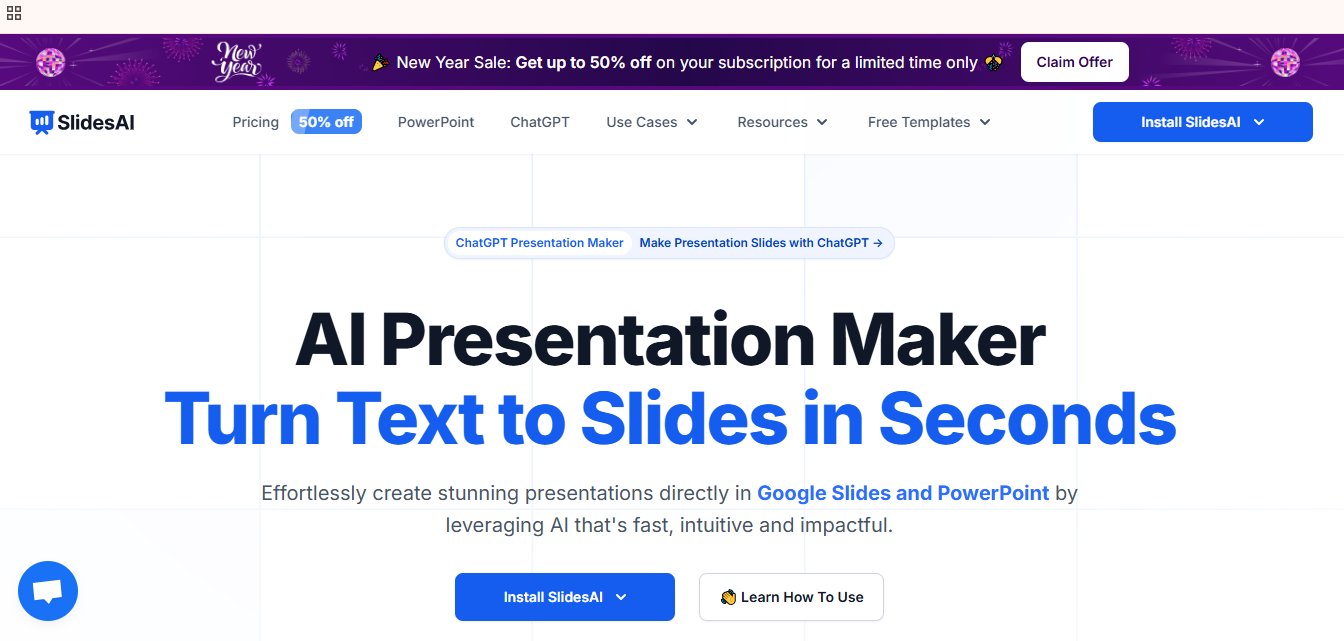
SlidesAI Interface
Features
Built-in Templates: SlidesAI provides a set of clean, minimalist templates that automatically apply consistent layouts, spacing, and typography, helping your slides look organized without manual design work.
AI Text-to-Slide Conversion: You can paste raw text, notes, or paragraphs, and SlidesAI intelligently breaks the content into slide titles and bullet points that follow a logical flow.
Language and Tone Control: SlidesAI allows you to adjust language and writing tone, making it easier to create presentations that feel academic, professional, or conversational depending on your audience.
Stock Images and Icons Integration: The tool connects to a large stock library and suggests relevant visuals based on your content, reducing the time spent searching for images.
Google Slides and PowerPoint Compatibility:Slides are created inside Google Slides and can be exported as fully editable PowerPoint files without layout issues.
Quick Regeneration and Editing: If the first result doesn’t feel right, you can regenerate slides instantly or edit individual sections without starting over.
Pricing
SlidesAI uses a tiered pricing model:
Free SlidesAI: Limited monthly AI credits, suitable for short decks and casual users
Pro Plans: Starting around $10 per month, offering higher limits, longer documents, and advanced features
For students and light users, free SlidesAI is functional. If you’re
a professional who handles presentations on a more frequent basis, the
paid tier is much a better option.
Pros and Cons of SlidesAI
Here is a quick overview of SlidesAI, what it does well and where it
falls short.
Feature
SlidesAI
Works inside Google Slides
√
Converts text to slides
√
Uses AI to summarize content
√
Exports to PowerPoint
√
Full design control
×
Custom templates
×
Advanced editing tools
×
Truly free unlimited use
×
SlidesAI is great when you want fast structure and you already live
in Google Slides. It becomes limiting when you need brand templates,
complex layouts, or full PowerPoint level editing.
How to Use SlidesAI Step by
Step
Instead of manually building slides one by one, this tool lets you
move from a simple prompt or document to a structured slide deck in just
minutes. I will walk you through the full process so you know exactly
where to click and what to enter at each stage. Whether you are starting
with notes,
a topic, or a full document, SlidesAI adapts to your workflow. By the
end of this section, you will have a clear, repeatable method you can
use for any presentation. Here’s how to use SlidesAI to turn raw ideas
into a finished presentation
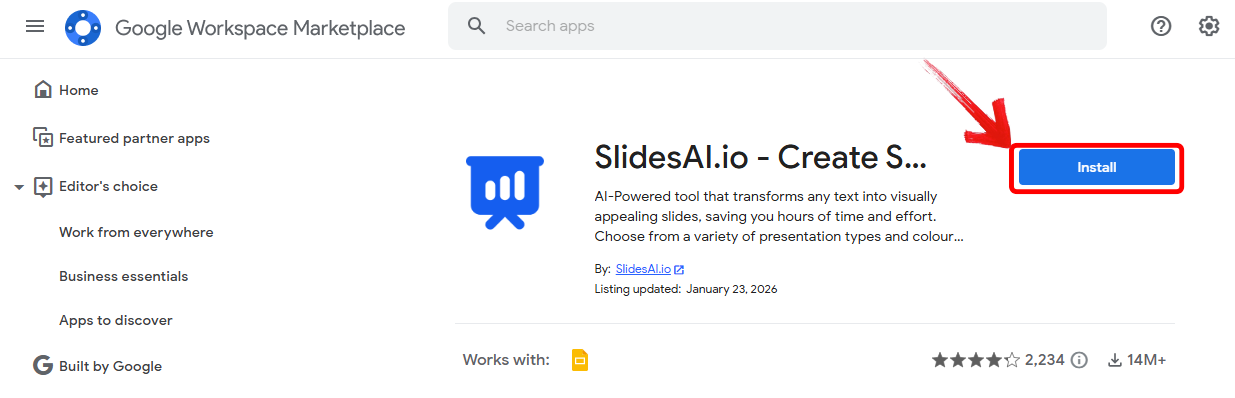
Step 1: Open your browser and install the SlidesAI extension for Google
Slides. Once it is added to your Google account, it will automatically
appear inside Google Slides.
Install SlidesAI
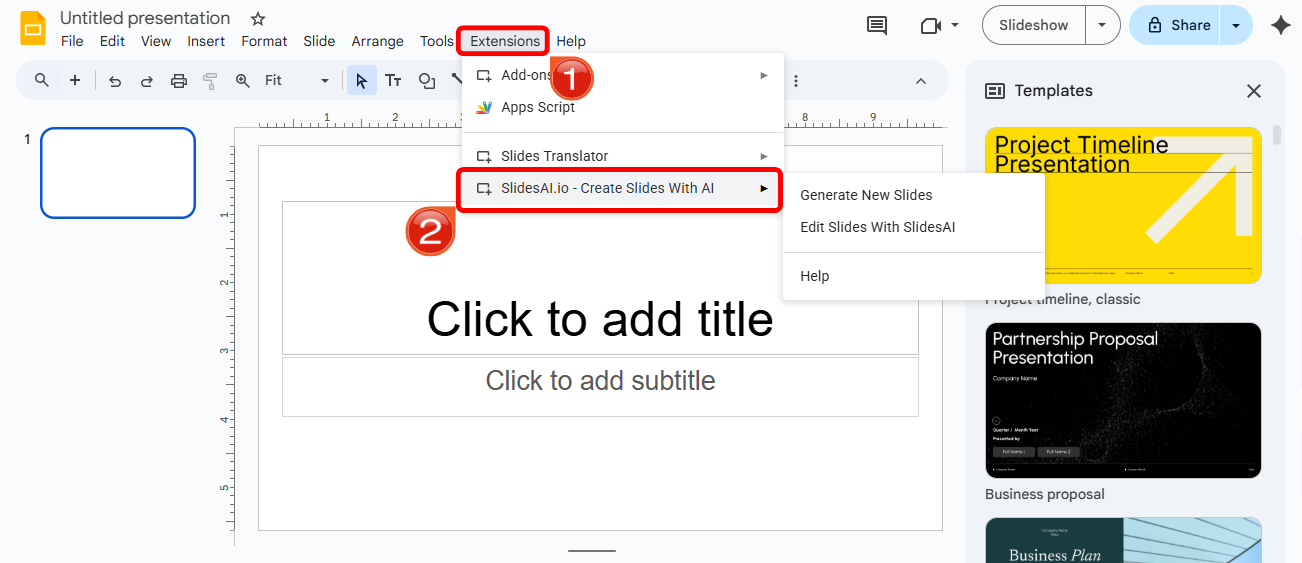
Step 2: Open Google Slides, create a new
presentation, then click “Extensions” then “SlidesAI” to open the AI panel on the right side of
the screen.
Open SlidesAI
Step 3: Choose how you want to start. You can paste
in text, upload a document, or write a short topic description depending
on what you already have prepared.
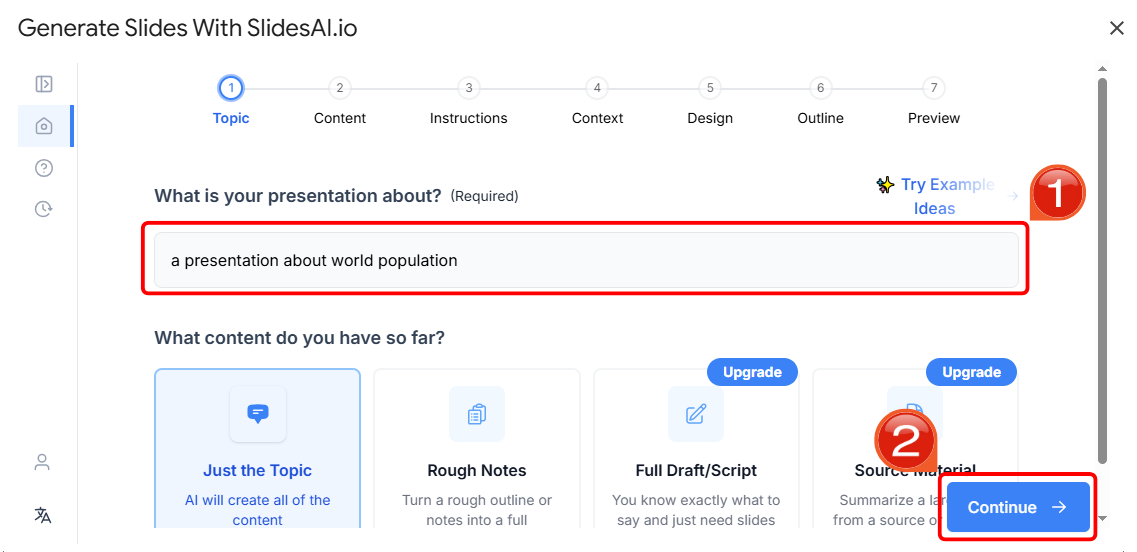
Step 4: Enter your content and click “Continue”. SlidesAI will break your material into
slide titles and talking points so you can review the structure before
creating slides.
Generate Outline
Step 5: Review the finished slides and make any
edits you need. If required, you can export the file as a PowerPoint
presentation for sharing or offline use.
I have used SlidesAI for quick outlines and it definitely saves time,
but I often end up spending extra time fixing layouts and fonts after
exporting.
The
Best Helper for Presenting Your Ideas: WPS AI Slides
If SlidesAI feels a bit boxed in, WPS AI
Slides is where things get more flexible. WPS AI Slides is a
full AI presentation creator that works on desktop, web, and mobile. You
can start with a prompt, a document, or even a PDF, and it builds a
complete, polished presentation for you.
WPS AI Slides
What makes WPS AI Slides stand out is how deeply it understands real
office files. You can upload your own PowerPoint or school templates,
and the AI will follow your exact design rules. That means logos,
colors, and layouts stay consistent without you fixing things slide by
slide.
WPS AI Slides does not just create slides. It creates slides that you
can fully edit in PowerPoint, WPS Office, or export as PDF without
breaking the layout. I have tested decks side by side, and WPS exports
look clean while many other tools flatten or shiftelements.
Functions and features:
Generate slides from one sentence or a full document
Upload your own custom templates
AI chooses layouts that match your content
Built in image matching and icons
Full PowerPoint level editing tools
How to create a
presentation with WPS AI Slides
Before jumping into the steps, it helps to understand what WPS AI
Slides is really doing for you behind the scenes. Instead of
forcing you to start from a blank slide, it turns your ideas, notes, or
documents into a structured presentation that you can then refine. You
still stay in control, but the heavy lifting is done by AI. In the
following steps, I will take you through how to go from nothing more
than a topic or file to a complete, ready to present slide deck using
WPS AI Slides:
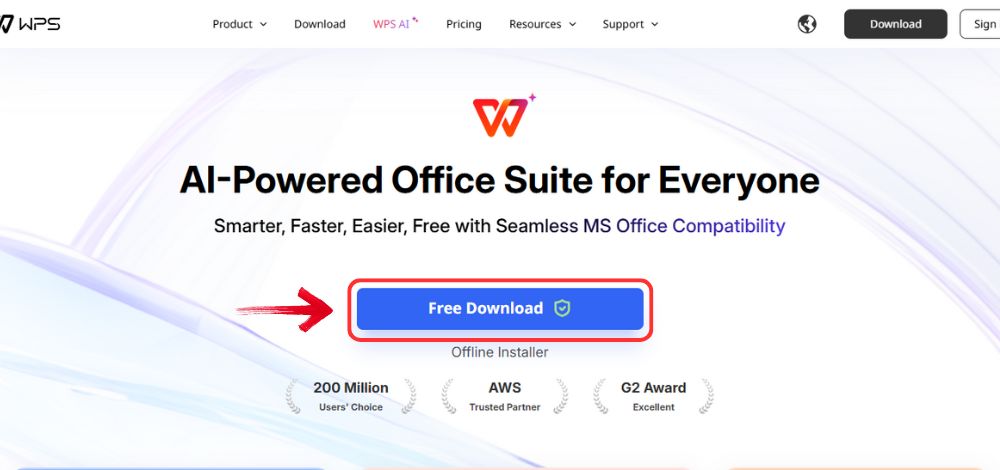
Step 1: Head over to the WPS Office website and download
the desktop application by clicking the “Free Download” button.
Download WPS Office
Step 2: Once the installer has finished downloading,
open it. WPS Office guides you through the setup process automatically,
so you don’t have to worry about adjusting complicated technical
settings.
Step 3: Read through the license agreement, accept
the terms, and select the default “Install” option to
complete the setup. Within minutes, you’ll be ready to launch the
program.
Install WPS Office
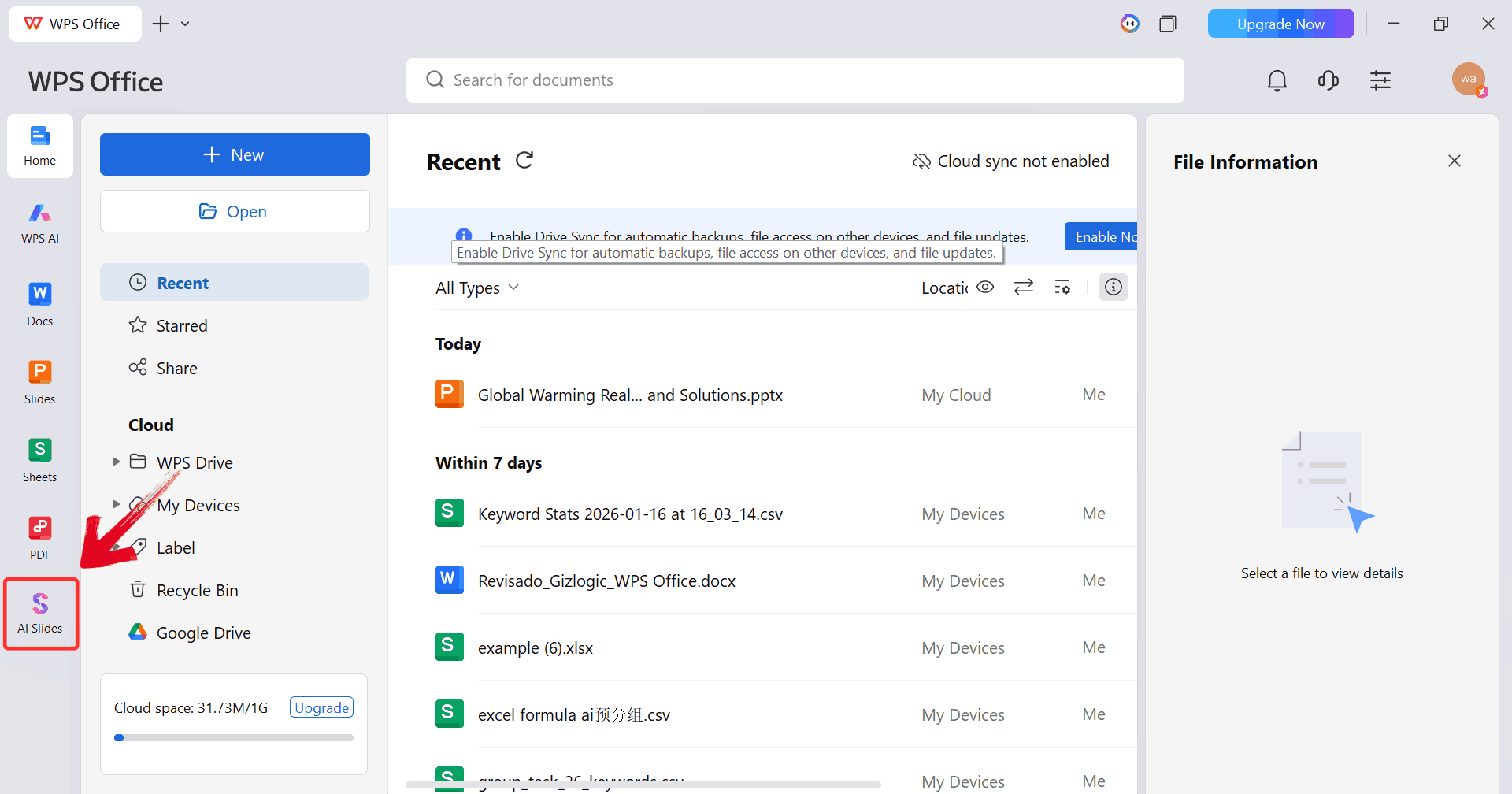
Step 4: Open WPS Office and locate “AI
Slides” on the main dashboard. Clicking this opens the
AI-powered slide creation interface, where all the magic happens.
Click AI Slides
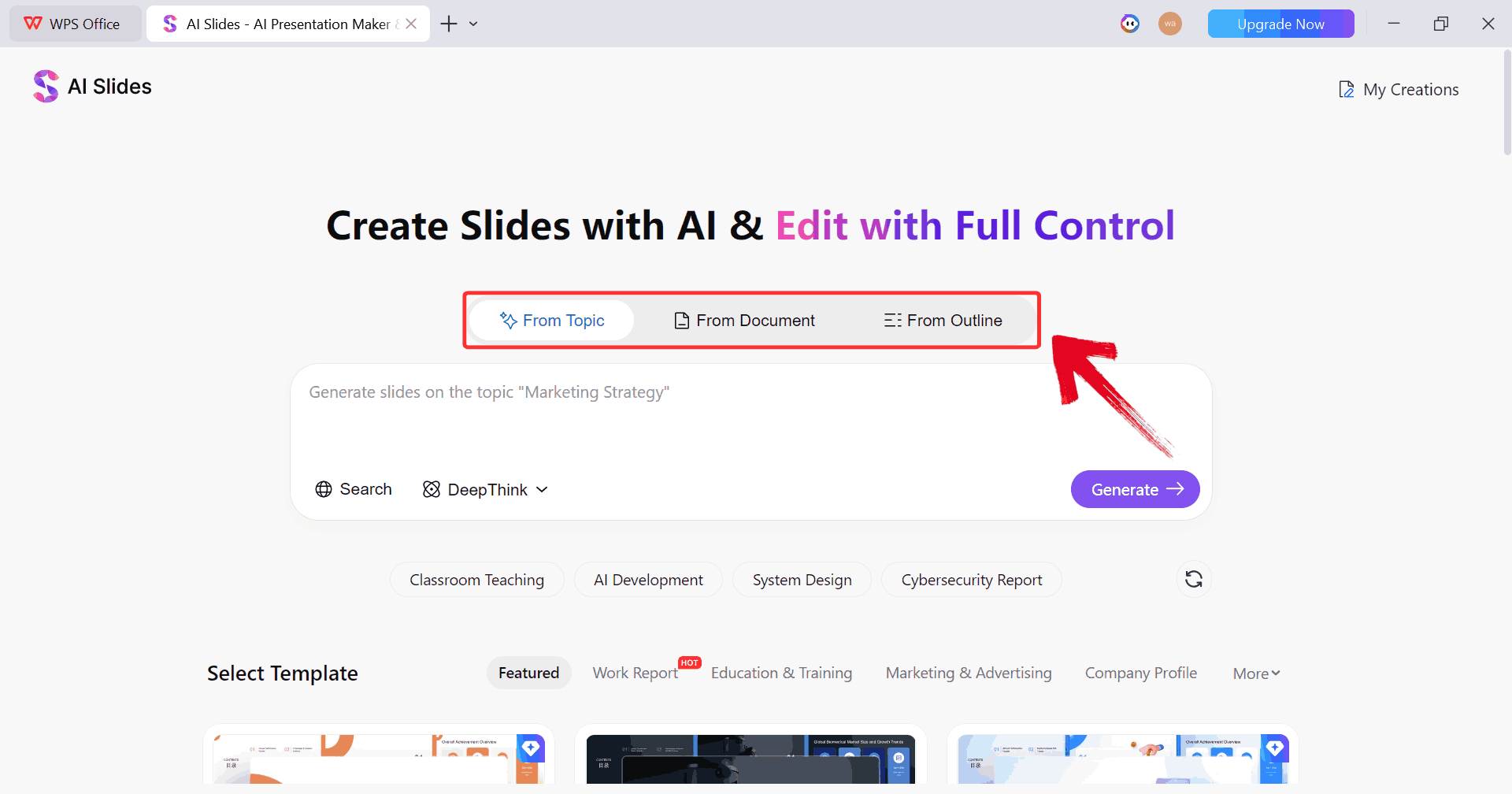
Step 5: AI Slides gives you three ways to start
generating your presentation: you can base it on a topic, an outline, or
an existing document. Pick whichever option best matches what you
already have prepared.
Choose Option
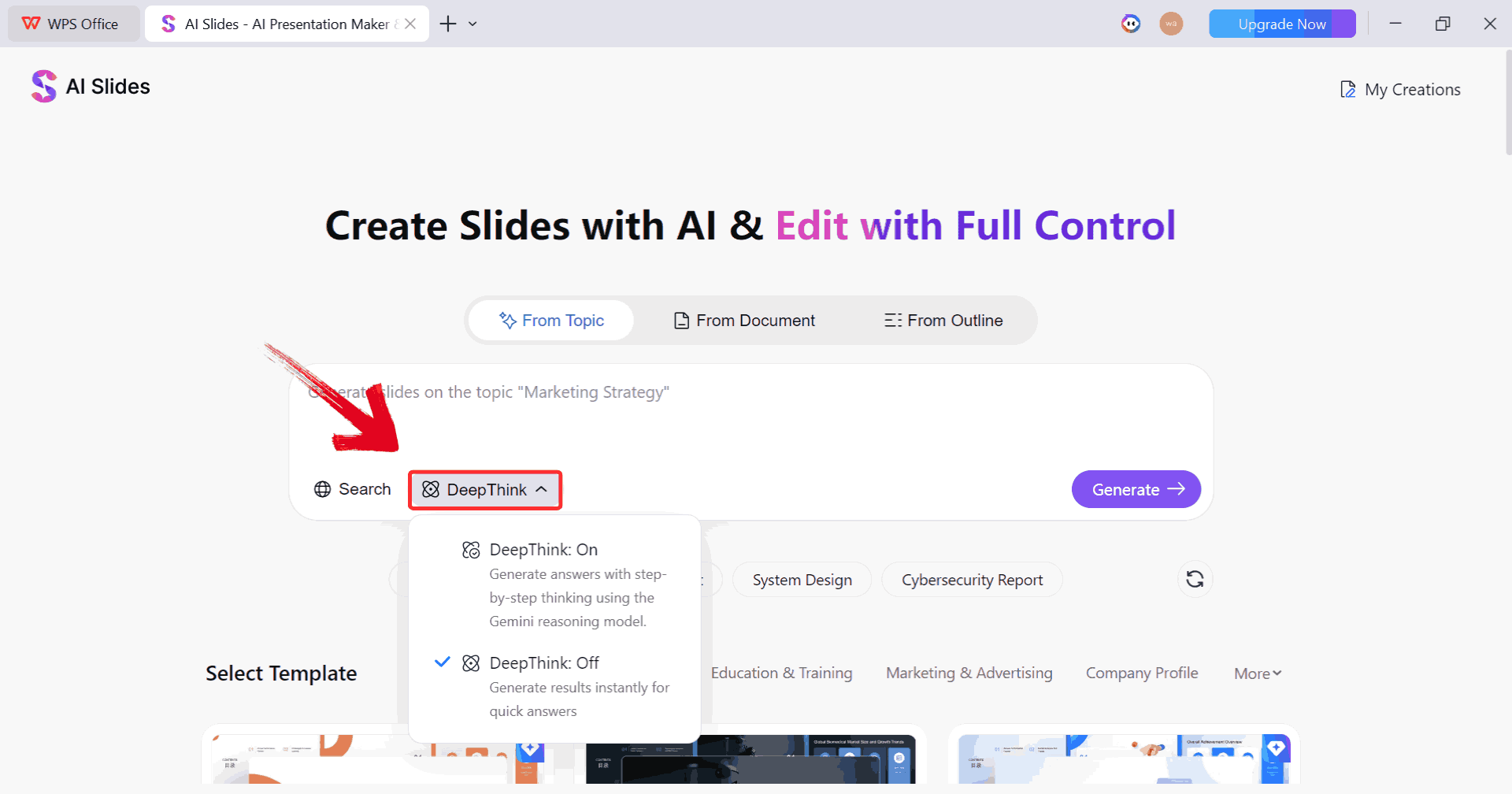
Step 6: For multi-layered content, use the “DeepThink” feature. This AI tool breaks complex topics
into structured, step-by-step points, helping your slides maintain a
logical and coherent flow.
DeepThink Feature
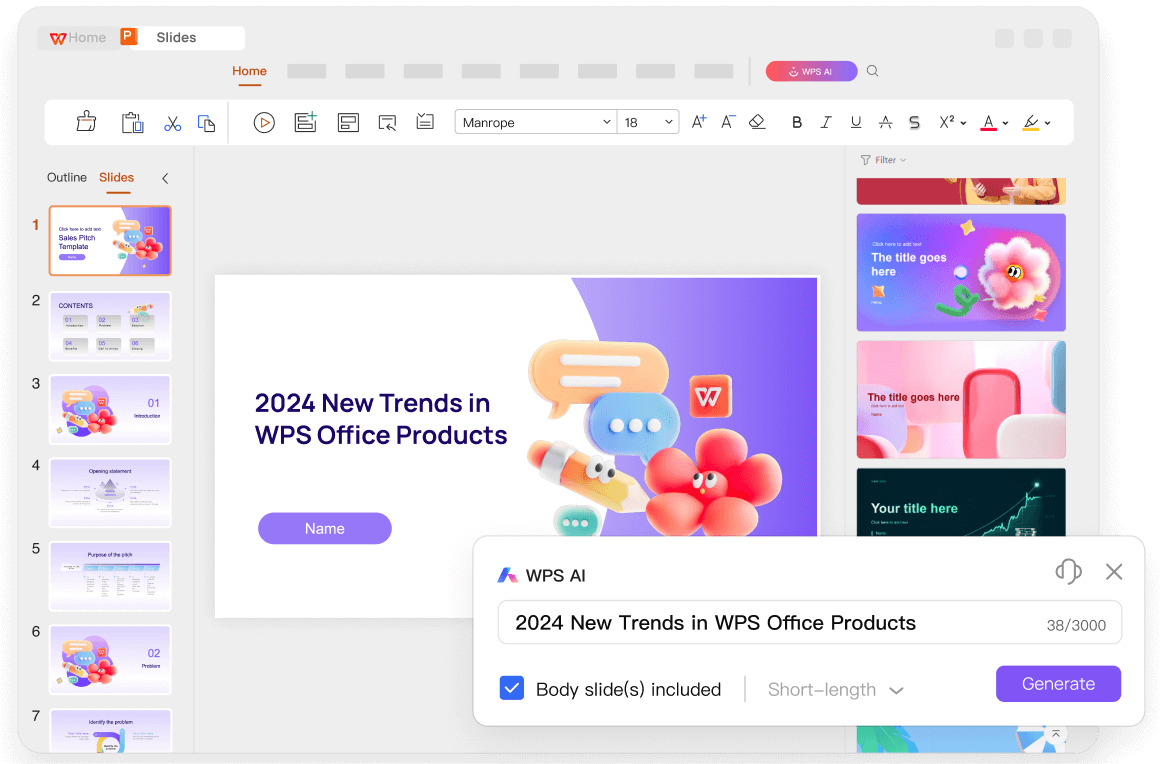
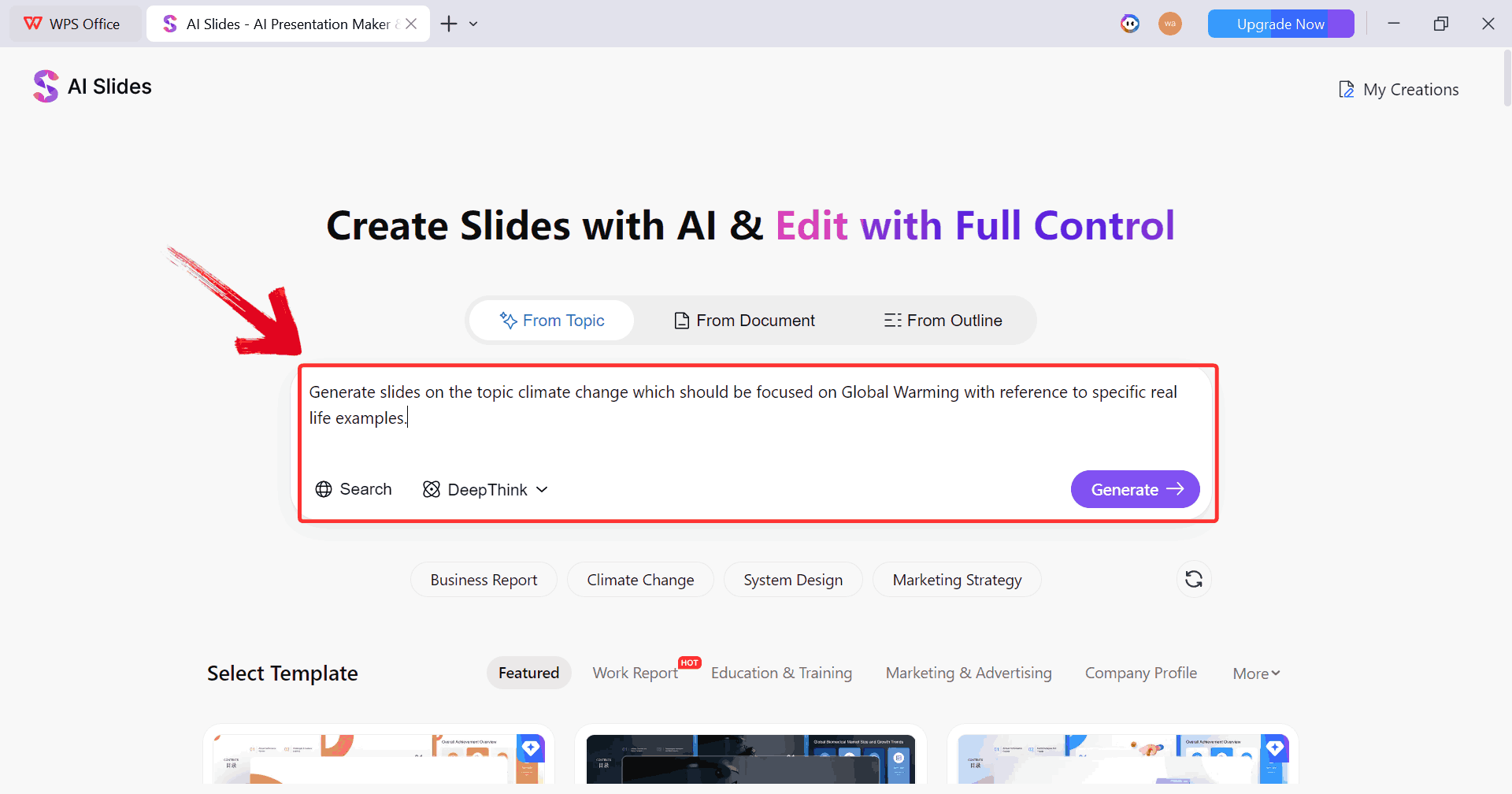
Step 7: Type in your prompt describing the content
you want on your slides and hit “Generate”. You can
give detailed instructions, bullet points, or a general idea as the AI
adapts to whatever input you provide.
Write Prompt
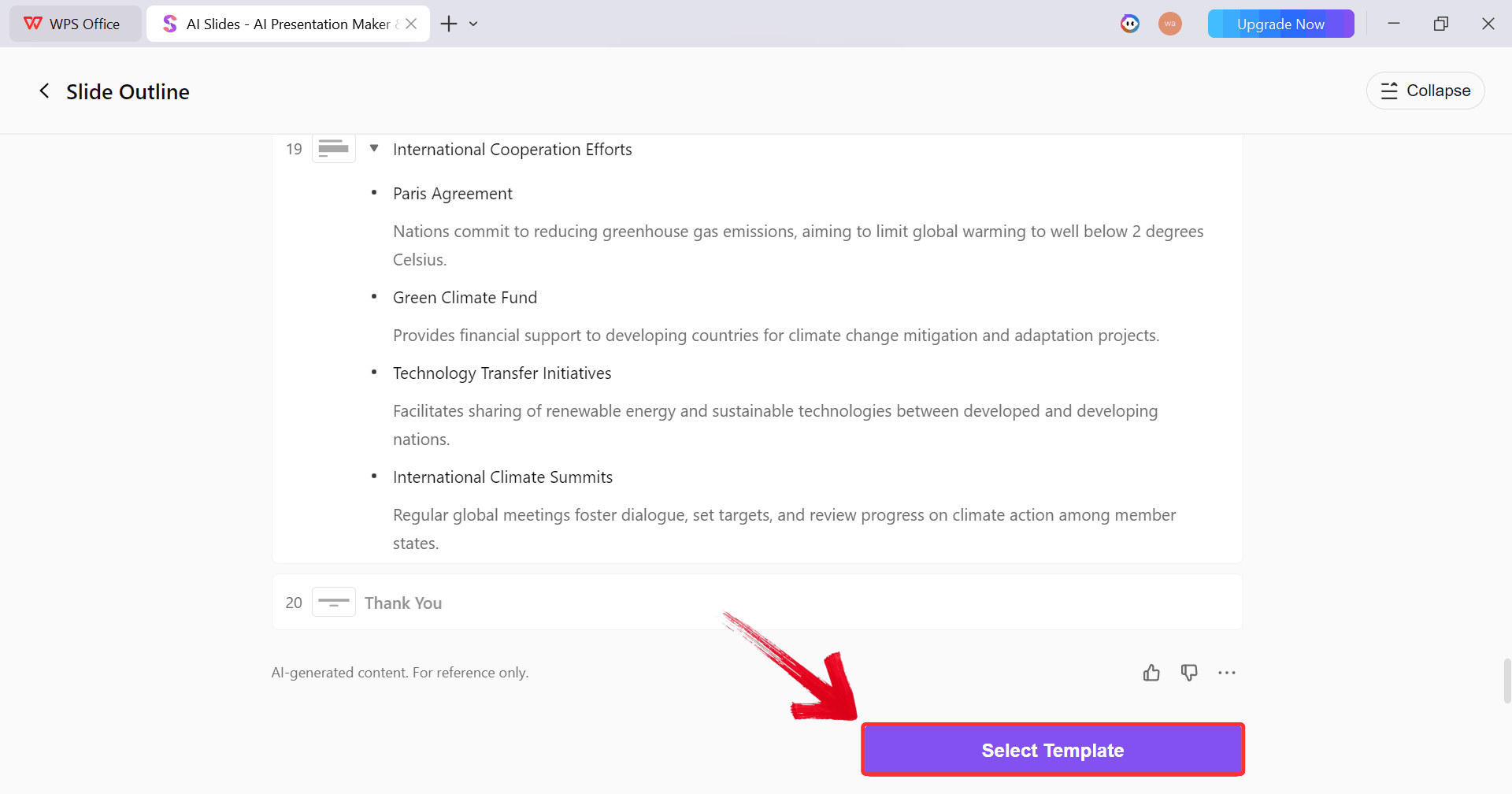
Step 8: Once your prompt is submitted, AI Slides
automatically drafts the slide content. Next, click the “Select
Template” button to choose how your slides will look
visually.
Select Purple Button
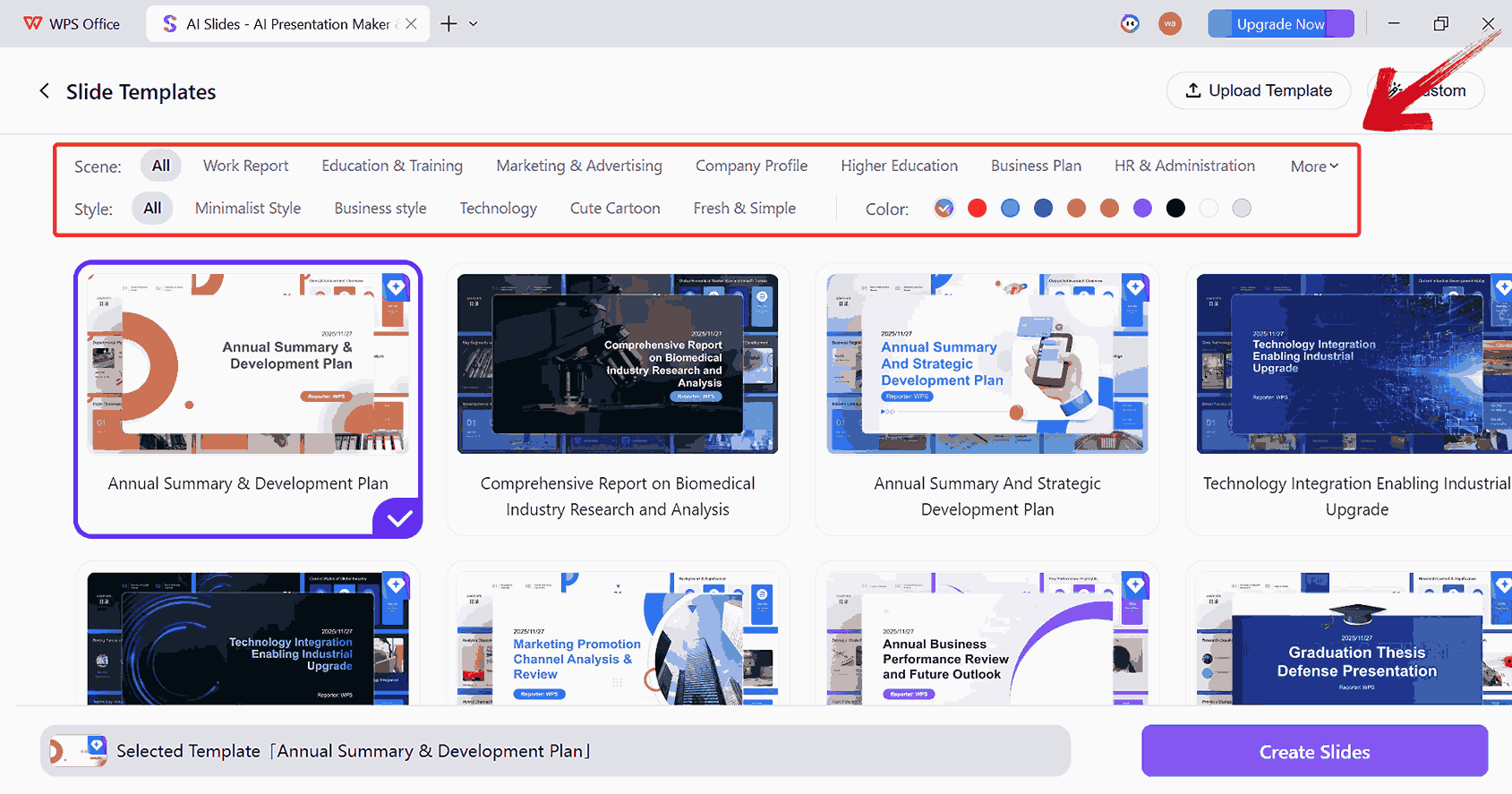
Step 9: Pick a design theme and style that aligns
with your presentation’s tone. You can select from WPS’s pre-designed
templates or customize your own by adjusting colors, fonts, and layouts
to match your brand or personal preference.
Adjust Template Scene and Style
Step 10: After finalizing the style and template,
click “Create Slides”. The AI will produce a full slide
deck based on your content and design choices, ready for review.
Create Slides
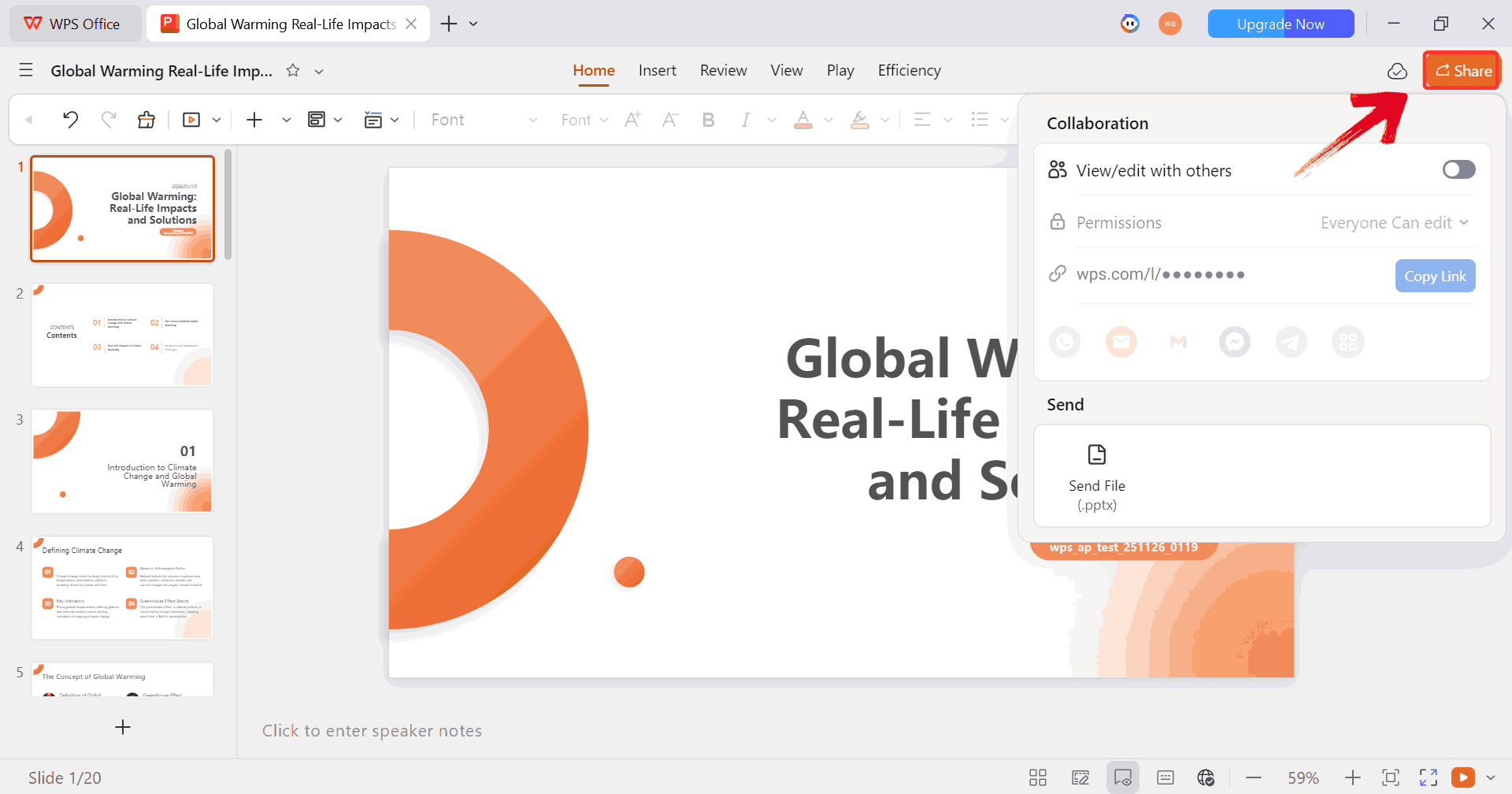
Step 11: Review all slides carefully. Make any edits
or tweaks needed, then use the “Share” button to send
your presentation, create a shareable link, or export it to PowerPoint
format for offline use.
Share Slides
Competitive Comparison
Feature
WPS AI Slides
SlidesAI
Plus AI
Beautiful.AI
Core AI
Full document to slides
Text to slides
Content assistant
Auto layout engine
Templates
Custom and built in
Basic
Uses host app
Locked brand kits
Editing
Full PowerPoint level
Limited
Depends on host
Limited
Export
Clean PPTX and PDF
PPTX with risks
PPTX
PPTX often flattened
Price
Low cost with free tier
Free and paid
Paid
Paid
SlidesAI is good for quick drafts. Plus AI is nice for rewriting
content. Beautiful.ai looks nice but locks you into rigid designs. WPS AI
Slides gives you control, clean exports,
and better value.
100% secure
FAQs
Q1. Does
SlidesAI work with Microsoft PowerPoint?
Yes. You generate slides in Google Slides and then download them as a
PowerPoint file.
Q2. Does SlidesAI
provide images and icons?
Yes. It pulls from a large image library and suggests visuals based
on your content.
Q3. Is my data secure with
SlidesAI?
SlidesAI uses Google login and states that data is only used to
generate presentations.
Q4. Can I use SlidesAI for
free?
Yes, there is a free SlidesAI plan with limited exports and
features.
Q5. Is WPS AI
Slides better for professional work?
In my experience, yes. It handles real templates and exports far more
cleanly.
Finding an AI Slide Tool That Fits Your Workflow
SlidesAI makes it easier to turn structured text and long notes into clear, editable slide decks inside tools you already use. By focusing on speed and workflow integration, it helps you move from idea to presentation without breaking momentum. At the same time, understanding how to use SlidesAI properly is key to getting results that feel intentional rather than automated. Free SlidesAI works well for lighter tasks, while paid plans support more demanding projects. For users who need deeper document handling and design control, alternatives like WPS AI Slides offer a broader creative environment.
7+ years in productivity tech. I test and review the latest tools to simplify your workflow. Follow for honest app comparisons, practical guides, and curated tech picks to boost efficiency.


'%3e%3cpath%20d='M8%200C12.4183%200%2016%203.58172%2016%208C16%2012.4183%2012.4183%2016%208%2016C3.58172%2016%200%2012.4183%200%208C0%203.58172%203.58172%200%208%200ZM11.6162%204.38379C11.2257%203.99337%2010.5927%203.99338%2010.2021%204.38379L8%206.58594L5.79785%204.38379C5.40732%203.99334%204.77429%203.99329%204.38379%204.38379C3.99331%204.77429%203.99335%205.40733%204.38379%205.79785L6.58594%208L4.38379%2010.2021C3.99348%2010.5927%203.99341%2011.2257%204.38379%2011.6162C4.77426%2012.0066%205.40734%2012.0065%205.79785%2011.6162L8%209.41406L10.2021%2011.6162C10.5927%2012.0066%2011.2257%2012.0067%2011.6162%2011.6162C12.0067%2011.2257%2012.0066%2010.5927%2011.6162%2010.2021L9.41406%208L11.6162%205.79785C12.0066%205.40735%2012.0066%204.77429%2011.6162%204.38379Z'%20fill='%23080E17'%20fill-opacity='0.46'/%3e%3c/g%3e%3cdefs%3e%3cclipPath%20id='clip0_3761_713'%3e%3crect%20width='16'%20height='16'%20fill='white'/%3e%3c/clipPath%3e%3c/defs%3e%3c/svg%3e)



'%3e%3cpath%20fill-rule='evenodd'%20clip-rule='evenodd'%20d='M21.4999%2010.9993C21.4999%205.20009%2016.7986%200.498901%2010.9993%200.498901C5.19994%200.498901%200.498657%205.20009%200.498657%2010.9993C0.498657%2016.2404%204.33858%2020.5844%209.35855%2021.3722V14.0346H6.69238V10.9993H9.35855V8.68594C9.35855%206.05427%2010.9262%204.60062%2013.3248%204.60062C14.4736%204.60062%2015.6753%204.80571%2015.6753%204.80571V7.38979H14.3512C13.0468%207.38979%2012.64%208.19921%2012.64%209.0296V10.9993H15.5523L15.0867%2014.0346H12.64V21.3722C17.66%2020.5844%2021.4999%2016.2404%2021.4999%2010.9993Z'%20fill='%231568EA'/%3e%3c/g%3e%3c/svg%3e)


'%3e%3cpath%20d='M2.42045%2022.1876H6.31818V12.7217L0.75%208.54553V20.5171C0.75%2021.4414%201.49892%2022.1876%202.42045%2022.1876Z'%20fill='%234285F4'/%3e%3cpath%20d='M19.682%2022.1876H23.5797C24.5041%2022.1876%2025.2502%2021.4387%2025.2502%2020.5171V8.54553L19.682%2012.7217'%20fill='%2334A853'/%3e%3cpath%20d='M19.682%205.48293V12.7216L25.2502%208.54543V6.31816C25.2502%204.25236%2022.8921%203.07469%2021.2411%204.31361'%20fill='%23FBBC04'/%3e%3cpath%20d='M6.31824%2012.7217V5.48303L13.0001%2010.4944L19.6819%205.48303V12.7217L13.0001%2017.733'%20fill='%23EA4335'/%3e%3cpath%20d='M0.75%206.31816V8.54543L6.31818%2012.7216V5.48293L4.75909%204.31361C3.10534%203.07469%200.75%204.25236%200.75%206.31816Z'%20fill='%23C5221F'/%3e%3c/g%3e%3cdefs%3e%3cclipPath%20id='clip0_2954_7305'%3e%3crect%20width='24.5'%20height='18.375'%20fill='white'%20transform='translate(0.75%203.8125)'/%3e%3c/clipPath%3e%3c/defs%3e%3c/svg%3e)





'%3e%3cpath%20d='M19.9911%204.11386V6.471H18.5894C18.0775%206.471%2017.7322%206.57814%2017.5536%206.79243C17.3751%207.00671%2017.2858%207.32814%2017.2858%207.75671V9.44421H19.9019L19.5536%2012.0871H17.2858V18.8639H14.5536V12.0871H12.2769V9.44421H14.5536V7.49779C14.5536%206.39064%2014.8632%205.53201%2015.4822%204.92189C16.1013%204.31177%2016.9257%204.00671%2017.9554%204.00671C18.8304%204.00671%2019.509%204.04243%2019.9911%204.11386Z'%20fill='%23333333'/%3e%3c/g%3e%3cdefs%3e%3cclipPath%20id='clip0_2938_8199'%3e%3crect%20width='16'%20height='16'%20fill='white'%20transform='translate(8%204.00671)'/%3e%3c/clipPath%3e%3c/defs%3e%3c/svg%3e)
'%3e%3cpath%20d='M17.5237%2010.7813L23.4811%204H22.0699L16.8949%209.88693L12.7648%204H8L14.2469%2012.9029L8%2020.0133H9.4112L14.8725%2013.7952L19.2352%2020.0133H24M9.92053%205.04213H12.0885L22.0688%2019.0224H19.9003'%20fill='%23333333'/%3e%3c/g%3e%3cdefs%3e%3cclipPath%20id='clip0_2938_8200'%3e%3crect%20width='16'%20height='16.0134'%20fill='white'%20transform='translate(8%204)'/%3e%3c/clipPath%3e%3c/defs%3e%3c/svg%3e)


