How to Convert NotebookLM Slides into Editable PPTs
Four ways to keep NotebookLM's design while unlocking editable copy — starting with WPS AI Seamless Text Edit.
NotebookLM slides look great — until you need to edit them
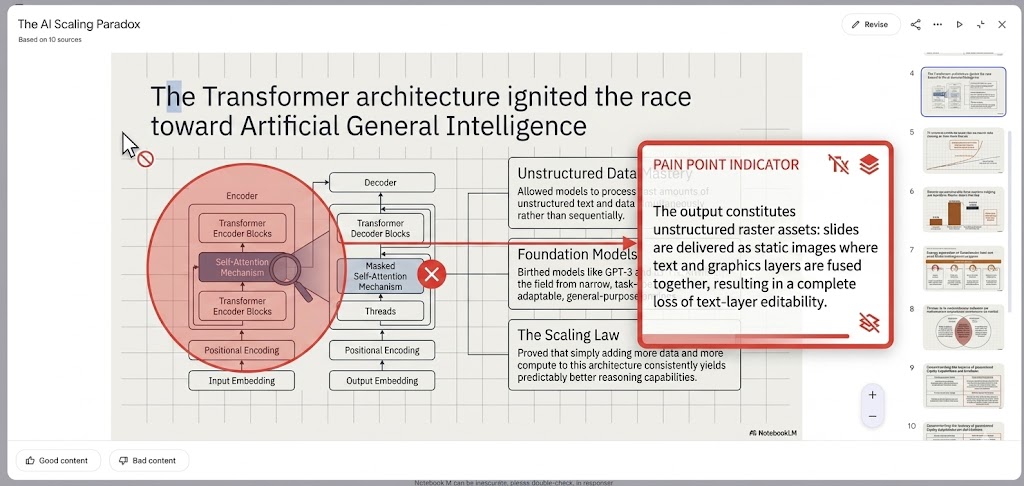
NotebookLM nails synthesis, narrative, and visual design — but the moment you need to tweak a headline or fix a bullet before presenting, you hit a wall. The deck looks finished; nothing inside it is truly editable.
Beautiful output, zero editability
NotebookLM generates strong content and thoughtful slide design — but the deck is not an editable presentation file. You can review it, not rework it.
What this means in practice
No selectable text boxes, no inline copy edits, and no way to adjust a single bullet without regenerating or exporting elsewhere.
Export stops at PDF
For a long time, PDF was the only export. Text, layout, and graphics are baked in — you cannot edit them in PowerPoint without rebuilding from scratch.
What this means in practice
Every headline, chart label, and footnote is flattened. Even small copy changes force a full re-export or a third-party conversion workflow.
PPTX export is a band-aid, not a fix
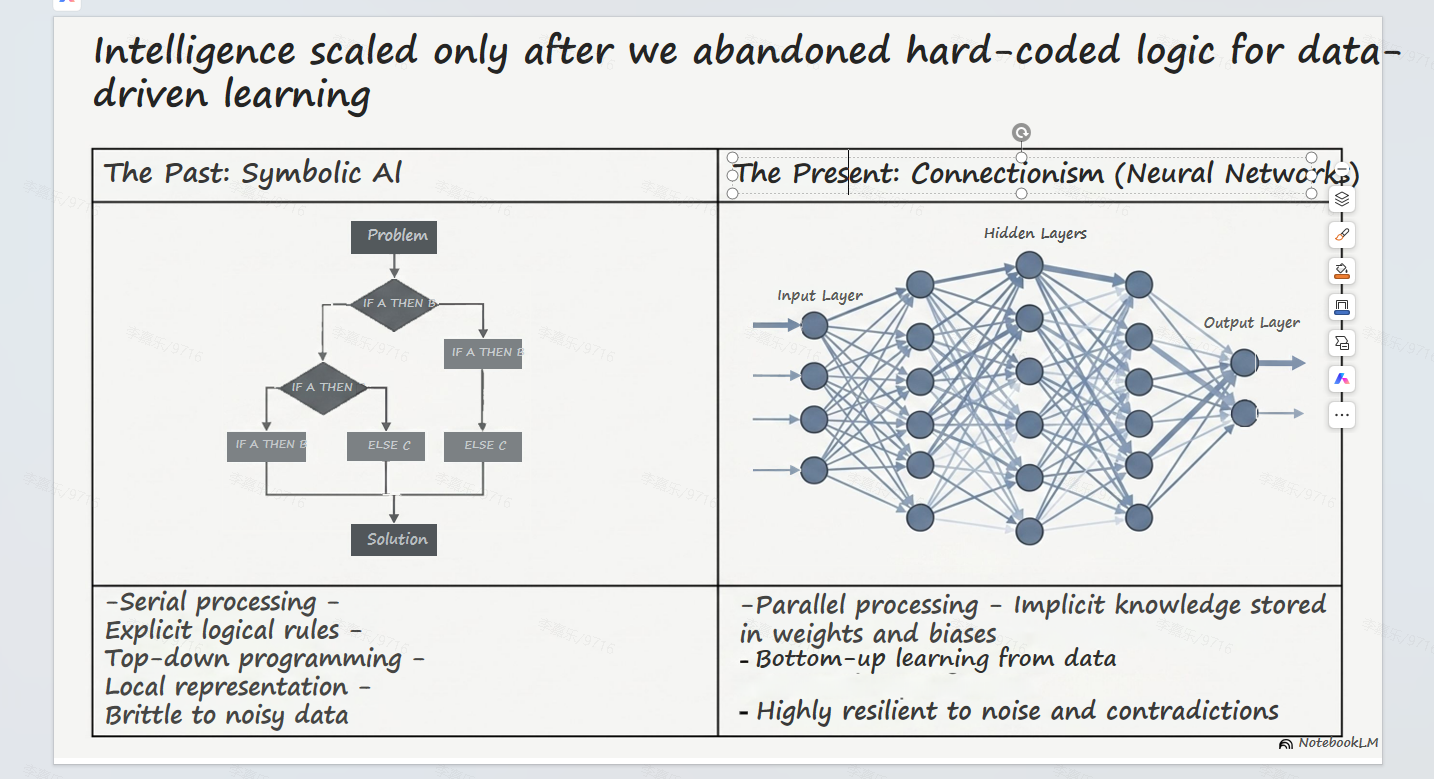
Since February 2026, NotebookLM added PPTX download — but each slide is a static image inside a .pptx wrapper. It looks like PowerPoint; it still does not behave like one.
What this means in practice
No live text boxes, no font-level edits, and no real online editing — which is exactly why the four strategies in this guide exist.
Keep every bit of the NotebookLM deck — content, design, and framework — and turn it into truly editable slides
Most users are not asking for a redesign. They want the AI-generated framework exactly as NotebookLM built it — with just enough editability to fine-tune copy, swap a bullet, or adjust a title before the meeting.
That is what this guide solves — starting with Strategy 01 · WPS AI Seamless Text Edit below.
Strategy 01 · Preserve the NotebookLM deck with WPS AI Seamless Text Edit
The goal is not to export an outline and rebuild the UI in Gamma or Gemini Canvas. It is to keep NotebookLM's content, layout, colors, and graphics exactly as generated — then unlock the copy inside WPS Office with AI Seamless Text Edit.
Edit the text layer without redesigning the slide
- NotebookLM exports a PPTX — but each slide is still a static image. The design is preserved; the text is not selectable.
- WPS Office treats that slide as a picture, then uses AI to pull text out of the image and place it in real text boxes.
- AI Seamless Text Edit re-renders your revised copy to match the original font size, color, weight, and placement — so the slide still looks like NotebookLM built it.
Why this approach works
- Keeps NotebookLM's original design, imagery, and slide structure intact
- Edits happen online inside WPS — no round-trip through another design AI
- AI recognition turns baked-in text into selectable boxes you can revise freely
- After confirmation, typography and layout are restored to closely match the original slide
- Ideal when you only need copy tweaks — headlines, bullets, labels — before presenting
Trade-offs to know
- AI Seamless Text Edit is a paid WPS feature — free tiers may not include full access
- Best for text changes; reshaping the whole layout still means manual design work
- Dense or highly stylized text may need a second pass if recognition misses a phrase
- Background graphics stay as images — only recognized text becomes independently editable
- Complex decks may require repeating the flow slide by slide
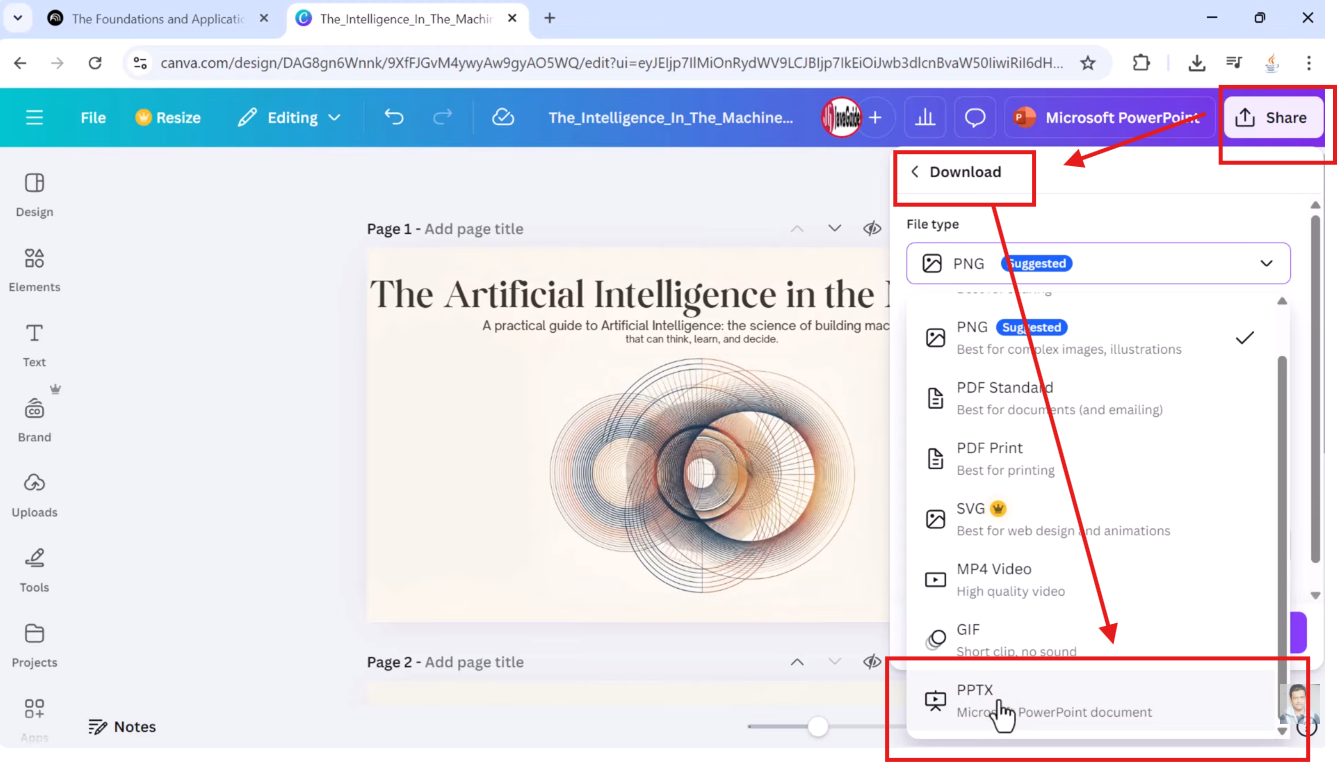
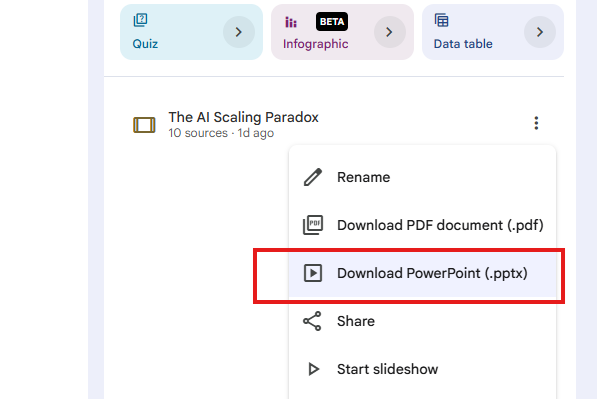
Download the deck as PPTX
In NotebookLM, export your slide deck as PPTX. The file opens like PowerPoint, but each slide is a flat image — text, charts, and layout are baked in and cannot be edited yet.
Open the PPTX in WPS Presentation
Launch WPS Office and open the exported file. You will see the same slides NotebookLM generated — visually complete, but still locked as pictures until you run the AI text tool.
Click the slide you want to edit
Select the target slide in the thumbnail pane. WPS automatically switches the top ribbon to Picture Tools because the slide content is treated as an image layer.
Picture Tools → AI → AI Seamless Text Edit
In the ribbon, open the AI tool group under Picture Tools, then choose AI Seamless Text Edit . WPS scans the slide image, detects text regions, and lifts them into separate editable text boxes while keeping the underlying design in place.
Revise text in the extracted boxes
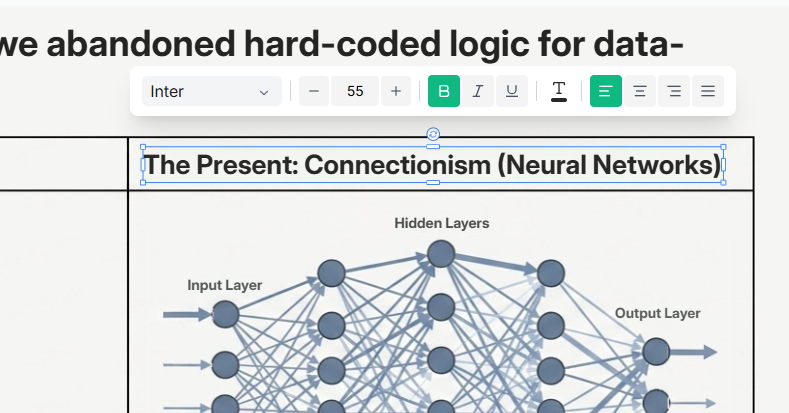
Click any generated text box — title, subtitle, bullet, or label — and rewrite the wording. You are only changing copy, not rebuilding the slide from an outline or alternate template.