

'%3e%3cpath%20d='M8%200C12.4183%200%2016%203.58172%2016%208C16%2012.4183%2012.4183%2016%208%2016C3.58172%2016%200%2012.4183%200%208C0%203.58172%203.58172%200%208%200ZM11.6162%204.38379C11.2257%203.99337%2010.5927%203.99338%2010.2021%204.38379L8%206.58594L5.79785%204.38379C5.40732%203.99334%204.77429%203.99329%204.38379%204.38379C3.99331%204.77429%203.99335%205.40733%204.38379%205.79785L6.58594%208L4.38379%2010.2021C3.99348%2010.5927%203.99341%2011.2257%204.38379%2011.6162C4.77426%2012.0066%205.40734%2012.0065%205.79785%2011.6162L8%209.41406L10.2021%2011.6162C10.5927%2012.0066%2011.2257%2012.0067%2011.6162%2011.6162C12.0067%2011.2257%2012.0066%2010.5927%2011.6162%2010.2021L9.41406%208L11.6162%205.79785C12.0066%205.40735%2012.0066%204.77429%2011.6162%204.38379Z'%20fill='%23080E17'%20fill-opacity='0.46'/%3e%3c/g%3e%3cdefs%3e%3cclipPath%20id='clip0_3761_713'%3e%3crect%20width='16'%20height='16'%20fill='white'/%3e%3c/clipPath%3e%3c/defs%3e%3c/svg%3e)



'%3e%3cpath%20fill-rule='evenodd'%20clip-rule='evenodd'%20d='M21.4999%2010.9993C21.4999%205.20009%2016.7986%200.498901%2010.9993%200.498901C5.19994%200.498901%200.498657%205.20009%200.498657%2010.9993C0.498657%2016.2404%204.33858%2020.5844%209.35855%2021.3722V14.0346H6.69238V10.9993H9.35855V8.68594C9.35855%206.05427%2010.9262%204.60062%2013.3248%204.60062C14.4736%204.60062%2015.6753%204.80571%2015.6753%204.80571V7.38979H14.3512C13.0468%207.38979%2012.64%208.19921%2012.64%209.0296V10.9993H15.5523L15.0867%2014.0346H12.64V21.3722C17.66%2020.5844%2021.4999%2016.2404%2021.4999%2010.9993Z'%20fill='%231568EA'/%3e%3c/g%3e%3c/svg%3e)


'%3e%3cpath%20d='M2.42045%2022.1876H6.31818V12.7217L0.75%208.54553V20.5171C0.75%2021.4414%201.49892%2022.1876%202.42045%2022.1876Z'%20fill='%234285F4'/%3e%3cpath%20d='M19.682%2022.1876H23.5797C24.5041%2022.1876%2025.2502%2021.4387%2025.2502%2020.5171V8.54553L19.682%2012.7217'%20fill='%2334A853'/%3e%3cpath%20d='M19.682%205.48293V12.7216L25.2502%208.54543V6.31816C25.2502%204.25236%2022.8921%203.07469%2021.2411%204.31361'%20fill='%23FBBC04'/%3e%3cpath%20d='M6.31824%2012.7217V5.48303L13.0001%2010.4944L19.6819%205.48303V12.7217L13.0001%2017.733'%20fill='%23EA4335'/%3e%3cpath%20d='M0.75%206.31816V8.54543L6.31818%2012.7216V5.48293L4.75909%204.31361C3.10534%203.07469%200.75%204.25236%200.75%206.31816Z'%20fill='%23C5221F'/%3e%3c/g%3e%3cdefs%3e%3cclipPath%20id='clip0_2954_7305'%3e%3crect%20width='24.5'%20height='18.375'%20fill='white'%20transform='translate(0.75%203.8125)'/%3e%3c/clipPath%3e%3c/defs%3e%3c/svg%3e)


Illustration can be both a fulfilling hobby and a promising career path. It’s a field that thrives on creativity, imagination, and vision. With so many illustration tools available today, there’s really no excuse not to give it a try. While industry giants like Adobe Illustrator dominate the scene, their steep learning curve and costly subscriptions can easily discourage beginners or casual creators. Luckily, several free tools capture the same artistic spirit without the heavy price tag. In this article, we’ll explore the Top 5 Free Illustrator Alternatives that let you create and enjoy illustrating without limits.
WPS Photos
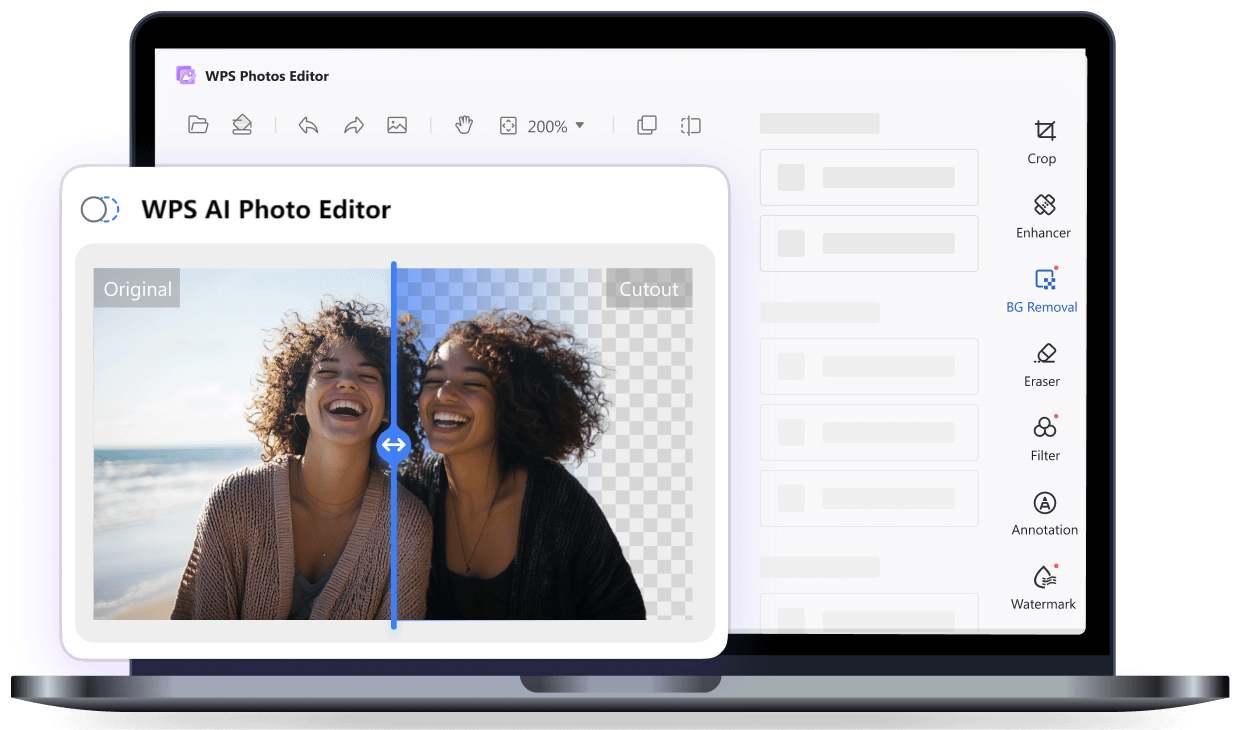
While WPS Office is best known for its document and spreadsheet tools, its integrated WPS Photos editor makes it surprisingly powerful for illustrators and designers too. You can either use it on the web or use the desktop version, available on Windows, macOS, Android, iOS, and Linux. It is entirely free to use and a great free illustrator alternative online and offline to heavy editing programs. It’s really simple to use with AI-powered tools, letting users edit, enhance, and refine artwork without complex tools or steep learning curves.
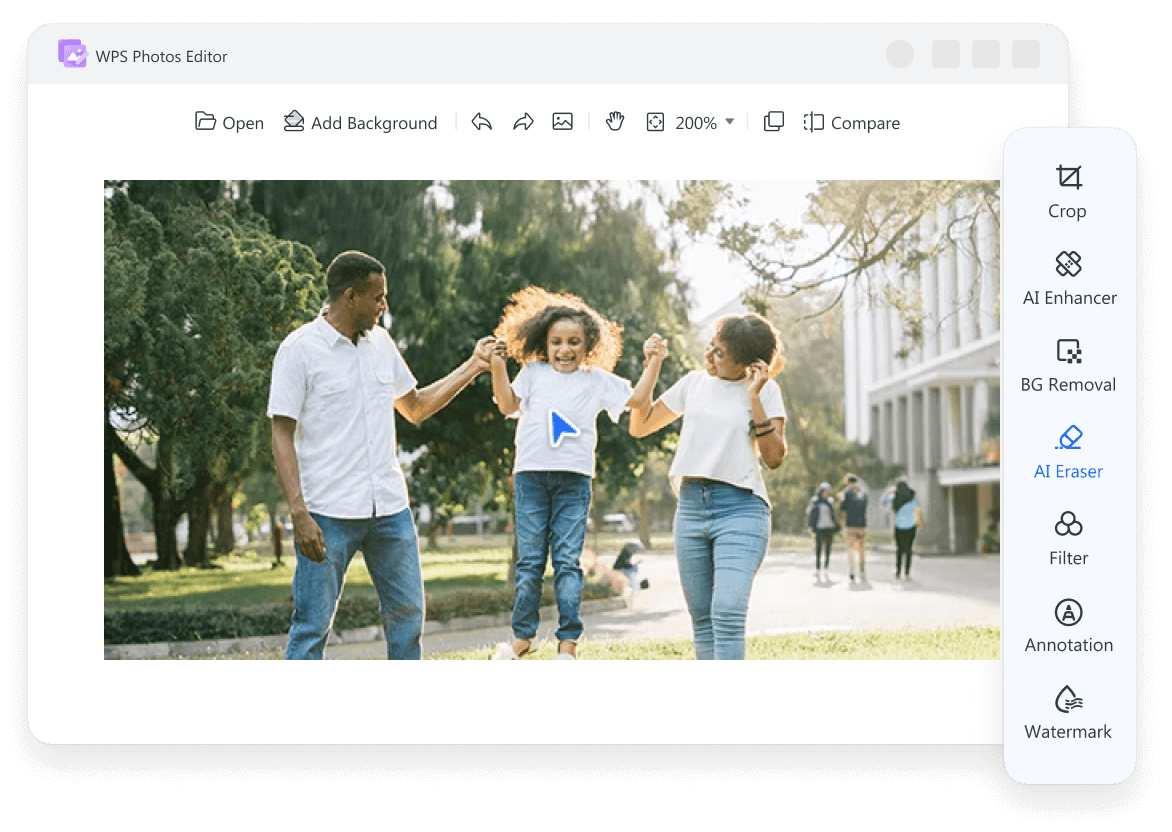
It has features like AI Background Remover, AI Eraser, AI Upscaler, and Image Enhancer. You can quickly clean up sketches, remove distractions, or add clarity and vibrance to your illustrations in just a few clicks.
Features:
AI Background Remover: Remove or replace backgrounds with one click for clean, professional artwork.
AI Eraser: Delete unwanted objects, people, or marks seamlessly.
AI Image Enhancer: Automatically adjusts sharpness, lighting, and color balance for polished visuals.
AI Upscaler: Increases resolution without quality loss, perfect for printing or portfolio use.
AI Watermark Remover & Straighten Tool:Clean, align, and finalize artwork with precision.
Cross-Platform Access: Available on Windows, macOS, Linux, Android, and iOS.
Pros:
Free to use with no hidden fees or sign-ups.
Beginner-friendly interface for easy navigation.
Smart AI tools automate edits, saving time.
Integrates seamlessly with other WPS Office tools.
Works well for both personal and professional illustration projects.
Cons:
Not as feature-dense as premium software like Adobe Illustrator.
Limited layer-based editing for complex artworks.
Some AI tools require internet connectivity for processing.
How to Use WPS Photos:
Here is how you can start using WPS Photos, just follow the steps below.
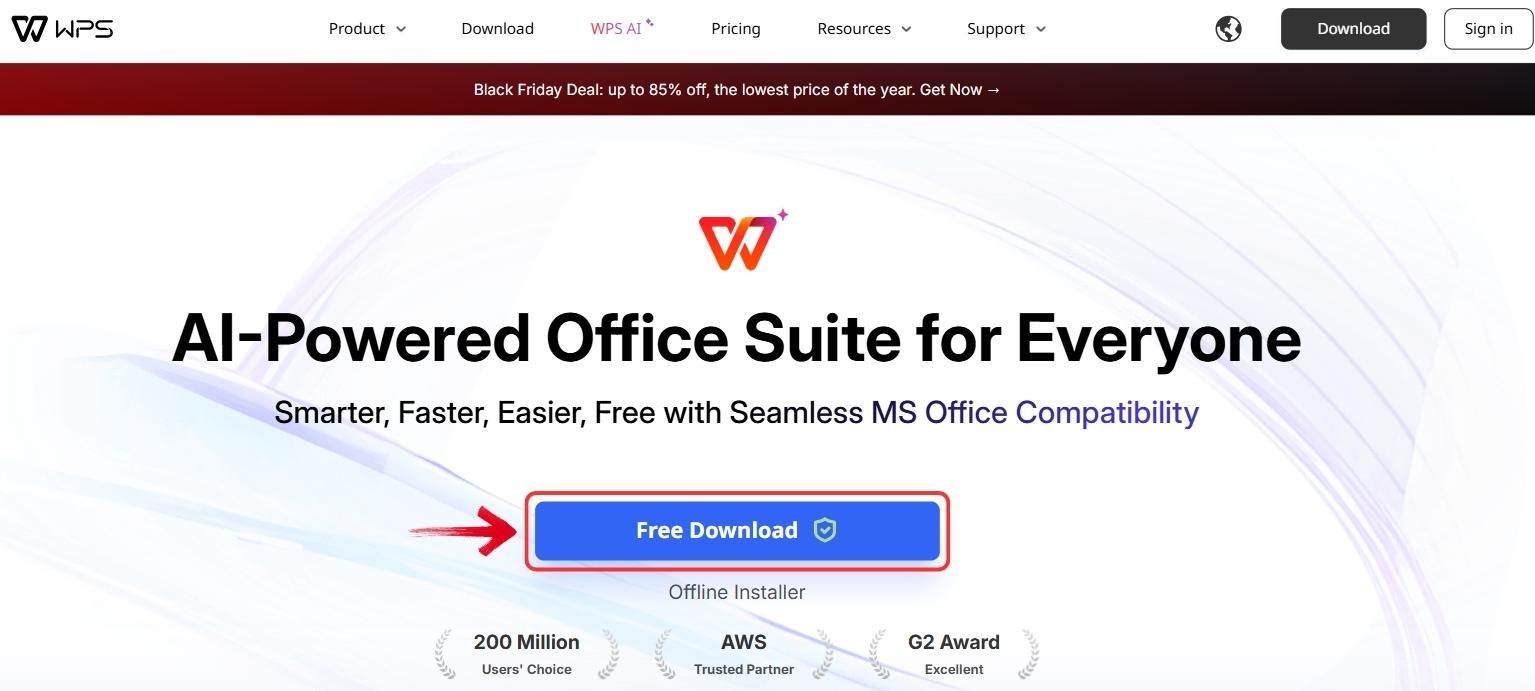
Step 1: Begin by downloading WPS Photos. Visit the official WPS Office website and click the “Free Download” button.
Step 2: Once the download is complete, double-click the downloaded file to launch the WPS Office installation wizard and follow the on-screen instructions to install it on your computer.
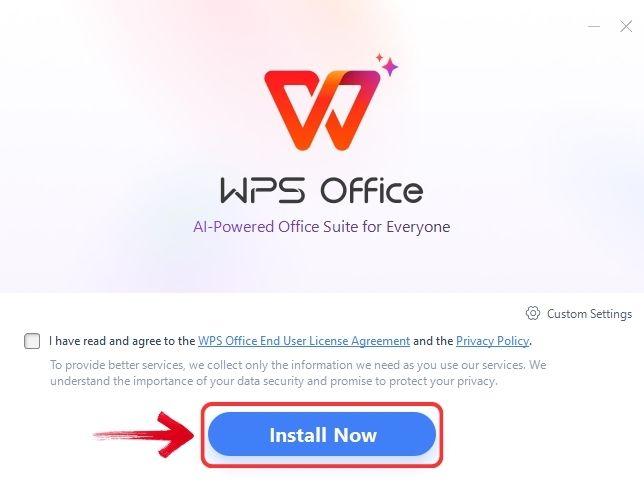
Note: WPS Photos comes as part of the full WPS Office suite. This means you not only get an AI-powered photo editor but also one of the best free productivity tools that can be useful later on.
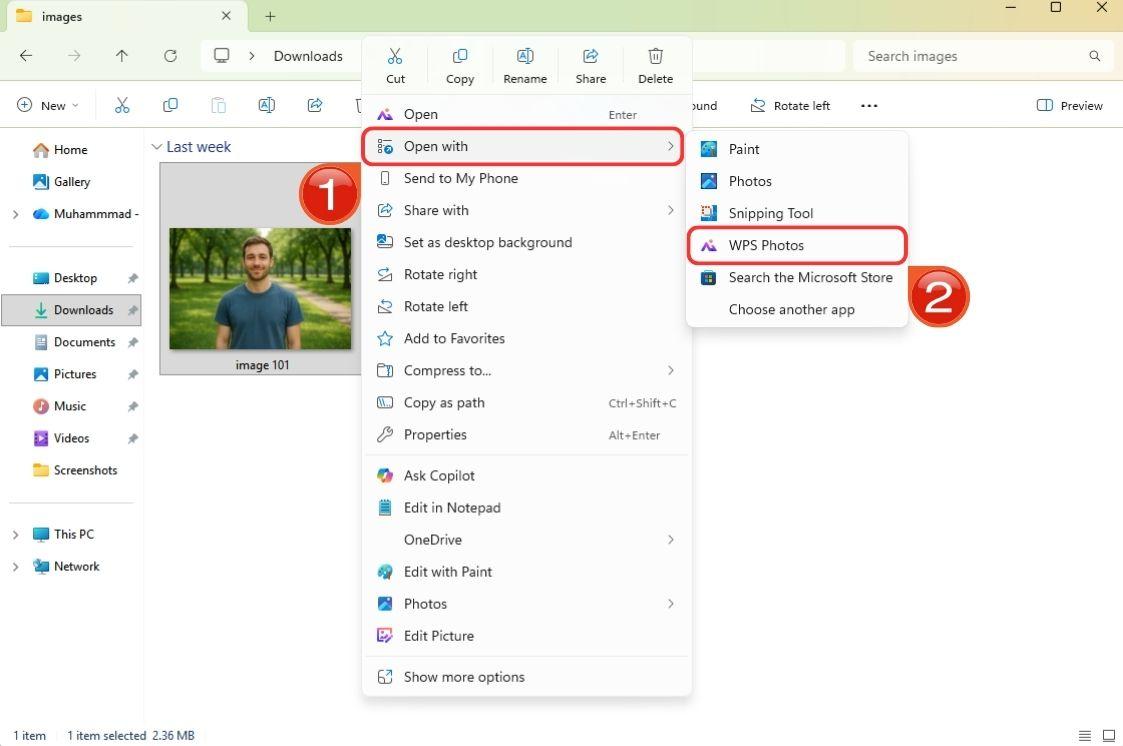
Step 3: After installation, locate the image you want to edit and open it using WPS Photos.
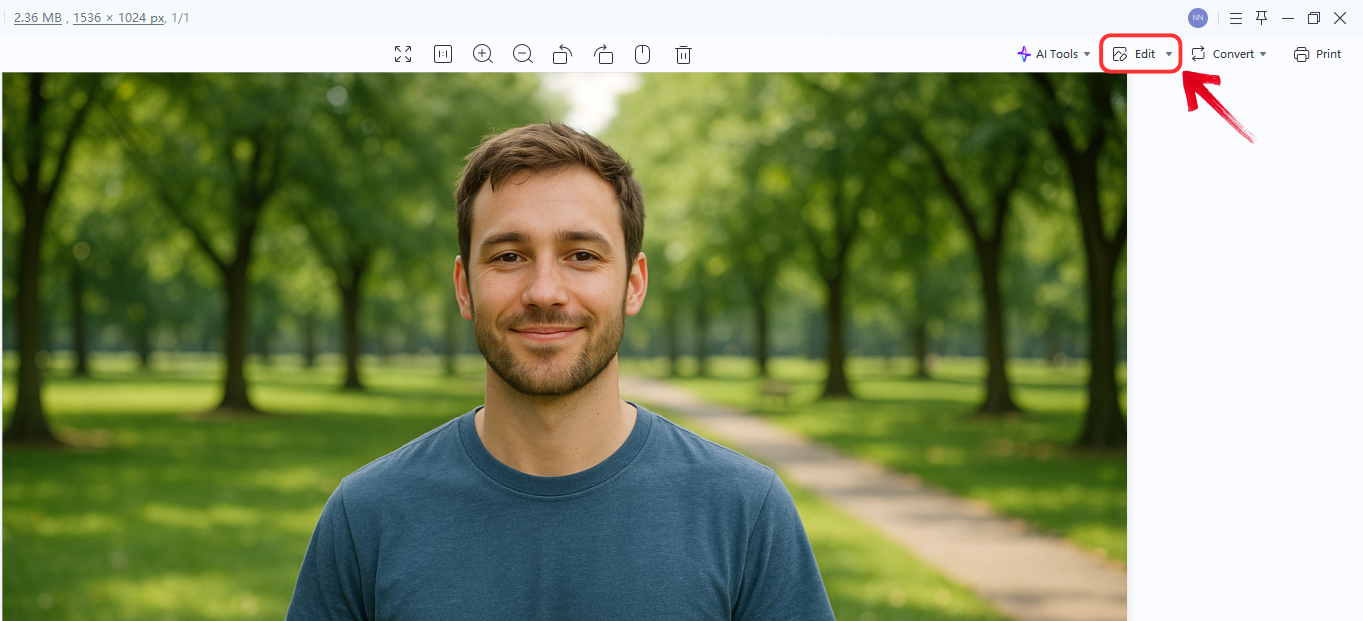
Step 4: Once the image preview appears in WPS Photos, click on the “Edit” tab in the top-right corner to begin editing.
Step 5: Your image will now open in the WPS Photo Editor. Here, you can try tools like AI Enhancer, Background Removal, and various filters listed on the right panel.
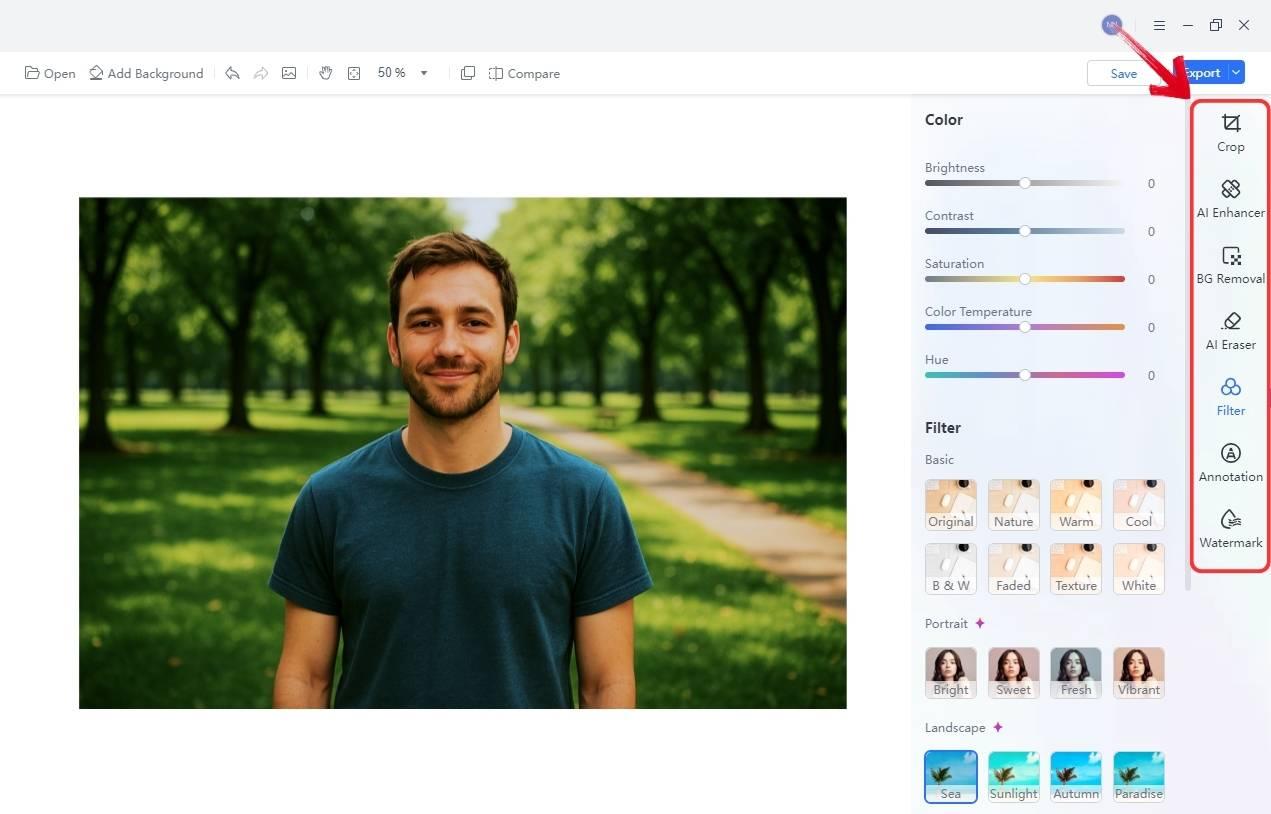
Step 6: When you’re happy with your edits, click the“Save” button in the top-right corner to store your edited image.
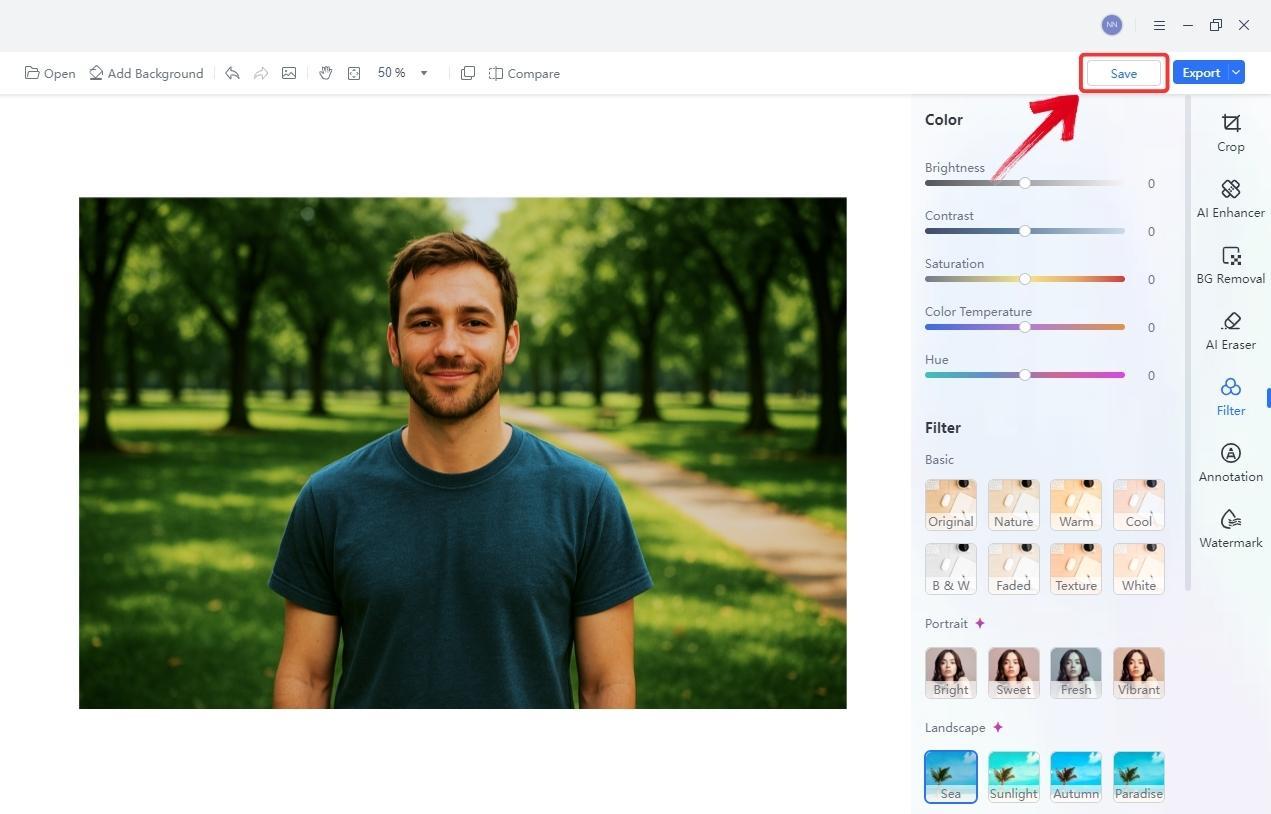
While using the tool, one thing you’ll notice is how WPS Photos removes the usual complexity from editing. Tasks like background removal take just one click, and because it relies on AI, the results often look like they were done by a professional editor. I found it simple and practical, perfect for anyone who just wants to make quick, last-minute edits without needing expert-level skills.
Inkscape
Inkscape is one of the most widely recognized free vector graphics editors in the world, with millions of active users across Linux, Windows, and macOS. It’s usually compared with Adobe Illustrator, considering how powerful, precise, and versatile it is for vector-based design, but without the heavy price tag or licensing restrictions.
Inkscape offers nearly the same creative freedom, making it a favorite among designers who want professional tools without costly subscriptions. Many users even find it a viable free Illustrator alternative Mac for detailed illustrations, logo design, and technical art, especially since it’s completely free, open-source, and consistently evolving through global community contributions.
Features:
Professional Vector Editing: Create precise artwork using Bézier and Spiro curves.
Multi-Format Support: Import and export SVG, AI, EPS, PDF, PS, and PNG files.
Customizable Tools: Extend functionality through add-ons, extensions, and scripts.
Text and Typography Tools: Perfect for logos, posters, and detailed lettering.
Cross-Platform Use: Works seamlessly across major operating systems.
Pros:
100% free with no hidden fees or subscriptions.
Open-source community with frequent updates and global support.
Feature-rich for professional use, suitable for both beginners and experts.
Scalable vector output ensures sharpness at any resolution.
Large library of tutorials and community plugins.
Cons:
Interface feels dated compared to Adobe or Affinity.
Performance slows down with very large files.
No native mobile version.
Some advanced tools require manual setup or extensions.
How to Use inkscape:
To get started with Inkscape, you’ll first need to download it to your system. Here’s how:
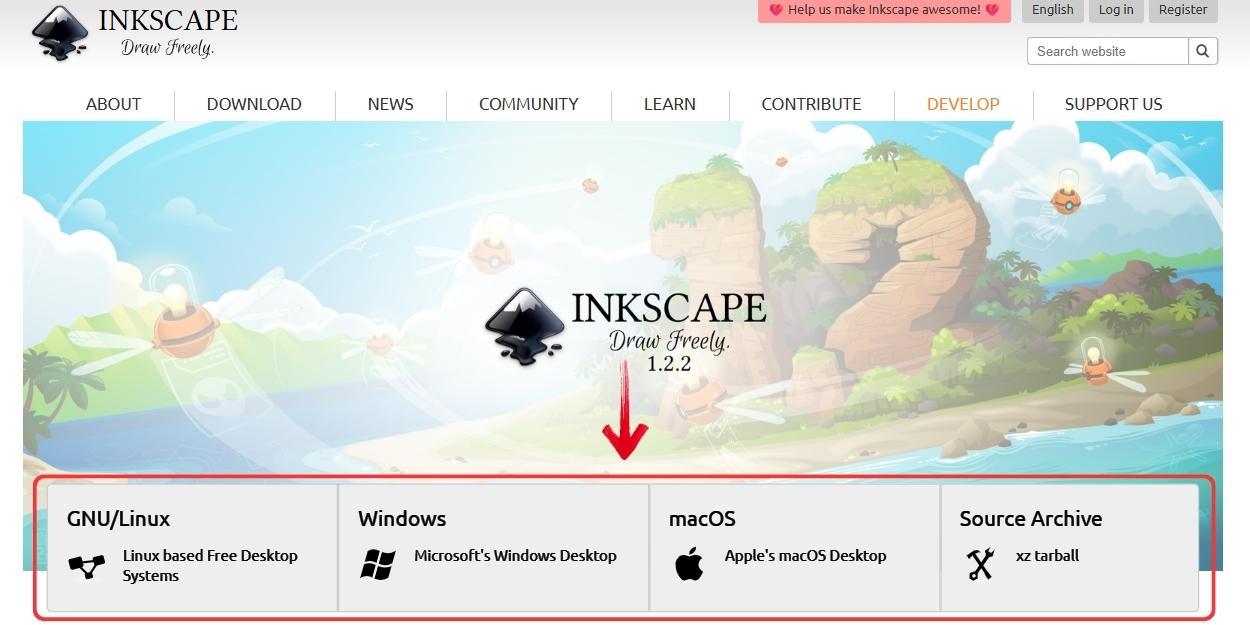
Step 1: Open your browser and head to the officialInkscapewebsite, where you can download it for Windows, Mac, or Linux.
Step 2: Next, choose your system type. Select Windows, Mac, or Linux depending on what you’re using to begin your download.
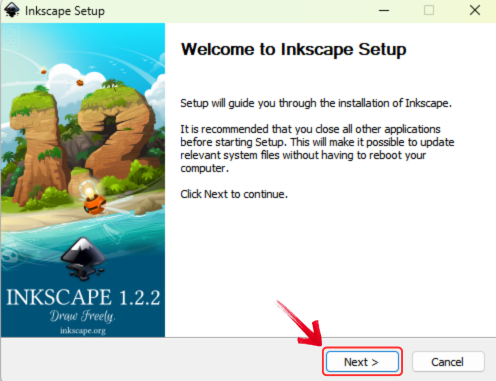
Step 3: Once the download is complete, run the installation file and follow the on-screen instructions to install Inkscape on your system.
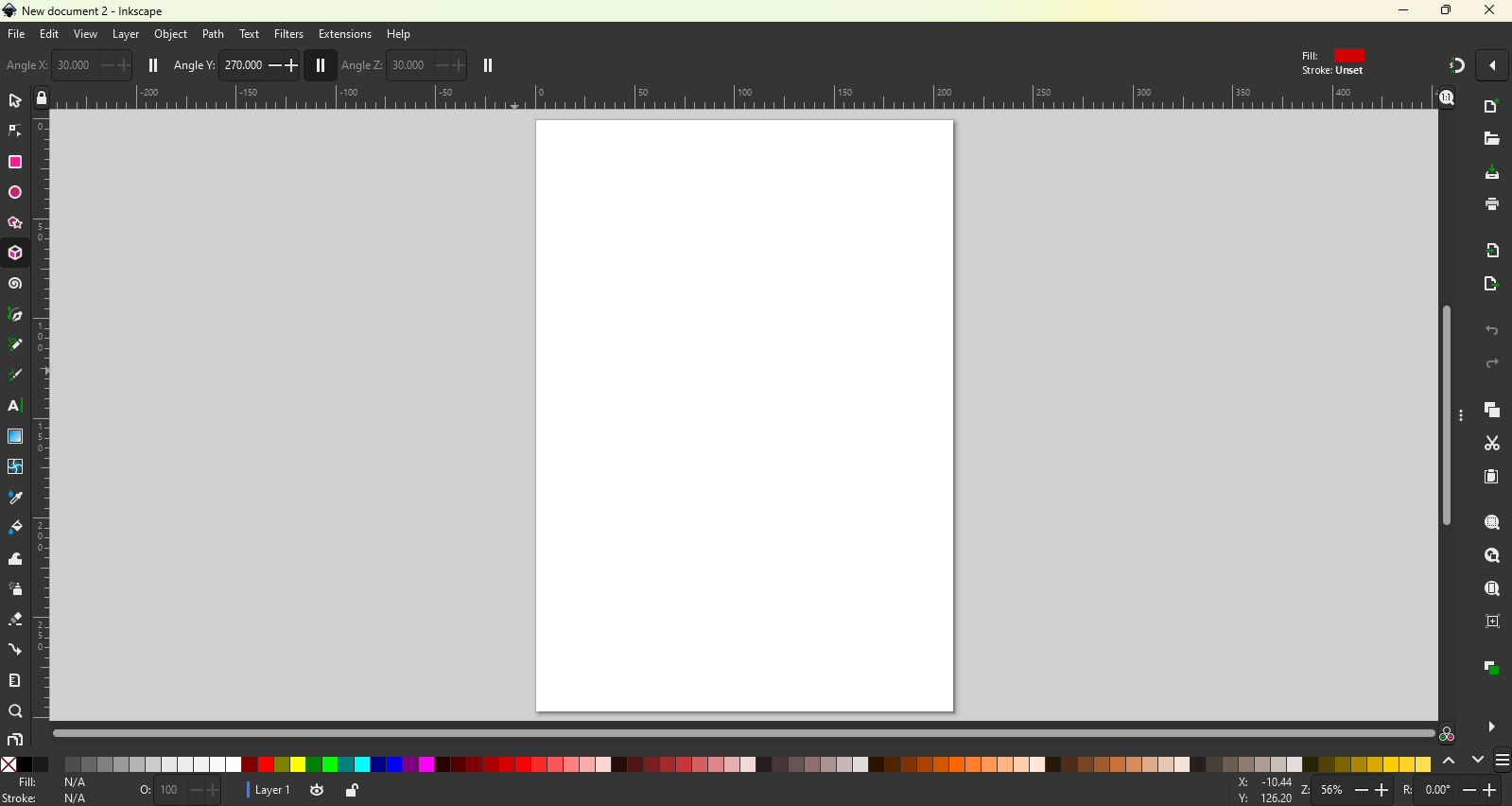
Step 4: After installation, open Inkscape on your computer.
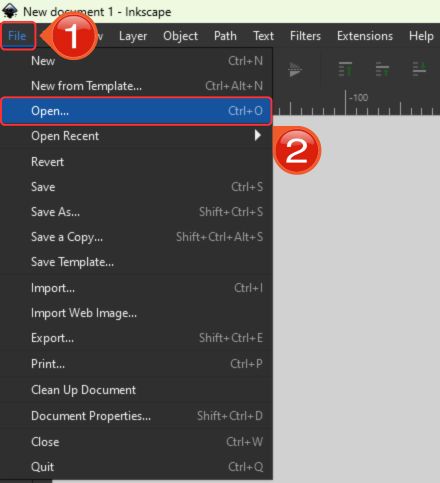
Step 5: To start editing, click on the“File” menu at the top-right corner and then select“Open” to choose the image or file you want to edit.
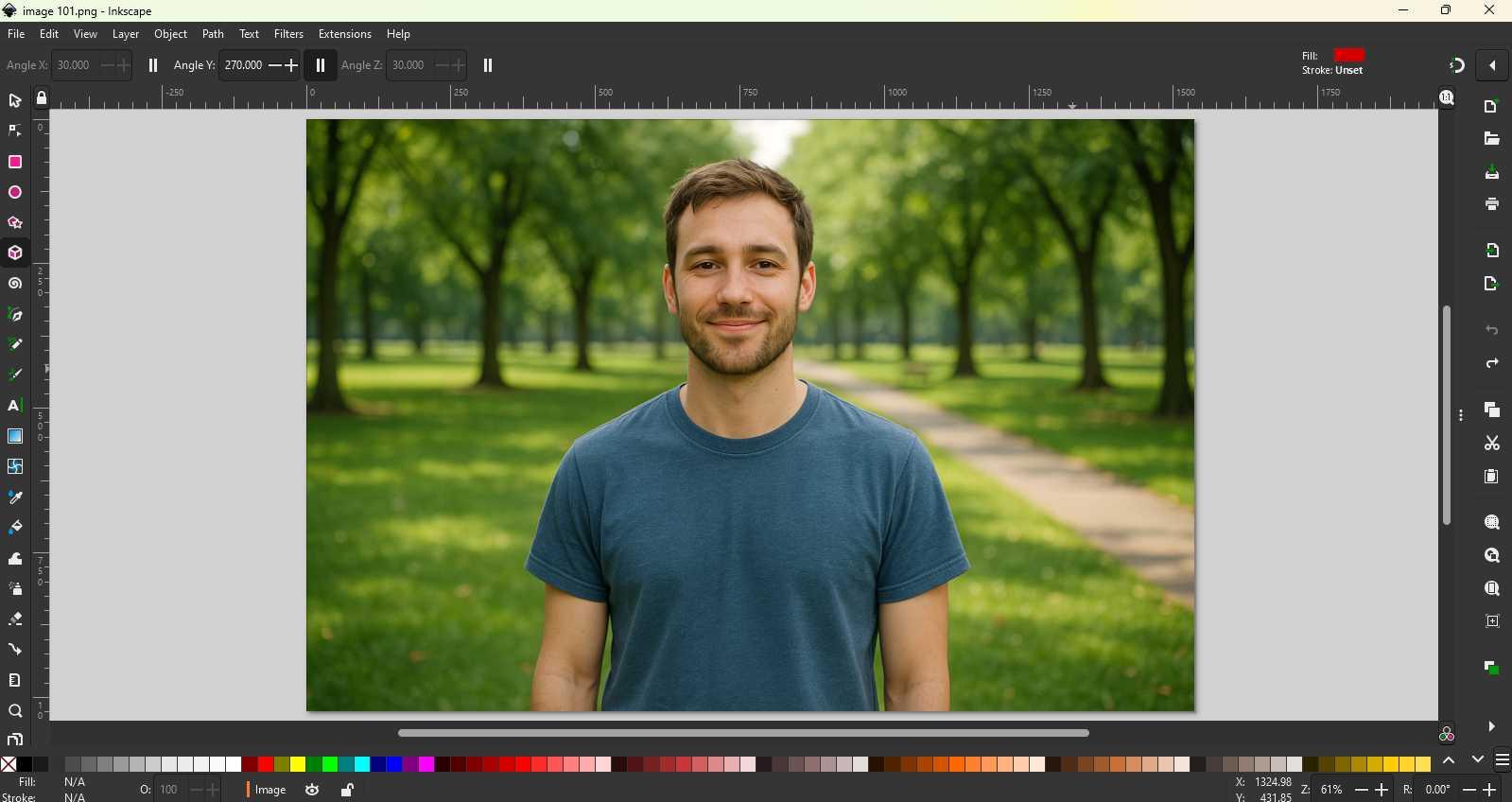
Step 6: Inkscape comes packed with a variety of editing tools, from drawing and shape tools to layers, gradients, and advanced path options, giving you a lot of creative flexibility.
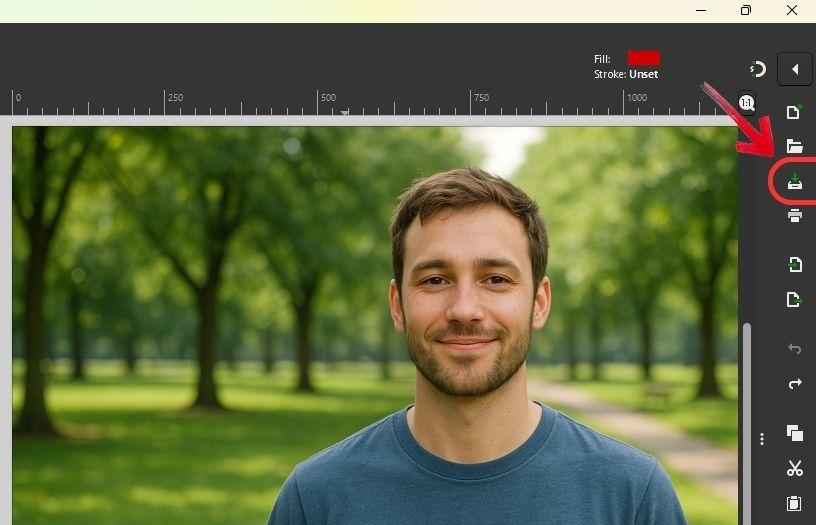
Step 7: Once you’re done editing, save your work by pressing Ctrl + S or clicking the “Save” icon on the right panel.
The best thing about Inkscape is that it’s completely free and gives you access to a wide range of powerful editing tools. It’s a great alternative to Illustrator, though the interface can feel a little outdated. Still, for an open-source tool, Inkscape is genuinely impressive for detailed design work.
Vectr
Vectr is a free, cross-platform vector graphics editor built to make graphic design accessible to everyone, from beginners to small businesses. It does, however, have some premium features that require a subscription starting from $1.99. Unlike complex software with steep learning curves, Vectr focuses on simplicity, collaboration, and ease of use. You can use it directly online on Vectr’s webpage or download the desktop version for Windows, macOS, Linux, or Chromebook.
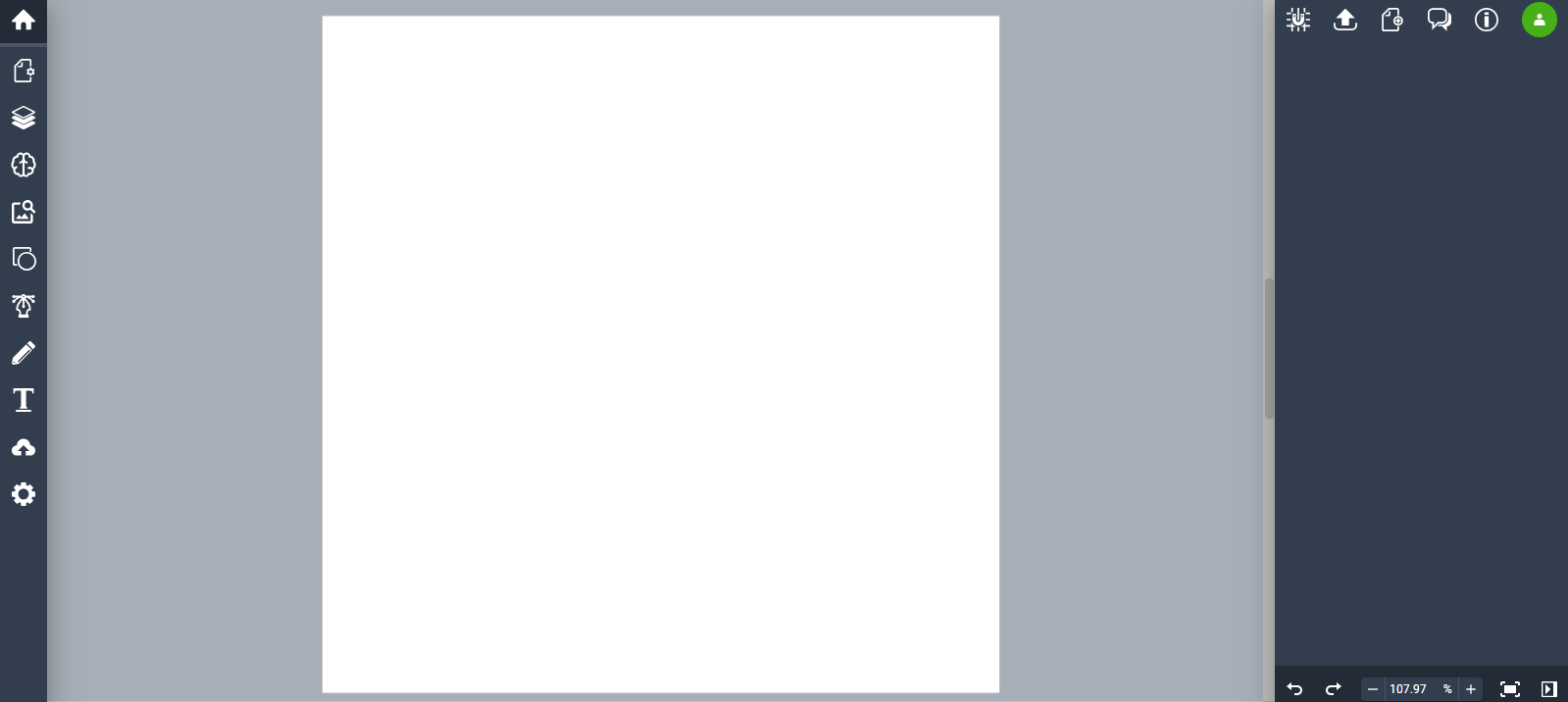
It’s popular among designers who want to create clean, scalable graphics like logos, icons, social media visuals, or flowcharts, without the technical hurdles.
Features:
Easy Drawing Tools: Create shapes, lines, curves, and text effortlessly.
Layer Management: Organize elements for clean, structured designs.
Real-Time Collaboration: Share editable links to design with others live.
Cross-Platform Access: Available as both aweb and desktop app with automatic cloud sync.
Format Support: Import/export in SVG, PNG, and JPEG for universal compatibility.
Version History: Track and restore previous edits automatically.
Pros:
Beginner-friendly interface perfect for learning design.
Works both online and offline.
Lightweight and runs smoothly even on low-end systems.
Enables team collaboration and project sharing in real-time.
Cons:
Lacks advanced tools found in Illustrator or Inkscape.
The online version needs internet connectivity.
Handles complex projects less efficiently.
Limited export options and file formats.
How to Use Vectr:
Vectr is a web-based tool, so all you need to do is sign up. Here’s how you can get started:
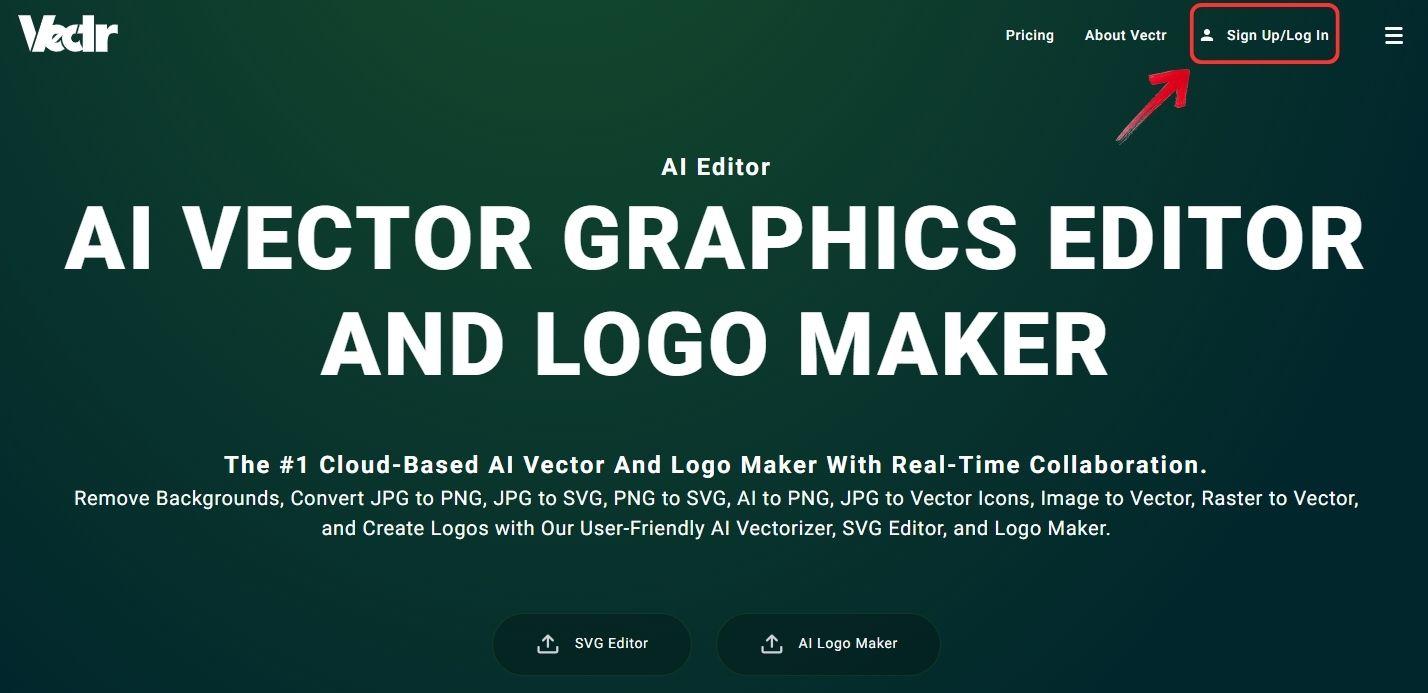
Step 1: First, open your browser and go to the official Vectr website. Click on“Sign Up / Log In” to get started.
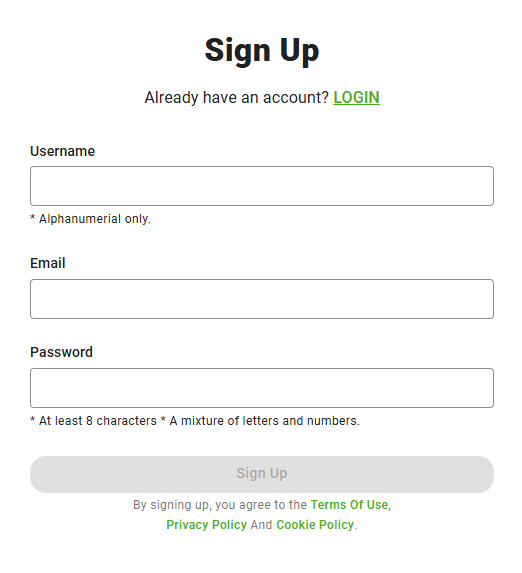
Step 2: Enter your email address and create a strong password to set up your account and keep your work secure.
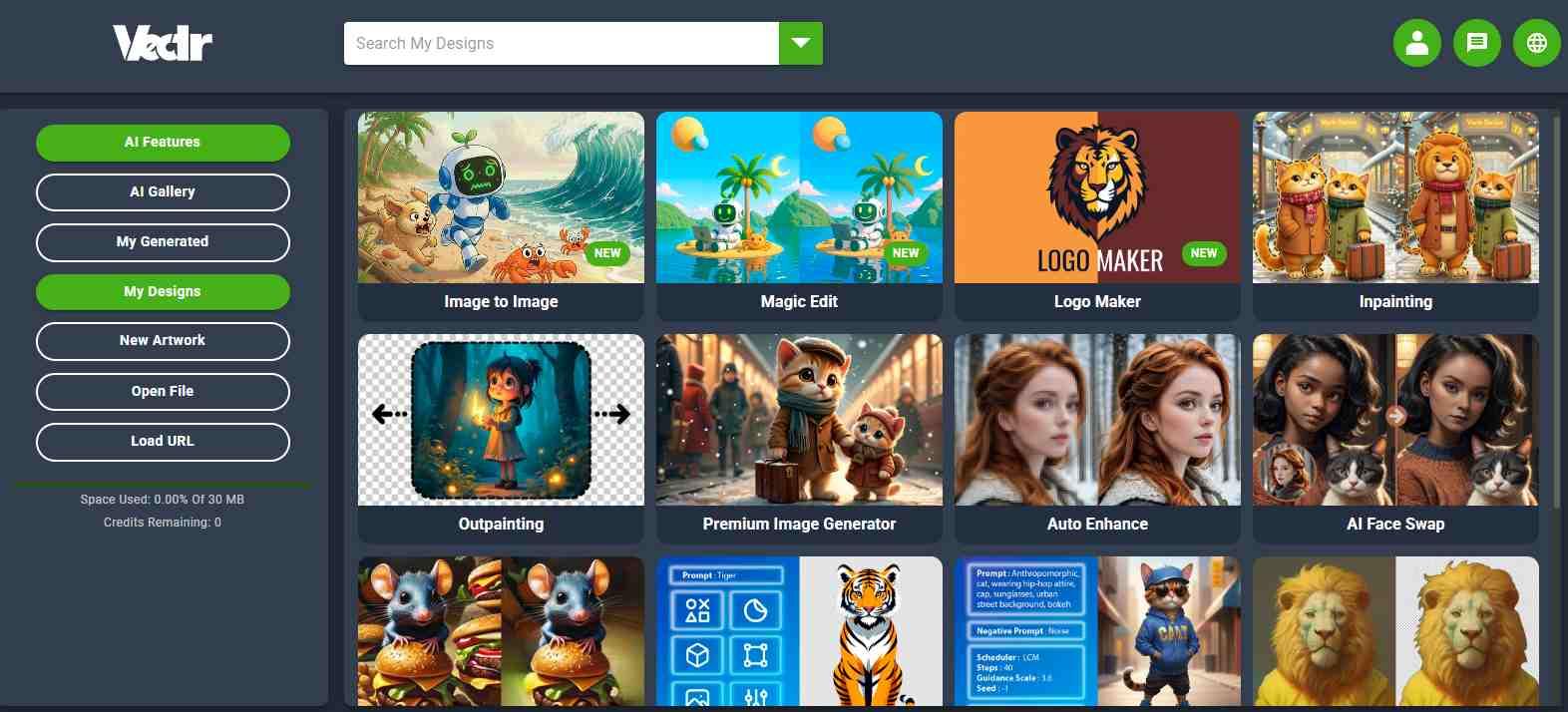
Step 3: Once you’ve signed up, you’ll be redirected to the Vectr dashboard, where you’ll find several AI tools for editing images. Click on any tool, for this example, let’s try the “Magic Edit” option.
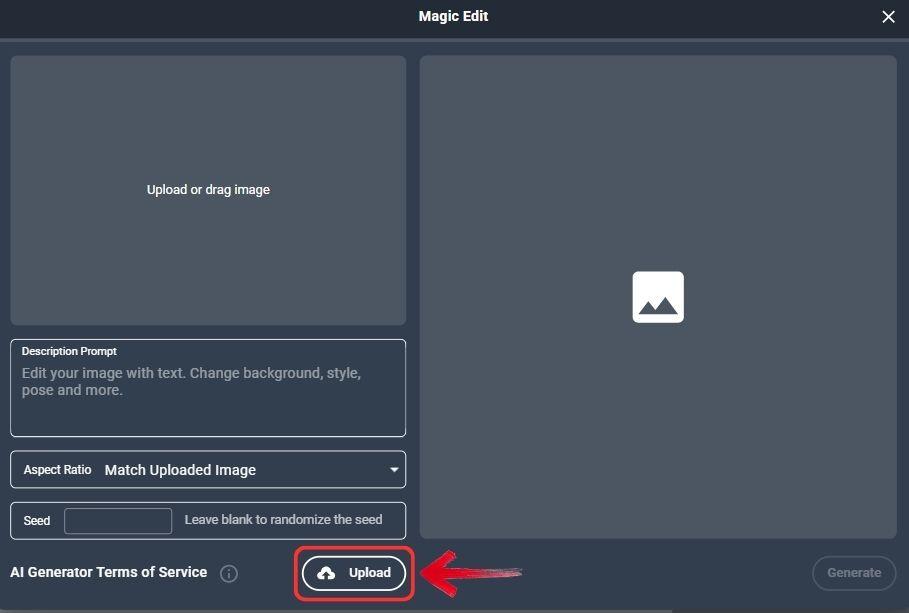
Step 4: You’ll now enter the Vectr editing window. Click on the “Upload” button to upload your image.
Step 5: After your image is uploaded, you can start using the AI tools. Some may ask you to enter a prompt, and each tool works a bit differently depending on its function.
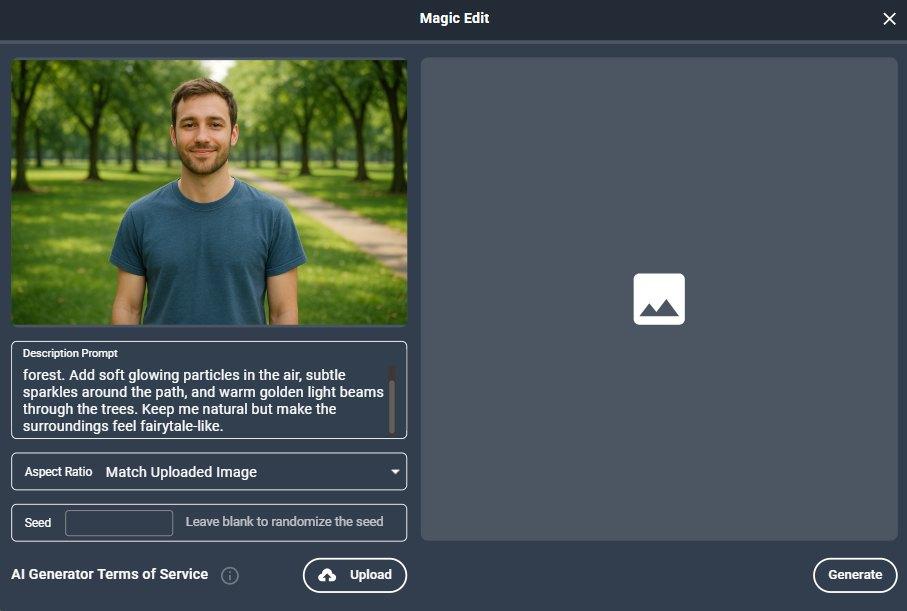
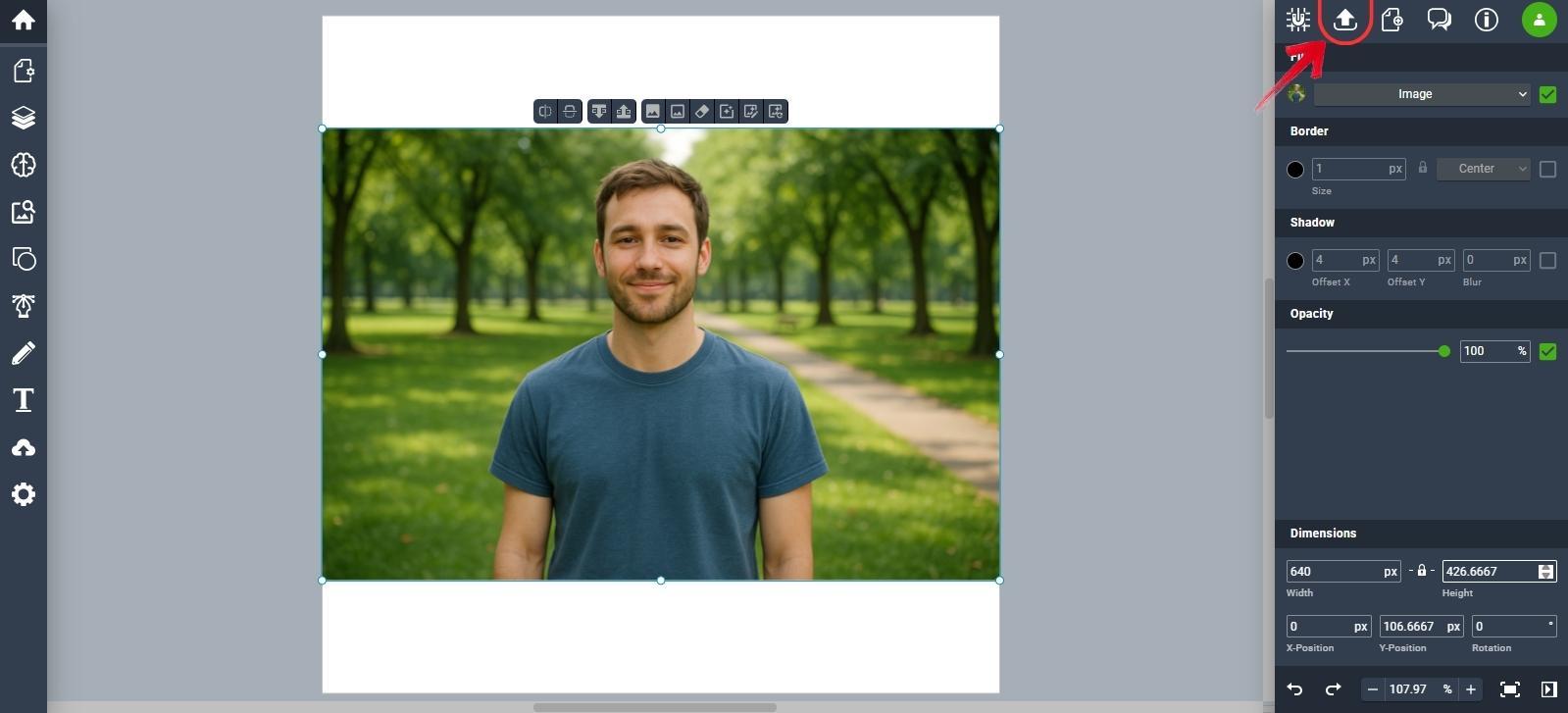
Step 6: Besides AI tools, Vectr also includes classic editing options like adding layers, shapes, and other design elements.
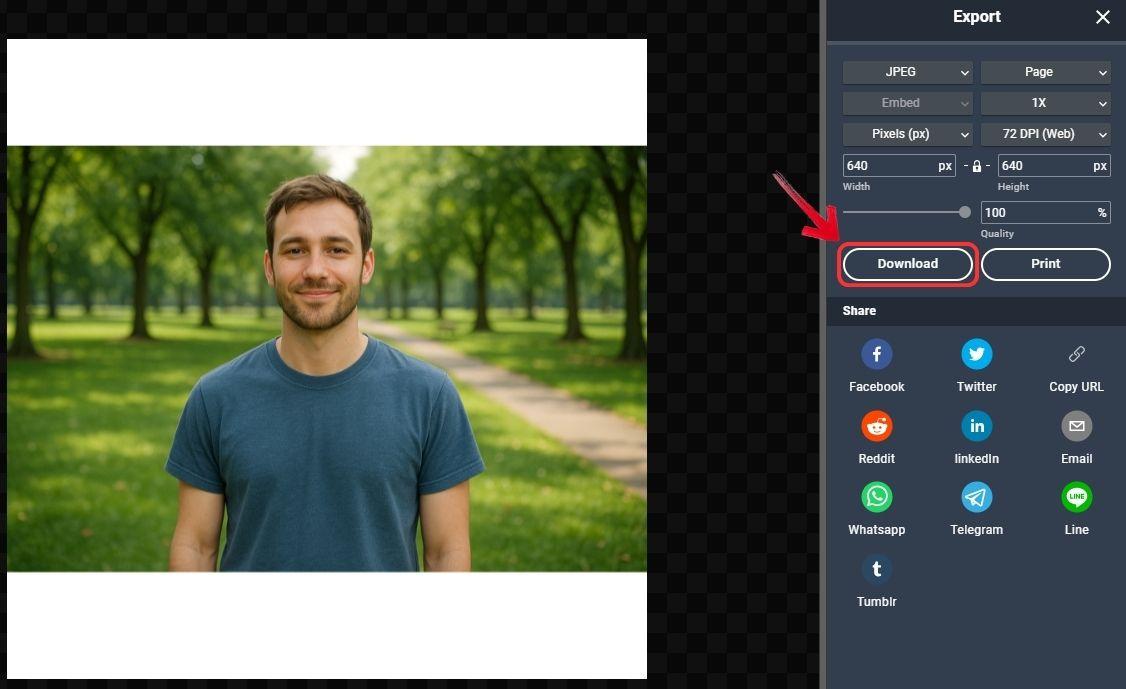
Step 7: Once you’re done editing and happy with the result, click the “Export” button.
Step 8: Finally, click “Download”to save your edited image, or use the sharing options to send it directly to other platforms.
While using Vectr, the first thing you notice is its focus on AI tools. But once you spend some time with it, you start to see how well it blends traditional image editing features with AI-driven creativity. It can feel a bit confusing at first, and the pricing might not suit everyone, but it’s a solid choice for those who want to experiment with new editing ideas and explore creative possibilities.
Affinity Designer
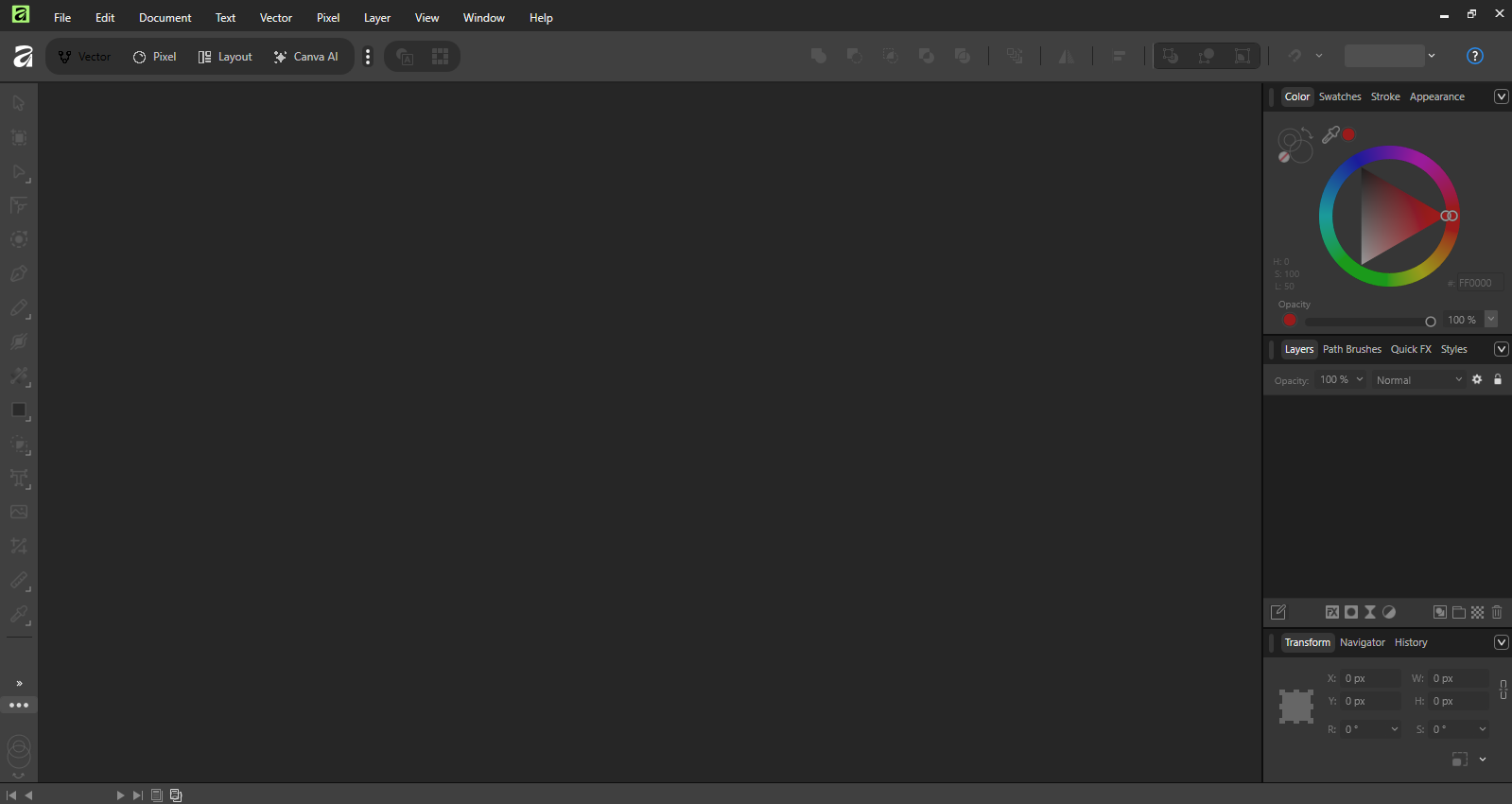
Affinityused to be known as the creative powerhouse under Serif, a respected name in the design world for decades. But ever since its acquisition by Canva, the brand has entered a whole new era, one that’s more accessible, modern, and quite unexpected in the best way.
The highlight is that Affinity is now free to use. What was once a paid, one-time purchase is now accessible to anyone with a Canva account, without subscriptions or time limits. All three apps; Affinity Photo, Designer, and Publisher, have been merged into a single platform, allowing users to edit photos, create vector designs, and manage layouts in one place. The interface feels refined and capable, offering professional functionality at no cost, making it one of the best free illustrator alternative iPad.
Of course, Canva has added a small incentive: if you want to unlock generative AI features similar to Adobe’s Firefly, you’ll need a paid Canva plan. But even then, it’s far more affordable than Adobe’s subscriptions.
Features:
Vector Warp Tool: Bend and reshape vector artwork non-destructively in real-time.
Shape Builder Tool: Combine, subtract, or divide shapes interactively, similar to Illustrator but faster.
Stroke Width Tool: Edit pressure and line width directly on the canvas for smooth, natural strokes.
Mixed Vector & Raster Workspace: Switch between vector drawing and pixel painting in one file.
Cross-Platform Access: Fully functional on Windows, macOS, and iPad with synced tools.
Pros:
One-time purchase.
Faster performance than Illustrator for complex files.
Works seamlessly across devices.
Professional-grade vector and faster integration.
Excellent UI customization and shortcutflexibility.
Cons:
Smaller ecosystem, fewer third-party plugins.
Some Illustrator-exclusive features (like scripting and gradient meshes) are still absent.
Occasional file compatibility quirks with Adobe’s proprietary formats.
How to Use Affinity Designer:
Here’s how to download and start using Affinity:
Step 1: Open your browser and visit the official Affinitywebsite. Click on the “Get Affinity” button.
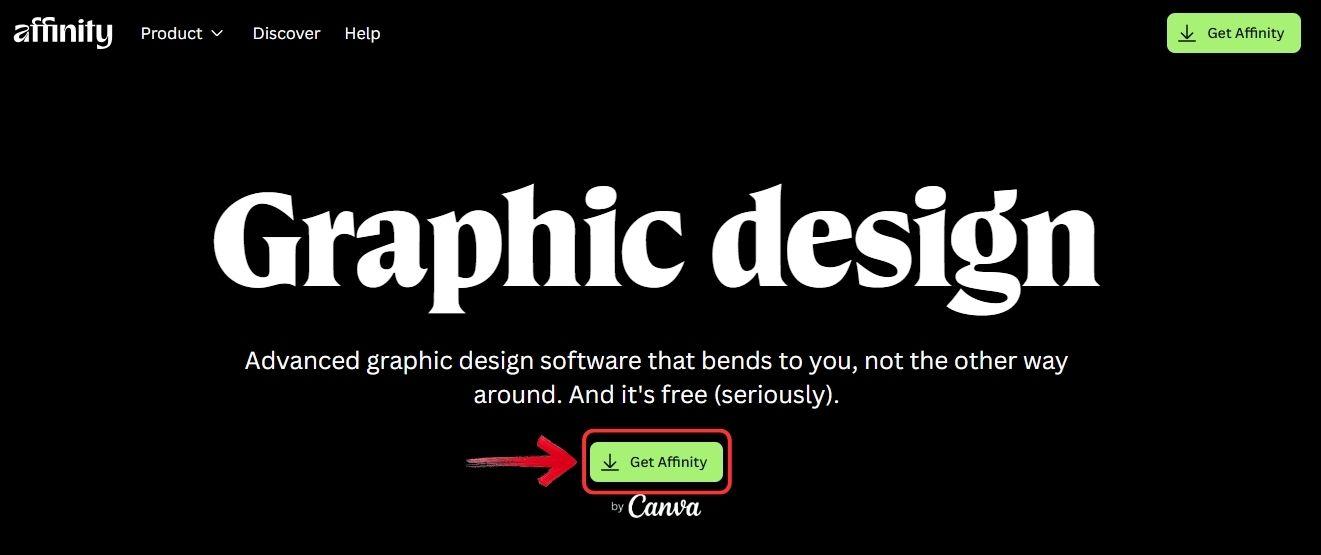
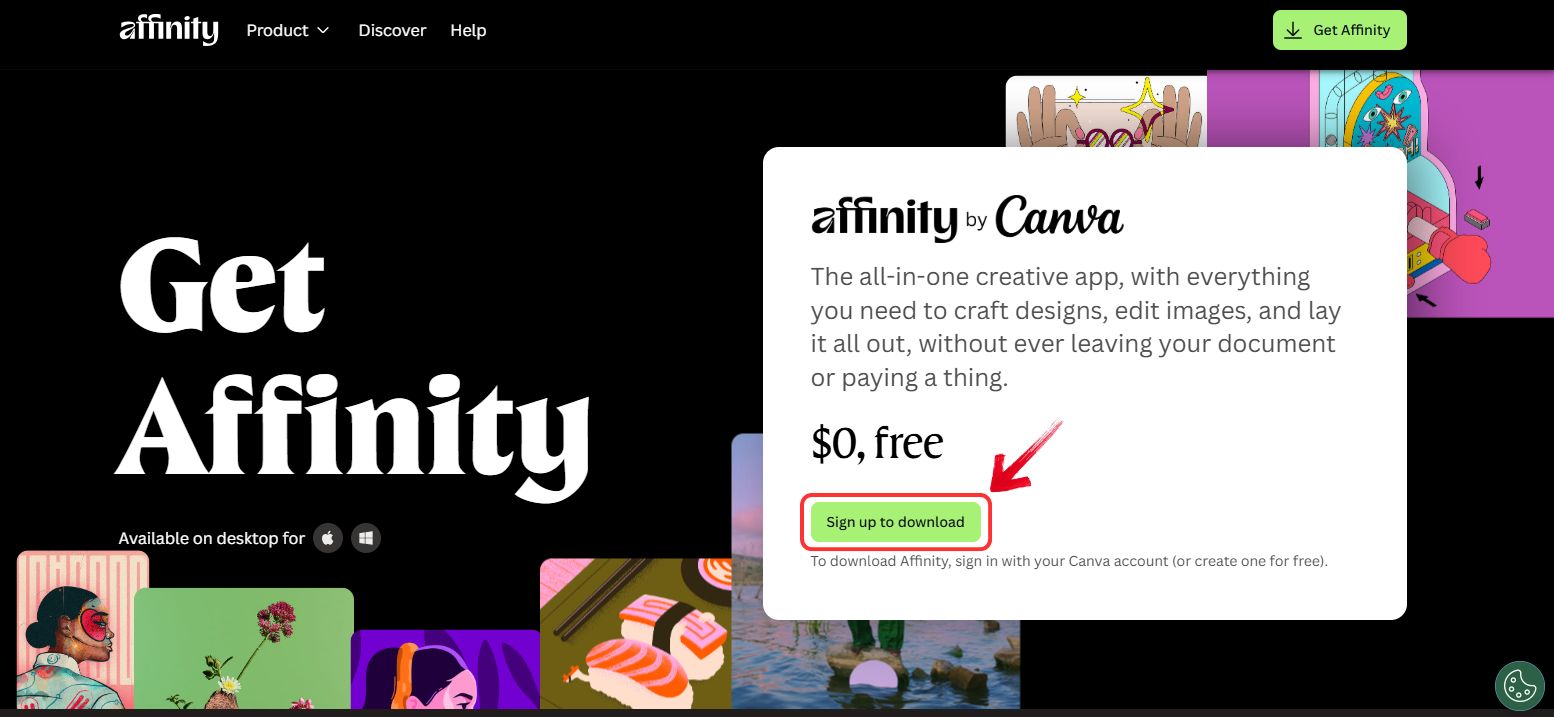
Step 2: On the next page, you’ll need to sign up before downloading the app. Click on “Sign up to download” and create your account.
Step 3: Once logged in, you’ll be redirected to the Affinity download page. Click on the download option that matches your system specifications.
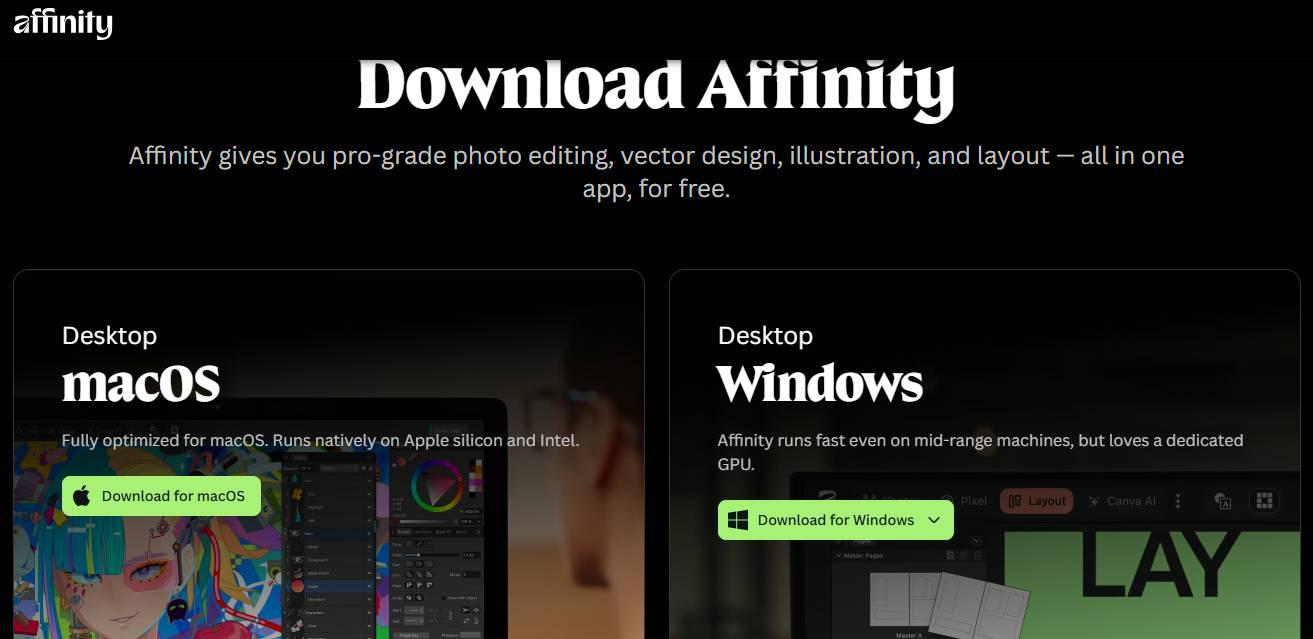
Tip: The download might take a little time, so it’s a good moment to check out some quick photo editing tips while you wait.
Step 4: After the download is complete, open the installation file and follow the on-screen instructions to install Affinity on your system.
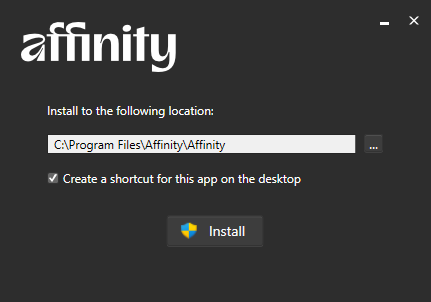
Step 5: Once the setup is complete, launch Affinity on your system.
Step 6: To open the image you want to edit, click on the “File” menu at the top-right corner and then select“Open”.
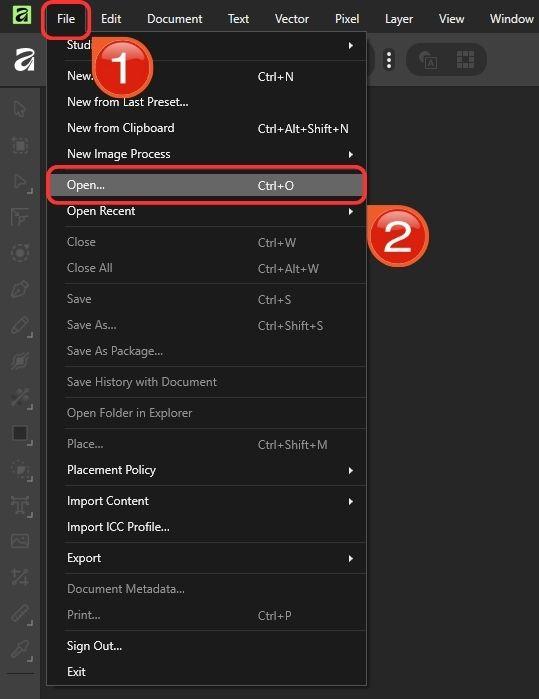
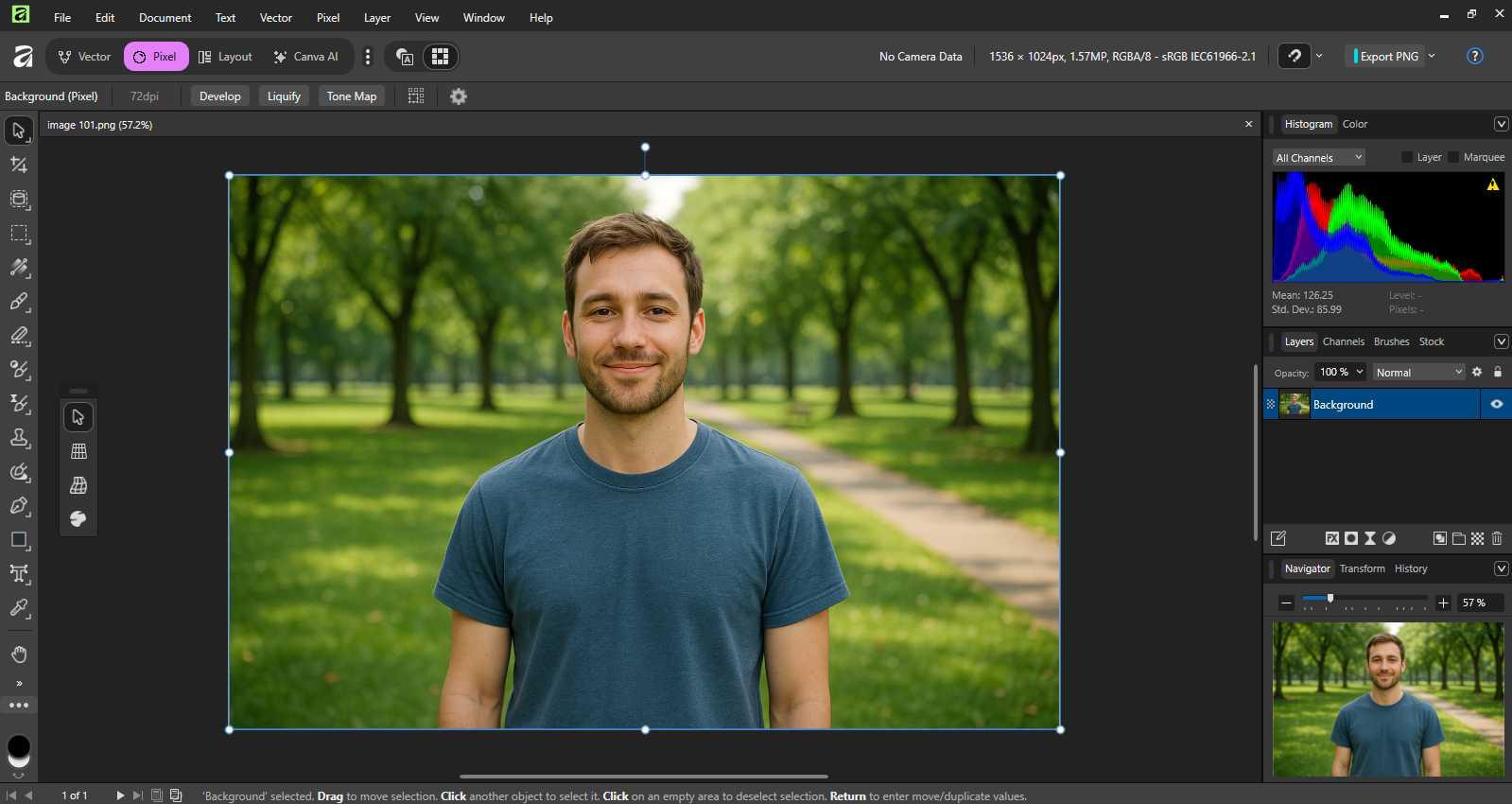
Step 7: Affinity provides a wide range of tools for creating illustrations or editing images, giving you full creative control.
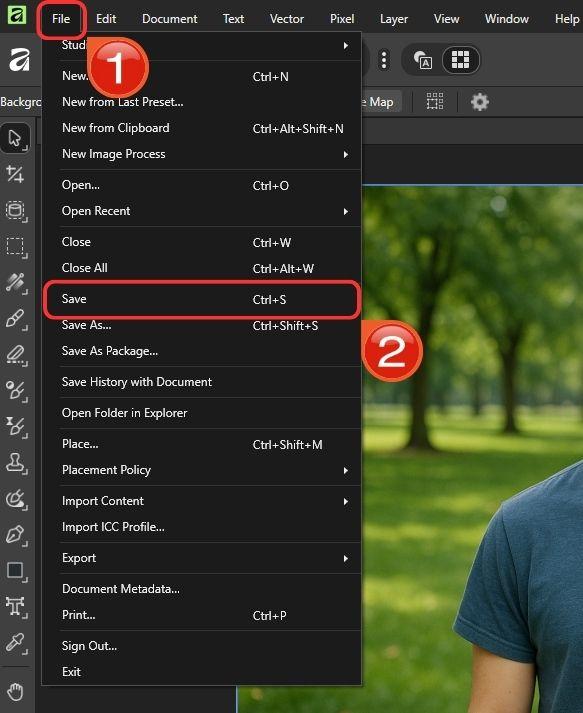
Step 8: When you’re done, use the shortcut Ctrl + S to save your work, or click on the “File” menu and choose “Save”.
Using Affinity does require some experience, especially if you’re new to design tools. The interface can feel a bit advanced at first, but once you get the hang of it, the workflow becomes smooth and efficient. It’s clearly built for users who want professional-level control over their edits and illustrations.
Figma
Figma is a browser-based design and prototyping platform built for real-time collaboration, but it comes with a desktop version too, compatible across Windows, macOS, and Android devices. It is commonly used by UX, UI, and product designers worldwide, where it streamlines every stage of interface design, from wireframes to polished prototypes.
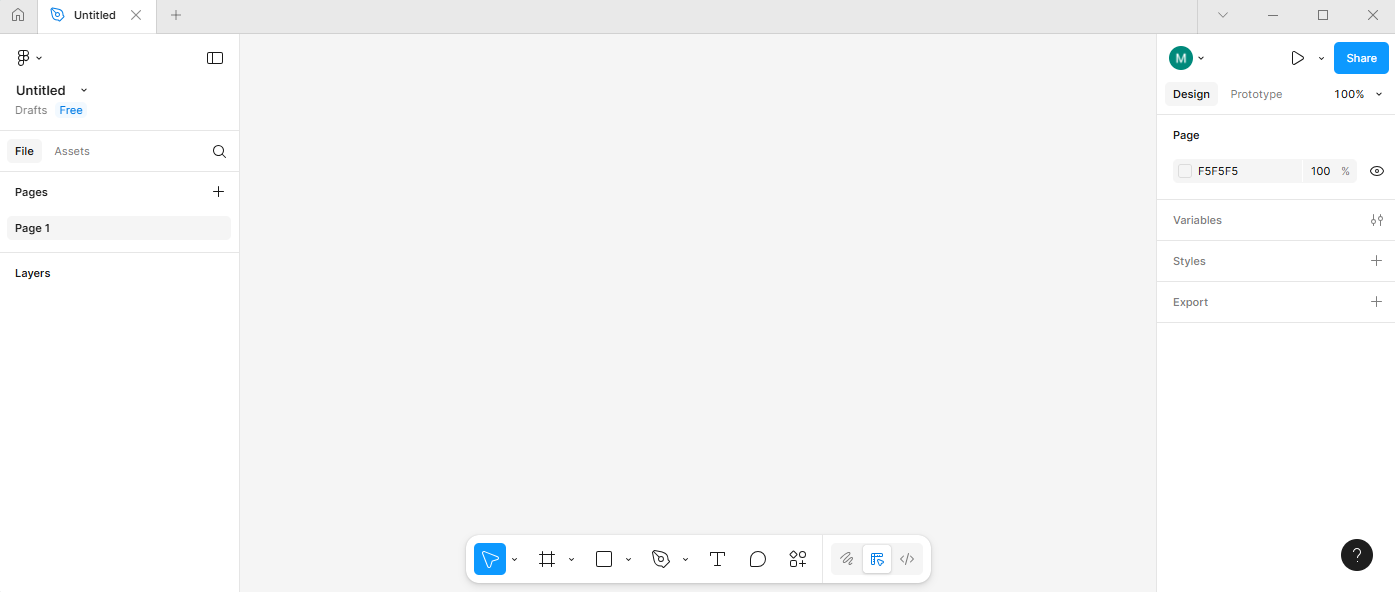
Its easy-to-use interface takes the cake, especially considering how its layer panel is one of the easiest compared to its competitors. Its cloud-first architecture and multiplayer editing features make teamwork seamless, while its plugin ecosystem and design systems help maintain creative consistency across projects.
Features:
Real-Time Collaboration: Multiple designers can edit the same file simultaneously, with live cursors and comments.
Auto Layout: Dynamic frames adjust automatically when you modify elements, perfect for responsive designs.
Vector Networks: Create flexible, precise shapes without the limitations of traditional paths.
Design Systems & Libraries: Keep brand assets and components synced across teams.
Plugins & Integrations: Extend functionality with tools for charts, accessibility checks, and more.
Pros:
Real-time collaboration for distributed teams.
Extensive plugin ecosystem and UI libraries.
Easy onboarding with tutorials and templates.
Strong design system and prototyping features.
Free plan available for beginners and students.
Cons:
Performance can drop with large files.
Limited offline functionality.
Missing advanced print or 3D design tools.
How to Use Figma:
Here’s how you can get started with Figma:
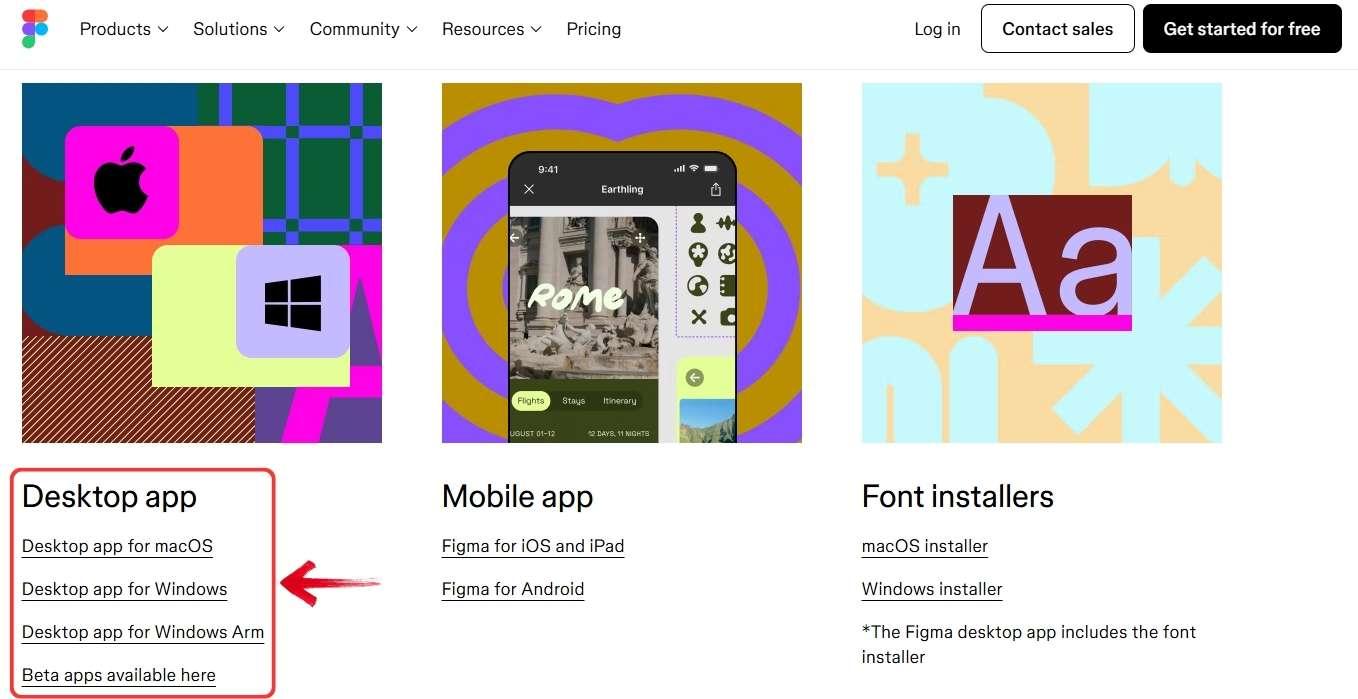
Step 1: Go to Figma’s official download page in your browser. You’ll see the available versions for different operating systems. Click the Downloadbutton according to your system.
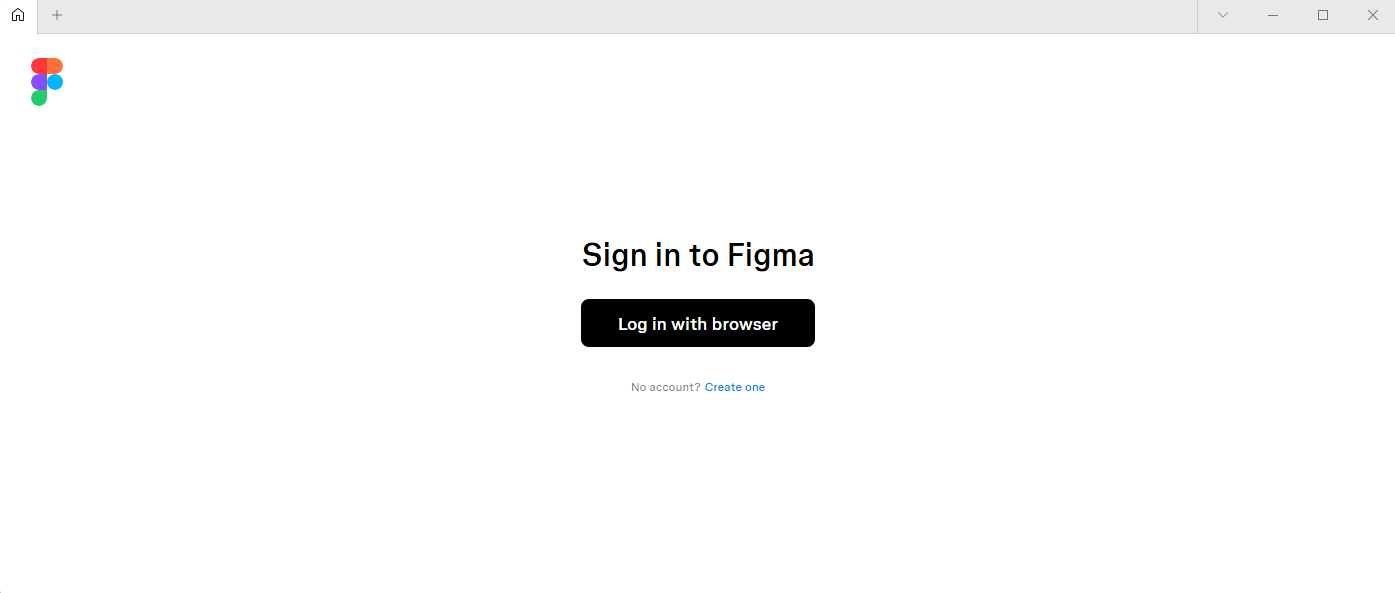
Step 2: Once the download is complete, double-click the installation file to start the setup. You’ll be asked to log in to your Figma account or create a new oneif you don’t have one yet.
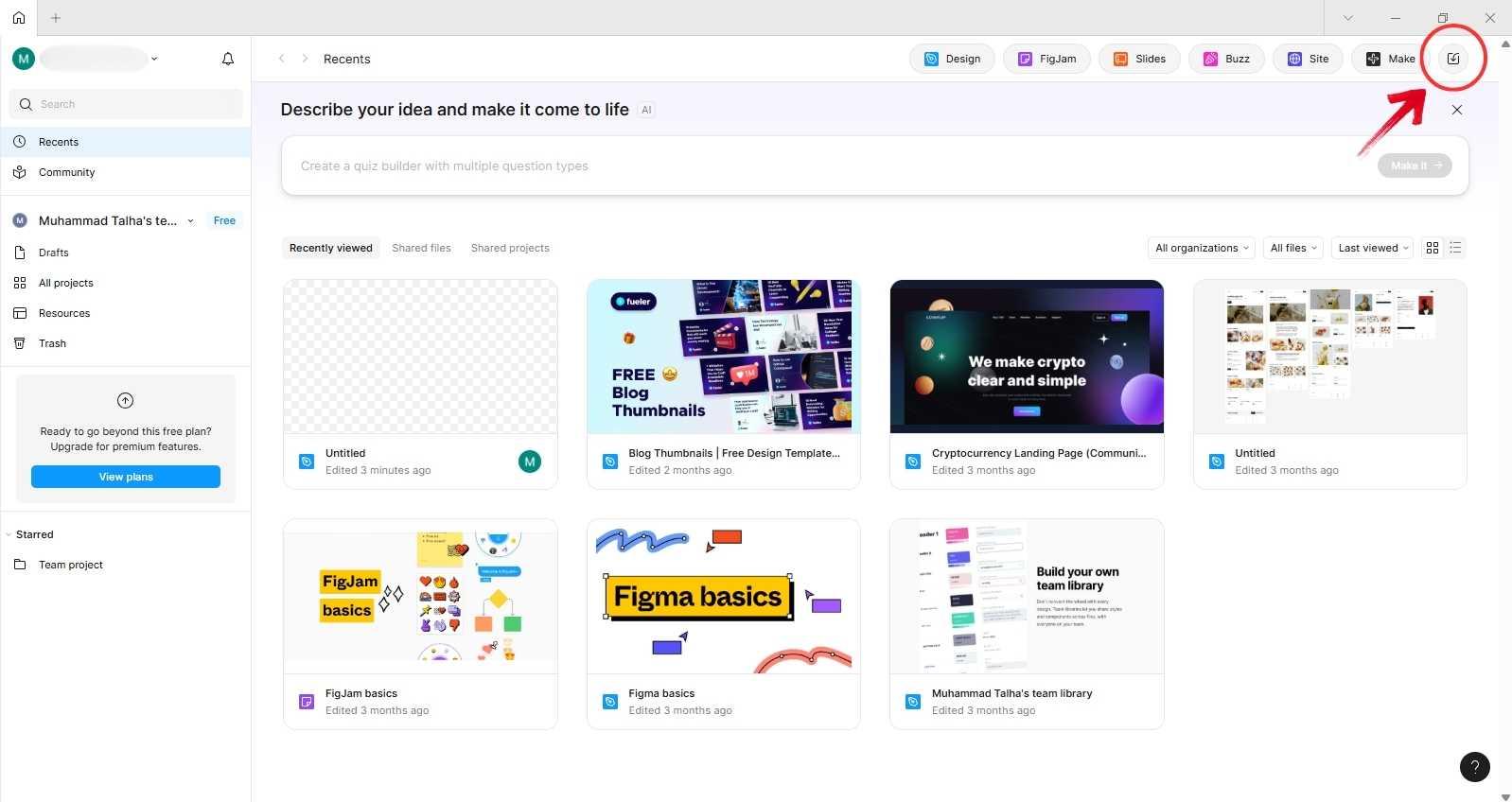
Step 3: After logging in, you’ll be taken to the Figma dashboard, where you can view your projects. Click on the“Upload” icon to upload an image from your computer.
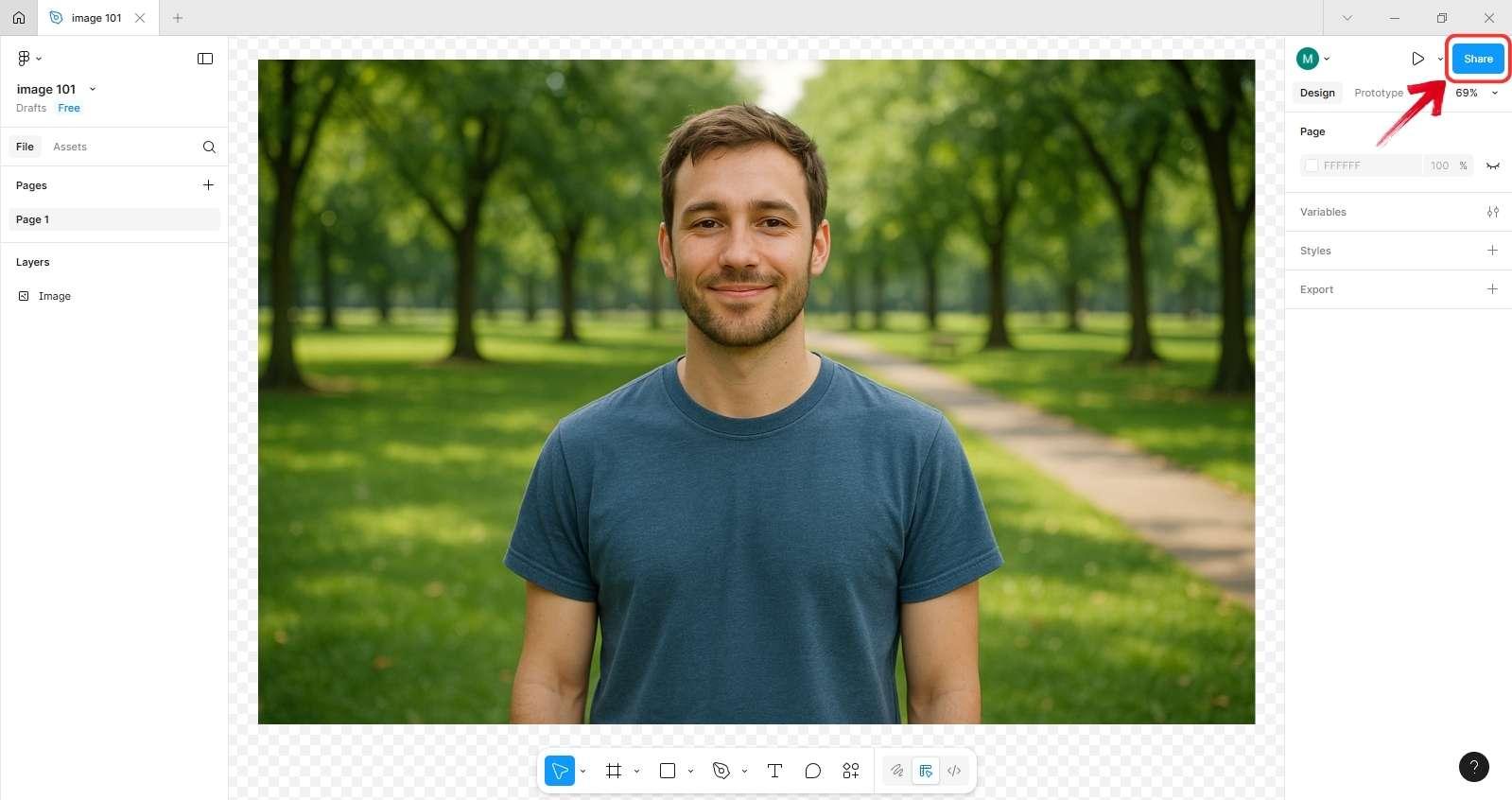
Step 4: Now, simply edit your image using Figma’s built-in editing tools. Once you’re done, click on the“Share” button to generate a link and share your project with others.
Figma has grown into one of the most useful design tools in recent years. Even Adobe, the company behind Illustrator, once considered acquiring it because of its strong editing and collaboration features. It works best for UI and UX design, where teams can edit, prototype, and review projects together in real time. You can even design complete website layouts using plugins for WordPress, Webflow, and Shopify. However, its tools can feel a bit complex for someone who just wants to edit simple images, making it better suited for structured design work rather than quick edits.
Free Illustrator Alternatives Comparison
Here’s a clean, transparent comparison table summarizing all five illustration tools, showing how each stands out in its own way:
| Feature | WPS Office | Inkscape | Vectr | Affinity Designer | Figma | ||
|---|---|---|---|---|---|---|---|
| Price | Free tier + Premium from ~$2.99/month | Free / Open-Source | Free tier available; premium plans at ~$3.99/month | One-time purchase (e.g., ~$49) | Free tier + paid plans (starts around $15/editor/month) | ||
| AI Tools | Yes — integrated AI features (via WPS AI) | Limited or none built-in advanced AI tools (focus is vector edit) | Yes — offers image-to-vector, text-to-image AI tools | Some advanced features but not emphasised as dedicated “AI toolkit” | Extensive plugins and collaboration; AI features depend on plugins/ ecosystem | ||
| Collaboration | Document sharing via cloud, multi-device | Collaboration less focused; more individual desktop use | Strong real-time collaboration / cloud sync | Collaboration supported but workflow more traditional (desktop) | Excellent real-time collaboration, team libraries, sharing | ||
| Complexity |
Very low; general office users, minimal learning curve |
Moderate; steeper learning curve compared to “simple” tools | Very low; beginner friendly, minimal interface | Moderate to high; professional tools, steeper curve | Moderate; easier for UI/UX teams, but complexity grows with usage | ||
| Ideal Use |
General users, document editing, light design |
Illustrators, vector designers who need free/open source | Beginners, teams doing simple logo/icon work, web design | Professional illustrators, designers seeking vector + raster capability | UI/UX designers, product teams, remote collaboration projects |
Each of these tools stands out for a reason. For anyone seeking a free alternative to Adobe Illustrator, Inkscape is a pretty great choice. It’s powerful, open-source, and semi-pro friendly, though it can slow down over time. Personally, Vectr and Figma feel like the next best choices, especially for their intuitive interfaces and cloud-based collaboration. They make an easy transition for pros or semi-pros who want flexibility without the clutter.
Now, with Affinity under Canva’s wing, it’s become one of the most practical and user-friendly tools on this list. You can clearly see Canva’s influence in its interface, modern, accessible, and effortless to navigate, while still retaining the power of a professional design suite.
But if you’re aiming for quick edits or everyday visuals, WPS Photos wins hands down. Its AI-powered features, though niche, deliver remarkably refined results with almost no competition. Personally, pairing WPS Photos with Vectr feels like the smartest combo making workflows fast, capable, and perfect for creators who value both ease and precision.
Why is WPS Photo the Best Free Illustrative Alternative?
Adobe Illustrator may be the industry standard,especially popular among professionals creating detailed, intricate designs. But what about casual users who just want to build a clean user interface or simple visuals without diving deep into complex tools? Illustrator can feel overwhelming, and its cost doesn’t make it any easier.
Sometimes, all you really need is a lightweight, AI-driven tool to get your illustrations right, whether it’s quick enhancements or creating infographics for your documents. WPS Photos fits that need perfectly, blending simplicity, smart design assistance, and professional-looking results right within the WPS Office ecosystem.
Some of these features are the prime reason why many professionals chose to transition to WPS Photos, from their local illustrator tool.
AI Enhancement & Background Removal:Instantly refine image quality, clean up portraits, or remove backgrounds with one click, perfect for quick visual edits or presentation graphics.
Smart Layout Suggestions: WPS Photo automatically aligns, centers, and balances elements on your canvas, giving even non-designers a polished, professional look.
Seamless WPS Integration: You can design and insert visuals directly into WPS Writer or WPS Presentation, keeping your workflow smooth without switching between multiple tools.
Vector-like Editing: With shape tools, layering, and precise positioning, users can easily create logos, infographics, and minimal illustrations without Illustrator skills needed.
Flexible Export Options: Save your work as images, PDFs, or embed them directly into your WPS files for a presentation-ready finish.
Why It’s the “Best” Alternative
WPS Photo is one of those rare tools that anyone, from any corner of the world or profession, can rely on to meet their design needs with ease and clarity. It’s fast, intuitive, and backed by AI that takes care of the heavy lifting, from enhancing visuals to creating polished illustrations. Its deep integration within WPS Office means you can edit, insert, and present without ever leaving your workspace.
In short, WPS Photo blends creativity with convenience, a rare balance that makes it one of the best free Illustrator alternatives for both everyday users and professionals.
FAQs
1. Can a free Illustrator alternative really replace Adobe Illustrator for professional work?
Yes, many free tools like Inkscape and Affinity Designer can handle professional vector design. They may not include every advanced AI feature Adobe offers, but their core editing tools are strong enough for creating detailed, high-quality graphics without needing a paid subscription.
2. Which free Illustrator alternative is best for beginners?
For beginners, WPS AI Photo and Vectr are great options. They’re easy to use, have clear interfaces, and include helpful guides for simple design tasks. Both are ideal for students or anyone looking to experiment with basic creative work.
3. Are there free Illustrator alternatives that work directly online without installation?
Yes. Vectr and Figma work entirely online, so you can start designing right from your browser. They automatically save your work to the cloud, making it easy to continue from another device whenever you want.
4. Is there a free Illustrator alternative for iPad users?
Yes. Both Affinity Designer and Figma have iPad apps that support full touch controls. You can design, draw, and export your projects directly from your tablet, which makes them a good choice for mobile creators.
The Perfect Addition to Your Workflow
Each of these tools brings its own strength: Inkscape with its creative freedom, Vectr and Figma for smooth collaboration, and Affinity for its new Canva-inspired simplicity. But WPS Photostands out as a great choice for virtually anyone. A pro can use it for quick, high-quality enhancements, while everyday users can create effortlessly on the go, and the best bit is that It pairs perfectly with all the other tools.

'%3e%3cpath%20d='M19.9911%204.11386V6.471H18.5894C18.0775%206.471%2017.7322%206.57814%2017.5536%206.79243C17.3751%207.00671%2017.2858%207.32814%2017.2858%207.75671V9.44421H19.9019L19.5536%2012.0871H17.2858V18.8639H14.5536V12.0871H12.2769V9.44421H14.5536V7.49779C14.5536%206.39064%2014.8632%205.53201%2015.4822%204.92189C16.1013%204.31177%2016.9257%204.00671%2017.9554%204.00671C18.8304%204.00671%2019.509%204.04243%2019.9911%204.11386Z'%20fill='%23333333'/%3e%3c/g%3e%3cdefs%3e%3cclipPath%20id='clip0_2938_8199'%3e%3crect%20width='16'%20height='16'%20fill='white'%20transform='translate(8%204.00671)'/%3e%3c/clipPath%3e%3c/defs%3e%3c/svg%3e)
'%3e%3cpath%20d='M17.5237%2010.7813L23.4811%204H22.0699L16.8949%209.88693L12.7648%204H8L14.2469%2012.9029L8%2020.0133H9.4112L14.8725%2013.7952L19.2352%2020.0133H24M9.92053%205.04213H12.0885L22.0688%2019.0224H19.9003'%20fill='%23333333'/%3e%3c/g%3e%3cdefs%3e%3cclipPath%20id='clip0_2938_8200'%3e%3crect%20width='16'%20height='16.0134'%20fill='white'%20transform='translate(8%204)'/%3e%3c/clipPath%3e%3c/defs%3e%3c/svg%3e)


