

'%3e%3cpath%20d='M8%200C12.4183%200%2016%203.58172%2016%208C16%2012.4183%2012.4183%2016%208%2016C3.58172%2016%200%2012.4183%200%208C0%203.58172%203.58172%200%208%200ZM11.6162%204.38379C11.2257%203.99337%2010.5927%203.99338%2010.2021%204.38379L8%206.58594L5.79785%204.38379C5.40732%203.99334%204.77429%203.99329%204.38379%204.38379C3.99331%204.77429%203.99335%205.40733%204.38379%205.79785L6.58594%208L4.38379%2010.2021C3.99348%2010.5927%203.99341%2011.2257%204.38379%2011.6162C4.77426%2012.0066%205.40734%2012.0065%205.79785%2011.6162L8%209.41406L10.2021%2011.6162C10.5927%2012.0066%2011.2257%2012.0067%2011.6162%2011.6162C12.0067%2011.2257%2012.0066%2010.5927%2011.6162%2010.2021L9.41406%208L11.6162%205.79785C12.0066%205.40735%2012.0066%204.77429%2011.6162%204.38379Z'%20fill='%23080E17'%20fill-opacity='0.46'/%3e%3c/g%3e%3cdefs%3e%3cclipPath%20id='clip0_3761_713'%3e%3crect%20width='16'%20height='16'%20fill='white'/%3e%3c/clipPath%3e%3c/defs%3e%3c/svg%3e)




'%3e%3cpath%20fill-rule='evenodd'%20clip-rule='evenodd'%20d='M21.4999%2010.9993C21.4999%205.20009%2016.7986%200.498901%2010.9993%200.498901C5.19994%200.498901%200.498657%205.20009%200.498657%2010.9993C0.498657%2016.2404%204.33858%2020.5844%209.35855%2021.3722V14.0346H6.69238V10.9993H9.35855V8.68594C9.35855%206.05427%2010.9262%204.60062%2013.3248%204.60062C14.4736%204.60062%2015.6753%204.80571%2015.6753%204.80571V7.38979H14.3512C13.0468%207.38979%2012.64%208.19921%2012.64%209.0296V10.9993H15.5523L15.0867%2014.0346H12.64V21.3722C17.66%2020.5844%2021.4999%2016.2404%2021.4999%2010.9993Z'%20fill='%231568EA'/%3e%3c/g%3e%3c/svg%3e)


'%3e%3cpath%20d='M2.42045%2022.1876H6.31818V12.7217L0.75%208.54553V20.5171C0.75%2021.4414%201.49892%2022.1876%202.42045%2022.1876Z'%20fill='%234285F4'/%3e%3cpath%20d='M19.682%2022.1876H23.5797C24.5041%2022.1876%2025.2502%2021.4387%2025.2502%2020.5171V8.54553L19.682%2012.7217'%20fill='%2334A853'/%3e%3cpath%20d='M19.682%205.48293V12.7216L25.2502%208.54543V6.31816C25.2502%204.25236%2022.8921%203.07469%2021.2411%204.31361'%20fill='%23FBBC04'/%3e%3cpath%20d='M6.31824%2012.7217V5.48303L13.0001%2010.4944L19.6819%205.48303V12.7217L13.0001%2017.733'%20fill='%23EA4335'/%3e%3cpath%20d='M0.75%206.31816V8.54543L6.31818%2012.7216V5.48293L4.75909%204.31361C3.10534%203.07469%200.75%204.25236%200.75%206.31816Z'%20fill='%23C5221F'/%3e%3c/g%3e%3cdefs%3e%3cclipPath%20id='clip0_2954_7305'%3e%3crect%20width='24.5'%20height='18.375'%20fill='white'%20transform='translate(0.75%203.8125)'/%3e%3c/clipPath%3e%3c/defs%3e%3c/svg%3e)


iLovePDF is an industry-standard tool when it comes to file conversions with PDFs, being the originator of the PDF format. However, users have to deal with high subscription costs for full features, and poor integration with standard office productivity apps. So, how can you convert an iLovePDF JPG to PDF, and is there a better alternative? In this guide, I’ll be walking you through how to convert PDF to JPG on iLovePDF.


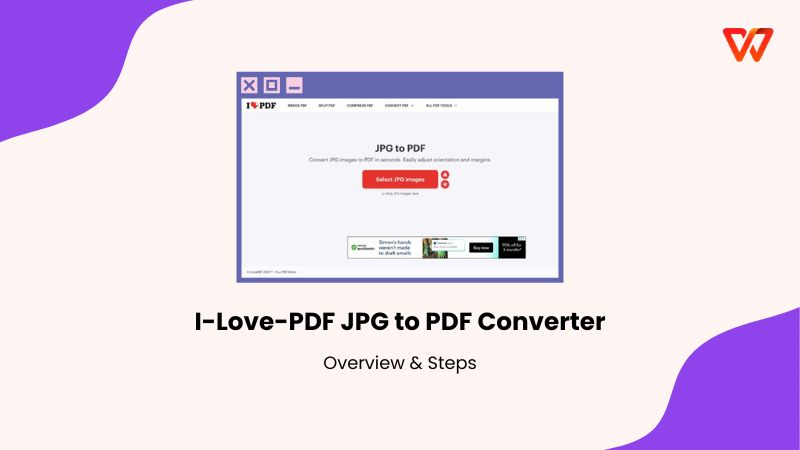
Overview of I-Love-PDF JPG to PDF Converter
iLovePDF is one of the most used and well-known tools when it comes to PDF conversions online, providing quick and reliable results in just a few simple steps. It provides a straightforward and user-friendly experience, which is ideal for casual users and professionals alike, ensuring a hassle-free conversion process every single time. In this section, I’ll be breaking down iLovePDF JPG to PDF converter to help you decide if it’s worth using or not.
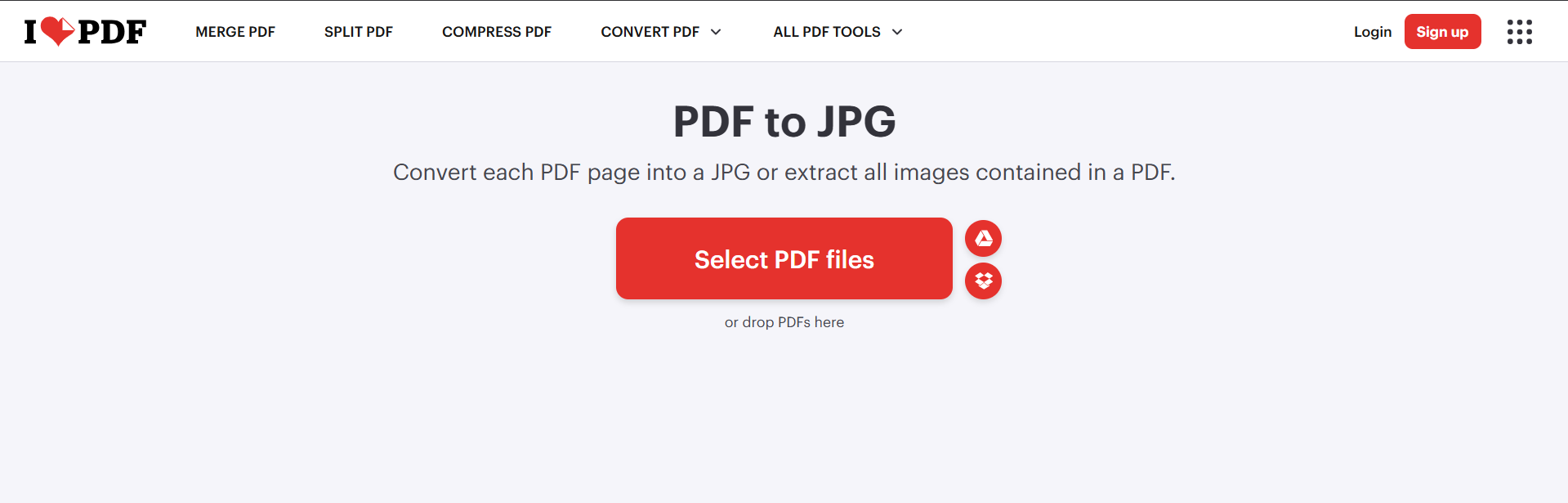
How to Convert JPG to PDF on I-Love-PDF
If you want to use the iLovePDF JPG to PDF on phone or on a computer, the process is incredibly simple. It ensures a simple and quick procedure, making sure beginners don’t have to go through any hassle or confusion when using it for the first time. In this section, I’ll be highlighting the entire step-by-step process of converting JPG to PDF using iLovePDF.
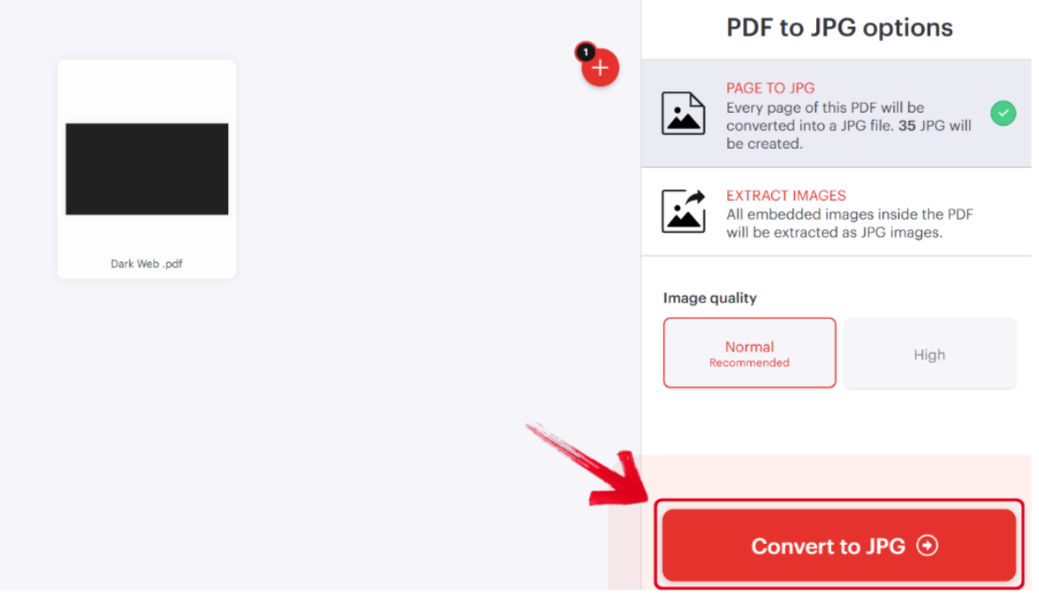
Step 1: Visit iLovePDF’s home page and pressSelect PDF files to get started.
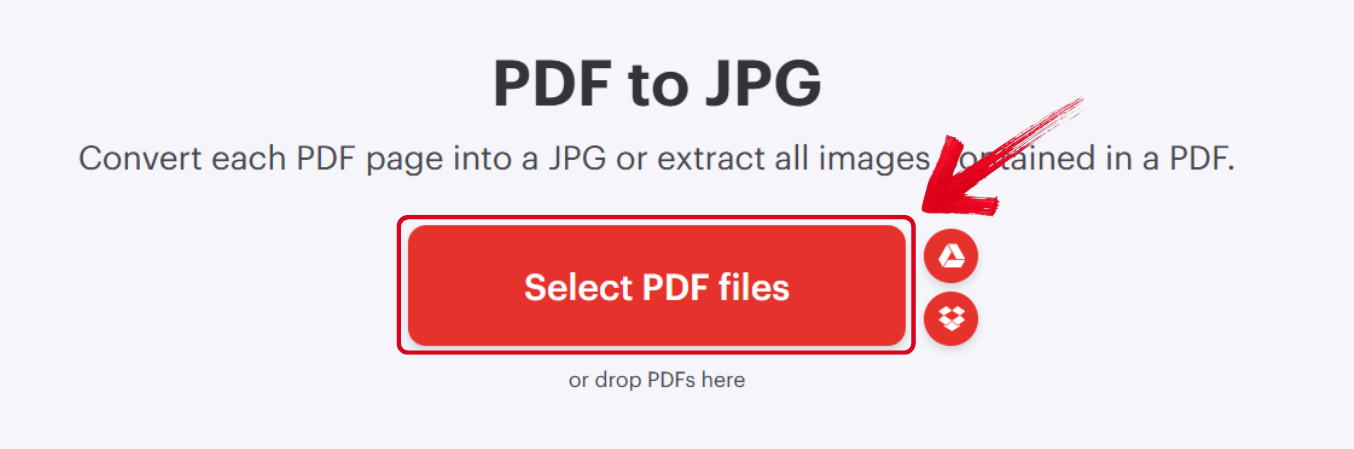
Step 2: Select the extraction options and the quality of your results, then press Convert to JPG to start the conversion process.
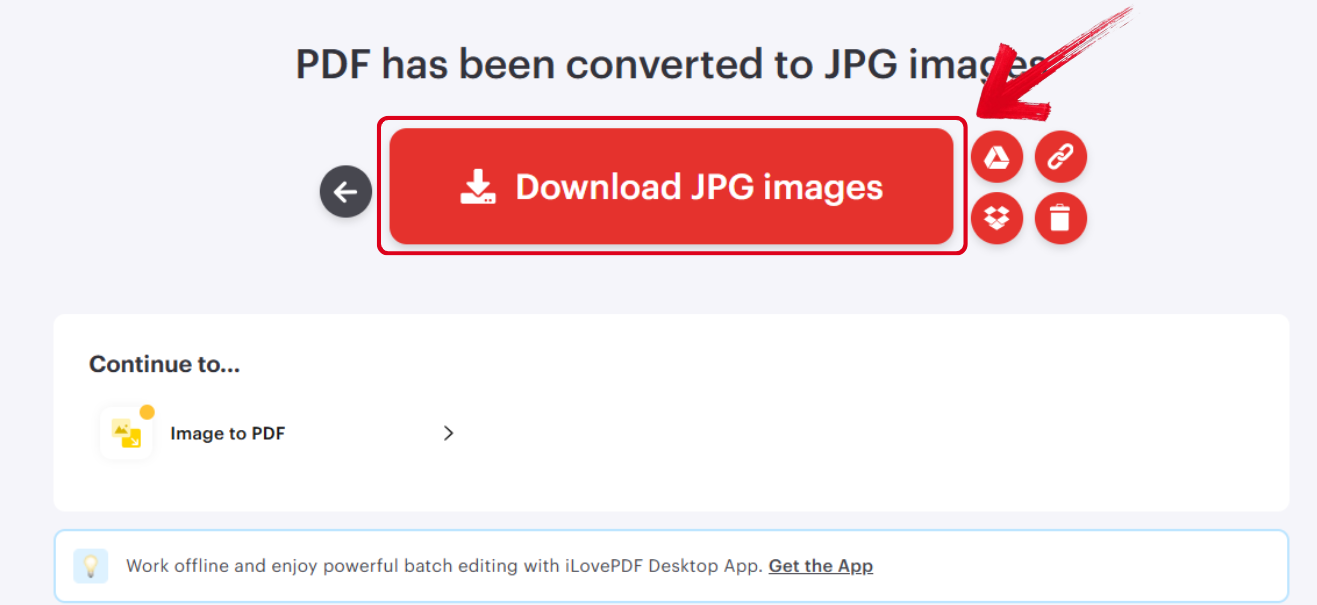
Step 3: Once the conversion is complete, press Download JPG Images to start exporting it to your device.
WPS Online Converter: Best Alternative to iLovePDF JPG to PDF Converter
iLovePDF can be a great tool for quick edits pdfs in a while, but if you’re looking for more features and editing options, it can get quite limiting. This is why I personally use WPS Online Converter for all my file conversions. It’s completely free and provides an all-in-one solution to all my productivity needs. With its AI-powered functionality and user-friendly interface, it’s one of the best options out there for beginners looking for a reliable tool to add to their workflow.
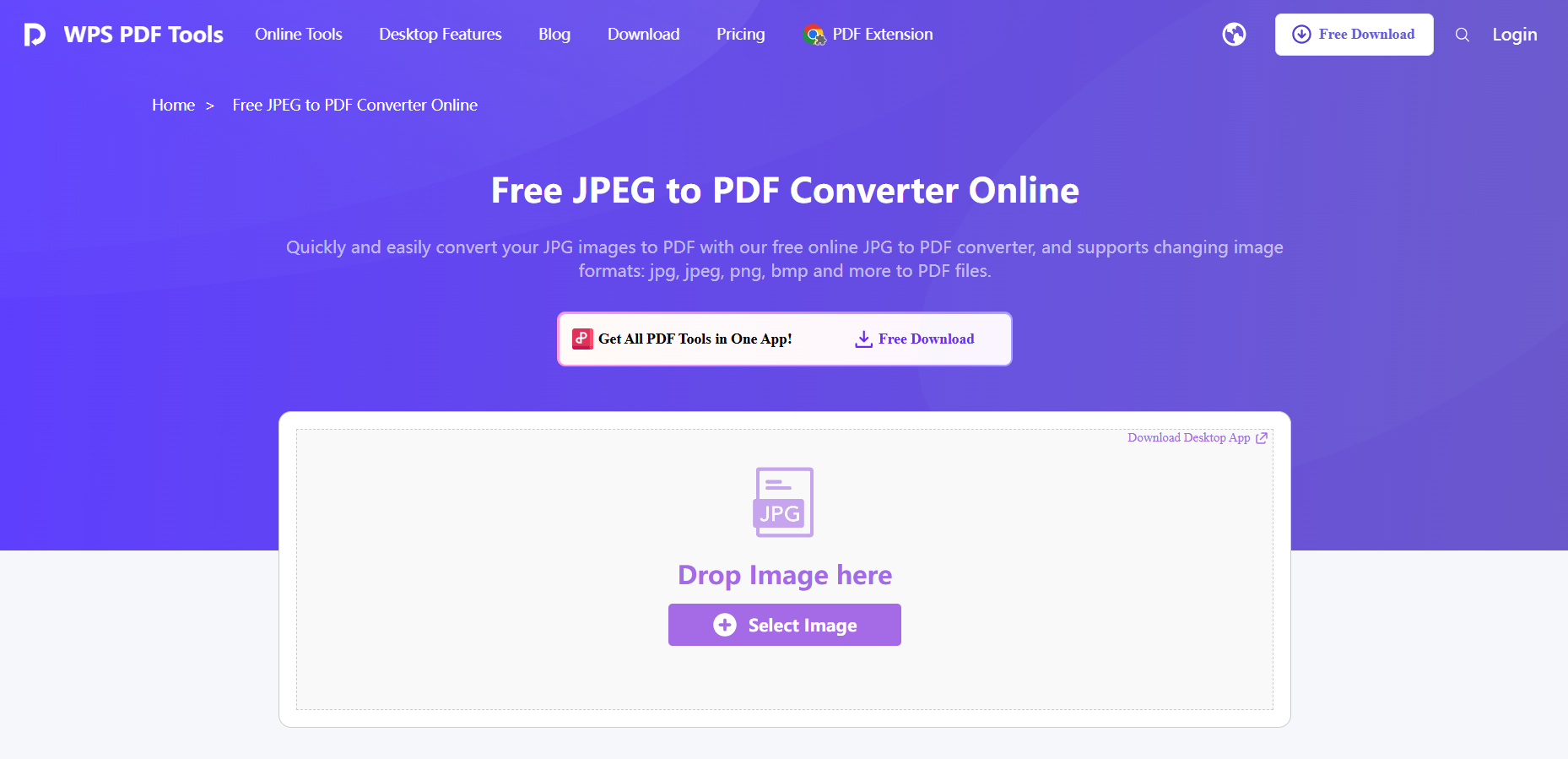
If you want to convert your JPG to PDF using WPS Online, the process is incredibly simple, and I’ve highlighted each step of the way down below.
Step 1: Launch the WPS Online Tool on your web browser and upload the pictures you want to use.
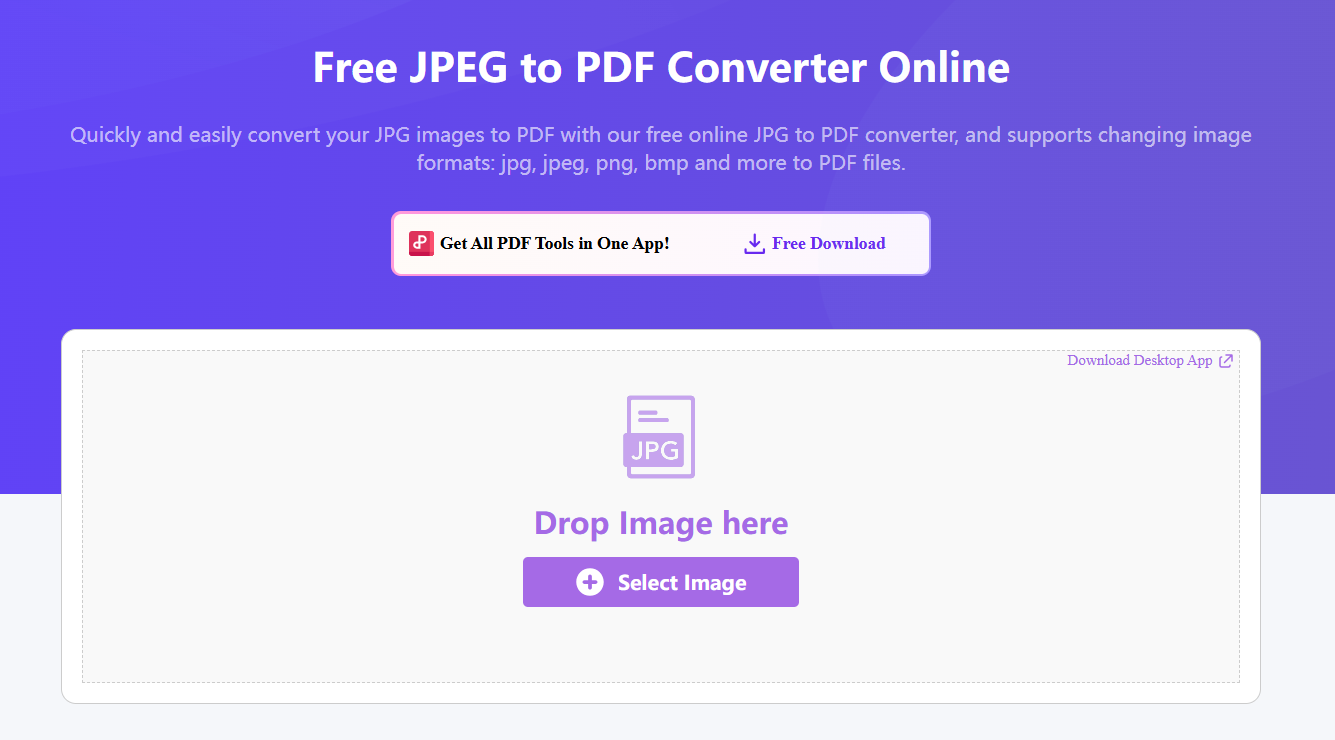
Step 2: Once your images have been uploaded, press Convert to start the process.
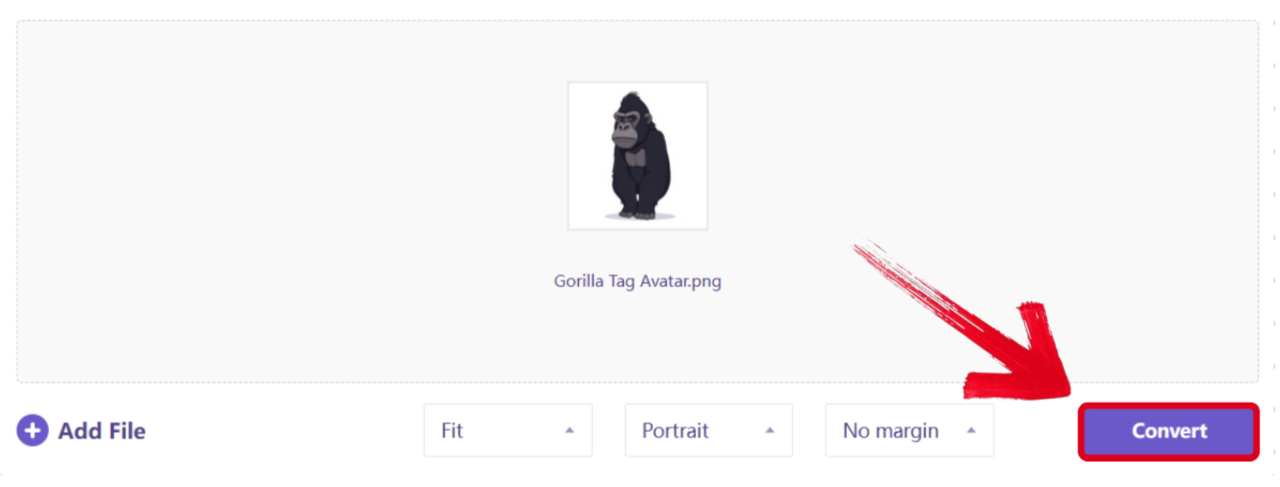
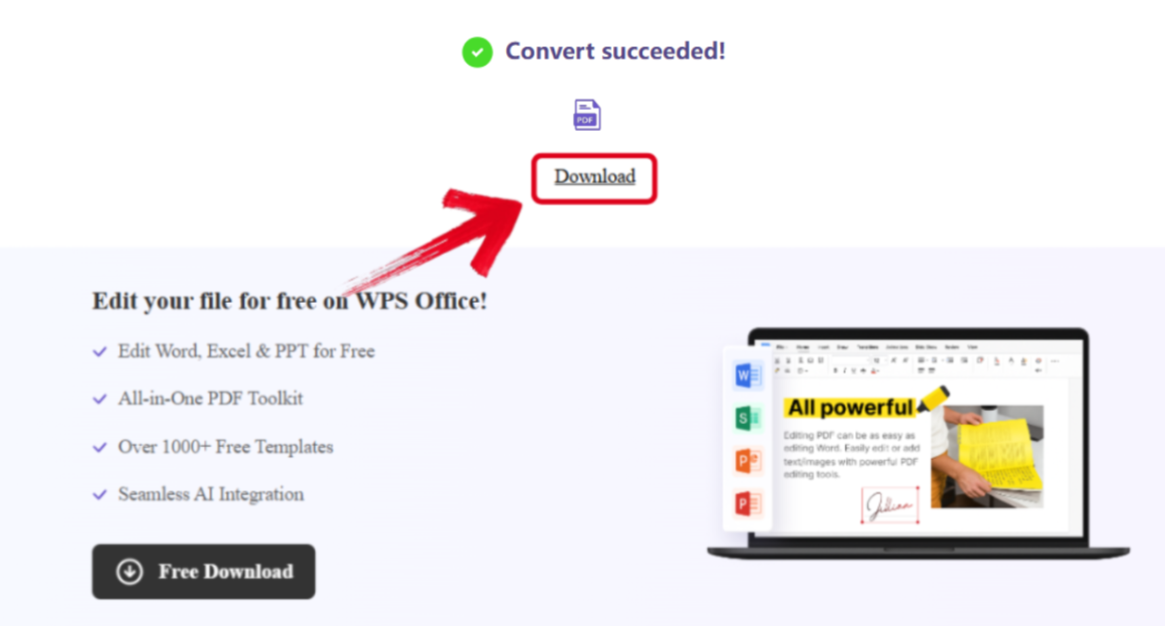
Step 3: After your images are done converting to a PDF, simply press Download to save it to your device.
WPS Online Converter V.S. iLovePDF Converter
WPS Online Converter and iLovePDF Converter are both incredibly reliable when it comes to quick file conversions, and I’ve personally tried and tested each one myself to ensure their authenticity. However, if you can’t decide on the right one for your own requirements, don’t worry. In this section, I’ll be comparing both of them side by side to help you evaluate each one according to your own needs.
| Feature | WPS Online Converter | iLovePDF Converter |
|---|---|---|
| Core Value | Efficiency with built-in office integration | Simple all-in-one PDF toolkit |
| Cost (Free Tier) | Freemium with basic free conversions | Freemium with limits on file size and batch tasks |
| Multi-Image Merging | Supported | Supported |
| Post-Conversion Editing | Built-in editing inside WPS Office | Requires separate tools on the website |
| Output Control | Customizable page size, orientation, margins | Customizable orientation and margins |
| Offline/Desktop Access | High throughout the WPS Office desktop app | High through desktop app with premium features |
| Security | Standard online security | Standard online security with auto-deletion after two hours |
| Best Use Case | Integrated solution for regular office tasks | Simple web-based tool for quick one-off PDF jobs |
FAQs
Q1. Are both WPS Converter and iLovePDF truly free to use?
Both offer robust free tiers. However, iLovePDF's free version has stricter limits on the number of files and tasks you can perform per hour. WPS provides a more generous free experience, especially for core conversion tasks, without such frequent interruptions.
Q2. Which tool offers better control over the output file?
WPS Online Converter generally provides more granular output control, allowing you to customize page size, orientation, and margins before conversion. This is ideal for users who need to meet specific formatting requirements for academic or business documents.
Q3. Is it safe to upload my files to WPS and iLovePDF?
Both platforms use standard online security measures and automatically delete your files after a short period. For users seeking an extra layer of security and privacy, using the WPS Office desktop application for offline conversions is the recommended choice.
Q4. Which converter is better for batch processing?
WPS Converter offers a smoother batch processing experience in its free tier, while iLovePDF places more restrictions on the number of files and processes allowed per hour.
Q5. Which tool is more suitable for everyday office use?
WPS Converter integrates with the WPS Office suite, making it the better choice for users who regularly work with documents and need a consistent, productivity-focused workflow.

'%3e%3cpath%20d='M19.9911%204.11386V6.471H18.5894C18.0775%206.471%2017.7322%206.57814%2017.5536%206.79243C17.3751%207.00671%2017.2858%207.32814%2017.2858%207.75671V9.44421H19.9019L19.5536%2012.0871H17.2858V18.8639H14.5536V12.0871H12.2769V9.44421H14.5536V7.49779C14.5536%206.39064%2014.8632%205.53201%2015.4822%204.92189C16.1013%204.31177%2016.9257%204.00671%2017.9554%204.00671C18.8304%204.00671%2019.509%204.04243%2019.9911%204.11386Z'%20fill='%23333333'/%3e%3c/g%3e%3cdefs%3e%3cclipPath%20id='clip0_2938_8199'%3e%3crect%20width='16'%20height='16'%20fill='white'%20transform='translate(8%204.00671)'/%3e%3c/clipPath%3e%3c/defs%3e%3c/svg%3e)
'%3e%3cpath%20d='M17.5237%2010.7813L23.4811%204H22.0699L16.8949%209.88693L12.7648%204H8L14.2469%2012.9029L8%2020.0133H9.4112L14.8725%2013.7952L19.2352%2020.0133H24M9.92053%205.04213H12.0885L22.0688%2019.0224H19.9003'%20fill='%23333333'/%3e%3c/g%3e%3cdefs%3e%3cclipPath%20id='clip0_2938_8200'%3e%3crect%20width='16'%20height='16.0134'%20fill='white'%20transform='translate(8%204)'/%3e%3c/clipPath%3e%3c/defs%3e%3c/svg%3e)


