

'%3e%3cpath%20d='M8%200C12.4183%200%2016%203.58172%2016%208C16%2012.4183%2012.4183%2016%208%2016C3.58172%2016%200%2012.4183%200%208C0%203.58172%203.58172%200%208%200ZM11.6162%204.38379C11.2257%203.99337%2010.5927%203.99338%2010.2021%204.38379L8%206.58594L5.79785%204.38379C5.40732%203.99334%204.77429%203.99329%204.38379%204.38379C3.99331%204.77429%203.99335%205.40733%204.38379%205.79785L6.58594%208L4.38379%2010.2021C3.99348%2010.5927%203.99341%2011.2257%204.38379%2011.6162C4.77426%2012.0066%205.40734%2012.0065%205.79785%2011.6162L8%209.41406L10.2021%2011.6162C10.5927%2012.0066%2011.2257%2012.0067%2011.6162%2011.6162C12.0067%2011.2257%2012.0066%2010.5927%2011.6162%2010.2021L9.41406%208L11.6162%205.79785C12.0066%205.40735%2012.0066%204.77429%2011.6162%204.38379Z'%20fill='%23080E17'%20fill-opacity='0.46'/%3e%3c/g%3e%3cdefs%3e%3cclipPath%20id='clip0_3761_713'%3e%3crect%20width='16'%20height='16'%20fill='white'/%3e%3c/clipPath%3e%3c/defs%3e%3c/svg%3e)



'%3e%3cpath%20fill-rule='evenodd'%20clip-rule='evenodd'%20d='M21.4999%2010.9993C21.4999%205.20009%2016.7986%200.498901%2010.9993%200.498901C5.19994%200.498901%200.498657%205.20009%200.498657%2010.9993C0.498657%2016.2404%204.33858%2020.5844%209.35855%2021.3722V14.0346H6.69238V10.9993H9.35855V8.68594C9.35855%206.05427%2010.9262%204.60062%2013.3248%204.60062C14.4736%204.60062%2015.6753%204.80571%2015.6753%204.80571V7.38979H14.3512C13.0468%207.38979%2012.64%208.19921%2012.64%209.0296V10.9993H15.5523L15.0867%2014.0346H12.64V21.3722C17.66%2020.5844%2021.4999%2016.2404%2021.4999%2010.9993Z'%20fill='%231568EA'/%3e%3c/g%3e%3c/svg%3e)


'%3e%3cpath%20d='M2.42045%2022.1876H6.31818V12.7217L0.75%208.54553V20.5171C0.75%2021.4414%201.49892%2022.1876%202.42045%2022.1876Z'%20fill='%234285F4'/%3e%3cpath%20d='M19.682%2022.1876H23.5797C24.5041%2022.1876%2025.2502%2021.4387%2025.2502%2020.5171V8.54553L19.682%2012.7217'%20fill='%2334A853'/%3e%3cpath%20d='M19.682%205.48293V12.7216L25.2502%208.54543V6.31816C25.2502%204.25236%2022.8921%203.07469%2021.2411%204.31361'%20fill='%23FBBC04'/%3e%3cpath%20d='M6.31824%2012.7217V5.48303L13.0001%2010.4944L19.6819%205.48303V12.7217L13.0001%2017.733'%20fill='%23EA4335'/%3e%3cpath%20d='M0.75%206.31816V8.54543L6.31818%2012.7216V5.48293L4.75909%204.31361C3.10534%203.07469%200.75%204.25236%200.75%206.31816Z'%20fill='%23C5221F'/%3e%3c/g%3e%3cdefs%3e%3cclipPath%20id='clip0_2954_7305'%3e%3crect%20width='24.5'%20height='18.375'%20fill='white'%20transform='translate(0.75%203.8125)'/%3e%3c/clipPath%3e%3c/defs%3e%3c/svg%3e)


As easy as turning Word to JPG may sound, it often turns into a massive headache. You might choose from thousands of options online only to end up with an average tool that produces blurry images, ruined layouts, or secretly watermarks that you can't share in a professional environment. Finding a method that preserves your document's look without all these problems can be tough. This guide covers the best ways to convert Word to JPG so you get a crisp, professional image every time.


How to Convert Word to JPG: Using Online Converters
When I need to convert a single file immediately, I prefer online converters because they require no installation. They are the perfect solution for urgent tasks, allowing you to work on any device with a browser. While they might not be suitable for massive or confidential documents, for everyday tasks, they offer superior speed and convenience compared to the time it takes to download and set up new software.
Here’s how to convert Word to JPG using online converters:
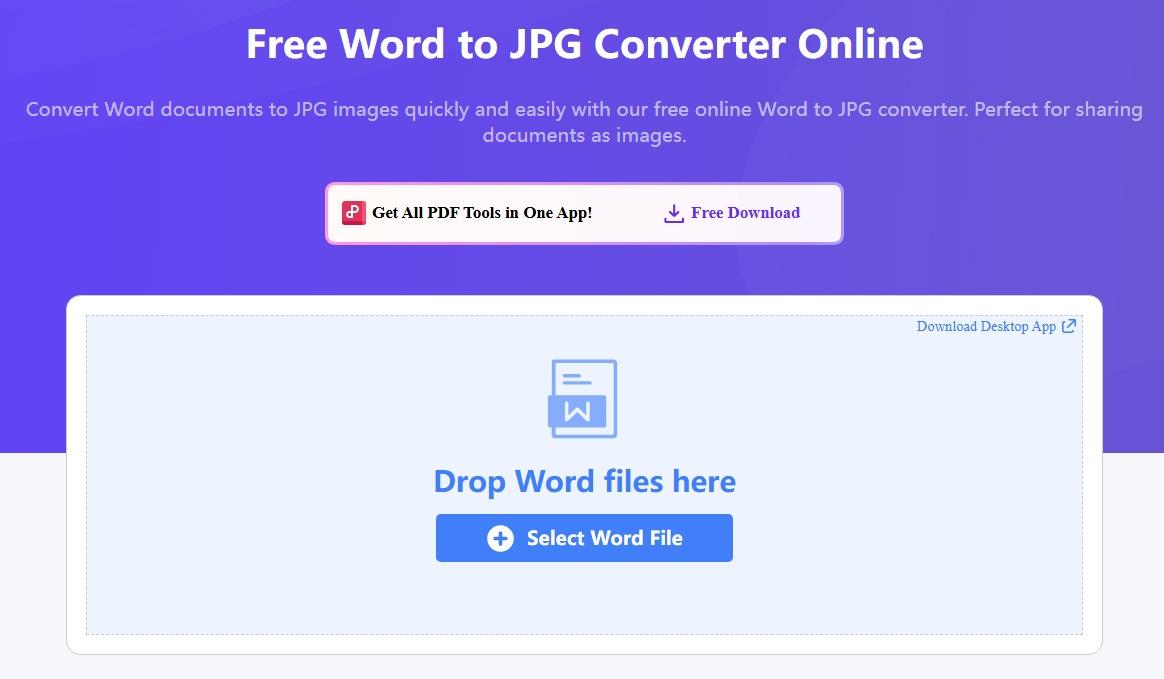
Step 1: First, head on over to an online converter like WPS PDF tool or freeconvert.
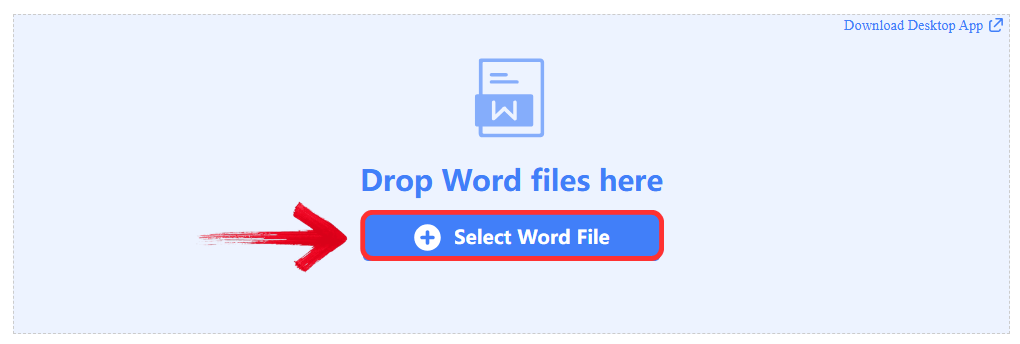
Step 2: Upload your files by dragging them or clicking the ‘Select Word File’ button.
Step 3: Your file will be converted automatically, then just click ‘Download’ to save the extracted file onto your device.

How to Convert Word to JPG: Using Screenshot Method
Sometimes, you don't need the entire document, maybe just a chart, a specific paragraph, or a single page layout to share in a chat. In these cases, using a screenshot is faster and more precise than converting the whole file. It gives you exact control over what is captured, ensuring you get exactly what you see on your screen without worrying about conversion errors.
Here’s how to convert Word to JPG using a simple screenshot:
Step 1: First, open WPS Writer or Word from the start menu.

Step 2: Then, open the File you want to edit in the WPS Writer. Click on the file icon on the top left of your ribbon.

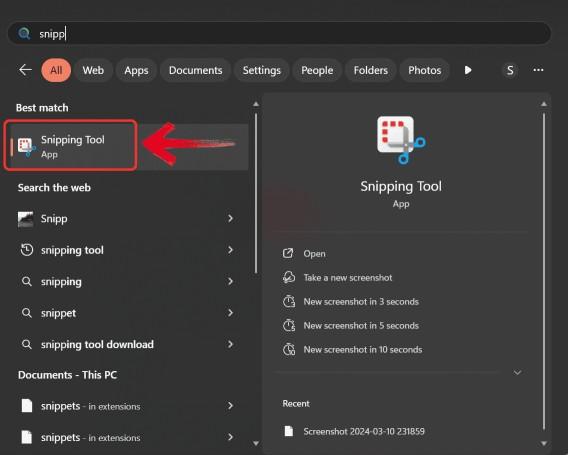
Step 2: Use your computer's built-in tool. On Windows, use the 'Snipping Tool'. On Mac, press 'Command + Shift + 4'.
Step 3: If you captured too much, open the image in a viewer and crop out the edges or toolbar.

Step 4: Save your screenshot. It will usually default to PNG, so make sure to keep your Save as type to JPG if that's the format you specifically need.

How to Convert Word to JPG: Using Print to JPG Method
If you need to convert a sensitive doc to JPG and don't want to upload it to a cloud server, this print method is a fantastic workaround. It uses your computer's built-in drivers to create a digital copy offline. While it takes a couple of extra steps compared to an online tool, it offers peace of mind and is a reliable way to create a high-quality image without ever leaving your desktop.
Step 1: Open your document in Word.
Step 2: Click on the File icon on the top left. This will open another menu.

Step 3: Then click on ‘Print’. Instead of your physical printer, select 'Microsoft Print to PDF'.

Step 4: From the printer list and click 'Print' to save a PDF version.

Step 5: Now that you have a PDF, you can open it in a viewer or use a simple tool, as PDFs are much easier to convert to images than Word docs.
Why WPS PDF Tools is the Top Recommendation
It's easy to find a tool that does a basic conversion, but finding one that doesn't mess up your formatting, limit your file size, or risk your privacy is much harder. If you're looking for a professional-grade solution that is actually free, WPS PDF Tools fills that gap perfectly. Through extensive testing, I've found that it consistently demonstrates why it's the preferred choice for both casual users and professionals.

The tool stands out for its superior AI-powered OCR, which uses advanced AI to achieve near-perfect text extraction, significantly reducing errors and minimizing manual proofreading time. This is supported by flawless format preservation, meaning it excels at maintaining the original document structure, like tables, alignment, and breaks, so you don't have to waste time reformatting.
It offers unmatched data security as the desktop version allows for 100% offline conversion, keeping sensitive files private. Unlike competitors that degrade output, WPS maintains uncompromised quality without watermarks. This, combined with the workflow efficiency of batch processing, makes it adaptable for any project size.
WPS has saved me time on projects that required turning multi-page Word files into uniform, high-resolution JPG images. Other tools frequently compressed the visuals or broke the formatting, but WPS consistently produced clean, accurate output without requiring any manual fixes. Combined with its batch conversion option and cross-platform compatibility, it has become the tool I rely on when I need both speed and quality.
FAQs
Q1: Why does my converted JPG look different from the original Word document?
Formatting shifts usually happen because of font compatibility or poor rendering engines. Using a high-quality tool like WPS minimizes these issues by using advanced rendering technology to preserve your layout.
Q2: Can I convert Word to JPG without losing image quality?
Yes. To do this, use a high-quality converter like WPS that preserves resolution. Also, make sure the images inside your original Word doc are high-resolution to begin with.
Q3: Is there a way to convert multiple Word pages to separate JPG files?
Yes, most quality converters, including WPS, will automatically convert each page of your Word document into its own separate, numbered JPG file.
Q4: Can I convert Word to JPG on my phone?
Yes, you can use the WPS Office mobile app or access their online converter via your mobile browser to convert files directly on your smartphone.
Q5: Is it safe to use online converters for confidential documents?
For highly sensitive documents, I always recommend using a desktop application like WPS Office to ensure your file is processed locally and never leaves your computer.

'%3e%3cpath%20d='M19.9911%204.11386V6.471H18.5894C18.0775%206.471%2017.7322%206.57814%2017.5536%206.79243C17.3751%207.00671%2017.2858%207.32814%2017.2858%207.75671V9.44421H19.9019L19.5536%2012.0871H17.2858V18.8639H14.5536V12.0871H12.2769V9.44421H14.5536V7.49779C14.5536%206.39064%2014.8632%205.53201%2015.4822%204.92189C16.1013%204.31177%2016.9257%204.00671%2017.9554%204.00671C18.8304%204.00671%2019.509%204.04243%2019.9911%204.11386Z'%20fill='%23333333'/%3e%3c/g%3e%3cdefs%3e%3cclipPath%20id='clip0_2938_8199'%3e%3crect%20width='16'%20height='16'%20fill='white'%20transform='translate(8%204.00671)'/%3e%3c/clipPath%3e%3c/defs%3e%3c/svg%3e)
'%3e%3cpath%20d='M17.5237%2010.7813L23.4811%204H22.0699L16.8949%209.88693L12.7648%204H8L14.2469%2012.9029L8%2020.0133H9.4112L14.8725%2013.7952L19.2352%2020.0133H24M9.92053%205.04213H12.0885L22.0688%2019.0224H19.9003'%20fill='%23333333'/%3e%3c/g%3e%3cdefs%3e%3cclipPath%20id='clip0_2938_8200'%3e%3crect%20width='16'%20height='16.0134'%20fill='white'%20transform='translate(8%204)'/%3e%3c/clipPath%3e%3c/defs%3e%3c/svg%3e)


