


'%3e%3cpath%20fill-rule='evenodd'%20clip-rule='evenodd'%20d='M21.4999%2010.9993C21.4999%205.20009%2016.7986%200.498901%2010.9993%200.498901C5.19994%200.498901%200.498657%205.20009%200.498657%2010.9993C0.498657%2016.2404%204.33858%2020.5844%209.35855%2021.3722V14.0346H6.69238V10.9993H9.35855V8.68594C9.35855%206.05427%2010.9262%204.60062%2013.3248%204.60062C14.4736%204.60062%2015.6753%204.80571%2015.6753%204.80571V7.38979H14.3512C13.0468%207.38979%2012.64%208.19921%2012.64%209.0296V10.9993H15.5523L15.0867%2014.0346H12.64V21.3722C17.66%2020.5844%2021.4999%2016.2404%2021.4999%2010.9993Z'%20fill='%231568EA'/%3e%3c/g%3e%3c/svg%3e)


'%3e%3cpath%20d='M2.42045%2022.1876H6.31818V12.7217L0.75%208.54553V20.5171C0.75%2021.4414%201.49892%2022.1876%202.42045%2022.1876Z'%20fill='%234285F4'/%3e%3cpath%20d='M19.682%2022.1876H23.5797C24.5041%2022.1876%2025.2502%2021.4387%2025.2502%2020.5171V8.54553L19.682%2012.7217'%20fill='%2334A853'/%3e%3cpath%20d='M19.682%205.48293V12.7216L25.2502%208.54543V6.31816C25.2502%204.25236%2022.8921%203.07469%2021.2411%204.31361'%20fill='%23FBBC04'/%3e%3cpath%20d='M6.31824%2012.7217V5.48303L13.0001%2010.4944L19.6819%205.48303V12.7217L13.0001%2017.733'%20fill='%23EA4335'/%3e%3cpath%20d='M0.75%206.31816V8.54543L6.31818%2012.7216V5.48293L4.75909%204.31361C3.10534%203.07469%200.75%204.25236%200.75%206.31816Z'%20fill='%23C5221F'/%3e%3c/g%3e%3cdefs%3e%3cclipPath%20id='clip0_2954_7305'%3e%3crect%20width='24.5'%20height='18.375'%20fill='white'%20transform='translate(0.75%203.8125)'/%3e%3c/clipPath%3e%3c/defs%3e%3c/svg%3e)


Using Microsoft Launcher on Android can make your phone feel more organized, especially if you already use Microsoft apps for email, calendar, tasks, notes, or cloud files. Instead of changing the Android operating system, Microsoft Launcher changes the home screen experience: app layout, search, widgets, feed cards, wallpapers, and gestures.
This guide explains what Microsoft Launcher does, how to set it as your default Android launcher, how to customize it, and when to pair it with WPS Office for mobile document work.
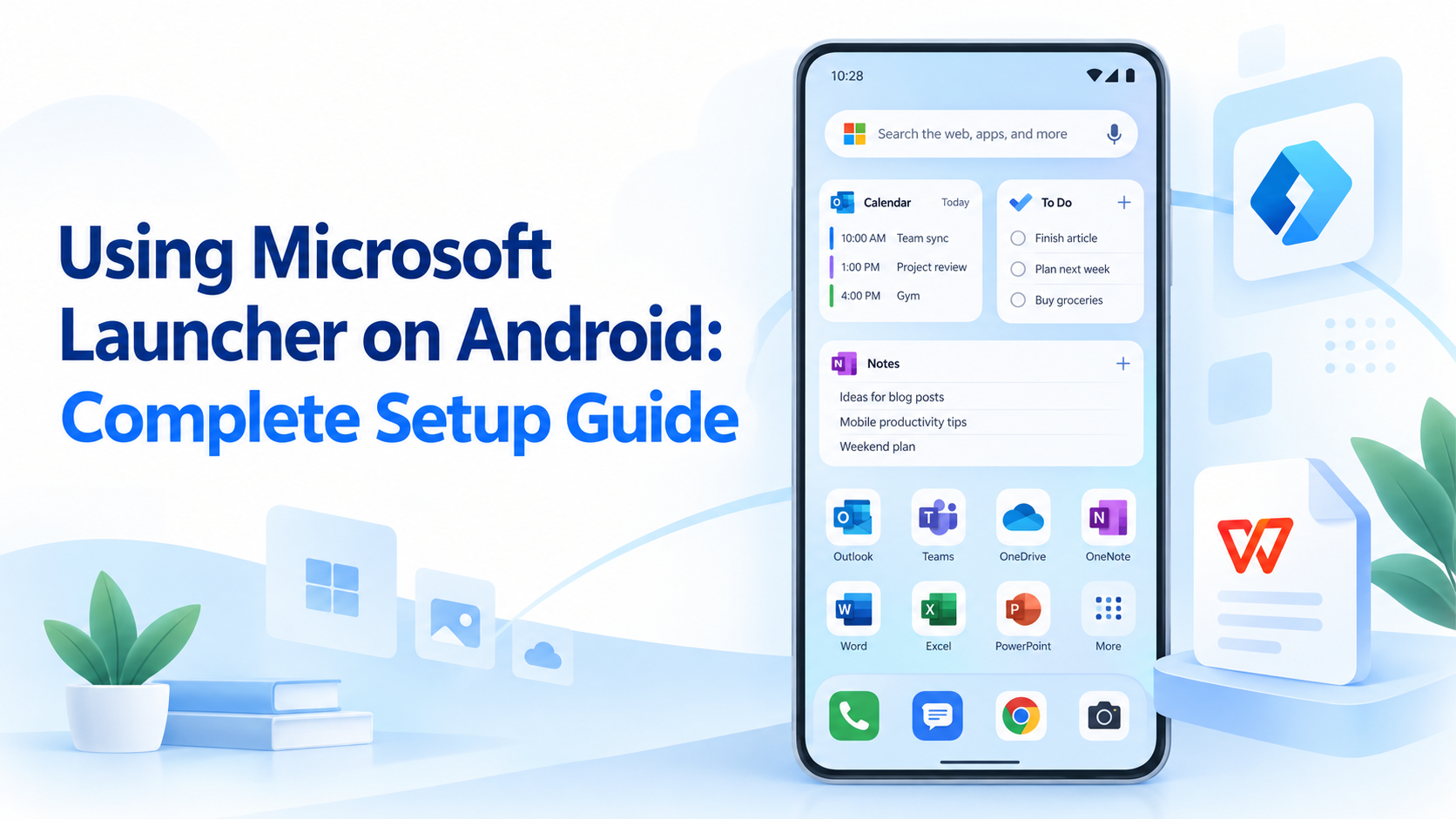
Using Microsoft Launcher on Android: Complete Setup Guide
What Using Microsoft Launcher on Android Actually Changes
Microsoft Launcher is an Android home screen replacement. It can organize your apps, show a personalized feed, display Microsoft account content, and apply themes, icon packs, wallpapers, and gestures. It does not turn Android into Windows, and it does not copy your PC desktop onto your phone.
According to the official Google Play listing, Microsoft Launcher requires Android 7.0 or later and can replace or switch with your device launcher. Some features depend on optional permissions such as Calendar, Contacts, Location, Camera, Microphone, Photos and videos, and Notifications. You can deny a permission, but the related card or search feature may be limited.
Use Microsoft Launcher if you want:
A more Microsoft-centered Android home screen
Calendar, To Do, Sticky Notes, and recent activity cards in one feed
Daily Bing wallpaper or your own wallpapers
Dark theme, custom icons, grid controls, and gesture shortcuts
A familiar setup when moving between Android phones
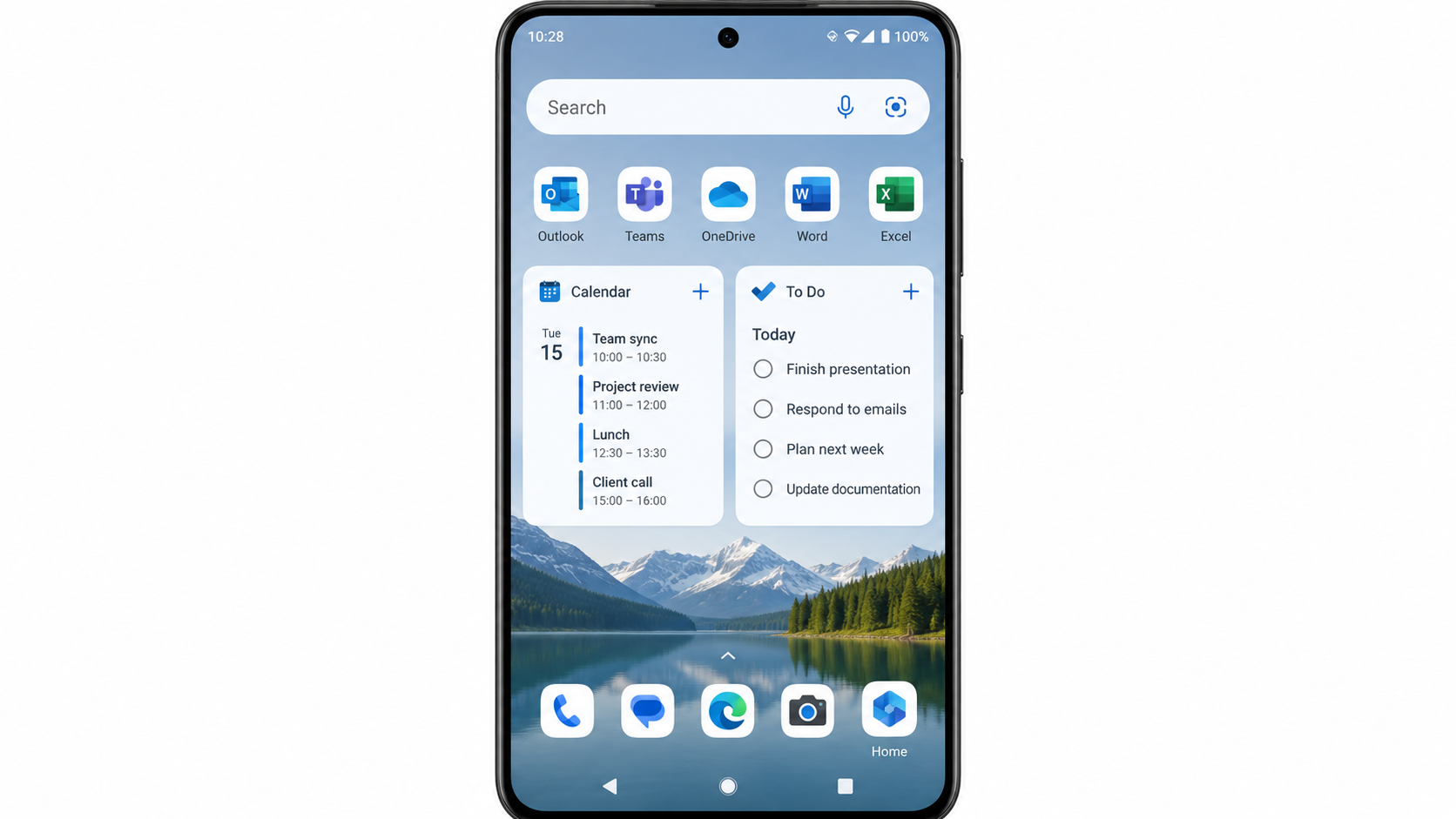
Microsoft Launcher Android home screen


How to Install Microsoft Launcher on Android and Set It as Default
Start with the official Microsoft Launcher page on Google Play. Avoid random APK mirrors unless your organization specifically manages Android apps that way.
Open Google Play on your Android phone.
Search for Microsoft Launcher by Microsoft Corporation.
Tap Install, then open the app.
Choose whether to start fresh or import your current home screen layout if the option appears.
When Android asks for the default home app, choose Microsoft Launcher.
If the prompt does not appear, open Settings → Apps → Default apps → Home app, then select Microsoft Launcher. The exact path can vary by phone brand.
Tip: keep your previous launcher installed. Android lets you switch back later from the same Home app setting, so testing Microsoft Launcher is low risk.
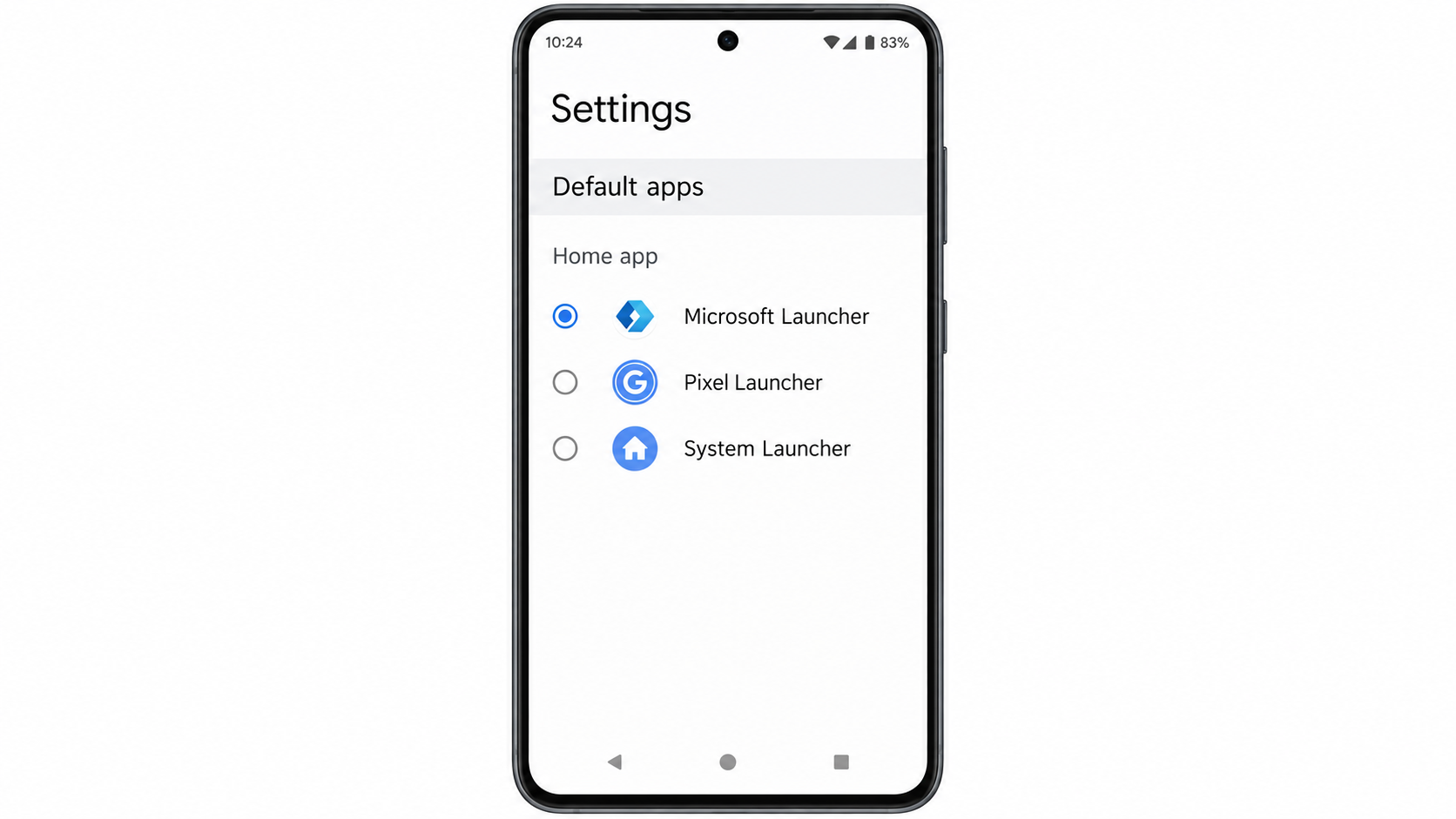
Set Microsoft Launcher default home
How to Customize Microsoft Launcher on Android for Daily Use
After setup, long-press an empty area on the home screen and open Launcher Settings. The most useful first changes are layout, wallpaper, icons, gestures, and theme.
Open Launcher Settings → Home screen to adjust the grid, app icon size, and screen layout.
Use Wallpaper to pick your own image or enable a daily Bing wallpaper.
Open Theme to choose light, dark, or system-following behavior.
Use Icon layout and size or icon pack options to make the app drawer easier to scan.
Open Gestures and assign simple actions such as swipe down for search or double tap to lock, if your device supports it.
Keep the first version simple. Too many gestures and icon changes can make a new launcher slower to learn, especially if you share the phone with family or use it for work.
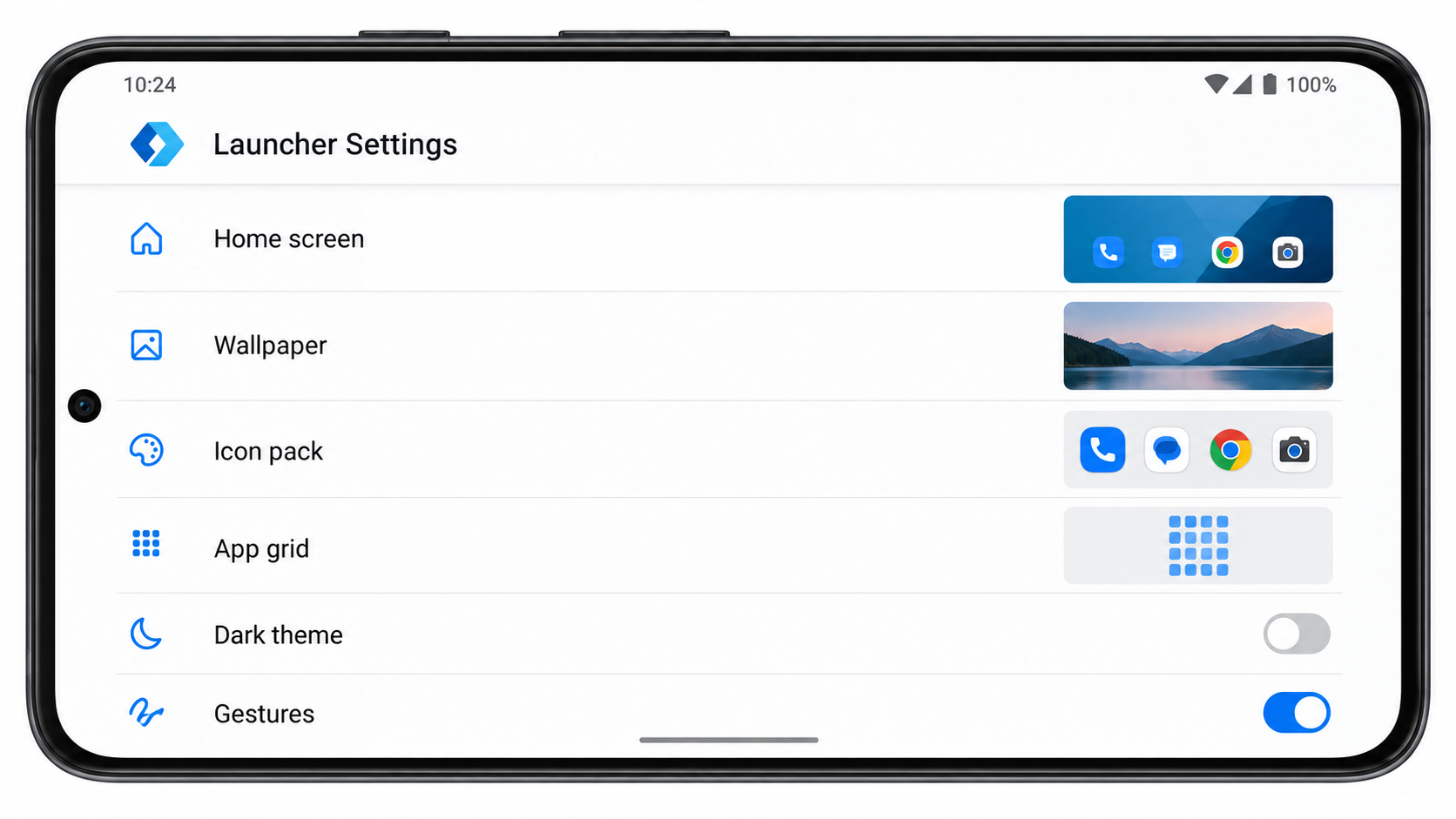
Customize Microsoft Launcher Android layout
Using Microsoft Launcher on Android Feed, To Do, and Sticky Notes
The feed is where Microsoft Launcher feels different from many basic Android launchers. Depending on your settings and permissions, it can show calendar events, Microsoft To Do tasks, Sticky Notes, news, recent documents, and other cards.
Swipe to the feed page from your home screen.
Sign in with the Microsoft account you use for Outlook, To Do, OneNote, or OneDrive.
Open feed settings and enable only the cards you will actually check.
Allow Calendar or Notifications permissions only when you need those cards to work.
Pin important widgets or cards higher so they are visible without a long scroll.
If the feed feels crowded, remove news or unused cards first. A clean feed with calendar, tasks, and notes is often more useful than a busy feed with every available option turned on.
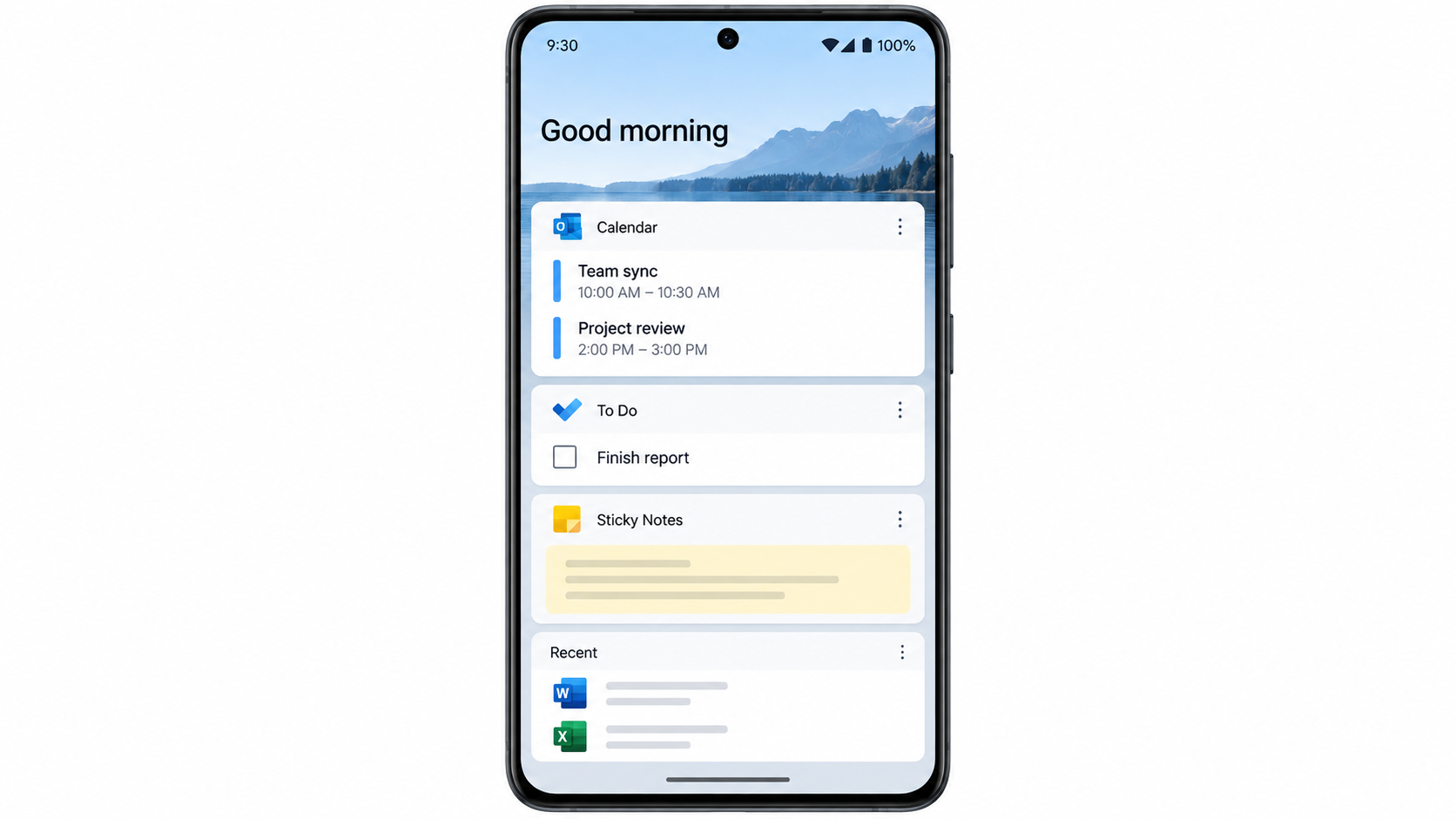
Microsoft Launcher feed task cards
How to Back Up, Restore, or Remove Microsoft Launcher on Android
Before changing phones or resetting the launcher, back up your layout. Microsoft Launcher has offered backup and restore options through Launcher Settings, though menu names can vary by version.
Open Launcher Settings.
Look for Back up and restore or a similar backup option.
Choose backup to cloud or local storage if available in your current version.
On a new phone, install Microsoft Launcher, sign in, and choose the restore option.
To remove it as the default, go to Settings → Apps → Default apps → Home app and select your original launcher.
If Microsoft Launcher becomes slow, first update it from Google Play, restart the phone, and reduce heavy widgets or live wallpaper effects. If a Microsoft card is blank, check that the matching Microsoft app is signed in and that the needed Android permission is allowed.
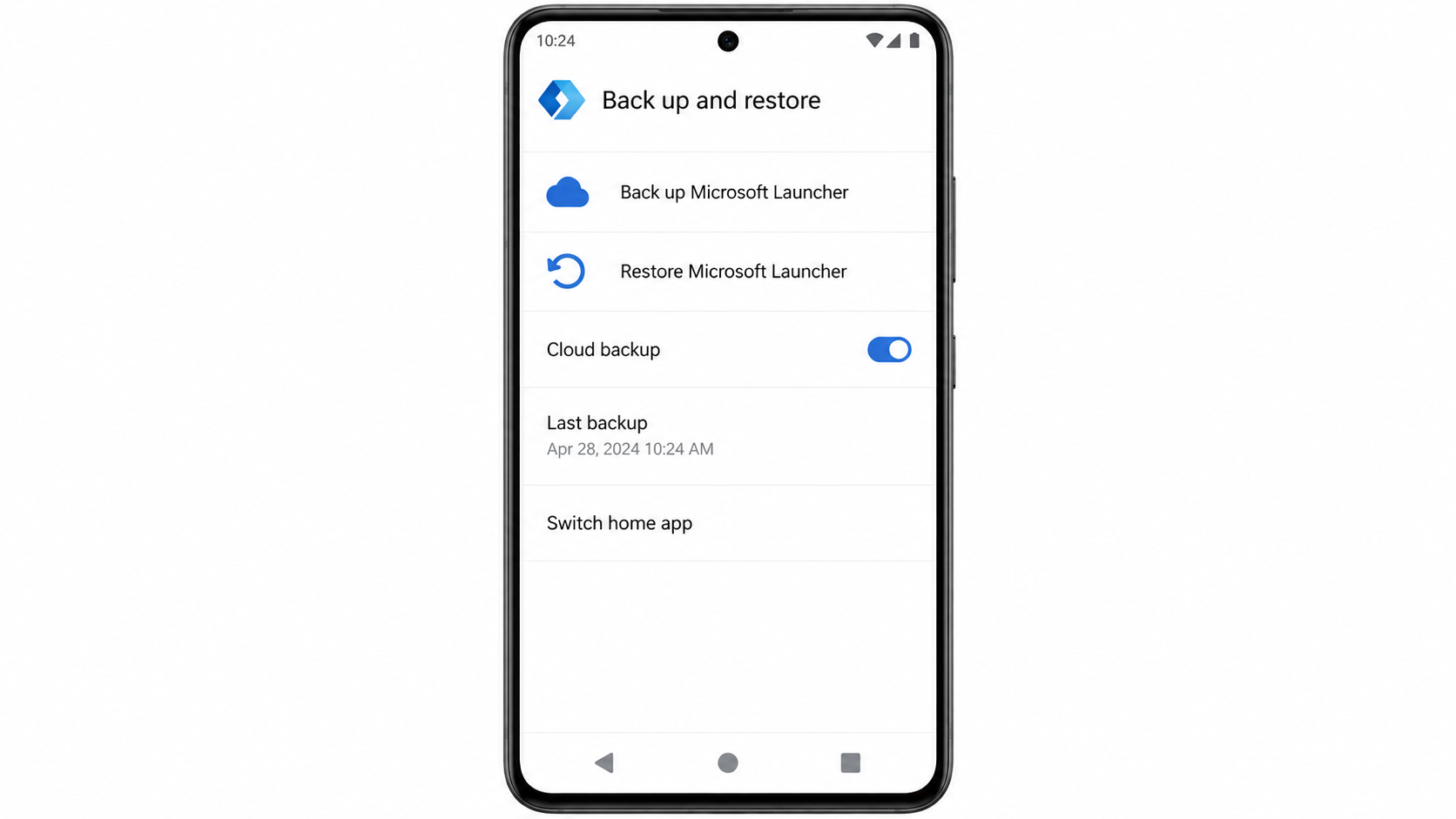
Backup Microsoft Launcher settings
The Best Free Office Companion: WPS Office on Android
Microsoft Launcher organizes your phone, but it is not an office suite. If your real goal is to open, edit, scan, annotate, or share work files on Android, pair your launcher setup with a mobile office app.
WPS Office for Android is a free-to-start office suite that brings Writer, Spreadsheet, Presentation, and PDF tools into one app. That makes it a practical companion after using Microsoft Launcher on Android because you can place WPS on your home screen or feed workflow and handle documents without switching between separate apps for every format.
Why WPS Office helps after your launcher is organized:
All-in-one mobile workflow: open Word, Excel, PowerPoint, and PDF files from one app.
Microsoft format support: work with common DOCX, XLSX, and PPTX files for daily sharing.
PDF tools: read, annotate, convert, and manage PDFs from the same Android workspace.
Lightweight access: keep WPS on your Microsoft Launcher dock or home screen for faster file handling.
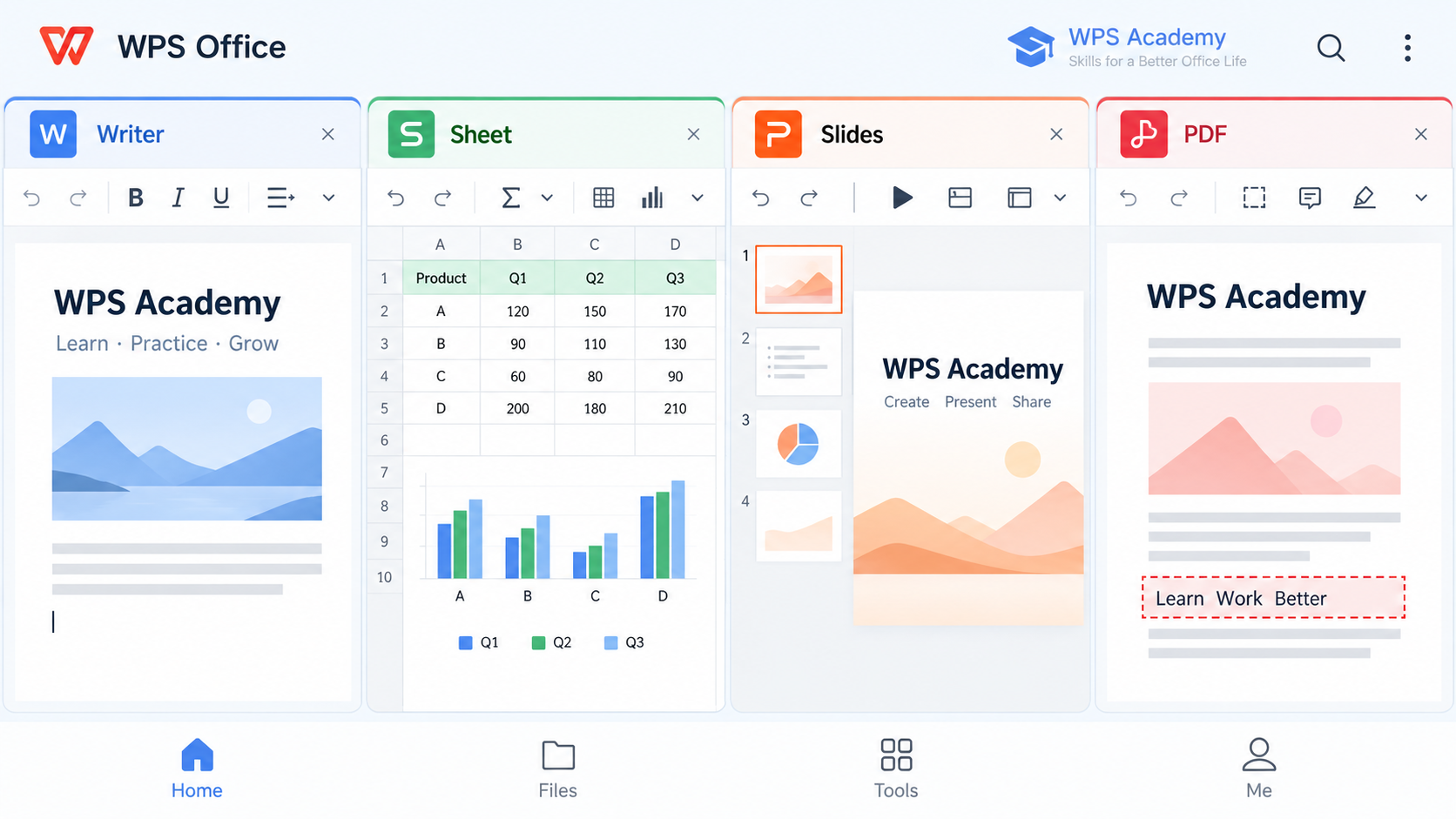
WPS Office Android document tools
FAQs
Is Microsoft Launcher free on Android?
Yes. Microsoft Launcher is free to install from Google Play. Some connected experiences depend on Microsoft apps, account sign-in, permissions, or region availability.
Does Microsoft Launcher replace Android?
No. It replaces the home screen launcher experience, not the Android operating system. Your apps, settings, files, and Google Play access remain on the phone.
Can I switch back after using Microsoft Launcher on Android?
Yes. Open Android Settings, go to the default Home app setting, and choose your previous launcher. The exact setting path depends on the device brand.
Why are Microsoft Launcher feed cards not showing?
Check that you are signed in with the right Microsoft account, the related Microsoft app is installed or connected, and Android permissions such as Calendar or Notifications are allowed.
Is WPS Office required for Microsoft Launcher?
No. WPS Office is not required for Microsoft Launcher. It is useful if you want a free office companion for opening documents, spreadsheets, presentations, and PDFs on Android.


'%3e%3cpath%20d='M19.9911%204.11386V6.471H18.5894C18.0775%206.471%2017.7322%206.57814%2017.5536%206.79243C17.3751%207.00671%2017.2858%207.32814%2017.2858%207.75671V9.44421H19.9019L19.5536%2012.0871H17.2858V18.8639H14.5536V12.0871H12.2769V9.44421H14.5536V7.49779C14.5536%206.39064%2014.8632%205.53201%2015.4822%204.92189C16.1013%204.31177%2016.9257%204.00671%2017.9554%204.00671C18.8304%204.00671%2019.509%204.04243%2019.9911%204.11386Z'%20fill='%23333333'/%3e%3c/g%3e%3cdefs%3e%3cclipPath%20id='clip0_2938_8199'%3e%3crect%20width='16'%20height='16'%20fill='white'%20transform='translate(8%204.00671)'/%3e%3c/clipPath%3e%3c/defs%3e%3c/svg%3e)
'%3e%3cpath%20d='M17.5237%2010.7813L23.4811%204H22.0699L16.8949%209.88693L12.7648%204H8L14.2469%2012.9029L8%2020.0133H9.4112L14.8725%2013.7952L19.2352%2020.0133H24M9.92053%205.04213H12.0885L22.0688%2019.0224H19.9003'%20fill='%23333333'/%3e%3c/g%3e%3cdefs%3e%3cclipPath%20id='clip0_2938_8200'%3e%3crect%20width='16'%20height='16.0134'%20fill='white'%20transform='translate(8%204)'/%3e%3c/clipPath%3e%3c/defs%3e%3c/svg%3e)


