

'%3e%3cpath%20d='M8%200C12.4183%200%2016%203.58172%2016%208C16%2012.4183%2012.4183%2016%208%2016C3.58172%2016%200%2012.4183%200%208C0%203.58172%203.58172%200%208%200ZM11.6162%204.38379C11.2257%203.99337%2010.5927%203.99338%2010.2021%204.38379L8%206.58594L5.79785%204.38379C5.40732%203.99334%204.77429%203.99329%204.38379%204.38379C3.99331%204.77429%203.99335%205.40733%204.38379%205.79785L6.58594%208L4.38379%2010.2021C3.99348%2010.5927%203.99341%2011.2257%204.38379%2011.6162C4.77426%2012.0066%205.40734%2012.0065%205.79785%2011.6162L8%209.41406L10.2021%2011.6162C10.5927%2012.0066%2011.2257%2012.0067%2011.6162%2011.6162C12.0067%2011.2257%2012.0066%2010.5927%2011.6162%2010.2021L9.41406%208L11.6162%205.79785C12.0066%205.40735%2012.0066%204.77429%2011.6162%204.38379Z'%20fill='%23080E17'%20fill-opacity='0.46'/%3e%3c/g%3e%3cdefs%3e%3cclipPath%20id='clip0_3761_713'%3e%3crect%20width='16'%20height='16'%20fill='white'/%3e%3c/clipPath%3e%3c/defs%3e%3c/svg%3e)




'%3e%3cpath%20fill-rule='evenodd'%20clip-rule='evenodd'%20d='M21.4999%2010.9993C21.4999%205.20009%2016.7986%200.498901%2010.9993%200.498901C5.19994%200.498901%200.498657%205.20009%200.498657%2010.9993C0.498657%2016.2404%204.33858%2020.5844%209.35855%2021.3722V14.0346H6.69238V10.9993H9.35855V8.68594C9.35855%206.05427%2010.9262%204.60062%2013.3248%204.60062C14.4736%204.60062%2015.6753%204.80571%2015.6753%204.80571V7.38979H14.3512C13.0468%207.38979%2012.64%208.19921%2012.64%209.0296V10.9993H15.5523L15.0867%2014.0346H12.64V21.3722C17.66%2020.5844%2021.4999%2016.2404%2021.4999%2010.9993Z'%20fill='%231568EA'/%3e%3c/g%3e%3c/svg%3e)


'%3e%3cpath%20d='M2.42045%2022.1876H6.31818V12.7217L0.75%208.54553V20.5171C0.75%2021.4414%201.49892%2022.1876%202.42045%2022.1876Z'%20fill='%234285F4'/%3e%3cpath%20d='M19.682%2022.1876H23.5797C24.5041%2022.1876%2025.2502%2021.4387%2025.2502%2020.5171V8.54553L19.682%2012.7217'%20fill='%2334A853'/%3e%3cpath%20d='M19.682%205.48293V12.7216L25.2502%208.54543V6.31816C25.2502%204.25236%2022.8921%203.07469%2021.2411%204.31361'%20fill='%23FBBC04'/%3e%3cpath%20d='M6.31824%2012.7217V5.48303L13.0001%2010.4944L19.6819%205.48303V12.7217L13.0001%2017.733'%20fill='%23EA4335'/%3e%3cpath%20d='M0.75%206.31816V8.54543L6.31818%2012.7216V5.48293L4.75909%204.31361C3.10534%203.07469%200.75%204.25236%200.75%206.31816Z'%20fill='%23C5221F'/%3e%3c/g%3e%3cdefs%3e%3cclipPath%20id='clip0_2954_7305'%3e%3crect%20width='24.5'%20height='18.375'%20fill='white'%20transform='translate(0.75%203.8125)'/%3e%3c/clipPath%3e%3c/defs%3e%3c/svg%3e)


Cloud-first office suites assume one thing: a reliable internet connection. But flights lose Wi-Fi, rural connections drop, some workplaces block cloud services, and plenty of writers simply don't want their files on someone else's server. For all these cases, you need an office suite for offline use—one that installs locally, opens and saves Microsoft formats, and never holds your work hostage behind a login screen.
This guide compares the strongest offline-capable office suites in 2026: WPS Office, LibreOffice, ONLYOFFICE Desktop Editors, and SoftMaker FreeOffice, with a practical decision framework and setup guide at the end.
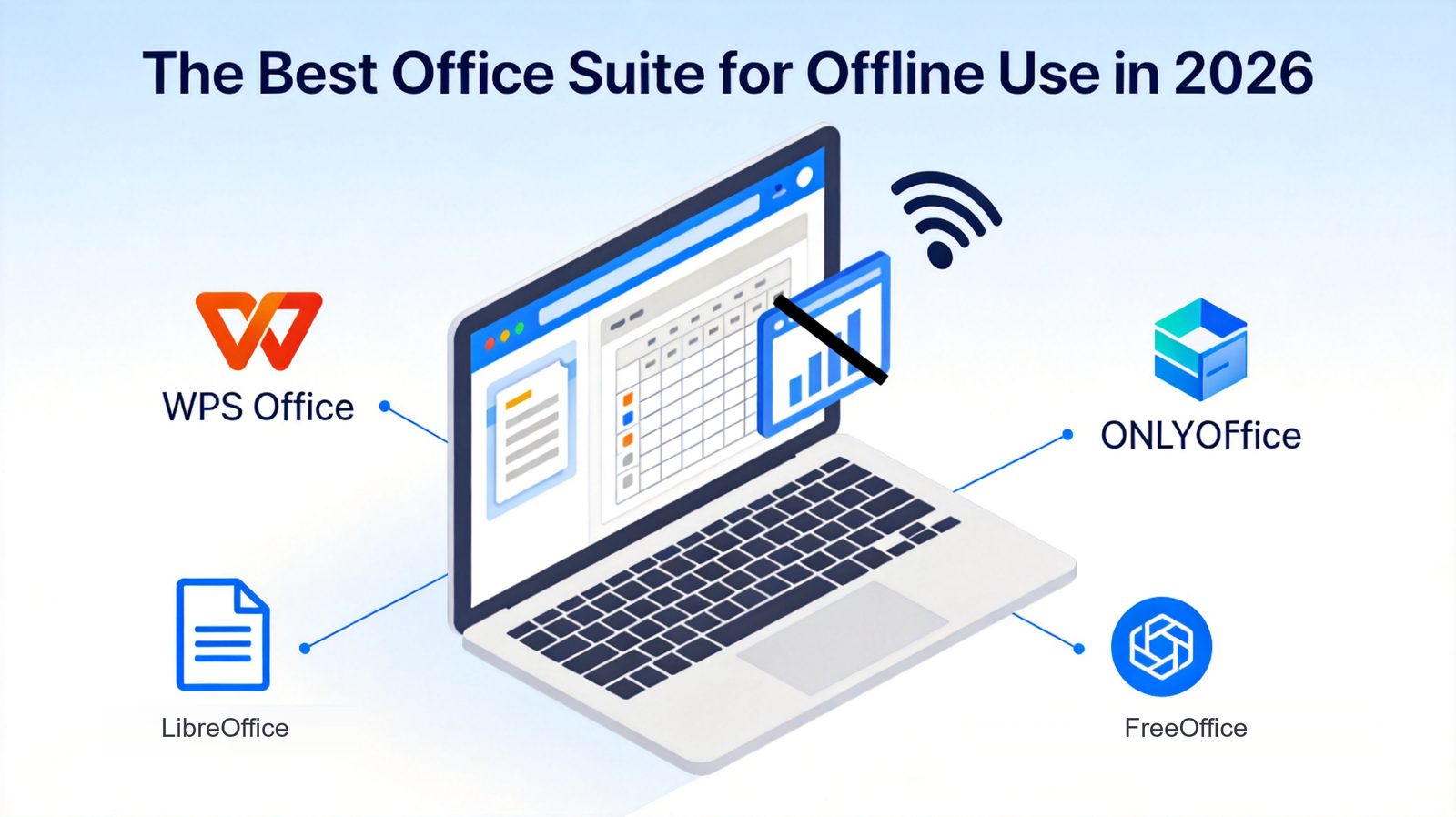
The Best Office Suite for Offline Use in 2026
TL;DR
The best office suites for offline use in 2026 are WPS Office (free, Word-compatible, full offline editing with optional cloud sync), LibreOffice (open-source, zero cost, maximum privacy), ONLYOFFICE Desktop Editors (best DOCX fidelity, free desktop apps), and SoftMaker FreeOffice (lightest, fastest on old hardware). For most users, WPS Office offers the best balance of offline reliability, Microsoft-format compatibility, and modern features.
What Makes a Great Office Suite for Offline Use
Not every "free office suite" is genuinely built for offline work. Before comparing tools, here is what actually matters when the internet disappears:
Full local installation — the suite must run entirely on your device, not in a browser tab.
No account requirement — you should be able to create and edit documents without signing in.
Microsoft format compatibility — DOCX, XLSX, and PPTX files must open and save correctly for sharing.
Complete feature set offline — PDF export, templates, and spell check should work without a connection.
Optional (not mandatory) cloud — sync is welcome when you want it, never a condition for editing.


Quick Comparison: Offline Office Suites in 2026
| Suite | Best for | Offline strengths | Pricing |
|---|---|---|---|
| WPS Office | Best overall free offline suite | Full local editing, PDF tools, 47 formats, works with no sign-in | Free; Pro from ~$29/year |
| LibreOffice | Open-source privacy and zero cost | Six apps, fully offline, no account ever, ODF native | Free |
| ONLYOFFICE Desktop Editors | DOCX fidelity plus optional self-hosting | Free desktop apps, offline editing, connect to cloud only if you choose | Free desktop; cloud from ~$8/user/month |
| SoftMaker FreeOffice | Old or low-spec hardware | Very lightweight, fast startup, fully offline | Free (with ads); SoftMaker Office from ~$59 one-time |
1. WPS Office: Best Overall Office Suite for Offline Use
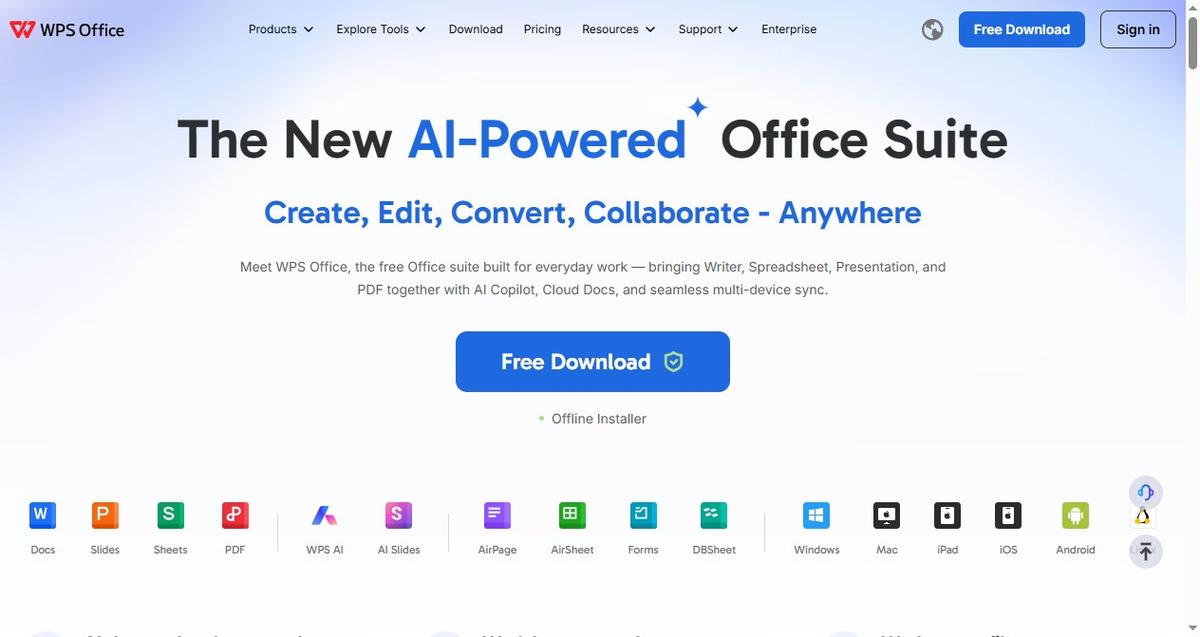
WPS Office is the strongest all-round offline suite in 2026. Writer, Spreadsheets, Presentation, and a built-in PDF toolkit all run locally on Windows, macOS, and Linux, with full support for Microsoft formats—and you can create, edit, and save documents without ever signing in.
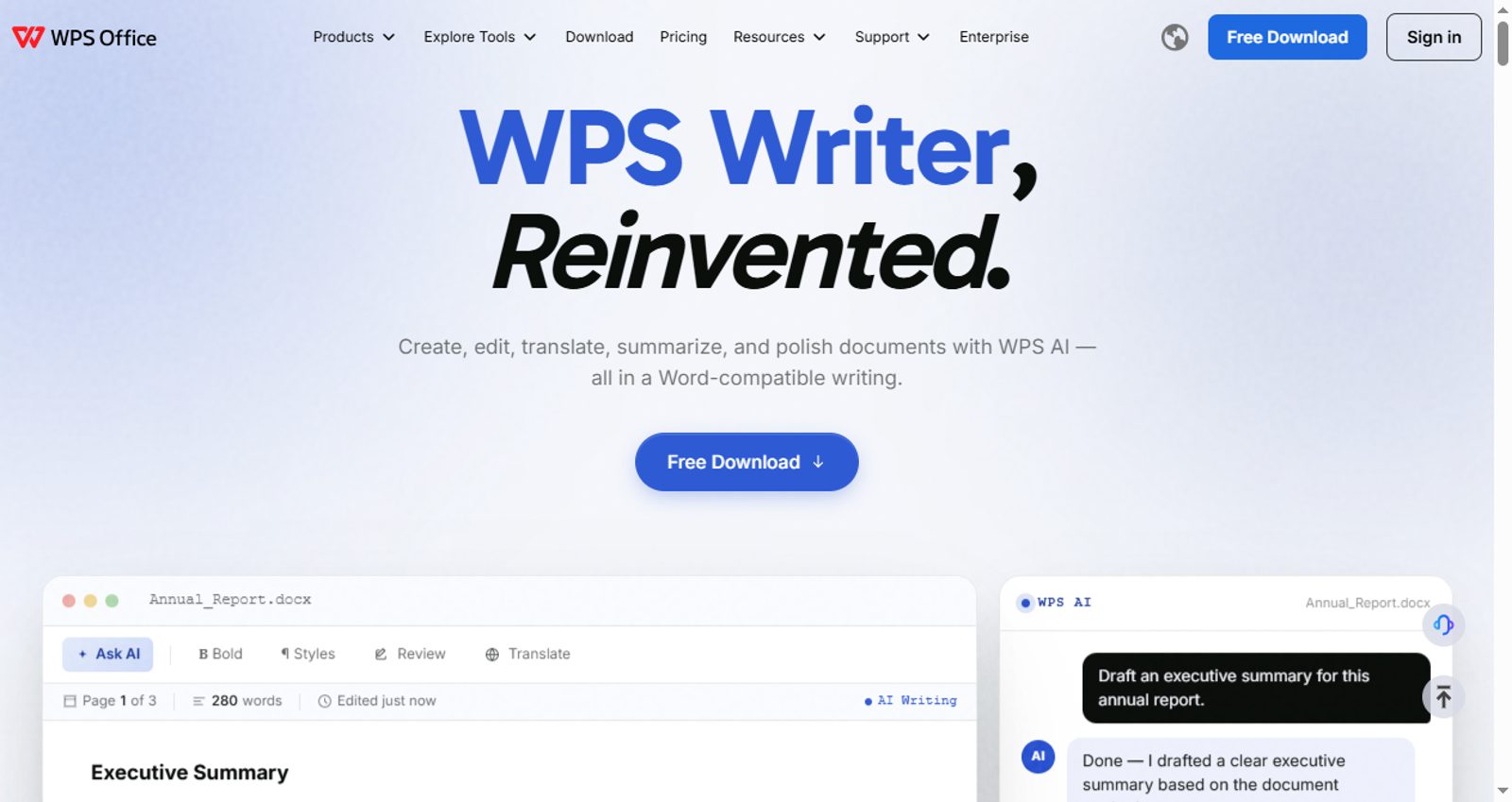
WPS Office official website homepage
Key capabilities:
Complete offline editing for documents, spreadsheets, presentations, and PDFs
Opens and saves DOCX, XLSX, and PPTX with high fidelity
Built-in PDF reader, converter, and editor that work without a connection
Tabbed interface keeps reference files open alongside your draft
Optional cloud sync (1 GB free) — there when you want it, never required
Best for: anyone who wants one free suite that behaves like Microsoft Office offline, with modern extras such as AI features when they do connect.
Pricing: free tier; WPS Pro from ~$29/year adds full PDF tools, unlimited templates, 20 GB cloud, and removes ads.
Trade-offs: the free version shows occasional ads; some AI features need a connection.
2. LibreOffice: Best Open-Source Offline Office Suite
LibreOffice is the reference point for fully offline, privacy-first office work. Six applications—Writer, Calc, Impress, Draw, Base, and Math—run entirely on your machine with no account, no telemetry, and no cost, ever.
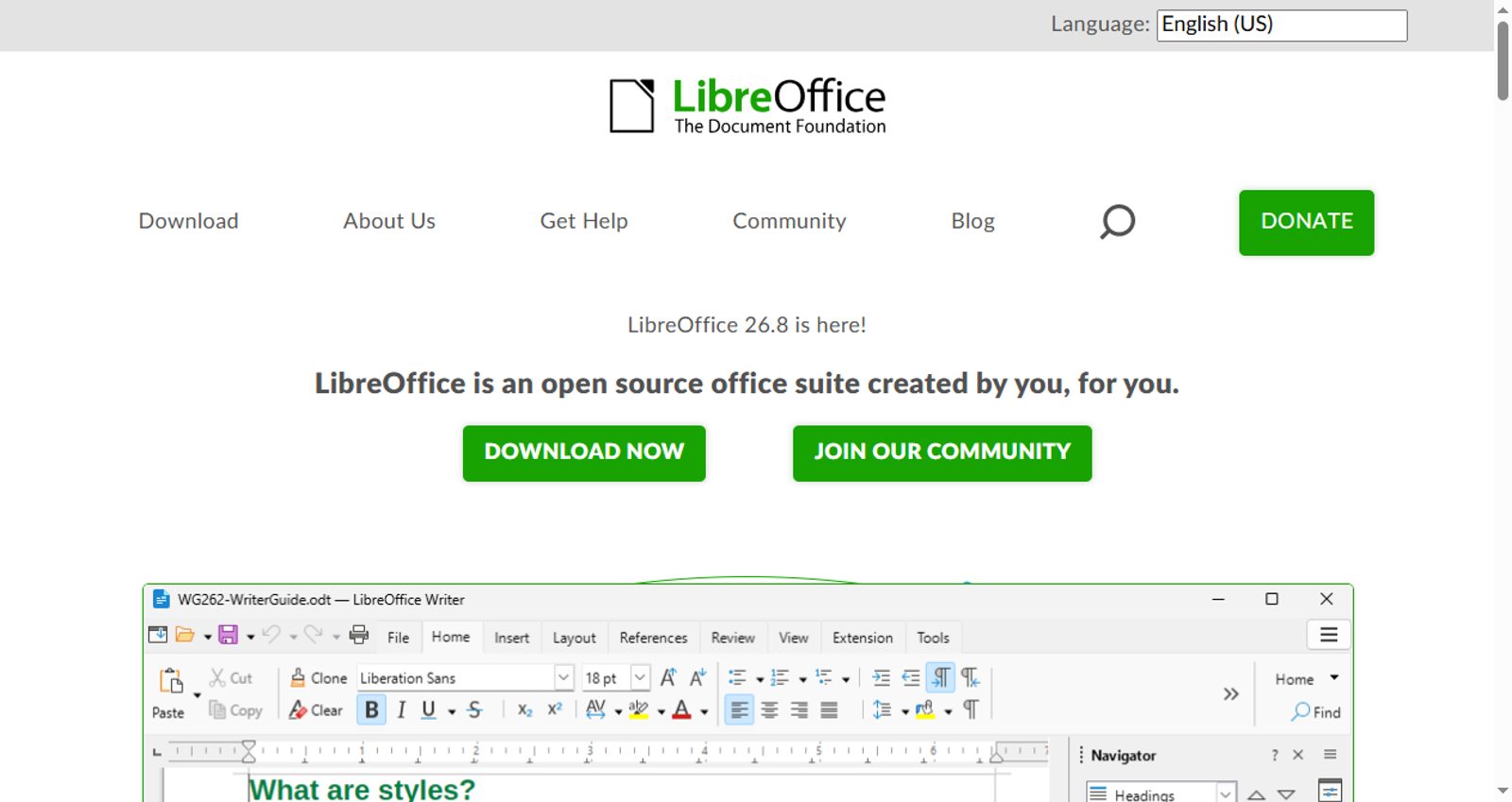
LibreOffice official website homepage
Key capabilities:
Six full desktop apps covering documents, spreadsheets, presentations, drawings, databases, and formulas
Completely offline: no account, no sign-in, no cloud dependency at any point
Native ODF format plus solid DOCX/XLSX/PPTX import and export
Master documents, styles, and bibliographies for serious long-form work
Best for: privacy-conscious users, Linux households, and anyone who wants zero licensing friction forever.
Pricing: completely free and open source.
Trade-offs: the interface feels dated; complex Microsoft files can lose formatting in round-trips; no built-in collaboration.
3. ONLYOFFICE Desktop Editors: Best for DOCX Fidelity Offline
ONLYOFFICE Desktop Editors offers the closest visual match to Microsoft Office among free desktop suites. Documents, spreadsheets, presentations, PDF forms, and e-books all edit offline; you only connect to a cloud (ONLYOFFICE Docs, Nextcloud, ownCloud) if you explicitly want collaboration.
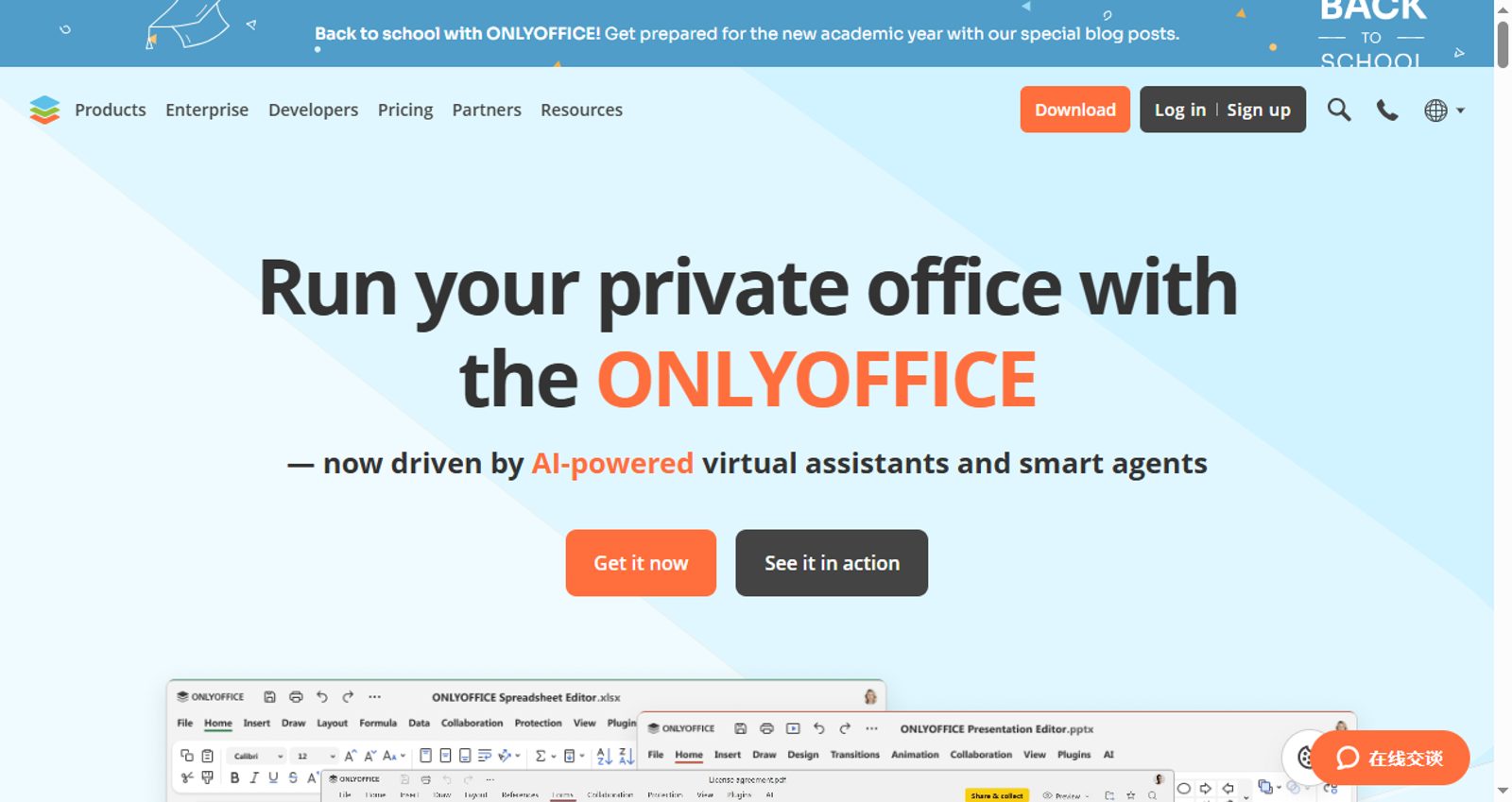
ONLYOFFICE official website homepage
Key capabilities:
Near-native DOCX, XLSX, and PPTX rendering and round-trip
Full offline editing of documents, spreadsheets, presentations, and PDF forms
Optional connection to self-hosted platforms for teams that need it
Plugin ecosystem: DeepL, LanguageTool, draw.io, Jitsi, and AI assistants
Best for: users who exchange complex Microsoft files constantly and want desktop-first work with optional team deployment.
Pricing: desktop and mobile editors are free; cloud plans from ~$8/user/month; self-hosted licenses for enterprises.
Trade-offs: cloud features require setup; the suite is heavier than FreeOffice on very old machines.
4. SoftMaker FreeOffice: Best Lightweight Offline Suite
SoftMaker FreeOffice is the lightest suite in this lineup. TextMaker, PlanMaker, and Presentations start fast, run smoothly on decade-old hardware, and read and write Microsoft formats with a level of fidelity that punches well above the suite's size.
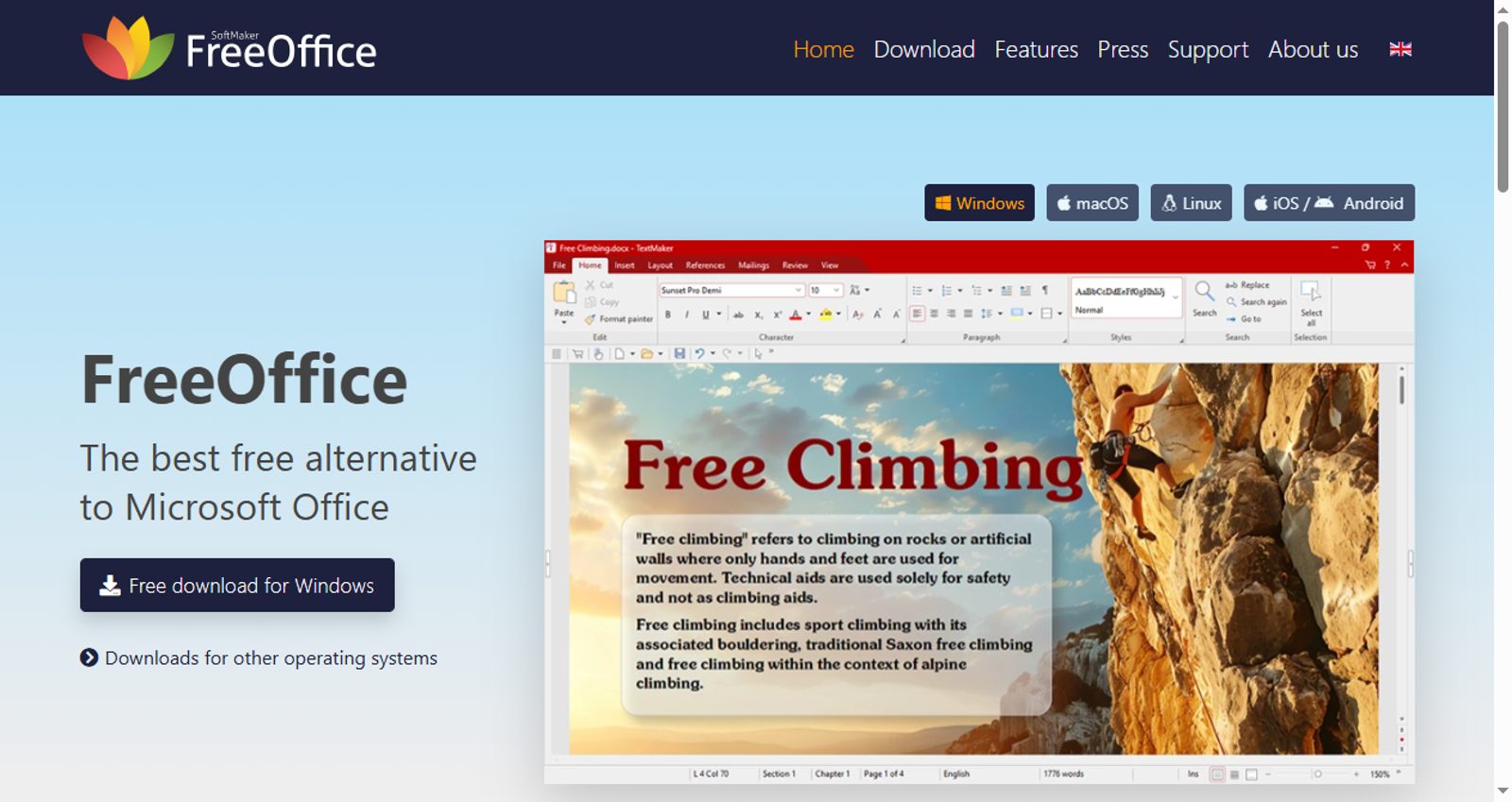
SoftMaker FreeOffice official website homepage
Key capabilities:
Three fast apps: TextMaker (documents), PlanMaker (spreadsheets), Presentations
Excellent DOCX/XLSX/PPTX compatibility for a suite this small
Runs on Windows, macOS, and Linux, including very old machines
Fully offline with no account requirement
Best for: older laptops, low-spec desktops, and a USB emergency office kit.
Pricing: free with occasional ads; SoftMaker Office removes ads and adds features from ~$59 one-time.
Trade-offs: no database or drawing app; fewer templates and extras than WPS or LibreOffice.
How to Choose the Right Office Suite for Offline Use
Match the suite to your situation:
Want one free suite that does everything, online or off? WPS Office—best overall balance.
Privacy is non-negotiable and budget is zero? LibreOffice—open source, no account, ever.
You exchange complex Microsoft files daily? ONLYOFFICE Desktop Editors—best DOCX fidelity.
Working on old hardware or preparing an emergency kit? SoftMaker FreeOffice—lightest and fastest.
The Best Free Office Suite for Offline Use: WPS Office
Across these scenarios, WPS Office stands out as the best free office suite for offline use. It pairs complete local editing with the strongest everyday Microsoft-format compatibility, built-in PDF tools, and an optional cloud layer that never gets in the way.
Getting started with WPS Office offline:
Download and install WPS Office from the official site for Windows, macOS, or Linux.
Open Writer, Spreadsheets, or Presentation and start working—no sign-in required for local files.
Import your Microsoft files (DOCX, XLSX, PPTX); they open with formatting intact.
Use the built-in PDF tools to read, convert, and merge PDFs without any internet connection.
Keep everything local by saving to your device, or optionally sign in later to sync across devices.
When you reconnect, WPS AI features—summarizing, translating, rewriting—become available on demand.
FAQs
Do all these office suites work completely offline?
Yes. WPS Office, LibreOffice, ONLYOFFICE Desktop Editors, and SoftMaker FreeOffice all install locally and offer full editing without an internet connection. Cloud features are optional in each case.
Which offline office suite has the best Microsoft file compatibility?
ONLYOFFICE Desktop Editors leads on DOCX/XLSX/PPTX fidelity, with WPS Office a very close second for everyday documents. LibreOffice handles most files well but can show formatting differences in complex layouts.
Can I use WPS Office without creating an account?
Yes. Creating and editing local documents in WPS Office requires no sign-in. An account is only needed if you want cloud sync or AI features.
Is LibreOffice really free forever?
Yes. LibreOffice is open source under the Mozilla Public License, maintained by The Document Foundation. There are no paid tiers, ads, or account requirements.
What is the lightest office suite for an old laptop?
SoftMaker FreeOffice. Its three apps are the smallest and fastest in this comparison, making it ideal for hardware with limited RAM and storage.

'%3e%3cpath%20d='M19.9911%204.11386V6.471H18.5894C18.0775%206.471%2017.7322%206.57814%2017.5536%206.79243C17.3751%207.00671%2017.2858%207.32814%2017.2858%207.75671V9.44421H19.9019L19.5536%2012.0871H17.2858V18.8639H14.5536V12.0871H12.2769V9.44421H14.5536V7.49779C14.5536%206.39064%2014.8632%205.53201%2015.4822%204.92189C16.1013%204.31177%2016.9257%204.00671%2017.9554%204.00671C18.8304%204.00671%2019.509%204.04243%2019.9911%204.11386Z'%20fill='%23333333'/%3e%3c/g%3e%3cdefs%3e%3cclipPath%20id='clip0_2938_8199'%3e%3crect%20width='16'%20height='16'%20fill='white'%20transform='translate(8%204.00671)'/%3e%3c/clipPath%3e%3c/defs%3e%3c/svg%3e)
'%3e%3cpath%20d='M17.5237%2010.7813L23.4811%204H22.0699L16.8949%209.88693L12.7648%204H8L14.2469%2012.9029L8%2020.0133H9.4112L14.8725%2013.7952L19.2352%2020.0133H24M9.92053%205.04213H12.0885L22.0688%2019.0224H19.9003'%20fill='%23333333'/%3e%3c/g%3e%3cdefs%3e%3cclipPath%20id='clip0_2938_8200'%3e%3crect%20width='16'%20height='16.0134'%20fill='white'%20transform='translate(8%204)'/%3e%3c/clipPath%3e%3c/defs%3e%3c/svg%3e)


