

'%3e%3cpath%20d='M8%200C12.4183%200%2016%203.58172%2016%208C16%2012.4183%2012.4183%2016%208%2016C3.58172%2016%200%2012.4183%200%208C0%203.58172%203.58172%200%208%200ZM11.6162%204.38379C11.2257%203.99337%2010.5927%203.99338%2010.2021%204.38379L8%206.58594L5.79785%204.38379C5.40732%203.99334%204.77429%203.99329%204.38379%204.38379C3.99331%204.77429%203.99335%205.40733%204.38379%205.79785L6.58594%208L4.38379%2010.2021C3.99348%2010.5927%203.99341%2011.2257%204.38379%2011.6162C4.77426%2012.0066%205.40734%2012.0065%205.79785%2011.6162L8%209.41406L10.2021%2011.6162C10.5927%2012.0066%2011.2257%2012.0067%2011.6162%2011.6162C12.0067%2011.2257%2012.0066%2010.5927%2011.6162%2010.2021L9.41406%208L11.6162%205.79785C12.0066%205.40735%2012.0066%204.77429%2011.6162%204.38379Z'%20fill='%23080E17'%20fill-opacity='0.46'/%3e%3c/g%3e%3cdefs%3e%3cclipPath%20id='clip0_3761_713'%3e%3crect%20width='16'%20height='16'%20fill='white'/%3e%3c/clipPath%3e%3c/defs%3e%3c/svg%3e)




'%3e%3cpath%20fill-rule='evenodd'%20clip-rule='evenodd'%20d='M21.4999%2010.9993C21.4999%205.20009%2016.7986%200.498901%2010.9993%200.498901C5.19994%200.498901%200.498657%205.20009%200.498657%2010.9993C0.498657%2016.2404%204.33858%2020.5844%209.35855%2021.3722V14.0346H6.69238V10.9993H9.35855V8.68594C9.35855%206.05427%2010.9262%204.60062%2013.3248%204.60062C14.4736%204.60062%2015.6753%204.80571%2015.6753%204.80571V7.38979H14.3512C13.0468%207.38979%2012.64%208.19921%2012.64%209.0296V10.9993H15.5523L15.0867%2014.0346H12.64V21.3722C17.66%2020.5844%2021.4999%2016.2404%2021.4999%2010.9993Z'%20fill='%231568EA'/%3e%3c/g%3e%3c/svg%3e)


'%3e%3cpath%20d='M2.42045%2022.1876H6.31818V12.7217L0.75%208.54553V20.5171C0.75%2021.4414%201.49892%2022.1876%202.42045%2022.1876Z'%20fill='%234285F4'/%3e%3cpath%20d='M19.682%2022.1876H23.5797C24.5041%2022.1876%2025.2502%2021.4387%2025.2502%2020.5171V8.54553L19.682%2012.7217'%20fill='%2334A853'/%3e%3cpath%20d='M19.682%205.48293V12.7216L25.2502%208.54543V6.31816C25.2502%204.25236%2022.8921%203.07469%2021.2411%204.31361'%20fill='%23FBBC04'/%3e%3cpath%20d='M6.31824%2012.7217V5.48303L13.0001%2010.4944L19.6819%205.48303V12.7217L13.0001%2017.733'%20fill='%23EA4335'/%3e%3cpath%20d='M0.75%206.31816V8.54543L6.31818%2012.7216V5.48293L4.75909%204.31361C3.10534%203.07469%200.75%204.25236%200.75%206.31816Z'%20fill='%23C5221F'/%3e%3c/g%3e%3cdefs%3e%3cclipPath%20id='clip0_2954_7305'%3e%3crect%20width='24.5'%20height='18.375'%20fill='white'%20transform='translate(0.75%203.8125)'/%3e%3c/clipPath%3e%3c/defs%3e%3c/svg%3e)


You have a workbook due today, but the data is inconsistent, the formulas are hard to trace, and the report still needs a clear story. ChatGPT for Excel can help inside the workbook—if you give it a bounded task and review the result. This guide uses seven practical situations, from cleanup to scenario analysis, with a safe handoff to WPS Spreadsheet.
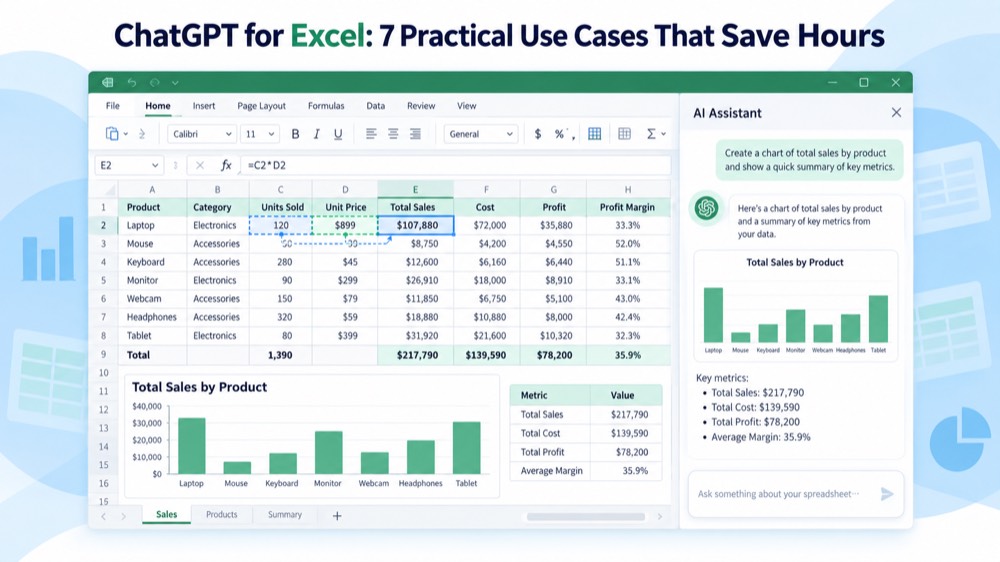
ChatGPT for Excel: 7 Practical Use Cases That Save Hours
ChatGPT for Excel: clean a messy export before analysis
A sales or operations export often mixes date formats, contains duplicate rows, and leaves category cells blank. Ask ChatGPT to work on a copy and describe exactly what must stay unchanged.
Ask it to identify inconsistent dates, labels, duplicates, and blank required fields.
Request a proposed cleaning plan before applying edits.
Ask for a cleaned output plus a change log with row counts.
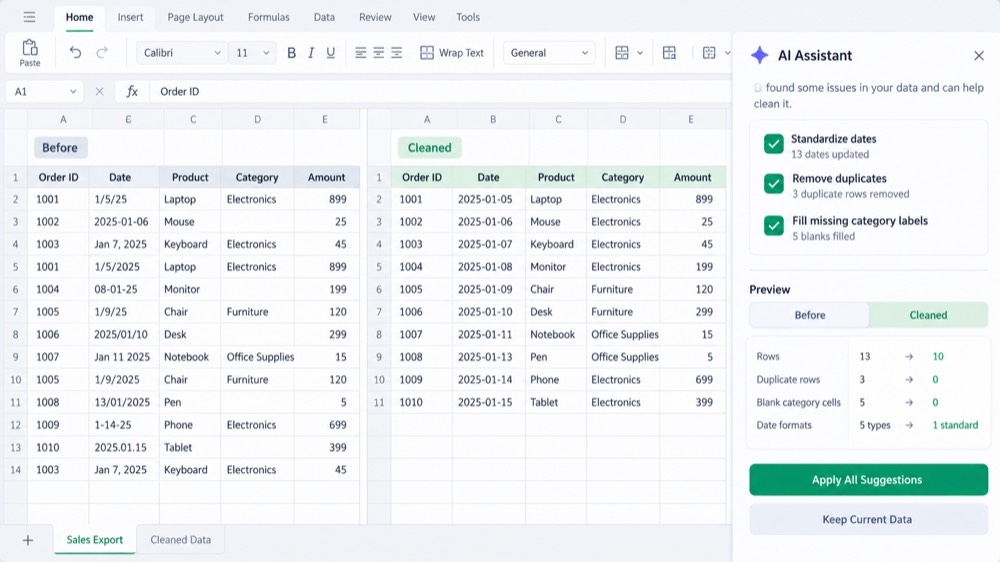
ChatGPT for Excel data cleanup mockup
ChatGPT for Excel: explain and fix a formula error
When a lookup returns #N/A or totals do not reconcile, do not ask for a blind replacement. Share the formula, the expected result, and the relevant range. Ask ChatGPT to trace the references and list possible causes.
Check whether keys contain leading or trailing spaces.
Confirm that numbers are stored as numbers, not text.
Test the proposed formula on a few known rows before filling the column.
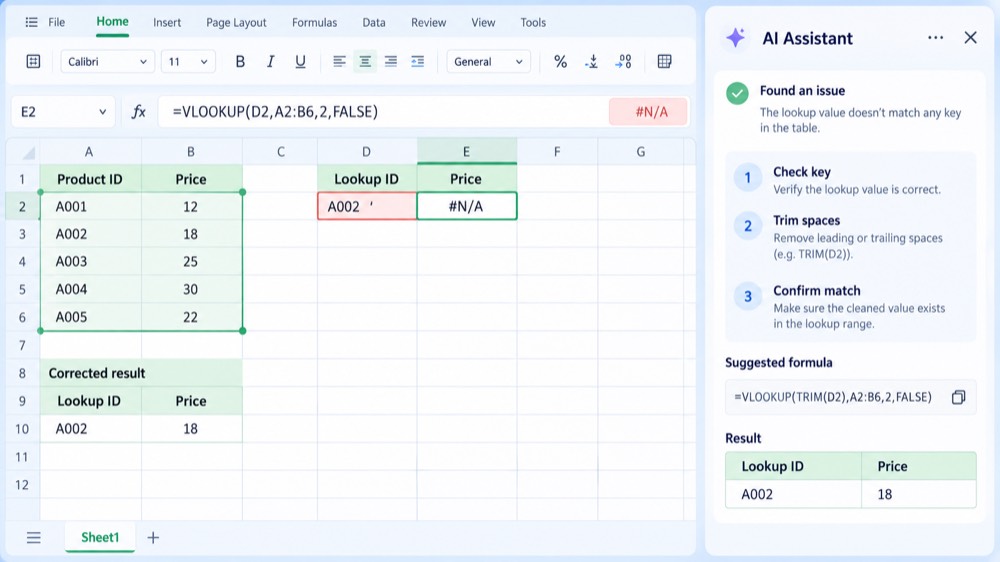
ChatGPT for Excel formula troubleshooting mockup
ChatGPT for Excel: build a tracker from a plain-language brief
For a project tracker, budget, or inventory sheet, describe the columns, status values, owner, due date, and the decision the tracker should support. Ask for a table design first, then request formulas and conditional formatting.
Reconcile a monthly close
For finance and operations teams, ask ChatGPT to compare the current close with the prior period, isolate movements above a threshold, and produce a reconciliation checklist. Require it to show the source sheet and cell range for each variance.
Define the input columns and allowed values.
Ask for formulas that calculate age, variance, or completion rate.
Ask for a small sample dataset so you can test edge cases.
For sensitive workbooks, remove names, account identifiers, and unnecessary transaction details before sending context.
ChatGPT for Excel: analyze trends and write the report
Once the data is clean, ask for analysis that a real reader can act on. Specify the comparison period, metric definitions, and what counts as a material change. Useful requests include:
Turn spreadsheet findings into an action list
When a manager needs a decision rather than another chart, ask ChatGPT to convert verified findings into owners, next steps, due dates, and open questions. Keep recommendations separate from facts so the team can review them quickly.
“Compare monthly sales with the prior period and rank the largest variances.”
“Create base, upside, and downside scenarios using these assumptions.”
“Summarize three trends, two risks, and two follow-up questions for the team.”
Ask it to reference the exact sheets or ranges it used. A polished narrative is not proof that the calculation is correct.
Create a scenario comparison
For pricing, hiring, or inventory decisions, provide the assumptions for a base, upside, and downside case. Ask ChatGPT to place each assumption in a visible input area and show how the output changes, rather than hiding the logic in a hard-coded answer.
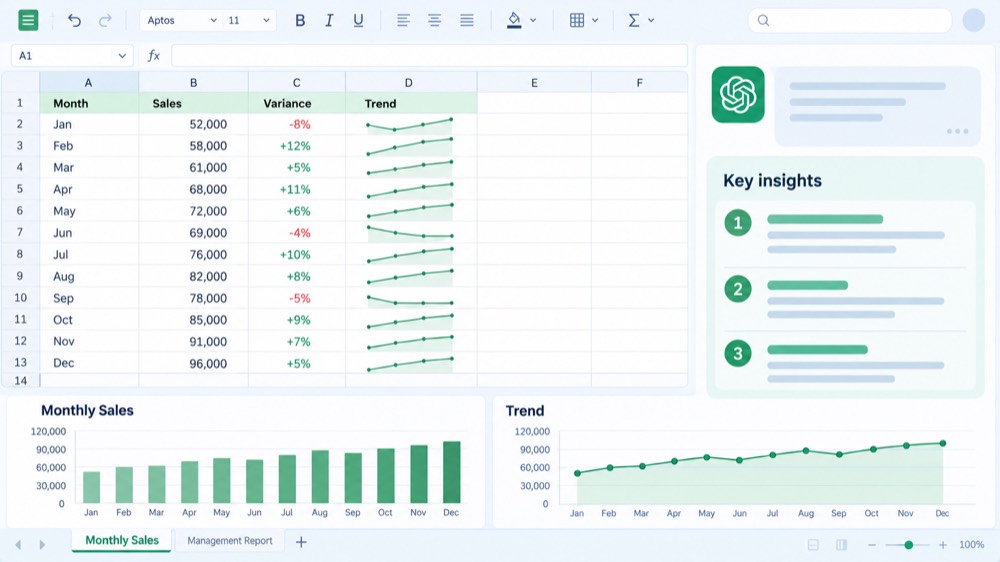
ChatGPT for Excel reporting dashboard mockup
The best free spreadsheet workflow: WPS Spreadsheet
After ChatGPT suggests a change, open the workbook in WPS Spreadsheet to inspect formulas, formatting, charts, and print layout. WPS Spreadsheet is useful when a teammate needs a familiar Excel-compatible file without changing the review process.
Use this handoff: keep the original file, apply only approved changes, recalculate totals, inspect the changed-cell list, and export a PDF only after the workbook passes your checks. For the latest ChatGPT for Excel availability, setup, and limitations—including incomplete support for some VBA and macro workflows—check the official help guidance.
WPS Spreadsheet and ChatGPT review workflow
ChatGPT for Excel: summarize a PivotTable and find the drivers
PivotTables are useful for exploring large exports, but the hardest part is often explaining what changed. Ask ChatGPT to review a PivotTable or its source range, identify the largest contributors, and translate the result into a short business takeaway.
Define the measure, grouping, and comparison period before asking for an interpretation.
Ask it to rank the top positive and negative contributors and show the supporting ranges.
Validate totals against the source data before sharing the summary.

Excel PivotTable analysis with ChatGPT
ChatGPT for Excel: share a review-ready workbook with your team
A workbook is easier to trust when another person can quickly see what changed and why. Ask ChatGPT to create a review checklist, summarize the key assumptions, and prepare a handoff note for teammates who will open the file in WPS Spreadsheet or Excel.
Keep the original workbook and save the working copy with a clear version name.
List changed sheets, formulas, assumptions, and unresolved questions.
Ask a teammate to test a few totals and edge cases before publication.
A review-ready spreadsheet handoff for team collaboration
FAQs
Can ChatGPT for Excel edit my workbook directly?
In supported spreadsheet-native workflows, it can make proposed changes in the workbook. Review the plan and changed cells before saving or sharing.
Can ChatGPT for Excel fix every formula?
No. It can explain likely causes and suggest formulas, but complex logic, external links, macros, and edge cases still require manual testing.
What should I include in a good Excel prompt?
State the sheet or range, the desired output, what must remain unchanged, and how you want assumptions and errors reported.
Is it safe to upload confidential spreadsheet data?
Follow your organization’s policy. Redact personal, financial, and customer identifiers unless the approved workspace and controls permit the workflow.
Can I review the result in WPS Spreadsheet?
Yes. Open a copy, inspect formulas and formatting, test key totals, and verify compatibility before delivering the file.

'%3e%3cpath%20d='M19.9911%204.11386V6.471H18.5894C18.0775%206.471%2017.7322%206.57814%2017.5536%206.79243C17.3751%207.00671%2017.2858%207.32814%2017.2858%207.75671V9.44421H19.9019L19.5536%2012.0871H17.2858V18.8639H14.5536V12.0871H12.2769V9.44421H14.5536V7.49779C14.5536%206.39064%2014.8632%205.53201%2015.4822%204.92189C16.1013%204.31177%2016.9257%204.00671%2017.9554%204.00671C18.8304%204.00671%2019.509%204.04243%2019.9911%204.11386Z'%20fill='%23333333'/%3e%3c/g%3e%3cdefs%3e%3cclipPath%20id='clip0_2938_8199'%3e%3crect%20width='16'%20height='16'%20fill='white'%20transform='translate(8%204.00671)'/%3e%3c/clipPath%3e%3c/defs%3e%3c/svg%3e)
'%3e%3cpath%20d='M17.5237%2010.7813L23.4811%204H22.0699L16.8949%209.88693L12.7648%204H8L14.2469%2012.9029L8%2020.0133H9.4112L14.8725%2013.7952L19.2352%2020.0133H24M9.92053%205.04213H12.0885L22.0688%2019.0224H19.9003'%20fill='%23333333'/%3e%3c/g%3e%3cdefs%3e%3cclipPath%20id='clip0_2938_8200'%3e%3crect%20width='16'%20height='16.0134'%20fill='white'%20transform='translate(8%204)'/%3e%3c/clipPath%3e%3c/defs%3e%3c/svg%3e)


