

'%3e%3cpath%20d='M8%200C12.4183%200%2016%203.58172%2016%208C16%2012.4183%2012.4183%2016%208%2016C3.58172%2016%200%2012.4183%200%208C0%203.58172%203.58172%200%208%200ZM11.6162%204.38379C11.2257%203.99337%2010.5927%203.99338%2010.2021%204.38379L8%206.58594L5.79785%204.38379C5.40732%203.99334%204.77429%203.99329%204.38379%204.38379C3.99331%204.77429%203.99335%205.40733%204.38379%205.79785L6.58594%208L4.38379%2010.2021C3.99348%2010.5927%203.99341%2011.2257%204.38379%2011.6162C4.77426%2012.0066%205.40734%2012.0065%205.79785%2011.6162L8%209.41406L10.2021%2011.6162C10.5927%2012.0066%2011.2257%2012.0067%2011.6162%2011.6162C12.0067%2011.2257%2012.0066%2010.5927%2011.6162%2010.2021L9.41406%208L11.6162%205.79785C12.0066%205.40735%2012.0066%204.77429%2011.6162%204.38379Z'%20fill='%23080E17'%20fill-opacity='0.46'/%3e%3c/g%3e%3cdefs%3e%3cclipPath%20id='clip0_3761_713'%3e%3crect%20width='16'%20height='16'%20fill='white'/%3e%3c/clipPath%3e%3c/defs%3e%3c/svg%3e)




'%3e%3cpath%20fill-rule='evenodd'%20clip-rule='evenodd'%20d='M21.4999%2010.9993C21.4999%205.20009%2016.7986%200.498901%2010.9993%200.498901C5.19994%200.498901%200.498657%205.20009%200.498657%2010.9993C0.498657%2016.2404%204.33858%2020.5844%209.35855%2021.3722V14.0346H6.69238V10.9993H9.35855V8.68594C9.35855%206.05427%2010.9262%204.60062%2013.3248%204.60062C14.4736%204.60062%2015.6753%204.80571%2015.6753%204.80571V7.38979H14.3512C13.0468%207.38979%2012.64%208.19921%2012.64%209.0296V10.9993H15.5523L15.0867%2014.0346H12.64V21.3722C17.66%2020.5844%2021.4999%2016.2404%2021.4999%2010.9993Z'%20fill='%231568EA'/%3e%3c/g%3e%3c/svg%3e)


'%3e%3cpath%20d='M2.42045%2022.1876H6.31818V12.7217L0.75%208.54553V20.5171C0.75%2021.4414%201.49892%2022.1876%202.42045%2022.1876Z'%20fill='%234285F4'/%3e%3cpath%20d='M19.682%2022.1876H23.5797C24.5041%2022.1876%2025.2502%2021.4387%2025.2502%2020.5171V8.54553L19.682%2012.7217'%20fill='%2334A853'/%3e%3cpath%20d='M19.682%205.48293V12.7216L25.2502%208.54543V6.31816C25.2502%204.25236%2022.8921%203.07469%2021.2411%204.31361'%20fill='%23FBBC04'/%3e%3cpath%20d='M6.31824%2012.7217V5.48303L13.0001%2010.4944L19.6819%205.48303V12.7217L13.0001%2017.733'%20fill='%23EA4335'/%3e%3cpath%20d='M0.75%206.31816V8.54543L6.31818%2012.7216V5.48293L4.75909%204.31361C3.10534%203.07469%200.75%204.25236%200.75%206.31816Z'%20fill='%23C5221F'/%3e%3c/g%3e%3cdefs%3e%3cclipPath%20id='clip0_2954_7305'%3e%3crect%20width='24.5'%20height='18.375'%20fill='white'%20transform='translate(0.75%203.8125)'/%3e%3c/clipPath%3e%3c/defs%3e%3c/svg%3e)


When a trusted workbook opens but its buttons, forms, or automated reports do nothing, Excel has probably disabled its VBA macros. The right fix depends on the warning you see: a yellow Security Warning bar, a Trust Center restriction, or a red Security Risk banner on a downloaded file.
This guide shows how to activate macros in Excel without lowering protection for every workbook. Verify the sender and the expected macro behavior first. If you cannot explain what the code should do, keep it disabled.
How to Activate Macros in Excel Safely
How to Activate Macros in Excel for One Trusted Workbook
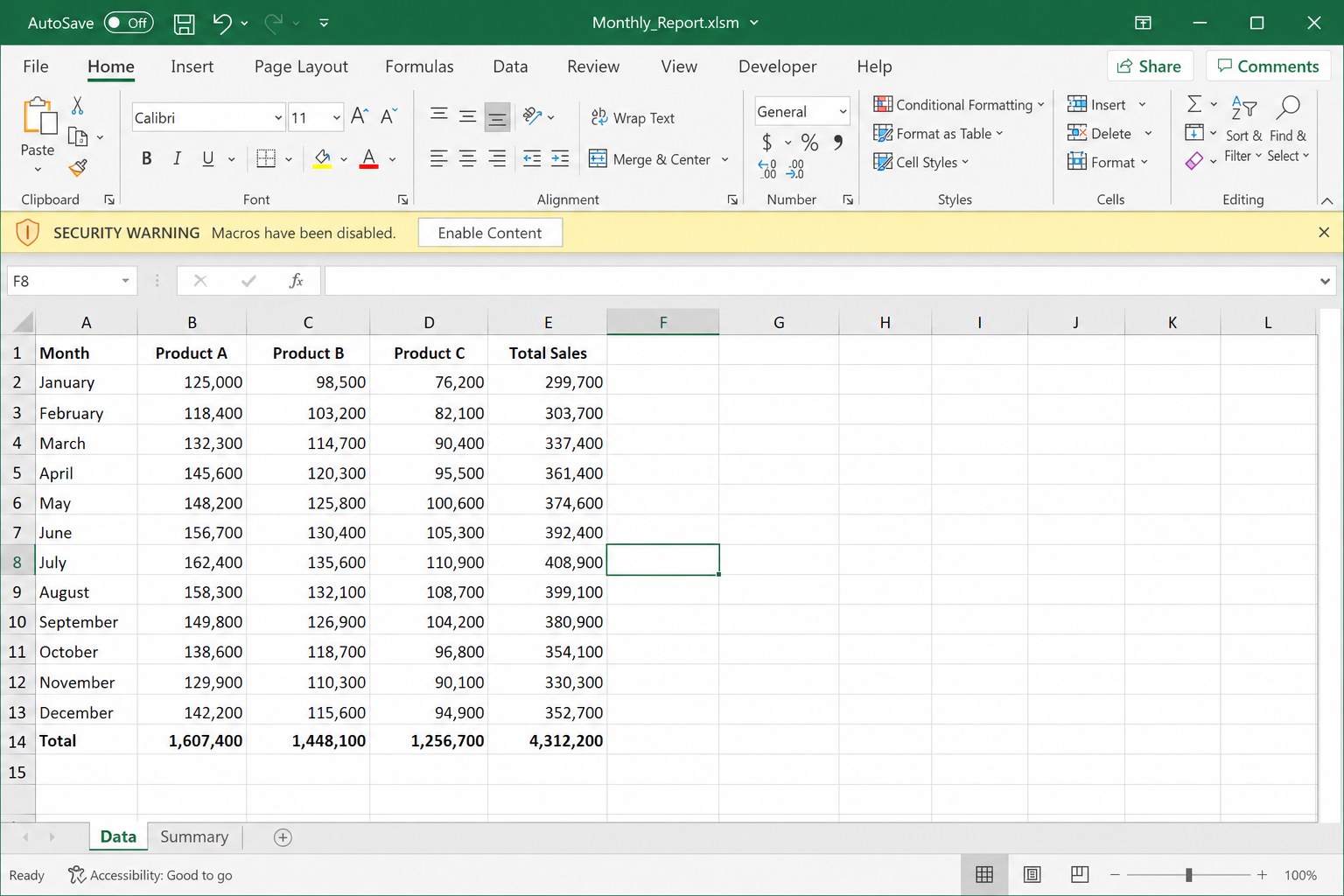
Use this method when Excel shows a yellow Security Warning bar with an Enable Content button. It activates the workbook as a trusted document without changing the default for unrelated files.
Confirm that the workbook came from a person or system you trust.
Ask what the macro is expected to change, create, send, or import.
Open the workbook in the desktop version of Excel. Excel for the web cannot run VBA macros.
If Protected View appears, review the file before selecting Enable Editing.
On the yellow Security Warning bar, select Enable Content.
Run the intended control or choose Developer > Macros, select the macro, and click Run.
If the file does not display a prompt, continue to the Trust Center method. Do not solve a missing prompt by turning on every macro globally.
Excel Enable Content security banner


Activate Excel Macros Through Trust Center Settings
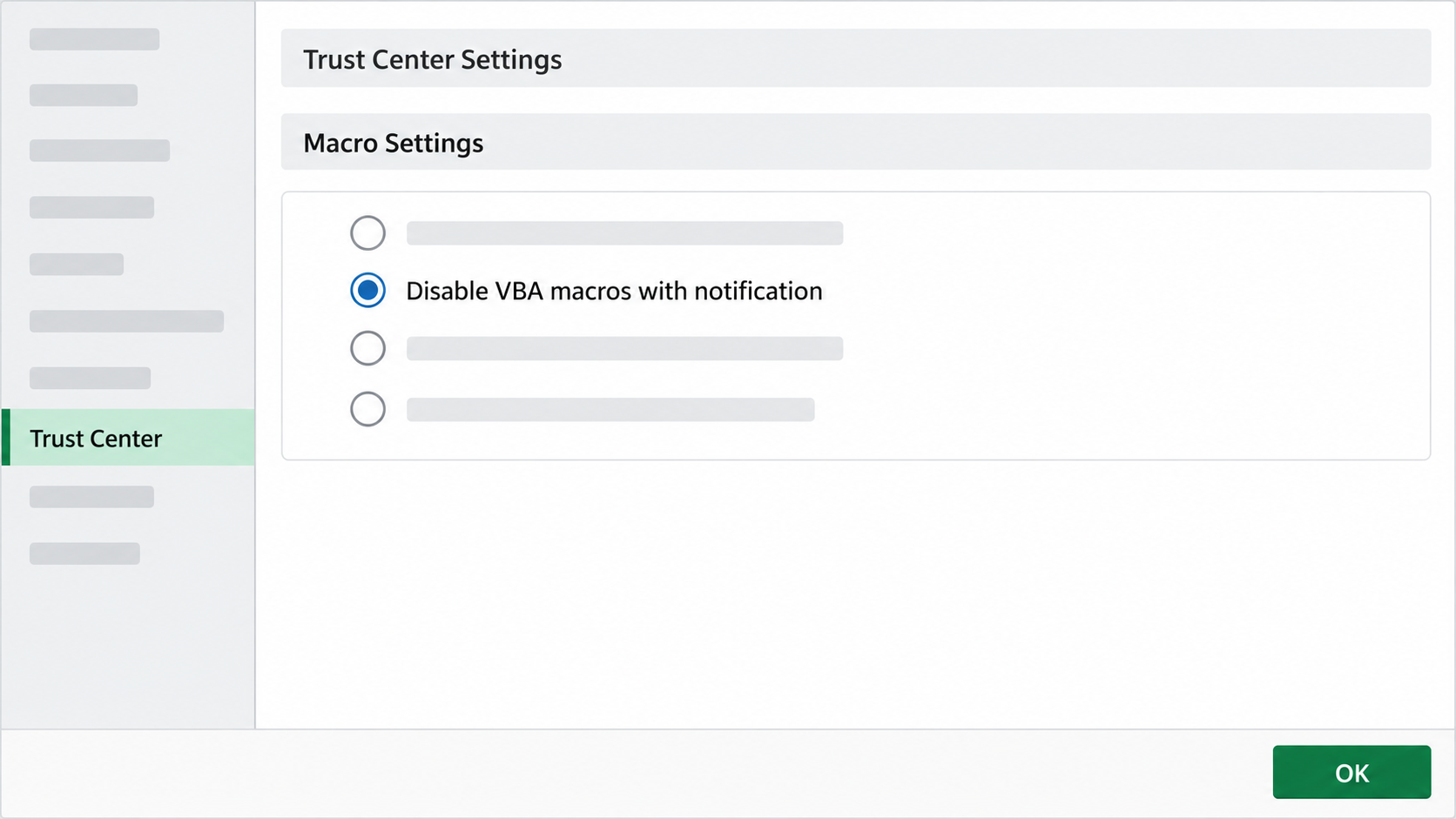
Use Trust Center when the yellow bar is missing or when you need Excel to notify you about macros on a case-by-case basis. Microsoft lists Disable VBA macros with notification as the default behavior for ordinary trusted-document decisions. It is safer than Enable VBA macros, which allows potentially dangerous code to run in any workbook.
Open Excel and choose File > Options.
Select Trust Center, then click Trust Center Settings.
Open Macro Settings.
Select Disable VBA macros with notification.
Leave Trust access to the VBA project object model cleared unless a known solution specifically requires programmatic access to VBA projects.
Click OK twice, close the workbook, and reopen it.
For the verified file, use the Security Warning bar to activate its macros.
For organization-managed computers, Group Policy may lock these options. If the controls are unavailable, contact your IT administrator instead of trying to bypass the policy.
Excel Trust Center macro settings
How to Activate Macros Excel Blocks as an Internet File
A workbook downloaded from a browser, email, chat, or some cloud locations can carry Windows' Mark of the Web. Current Microsoft 365 security may show a red Security Risk banner with no Enable Content button. Changing Macro Settings alone does not remove that file-level block.
Close the workbook and exit Excel.
In File Explorer, right-click the .xlsm, .xlsb, or macro-enabled template file.
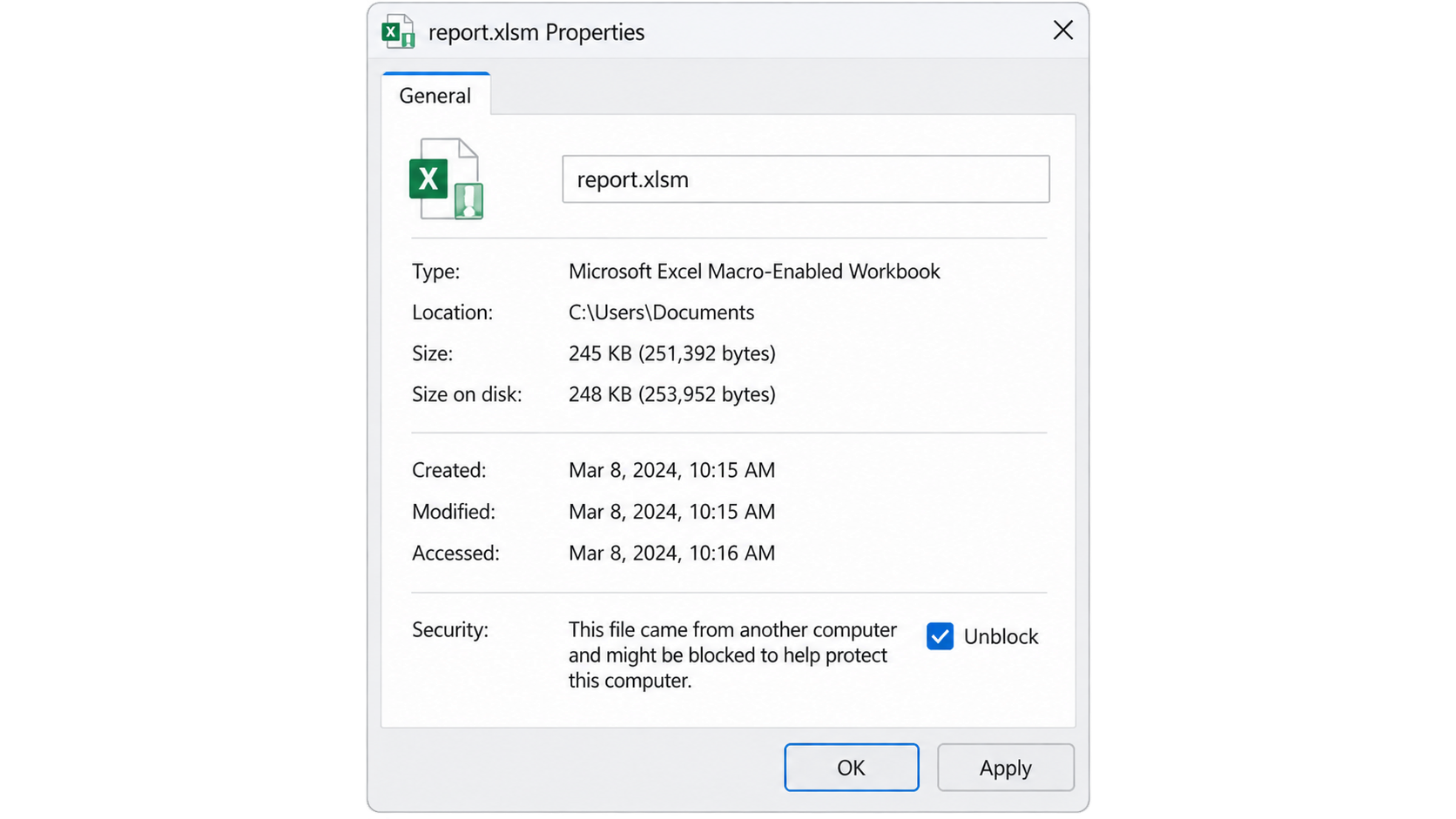
Select Properties and stay on the General tab.
At the bottom, select Unblock, then click Apply and OK.
Reopen the workbook and activate its macros only after confirming the source and purpose.
Use Unblock for an individual file you have already verified. For recurring company templates, an administrator can use a controlled Trusted Location or a trusted publisher. Avoid trusting a broad Downloads folder or an entire external site merely to remove prompts.
Unblock downloaded XLSM file properties
Fix Activate Macro Excel Problems That Still Remain
If a verified macro still does not run, work through these checks before weakening security:
Check the format: VBA cannot be stored in a normal .xlsx file. Use .xlsm for a macro-enabled workbook or .xlsb when the workbook intentionally uses the binary format.
Use desktop Excel: the browser version can open the workbook data but does not run VBA.
Show the Developer tab: go to File > Options > Customize Ribbon and select Developer.
Check the macro list: open Developer > Macros. If the expected macro is absent, it may be stored in another workbook, add-in, or PERSONAL.XLSB.
Review file protection: protected sheets or workbooks can prevent a macro from changing the intended cells.
Check external dependencies: missing add-ins, broken references, moved files, or a 32-bit/64-bit API mismatch can stop otherwise trusted VBA.
Respect policy: if Trust Center settings are locked, only your administrator can change the governing policy.
When diagnosing unfamiliar code, keep macros off and ask the workbook owner for a signed version, documentation, or an export that does not require VBA.
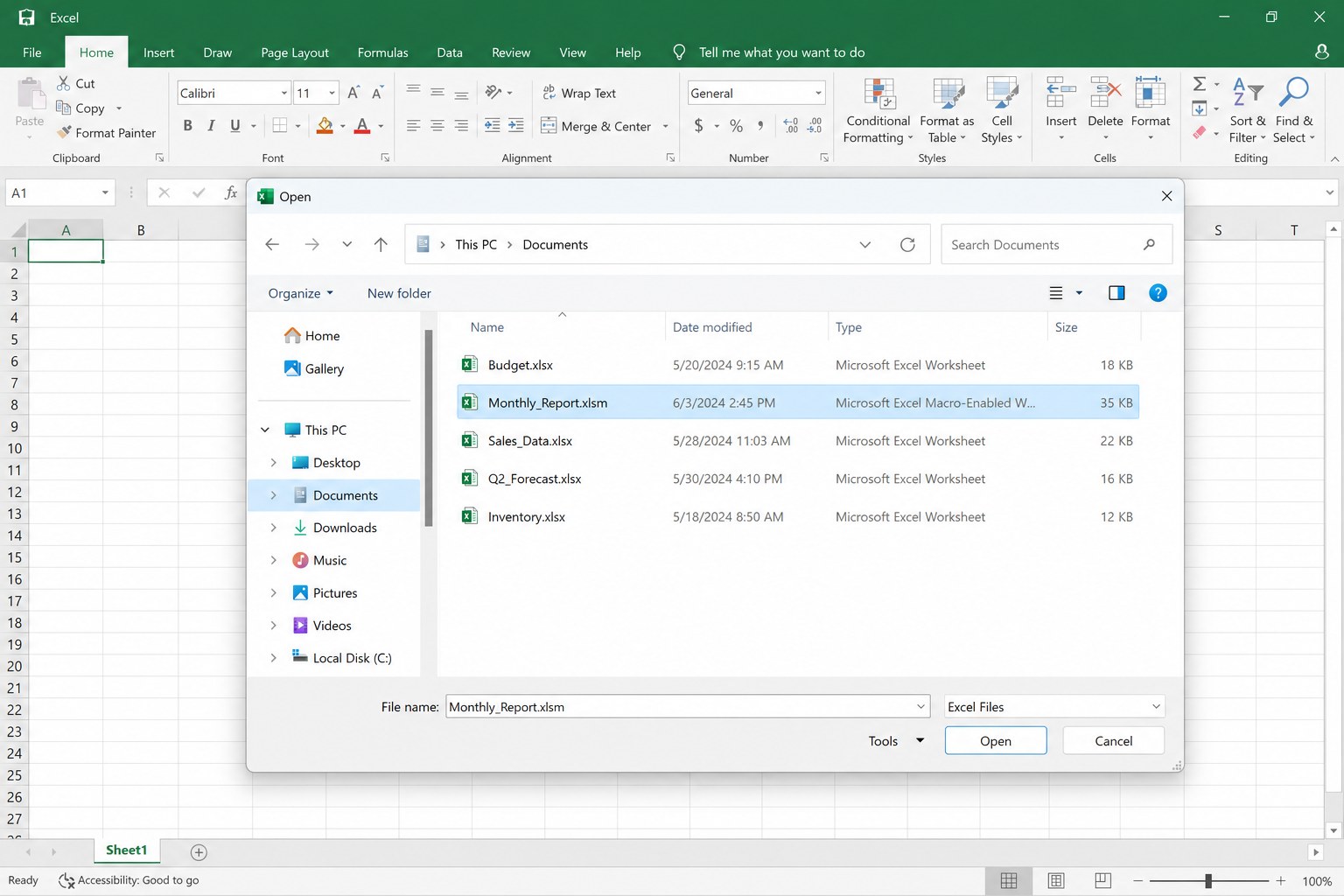
Open macro enabled workbook safely
A Free Spreadsheet Alternative: WPS Office
If you need to inspect or edit the data in a macro-enabled workbook without Microsoft Excel, WPS Spreadsheet can open common Excel-compatible formats, including XLSM. You can review cells, formulas, and layout locally before deciding whether any automation should run.
Macro execution is a separate compatibility question. VBA availability can depend on the WPS build and installed runtime, and complex Excel automation may not behave identically. Keep a backup, test on a copy, and use desktop Excel when a business-critical workflow depends on full VBA compatibility. For a related workflow, see how to open an XLSM file safely.
Open WPS Office and choose Spreadsheets.
Select Menu > Open and choose the macro-enabled workbook.
Review the sheets with macros disabled first.
If the automation is essential, confirm that your WPS installation supports the required VBA code and test it on a duplicate file.
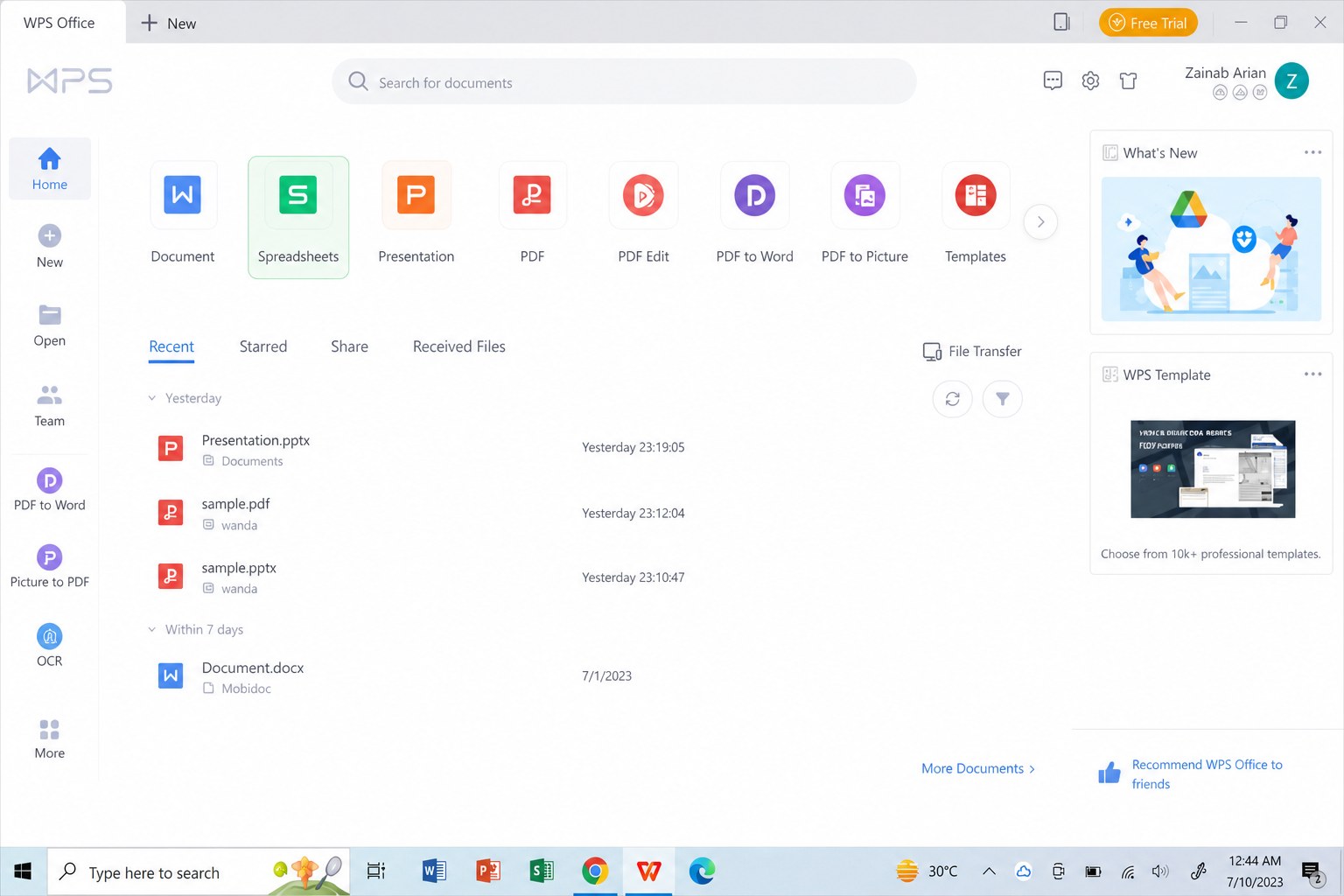
WPS Spreadsheet opens XLSM workbook
FAQs
Why is there no Enable Content button in Excel?
A red Security Risk banner usually means Windows marked the downloaded file as coming from the internet. Close Excel and use the file's Properties > Unblock option only after verifying the source. A company policy can also remove the button.
Should I choose Enable all macros in Excel?
No for normal use. That setting allows macro code in future workbooks to run with far less protection. Keep notification-based blocking and approve only a workbook you trust.
Which Excel file types can contain VBA macros?
Common macro-capable formats include XLSM and XLSB, plus macro-enabled templates such as XLTM. XLSX cannot retain VBA code.
Can I activate Excel macros on a Mac?
Excel for Mac can run supported VBA macros, but the Windows Properties > Unblock method does not apply. Use Excel's macro security preferences and enable only known code.
Can WPS Spreadsheet run every Excel macro?
No guarantee should be assumed. WPS can open XLSM data, but VBA support and compatibility vary by build, runtime, and code complexity. Test a copy before relying on it.


'%3e%3cpath%20d='M19.9911%204.11386V6.471H18.5894C18.0775%206.471%2017.7322%206.57814%2017.5536%206.79243C17.3751%207.00671%2017.2858%207.32814%2017.2858%207.75671V9.44421H19.9019L19.5536%2012.0871H17.2858V18.8639H14.5536V12.0871H12.2769V9.44421H14.5536V7.49779C14.5536%206.39064%2014.8632%205.53201%2015.4822%204.92189C16.1013%204.31177%2016.9257%204.00671%2017.9554%204.00671C18.8304%204.00671%2019.509%204.04243%2019.9911%204.11386Z'%20fill='%23333333'/%3e%3c/g%3e%3cdefs%3e%3cclipPath%20id='clip0_2938_8199'%3e%3crect%20width='16'%20height='16'%20fill='white'%20transform='translate(8%204.00671)'/%3e%3c/clipPath%3e%3c/defs%3e%3c/svg%3e)
'%3e%3cpath%20d='M17.5237%2010.7813L23.4811%204H22.0699L16.8949%209.88693L12.7648%204H8L14.2469%2012.9029L8%2020.0133H9.4112L14.8725%2013.7952L19.2352%2020.0133H24M9.92053%205.04213H12.0885L22.0688%2019.0224H19.9003'%20fill='%23333333'/%3e%3c/g%3e%3cdefs%3e%3cclipPath%20id='clip0_2938_8200'%3e%3crect%20width='16'%20height='16.0134'%20fill='white'%20transform='translate(8%204)'/%3e%3c/clipPath%3e%3c/defs%3e%3c/svg%3e)


