



'%3e%3cpath%20fill-rule='evenodd'%20clip-rule='evenodd'%20d='M21.4999%2010.9993C21.4999%205.20009%2016.7986%200.498901%2010.9993%200.498901C5.19994%200.498901%200.498657%205.20009%200.498657%2010.9993C0.498657%2016.2404%204.33858%2020.5844%209.35855%2021.3722V14.0346H6.69238V10.9993H9.35855V8.68594C9.35855%206.05427%2010.9262%204.60062%2013.3248%204.60062C14.4736%204.60062%2015.6753%204.80571%2015.6753%204.80571V7.38979H14.3512C13.0468%207.38979%2012.64%208.19921%2012.64%209.0296V10.9993H15.5523L15.0867%2014.0346H12.64V21.3722C17.66%2020.5844%2021.4999%2016.2404%2021.4999%2010.9993Z'%20fill='%231568EA'/%3e%3c/g%3e%3c/svg%3e)


'%3e%3cpath%20d='M2.42045%2022.1876H6.31818V12.7217L0.75%208.54553V20.5171C0.75%2021.4414%201.49892%2022.1876%202.42045%2022.1876Z'%20fill='%234285F4'/%3e%3cpath%20d='M19.682%2022.1876H23.5797C24.5041%2022.1876%2025.2502%2021.4387%2025.2502%2020.5171V8.54553L19.682%2012.7217'%20fill='%2334A853'/%3e%3cpath%20d='M19.682%205.48293V12.7216L25.2502%208.54543V6.31816C25.2502%204.25236%2022.8921%203.07469%2021.2411%204.31361'%20fill='%23FBBC04'/%3e%3cpath%20d='M6.31824%2012.7217V5.48303L13.0001%2010.4944L19.6819%205.48303V12.7217L13.0001%2017.733'%20fill='%23EA4335'/%3e%3cpath%20d='M0.75%206.31816V8.54543L6.31818%2012.7216V5.48293L4.75909%204.31361C3.10534%203.07469%200.75%204.25236%200.75%206.31816Z'%20fill='%23C5221F'/%3e%3c/g%3e%3cdefs%3e%3cclipPath%20id='clip0_2954_7305'%3e%3crect%20width='24.5'%20height='18.375'%20fill='white'%20transform='translate(0.75%203.8125)'/%3e%3c/clipPath%3e%3c/defs%3e%3c/svg%3e)


Select a picture, open Picture Format → Compress Pictures, clear Apply only to this picture, choose a suitable resolution, and save the document as a new copy. Use Delete cropped areas of pictures only when you no longer need the hidden parts of cropped images. A Word file is often large because it contains high-resolution pictures, retained crop data, picture-editing history, or embedded fonts. Start with picture compression, save a separate copy, and check the result before replacing the original document.
Key Takeaways
- Select a picture → Picture Format → Compress Pictures.
- Clear Apply only to this picture to compress every image in the document.
- Use Delete cropped areas of pictures only after you save a backup.
- Save a separate compressed .docx and verify readability before replacing the original.
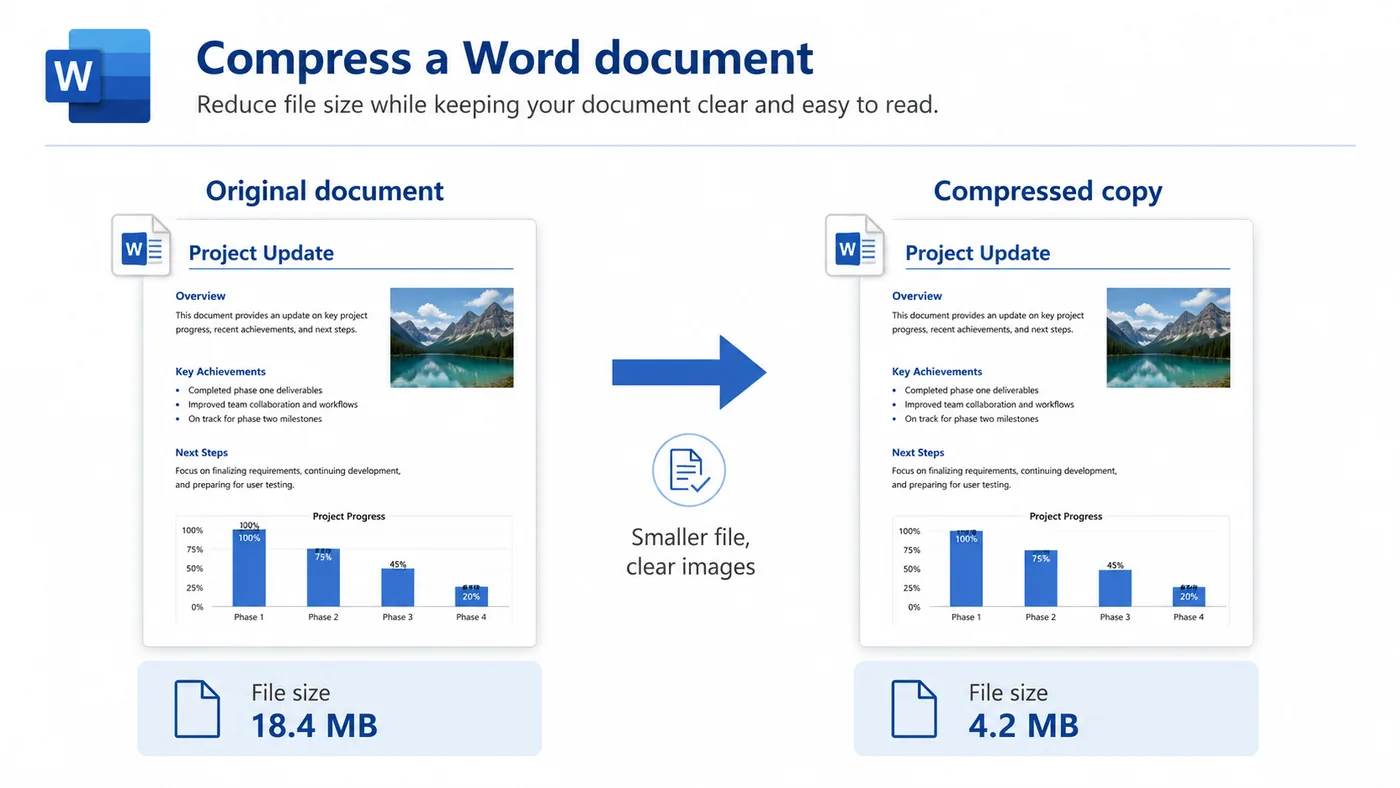
Why Is Your Word Document So Large?
Before changing several settings, identify the most likely source of the extra data. Start with the least destructive option and compare the compressed copy with the original.
| What you notice | Likely cause | Best first action |
|---|---|---|
| The document contains many photos or screenshots. | The images use more resolution than the document needs. | Compress all pictures. |
| Several pictures have been cropped. | Word may still store the hidden cropped areas. | Delete cropped picture data after saving a backup. |
| Pictures have been edited many times. | Word may retain editing data so changes can be reversed. | Discard picture-editing data. |
| The file uses custom fonts. | The fonts may be embedded in the DOCX. | Remove or limit font embedding. |
How to Compress All Pictures in a Word Document
Picture compression is usually the most effective method for image-heavy reports, assignments, manuals, and proposals.
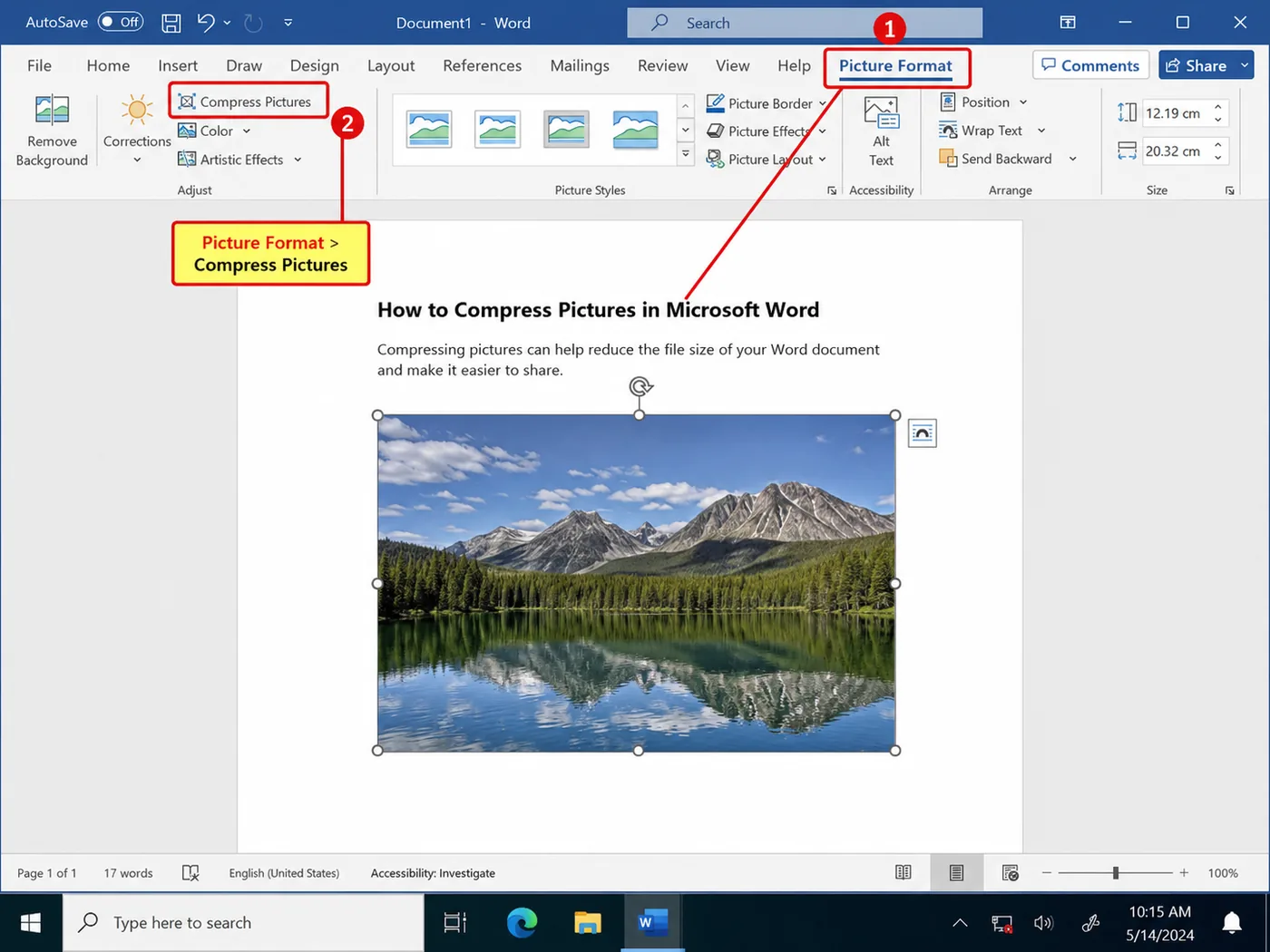
- Select a picture: Click a photo, screenshot, scanned page, or other image. Word displays the contextual Picture Format tab only when a picture is selected. If the tab does not appear, double-click the image and make sure you selected the image itself rather than a surrounding text box or shape.
- Open Compress Pictures: On Picture Format, find the Adjust group and select Compress Pictures. On a narrow window, Word may show only the icon rather than the full command label.
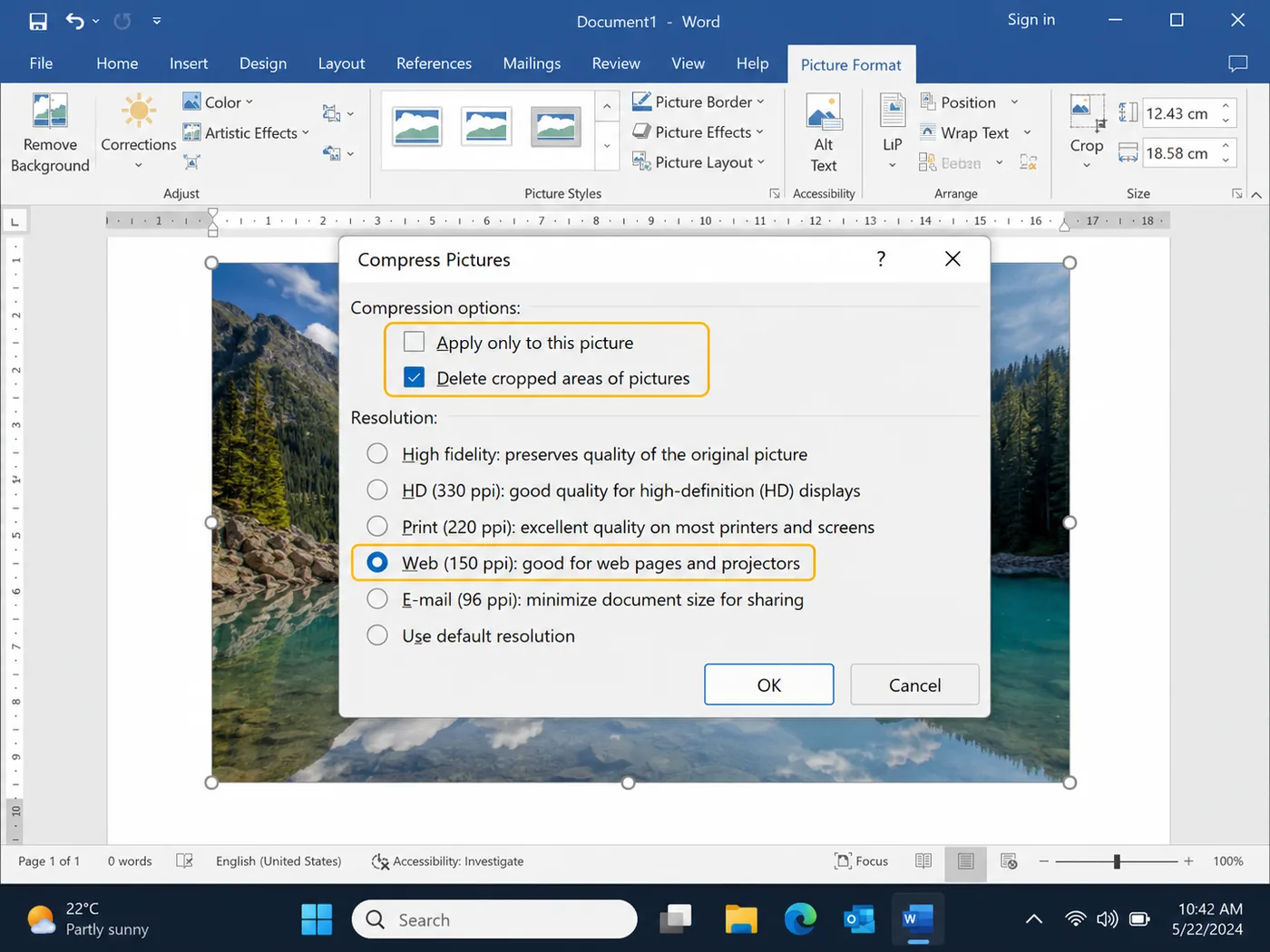
- Apply the settings to every picture: Clear Apply only to this picture. If this option remains selected, Word changes only the current image and the total file size may barely change.
- Decide whether to delete cropped areas: Select Delete cropped areas of pictures only when you are certain the hidden parts will not be restored. Word normally keeps cropped pixels inside the file, so deleting them can reduce size. Important: Cropped image areas cannot be recovered from the compressed copy after they are deleted. Keep the original DOCX as a backup.
- Choose a suitable resolution: For email, online submission, and normal screen reading, a lower resolution usually provides a useful reduction. Keep a higher resolution for professional printing, detailed diagrams, or screenshots that readers need to zoom into.
- Save a new copy and check the result: Use File → Save As and give the new file a clear name, such as report-compressed.docx. Close and reopen the copy, compare its size with the original, and inspect pictures, captions, wrapping, and page breaks. The task is complete when: the DOCX is smaller, opens normally, remains editable, and is clear enough for its final use.
If the Word File Is Still Too Large
Use these settings only when compressing every picture did not reduce the file enough. Each option removes a different type of stored data.
Lower the default picture resolution
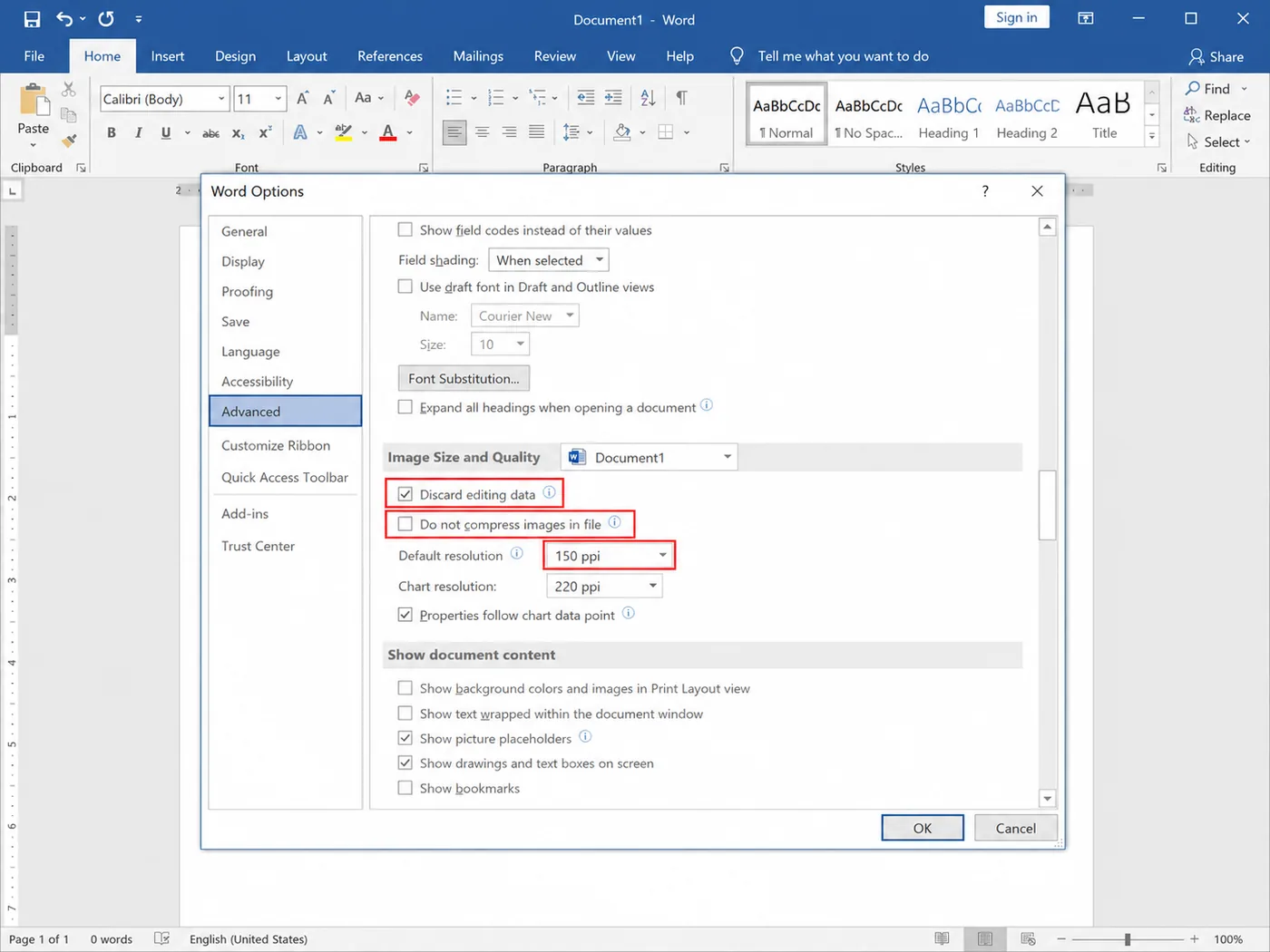
Go to File → Options → Advanced. Under Image Size and Quality, select the current document, make sure Do not compress images in file is not selected, and choose a lower default resolution. A setting around 150 ppi can work well for screen reading and online sharing, while print documents may require more detail.
Discard picture-editing data
In the same section, select Discard editing data. This removes information Word stores so edited pictures can be restored to their earlier state. Save a backup first because you may need to reinsert the original image to undo earlier edits.
Remove or limit embedded fonts
Go to File → Options → Save. Under Preserve fidelity when sharing this document, clear Embed fonts in the file when identical custom typography is not essential. When fonts must remain embedded, limit the embedded characters and avoid embedding common system fonts.
Which Compression Setting Should You Choose?
| Final use | Recommended approach |
|---|---|
| Email attachment | Use a lower resolution and compress every picture. |
| Online assignment or shared report | Balance readability and size; inspect screenshots and charts carefully. |
| Normal screen viewing | High print resolution is usually unnecessary. |
| Professional printing | Keep a higher resolution and accept a larger file. |
| Archive or future editing | Keep the original document and a separate compressed copy. |
Common Problems
Picture Format or Compress Pictures is missing
Select or double-click a picture first. Picture Format is a contextual tab and does not appear while the cursor is only in the document text. Picture compression is also a desktop Word feature and may not be available in Word for the web.
The file size barely changed
Confirm that Apply only to this picture was cleared. If the pictures were already compressed, the remaining size may come from embedded fonts, retained editing data, or other objects.
The pictures became blurry
Return to the original document and repeat the process with a higher resolution. Check screenshots, charts, and small labels at the size readers will actually use.
Check the Compressed DOCX Before You Send It
- The file size is smaller.
- Important pictures and labels are still readable.
- Text wrapping and page breaks have not changed unexpectedly.
- The document opens, saves, and remains editable.
- Custom fonts display correctly.
- The original file has been kept as a backup.
FAQs About Compressing Word Documents
Does compressing a Word document reduce image quality?
It can. Lower resolutions remove image detail to create a smaller file. Save a separate copy and inspect screenshots, diagrams, and photographs before replacing the original.
Can I compress every picture at once?
Yes. Open Compress Pictures and clear Apply only to this picture. Word will apply the selected settings to all pictures in the document.
Should I delete cropped areas of pictures?
Select the option only when the hidden portions are no longer needed. The deleted areas cannot be restored from the compressed copy.
Can I use these picture-compression controls in Word for the web?
The full picture-compression controls described here are intended for desktop Word. Open the document in the desktop app when the command is unavailable online.



'%3e%3cpath%20d='M19.9911%204.11386V6.471H18.5894C18.0775%206.471%2017.7322%206.57814%2017.5536%206.79243C17.3751%207.00671%2017.2858%207.32814%2017.2858%207.75671V9.44421H19.9019L19.5536%2012.0871H17.2858V18.8639H14.5536V12.0871H12.2769V9.44421H14.5536V7.49779C14.5536%206.39064%2014.8632%205.53201%2015.4822%204.92189C16.1013%204.31177%2016.9257%204.00671%2017.9554%204.00671C18.8304%204.00671%2019.509%204.04243%2019.9911%204.11386Z'%20fill='%23333333'/%3e%3c/g%3e%3cdefs%3e%3cclipPath%20id='clip0_2938_8199'%3e%3crect%20width='16'%20height='16'%20fill='white'%20transform='translate(8%204.00671)'/%3e%3c/clipPath%3e%3c/defs%3e%3c/svg%3e)
'%3e%3cpath%20d='M17.5237%2010.7813L23.4811%204H22.0699L16.8949%209.88693L12.7648%204H8L14.2469%2012.9029L8%2020.0133H9.4112L14.8725%2013.7952L19.2352%2020.0133H24M9.92053%205.04213H12.0885L22.0688%2019.0224H19.9003'%20fill='%23333333'/%3e%3c/g%3e%3cdefs%3e%3cclipPath%20id='clip0_2938_8200'%3e%3crect%20width='16'%20height='16.0134'%20fill='white'%20transform='translate(8%204)'/%3e%3c/clipPath%3e%3c/defs%3e%3c/svg%3e)


