

'%3e%3cpath%20d='M8%200C12.4183%200%2016%203.58172%2016%208C16%2012.4183%2012.4183%2016%208%2016C3.58172%2016%200%2012.4183%200%208C0%203.58172%203.58172%200%208%200ZM11.6162%204.38379C11.2257%203.99337%2010.5927%203.99338%2010.2021%204.38379L8%206.58594L5.79785%204.38379C5.40732%203.99334%204.77429%203.99329%204.38379%204.38379C3.99331%204.77429%203.99335%205.40733%204.38379%205.79785L6.58594%208L4.38379%2010.2021C3.99348%2010.5927%203.99341%2011.2257%204.38379%2011.6162C4.77426%2012.0066%205.40734%2012.0065%205.79785%2011.6162L8%209.41406L10.2021%2011.6162C10.5927%2012.0066%2011.2257%2012.0067%2011.6162%2011.6162C12.0067%2011.2257%2012.0066%2010.5927%2011.6162%2010.2021L9.41406%208L11.6162%205.79785C12.0066%205.40735%2012.0066%204.77429%2011.6162%204.38379Z'%20fill='%23080E17'%20fill-opacity='0.46'/%3e%3c/g%3e%3cdefs%3e%3cclipPath%20id='clip0_3761_713'%3e%3crect%20width='16'%20height='16'%20fill='white'/%3e%3c/clipPath%3e%3c/defs%3e%3c/svg%3e)



'%3e%3cpath%20fill-rule='evenodd'%20clip-rule='evenodd'%20d='M21.4999%2010.9993C21.4999%205.20009%2016.7986%200.498901%2010.9993%200.498901C5.19994%200.498901%200.498657%205.20009%200.498657%2010.9993C0.498657%2016.2404%204.33858%2020.5844%209.35855%2021.3722V14.0346H6.69238V10.9993H9.35855V8.68594C9.35855%206.05427%2010.9262%204.60062%2013.3248%204.60062C14.4736%204.60062%2015.6753%204.80571%2015.6753%204.80571V7.38979H14.3512C13.0468%207.38979%2012.64%208.19921%2012.64%209.0296V10.9993H15.5523L15.0867%2014.0346H12.64V21.3722C17.66%2020.5844%2021.4999%2016.2404%2021.4999%2010.9993Z'%20fill='%231568EA'/%3e%3c/g%3e%3c/svg%3e)


'%3e%3cpath%20d='M2.42045%2022.1876H6.31818V12.7217L0.75%208.54553V20.5171C0.75%2021.4414%201.49892%2022.1876%202.42045%2022.1876Z'%20fill='%234285F4'/%3e%3cpath%20d='M19.682%2022.1876H23.5797C24.5041%2022.1876%2025.2502%2021.4387%2025.2502%2020.5171V8.54553L19.682%2012.7217'%20fill='%2334A853'/%3e%3cpath%20d='M19.682%205.48293V12.7216L25.2502%208.54543V6.31816C25.2502%204.25236%2022.8921%203.07469%2021.2411%204.31361'%20fill='%23FBBC04'/%3e%3cpath%20d='M6.31824%2012.7217V5.48303L13.0001%2010.4944L19.6819%205.48303V12.7217L13.0001%2017.733'%20fill='%23EA4335'/%3e%3cpath%20d='M0.75%206.31816V8.54543L6.31818%2012.7216V5.48293L4.75909%204.31361C3.10534%203.07469%200.75%204.25236%200.75%206.31816Z'%20fill='%23C5221F'/%3e%3c/g%3e%3cdefs%3e%3cclipPath%20id='clip0_2954_7305'%3e%3crect%20width='24.5'%20height='18.375'%20fill='white'%20transform='translate(0.75%203.8125)'/%3e%3c/clipPath%3e%3c/defs%3e%3c/svg%3e)


You snapped a killer photo from your road trip or Etsy shop, but it’s kinda messy or won’t fit Instagram or YouTube? Cropping in Photoshop seems chill, but getting that perfect 1:1 or 16:9 can be a total headache. Most people just hack off the sides, totally sleeping on Photoshop’s dope preset ratios. This guide’s got you with dead-simple steps to crop like a pro, plus a free AI tool to whip those edits out quick.


Part 1. How to Crop in Photoshop Using the Crop Tool
Cropping’s like a quick photo glow-up, trim the mess, and your subject shines. Photoshop’s Crop Tool is your bestie for tidying family pics or prepping product shots. It’s easy once you know the trick, and here’s a chill guide to keep your images sharp, straight from my late-night editing sessions.
Step 1: Jump into the Crop Tool

Launch Photoshop and pull up your photo (just go to File > Open). Check out the toolbar on the left and find the Crop Tool, it’s the one that looks like a little square frame. Wanna move fast? Hit the C key. Poof! A border with grabby handles pops up, along with a slick rule-of-thirds grid to give your pic that pro-level vibe.
Step 2: Snip the Extra Bits
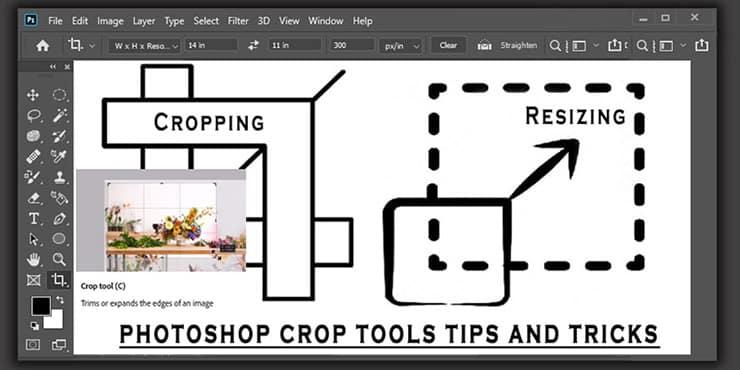
Tug on those handles to trim away anything messing with your photo’s flow. Mess around a bit until it feels just right, crisp, clean, and 100% your style.
Drag the handles to cut out stuff like extra sky or that random photobomber. Hold Shift to keep proportions tight, and slide the image around to center your subject. Crooked horizon? Use the Straighten tool in the top bar to fix it with a quick line.
Step 3: Lock It In

When it looks dope, hit Enter or the checkmark to crop. Uncheck Delete Cropped Pixels in the top bar to keep your options open. Mess up? Hit Esc to restart. Save as PSD for flexibility, or use JPEG/PNG to share with your team.
This basic crop is perfect for quick touch-ups, such as making a portrait feel more intimate or cutting out distractions from a party snapshot. The C key shortcut's a total bro when you've got a ton of photos to whip through, it’s like Photoshop’s giving you a fist bump to keep you rolling.
Part 2. How to Crop Images to a Specific Aspect Ratio
Cropping isn’t just about tweaking your photo’s size; it’s about nailing the mood, whether you’re squaring up for Instagram or going wide with 16:9 for YouTube. Getting the right dimensions in Photoshop is key for making your pics pop, whether you’re sharing online or printing for real life. So, here’s a quick, no-sweat guide to crop like a pro and get your images just right.
Step 1: Pick Your Vibe with the Right Ratio
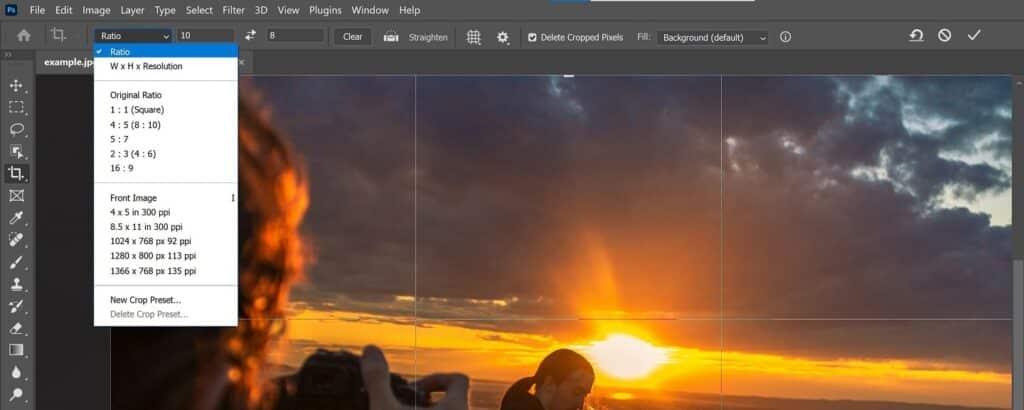
Open your photo in Photoshop and hit the C key to fire up the Crop Tool. Up top, you’ll see a little Aspect Ratio menu. Pick a go-to like 1:1 for that perfect Instagram square or 16:9 for a cinematic YouTube feel. Wanna go custom? Type in something like 1920x1080. If you’re freestyling, hit Clear to ditch any preset. Oh, and that little chain icon? It locks your ratio so you don’t mess up the proportions.
Step 2: Frame It Right
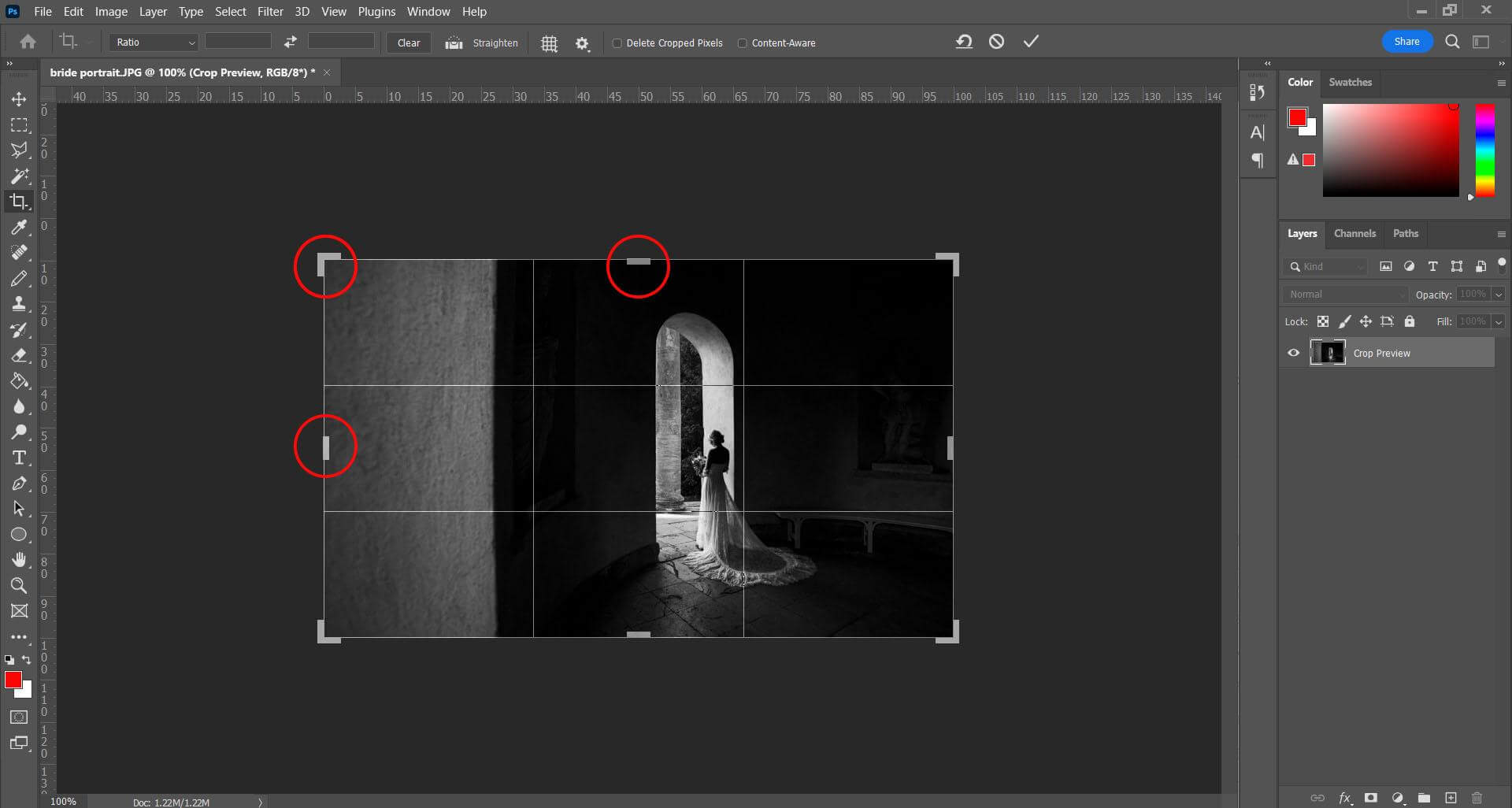
Drag the corner handles to shape the crop; it adheres to your ratio, making it stress-free. Hold Shift for an even crop, slide the image to center your subject, and toggle the Grid or Golden Spiral overlay for a pro touch.
Step 3: Make It Stick

When it looks fantastic, hit Enter or the checkmark to crop. Tap V for the Move Tool if you need a quick tweak. Save as PSD for flexibility or JPEG/PNG for fast sharing. This nails images that need to fit just right.
This trick’s a lifesaver for anything with strict size needs, like social media posts or pro prints. It’s a bit more structured than free cropping, but that’s what makes it so clutch; you’ll never have to deal with resizing a weirdly proportioned image again.
Part 3. Best Alternative to Photoshop: WPS Photo

Sure, Photoshop is brilliant; however, in some instances, it is more than necessary, and the subscription fee is really a hindrance. WPS Photo, an AI-powered tool that comes free of charge with the WPS Office suite and is adored by 500 million users, with a 4.8 Trustpilot rating, is a significant addition to the Adobe family. It is small in size, available on all platforms, very easy to sync, and ad-free. You can crop the images just like telling a clever buddy to make it quick and fun.
WPS Photo is like your friend who is always laid back but has a shortcut at hand. It is swift, simple, and full of AI features that transform your image rights from cropping, enhancing, or erasing unwanted content to a shining step of the wizard. When creating an Instagram post or restoring an old family photo, it will surely give you professional vibes without the need for Photoshop's complex menus.
Unique Advantages
Functions/Features
WPS Photo's Crop by Scale offers presets like 1:1 for Instagram or 16:9 for videos, ensuring your images are ready for any platform. Crop by Shape lets you get playful with circles, ovals, or stars for edits that stand out. The AI Upscaler keeps cropped images sharp for bigger outputs, and one-tap enhancements fix colors and clarity in a snap. Grab it for free at wps.com and see why it's such a fan favorite.
How to Crop in WPS Photo
Step 1: Load Your Pic

Open WPS Office and navigate to the Photos tab, or search for "WPS Photo" in the suite. Click Open or drag your image file in; it loads faster than you can make a sandwich, even on a budget laptop, so you’re ready to edit in a heartbeat.
Step 2: Pick Your Crop Vibe

Find the Crop tool (scissors or frame icon) in the left toolbar. Crop images to standard sizes, such as 1:1 or 16:9, or get creative with shapes like circles or hearts. The AI suggests smart boundaries, making it easy to position your photo perfectly.
Step 3: Wrap It Up and Shine

Just grab those handles and slide 'em around, watch your photo shift right there in the preview till it feels spot-on. Love it? Smack Apply and call it done. If it needs a quick pop, hit the AI Enhancer to amp up the colors or make everything super sharp. Boom, save as PNG or JPG, and you're good to share your killer shot!
WPS Photo: My No-Fuss Editing Pal
WPS Photo is that dead-simple editor that's perfect when you just wanna crop and bounce. It won't touch Photoshop for wild layering stuff, but man, for speedy, slick fixes? It's unbeatable, and totally free. I've grabbed it a ton for last-minute event pics when firing up Photoshop felt like a chore, and it always saves the day.
FAQs
1. WPS Photo has a cropping feature that allows the user to select sizes such as 16:9 or 1:1. ?
Surely, the WPS Photo Crop by Scale feature provides predefined options, such as Instagram's 1:1 or the other 16:9 widescreen, thus ensuring your images fit perfectly the way they were meant to.
2. WPS Photo is only allowed to use rectangular formats for cropping; are different shapes allowed?
Not at all, cropping is not restricted to only rectangles. The Crop by Shape option allows you to transform your photos into circles, ovals, or even stars for creative and eye-catching edits.
3. Will cropping adversely affect my photo's quality?
The number of pixels is reduced during cropping, but the sharpness of the area left is maintained. If you need a boost for prints, then WPS Photo's AI Upscaler is there to help you out.
4. What is the shortcut for cropping in Photoshop?
Hit C for the Crop Tool and then press Enter for confirmation. This quick and simple move converts editing into a fun and effortless activity.
5. Can WPS Photo work with Photoshop files?
It's totally seamless, opening PSDs for cropping and exporting without any drama, so you can switch between tools like it's no big deal.

'%3e%3cpath%20d='M19.9911%204.11386V6.471H18.5894C18.0775%206.471%2017.7322%206.57814%2017.5536%206.79243C17.3751%207.00671%2017.2858%207.32814%2017.2858%207.75671V9.44421H19.9019L19.5536%2012.0871H17.2858V18.8639H14.5536V12.0871H12.2769V9.44421H14.5536V7.49779C14.5536%206.39064%2014.8632%205.53201%2015.4822%204.92189C16.1013%204.31177%2016.9257%204.00671%2017.9554%204.00671C18.8304%204.00671%2019.509%204.04243%2019.9911%204.11386Z'%20fill='%23333333'/%3e%3c/g%3e%3cdefs%3e%3cclipPath%20id='clip0_2938_8199'%3e%3crect%20width='16'%20height='16'%20fill='white'%20transform='translate(8%204.00671)'/%3e%3c/clipPath%3e%3c/defs%3e%3c/svg%3e)
'%3e%3cpath%20d='M17.5237%2010.7813L23.4811%204H22.0699L16.8949%209.88693L12.7648%204H8L14.2469%2012.9029L8%2020.0133H9.4112L14.8725%2013.7952L19.2352%2020.0133H24M9.92053%205.04213H12.0885L22.0688%2019.0224H19.9003'%20fill='%23333333'/%3e%3c/g%3e%3cdefs%3e%3cclipPath%20id='clip0_2938_8200'%3e%3crect%20width='16'%20height='16.0134'%20fill='white'%20transform='translate(8%204)'/%3e%3c/clipPath%3e%3c/defs%3e%3c/svg%3e)


