



'%3e%3cpath%20fill-rule='evenodd'%20clip-rule='evenodd'%20d='M21.4999%2010.9993C21.4999%205.20009%2016.7986%200.498901%2010.9993%200.498901C5.19994%200.498901%200.498657%205.20009%200.498657%2010.9993C0.498657%2016.2404%204.33858%2020.5844%209.35855%2021.3722V14.0346H6.69238V10.9993H9.35855V8.68594C9.35855%206.05427%2010.9262%204.60062%2013.3248%204.60062C14.4736%204.60062%2015.6753%204.80571%2015.6753%204.80571V7.38979H14.3512C13.0468%207.38979%2012.64%208.19921%2012.64%209.0296V10.9993H15.5523L15.0867%2014.0346H12.64V21.3722C17.66%2020.5844%2021.4999%2016.2404%2021.4999%2010.9993Z'%20fill='%231568EA'/%3e%3c/g%3e%3c/svg%3e)


'%3e%3cpath%20d='M2.42045%2022.1876H6.31818V12.7217L0.75%208.54553V20.5171C0.75%2021.4414%201.49892%2022.1876%202.42045%2022.1876Z'%20fill='%234285F4'/%3e%3cpath%20d='M19.682%2022.1876H23.5797C24.5041%2022.1876%2025.2502%2021.4387%2025.2502%2020.5171V8.54553L19.682%2012.7217'%20fill='%2334A853'/%3e%3cpath%20d='M19.682%205.48293V12.7216L25.2502%208.54543V6.31816C25.2502%204.25236%2022.8921%203.07469%2021.2411%204.31361'%20fill='%23FBBC04'/%3e%3cpath%20d='M6.31824%2012.7217V5.48303L13.0001%2010.4944L19.6819%205.48303V12.7217L13.0001%2017.733'%20fill='%23EA4335'/%3e%3cpath%20d='M0.75%206.31816V8.54543L6.31818%2012.7216V5.48293L4.75909%204.31361C3.10534%203.07469%200.75%204.25236%200.75%206.31816Z'%20fill='%23C5221F'/%3e%3c/g%3e%3cdefs%3e%3cclipPath%20id='clip0_2954_7305'%3e%3crect%20width='24.5'%20height='18.375'%20fill='white'%20transform='translate(0.75%203.8125)'/%3e%3c/clipPath%3e%3c/defs%3e%3c/svg%3e)


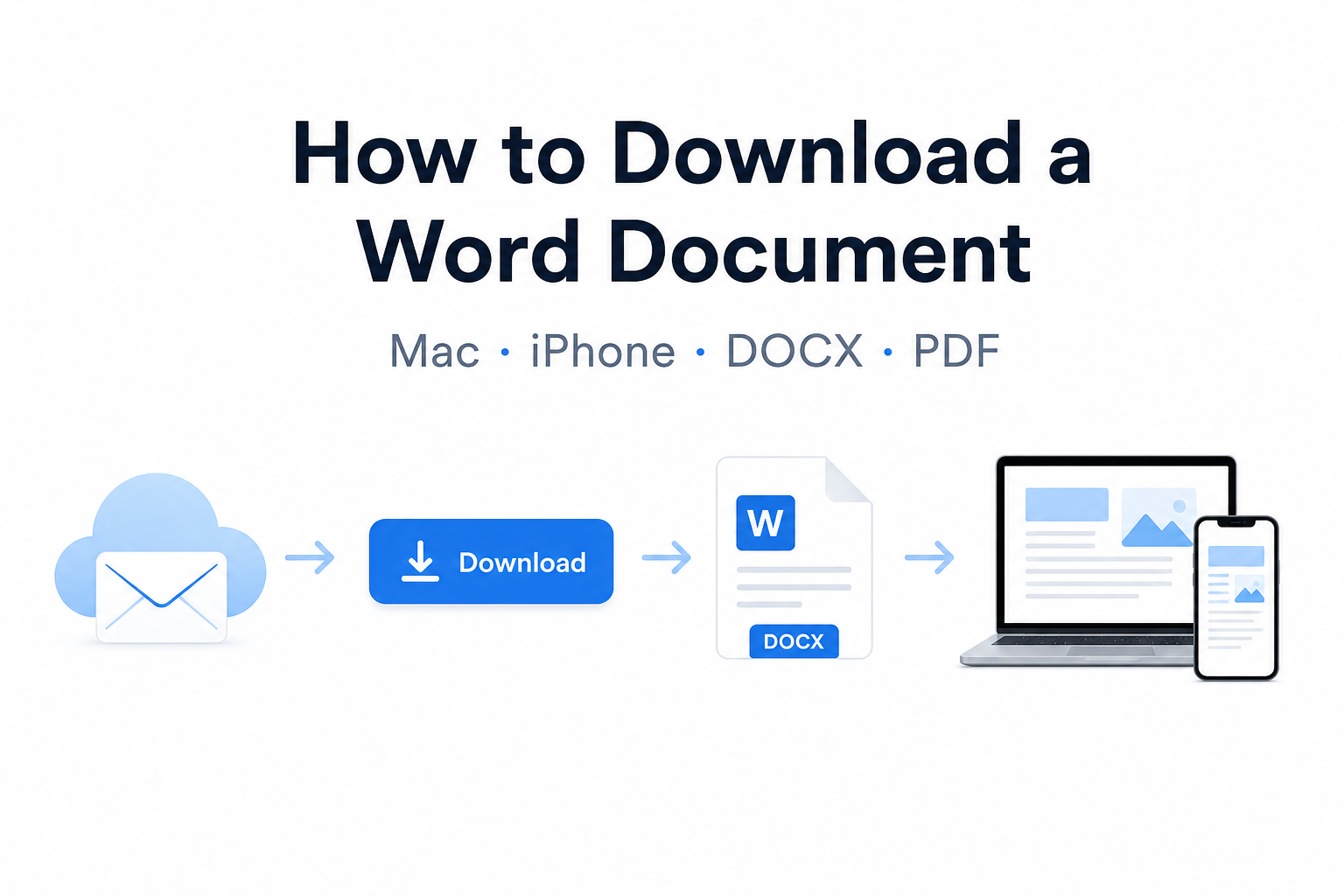
Quick answer: Open the file → click Download / Save As / Download a copy → check Downloads (or Files on iPhone) → open it in Microsoft Word or a free app such as WPS Writer.
How to Download a Word Document in Microsoft Word
Finish editing your content in Microsoft Word.
Click File in the top-left corner.
Choose Save As or Download a copy (Word on the web).
Pick a local folder and save as .docx.
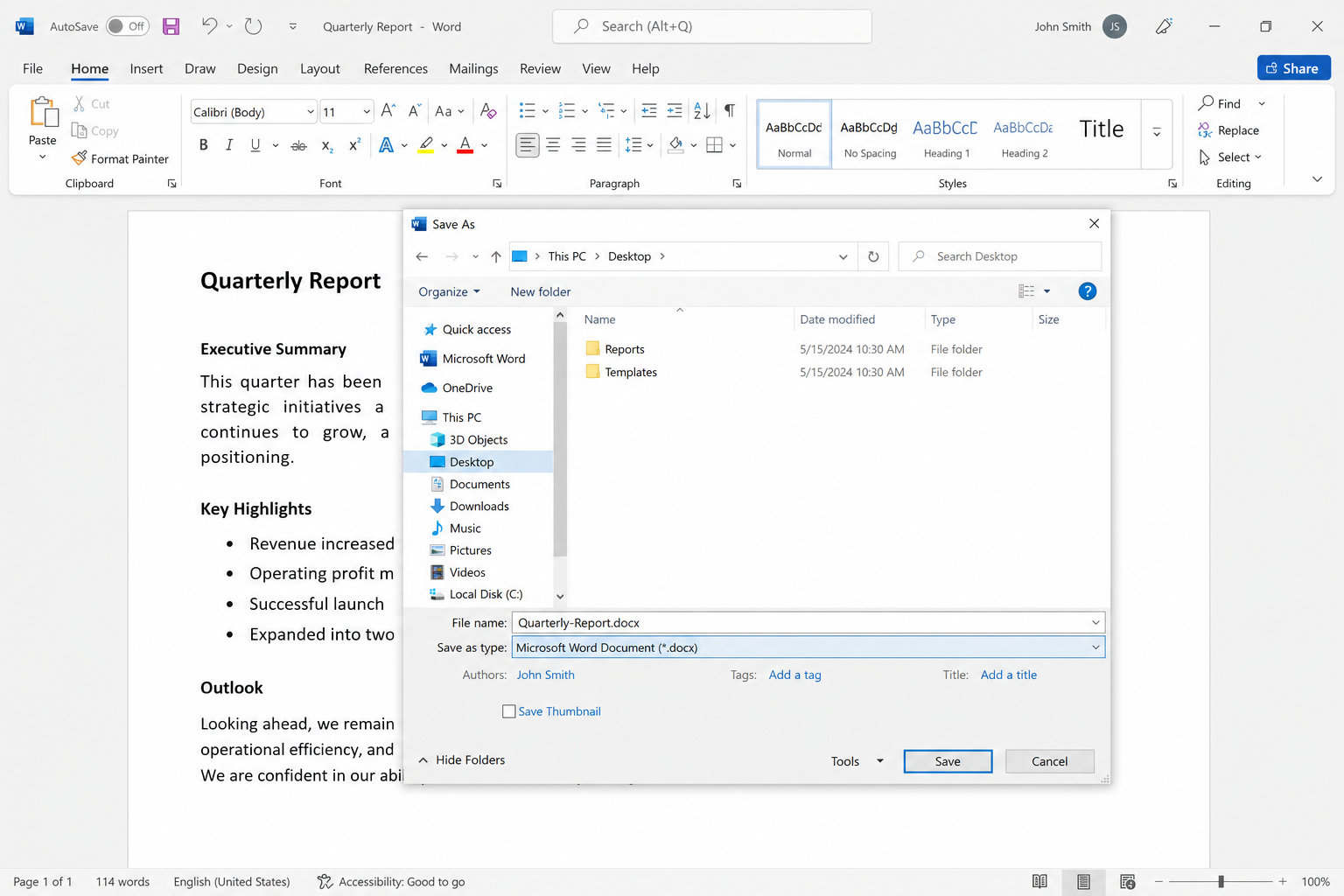
How to Download a Word Document as a DOCX
Open the document in Microsoft Word, Google Docs, or WPS Writer.
Go to File → Save As or Export.
Choose .docx as the file format.
Select a local folder and finish saving.
In Google Docs, use File → Download → Microsoft Word (.docx).
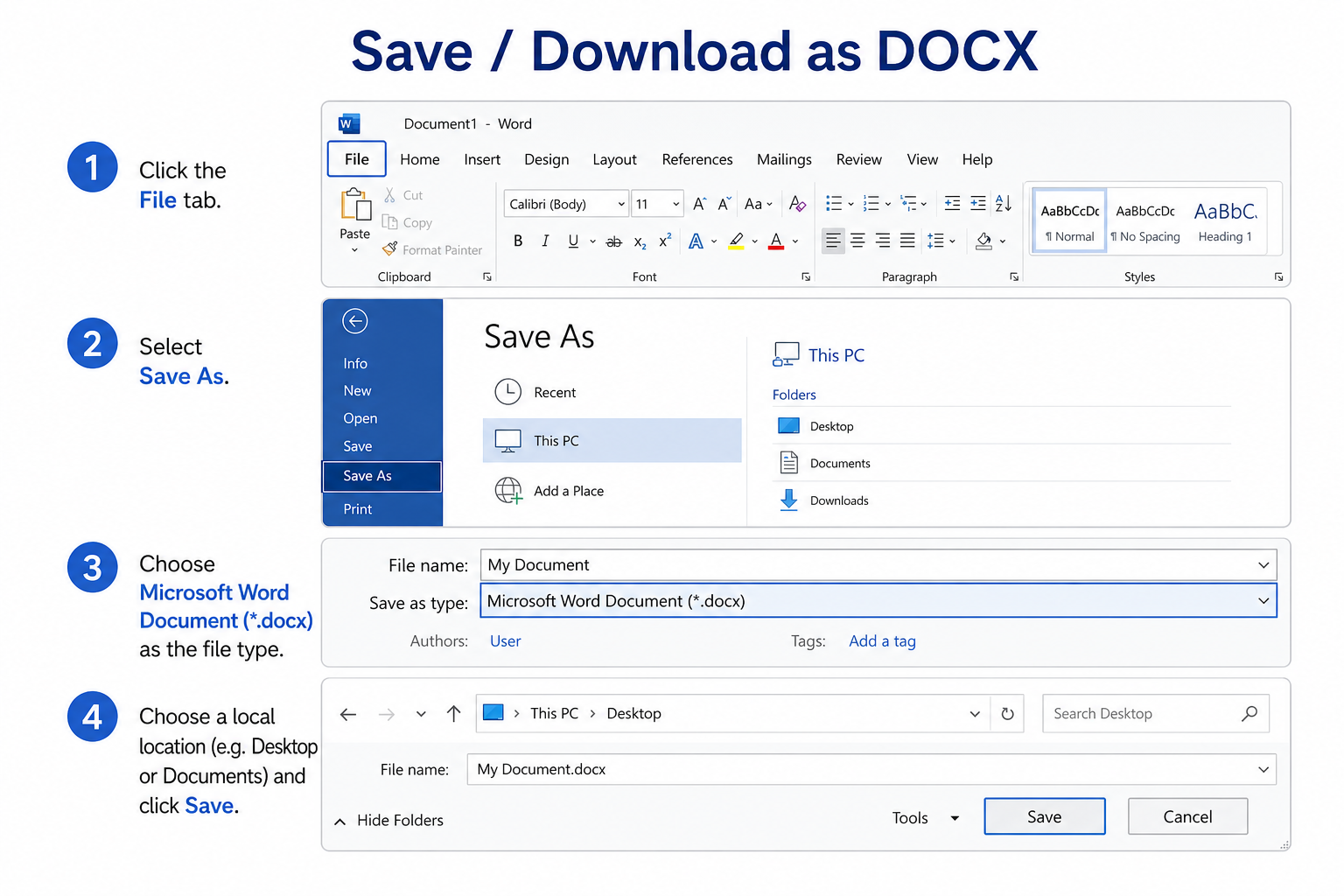
How to Download a Word Document as a PDF
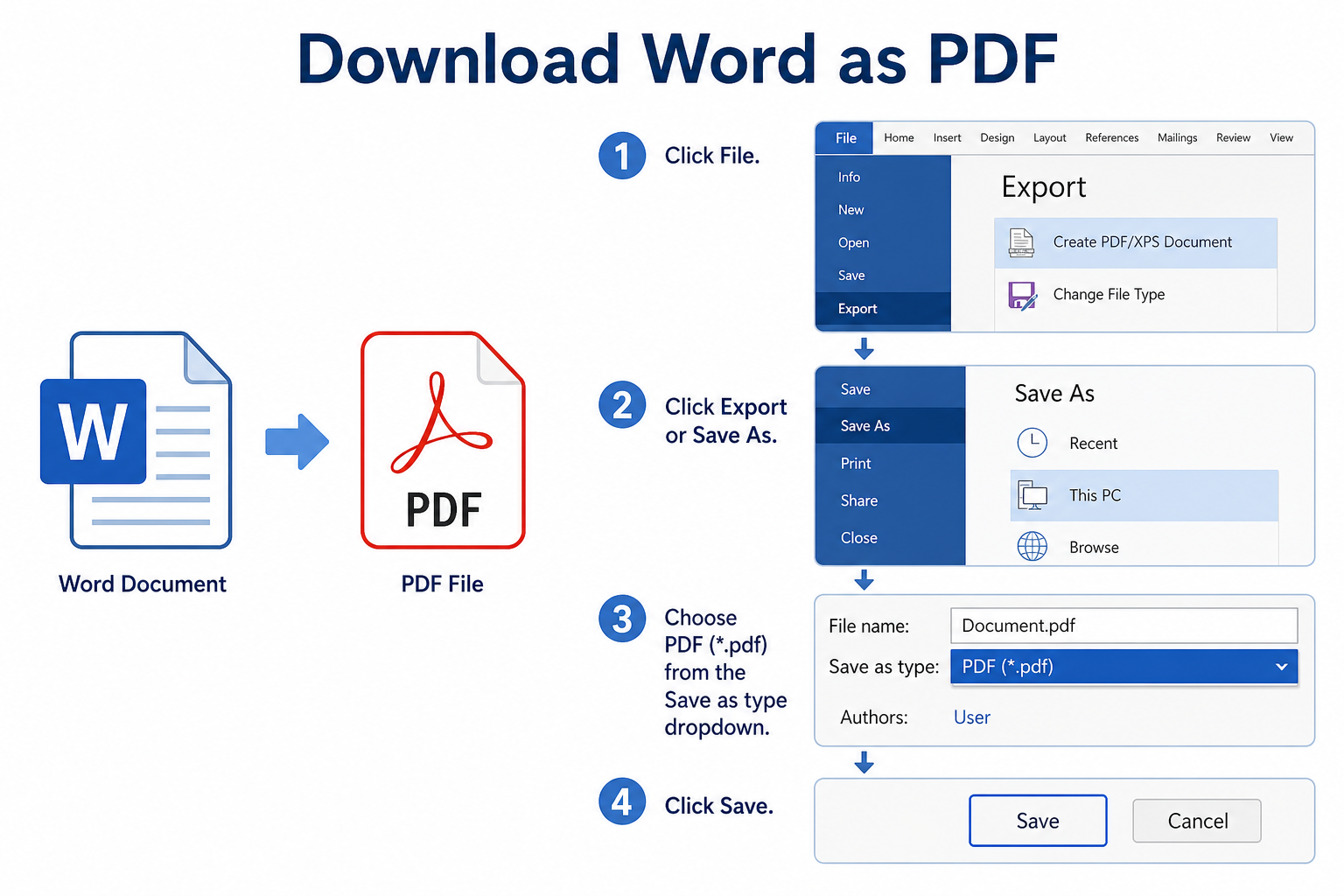
Open the Word file in Microsoft Word or WPS Writer.
Go to File → Export or Save As.
Change the format to PDF (*.pdf).
Choose a folder and save the PDF locally.
How to Download a Word Document as a PDF on Mac
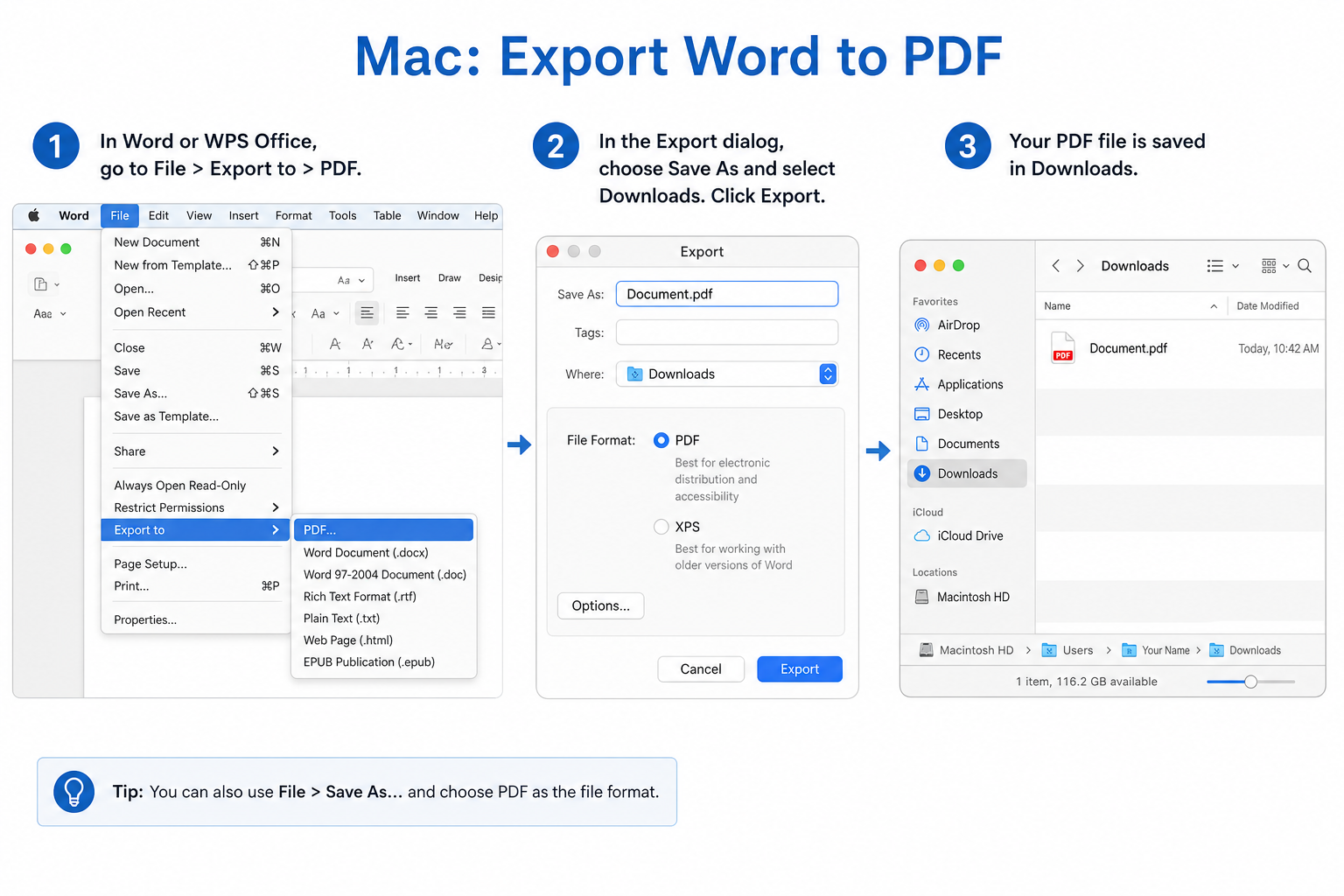
Open the Word file in Microsoft Word or WPS on Mac.
Click File → Export to PDF (or Save As → PDF).
Adjust export settings if needed.
Confirm the folder and save the PDF.
How to Download a Word Document from Apps
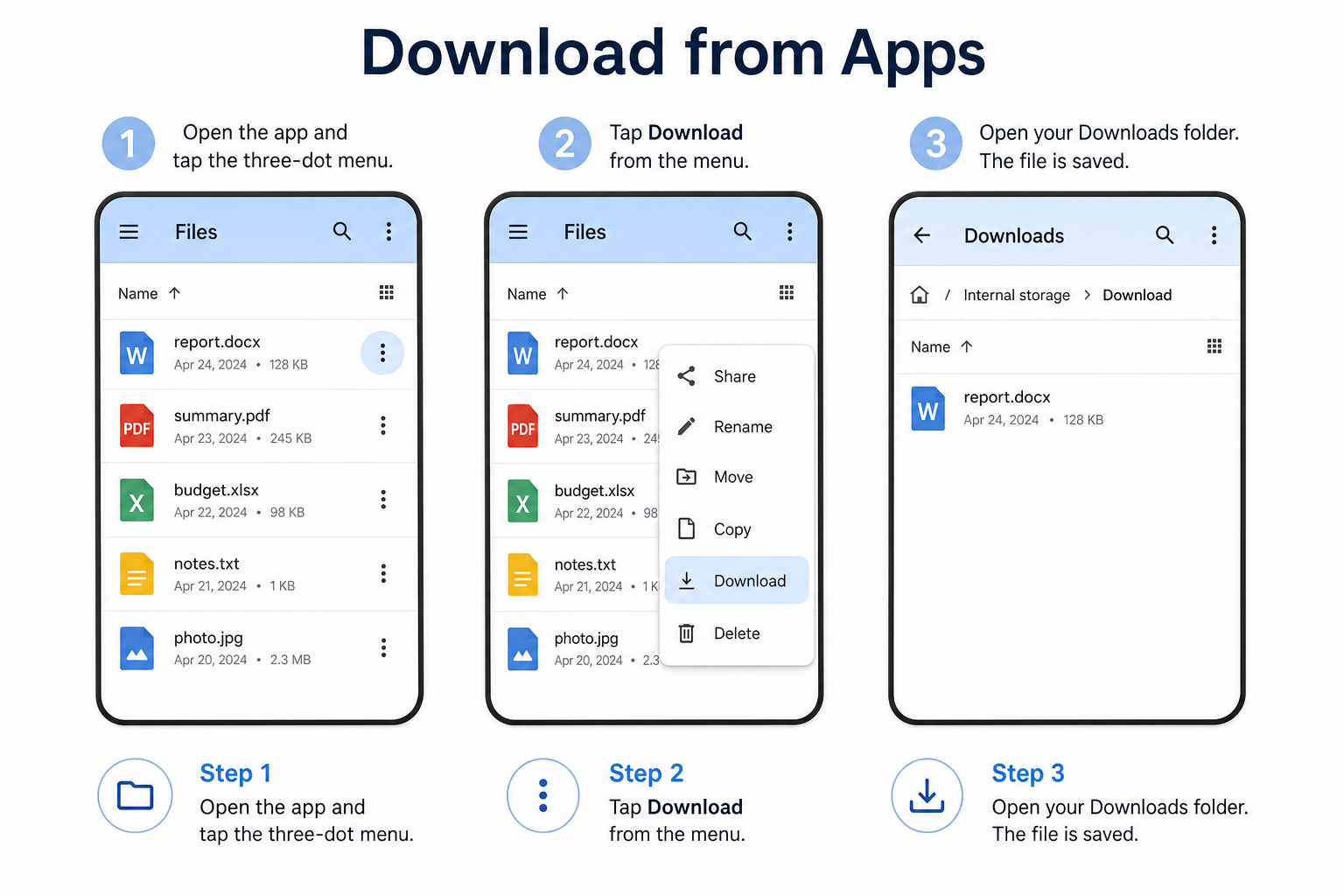
Open the app (cloud storage, school LMS, or email).
Find the Word file inside the app.
Tap the three-dot menu next to the file and choose Download.
Check your device’s Files or Downloads folder.
How to Download a Word Document on Mac / MacBook
How to Download a Word Document on iPhone / iPad
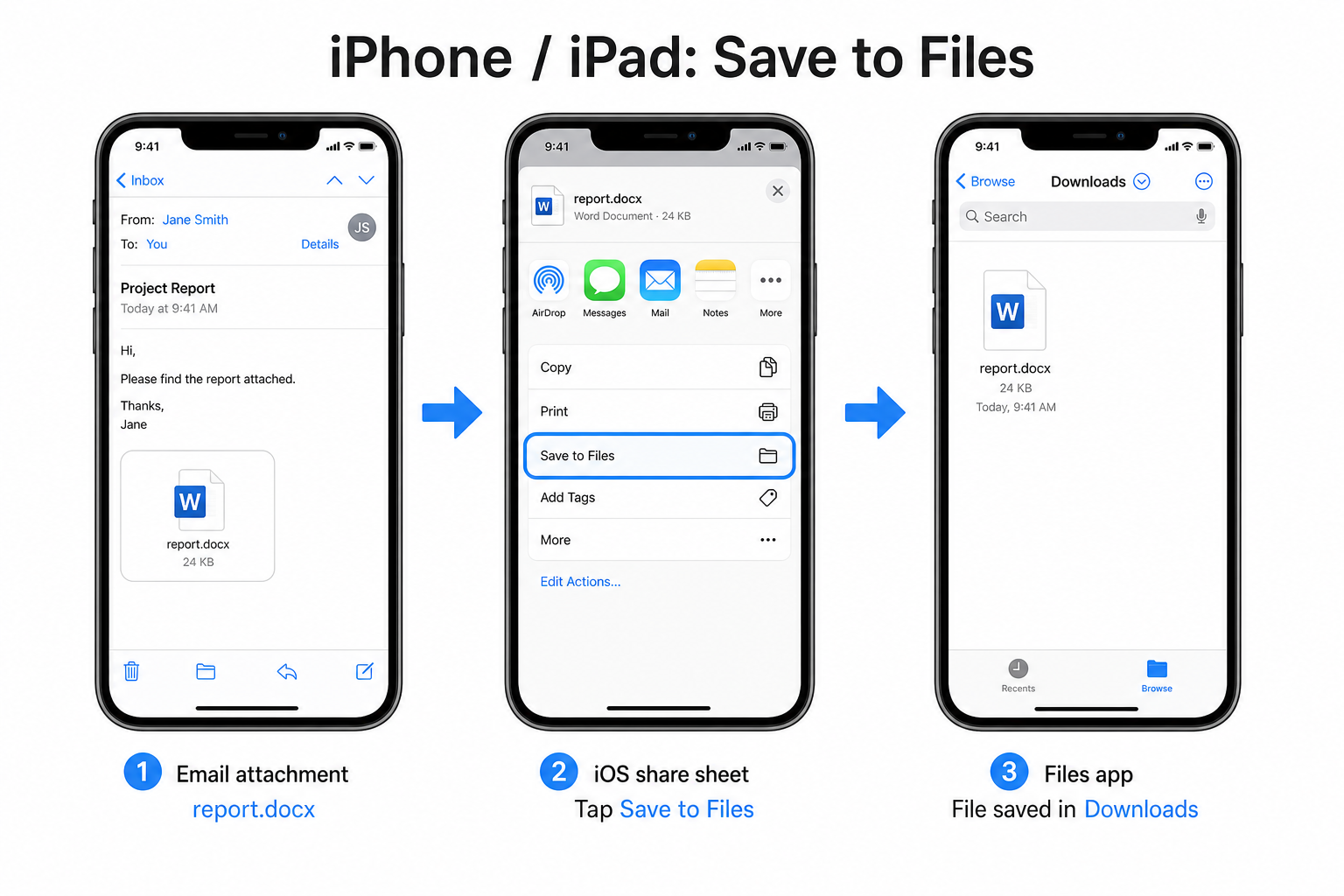
Open the email or cloud link that contains the Word attachment.
Tap the Word attachment to open the share menu.
Tap Save to Files and pick a local folder.
Open the Files app anytime to find the offline Word file.
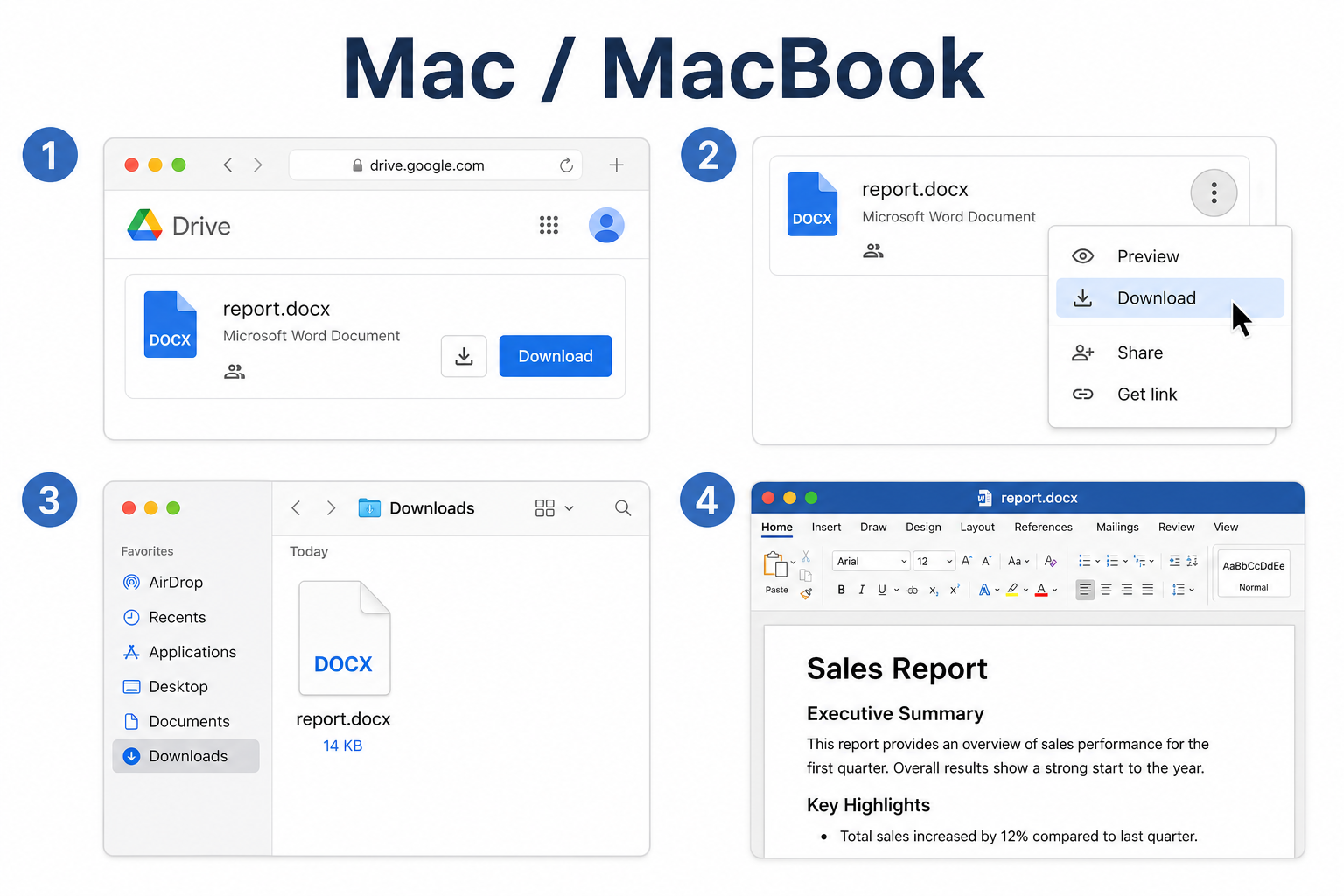
Open the Word file in Safari, Mail, Google Drive, or OneDrive.
Click the download icon, or right-click the file and choose Download.
The file usually goes to Finder’s Downloads folder.
Double-click the file to open and edit it.
Open and Edit Downloaded Word Documents for Free
After you download a Word file, you still need software that can open .docx or .doc. If you do not want a paid Microsoft 365 plan, WPS Writer is a free, Word-compatible option for everyday editing.
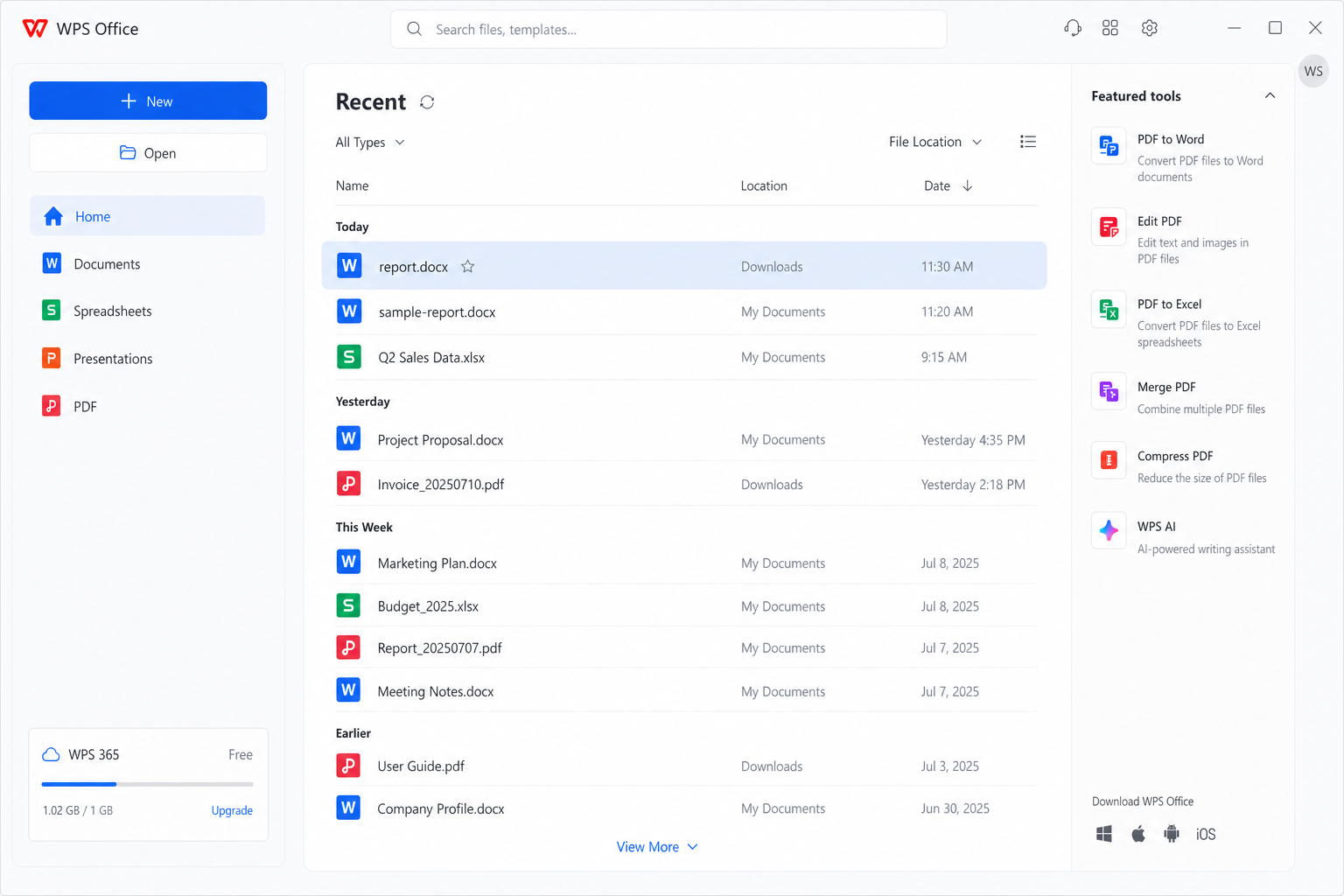
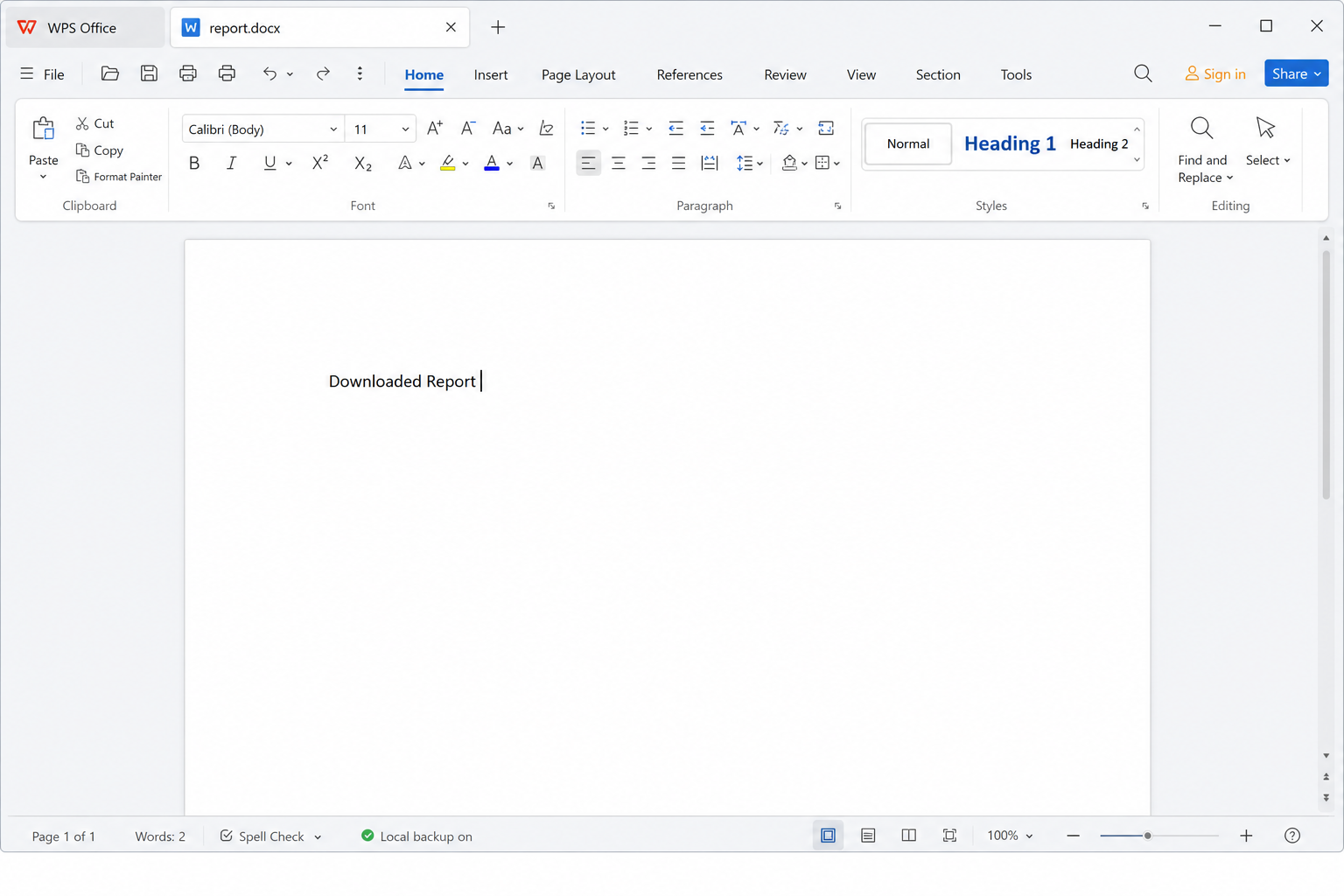
Open the file from WPS Office Recent files (or Open → Downloads). You can edit text, headings, tables, and layout with familiar tools—then save or export again as needed.
Why use WPS Writer for downloaded Word files
Strong format compatibility — Open common .doc and .docx files with layouts and tables intact
No paid Word subscription required — Core editing and saving stay free for daily use
Fast and lightweight — Opens large downloaded files smoothly on everyday devices
Cross-device support — Windows, Mac, Android, iPhone, and iPad
Troubleshooting Common Download Issues
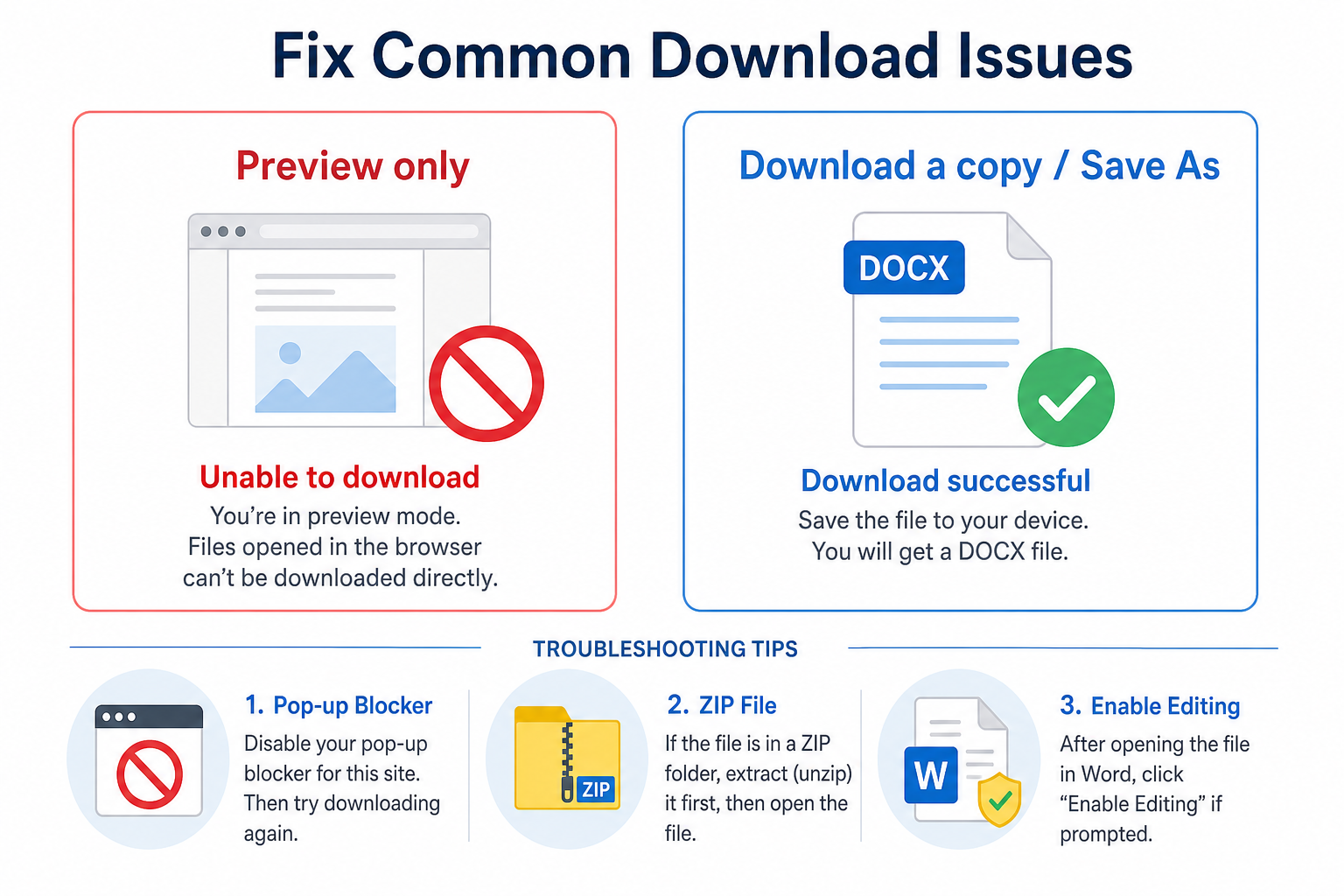
| Problem | What to try |
|---|---|
| Only a preview opens | Use Download a copy or Save As |
| Download never starts | Allow pop-ups and downloads in the browser or app |
| You get a ZIP file | Unzip it, then open the .docx inside |
| Editing is locked after opening | If the file is trusted, click Enable Editing |
FAQ
How do I download a Word document on a MacBook?
Right-click the Word file and choose Download. It usually saves to your Mac’s Downloads folder.
Can I download a Word document directly as a PDF?
Yes. Open the file in Word or WPS, then use Export / Save As and choose PDF.
Is WPS free for opening downloaded Word documents?
Yes. WPS Writer can open and edit common Word files with free core tools—no Microsoft 365 subscription required.
How do I download Word files from mobile cloud apps?
Tap the more options icon (⋯) next to the file, choose Download, then find it in your phone’s Files or Downloads folder.
Conclusion
You can download Word documents on Mac, MacBook, iPhone, iPad, and Windows from email, cloud drives, and mobile apps—and save them as .docx or export to PDF when needed. If you do not have Microsoft 365, WPS Writer is a free, compatible way to open, edit, and re-export those downloaded Word files.

'%3e%3cpath%20d='M19.9911%204.11386V6.471H18.5894C18.0775%206.471%2017.7322%206.57814%2017.5536%206.79243C17.3751%207.00671%2017.2858%207.32814%2017.2858%207.75671V9.44421H19.9019L19.5536%2012.0871H17.2858V18.8639H14.5536V12.0871H12.2769V9.44421H14.5536V7.49779C14.5536%206.39064%2014.8632%205.53201%2015.4822%204.92189C16.1013%204.31177%2016.9257%204.00671%2017.9554%204.00671C18.8304%204.00671%2019.509%204.04243%2019.9911%204.11386Z'%20fill='%23333333'/%3e%3c/g%3e%3cdefs%3e%3cclipPath%20id='clip0_2938_8199'%3e%3crect%20width='16'%20height='16'%20fill='white'%20transform='translate(8%204.00671)'/%3e%3c/clipPath%3e%3c/defs%3e%3c/svg%3e)
'%3e%3cpath%20d='M17.5237%2010.7813L23.4811%204H22.0699L16.8949%209.88693L12.7648%204H8L14.2469%2012.9029L8%2020.0133H9.4112L14.8725%2013.7952L19.2352%2020.0133H24M9.92053%205.04213H12.0885L22.0688%2019.0224H19.9003'%20fill='%23333333'/%3e%3c/g%3e%3cdefs%3e%3cclipPath%20id='clip0_2938_8200'%3e%3crect%20width='16'%20height='16.0134'%20fill='white'%20transform='translate(8%204)'/%3e%3c/clipPath%3e%3c/defs%3e%3c/svg%3e)


