

'%3e%3cpath%20d='M8%200C12.4183%200%2016%203.58172%2016%208C16%2012.4183%2012.4183%2016%208%2016C3.58172%2016%200%2012.4183%200%208C0%203.58172%203.58172%200%208%200ZM11.6162%204.38379C11.2257%203.99337%2010.5927%203.99338%2010.2021%204.38379L8%206.58594L5.79785%204.38379C5.40732%203.99334%204.77429%203.99329%204.38379%204.38379C3.99331%204.77429%203.99335%205.40733%204.38379%205.79785L6.58594%208L4.38379%2010.2021C3.99348%2010.5927%203.99341%2011.2257%204.38379%2011.6162C4.77426%2012.0066%205.40734%2012.0065%205.79785%2011.6162L8%209.41406L10.2021%2011.6162C10.5927%2012.0066%2011.2257%2012.0067%2011.6162%2011.6162C12.0067%2011.2257%2012.0066%2010.5927%2011.6162%2010.2021L9.41406%208L11.6162%205.79785C12.0066%205.40735%2012.0066%204.77429%2011.6162%204.38379Z'%20fill='%23080E17'%20fill-opacity='0.46'/%3e%3c/g%3e%3cdefs%3e%3cclipPath%20id='clip0_3761_713'%3e%3crect%20width='16'%20height='16'%20fill='white'/%3e%3c/clipPath%3e%3c/defs%3e%3c/svg%3e)



'%3e%3cpath%20fill-rule='evenodd'%20clip-rule='evenodd'%20d='M21.4999%2010.9993C21.4999%205.20009%2016.7986%200.498901%2010.9993%200.498901C5.19994%200.498901%200.498657%205.20009%200.498657%2010.9993C0.498657%2016.2404%204.33858%2020.5844%209.35855%2021.3722V14.0346H6.69238V10.9993H9.35855V8.68594C9.35855%206.05427%2010.9262%204.60062%2013.3248%204.60062C14.4736%204.60062%2015.6753%204.80571%2015.6753%204.80571V7.38979H14.3512C13.0468%207.38979%2012.64%208.19921%2012.64%209.0296V10.9993H15.5523L15.0867%2014.0346H12.64V21.3722C17.66%2020.5844%2021.4999%2016.2404%2021.4999%2010.9993Z'%20fill='%231568EA'/%3e%3c/g%3e%3c/svg%3e)


'%3e%3cpath%20d='M2.42045%2022.1876H6.31818V12.7217L0.75%208.54553V20.5171C0.75%2021.4414%201.49892%2022.1876%202.42045%2022.1876Z'%20fill='%234285F4'/%3e%3cpath%20d='M19.682%2022.1876H23.5797C24.5041%2022.1876%2025.2502%2021.4387%2025.2502%2020.5171V8.54553L19.682%2012.7217'%20fill='%2334A853'/%3e%3cpath%20d='M19.682%205.48293V12.7216L25.2502%208.54543V6.31816C25.2502%204.25236%2022.8921%203.07469%2021.2411%204.31361'%20fill='%23FBBC04'/%3e%3cpath%20d='M6.31824%2012.7217V5.48303L13.0001%2010.4944L19.6819%205.48303V12.7217L13.0001%2017.733'%20fill='%23EA4335'/%3e%3cpath%20d='M0.75%206.31816V8.54543L6.31818%2012.7216V5.48293L4.75909%204.31361C3.10534%203.07469%200.75%204.25236%200.75%206.31816Z'%20fill='%23C5221F'/%3e%3c/g%3e%3cdefs%3e%3cclipPath%20id='clip0_2954_7305'%3e%3crect%20width='24.5'%20height='18.375'%20fill='white'%20transform='translate(0.75%203.8125)'/%3e%3c/clipPath%3e%3c/defs%3e%3c/svg%3e)


Download Free Pre-Built Templates for Word, Excel, and PowerPoint
Building a presentation, financial report, contract, resume, or meeting document from a blank page can take hours. You have to plan the structure, design the layout, align the fonts, and make every page look professional before the real work even begins.
Free pre-built templates solve that problem by giving you ready-made layouts for common office tasks. They help you save time, keep your documents consistent, and start with a polished structure instead of designing everything from scratch.
This guide explains why pre-built templates are useful, where to find high-quality free templates, and how to choose, download, and customize them efficiently in WPS Office.
Download Free Pre-Built Templates for Word, Excel, and PowerPoint
Why Use Free Pre-Built Templates
Pre-built templates are more than decorative files. They are practical starting points that already include sections, spacing, placeholder content, and visual hierarchy for a specific task.
For business users, students, freelancers, and small teams, that structure removes repetitive setup work. You can focus on the message, data, or contract details while the layout keeps the file readable and professional.
Save time: Start from a ready layout instead of building slides, tables, or document sections manually.
Look professional: Use balanced spacing, headings, and visual structure without hiring a designer.
Stay consistent: Keep fonts, colors, tables, and page styles aligned across the whole file.
Reduce mistakes: Use placeholders as reminders for the information you need to add before sharing.
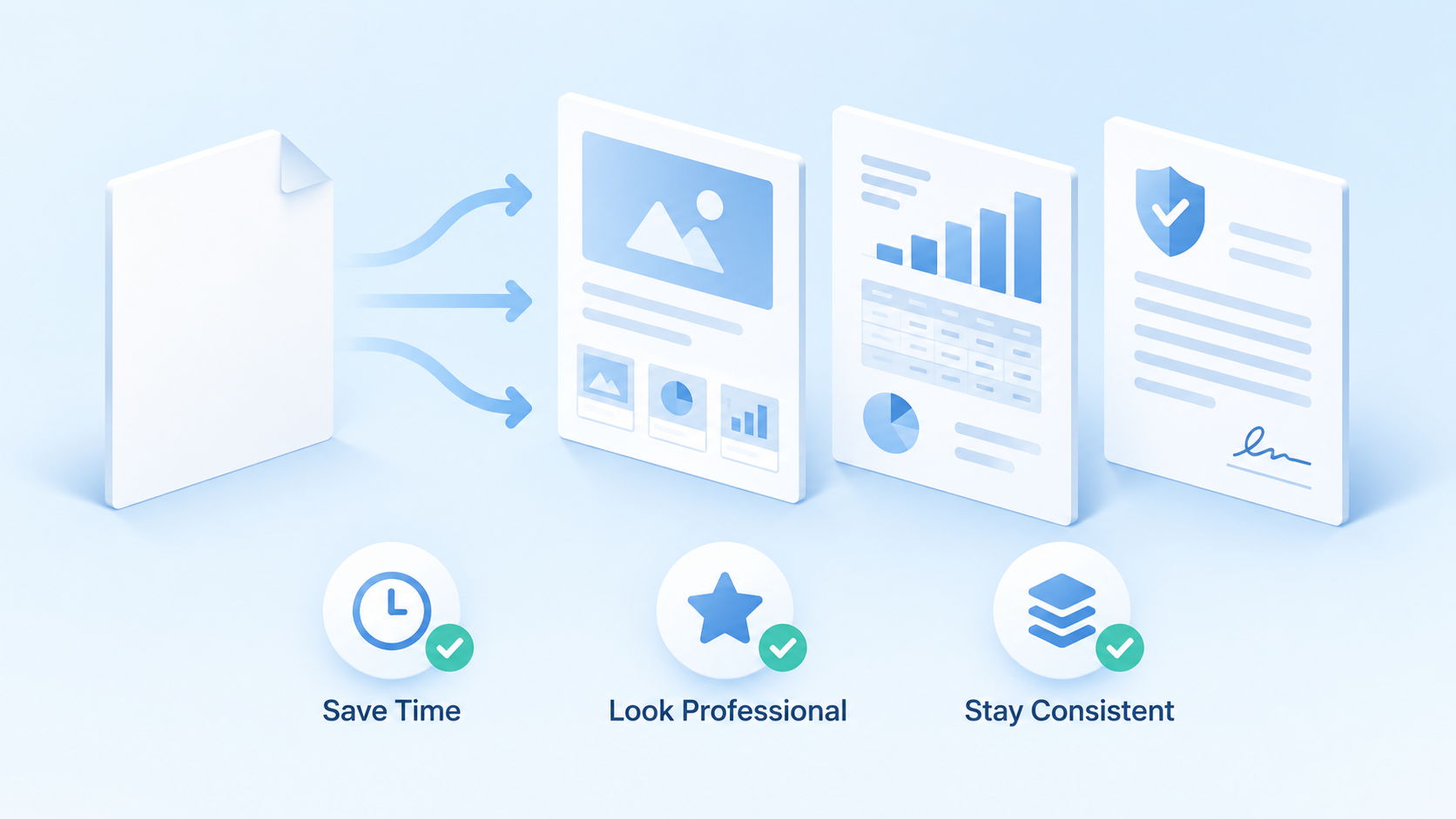
Pre-built templates save work time


Best Free Pre-Built Template Library: WPS Office
WPS Office offers a large free template library covering Word documents, PowerPoint presentations, Excel spreadsheets, resumes, reports, calendars, contracts, invoices, and more. The categories are clear, so you can move from a general need to a usable file quickly.
Instead of searching across many sites, you can browse templates by document type, preview the design, and apply a template in one click. WPS Office also lets you continue editing the file in Writer, Spreadsheet, or Presentation after you open it.
You can start from the WPS template library when you need a ready-made office layout.
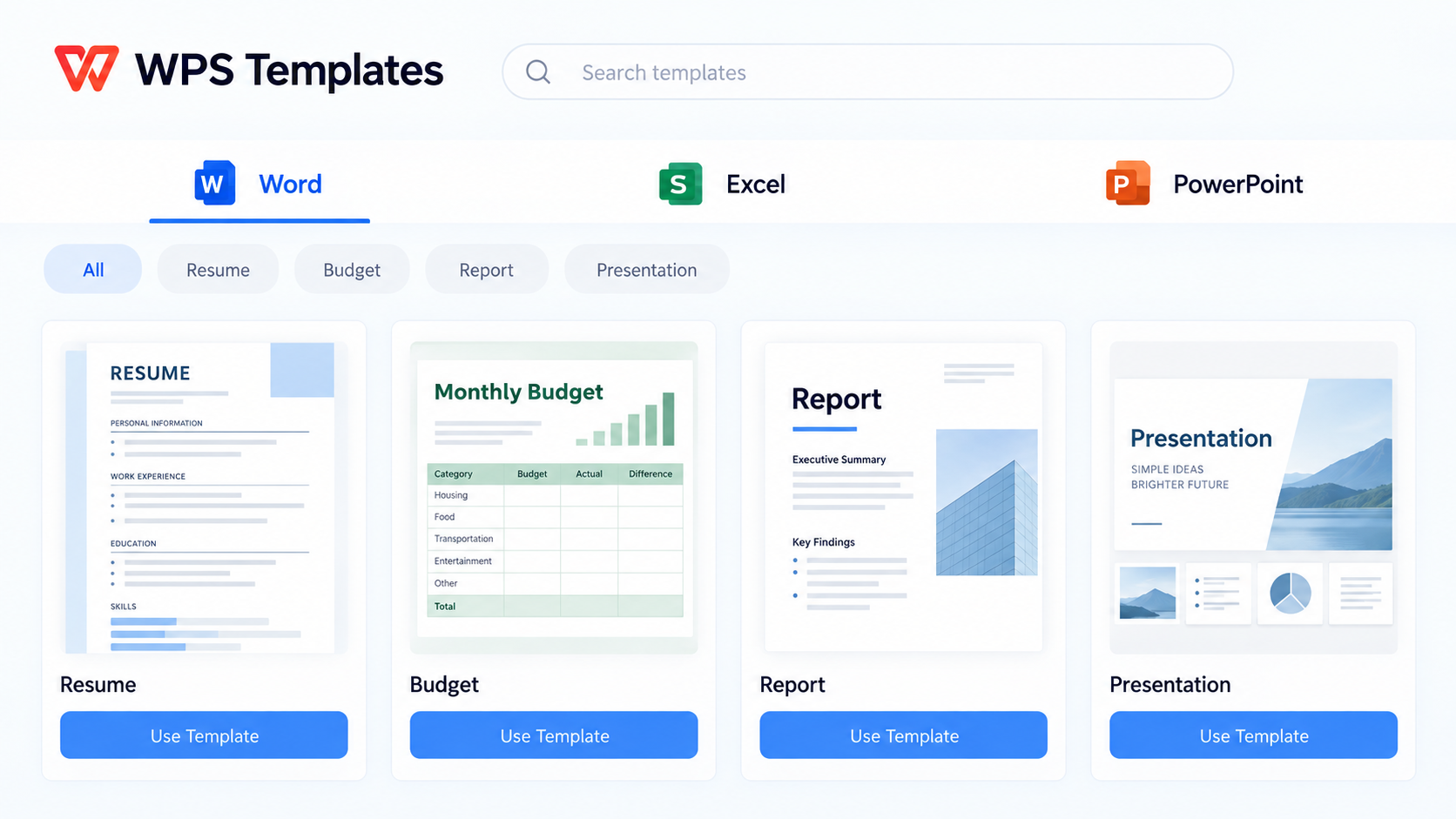
WPS free template library categories
How to Choose and Download the Right Template Step by Step
The fastest way to use a template is to match it to your actual task before downloading. Use the steps below to avoid choosing a design that looks good but does not fit your content.
Define your need. Decide what you are creating first: a business proposal, a minimalist resume, a creative presentation, a budget report, or a contract. Match the style to the purpose so the file feels appropriate for its audience.
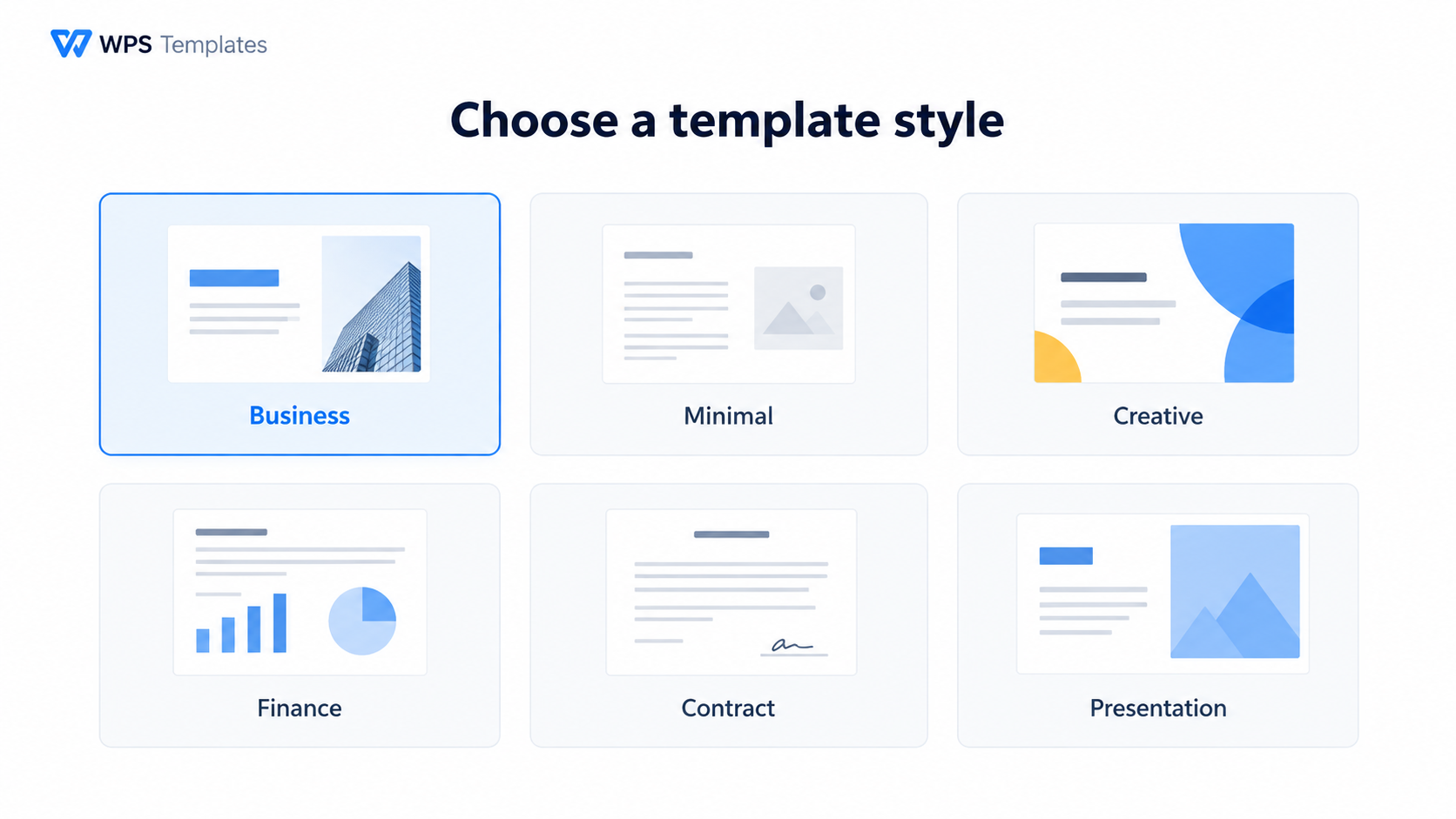
Choose template style in WPS
Filter and preview templates. Use keywords, file types, tags, or categories to narrow the results. Open the preview and check whether the sections, page size, slide ratio, tables, or placeholders match what you need.
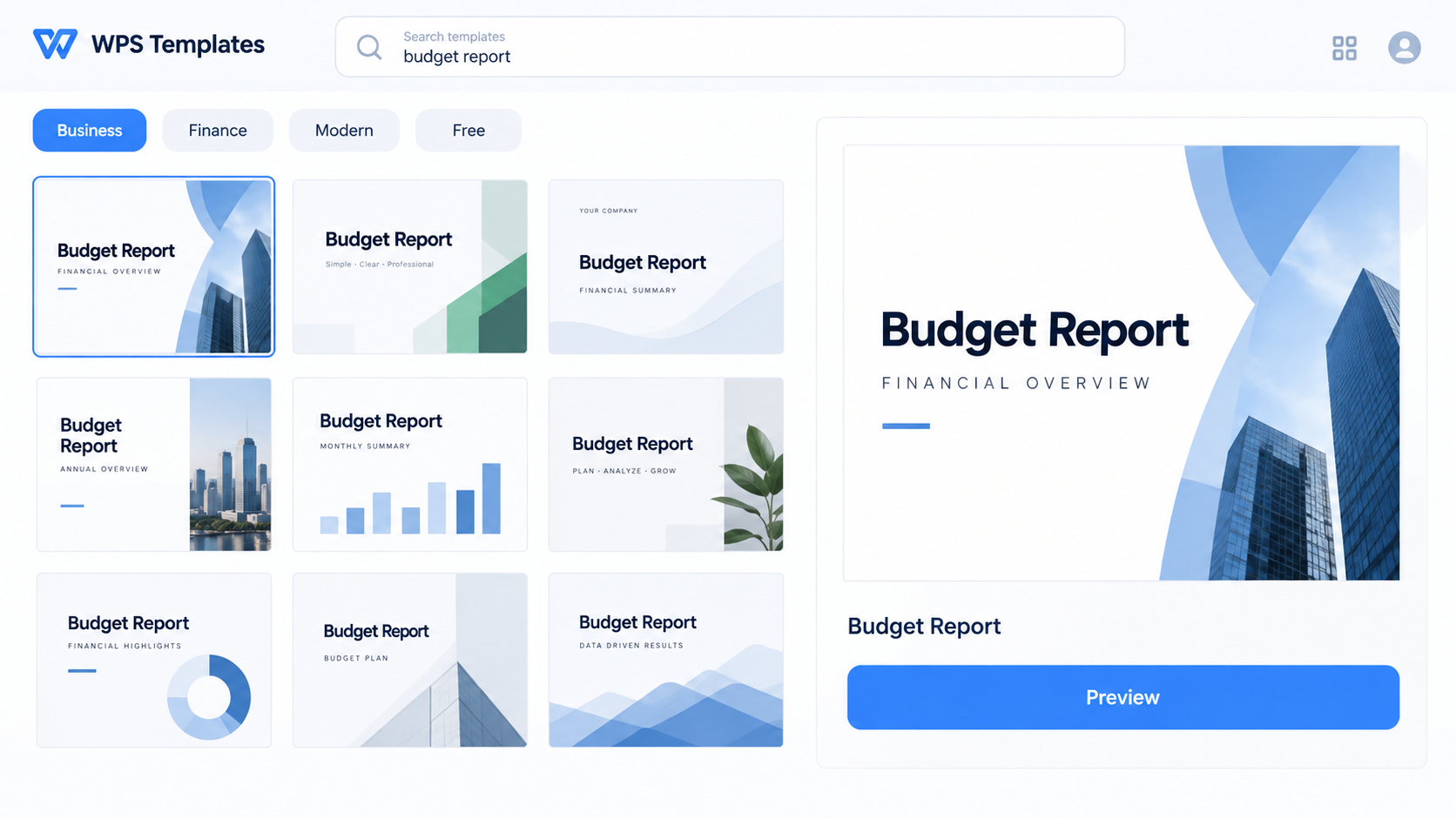
Preview filtered WPS template results
Open or download in one click. In WPS Templates, choose Use Template to open it online or Download to save a local copy. Keep an untouched original, then edit a duplicate for your final version.
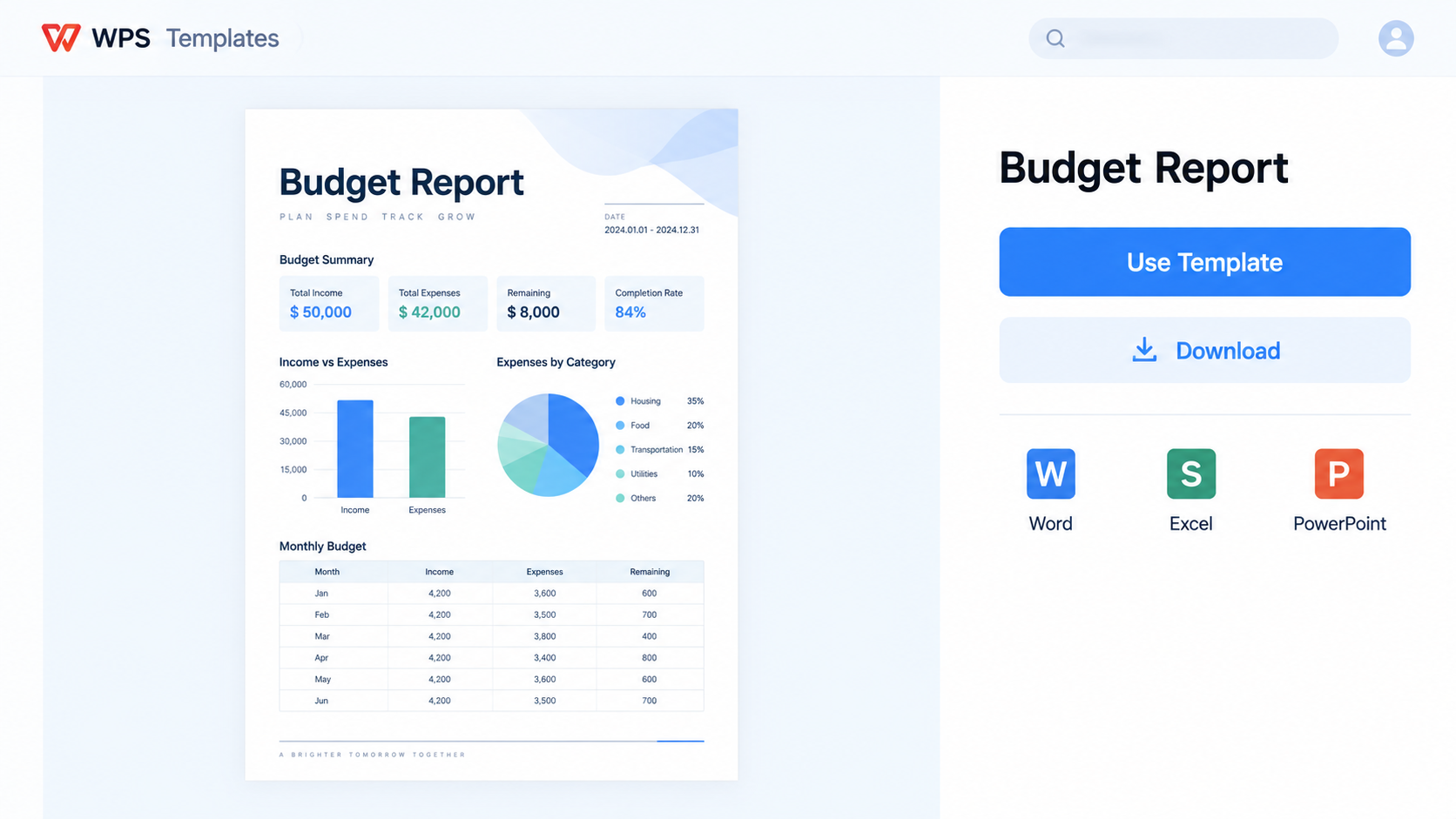
Use or download WPS template
Tips to Customize Your Downloaded Template Effortlessly
After downloading a template, spend a few minutes tailoring it before you share it. Small edits can make a free template feel specific to your brand, class, project, or client.
Update the color scheme: Apply brand colors or a cleaner theme color so the design matches your purpose.
Replace placeholder text and images: Remove all sample copy, stock photos, and generic labels before exporting.
Keep fonts consistent: Limit the file to one or two fonts and use heading styles instead of manual formatting.
Check spacing and alignment: Review every page or slide after editing, especially if your content is longer than the sample text.
Export a final copy: Save the editable file, then export to PDF when you need a fixed layout for sharing or printing.
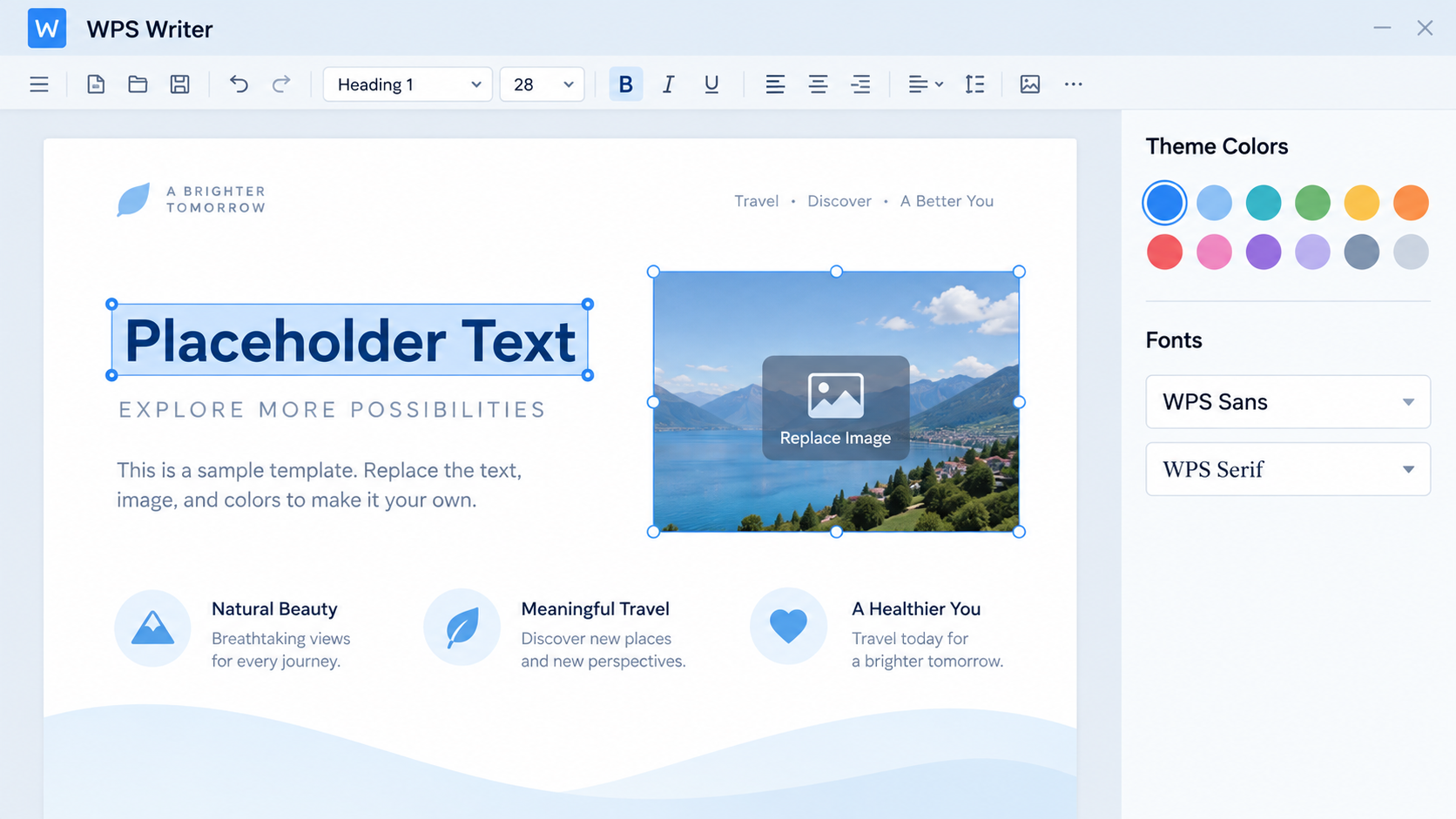
Customize downloaded template in WPS
FAQs
1. What are pre-built templates?
Pre-built templates are ready-made files with layouts, styles, sections, and placeholders that you can edit for a specific document, spreadsheet, or presentation.
2. Where can I download free pre-built templates?
You can use official template libraries such as WPS Templates, where templates are organized by document type, purpose, and design style.
3. Are WPS templates free to use?
WPS provides many free templates, though some advanced or premium resources may require sign-in or a paid plan. Check the template page before downloading.
4. Can I edit downloaded templates in WPS Office?
Yes. You can open common Word, Excel, and PowerPoint template files in WPS Writer, Spreadsheet, and Presentation, then replace the placeholder content.
5. How do I make a downloaded template look original?
Change the colors, replace sample text and images, keep fonts consistent, and review spacing before exporting or sharing the final file.

Use Word, Excel, and PPT for FREE, No Ads.
Edit PDF files with the powerful PDF toolkit.
Microsoft-like interface. Easy to learn. 100% Compatibility.
Boost your productivity with WPS's abundant free Word, Excel, PPT, and CV templates.

Summary
Free pre-built templates help you create presentations, financial reports, contracts, and other office files faster without sacrificing a polished look. Start with WPS Templates, choose a style that matches your goal, preview the layout, open or download the file, and then customize colors, text, images, and fonts before sharing.

'%3e%3cpath%20d='M19.9911%204.11386V6.471H18.5894C18.0775%206.471%2017.7322%206.57814%2017.5536%206.79243C17.3751%207.00671%2017.2858%207.32814%2017.2858%207.75671V9.44421H19.9019L19.5536%2012.0871H17.2858V18.8639H14.5536V12.0871H12.2769V9.44421H14.5536V7.49779C14.5536%206.39064%2014.8632%205.53201%2015.4822%204.92189C16.1013%204.31177%2016.9257%204.00671%2017.9554%204.00671C18.8304%204.00671%2019.509%204.04243%2019.9911%204.11386Z'%20fill='%23333333'/%3e%3c/g%3e%3cdefs%3e%3cclipPath%20id='clip0_2938_8199'%3e%3crect%20width='16'%20height='16'%20fill='white'%20transform='translate(8%204.00671)'/%3e%3c/clipPath%3e%3c/defs%3e%3c/svg%3e)
'%3e%3cpath%20d='M17.5237%2010.7813L23.4811%204H22.0699L16.8949%209.88693L12.7648%204H8L14.2469%2012.9029L8%2020.0133H9.4112L14.8725%2013.7952L19.2352%2020.0133H24M9.92053%205.04213H12.0885L22.0688%2019.0224H19.9003'%20fill='%23333333'/%3e%3c/g%3e%3cdefs%3e%3cclipPath%20id='clip0_2938_8200'%3e%3crect%20width='16'%20height='16.0134'%20fill='white'%20transform='translate(8%204)'/%3e%3c/clipPath%3e%3c/defs%3e%3c/svg%3e)


