



'%3e%3cpath%20fill-rule='evenodd'%20clip-rule='evenodd'%20d='M21.4999%2010.9993C21.4999%205.20009%2016.7986%200.498901%2010.9993%200.498901C5.19994%200.498901%200.498657%205.20009%200.498657%2010.9993C0.498657%2016.2404%204.33858%2020.5844%209.35855%2021.3722V14.0346H6.69238V10.9993H9.35855V8.68594C9.35855%206.05427%2010.9262%204.60062%2013.3248%204.60062C14.4736%204.60062%2015.6753%204.80571%2015.6753%204.80571V7.38979H14.3512C13.0468%207.38979%2012.64%208.19921%2012.64%209.0296V10.9993H15.5523L15.0867%2014.0346H12.64V21.3722C17.66%2020.5844%2021.4999%2016.2404%2021.4999%2010.9993Z'%20fill='%231568EA'/%3e%3c/g%3e%3c/svg%3e)


'%3e%3cpath%20d='M2.42045%2022.1876H6.31818V12.7217L0.75%208.54553V20.5171C0.75%2021.4414%201.49892%2022.1876%202.42045%2022.1876Z'%20fill='%234285F4'/%3e%3cpath%20d='M19.682%2022.1876H23.5797C24.5041%2022.1876%2025.2502%2021.4387%2025.2502%2020.5171V8.54553L19.682%2012.7217'%20fill='%2334A853'/%3e%3cpath%20d='M19.682%205.48293V12.7216L25.2502%208.54543V6.31816C25.2502%204.25236%2022.8921%203.07469%2021.2411%204.31361'%20fill='%23FBBC04'/%3e%3cpath%20d='M6.31824%2012.7217V5.48303L13.0001%2010.4944L19.6819%205.48303V12.7217L13.0001%2017.733'%20fill='%23EA4335'/%3e%3cpath%20d='M0.75%206.31816V8.54543L6.31818%2012.7216V5.48293L4.75909%204.31361C3.10534%203.07469%200.75%204.25236%200.75%206.31816Z'%20fill='%23C5221F'/%3e%3c/g%3e%3cdefs%3e%3cclipPath%20id='clip0_2954_7305'%3e%3crect%20width='24.5'%20height='18.375'%20fill='white'%20transform='translate(0.75%203.8125)'/%3e%3c/clipPath%3e%3c/defs%3e%3c/svg%3e)


Quick answer: Microsoft Word does not have a one-click Duplicate Page button. To learn how to duplicate a page in Word, copy its content, insert a new page, and paste the content there.
For a one-page document
For one page in a multi-page document
If Paste Options appears after pasting, choose Keep Source Formatting to retain the original fonts, spacing, colors, images, and layout.
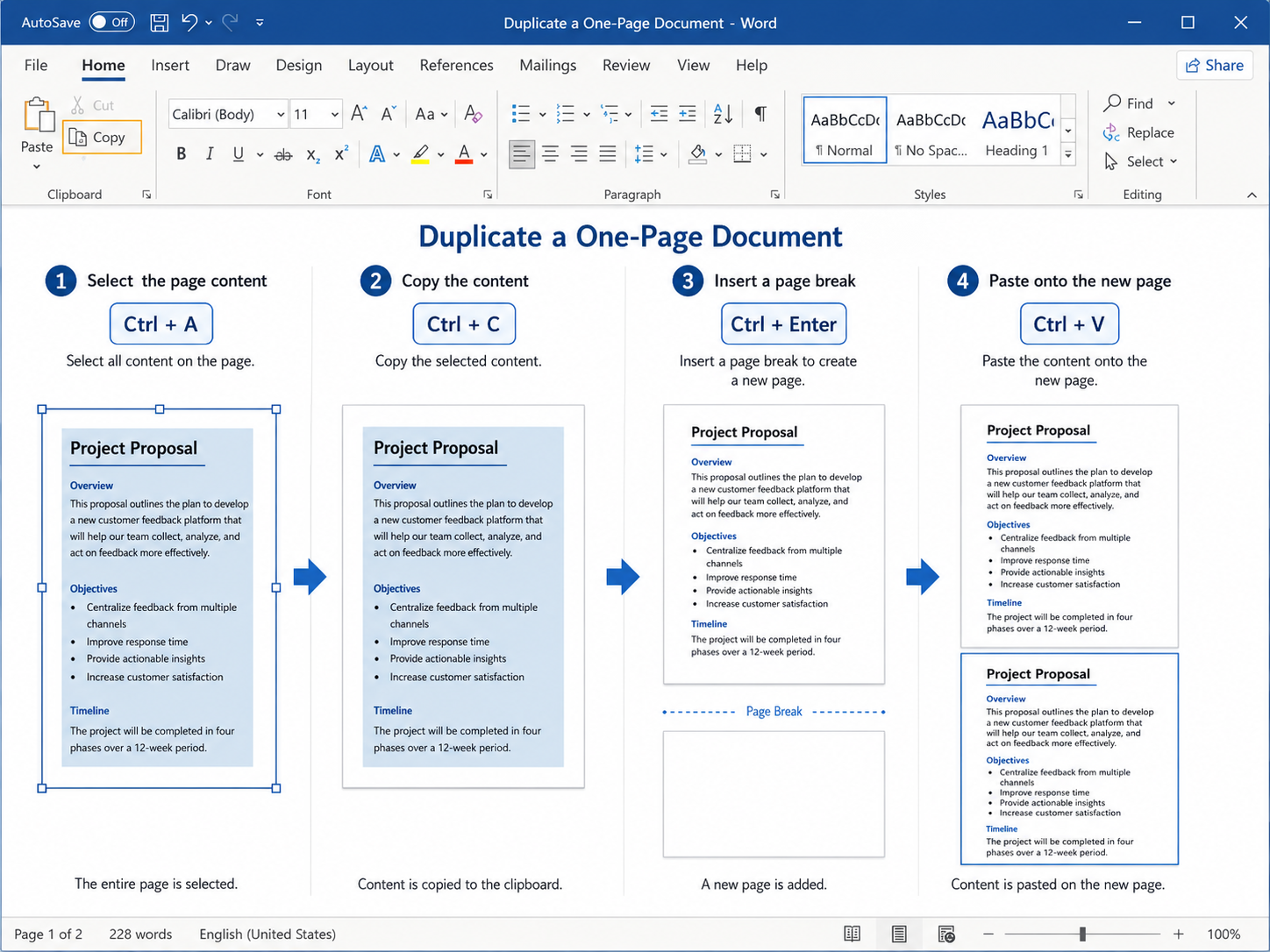
How to select the entire page correctly
Selecting the complete page is often the most difficult part of this process.
Before copying, check that:
The selection begins before the first character.
The final paragraph is highlighted.
Images and tables are included.
No content continues unexpectedly onto the next page.
Floating shapes or text boxes have not been missed.
When the page boundary is unclear, open the Home tab and select Show/Hide ¶.
This displays formatting marks such as paragraph marks, page breaks, section breaks, and extra blank lines.
Be careful when selecting a manual page break. Copying it together with the page content may create an extra blank page after pasting.
How to duplicate the page multiple times
You do not need to select and copy the original page again for every duplicate.
Place the cursor after the duplicated content.
Press Ctrl + Enter.
Press Ctrl + V.
Repeat the same two shortcuts for each additional copy.
Method 3: Copy a Word Page to Another Document
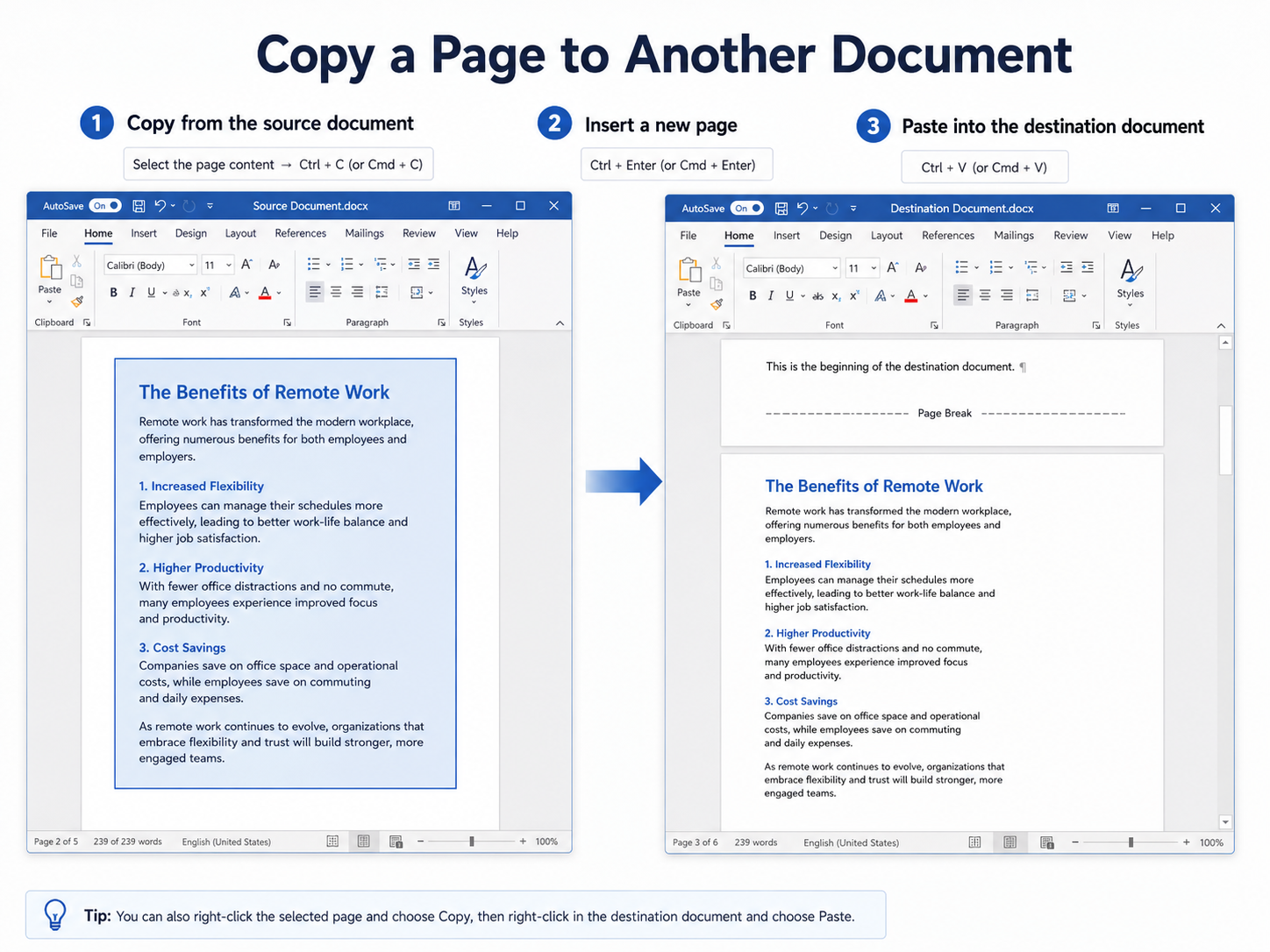
The same basic process can be used to move a copy of one page into another Word file.
Step 1: Select and copy the page
Select the required page content and press Ctrl + C.
For a one-page source document, you can use Ctrl + A. For a multi-page document, manually select only the target page.
Step 2: Open the destination document
Open the Word file where the page should be added. Place the cursor at the correct insertion point.
Step 3: Create a new page
Press Ctrl + Enter. You can also select Insert > Blank Page.
Step 4: Paste the copied content
Press Ctrl + V. Choose Keep Source Formatting when you want the page to retain the styles used in the original document.
Step 5: Check the result
Review fonts and colors, paragraph spacing, image positions, table width, page orientation, headers and footers, and page numbering.
Differences between the two document themes may affect the pasted result even when the content itself is copied correctly.
To copy the entire Word file rather than one page, use File > Save As or Save a Copy.
How to Duplicate a Page Without Losing Formatting
Simple text usually copies without difficulty. Pages containing pictures, tables, custom styles, or section settings may require additional checks.
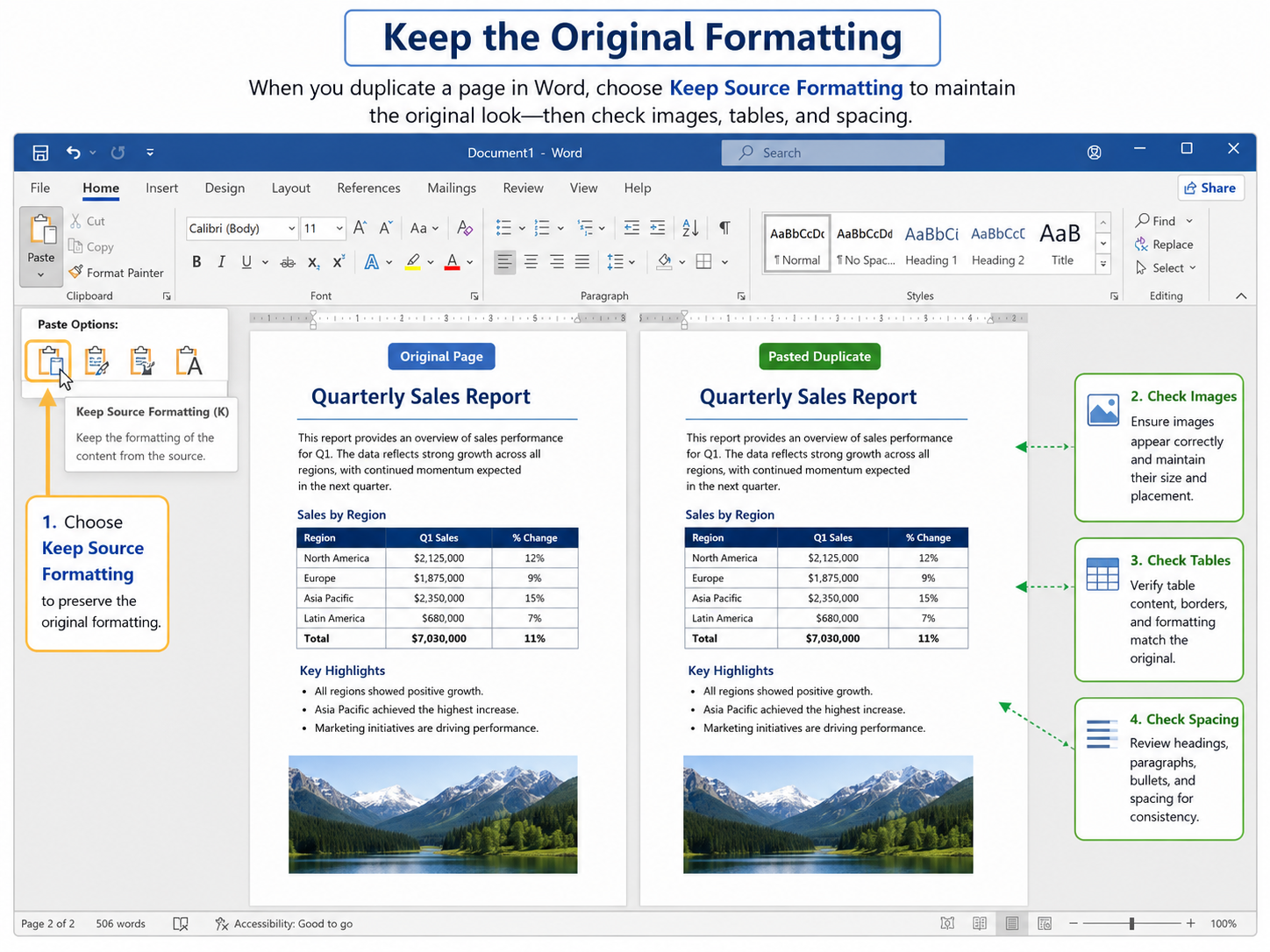
Choose Keep Source Formatting
After pasting, open Paste Options and select Keep Source Formatting.
This keeps the styles from the original page instead of replacing them with the destination document’s styles. It is particularly useful when copying between two different Word files.
Use a page break instead of pressing Enter
Avoid pressing Enter repeatedly to move content onto a new page. Extra paragraph marks can cause uneven spacing, content movement after editing, blank areas, and unwanted pages.
Use Ctrl + Enter or Insert > Page Break. This gives the copied content a clear starting point on the new page.
Check images, tables, shapes, and text boxes
Some objects are positioned independently from the surrounding text and may not behave like ordinary paragraphs.
After pasting, check:
whether every image was copied;
whether image wrapping changed;
whether text boxes remain aligned;
whether shapes overlap other content;
whether tables changed width;
whether a table was split across two pages.
If an object is missing, return to the source page and copy it separately.
For an image that has moved, right-click it and review its Wrap Text setting. Options such as In Line with Text, Square, and Behind Text can change its position.
Check headers, footers, and page numbers
Headers, footers, page numbers, margins, and page orientation may be controlled by sections rather than by the visible page content.
Copying the main page content does not automatically create a separate header or footer.
Use a Section Break when the duplicated page needs different headers or footers, page orientation, margins, columns, or page number formatting.
After inserting a new section, open the header or footer and review Link to Previous.
WPS Writer Is Best for Copying Pages Between DOCX Files
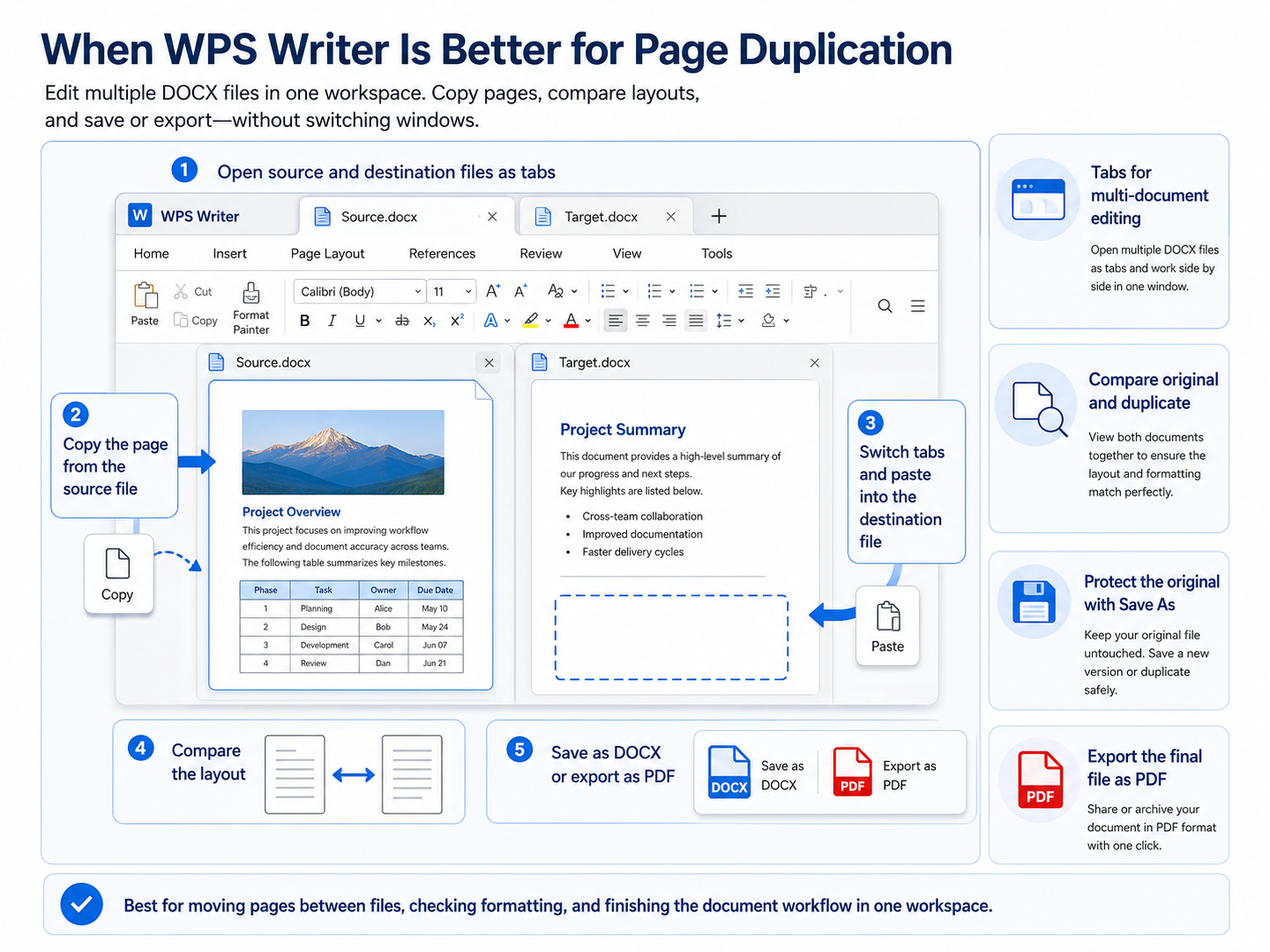
WPS Writer is most useful when duplicating a page is only one step in a larger document task. Instead of acting as just another place to press Ctrl + C and Ctrl + V, it can help when you need to move pages between DOCX files, compare layouts, protect the original version, or finish the file as DOCX or PDF in the same workspace.
WPS Writer is especially helpful when:
you do not have Microsoft Word but still need to edit a DOCX file;
you are copying a page from one document into another;
you need to compare the original and duplicated page side by side;
you want to create a safe working copy before editing;
you need to save the result as DOCX or export it as PDF.
A Better Option When You Are Moving a Page Between DOCX Files
WPS Writer can keep the source and destination documents open as tabs in the same workspace. This makes cross-document copying easier because you can move between both files without repeatedly searching for separate windows.
Open the source DOCX file and the destination DOCX file in WPS Writer.
Choose the source document tab.
Select the page content and press Ctrl + C.
Switch to the destination document tab.
Place the cursor at the insertion point and press Ctrl + Enter.
Press Ctrl + V.
Switch between the two tabs to compare the page layout.
Compare the Original and Duplicate
After pasting, compare the source and destination pages before continuing to edit. You can switch between the document tabs, move one tab to a separate window, or use an available side-by-side view to inspect both files.
Check the elements most likely to move during cross-document copying:
images and text wrapping;
table width and borders;
paragraph spacing and fonts;
headers, footers, and page numbers;
page orientation and section settings.
Protect the Original Before Editing
Use Save As to create a separate working copy before changing a long or heavily formatted document. This gives you a clean original if the duplicated page changes the layout.
For documents stored in WPS Cloud, available version history can provide another recovery point after an accidental edit. This is especially useful for files containing complex tables, floating images, section breaks, or custom page numbering.
Finish the Workflow as DOCX or PDF
Once the duplicated page matches the original, WPS Writer lets you continue directly to the delivery stage:
save the edited file as DOCX;
use Save As to create a separate version;
share the document;
export the final document as PDF.
The product value is therefore not simply that WPS Writer can repeat the same Ctrl+C and Ctrl+V steps. It lets you manage both documents, compare the result, protect earlier versions, and prepare the final file in one document workspace.
When WPS Writer Is Especially Useful
| Your situation | Why WPS Writer helps |
|---|---|
| You do not have Microsoft Word | Open and edit standard DOC and DOCX files without converting them first. |
| You need to copy a page between files | Keep both source and destination documents open as tabs in one workspace. |
| You need to verify formatting | Switch between documents or compare them in separate or side-by-side views. |
| You are editing a complex document | Create a separate copy and review available cloud version history. |
| You need to deliver the finished file | Save the result as DOCX or export it directly as PDF. |
Use WPS Writer When Page Duplication Is Part of a Bigger Workflow
Open Word documents in tabs, move pages between files, compare formatting, protect the original, and save the final result as DOCX or PDF in WPS Writer.
Standard DOC and DOCX files can be opened for editing without converting them to another format first.
Common Problems When Duplicating a Page in Word
The copied content stays on the same page
This usually means the content was pasted without first inserting a page break.
Press Ctrl + Z.
Place the cursor where the duplicate should begin.
Press Ctrl + Enter.
Press Ctrl + V again.
Only part of the page was copied
Return to the original page and check whether your selection includes the final paragraph, the last table row, floating images, shapes, captions, and text boxes.
Use Home > Show/Hide ¶ to identify paragraph marks and page breaks.
The formatting changes after pasting
Try the following:
select Keep Source Formatting;
check whether the same fonts are installed;
compare the themes used by the two documents;
review image wrapping;
check table width and alignment;
paste onto a blank page before adding other content.
When two documents use different themes or style definitions, the pasted page may still require small adjustments.
An extra blank page appears
A blank page may be caused by an extra page break, an inserted Blank Page and Page Break at the same location, empty paragraph marks, a section break, or a table pushing the final paragraph onto another page.
Turn on Show/Hide ¶ and remove only the unnecessary break or paragraph mark.
Headers or page numbers do not match
The copied page may still follow the header, footer, or numbering rules of the destination section.
Check the nearest Section Break, Link to Previous, page number formatting, and whether numbering should continue or restart.
The document does not open correctly
If the file will not open, displays unreadable content, or repeatedly crashes Word, repair or recover it before attempting to duplicate the page.
Work with a copy rather than repeatedly editing the only version of the file.
You can also open the DOCX file in WPS Writer to check whether its text and formatting remain accessible.


Frequently Asked Questions
Does Word have a Duplicate Page button?
No. Word does not provide a dedicated Duplicate Page command. Copy the page content, insert a new page, and paste the copied content.
What is the shortcut to duplicate a page in Word?
There is no single duplicate-page shortcut. For a one-page document, use Ctrl + A → Ctrl + C → Ctrl + Enter → Ctrl + V. For a multi-page document, manually select the target page before copying it.
How do I duplicate only one page in a multi-page document?
Select the content from the first character through the final paragraph on that page. Press Ctrl + C, insert a page break where the duplicate should appear, and press Ctrl + V. Do not use Ctrl + A, because it selects the entire document.
How do I duplicate a page multiple times?
Copy the page once, then repeat Ctrl + Enter → Ctrl + V for each additional copy.
How do I duplicate a page without changing its formatting?
Select Keep Source Formatting after pasting. Also check images, tables, text boxes, section breaks, headers, footers, and page numbers.
How do I duplicate a page in Word on Mac?
Use the same process with Mac shortcuts: Command + A, Command + C, and Command + V. Insert the new page through Insert > Page Break or Insert > Blank Page.
Can I duplicate a page in Word Online?
Yes. Select the page content, copy it, insert a page break, and paste the content onto the new page. Complex objects and section formatting may be easier to check in the desktop version.
Final Takeaway
Word does not include a one-click Duplicate Page button, but how to duplicate a page in Word is simple:
Select the page content.
Press Ctrl + C.
Insert a new page with Ctrl + Enter.
Press Ctrl + V.
Choose Keep Source Formatting.
Check pictures, tables, headers, footers, and page numbers.
Use Ctrl + A only when the document contains one page. In a multi-page document, select only the page you want to duplicate.

'%3e%3cpath%20d='M19.9911%204.11386V6.471H18.5894C18.0775%206.471%2017.7322%206.57814%2017.5536%206.79243C17.3751%207.00671%2017.2858%207.32814%2017.2858%207.75671V9.44421H19.9019L19.5536%2012.0871H17.2858V18.8639H14.5536V12.0871H12.2769V9.44421H14.5536V7.49779C14.5536%206.39064%2014.8632%205.53201%2015.4822%204.92189C16.1013%204.31177%2016.9257%204.00671%2017.9554%204.00671C18.8304%204.00671%2019.509%204.04243%2019.9911%204.11386Z'%20fill='%23333333'/%3e%3c/g%3e%3cdefs%3e%3cclipPath%20id='clip0_2938_8199'%3e%3crect%20width='16'%20height='16'%20fill='white'%20transform='translate(8%204.00671)'/%3e%3c/clipPath%3e%3c/defs%3e%3c/svg%3e)
'%3e%3cpath%20d='M17.5237%2010.7813L23.4811%204H22.0699L16.8949%209.88693L12.7648%204H8L14.2469%2012.9029L8%2020.0133H9.4112L14.8725%2013.7952L19.2352%2020.0133H24M9.92053%205.04213H12.0885L22.0688%2019.0224H19.9003'%20fill='%23333333'/%3e%3c/g%3e%3cdefs%3e%3cclipPath%20id='clip0_2938_8200'%3e%3crect%20width='16'%20height='16.0134'%20fill='white'%20transform='translate(8%204)'/%3e%3c/clipPath%3e%3c/defs%3e%3c/svg%3e)


