

'%3e%3cpath%20d='M8%200C12.4183%200%2016%203.58172%2016%208C16%2012.4183%2012.4183%2016%208%2016C3.58172%2016%200%2012.4183%200%208C0%203.58172%203.58172%200%208%200ZM11.6162%204.38379C11.2257%203.99337%2010.5927%203.99338%2010.2021%204.38379L8%206.58594L5.79785%204.38379C5.40732%203.99334%204.77429%203.99329%204.38379%204.38379C3.99331%204.77429%203.99335%205.40733%204.38379%205.79785L6.58594%208L4.38379%2010.2021C3.99348%2010.5927%203.99341%2011.2257%204.38379%2011.6162C4.77426%2012.0066%205.40734%2012.0065%205.79785%2011.6162L8%209.41406L10.2021%2011.6162C10.5927%2012.0066%2011.2257%2012.0067%2011.6162%2011.6162C12.0067%2011.2257%2012.0066%2010.5927%2011.6162%2010.2021L9.41406%208L11.6162%205.79785C12.0066%205.40735%2012.0066%204.77429%2011.6162%204.38379Z'%20fill='%23080E17'%20fill-opacity='0.46'/%3e%3c/g%3e%3cdefs%3e%3cclipPath%20id='clip0_3761_713'%3e%3crect%20width='16'%20height='16'%20fill='white'/%3e%3c/clipPath%3e%3c/defs%3e%3c/svg%3e)




'%3e%3cpath%20fill-rule='evenodd'%20clip-rule='evenodd'%20d='M21.4999%2010.9993C21.4999%205.20009%2016.7986%200.498901%2010.9993%200.498901C5.19994%200.498901%200.498657%205.20009%200.498657%2010.9993C0.498657%2016.2404%204.33858%2020.5844%209.35855%2021.3722V14.0346H6.69238V10.9993H9.35855V8.68594C9.35855%206.05427%2010.9262%204.60062%2013.3248%204.60062C14.4736%204.60062%2015.6753%204.80571%2015.6753%204.80571V7.38979H14.3512C13.0468%207.38979%2012.64%208.19921%2012.64%209.0296V10.9993H15.5523L15.0867%2014.0346H12.64V21.3722C17.66%2020.5844%2021.4999%2016.2404%2021.4999%2010.9993Z'%20fill='%231568EA'/%3e%3c/g%3e%3c/svg%3e)


'%3e%3cpath%20d='M2.42045%2022.1876H6.31818V12.7217L0.75%208.54553V20.5171C0.75%2021.4414%201.49892%2022.1876%202.42045%2022.1876Z'%20fill='%234285F4'/%3e%3cpath%20d='M19.682%2022.1876H23.5797C24.5041%2022.1876%2025.2502%2021.4387%2025.2502%2020.5171V8.54553L19.682%2012.7217'%20fill='%2334A853'/%3e%3cpath%20d='M19.682%205.48293V12.7216L25.2502%208.54543V6.31816C25.2502%204.25236%2022.8921%203.07469%2021.2411%204.31361'%20fill='%23FBBC04'/%3e%3cpath%20d='M6.31824%2012.7217V5.48303L13.0001%2010.4944L19.6819%205.48303V12.7217L13.0001%2017.733'%20fill='%23EA4335'/%3e%3cpath%20d='M0.75%206.31816V8.54543L6.31818%2012.7216V5.48293L4.75909%204.31361C3.10534%203.07469%200.75%204.25236%200.75%206.31816Z'%20fill='%23C5221F'/%3e%3c/g%3e%3cdefs%3e%3cclipPath%20id='clip0_2954_7305'%3e%3crect%20width='24.5'%20height='18.375'%20fill='white'%20transform='translate(0.75%203.8125)'/%3e%3c/clipPath%3e%3c/defs%3e%3c/svg%3e)


PDF files are often treated as final documents, but real work rarely stays that way. You may need to erase text in PDF files. The problem is that many tools only hide text instead of removing it. Others require expensive subscriptions or add watermarks that ruin the file. So, how to erase text in a PDF properly?
In this guide, I will walk you through reliable methods, compare tools, and show you how to erase text in PDF safely on desktop, online, and mobile.
Part 1. Method 1: Erase Text in PDF with PDF Editor
Using a dedicated PDF editor is the most reliable way to erase text in PDF files. Unlike simple viewers that only cover text visually, a real editor removes the text layer itself, helping you avoid data leaks and formatting issues. Among free and professional options, WPS PDF Editor stands out for balancing control, accuracy, and ease of use.
Brief Introduction to WPS PDF Editor
WPS Office offers a built-in PDF Editor that allows you to directly select, edit, and delete text from PDF documents. It supports real text deletion, not just visual masking, and works well for contracts, forms, and everyday office files. It is especially useful if you want to erase text in a PDF without a watermark while keeping the original layout intact.
How to Erase Text in PDF with WPS PDF Editor
Step 1: Open the PDF in WPS PDF Editor
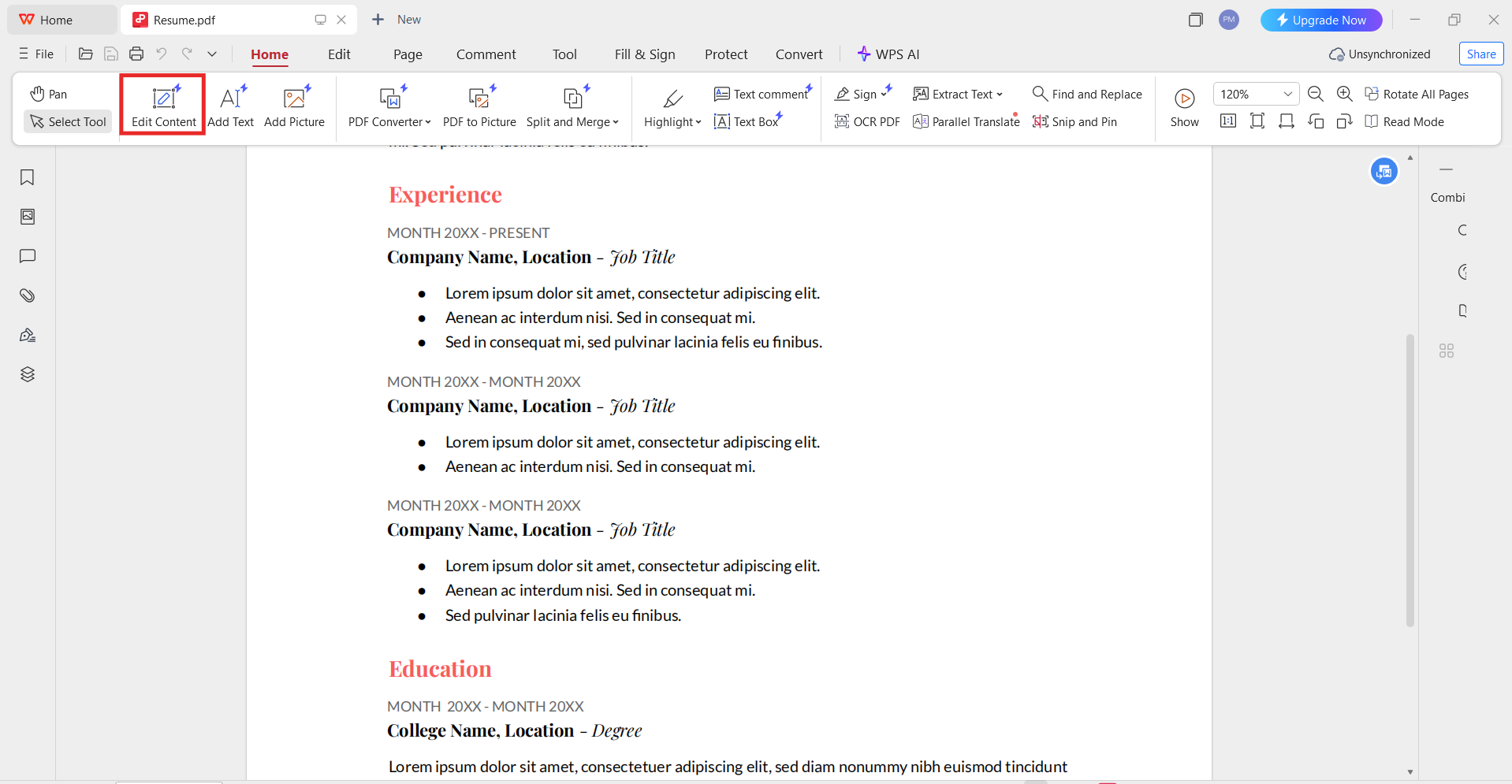
Launch WPS Office and open your PDF file. Switch to the Edit PDF mode so the document becomes editable.
Step 2: Select the Text You Want to Erase
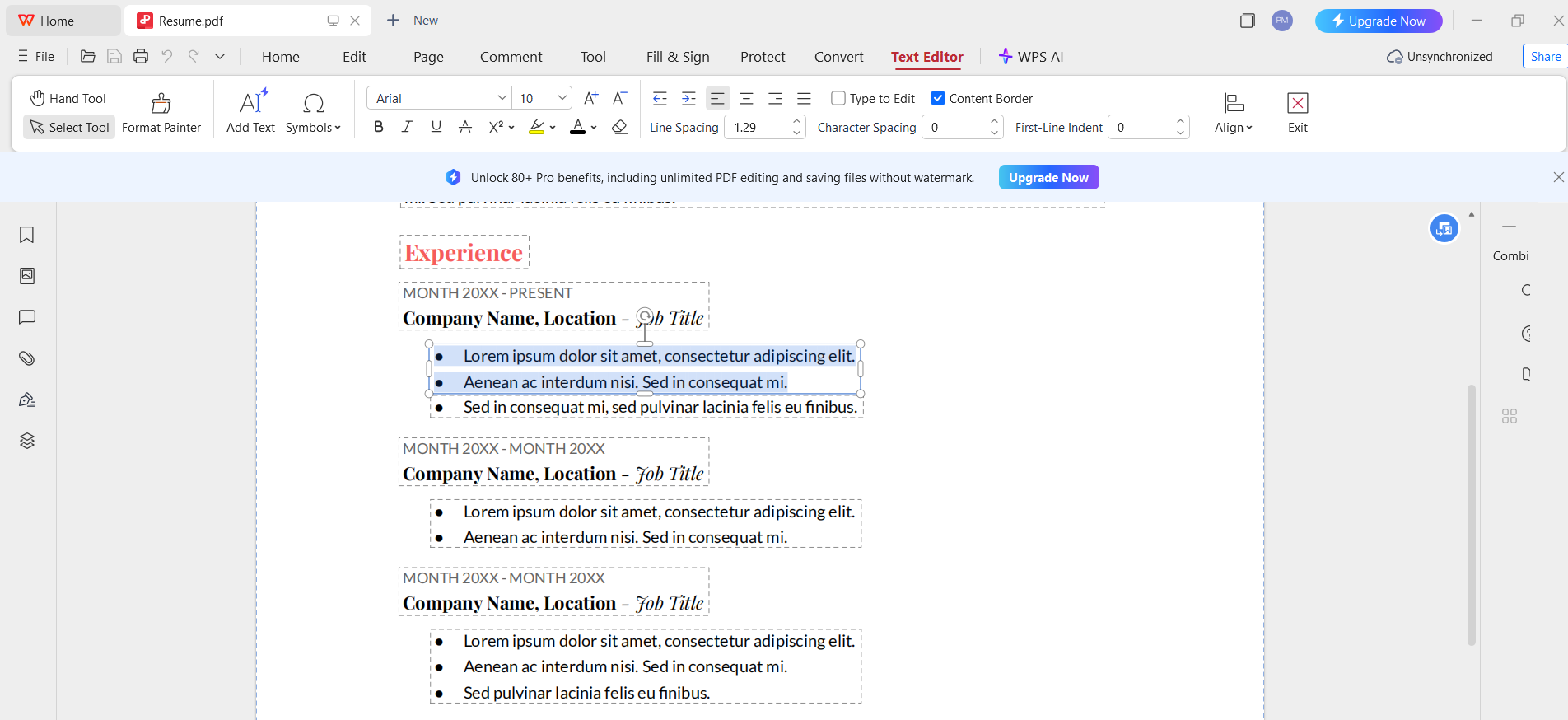
Click directly on the text. If the PDF contains editable text, you can highlight words or entire paragraphs just like in a Word document.
Step 3: Delete the Text
Press the Delete key or use the delete option from the toolbar. The selected text is permanently removed, not just hidden.
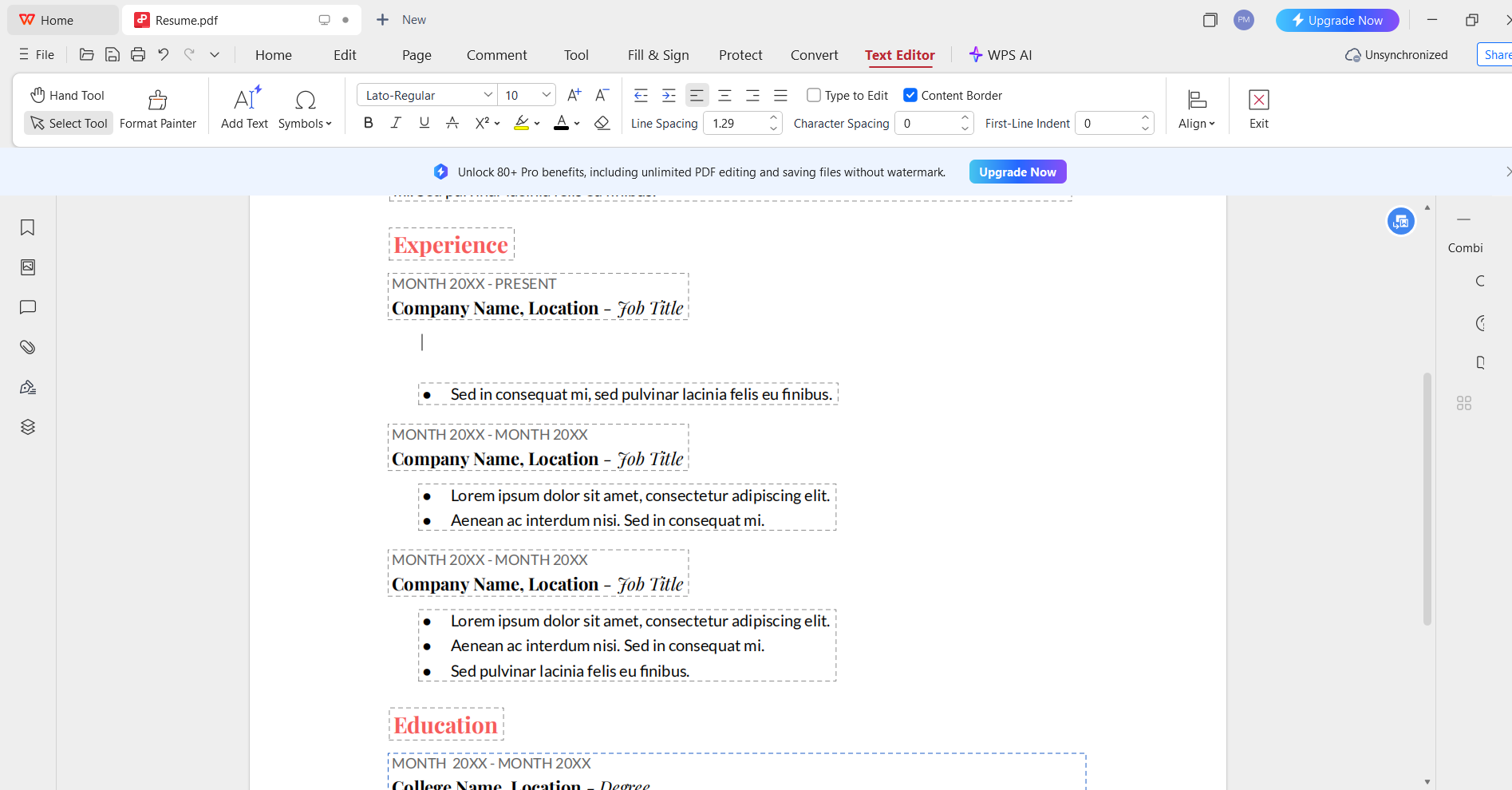
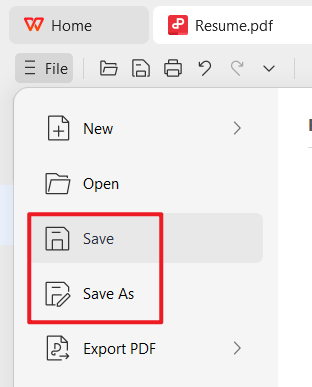
Step 4: Save the File
Save the PDF to keep the changes. The erased text will no longer be searchable or recoverable.
Why Use a PDF Editor to Erase Text in PDF?
Permanent removal
A PDF editor deletes text from the document structure, not just the visible layer. This is safer than “white box” methods.
Layout protection
Proper editors remove only the selected text while preserving spacing, images, and margins.
Professional results
This approach is ideal for legal, academic, and business files where accuracy matters.
Free and flexible option
WPS PDF Editor works as a free PDF to erase text in PDF for many common tasks, without forcing exports or adding watermarks.
My experience:
When I need to clean up reused templates or remove outdated clauses, I prefer a full editor over online tools. With WPS PDF Editor, the process feels predictable. I can erase text in PDF quickly and trust that the content is truly gone, which is something simple viewers cannot guarantee.
Part 2. Method 2: Erase Text in PDF Online
Online PDF editors are useful when you do not want to install software or when you need a quick fix on a shared computer. Most tools allow you to remove text from PDF online for free, but they differ greatly in security, accuracy, and export limits. Below are commonly used options, along with when they make sense to use.
Adobe Acrobat Online
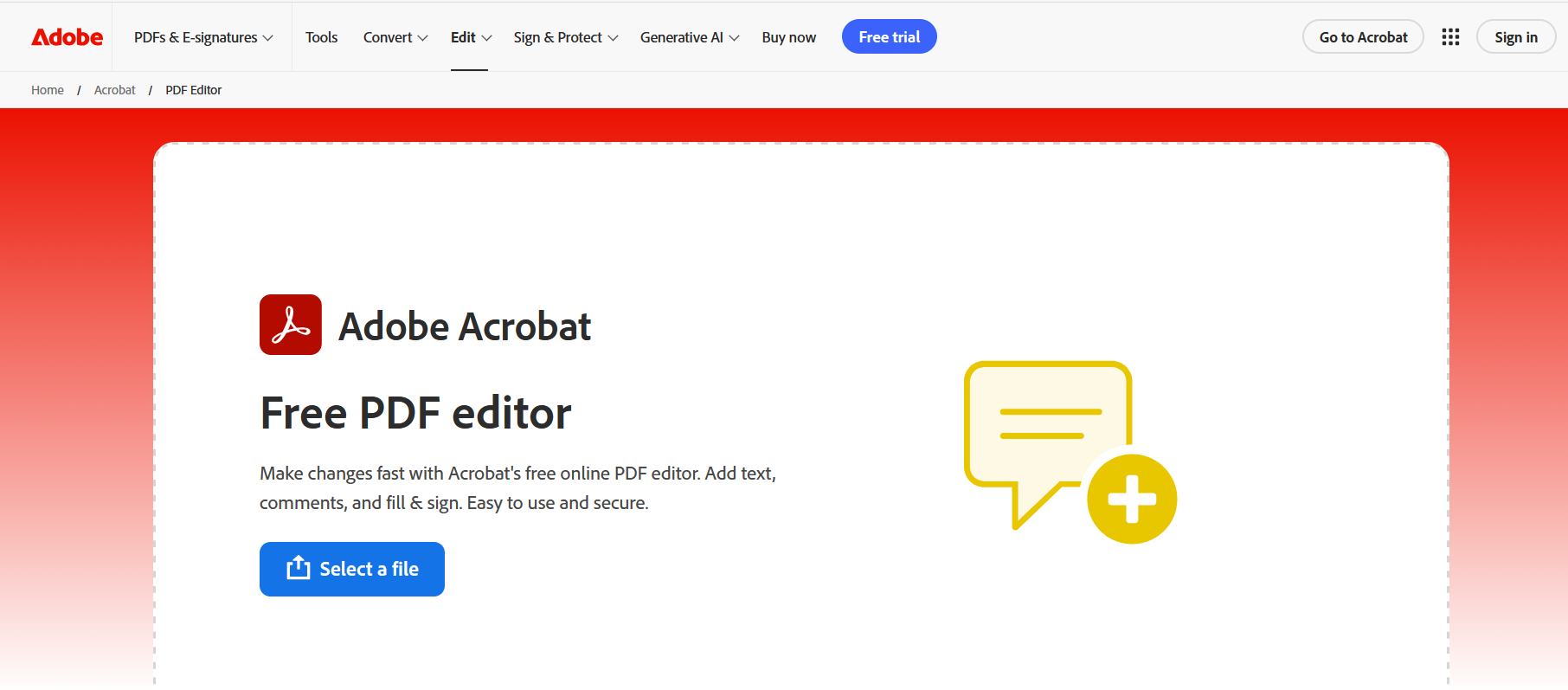
Adobe Acrobat Online is the web-based version of Adobe’s well-known PDF tools. It allows basic text editing directly in the browser and works well for clean, text-based PDFs.
Features
Edit and delete selectable text
Browser-based access
Preserves original formatting in most cases
Integrates with Adobe accounts
How to Erase
Open the online PDF editor.
Upload your PDF file.
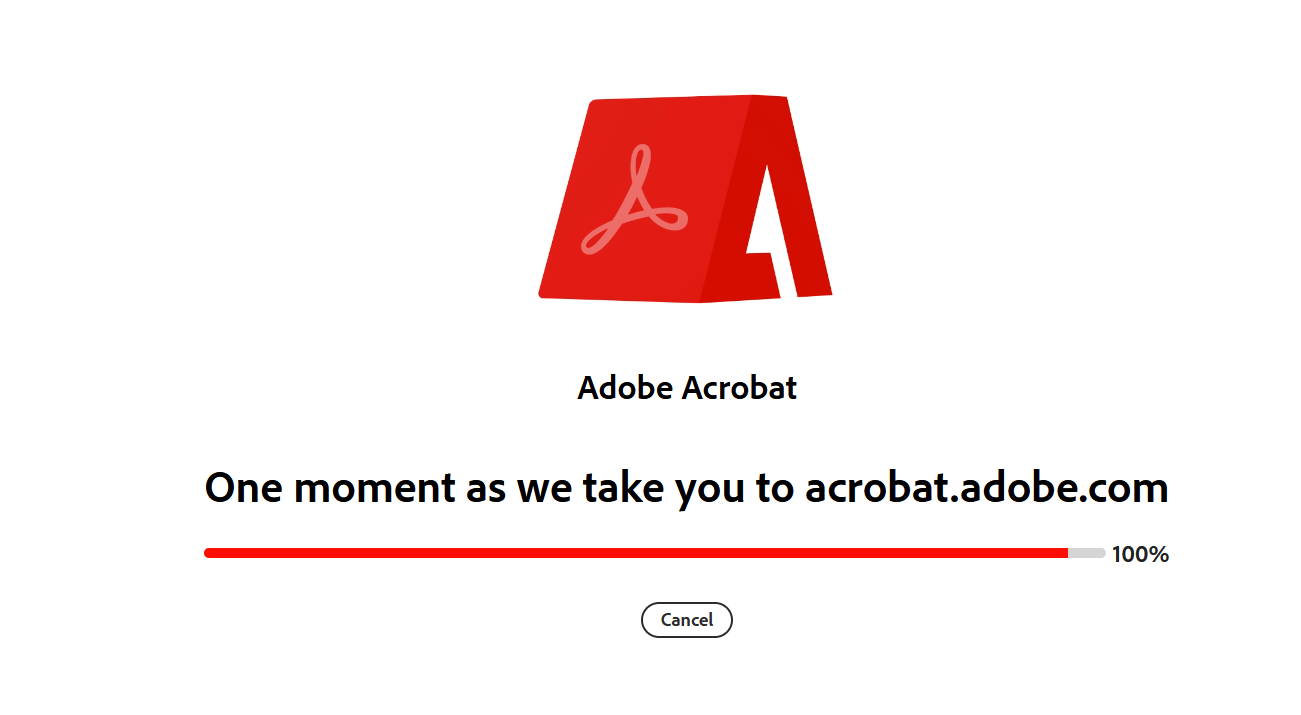
Click Edit and select the text you want to delete.
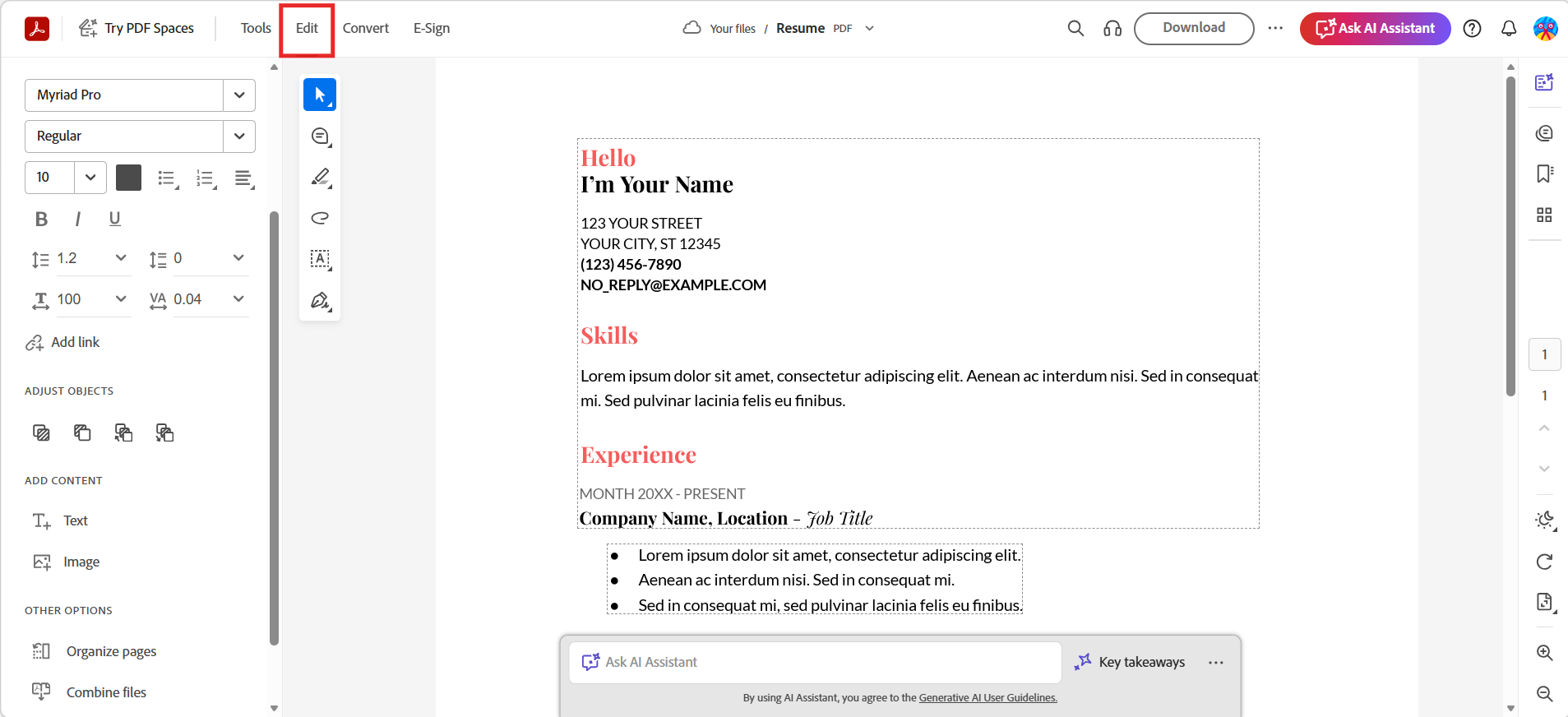
Remove the text and download the edited file.
This method is commonly used when people search for erasing text in PDF Adobe Acrobat, but advanced features often require signing in or upgrading.
My experience:
Adobe’s online editor is accurate, but limitations appear quickly. For repeated edits or private documents, I find the login requirement and usage caps restrictive compared to desktop editors.
PDFzorro
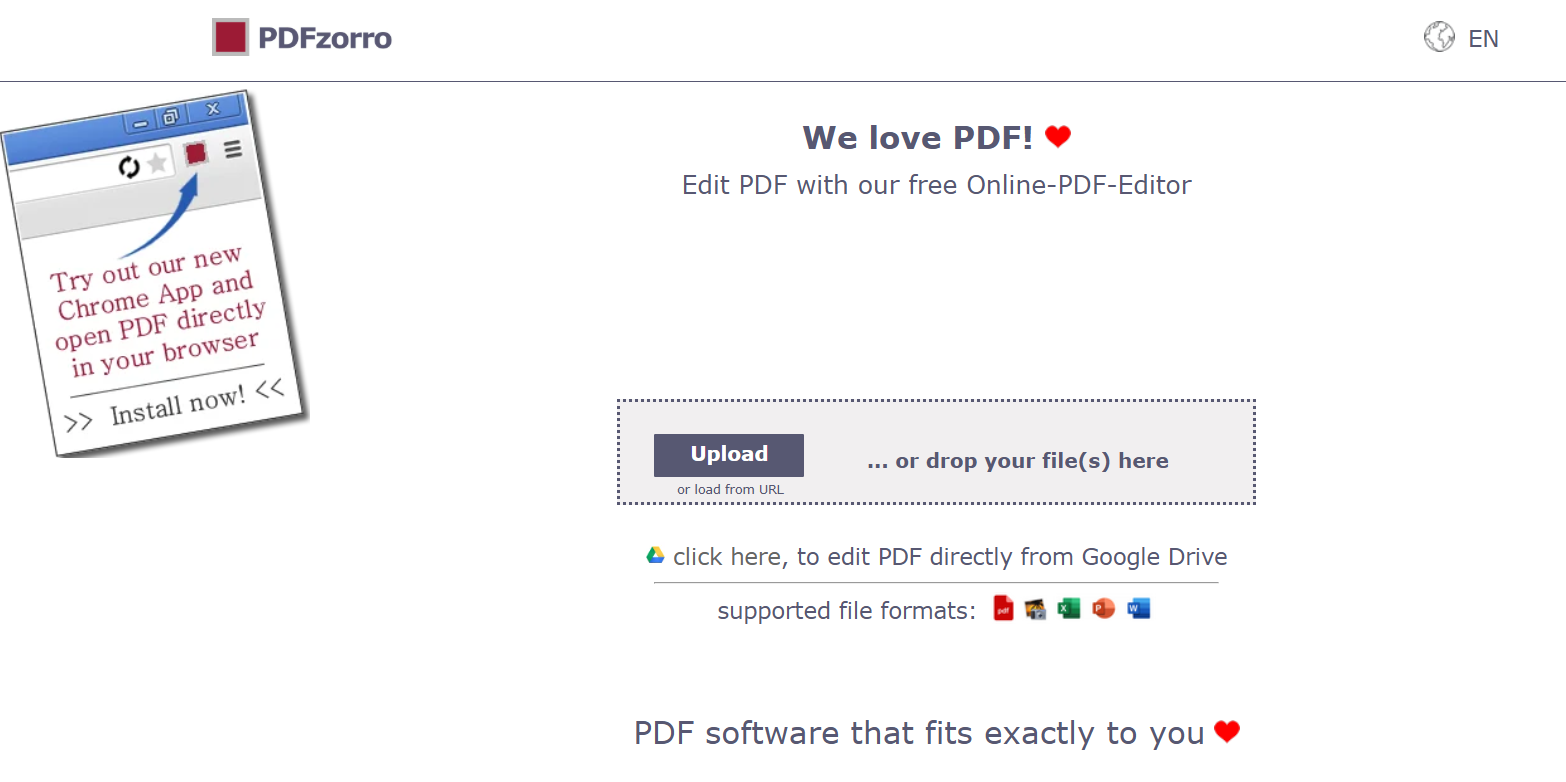
PDFzorro is a browser-based editor designed for simple tasks. It is often recommended when users want to remove text from PDF online for free without installing software.
Features
Free online access
Simple text removal and white-out tools
No account required
Basic layout preservation
How to Erase
Upload the PDF to the site.
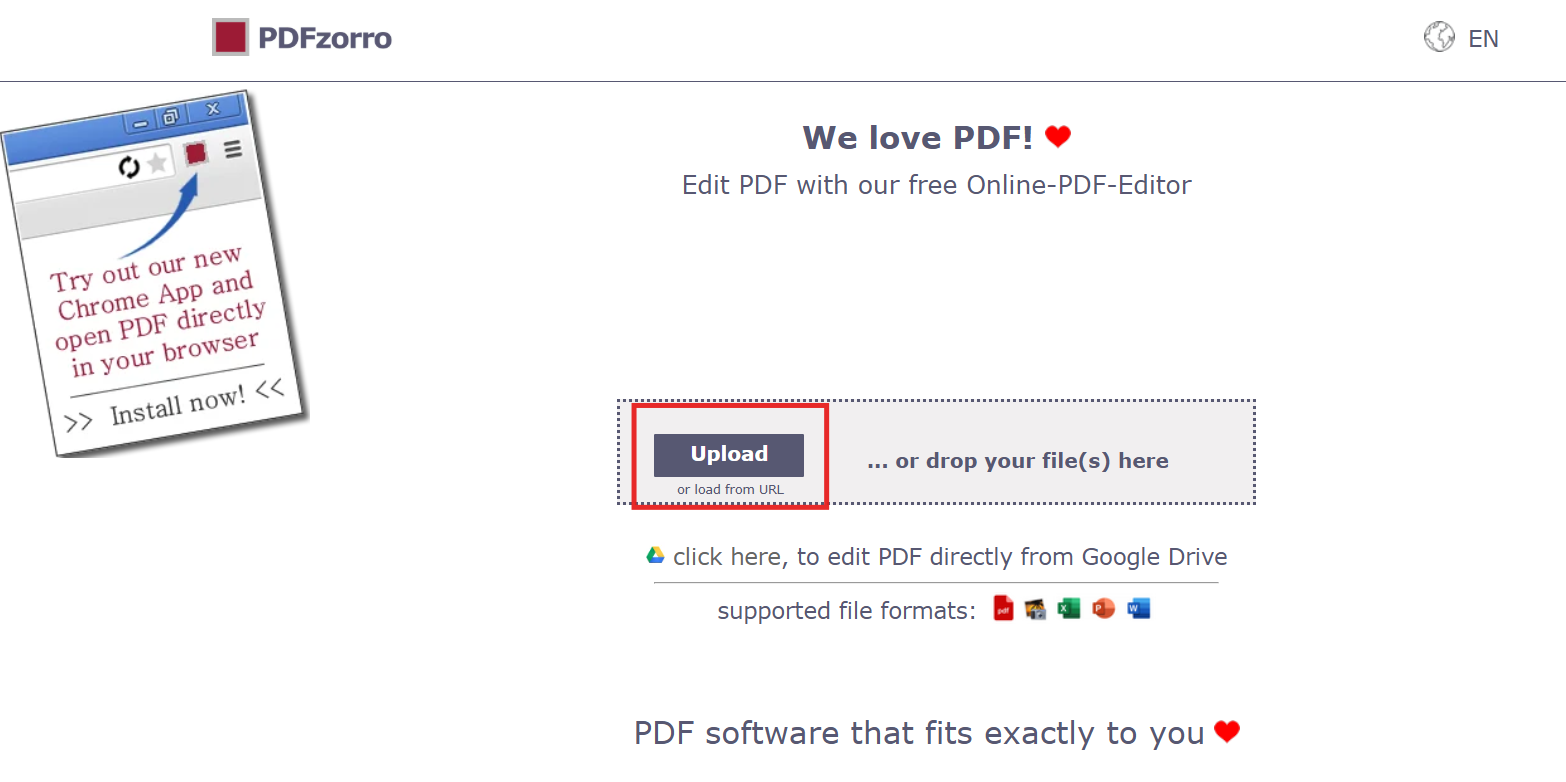
Choose the text editing or white-out tool.
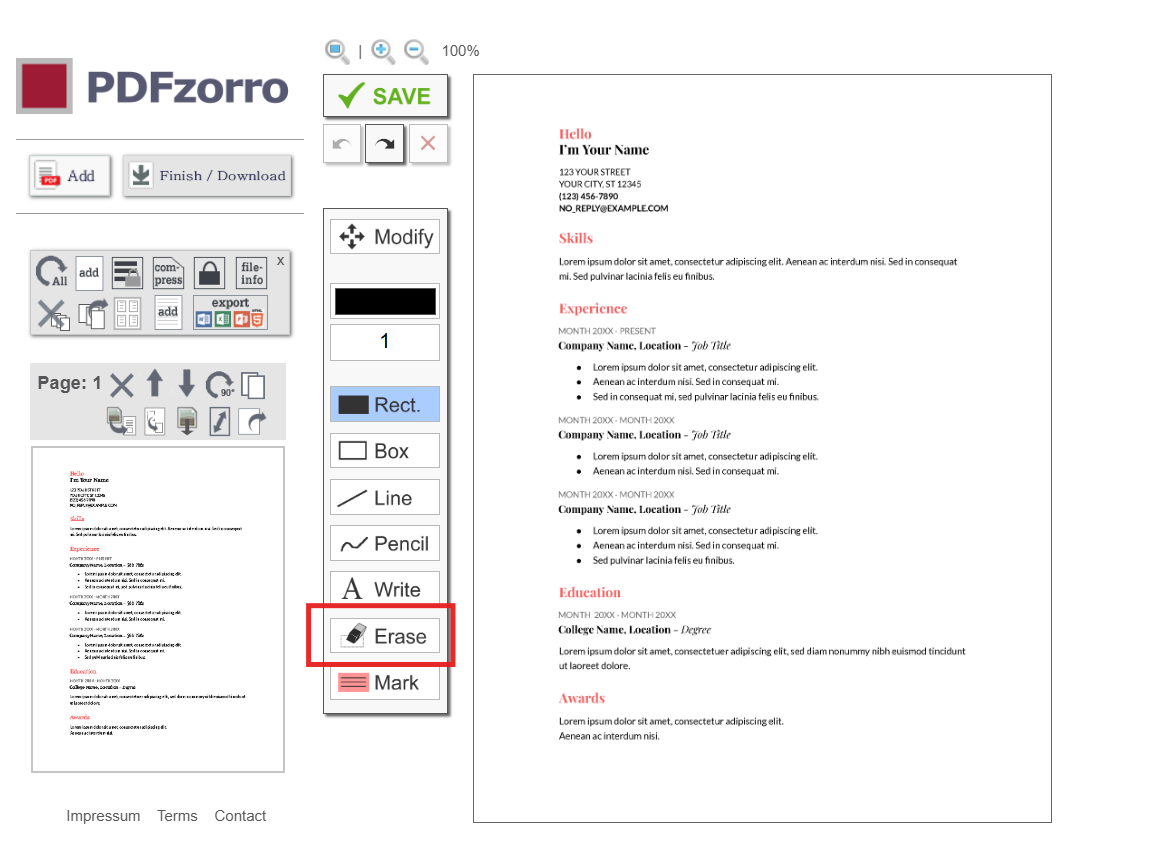
Save changes.
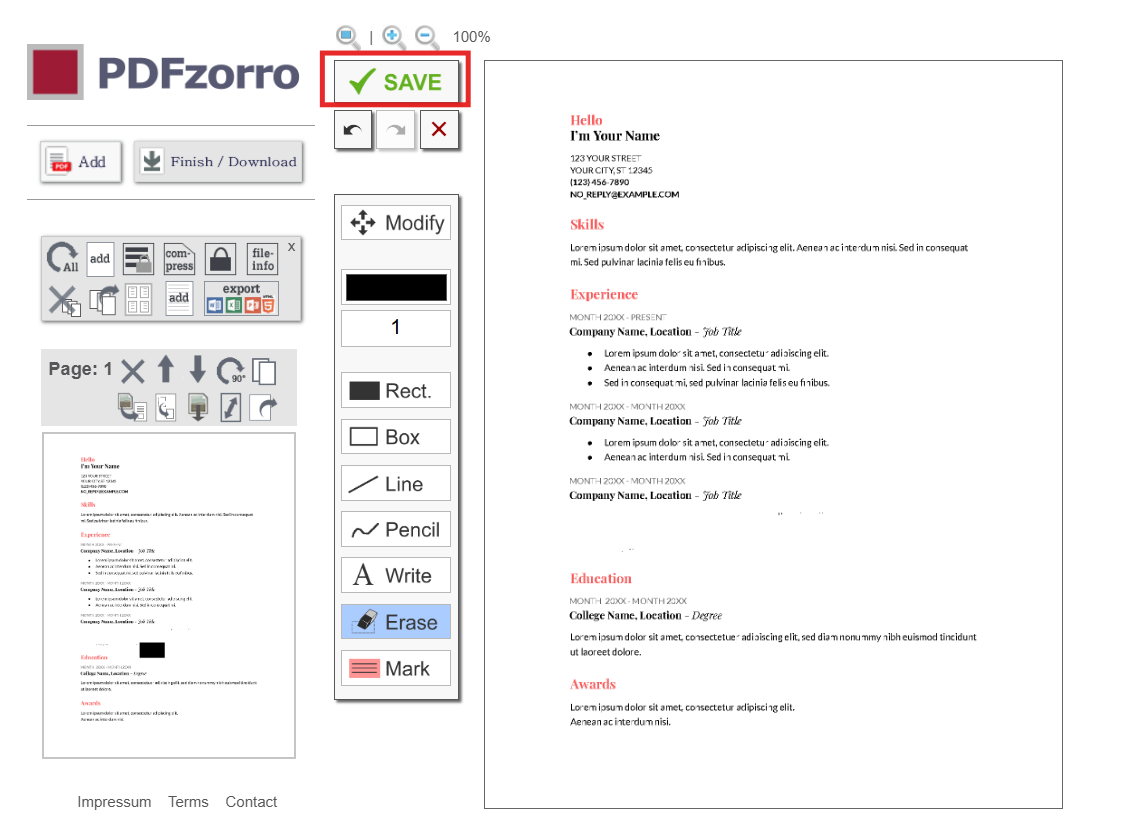
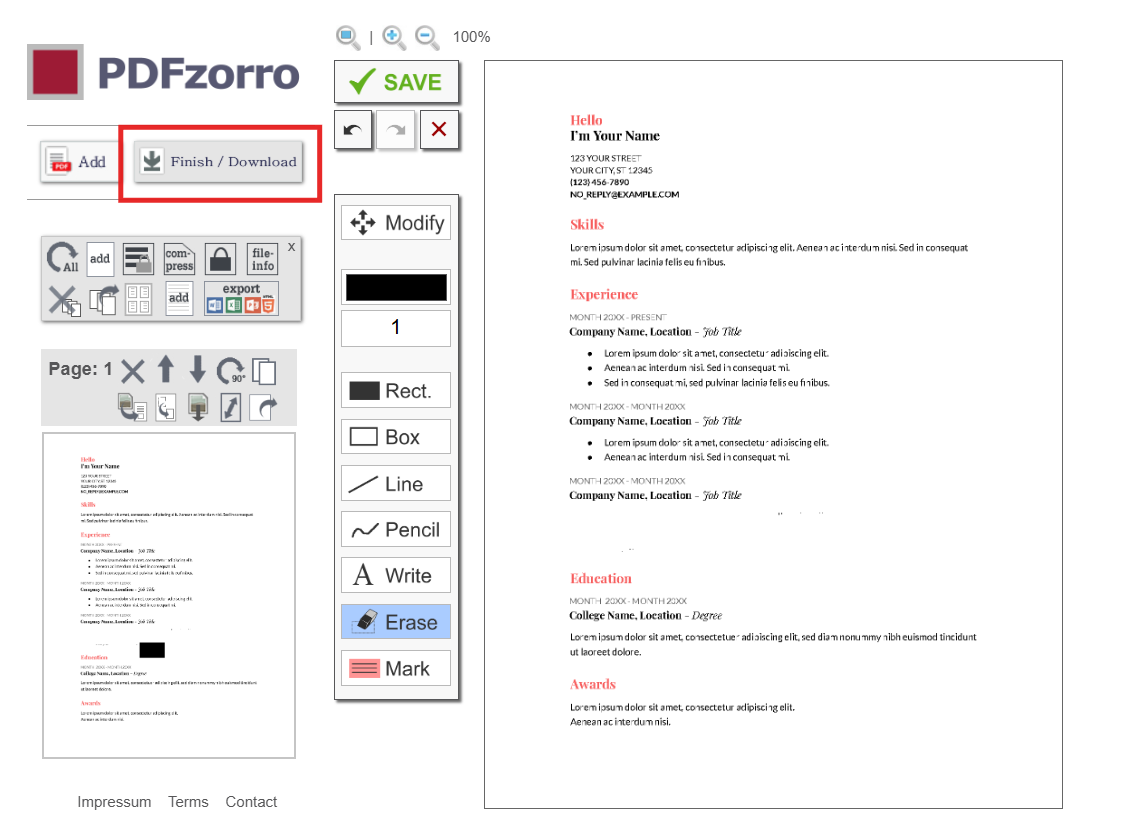
Download the modified PDF.
My experience:
PDFzorro works for non-sensitive documents, but it mainly hides text rather than fully removing it. I avoid it when working with private information.
Sejda
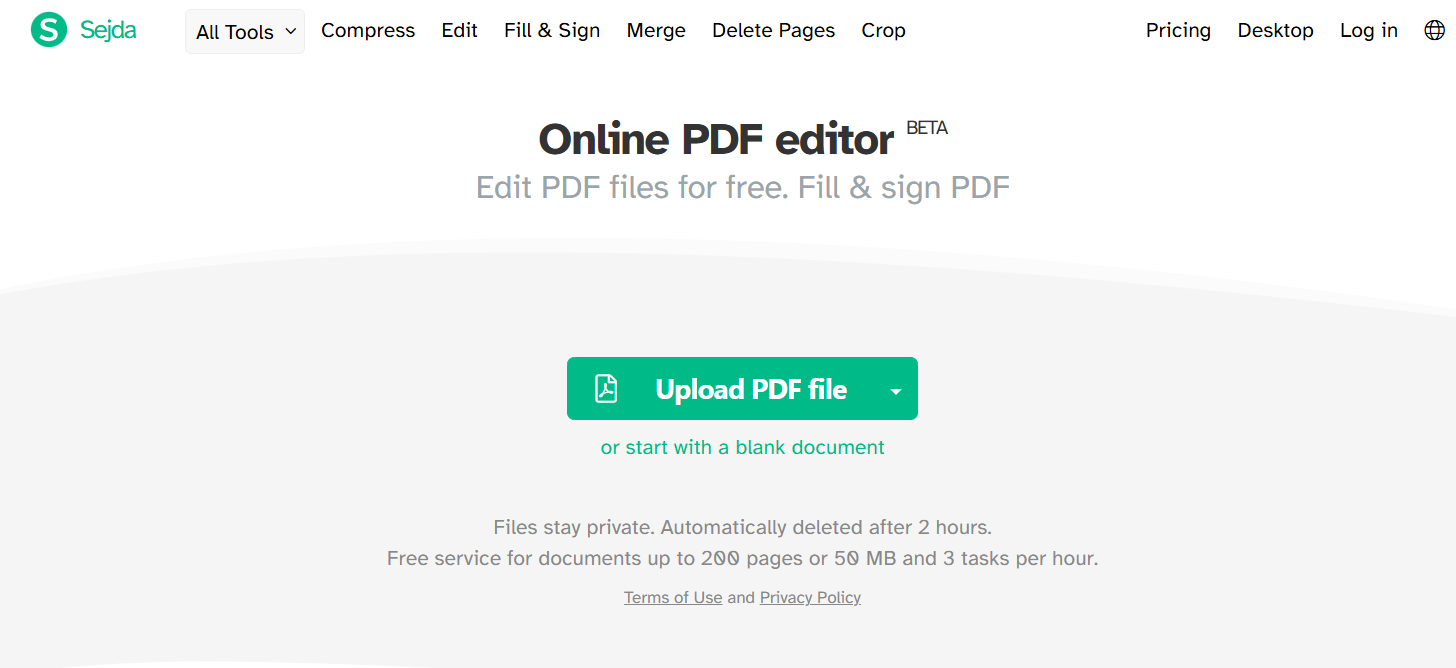
Sejda offers a cleaner interface and more accurate text editing compared to many free tools. It is suitable for occasional use and light editing.
Features
True text deletion in many PDFs
Cloud and desktop options
Limited free daily usage
Good layout retention
How to Erase
Upload your PDF file.
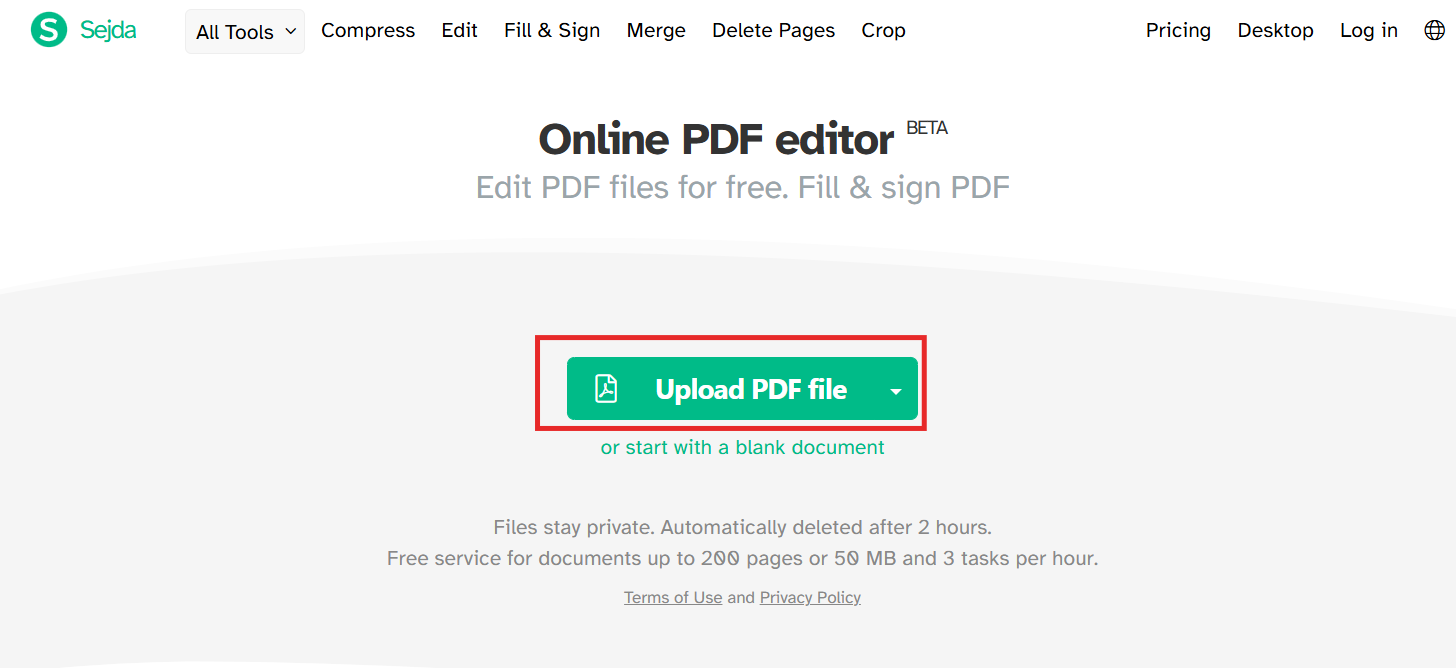
Enter edit mode.
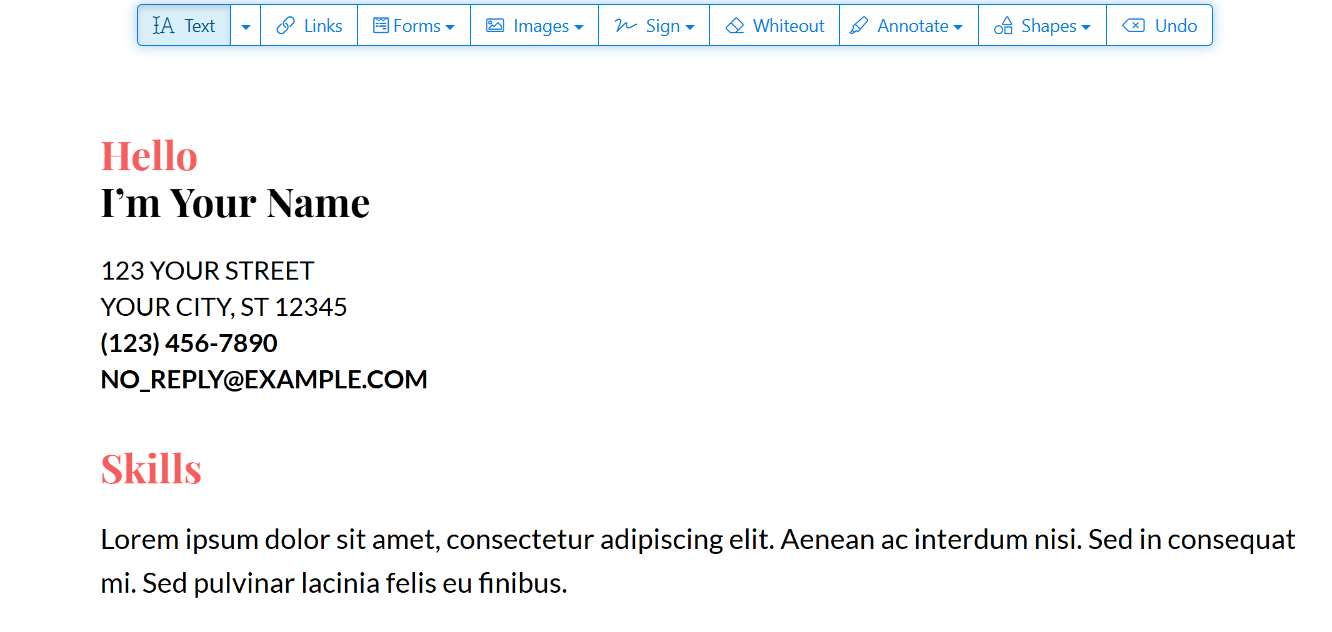
Select and delete the text.
Export the updated document.
My experience:
Sejda is one of the better online tools, but file size and daily limits can be frustrating if you work with PDFs regularly.
Why Use an Online PDF Editor to Erase Text in PDF?
No installation needed
Ideal for one-time edits or shared devices.
Quick access
Useful when working remotely or on borrowed systems.
Basic free usage
Many tools support erasing text in PDF free download, though limits apply.
That said, online editors are not my first choice for confidential documents. Uploading files to third-party servers always carries risk, which is why I switch to offline editors for professional work.
Part 3. Method 3: Erase Text in PDF on Mobile Phone
Mobile editing has become essential for people who review and update documents on the go. While many apps only allow annotations, a capable editor lets you erase text in a PDF in mobile device without converting the file or breaking the layout. WPS PDF Editor on mobileis designed for this exact scenario, especially when quick fixes are needed outside the office.

Brief Introduction to WPS PDF Editor on Mobile
WPS Office provides a mobile PDF editor for both Android and iOS. It supports direct text editing, layout preservation, and cloud sync. This makes it practical when you need to erase text in PDF free download workflows while working from a phone or tablet.
How to Erase Text in PDF with WPS PDF Editor on Mobile
Step 1: Open the PDF on Your Phone
Install and open WPS Office, then load the PDF file from local storage or the cloud.
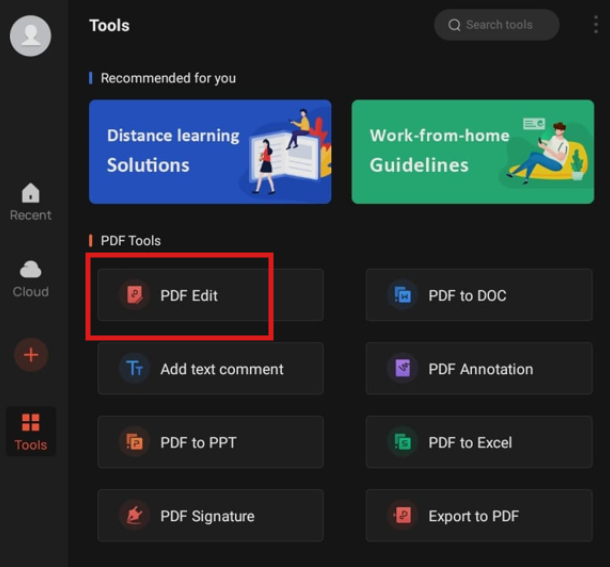
Step 2: Enter Edit Mode
Tap the Edit PDF option. If the document contains editable text, the text layer becomes selectable.
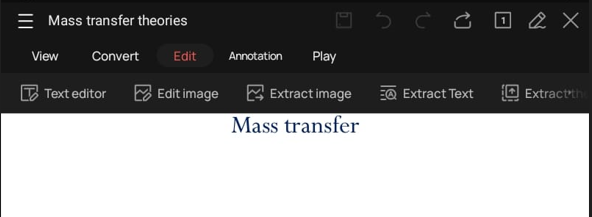
Step 3: Select and Delete the Text
Tap on the text you want to remove and delete it. The change is applied directly to the document.
Step 4: Save the PDF
Save the file to keep the edited version. The erased text will not reappear when reopened on the desktop.
When Mobile Editing Makes Sense
Urgent edits
Useful when contracts or forms need last-minute corrections.
No computer access
Ideal if a phone is the only available device.
Consistent formatting
The layout remains stable across platforms.
My experience:
I often rely on mobile editing for quick cleanups, like removing outdated headers before sending a file. WPS PDF Editor on mobile feels consistent with the desktop version, which helps avoid surprises when reopening the file later.
Part 4. Why Choose WPS Office to Erase Text in PDF
If you regularly need to erase text in PDF files, consistency and reliability matter more than one-off fixes. WPS Office combines desktop, online, and mobile PDF tools in one ecosystem, making it easier to work across devices without changing workflows or file formats.
Key Features for PDF Editing
Direct text editing and deletion
Layout and formatting preservation
OCR support for scanned PDFs
Cross-platform support on Windows, macOS, Android, and iOS
Unique Advantages
Erase text in PDF without a watermark for the most common editing tasks
Balanced free and premium features for everyday office work
Works offline, which is safer for confidential documents
Smooth transition between desktop and mobile editing
Online Tools
WPS also provides browser-based PDF tools for quick edits. These are useful when you need flexibility, while the desktop editor remains the best option for permanent text removal and professional documents.
My experience:
After testing many tools, I consistently return to WPS Office for real work. The editing feels predictable, and text removal does not leave gaps or broken spacing. It works equally well whether I am editing a contract on a desktop or cleaning up a PDF on my phone.
FAQs
1. What is the difference between “Whiting out” and “Redacting” text?
Whiting out places a white box over the text, but the text still exists in the file and can be searched or extracted. Redacting permanently removes the text from the PDF structure, making it unrecoverable. For private information, redaction is the only safe option.
2. Will erasing text in a PDF mess up the rest of the page layout?
It depends on the tool. Professional editors allow you to delete text while keeping margins, images, and spacing intact. Simple converters or viewers often cause alignment issues.
3. Why can’t I select or erase text in some PDFs?
This usually happens for two reasons. The PDF may be protected with editing restrictions, or it may be an image-only scan without OCR. In both cases, text must be unlocked or recognized before editing.
4. Is it safe to remove text from PDF online free tools?
Online tools are fine for non-sensitive documents. For confidential or legal files, offline editors are safer because your files do not leave your device.
5. Can I erase text in a PDF on mobile without converting it?
Yes. Mobile editors that support true text editing allow you to delete text directly without converting the PDF to another format.
6. Do free tools permanently erase text?
Some do, but many only hide it visually. Always check whether the tool removes the text layer or simply overlays shapes.
Summary
Erasing text in PDFs is not as simple as it looks. Many tools only hide content, leaving data exposed or breaking layouts. In this guide, we explored how to erase text in PDF using desktop editors, online tools, and mobile solutions, along with their strengths and limitations.
For consistent results, strong layout control, and flexible usage across devices, WPS PDF tools provide a reliable solution. Whether you need quick edits or professional-grade document cleanup, choosing the right editor makes all the difference.

'%3e%3cpath%20d='M19.9911%204.11386V6.471H18.5894C18.0775%206.471%2017.7322%206.57814%2017.5536%206.79243C17.3751%207.00671%2017.2858%207.32814%2017.2858%207.75671V9.44421H19.9019L19.5536%2012.0871H17.2858V18.8639H14.5536V12.0871H12.2769V9.44421H14.5536V7.49779C14.5536%206.39064%2014.8632%205.53201%2015.4822%204.92189C16.1013%204.31177%2016.9257%204.00671%2017.9554%204.00671C18.8304%204.00671%2019.509%204.04243%2019.9911%204.11386Z'%20fill='%23333333'/%3e%3c/g%3e%3cdefs%3e%3cclipPath%20id='clip0_2938_8199'%3e%3crect%20width='16'%20height='16'%20fill='white'%20transform='translate(8%204.00671)'/%3e%3c/clipPath%3e%3c/defs%3e%3c/svg%3e)
'%3e%3cpath%20d='M17.5237%2010.7813L23.4811%204H22.0699L16.8949%209.88693L12.7648%204H8L14.2469%2012.9029L8%2020.0133H9.4112L14.8725%2013.7952L19.2352%2020.0133H24M9.92053%205.04213H12.0885L22.0688%2019.0224H19.9003'%20fill='%23333333'/%3e%3c/g%3e%3cdefs%3e%3cclipPath%20id='clip0_2938_8200'%3e%3crect%20width='16'%20height='16.0134'%20fill='white'%20transform='translate(8%204)'/%3e%3c/clipPath%3e%3c/defs%3e%3c/svg%3e)


