



'%3e%3cpath%20fill-rule='evenodd'%20clip-rule='evenodd'%20d='M21.4999%2010.9993C21.4999%205.20009%2016.7986%200.498901%2010.9993%200.498901C5.19994%200.498901%200.498657%205.20009%200.498657%2010.9993C0.498657%2016.2404%204.33858%2020.5844%209.35855%2021.3722V14.0346H6.69238V10.9993H9.35855V8.68594C9.35855%206.05427%2010.9262%204.60062%2013.3248%204.60062C14.4736%204.60062%2015.6753%204.80571%2015.6753%204.80571V7.38979H14.3512C13.0468%207.38979%2012.64%208.19921%2012.64%209.0296V10.9993H15.5523L15.0867%2014.0346H12.64V21.3722C17.66%2020.5844%2021.4999%2016.2404%2021.4999%2010.9993Z'%20fill='%231568EA'/%3e%3c/g%3e%3c/svg%3e)


'%3e%3cpath%20d='M2.42045%2022.1876H6.31818V12.7217L0.75%208.54553V20.5171C0.75%2021.4414%201.49892%2022.1876%202.42045%2022.1876Z'%20fill='%234285F4'/%3e%3cpath%20d='M19.682%2022.1876H23.5797C24.5041%2022.1876%2025.2502%2021.4387%2025.2502%2020.5171V8.54553L19.682%2012.7217'%20fill='%2334A853'/%3e%3cpath%20d='M19.682%205.48293V12.7216L25.2502%208.54543V6.31816C25.2502%204.25236%2022.8921%203.07469%2021.2411%204.31361'%20fill='%23FBBC04'/%3e%3cpath%20d='M6.31824%2012.7217V5.48303L13.0001%2010.4944L19.6819%205.48303V12.7217L13.0001%2017.733'%20fill='%23EA4335'/%3e%3cpath%20d='M0.75%206.31816V8.54543L6.31818%2012.7216V5.48293L4.75909%204.31361C3.10534%203.07469%200.75%204.25236%200.75%206.31816Z'%20fill='%23C5221F'/%3e%3c/g%3e%3cdefs%3e%3cclipPath%20id='clip0_2954_7305'%3e%3crect%20width='24.5'%20height='18.375'%20fill='white'%20transform='translate(0.75%203.8125)'/%3e%3c/clipPath%3e%3c/defs%3e%3c/svg%3e)


Use the BigVideoPro Docx Size Increaser: upload your DOC or DOCX file, choose a target such as 1 MB, click Increase Docx Size Now, and download the larger document.
Increase Word File Size
DOC & DOCX
Choose target MB
No installation
This is a third-party tool. Review its privacy terms before processing confidential documents.
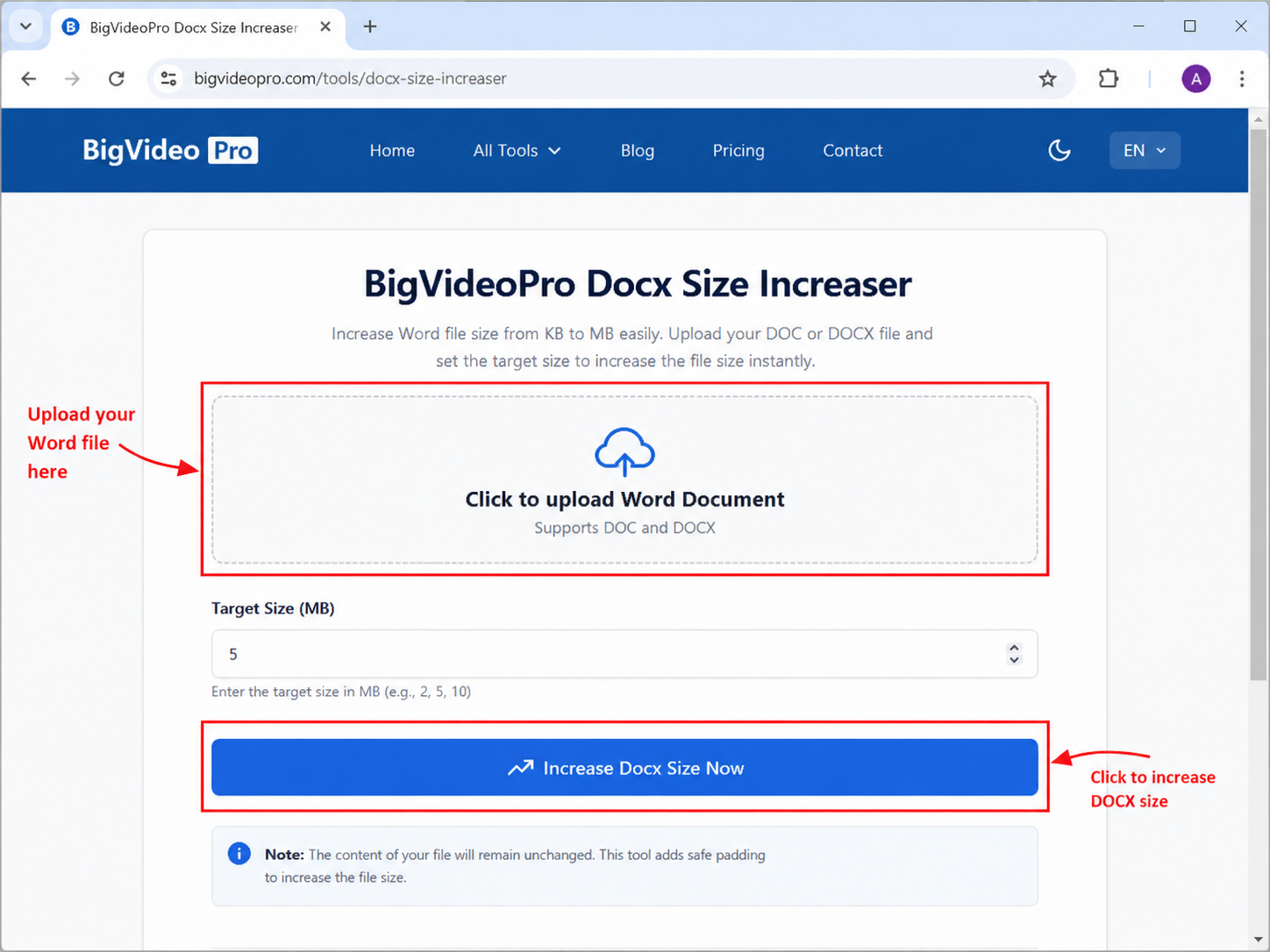
Quick Steps
Upload: Choose a DOC or DOCX file
Set the size: Select 1 MB, 2 MB, or another target
Increase: Click Increase Docx Size Now
Download: Open and verify the new file
Check the upload rule first: This method is for a minimum file-size requirement. If the portal says “maximum 1 MB,” you need to compress the document instead.
How to Increase the File Size of a Word Document Online
Follow these steps to enlarge a DOC or DOCX file directly in your browser.
Step 1: Open a DOCX Size Increaser
Open the BigVideoPro Docx Size Increaser. You should see a Word upload area, a target-size setting, and an Increase Docx Size Now button.
Use the correct tool: A page labeled Compress, Reduce File Size, or Compression Level solves the opposite problem.
Step 2: Upload the DOC or DOCX File
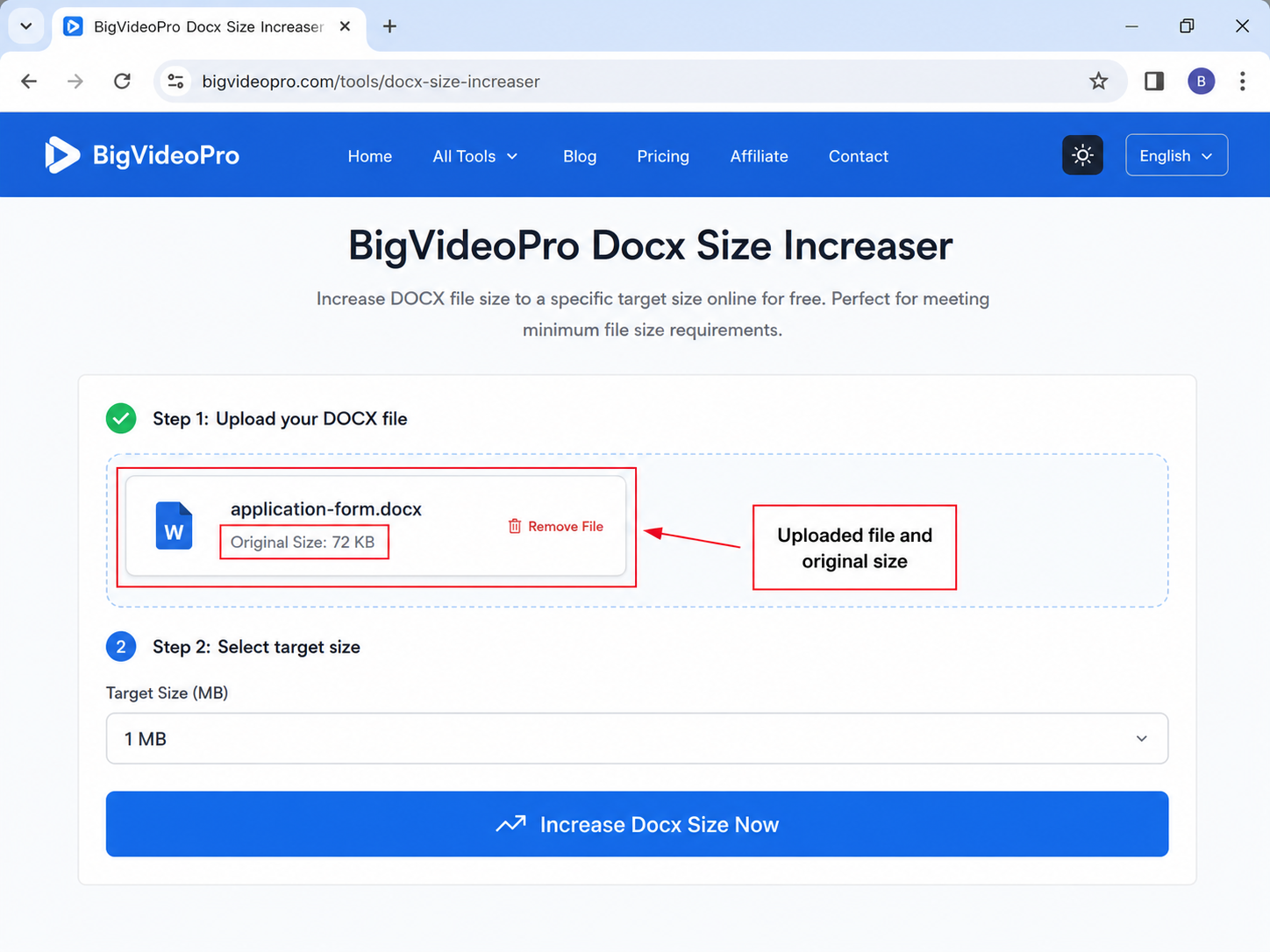
Click the upload area and select the Word document from your device. After the upload, confirm the filename and original size before continuing.
Check that you selected the correct document.
Confirm the current file size.
Keep a backup of the original file.
Step 3: Choose the Target File Size
Select the size required by the upload portal. For example, choose 1 MB when the website requires the Word document to be at least 1 MB.
| Upload requirement | Recommended choice |
|---|---|
| At least 100 KB | Choose the smallest available target above 100 KB |
| At least 500 KB | Choose 1 MB if 500 KB is unavailable |
| At least 1 MB | Choose 1 MB |
| At least 2 MB | Choose 2 MB |
| Maximum 1 MB | Do not use a size increaser; compress the document instead |
At least 1 MB means 1 MB or larger. No more than 1 MB means the file must remain below the limit.
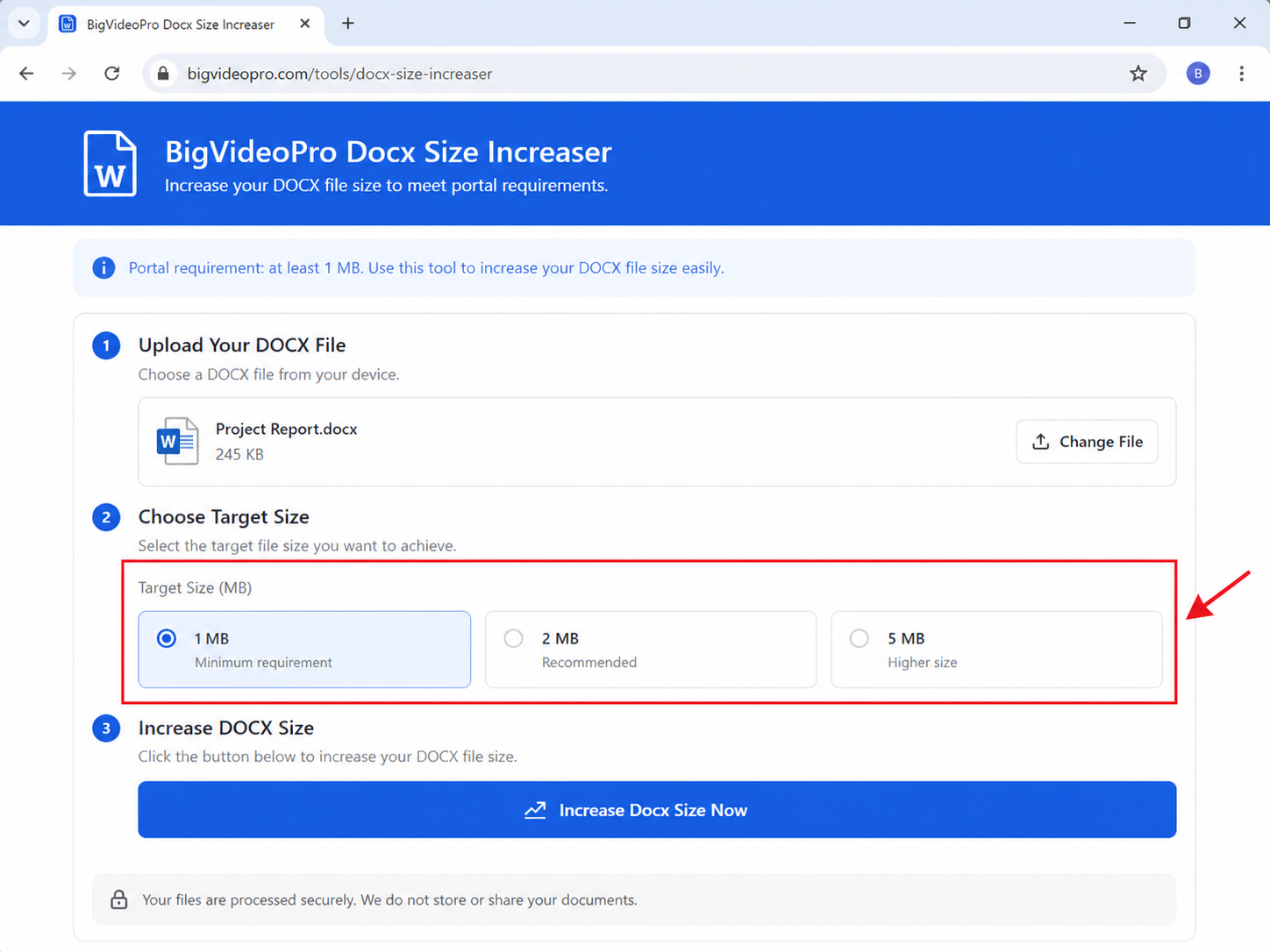
Step 4: Click “Increase Docx Size Now”
Click the increase button and wait for the tool to finish processing the document. Do not close the browser tab while the file is being prepared.
A dedicated size increaser may add stored data without adding visible text or images. Because third-party tools can change, treat any privacy or browser-processing statement as the provider’s claim and review the site before uploading sensitive material.
Step 5: Download the Larger Word File
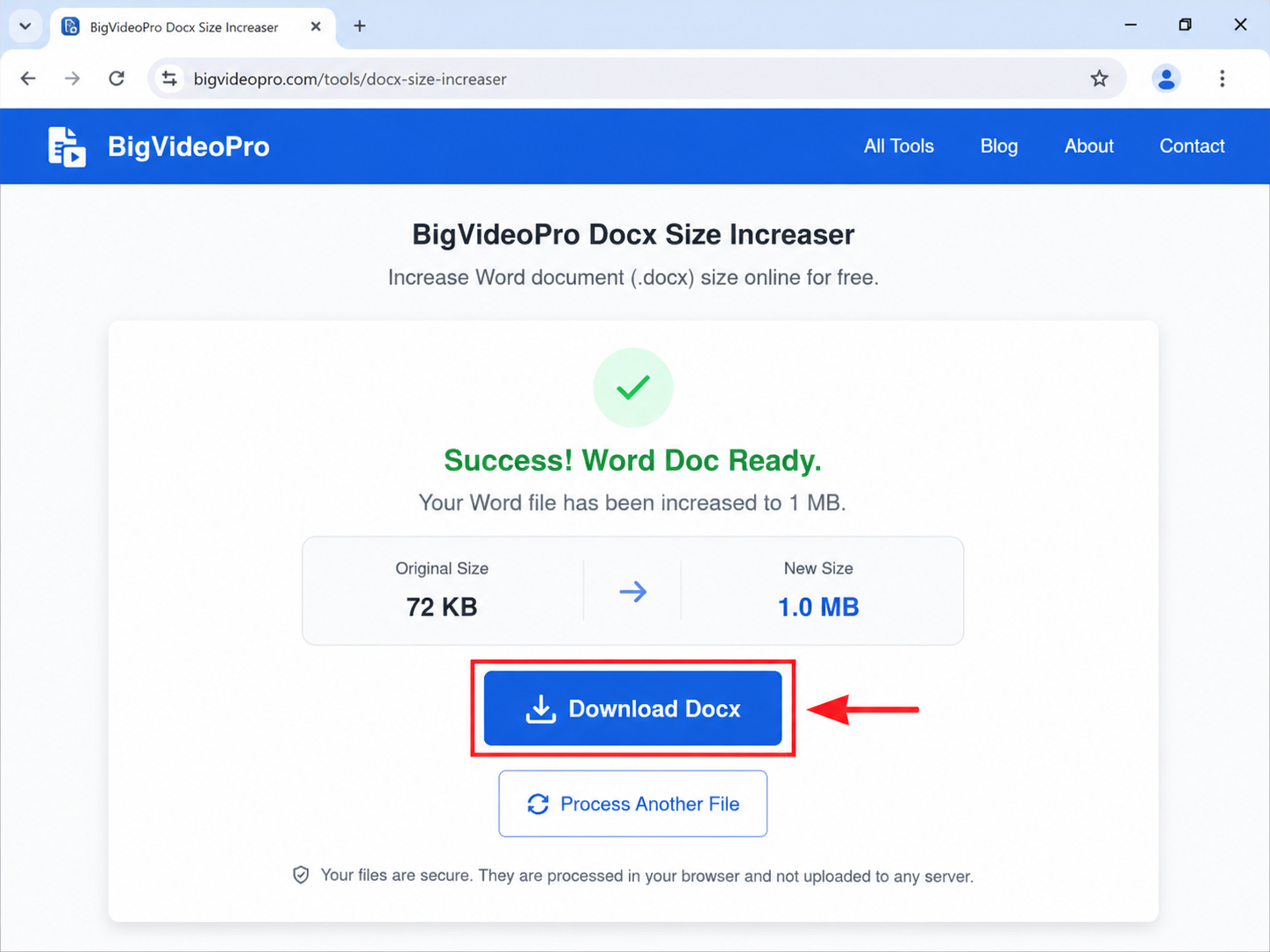
When the success screen appears, click Download Docx. Save it under a clear name such as application-form-1mb.docx so it is not confused with the original.
Step 6: Open and Check the Downloaded Document
Open the new file in Microsoft Word or WPS Office before uploading it. Confirm that the text, images, tables, page breaks, comments, and links still work as expected.
Then check the file properties:
Windows: Right-click the file → Properties → Size.
macOS: Right-click the file → Get Info → Size.
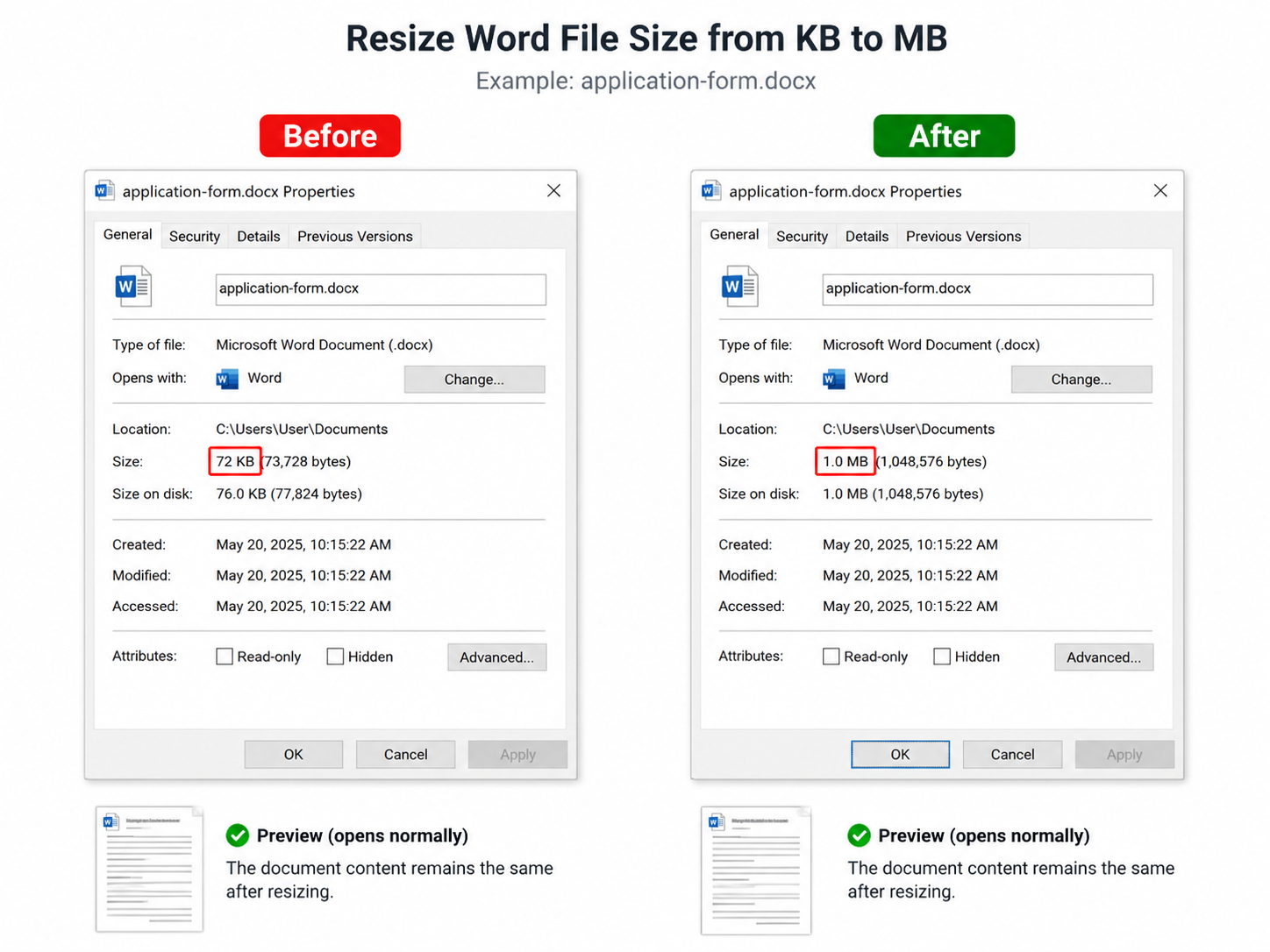
How to Increase a Word File to 500 KB or 1 MB
How to Increase a Word File to 500 KB
Upload the document to a DOCX Size Increaser.
Look for a 500 KB or custom-size option.
If only whole megabytes are offered and the portal requires at least 500 KB, choose 1 MB.
Download and verify the result.
Do not choose 1 MB when 500 KB is the maximum permitted size.
How to Make a Word Document 1 MB
Upload the DOC or DOCX file.
Set the target size to 1 MB.
Click the increase button.
Download the processed file.
Check the size and reopen the document.
The number displayed by the operating system may vary slightly because tools and systems can interpret “1 MB” differently.
Can You Increase Word File Size Without Changing Its Content?
Yes. A dedicated DOCX size increaser can add stored data without adding visible pages, images, or paragraphs. This is useful when the document content is complete and the only problem is a portal’s minimum file-size rule.
Some upload systems inspect more than the total number of bytes. If a padded document is rejected, use the manual method below to add genuine document content.
Alternative: Increase Word File Size in WPS Office
Use WPS Office when you prefer not to process a file through an unfamiliar third-party tool, or when the upload system requires genuine additional content. The simplest manual method is to add a relevant high-resolution image.
Manual Step 1: Open the Document in WPS Writer
Open the DOC or DOCX file in WPS Writer and save a backup before editing.
Manual Step 2: Insert a High-Resolution Image
Place the cursor where the image belongs, select Insert > Picture, choose an original image, and click Insert.
Use content that genuinely belongs in the document, such as a scanned signature page, certificate, chart, original photo, supporting screenshot, or appendix.
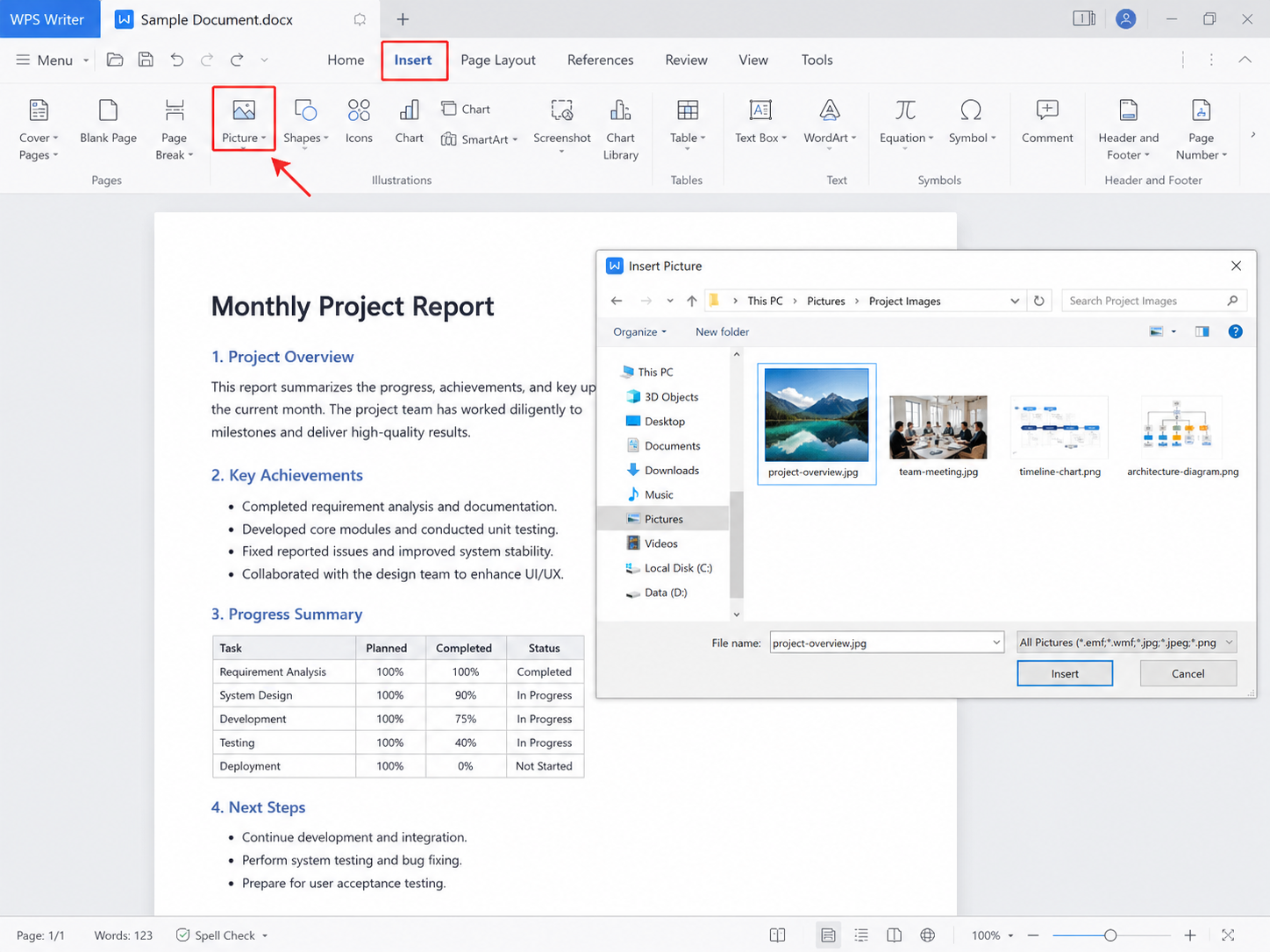
Manual Step 3: Save the Document as DOCX
Select File > Save As, keep the DOCX format, and save the edited file under a new name. Check its size and repeat only when more legitimate content is needed.
Manual Step 4: Consider Embedded Fonts
Embedding fonts can increase stored size and preserve special typography on other computers. Use this option for a genuine formatting need rather than adding unnecessary fonts only to manipulate the file size.
DOCX Size Increaser vs. Adding Images in WPS Office
| Method | Best for | Changes visible content? | Target size |
|---|---|---|---|
| DOCX Size Increaser | Meeting a minimum size quickly | Usually no | Often selectable |
| Add images in WPS Office | Adding genuine supporting content | Yes | Requires checking |
| Embed fonts or objects | Preserving fonts or source data | Usually little visible change | No exact target |
| Word compressor | Making an oversized file smaller | May reduce image quality | Wrong method for this task |
Why Is the Increased Word File Still Rejected?
The Portal Has a Maximum, Not a Minimum
“Minimum 1 MB” requires a larger file. “Maximum 1 MB” requires a smaller file. Read the upload message carefully before choosing a tool.
The Portal Requires an Exact Size
Check the final file properties. A target labeled 1 MB may be slightly above or below an exact byte value.
The Website Checks the Document Structure
Some systems may reject files enlarged only through padding. Add a legitimate image, scan, chart, or embedded object in WPS Office instead.
The Downloaded File Does Not Open
Do not submit it. Return to the original document, process it again, choose a smaller target, convert old DOC files to DOCX, or use the manual method.
The File Became Smaller
You probably used a compressor. Look for wording such as Increase File Size, Target Size, or KB to MB, rather than Compress or Reduce File Size.


Frequently Asked Questions
Can I increase a Word file size online without adding images?
Yes. A DOCX Size Increaser can add stored data without adding visible pictures or pages. Reopen the result before using it.
How do I increase a Word file from KB to 1 MB?
Upload it to a DOCX Size Increaser, choose 1 MB, process the file, download it, and verify the final size.
Can I make a Word document exactly 500 KB?
Only when the tool provides a custom KB target. When 500 KB is a minimum and the tool offers only whole MB values, 1 MB may be acceptable.
Does increasing the file size change the document text?
A padding-based tool aims to leave visible text unchanged, but the result must still be checked in Word or WPS Office.
Is increasing Word file size the same as compressing it?
No. Increasing makes the stored file larger. Compression makes it smaller.
Does adding blank pages make a Word file much larger?
Usually not. Blank pages contain very little stored data and are ineffective for increasing a small document to 1 MB.
Open, Edit, and Check Your Word Document
Use WPS Office to reopen the processed DOCX, verify its formatting, or increase its size manually by adding legitimate supporting content.

'%3e%3cpath%20d='M19.9911%204.11386V6.471H18.5894C18.0775%206.471%2017.7322%206.57814%2017.5536%206.79243C17.3751%207.00671%2017.2858%207.32814%2017.2858%207.75671V9.44421H19.9019L19.5536%2012.0871H17.2858V18.8639H14.5536V12.0871H12.2769V9.44421H14.5536V7.49779C14.5536%206.39064%2014.8632%205.53201%2015.4822%204.92189C16.1013%204.31177%2016.9257%204.00671%2017.9554%204.00671C18.8304%204.00671%2019.509%204.04243%2019.9911%204.11386Z'%20fill='%23333333'/%3e%3c/g%3e%3cdefs%3e%3cclipPath%20id='clip0_2938_8199'%3e%3crect%20width='16'%20height='16'%20fill='white'%20transform='translate(8%204.00671)'/%3e%3c/clipPath%3e%3c/defs%3e%3c/svg%3e)
'%3e%3cpath%20d='M17.5237%2010.7813L23.4811%204H22.0699L16.8949%209.88693L12.7648%204H8L14.2469%2012.9029L8%2020.0133H9.4112L14.8725%2013.7952L19.2352%2020.0133H24M9.92053%205.04213H12.0885L22.0688%2019.0224H19.9003'%20fill='%23333333'/%3e%3c/g%3e%3cdefs%3e%3cclipPath%20id='clip0_2938_8200'%3e%3crect%20width='16'%20height='16.0134'%20fill='white'%20transform='translate(8%204)'/%3e%3c/clipPath%3e%3c/defs%3e%3c/svg%3e)


