



'%3e%3cpath%20fill-rule='evenodd'%20clip-rule='evenodd'%20d='M21.4999%2010.9993C21.4999%205.20009%2016.7986%200.498901%2010.9993%200.498901C5.19994%200.498901%200.498657%205.20009%200.498657%2010.9993C0.498657%2016.2404%204.33858%2020.5844%209.35855%2021.3722V14.0346H6.69238V10.9993H9.35855V8.68594C9.35855%206.05427%2010.9262%204.60062%2013.3248%204.60062C14.4736%204.60062%2015.6753%204.80571%2015.6753%204.80571V7.38979H14.3512C13.0468%207.38979%2012.64%208.19921%2012.64%209.0296V10.9993H15.5523L15.0867%2014.0346H12.64V21.3722C17.66%2020.5844%2021.4999%2016.2404%2021.4999%2010.9993Z'%20fill='%231568EA'/%3e%3c/g%3e%3c/svg%3e)


'%3e%3cpath%20d='M2.42045%2022.1876H6.31818V12.7217L0.75%208.54553V20.5171C0.75%2021.4414%201.49892%2022.1876%202.42045%2022.1876Z'%20fill='%234285F4'/%3e%3cpath%20d='M19.682%2022.1876H23.5797C24.5041%2022.1876%2025.2502%2021.4387%2025.2502%2020.5171V8.54553L19.682%2012.7217'%20fill='%2334A853'/%3e%3cpath%20d='M19.682%205.48293V12.7216L25.2502%208.54543V6.31816C25.2502%204.25236%2022.8921%203.07469%2021.2411%204.31361'%20fill='%23FBBC04'/%3e%3cpath%20d='M6.31824%2012.7217V5.48303L13.0001%2010.4944L19.6819%205.48303V12.7217L13.0001%2017.733'%20fill='%23EA4335'/%3e%3cpath%20d='M0.75%206.31816V8.54543L6.31818%2012.7216V5.48293L4.75909%204.31361C3.10534%203.07469%200.75%204.25236%200.75%206.31816Z'%20fill='%23C5221F'/%3e%3c/g%3e%3cdefs%3e%3cclipPath%20id='clip0_2954_7305'%3e%3crect%20width='24.5'%20height='18.375'%20fill='white'%20transform='translate(0.75%203.8125)'/%3e%3c/clipPath%3e%3c/defs%3e%3c/svg%3e)


When you share a Word file for work, school, or official use, accidental edits can change your text, layout, and formatting. Locking a Word document to prevent editing keeps the content fixed while still letting others open, view, and usually print it. This guide covers two practical methods: Microsoft Word’s built-in Restrict Editing tool, and a free Word-compatible option in WPS Writer.


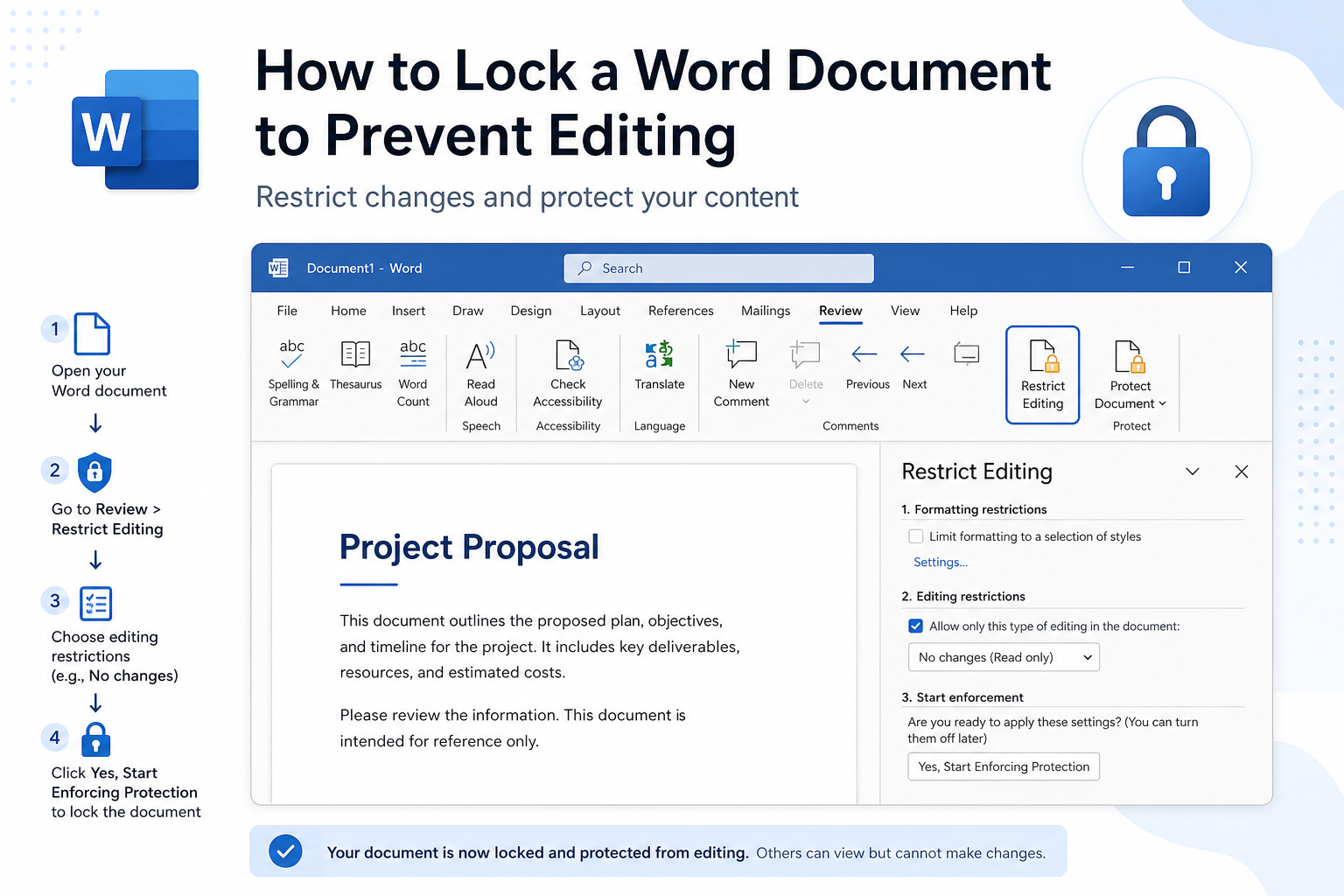
Quick answer: In Word, go to Review → Restrict Editing → check Allow only this type of editing in the document → choose No changes (Read only) → Yes, Start Enforcing Protection (set a password) → save. To unlock later, open the same pane and click Stop Protection.
Note: These tools stop casual editing in Word. They are not a guarantee against every copy-paste or advanced bypass. For highly sensitive files, also control who receives the document.
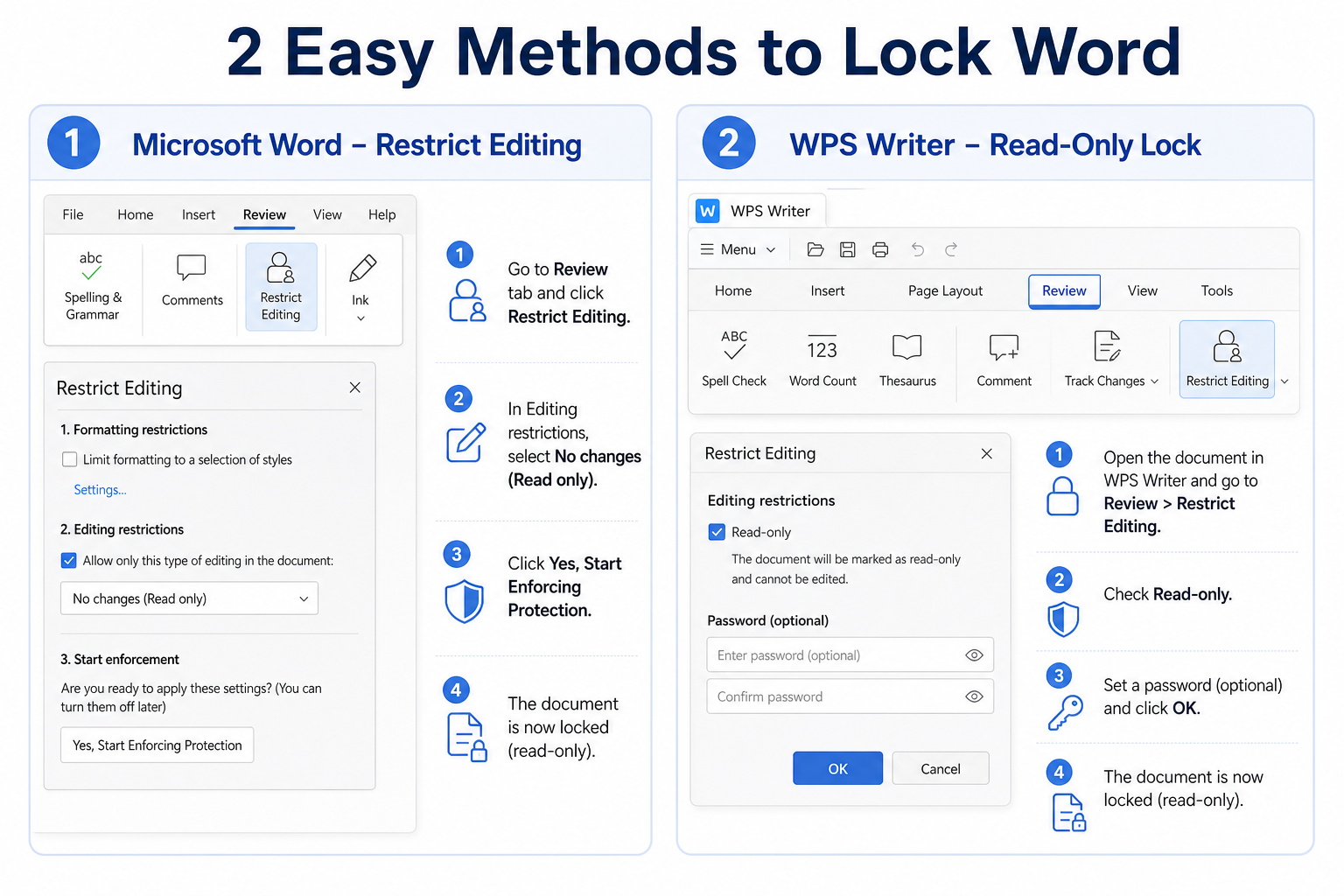
Two Easy Ways to Lock a Word Document
| Method | Best for | Where to start |
|---|---|---|
| Word Restrict Editing | Full read-only lock or partial exceptions | Review → Restrict Editing |
| WPS Writer protection | Simple everyday read-only lock on .docx | Review / Protect / Restrict Editing (by build) |
Method 1: Lock a Word Document with Restrict Editing
Microsoft Word’s Restrict Editing feature can lock the whole file or leave only selected areas editable. These steps work in Word 2016, 2019, 2021, and Microsoft 365 on Windows (Mac labels may say Protect Document).
Open your Word document.
Go to the Review tab.
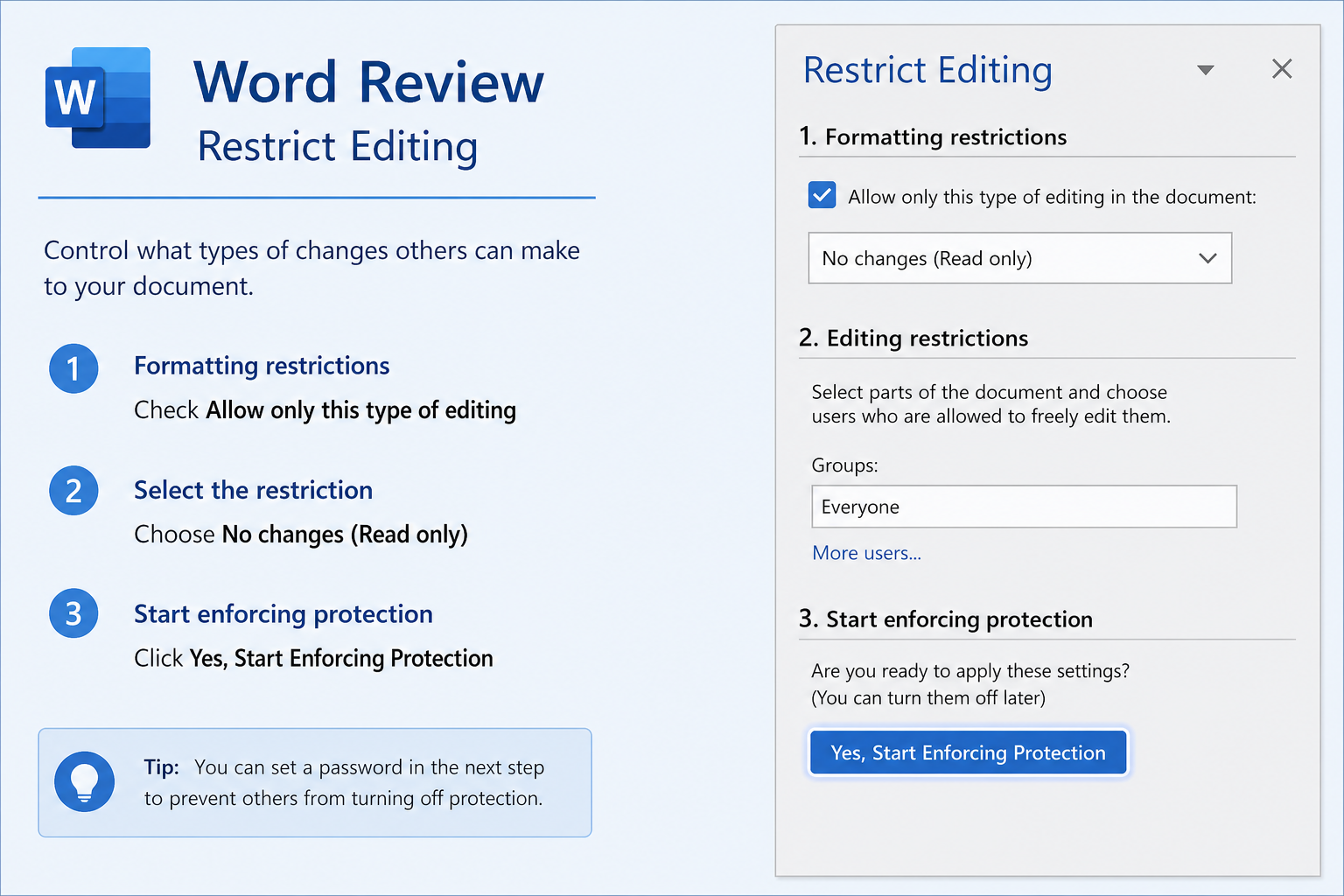
Click Restrict Editing.
Check Allow only this type of editing in the document.
Choose No changes (Read only) for a full lock.
Optional: select text that should stay editable, then add an exception (for example, Everyone) under Exceptions.
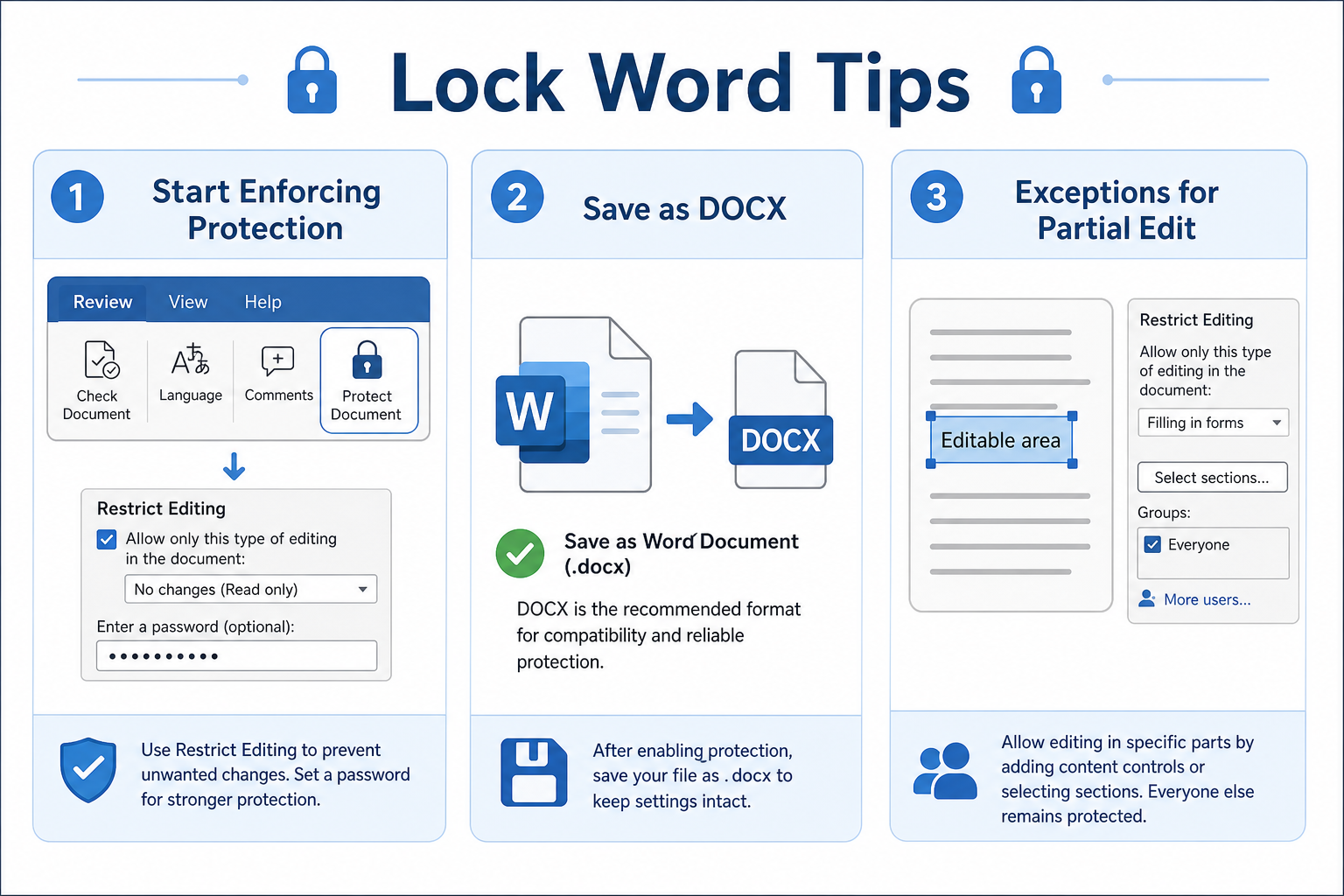
Click Yes, Start Enforcing Protection, set a password, and confirm.
Save the file as .docx.
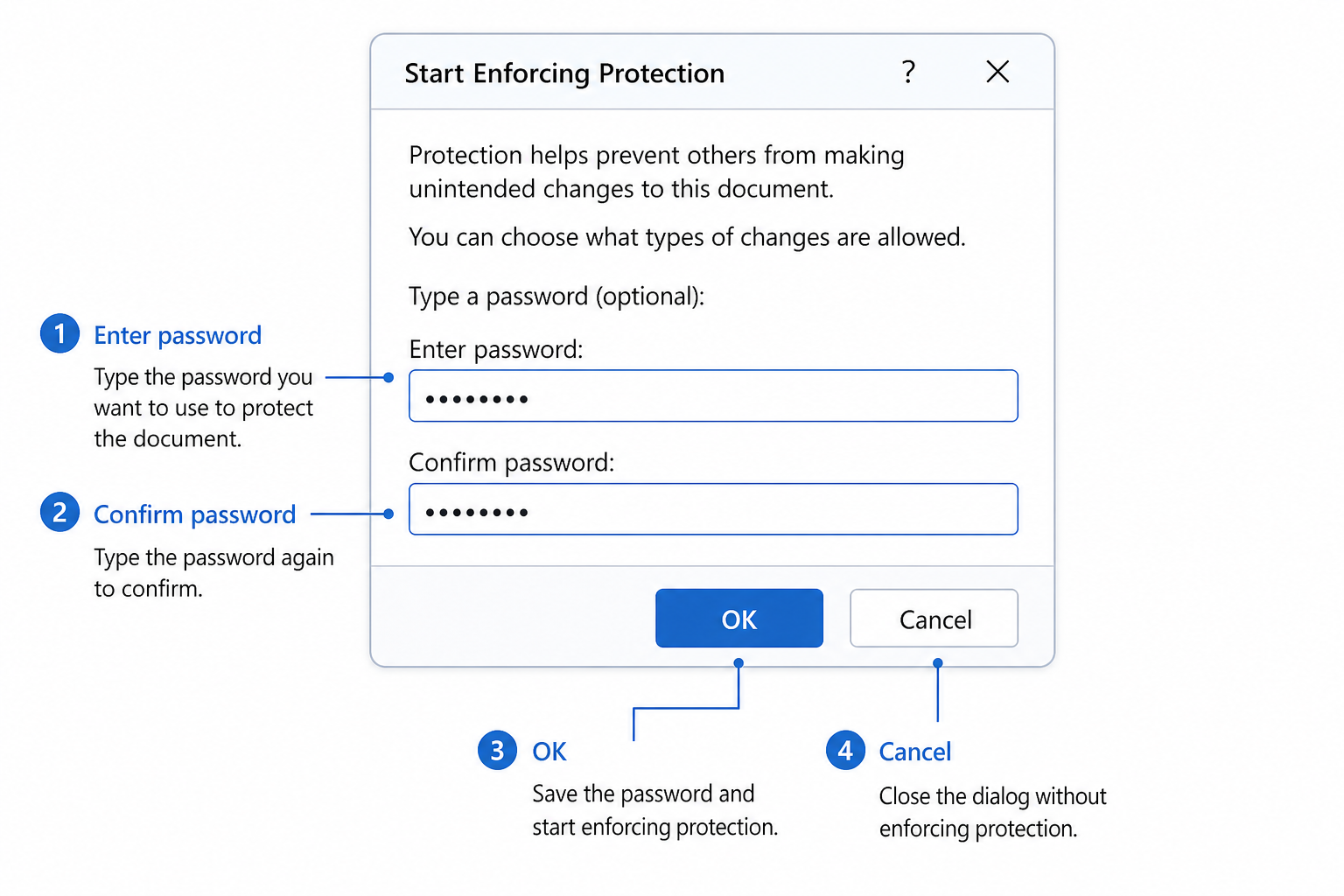
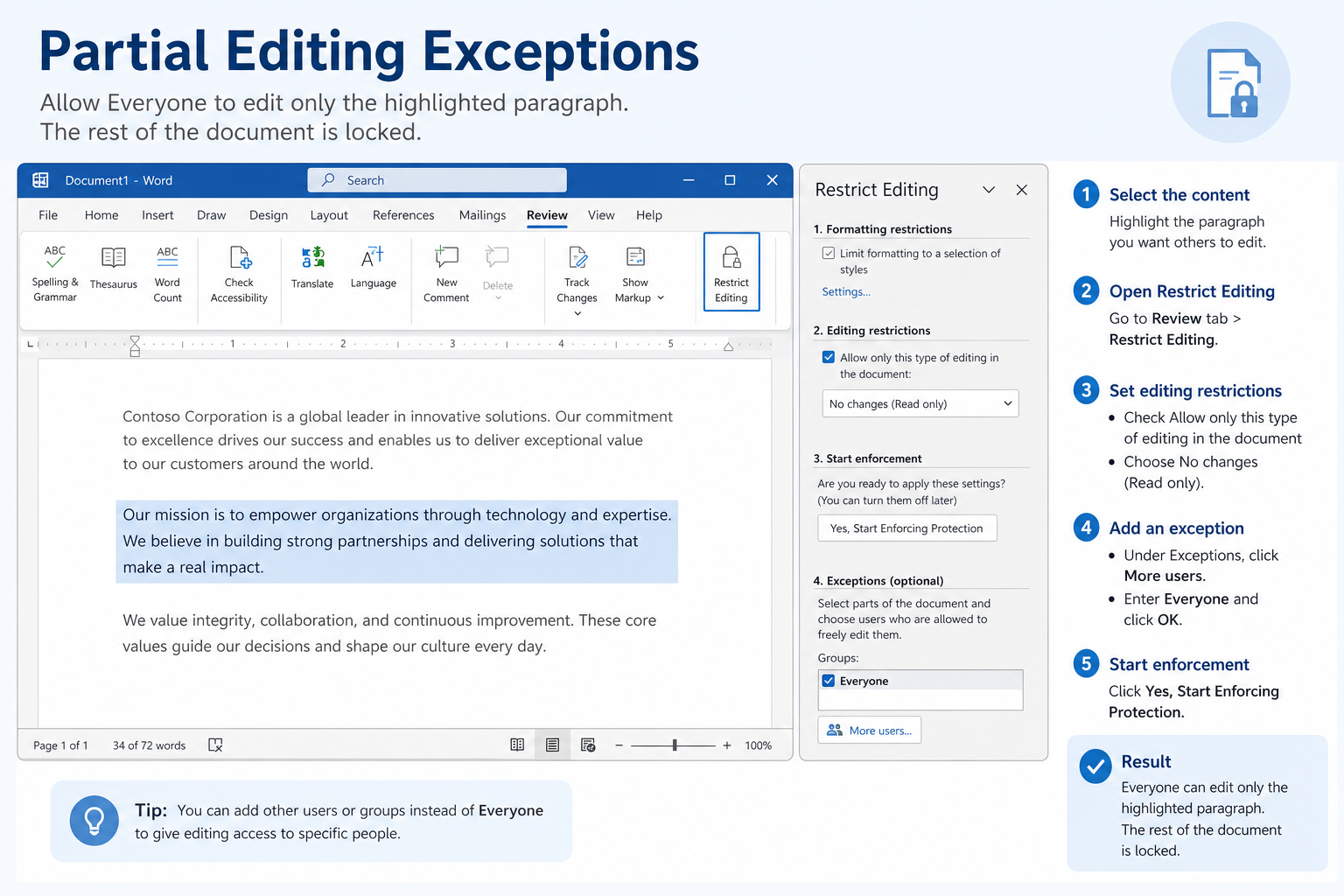
After protection starts, other people can usually open and view the document, but they should not be able to change text, formatting, or delete content unless they stop protection with the password.
Unlock a protected Word document
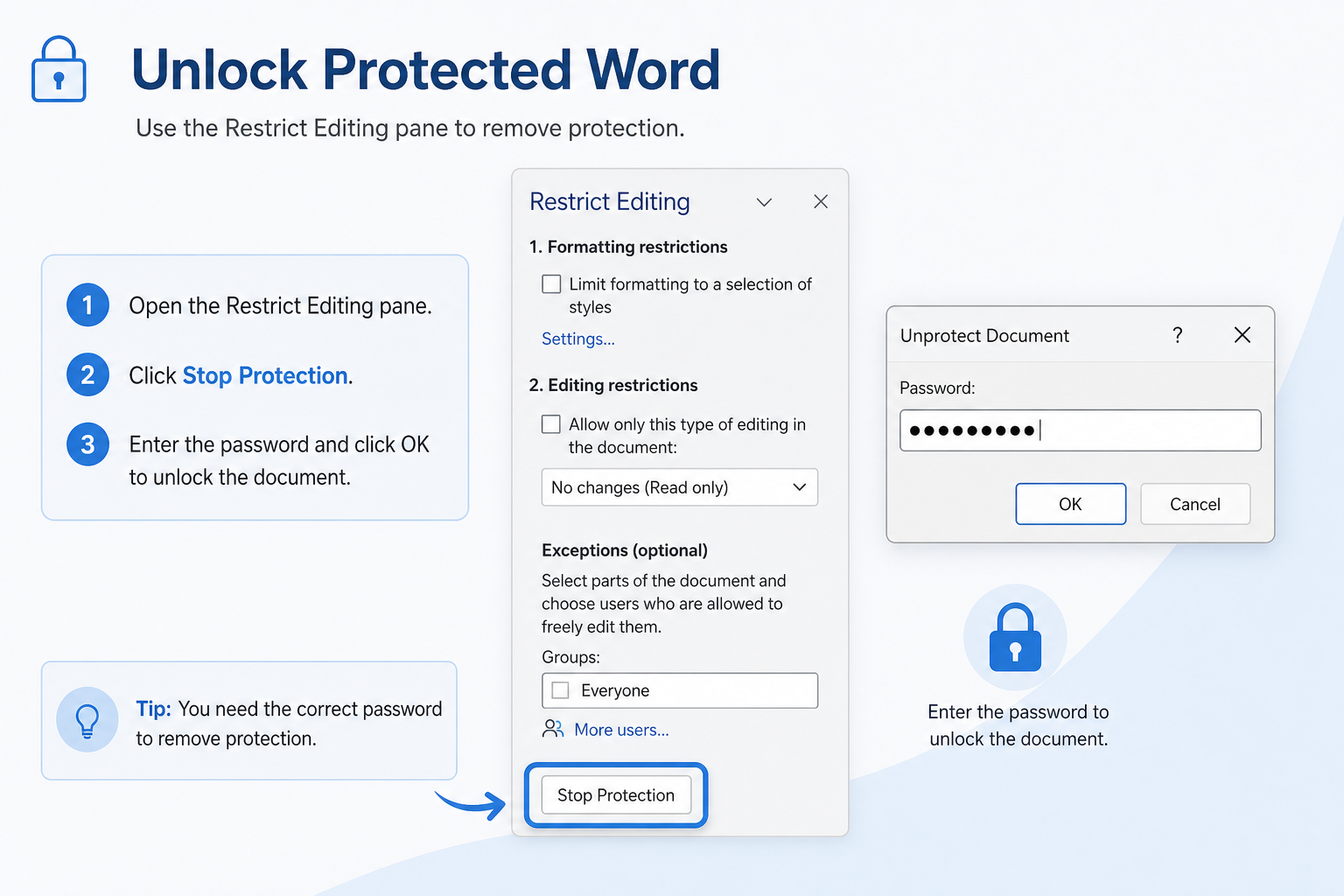
Open the locked file.
Go to Review → Restrict Editing.
Click Stop Protection.
Enter the password if prompted.
Save the file.
If you forget the password, Word will not recover it for you. Ask the person who locked the file, or use an unprotected copy they provide.
Method 2: Lock a Word File with WPS Writer
If you want a straightforward everyday lock for sharing, WPS Writer is a free, Word-compatible option. Menu names can vary slightly by version, but the flow is similar to Word.
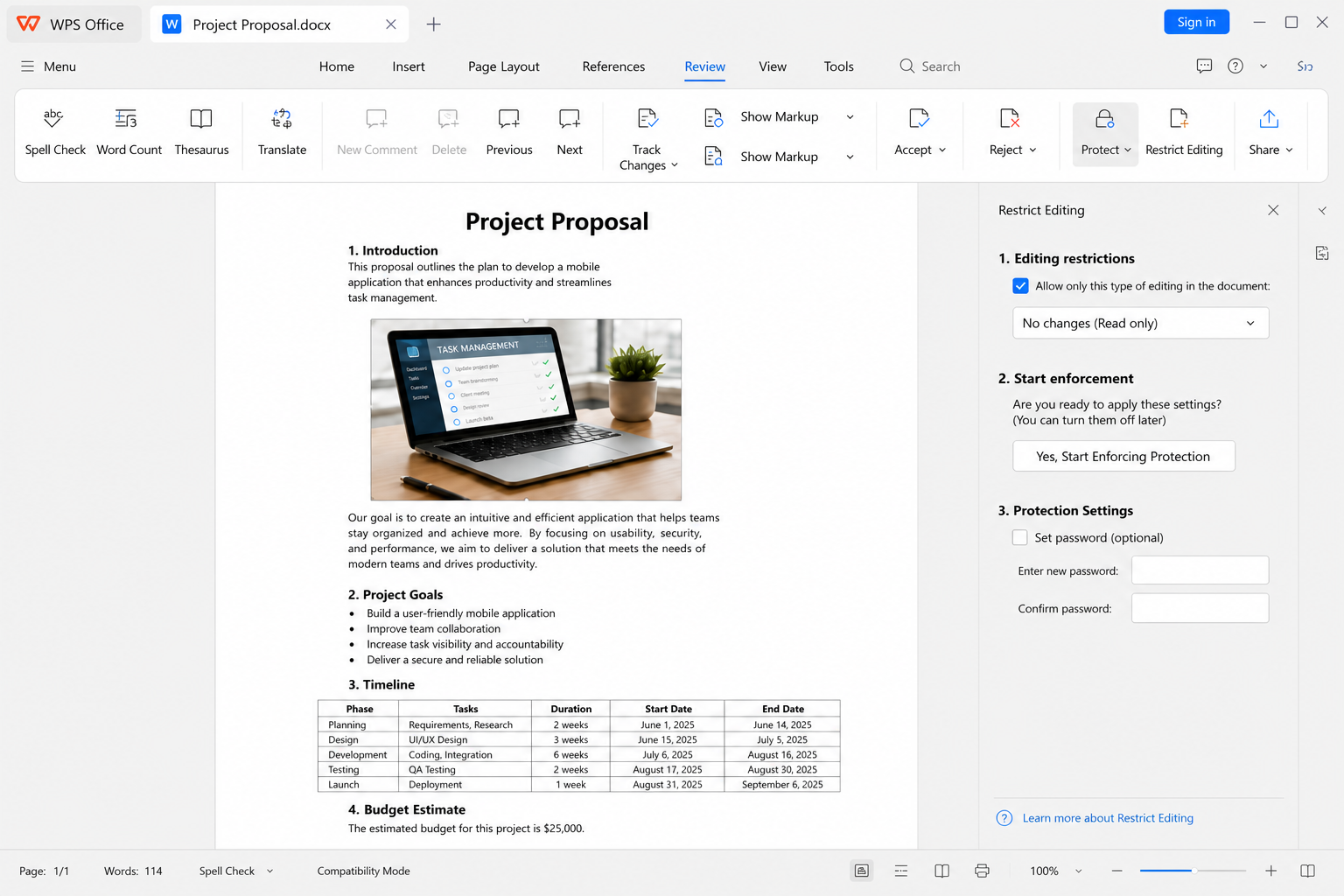
Open your Word file in WPS Writer.
Open Review, Tools, or the protection area in your build.
Choose Restrict Editing / read-only protection.
Set a protection password if available.
Save as .docx, then reopen the file to confirm editing is blocked before you share it.
Fewer steps for daily use — Quick read-only lock for common documents
No paid subscription required — Core protection tools for everyday files
Strong Word compatibility — Share standard .docx files with Word users
Cross-platform options — Windows, Mac, and mobile/web builds where available
Common Locking Issues and Fixes
| Problem | What to try |
|---|---|
| Restrict Editing seems not to work | Confirm you clicked Start Enforcing Protection, then save as .docx |
| Recipients can still edit | They may have Stop Protection access, or the file was saved in a format that strips settings |
| Protection disappears after conversion | Avoid plain text/RTF exports; reapply Restrict Editing on the final .docx |
| Need only some areas editable | Use Exceptions for selected ranges before starting protection |
| Text can still be copied | Expected in many read-only modes—use stronger sharing controls for sensitive content |
FAQ
How do I lock a Word document to prevent editing?
Go to Review → Restrict Editing, choose No changes (Read only), start enforcing protection, set a password, and save.
Why is Restrict Editing not working?
Make sure you clicked Yes, Start Enforcing Protection (not only checked the box), then saved as .docx. Test by reopening the file.
Can locked Word files still be printed and copied?
Usually yes. Read-only / Restrict Editing modes typically allow viewing and printing; copying may still be possible. They mainly block in-file edits.
Can I lock only part of a Word document?
Yes. Select the editable sections, add them as Exceptions in Restrict Editing, then lock the rest of the document.
Do WPS-locked files open in Microsoft Word?
Common read-only protections often transfer when you save as .docx, but always test open/edit behavior in Word before sending important files.
Conclusion
To lock a Word document to prevent editing, use Review → Restrict Editing → No changes (Read only) and start enforcing protection with a password. Leave exception ranges if collaborators need a few editable spots. For a simpler free everyday workflow, WPS Writer can apply a similar read-only lock—just verify the file stays protected after save and before you share.

'%3e%3cpath%20d='M19.9911%204.11386V6.471H18.5894C18.0775%206.471%2017.7322%206.57814%2017.5536%206.79243C17.3751%207.00671%2017.2858%207.32814%2017.2858%207.75671V9.44421H19.9019L19.5536%2012.0871H17.2858V18.8639H14.5536V12.0871H12.2769V9.44421H14.5536V7.49779C14.5536%206.39064%2014.8632%205.53201%2015.4822%204.92189C16.1013%204.31177%2016.9257%204.00671%2017.9554%204.00671C18.8304%204.00671%2019.509%204.04243%2019.9911%204.11386Z'%20fill='%23333333'/%3e%3c/g%3e%3cdefs%3e%3cclipPath%20id='clip0_2938_8199'%3e%3crect%20width='16'%20height='16'%20fill='white'%20transform='translate(8%204.00671)'/%3e%3c/clipPath%3e%3c/defs%3e%3c/svg%3e)
'%3e%3cpath%20d='M17.5237%2010.7813L23.4811%204H22.0699L16.8949%209.88693L12.7648%204H8L14.2469%2012.9029L8%2020.0133H9.4112L14.8725%2013.7952L19.2352%2020.0133H24M9.92053%205.04213H12.0885L22.0688%2019.0224H19.9003'%20fill='%23333333'/%3e%3c/g%3e%3cdefs%3e%3cclipPath%20id='clip0_2938_8200'%3e%3crect%20width='16'%20height='16.0134'%20fill='white'%20transform='translate(8%204)'/%3e%3c/clipPath%3e%3c/defs%3e%3c/svg%3e)


