



'%3e%3cpath%20fill-rule='evenodd'%20clip-rule='evenodd'%20d='M21.4999%2010.9993C21.4999%205.20009%2016.7986%200.498901%2010.9993%200.498901C5.19994%200.498901%200.498657%205.20009%200.498657%2010.9993C0.498657%2016.2404%204.33858%2020.5844%209.35855%2021.3722V14.0346H6.69238V10.9993H9.35855V8.68594C9.35855%206.05427%2010.9262%204.60062%2013.3248%204.60062C14.4736%204.60062%2015.6753%204.80571%2015.6753%204.80571V7.38979H14.3512C13.0468%207.38979%2012.64%208.19921%2012.64%209.0296V10.9993H15.5523L15.0867%2014.0346H12.64V21.3722C17.66%2020.5844%2021.4999%2016.2404%2021.4999%2010.9993Z'%20fill='%231568EA'/%3e%3c/g%3e%3c/svg%3e)


'%3e%3cpath%20d='M2.42045%2022.1876H6.31818V12.7217L0.75%208.54553V20.5171C0.75%2021.4414%201.49892%2022.1876%202.42045%2022.1876Z'%20fill='%234285F4'/%3e%3cpath%20d='M19.682%2022.1876H23.5797C24.5041%2022.1876%2025.2502%2021.4387%2025.2502%2020.5171V8.54553L19.682%2012.7217'%20fill='%2334A853'/%3e%3cpath%20d='M19.682%205.48293V12.7216L25.2502%208.54543V6.31816C25.2502%204.25236%2022.8921%203.07469%2021.2411%204.31361'%20fill='%23FBBC04'/%3e%3cpath%20d='M6.31824%2012.7217V5.48303L13.0001%2010.4944L19.6819%205.48303V12.7217L13.0001%2017.733'%20fill='%23EA4335'/%3e%3cpath%20d='M0.75%206.31816V8.54543L6.31818%2012.7216V5.48293L4.75909%204.31361C3.10534%203.07469%200.75%204.25236%200.75%206.31816Z'%20fill='%23C5221F'/%3e%3c/g%3e%3cdefs%3e%3cclipPath%20id='clip0_2954_7305'%3e%3crect%20width='24.5'%20height='18.375'%20fill='white'%20transform='translate(0.75%203.8125)'/%3e%3c/clipPath%3e%3c/defs%3e%3c/svg%3e)


Quick answer: To learn how to make a copy of a Word document on Mac, select the DOC or DOCX file in Finder and press Command + D. The copy appears in the same folder, while the original remains unchanged.
File is closed
File is already open in Word
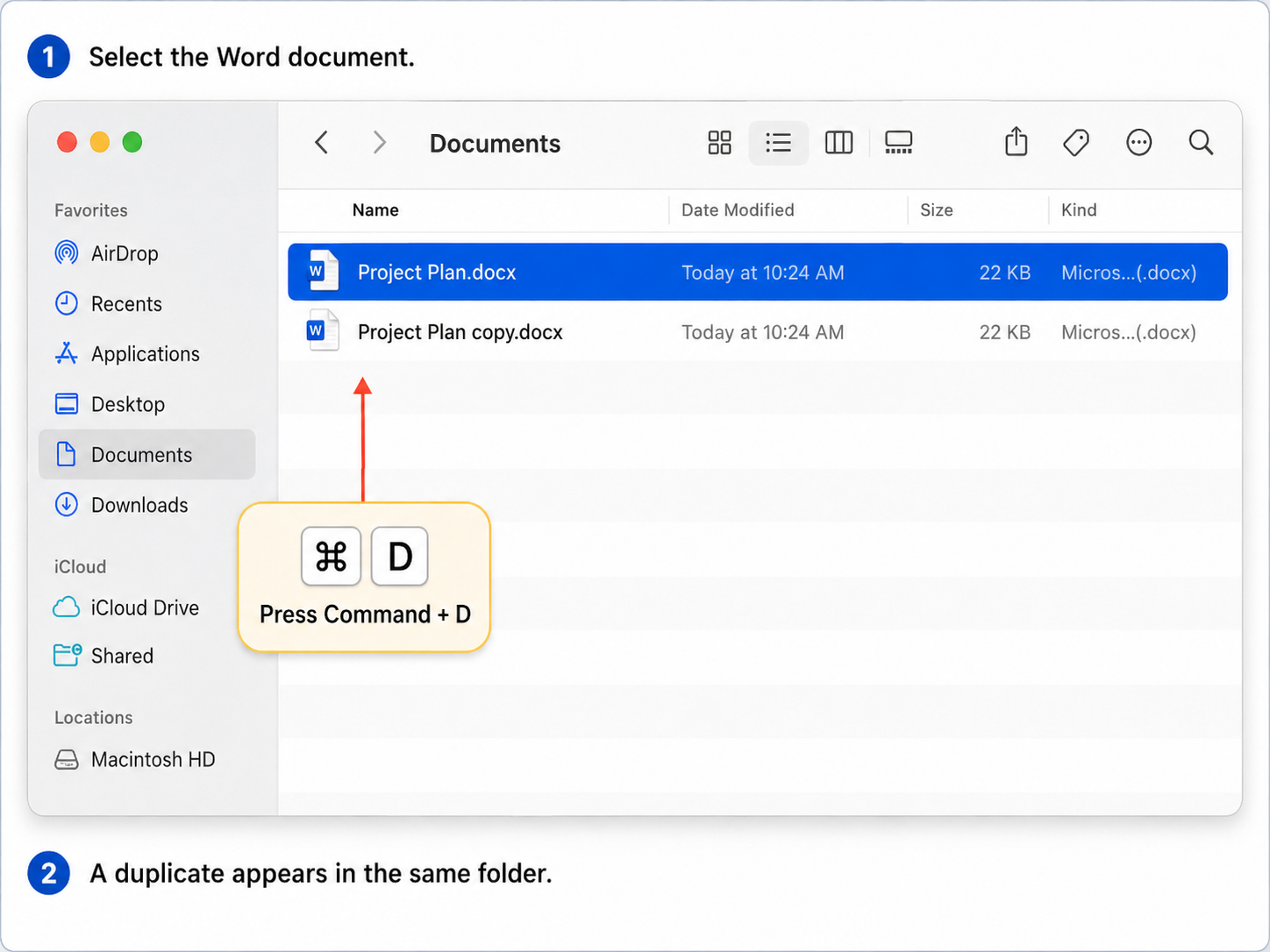
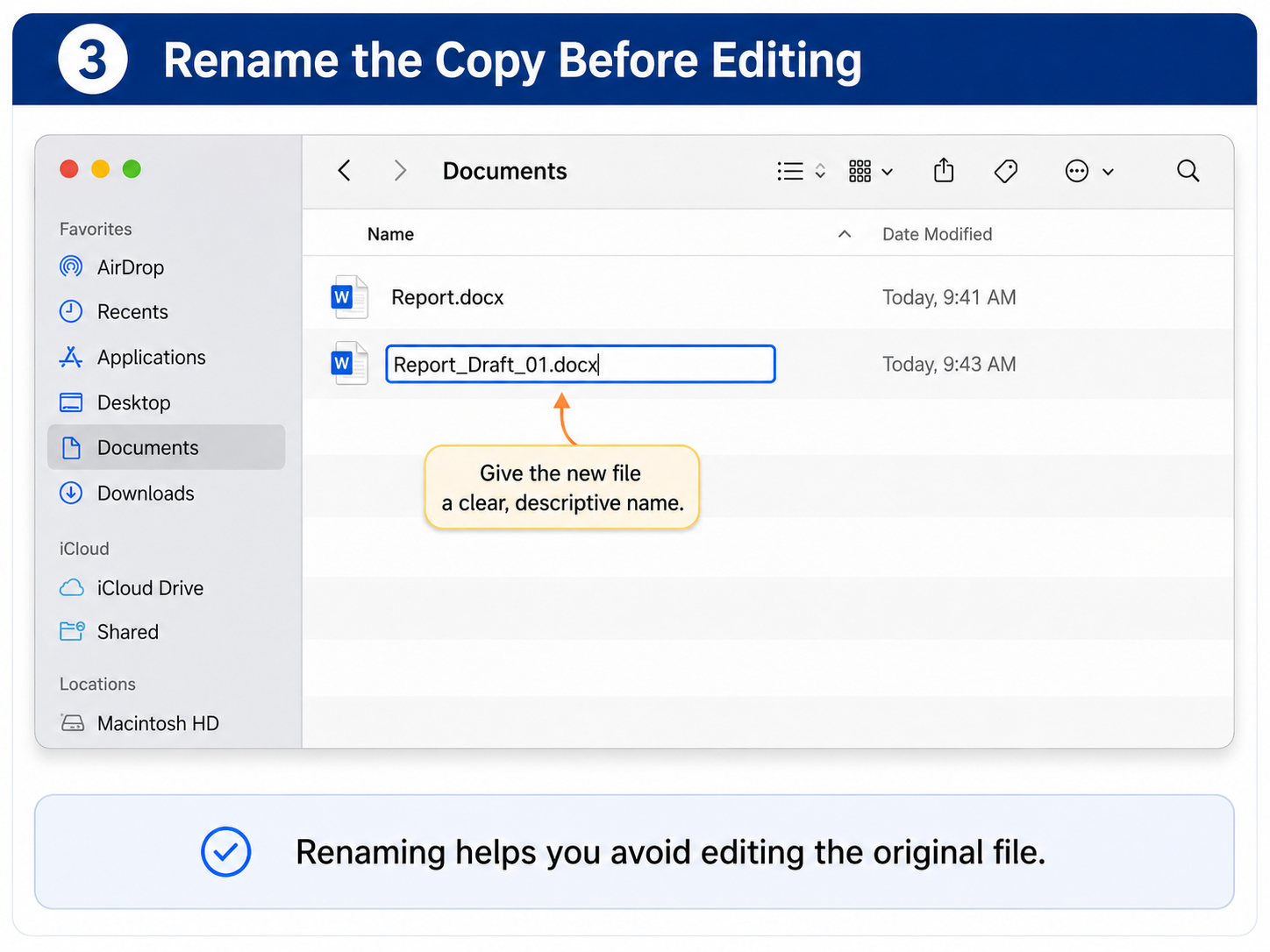
Step 4: Rename the copy
Select the new file and press Return, or click its name. Give the copy a name that clearly separates it from the original.
Avoid leaving several documents with unclear names such as Document copy.docx, Document copy 2.docx, or Document final final.docx.
Step 5: Open the copy before editing
Open the renamed copy and check the file name in the app title bar before making changes.
Method 2: Create a New Copy in Microsoft Word for Mac
Use this method when the document is already open in Microsoft Word and you want to create a separate editable version.
Depending on the Word version, file location, and AutoSave status, you may see Save As or Save a Copy.
Step 1: Open the document in Word
Open the original DOC or DOCX file. Before editing it, check the current file name in the title bar.
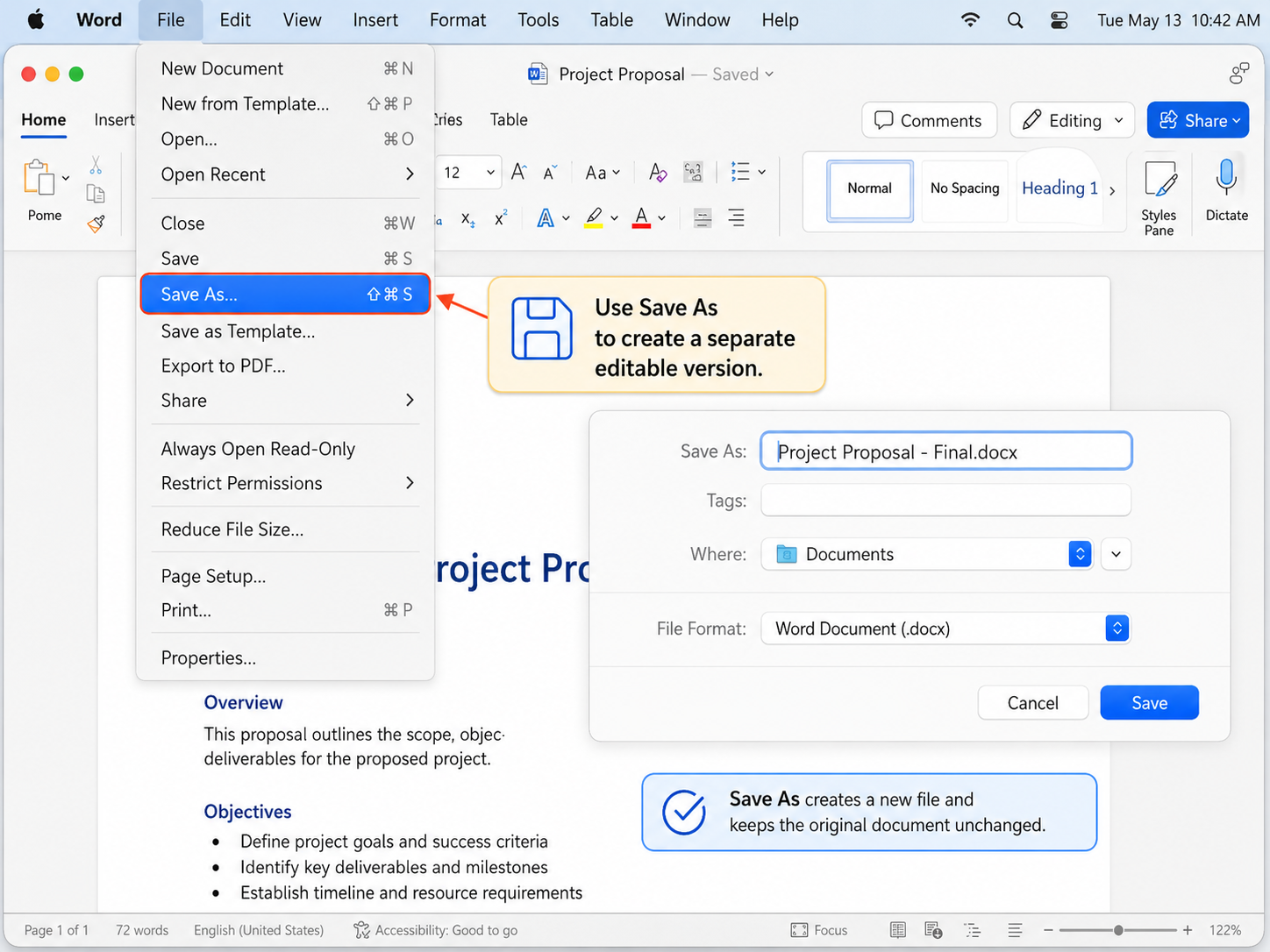
Step 2: Open the Save As command
From the Mac menu bar, choose File > Save As.
If your version of Word displays Save a Copy, choose that option instead. You may also be able to use Shift + Command + S.
Step 3: Enter a new file name
Use a name that makes the new version easy to identify.
Step 4: Choose where to save the copy
Select a destination such as Documents, Desktop, a project folder, iCloud Drive, OneDrive, or an external drive.
Step 5: Keep the Word file format
Under File Format, select Word Document (.docx). This keeps the copy editable in Microsoft Word and other compatible document editors.
Step 6: Save and confirm the new file
Select Save, then confirm that the new file name appears in the Word title bar before editing.
Save vs. Save As
| Option | What it does |
|---|---|
| Save | Updates the file currently open |
| Save As | Saves the document with a new name, location, or format |
| Save a Copy | Creates a separate file while retaining the existing document |
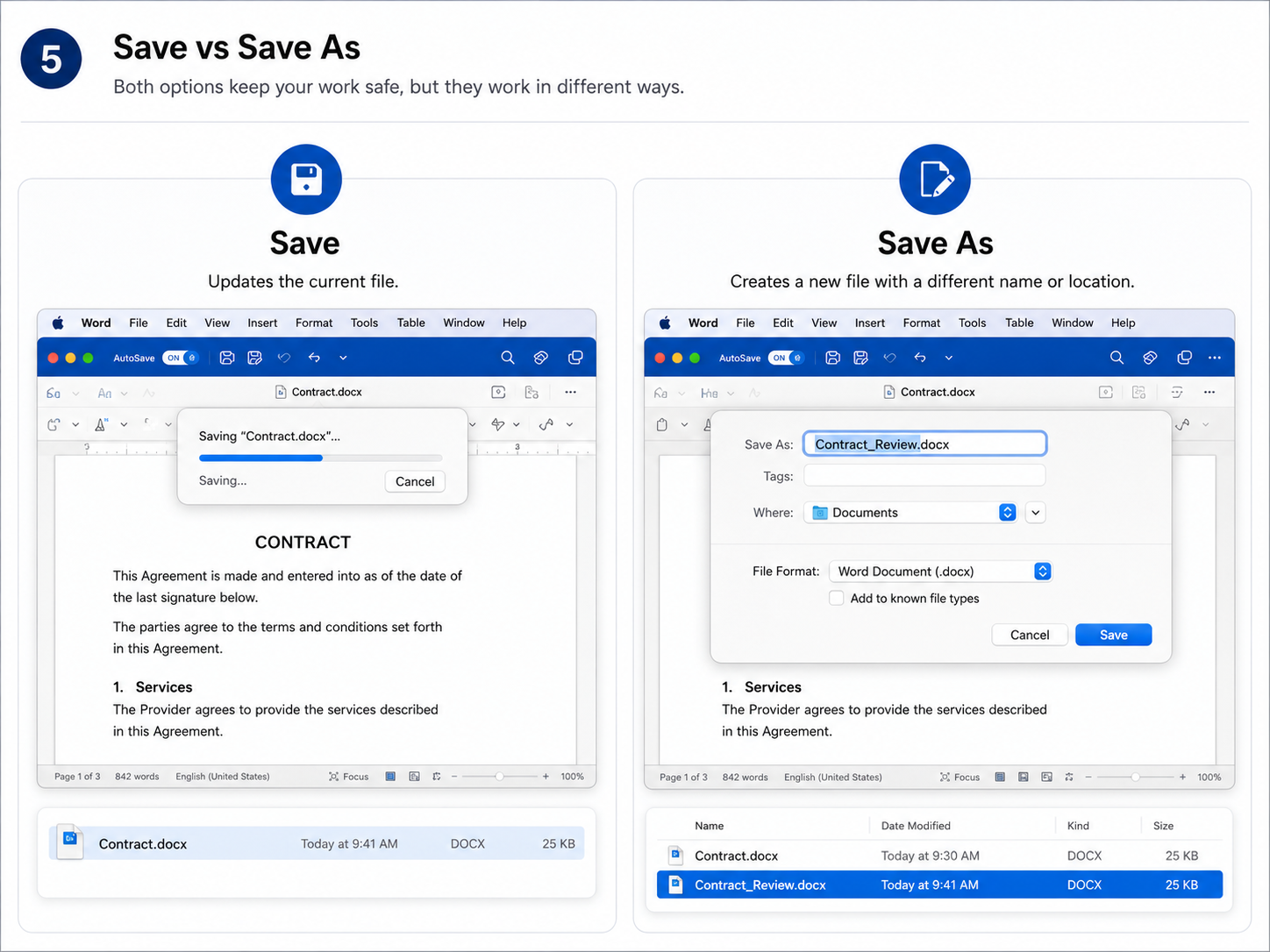
Use Save As or Save a Copy before making major changes when the original document must remain unchanged.
Be careful when AutoSave is on
Files stored in OneDrive or SharePoint may use AutoSave. Changes can be saved automatically while you work.
A safer order is:
Open the original.
Immediately choose Save a Copy or Save As.
Enter a new name.
Confirm that the new file is open.
Begin editing.
Method 3: Copy the Word Document to Another Folder
Use this method when you want the copy to appear somewhere other than the original folder, such as Desktop, another project folder, iCloud Drive, a USB drive, an external hard drive, or a shared folder.
Copy and paste the file
Open Finder.
Select the DOC or DOCX file.
Press Command + C.
Open the destination folder.
Press Command + V.
Wait for the file to appear.
Rename it when necessary.
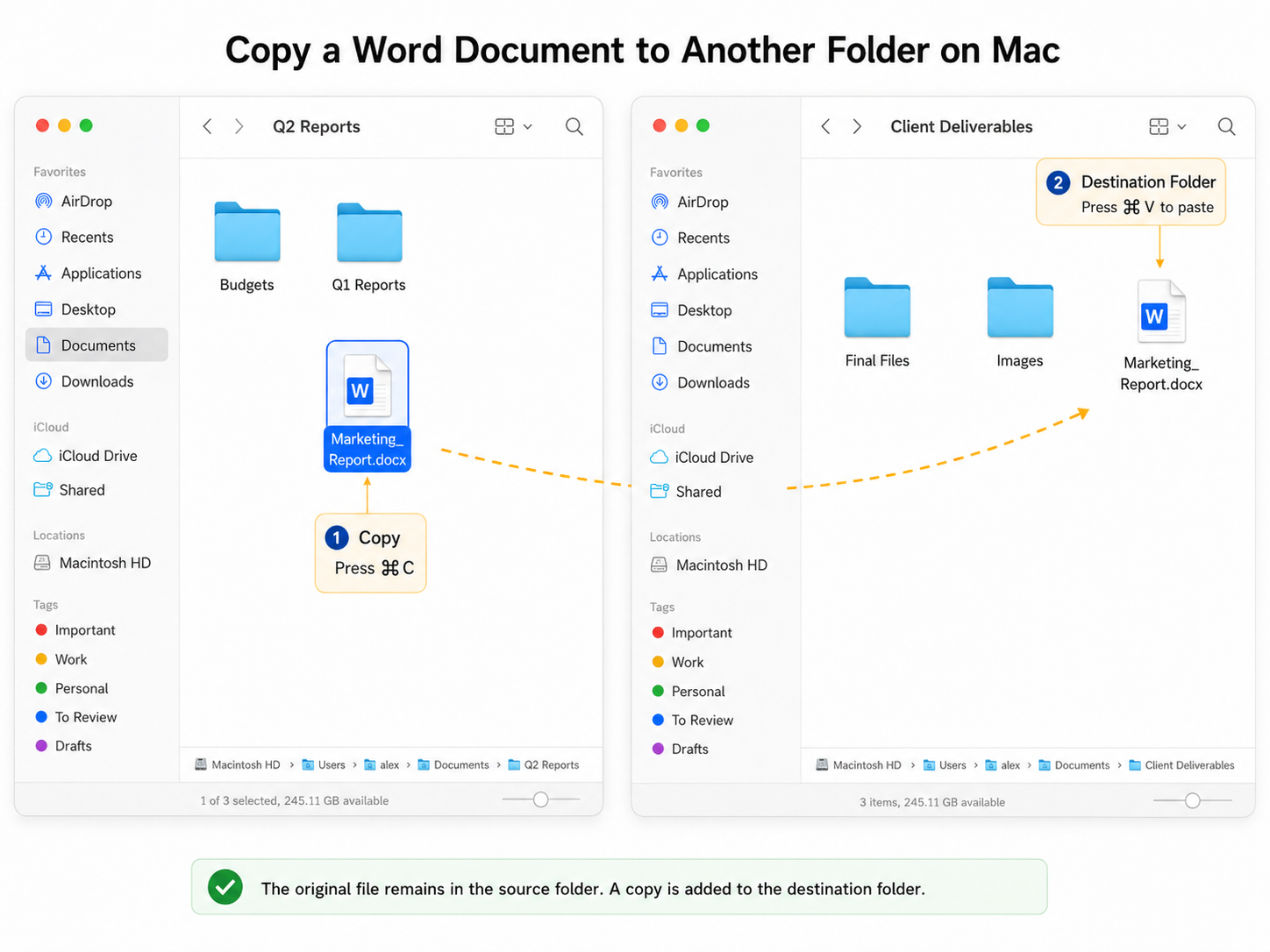
The original remains in its first location, while another copy is placed in the destination folder.
Use Option-drag
Select the Word document in Finder.
Press and hold the Option key.
Drag the file to the destination folder.
Release the mouse or trackpad.
Confirm that both files exist.
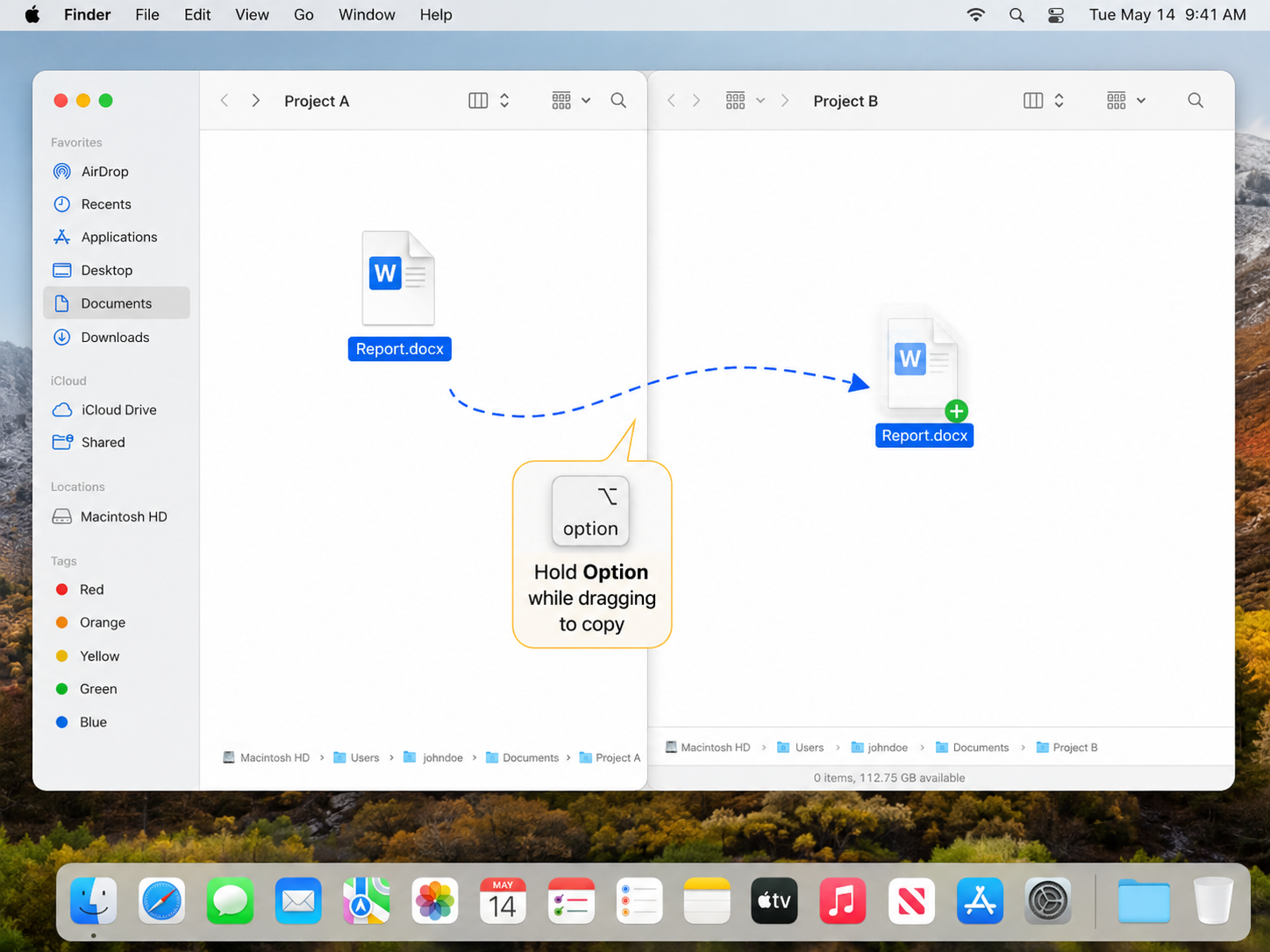
Copying to another disk
Dragging a file from your Mac to another disk commonly creates a copy on that disk. Still, verify that the original remains in its first location before deleting or editing anything.
No Microsoft Word? Create an Editable DOCX Copy in WPS Writer for Mac
Finder can create a duplicate without opening the document. WPS Writer becomes useful when you also need to open the copied DOCX, continue editing it, preserve an editable Word format, and export the completed document as PDF.
This is the main situation in which using WPS offers more value than simply duplicating the file in Finder.
Step 1: Open the original Word file
Launch WPS Writer for Mac and open the original .doc or .docx document.
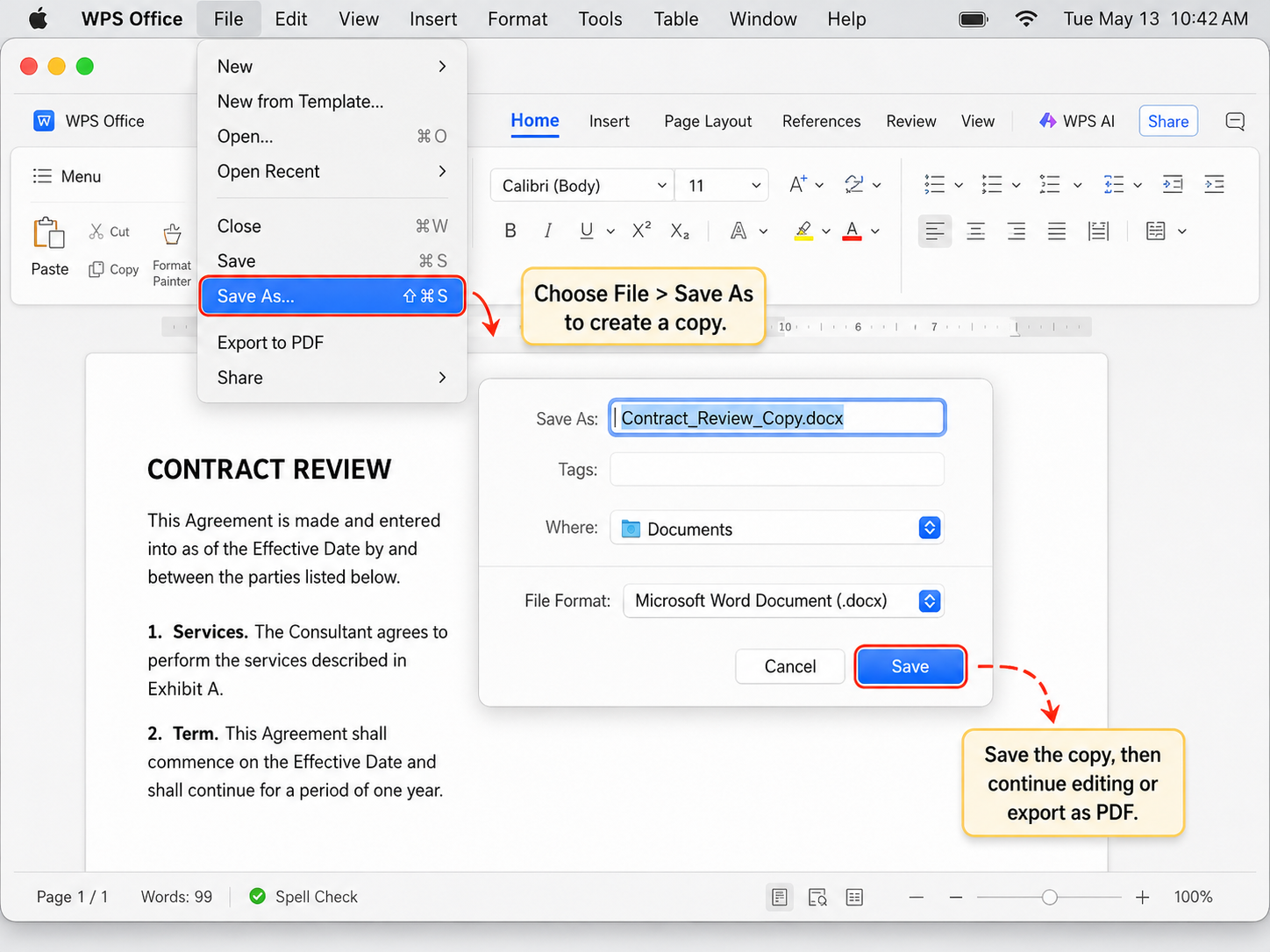
Step 2: Choose Save As
Open the WPS menu and select Save As. The Mac shortcut is Shift + Command + S.
Step 3: Give the copy a new name
Step 4: Choose a save location
Save the copy to the same folder or choose a different destination. A separate project folder can make the two versions easier to manage.
Step 5: Keep DOCX as the format
Select DOCX when you want the copied document to remain editable as a Word file.
Step 6: Confirm that the copy is open
Check the file name in WPS Writer and make sure it matches the new name before editing.
Step 7: Continue editing or export the final version
Once the copy is complete, you can continue editing the DOCX, save another version, share the document, or export it as PDF.
When WPS Writer is best for this task
| Situation | Why WPS Writer helps |
|---|---|
| You do not have Microsoft Word | Open and edit the DOCX copy directly |
| You need a separately editable version | Use Save As and continue working in DOCX |
| You want to protect the original | Create a new file before making changes |
| You need to deliver a final document | Save as DOCX or export as PDF |
| You also work with PDFs or other Office files | Continue the workflow in one office suite |
The advantage is not that WPS uses a special way to duplicate files. Finder already handles basic duplication.
WPS is useful when the task continues after the copy is created:
Create an Editable DOCX Copy on Your Mac
Open the original Word file, create a separately named DOCX copy, continue editing, and export the final document as PDF with WPS Writer for Mac.
How to Keep the Original Word Document Unchanged
A copy protects the original only when you confirm that you are editing the new file.
Use a clear file name
Check the copy before editing
Confirm that the title bar shows the copied file name.
Check that both the original and the copy appear in Finder.
Verify the save location, especially for iCloud or OneDrive files.
Create the copy before making major changes.
Keep a separate backup for important files
Two copies stored on the same Mac can still be lost together. Keep another version in cloud storage, an external drive, or a managed backup system when the document is important.
What to Do If You Cannot Copy the Word Document
Duplicate is grayed out in Finder
Confirm that you selected the file rather than an empty area.
Check whether the folder allows you to create new files.
Copy the document to Desktop.
Check the drive’s read and write permissions.
Try Command + C and Command + V instead.
Unlock the document if it is marked as locked.
Save As is missing in Word
Open the File menu and look for Save a Copy.
Save the document to your Mac before creating another version.
Duplicate the closed file in Finder.
Reopen the duplicate.
Open the DOCX in WPS Writer and use Save As when Microsoft Word is unavailable.
The copy opens the same cloud document
You may have created an alias, opened the original path again, or copied a synced file that has not finished updating.
Check the full file name, Finder folder path, modification date, cloud status icons, separate file entries, and whether one item is an alias.
The copied file cannot be edited
Possible reasons include a read-only document, missing permission, a locked file, editing restrictions, a protected location, or file damage.
Try creating the copy in a writable folder such as Desktop or Documents.
The copy lost its DOCX extension
Do not manually replace the file extension unless you know the document’s actual format. Changing a name from .doc to .docx does not convert the file.
Use Save As and select Word Document (.docx) instead.
I accidentally saved over the original
Stop editing the document and check Word version history, OneDrive version history, iCloud recovery options, Time Machine, Word AutoRecover files, and other copies in Finder or Downloads.


Frequently Asked Questions
What is the fastest way to make a copy of a Word document on Mac?
Select the DOC or DOCX file in Finder and press Command + D. The duplicate appears in the same folder, while the original remains unchanged.
What is the shortcut to duplicate a Word file on Mac?
The Finder shortcut is Command + D. Select the file first, then press the shortcut.
How do I make a copy without changing the original?
Duplicate the file in Finder or use Save As before editing. Give the new file a different name and confirm that the copy is open.
How do I copy a Word document to another folder?
Press Command + C, open the destination folder, and press Command + V. You can also hold Option while dragging the file.
Should I use Save or Save As?
Use Save to update the file currently open. Use Save As or Save a Copy when you need a separate document and want to keep the original unchanged.
Can I make a copy without Microsoft Word?
Yes. Finder can duplicate the file without opening it. Use WPS Writer for Mac when the copied DOCX still needs editing.
Is making a copy the same as duplicating a page?
No. Making a copy creates another DOC or DOCX file. Duplicating a page copies text, images, tables, and other content inside a Word document.
Final Takeaway
The fastest method for how to make a copy of a Word document on Mac is:
Use Save As or Save a Copy when the document is already open in Word. Before editing, confirm the new file name and save location.
When Microsoft Word is unavailable but the copied DOCX still needs editing, WPS Writer for Mac can save a separately named DOCX copy and export the finished document as PDF.

'%3e%3cpath%20d='M19.9911%204.11386V6.471H18.5894C18.0775%206.471%2017.7322%206.57814%2017.5536%206.79243C17.3751%207.00671%2017.2858%207.32814%2017.2858%207.75671V9.44421H19.9019L19.5536%2012.0871H17.2858V18.8639H14.5536V12.0871H12.2769V9.44421H14.5536V7.49779C14.5536%206.39064%2014.8632%205.53201%2015.4822%204.92189C16.1013%204.31177%2016.9257%204.00671%2017.9554%204.00671C18.8304%204.00671%2019.509%204.04243%2019.9911%204.11386Z'%20fill='%23333333'/%3e%3c/g%3e%3cdefs%3e%3cclipPath%20id='clip0_2938_8199'%3e%3crect%20width='16'%20height='16'%20fill='white'%20transform='translate(8%204.00671)'/%3e%3c/clipPath%3e%3c/defs%3e%3c/svg%3e)
'%3e%3cpath%20d='M17.5237%2010.7813L23.4811%204H22.0699L16.8949%209.88693L12.7648%204H8L14.2469%2012.9029L8%2020.0133H9.4112L14.8725%2013.7952L19.2352%2020.0133H24M9.92053%205.04213H12.0885L22.0688%2019.0224H19.9003'%20fill='%23333333'/%3e%3c/g%3e%3cdefs%3e%3cclipPath%20id='clip0_2938_8200'%3e%3crect%20width='16'%20height='16.0134'%20fill='white'%20transform='translate(8%204)'/%3e%3c/clipPath%3e%3c/defs%3e%3c/svg%3e)


