



'%3e%3cpath%20fill-rule='evenodd'%20clip-rule='evenodd'%20d='M21.4999%2010.9993C21.4999%205.20009%2016.7986%200.498901%2010.9993%200.498901C5.19994%200.498901%200.498657%205.20009%200.498657%2010.9993C0.498657%2016.2404%204.33858%2020.5844%209.35855%2021.3722V14.0346H6.69238V10.9993H9.35855V8.68594C9.35855%206.05427%2010.9262%204.60062%2013.3248%204.60062C14.4736%204.60062%2015.6753%204.80571%2015.6753%204.80571V7.38979H14.3512C13.0468%207.38979%2012.64%208.19921%2012.64%209.0296V10.9993H15.5523L15.0867%2014.0346H12.64V21.3722C17.66%2020.5844%2021.4999%2016.2404%2021.4999%2010.9993Z'%20fill='%231568EA'/%3e%3c/g%3e%3c/svg%3e)


'%3e%3cpath%20d='M2.42045%2022.1876H6.31818V12.7217L0.75%208.54553V20.5171C0.75%2021.4414%201.49892%2022.1876%202.42045%2022.1876Z'%20fill='%234285F4'/%3e%3cpath%20d='M19.682%2022.1876H23.5797C24.5041%2022.1876%2025.2502%2021.4387%2025.2502%2020.5171V8.54553L19.682%2012.7217'%20fill='%2334A853'/%3e%3cpath%20d='M19.682%205.48293V12.7216L25.2502%208.54543V6.31816C25.2502%204.25236%2022.8921%203.07469%2021.2411%204.31361'%20fill='%23FBBC04'/%3e%3cpath%20d='M6.31824%2012.7217V5.48303L13.0001%2010.4944L19.6819%205.48303V12.7217L13.0001%2017.733'%20fill='%23EA4335'/%3e%3cpath%20d='M0.75%206.31816V8.54543L6.31818%2012.7216V5.48293L4.75909%204.31361C3.10534%203.07469%200.75%204.25236%200.75%206.31816Z'%20fill='%23C5221F'/%3e%3c/g%3e%3cdefs%3e%3cclipPath%20id='clip0_2954_7305'%3e%3crect%20width='24.5'%20height='18.375'%20fill='white'%20transform='translate(0.75%203.8125)'/%3e%3c/clipPath%3e%3c/defs%3e%3c/svg%3e)


Searching for how to split a word document in half usually means one of three jobs: turn one long file into two smaller editable documents, lay text out in two columns, or open a split window so you can review different parts at once. Microsoft Word has no single “Split in half” button that saves two files for you—so the practical paths are copy-paste, columns, split view, or a dedicated splitter such as WPS Writer.
What How to Split a Word Document in Half Usually Means
Before you click around the ribbon, match the method to the outcome you want:
Two separate .docx files — cut the document at a midpoint (page, heading, or section) and save Part A / Part B.
Two-column layout — keep one file, but show content side by side like a newsletter.
Split window — keep one file; scroll and edit two views of the same document.
If your goal is sharing or editing half the content as its own file, skip columns and split view—those change layout or navigation, not the number of files.


How to Split a Word Document in Half with WPS Split or Merge
WPS Office is a free-to-start suite with Writer for Word-compatible files. For a clean file split that keeps fonts, images, and tables intact, Writer’s Split or Merge tool is faster than manual selecting—especially on long reports. Work stays offline on your PC.
Open the splitter
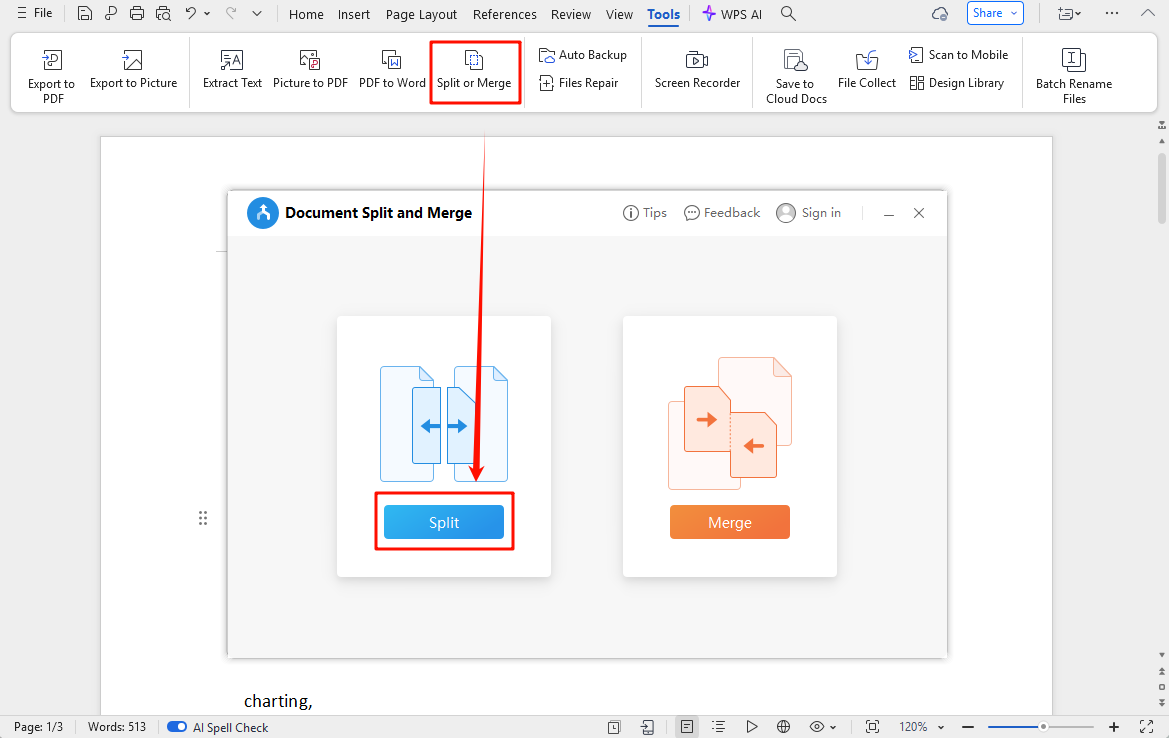
Open your document in WPS Writer.
Go to the Tools tab.
Click Split or Merge.
Split at the midpoint
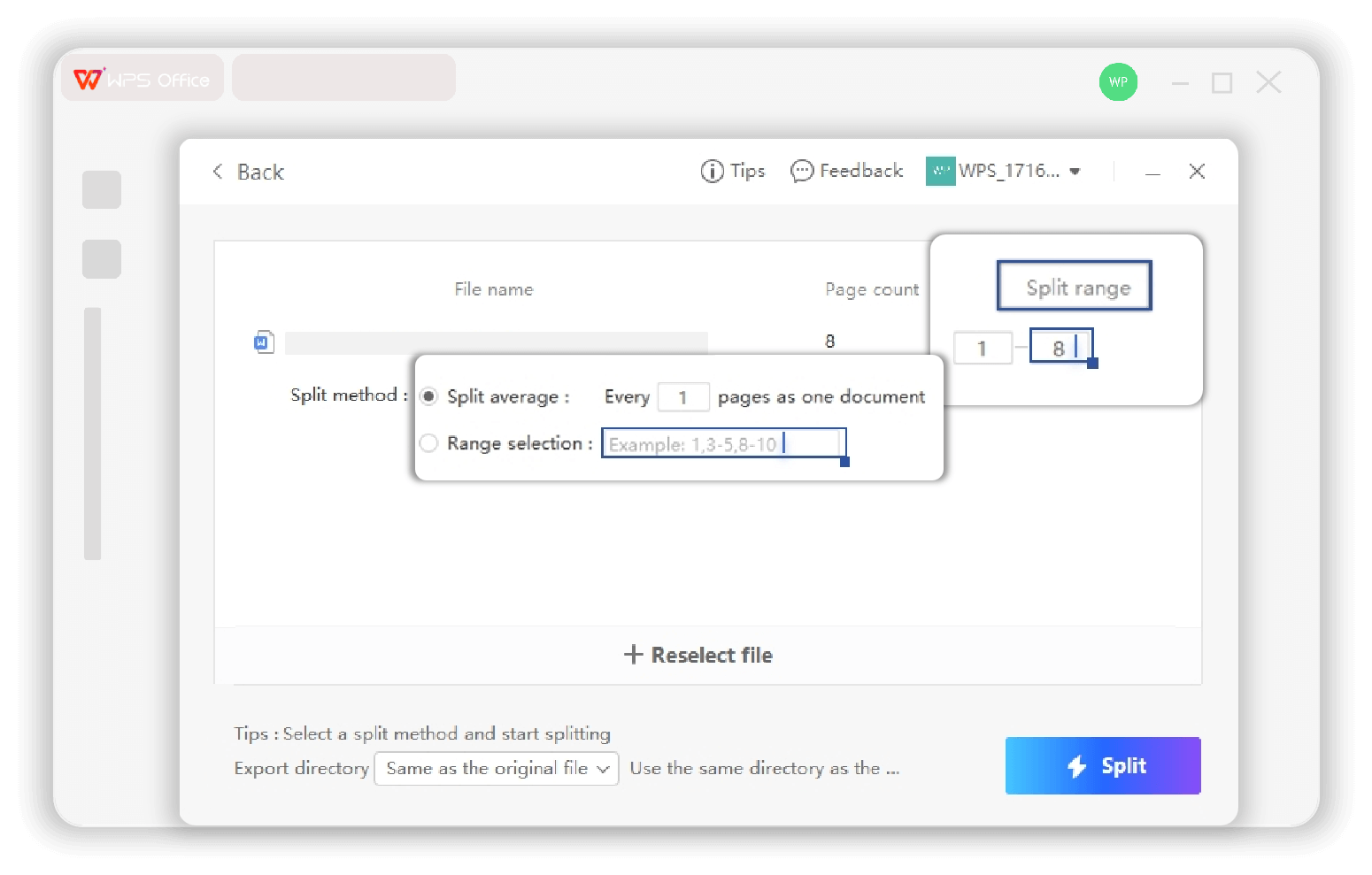
Choose Split, then continue to the range settings.
Check the total page count. For a true half split, enter the first half as a page range (for example, pages 1–10 on a 20-page file).
Confirm the output folder and file names.
Click Split, then run again for the remaining pages—or use heading/section options if your document is structured that way.
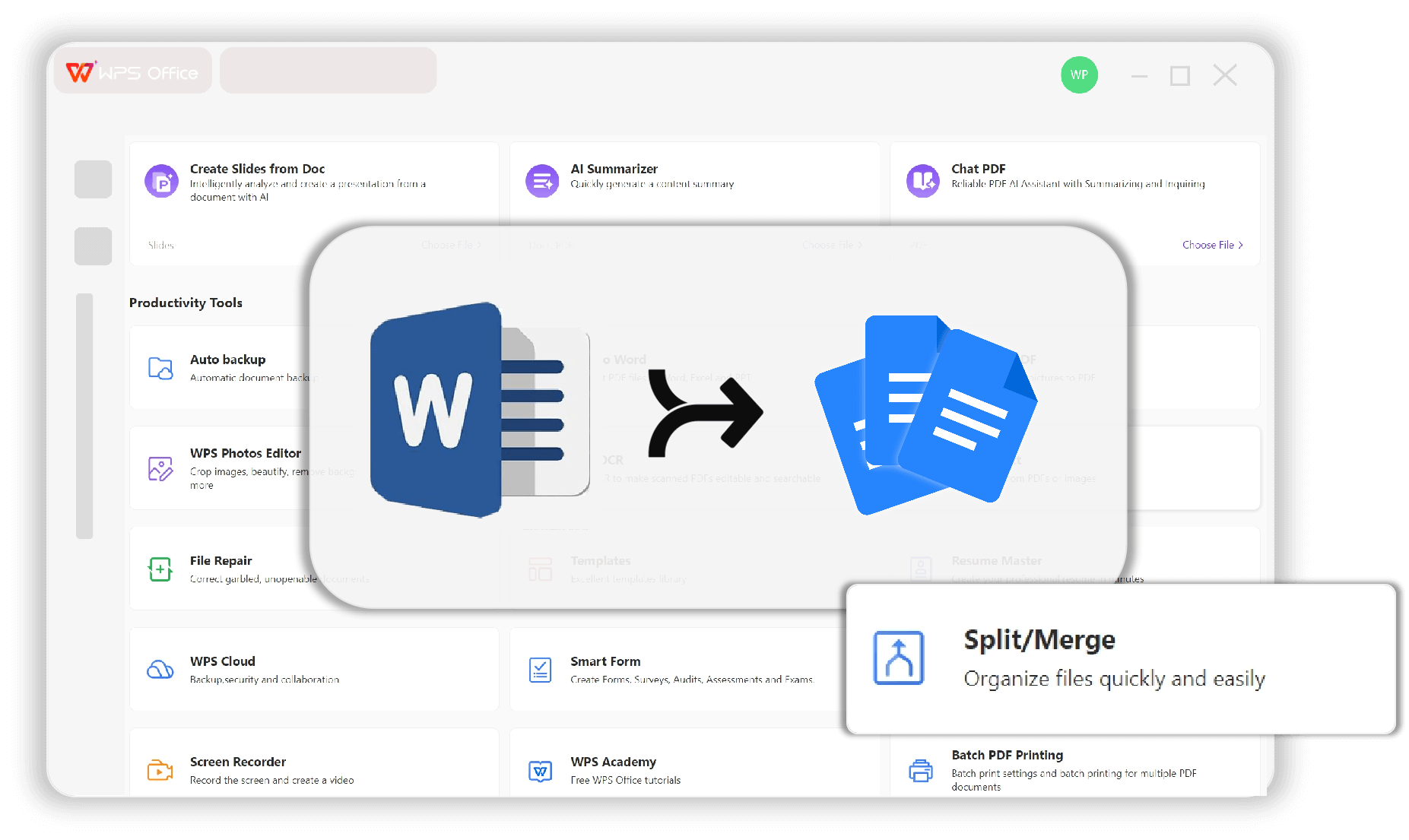
Official overview: WPS Split Word. Menu labels can vary slightly by version—use a practice copy first if the file is important.
How to Split a Word Document in Half by Creating Two Files
When you only need a one-time split and prefer not to open a dialog, the classic copy-paste method still works in Word or WPS Writer.
Open the source document and note the total pages (status bar).
Scroll to the natural midpoint—after a heading or at the end of a page.
Select from the beginning through that midpoint (click, then Shift-click, or drag).
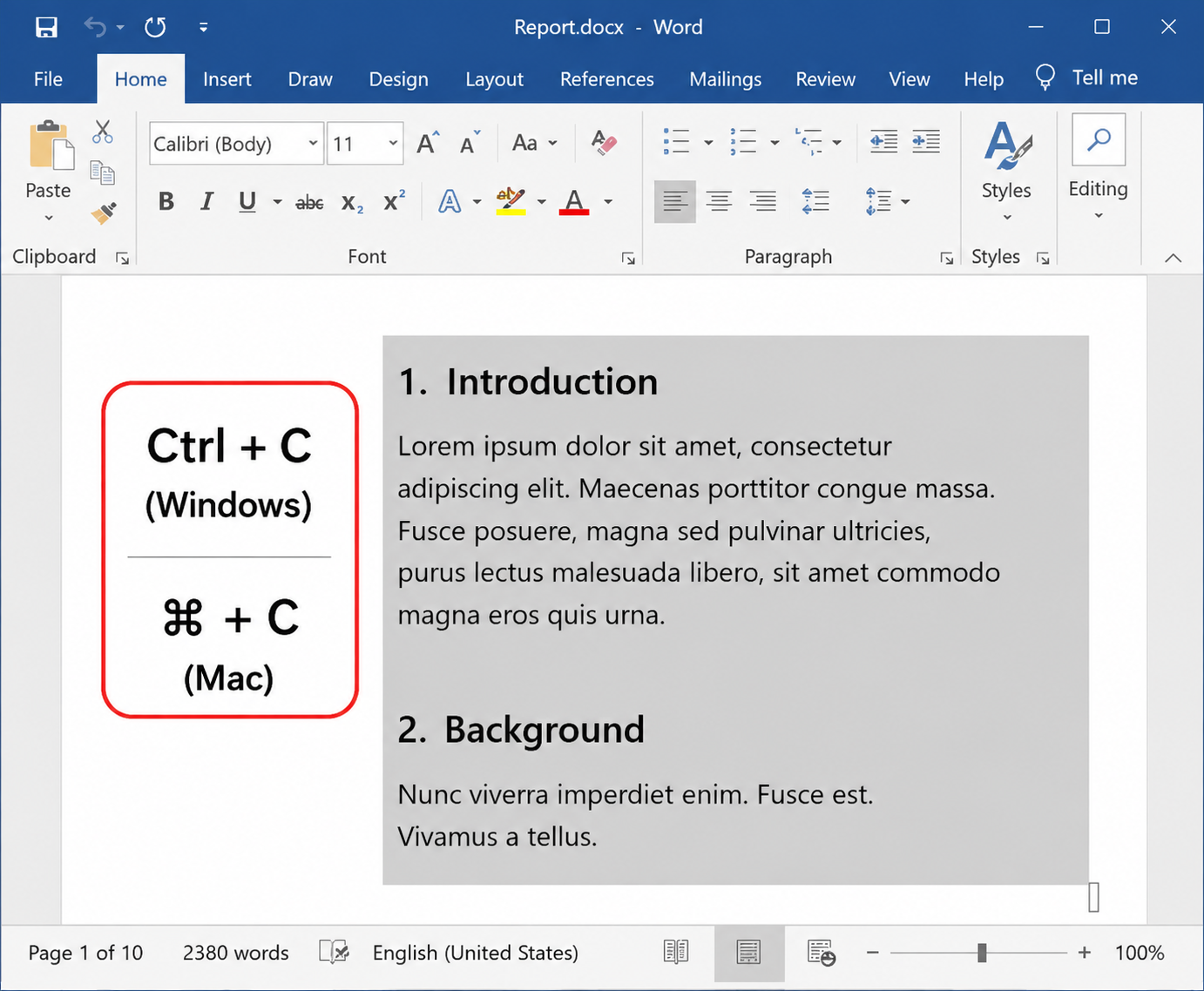
Press Ctrl + C (Windows) or Command + C (Mac).
Create a blank document (Ctrl + N / Command + N), paste, and save as Report_Part1.docx.
Return to the original, delete the copied half (or paste the second half into another new file), and save Report_Part2.docx.
Tip: split at a Heading 1 boundary when possible so each half stays readable. Keep a full backup before you delete content from the master file.
How to Split a Word Document in Half with Two Columns
If “half” means a side-by-side page layout—not two files—use columns.
Open the document in WPS Writer (or Word).
Select the text you want to reflow, or place the cursor to apply columns to the whole document.
Open the Page Layout (or Layout) tab.
Click Columns → Two.

Use More Columns if you need custom width or spacing. To undo, choose Columns → One. This does not create Part A and Part B files; it only changes how text flows on the page.
How to Split a Word Document in Half for Side-by-Side Editing
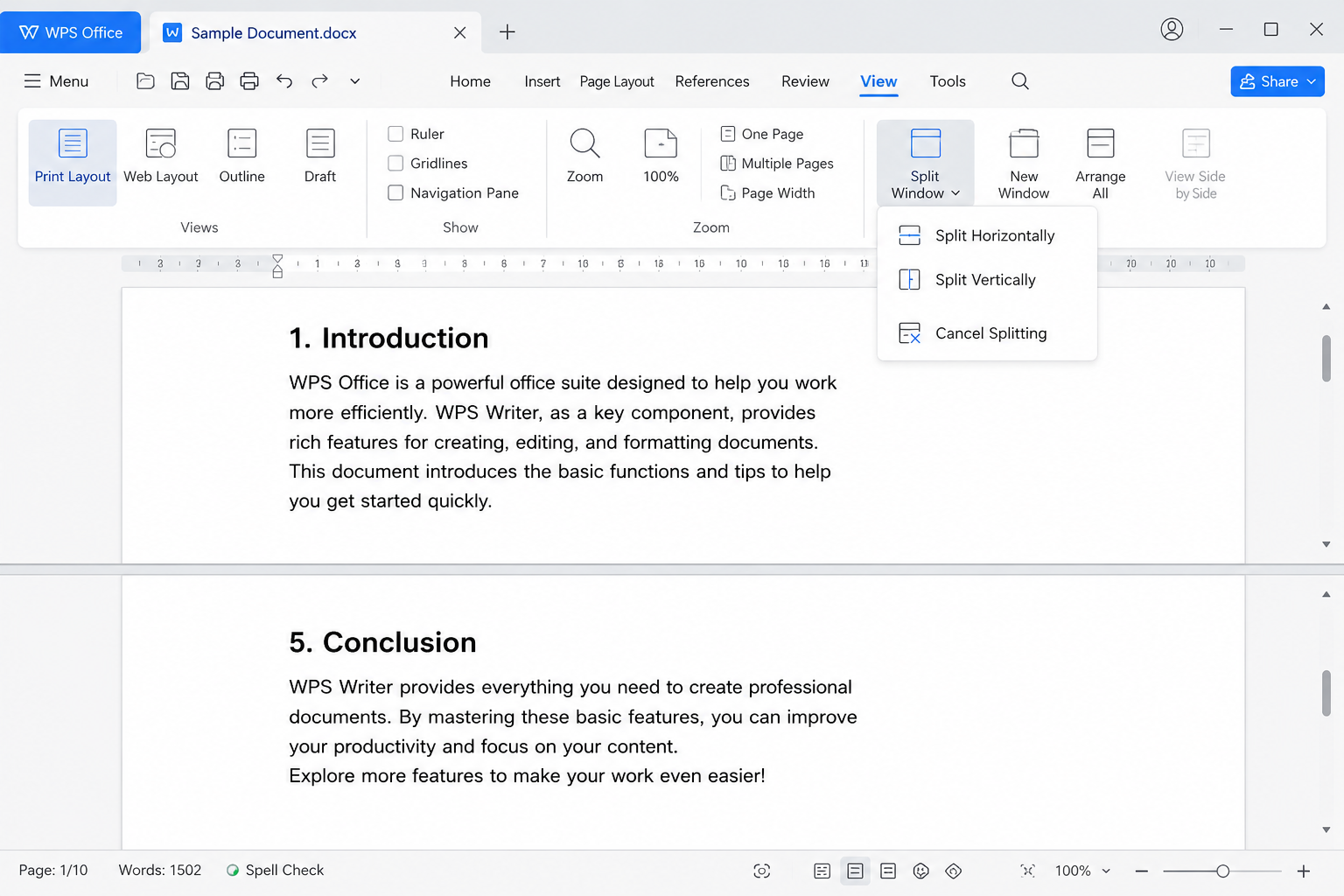
Need to compare the introduction with the conclusion while editing? Use a split window—another answer people expect when they search how to split a word document in half.
Open the document in WPS Writer.
Go to the View tab.
Choose Split Window, then Split Horizontally or Split Vertically.
Scroll each pane independently to the sections you need.
When finished, select Cancel Splitting (or the equivalent remove-split control).
This keeps a single file. If you later need two deliverables, combine this view with copy-paste or Split or Merge at the break point you identified.
FAQ About How to Split a Word Document in Half
Does Word have a built-in “split into two files” command?
No. Word can split the window or use columns, but turning one document into two files is usually copy-paste—or a tool such as WPS Split or Merge.
Will formatting stay intact after a half split?
Copy-paste keeps most styles if you include anchored images. WPS Split or Merge is designed to preserve fonts, tables, and layout in the new files.
Should I use columns or Split or Merge?
Columns for newsletter-style layout in one file. Split or Merge (or copy-paste) when you need two separate documents.
Is the WPS split feature free and offline?
Yes—the core Split or Merge workflow runs in the free WPS Office desktop app and processes files locally.
Where should I cut a long document?
Prefer a heading, section break, or end of a chapter—not mid-paragraph—so each half reads cleanly.

Summary:
Choose by outcome: Tools → Split or Merge in WPS Writer for reliable two-file splits, copy-paste for a quick one-off, Columns → Two for layout, and View → Split Window for dual editing panes. Name Part 1 and Part 2 clearly, keep the master backup, and open each result once before you share it.
Ready to try the built-in splitter? Download WPS Office, open your document in Writer, and run Split or Merge on a practice copy first.

'%3e%3cpath%20d='M19.9911%204.11386V6.471H18.5894C18.0775%206.471%2017.7322%206.57814%2017.5536%206.79243C17.3751%207.00671%2017.2858%207.32814%2017.2858%207.75671V9.44421H19.9019L19.5536%2012.0871H17.2858V18.8639H14.5536V12.0871H12.2769V9.44421H14.5536V7.49779C14.5536%206.39064%2014.8632%205.53201%2015.4822%204.92189C16.1013%204.31177%2016.9257%204.00671%2017.9554%204.00671C18.8304%204.00671%2019.509%204.04243%2019.9911%204.11386Z'%20fill='%23333333'/%3e%3c/g%3e%3cdefs%3e%3cclipPath%20id='clip0_2938_8199'%3e%3crect%20width='16'%20height='16'%20fill='white'%20transform='translate(8%204.00671)'/%3e%3c/clipPath%3e%3c/defs%3e%3c/svg%3e)
'%3e%3cpath%20d='M17.5237%2010.7813L23.4811%204H22.0699L16.8949%209.88693L12.7648%204H8L14.2469%2012.9029L8%2020.0133H9.4112L14.8725%2013.7952L19.2352%2020.0133H24M9.92053%205.04213H12.0885L22.0688%2019.0224H19.9003'%20fill='%23333333'/%3e%3c/g%3e%3cdefs%3e%3cclipPath%20id='clip0_2938_8200'%3e%3crect%20width='16'%20height='16.0134'%20fill='white'%20transform='translate(8%204)'/%3e%3c/clipPath%3e%3c/defs%3e%3c/svg%3e)


