

'%3e%3cpath%20d='M8%200C12.4183%200%2016%203.58172%2016%208C16%2012.4183%2012.4183%2016%208%2016C3.58172%2016%200%2012.4183%200%208C0%203.58172%203.58172%200%208%200ZM11.6162%204.38379C11.2257%203.99337%2010.5927%203.99338%2010.2021%204.38379L8%206.58594L5.79785%204.38379C5.40732%203.99334%204.77429%203.99329%204.38379%204.38379C3.99331%204.77429%203.99335%205.40733%204.38379%205.79785L6.58594%208L4.38379%2010.2021C3.99348%2010.5927%203.99341%2011.2257%204.38379%2011.6162C4.77426%2012.0066%205.40734%2012.0065%205.79785%2011.6162L8%209.41406L10.2021%2011.6162C10.5927%2012.0066%2011.2257%2012.0067%2011.6162%2011.6162C12.0067%2011.2257%2012.0066%2010.5927%2011.6162%2010.2021L9.41406%208L11.6162%205.79785C12.0066%205.40735%2012.0066%204.77429%2011.6162%204.38379Z'%20fill='%23080E17'%20fill-opacity='0.46'/%3e%3c/g%3e%3cdefs%3e%3cclipPath%20id='clip0_3761_713'%3e%3crect%20width='16'%20height='16'%20fill='white'/%3e%3c/clipPath%3e%3c/defs%3e%3c/svg%3e)




'%3e%3cpath%20fill-rule='evenodd'%20clip-rule='evenodd'%20d='M21.4999%2010.9993C21.4999%205.20009%2016.7986%200.498901%2010.9993%200.498901C5.19994%200.498901%200.498657%205.20009%200.498657%2010.9993C0.498657%2016.2404%204.33858%2020.5844%209.35855%2021.3722V14.0346H6.69238V10.9993H9.35855V8.68594C9.35855%206.05427%2010.9262%204.60062%2013.3248%204.60062C14.4736%204.60062%2015.6753%204.80571%2015.6753%204.80571V7.38979H14.3512C13.0468%207.38979%2012.64%208.19921%2012.64%209.0296V10.9993H15.5523L15.0867%2014.0346H12.64V21.3722C17.66%2020.5844%2021.4999%2016.2404%2021.4999%2010.9993Z'%20fill='%231568EA'/%3e%3c/g%3e%3c/svg%3e)


'%3e%3cpath%20d='M2.42045%2022.1876H6.31818V12.7217L0.75%208.54553V20.5171C0.75%2021.4414%201.49892%2022.1876%202.42045%2022.1876Z'%20fill='%234285F4'/%3e%3cpath%20d='M19.682%2022.1876H23.5797C24.5041%2022.1876%2025.2502%2021.4387%2025.2502%2020.5171V8.54553L19.682%2012.7217'%20fill='%2334A853'/%3e%3cpath%20d='M19.682%205.48293V12.7216L25.2502%208.54543V6.31816C25.2502%204.25236%2022.8921%203.07469%2021.2411%204.31361'%20fill='%23FBBC04'/%3e%3cpath%20d='M6.31824%2012.7217V5.48303L13.0001%2010.4944L19.6819%205.48303V12.7217L13.0001%2017.733'%20fill='%23EA4335'/%3e%3cpath%20d='M0.75%206.31816V8.54543L6.31818%2012.7216V5.48293L4.75909%204.31361C3.10534%203.07469%200.75%204.25236%200.75%206.31816Z'%20fill='%23C5221F'/%3e%3c/g%3e%3cdefs%3e%3cclipPath%20id='clip0_2954_7305'%3e%3crect%20width='24.5'%20height='18.375'%20fill='white'%20transform='translate(0.75%203.8125)'/%3e%3c/clipPath%3e%3c/defs%3e%3c/svg%3e)


Microsoft Office isn't available as a native Linux application, so choosing the right alternative matters if you regularly work with Word, Excel, or PowerPoint files. Whether you prioritize Microsoft Office compatibility, open-source software, offline editing, or a familiar interface, there are several excellent options. If you are exploring free office alternatives to Microsoft Office, Linux users have several capable options depending on their needs, from open-source suites to Microsoft-compatible productivity tools.
Here is a quick summary of the alternatives:
| Software | Best for | Open Source | Offline | Microsoft Compatibility | Package Availability |
|---|---|---|---|---|---|
| WPS Office | Best overall | No | Yes | Excellent | DEB / RPM |
| LibreOffice | Best open source | Yes | Yes | Good | Native repos / Flatpak / Snap |
| ONLYOFFICE | Best compatibility | Yes | Yes | Excellent | DEB / RPM / Snap / Flatpak |
| FreeOffice | Familiar interface | No | Yes | Good | DEB / RPM |
| Apache OpenOffice | Legacy users | Yes | Yes | Moderate | Various |
| Google Workspace | Browser collaboration | No | Browser | Excellent | Web |
| Zoho Workplace | Cloud work | No | Browser | Good | Web |
1. WPS Office
Best for: Users who want the closest Microsoft Office experience on Linux with strong file compatibility and an all-in-one productivity suite.
Free: Yes (with optional premium plans)
Open source: No
Offline editing: Yes
Microsoft Office compatibility: Excellent
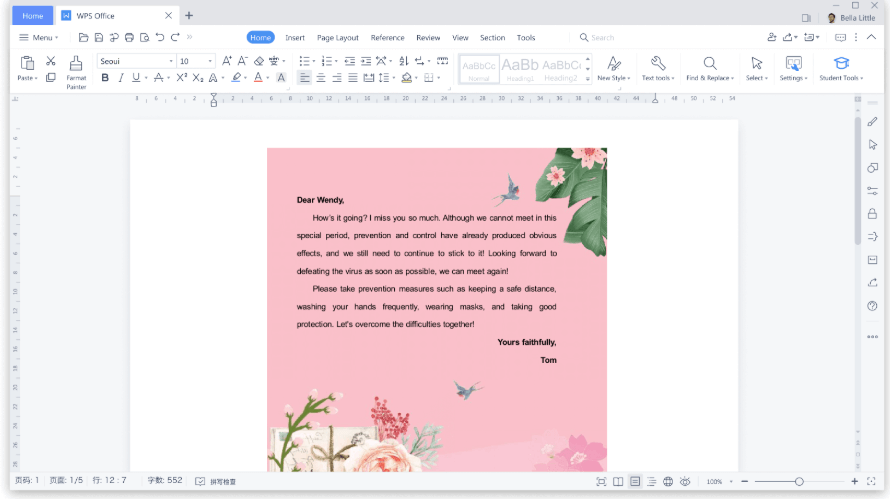
WPS Office is available across multiple platforms, including Linux, making it easier for users who switch between different devices. Its familiar ribbon-style interface, comprehensive editing tools, and strong support for MS Office file formats make it an excellent choice for students, professionals, and small businesses working across different platforms.
Unlike many Linux office suites that focus solely on open-source development, WPS Office is designed to minimize the learning curve for users coming from Microsoft Office. Documents, spreadsheets, presentations, and PDFs are all available within a single application, making it easy to manage everyday work without installing multiple programs. The current Linux version supports major document formats, offers offline editing, and is available for common Linux package formats. Users who need installation guidance can follow our step-by-step guide on how to install WPS Office on Linux.

Key Features
Writer, Spreadsheet, Presentation, and PDF tools in one application
Excellent compatibility with DOC, DOCX, XLS, XLSX, PPT, and PPTX files
Familiar ribbon interface for Microsoft Office users
Built-in PDF viewing and basic PDF tools
Cross-platform support across Linux, Windows, macOS, Android, and iOS
Templates for resumes, reports, presentations, invoices, and more
Offline editing with optional cloud synchronization
Why Choose WPS Office?
Choose WPS Office if your priority is maintaining compatibility with Microsoft Office documents while working on Linux. The interface feels familiar, file conversion is reliable for everyday work, and switching between Linux and Windows is straightforward because the experience remains largely consistent across platforms. So far, it is one of the best Microsoft Office alternatives available.
Things to Consider
The free version includes everything most users need for daily document editing, but some advanced PDF, cloud, and AI features require a premium subscription. Users who only use open-source software may also prefer LibreOffice or ONLYOFFICE.


2. LibreOffice
Best for: Linux users who want a fully open-source office suite with powerful offline editing and long-term community support.
Free: Yes
Open source: Yes
Offline editing: Yes
Microsoft Office compatibility: Good
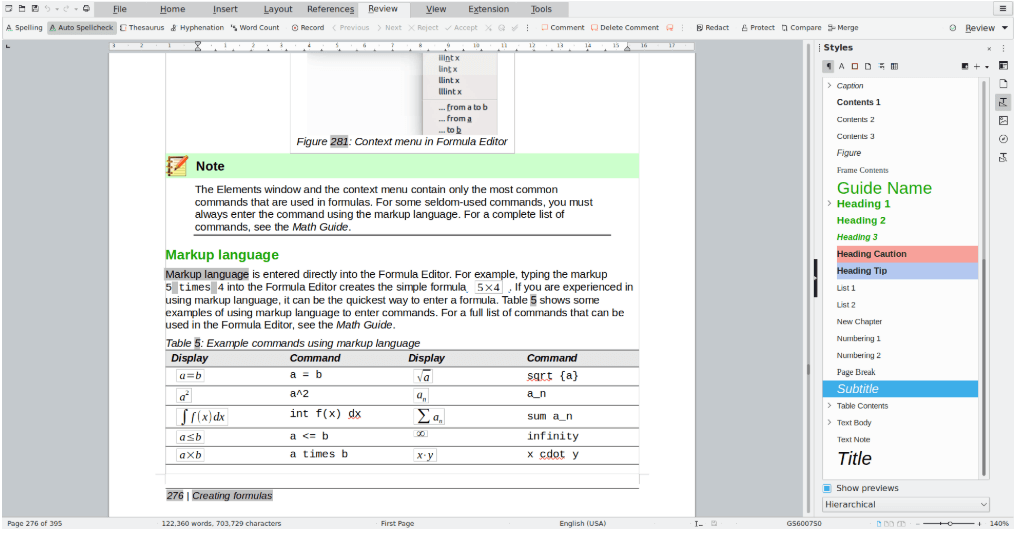
LibreOffice has long been the default office suite for many Linux distributions, and for good reason. Developed by The Document Foundation, it offers a complete productivity suite that includes Writer, Calc, Impress, Draw, Base, and Math without requiring a subscription or proprietary services. LibreOffice remains one of the most popular choices among users looking for open-source office alternatives.
Its greatest strength is flexibility. LibreOffice supports the OpenDocument Format (ODF) while also allowing users to open and edit Microsoft Office files. It also receives regular community-driven updates, making it a dependable option for users who value transparency, customization, and complete offline control over their documents.
Key Features
Completely free and open source
Writer, Calc, Impress, Draw, Base, and Math applications
Native support for OpenDocument Format (ODF)
Compatible with Microsoft Office file formats
Extensive extension and template library
Active community development with regular updates
Available through most Linux repositories, Flatpak, and Snap packages
Why Choose LibreOffice?
LibreOffice is ideal if you prefer open-source software or primarily work within the Linux ecosystem. It offers one of the most complete desktop office experiences available without licensing costs, making it particularly attractive for developers, educators, government organizations, and privacy-conscious users.
Things to Consider
Although Microsoft Office compatibility has improved significantly, complex Word documents, Excel spreadsheets, or PowerPoint presentations with advanced formatting, macros, or custom fonts may still require adjustments after opening. Users who frequently exchange Office documents with Windows users may prefer WPS Office or ONLYOFFICE for better visual consistency. Learn more in our detailed comparison of WPS vs LibreOffice.
3. Apache OpenOffice
Best for: Users who are already familiar with OpenOffice and only need basic office functionality.
Free: Yes
Open source: Yes
Offline editing: Yes
Microsoft Office compatibility: Moderate

Apache OpenOffice remains one of the best-known open-source office suites, but today it serves a much more specialized audience than it once did. It includes Writer, Calc, Impress, Draw, Base, and Math, providing the core tools needed for creating documents, spreadsheets, and presentations.
For users with simple productivity needs, OpenOffice still offers a lightweight and familiar experience. However, its development pace is much slower than LibreOffice, and many Linux users have migrated to more actively maintained alternatives that provide better Microsoft Office compatibility and modern features.
Key Features
Free and open-source office suite
Word processing, spreadsheets, presentations, graphics, and database tools
Cross-platform support
Support for OpenDocument Format and many Microsoft Office file types
Familiar classic interface
Why Choose Apache OpenOffice?
OpenOffice is a reasonable option if you already use it or need a lightweight office suite for basic document editing. Its traditional interface will also feel familiar to users who previously worked with older versions of Microsoft Office.
Things to Consider
Compared with LibreOffice, Apache OpenOffice receives fewer feature updates and generally offers weaker compatibility with modern Microsoft Office documents. Unless you specifically prefer OpenOffice, most Linux users will benefit more from choosing LibreOffice, ONLYOFFICE, or WPS Office, all of which provide a more up-to-date experience and broader document compatibility.
4. ONLYOFFICE
Best for: Users who frequently exchange Microsoft Office documents and want the highest possible formatting accuracy.
Free: Yes (Desktop Editors)
Open source: Yes
Offline editing: Yes
Microsoft Office compatibility: Excellent

ONLYOFFICE has become one of the strongest Microsoft Office alternatives for Linux, especially for users who regularly work with DOCX, XLSX, and PPTX files. Unlike many traditional office suites, it was built with Microsoft Office document compatibility as a primary focus, making it particularly attractive for businesses, students, and professionals who collaborate with Windows users.
The suite includes document, spreadsheet, presentation, PDF, and form editors within a clean, modern interface that closely resembles recent versions of Microsoft Office. Desktop Editors work offline, while cloud integrations allow teams to collaborate in real time through compatible platforms when needed. Community discussions also frequently recommend ONLYOFFICE when preserving Microsoft Office formatting is the highest priority.
Key Features
Excellent support for DOCX, XLSX, and PPTX files
Modern ribbon-style interface
Documents, spreadsheets, presentations, PDFs, and forms
Offline desktop editing
Real-time collaboration through supported cloud services
Available for major Linux distributions
Why Choose ONLYOFFICE?
ONLYOFFICE is an excellent choice if your workflow depends on exchanging Microsoft Office files with colleagues, clients, or schools. It generally preserves layouts more accurately than many traditional office suites while maintaining a familiar editing experience.
Things to Consider
Although compatibility is one of its biggest strengths, ONLYOFFICE includes fewer desktop applications than LibreOffice and offers less flexibility for advanced customization. Users who prefer a larger collection of productivity tools or fully community-driven development may still prefer LibreOffice.
5. FreeOffice
Best for: Users who want a familiar Microsoft Office experience without unnecessary complexity.
Free: Yes
Open source: No
Offline editing: Yes
Microsoft Office compatibility: Good

Developed by SoftMaker, FreeOffice focuses on providing a clean, traditional desktop experience while maintaining strong compatibility with Microsoft Office documents. The suite includes TextMaker, PlanMaker, and Presentations, covering the three applications most people use every day.
Unlike larger office suites packed with additional modules, FreeOffice keeps its interface simple and responsive. The familiar ribbon layout helps Windows users transition to Linux with minimal learning time, making it an appealing option for personal productivity and everyday office work.
Key Features
TextMaker word processor
PlanMaker spreadsheet editor
Presentations application
Familiar Microsoft Office-style interface
Good compatibility with DOCX, XLSX, and PPTX
Fast performance on older hardware
Offline editing
Why Choose FreeOffice?
If you mainly create documents, spreadsheets, and presentations without needing advanced collaboration or database tools, FreeOffice offers one of the simplest transitions from Microsoft Office to Linux. It delivers a clean user experience while remaining lightweight enough for older systems.
Things to Consider
FreeOffice isn't open source, and some advanced productivity features are reserved for SoftMaker Office. Users who require integrated PDF editing, cloud collaboration, or broader application ecosystems may find WPS Office or LibreOffice more suitable.
6. Calligra Suite
Best for: KDE users who want an office suite that integrates naturally with the Plasma desktop.
Free: Yes
Open source: Yes
Offline editing: Yes
Microsoft Office compatibility: Moderate

Calligra Suite is a community-developed office suite created by the KDE project. While it includes the core applications needed for documents, spreadsheets, and presentations, its primary strength lies in how well it integrates with KDE Plasma rather than competing directly with Microsoft Office.
In addition to Words, Sheets, and Stage, Calligra also includes specialized applications for project management and visual creativity, making it a broader productivity suite than many alternatives. However, users who frequently exchange Microsoft Office files should be aware that compatibility with complex DOCX, XLSX, and PPTX documents is not as strong as WPS Office, LibreOffice, or ONLYOFFICE.
Key Features
Native KDE Plasma integration
Words, Sheets, and Stage applications
Project management and creativity tools
Open-source development
Offline editing
Lightweight desktop integration
Why Choose Calligra?
Calligra is worth considering if you already use KDE Plasma as your primary desktop environment and value seamless integration with the rest of the KDE ecosystem. It also includes several niche applications that are unavailable in many competing office suites.
Things to Consider
Although Calligra performs well for general document editing, it isn't the strongest option for users who frequently collaborate using Microsoft Office documents. If compatibility is your top priority, WPS Office or ONLYOFFICE will generally provide a more consistent experience.
7. Collabora Office
Best for: Organizations and users who want an open-source office suite with enterprise collaboration capabilities.
Free: Community edition available
Open source: Yes
Offline editing: Yes
Microsoft Office compatibility: Good
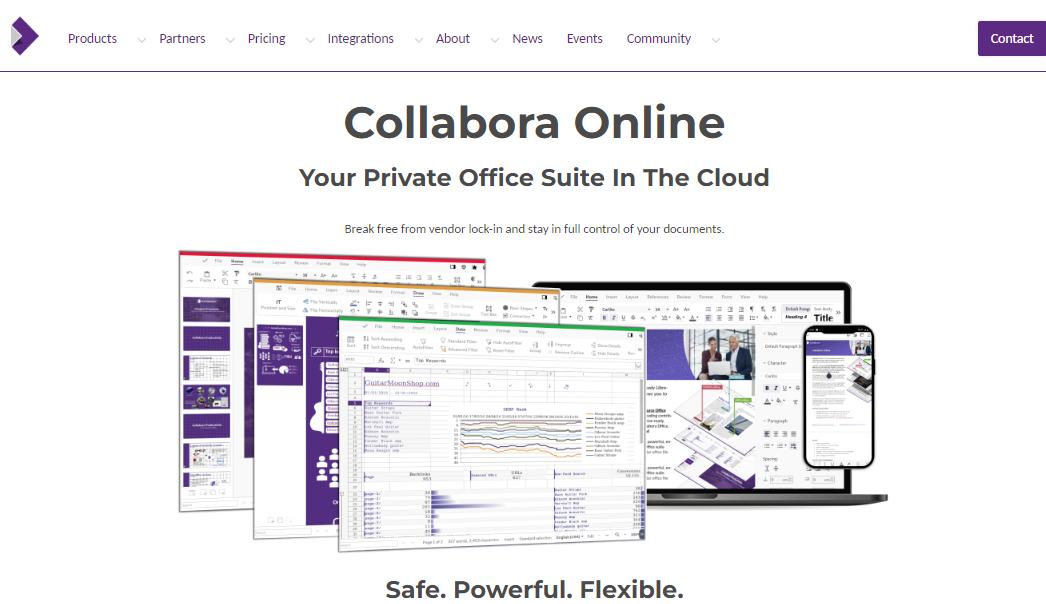
Collabora Office is built on LibreOffice technology but focuses more heavily on enterprise collaboration, document security, and controlled deployments. It is widely used by organizations that prefer open-source infrastructure while maintaining greater control over how documents are shared and managed.
Unlike browser-first productivity suites, Collabora can be deployed in self-hosted environments, making it particularly attractive to educational institutions, government organizations, and businesses with strict privacy requirements.
Key Features
Based on LibreOffice technology
Open-source development
Strong document privacy and self-hosting capabilities
Microsoft Office file support
Offline editing
Enterprise collaboration options
Why Choose Collabora Office?
Collabora is best suited for organizations that value data ownership and self-hosted collaboration over consumer-focused convenience. It combines the familiarity of LibreOffice with collaboration tools designed for larger deployments.
Things to Consider
For individual Linux users, Collabora's enterprise focus may introduce unnecessary complexity. If your primary goal is simply creating and editing Office documents, WPS Office, LibreOffice, or ONLYOFFICE offer a more straightforward experience with less setup.
8. Microsoft 365 for the Web
Best for: Users who need access to familiar Microsoft Office applications without installing desktop software on Linux.
Free: Yes (with Microsoft account)
Open source: No
Offline editing: Limited
Microsoft Office compatibility: Excellent
Although Microsoft does not provide a native desktop version of Office for Linux, Linux users can still access core Office applications through Microsoft 365 for the web. The browser-based versions of Word, Excel, PowerPoint, and OneDrive provide a convenient option for users who want to work with Microsoft documents without switching operating systems.
For users who frequently exchange files with Windows colleagues, schools, or businesses, using Microsoft's own web apps can reduce compatibility issues. Documents are stored through OneDrive, collaboration happens in real time, and files can be accessed from any Linux device with a supported browser.
Key Features
Official web versions of Word, Excel, PowerPoint, and OneDrive
Excellent compatibility with Microsoft Office formats
Real-time document collaboration
Automatic cloud saving
Works directly in Linux browsers
No software installation required
Why Choose Microsoft 365 for the Web?
Microsoft 365 for the web is the best choice if your priority is staying within the Microsoft ecosystem while using Linux. It eliminates the need to convert files between different office suites and provides the most authentic Microsoft Office experience available on Linux. It is especially useful for users who occasionally need Microsoft Office features but do not require a full desktop application.
Things to Consider
The web version does not include all advanced features available in the desktop Microsoft Office applications. Users who regularly work offline, manage complex spreadsheets, or need professional document layouts may prefer a dedicated Linux office suite such as WPS Office, LibreOffice, or ONLYOFFICE.
9. Google Workspace
Best for: Teams and individuals who primarily work online and collaborate in real time.
Free: Yes (personal Google account)
Open source: No
Offline editing: Limited (requires setup)
Microsoft Office compatibility: Good
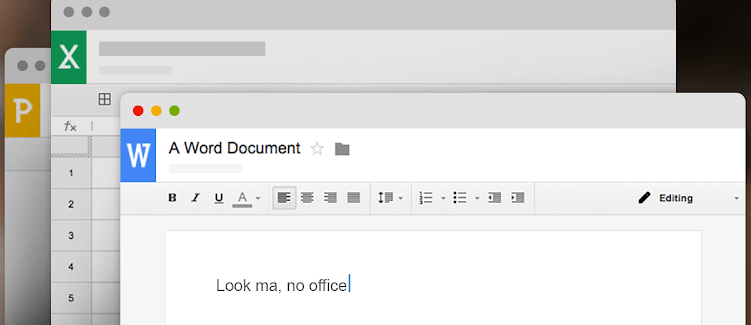
Google Workspace provides a cloud-based productivity experience that includes Google Docs, Sheets, and Slides. Since everything runs in a web browser, Linux users don't need to install desktop software to create, edit, or share documents.
Its biggest advantage is real-time collaboration. Multiple users can work on the same document simultaneously, making it an excellent choice for remote teams, students, and collaborative projects. Google Workspace also supports importing and exporting Microsoft Office file formats, making it easy to exchange documents with Windows users.
Key Features
Browser-based productivity suite
Real-time collaboration and commenting
Automatic cloud saving
Cross-platform accessibility
Good Microsoft Office file support
Extensive third-party integrations
Why Choose Google Workspace?
If collaboration is your top priority, Google Workspace remains one of the most convenient office solutions available. Documents are automatically saved to the cloud, sharing is simple, and files can be accessed from almost any device with an internet connection.
Things to Consider
Google Workspace relies primarily on cloud storage and internet connectivity. While offline editing is available after configuration, users who frequently work without internet access or require advanced desktop editing features may prefer WPS Office or LibreOffice.
10. Zoho Workplace
Best for: Small businesses looking for an integrated office suite with business productivity tools.
Free: Yes (limited free plan)
Open source: No
Offline editing: Limited
Microsoft Office compatibility: Good

Zoho Workplace combines online document editing with email, file management, communication, and collaboration tools in a single business-focused platform. It includes Zoho Writer, Sheet, and Show, along with additional productivity applications that support team workflows.
Because it is cloud-first, Zoho Workplace is particularly useful for businesses that want to centralize document creation, communication, and collaboration without maintaining their own infrastructure.
Key Features
Writer, Sheet, and Show applications
Integrated email and cloud storage
Team collaboration tools
Microsoft Office document support
Cross-platform access
Business productivity ecosystem
Why Choose Zoho Workplace?
Zoho Workplace is well suited to startups and small businesses that want more than document editing. Its integrated business applications help teams manage communication and collaboration from a single platform while remaining accessible from Linux through a web browser.
Things to Consider
Although Zoho Workplace provides strong online collaboration, it isn't designed to replace a fully featured desktop office suite. Users who regularly work offline or need advanced document formatting may find WPS Office or LibreOffice more suitable for day-to-day productivity.
How We Evaluated the Best Microsoft Office Alternatives for Linux
We compared each office suite based on the factors that matter most for Linux users, including Microsoft Office file compatibility, offline editing capabilities, available features, ease of installation, interface design, collaboration tools, and overall value. Whether you are replacing Microsoft Office completely or simply need a reliable way to edit documents on Linux, the best choice depends on your workflow and priorities. Learn more in the comparison of WPS Office vs Microsoft Office.
Which Microsoft Office Alternative Should You Choose on Linux?
Choosing the right Microsoft Office alternative for Linux depends on how you work.
If you want the most familiar Microsoft Office-style experience with strong file compatibility, WPS Office is one of the best overall choices. It combines Writer, Spreadsheet, Presentation, and PDF tools in one application while supporting common Microsoft Office formats across Linux and other platforms.
For users who prioritize open-source software, LibreOffice remains the strongest choice thanks to its complete desktop suite and community-driven development. If maintaining DOCX, XLSX, and PPTX formatting is your biggest concern, ONLYOFFICE is another strong option.
For users who mainly collaborate online, browser-based solutions such as Microsoft 365 for the web, Google Workspace, and Zoho Workplace provide convenient access without installing desktop software.
Ultimately, the best Linux office suite depends on your priorities:
Best overall experience: WPS Office
Best open-source option: LibreOffice
Best Microsoft Office compatibility: ONLYOFFICE
Best official Microsoft experience: Microsoft 365 for the web
Best online collaboration: Google Workspace
If you are looking for a complete office suite that works smoothly on Linux while keeping a familiar workflow, WPS Office is a practical choice to consider.
Try WPS Office on Linux
Ready to replace Microsoft Office on Linux? Download WPS Office and get access to a complete productivity suite with document editing, spreadsheets, presentations, PDF tools, and Microsoft Office file compatibility. WPS Office is available for Linux distributions and supports common Linux package formats including DEB and RPM.
FAQs
Can Microsoft Office run on Linux?
Microsoft does not provide a native desktop version of Microsoft Office for Linux. However, Linux users can access alternatives such as WPS Office, LibreOffice, ONLYOFFICE, or browser-based versions of Microsoft Office through Microsoft 365 for the web.
What is the best Microsoft Office alternative for Linux?
The best option depends on your needs. Choose WPS Office if you want a familiar Microsoft Office interface and strong compatibility. Choose LibreOffice if you prefer open-source software. Choose ONLYOFFICE if Microsoft document formatting accuracy is your priority. Choose Microsoft 365 for the web if you want official Microsoft applications through a browser.
Is WPS Office free on Linux?
Yes. WPS Office offers a free version for Linux users that includes essential document, spreadsheet, presentation, and PDF tools. Some advanced features may require a premium plan.
Which Linux office suite has the best Microsoft Office compatibility?
Compatibility depends on the document type and complexity, but WPS Office and ONLYOFFICE are commonly considered strong options for users who frequently work with DOCX, XLSX, and PPTX files. Community discussions often compare these suites specifically around Microsoft format compatibility.
Is LibreOffice better than WPS Office?
Neither is universally better -the right choice depends on your workflow. LibreOffice is better for users who want open-source software and extensive customization. WPS Office is better suited for users who want a Microsoft Office-like interface, cross-platform consistency, and strong compatibility with Office files.
Can I install WPS Office on Ubuntu?
Yes. WPS Office provides Linux packages and supports popular distributions including Ubuntu. Users can install it through available Linux packages such as DEB formats.

Summary
Linux users have many strong free Microsoft Office alternatives, but the right pick depends on how you work. If you want the closest Microsoft Office experience with solid DOCX, XLSX, and PPTX compatibility, WPS Office is the best overall choice and installs easily through DEB or RPM packages. If open-source software is your priority, LibreOffice remains the most complete community-driven suite. For the highest Microsoft format fidelity, ONLYOFFICE is another excellent option.
Users who mainly collaborate online can rely on browser-based tools such as Microsoft 365 for the web, Google Workspace, or Zoho Workplace. For everyday offline productivity on Linux with a familiar interface, starting with WPS Office is a practical way to replace Microsoft Office without changing your workflow.
'%3e%3cpath%20d='M19.9911%204.11386V6.471H18.5894C18.0775%206.471%2017.7322%206.57814%2017.5536%206.79243C17.3751%207.00671%2017.2858%207.32814%2017.2858%207.75671V9.44421H19.9019L19.5536%2012.0871H17.2858V18.8639H14.5536V12.0871H12.2769V9.44421H14.5536V7.49779C14.5536%206.39064%2014.8632%205.53201%2015.4822%204.92189C16.1013%204.31177%2016.9257%204.00671%2017.9554%204.00671C18.8304%204.00671%2019.509%204.04243%2019.9911%204.11386Z'%20fill='%23333333'/%3e%3c/g%3e%3cdefs%3e%3cclipPath%20id='clip0_2938_8199'%3e%3crect%20width='16'%20height='16'%20fill='white'%20transform='translate(8%204.00671)'/%3e%3c/clipPath%3e%3c/defs%3e%3c/svg%3e)
'%3e%3cpath%20d='M17.5237%2010.7813L23.4811%204H22.0699L16.8949%209.88693L12.7648%204H8L14.2469%2012.9029L8%2020.0133H9.4112L14.8725%2013.7952L19.2352%2020.0133H24M9.92053%205.04213H12.0885L22.0688%2019.0224H19.9003'%20fill='%23333333'/%3e%3c/g%3e%3cdefs%3e%3cclipPath%20id='clip0_2938_8200'%3e%3crect%20width='16'%20height='16.0134'%20fill='white'%20transform='translate(8%204)'/%3e%3c/clipPath%3e%3c/defs%3e%3c/svg%3e)


