

'%3e%3cpath%20d='M8%200C12.4183%200%2016%203.58172%2016%208C16%2012.4183%2012.4183%2016%208%2016C3.58172%2016%200%2012.4183%200%208C0%203.58172%203.58172%200%208%200ZM11.6162%204.38379C11.2257%203.99337%2010.5927%203.99338%2010.2021%204.38379L8%206.58594L5.79785%204.38379C5.40732%203.99334%204.77429%203.99329%204.38379%204.38379C3.99331%204.77429%203.99335%205.40733%204.38379%205.79785L6.58594%208L4.38379%2010.2021C3.99348%2010.5927%203.99341%2011.2257%204.38379%2011.6162C4.77426%2012.0066%205.40734%2012.0065%205.79785%2011.6162L8%209.41406L10.2021%2011.6162C10.5927%2012.0066%2011.2257%2012.0067%2011.6162%2011.6162C12.0067%2011.2257%2012.0066%2010.5927%2011.6162%2010.2021L9.41406%208L11.6162%205.79785C12.0066%205.40735%2012.0066%204.77429%2011.6162%204.38379Z'%20fill='%23080E17'%20fill-opacity='0.46'/%3e%3c/g%3e%3cdefs%3e%3cclipPath%20id='clip0_3761_713'%3e%3crect%20width='16'%20height='16'%20fill='white'/%3e%3c/clipPath%3e%3c/defs%3e%3c/svg%3e)



'%3e%3cpath%20fill-rule='evenodd'%20clip-rule='evenodd'%20d='M21.4999%2010.9993C21.4999%205.20009%2016.7986%200.498901%2010.9993%200.498901C5.19994%200.498901%200.498657%205.20009%200.498657%2010.9993C0.498657%2016.2404%204.33858%2020.5844%209.35855%2021.3722V14.0346H6.69238V10.9993H9.35855V8.68594C9.35855%206.05427%2010.9262%204.60062%2013.3248%204.60062C14.4736%204.60062%2015.6753%204.80571%2015.6753%204.80571V7.38979H14.3512C13.0468%207.38979%2012.64%208.19921%2012.64%209.0296V10.9993H15.5523L15.0867%2014.0346H12.64V21.3722C17.66%2020.5844%2021.4999%2016.2404%2021.4999%2010.9993Z'%20fill='%231568EA'/%3e%3c/g%3e%3c/svg%3e)


'%3e%3cpath%20d='M2.42045%2022.1876H6.31818V12.7217L0.75%208.54553V20.5171C0.75%2021.4414%201.49892%2022.1876%202.42045%2022.1876Z'%20fill='%234285F4'/%3e%3cpath%20d='M19.682%2022.1876H23.5797C24.5041%2022.1876%2025.2502%2021.4387%2025.2502%2020.5171V8.54553L19.682%2012.7217'%20fill='%2334A853'/%3e%3cpath%20d='M19.682%205.48293V12.7216L25.2502%208.54543V6.31816C25.2502%204.25236%2022.8921%203.07469%2021.2411%204.31361'%20fill='%23FBBC04'/%3e%3cpath%20d='M6.31824%2012.7217V5.48303L13.0001%2010.4944L19.6819%205.48303V12.7217L13.0001%2017.733'%20fill='%23EA4335'/%3e%3cpath%20d='M0.75%206.31816V8.54543L6.31818%2012.7216V5.48293L4.75909%204.31361C3.10534%203.07469%200.75%204.25236%200.75%206.31816Z'%20fill='%23C5221F'/%3e%3c/g%3e%3cdefs%3e%3cclipPath%20id='clip0_2954_7305'%3e%3crect%20width='24.5'%20height='18.375'%20fill='white'%20transform='translate(0.75%203.8125)'/%3e%3c/clipPath%3e%3c/defs%3e%3c/svg%3e)


In today’s digital age, people often share files in various formats. While PDFs are great for preserving layout, JPGs are easier to share and display on web pages or social media. Yet, users struggle to find reliable tools for quality conversion. The big question is, how do you quickly convert a PDF to JPG without losing quality?


This article walks you through how to do that using Adobe PDF to JPG. We will also discuss a better alternative to Adobe which helps you convert PDF to JPG in simple and easy steps.
Part 1. Why Use Adobe Converter for Converting PDF to JPG
Adobe PDF to JPG is part of Adobe Acrobat’s online and desktop tools. It allows users to change PDF pages into clear, high-resolution images. Whether you’re preparing visuals for a presentation or uploading an image version of a report, Adobe’s converter ensures quality output.
Features
Converts single or multiple PDF pages into JPG images.
Preserves layout, colors, and fonts.
Works across desktop, mobile, and web platforms.
Integrates with Adobe Document Cloud for storage and sharing.
Pricing
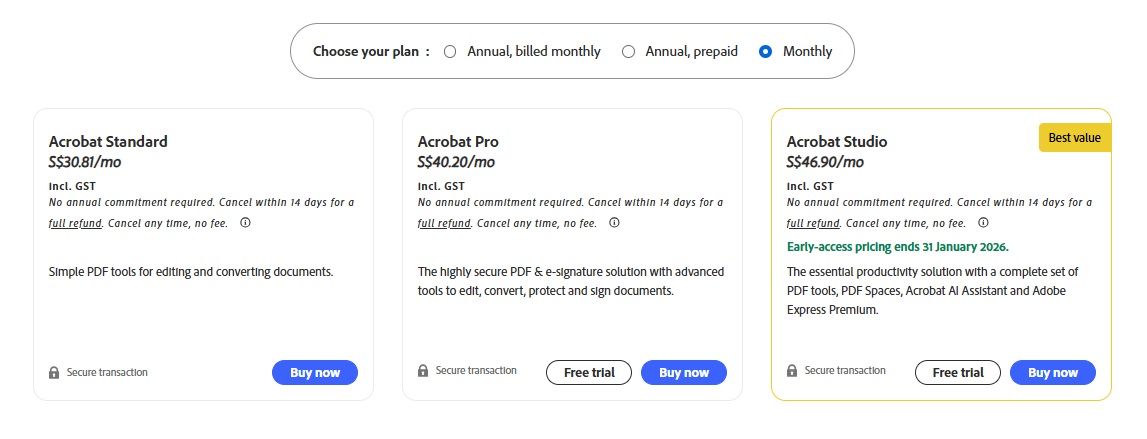
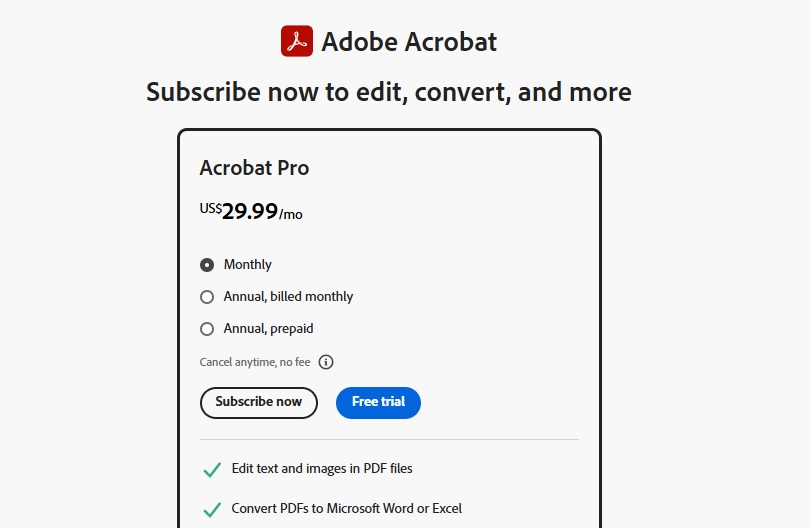
Adobe Acrobat Online offers limited free conversions. However, for full access, including batch conversion and higher resolution, you’ll need an Adobe Acrobat Pro subscription. Plans start from around $30 to $50 per month.
Part 2. How to Convert PDF to JPG on Adobe
Here’s a simple step-by-step guide on using Adobe PDF to JPG converter:
Step 1. Visit Adobe Acrobat PDF to JPG Tool.
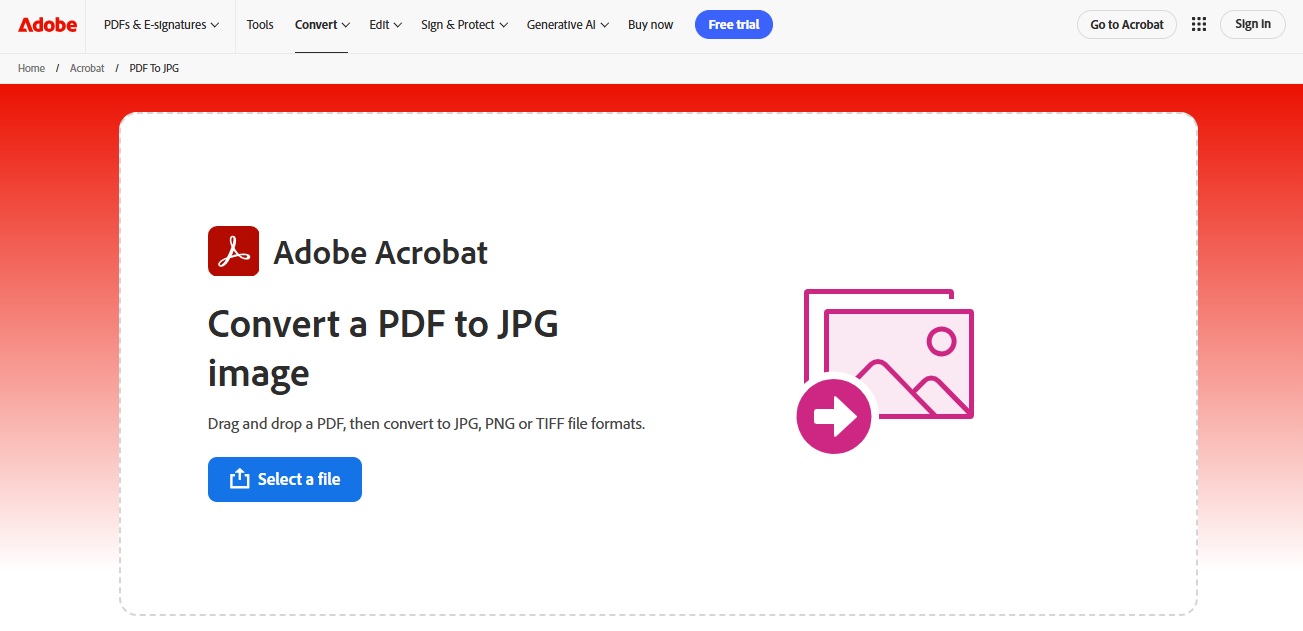
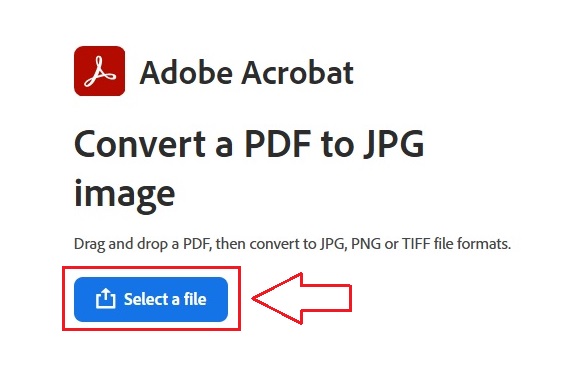
Step 2. Click Select a file and upload your PDF document.
Step 3. Choose “Convert to JPG” as your format.
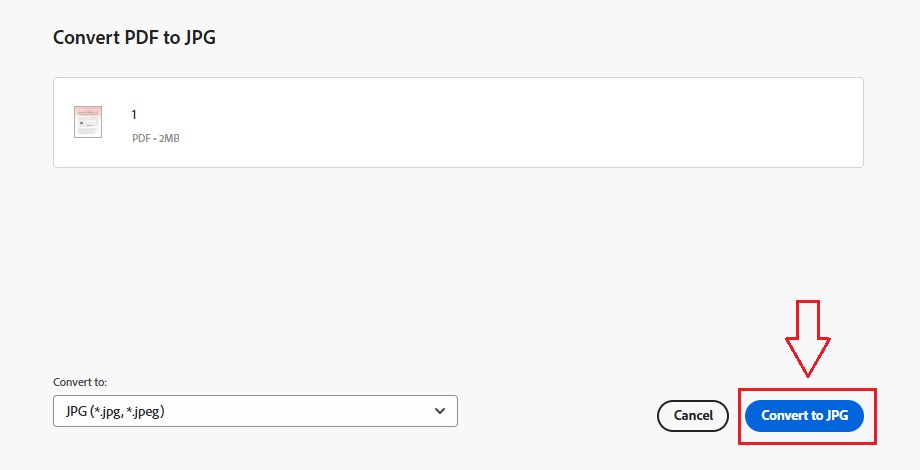
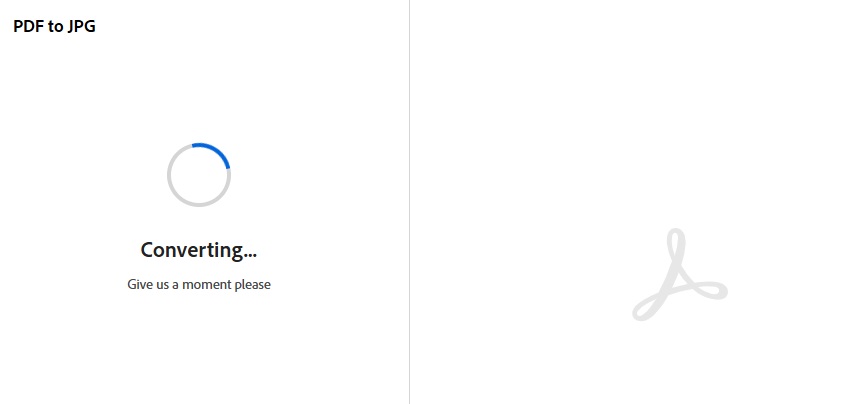
Step 4. Wait a few seconds for the conversion process to complete.
Step 5. Download your converted JPG file directly to your device.
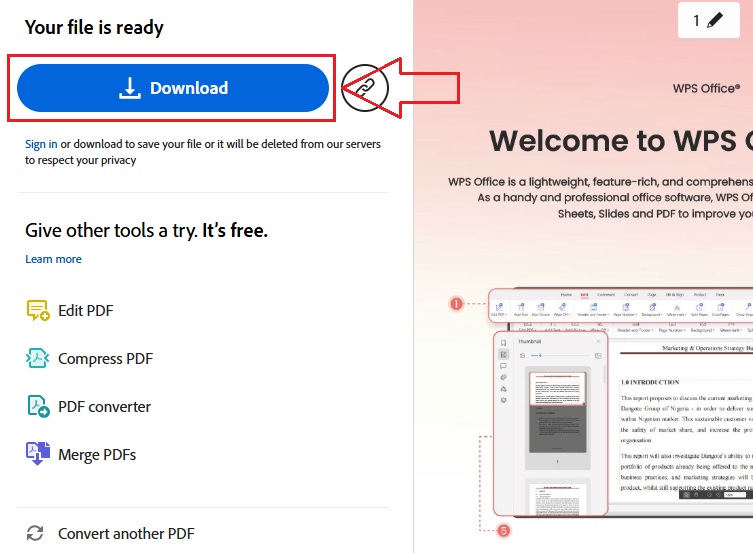
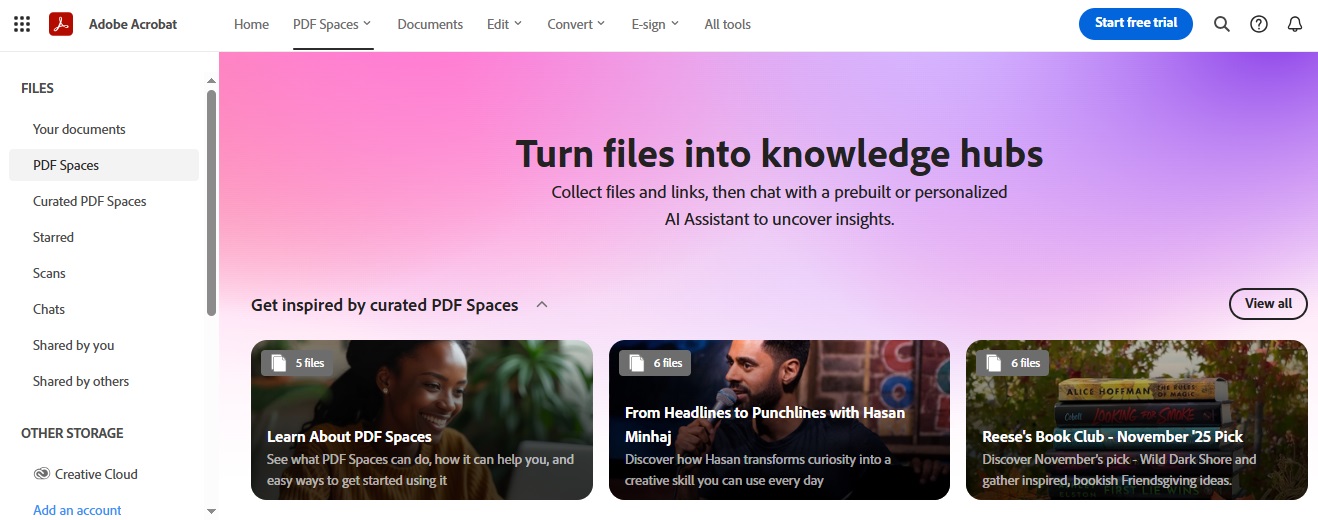
The online version is simple to use, however you’ll need an Adobe account to access all features.
Part 3. Pros and Cons of Converting PDF to JPG on Adobe
Pros
Delivers excellent image quality.
Reliable and secure with trusted file handling.
Compatible with various devices and operating systems.
Cons
Requires a subscription for full features.
Slower for large files.
Limited customization options compared to other converters.
In my experience, Adobe works well for quick, professional-grade conversions, but the paid plan may not be preferable if you wish to use it occasionally.
Part 4. Best Alternative: WPS Online Converter
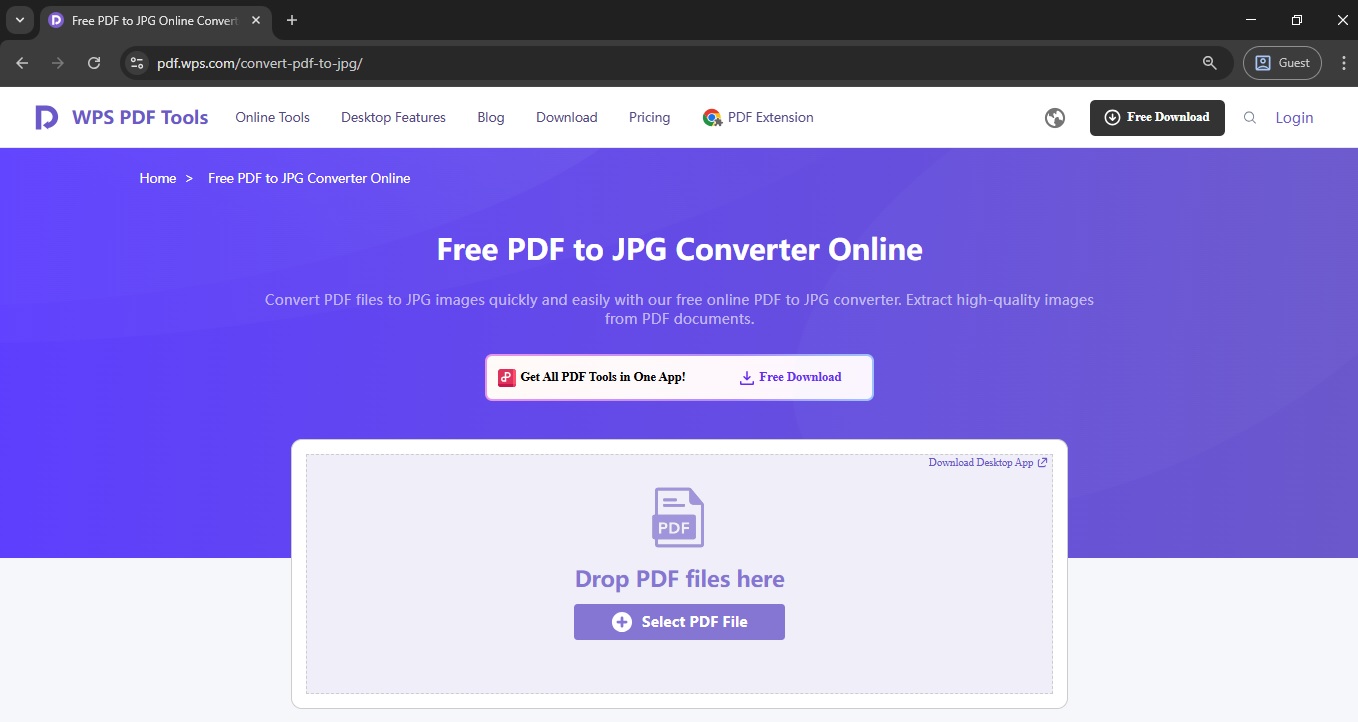
If you want a faster, simpler, and completely free way to convert Adobe PDF to JPG, the WPS Online Converter is the best option. It doesn’t require downloads or sign-ups, and the interface is also easy to use for everyone. WPS ensures every converted image stays true to the original PDF layout, making it ideal for professionals, students, and everyday users alike.
Unique Advantage
WPS stands out because it offers unlimited free conversions without watermarks or file size limits. You can convert multiple PDFs to JPGs at once, and the process takes just a few seconds. What makes it even better is that it works smoothly on any browser or device. Whether you’re using Windows, macOS, or mobile, WPS runs efficiently without extra software installation.
Functions/Features
Free and unlimited PDF to JPG conversion
Batch conversion for multiple files
Maintains original layout, color, and quality
Works online, no app or installation required
Offers other tools like PDF to Word, PDF to Excel, PDF Merge, and PDF Compressor
Safe and private: files are auto-deleted from the server after processing
How to Use Convert PDF to JPG:
Go to WPS PDF to JPG Converter.
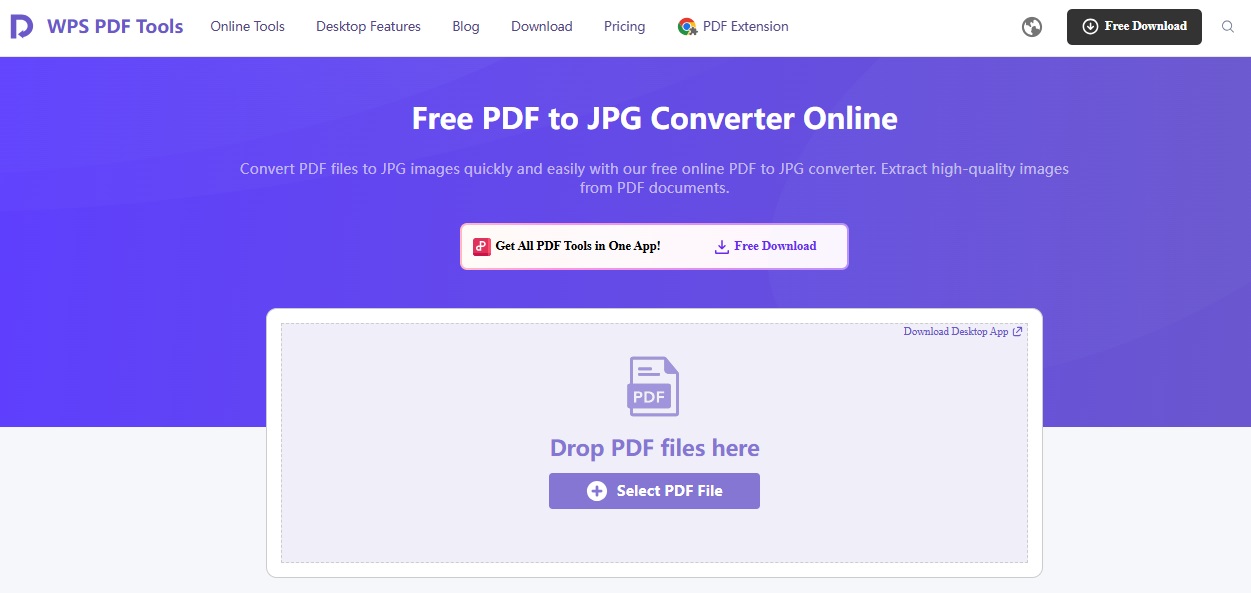
Upload your PDF file by clicking “Select File.”

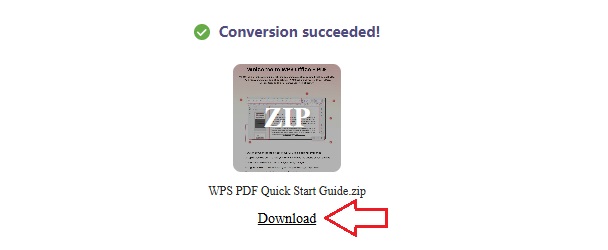
Download the JPG file instantly to your device.
I have used and tested both Adobe and WPS for PDF to JPG conversion. After testing both tools, WPS Online Converter clearly offers more convenience. It’s faster, easier, and free, while Adobe’s converter works best for paid users. WPS keeps the process smooth without sacrificing image quality. Plus, with its wide range of built-in tools such as PDF to Word, PDF to Excel, and PDF Merge, it provides an all-in-one solution for managing documents. Based on my experience, WPS is the best choice for anyone who frequently needs to convert PDFs.
Part 5. WPS Online Converter V.S. Adobe Converter
| Feature | WPS Online Converter | Adobe Converter |
|---|---|---|
| Ease of Use | Very easy, no sign-up required | Simple but requires Adobe account |
| Format Preservation | Excellent | Excellent |
| Conversion Speed | Faster | Moderate |
| File Limitations | No limits on file size | Restricted for free users |
| System Compatibility | Works on all browsers | Works best on Adobe platforms |
From my experience, WPS feels lighter and more flexible. Adobe delivers professional results, but for everyday tasks, WPS is faster and more practical.
FAQs
1. What is the easiest way to convert a PDF to a JPG for
free?
You can use online tools like WPS PDF Tools to convert PDFs to
JPGs without paying. Just upload your file, choose JPG, and download the
image.
2. Do I need an Adobe Acrobat subscription to convert PDFs to
JPGs?
No, you can use Adobe’s free online version for limited
conversions. |However, you can use WPS for quick, no-cost
conversions.
3. Can I convert multiple PDF pages into JPG at once?
Yes. Both Adobe Acrobat Pro and WPS Online Converter support
batch conversions, but WPS offers it for free.
4. Will my converted images lose quality?
Not if you use reliable tools like WPS or Adobe PDF to JPG.
Both maintain high image clarity.

'%3e%3cpath%20d='M19.9911%204.11386V6.471H18.5894C18.0775%206.471%2017.7322%206.57814%2017.5536%206.79243C17.3751%207.00671%2017.2858%207.32814%2017.2858%207.75671V9.44421H19.9019L19.5536%2012.0871H17.2858V18.8639H14.5536V12.0871H12.2769V9.44421H14.5536V7.49779C14.5536%206.39064%2014.8632%205.53201%2015.4822%204.92189C16.1013%204.31177%2016.9257%204.00671%2017.9554%204.00671C18.8304%204.00671%2019.509%204.04243%2019.9911%204.11386Z'%20fill='%23333333'/%3e%3c/g%3e%3cdefs%3e%3cclipPath%20id='clip0_2938_8199'%3e%3crect%20width='16'%20height='16'%20fill='white'%20transform='translate(8%204.00671)'/%3e%3c/clipPath%3e%3c/defs%3e%3c/svg%3e)
'%3e%3cpath%20d='M17.5237%2010.7813L23.4811%204H22.0699L16.8949%209.88693L12.7648%204H8L14.2469%2012.9029L8%2020.0133H9.4112L14.8725%2013.7952L19.2352%2020.0133H24M9.92053%205.04213H12.0885L22.0688%2019.0224H19.9003'%20fill='%23333333'/%3e%3c/g%3e%3cdefs%3e%3cclipPath%20id='clip0_2938_8200'%3e%3crect%20width='16'%20height='16.0134'%20fill='white'%20transform='translate(8%204)'/%3e%3c/clipPath%3e%3c/defs%3e%3c/svg%3e)


