



'%3e%3cpath%20fill-rule='evenodd'%20clip-rule='evenodd'%20d='M21.4999%2010.9993C21.4999%205.20009%2016.7986%200.498901%2010.9993%200.498901C5.19994%200.498901%200.498657%205.20009%200.498657%2010.9993C0.498657%2016.2404%204.33858%2020.5844%209.35855%2021.3722V14.0346H6.69238V10.9993H9.35855V8.68594C9.35855%206.05427%2010.9262%204.60062%2013.3248%204.60062C14.4736%204.60062%2015.6753%204.80571%2015.6753%204.80571V7.38979H14.3512C13.0468%207.38979%2012.64%208.19921%2012.64%209.0296V10.9993H15.5523L15.0867%2014.0346H12.64V21.3722C17.66%2020.5844%2021.4999%2016.2404%2021.4999%2010.9993Z'%20fill='%231568EA'/%3e%3c/g%3e%3c/svg%3e)


'%3e%3cpath%20d='M2.42045%2022.1876H6.31818V12.7217L0.75%208.54553V20.5171C0.75%2021.4414%201.49892%2022.1876%202.42045%2022.1876Z'%20fill='%234285F4'/%3e%3cpath%20d='M19.682%2022.1876H23.5797C24.5041%2022.1876%2025.2502%2021.4387%2025.2502%2020.5171V8.54553L19.682%2012.7217'%20fill='%2334A853'/%3e%3cpath%20d='M19.682%205.48293V12.7216L25.2502%208.54543V6.31816C25.2502%204.25236%2022.8921%203.07469%2021.2411%204.31361'%20fill='%23FBBC04'/%3e%3cpath%20d='M6.31824%2012.7217V5.48303L13.0001%2010.4944L19.6819%205.48303V12.7217L13.0001%2017.733'%20fill='%23EA4335'/%3e%3cpath%20d='M0.75%206.31816V8.54543L6.31818%2012.7216V5.48293L4.75909%204.31361C3.10534%203.07469%200.75%204.25236%200.75%206.31816Z'%20fill='%23C5221F'/%3e%3c/g%3e%3cdefs%3e%3cclipPath%20id='clip0_2954_7305'%3e%3crect%20width='24.5'%20height='18.375'%20fill='white'%20transform='translate(0.75%203.8125)'/%3e%3c/clipPath%3e%3c/defs%3e%3c/svg%3e)


Finding a rare academic paper or an out-of-print textbook often eats up hours of browsing. Anna's Archive is an open-source ebook and academic resource search engine that pulls together data from Z-Library, Library Genesis, and similar mirrors, so you can locate scarce literature in one place. Downloading a book is only half the job, though. In this guide, you will learn how to search Anna's Archive effectively, follow safe usage practices, and use WPS Office to turn those downloads into clean, high-quality study notes.
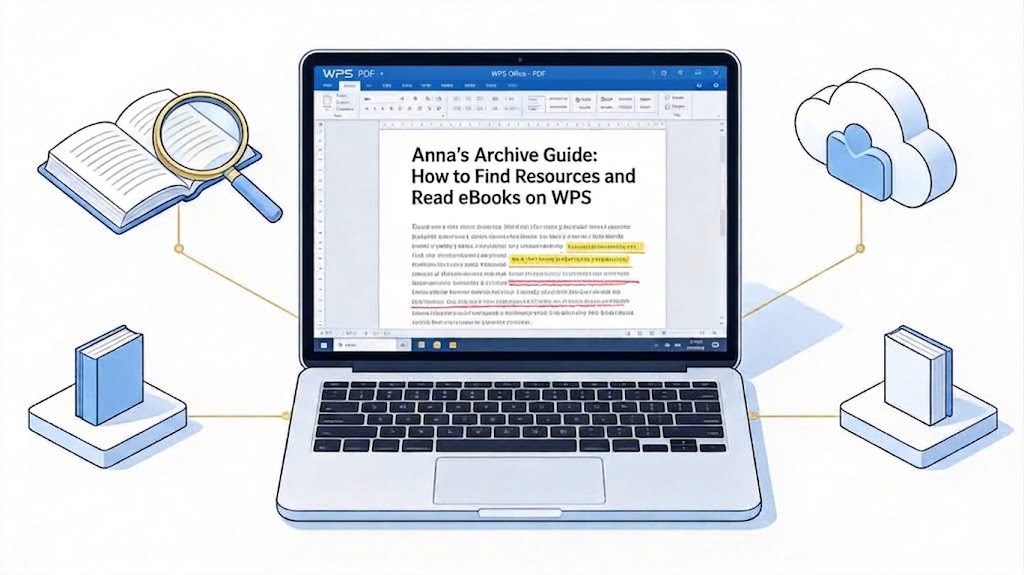
Anna's Archive Guide: How to Find Resources and Read eBooks
Understanding Anna's Archive and How It Works
Anna's Archive describes itself as a search engine for books and papers. Instead of hosting every file itself, it indexes metadata from several open and shadow libraries, then points you to the copy it can find. That approach is why a single ISBN search can surface the same title from multiple sources in seconds.
For researchers and students, the value is speed. When a paper sits behind a paywall or a textbook is no longer printed, searching by hand across dozens of sites wastes time. Anna's Archive centralizes that lookup so you can go from a citation to a readable file quickly. It is a retrieval layer, not a reading tool, which is exactly why pairing it with a capable reader matters.
Core Features of Anna's Archive and Safe Usage Tips
Anna's Archive covers far more than popular fiction. Its index includes books, scientific papers, and academic journals, which makes it useful for coursework, literature reviews, and general research.
Search by ISBN, author, title, or MD5
To get precise results, use the strongest identifier you have:
ISBN is the most reliable key. Paste a full or partial ISBN and the archive returns exact-matching editions.
Author and title work well when you only know the citation, but you may need to scan a few editions.
MD5 code targets a specific file. If you already have a checksum, it is the fastest way to find that exact copy.
Add filters for language, file type, and year to narrow a large result set.
Stay on the right side of copyright
Prioritize Open Access or public-domain materials whenever possible, and check the copyright status before reusing content. The archive itself is an index; whether a download is lawful depends on the work and your local jurisdiction. When you only need a passage for a paper or study session, consider citing the original publication and using legal library access instead.
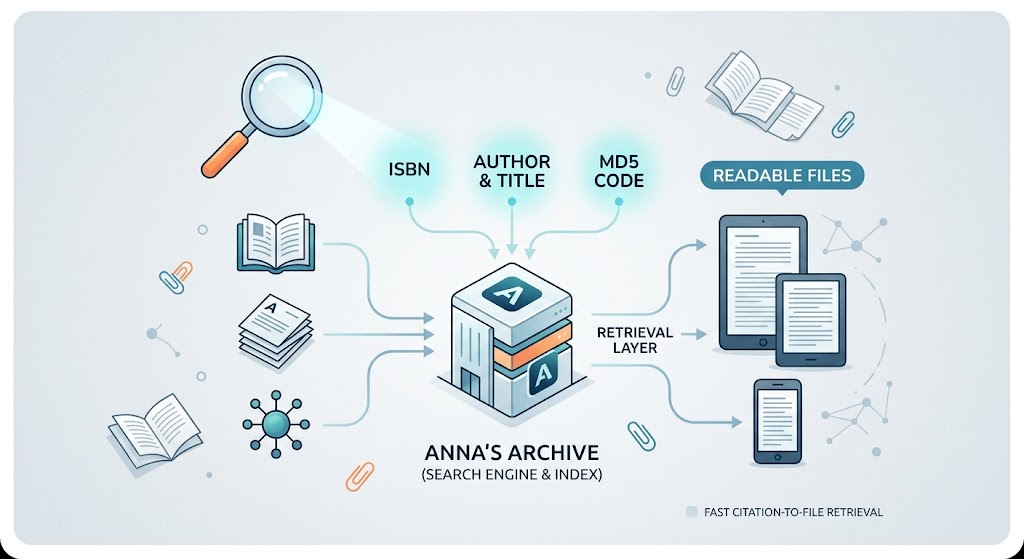
A minimal infographic showing Anna's Archive search process
How to Read eBooks on WPS After Downloading from Anna's Archive
Anna's Archive hands you files in formats such as PDF, ePub, and MOBI. The next step is opening them without fighting converters and actually digesting the content. WPS Office turns downloaded books into a reading and note-taking workspace.
Open PDF, ePub, and MOBI without converting
WPS opens PDF, ePub, and MOBI files directly, so you can skip third-party converters and open the download as-is. PDFs behave like normal documents for editing and annotation, while ebooks keep their reflowable reading layout.
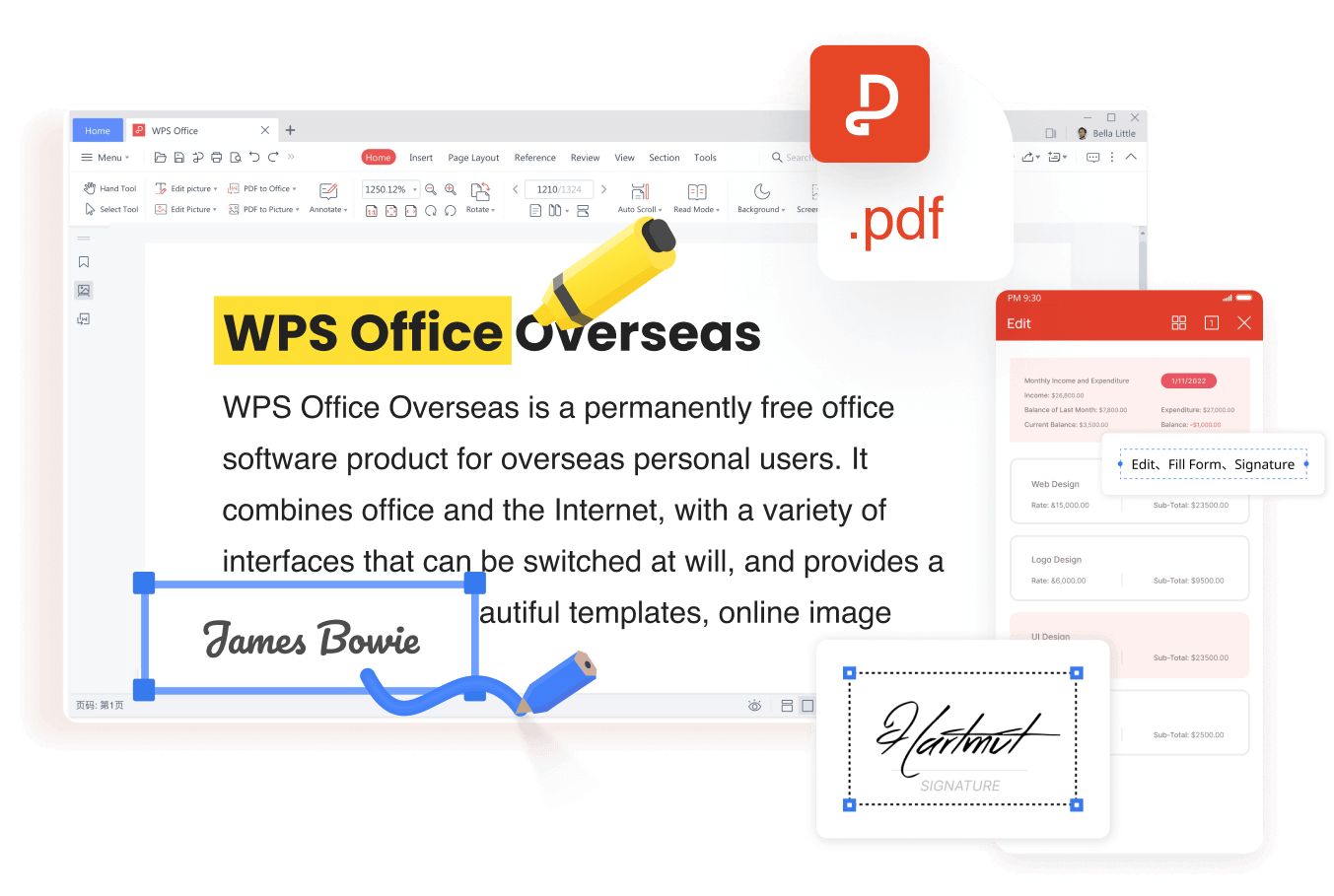
Open PDF ePub MOBI ebooks directly in WPS


Use WPS AI for summaries, outlines, and translation
Long academic books are hard to scan. WPS AI can produce a one-click summary and a core outline for a long document, so you understand the structure before you read deeply. For foreign-language papers, WPS offers inline or paragraph-by-paragraph translation, which lets you follow a text without leaving the page.
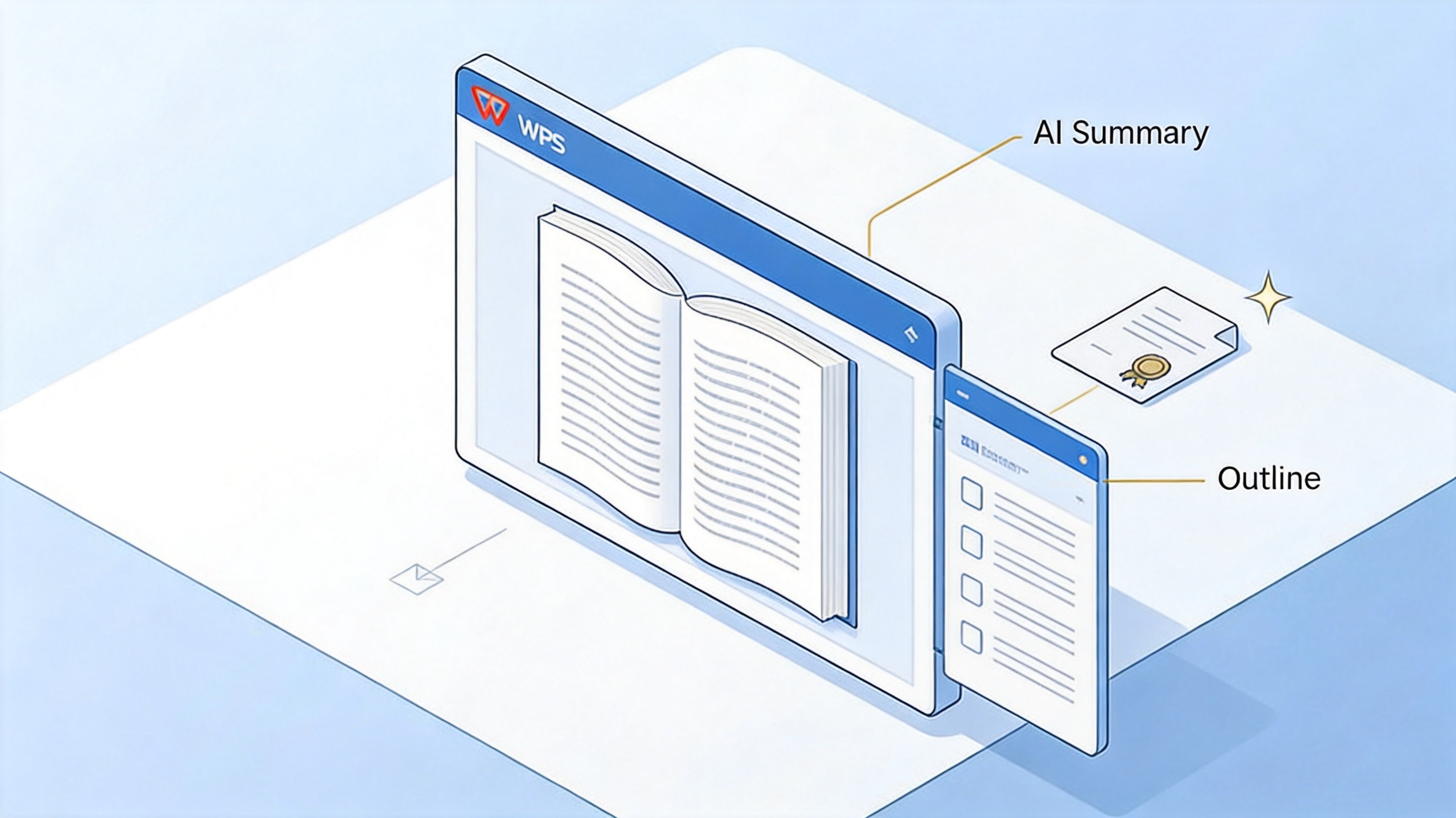
WPS AI generates book summary and outline
Annotate, take notes, and sync across devices
Turn passive reading into active study. Highlight key passages, underline important definitions, and add side comments as you go. When you finish a chapter, export your notes or keep them in the document. WPS Cloud then syncs the file and your reading progress across PC, mobile, and tablet, so you can pick up where you left off.
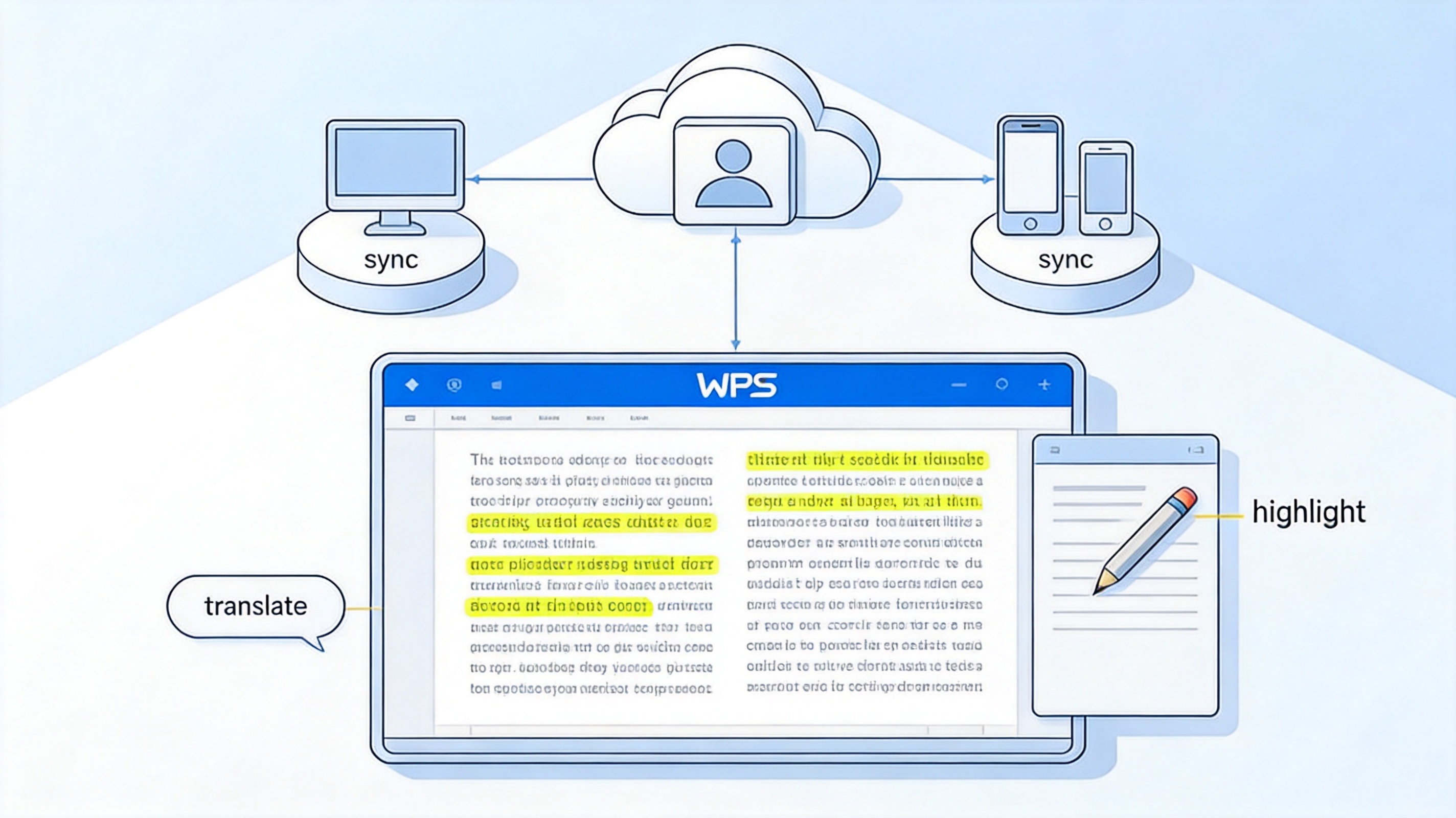
Translate highlight and sync reading notes
Top Anna's Archive Alternatives for Researchers
When Anna's Archive is slow, blocked, or simply not the right fit for a legal citation, official sources are worth keeping in your workflow. Google Scholar surfaces academic papers with linked PDFs, the Internet Archive hosts millions of public-domain ebooks, and the Directory of Open Access Books (DOAB) lists openly licensed titles. Your university or a national digital library is often the fastest route to a licensed copy.
No matter which source you use, the follow-up problem is the same: you end up with a pile of PDFs and ebooks that need reading and organizing. This is where WPS Office steps in to complete your research workflow. With seamless all-format compatibility, builtin WPS AI for fast text summarization, and cross-device cloud sync, WPS turns a cluttered folder of downloads into a streamlined, highly efficient academic study system.
FAQs
Q1: What exactly is Anna's Archive?
Anna's Archive is an open-source search engine that indexes ebooks, academic papers, and educational resources by aggregating data from Z-Library, Library Genesis, and similar libraries.
Q2: Is it safe to download files from Anna's Archive?
Keep antivirus software updated and stick to Open Access or public-domain materials. Remember that the archive is an index, so you are responsible for following copyright rules in your location.
Q3: What are the most reliable Anna's Archive alternatives?
Google Scholar, the Internet Archive, the Directory of Open Access Books, and university or national digital libraries are dependable official alternatives for most research needs.
Q4: How can I find a specific textbook on Anna's Archive?
Use the exact ISBN or the MD5 hash of the file for the most precise match, then filter by author, title, language, or file type to narrow the results.
Q5: How can I read ebooks on WPS after downloading them?
Open the downloaded PDF, ePub, or MOBI file directly in WPS Office. Use WPS AI for summaries and translation, annotate as you read, and let WPS Cloud sync your notes across devices.


'%3e%3cpath%20d='M19.9911%204.11386V6.471H18.5894C18.0775%206.471%2017.7322%206.57814%2017.5536%206.79243C17.3751%207.00671%2017.2858%207.32814%2017.2858%207.75671V9.44421H19.9019L19.5536%2012.0871H17.2858V18.8639H14.5536V12.0871H12.2769V9.44421H14.5536V7.49779C14.5536%206.39064%2014.8632%205.53201%2015.4822%204.92189C16.1013%204.31177%2016.9257%204.00671%2017.9554%204.00671C18.8304%204.00671%2019.509%204.04243%2019.9911%204.11386Z'%20fill='%23333333'/%3e%3c/g%3e%3cdefs%3e%3cclipPath%20id='clip0_2938_8199'%3e%3crect%20width='16'%20height='16'%20fill='white'%20transform='translate(8%204.00671)'/%3e%3c/clipPath%3e%3c/defs%3e%3c/svg%3e)
'%3e%3cpath%20d='M17.5237%2010.7813L23.4811%204H22.0699L16.8949%209.88693L12.7648%204H8L14.2469%2012.9029L8%2020.0133H9.4112L14.8725%2013.7952L19.2352%2020.0133H24M9.92053%205.04213H12.0885L22.0688%2019.0224H19.9003'%20fill='%23333333'/%3e%3c/g%3e%3cdefs%3e%3cclipPath%20id='clip0_2938_8200'%3e%3crect%20width='16'%20height='16.0134'%20fill='white'%20transform='translate(8%204)'/%3e%3c/clipPath%3e%3c/defs%3e%3c/svg%3e)


