



'%3e%3cpath%20fill-rule='evenodd'%20clip-rule='evenodd'%20d='M21.4999%2010.9993C21.4999%205.20009%2016.7986%200.498901%2010.9993%200.498901C5.19994%200.498901%200.498657%205.20009%200.498657%2010.9993C0.498657%2016.2404%204.33858%2020.5844%209.35855%2021.3722V14.0346H6.69238V10.9993H9.35855V8.68594C9.35855%206.05427%2010.9262%204.60062%2013.3248%204.60062C14.4736%204.60062%2015.6753%204.80571%2015.6753%204.80571V7.38979H14.3512C13.0468%207.38979%2012.64%208.19921%2012.64%209.0296V10.9993H15.5523L15.0867%2014.0346H12.64V21.3722C17.66%2020.5844%2021.4999%2016.2404%2021.4999%2010.9993Z'%20fill='%231568EA'/%3e%3c/g%3e%3c/svg%3e)


'%3e%3cpath%20d='M2.42045%2022.1876H6.31818V12.7217L0.75%208.54553V20.5171C0.75%2021.4414%201.49892%2022.1876%202.42045%2022.1876Z'%20fill='%234285F4'/%3e%3cpath%20d='M19.682%2022.1876H23.5797C24.5041%2022.1876%2025.2502%2021.4387%2025.2502%2020.5171V8.54553L19.682%2012.7217'%20fill='%2334A853'/%3e%3cpath%20d='M19.682%205.48293V12.7216L25.2502%208.54543V6.31816C25.2502%204.25236%2022.8921%203.07469%2021.2411%204.31361'%20fill='%23FBBC04'/%3e%3cpath%20d='M6.31824%2012.7217V5.48303L13.0001%2010.4944L19.6819%205.48303V12.7217L13.0001%2017.733'%20fill='%23EA4335'/%3e%3cpath%20d='M0.75%206.31816V8.54543L6.31818%2012.7216V5.48293L4.75909%204.31361C3.10534%203.07469%200.75%204.25236%200.75%206.31816Z'%20fill='%23C5221F'/%3e%3c/g%3e%3cdefs%3e%3cclipPath%20id='clip0_2954_7305'%3e%3crect%20width='24.5'%20height='18.375'%20fill='white'%20transform='translate(0.75%203.8125)'/%3e%3c/clipPath%3e%3c/defs%3e%3c/svg%3e)


You open a PDF form and hit the same wall again: you are not sure what some fields want, you retype your name and address ten times, and a "five-minute form" steals your evening. You are not here to research every AI product on the internet. You want one tool that is simple, fast, and fair on price — ideally free to start — so you can finish the form and move on.
This guide compares popular AI PDF form fillers the way a normal user chooses: Is it free (or free enough)? Is the fill flow quick? If I pay later, do I get my money's worth? Below you will find WPS, Adobe, pdfFiller, Jotform AI, and Filly AI — each with how it feels while filling, and a short AI fill step list so you can try the flow yourself — then a clear note on who should try WPS first.
What AI Form Filling Feels Like (in Real Life)
An AI PDF form filler reads the PDF, finds fields, and can pull details from a note or file so you review instead of retyping. That sounds abstract until you sit down with a tax PDF or job application:
Good accuracy means your name lands in the name box — not in the date box. Bad accuracy means you spend the "AI time savings" fixing wrong fields.
Good compatibility means checkboxes still click and the file still uploads to a government portal. Bad compatibility means a pretty draft that the portal rejects.
Easy tools mean: open PDF → run AI → skim → sign. Hard tools mean menus, seats, and a training video before the first field.
Good value means you are not paying enterprise prices for one personal form, and you are not exporting to three other apps just to sign and shrink the file.
As a regular user, decide in this order: Can I start free? → Can I finish in minutes? → If I upgrade, is it worth it for my paperwork volume?
WPS AI Form Filler
In WPS you open the PDF, enter Fill & Sign, and use AI Form / AI Smart Form to pull details from a note or file. The "pro" you feel is a short path for everyday personal and SMB forms — then sign, merge, or compress without leaving the suite. The "limit" you feel is lighter enterprise governance than Adobe Document Cloud.

Free / price: Free to start for everyday use; check current AI / Premium details on the product page for heavier volume.
Speed: Fast for normal users: open → AI assist → review → sign.
Pick this if: You want free-to-start AI fill plus Office/PDF tools after the form.
How to use AI form fill in WPS:
Download the official blank PDF (tax, application, or business form) and open it in WPS Office.
Go to the PDF tab → Fill & Sign (see PDF Filler).
When fields are detected, open AI Form or AI Smart Form.
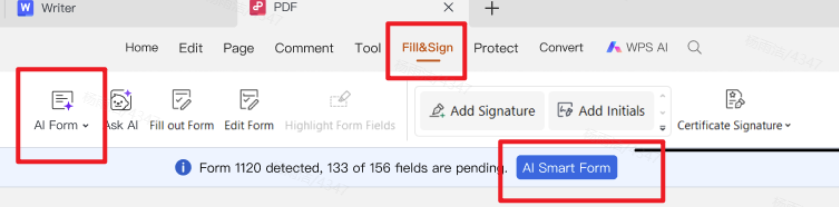
Fill&Sign with automatic form recognition and quick fill Paste text, upload a file, or drag a note with your name, address, IDs, and other answers — then click Extract & Fill.
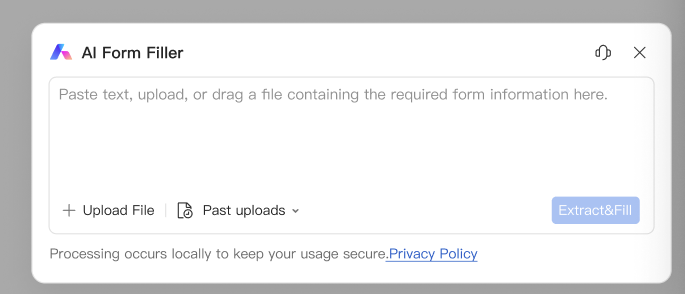
AI Form Filler - paste, upload, or drag source information, then Extract&Fill Review every sensitive field (names, IDs, dates, checkboxes), fix anything wrong, then sign and save.
If needed, continue with Sign PDF, Merge PDF, or Compress PDF.
Adobe Acrobat AI Assistant
When you open a complex work PDF in Acrobat, Adobe AI Assistant helps you navigate and summarize; classic form tools handle fields. The "pro" you feel is reliability on messy enterprise files. The "limit" you feel is cost and weight — you may click through more UI than you need for a simple W-4.

Free / price: Usually not the cheapest path for individuals; seats and plans add up.
Speed: Excellent if you already know Acrobat; slower to learn if you do not.
Pick this if: Your company already pays for Adobe and IT expects Document Cloud.
How to use AI-assisted fill in Acrobat (typical flow):
Open the PDF in Adobe Acrobat (desktop or Document Cloud, per your plan).
Use AI Assistant if you need to summarize or find sections in a long packet.
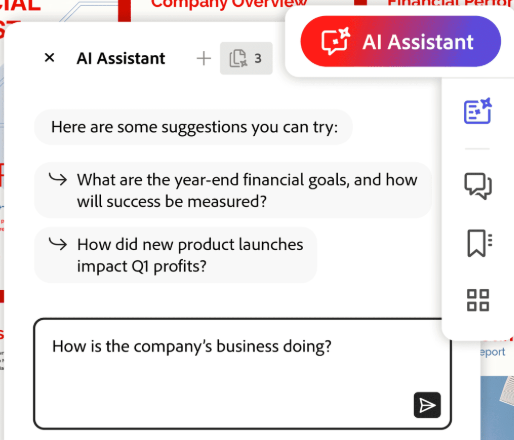
Use AI Assistant to get answers in your PDF Open form / Prepare Form tools so fillable fields are active (or add fields if the PDF is flat).
Enter answers field by field — use autofill / suggestions where your plan provides them.
Review checkboxes and signature areas carefully, then save or route through your company Document Cloud process.
pdfFiller AI
In the browser, you upload a form in pdfFiller AI tool, fill fields, and reuse templates. The "pro" you feel is convenience for the same onboarding packet every week. The "limit" you feel is hitting plan limits, and leaving the tool when you still need a Word cover letter or Excel sheet.

Free / price: Can start with limits; volume and team features often need paid plans.
Speed: Fast for repetitive online completion; less ideal as an all-day Office desk.
Pick this if: Your team lives in browser templates and shared online packets.
How to use AI / smart fill in pdfFiller (typical flow):
Sign in at pdfFiller and upload your PDF (or open a saved template).
Let the editor detect fields; turn on any AI / autofill options available on your plan.
Map or type answers for name, address, and repeating blocks; save as a reusable template if you will fill this packet again.
Review the preview, add a signature if required, then download or share the completed PDF with your team.
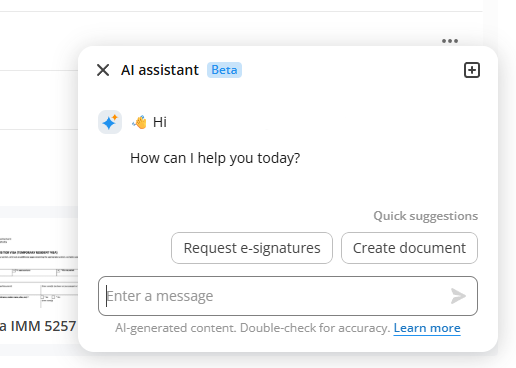
Click on the AI assistant
Jotform AI
Jotform AI is strongest when you design the form. AI helps build and automate web intake. The "pro" you feel is collecting clean answers from customers. The "limit" you feel is that an official government PDF is not a web form you can rebuild — you still need a PDF filler for those.

Free / price: Free tier exists; growth and volume push you to paid.
Speed: Fast for intake you control; not a shortcut for static IRS/USCIS PDFs.
Pick this if: You need lead/HR/customer web forms more than PDF field mapping.
How to use Jotform AI for forms (typical flow):
Open Jotform and start a new form with Jotform AI (describe the form you need in plain language).
Review the generated fields, logic, and branding; adjust required questions.
Publish the form and share the link with applicants or customers.
Collect submissions in Jotform, then export or attach PDF outputs if your workflow needs a file — use a PDF filler separately when the source must stay an official government PDF.
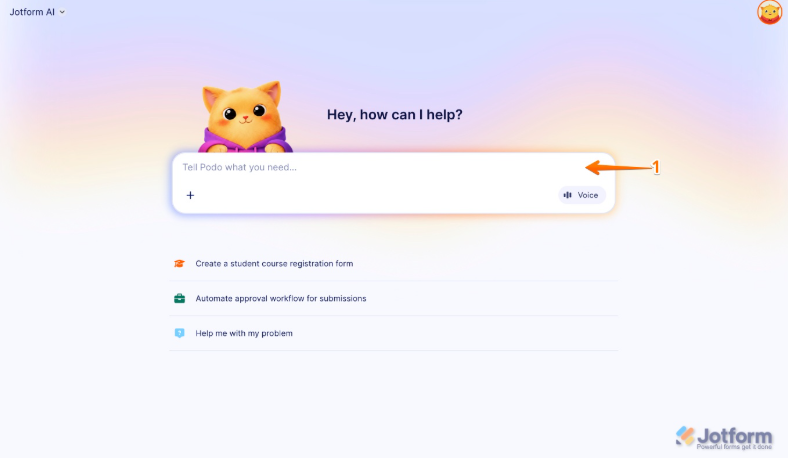
describe the form you need
Filly AI
You save a client profile once, then map it into PDF/Word forms with Filly AI . The "pro" you feel is not retyping the same address for client #47. The "limit" you feel is setup time, cloud processing, and paid tiers when volume grows — plus you still need other apps for Office work around the form.

Free / price: Freemium; heavy batch fills and advanced features often need paid plans.
Speed: Very fast after profiles exist; slower on day one while you build them.
Pick this if: You repeatedly fill similar forms for the same clients.
How to use AI form fill in Filly AI (typical flow):
Create or open a client profile with name, address, IDs, and other repeating data.
Upload the PDF or Word form; let Filly detect fields (OCR helps on scans).
Map profile fields to form fields; run autofill for that client (or batch fill on paid plans).
Review placement on the page, fix anything off, then export or send an e-sign link if needed.
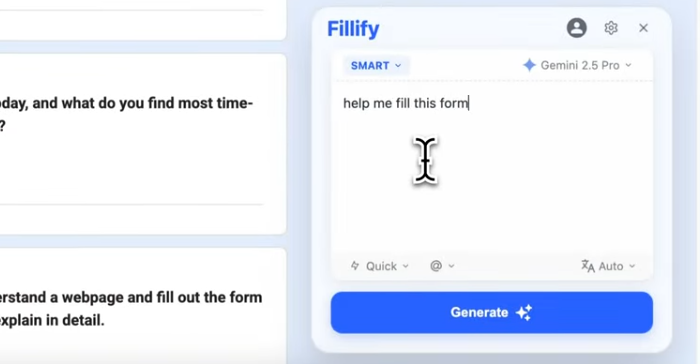
use AI form fill in Filly AI
Quick Chooser: Free · Easy · Best When
| Tool | Free to start? | Easy for a normal user? | Best when you… | Skip if you… |
|---|---|---|---|---|
| WPS AI Form Filler | ✓ Free to start | ✓ Open → Fill & Sign → AI assist | Fill personal/SMB PDFs, then sign/merge/compress in one suite | Need Adobe-only enterprise admin |
| Adobe Acrobat AI Assistant | △ Trial / paid seats common | △ Powerful, heavier | Already live in Document Cloud at work | Only fill a few personal forms a year |
| pdfFiller | △ Free limits; paid for volume | ✓ Browser, template-friendly | Repeat the same online packets in a team | Need Word/Excel beside the PDF daily |
| Jotform AI | △ Free plan; paid as you grow | ✓ If you build web forms | Create intake forms you control | Must complete an official IRS/USCIS PDF as-is |
| Filly AI | △ Freemium; paid for heavy use | ✓ Once client profiles are set | Refill the same client data across many PDFs | Want a full Office suite after fill |
How to Choose in 60 Seconds
Need free + simple for personal or SMB PDFs? Start with WPS.
Company already on Adobe? Stay there.
Same online packet every week in a browser? Try pdfFiller.
Building web intake, not filling a government PDF? Try Jotform AI.
Same client data into many PDF/Word forms? Try Filly AI.
Whatever you pick, always review AI suggestions before you send anything with tax IDs, signatures, or legal attestations.
Why We Expecially Recommond WPS AI Form Filler
If you are not sure which AI PDF form filler to pick, start with WPS. WPS Office has a long track record as an everyday office suite, with a clean Fill & Sign workspace that is easy for non-experts — open the PDF, run AI assist, review, and finish — without learning an enterprise console. For personal and small-business paperwork, that simplicity plus practical security options (including desktop-friendly workflows when you prefer fewer unnecessary cloud hops) is often enough to choose with confidence.
We especially recommend WPS AI Form Filler if you are a student, job seeker, freelancer, small-business owner, or HR/admin who fills personal or company PDFs a few times a month — and you care about free to start, simple steps, and fair value.
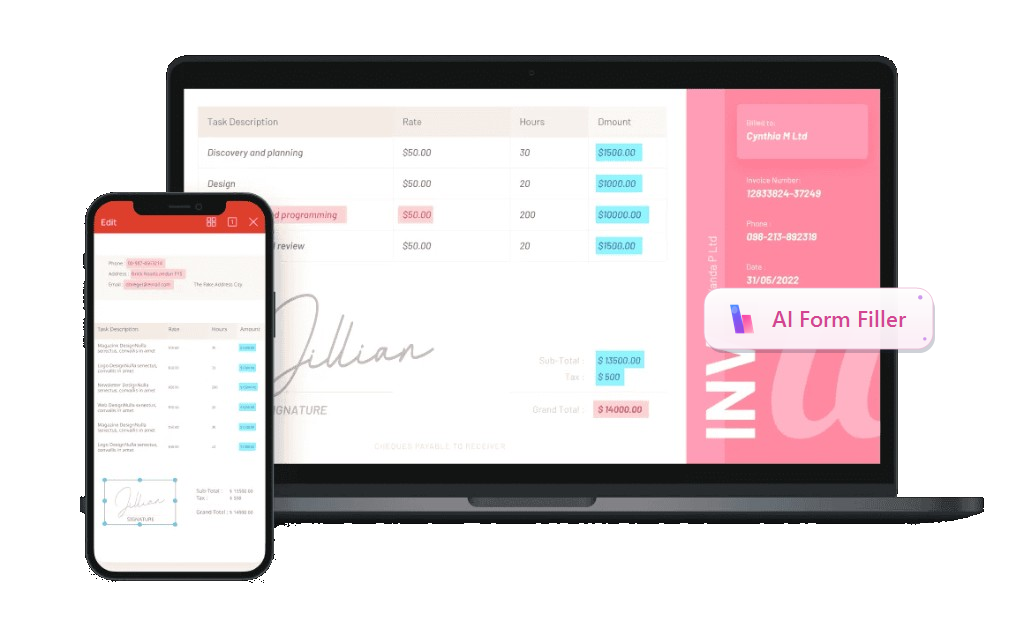
Why WPS works well for that group:
Free to start — Try AI-assisted filling without buying an enterprise Acrobat seat for occasional forms.
Simple and quick — Clear Fill & Sign + AI Extract & Fill; you review sensitive fields before you send.
Page and flow that stay readable — Focused tools for fill, not a maze of unused enterprise menus.
Trusted everyday suite — Word, Excel, PPT, and PDF in one product many people already use for real work.
Helpful after fill — Sign PDF, Merge PDF, Compress PDF, so the packet does not stop at the last text box.
If you are not in that group: Stay on Adobe if IT requires Document Cloud. Use pdfFiller for browser-only template teams. Use Jotform AI when you build web intake. Use Filly AI when client profiles are your whole job. You can still use WPS for merge, compress, or Office files even if another product fills the fields.
Open WPS PDF Filler / AI Form Filler or download WPS Office and test one sample PDF.



FAQ
Is AI PDF form filling free?
Some tools offer a free start or free tier; advanced volume usually needs a paid plan. WPS is free to start for everyday Fill & Sign / AI-assisted filling — check current plan details on the product page before you rely on AI features at scale.
What is the simplest option for a normal user?
Look for a clear path: open PDF → AI assist → review → sign. WPS is built for that everyday loop. Acrobat is powerful but heavier. Jotform is simple for web forms, not for official static PDFs.
If it is not free, how do I judge value?
Ask: How many forms do I fill per month? Do I still need Word/Excel, sign, merge, and compress? A "cheap" filler that forces three other subscriptions can cost more than one suite.
Can AI fill PDF forms automatically?
It can draft fields quickly. You should still review every sensitive value. Automatic is a draft, not a filing decision.
What should I do after the form is filled?
Sign, merge supporting pages, and compress for upload when needed. In WPS those steps stay next to the filler: Sign, Merge, Compress.
'%3e%3cpath%20d='M19.9911%204.11386V6.471H18.5894C18.0775%206.471%2017.7322%206.57814%2017.5536%206.79243C17.3751%207.00671%2017.2858%207.32814%2017.2858%207.75671V9.44421H19.9019L19.5536%2012.0871H17.2858V18.8639H14.5536V12.0871H12.2769V9.44421H14.5536V7.49779C14.5536%206.39064%2014.8632%205.53201%2015.4822%204.92189C16.1013%204.31177%2016.9257%204.00671%2017.9554%204.00671C18.8304%204.00671%2019.509%204.04243%2019.9911%204.11386Z'%20fill='%23333333'/%3e%3c/g%3e%3cdefs%3e%3cclipPath%20id='clip0_2938_8199'%3e%3crect%20width='16'%20height='16'%20fill='white'%20transform='translate(8%204.00671)'/%3e%3c/clipPath%3e%3c/defs%3e%3c/svg%3e)
'%3e%3cpath%20d='M17.5237%2010.7813L23.4811%204H22.0699L16.8949%209.88693L12.7648%204H8L14.2469%2012.9029L8%2020.0133H9.4112L14.8725%2013.7952L19.2352%2020.0133H24M9.92053%205.04213H12.0885L22.0688%2019.0224H19.9003'%20fill='%23333333'/%3e%3c/g%3e%3cdefs%3e%3cclipPath%20id='clip0_2938_8200'%3e%3crect%20width='16'%20height='16.0134'%20fill='white'%20transform='translate(8%204)'/%3e%3c/clipPath%3e%3c/defs%3e%3c/svg%3e)


