



'%3e%3cpath%20fill-rule='evenodd'%20clip-rule='evenodd'%20d='M21.4999%2010.9993C21.4999%205.20009%2016.7986%200.498901%2010.9993%200.498901C5.19994%200.498901%200.498657%205.20009%200.498657%2010.9993C0.498657%2016.2404%204.33858%2020.5844%209.35855%2021.3722V14.0346H6.69238V10.9993H9.35855V8.68594C9.35855%206.05427%2010.9262%204.60062%2013.3248%204.60062C14.4736%204.60062%2015.6753%204.80571%2015.6753%204.80571V7.38979H14.3512C13.0468%207.38979%2012.64%208.19921%2012.64%209.0296V10.9993H15.5523L15.0867%2014.0346H12.64V21.3722C17.66%2020.5844%2021.4999%2016.2404%2021.4999%2010.9993Z'%20fill='%231568EA'/%3e%3c/g%3e%3c/svg%3e)


'%3e%3cpath%20d='M2.42045%2022.1876H6.31818V12.7217L0.75%208.54553V20.5171C0.75%2021.4414%201.49892%2022.1876%202.42045%2022.1876Z'%20fill='%234285F4'/%3e%3cpath%20d='M19.682%2022.1876H23.5797C24.5041%2022.1876%2025.2502%2021.4387%2025.2502%2020.5171V8.54553L19.682%2012.7217'%20fill='%2334A853'/%3e%3cpath%20d='M19.682%205.48293V12.7216L25.2502%208.54543V6.31816C25.2502%204.25236%2022.8921%203.07469%2021.2411%204.31361'%20fill='%23FBBC04'/%3e%3cpath%20d='M6.31824%2012.7217V5.48303L13.0001%2010.4944L19.6819%205.48303V12.7217L13.0001%2017.733'%20fill='%23EA4335'/%3e%3cpath%20d='M0.75%206.31816V8.54543L6.31818%2012.7216V5.48293L4.75909%204.31361C3.10534%203.07469%200.75%204.25236%200.75%206.31816Z'%20fill='%23C5221F'/%3e%3c/g%3e%3cdefs%3e%3cclipPath%20id='clip0_2954_7305'%3e%3crect%20width='24.5'%20height='18.375'%20fill='white'%20transform='translate(0.75%203.8125)'/%3e%3c/clipPath%3e%3c/defs%3e%3c/svg%3e)


Your iPad is built for reading, marking up, and getting real work done away from a laptop. Whether you are reviewing lecture slides with Apple Pencil, signing a contract between meetings, or converting a report on the go, the best PDF editor for iPad turns a large, touch-first screen into a serious document workspace—not just a viewer.
Apple’s built-in Files and Markup tools cover light viewing, highlighting, and quick signatures. Once you need to edit existing text, merge pages, fill multi-page forms cleanly, or convert a PDF to Word, a dedicated app makes the difference. Below is a practical roundup of top iPad PDF editors—shaped for Pencil and multitasking—followed by a closer look at why WPS Office fits everyday tablet workflows, plus step-by-step guides with screenshots.
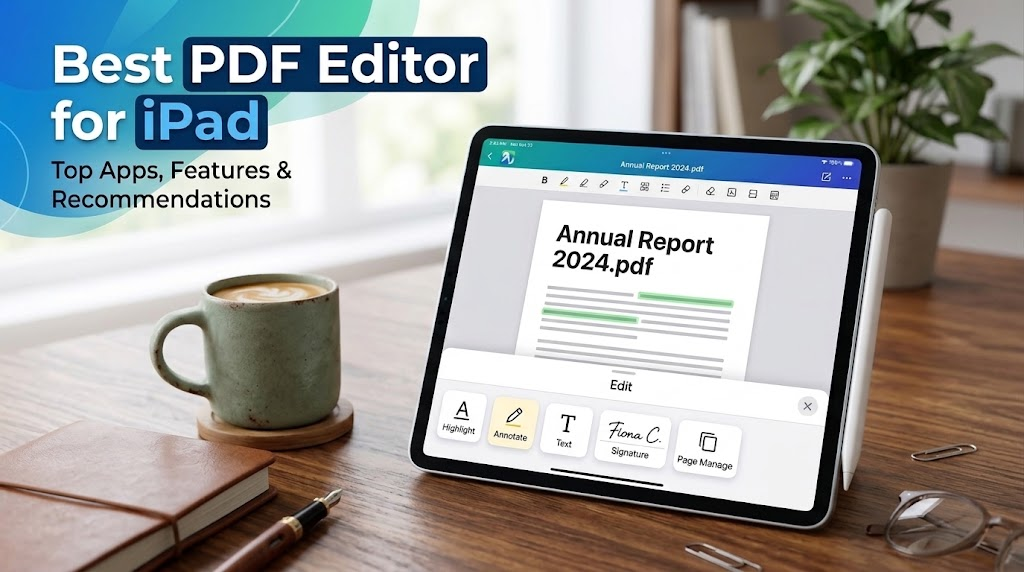
Best PDF editor for iPad
Why the Best PDF Editor for iPad Matters on a Bigger Screen
Yes, every iPad can open PDFs out of the box. You can highlight text, add markup, and sign a document in Files or Preview without installing anything.
But once you need to:
edit existing text instead of covering it with a text box
annotate densely with Apple Pencil while Split View stays open
fill out multi-page forms with clean alignment
merge, split, or reorder pages
convert PDFs to Word, Excel, or images
run OCR on scanned pages
keep PDF work alongside Word, Excel, and slides in one app
…you will hit the limits of built-in tools. That is where a dedicated best PDF editor for iPad candidate earns a place on your Home Screen and Dock.


Top Apps Competing as the Best PDF Editor for iPad
Below is a side-by-side look at popular PDF apps on iPad, based on everyday tablet use—Pencil support, Stage Manager / Split View habits, and real edit tasks—not desktop-only feature checklists.
| PDF editor | Best for | Edit PDF features | Annotation / Pencil | Free tier | App Store rating |
|---|---|---|---|---|---|
| WPS Office | All-in-one office + PDF on iPad | Edit text and images, merge/split/compress, convert to Word/Excel, OCR, page tools | Highlight, underline, comments, shapes, freehand, e-signatures | Free download; advanced PDF tools on Pro+ | 4.8 |
| PDF Expert | Apple-native reading and touch-first editing | Edit text/images, redact, organize pages, outlines, convert | Highlight, draw, stamps, audio notes; strong Pencil feel | Trial; paid for full edit | 4.6 |
| Adobe Acrobat | Business workflows and Adobe ecosystem | Edit text/images, merge, compress, organize, enterprise signing | Sticky notes, comments, highlights | Free basics; premium for full edit | 4.6 |
| Drawboard PDF | Pen-first markup and technical review | Organize pages; markup-heavy workflows | Pressure-sensitive Pencil, reusable stamps/libraries | Free with Pro upgrades | 4.5 |
| Goodnotes | Handwriting-heavy study notes on PDFs | Import PDFs into notebooks; limited “office-style” text rewrite | Excellent Pencil handwriting and study tools | Free tier; subscription for full library | 4.8 |
| PDFelement | Balanced editing and AI extras | Edit text/images, page management, conversion | Callouts, sticky notes, shapes | Limited free trial | 4.6 |
| PDFgear | Free, all-in-one light editing | Insert text, edit images, organize pages, convert | Highlight, underline, draw shapes | Free | 4.7 |
| Foxit PDF Editor | Advanced forms and security on the go | Edit text/images, links/media, organize | Annotations, stamps | Trial | 4.3 |
Note: Ratings and pricing change over time. Check each app’s App Store listing for the latest details.
How to Choose the Best PDF Editor for iPad for Your Workflow
There is no single winner for every user. Match the app to how you actually work on iPad:
Need a free starting point? PDFgear and built-in Markup cover light viewing and markup. For deeper edits without a PDF-only subscription, WPS Office is a strong free download with a broad toolkit.
Live in Adobe’s business stack? Adobe Acrobat offers the broadest compatibility with enterprise signing and review workflows—though full editing usually requires a subscription.
Want the smoothest Apple-native feel? PDF Expert is often praised for reading mode, Pencil gestures, and iCloud sync across iPhone, iPad, and Mac.
Markup-first with Apple Pencil? Drawboard PDF and Goodnotes shine when handwriting density matters more than rewriting paragraphs.
Mix PDFs with Word, Excel, and slides? WPS Office keeps every format in one app, which cuts down on switching when a PDF is just one step in a longer task.
If your day involves contracts, lecture notes, and the occasional spreadsheet export, treating WPS as your default best PDF editor for iPad setup reduces friction more than juggling three separate apps.
Why WPS Office Stands Out as a Best PDF Editor for iPad Pick
WPS Office packs Docs, Sheets, Slides, and PDF into one iPad app—so it works well when you need a capable PDF toolkit and everyday office files in the same Stage Manager or Split View session.
| WPS advantage | What you get on iPad |
|---|---|
| All-in-one office suite | Open DOC, XLS, PPT, TXT, and PDF in one app; convert formats and share via AirDrop or Mail |
| Direct PDF editing | Fix typos, update dates, and swap images in place—no full-file conversion first |
| Annotate & review | Highlight, sticky notes, shapes, and freehand markup; sync via iCloud or other cloud storage |
| Fill & sign | Complete form fields; draw, type, or save e-signatures for contracts and approvals |
| PDF utilities | Merge, split, compress, rotate pages, add watermarks, and run OCR on scans (Pro+) |
| Cross-platform sync | Start on iPad, continue on iPhone, Mac, or Windows with the same cloud-connected files |
Core annotation is free to use. Advanced edit, OCR, and conversion may require WPS Pro+—often priced below PDF-only premium plans from Adobe or PDF Expert.
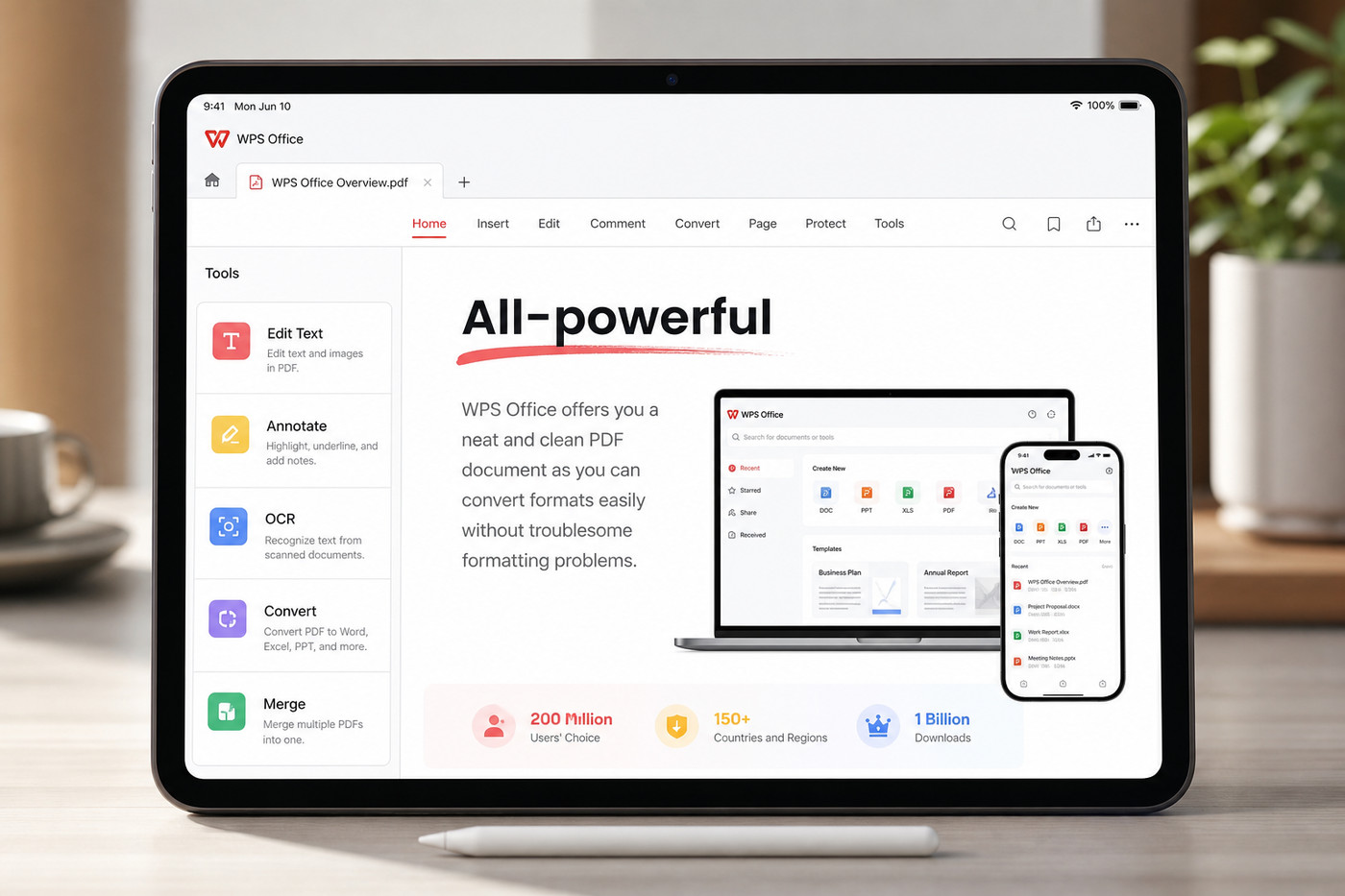
How to Edit PDFs with WPS—A Best PDF Editor for iPad Walkthrough
Ready to try WPS? Install WPS Office for iOS from the App Store, then follow the workflows below for the task you have today. These steps work well in landscape mode with Apple Pencil nearby.
Step 1: Open your PDF in WPS Office
Launch WPS Office on your iPad.
Go to the Files or Home tab and locate your PDF—on device storage, iCloud, or another connected cloud folder.
Tap the file to open it in the built-in PDF viewer.
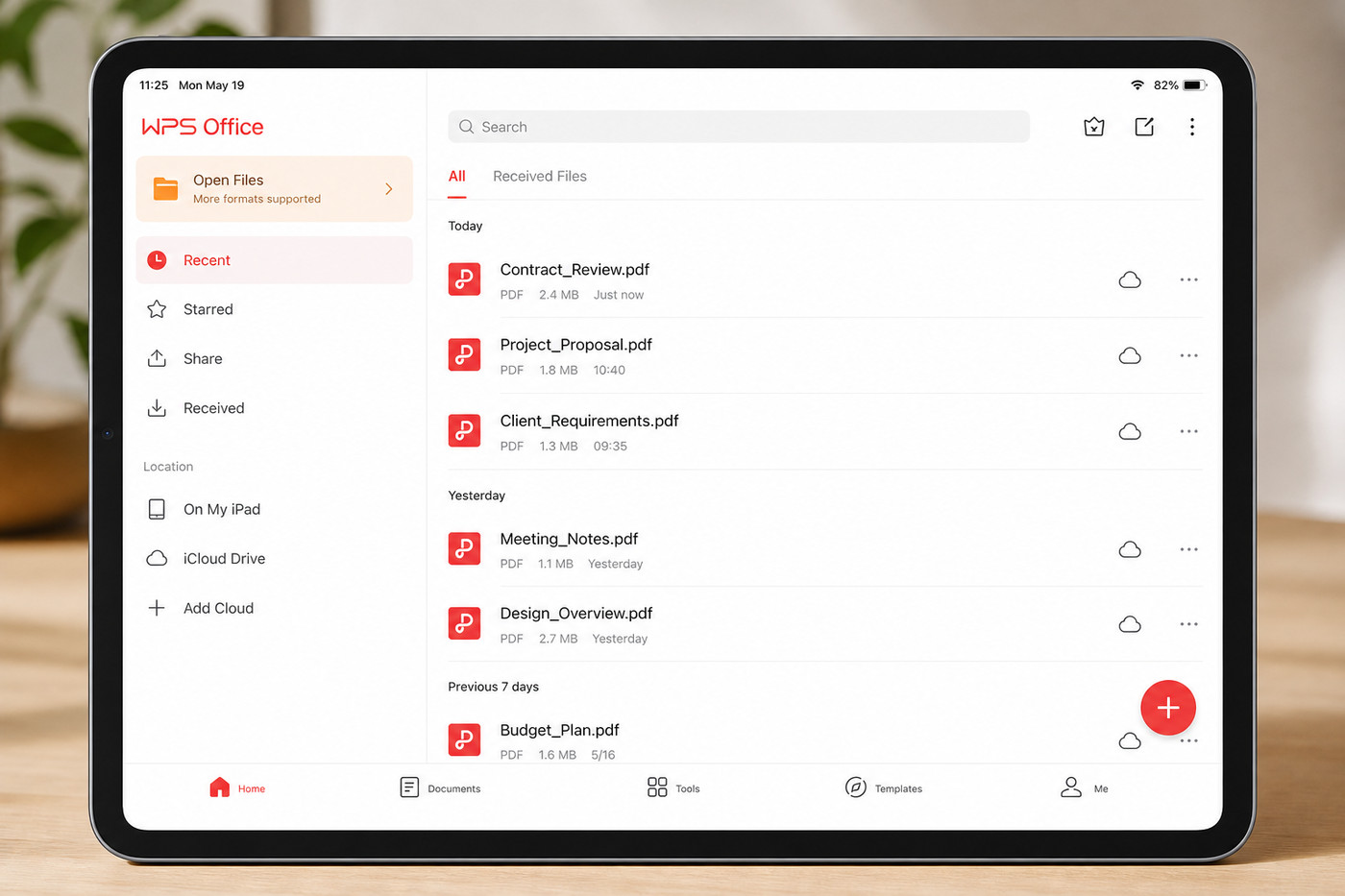
WPS Office opening PDF iPad
Step 2: Edit text in your PDF
With the PDF open, tap Edit or go to Tools → PDF Edit.
Select the Text tool, then tap the paragraph you want to change.
Revise the wording, adjust font size or color if needed, and tap save or done.
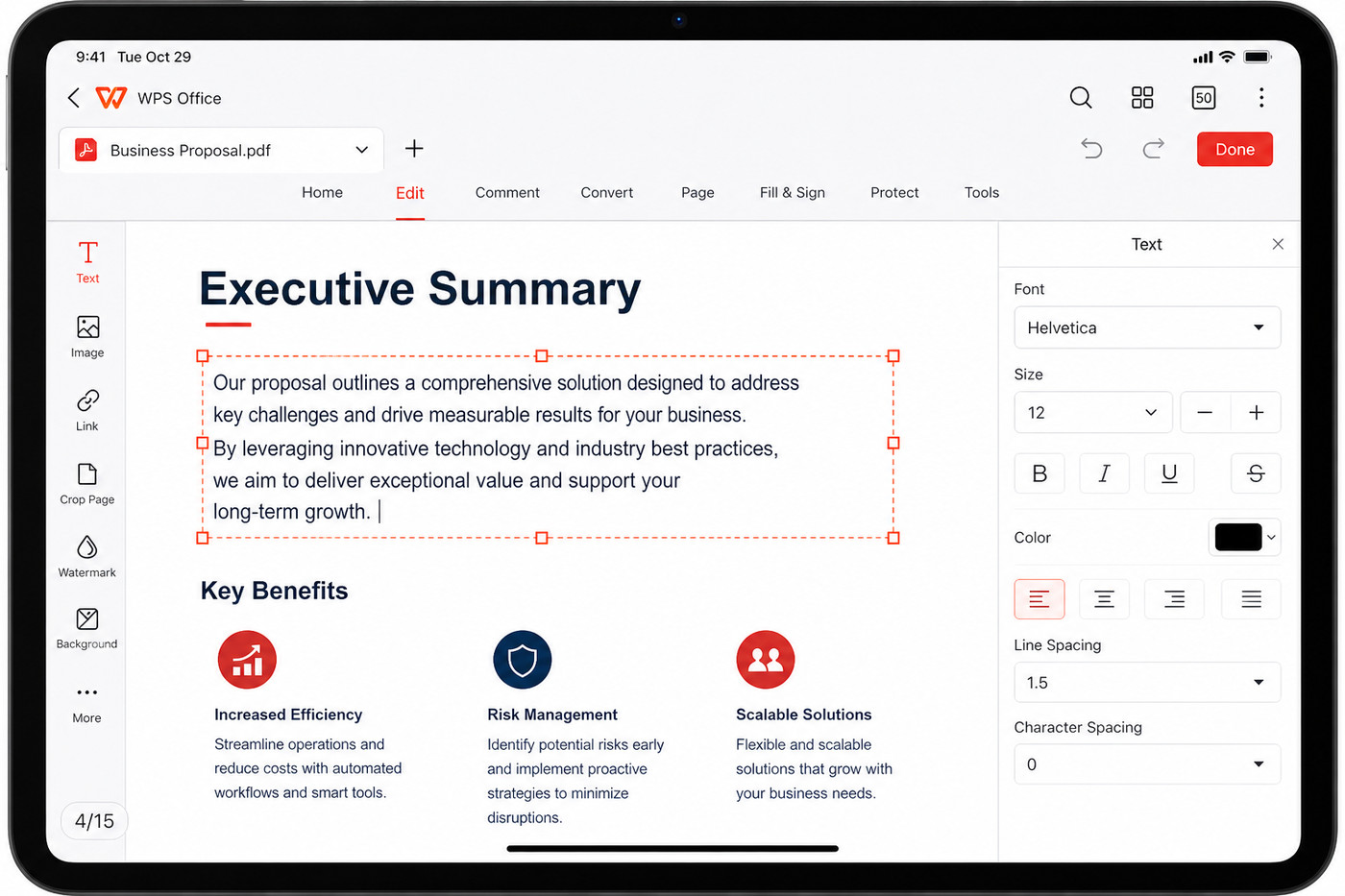
WPS PDF text editing iPad
Tip: Scanned pages behave like images. If text is not selectable, use OCR or convert the PDF to Word before editing.
Step 3: Annotate and highlight
Open the annotate or comment toolbar from the bottom or top menu.
Choose Highlight, Underline, or Strikethrough, then swipe across the target text—or draw freehand with Apple Pencil.
Add a sticky note or text box for longer feedback tied to a specific spot.
Save when your review is complete.
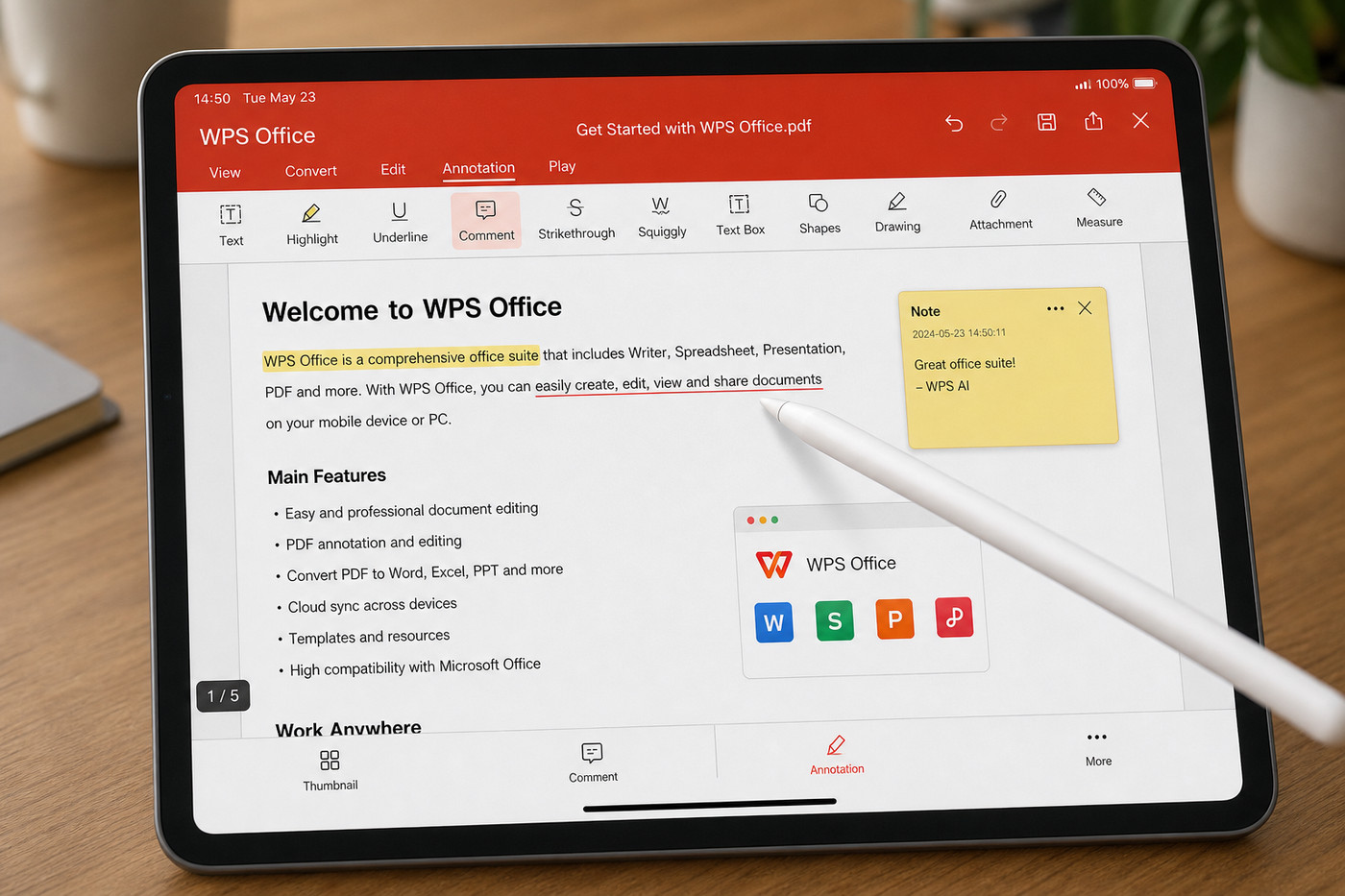
WPS PDF highlight annotation iPad
Step 4: Fill forms and sign
Open the PDF form in WPS Office.
Tap each field and enter the requested information.
Open Fill & Sign (or Sign from the toolbar).
Draw or type your signature, place it on the signature line, resize if needed, and save.
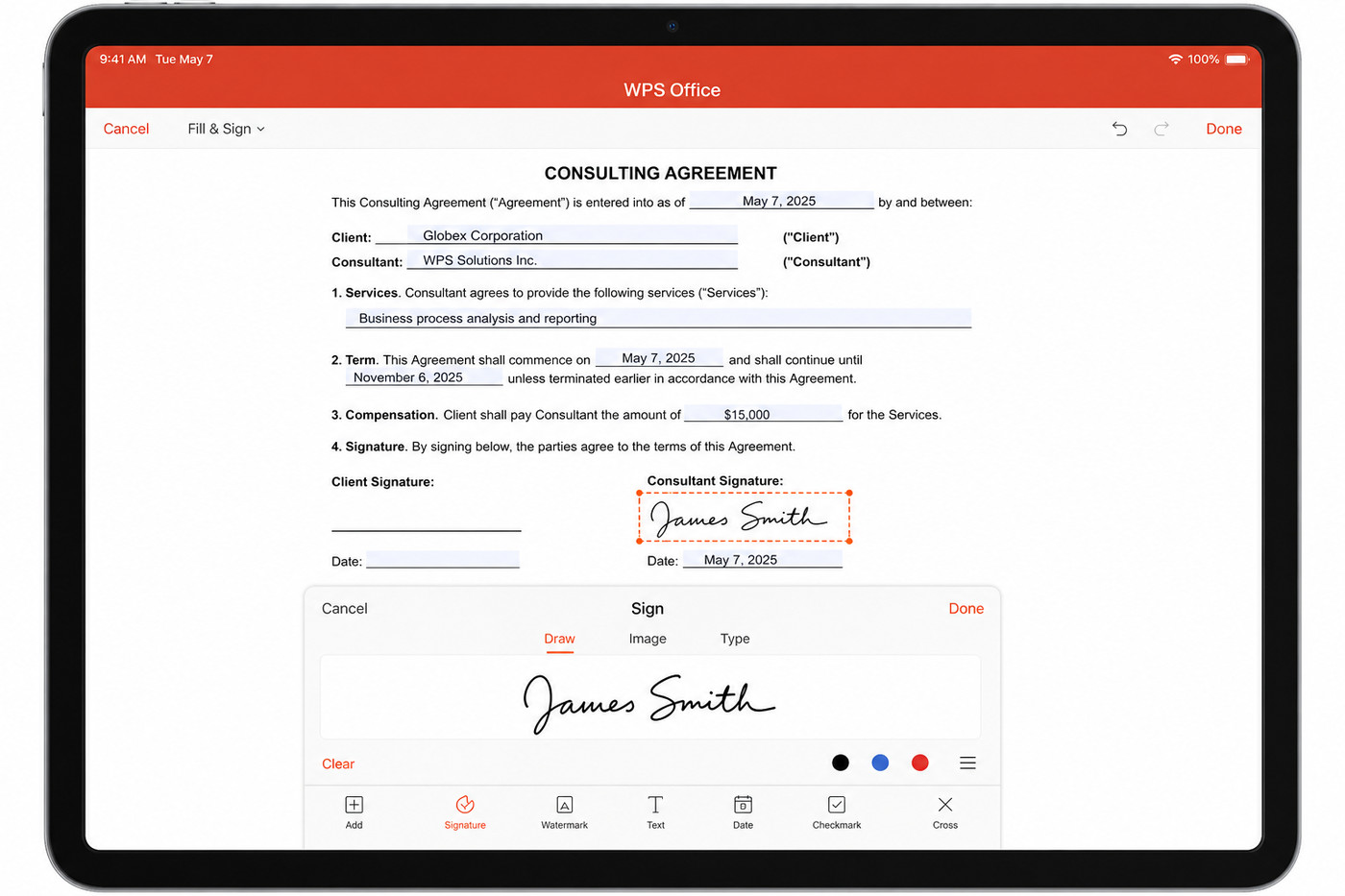
WPS PDF signature fill iPad
Step 5: Merge, compress, or convert PDFs
From the PDF viewer or Tools tab, open PDF utilities (merge, split, compress, convert).
Select the action you need—for example, merge two reports or compress a large scan before emailing.
Follow the on-screen prompts, then save or share the output via AirDrop, Mail, or your cloud folder.
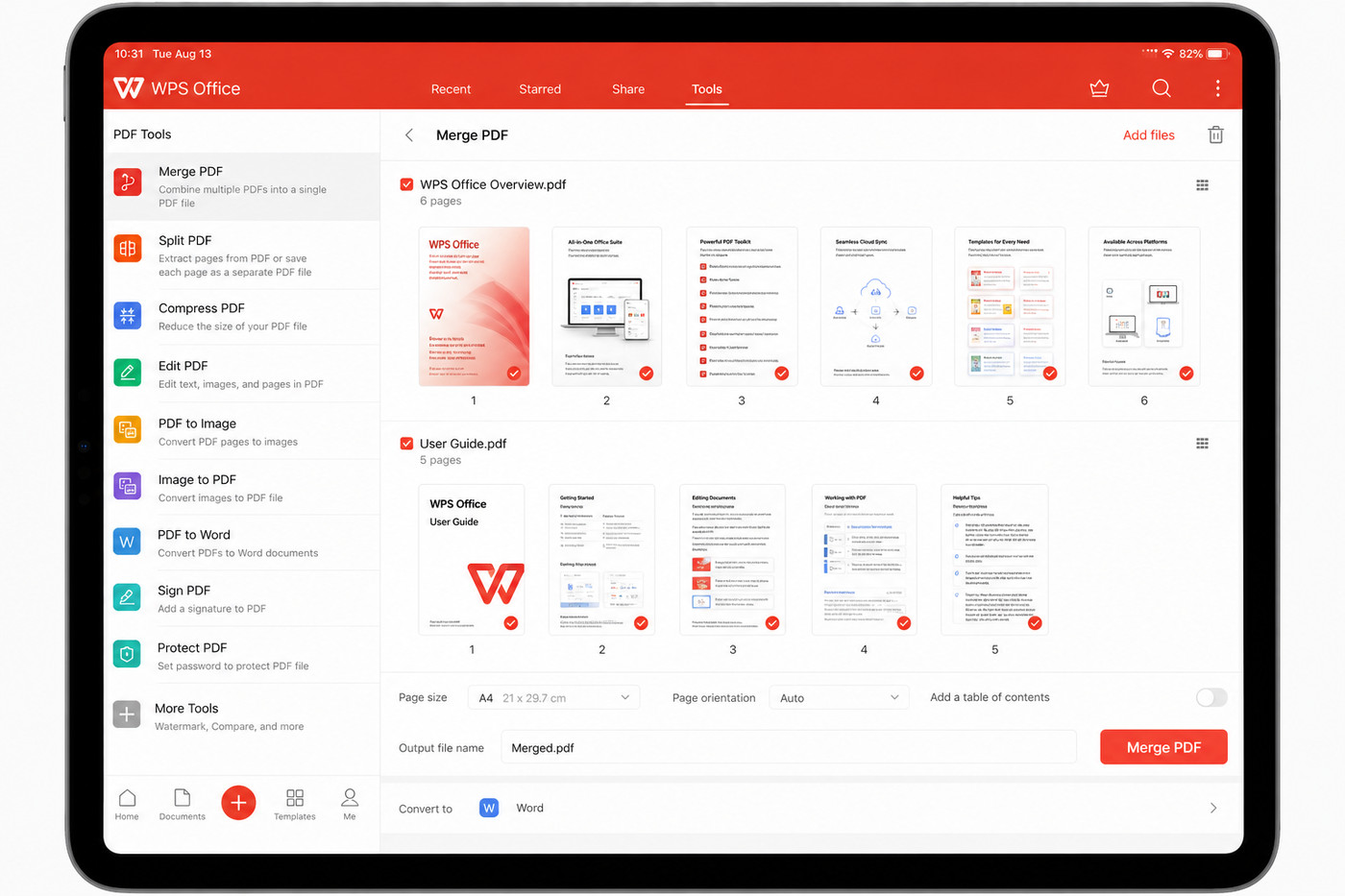
WPS PDF merge tools iPad
For major rewrites—multi-page reports or complex tables—convert the PDF to Word inside WPS, edit in Writer, then export back to PDF when the content is ready.
FAQs
What is the best PDF editor for iPad overall?
It depends on your workflow. PDF Expert is widely praised for Apple-native polish; Adobe Acrobat fits Adobe-centric teams; Drawboard or Goodnotes win for dense Pencil markup; WPS Office is a top pick when you want PDF editing plus Word, Excel, and slides in one free-to-download app.
Can I edit PDF text directly on iPad?
Yes. Apps like WPS Office, PDF Expert, Adobe Acrobat, and PDFelement let you edit existing text in born-digital PDFs. Built-in Markup mainly adds overlay annotations—it does not rewrite the original text layer the same way.
Are there free PDF editors for iPad?
Yes. Files/Markup cover basic viewing and markup. PDFgear offers a free editing toolkit. WPS Office is free to download with generous basics; advanced PDF edit, OCR, and conversion may require WPS Pro+.
Does WPS Office work on iPhone and iPad?
Yes. WPS Office runs on iPhone and iPad with the same core PDF tools. Files saved to cloud storage stay accessible across your Apple devices and other platforms.
Can I sign PDFs on iPad without printing?
Absolutely. WPS Fill & Sign, Adobe Acrobat, PDF Expert, and several other apps let you draw or type a signature directly on the form—especially natural with Apple Pencil. Confirm your organization’s policy for legally binding e-signatures on high-stakes contracts.
How do I edit a scanned PDF on iPad?
Run OCR or convert the scan to an editable format first. WPS Office includes OCR tools on supported plans; without OCR, text on a scan remains an image you cannot select like normal paragraphs.
Use Word, Excel, and PPT for FREE, No Ads.
Edit PDF files with the powerful PDF toolkit.
Microsoft-like interface. Easy to learn. 100% Compatibility.
Boost your productivity with WPS's abundant free Word, Excel, PPT, and CV templates.

Summary

'%3e%3cpath%20d='M19.9911%204.11386V6.471H18.5894C18.0775%206.471%2017.7322%206.57814%2017.5536%206.79243C17.3751%207.00671%2017.2858%207.32814%2017.2858%207.75671V9.44421H19.9019L19.5536%2012.0871H17.2858V18.8639H14.5536V12.0871H12.2769V9.44421H14.5536V7.49779C14.5536%206.39064%2014.8632%205.53201%2015.4822%204.92189C16.1013%204.31177%2016.9257%204.00671%2017.9554%204.00671C18.8304%204.00671%2019.509%204.04243%2019.9911%204.11386Z'%20fill='%23333333'/%3e%3c/g%3e%3cdefs%3e%3cclipPath%20id='clip0_2938_8199'%3e%3crect%20width='16'%20height='16'%20fill='white'%20transform='translate(8%204.00671)'/%3e%3c/clipPath%3e%3c/defs%3e%3c/svg%3e)
'%3e%3cpath%20d='M17.5237%2010.7813L23.4811%204H22.0699L16.8949%209.88693L12.7648%204H8L14.2469%2012.9029L8%2020.0133H9.4112L14.8725%2013.7952L19.2352%2020.0133H24M9.92053%205.04213H12.0885L22.0688%2019.0224H19.9003'%20fill='%23333333'/%3e%3c/g%3e%3cdefs%3e%3cclipPath%20id='clip0_2938_8200'%3e%3crect%20width='16'%20height='16.0134'%20fill='white'%20transform='translate(8%204)'/%3e%3c/clipPath%3e%3c/defs%3e%3c/svg%3e)


