

'%3e%3cpath%20d='M8%200C12.4183%200%2016%203.58172%2016%208C16%2012.4183%2012.4183%2016%208%2016C3.58172%2016%200%2012.4183%200%208C0%203.58172%203.58172%200%208%200ZM11.6162%204.38379C11.2257%203.99337%2010.5927%203.99338%2010.2021%204.38379L8%206.58594L5.79785%204.38379C5.40732%203.99334%204.77429%203.99329%204.38379%204.38379C3.99331%204.77429%203.99335%205.40733%204.38379%205.79785L6.58594%208L4.38379%2010.2021C3.99348%2010.5927%203.99341%2011.2257%204.38379%2011.6162C4.77426%2012.0066%205.40734%2012.0065%205.79785%2011.6162L8%209.41406L10.2021%2011.6162C10.5927%2012.0066%2011.2257%2012.0067%2011.6162%2011.6162C12.0067%2011.2257%2012.0066%2010.5927%2011.6162%2010.2021L9.41406%208L11.6162%205.79785C12.0066%205.40735%2012.0066%204.77429%2011.6162%204.38379Z'%20fill='%23080E17'%20fill-opacity='0.46'/%3e%3c/g%3e%3cdefs%3e%3cclipPath%20id='clip0_3761_713'%3e%3crect%20width='16'%20height='16'%20fill='white'/%3e%3c/clipPath%3e%3c/defs%3e%3c/svg%3e)




'%3e%3cpath%20fill-rule='evenodd'%20clip-rule='evenodd'%20d='M21.4999%2010.9993C21.4999%205.20009%2016.7986%200.498901%2010.9993%200.498901C5.19994%200.498901%200.498657%205.20009%200.498657%2010.9993C0.498657%2016.2404%204.33858%2020.5844%209.35855%2021.3722V14.0346H6.69238V10.9993H9.35855V8.68594C9.35855%206.05427%2010.9262%204.60062%2013.3248%204.60062C14.4736%204.60062%2015.6753%204.80571%2015.6753%204.80571V7.38979H14.3512C13.0468%207.38979%2012.64%208.19921%2012.64%209.0296V10.9993H15.5523L15.0867%2014.0346H12.64V21.3722C17.66%2020.5844%2021.4999%2016.2404%2021.4999%2010.9993Z'%20fill='%231568EA'/%3e%3c/g%3e%3c/svg%3e)


'%3e%3cpath%20d='M2.42045%2022.1876H6.31818V12.7217L0.75%208.54553V20.5171C0.75%2021.4414%201.49892%2022.1876%202.42045%2022.1876Z'%20fill='%234285F4'/%3e%3cpath%20d='M19.682%2022.1876H23.5797C24.5041%2022.1876%2025.2502%2021.4387%2025.2502%2020.5171V8.54553L19.682%2012.7217'%20fill='%2334A853'/%3e%3cpath%20d='M19.682%205.48293V12.7216L25.2502%208.54543V6.31816C25.2502%204.25236%2022.8921%203.07469%2021.2411%204.31361'%20fill='%23FBBC04'/%3e%3cpath%20d='M6.31824%2012.7217V5.48303L13.0001%2010.4944L19.6819%205.48303V12.7217L13.0001%2017.733'%20fill='%23EA4335'/%3e%3cpath%20d='M0.75%206.31816V8.54543L6.31818%2012.7216V5.48293L4.75909%204.31361C3.10534%203.07469%200.75%204.25236%200.75%206.31816Z'%20fill='%23C5221F'/%3e%3c/g%3e%3cdefs%3e%3cclipPath%20id='clip0_2954_7305'%3e%3crect%20width='24.5'%20height='18.375'%20fill='white'%20transform='translate(0.75%203.8125)'/%3e%3c/clipPath%3e%3c/defs%3e%3c/svg%3e)


In 2025's fast-paced online world, turning PDFs into JPGs is key for sprucing up social posts, slides, or site visuals. Free tools often frustrate with watermarks, fuzzy results, or size caps that drag you down. You're after a solid, no-signup option for crisp, batch-friendly conversions. This guide shares top picks with easy steps to get you converting PDFs to JPG online free, hassle-free.


Part 1. Top Free PDF to JPG Converters
When choosing the best free PDF to JPG converter, consider what matters most to you, such as fast processing for daily use or high detail for work files. These tools address common issues like restrictions or poor outputs, making them suitable for pulling images from documents for blogs, reports, or shares. Each section includes clear steps to get started, along with real-world notes on how they perform.
1. WPS PDF Tools
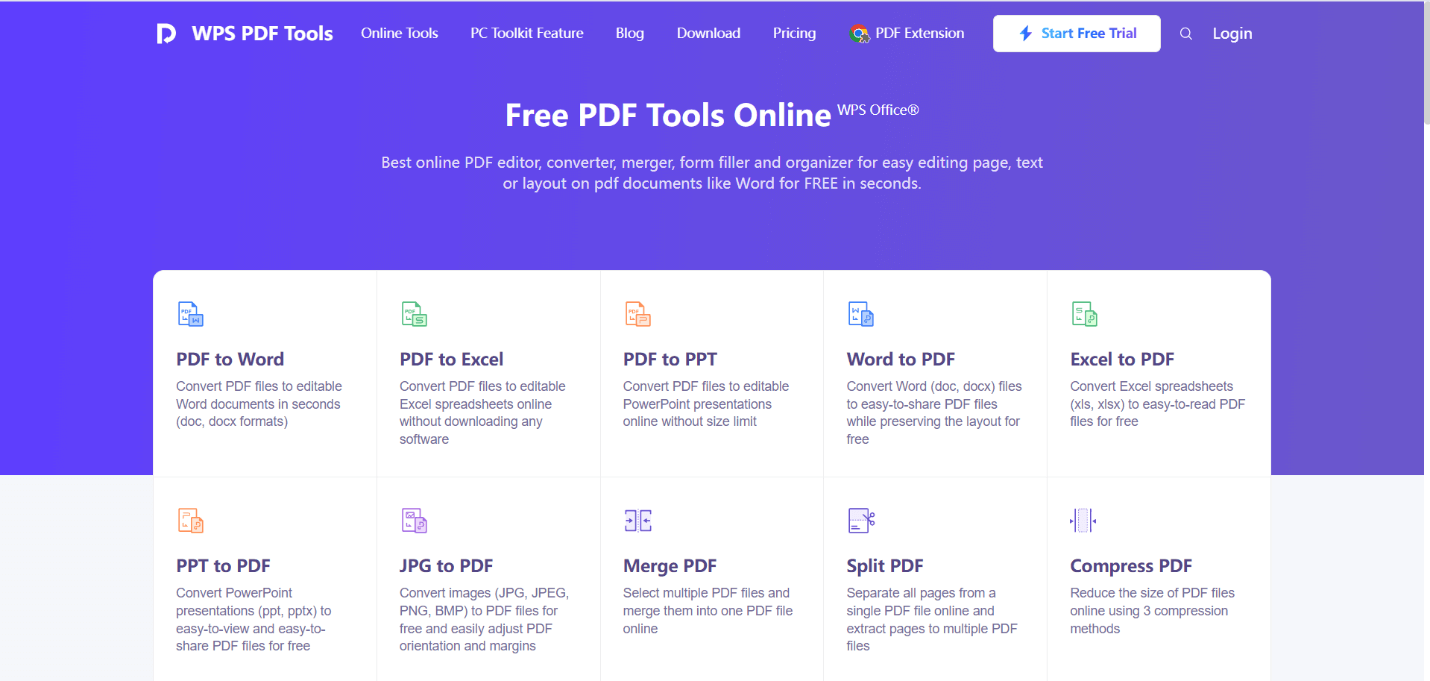
WPS PDF Tools is your go-to for straightforward conversions, whether online or through the desktop WPS Office app that also handles docs and spreadsheets. It shines with batch options and keeps things crisp without any sneaky fees. Folks love it for everyday file tweaks that save time.
Features:
Batch mode lets you process several pages into JPGs at once, keeping original sharpness and colors intact without any added marks. The free tier has no caps, and the offline desktop app adds security by avoiding uploads. You can select exact pages for focused results.
Pricing:
Free for core use, with paid options for extra features like advanced tweaks.
How to Use:
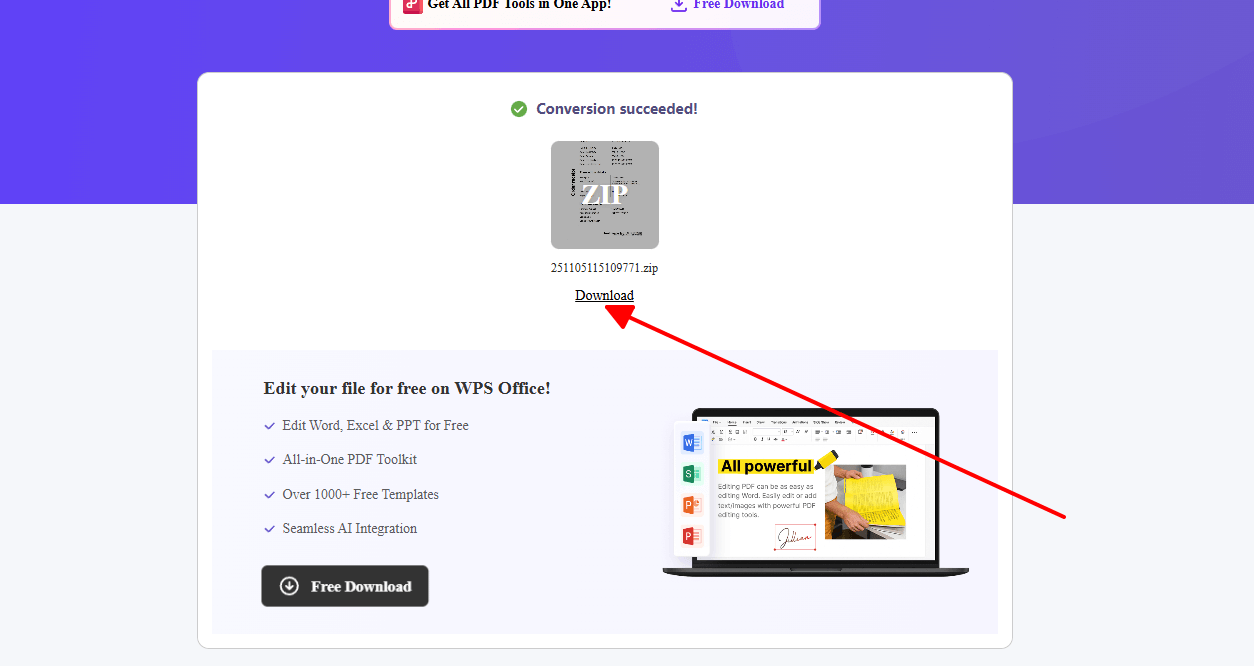
Step 1: Go to the WPS website or start WPS Office on your device and open the PDF to JPG section.
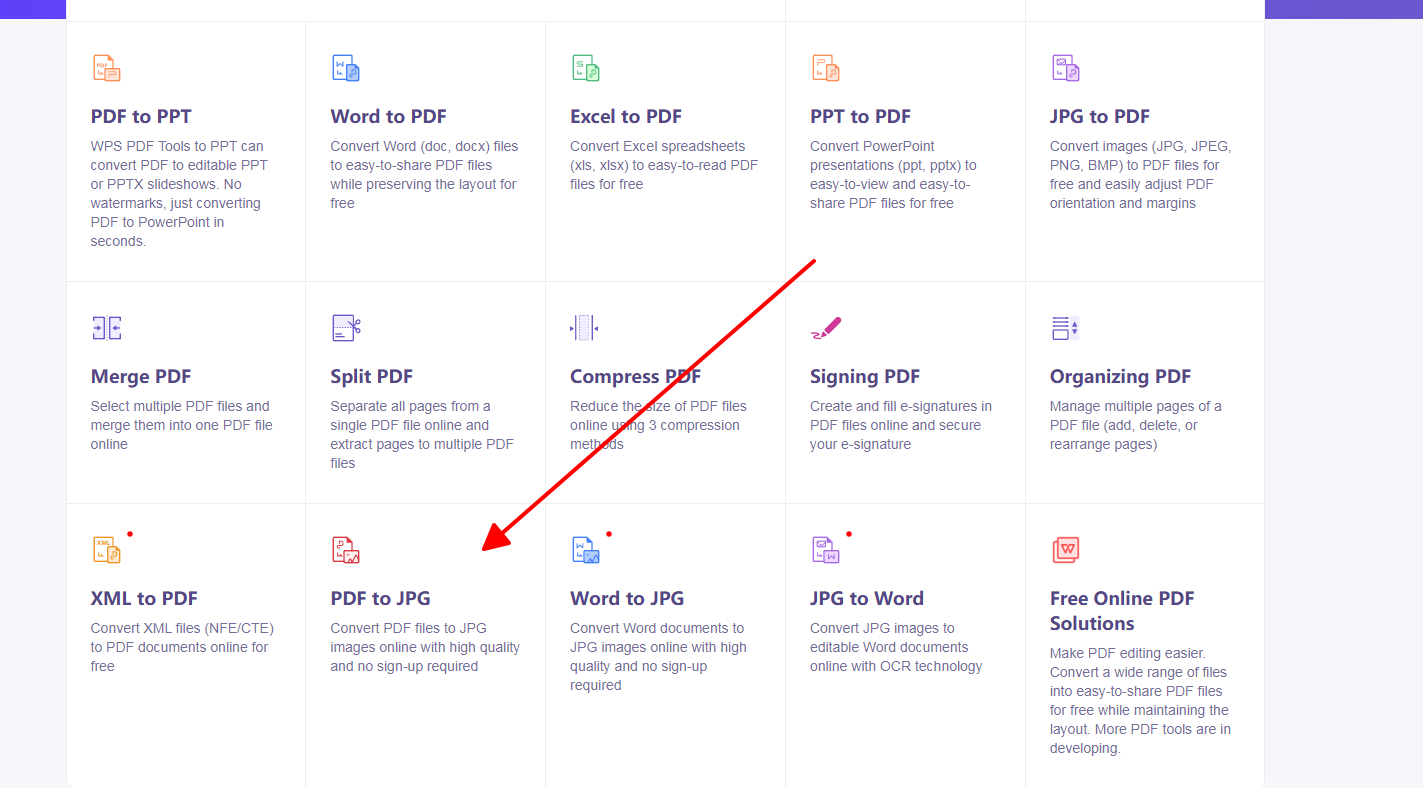
Step 2: Select upload or File > Open to locate and load your PDF.
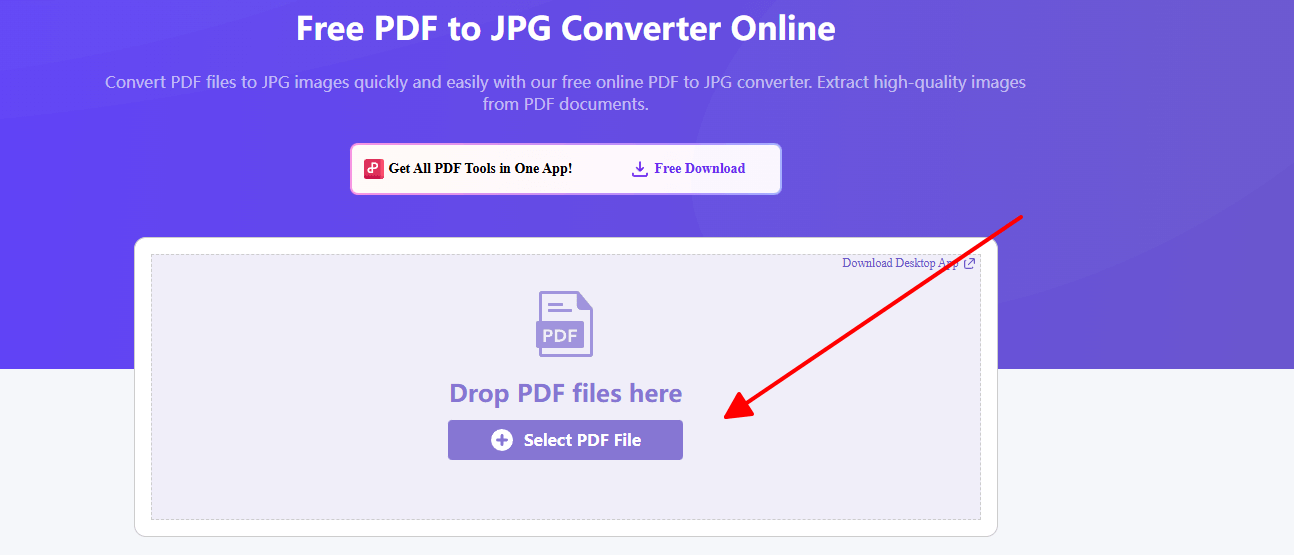
Step 3: Choose JPG output and pick specific pages or the entire file as needed.
Step 4: Set quality to high for better clarity, then start the conversion.
Step 5: Download the JPGs separately or in a zip file once complete.
I used WPS to handle a 25-page brochure PDF offline during travel last week, and it delivered sharp JPGs without delays, unlike an online tool that stalled and forced me to restart.
2. Smallpdf
Smallpdf keeps it simple and quick in your browser, great for grabbing images from scans to share online without much hassle. Drag-and-drop makes it a breeze, and it wipes files soon after for some peace of mind. It's handy for those lighter, on-the-spot jobs.
Features:
Convert full pages or pull individual images with solid quality, no
watermarks in free mode, and easy drag-and-drop. Files delete
automatically after processing for basic privacy, though batch is
limited daily.
Pricing:
Free with some restrictions; upgrade for more unlimited runs.
How to Use:
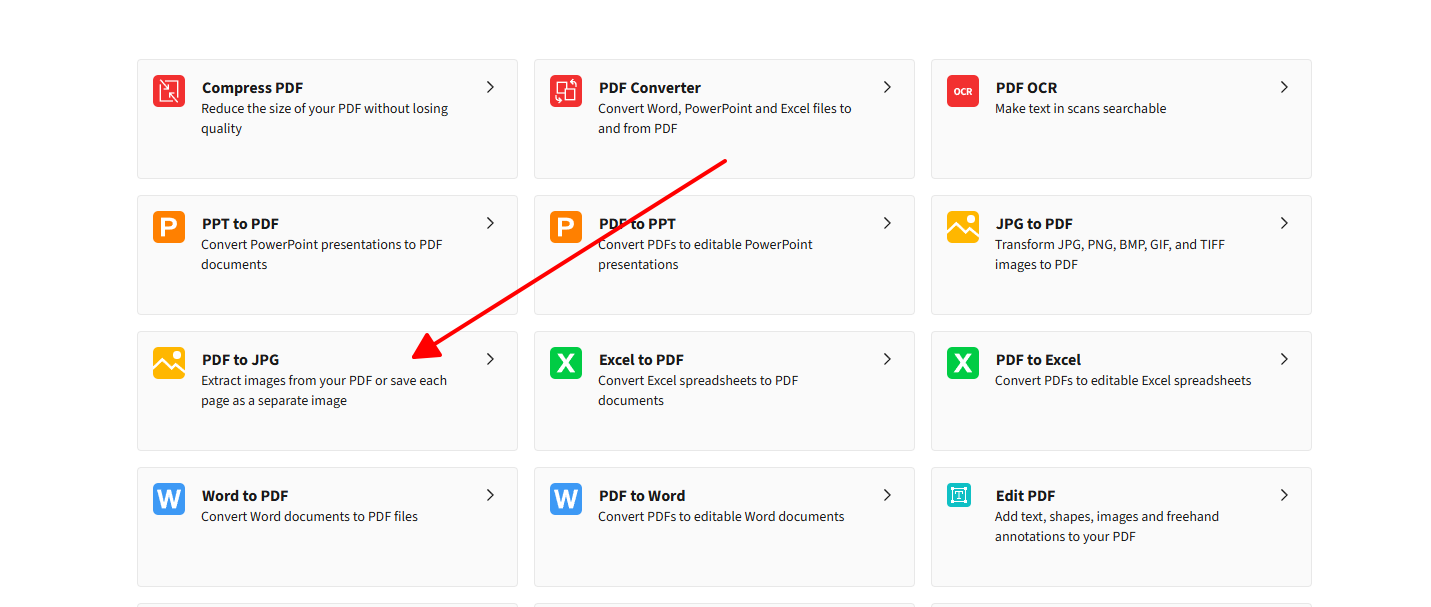
Step 1: Visit Smallpdf and choose the PDF to JPG converter from the main page.
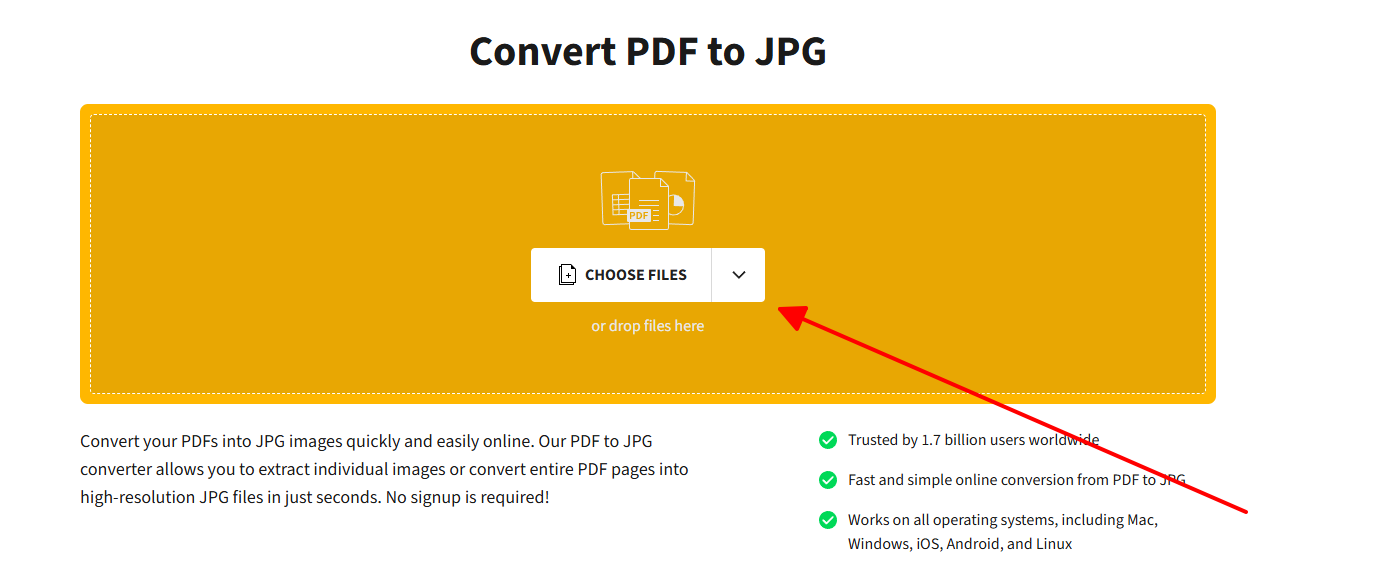
Step 2: Drag your PDF into the area or click to select it from your files.
Step 3: Opt for full pages or image extraction, then confirm your choice.
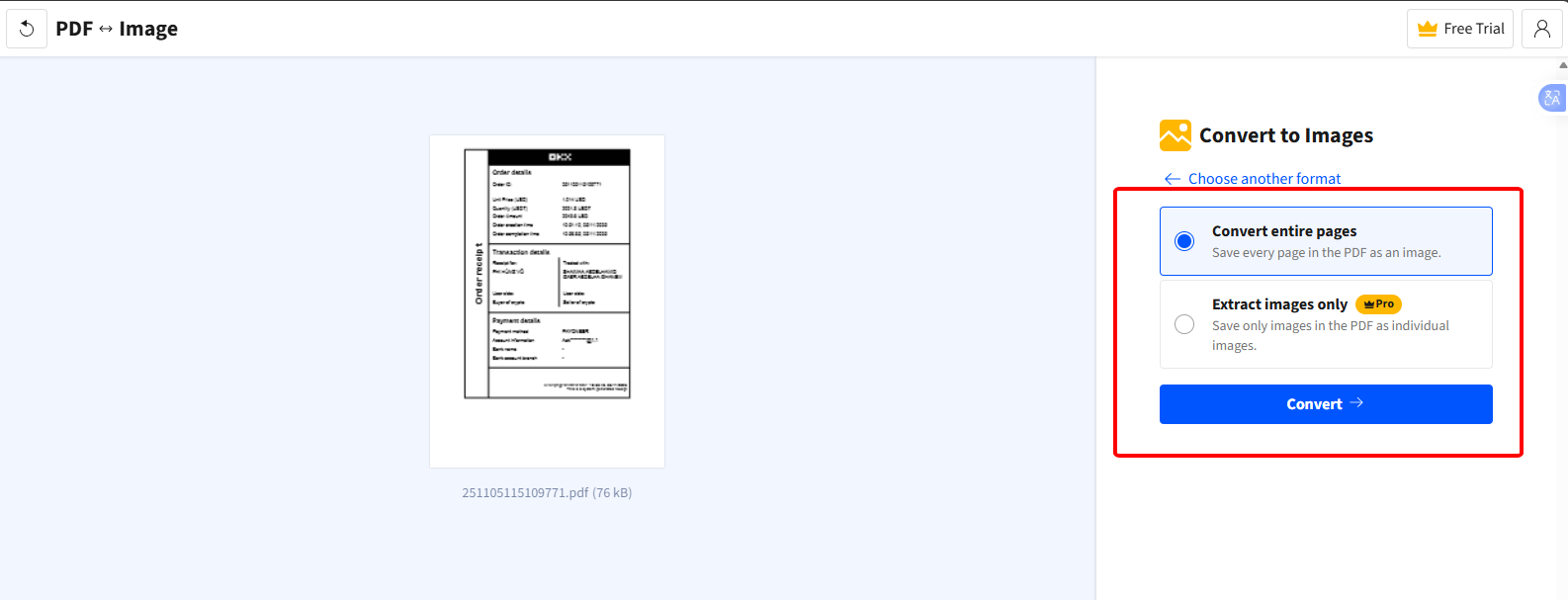
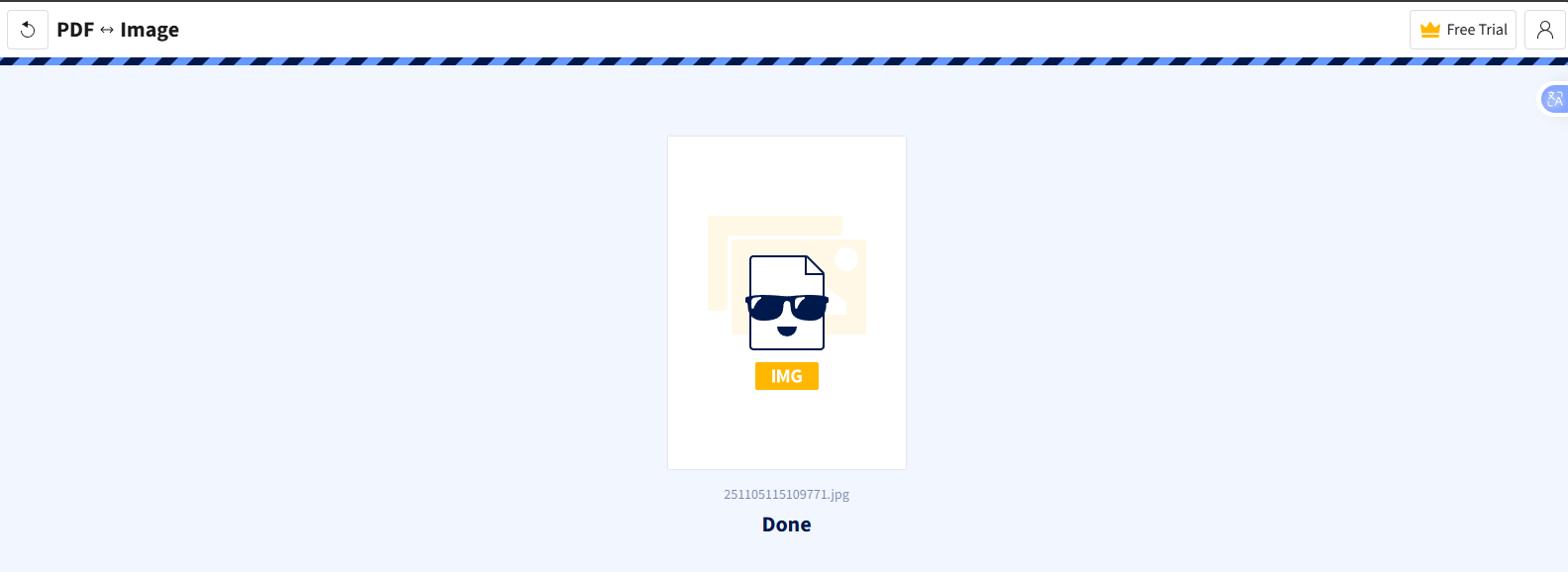
Step 4: Allow a moment for processing and check the on-screen preview.
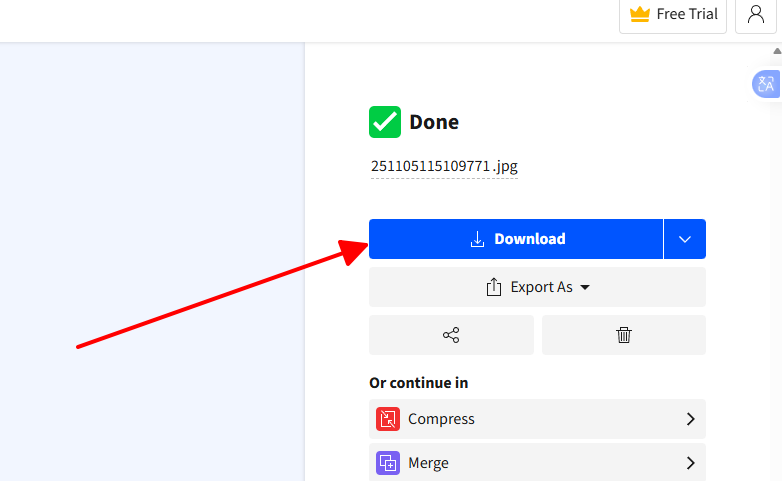
Step 5: Download the JPG files or zipped set to your device.
For a quick recipe image from a PDF last week, Smallpdf pulled it out in seconds with no fuzziness, sparing me extra editing and letting me post directly to social media.
3. Adobe
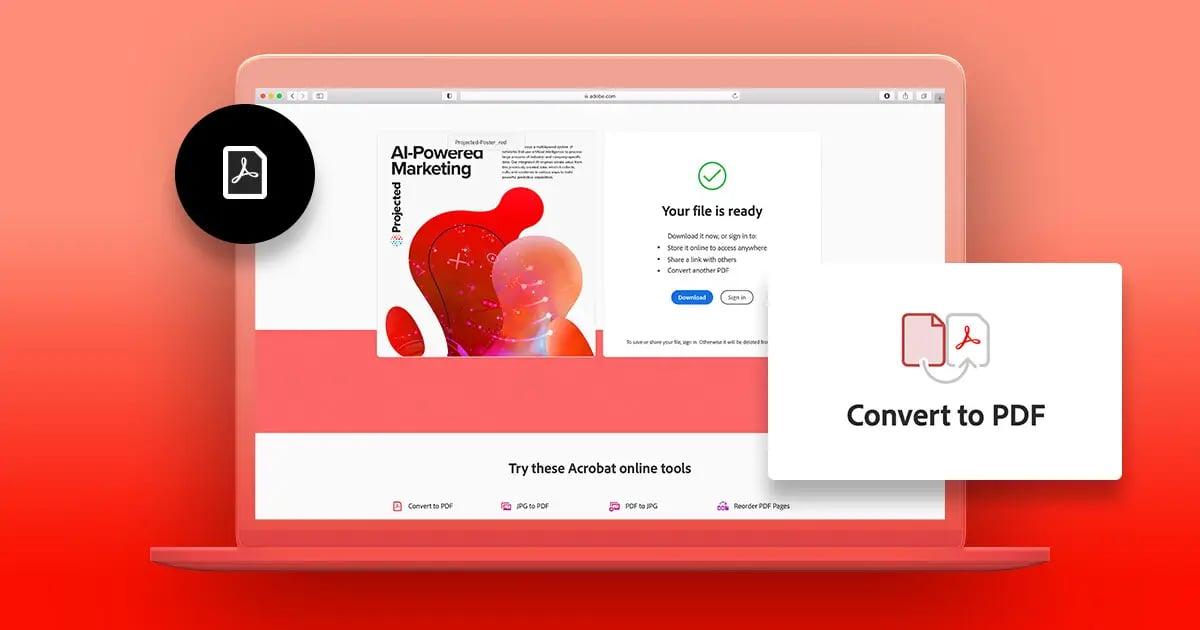
Adobe's online tool feels solid and pro-level, turning reports or diagrams into JPGs you can trust for work shares. It gives previews and handles files securely up to a decent size. If you want something dependable without downloads, this one's a safe bet.
Features:
Outputs stay true to the source in JPG or similar formats, with previews
and secure handling up to 100MB. It focuses on clean, quick results
without installs.
Pricing:
Free for essentials; full access via subscription.
How to Use:
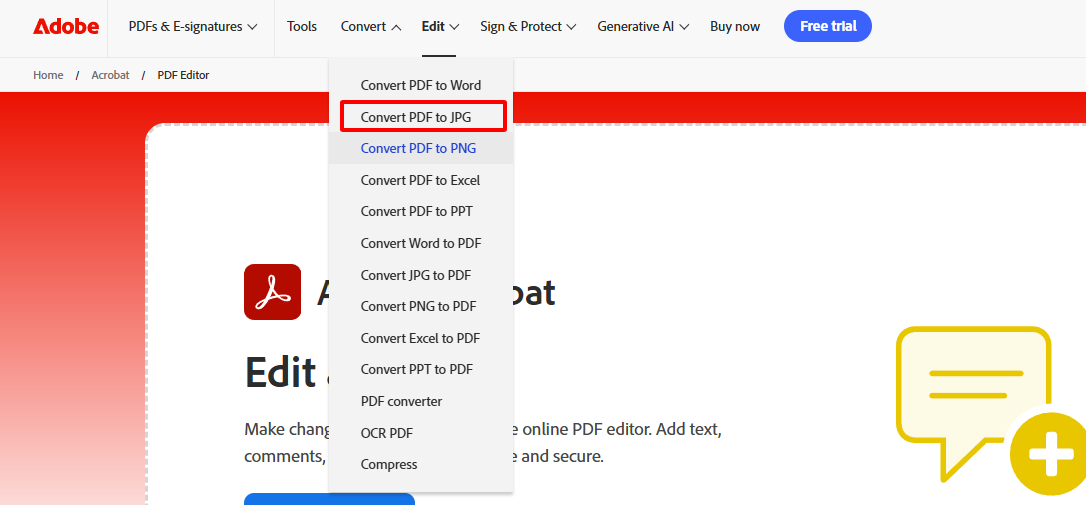
Step 1: Head to Adobe Acrobat's online tools and select PDF to JPG.
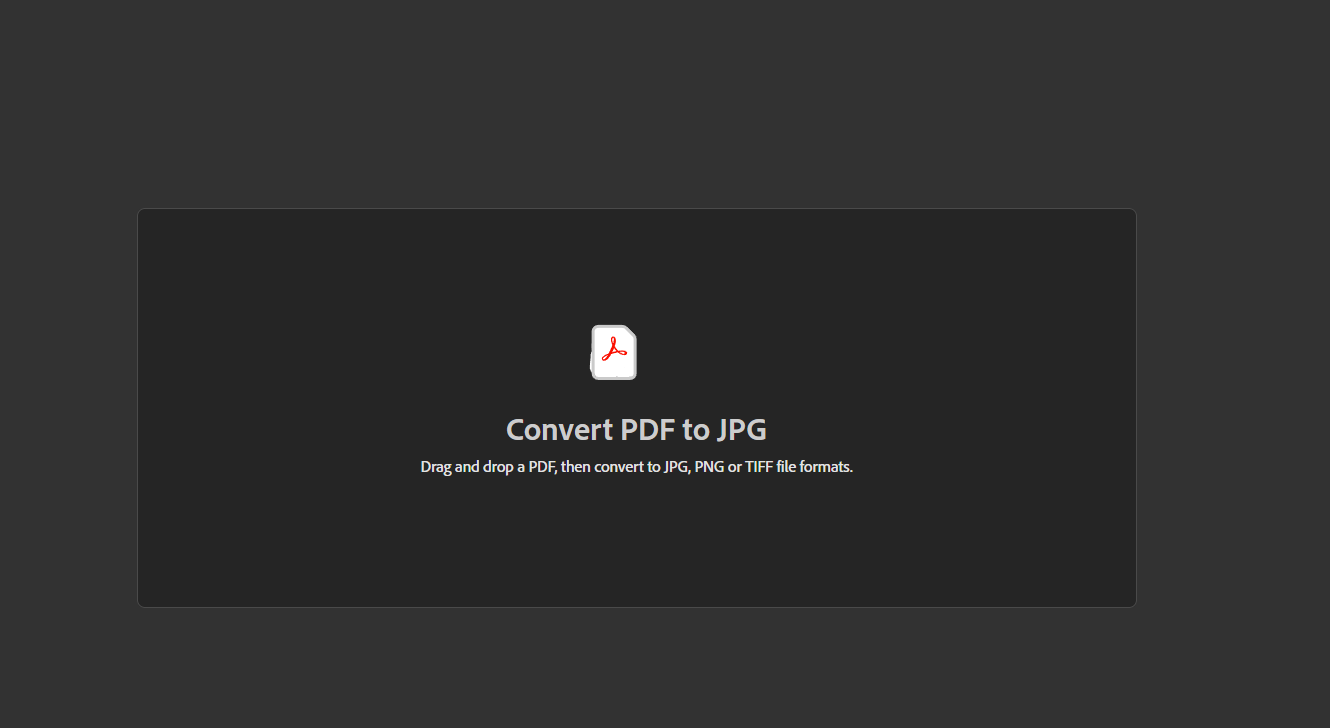
Step 2: Upload by clicking select or dragging the file in.
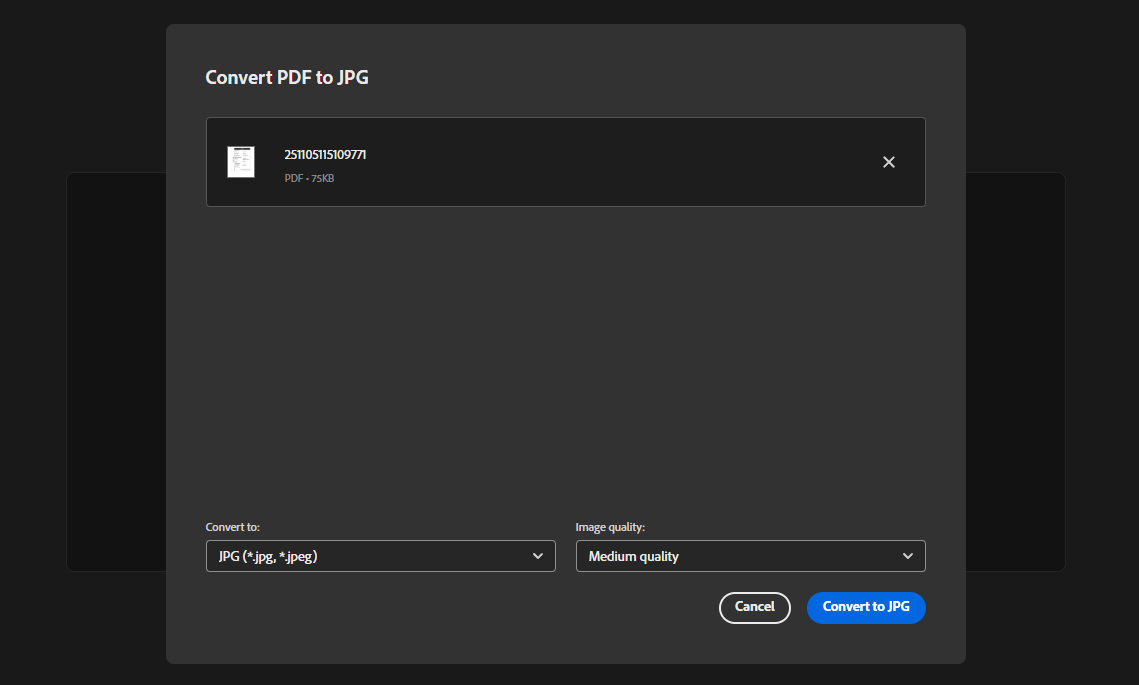
Step 3: Pick JPG as the format in the options.
Step 4: Click convert and wait for the short processing time.
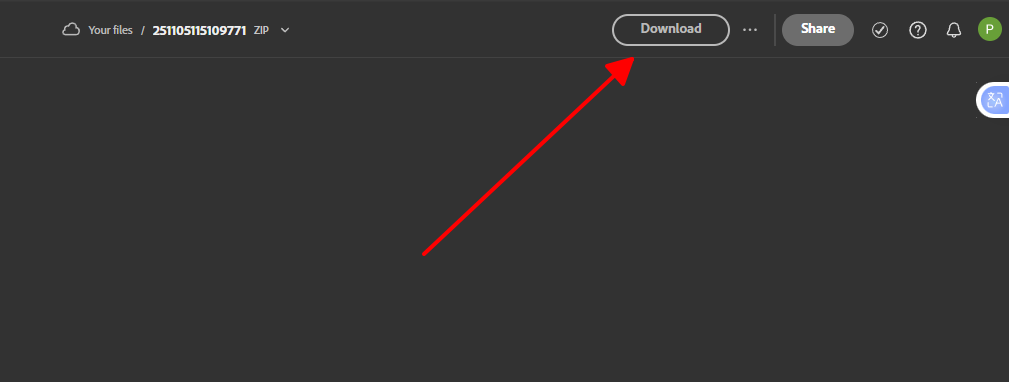
Step 5: Save the finished JPGs from the results.
On a recent deadline with a 10-page tech PDF, Adobe kept diagrams precise without blurring, outperforming a basic tool that muddied details and required fixes.
4. Canva
Canva mixes conversion with easy edits, so you can tweak visuals right after for posts or designs that pop. It's fun for creative types prepping marketing stuff, with web-optimized JPGs that load fast. Free multi-page support adds nice flexibility.
Features:
After converting, adjust sizes or effects freely, with optimized JPGs
for web speed and quality. Free batch works for smaller sets, keeping
files light yet detailed.
Pricing:
Free for main functions; pro for additional tools.
How to Use:
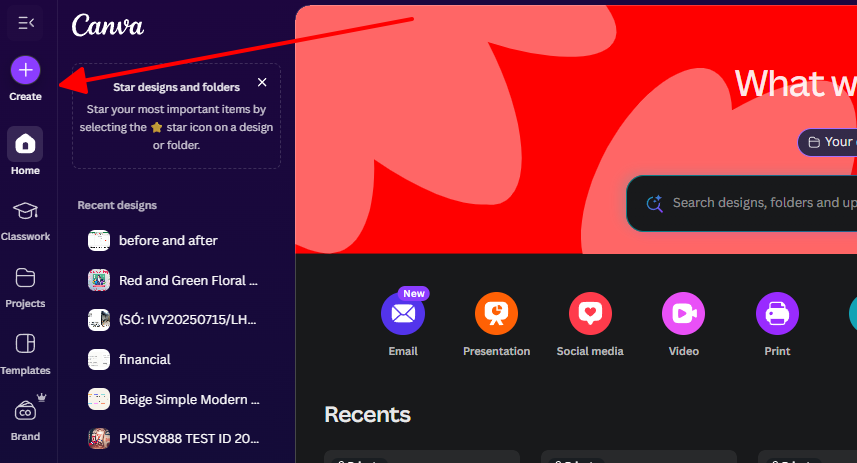
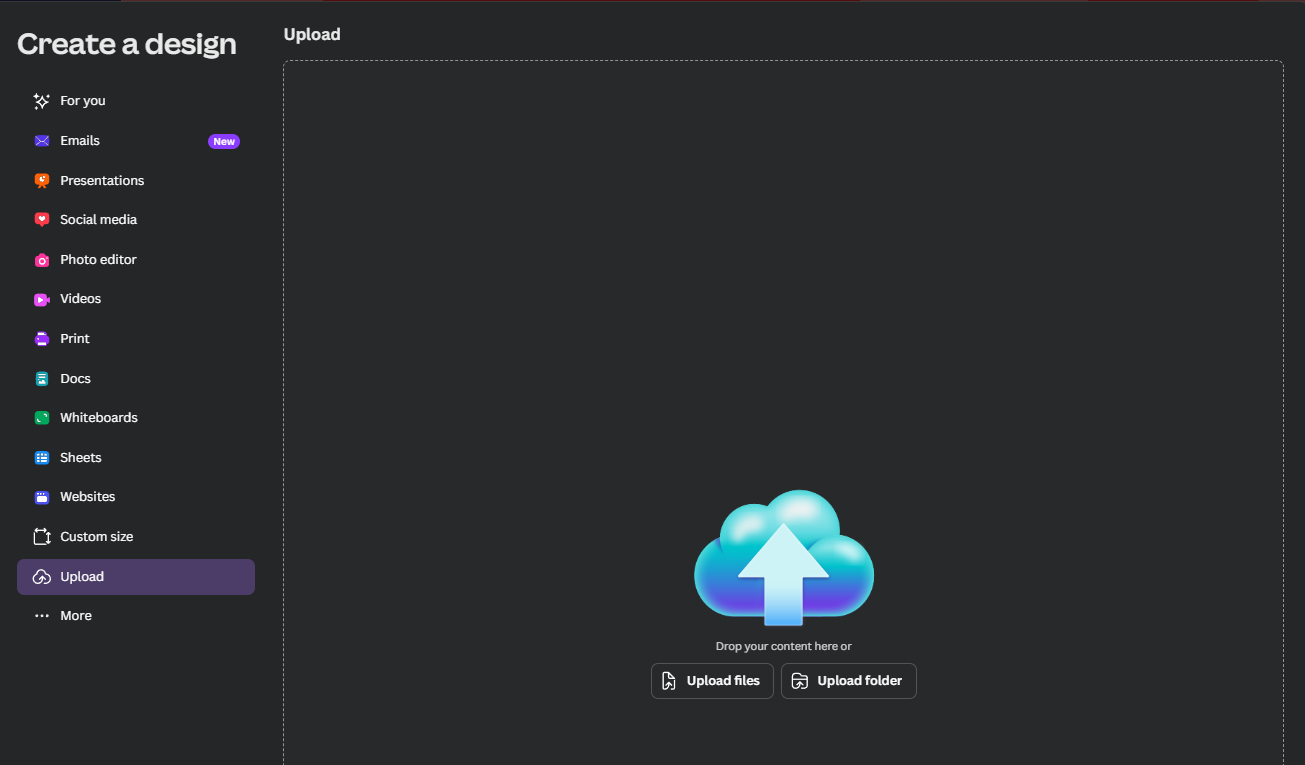
Step 1: Sign into Canva and select Create a Design, then import your PDF.
Step 2: Review the loaded pages and make any quick changes.
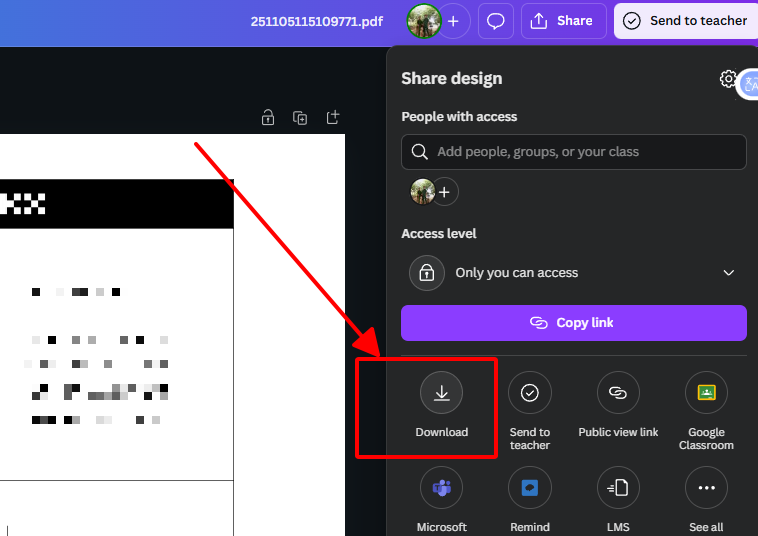
Step 3: Choose Share > Download and set to JPG.
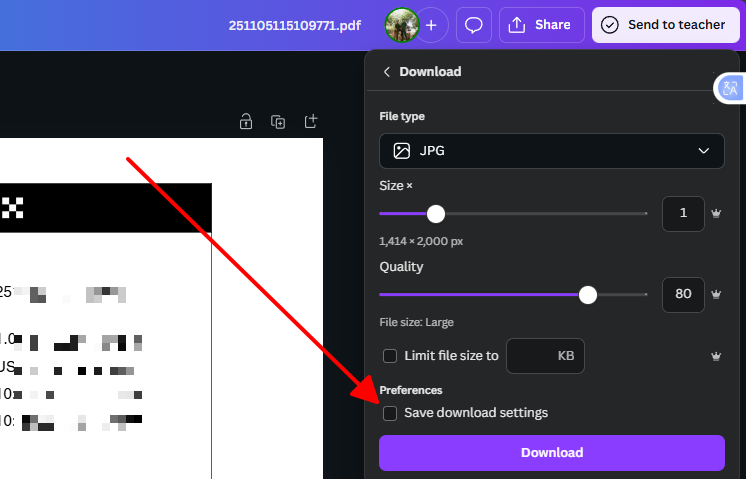
Step 4: Adjust quality and include all pages for multiple files.
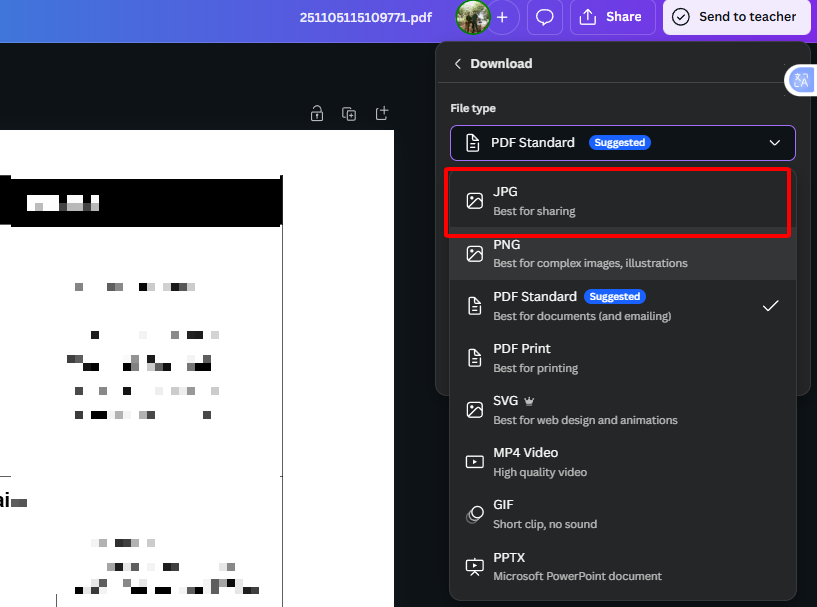
Step 5: Download the generated JPGs.
Converting a flyer PDF for a promo over the weekend, Canva allowed color adjustments post-conversion, resulting in vibrant JPGs that integrated easily into my layout without separate software.
5. MaxAI

MaxAI taps AI for speedy jobs on big files, letting you extract pages or images unlimited and free right in your browser. No storage worries and works anywhere, it's spot-on for archiving or bulk needs. Quick and private without the usual limits.
Features:
Free unlimited access covers full pages or targeted pulls, maintaining
high resolution in-browser. It avoids long-term storage for privacy and
handles any size smoothly.
Pricing:
Fully free with no tiers.
How to Use:
Step 1: Load the MaxAI PDF to JPG page in your browser.
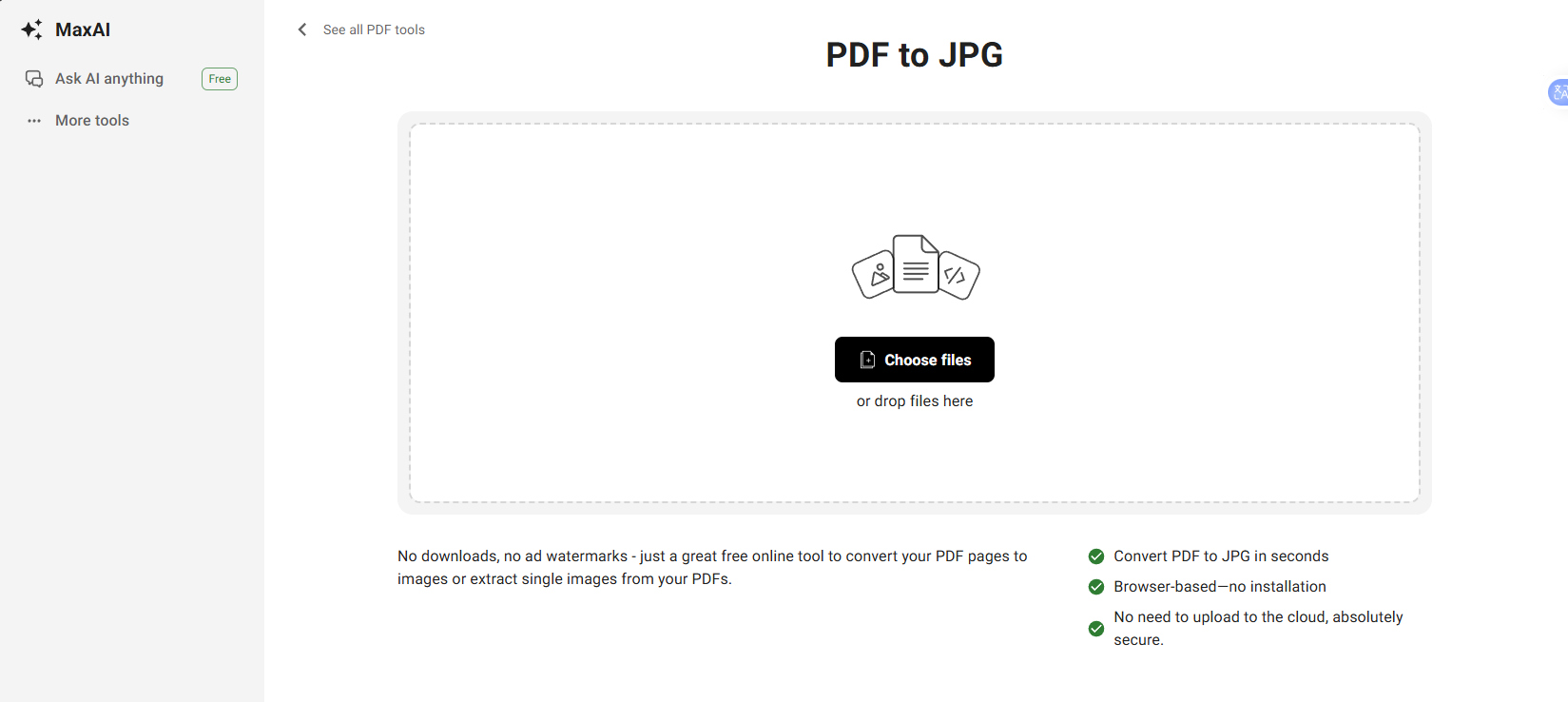
Step 2: Drop or select your PDF file to upload.
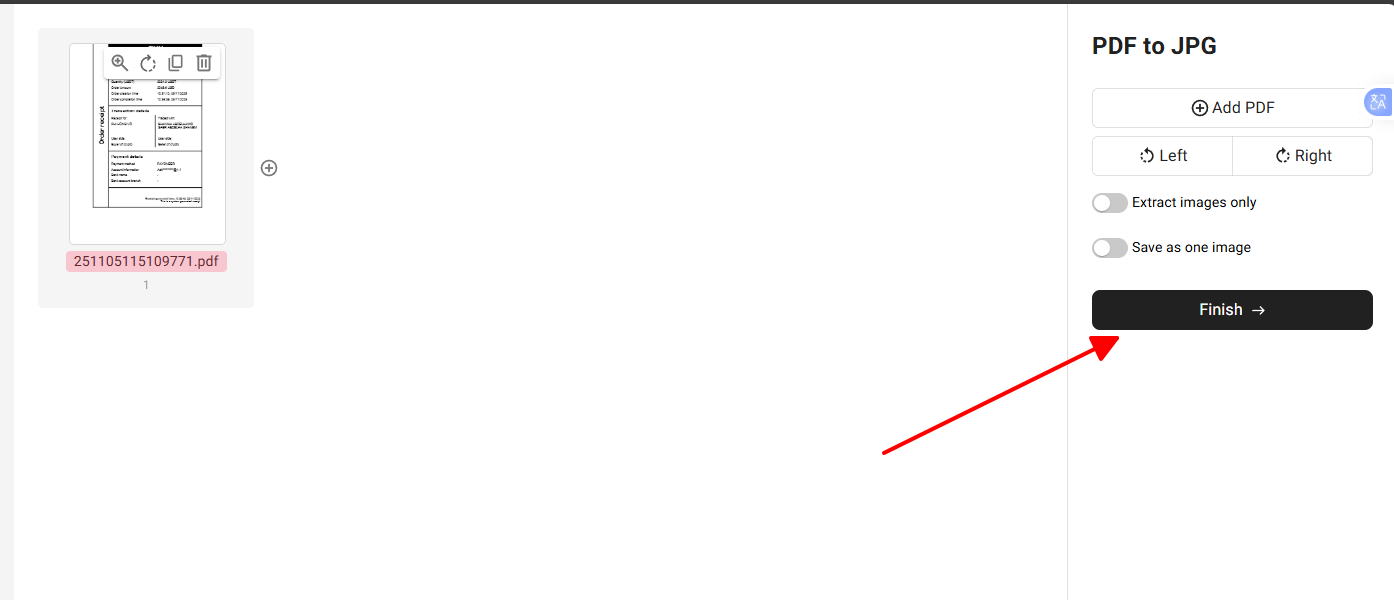
Step 3: Choose full conversion or specific images, then proceed.
Step 4: View the quick AI preview after processing.
Step 5: Download the JPGs or zip package.
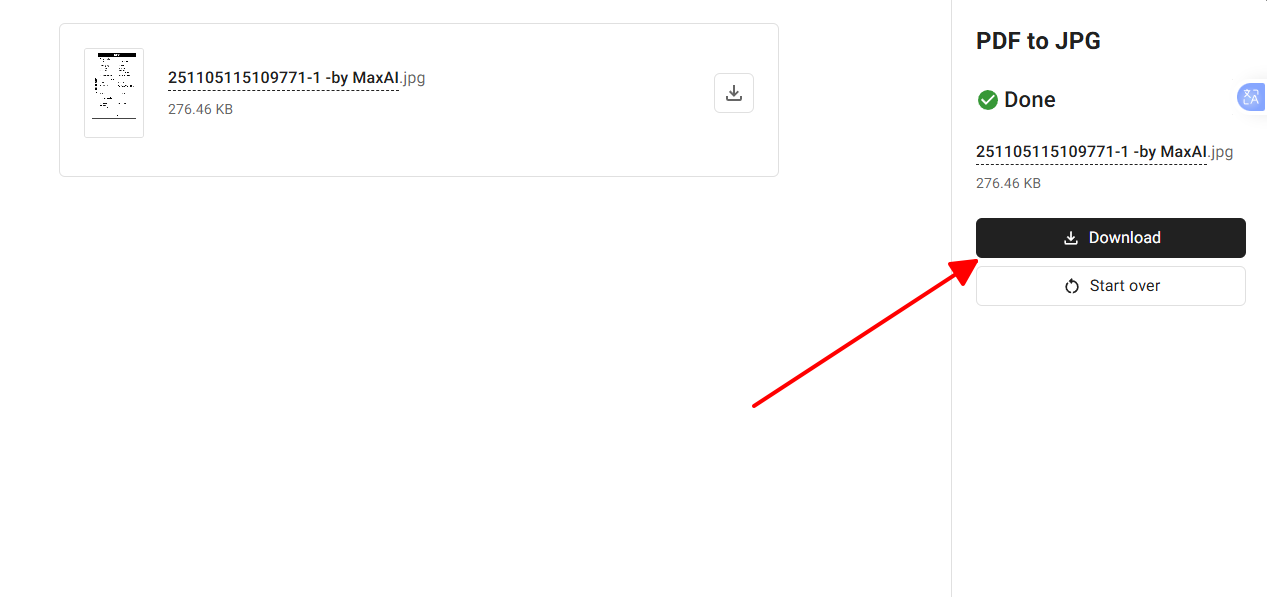
Tackling a 40-page archive PDF yesterday, MaxAI processed it swiftly with better clarity than a limited tool that stopped at 10 pages, making it straightforward for storage.
Part 2. Free PDF to JPG Converters Comparison
This comparison breaks down the key aspects of top free PDF to JPG converters, focusing on factors like free usage depth and output reliability to help you decide based on your routine. Think about your typical day, whether it's quick grabs or heavier lifts, and see what clicks.
| Criteria | WPS PDF Tools | Smallpdf | Adobe | Canva | MaxAI |
|---|---|---|---|---|---|
| Cost | Free, no restrictions | Free with daily allowances | Free for core tasks | Free plus optional upgrades | Free without bounds |
| Image Quality | Strong detail and color hold | Clear with light compression | High-fidelity results | Adjustable for web use | AI-refined sharpness |
| Batch Processing | Supports multiple pages well | Available but capped free | Geared toward singles | Suitable for small groups | Handles unlimited sets |
| File Size Limits | Unlimited | 5GB in free mode | Up to 100MB | Based on project size | No caps |
| Security Features | Local desktop handling | Deletes after one hour | Automatic post-use removal | Secure cloud processing | In-browser, minimal storage |
| Ease of Use | Flexible web or desktop | Effortless drag-and-drop | Simple file selection | Editing built into steps | Quick AI-driven flow |
| Ideal For | Routine batch conversions | Simple daily needs | Dependable individual files | Visual content creation | Large or frequent volumes |
Overall, WPS provides broad appeal for mixed online and offline workflows, but pick what fits your flow best.
Part 3. Why WPS PDF Tools is the Top Recommendation
Free PDF to JPG converters often fall short with unexpected limits or degraded files, but WPS PDF Tools avoids those traps, offering practical solutions for everyday demands like quick shares or detailed archives. You know the drill, right, when a tool promises free but then hits you with extras.
Genuine Free Access Without Compromise
From upload to download, everything runs free without watermarks or forced upgrades interrupting your process. This reliability means you can trust it for repeated use, converting PDFs to JPG online free as needed. No more getting halfway and paying up.
Superior Batch Processing for Efficiency
Multi-page files convert in a single step, delivering organized JPGs without the repetition that slows other tools. It fits scenarios like preparing reports, saving time over manual one-by-one handling. Why waste an afternoon when you could wrap it in minutes?
Quality-First Conversion Approach
Details and colors remain intact, producing usable JPGs for prints or screens that don't require fixes. Unlike budget options that cut corners, WPS ensures professional-level outputs consistently. Your files come out looking right, every time.
For instance, when converting a 30-page manual under pressure, WPS generated clean JPGs without artifacts, while another tool introduced marks that demanded rework, highlighting its edge in real tasks. It's that kind of reliability that makes a difference.
FAQs
1. Are free PDF to JPG converters safe for sensitive docs?
Most decent ones say they wipe your files right after converting, but if you're dealing with private stuff, stick to WPS's desktop app. It keeps everything local on your machine, no risky cloud uploads involved.
2. Why do some "free" converters slap watermarks on my JPGs?
They do it to nudge you toward paying for the clean version. WPS PDF Tools skips that entirely, giving you watermark-free JPGs straight up in the free mode, which is a lifesaver for work files.
3. Can I pick just certain pages from a multi-page PDF to convert to JPG?
Absolutely, good tools like WPS let you choose exact pages or ranges, so you get only what you need without the extra hassle.
4. Do these converters play nice on my phone?
Yeah, most like WPS and Smallpdf work great in your mobile browser, no need to download apps, just convert PDFs to JPGs on the spot.
5. How quick is a usual PDF to JPG conversion?
It depends on the file, but usually just seconds to a couple minutes. WPS and MaxAI zip through even bigger ones, often done in under 30 seconds for normal docs.

'%3e%3cpath%20d='M19.9911%204.11386V6.471H18.5894C18.0775%206.471%2017.7322%206.57814%2017.5536%206.79243C17.3751%207.00671%2017.2858%207.32814%2017.2858%207.75671V9.44421H19.9019L19.5536%2012.0871H17.2858V18.8639H14.5536V12.0871H12.2769V9.44421H14.5536V7.49779C14.5536%206.39064%2014.8632%205.53201%2015.4822%204.92189C16.1013%204.31177%2016.9257%204.00671%2017.9554%204.00671C18.8304%204.00671%2019.509%204.04243%2019.9911%204.11386Z'%20fill='%23333333'/%3e%3c/g%3e%3cdefs%3e%3cclipPath%20id='clip0_2938_8199'%3e%3crect%20width='16'%20height='16'%20fill='white'%20transform='translate(8%204.00671)'/%3e%3c/clipPath%3e%3c/defs%3e%3c/svg%3e)
'%3e%3cpath%20d='M17.5237%2010.7813L23.4811%204H22.0699L16.8949%209.88693L12.7648%204H8L14.2469%2012.9029L8%2020.0133H9.4112L14.8725%2013.7952L19.2352%2020.0133H24M9.92053%205.04213H12.0885L22.0688%2019.0224H19.9003'%20fill='%23333333'/%3e%3c/g%3e%3cdefs%3e%3cclipPath%20id='clip0_2938_8200'%3e%3crect%20width='16'%20height='16.0134'%20fill='white'%20transform='translate(8%204)'/%3e%3c/clipPath%3e%3c/defs%3e%3c/svg%3e)


