



'%3e%3cpath%20fill-rule='evenodd'%20clip-rule='evenodd'%20d='M21.4999%2010.9993C21.4999%205.20009%2016.7986%200.498901%2010.9993%200.498901C5.19994%200.498901%200.498657%205.20009%200.498657%2010.9993C0.498657%2016.2404%204.33858%2020.5844%209.35855%2021.3722V14.0346H6.69238V10.9993H9.35855V8.68594C9.35855%206.05427%2010.9262%204.60062%2013.3248%204.60062C14.4736%204.60062%2015.6753%204.80571%2015.6753%204.80571V7.38979H14.3512C13.0468%207.38979%2012.64%208.19921%2012.64%209.0296V10.9993H15.5523L15.0867%2014.0346H12.64V21.3722C17.66%2020.5844%2021.4999%2016.2404%2021.4999%2010.9993Z'%20fill='%231568EA'/%3e%3c/g%3e%3c/svg%3e)


'%3e%3cpath%20d='M2.42045%2022.1876H6.31818V12.7217L0.75%208.54553V20.5171C0.75%2021.4414%201.49892%2022.1876%202.42045%2022.1876Z'%20fill='%234285F4'/%3e%3cpath%20d='M19.682%2022.1876H23.5797C24.5041%2022.1876%2025.2502%2021.4387%2025.2502%2020.5171V8.54553L19.682%2012.7217'%20fill='%2334A853'/%3e%3cpath%20d='M19.682%205.48293V12.7216L25.2502%208.54543V6.31816C25.2502%204.25236%2022.8921%203.07469%2021.2411%204.31361'%20fill='%23FBBC04'/%3e%3cpath%20d='M6.31824%2012.7217V5.48303L13.0001%2010.4944L19.6819%205.48303V12.7217L13.0001%2017.733'%20fill='%23EA4335'/%3e%3cpath%20d='M0.75%206.31816V8.54543L6.31818%2012.7216V5.48293L4.75909%204.31361C3.10534%203.07469%200.75%204.25236%200.75%206.31816Z'%20fill='%23C5221F'/%3e%3c/g%3e%3cdefs%3e%3cclipPath%20id='clip0_2954_7305'%3e%3crect%20width='24.5'%20height='18.375'%20fill='white'%20transform='translate(0.75%203.8125)'/%3e%3c/clipPath%3e%3c/defs%3e%3c/svg%3e)


A plain white Word page works for drafts, but certificates, invitations, flyers, reports, and school assignments often look better with a custom background—solid color, gradient, texture, or a full-page image. This guide shows how to add a background in Microsoft Word, apply different backgrounds to specific pages, fix print and PDF issues, and use a free Word-compatible option in WPS Writer.


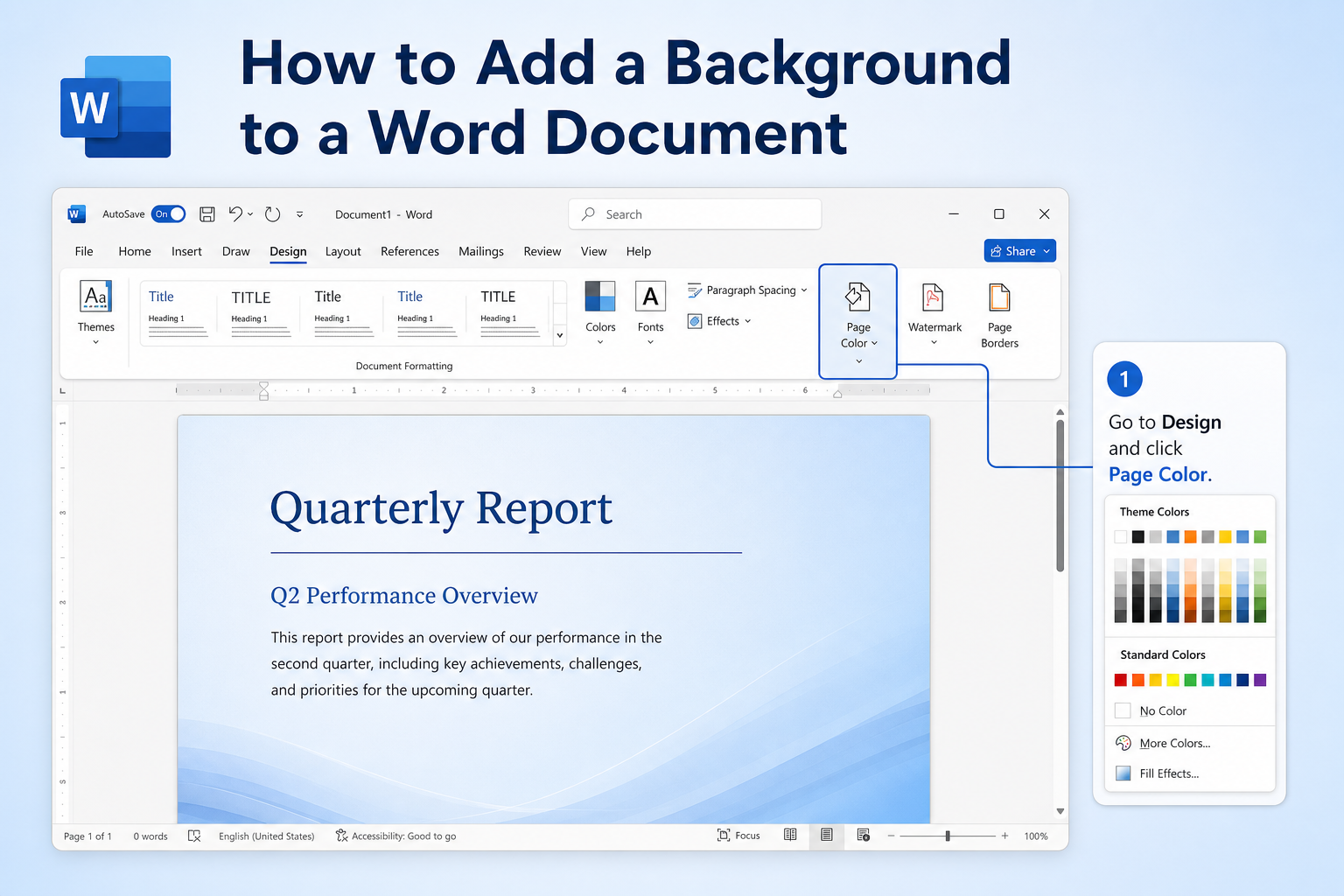
Quick answer: Go to Design → Page Color for a solid fill, or Page Color → Fill Effects for gradients, textures, and picture backgrounds. To style only some pages, insert a Next Page section break and unlink headers first. For printing, enable Print background colors and images in Word Options.
Ways to Add a Background in Word
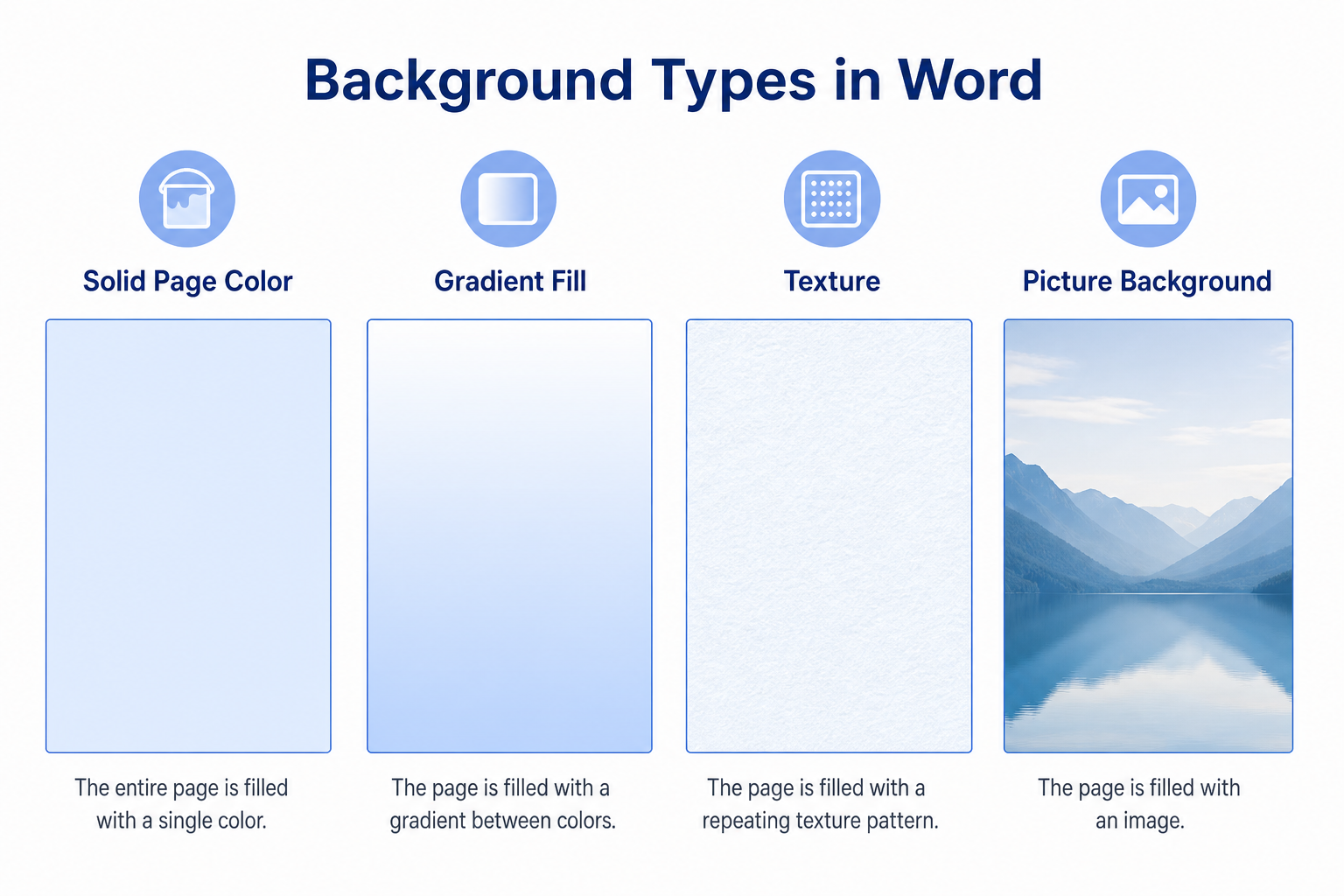
| Background type | Best for | Where to start |
|---|---|---|
| Solid Page Color | Simple certificates, handouts, branded pages | Design → Page Color |
| Gradient / Texture | Invitations, covers, light decorative pages | Page Color → Fill Effects |
| Picture background | Full-page photo or branded image fill | Fill Effects → Picture |
| Per-section background | Different look on selected pages | Section break + unlink header, then set Page Color |
Add a Solid Color, Gradient, or Texture Background
These steps work in Word 2016, 2019, 2021, and Microsoft 365.
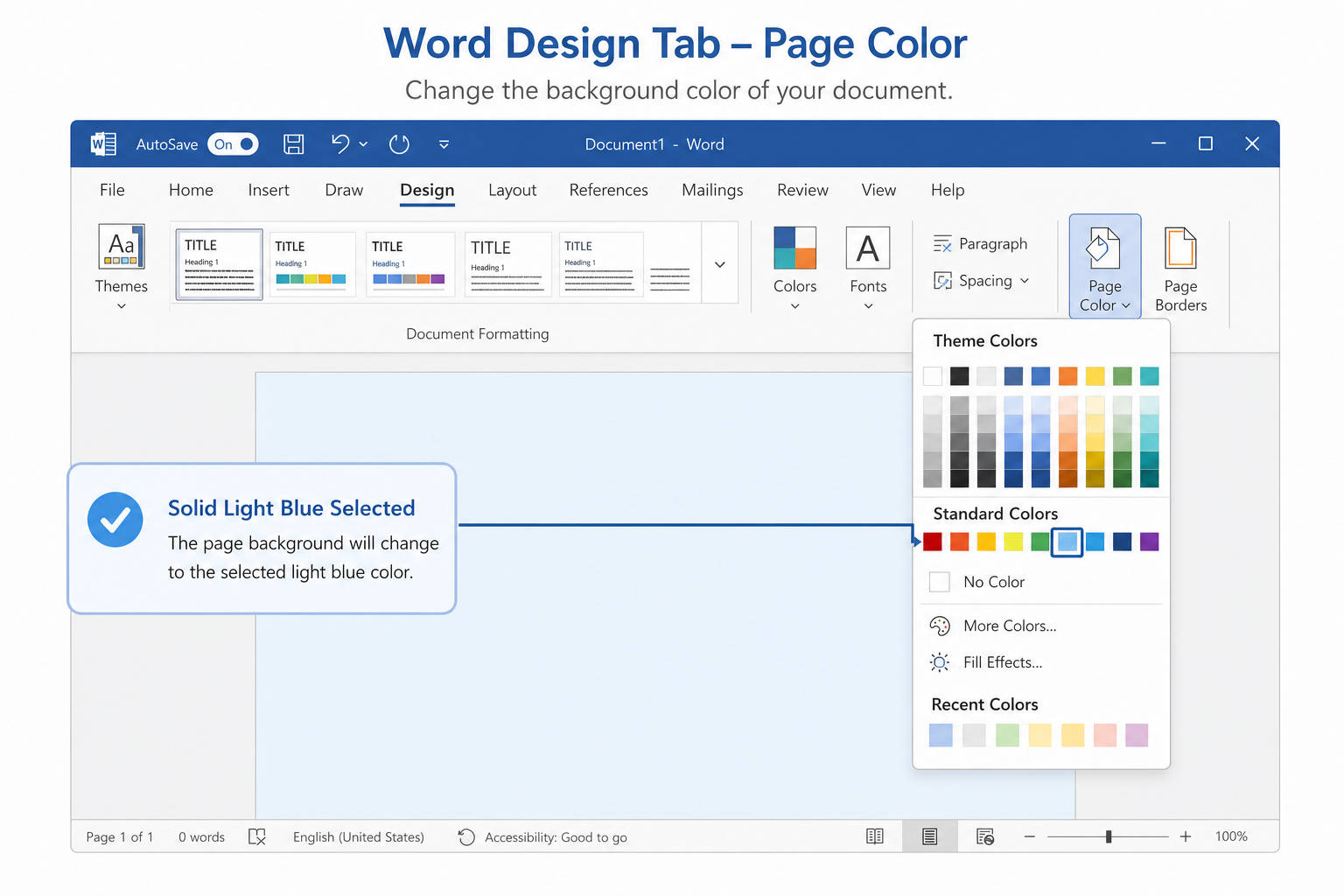
Open your Word document.
Go to the Design tab (older Word may show Page Layout).
Click Page Color.
Pick a solid color for a clean background.
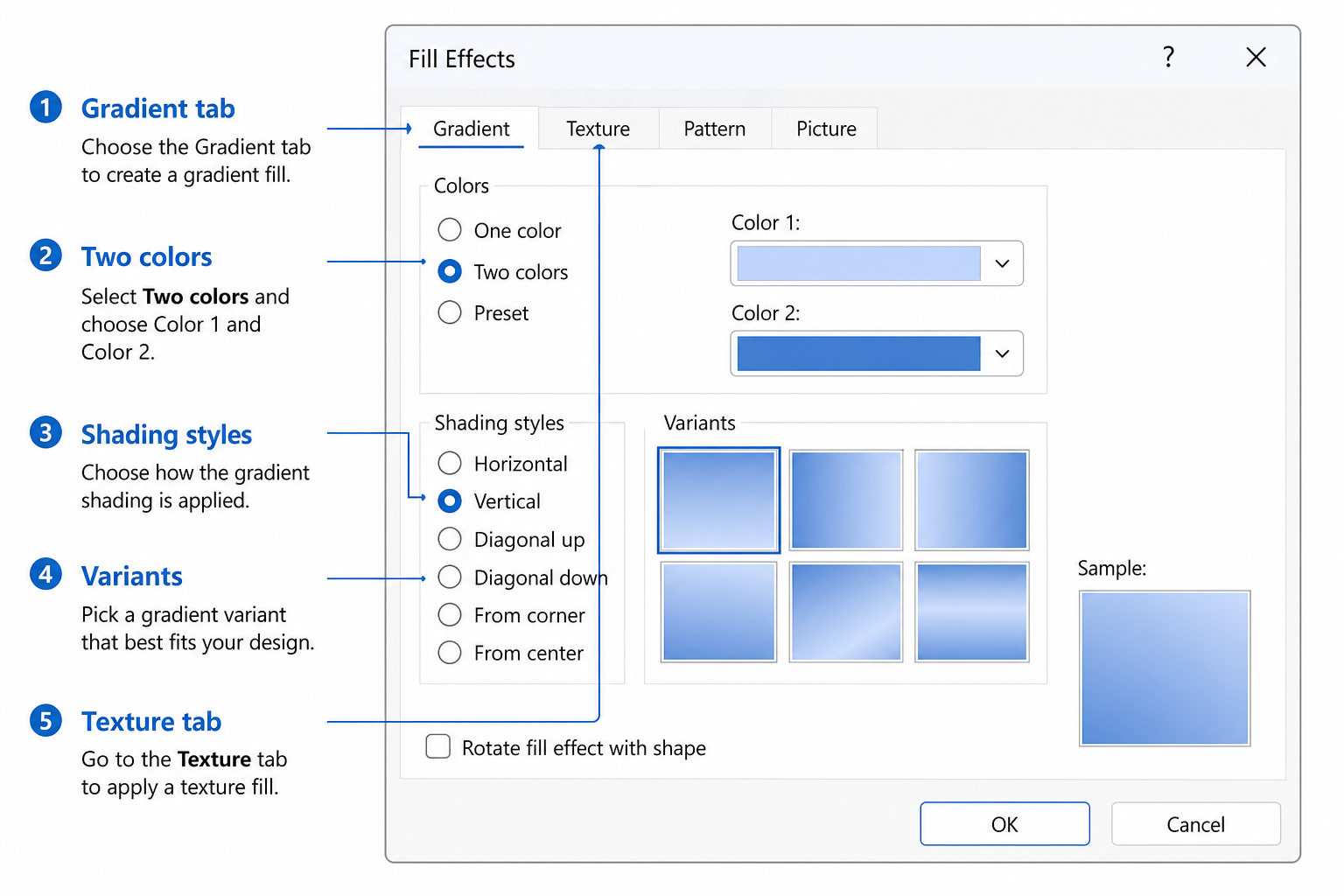
For more styles, click Fill Effects…, then choose:
Gradient — two-color or preset blends
Texture — paper-like or patterned fills
Pattern — simple repeating designs
Click OK to apply.
Tip: Keep backgrounds light if the page has a lot of body text. Dark fills look better for short titles or cover pages.
Set a Custom Picture Background in Word
Use your own image as a full-page background while keeping text readable.
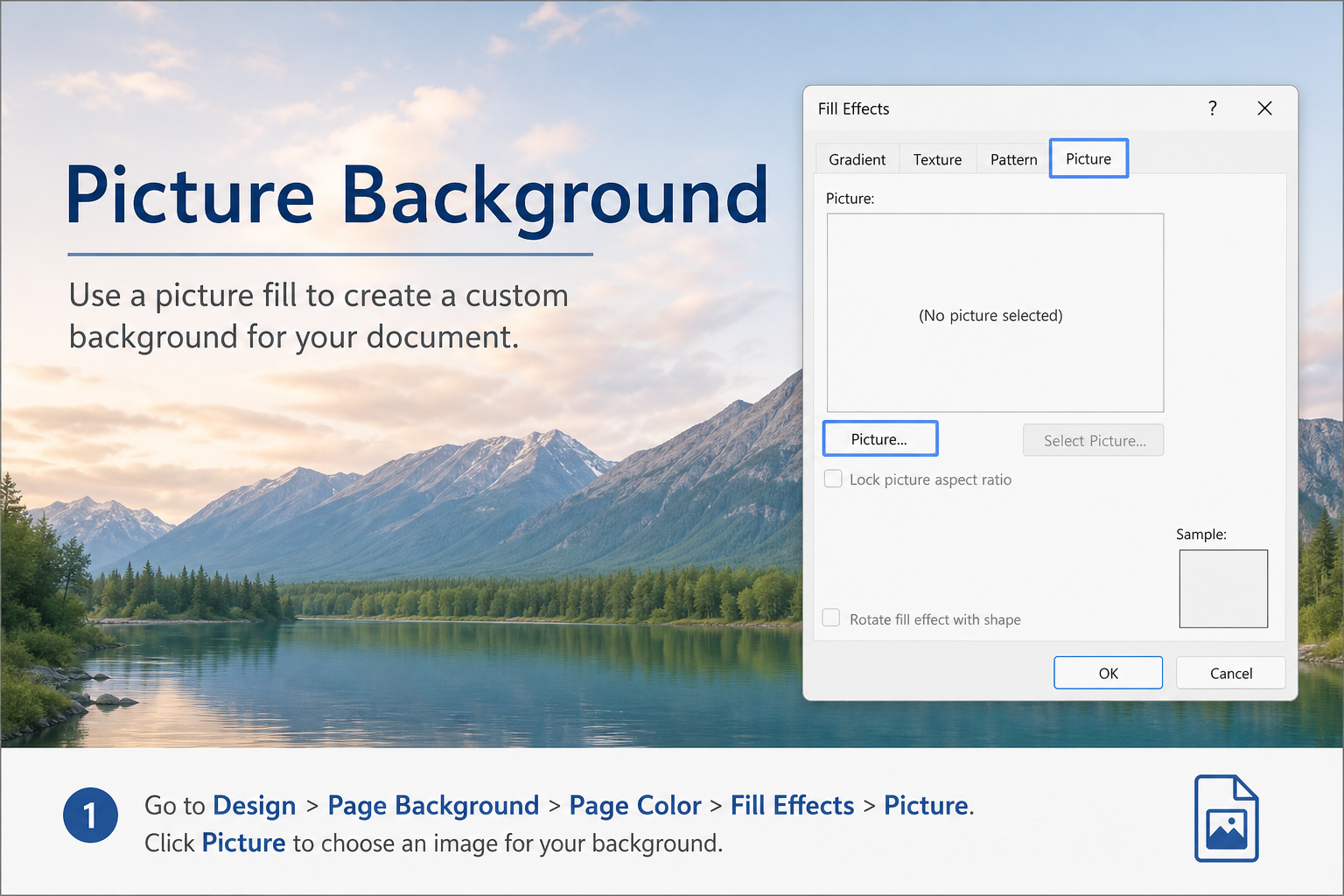
Go to Design → Page Color → Fill Effects…
Open the Picture tab.
Click Select Picture… and choose an image from your computer.
Confirm, then click OK.
Word places the picture behind the text as a page background—not as a floating image on top of your content.
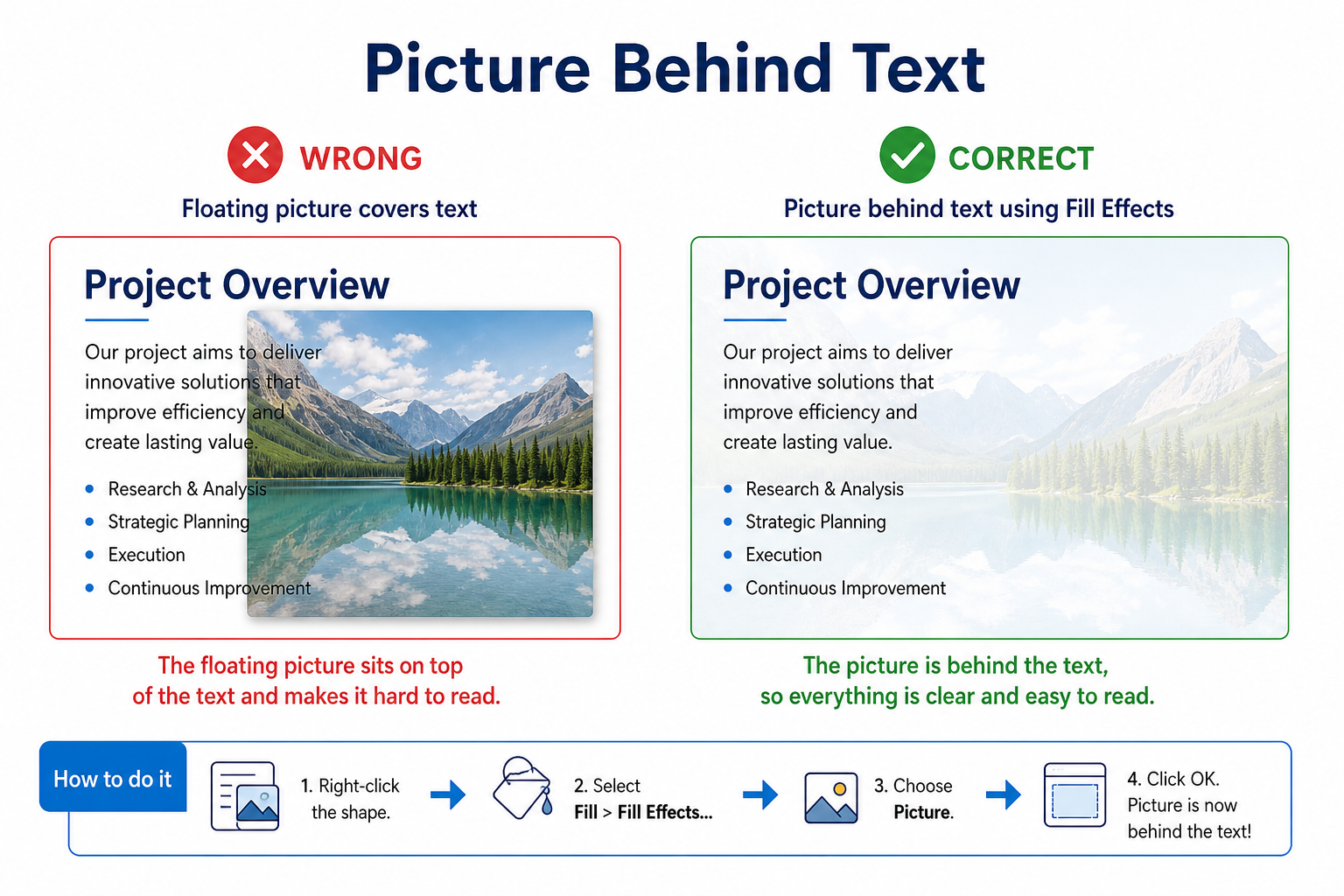
Note: Very busy photos can make text hard to read. Prefer soft, high-resolution images, or darken/lighten the photo in an editor first.
Apply a Different Background to Specific Pages
By default, Page Color applies across the document. To style only certain pages, split the file into sections.
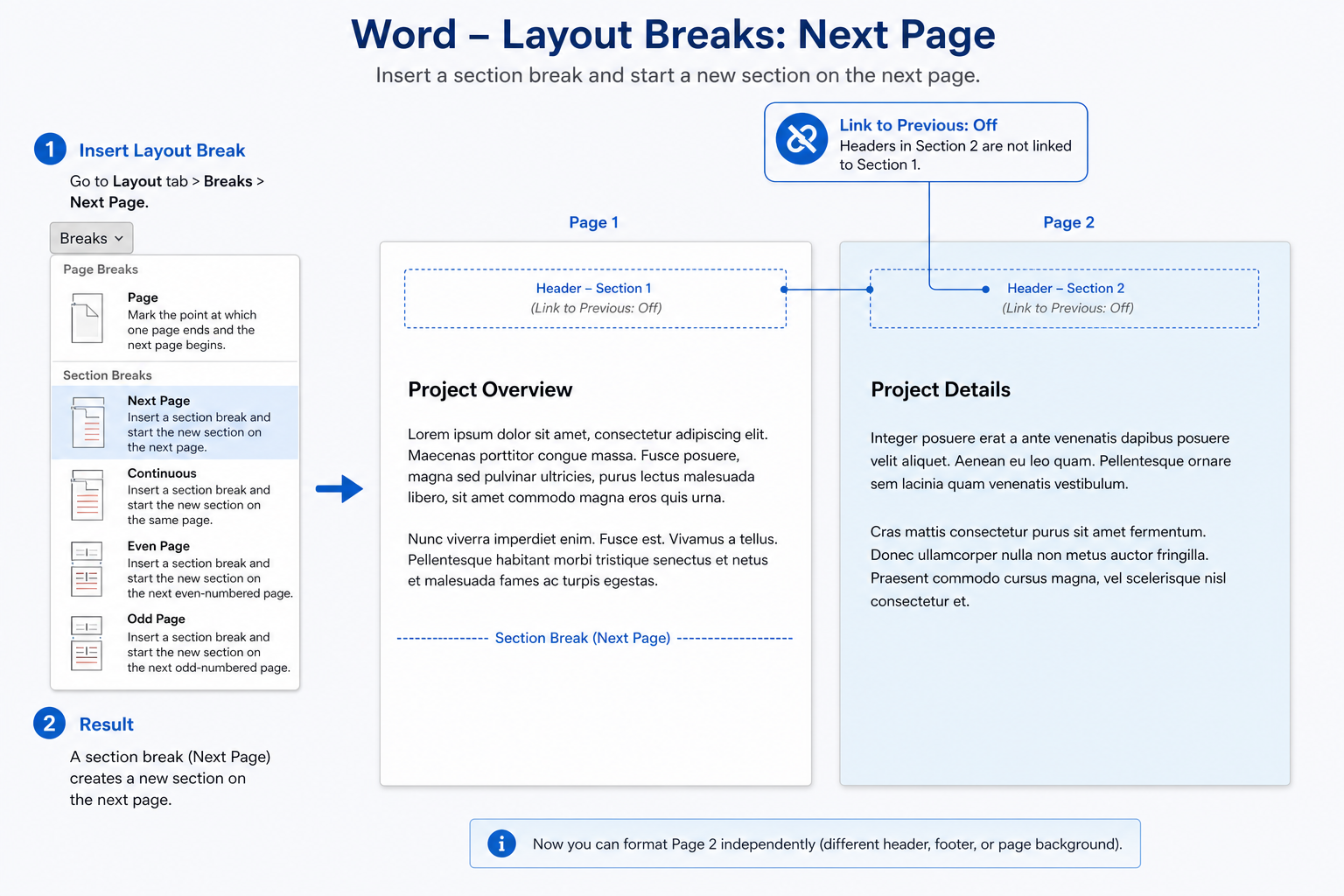
Place your cursor at the end of the page before the page you want to restyle.
Go to Layout → Breaks → Next Page to start a new section.
Double-click the header area on the target page.
Turn off Link to Previous so the new section can use its own formatting.
Click into the target section and set a new Page Color or picture fill.
Tip: Show paragraph marks (Ctrl + Shift + 8) if you need to find section breaks later. Deleting the wrong break can merge sections and change backgrounds unexpectedly.
Fix Common Word Background Issues
| Problem | What to try |
|---|---|
| Background does not print | Go to File → Options → Display and check Print background colors and images |
| Background missing in PDF | Use File → Save As / Export → PDF (not Print to PDF), then preview the PDF |
| Image covers or hides text | Do not drop a floating photo on the page—use Fill Effects → Picture instead |
| Only one page should be colored | Insert a section break and unlink Link to Previous before changing Page Color |
How to add a watermark in Word
If you only need a light “DRAFT,” “CONFIDENTIAL,” or logo mark—not a full page color—add a watermark:
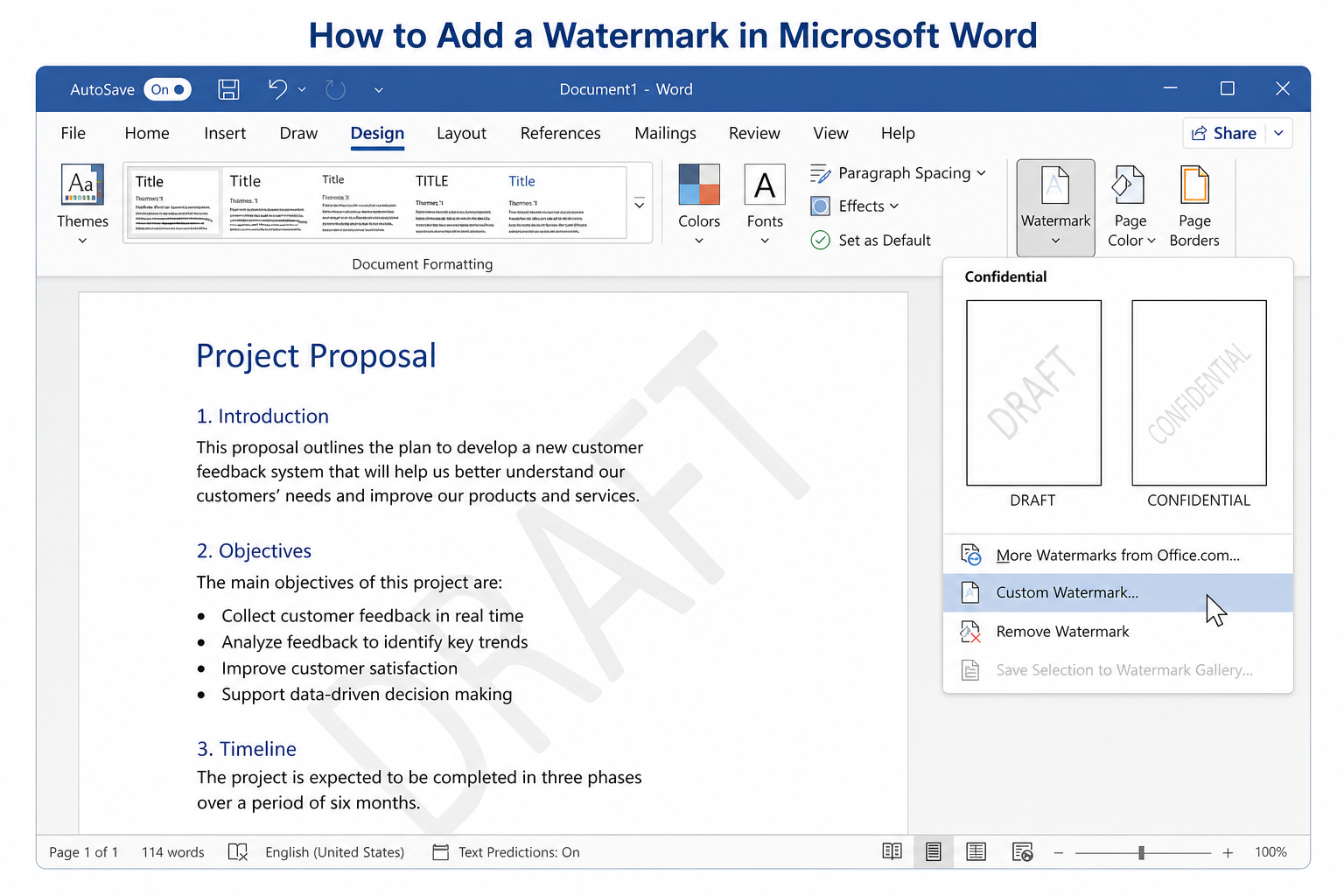
1.Go to the Design tab.
2.Click Watermark.
3.Choose a built-in option (such as DRAFT or CONFIDENTIAL), or select Custom Watermark…
4.For a custom mark, enter text or select a picture, adjust size/transparency, then click Apply / OK.
5.To remove it later, go to Design → Watermark → Remove Watermark.
Tip: Watermarks sit behind your content like a light stamp. For a solid color or full-page photo fill, keep using Page Color / Fill Effects instead.
Turn on background printing
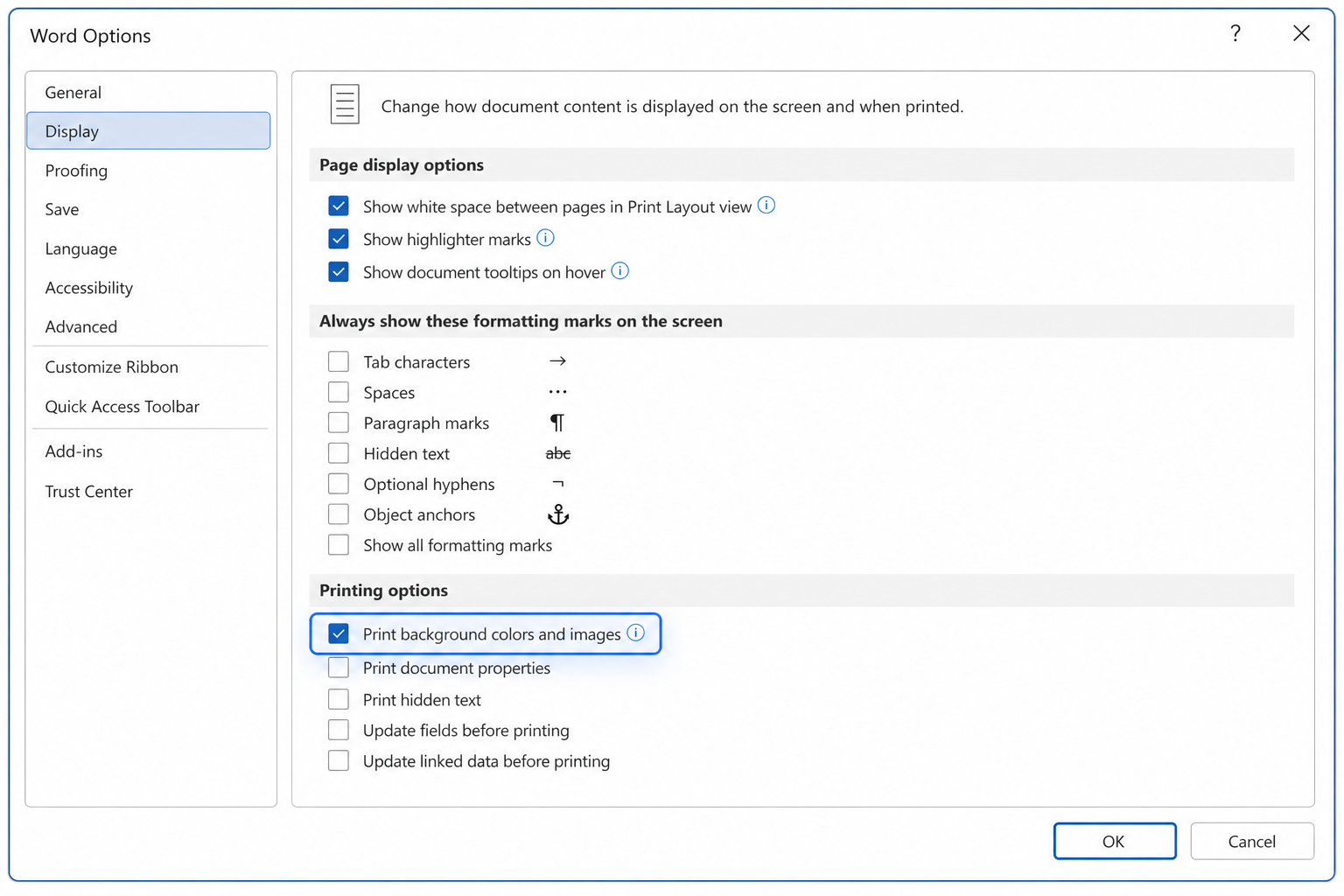
Go to File → Options → Display.
Under printing options, check Print background colors and images.
Click OK, then print or export again.
Free Method: Add a Background in WPS Writer
Word’s Design tools cover colors, fills, and pictures well, but section-based page styling and export checks can take extra steps. WPS Writer is a free, Word-compatible option for everyday page background work—solid colors, fills, and custom images—then save as .docx for Microsoft Word.
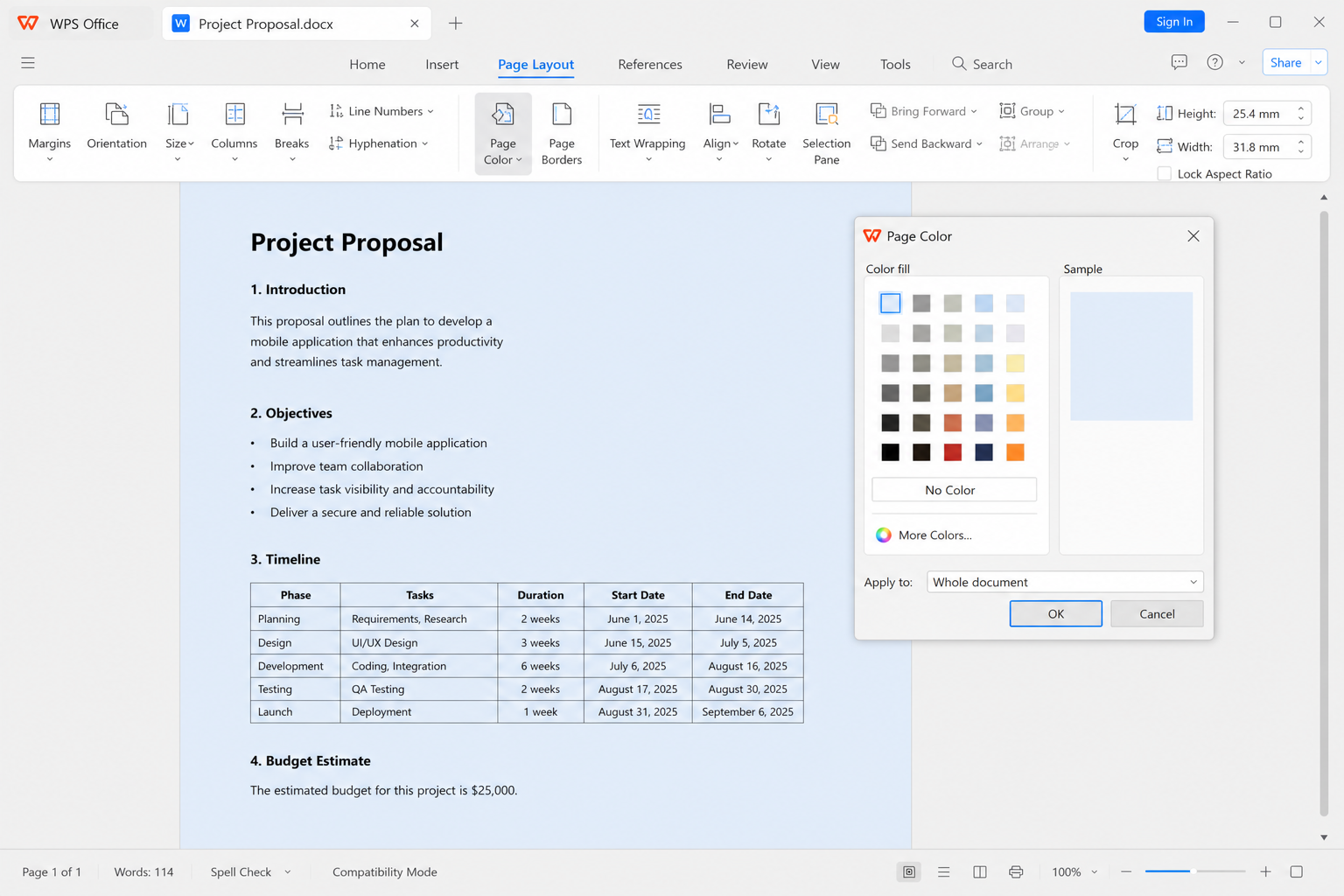
Open your document in WPS Writer.
Go to Page Layout (or the equivalent page setup / background area in your build).
Open Page Background / page color settings.
Apply a solid color, gradient, texture, or picture background.
Adjust transparency if available, so text stays readable.
Save as .docx, then print or export to PDF and verify the background still appears.
Straightforward page background tools — Color and image fills for daily documents
Readable text controls — Transparency options help balance design and readability
Strong Word compatibility — Share common .docx files with Word users
No paid subscription required — Core background tools for everyday use
FAQ
How do I add a background color in Word?
Go to Design → Page Color and pick a color. Use Fill Effects for gradients or textures.
How do I put an image behind the text in Word?
Use Design → Page Color → Fill Effects → Picture. That sets a true page background instead of a floating image on top of your text.
Why doesn’t my Word background print?
Background printing is off by default. Enable Print background colors and images under File → Options → Display.
Can WPS keep backgrounds when I open the file in Word?
Yes—for common page colors and picture fills, save as .docx and preview in Microsoft Word. Always check print/PDF output once before sharing.
Conclusion
To add a background to a Word document, start with Design → Page Color or Fill Effects for gradients, textures, and pictures. Use section breaks when only some pages need a different look, and turn on background printing before you print or export. If you want a simpler free workflow for everyday page styling, WPS Writer is a practical Word-compatible option—just verify the background in print and PDF before you send the final file.

'%3e%3cpath%20d='M19.9911%204.11386V6.471H18.5894C18.0775%206.471%2017.7322%206.57814%2017.5536%206.79243C17.3751%207.00671%2017.2858%207.32814%2017.2858%207.75671V9.44421H19.9019L19.5536%2012.0871H17.2858V18.8639H14.5536V12.0871H12.2769V9.44421H14.5536V7.49779C14.5536%206.39064%2014.8632%205.53201%2015.4822%204.92189C16.1013%204.31177%2016.9257%204.00671%2017.9554%204.00671C18.8304%204.00671%2019.509%204.04243%2019.9911%204.11386Z'%20fill='%23333333'/%3e%3c/g%3e%3cdefs%3e%3cclipPath%20id='clip0_2938_8199'%3e%3crect%20width='16'%20height='16'%20fill='white'%20transform='translate(8%204.00671)'/%3e%3c/clipPath%3e%3c/defs%3e%3c/svg%3e)
'%3e%3cpath%20d='M17.5237%2010.7813L23.4811%204H22.0699L16.8949%209.88693L12.7648%204H8L14.2469%2012.9029L8%2020.0133H9.4112L14.8725%2013.7952L19.2352%2020.0133H24M9.92053%205.04213H12.0885L22.0688%2019.0224H19.9003'%20fill='%23333333'/%3e%3c/g%3e%3cdefs%3e%3cclipPath%20id='clip0_2938_8200'%3e%3crect%20width='16'%20height='16.0134'%20fill='white'%20transform='translate(8%204)'/%3e%3c/clipPath%3e%3c/defs%3e%3c/svg%3e)


