

'%3e%3cpath%20d='M8%200C12.4183%200%2016%203.58172%2016%208C16%2012.4183%2012.4183%2016%208%2016C3.58172%2016%200%2012.4183%200%208C0%203.58172%203.58172%200%208%200ZM11.6162%204.38379C11.2257%203.99337%2010.5927%203.99338%2010.2021%204.38379L8%206.58594L5.79785%204.38379C5.40732%203.99334%204.77429%203.99329%204.38379%204.38379C3.99331%204.77429%203.99335%205.40733%204.38379%205.79785L6.58594%208L4.38379%2010.2021C3.99348%2010.5927%203.99341%2011.2257%204.38379%2011.6162C4.77426%2012.0066%205.40734%2012.0065%205.79785%2011.6162L8%209.41406L10.2021%2011.6162C10.5927%2012.0066%2011.2257%2012.0067%2011.6162%2011.6162C12.0067%2011.2257%2012.0066%2010.5927%2011.6162%2010.2021L9.41406%208L11.6162%205.79785C12.0066%205.40735%2012.0066%204.77429%2011.6162%204.38379Z'%20fill='%23080E17'%20fill-opacity='0.46'/%3e%3c/g%3e%3cdefs%3e%3cclipPath%20id='clip0_3761_713'%3e%3crect%20width='16'%20height='16'%20fill='white'/%3e%3c/clipPath%3e%3c/defs%3e%3c/svg%3e)



'%3e%3cpath%20fill-rule='evenodd'%20clip-rule='evenodd'%20d='M21.4999%2010.9993C21.4999%205.20009%2016.7986%200.498901%2010.9993%200.498901C5.19994%200.498901%200.498657%205.20009%200.498657%2010.9993C0.498657%2016.2404%204.33858%2020.5844%209.35855%2021.3722V14.0346H6.69238V10.9993H9.35855V8.68594C9.35855%206.05427%2010.9262%204.60062%2013.3248%204.60062C14.4736%204.60062%2015.6753%204.80571%2015.6753%204.80571V7.38979H14.3512C13.0468%207.38979%2012.64%208.19921%2012.64%209.0296V10.9993H15.5523L15.0867%2014.0346H12.64V21.3722C17.66%2020.5844%2021.4999%2016.2404%2021.4999%2010.9993Z'%20fill='%231568EA'/%3e%3c/g%3e%3c/svg%3e)


'%3e%3cpath%20d='M2.42045%2022.1876H6.31818V12.7217L0.75%208.54553V20.5171C0.75%2021.4414%201.49892%2022.1876%202.42045%2022.1876Z'%20fill='%234285F4'/%3e%3cpath%20d='M19.682%2022.1876H23.5797C24.5041%2022.1876%2025.2502%2021.4387%2025.2502%2020.5171V8.54553L19.682%2012.7217'%20fill='%2334A853'/%3e%3cpath%20d='M19.682%205.48293V12.7216L25.2502%208.54543V6.31816C25.2502%204.25236%2022.8921%203.07469%2021.2411%204.31361'%20fill='%23FBBC04'/%3e%3cpath%20d='M6.31824%2012.7217V5.48303L13.0001%2010.4944L19.6819%205.48303V12.7217L13.0001%2017.733'%20fill='%23EA4335'/%3e%3cpath%20d='M0.75%206.31816V8.54543L6.31818%2012.7216V5.48293L4.75909%204.31361C3.10534%203.07469%200.75%204.25236%200.75%206.31816Z'%20fill='%23C5221F'/%3e%3c/g%3e%3cdefs%3e%3cclipPath%20id='clip0_2954_7305'%3e%3crect%20width='24.5'%20height='18.375'%20fill='white'%20transform='translate(0.75%203.8125)'/%3e%3c/clipPath%3e%3c/defs%3e%3c/svg%3e)


You typed “brighten image” because that photo you love, family laughing in dim light, a product shot looking lifeless, or vacation memories buried in shadow, turned out too dark and you’re done wasting time. You need a free, one-click fix right now on your phone or laptop, no downloads, no sign-ups, no ugly watermarks or ruined colors. This 2025 guide hands you exactly that: super-smart AI tools that scan your pic, lift just the shadows, and give you back a bright, natural shot ready for Instagram, Etsy, or your lock screen in seconds. Let’s bring those hidden gems back to life.
Part 1: Top Free Tools to Brighten Images Online


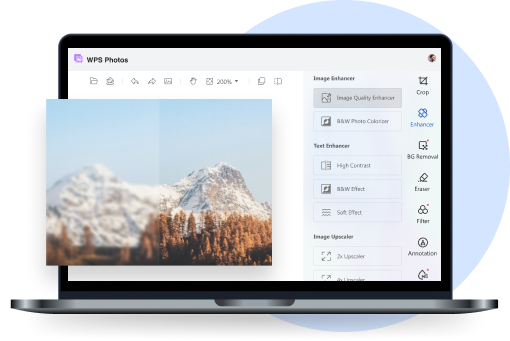
1. WPS Photos (AI-powered & beginner-friendly)

I use WPS Photos all day long. It sits inside the free WPS Office I already run for docs and spreadsheets, so zero extra apps or learning. Drag in a dark shot, tap "AI Brighten," and in three seconds shadows lift, highlights stay clean, skin tones look human, no orange disasters. I have rescued noisy concert pics, backlit selfies, and faded 1998 family scans that were yellow and flat. Batch mode fixes 150 raw files while I make tea. That is why it is my clear number one.
How to brighten an image online (or offline) with WPS Photos - 25 seconds
Step 1: Open floder have image
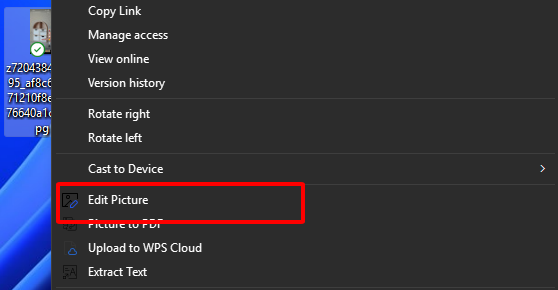
Step 2: Drag your dark photo onto the canvas or click "Open".
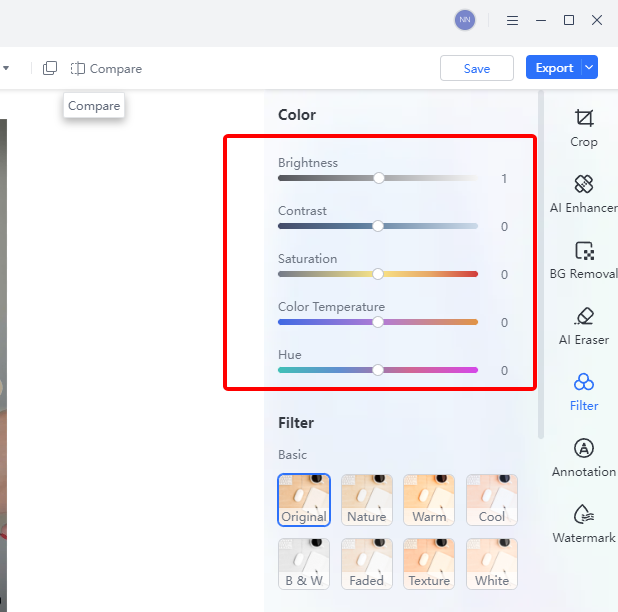
Step 3: Tap the glowing "Filter and color" button at the top. Preview updates instantly.
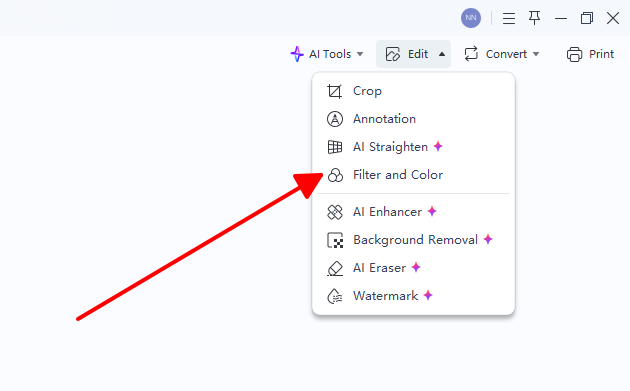
Step 4 (optional): Slide Brightness +15, Contrast +20, Saturation +8 for a personal touch.
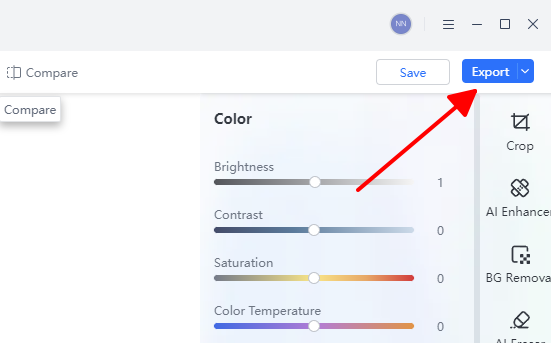
Step 5: Click "Export". Choose PNG for transparency or JPG 100 % quality. Done.
Last month I rescued 87 underexposed night-market shots from Thailand. Batch mode + AI Brighten = four minutes total. Colors stayed rich, noise stayed low, friends swore I hired a pro.
2. Canva

Canva is where I go when a dark photo needs to live in an Instagram post or slide. The brightness slider is right there with crop, so one quick drag and the dull shot suddenly pops against the template. It even nudges contrast and saturation for me so nothing looks washed out. Two minutes later the pic is bright, placed, and ready to post. Super handy.
Quick steps
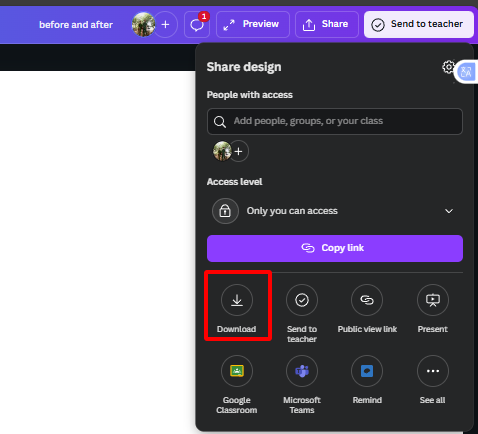
Step 1: Go to canva.com. Uploads. Drop your photo.

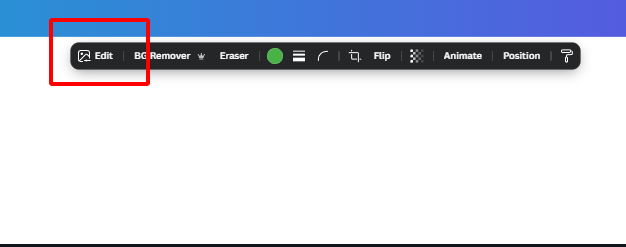
Step 2: Click the image. "Edit". "Adjust".
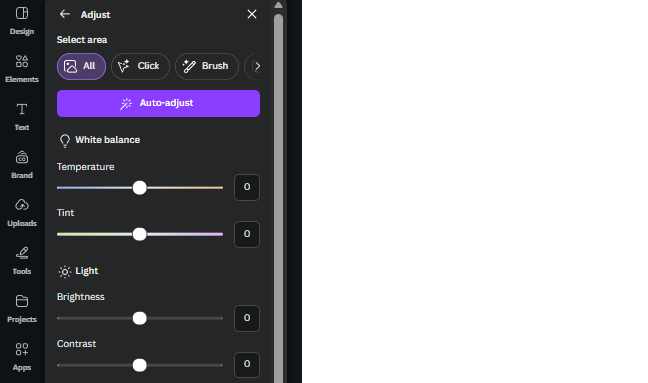
Step 3: Drag Brightness +40-60, Contrast +20.
Step 4: Download. No watermark on personal projects.
3. Fotor

Fotor became my hero for indoor portraits and evening street shots where shadows swallow half the face. The "1-Tap Enhance" button analyzes every dark corner and lifts detail without introducing grain or purple fringing. I often use it on photos taken in museums or dimly lit restaurants where flash is banned. The dehaze slider is stronger than most free tools, cutting through that murky veil you get from phone cameras at night.
Quick steps
Step 1: fotor.com. "Edit a Photo".
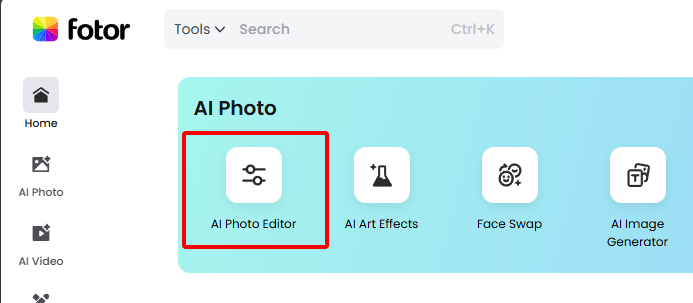
Step 2: Upload. "AI Tools". "Enhance".
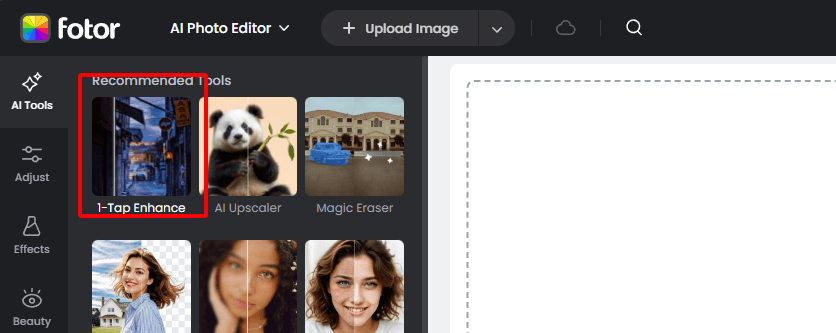
Step 3: Fine-tune Brightness/Exposure. Apply. Save.

4. PhotoRoom

PhotoRoom is the reason my Etsy listings went from amateur to professional overnight. Upload a product shot on any background, hit "Brighten + Remove BG", and two seconds later I have a perfectly lit item floating on pure white. The AI understands reflective surfaces and glass, so jewelry and phone cases never lose their sparkle when brightened. I process 30 listings in the time other tools take for one.
How to brighten dark photos free with PhotoRoom - 15 seconds
Step 1: Go to photoroom.com or open the app.

Step 2: Upload your product photo.
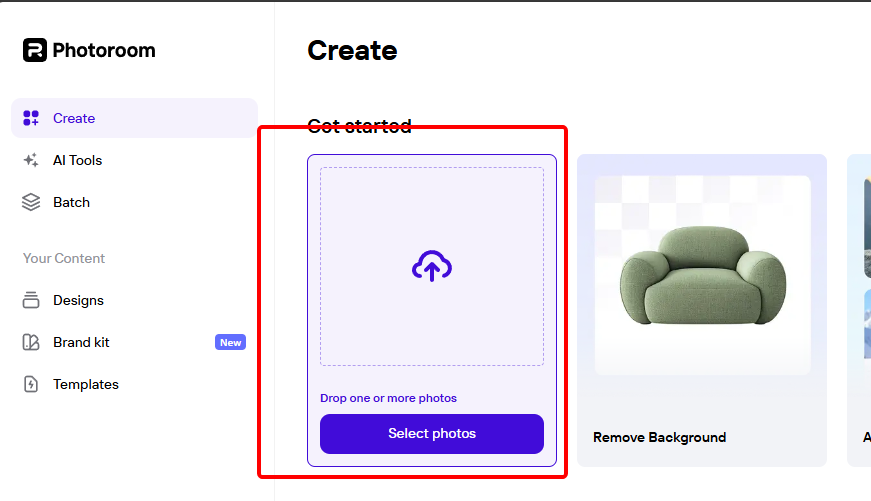
Step 3: Tap "Brighten + Remove BG" (or drag the brightness slider under "Retouch").
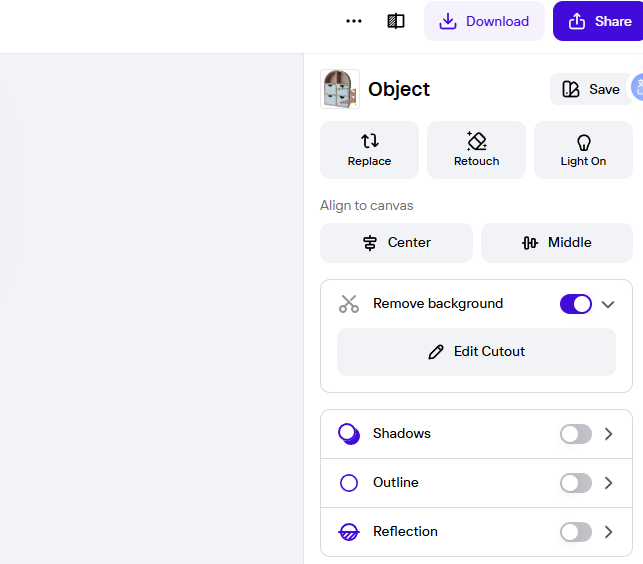
Step 4: Download instantly - crisp white background, perfect light.
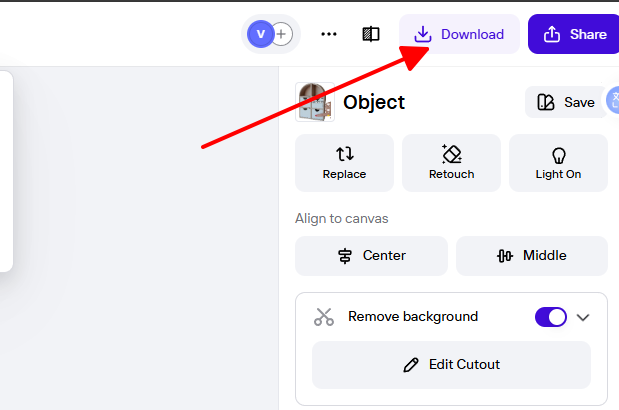
I turned 50 dull phone shots of handmade candles into glowing Etsy listings in one coffee break. Customers said they looked "studio-lit." Magic.
5. Picsart - Creative Power + Batch

Picsart is where I go when I want to brighten fifty vacation photos and add a sunset filter at the same time. The mobile app lets me select an entire album, apply AI brighten, then batch-apply dispersion effects or stickers. Manual sliders go up to +200, giving total control for dramatic looks. The community remix feature is addictive once you start seeing what others do with the same dark shot.
How to brighten dark photos free with Picsart - 20 seconds
Step 1: Open picsart.com or the app → "Edit".

Step 2: Upload or pick multiple photos.

Step 3: Tap "Tools" → "Adjust" → slide Brightness +50-80 (or hit "AI Enhance" first).
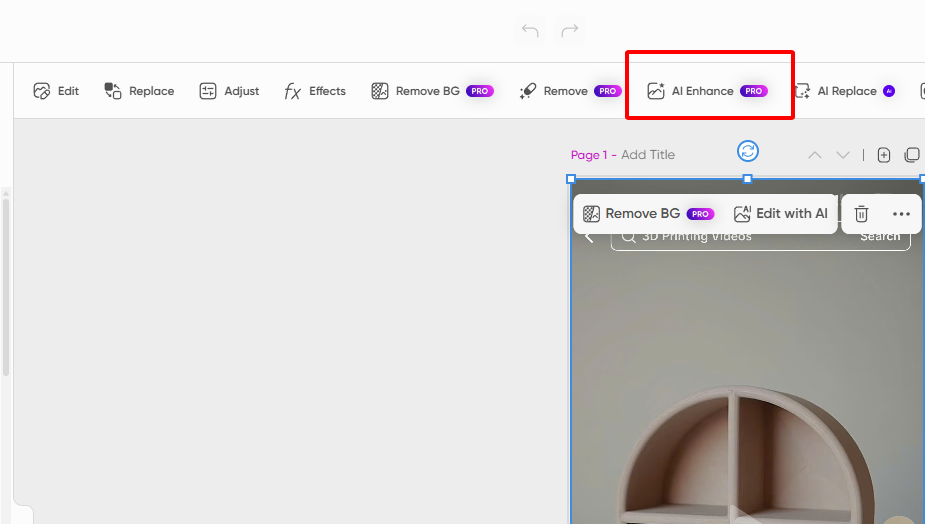
Step 4: Add a filter if you feel fancy → "Apply to all" → Save without watermark after the quick ad.
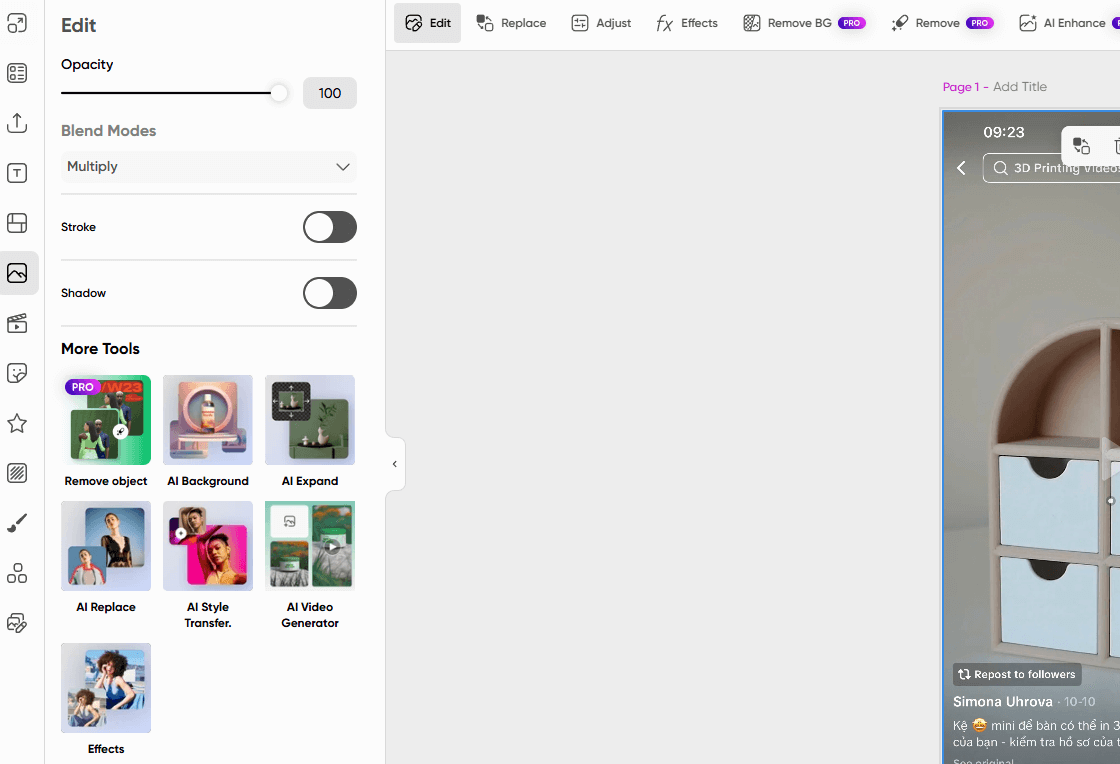
I turned 60 rainy Berlin shots into sunny postcard vibes in one train ride. Friends asked which camera I used. Told them just Picsart and a thumb.
Part 2: Pro Tips to Avoid Washed-Out Nightmares
After brightening thousands of images, here is what actually works:
Part 3: Comparison Table - Choose Your Weapon (2025)
| Tool Name | AI Support | Manual Control | Platform | Ease of Use | Best For |
|---|---|---|---|---|---|
| WPS Photos | 5/5 | 4/5 | Web / Win / Mac / Linux / Mobile | 5/5 | Everyday + batch |
| Canva | 3/5 | 4/5 | Web only | 5/5 | Social-media graphics |
| Fotor | 4/5 | 4/5 | Web + App | 4/5 | Shadow recovery |
| PhotoRoom | 4/5 | 2/5 | Web + Mobile | 5/5 | Product photos |
| Picsart | 4/5 | 5/5 | Web + Mobile | 4/5 | Creative batch editing |
FAQs - Straight Answers
Q1: What is the easiest way to brighten an image online?
A: WPS Photos web. Just drag, click "AI Brighten", done in 5 seconds.
Q2: How can I brighten dark photos without losing quality?
A: Use histogram-aware AI (WPS Photos or Fotor). They lift shadows selectively instead of blasting everything.
Q3: Can I brighten multiple photos at once?
A: Yes. WPS Photos desktop handles 200+ files in one batch.
Q4: Is AI brightening better than manual sliders?
A: For speed and safety, yes. AI protects highlights better than most humans on first try.
Q5: Will these tools fix old, yellowed scanned photos?
A: WPS Photos' AI auto-removes yellow cast and balances faded colors. Results look 30 years younger.
Q6: Any tool that is truly free with zero ads AND zero watermarks?
A: WPS Photos desktop and web. Clean, unlimited, forever.

'%3e%3cpath%20d='M19.9911%204.11386V6.471H18.5894C18.0775%206.471%2017.7322%206.57814%2017.5536%206.79243C17.3751%207.00671%2017.2858%207.32814%2017.2858%207.75671V9.44421H19.9019L19.5536%2012.0871H17.2858V18.8639H14.5536V12.0871H12.2769V9.44421H14.5536V7.49779C14.5536%206.39064%2014.8632%205.53201%2015.4822%204.92189C16.1013%204.31177%2016.9257%204.00671%2017.9554%204.00671C18.8304%204.00671%2019.509%204.04243%2019.9911%204.11386Z'%20fill='%23333333'/%3e%3c/g%3e%3cdefs%3e%3cclipPath%20id='clip0_2938_8199'%3e%3crect%20width='16'%20height='16'%20fill='white'%20transform='translate(8%204.00671)'/%3e%3c/clipPath%3e%3c/defs%3e%3c/svg%3e)
'%3e%3cpath%20d='M17.5237%2010.7813L23.4811%204H22.0699L16.8949%209.88693L12.7648%204H8L14.2469%2012.9029L8%2020.0133H9.4112L14.8725%2013.7952L19.2352%2020.0133H24M9.92053%205.04213H12.0885L22.0688%2019.0224H19.9003'%20fill='%23333333'/%3e%3c/g%3e%3cdefs%3e%3cclipPath%20id='clip0_2938_8200'%3e%3crect%20width='16'%20height='16.0134'%20fill='white'%20transform='translate(8%204)'/%3e%3c/clipPath%3e%3c/defs%3e%3c/svg%3e)


