



'%3e%3cpath%20fill-rule='evenodd'%20clip-rule='evenodd'%20d='M21.4999%2010.9993C21.4999%205.20009%2016.7986%200.498901%2010.9993%200.498901C5.19994%200.498901%200.498657%205.20009%200.498657%2010.9993C0.498657%2016.2404%204.33858%2020.5844%209.35855%2021.3722V14.0346H6.69238V10.9993H9.35855V8.68594C9.35855%206.05427%2010.9262%204.60062%2013.3248%204.60062C14.4736%204.60062%2015.6753%204.80571%2015.6753%204.80571V7.38979H14.3512C13.0468%207.38979%2012.64%208.19921%2012.64%209.0296V10.9993H15.5523L15.0867%2014.0346H12.64V21.3722C17.66%2020.5844%2021.4999%2016.2404%2021.4999%2010.9993Z'%20fill='%231568EA'/%3e%3c/g%3e%3c/svg%3e)


'%3e%3cpath%20d='M2.42045%2022.1876H6.31818V12.7217L0.75%208.54553V20.5171C0.75%2021.4414%201.49892%2022.1876%202.42045%2022.1876Z'%20fill='%234285F4'/%3e%3cpath%20d='M19.682%2022.1876H23.5797C24.5041%2022.1876%2025.2502%2021.4387%2025.2502%2020.5171V8.54553L19.682%2012.7217'%20fill='%2334A853'/%3e%3cpath%20d='M19.682%205.48293V12.7216L25.2502%208.54543V6.31816C25.2502%204.25236%2022.8921%203.07469%2021.2411%204.31361'%20fill='%23FBBC04'/%3e%3cpath%20d='M6.31824%2012.7217V5.48303L13.0001%2010.4944L19.6819%205.48303V12.7217L13.0001%2017.733'%20fill='%23EA4335'/%3e%3cpath%20d='M0.75%206.31816V8.54543L6.31818%2012.7216V5.48293L4.75909%204.31361C3.10534%203.07469%200.75%204.25236%200.75%206.31816Z'%20fill='%23C5221F'/%3e%3c/g%3e%3cdefs%3e%3cclipPath%20id='clip0_2954_7305'%3e%3crect%20width='24.5'%20height='18.375'%20fill='white'%20transform='translate(0.75%203.8125)'/%3e%3c/clipPath%3e%3c/defs%3e%3c/svg%3e)


Misaligned pictures can make a Word document look unfinished. Centering an image is a basic formatting skill for balanced reports, assignments, flyers, and cover pages. Beginners often hit grayed-out Align buttons, pictures that will not stay put, or vertical centering that seems to do nothing. This guide shows how to center an image horizontally and vertically in Word, center several pictures at once, fix common issues, and use a free Word-compatible option in WPS Writer.


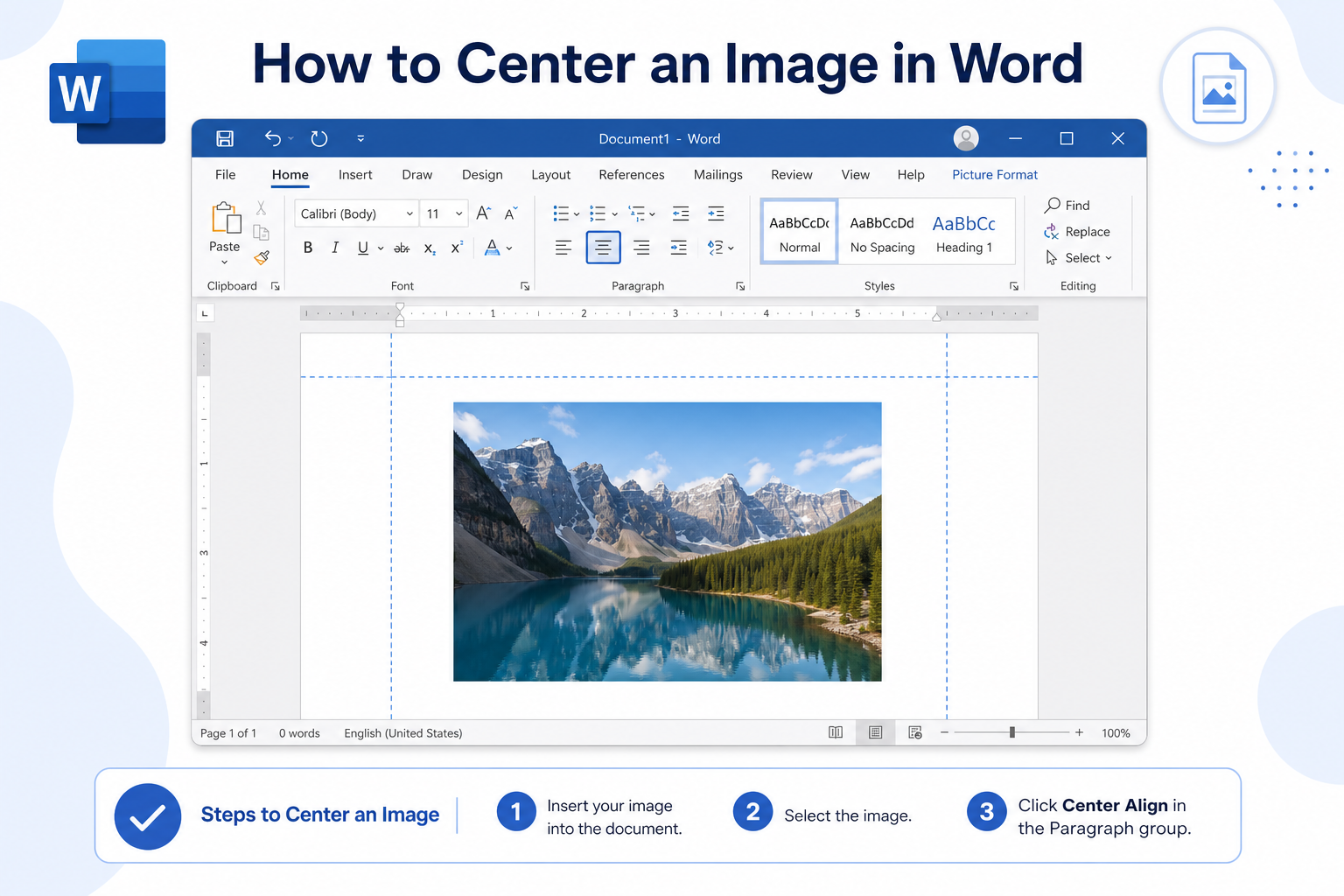
Quick answer: Select the image → set Wrap Text to Square or Tight (not In Line with Text) → go to Picture Format → Align → Align Center. For vertical centering on the page, also choose Align Middle (and turn on Align to Page when available).
Horizontal vs. Vertical Image Centering
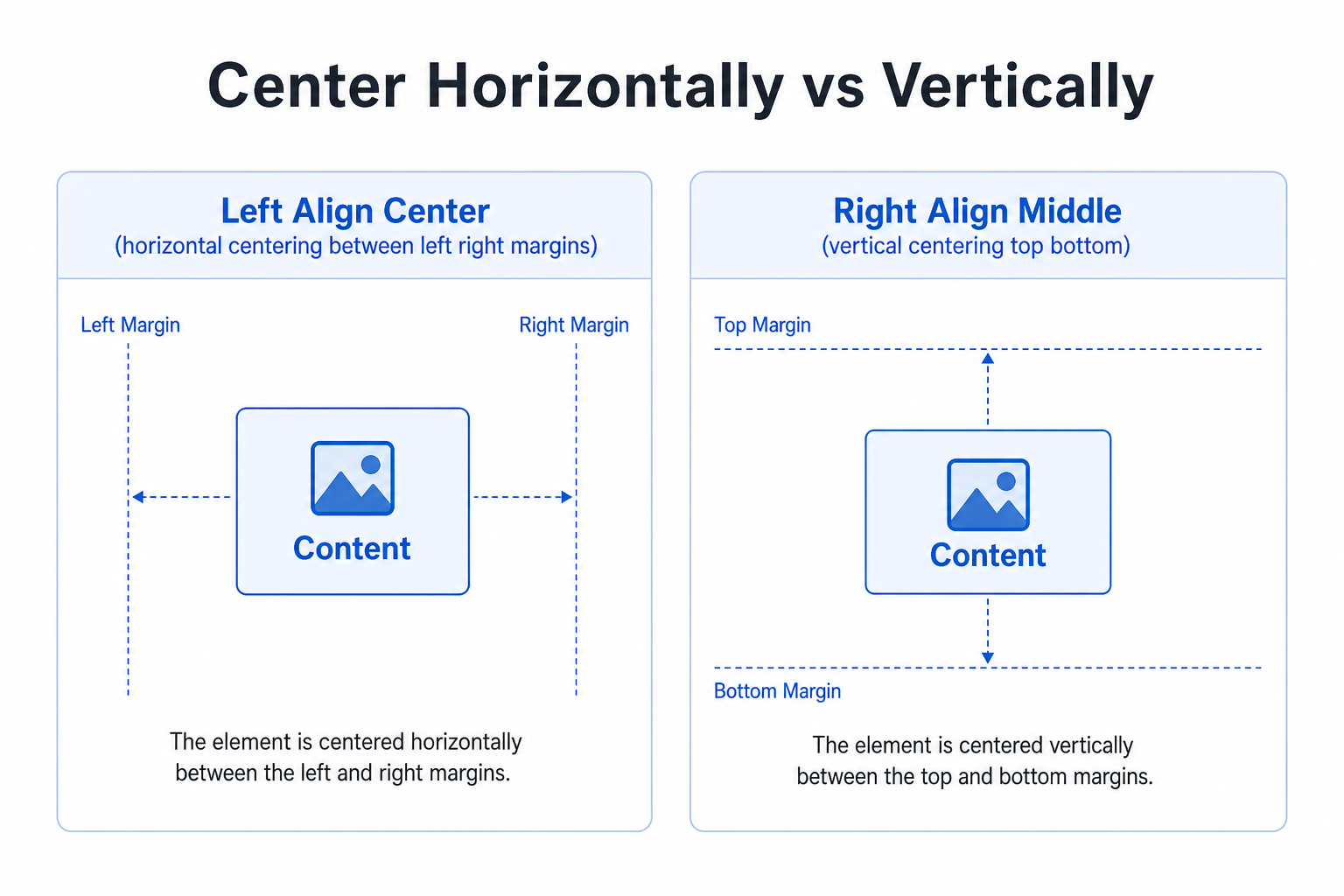
| Goal | What it does | Main command |
|---|---|---|
| Horizontal center | Centers left to right between the margins | Align Center |
| Vertical center | Centers between the top and bottom of the page | Align Middle (with Align to Page) |
| True page center | Combines both | Align Center + Align Middle |
Important: Full Align tools usually need a floating wrap style. If the picture is still In Line with Text, many center options stay grayed out or only affect the paragraph, not free page placement.
How to Center an Image Horizontally in Word
These steps work in Word 2016, 2019, 2021, and Microsoft 365.
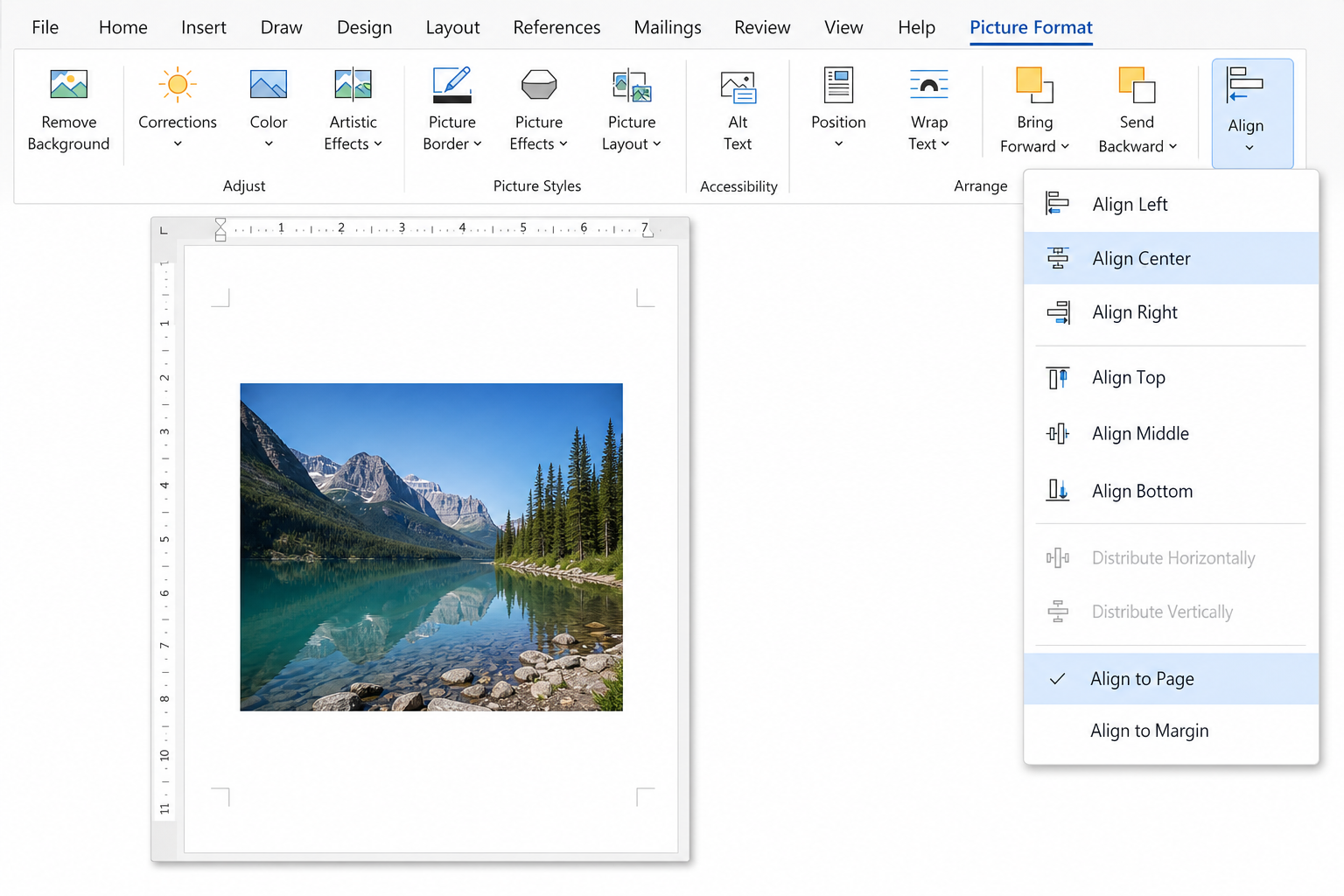
Select the image.
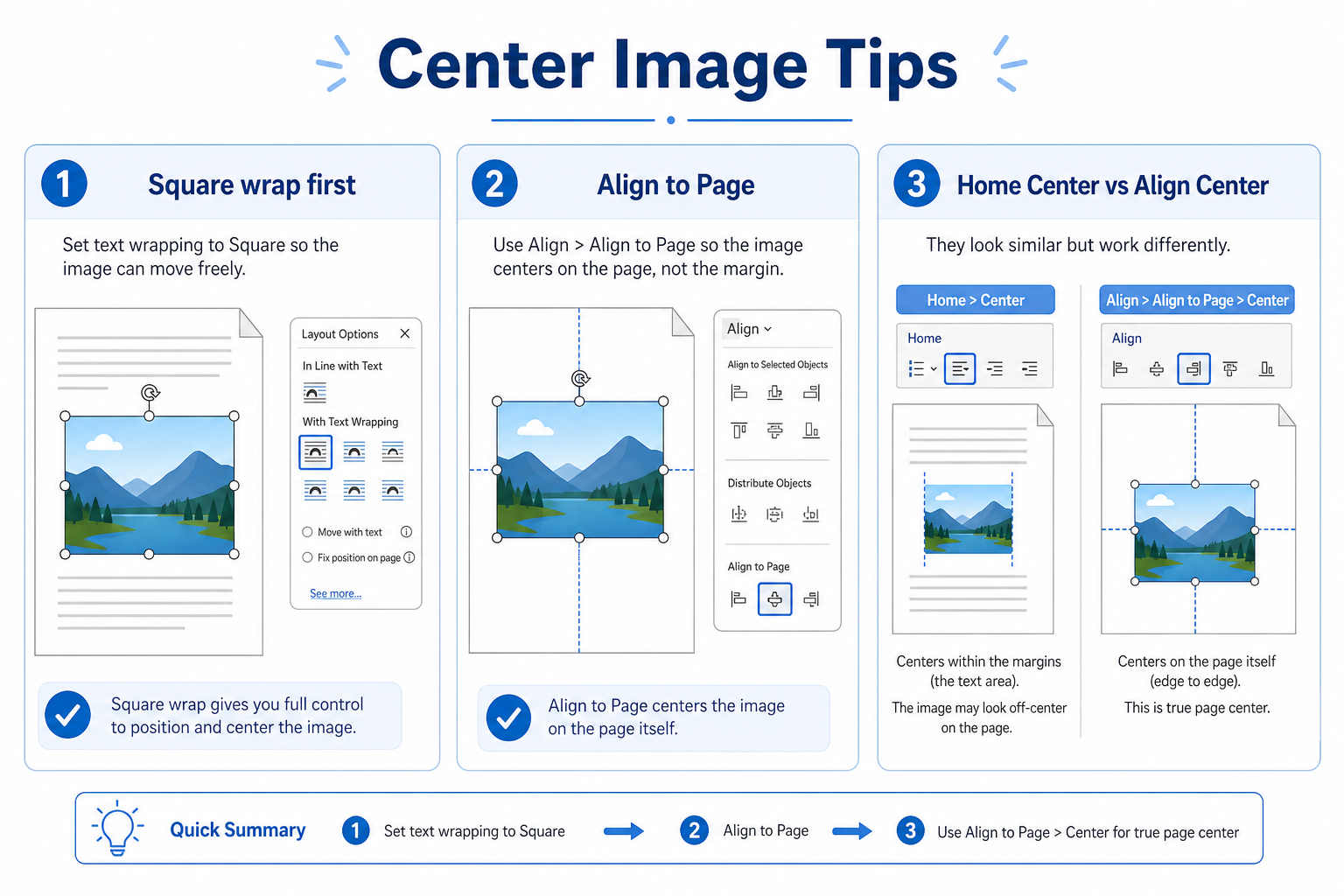
Go to Picture Format → Wrap Text and choose Square or Tight.
Open Picture Format → Align.
If you see the option, choose Align to Page (or Align to Margin, depending on the look you want).
Click Align Center.
Tip: For a quick paragraph-centered inline look, you can keep In Line with Text and click Home → Center. That centers the image within the paragraph line—not the same as free page alignment with Align Center.
How to Center an Image Vertically on the Page
Vertical centering works best for cover pages, title banners, and sparse formal layouts.
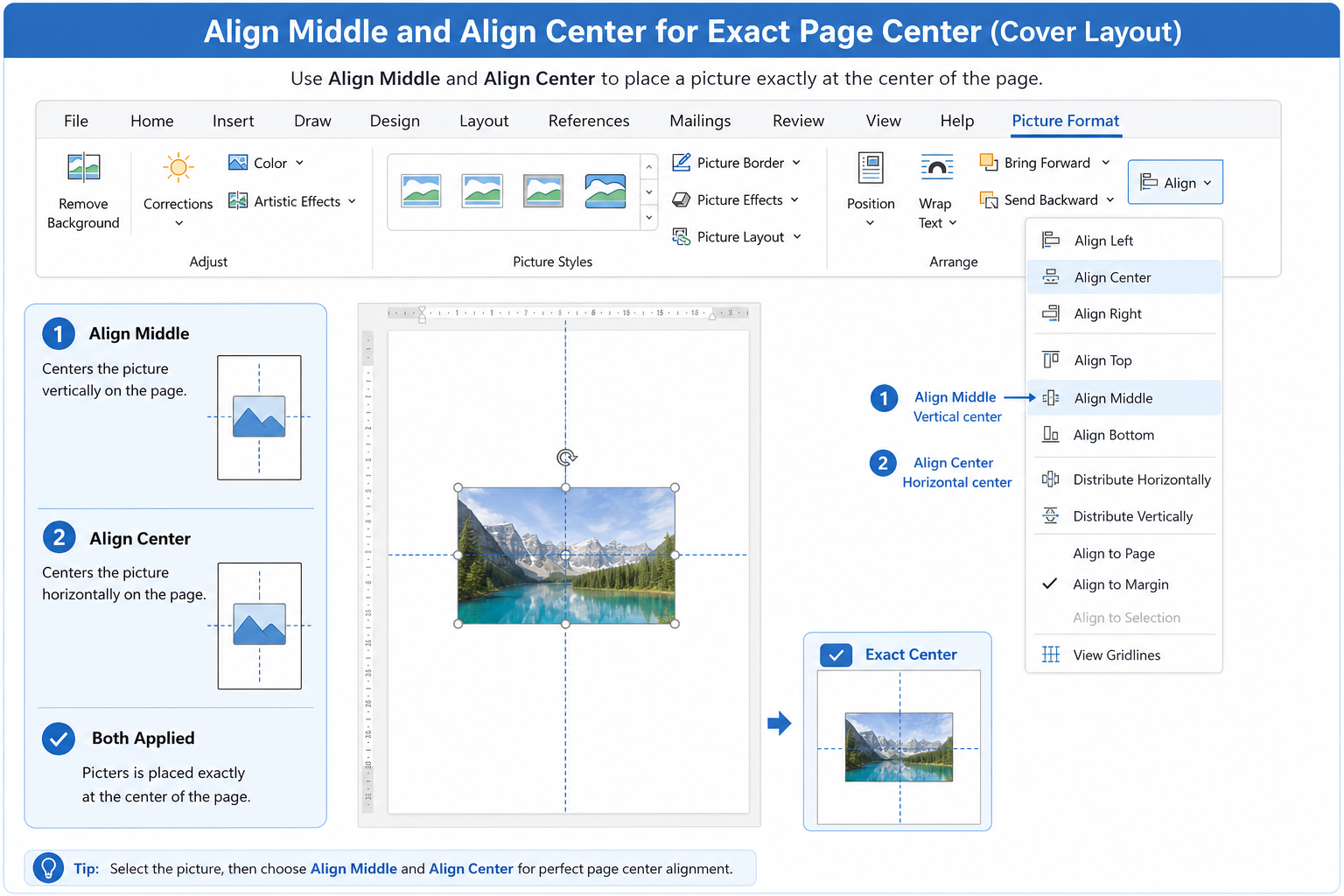
Select the image and set wrap to Square (or another floating style).
Go to Picture Format → Align.
Choose Align to Page when available.
Click Align Middle.
Optional: also click Align Center to place the picture in the exact middle of the page.
Note: Vertical page centering does not work well while the picture stays In Line with Text, because inline images are locked to the text line.
How to Center Multiple Images at Once
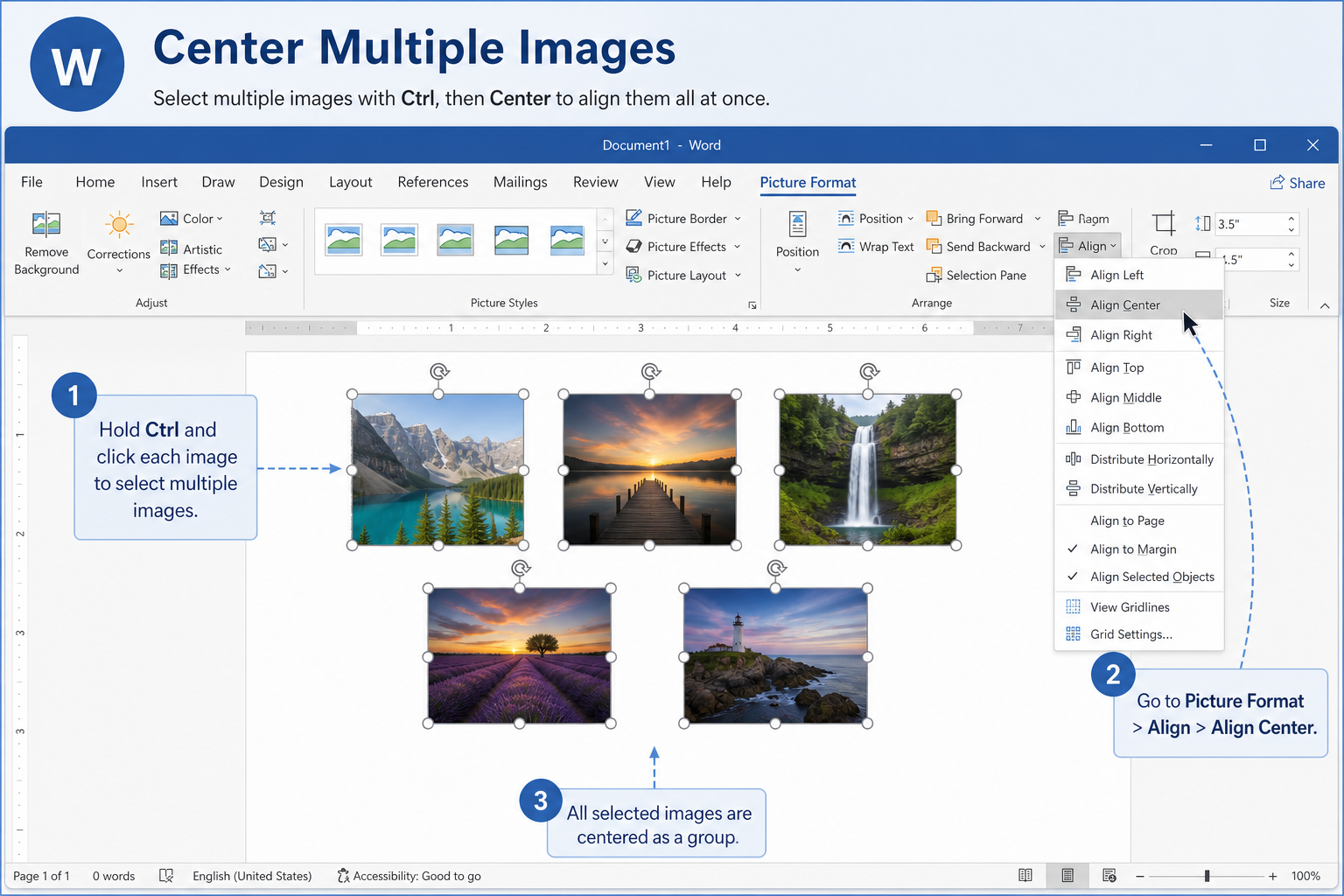
Hold Ctrl (Windows) or Command (Mac) and select each picture.
Set every selected image to the same wrap style (Square or Tight).
Open Picture Format → Align.
Choose Align Center (and Align Middle if you also want vertical centering).
If the images should form an even row first, use Distribute Horizontally after centering, or align them relative to each other before aligning to the page.
Common Image Centering Issues and Fixes
| Problem | What to try |
|---|---|
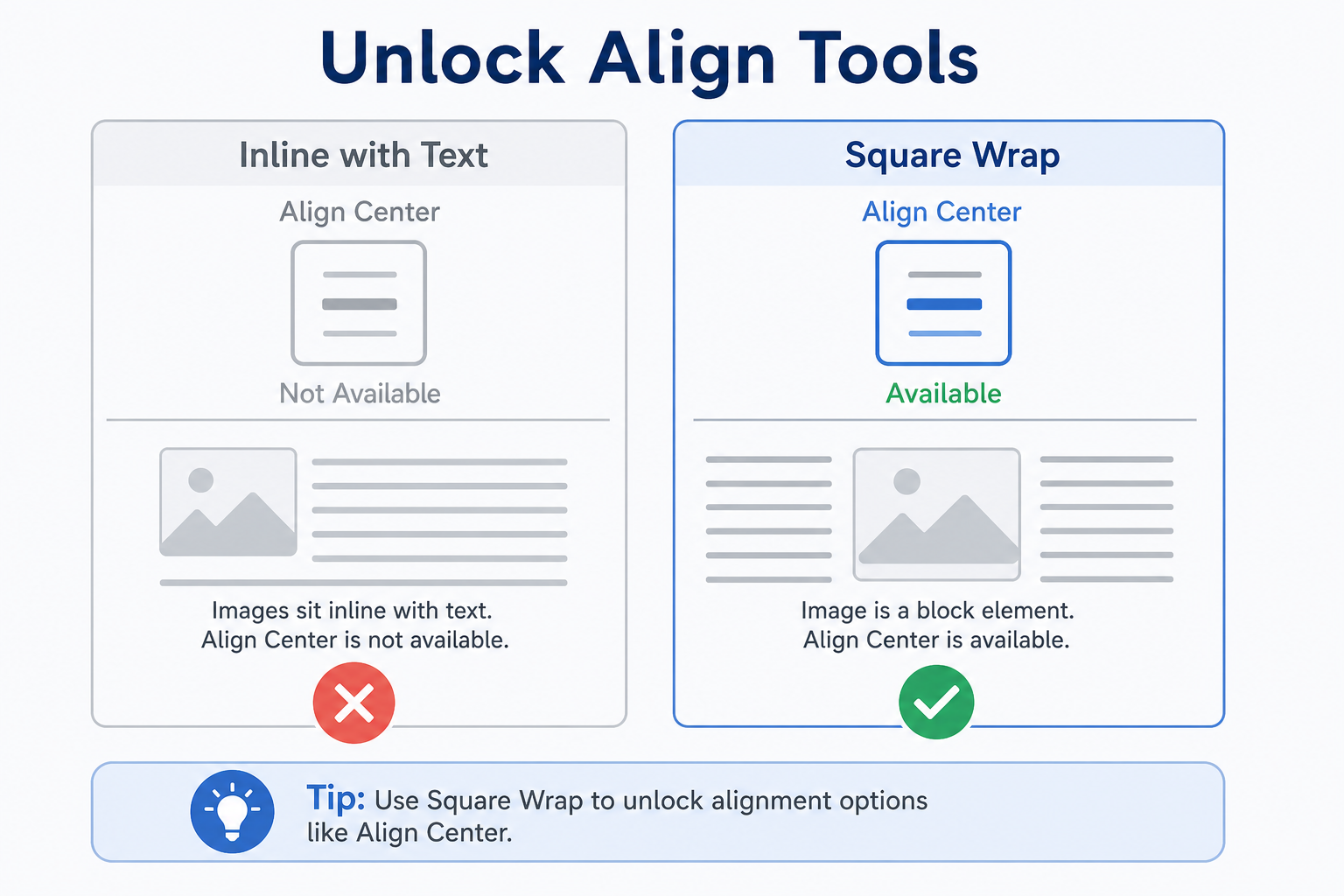
| Align Center is grayed out | Change wrap from In Line with Text to Square or Tight |
| Image will not stay centered | Use floating wrap; check the anchor; lock the anchor in More Layout Options if available |
| Vertical center seems broken | Confirm wrap is floating, then use Align Middle with Align to Page |
| Centered in the paragraph, not on the page | You used Home → Center on an inline image—switch to Align Center with page alignment |
| Multiple images center as one cluster | Align each image, or distribute them first, then center the group |
Unlock Align when the button is grayed out
Select the image.
Open Picture Format → Wrap Text.
Choose Square or Tight.
Return to Align → Align Center.
Free Method: Center Images in WPS Writer
Word’s Align tools cover everyday centering once wrap is set correctly. If you prefer a simpler picture toolbar for quick horizontal and vertical alignment, WPS Writer is a free, Word-compatible option for centering one image or several at once.
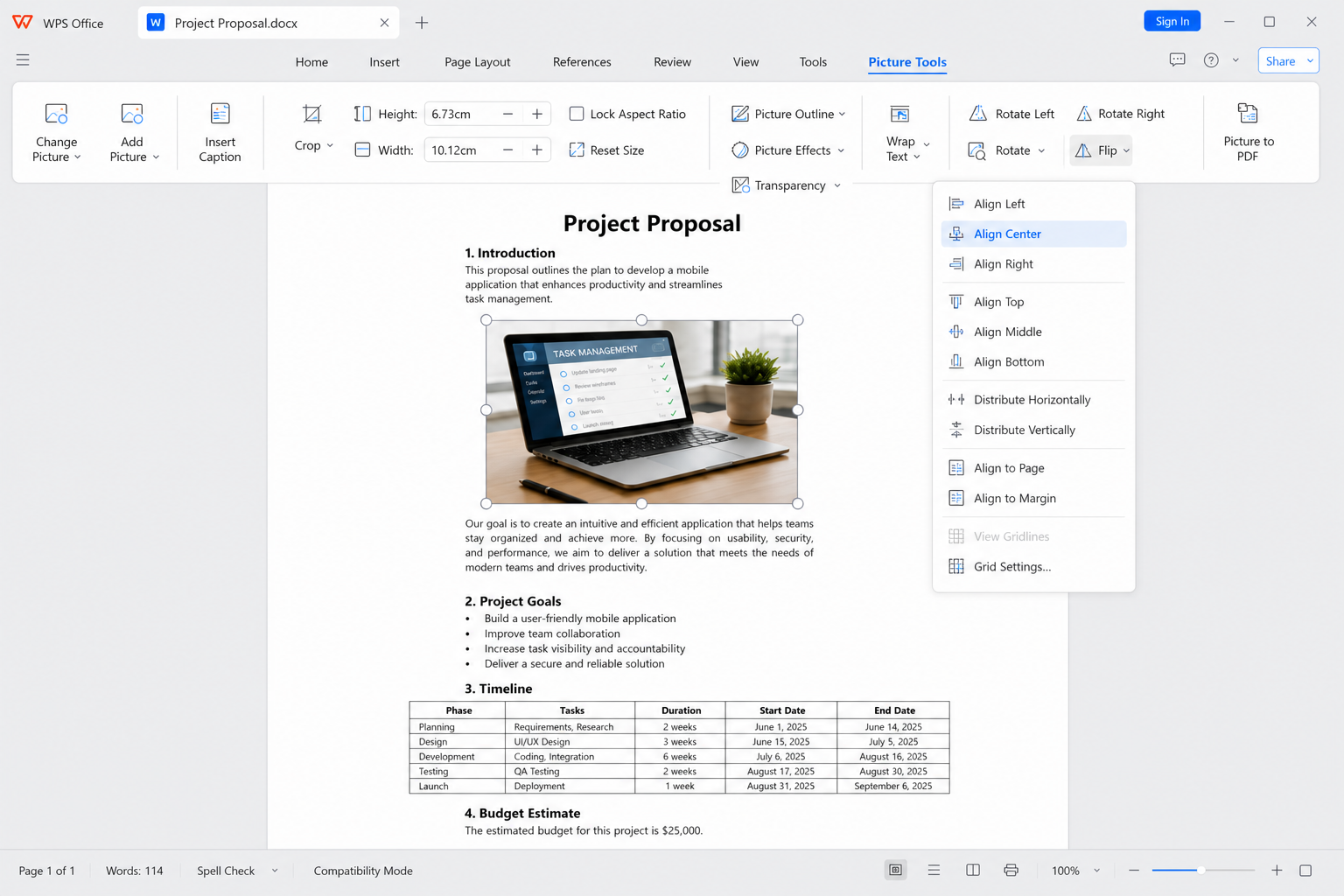
Open your document in WPS Writer.
Select one image or multi-select several.
Set a floating wrap style if needed.
Open the Align / alignment menu and choose center (and middle for vertical centering).
Save as .docx when you need to share the file in Microsoft Word.
Clear alignment controls — Center pictures without hunting for hidden options
Horizontal and vertical options — Useful for covers and balanced report layouts
Strong Word compatibility — Share common .docx files with Word users
No paid subscription required — Core picture tools for daily documents
FAQ
How do I center an image in Word?
Select the picture → set Wrap Text to Square or Tight → Picture Format → Align → Align Center.
Why is Align Center grayed out?
The image is probably In Line with Text. Change the wrap style to a floating option like Square, then try Align again.
How do I put an image in the exact middle of the page?
Use a floating wrap style, then apply Align Center and Align Middle with Align to Page selected.
Do centered images from WPS stay centered in Microsoft Word?
Yes—for common wrap and alignment settings, save as .docx and preview in Word once before sharing.
Conclusion
To center an image in Word, switch off In Line with Text, then use Align Center for horizontal centering and Align Middle for vertical page centering. Batch-select pictures when you need a consistent look, and lock anchors if a floating image keeps drifting. If you want a simpler free workflow for everyday alignment, WPS Writer is a practical Word-compatible option.

'%3e%3cpath%20d='M19.9911%204.11386V6.471H18.5894C18.0775%206.471%2017.7322%206.57814%2017.5536%206.79243C17.3751%207.00671%2017.2858%207.32814%2017.2858%207.75671V9.44421H19.9019L19.5536%2012.0871H17.2858V18.8639H14.5536V12.0871H12.2769V9.44421H14.5536V7.49779C14.5536%206.39064%2014.8632%205.53201%2015.4822%204.92189C16.1013%204.31177%2016.9257%204.00671%2017.9554%204.00671C18.8304%204.00671%2019.509%204.04243%2019.9911%204.11386Z'%20fill='%23333333'/%3e%3c/g%3e%3cdefs%3e%3cclipPath%20id='clip0_2938_8199'%3e%3crect%20width='16'%20height='16'%20fill='white'%20transform='translate(8%204.00671)'/%3e%3c/clipPath%3e%3c/defs%3e%3c/svg%3e)
'%3e%3cpath%20d='M17.5237%2010.7813L23.4811%204H22.0699L16.8949%209.88693L12.7648%204H8L14.2469%2012.9029L8%2020.0133H9.4112L14.8725%2013.7952L19.2352%2020.0133H24M9.92053%205.04213H12.0885L22.0688%2019.0224H19.9003'%20fill='%23333333'/%3e%3c/g%3e%3cdefs%3e%3cclipPath%20id='clip0_2938_8200'%3e%3crect%20width='16'%20height='16.0134'%20fill='white'%20transform='translate(8%204)'/%3e%3c/clipPath%3e%3c/defs%3e%3c/svg%3e)


