
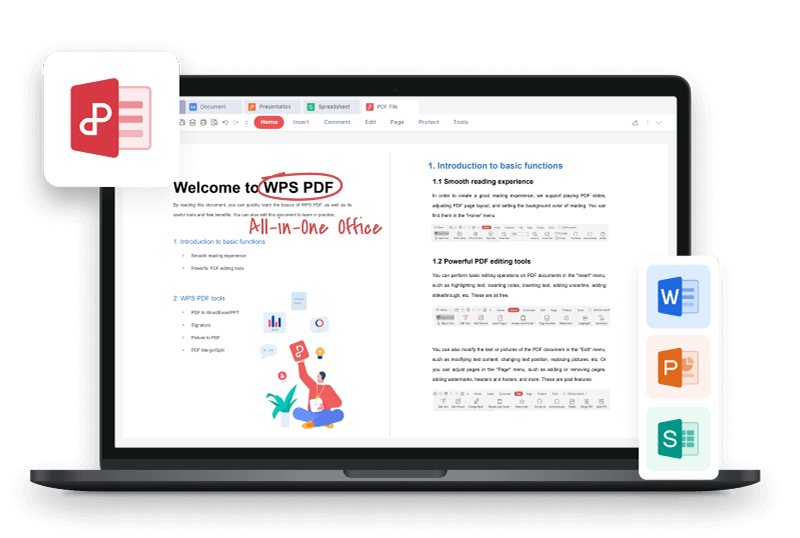


An OXPS file can be difficult to open outside the Windows environment that created it. Converting a copy to PDF makes the fixed-layout document easier to share, print, archive, and review on more devices.
This guide explains the reliable Windows print method, safe converter checks, and how WPS Office improves the PDF after the OXPS-to-PDF conversion.
How to Convert OXPS to PDF
Convert OXPS to PDF with Windows Print
The most dependable local route is to open the OXPS file in a compatible Windows viewer and print it through Microsoft Print to PDF. OXPS is a fixed-layout OpenXPS document, so printing creates a PDF representation of the pages rather than an editable source file.
Right-click the .oxps file and choose an installed XPS-compatible viewer. If Windows does not offer one, open Optional Features and check whether XPS Viewer is available for your Windows edition.
Open Print in the viewer.
Select Microsoft Print to PDF as the printer.
Confirm page range, orientation, paper size, and scaling.
Click Print, choose a destination, and save the new PDF.
Reopen the PDF and compare the first, middle, and last pages. Pay close attention to clipped margins, custom paper sizes, uncommon fonts, transparent objects, and hyperlinks.
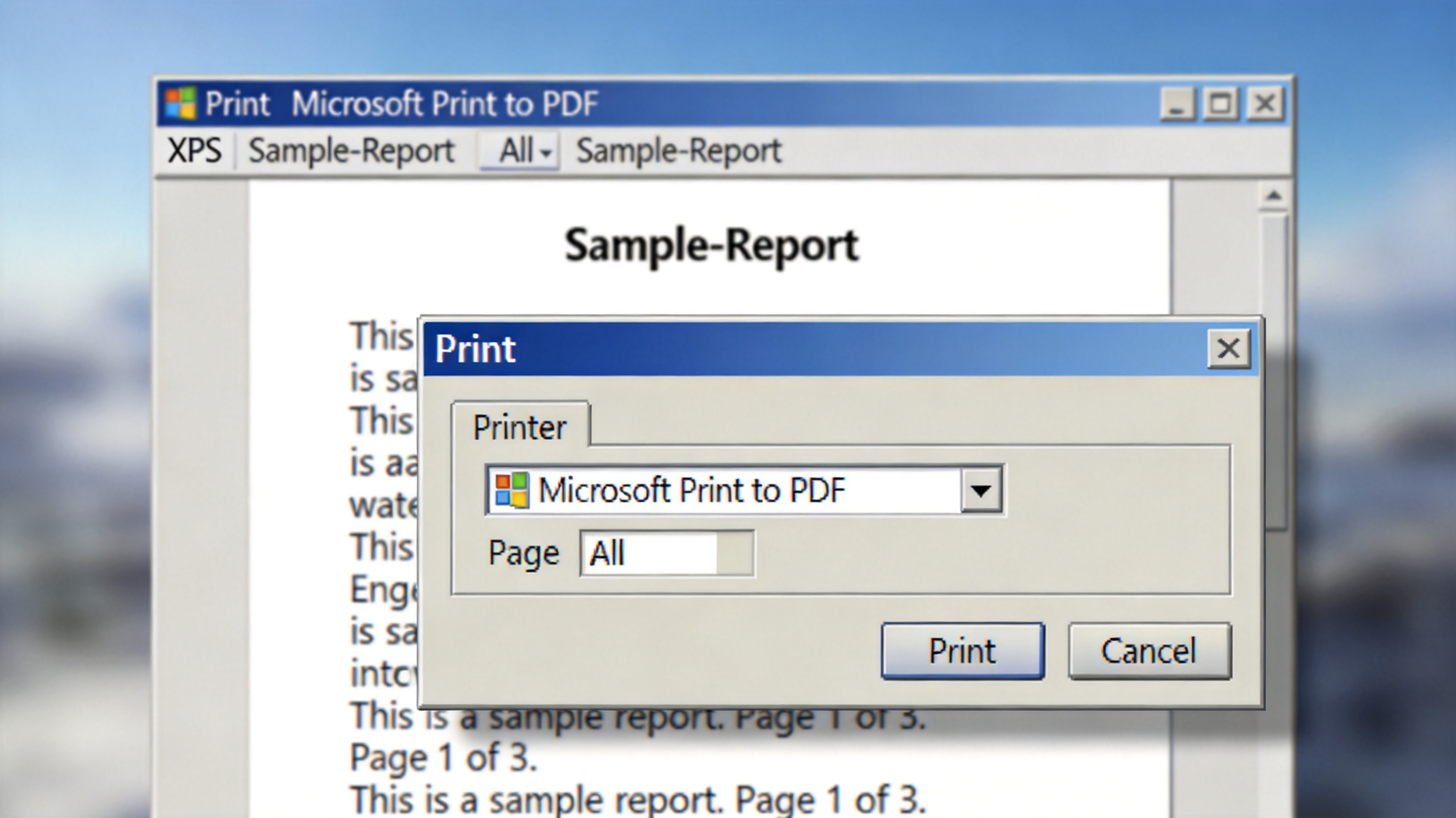
Print OXPS file to PDF


Use an Online OXPS-to-PDF Converter Carefully
An online converter can help when no compatible viewer is available, but OXPS support is less common than XPS support. Confirm that the site explicitly lists OXPS; changing the extension from .oxps to .xps does not convert the file.
Do not upload contracts, identity records, financial statements, or confidential business files unless the service is approved for that data.
Check stated upload limits, retention policy, deletion controls, and whether the output adds watermarks.
After download, inspect page count, fonts, vectors, images, and searchable text.
Delete the remote job if the service provides that control.
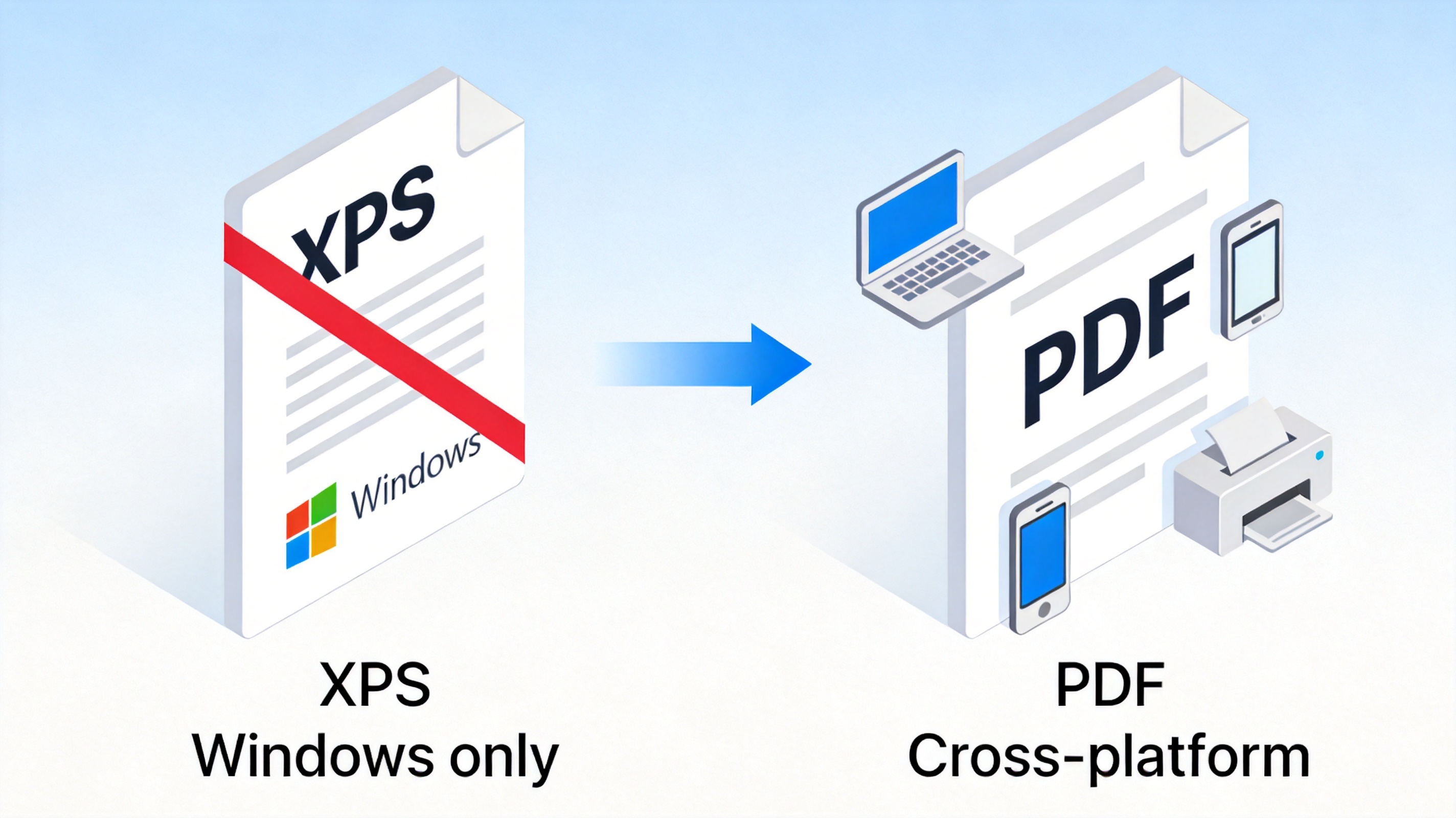
OXPS and PDF compatibility comparison
Improve the Converted OXPS PDF with WPS Office
WPS Office becomes most valuable after the fixed-layout conversion. Open the new file in WPS PDF to inspect every page, add comments, organize pages, combine related documents, sign the file, protect sensitive content, compress a large result, or convert selected content into an editable office format when further revision is needed.
This is more than a simple format handoff. WPS places PDF reading and editing beside Writer, Spreadsheet, and Presentation, so the converted document can move into a broader office workflow without forcing users to juggle separate viewers and editors. Its familiar interface reduces menu hunting, while page tools and export options make quality control faster.
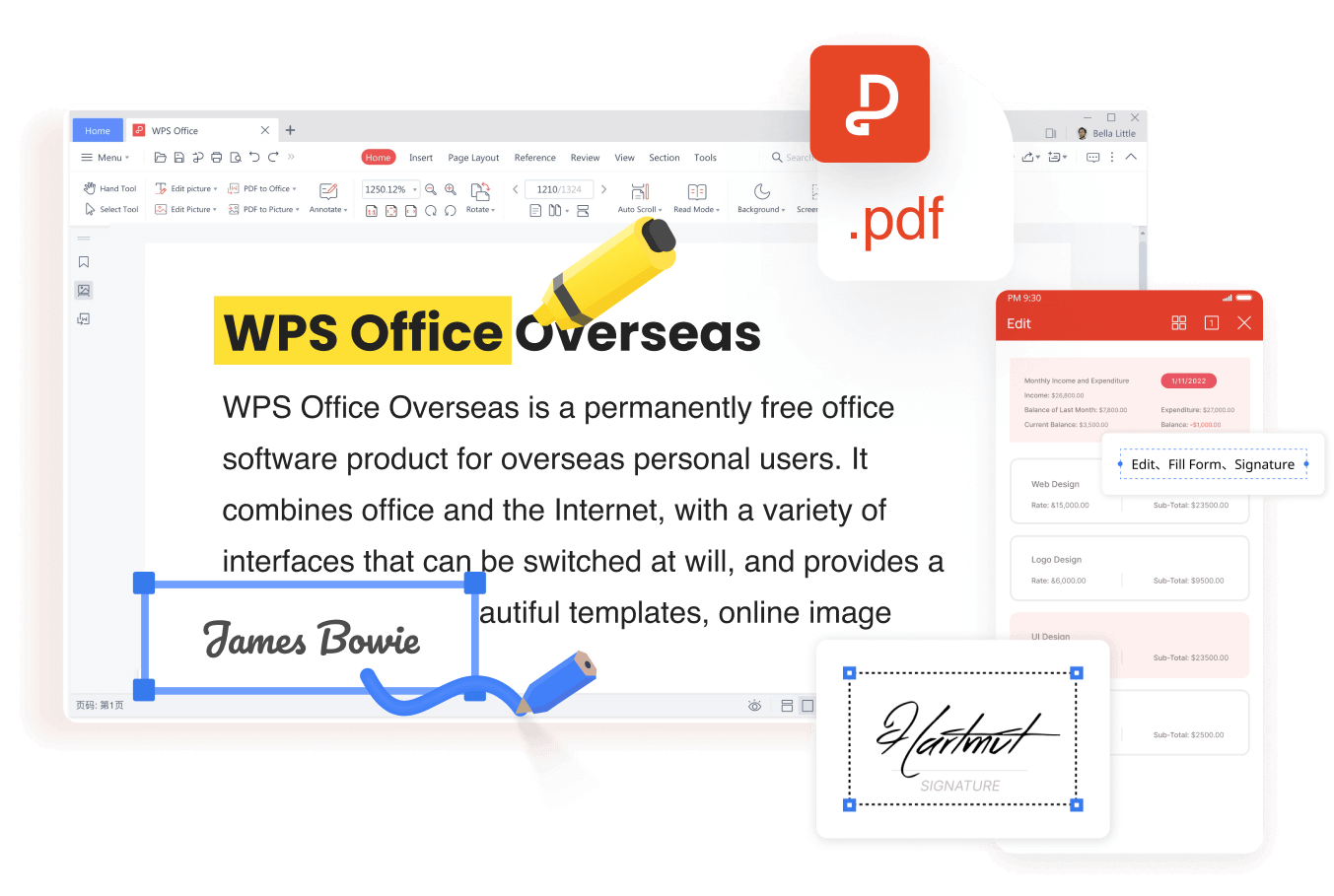
A practical WPS finishing workflow
Open the converted PDF in WPS PDF.
Use the thumbnail panel to confirm order, rotation, blank pages, and page size.
Search for several words to check whether text remained searchable.
Add annotations or corrections, then use the relevant PDF tool for compression, protection, signing, or conversion if needed.
Save a new version and keep the original OXPS as the source record.
Feature availability can vary by operating system, product version, region, and plan. The conversion itself should be completed with a verified OXPS-capable viewer or service; WPS then provides a strong all-in-one environment for reviewing and refining the PDF result.
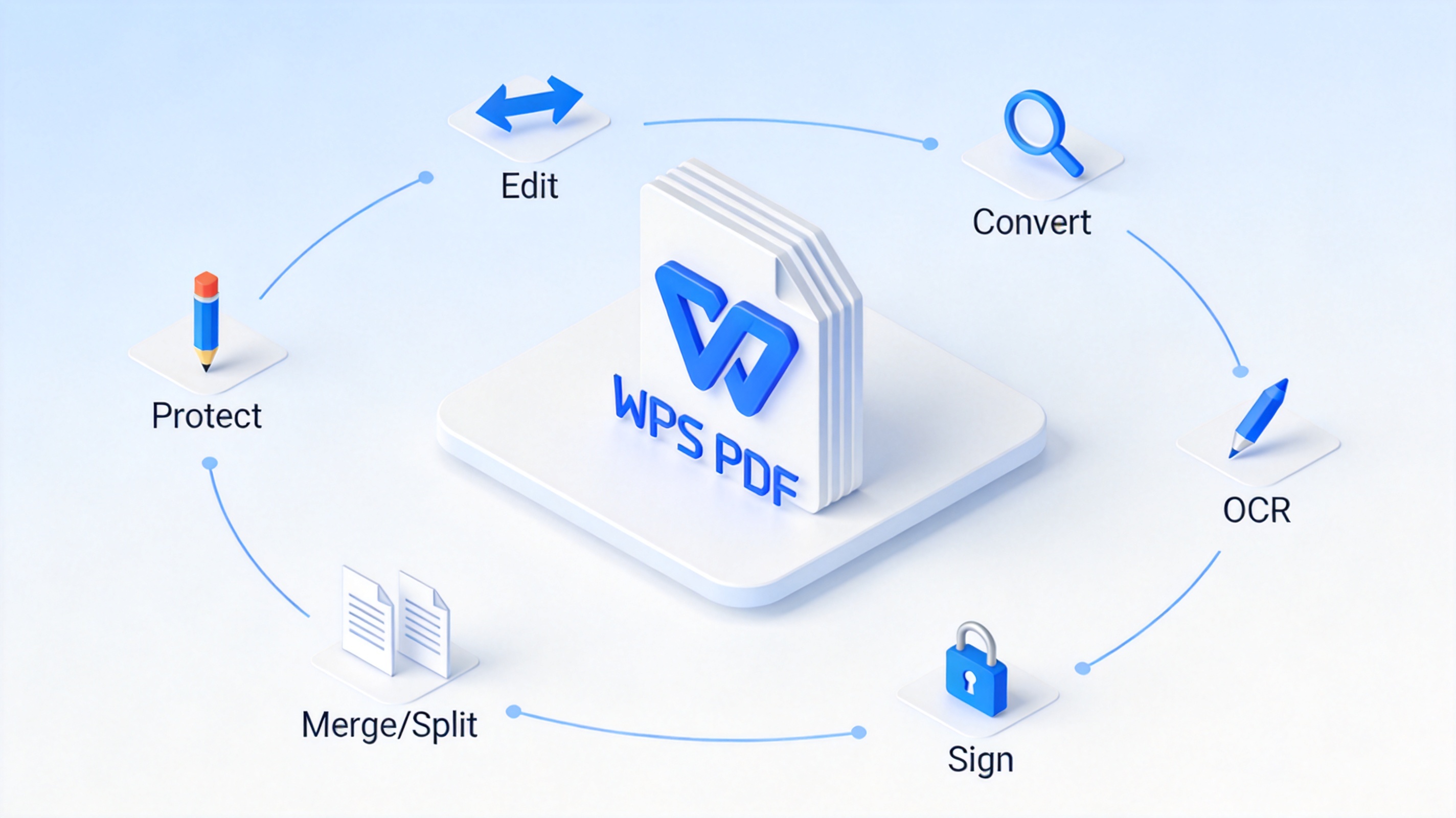
Edit converted PDF in WPS
Fix Common OXPS-to-PDF Conversion Problems
No app opens the file: verify that the extension is .oxps, install an official compatible Windows feature if available, or ask the sender for a PDF.
Pages are cropped: repeat printing with the correct paper size and use fit-to-page instead of actual size.
Fonts look different: create the PDF on the source computer where the original fonts are installed, or ask the sender to export it.
The PDF is not editable: printing preserves appearance, not document structure. Use OCR or PDF-to-Word conversion only when editing is necessary, then proofread carefully.
The file is too large: use WPS PDF compression after checking whether image quality remains acceptable.
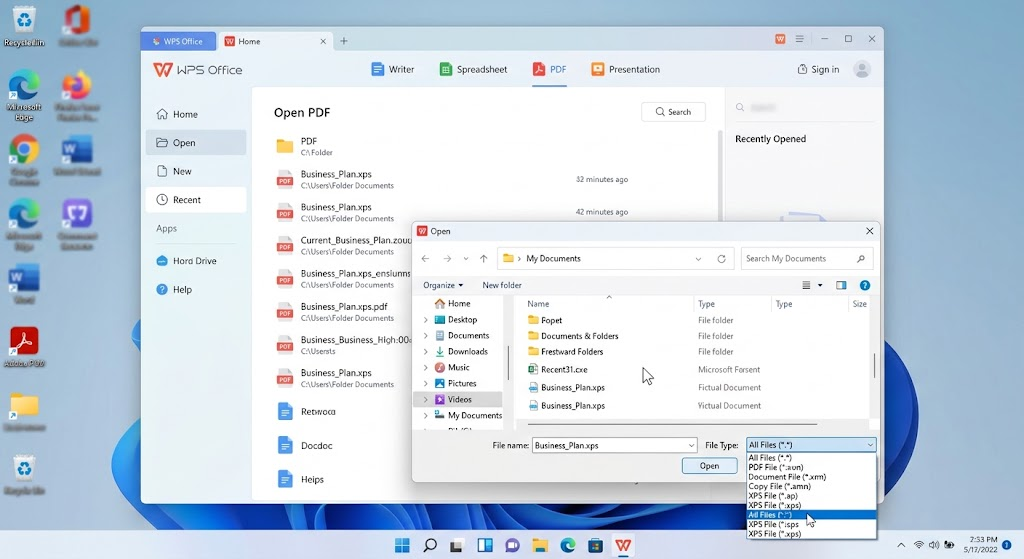
Check converted OXPS PDF pages
FAQs
What is the fastest way to convert OXPS to PDF?
On a compatible Windows computer, open the file and print it with Microsoft Print to PDF.
Can WPS Office open an OXPS file directly?
Direct OXPS support can vary. Use a verified OXPS-capable viewer or converter first, then open the resulting PDF in WPS for editing and finishing.
Can I rename OXPS to PDF?
No. Renaming changes only the filename extension, not the internal format.
Why is text in the PDF not editable?
The print method creates fixed-layout pages. Use OCR or PDF-to-Word conversion when you need editable text, then compare the result with the source.
Is an online OXPS converter safe?
Safety depends on the provider and the document. Review privacy and deletion policies, and avoid uploading confidential files to unapproved services.

Summary
Convert OXPS to PDF locally with a compatible Windows viewer and Microsoft Print to PDF whenever possible. Then use WPS Office to verify pages, search text, annotate, organize, compress, protect, sign, or convert the resulting PDF. Keep the original OXPS and always inspect the finished document before sharing.



