

'%3e%3cpath%20d='M8%200C12.4183%200%2016%203.58172%2016%208C16%2012.4183%2012.4183%2016%208%2016C3.58172%2016%200%2012.4183%200%208C0%203.58172%203.58172%200%208%200ZM11.6162%204.38379C11.2257%203.99337%2010.5927%203.99338%2010.2021%204.38379L8%206.58594L5.79785%204.38379C5.40732%203.99334%204.77429%203.99329%204.38379%204.38379C3.99331%204.77429%203.99335%205.40733%204.38379%205.79785L6.58594%208L4.38379%2010.2021C3.99348%2010.5927%203.99341%2011.2257%204.38379%2011.6162C4.77426%2012.0066%205.40734%2012.0065%205.79785%2011.6162L8%209.41406L10.2021%2011.6162C10.5927%2012.0066%2011.2257%2012.0067%2011.6162%2011.6162C12.0067%2011.2257%2012.0066%2010.5927%2011.6162%2010.2021L9.41406%208L11.6162%205.79785C12.0066%205.40735%2012.0066%204.77429%2011.6162%204.38379Z'%20fill='%23080E17'%20fill-opacity='0.46'/%3e%3c/g%3e%3cdefs%3e%3cclipPath%20id='clip0_3761_713'%3e%3crect%20width='16'%20height='16'%20fill='white'/%3e%3c/clipPath%3e%3c/defs%3e%3c/svg%3e)



'%3e%3cpath%20fill-rule='evenodd'%20clip-rule='evenodd'%20d='M21.4999%2010.9993C21.4999%205.20009%2016.7986%200.498901%2010.9993%200.498901C5.19994%200.498901%200.498657%205.20009%200.498657%2010.9993C0.498657%2016.2404%204.33858%2020.5844%209.35855%2021.3722V14.0346H6.69238V10.9993H9.35855V8.68594C9.35855%206.05427%2010.9262%204.60062%2013.3248%204.60062C14.4736%204.60062%2015.6753%204.80571%2015.6753%204.80571V7.38979H14.3512C13.0468%207.38979%2012.64%208.19921%2012.64%209.0296V10.9993H15.5523L15.0867%2014.0346H12.64V21.3722C17.66%2020.5844%2021.4999%2016.2404%2021.4999%2010.9993Z'%20fill='%231568EA'/%3e%3c/g%3e%3c/svg%3e)


'%3e%3cpath%20d='M2.42045%2022.1876H6.31818V12.7217L0.75%208.54553V20.5171C0.75%2021.4414%201.49892%2022.1876%202.42045%2022.1876Z'%20fill='%234285F4'/%3e%3cpath%20d='M19.682%2022.1876H23.5797C24.5041%2022.1876%2025.2502%2021.4387%2025.2502%2020.5171V8.54553L19.682%2012.7217'%20fill='%2334A853'/%3e%3cpath%20d='M19.682%205.48293V12.7216L25.2502%208.54543V6.31816C25.2502%204.25236%2022.8921%203.07469%2021.2411%204.31361'%20fill='%23FBBC04'/%3e%3cpath%20d='M6.31824%2012.7217V5.48303L13.0001%2010.4944L19.6819%205.48303V12.7217L13.0001%2017.733'%20fill='%23EA4335'/%3e%3cpath%20d='M0.75%206.31816V8.54543L6.31818%2012.7216V5.48293L4.75909%204.31361C3.10534%203.07469%200.75%204.25236%200.75%206.31816Z'%20fill='%23C5221F'/%3e%3c/g%3e%3cdefs%3e%3cclipPath%20id='clip0_2954_7305'%3e%3crect%20width='24.5'%20height='18.375'%20fill='white'%20transform='translate(0.75%203.8125)'/%3e%3c/clipPath%3e%3c/defs%3e%3c/svg%3e)


If you're eager to take control and personally evaluate the best free spreadsheet tool within different office suites, you're off to an excellent beginning. We're here to assist you in navigating this process by providing guidance on how to create a spreadsheet.
In this exploration, we'll delve into the offerings of Excel, WPS Office, and Google Sheets to help you make an informed decision.

How to Create a New Spreadsheet in Easy Steps
Discover how to create a spreadsheet with ease. We'll explore the most popular methods for crafting your data masterpiece.
1. Microsoft Excel
People often wonder how to create a spreadsheet in Microsoft Excel, but don't worry, we have the answer for you:
Step 1: Begin with launching Microsoft Excel on your system.
Step 2: Click on "New" in the sidebar menu, and then select "New Blank Sheet".

Step 3: A new spreadsheet will be generated. You can now proceed to edit this spreadsheet and save it for future use.

Please take note that a web version of Excel, known as Microsoft 365, is available without the need for a product key. It provides limited Office features for free.
2. WPS Spreadsheet
This section will also focus on how to create a spreadsheet in WPS Office. But before that, let's explore how to get this free office suite on your system.
How to Install WPS Spreadsheet for Free?
Step 1: To download WPS Spreadsheet, visit the official WPS Office website using your web browser. Click on "Free Download" to initiate the download process.

Step 2: After the download is complete, locate the installation file and open it to launch the WPS Spreadsheet installation wizard.
Step 3: In the installation wizard, agree to the terms and conditions to begin the download, and then press "Install Now".
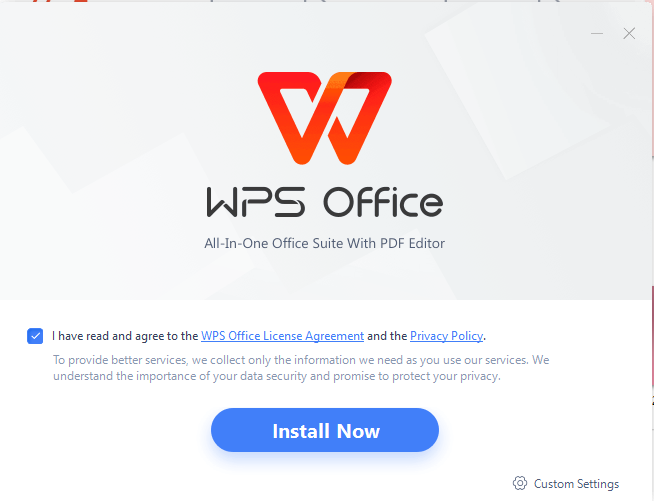
Step 4: The installation may take some time to complete. Once done, you'll have the option to install 360 Cyber Security for added protection. If you wish to install it, check the box, and then click "Get started with WPS" to proceed.
Step 5: WPS Office will automatically launch. Sign up and get started with WPS Office.
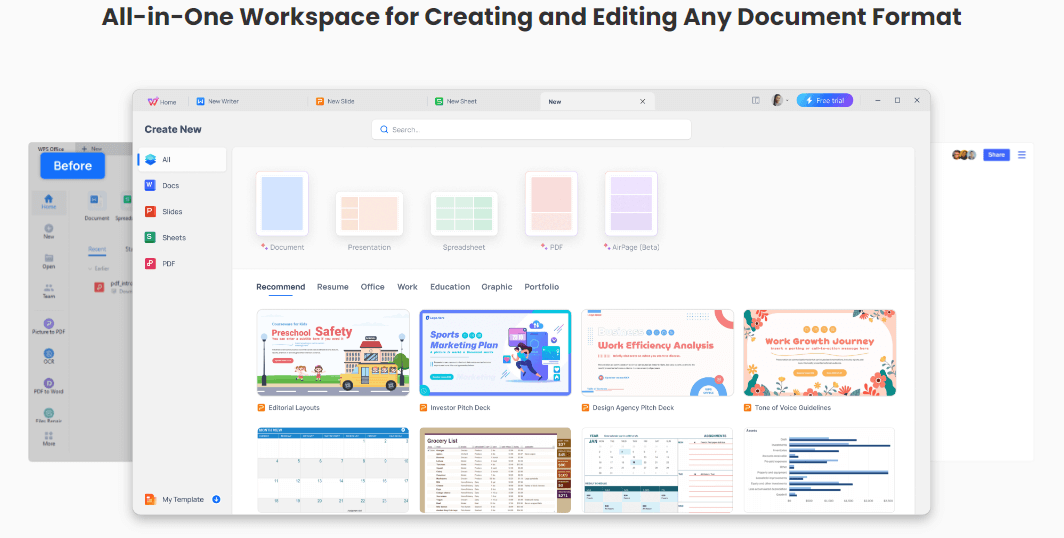
How to Create a New Spreadsheet?
Now that you have WPS Office installed, here's how to create a new spreadsheet:
Step 1: Launch WPS Office and click on "New" in the sidebar.

Step 2: In the sidebar, select "Sheets" and then choose "Blank" to create a new spreadsheet in WPS Spreadsheet.

Step 3: You can now edit your spreadsheet, utilize formulas, add tables, or insert graphs. After working on your spreadsheet, simply save it for later use.

Also, be aware that there's a web version of WPS Spreadsheet (WPS 365) that doesn't require installation and offers various features at no cost. For users seeking a cloud-based option, Excel Online is also a great alternative, offering basic features without the need for installation.
3. Google Sheets
Let's learn how to create a spreadsheet in Google Sheets, the final tool we'll explore.
Step 1: Start by visiting the official Google Sheets website and selecting "Go to Sheets". If you haven't signed in, you'll be prompted to log in with your Google account or register if you

Step 2: Once you've successfully signed in, you'll be directed to the Google Sheets dashboard. There, simply tap the "+" icon situated at the bottom right corner to kickstart the creation of a fresh Google Spreadsheet.

Step 3: Tailor the sheet to your specific requirements, craft charts, and apply formulas as necessary to suit your needs.
How to Make a Spreadsheet from a Template (Step-by-Step)
1. WPS Spreadsheet
In-App Template Store:
Step 1: Open WPS Office on your system and click on "New" in the sidebar.
Step 2: In the sidebar, select "Sheets" to view all the available templates displayed in the interface.

Step 3: Browse through the templates and choose the one that suits your needs. You can preview it, and then click on "Download" at the top right to use the selected template.

Step 4: Edit and personalize the template using WPS Spreadsheet and save it according to your preferences.

WPS Template Store:
Step 1: Visit the WPS Template Store using your web browser.

Step 2: Browse through the available templates and click on the one you desire.
Step 3: Click on "Download" to download the template. Open the downloaded template using WPS Spreadsheet to edit and personalize it as needed.

2. Microsoft Excel
In-App Template Store:
Step 1: Open Microsoft Excel and click on "New" to initiate the creation of a new blank spreadsheet.
Step 2: Within the "New" tab, users can scroll down to browse and select the template that suits their needs.

Step 3: Click on the chosen template to preview it. To use the selected template, simply click "Create" to generate a new spreadsheet based on that template.

Step 4: You can now proceed to edit the template as required. After making your changes, save the template for later use, tailored to your specific needs.

Online Website:
Step 1: Open your web browser and navigate to the Microsoft Office template official website.
Step 2: Utilize the search bar on the website to search for various templates based on your specific needs.

Step 3: Once you've found the template you desire, click on it to access the template details, and then proceed to download it by clicking on “Download”.

Step 4: After downloading the template, open it using Microsoft Excel. You can now personalize the template to suit your specific requirements and preferences.
3. Google Sheets
Step 1: Visit the Google Sheets website and access the Google Sheets interface.
Step 2: At the top of the interface, you will find a selection of various templates available for use. You can browse through them using the arrows and double-click on the template of your choice to create a new spreadsheet based on that template.

Step 3: Make necessary edits to the template using Google Sheets, and when you're done, simply exit the application. Your template will be automatically saved on Google Cloud, ensuring your changes are preserved.

Why Choose WPS Spreadsheet for Data Editing and Analyzing?
While there are numerous spreadsheet options available, WPS Office sets itself apart by offering a unique and unmatched feature set that distinguishes it from the competition. WPS Office stands out in the crowded field of spreadsheet software by providing a comprehensive set of features and capabilities that cater to a wide range of user needs.

Here are some of the key aspects that make WPS Office a standout choice:
Cost-Effective Solution: WPS Spreadsheet offers an affordable alternative to Microsoft Excel without compromising on essential features.
File Compatibility: WPS Spreadsheet is fully compatible with Microsoft Office, and formulas in Microsoft Excel can smoothly function with the WPS Spreadsheet.
Collaborative Tools: Collaboration is made easy with WPS Spreadsheet, as it enables real-time co-editing and sharing capabilities.
Templates for Efficiency: WPS Spreadsheet offers a collection of ready-to-use templates that cater to a variety of needs, from simple budgeting to complex data analysis.
WPS AI: With the integration of cutting-edge AI functionalities in WPS Spreadsheet, WPS Office has achieved unprecedented heights in empowering users to efficiently process and analyze intricate data sets through its AI assistant.
Microsoft Excel vs. WPS Spreadsheet vs. Google Sheets: Which One to Choose?
Feature |
Microsoft Excel |
WPS Spreadsheet |
Google Sheets |
|---|---|---|---|
Pricing |
Varies based on Microsoft 365 plans (e.g., $6.99/month, $12.50/user/month) |
Free to use with Pro version available at $29.99/year |
Free to use with Google Workspace plans starting at $6/user/month |
Data Manipulation and Analysis |
Yes |
Yes |
Yes |
Data Visualization Tools |
Yes |
Limited |
Limited |
Pivot Tables |
Yes |
Limited |
Limited |
Advanced Encryption and Security Features |
Yes |
Limited |
Limited |
Cross-Platform Compatibility |
Yes |
Yes |
Yes |
Cloud Integration |
Yes |
Yes |
|
Collaboration Tools |
Yes |
Yes |
Yes |
Predefined Formulas and Functions |
Yes |
||
Learning Curve for Complicated Formulas |
Yes |
Yes |
Limited |
Real-Time Collaboration |
Yes |
Yes |
Yes |
Accessibility from Anywhere |
Yes |
Yes |
Yes |
Users can consider their respective preferences while deciding for a Spreadsheet tool.
Microsoft Excel:
Ideal for users who are already familiar with Excel and its advanced features.
Suitable for professional data analysts, financial experts, or those who require extensive data visualization and complex formulas.
Users willing to pay for a more robust spreadsheet tool are part of the Microsoft 365 ecosystem.
WPS Spreadsheet:
A great choice for budget-conscious users, as it offers advanced features at an affordable price.
Suitable for individuals, students, small businesses, or startups looking for a simple yet effective spreadsheet tool.
Users who prefer a clean and intuitive interface and basic spreadsheet functions.
Those who need compatibility with various file formats and collaborative features.
Google Sheets:
Recommended for users who prioritize cloud-based collaboration and accessibility from any device.
Ideal for team projects and real-time collaboration where multiple users need to work on the same document.
Users who rely on Google Workspace and require seamless integration with other Google apps.
Suitable for basic spreadsheet functions, although it may not have as many advanced features as Excel or WPS Spreadsheet.
FAQs
Q1. Can I open an Excel spreadsheet file in WPS Office?
To access an Excel spreadsheet on WPS Office, follow these steps:
Step 1: Launch WPS Office and navigate to the "Sheets" tab in the sidebar menu.
Step 2: Within the "Sheets" tab, click on "Open".

Step 3: In the Open file window, choose the file type as "Excel Files".

Step 4: Select the desired Excel spreadsheet and click "Open".

Step 5: You can now edit the Excel spreadsheet within the WPS Spreadsheet interface.
Q2. How to copy and paste formulas from Microsoft Excel to Google Sheets?
Step 1: Open your Excel sheet containing the data and formulas.

Step 2: Press "Ctrl + ~" (tilde), and the cells with formulas will display their values instead of the formula itself.

Step 2: Now, copy the data along with the formulas.

Step 3: Switch to Google Sheets, and simply paste the copied data. The formulas will be pasted as they are, retaining their functionality.

Q3. Can I create a new spreadsheet in WPS Spreadsheet without installation?
Yes, you can create a new spreadsheet in WPS Spreadsheet without installing the suite. WPS 365 is a web version of WPS Spreadsheet that offers a user-friendly interface for constructing and managing spreadsheets without the need for installation, allowing prompt and straightforward access to powerful features.
Q4. Can I use Microsoft Excel Online for free?
Yes, the online version of Excel is free to use. It’s part of the Microsoft Office Online suite, which also includes Word Online, PowerPoint Online and OneNote Online. With Excel Online, you can view, edit, and create spreadsheets directly in your browser without downloading any software. Just sign in with a Microsoft account to start using it on any device, whether it's a PC, Mac, tablet, or smartphone. However, some advanced features are only available in the desktop version of Excel.
WPS Spreadsheet: Your Affordable, User-Friendly Data Solution!
Choosing the right spreadsheet tool can indeed be a challenging decision. Your selection depends on various factors, like your specific needs, budget, and familiarity with the software.
With WPS Spreadsheet, you can handle your data and spreadsheets efficiently without the complexity of some other spreadsheet tools. Its compatibility with various file formats, user-friendly interface, and collaborative capabilities make it a practical solution. You can download WPS Office and explore its spreadsheet tool to see if it's the right fit for your needs.

'%3e%3cpath%20d='M19.9911%204.11386V6.471H18.5894C18.0775%206.471%2017.7322%206.57814%2017.5536%206.79243C17.3751%207.00671%2017.2858%207.32814%2017.2858%207.75671V9.44421H19.9019L19.5536%2012.0871H17.2858V18.8639H14.5536V12.0871H12.2769V9.44421H14.5536V7.49779C14.5536%206.39064%2014.8632%205.53201%2015.4822%204.92189C16.1013%204.31177%2016.9257%204.00671%2017.9554%204.00671C18.8304%204.00671%2019.509%204.04243%2019.9911%204.11386Z'%20fill='%23333333'/%3e%3c/g%3e%3cdefs%3e%3cclipPath%20id='clip0_2938_8199'%3e%3crect%20width='16'%20height='16'%20fill='white'%20transform='translate(8%204.00671)'/%3e%3c/clipPath%3e%3c/defs%3e%3c/svg%3e)
'%3e%3cpath%20d='M17.5237%2010.7813L23.4811%204H22.0699L16.8949%209.88693L12.7648%204H8L14.2469%2012.9029L8%2020.0133H9.4112L14.8725%2013.7952L19.2352%2020.0133H24M9.92053%205.04213H12.0885L22.0688%2019.0224H19.9003'%20fill='%23333333'/%3e%3c/g%3e%3cdefs%3e%3cclipPath%20id='clip0_2938_8200'%3e%3crect%20width='16'%20height='16.0134'%20fill='white'%20transform='translate(8%204)'/%3e%3c/clipPath%3e%3c/defs%3e%3c/svg%3e)


