


'%3e%3cpath%20fill-rule='evenodd'%20clip-rule='evenodd'%20d='M21.4999%2010.9993C21.4999%205.20009%2016.7986%200.498901%2010.9993%200.498901C5.19994%200.498901%200.498657%205.20009%200.498657%2010.9993C0.498657%2016.2404%204.33858%2020.5844%209.35855%2021.3722V14.0346H6.69238V10.9993H9.35855V8.68594C9.35855%206.05427%2010.9262%204.60062%2013.3248%204.60062C14.4736%204.60062%2015.6753%204.80571%2015.6753%204.80571V7.38979H14.3512C13.0468%207.38979%2012.64%208.19921%2012.64%209.0296V10.9993H15.5523L15.0867%2014.0346H12.64V21.3722C17.66%2020.5844%2021.4999%2016.2404%2021.4999%2010.9993Z'%20fill='%231568EA'/%3e%3c/g%3e%3c/svg%3e)


'%3e%3cpath%20d='M2.42045%2022.1876H6.31818V12.7217L0.75%208.54553V20.5171C0.75%2021.4414%201.49892%2022.1876%202.42045%2022.1876Z'%20fill='%234285F4'/%3e%3cpath%20d='M19.682%2022.1876H23.5797C24.5041%2022.1876%2025.2502%2021.4387%2025.2502%2020.5171V8.54553L19.682%2012.7217'%20fill='%2334A853'/%3e%3cpath%20d='M19.682%205.48293V12.7216L25.2502%208.54543V6.31816C25.2502%204.25236%2022.8921%203.07469%2021.2411%204.31361'%20fill='%23FBBC04'/%3e%3cpath%20d='M6.31824%2012.7217V5.48303L13.0001%2010.4944L19.6819%205.48303V12.7217L13.0001%2017.733'%20fill='%23EA4335'/%3e%3cpath%20d='M0.75%206.31816V8.54543L6.31818%2012.7216V5.48293L4.75909%204.31361C3.10534%203.07469%200.75%204.25236%200.75%206.31816Z'%20fill='%23C5221F'/%3e%3c/g%3e%3cdefs%3e%3cclipPath%20id='clip0_2954_7305'%3e%3crect%20width='24.5'%20height='18.375'%20fill='white'%20transform='translate(0.75%203.8125)'/%3e%3c/clipPath%3e%3c/defs%3e%3c/svg%3e)


When a project, launch plan, class report, or business presentation has too many dates, the problem is rarely the amount of information. The real pain is that readers cannot see what happens first, what depends on what, and which deadline matters most.
That is why people search for how to create a timeline. A timeline turns scattered events into a visual sequence, so a team, teacher, client, or manager can understand the plan without reading a long status document.
In this guide, you will learn what a timeline is, how to design one clearly, and two practical ways to make one: in Microsoft Office and in WPS Office, where you can also start faster with free WPS timeline templates.
Create a Timeline: What It Is, Tips, and Easy Steps in Microsoft Office and WPS
What Is a Timeline?
A timeline is a visual arrangement of events, tasks, milestones, or dates in chronological order. It usually runs horizontally from left to right, but it can also be vertical, circular, or shown as a project bar chart when duration matters.
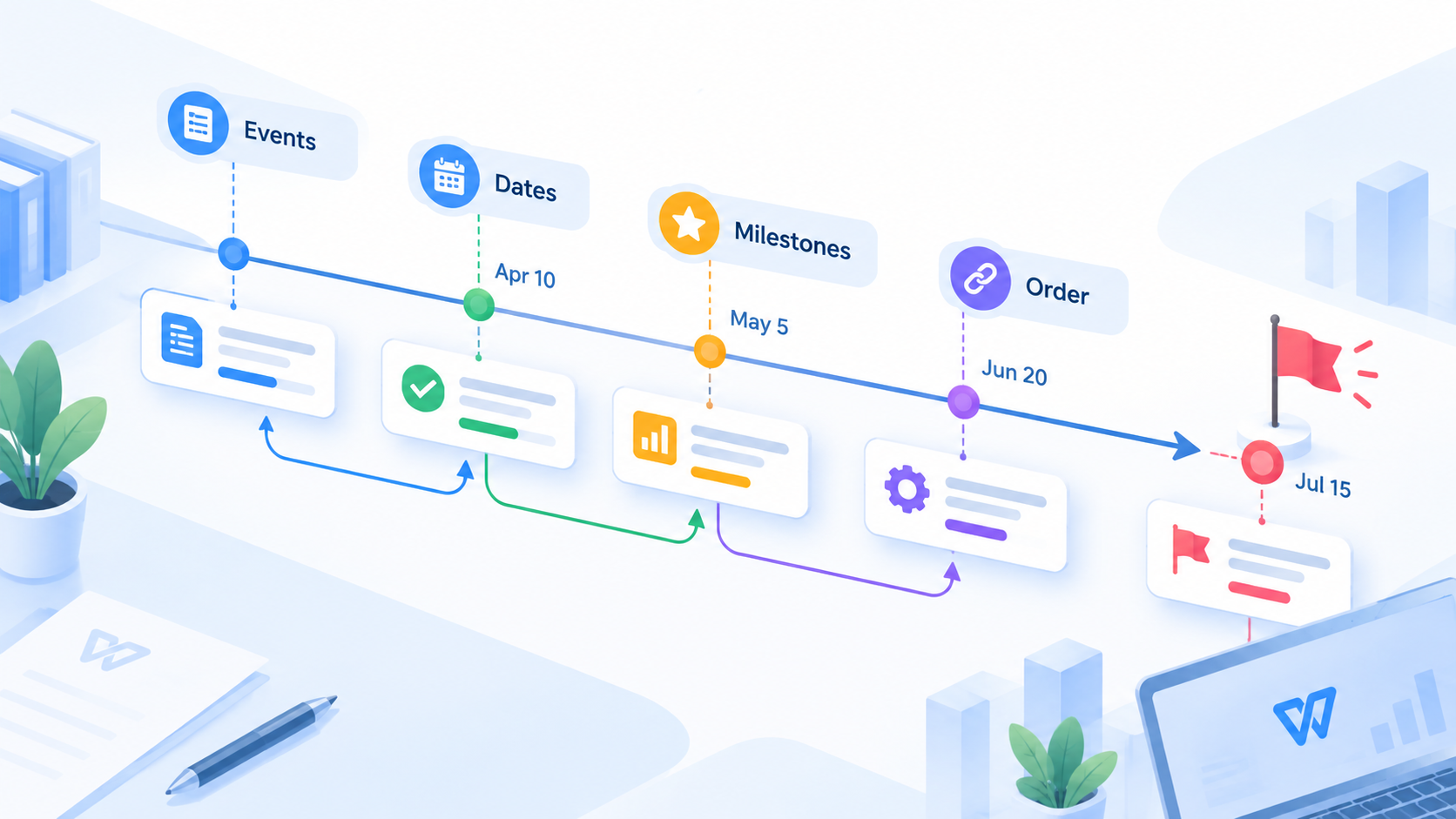
At its simplest, a timeline answers three questions:
What happened or will happen? These are the events, tasks, or milestones.
When does each item happen? These are the dates, months, quarters, or phases.
How are the items connected? This shows sequence, dependency, or progress toward a goal.
For a history assignment, a timeline may show events by year. For a marketing campaign, it may show weekly stages. For product management, it may show tasks, owners, deadlines, and launch milestones. The format changes, but the purpose stays the same: make time easier to understand.
A timeline is not exactly the same as a calendar. A calendar shows dates in a fixed monthly layout. A timeline focuses on the story or plan behind those dates, so it can highlight the most important milestones instead of every day on the calendar.
Timeline events dates and milestones


Tips to Create a Timeline That Is Clear and Useful
Before opening any software, decide what the timeline needs to explain. A beautiful timeline can still fail if it includes too many events, inconsistent dates, or unclear labels.
Use these timeline creation tips to keep the final result readable:
Start with the audience. A client timeline should highlight deliverables and review dates. A classroom timeline should highlight events and causes. A project timeline should highlight tasks, owners, and deadlines.
Choose the right scale. Use days for a sprint, weeks for a campaign, months for a roadmap, and years for history or company growth.
Keep milestones selective. Do not add every tiny action. Choose the moments that change status, unlock the next phase, or require a decision.
Use short labels. A good timeline label is usually a phrase, not a sentence. Put details in speaker notes, captions, or supporting text.
Group with color carefully. Use color to separate phases, owners, or status. Avoid using too many colors just for decoration.
Show dependencies when needed. If one task cannot start until another ends, use arrows, spacing, or a Gantt-style layout.
Leave room for updates. Project timelines change. Build the timeline so dates, labels, and milestones can be edited quickly.
Quick rule: if the timeline will be presented on a slide, keep it simple. If it will be used to manage work, include owners, durations, and dependencies.

Clear timeline design best practices
How to Create a Timeline in Microsoft Office
Microsoft Office gives you several timeline options. For most users, PowerPoint is the easiest place to create a timeline because slides are built for visual communication. Word also supports SmartArt, while Excel is better when your timeline depends on rows of dates and task durations.
The fastest Microsoft Office method is SmartArt. Microsoft explains that SmartArt graphics can be created from the Insert tab in Word, PowerPoint, Excel, and classic Outlook. For timeline-style visuals, PowerPoint is usually the most presentation-friendly choice.
Create a timeline with SmartArt in PowerPoint
Open PowerPoint and create a blank slide.
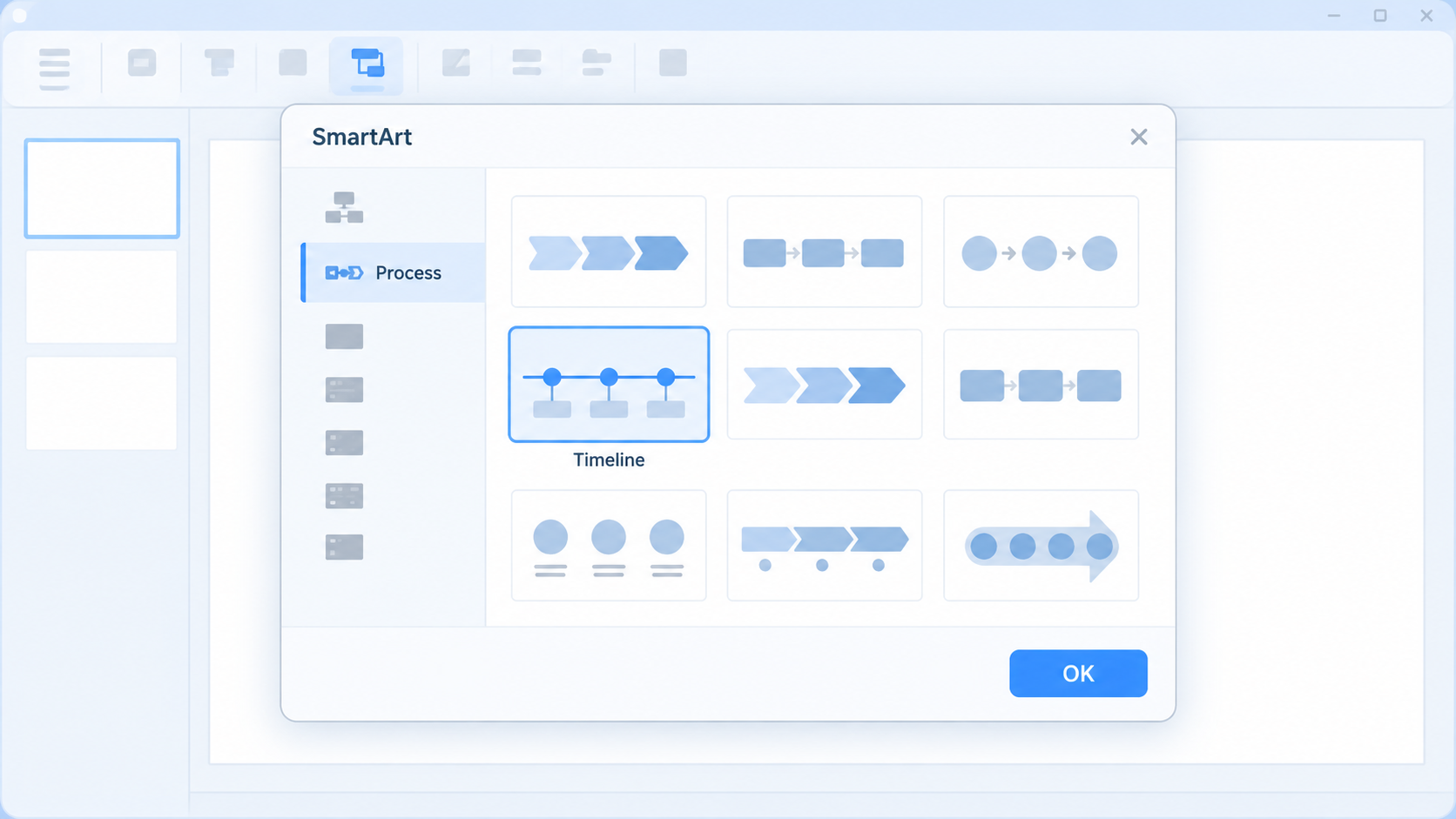
Go to Insert > SmartArt.
Choose Process, then select a timeline-like layout such as a basic process, circle accent process, or chevron process.
Choose Microsoft timeline SmartArt layout
Click each shape and replace the placeholder text with your dates and milestone labels.
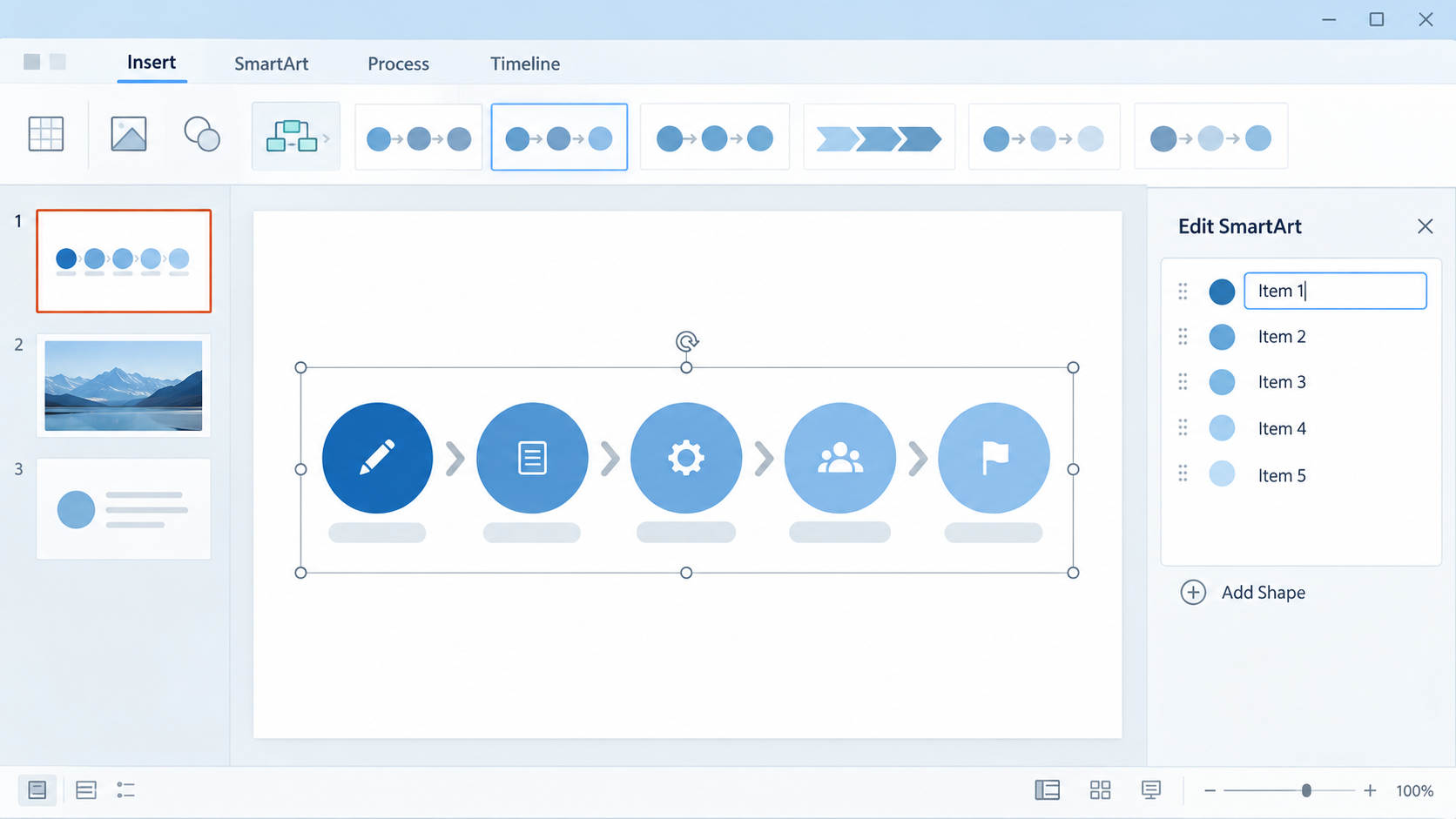
Create timeline with Microsoft SmartArt
Use SmartArt Design to change colors, add shapes, or switch layouts.
Adjust spacing manually if one milestone needs more emphasis.
When to use Word or Excel instead
Use Word when the timeline supports a written report and does not need complex task duration. Use Excel when you need a project schedule, repeated date updates, or a Gantt-style chart. Microsoft also offers free timeline templates for PowerPoint and Excel, which can save time when you need a polished structure quickly.
The main limitation is that Microsoft templates and SmartArt often need manual cleanup. Long labels may overflow, and advanced project timelines may require extra formatting or a dedicated project management tool.
The Best Free Office Alternative: WPS Office
WPS Office is a practical choice when you want to create a timeline without starting from a blank page or paying for a full office subscription. It includes Writer, Spreadsheet, Presentation, and PDF tools, so you can create timeline content for reports, slides, tables, and export-ready files in one workspace.
For timeline work, WPS has two major advantages: you can build your own timeline in WPS Presentation, and you can use free WPS timeline templates to start with a ready-made layout.
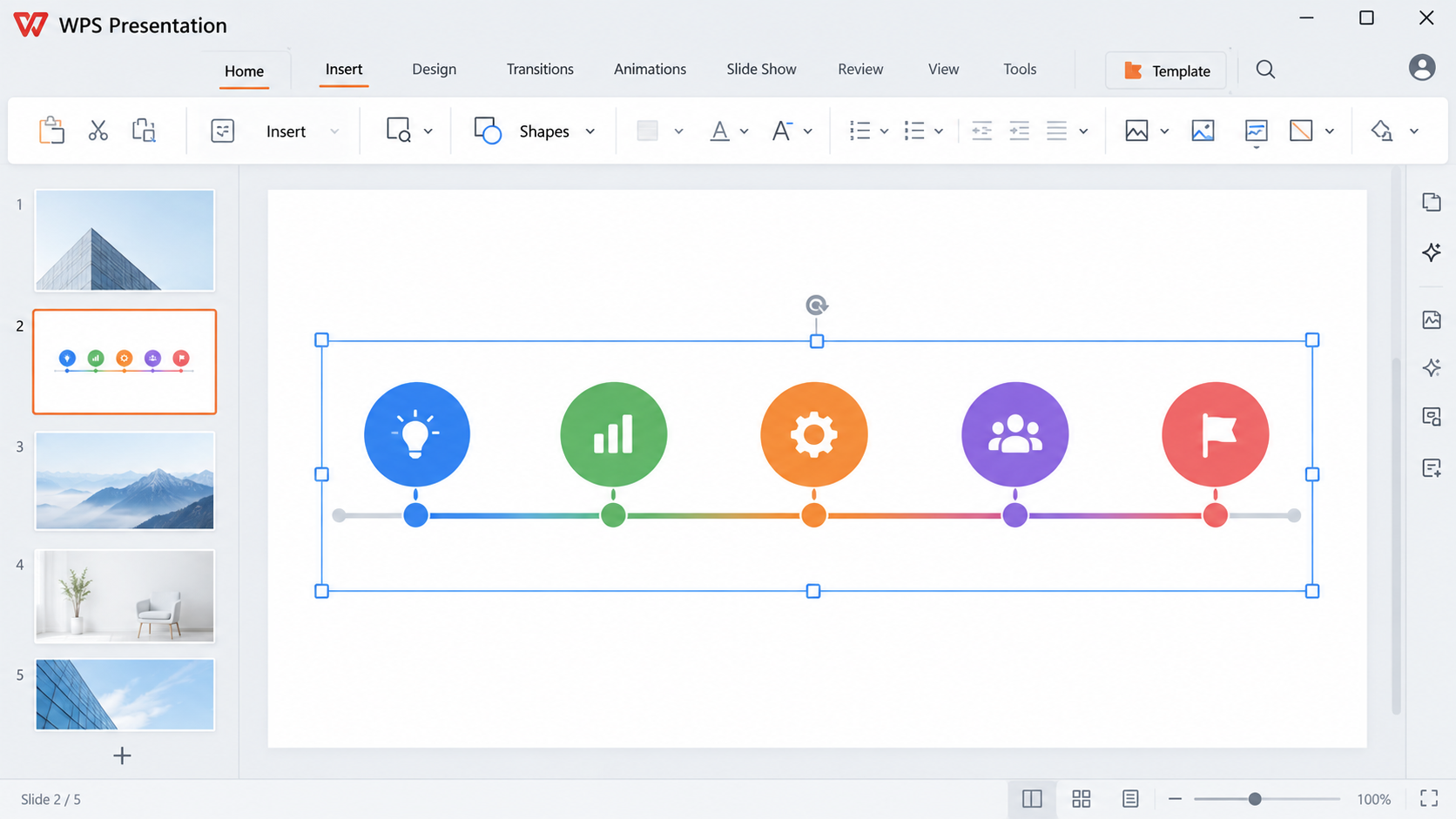
Edit timeline in WPS Presentation
| Timeline task | WPS Office advantage | Why it helps |
|---|---|---|
| Start from a blank slide | Use shapes, lines, icons, and text boxes in WPS Presentation | Good for custom event timelines, project roadmaps, and classroom visuals. |
| Use a ready-made design | Search free WPS timeline templates | Saves layout time and gives beginners a more polished starting point. |
| Edit Office files | Open common Microsoft Office formats | Useful when teammates share DOCX, XLSX, or PPTX timeline files. |
| Prepare a report or handout | Move timeline content between Writer, Spreadsheet, and Presentation | Helps turn the same plan into a slide, document, or project table. |
| Export and share | Use built-in PDF tools | Makes it easier to send a timeline that keeps its formatting. |
How to create a timeline manually in WPS Presentation
Open WPS Office and choose Presentation.
Create a blank slide or choose a simple presentation theme.
Go to Insert > Shapes, then add a horizontal line or arrow as the timeline base.
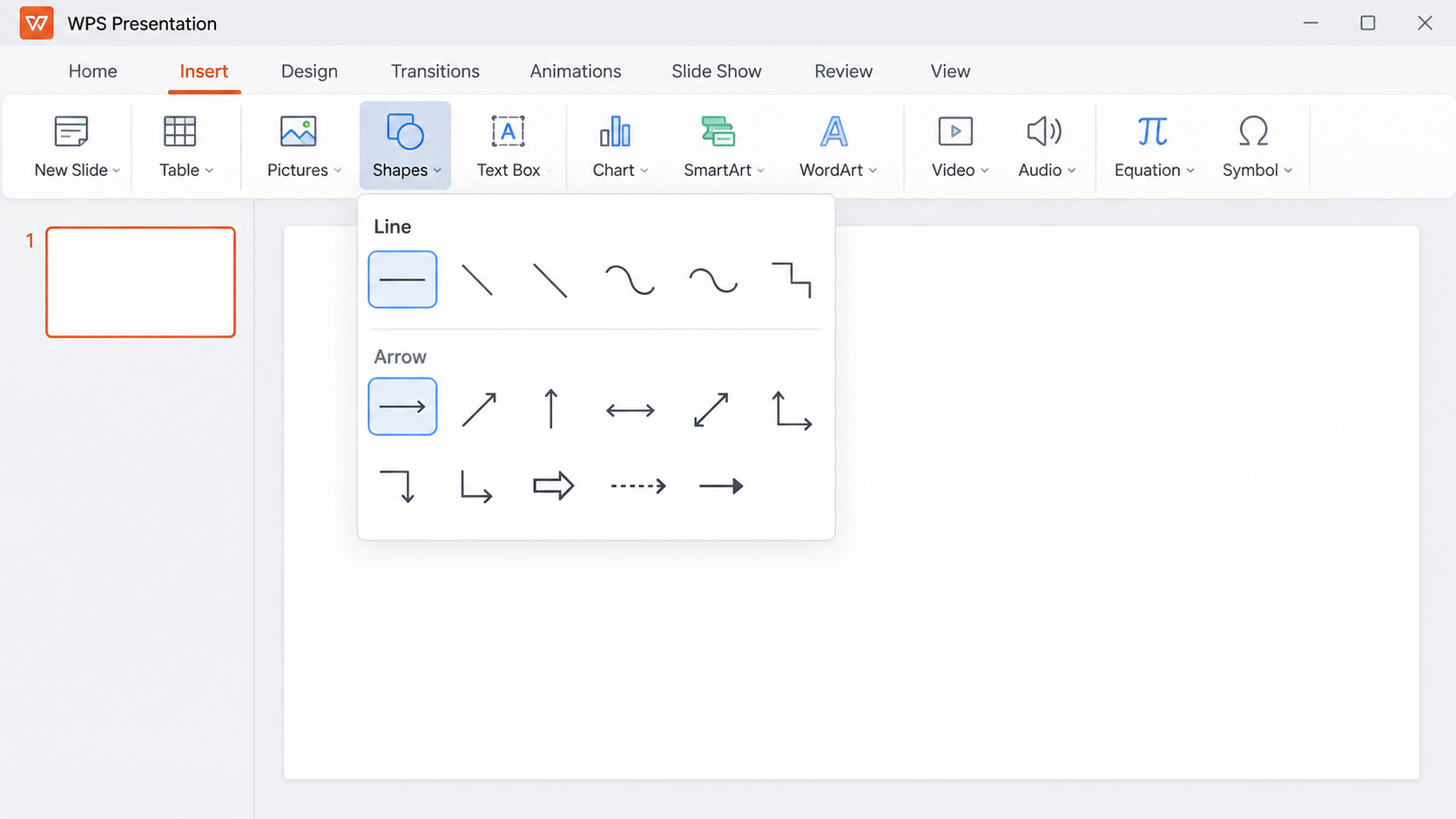
Insert WPS timeline base line
Add circles, icons, or small markers for each milestone.
Add short text boxes for dates and milestone names.
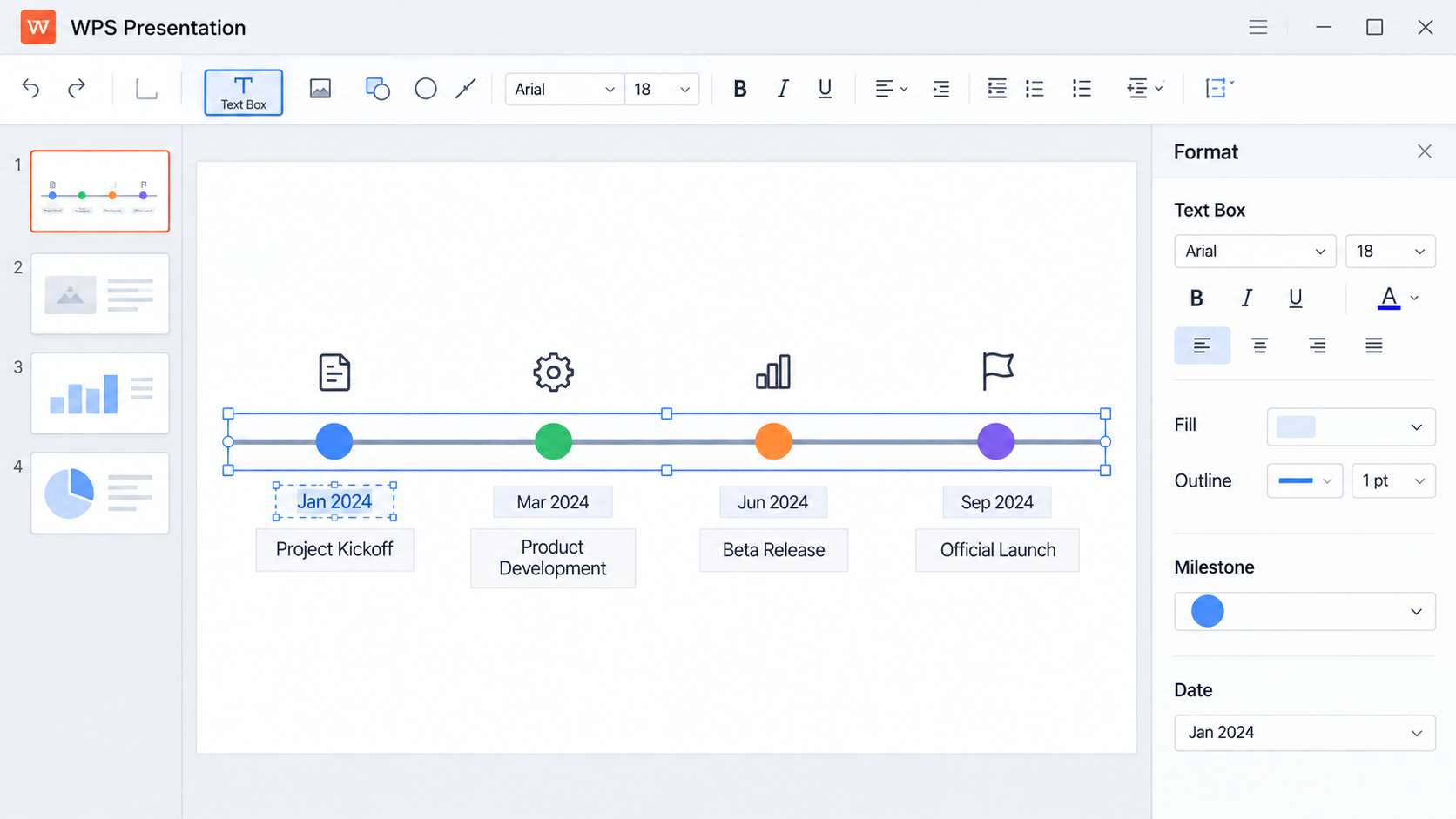
Edit WPS timeline milestone text
Use consistent colors to group phases, such as planning, production, review, and launch.
Export the slide as a presentation or PDF when the timeline is ready to share.
This manual method is best when you need full control over spacing, colors, and event order.
How to Create a Timeline with Free WPS Timeline Templates
If you do not want to design the timeline structure yourself, free WPS timeline templates are often the faster route. A template already gives you the spacing, milestone style, color rhythm, and overall composition. You only need to replace the sample text with your own dates and events.
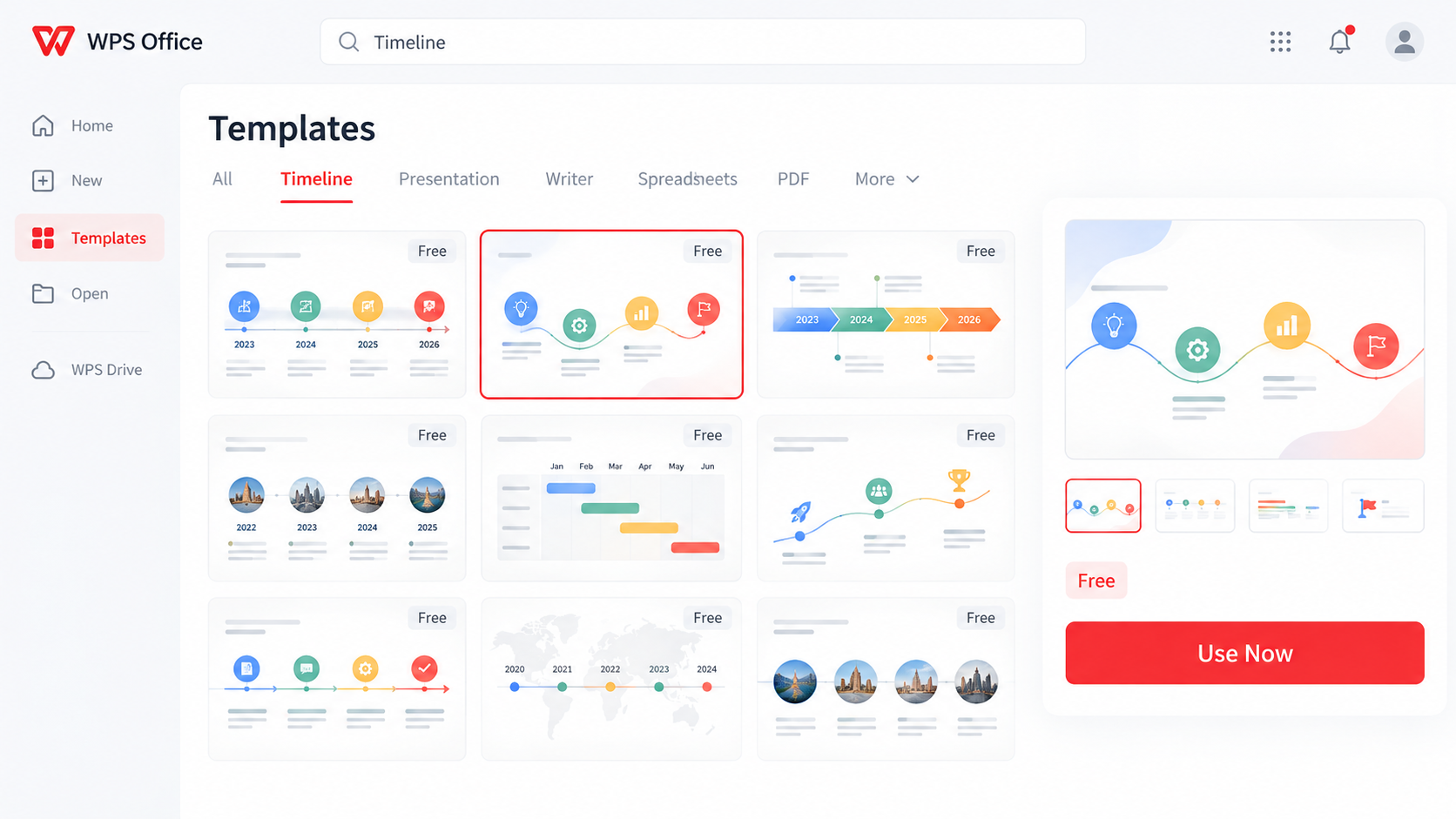
Free WPS timeline template gallery
Here is a simple workflow:
Open WPS Office or visit the WPS Template site.
Search for timeline.
Filter by file type if needed, such as Presentation, Word, or Excel.
Choose a free template that matches your purpose: project plan, company history, event schedule, roadmap, or study timeline.
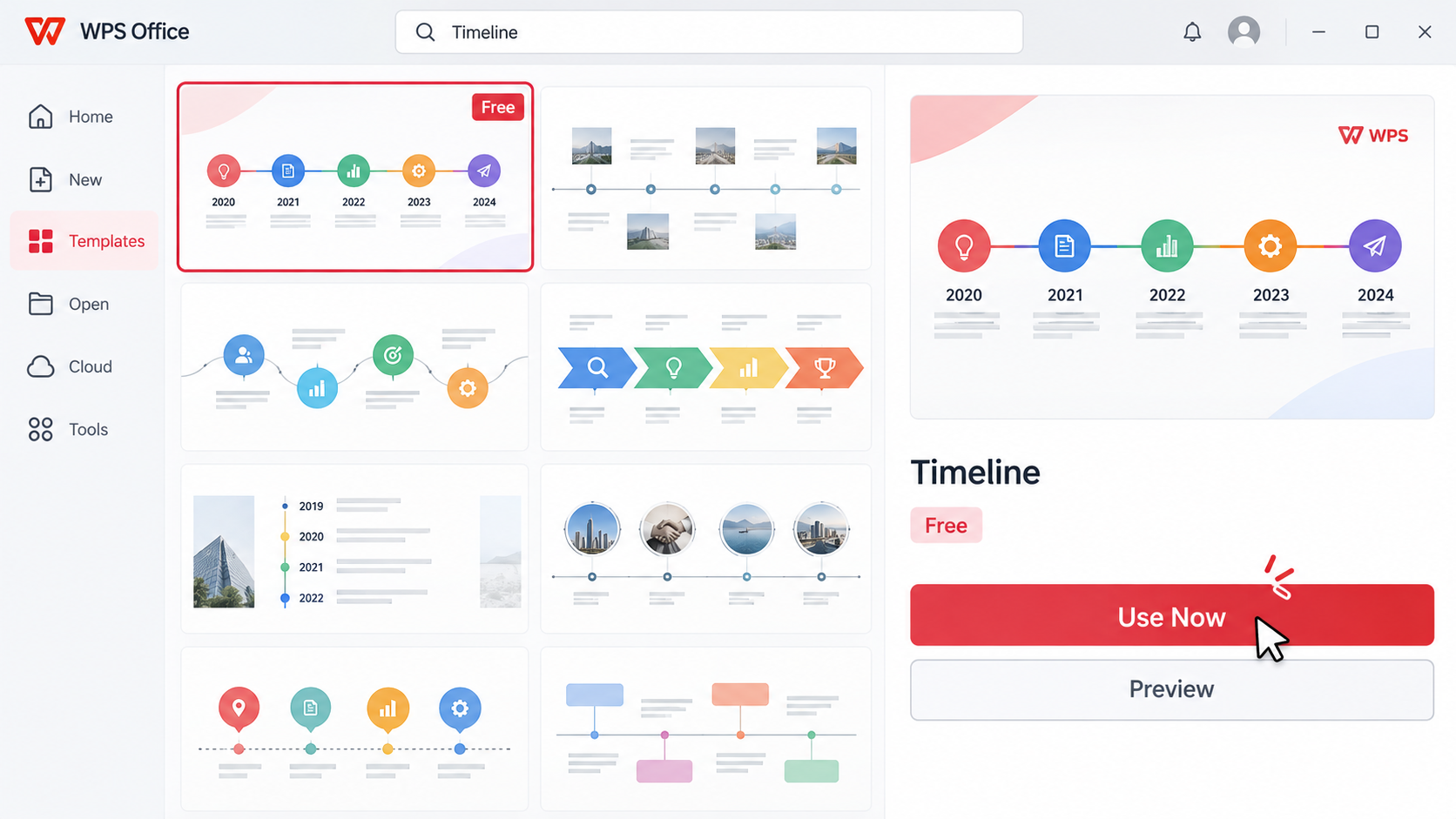
Select free WPS timeline template
Open the template in WPS Office.
Replace sample dates, labels, icons, and colors with your own content.
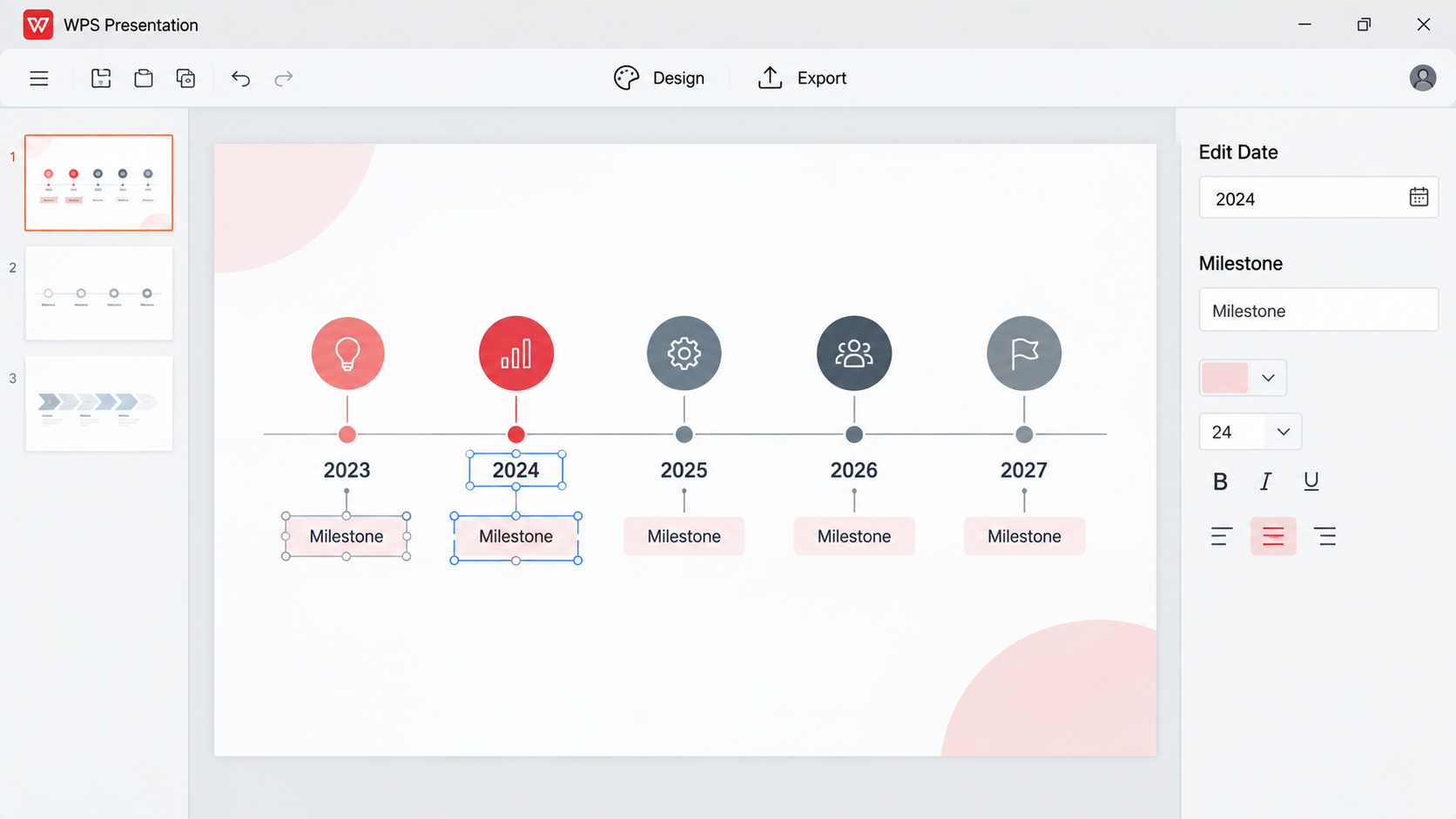
Edit WPS timeline template dates
Review alignment, spacing, and label length before exporting or sharing.
Templates are especially helpful when you need a timeline today, not next week. They also reduce design mistakes because the layout already has a visual hierarchy. Still, avoid choosing a template only because it looks impressive. The best timeline template is the one that fits your amount of information.
Which Timeline Creation Method Should You Choose?
The best method depends on your goal, time, and editing needs.
| Use case | Best method | Reason |
|---|---|---|
| Simple presentation timeline | PowerPoint SmartArt or WPS Presentation shapes | Fast, visual, and easy to present. |
| Project schedule with dates | Excel or WPS Spreadsheet template | Better for rows, deadlines, and recurring updates. |
| Report or assignment | Word or WPS Writer | Works well when the timeline supports a longer written explanation. |
| Fast polished result | Free WPS timeline template | Reduces layout work and helps beginners avoid blank-page stress. |
| Highly custom visual | Manual shapes in WPS Presentation or PowerPoint | Gives full control over spacing, icons, color, and emphasis. |
If you already have a Microsoft file, WPS Office can still be useful because you can open the file, edit the timeline, and export it without rebuilding the document from scratch.
FAQs
What is the easiest way to create a timeline?
The easiest way is to start with a template. Search for a free timeline template in WPS Template or Microsoft templates, replace the sample content, and adjust colors only if needed.
Can I create a timeline in Word?
Yes. In Microsoft Word, you can use Insert > SmartArt and choose a process-style graphic. In WPS Writer, you can use shapes, lines, and text boxes, or build the timeline in WPS Presentation first and insert it into your document.
Is a timeline the same as a Gantt chart?
No. A timeline focuses on chronological sequence and key milestones. A Gantt chart is a more detailed project schedule that shows task duration, start and end dates, and often dependencies.
How many events should a timeline include?
For a slide, keep it to about 4 to 7 major milestones. For a report or project plan, you can include more, but group events into phases so the timeline remains readable.
Are WPS timeline templates free?
Many WPS timeline templates are free to use. Availability can vary by template and region, so check the template page before downloading or applying it.

Summary
To create a timeline, begin by clarifying the story or plan you need to show. A timeline works because it turns dates, milestones, and tasks into a visual sequence that people can understand quickly.
Microsoft Office is a solid choice for SmartArt timelines and Office templates, especially in PowerPoint. WPS Office is a flexible free alternative because you can build a timeline manually in WPS Presentation or start faster with free WPS timeline templates. For the best result, keep labels short, use a consistent time scale, choose only important milestones, and match the timeline format to your audience.

'%3e%3cpath%20d='M19.9911%204.11386V6.471H18.5894C18.0775%206.471%2017.7322%206.57814%2017.5536%206.79243C17.3751%207.00671%2017.2858%207.32814%2017.2858%207.75671V9.44421H19.9019L19.5536%2012.0871H17.2858V18.8639H14.5536V12.0871H12.2769V9.44421H14.5536V7.49779C14.5536%206.39064%2014.8632%205.53201%2015.4822%204.92189C16.1013%204.31177%2016.9257%204.00671%2017.9554%204.00671C18.8304%204.00671%2019.509%204.04243%2019.9911%204.11386Z'%20fill='%23333333'/%3e%3c/g%3e%3cdefs%3e%3cclipPath%20id='clip0_2938_8199'%3e%3crect%20width='16'%20height='16'%20fill='white'%20transform='translate(8%204.00671)'/%3e%3c/clipPath%3e%3c/defs%3e%3c/svg%3e)
'%3e%3cpath%20d='M17.5237%2010.7813L23.4811%204H22.0699L16.8949%209.88693L12.7648%204H8L14.2469%2012.9029L8%2020.0133H9.4112L14.8725%2013.7952L19.2352%2020.0133H24M9.92053%205.04213H12.0885L22.0688%2019.0224H19.9003'%20fill='%23333333'/%3e%3c/g%3e%3cdefs%3e%3cclipPath%20id='clip0_2938_8200'%3e%3crect%20width='16'%20height='16.0134'%20fill='white'%20transform='translate(8%204)'/%3e%3c/clipPath%3e%3c/defs%3e%3c/svg%3e)


