



'%3e%3cpath%20fill-rule='evenodd'%20clip-rule='evenodd'%20d='M21.4999%2010.9993C21.4999%205.20009%2016.7986%200.498901%2010.9993%200.498901C5.19994%200.498901%200.498657%205.20009%200.498657%2010.9993C0.498657%2016.2404%204.33858%2020.5844%209.35855%2021.3722V14.0346H6.69238V10.9993H9.35855V8.68594C9.35855%206.05427%2010.9262%204.60062%2013.3248%204.60062C14.4736%204.60062%2015.6753%204.80571%2015.6753%204.80571V7.38979H14.3512C13.0468%207.38979%2012.64%208.19921%2012.64%209.0296V10.9993H15.5523L15.0867%2014.0346H12.64V21.3722C17.66%2020.5844%2021.4999%2016.2404%2021.4999%2010.9993Z'%20fill='%231568EA'/%3e%3c/g%3e%3c/svg%3e)


'%3e%3cpath%20d='M2.42045%2022.1876H6.31818V12.7217L0.75%208.54553V20.5171C0.75%2021.4414%201.49892%2022.1876%202.42045%2022.1876Z'%20fill='%234285F4'/%3e%3cpath%20d='M19.682%2022.1876H23.5797C24.5041%2022.1876%2025.2502%2021.4387%2025.2502%2020.5171V8.54553L19.682%2012.7217'%20fill='%2334A853'/%3e%3cpath%20d='M19.682%205.48293V12.7216L25.2502%208.54543V6.31816C25.2502%204.25236%2022.8921%203.07469%2021.2411%204.31361'%20fill='%23FBBC04'/%3e%3cpath%20d='M6.31824%2012.7217V5.48303L13.0001%2010.4944L19.6819%205.48303V12.7217L13.0001%2017.733'%20fill='%23EA4335'/%3e%3cpath%20d='M0.75%206.31816V8.54543L6.31818%2012.7216V5.48293L4.75909%204.31361C3.10534%203.07469%200.75%204.25236%200.75%206.31816Z'%20fill='%23C5221F'/%3e%3c/g%3e%3cdefs%3e%3cclipPath%20id='clip0_2954_7305'%3e%3crect%20width='24.5'%20height='18.375'%20fill='white'%20transform='translate(0.75%203.8125)'/%3e%3c/clipPath%3e%3c/defs%3e%3c/svg%3e)


Flipping an image in Word is a quick way to fix a mirrored logo, an upside-down photo, or a reversed graphic. Microsoft Word includes built-in flip tools on the Picture Format tab, but beginners often miss them—or run into grayed-out buttons and messy wrap settings. This guide shows how to flip images horizontally and vertically, flip several pictures at once, fix common issues, and use a free Word-compatible option in WPS Writer.


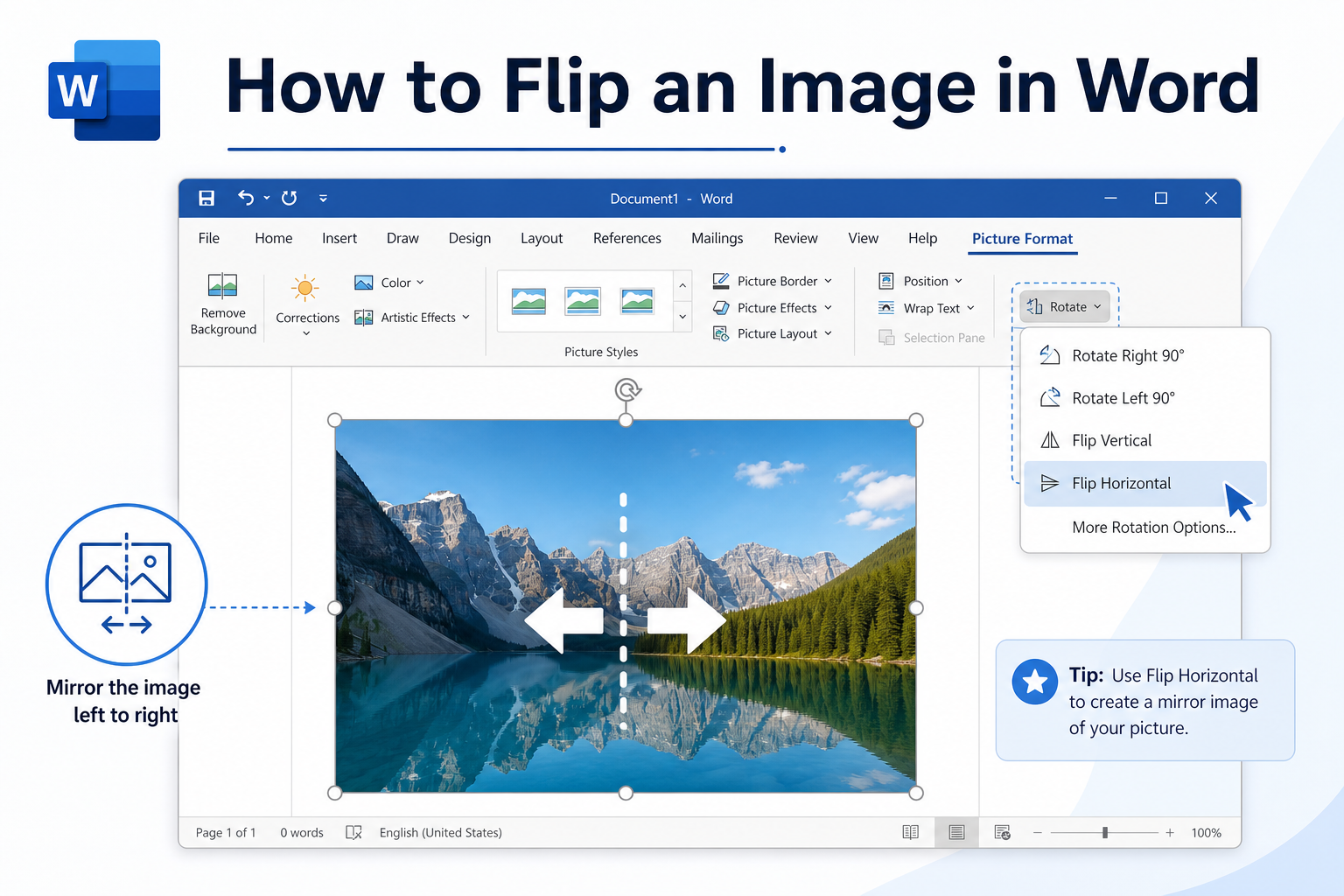
Quick answer: Select the picture → Picture Format → Rotate → Flip Horizontal or Flip Vertical. If Rotate is grayed out, change wrap from In Line with Text to Square or Tight first. To flip several images, hold Ctrl / Command, select them, then apply Flip.
Flip Horizontal vs. Flip Vertical
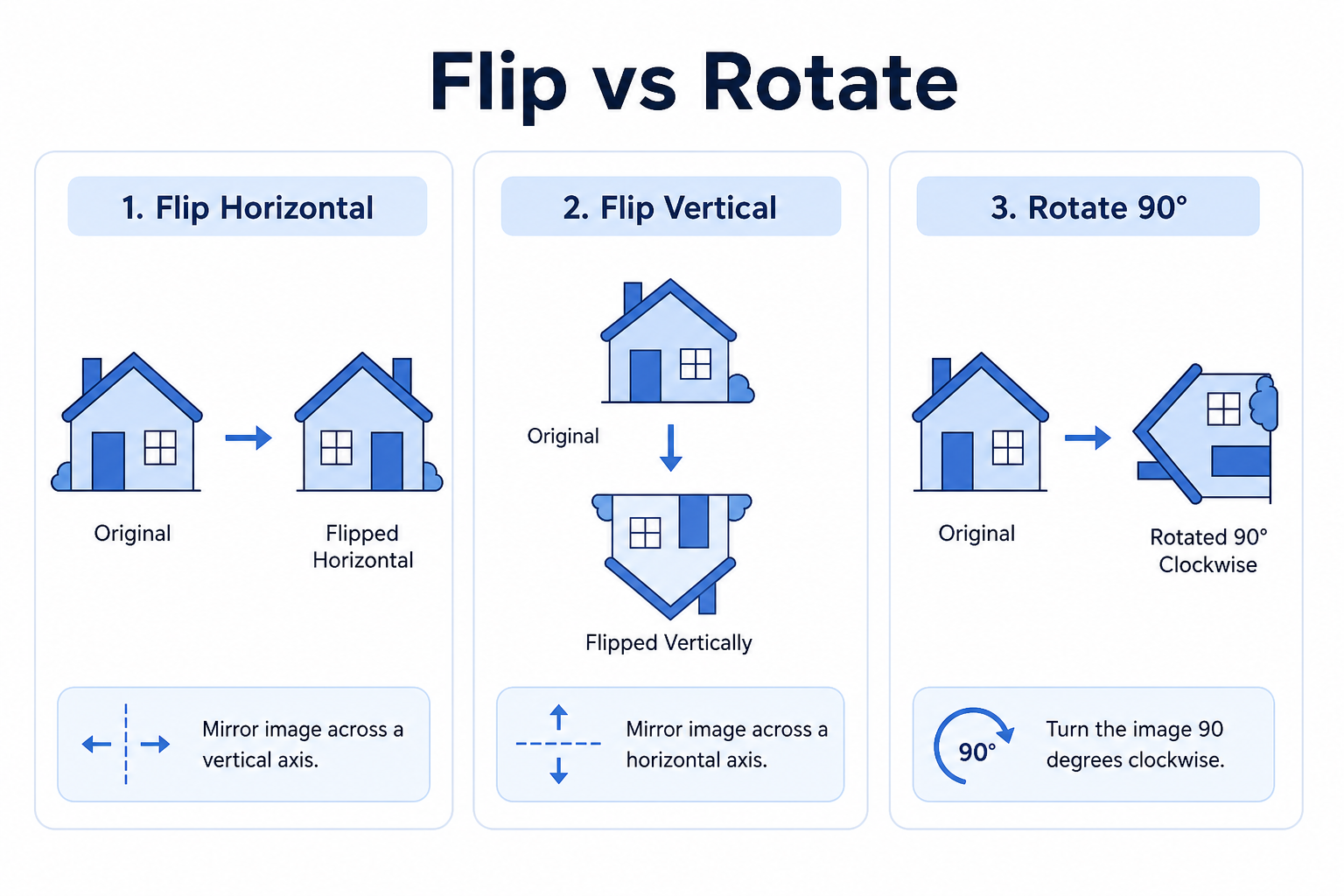
| Action | What it does | Best for |
|---|---|---|
| Flip Horizontal | Mirrors left and right | Reversed logos, mirrored scans, left/right corrections |
| Flip Vertical | Turns the image upside down | Inverted photos, special layout effects |
| Rotate Left / Right | Turns 90° without mirroring | Sideways camera photos |
Flip mirrors the picture. Rotate turns it. Use Flip when the content is backwards or upside down in a mirror sense—not when it only needs a 90° turn.
How to Flip an Image Horizontally in Word
These steps work in Word 2016, 2019, 2021, and Microsoft 365.
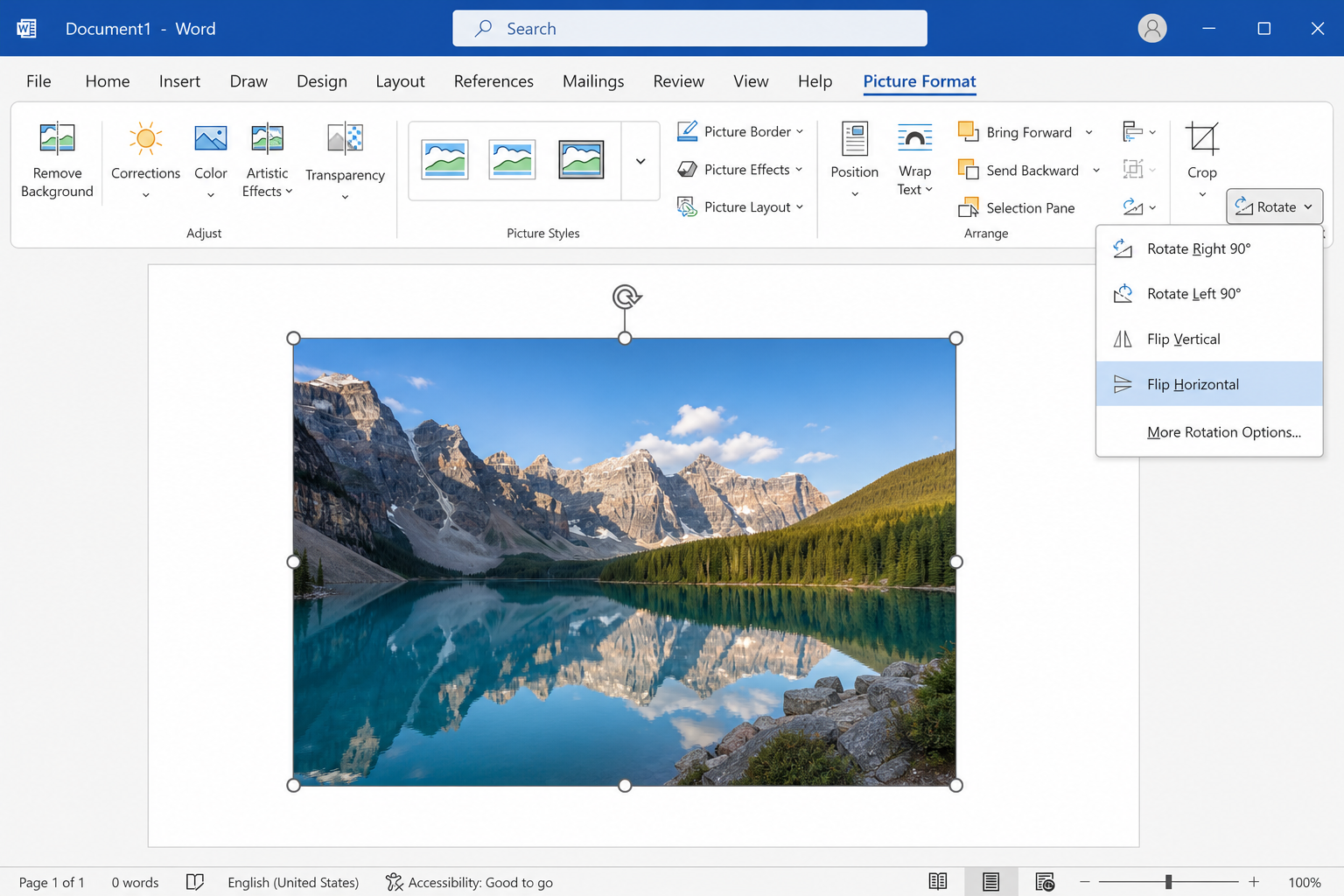
Click the image to select it.
Open the Picture Format tab (it appears when a picture is selected).
Click Rotate.
Choose Flip Horizontal.
The picture mirrors left to right and usually keeps its size and position. If text wrapping is In Line with Text, the image stays in the paragraph flow after the flip.
How to Flip an Image Vertically in Word
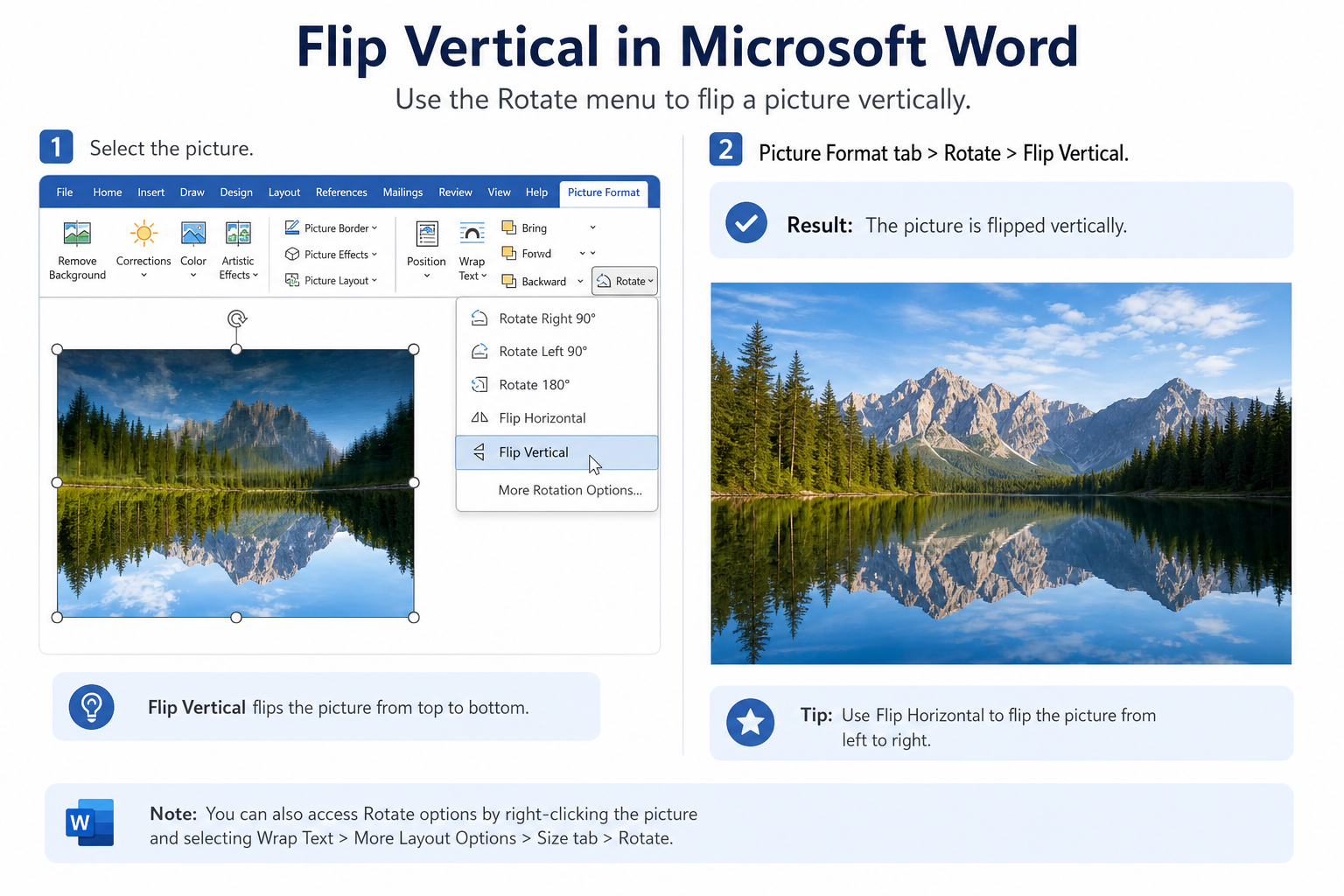
Select the image.
Go to Picture Format → Rotate.
Choose Flip Vertical.
Use this for upside-down photos. For a sideways photo that is not mirrored, choose Rotate Right 90° or Rotate Left 90° instead.
How to Flip Multiple Images at Once
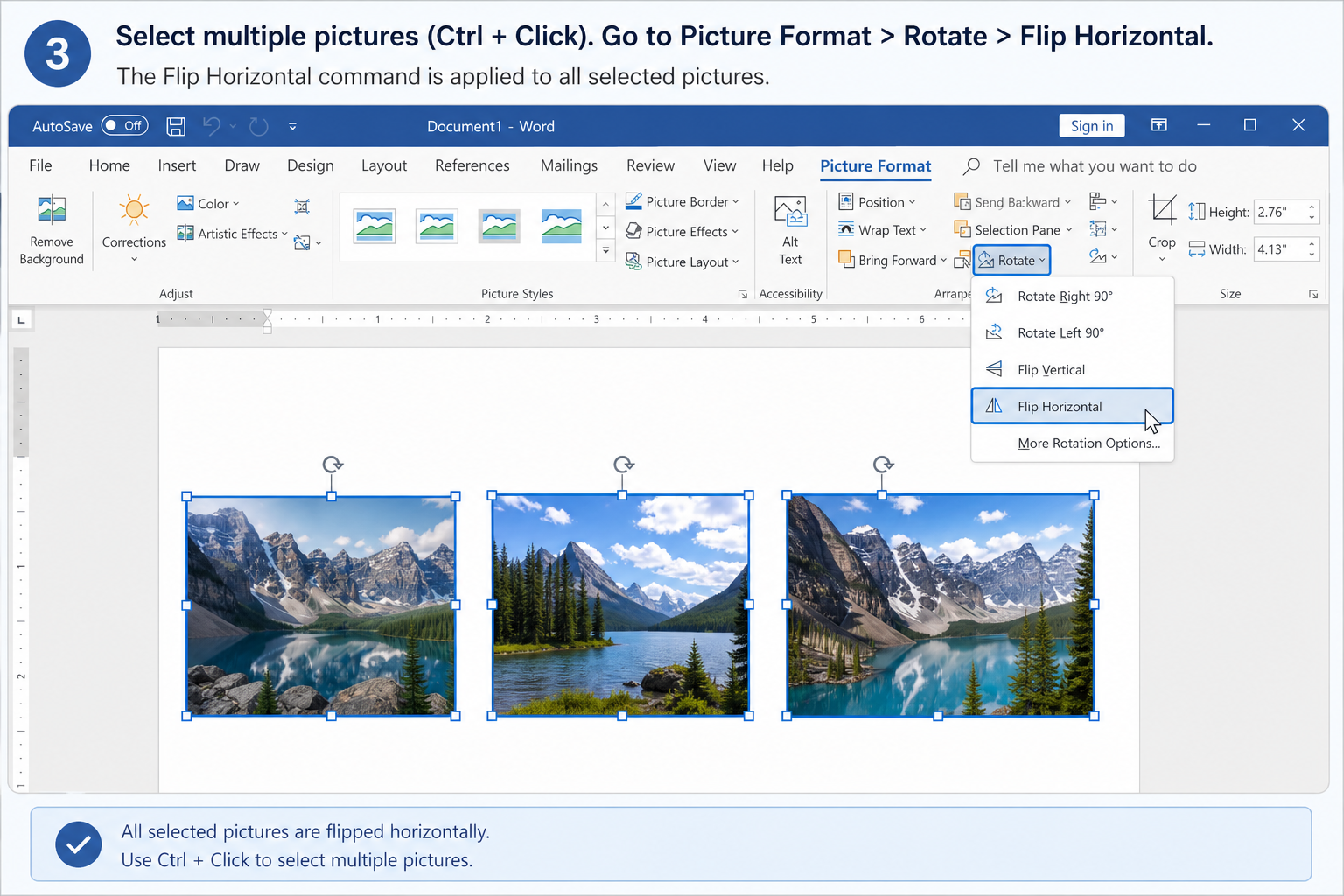
Hold Ctrl (Windows) or Command (Mac) and click each target image.
Open Picture Format → Rotate.
Apply Flip Horizontal or Flip Vertical to the selection.
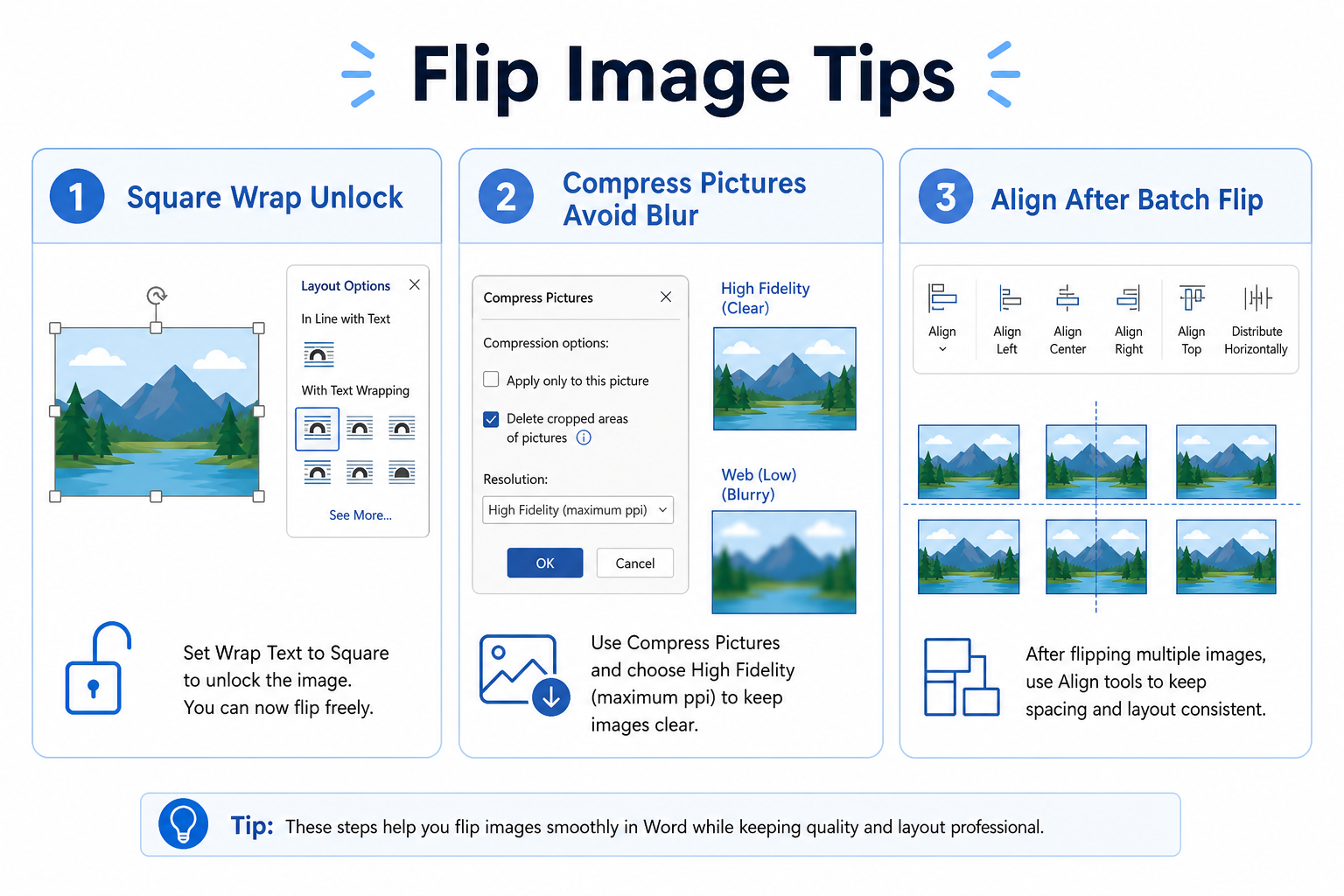
Tip: If you cannot multi-select freely, change each image’s wrap to Square or Tight first. Inline pictures can be harder to select and arrange as a group.
Common Flip Issues and Fixes
| Problem | What to try |
|---|---|
| Rotate / Flip is grayed out | Select the picture → set Wrap Text to Square or Tight, then open Rotate again |
| Image looks blurry after edits | Re-insert the original high-resolution file; avoid repeated compress + flip cycles |
| Picture looks stretched | Reset size under Picture Format → Size and lock aspect ratio |
| Layout shifts after batch flip | Flip first, then use Align / distribute to restore a neat row |
| Need a mirror of only part of a design | Flip the image in Word, or edit the source graphic in a photo app and re-insert |
Unlock Flip when the button is grayed out
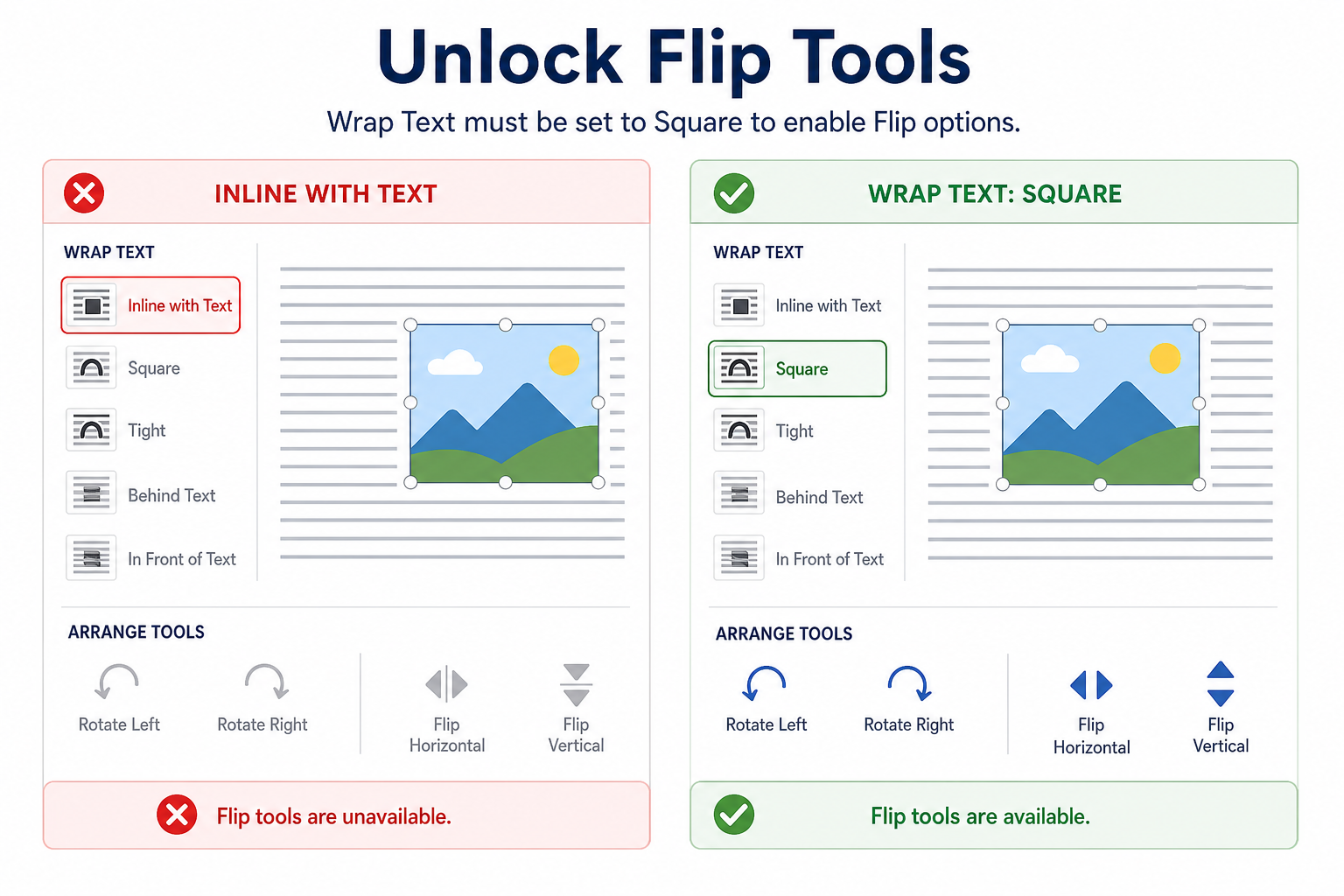
Click the image.
Open Picture Format or the Layout Options icon.
Choose Wrap Text → Square or Tight.
Return to Rotate → Flip Horizontal / Flip Vertical.
Free Method: Flip Images in WPS Writer
Word’s Flip tools cover most everyday needs. If you prefer a simpler picture toolbar for daily documents—or you edit many images in one file—WPS Writer is a free, Word-compatible option for horizontal and vertical flips.
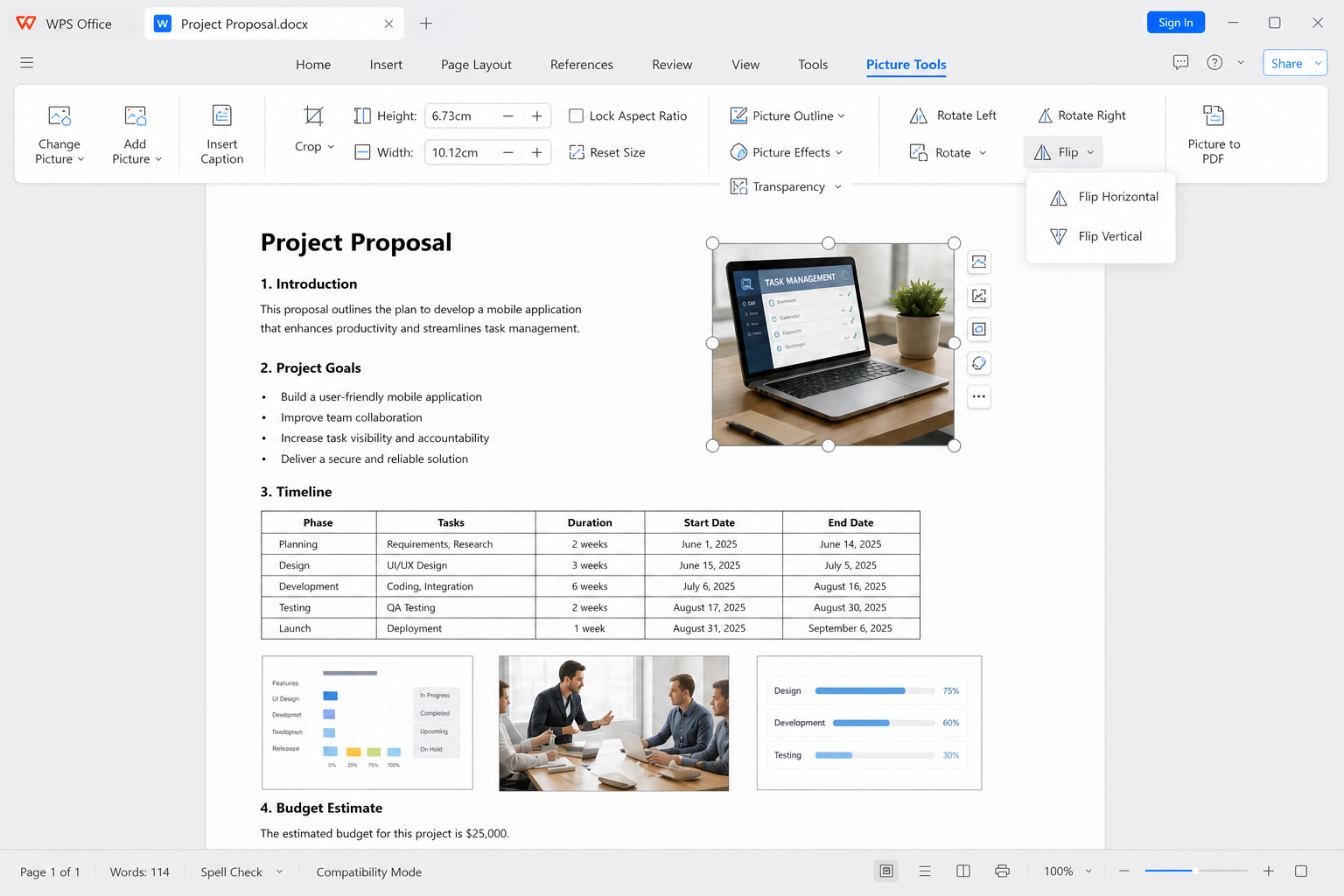
Open your document in WPS Writer.
Select one image (or multi-select several).
Open the picture tools and choose Flip Horizontal or Flip Vertical.
Adjust wrap or alignment if the layout needs a quick cleanup.
Save as .docx when you need to share the file in Microsoft Word.
Clear flip controls — Horizontal and vertical flip for everyday picture fixes
Works with multi-select — Flip several images in one pass when your build supports it
Strong Word compatibility — Share common .docx files with Word users
No paid subscription required — Core picture tools for daily documents
FAQ
How do I flip an image in Word?
Select the picture → Picture Format → Rotate → Flip Horizontal or Flip Vertical.
Why is Flip grayed out in Word?
The picture may be set to In Line with Text. Change wrap to Square or Tight, then try Flip again.
What is the difference between Flip and Rotate?
Flip mirrors the image. Rotate turns it (for example, 90°) without creating a mirror image.
Do flipped images from WPS work in Microsoft Word?
Yes—when you save as a standard .docx, flipped pictures usually open normally in Microsoft Word. Preview once before sharing.
Conclusion
To flip an image in Word, use Picture Format → Rotate → Flip Horizontal or Flip Vertical. Unlock grayed-out tools by changing wrap settings, and clean up multi-image pages with Align after a batch flip. If you want a simpler free workflow for everyday picture edits, WPS Writer is a practical Word-compatible option.

'%3e%3cpath%20d='M19.9911%204.11386V6.471H18.5894C18.0775%206.471%2017.7322%206.57814%2017.5536%206.79243C17.3751%207.00671%2017.2858%207.32814%2017.2858%207.75671V9.44421H19.9019L19.5536%2012.0871H17.2858V18.8639H14.5536V12.0871H12.2769V9.44421H14.5536V7.49779C14.5536%206.39064%2014.8632%205.53201%2015.4822%204.92189C16.1013%204.31177%2016.9257%204.00671%2017.9554%204.00671C18.8304%204.00671%2019.509%204.04243%2019.9911%204.11386Z'%20fill='%23333333'/%3e%3c/g%3e%3cdefs%3e%3cclipPath%20id='clip0_2938_8199'%3e%3crect%20width='16'%20height='16'%20fill='white'%20transform='translate(8%204.00671)'/%3e%3c/clipPath%3e%3c/defs%3e%3c/svg%3e)
'%3e%3cpath%20d='M17.5237%2010.7813L23.4811%204H22.0699L16.8949%209.88693L12.7648%204H8L14.2469%2012.9029L8%2020.0133H9.4112L14.8725%2013.7952L19.2352%2020.0133H24M9.92053%205.04213H12.0885L22.0688%2019.0224H19.9003'%20fill='%23333333'/%3e%3c/g%3e%3cdefs%3e%3cclipPath%20id='clip0_2938_8200'%3e%3crect%20width='16'%20height='16.0134'%20fill='white'%20transform='translate(8%204)'/%3e%3c/clipPath%3e%3c/defs%3e%3c/svg%3e)


