



'%3e%3cpath%20fill-rule='evenodd'%20clip-rule='evenodd'%20d='M21.4999%2010.9993C21.4999%205.20009%2016.7986%200.498901%2010.9993%200.498901C5.19994%200.498901%200.498657%205.20009%200.498657%2010.9993C0.498657%2016.2404%204.33858%2020.5844%209.35855%2021.3722V14.0346H6.69238V10.9993H9.35855V8.68594C9.35855%206.05427%2010.9262%204.60062%2013.3248%204.60062C14.4736%204.60062%2015.6753%204.80571%2015.6753%204.80571V7.38979H14.3512C13.0468%207.38979%2012.64%208.19921%2012.64%209.0296V10.9993H15.5523L15.0867%2014.0346H12.64V21.3722C17.66%2020.5844%2021.4999%2016.2404%2021.4999%2010.9993Z'%20fill='%231568EA'/%3e%3c/g%3e%3c/svg%3e)


'%3e%3cpath%20d='M2.42045%2022.1876H6.31818V12.7217L0.75%208.54553V20.5171C0.75%2021.4414%201.49892%2022.1876%202.42045%2022.1876Z'%20fill='%234285F4'/%3e%3cpath%20d='M19.682%2022.1876H23.5797C24.5041%2022.1876%2025.2502%2021.4387%2025.2502%2020.5171V8.54553L19.682%2012.7217'%20fill='%2334A853'/%3e%3cpath%20d='M19.682%205.48293V12.7216L25.2502%208.54543V6.31816C25.2502%204.25236%2022.8921%203.07469%2021.2411%204.31361'%20fill='%23FBBC04'/%3e%3cpath%20d='M6.31824%2012.7217V5.48303L13.0001%2010.4944L19.6819%205.48303V12.7217L13.0001%2017.733'%20fill='%23EA4335'/%3e%3cpath%20d='M0.75%206.31816V8.54543L6.31818%2012.7216V5.48293L4.75909%204.31361C3.10534%203.07469%200.75%204.25236%200.75%206.31816Z'%20fill='%23C5221F'/%3e%3c/g%3e%3cdefs%3e%3cclipPath%20id='clip0_2954_7305'%3e%3crect%20width='24.5'%20height='18.375'%20fill='white'%20transform='translate(0.75%203.8125)'/%3e%3c/clipPath%3e%3c/defs%3e%3c/svg%3e)


Need a PDF size increase? First decide what “size” means. You may need more storage size in KB or MB to satisfy an upload minimum, more image data for sharper printing, or larger page dimensions such as A3 instead of A4. Those are different jobs and require different methods.
This guide explains four practical ways to make a PDF larger without adding meaningless blank pages. It also shows how to verify the result and avoid damaging text, links, or print quality.
How to Increase PDF Size: 4 Practical Methods
What a PDF size increase actually means
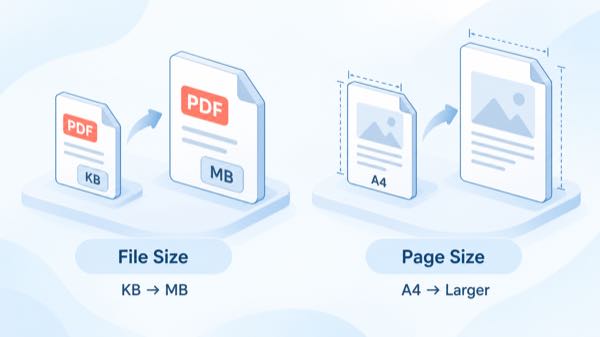
A PDF has at least two kinds of size:
File size is the storage space shown in KB or MB. Images, embedded fonts, attachments, and compression settings affect it.
Page size is the physical width and height of each page, usually expressed in inches, millimeters, or points. Changing A4 to A3 changes the canvas, but it may barely change the number of megabytes.
If a portal says a file must be at least 1 MB, you need to increase file size. If a printer requests A3 pages, you need to change page dimensions. If the print looks blurry, you need a higher-quality source or export—not an arbitrary number of extra bytes.
Before editing, make a copy. Then check the current value in your file manager: right-click the PDF, choose Properties on Windows or Get Info on macOS, and note its size in bytes as well as KB or MB.
PDF file and page sizes


How to increase PDF file size with images
For a genuine PDF size increase that also improves the document, add or replace an image with a higher-resolution version. This works well for portfolios, photo records, product catalogs, and print-ready documents.
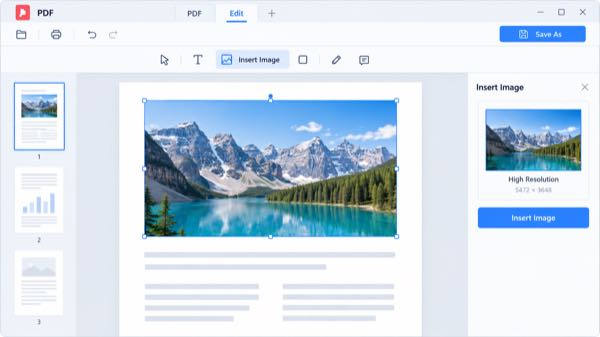
Open a copy of the PDF in a PDF editor.
Choose Edit > Add Image, or select an existing low-resolution image and replace it.
Use a clear JPG or PNG that matches the intended print dimensions. Do not enlarge a tiny source image; scaling cannot create missing detail.
Keep the image at its natural aspect ratio and place it within the page margins.
Choose Save As so the original remains available for comparison.
Adding many images only to reach a number wastes bandwidth and may expose unintended information. One relevant high-resolution image is usually better than hidden objects, blank pages, or duplicate content.
Add high resolution PDF image
How to increase PDF size during export
If you have the original Word, presentation, spreadsheet, or design file, re-exporting it is usually the cleanest method. The source application can preserve more image detail and embed the fonts needed for consistent printing.
Open the original editable document rather than the PDF.
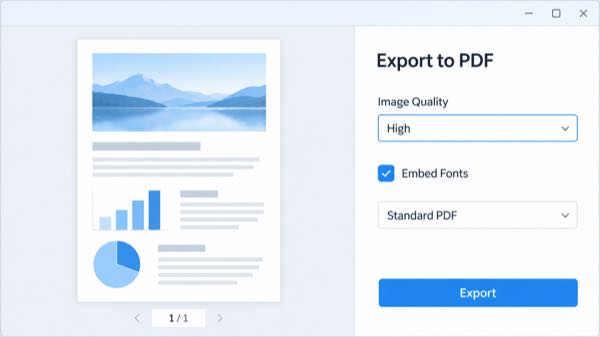
Choose File > Export to PDF or Save As > PDF.
Select High, Print, or the highest appropriate image-quality setting. Avoid “minimum size” or aggressive compression.
Embed fonts when licensing and the export dialog permit it. Font embedding can improve consistency across computers and may increase the file size.
Export to a new filename, reopen the PDF, and inspect text, images, links, and page order.
A larger export is not automatically a better export. Use the quality needed for the destination. Screen-only forms rarely benefit from print-resolution photographs, while a professional print shop may provide exact resolution, color, bleed, and page-size requirements.
Export PDF with high quality
How to increase PDF page size for printing
Choose this method when the requirement concerns page dimensions, not KB or MB. A common workflow is to print the PDF to a new PDF with a larger paper size.
Open the PDF and choose File > Print.
Select a PDF printer or save-to-PDF destination.
Choose the required paper size, such as A3, Tabloid, or a verified custom width and height.
Use Fit if the content should scale with the page, or Actual Size if it should retain its original dimensions and gain additional margin.
Preview every page, save the new PDF, and confirm its dimensions in Document Properties or the print dialog.
Printing to PDF can flatten interactive elements. Check hyperlinks, form fields, comments, signatures, bookmarks, layers, and accessibility tags afterward. If those features matter, resize pages in a full PDF editor or change the page setup in the original source document instead.
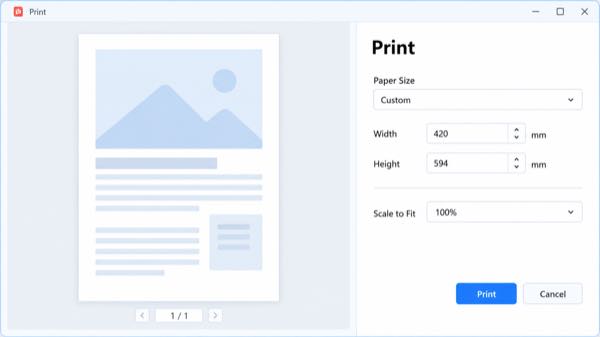
Set larger custom PDF page
The Best Free PDF Alternative: WPS Office
WPS PDF provides one workspace for opening, editing, organizing, converting, compressing, signing, and reviewing PDF documents. For this task, you can open the PDF, add a useful image, save a new copy, or return to WPS Writer or Presentation and export the source document again.
The important point is control: use high-quality source assets when you need a richer print file, and use the PDF compressor only when you later need a smaller sharing copy. WPS also offers an official online PDF compressor, but compression moves in the opposite direction from this guide.
Note: The interface below is an illustrative UI, not a claim that every WPS version places tools in exactly the same position. Menu names and available features may vary by platform, build, and plan.
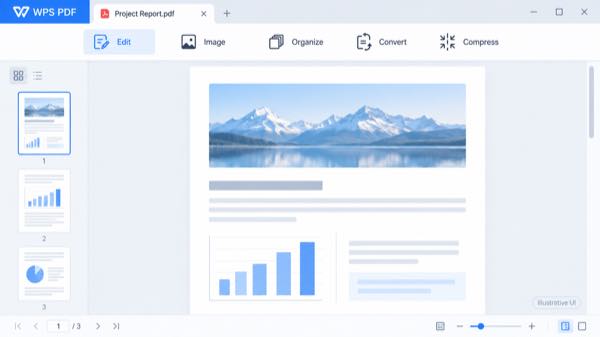
WPS PDF editing workspace illustration
FAQs
How can I increase PDF size from KB to MB?
Replace a low-resolution image with a larger source image or re-export the original document at higher image quality. Save a copy and check the exact byte count; “1 MB” may be interpreted differently by different systems.
Can I increase PDF size without changing its pages?
You can re-export at higher image quality or embed necessary fonts while keeping the same page count and dimensions. The underlying PDF data changes even if the visible pages look similar.
Does changing page size increase PDF file size?
Not reliably. Page dimensions and storage size are separate. Moving from A4 to A3 changes the canvas, but a mostly vector PDF may gain very few bytes.
Is adding blank pages a good way to make a PDF larger?
No. Blank pages add little useful data, reduce document quality, and may cause an upload or review problem. Add relevant content or make a controlled high-quality export instead.
Why is my PDF still below an upload minimum?
Confirm that the site truly has a minimum rather than a maximum. Then check whether it counts decimal MB or binary MiB. Aim slightly above the verified minimum and reopen the file to ensure it is valid.
Open, edit, organize, and convert PDF files.
Work with Writer, Spreadsheet, Presentation, and PDF.
Save a copy before changing file or page size.

Summary
For a useful PDF size increase, match the method to the requirement. Add a relevant high-resolution image or re-export the source at higher quality to increase KB or MB. Change paper dimensions only when a printer or workflow requires a larger page. Always save a copy, verify the final bytes and dimensions, and inspect interactive features before uploading or printing.

'%3e%3cpath%20d='M19.9911%204.11386V6.471H18.5894C18.0775%206.471%2017.7322%206.57814%2017.5536%206.79243C17.3751%207.00671%2017.2858%207.32814%2017.2858%207.75671V9.44421H19.9019L19.5536%2012.0871H17.2858V18.8639H14.5536V12.0871H12.2769V9.44421H14.5536V7.49779C14.5536%206.39064%2014.8632%205.53201%2015.4822%204.92189C16.1013%204.31177%2016.9257%204.00671%2017.9554%204.00671C18.8304%204.00671%2019.509%204.04243%2019.9911%204.11386Z'%20fill='%23333333'/%3e%3c/g%3e%3cdefs%3e%3cclipPath%20id='clip0_2938_8199'%3e%3crect%20width='16'%20height='16'%20fill='white'%20transform='translate(8%204.00671)'/%3e%3c/clipPath%3e%3c/defs%3e%3c/svg%3e)
'%3e%3cpath%20d='M17.5237%2010.7813L23.4811%204H22.0699L16.8949%209.88693L12.7648%204H8L14.2469%2012.9029L8%2020.0133H9.4112L14.8725%2013.7952L19.2352%2020.0133H24M9.92053%205.04213H12.0885L22.0688%2019.0224H19.9003'%20fill='%23333333'/%3e%3c/g%3e%3cdefs%3e%3cclipPath%20id='clip0_2938_8200'%3e%3crect%20width='16'%20height='16.0134'%20fill='white'%20transform='translate(8%204)'/%3e%3c/clipPath%3e%3c/defs%3e%3c/svg%3e)


