



'%3e%3cpath%20fill-rule='evenodd'%20clip-rule='evenodd'%20d='M21.4999%2010.9993C21.4999%205.20009%2016.7986%200.498901%2010.9993%200.498901C5.19994%200.498901%200.498657%205.20009%200.498657%2010.9993C0.498657%2016.2404%204.33858%2020.5844%209.35855%2021.3722V14.0346H6.69238V10.9993H9.35855V8.68594C9.35855%206.05427%2010.9262%204.60062%2013.3248%204.60062C14.4736%204.60062%2015.6753%204.80571%2015.6753%204.80571V7.38979H14.3512C13.0468%207.38979%2012.64%208.19921%2012.64%209.0296V10.9993H15.5523L15.0867%2014.0346H12.64V21.3722C17.66%2020.5844%2021.4999%2016.2404%2021.4999%2010.9993Z'%20fill='%231568EA'/%3e%3c/g%3e%3c/svg%3e)


'%3e%3cpath%20d='M2.42045%2022.1876H6.31818V12.7217L0.75%208.54553V20.5171C0.75%2021.4414%201.49892%2022.1876%202.42045%2022.1876Z'%20fill='%234285F4'/%3e%3cpath%20d='M19.682%2022.1876H23.5797C24.5041%2022.1876%2025.2502%2021.4387%2025.2502%2020.5171V8.54553L19.682%2012.7217'%20fill='%2334A853'/%3e%3cpath%20d='M19.682%205.48293V12.7216L25.2502%208.54543V6.31816C25.2502%204.25236%2022.8921%203.07469%2021.2411%204.31361'%20fill='%23FBBC04'/%3e%3cpath%20d='M6.31824%2012.7217V5.48303L13.0001%2010.4944L19.6819%205.48303V12.7217L13.0001%2017.733'%20fill='%23EA4335'/%3e%3cpath%20d='M0.75%206.31816V8.54543L6.31818%2012.7216V5.48293L4.75909%204.31361C3.10534%203.07469%200.75%204.25236%200.75%206.31816Z'%20fill='%23C5221F'/%3e%3c/g%3e%3cdefs%3e%3cclipPath%20id='clip0_2954_7305'%3e%3crect%20width='24.5'%20height='18.375'%20fill='white'%20transform='translate(0.75%203.8125)'/%3e%3c/clipPath%3e%3c/defs%3e%3c/svg%3e)


After converting a Word file to PDF, hyperlinks sometimes become plain text and stop working. That can hurt resumes, papers, reports, and portfolios. This guide explains why links break, how to keep clickable hyperlinks when you export from Microsoft Word, and a free Word-compatible option in WPS Writer for a simpler PDF export.
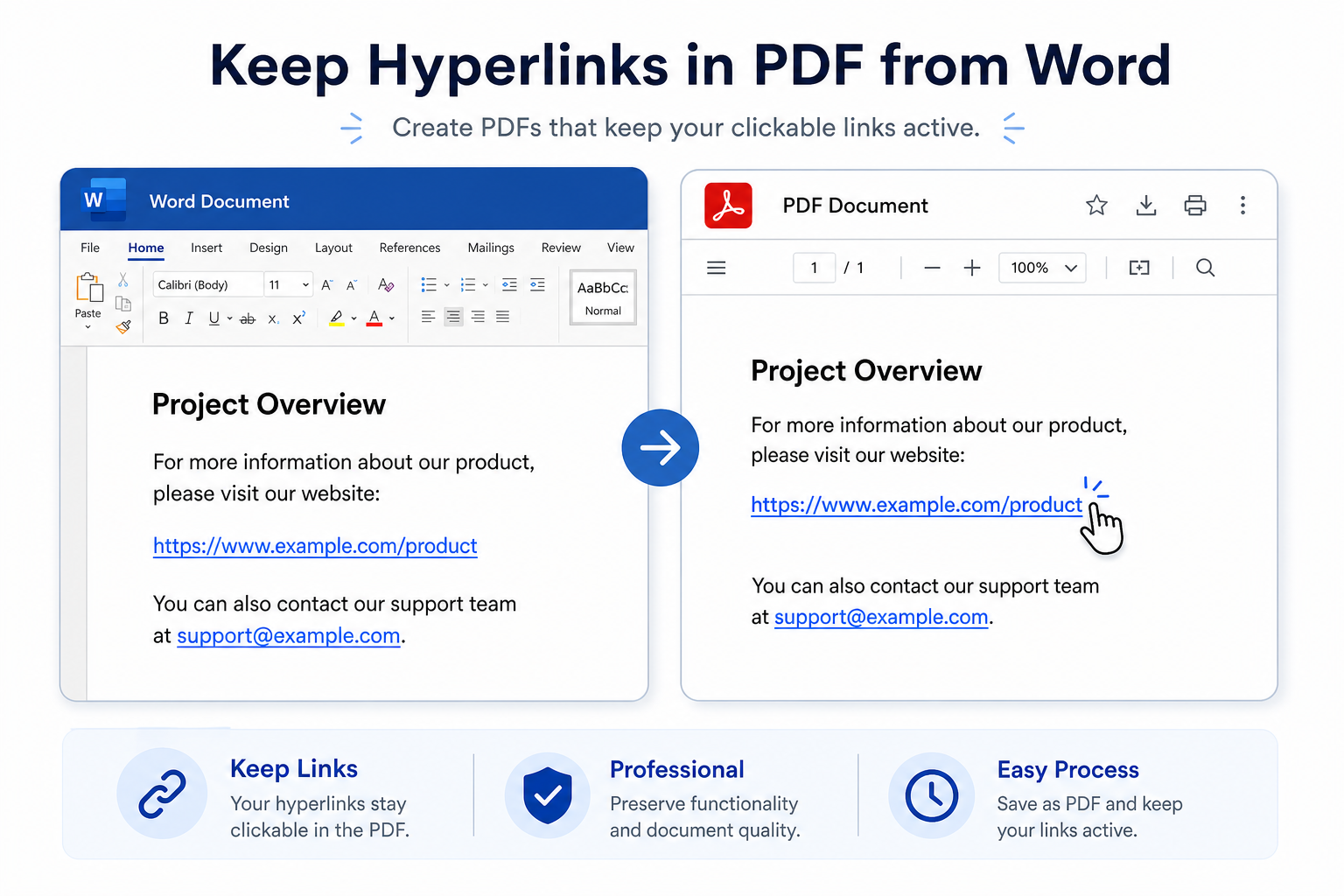
Quick answer: Do not use Print → Microsoft Print to PDF if you need live links. In Word, use File → Save As / Export → PDF, keep interactive options enabled (avoid flattening the page), then test the PDF in a real PDF reader. In WPS Writer, open the file → Export to PDF → export, then verify the links.


Why Hyperlinks Break After Word to PDF Conversion
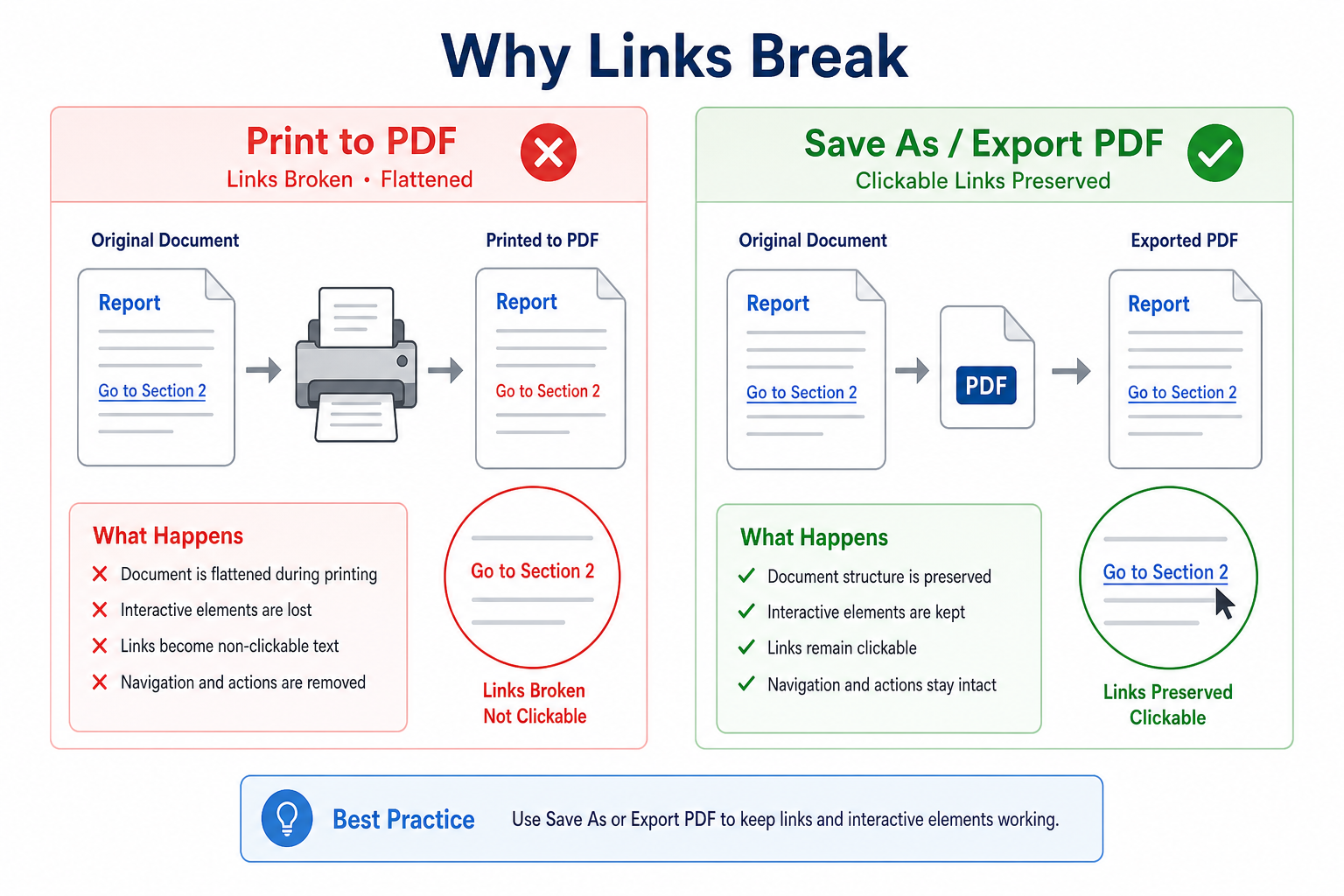
| Cause | What happens | Better approach |
|---|---|---|
| Print to PDF | Often flattens the page and drops interactive links | Use Save As / Export → PDF instead of printing |
| Export settings | Some options prioritize print appearance over interactivity | Keep document structure / accessibility tags when available |
| Broken source links | Links already fail in Word before export | Ctrl/Command-click every link in Word first |
| Viewer differences | Some browsers or apps open PDFs with limited link support | Test in a dedicated PDF reader (Word, Edge, Adobe, or WPS PDF) |
Most “lost hyperlink” cases come from printing to PDF or exporting a file whose links were never real hyperlinks in Word (plain pasted URLs that were never converted).
How to Keep Hyperlinks When Exporting Word to PDF (Microsoft Word)
These steps work in Word 2016, 2019, 2021, and Microsoft 365.
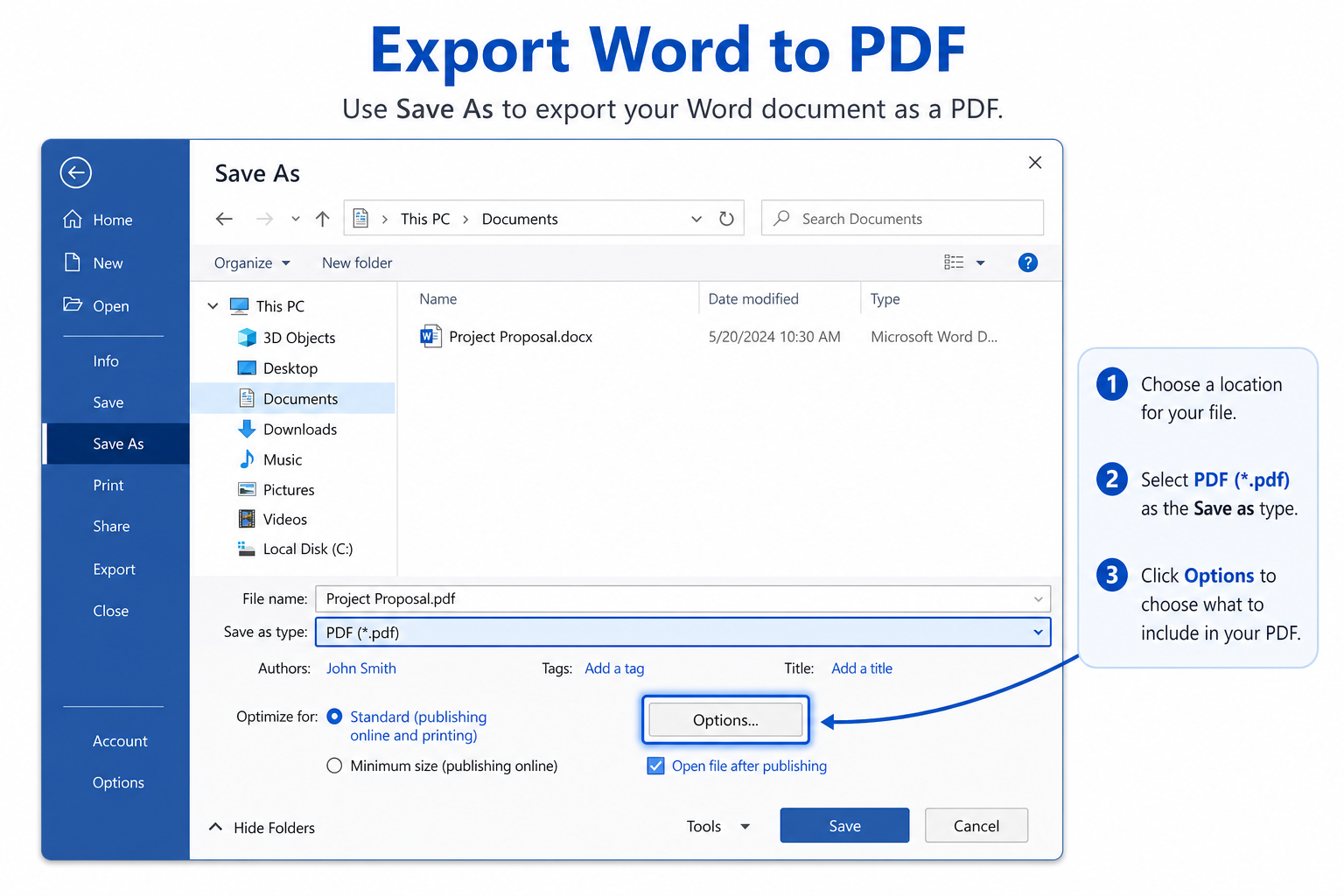
Finish editing and confirm every hyperlink works in Word (Ctrl + click on Windows, Command + click on Mac).
Go to File → Save As or File → Export.
Choose PDF (*.pdf) as the file type.
Open Options (Windows) or review PDF export settings (Mac labels may vary).
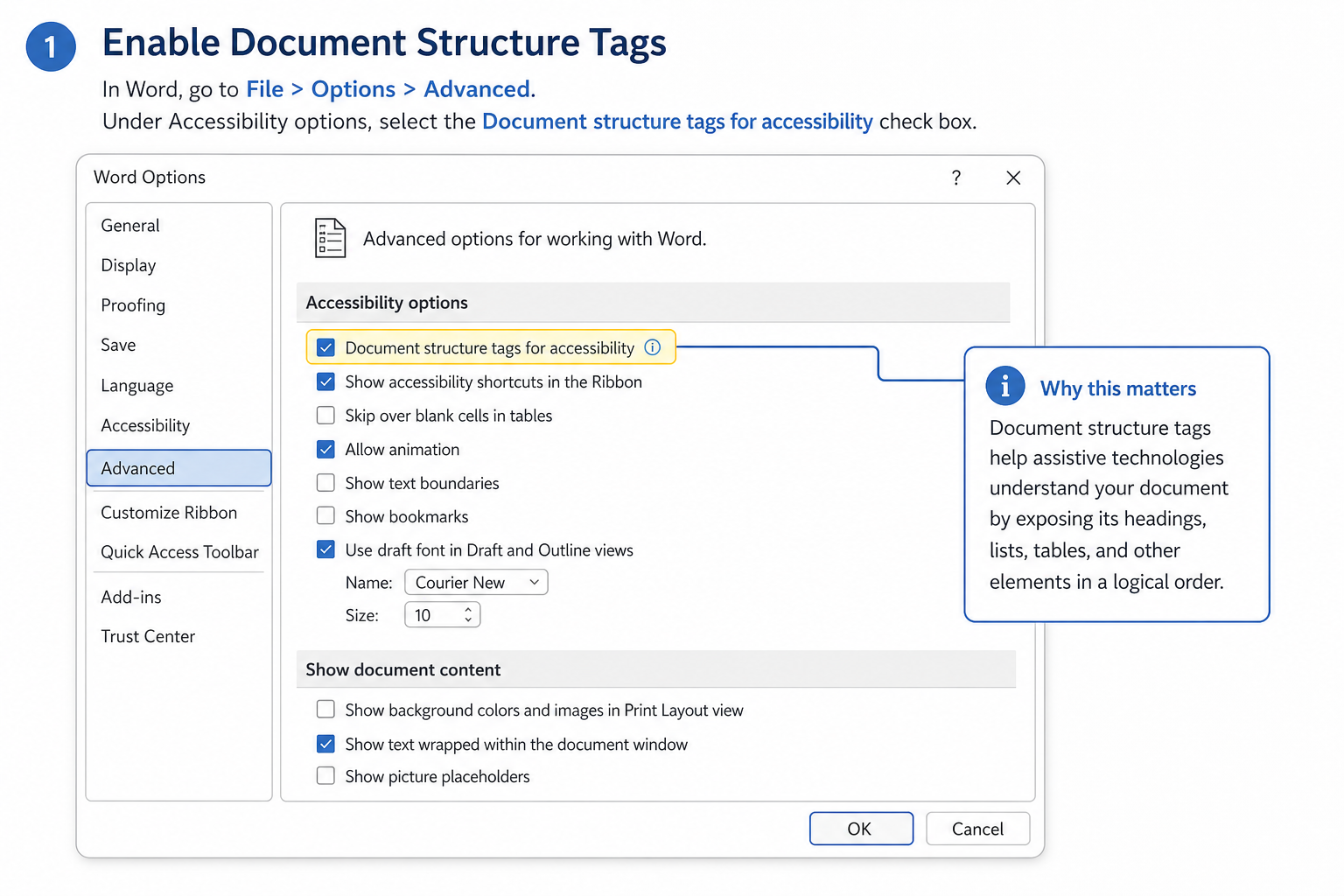
Prefer settings that preserve document structure. When available, enable options such as Document structure tags for accessibility.
Avoid “print-only” or bitmap-heavy options that flatten interactive content when your goal is clickable links.
Save the PDF, then open it and click each link to verify.
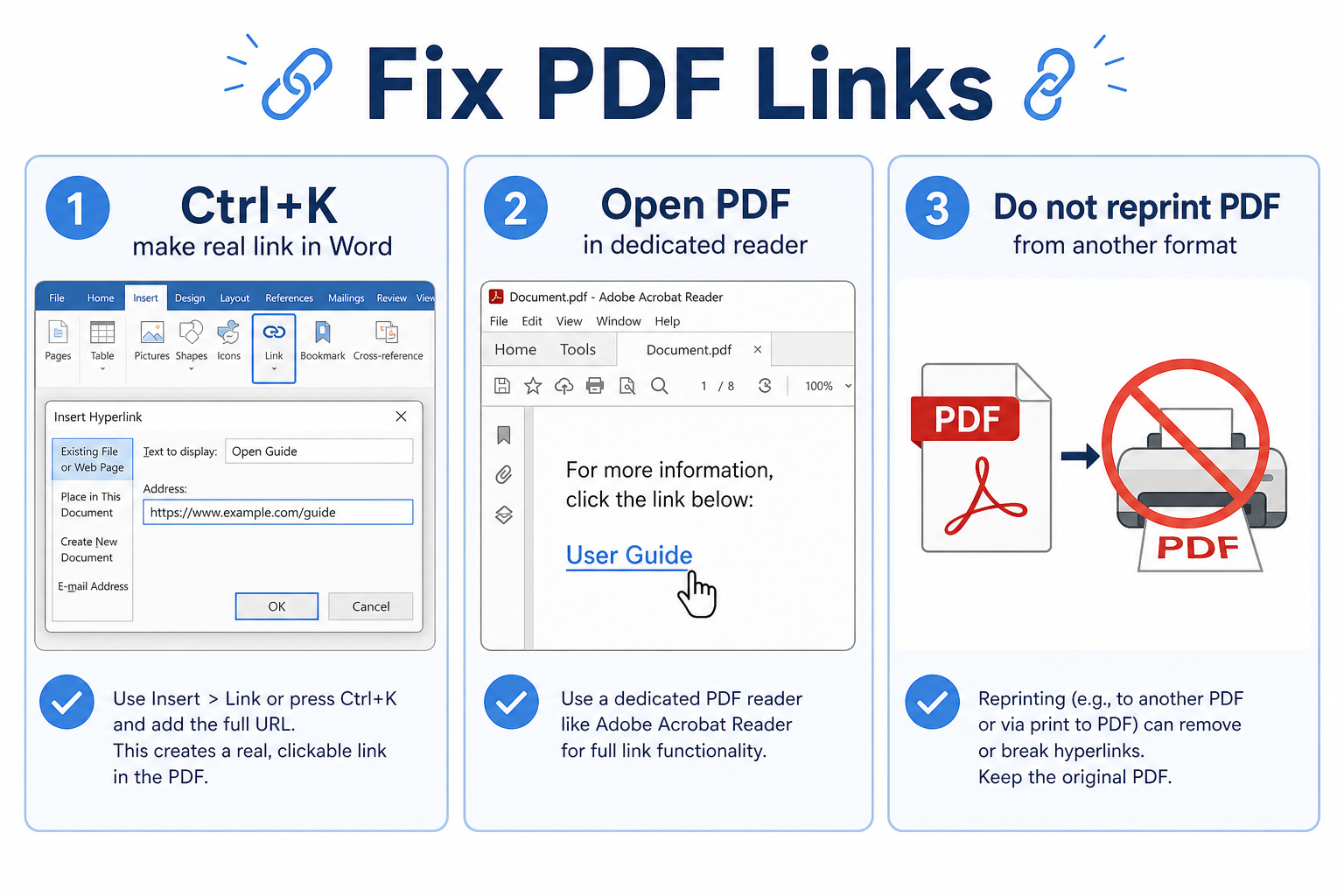
Tip: If links still fail, go back to Word and make sure the text is a true hyperlink (Ctrl + K), not gray plain text that only looks like a URL.
What Not to Do: Print to PDF
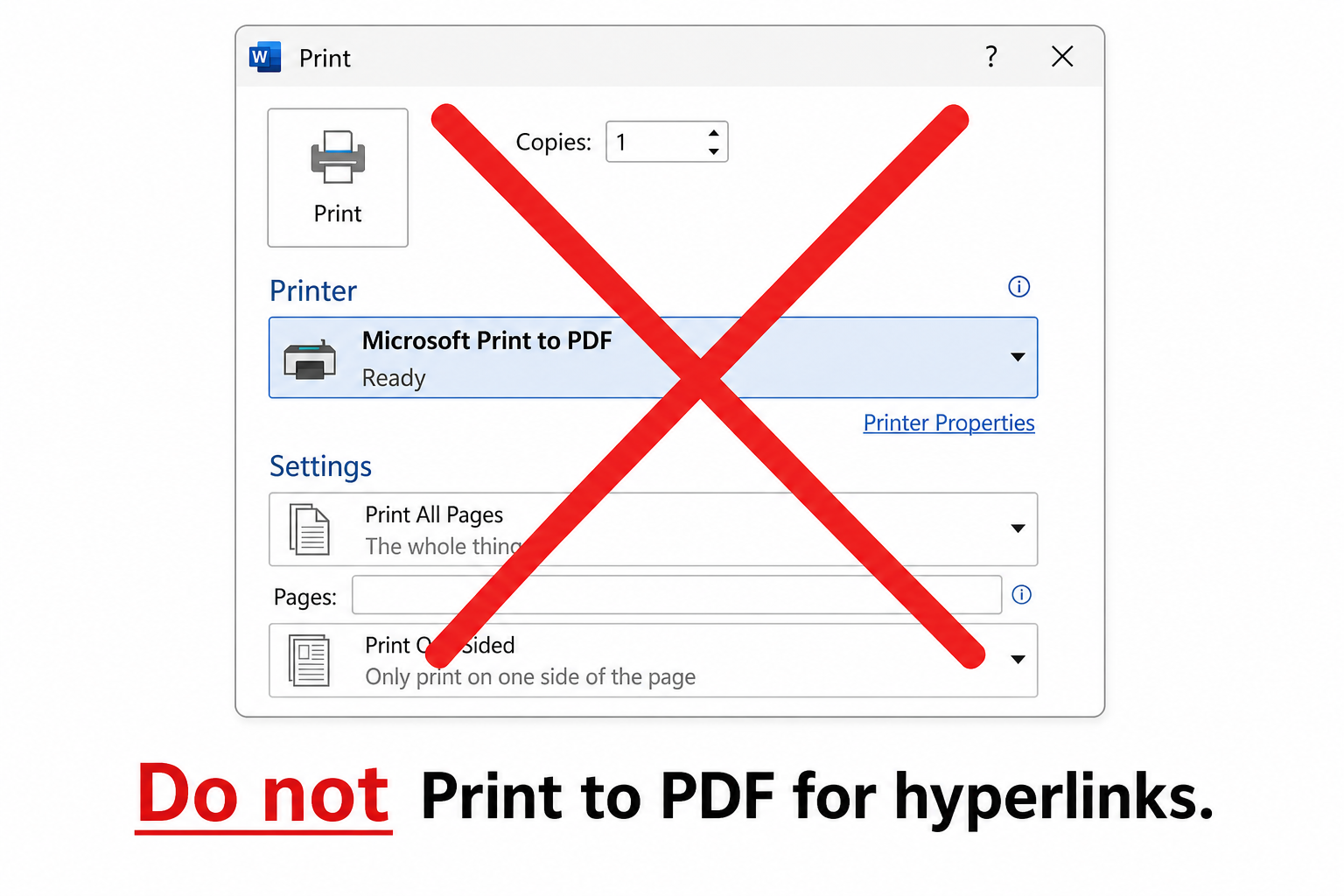
Do not rely on File → Print → Microsoft Print to PDF (or similar printer drivers) when you need working hyperlinks.
Print drivers often create a static page image and strip interactive elements.
If you already printed to PDF and links are gone, re-export from the original .docx using Save As / Export → PDF.
Free Method: Export PDF with Hyperlinks in WPS Writer
If Word’s export options feel unclear—or you want a faster everyday workflow—WPS Writer is a free, Word-compatible way to export PDFs for common documents while keeping clickable links.
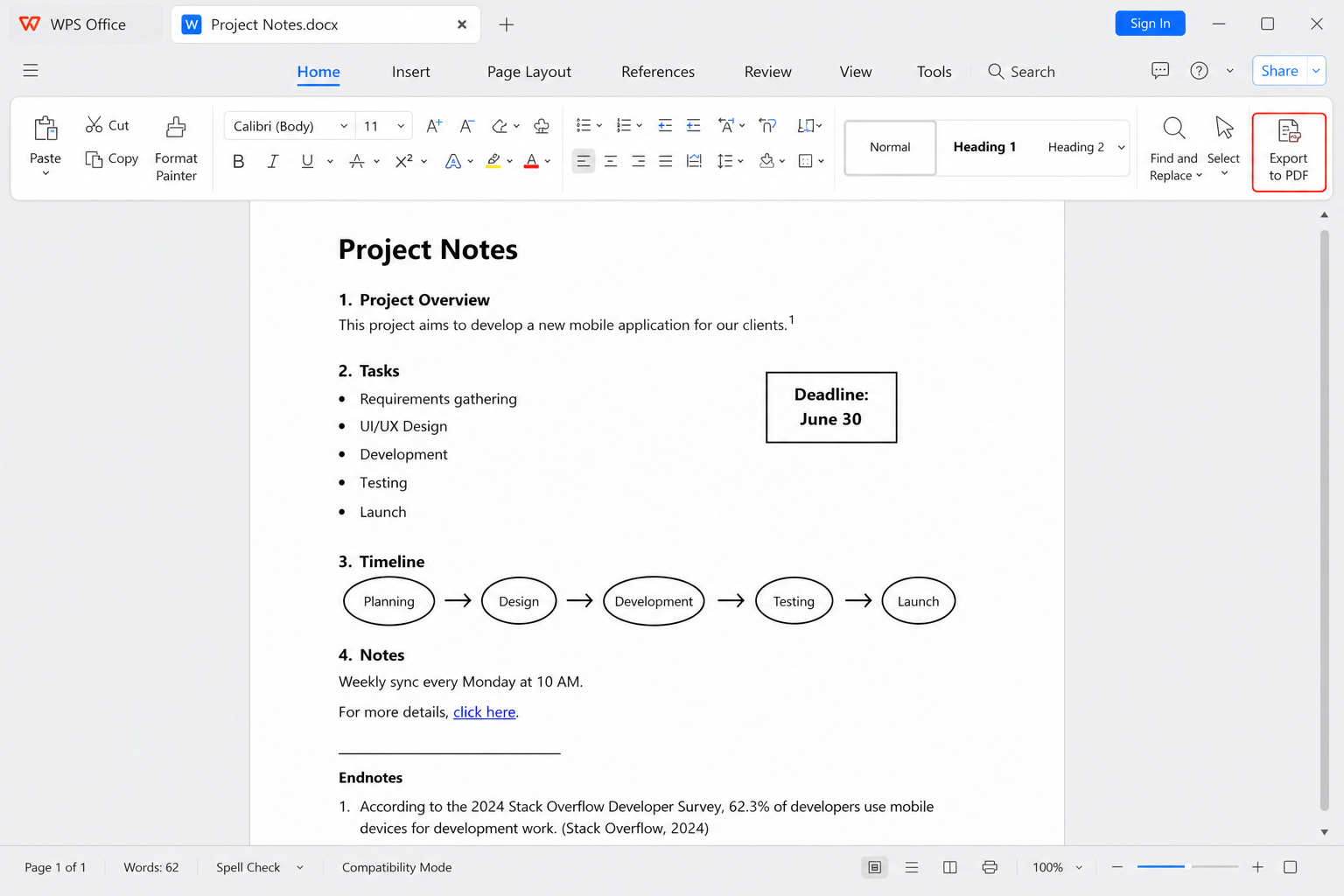
Open your Word document in WPS Writer.
Confirm the hyperlinks work inside WPS first.
Click Export to PDF (or File → Export to PDF, depending on your build).
Use the standard export mode for normal documents—no need for print-driver workarounds.
Export the file, then open the PDF and test website links and in-document jumps.
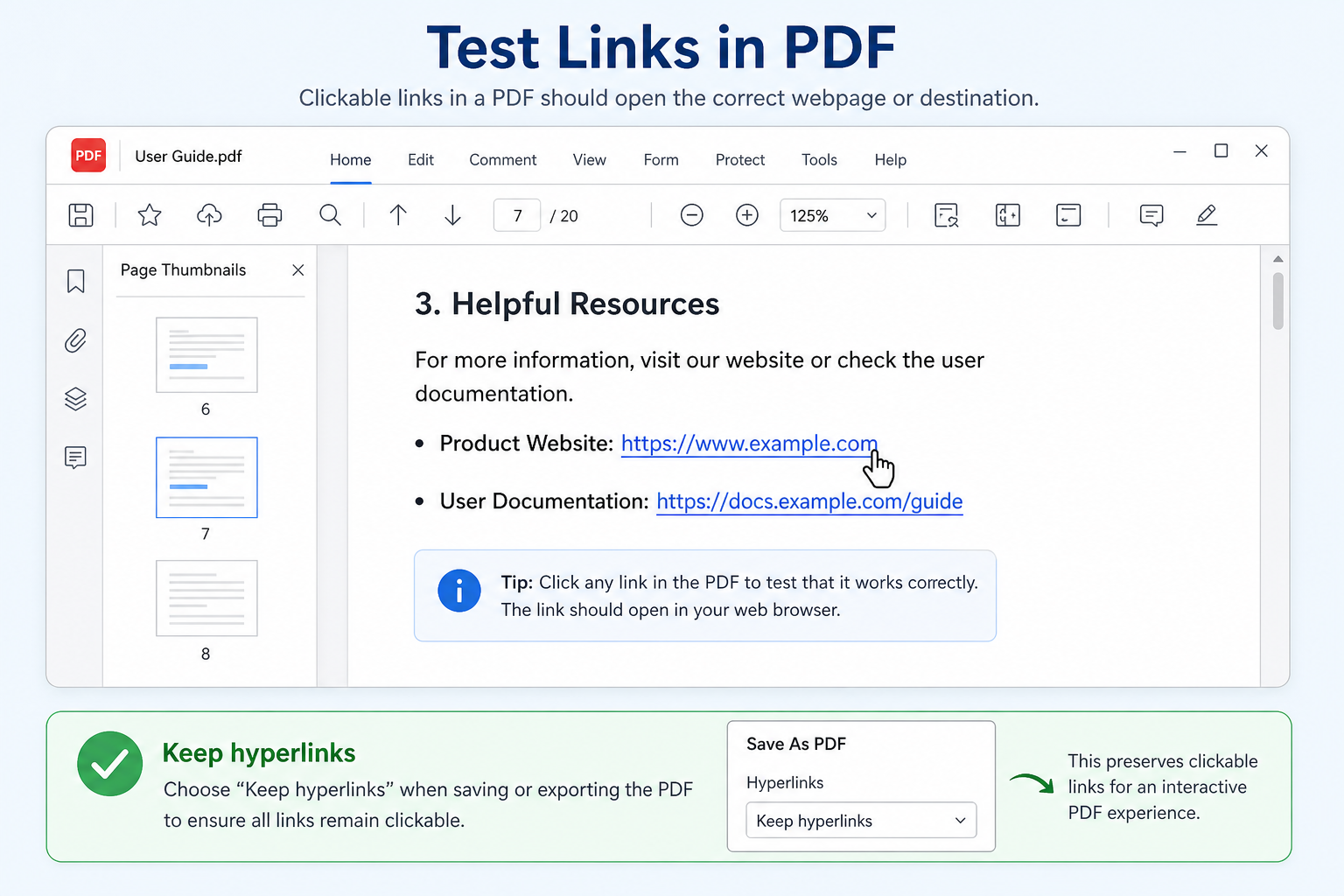
Straightforward PDF export — One clear export path for daily files
Keeps common hyperlinks — Web URLs and typical document links stay clickable in standard cases
Strong layout fidelity for everyday use — Fonts, spacing, and images usually match the Word layout closely
No paid subscription required for core export — Practical for resumes, reports, and school papers
Troubleshooting: Hyperlinks Still Not Working in the PDF
| Problem | What to try |
|---|---|
| Links work in Word but not in PDF | Re-export with Save As / Export → PDF; do not print to PDF |
| URLs look blue in Word but are not real links | Select text → Ctrl + K → paste the URL → OK, then export again |
| Links fail only in a browser tab | Open the same PDF in Edge, Adobe Acrobat, or WPS PDF and retest |
| You “fixed” a PDF by printing it again | Stop—reprinting can flatten links. Export again from the .docx |
| Internal jumps (#bookmarks) fail | Confirm bookmarks / headings exist in Word, then re-export |
FAQ
How do I keep hyperlinks when converting Word to PDF?
Use File → Save As or Export and choose PDF. Avoid Print to PDF. Test the finished PDF in a PDF reader.
Why did Print to PDF remove my links?
Print drivers often flatten the page into a non-interactive print output. Interactive hyperlinks are not always preserved.
Can WPS export a PDF with working hyperlinks?
Yes—for typical Word documents, WPS Writer’s Export to PDF keeps common clickable links. Always spot-check the PDF after export.
Do internal document links work in PDF too?
They can, if the source uses real bookmarks or heading links in Word and you export (not print) to PDF. Verify each jump after conversion.
Conclusion
To keep hyperlinks in a PDF from Word, export with Save As / Export → PDF instead of printing, confirm links are real hyperlinks in the source file, and test the PDF in a dedicated reader. If you want a simpler free workflow for everyday documents, open the file in WPS Writer, use Export to PDF, and verify that web links and jumps still open correctly.

'%3e%3cpath%20d='M19.9911%204.11386V6.471H18.5894C18.0775%206.471%2017.7322%206.57814%2017.5536%206.79243C17.3751%207.00671%2017.2858%207.32814%2017.2858%207.75671V9.44421H19.9019L19.5536%2012.0871H17.2858V18.8639H14.5536V12.0871H12.2769V9.44421H14.5536V7.49779C14.5536%206.39064%2014.8632%205.53201%2015.4822%204.92189C16.1013%204.31177%2016.9257%204.00671%2017.9554%204.00671C18.8304%204.00671%2019.509%204.04243%2019.9911%204.11386Z'%20fill='%23333333'/%3e%3c/g%3e%3cdefs%3e%3cclipPath%20id='clip0_2938_8199'%3e%3crect%20width='16'%20height='16'%20fill='white'%20transform='translate(8%204.00671)'/%3e%3c/clipPath%3e%3c/defs%3e%3c/svg%3e)
'%3e%3cpath%20d='M17.5237%2010.7813L23.4811%204H22.0699L16.8949%209.88693L12.7648%204H8L14.2469%2012.9029L8%2020.0133H9.4112L14.8725%2013.7952L19.2352%2020.0133H24M9.92053%205.04213H12.0885L22.0688%2019.0224H19.9003'%20fill='%23333333'/%3e%3c/g%3e%3cdefs%3e%3cclipPath%20id='clip0_2938_8200'%3e%3crect%20width='16'%20height='16.0134'%20fill='white'%20transform='translate(8%204)'/%3e%3c/clipPath%3e%3c/defs%3e%3c/svg%3e)


