



'%3e%3cpath%20fill-rule='evenodd'%20clip-rule='evenodd'%20d='M21.4999%2010.9993C21.4999%205.20009%2016.7986%200.498901%2010.9993%200.498901C5.19994%200.498901%200.498657%205.20009%200.498657%2010.9993C0.498657%2016.2404%204.33858%2020.5844%209.35855%2021.3722V14.0346H6.69238V10.9993H9.35855V8.68594C9.35855%206.05427%2010.9262%204.60062%2013.3248%204.60062C14.4736%204.60062%2015.6753%204.80571%2015.6753%204.80571V7.38979H14.3512C13.0468%207.38979%2012.64%208.19921%2012.64%209.0296V10.9993H15.5523L15.0867%2014.0346H12.64V21.3722C17.66%2020.5844%2021.4999%2016.2404%2021.4999%2010.9993Z'%20fill='%231568EA'/%3e%3c/g%3e%3c/svg%3e)


'%3e%3cpath%20d='M2.42045%2022.1876H6.31818V12.7217L0.75%208.54553V20.5171C0.75%2021.4414%201.49892%2022.1876%202.42045%2022.1876Z'%20fill='%234285F4'/%3e%3cpath%20d='M19.682%2022.1876H23.5797C24.5041%2022.1876%2025.2502%2021.4387%2025.2502%2020.5171V8.54553L19.682%2012.7217'%20fill='%2334A853'/%3e%3cpath%20d='M19.682%205.48293V12.7216L25.2502%208.54543V6.31816C25.2502%204.25236%2022.8921%203.07469%2021.2411%204.31361'%20fill='%23FBBC04'/%3e%3cpath%20d='M6.31824%2012.7217V5.48303L13.0001%2010.4944L19.6819%205.48303V12.7217L13.0001%2017.733'%20fill='%23EA4335'/%3e%3cpath%20d='M0.75%206.31816V8.54543L6.31818%2012.7216V5.48293L4.75909%204.31361C3.10534%203.07469%200.75%204.25236%200.75%206.31816Z'%20fill='%23C5221F'/%3e%3c/g%3e%3cdefs%3e%3cclipPath%20id='clip0_2954_7305'%3e%3crect%20width='24.5'%20height='18.375'%20fill='white'%20transform='translate(0.75%203.8125)'/%3e%3c/clipPath%3e%3c/defs%3e%3c/svg%3e)


Mirroring an image in Word is a common fix for reversed logos, flipped scans, and reflective poster layouts. Word does not use a button labeled “Mirror,” so beginners often look in the wrong place. The tools you need are Flip Horizontal for a left-right mirror and Picture Effects → Reflection for a bottom reflection. This guide covers both methods, batch mirroring, common fixes, and a free Word-compatible option in WPS Writer.


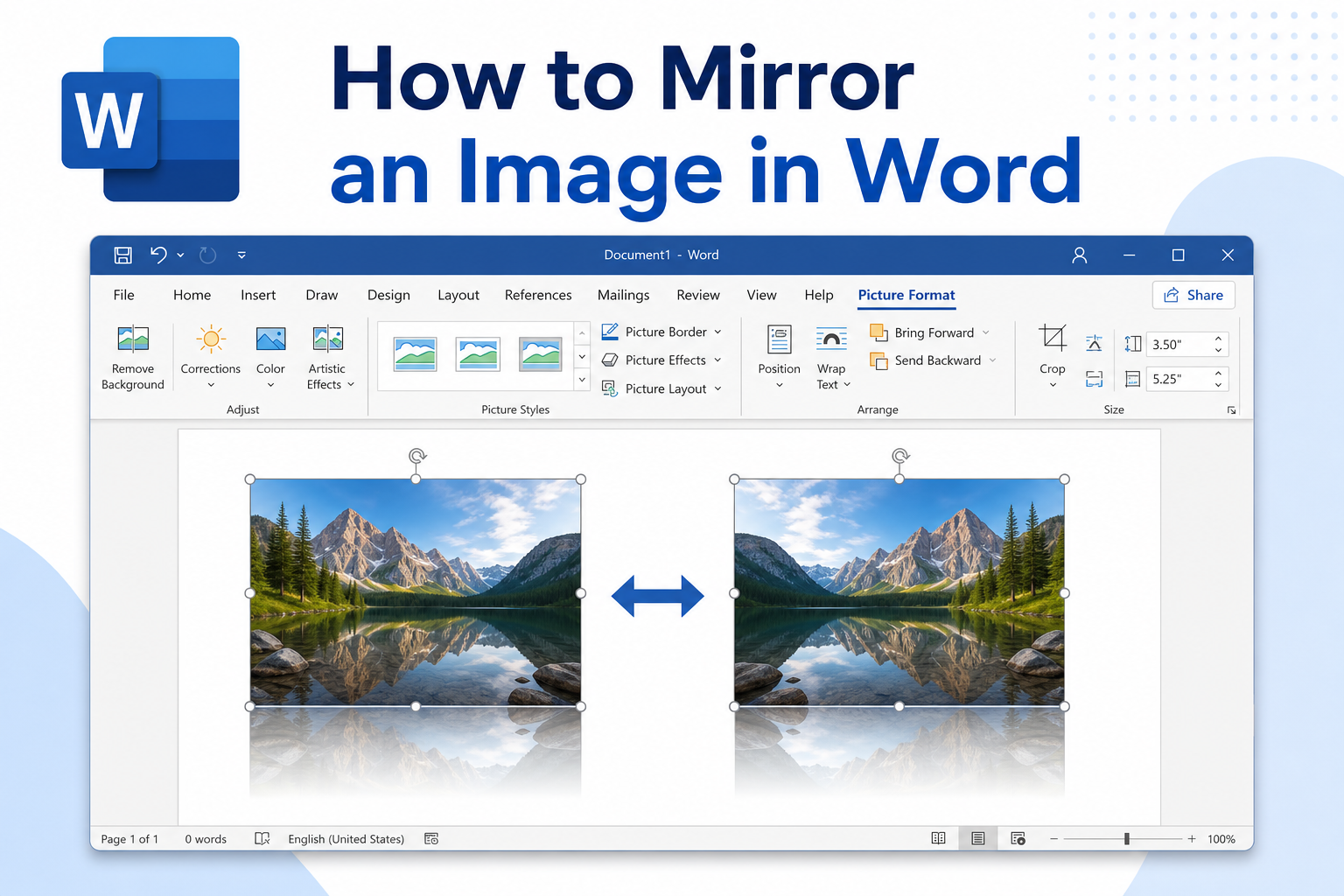
Quick answer: For a left-right mirror, select the picture → Picture Format → Rotate → Flip Horizontal. For a reflection under the image, go to Picture Format → Picture Effects → Reflection and pick a preset. If Flip is grayed out, change wrap to Square or Tight first.
Two Common Mirror Effects in Word
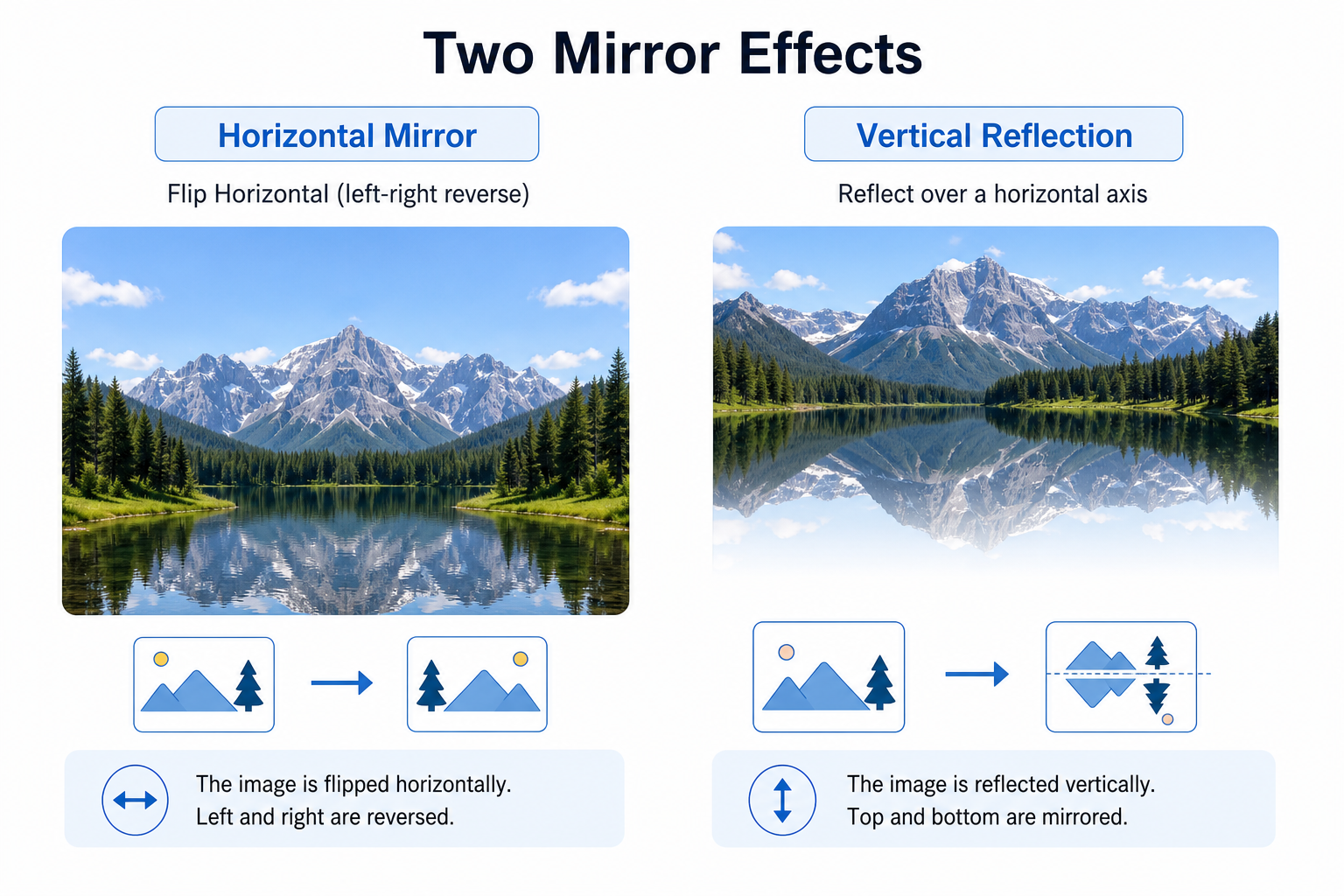
| Effect | What it does | Where to find it |
|---|---|---|
| Horizontal mirror | Reverses left and right | Picture Format → Rotate → Flip Horizontal |
| Vertical reflection | Adds a mirrored fade under the picture | Picture Format → Picture Effects → Reflection |
| Flip Vertical | Turns the whole image upside down | Picture Format → Rotate → Flip Vertical |
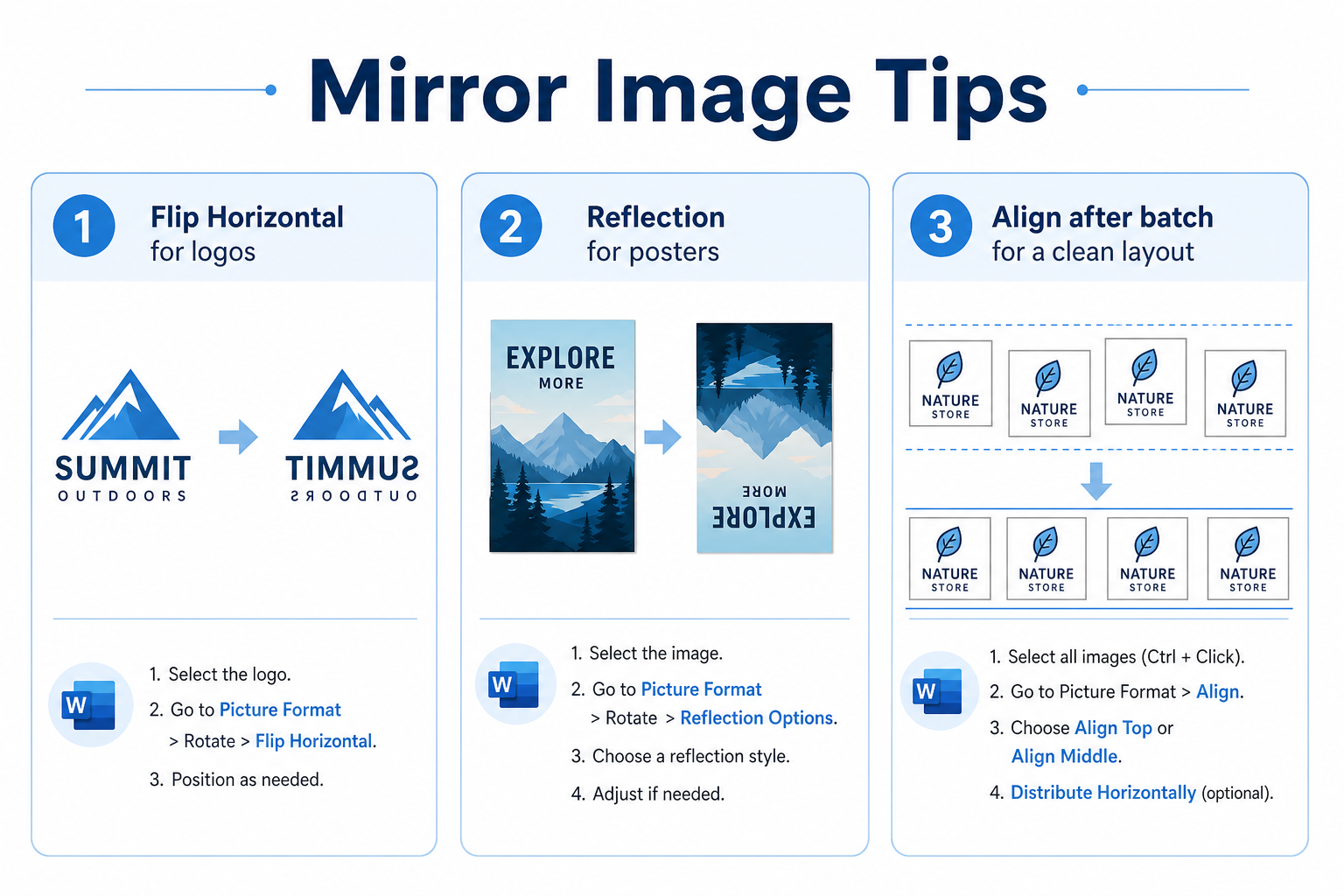
Use Flip Horizontal when the graphic itself is backwards. Use Reflection when you want a stylish mirror-like shadow under a photo—not when you need to correct a reversed logo.
How to Mirror an Image Horizontally in Word
These steps work in Word 2016, 2019, 2021, and Microsoft 365.
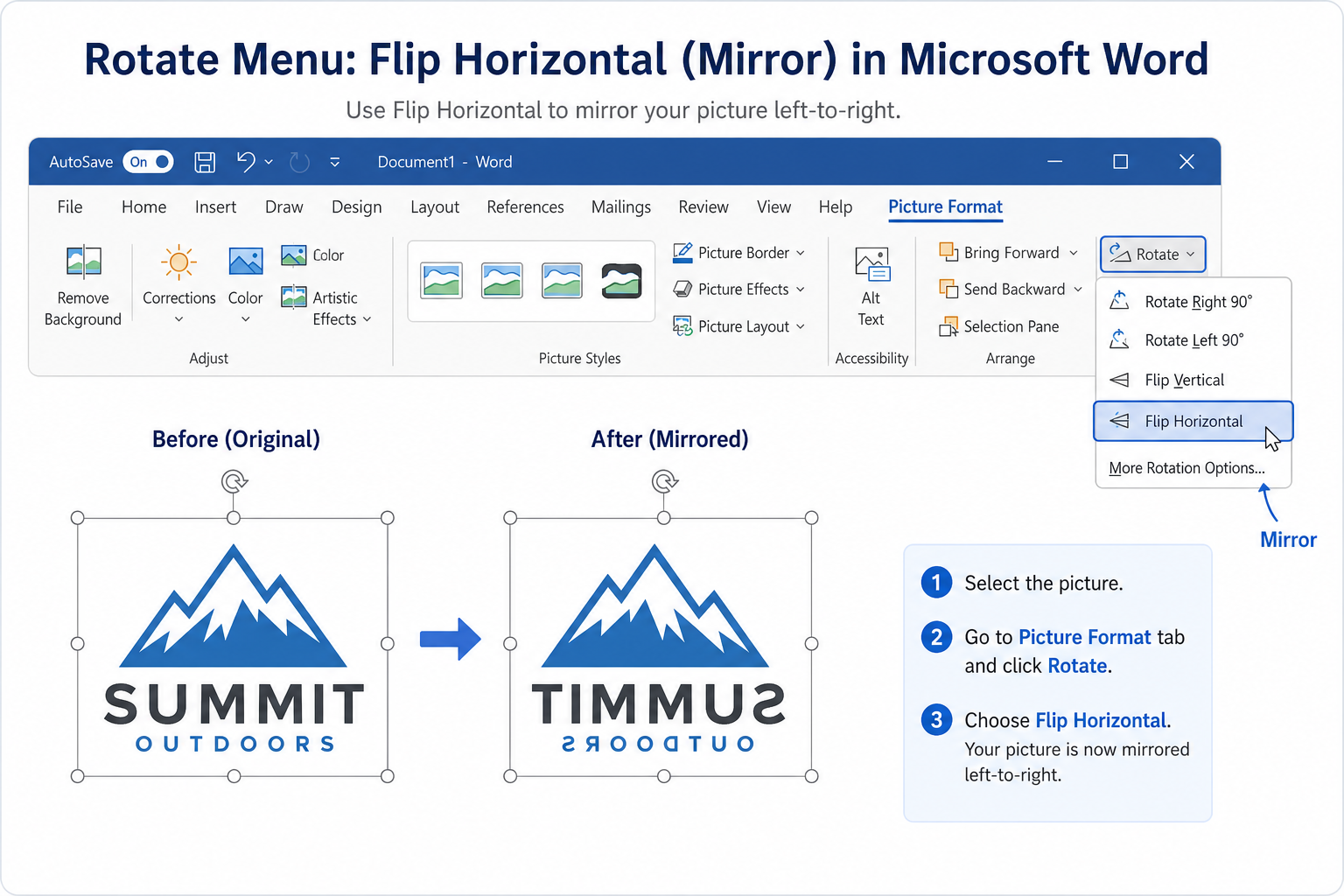
Select the image you want to mirror.
Open the Picture Format tab.
Click Rotate.
Choose Flip Horizontal.
Word creates a clean left-right mirror while usually keeping the image size. This is the correct method when people search for “mirror image in Word.”
How to Create a Vertical Mirror Reflection
A reflection adds a mirrored fade below the picture for covers, posters, and report headers.
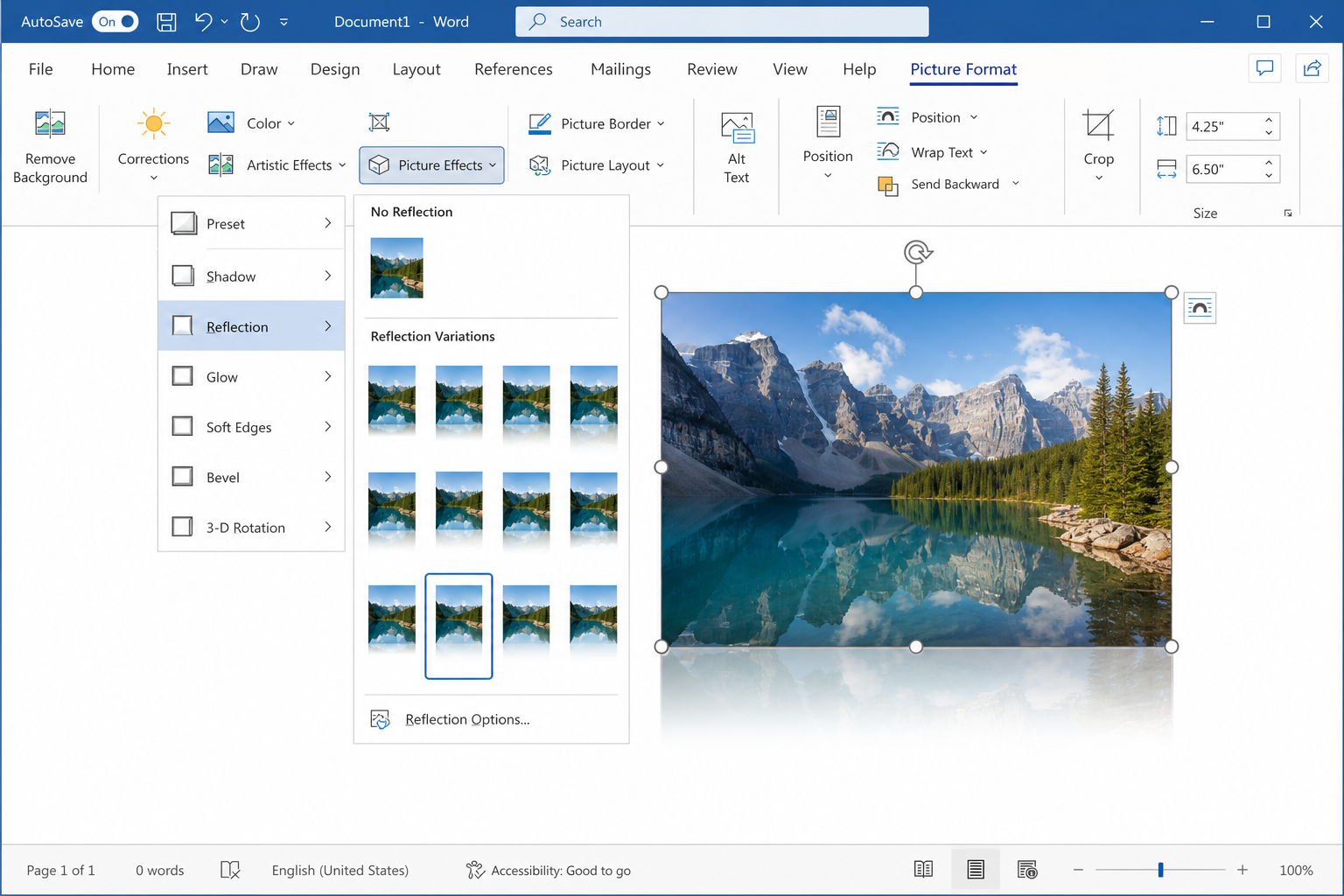
Select your target image.
Go to Picture Format → Picture Effects.
Choose Reflection.
Pick a preset (for example, a soft half-reflection under the image).
Tip: After applying Reflection, you can fine-tune options under Picture Effects → Reflection → Reflection Options (transparency, size, and blur may vary by Word version).
Note: Reflection is a visual effect. It does not permanently reverse the source pixels the way Flip Horizontal does.
How to Batch Mirror Multiple Images
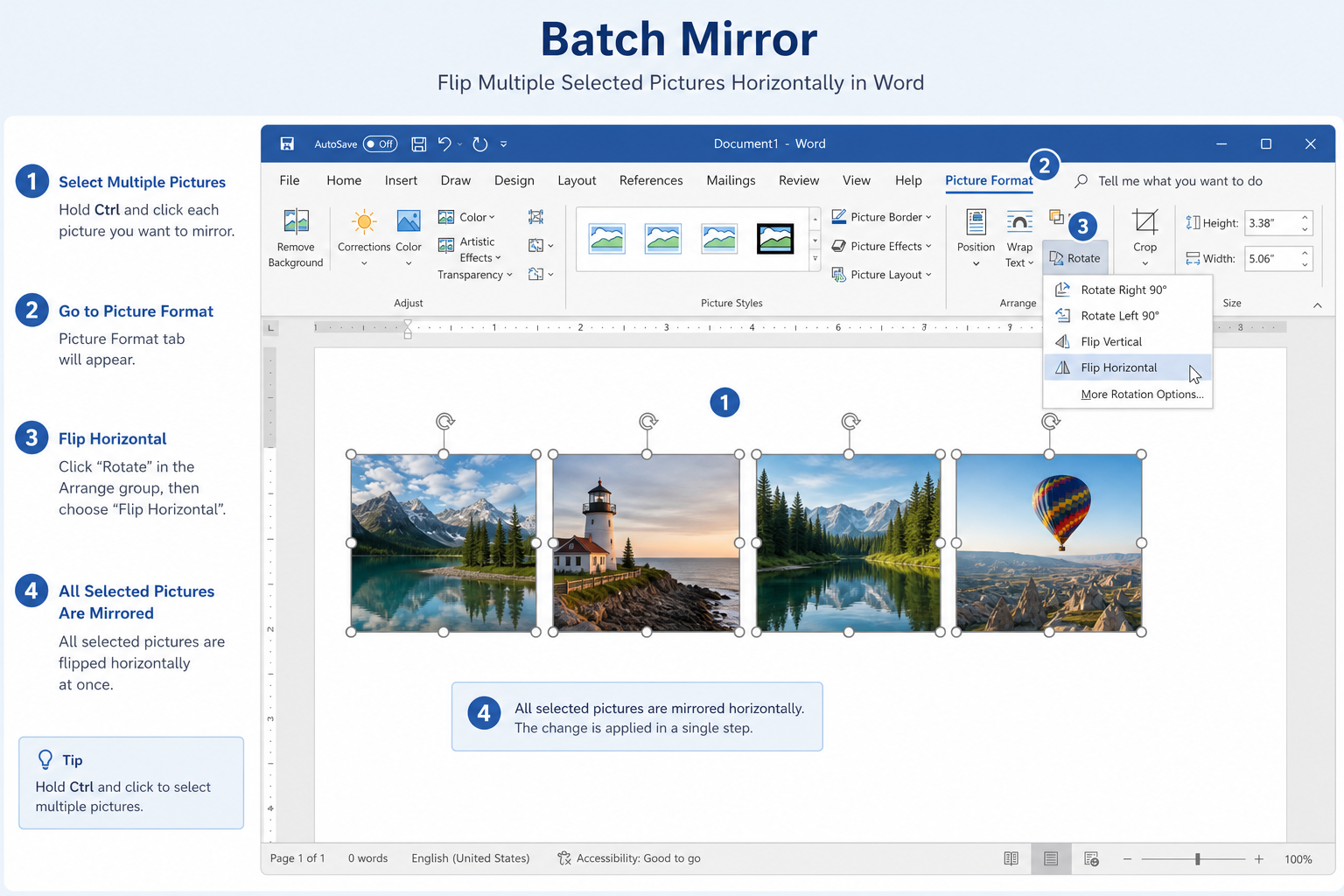
Hold Ctrl (Windows) or Command (Mac) and select all target pictures.
If tools are locked, set Wrap Text to Square or Tight.
Open Picture Format → Rotate → Flip Horizontal to mirror the selection.
Optional: apply the same Reflection preset to each image for a matching look.
After batch flips, use Align or distribute tools if the row looks uneven.
Common Mirroring Problems and Fixes
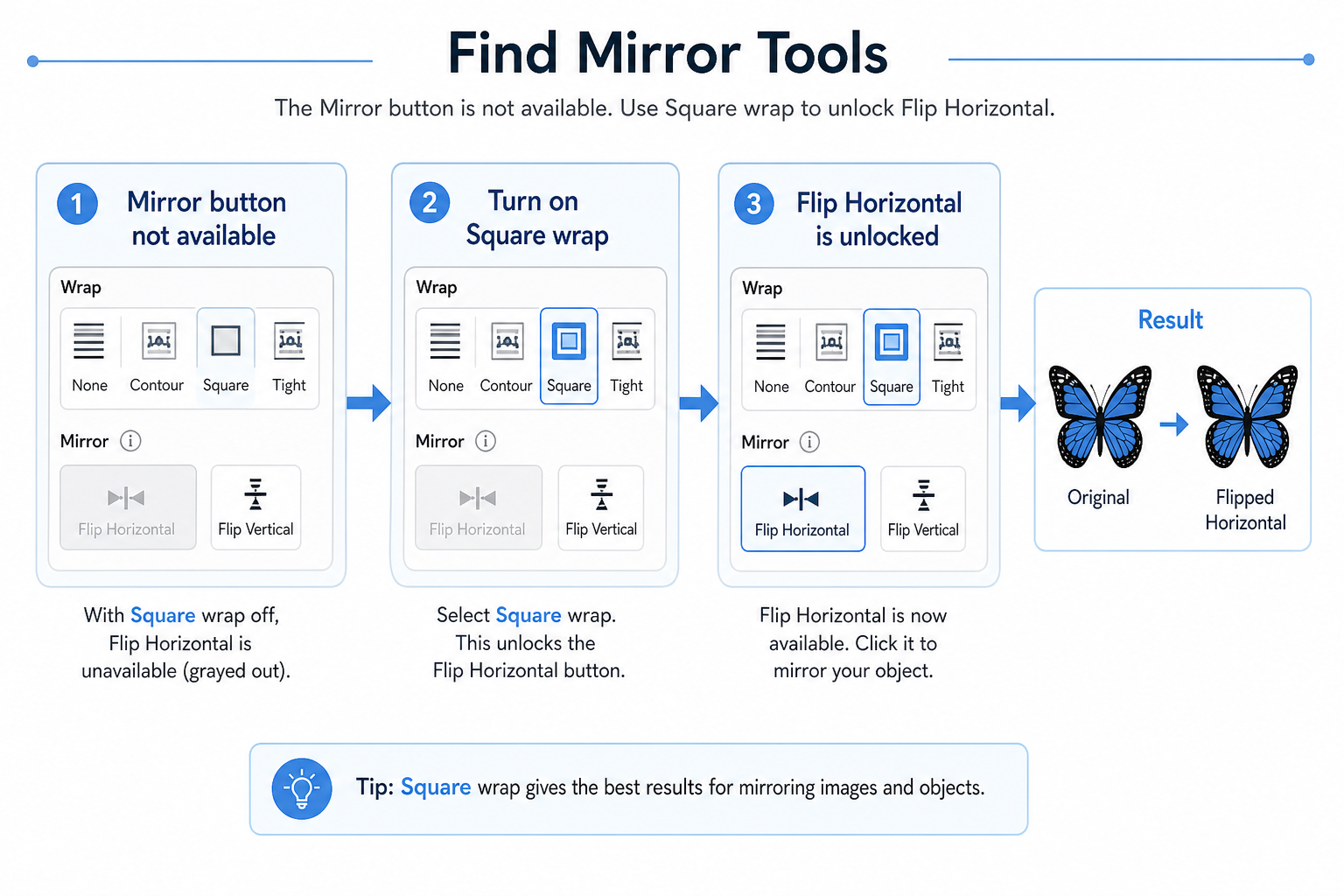
| Problem | What to try |
|---|---|
| No “Mirror” button | Use Flip Horizontal—that is Word’s horizontal mirror tool |
| Flip / Rotate is grayed out | Change wrap from In Line with Text to Square or Tight |
| Mirrored image looks blurry | Re-insert the original high-resolution file; avoid repeated compress + flip cycles |
| Layout shifts after mirroring | Flip first, then align or redistribute the pictures |
| Want a reflection, not a reversed logo | Use Picture Effects → Reflection, not Flip Vertical |
Unlock Flip when tools are grayed out
Select the image.
Open Layout Options or Picture Format → Wrap Text.
Choose Square or Tight.
Return to Rotate → Flip Horizontal.
Free Method: Mirror Images in WPS Writer
Word covers horizontal mirrors and reflection effects for most everyday documents. If you prefer a simpler picture toolbar—or you edit many images in one file—WPS Writer is a free, Word-compatible option for flip and reflection-style edits.
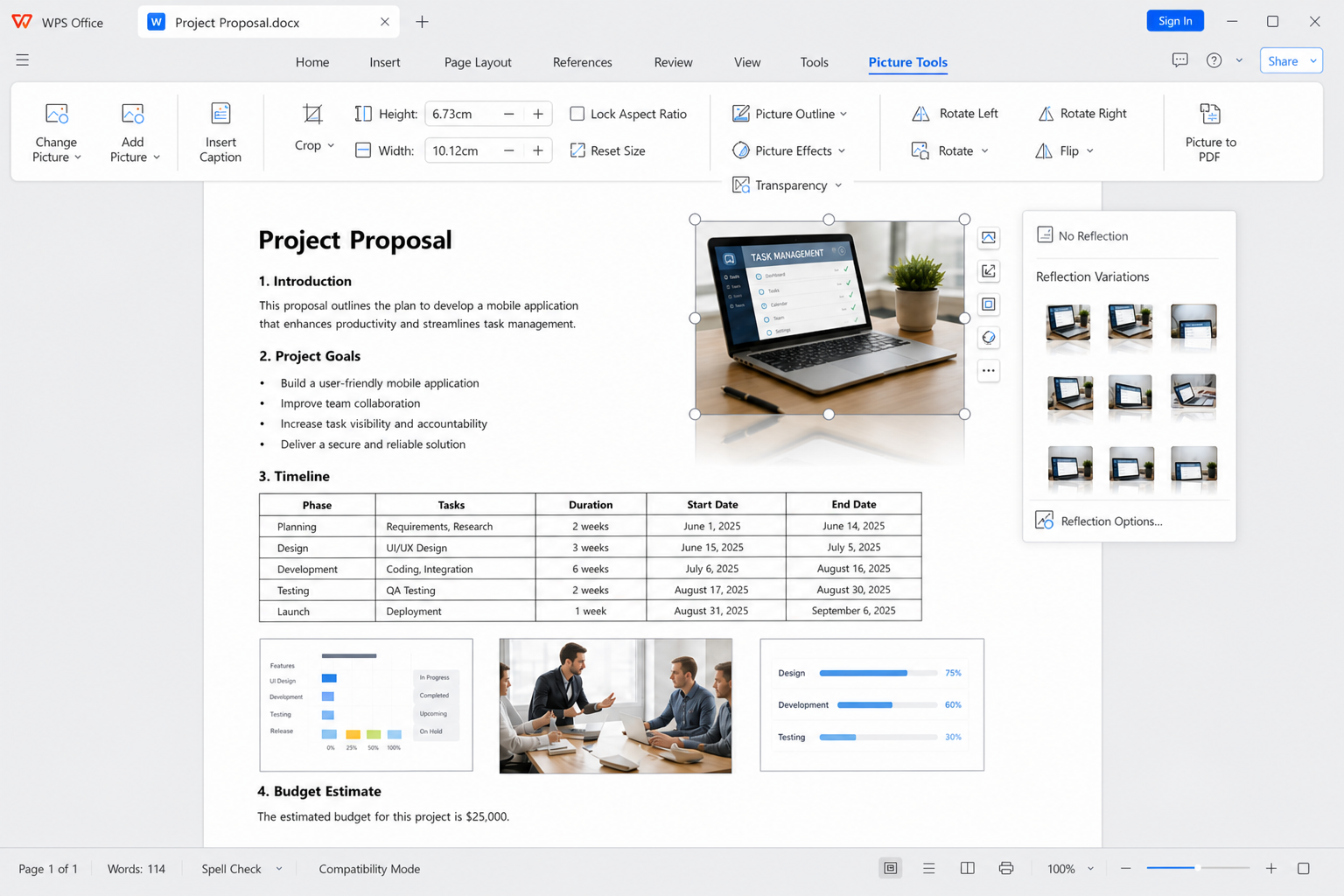
Open your document in WPS Writer.
Select one image or multi-select several.
Apply a horizontal flip (mirror) or a reflection-style effect from the picture tools.
Adjust wrap and alignment if the page needs a quick cleanup.
Save as .docx when you need to share the file in Microsoft Word.
Clear mirror / flip controls — Left-right corrections for logos and scans
Reflection-style options — Soft under-image effects for covers and posters
Strong Word compatibility — Share common .docx files with Word users
No paid subscription required — Core picture tools for daily documents
FAQ
How do I mirror an image in Word?
Select the picture → Picture Format → Rotate → Flip Horizontal. That is Word’s left-right mirror command.
Where is the Mirror button in Word?
There is no separate Mirror button. Use Flip Horizontal for mirroring, or Picture Effects → Reflection for a bottom reflection look.
How do I add a reflection under a picture?
Go to Picture Format → Picture Effects → Reflection and choose a preset.
Do mirrored images from WPS work in Microsoft Word?
Yes—when you save as a standard .docx, flipped and reflected pictures usually open normally in Microsoft Word. Preview once before sharing.
Conclusion
To mirror an image in Word, use Flip Horizontal for left-right reverses and Picture Effects → Reflection for a soft mirror under the photo. Unlock grayed-out tools by changing wrap settings, then align pictures after batch edits. If you want a simpler free workflow for everyday mirror-style picture work, WPS Writer is a practical Word-compatible option.

'%3e%3cpath%20d='M19.9911%204.11386V6.471H18.5894C18.0775%206.471%2017.7322%206.57814%2017.5536%206.79243C17.3751%207.00671%2017.2858%207.32814%2017.2858%207.75671V9.44421H19.9019L19.5536%2012.0871H17.2858V18.8639H14.5536V12.0871H12.2769V9.44421H14.5536V7.49779C14.5536%206.39064%2014.8632%205.53201%2015.4822%204.92189C16.1013%204.31177%2016.9257%204.00671%2017.9554%204.00671C18.8304%204.00671%2019.509%204.04243%2019.9911%204.11386Z'%20fill='%23333333'/%3e%3c/g%3e%3cdefs%3e%3cclipPath%20id='clip0_2938_8199'%3e%3crect%20width='16'%20height='16'%20fill='white'%20transform='translate(8%204.00671)'/%3e%3c/clipPath%3e%3c/defs%3e%3c/svg%3e)
'%3e%3cpath%20d='M17.5237%2010.7813L23.4811%204H22.0699L16.8949%209.88693L12.7648%204H8L14.2469%2012.9029L8%2020.0133H9.4112L14.8725%2013.7952L19.2352%2020.0133H24M9.92053%205.04213H12.0885L22.0688%2019.0224H19.9003'%20fill='%23333333'/%3e%3c/g%3e%3cdefs%3e%3cclipPath%20id='clip0_2938_8200'%3e%3crect%20width='16'%20height='16.0134'%20fill='white'%20transform='translate(8%204)'/%3e%3c/clipPath%3e%3c/defs%3e%3c/svg%3e)


