



'%3e%3cpath%20fill-rule='evenodd'%20clip-rule='evenodd'%20d='M21.4999%2010.9993C21.4999%205.20009%2016.7986%200.498901%2010.9993%200.498901C5.19994%200.498901%200.498657%205.20009%200.498657%2010.9993C0.498657%2016.2404%204.33858%2020.5844%209.35855%2021.3722V14.0346H6.69238V10.9993H9.35855V8.68594C9.35855%206.05427%2010.9262%204.60062%2013.3248%204.60062C14.4736%204.60062%2015.6753%204.80571%2015.6753%204.80571V7.38979H14.3512C13.0468%207.38979%2012.64%208.19921%2012.64%209.0296V10.9993H15.5523L15.0867%2014.0346H12.64V21.3722C17.66%2020.5844%2021.4999%2016.2404%2021.4999%2010.9993Z'%20fill='%231568EA'/%3e%3c/g%3e%3c/svg%3e)


'%3e%3cpath%20d='M2.42045%2022.1876H6.31818V12.7217L0.75%208.54553V20.5171C0.75%2021.4414%201.49892%2022.1876%202.42045%2022.1876Z'%20fill='%234285F4'/%3e%3cpath%20d='M19.682%2022.1876H23.5797C24.5041%2022.1876%2025.2502%2021.4387%2025.2502%2020.5171V8.54553L19.682%2012.7217'%20fill='%2334A853'/%3e%3cpath%20d='M19.682%205.48293V12.7216L25.2502%208.54543V6.31816C25.2502%204.25236%2022.8921%203.07469%2021.2411%204.31361'%20fill='%23FBBC04'/%3e%3cpath%20d='M6.31824%2012.7217V5.48303L13.0001%2010.4944L19.6819%205.48303V12.7217L13.0001%2017.733'%20fill='%23EA4335'/%3e%3cpath%20d='M0.75%206.31816V8.54543L6.31818%2012.7216V5.48293L4.75909%204.31361C3.10534%203.07469%200.75%204.25236%200.75%206.31816Z'%20fill='%23C5221F'/%3e%3c/g%3e%3cdefs%3e%3cclipPath%20id='clip0_2954_7305'%3e%3crect%20width='24.5'%20height='18.375'%20fill='white'%20transform='translate(0.75%203.8125)'/%3e%3c/clipPath%3e%3c/defs%3e%3c/svg%3e)


Quick answer: To learn how to save a copy of a Word document, go to File > Save As in Microsoft Word, enter a new file name, and select Save. This creates a separate editable Word file while leaving the original unchanged.
Use a different command when the document is stored online:
Before editing: Confirm that the new file name appears in the Word title bar or in the destination folder.
Note:Ctrl + S or Command + S only updates the file currently open. It does not create a separate copy.
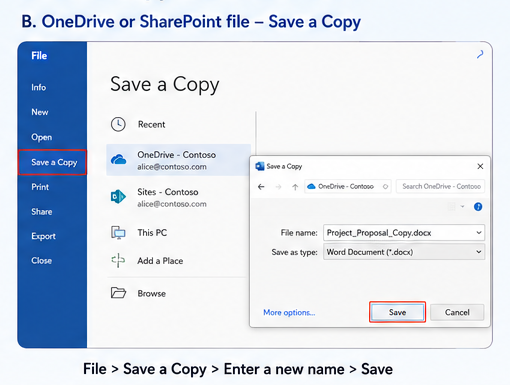
B. OneDrive or SharePoint file — Save a Copy
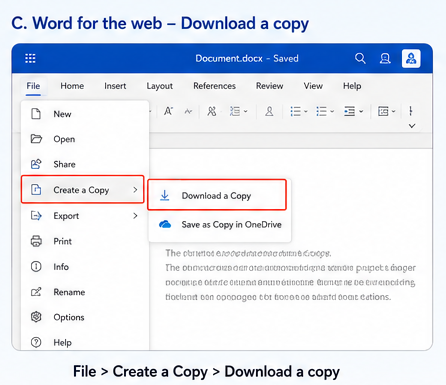
C. Word for the web — Download a copy
Microsoft notes that the traditional Save As command may appear as Save a Copy when a document is stored on OneDrive or SharePoint.
Method 1: Use Save As for a Local Word Document
Use Save As when the Word document is stored locally on your computer and you want to create a separately named, editable file.
This method is useful when you need to:
create a new draft from an existing document;
prepare different resume versions;
keep an original contract before reviewing it;
create a client copy;
save the document to another folder;
change the file format.
Step 1: Open the original Word document
Open the DOC or DOCX file in Microsoft Word.
Before making any changes, check the document name in the title bar so you know which file is currently open.
Step 2: Open Save As
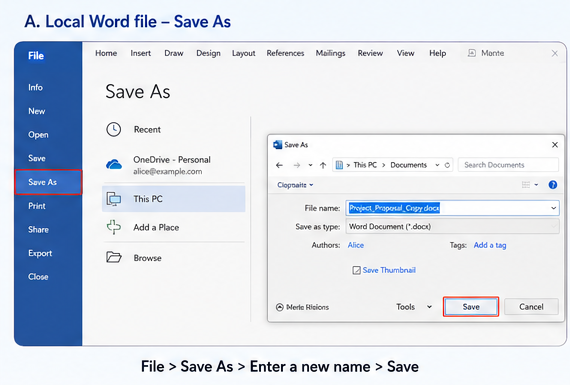
Select File > Save As.
Depending on your Word version, you may also see Save a Copy, Browse, a list of recent folders, or OneDrive and other cloud locations.
Step 3: Enter a new file name
Use a name that clearly distinguishes the copy from the original.
Proposal_Original.docx
Proposal_Draft_01.docx
Proposal_Client_Copy.docx
Avoid unclear names such as:
Document copy.docx
Document copy 2.docx
Document final final.docx
A descriptive name makes it easier to identify the correct version later.
Step 4: Choose a save location
Choose where the copied document should be stored.
Common locations include Documents, Desktop, a project folder, OneDrive, an external drive, or a shared work folder.
Saving the copy in a different folder can further reduce the risk of confusing it with the original.
Step 5: Keep DOCX as the file type
Choose Word Document (.docx) when you want to continue editing the copied file.
Do not manually change the file extension from .doc to .docx. Select the correct format from the Save As dialog instead.
Step 6: Save and confirm the new copy
Select Save.
Before editing, check that the new name appears in the Word title bar, the copied document appears in the selected folder, the original file still exists, and you are not editing the original version.
Use Save As in Word for Windows
In Word for Windows, the exact screen may vary by version.
Open the original document.
Select File.
Select Save As or Save a Copy.
Choose Browse when you need another folder.
Enter a new file name.
Keep DOCX as the file type.
Select Save.
The most important step is not the exact menu label. The copied document must have a different name, location, or both.
Use Save As in Word for Mac
Open the original Word document.
Open the File menu.
Select Save As.
Enter a new file name.
Choose the destination folder.
Keep Word Document (.docx) as the format.
Select Save.
Check the new name in the title bar.
For instructions on duplicating a closed file directly in Finder, see the related guide on how to make a copy of a Word document on Mac.
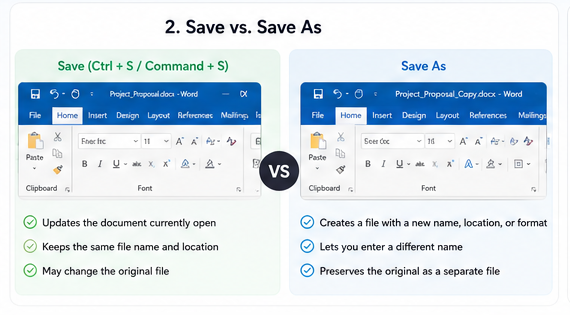
Save vs. Save As
Save and Save As do not produce the same result.
| Save | Save As |
|---|---|
| Updates the document currently open | Creates a file with a new name, location, or format |
| Usually keeps the same file name | Lets you enter a different name |
| May change the original | Can preserve the original as a separate file |
| Shortcut: Ctrl + S or Command + S | Open from the File menu |
Method 2: Use Save a Copy When AutoSave Is On
Use Save a Copy when the document is stored on OneDrive or SharePoint and AutoSave is active.
AutoSave can save changes every few seconds while you work. If you begin editing before creating the copy, some changes may already have been written back to the original.
Step 1: Open the original document
Open the Word file from OneDrive or SharePoint and check whether the AutoSave switch is on.
Step 2: Do not begin editing yet
The safer order is:
Open the original
→ Save a Copy
→ Confirm the new file name
→ Begin editing
Avoid this order:
Open the original
→ Start editing
→ Save a Copy later
Step 3: Select Save a Copy
Open File > Save a Copy.
Choose where to store the new version: the same OneDrive folder, another cloud folder, your computer, or another available location.
Step 4: Enter a new name
Annual_Report_Original.docx
Annual_Report_Updated.docx
Annual_Report_Client_Review.docx
Step 5: Keep DOCX as the format
Select Word Document (.docx) when you need another editable Word file.
Step 6: Save the copy
Select Save and wait for Word to open or display the new version.
How to Confirm the New Copy Is Open
Check the file name in the title bar, the OneDrive or SharePoint folder, the file location, the modification time, and whether the original and copy appear as separate files.
Method 3: Download a Copy from Word for the Web
Word for the web saves online documents automatically while you work. When you need a separate local DOCX file, use Download a copy.
Open the document in Word for the web.
Select File.
Select Create a Copy.
Choose Download a copy.
Wait for the DOCX file to download.
Open the Downloads folder.
Rename or move the file when necessary.
Save Another Copy in OneDrive
When you want another cloud copy rather than a downloaded file, create another version in OneDrive and confirm that two separate files appear in the folder.
Changing the title of the current document is not always the same as creating another independent copy.
Where Did the Downloaded Copy Go?
Your browser’s Downloads list.
The Downloads folder in File Explorer or Finder.
The folder selected in your browser’s download settings.
OneDrive, when the browser or device automatically saves downloads there.
Should You Save the Copy as DOCX or PDF?
The right format depends on what you plan to do next.
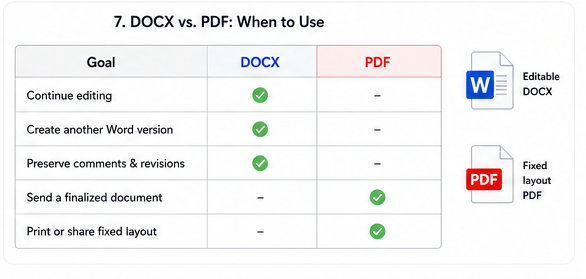
| Your goal | Recommended format |
|---|---|
| Continue editing the document | DOCX |
| Create another Word version | DOCX |
| Preserve comments and revisions | DOCX |
| Send a finalized document | |
| Print or share a fixed-layout file |
Choose DOCX when the copy still needs editing. Choose PDF when the content is finalized and you want to preserve the page layout for sharing or printing.
Saving a document as PDF creates a different output format. It is not the same as creating another editable Word document.
Project_Report_Final.docx
Project_Report_Final.pdf
Manage Multiple Word Copies More Easily with WPS Writer
Microsoft Word’s Save As or Save a Copy command may already be enough when you only need one additional file.
WPS Writer becomes more useful when the work continues after the copy is created. You can save a separately named DOCX copy, keep the original and draft versions open in one workspace, compare the files, continue editing, and export the completed version as PDF.
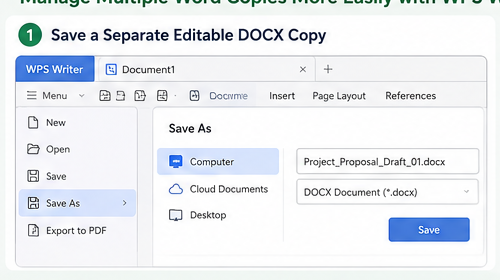
Save a Separate Editable DOCX Copy
Open the original DOC or DOCX file in WPS Writer.
Select Menu > Save As.
Enter a descriptive file name.
Choose the save location.
Keep DOCX as the file type.
Select Save.
Confirm that the copied version is open.
Continue editing.
Resume_Original.docx
Resume_Marketing_Role.docx
Resume_Product_Role.docx
Keep and Compare Multiple Versions in One Workspace
When you create several copies, the difficult part is often not saving them. It is keeping track of which version is open.
WPS Office supports opening multiple documents as tabs in one window. You can switch between the original and copied documents without searching through several separate application windows.
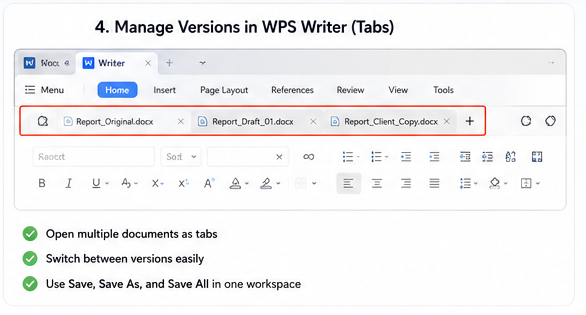
Open the original document.
Open the copied version.
Keep both documents visible as tabs.
Switch between the versions.
Check the active file name before editing.
Move one version into another window when side-by-side review is easier.
Confirm the correct file before sharing.
This is useful for different resume versions, an original contract and a review copy, an initial thesis draft and a revised draft, an internal version and a client version, or an editable DOCX and a final delivery file.
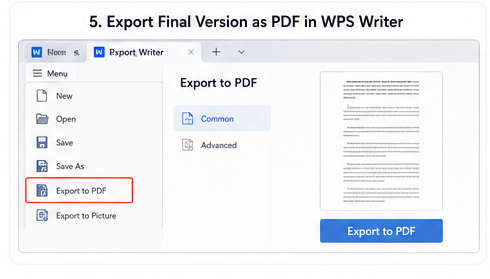
Export the Final Version as PDF
After editing the copied document, you can keep the editable DOCX and export a final PDF from WPS Writer.
Open the original
→ Save a DOCX copy
→ Keep the versions in tabs
→ Compare and edit
→ Export the final PDF
What WPS Writer Adds After You Save a Copy
| Your task | Basic Save As workflow | WPS Writer workflow |
|---|---|---|
| Create one editable copy | Supported | Supported |
| Open DOC and DOCX files | Supported in Word | Supported without an intermediate conversion |
| Keep several versions visible | Requires switching between files or windows | Keep documents open as tabs |
| Compare the original and copy | Manually switch between documents | Switch tabs or arrange separate windows |
| Avoid editing the wrong version | Depends on file organization | View named versions in one workspace |
| Continue editing DOCX | Supported | Supported |
| Prepare a final PDF | Export after editing | Continue from DOCX editing to PDF export |
Create, Compare, and Deliver Word Versions in One Workspace
Open DOCX files without converting them, save separately named copies, keep the original and drafts open in tabs, compare the versions, and export the completed document as PDF with WPS Writer.
Available for Windows and Mac. DOC and DOCX files can be opened, edited, and saved directly in WPS Writer.
How to Keep the Original Document Unchanged
Creating a copy is only useful when you confirm that you are editing the correct file.
Create the Copy Before Editing
Open or locate the original.
Create the new copy.
Enter a new file name.
Confirm the new version is open.
Begin editing.
Use a Clear File Name and Location
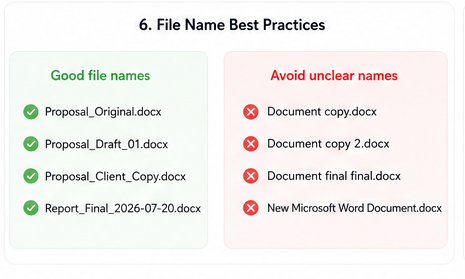
Proposal_Original.docx
Proposal_Draft_01.docx
Proposal_Client_Copy.docx
Proposal_Final_2026-07-20.docx
Before editing, check the application title bar, file name, folder path, cloud storage location, whether both files exist, and the most recent modification time.
Keep a Separate Backup for Important Files
A copied document can protect the original from accidental editing, but it is not a complete backup.
For important documents, keep another copy in cloud storage, an external drive, or a managed backup system.
What to Do If You Cannot Save a Copy
Save As or Save a Copy Is Missing
Check whether the file is stored locally or on OneDrive.
Check whether AutoSave is active.
Look for Save As, Save a Copy, or Browse.
Select another writable folder.
Use Download a copy in Word for the web.
Open the DOCX in another compatible editor such as WPS Writer when Microsoft Word is unavailable.
The Original Was Already Overwritten
If AutoSave or Save updated the original document, stop making further changes.
Check Word Version History, OneDrive Version History, AutoRecover, recent copies in File Explorer or Finder, email attachments, Downloads, and external backups.
The Copy Has the Same Name
Two files in the same folder cannot normally have exactly the same name and file extension.
Report_v1.docx
Report_v2.docx
Report_Manager_Review.docx
Report_Final_2026-07-20.docx
The Copy Is Read-Only
The copied document may be read-only because you do not have editing permission, the document is protected, it was opened from an email attachment, the folder is not writable, the file is controlled by an organization, or the document is still open elsewhere.
Try saving another copy to Documents or Desktop and use a new file name.
The Formatting Changed
keep DOCX as the file type;
use Save As rather than copying all text;
avoid saving as TXT or RTF unless required;
check that the necessary fonts are installed;
review tables, images, headers, and page breaks;
confirm that you opened the copied DOCX rather than a converted file.


Frequently Asked Questions
How to save a copy of a Word document without changing the original?
Open File > Save As, enter a new file name, and save the document before editing. When AutoSave is active on a OneDrive or SharePoint file, use File > Save a Copy first.
What is the difference between Save As and Save a Copy?
Save As creates a file with a new name, location, or format. Save a Copy is commonly shown when a file is stored on OneDrive or SharePoint and is intended to create a separate version of the document.
Why do I see Save a Copy instead of Save As?
The document may be stored on OneDrive or SharePoint, or AutoSave may be enabled.
How do I download a copy from Word Online?
Open the document and select File > Create a Copy > Download a copy. The downloaded DOCX normally appears in the Downloads folder.
Does Ctrl + S create another copy?
No. Ctrl + S on Windows or Command + S on Mac updates the document currently open. Use Save As or Save a Copy to create another file.
Can I save a Word copy without Microsoft Word?
Yes. A compatible document editor such as WPS Writer can open the DOCX file and use Save As to create another editable DOCX version. WPS Writer can also export the completed document as PDF.

'%3e%3cpath%20d='M19.9911%204.11386V6.471H18.5894C18.0775%206.471%2017.7322%206.57814%2017.5536%206.79243C17.3751%207.00671%2017.2858%207.32814%2017.2858%207.75671V9.44421H19.9019L19.5536%2012.0871H17.2858V18.8639H14.5536V12.0871H12.2769V9.44421H14.5536V7.49779C14.5536%206.39064%2014.8632%205.53201%2015.4822%204.92189C16.1013%204.31177%2016.9257%204.00671%2017.9554%204.00671C18.8304%204.00671%2019.509%204.04243%2019.9911%204.11386Z'%20fill='%23333333'/%3e%3c/g%3e%3cdefs%3e%3cclipPath%20id='clip0_2938_8199'%3e%3crect%20width='16'%20height='16'%20fill='white'%20transform='translate(8%204.00671)'/%3e%3c/clipPath%3e%3c/defs%3e%3c/svg%3e)
'%3e%3cpath%20d='M17.5237%2010.7813L23.4811%204H22.0699L16.8949%209.88693L12.7648%204H8L14.2469%2012.9029L8%2020.0133H9.4112L14.8725%2013.7952L19.2352%2020.0133H24M9.92053%205.04213H12.0885L22.0688%2019.0224H19.9003'%20fill='%23333333'/%3e%3c/g%3e%3cdefs%3e%3cclipPath%20id='clip0_2938_8200'%3e%3crect%20width='16'%20height='16.0134'%20fill='white'%20transform='translate(8%204)'/%3e%3c/clipPath%3e%3c/defs%3e%3c/svg%3e)


