

'%3e%3cpath%20d='M8%200C12.4183%200%2016%203.58172%2016%208C16%2012.4183%2012.4183%2016%208%2016C3.58172%2016%200%2012.4183%200%208C0%203.58172%203.58172%200%208%200ZM11.6162%204.38379C11.2257%203.99337%2010.5927%203.99338%2010.2021%204.38379L8%206.58594L5.79785%204.38379C5.40732%203.99334%204.77429%203.99329%204.38379%204.38379C3.99331%204.77429%203.99335%205.40733%204.38379%205.79785L6.58594%208L4.38379%2010.2021C3.99348%2010.5927%203.99341%2011.2257%204.38379%2011.6162C4.77426%2012.0066%205.40734%2012.0065%205.79785%2011.6162L8%209.41406L10.2021%2011.6162C10.5927%2012.0066%2011.2257%2012.0067%2011.6162%2011.6162C12.0067%2011.2257%2012.0066%2010.5927%2011.6162%2010.2021L9.41406%208L11.6162%205.79785C12.0066%205.40735%2012.0066%204.77429%2011.6162%204.38379Z'%20fill='%23080E17'%20fill-opacity='0.46'/%3e%3c/g%3e%3cdefs%3e%3cclipPath%20id='clip0_3761_713'%3e%3crect%20width='16'%20height='16'%20fill='white'/%3e%3c/clipPath%3e%3c/defs%3e%3c/svg%3e)




'%3e%3cpath%20fill-rule='evenodd'%20clip-rule='evenodd'%20d='M21.4999%2010.9993C21.4999%205.20009%2016.7986%200.498901%2010.9993%200.498901C5.19994%200.498901%200.498657%205.20009%200.498657%2010.9993C0.498657%2016.2404%204.33858%2020.5844%209.35855%2021.3722V14.0346H6.69238V10.9993H9.35855V8.68594C9.35855%206.05427%2010.9262%204.60062%2013.3248%204.60062C14.4736%204.60062%2015.6753%204.80571%2015.6753%204.80571V7.38979H14.3512C13.0468%207.38979%2012.64%208.19921%2012.64%209.0296V10.9993H15.5523L15.0867%2014.0346H12.64V21.3722C17.66%2020.5844%2021.4999%2016.2404%2021.4999%2010.9993Z'%20fill='%231568EA'/%3e%3c/g%3e%3c/svg%3e)


'%3e%3cpath%20d='M2.42045%2022.1876H6.31818V12.7217L0.75%208.54553V20.5171C0.75%2021.4414%201.49892%2022.1876%202.42045%2022.1876Z'%20fill='%234285F4'/%3e%3cpath%20d='M19.682%2022.1876H23.5797C24.5041%2022.1876%2025.2502%2021.4387%2025.2502%2020.5171V8.54553L19.682%2012.7217'%20fill='%2334A853'/%3e%3cpath%20d='M19.682%205.48293V12.7216L25.2502%208.54543V6.31816C25.2502%204.25236%2022.8921%203.07469%2021.2411%204.31361'%20fill='%23FBBC04'/%3e%3cpath%20d='M6.31824%2012.7217V5.48303L13.0001%2010.4944L19.6819%205.48303V12.7217L13.0001%2017.733'%20fill='%23EA4335'/%3e%3cpath%20d='M0.75%206.31816V8.54543L6.31818%2012.7216V5.48293L4.75909%204.31361C3.10534%203.07469%200.75%204.25236%200.75%206.31816Z'%20fill='%23C5221F'/%3e%3c/g%3e%3cdefs%3e%3cclipPath%20id='clip0_2954_7305'%3e%3crect%20width='24.5'%20height='18.375'%20fill='white'%20transform='translate(0.75%203.8125)'/%3e%3c/clipPath%3e%3c/defs%3e%3c/svg%3e)


As our world moves more towards digital platforms and web-centric environments, many users want to preserve web content in a stable and portable format. However, most people don’t know how to find a reliable converter that accurately preserves the original formatting of the source. So, what is the most reliable way to convert HTML to PDF? In this guide, I’ll be walking you through several HTML to PDF converter free tools to help you simplify the process for yourself.


How to Convert HTML to PDF Online
Converting web pages to PDF can help you preserve content online in a format that can be easily shared in a compact format. There are many methods you can do this, but the simplest one I’ve found is using a HTML to PDF free online tool. It requires no installation and can be done in just a few simple steps directly in your browser, making it incredibly convenient for users looking for a quick solution. In this section, I’ll be walking you through how to convert HTML to PDF using WPS Online Converter for reliable results.
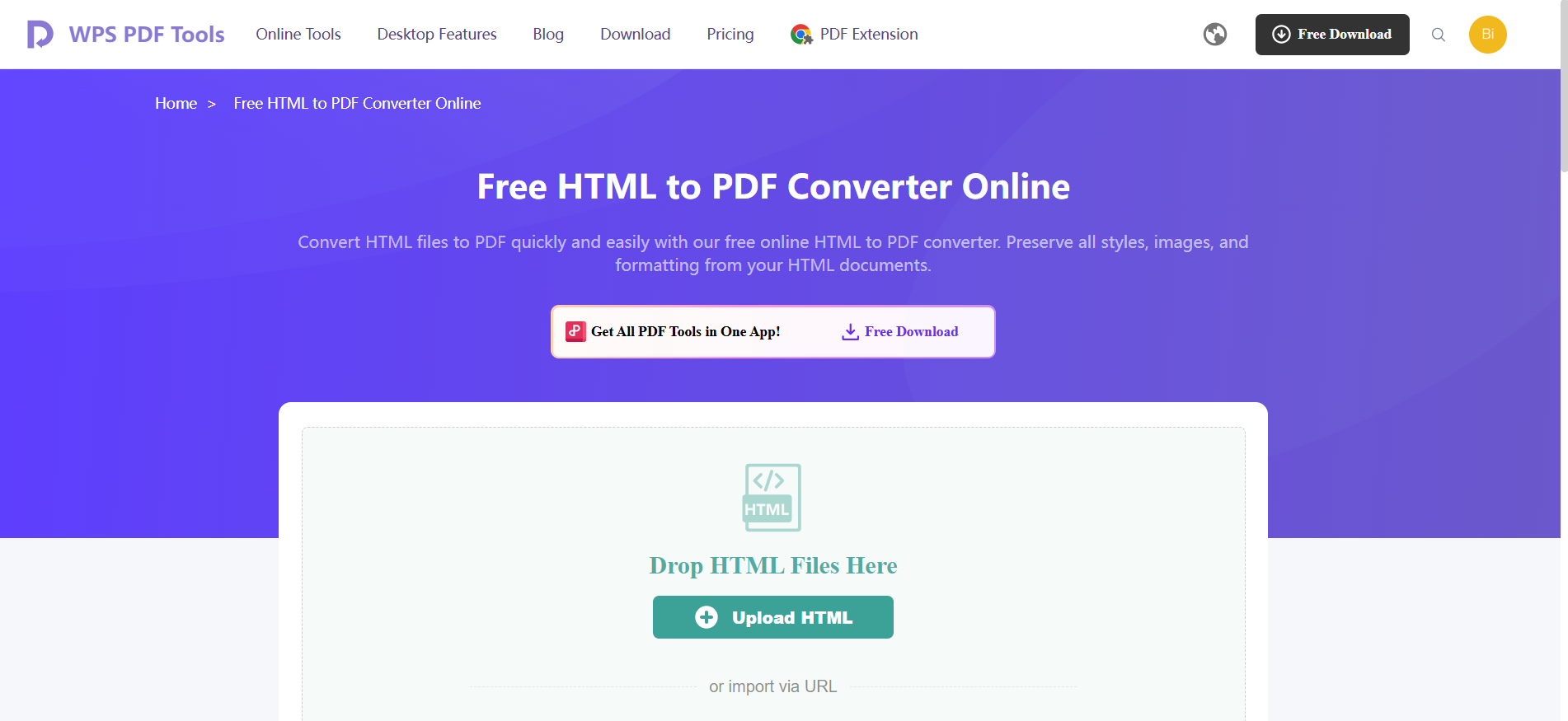
Step 1: Upload the HTML file you want to convert, or simply paste the URL to get started.
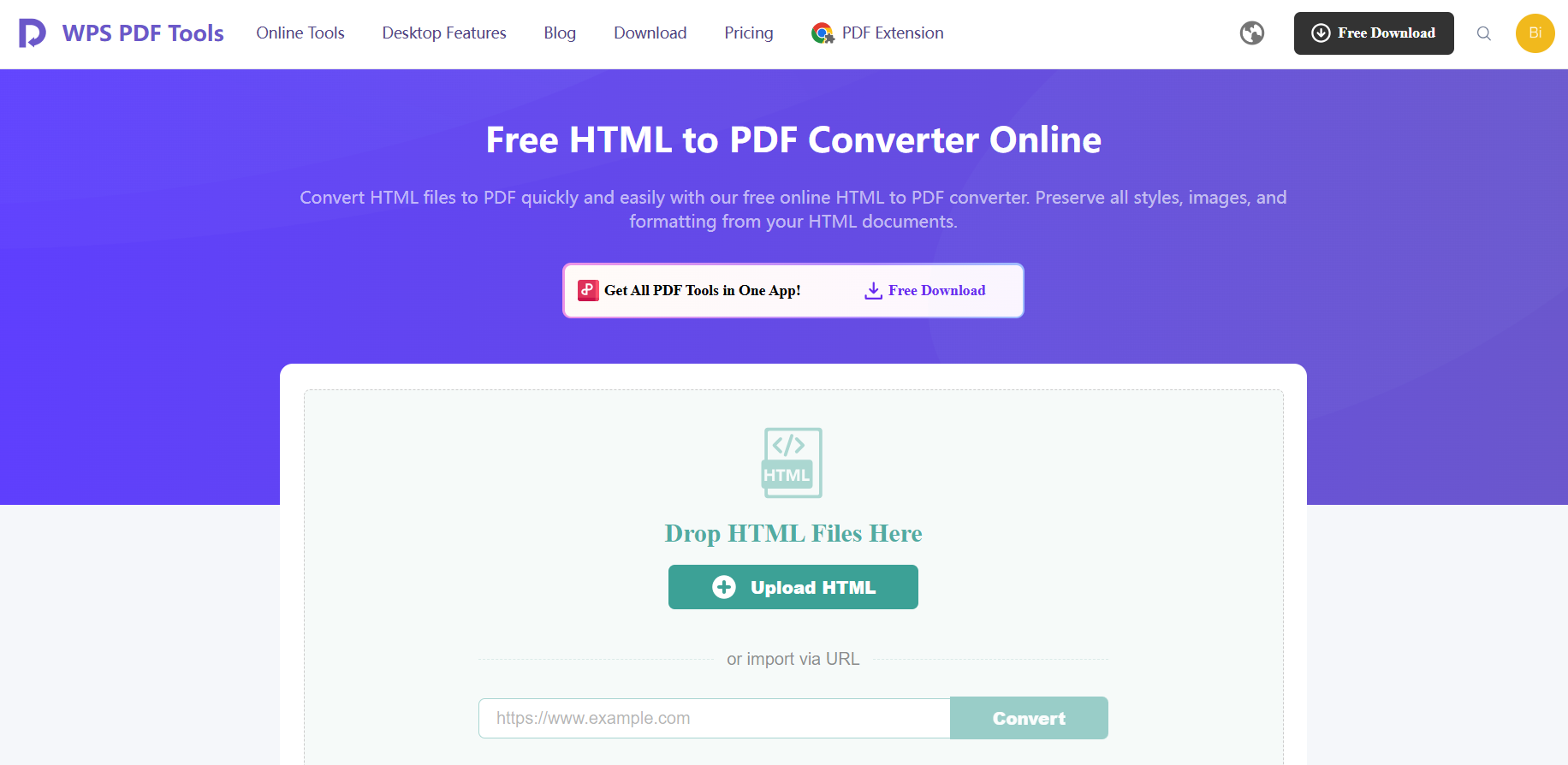
Step 2: Once the conversion process is complete, simply press Download to export the PDF file to your device.

There are many online HTML to PDF converter free tools you can use for this, but WPS Online Converter is my personal go-to choice when it comes to quick web-based file conversions. I’ll highlight some other tools and compare them side-by-side to help you decide the right option for yourself.
| Feature | WPS Online Converter | Sejda HTML to PDF | PDFCrowd Converter | FreeConvert HTML to PDF |
|---|---|---|---|---|
| Free Version | Yes | Yes | Yes | Yes |
| File Size Limit | Moderate | Moderate | Limited | High |
| Conversion Speed | Fast | Fast | Moderate | Fast |
| Customization Options | Basic | Advanced | Advanced | Basic |
| Watermark in Free | No | No | Sometimes | No |
| Best For | Quick conversions | Layout control | Developers and APIs | Large files |
How to Convert HTML to PDF with Desktop Tools
Online tools can provide quick conversions for those in a hurry, but if you’re working with file conversions on a regular basis, they aren’t viable options. Desktop tools provide better quality, offline functionality, and advanced features to help you have more control over your file conversions, making it a perfect option for professionals. In this section, I’ll be highlighting the step-by-step process of converting HTML to PDF using WPS Office.
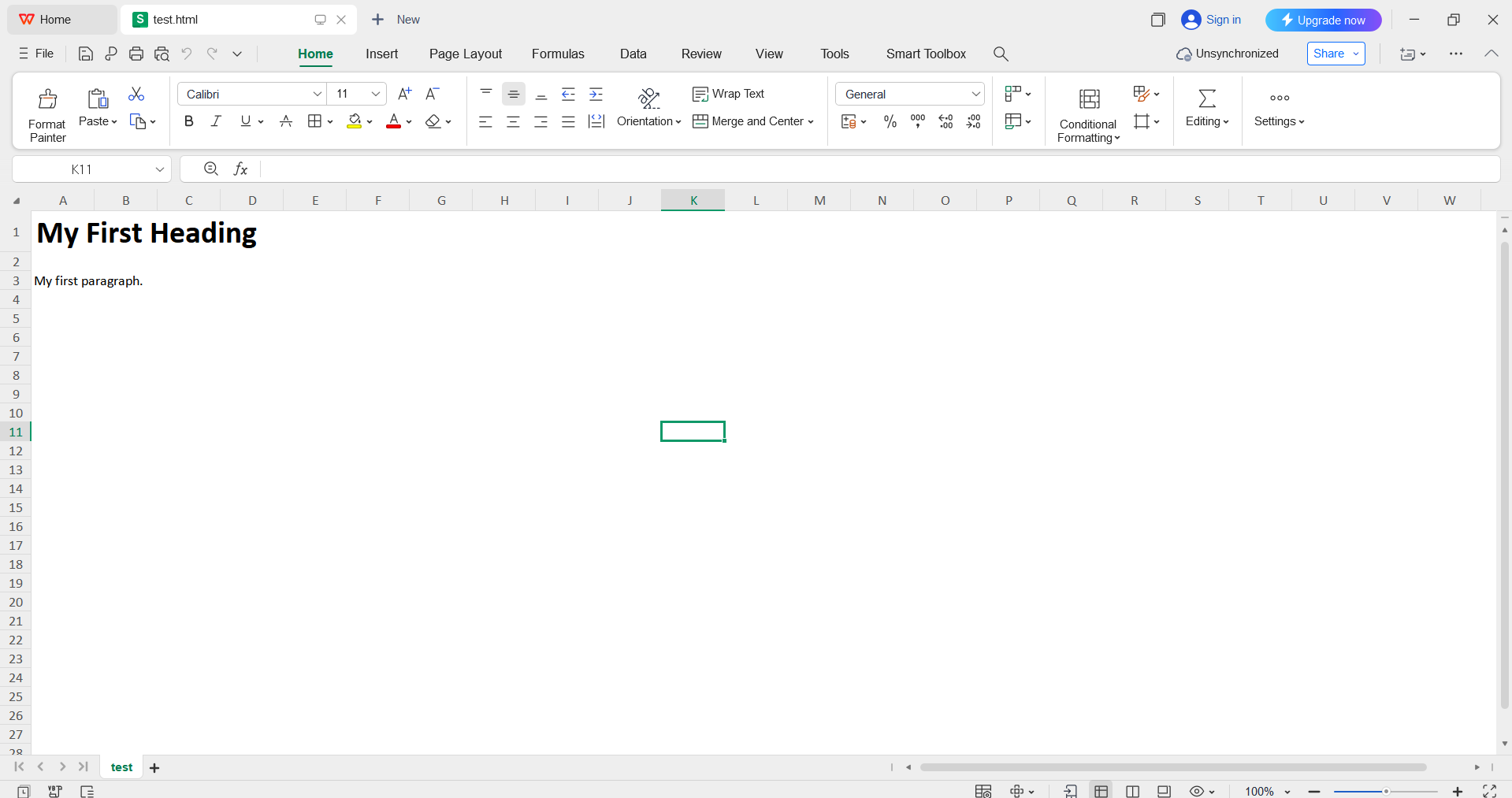
Step 1: Open your HTML file with WPS Office to get started.
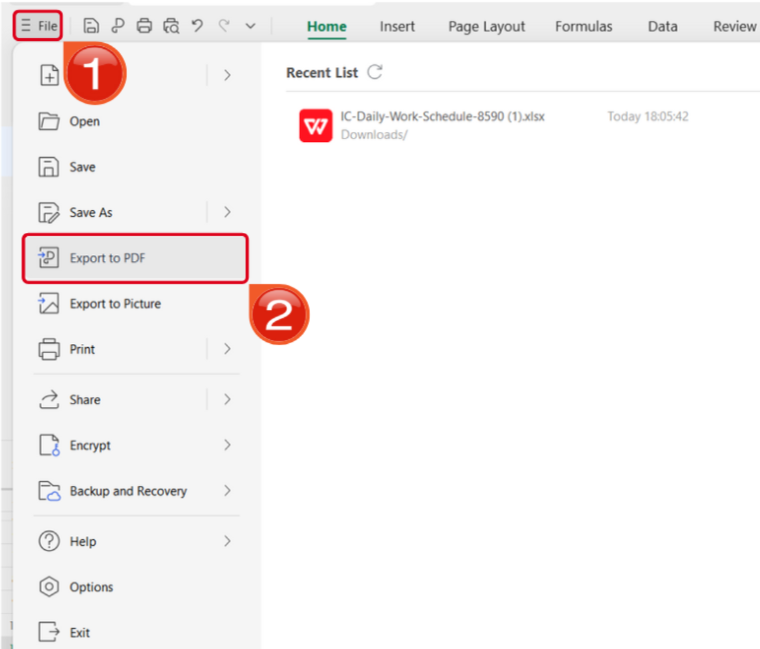
Step 2: Open the Files menu and select Export to PDF to convert your HTML file to a PDF document.
WPS Office is my personal go-to choice when it comes to all-in-one productivity in a reliable and smart tool suite. But there are other tools you can use for this process as well, some of which I’ll be highlighting in the comparison table down below. You can compare the tools side-by-side to evaluate the better option for your own needs.
| Feature | WPS Office | Adobe Acrobat | Sejda Desktop |
|---|---|---|---|
| Conversion Quality | High | Very high | High |
| Layout Preservation | Good for most pages | Excellent even for complex CSS | Good |
| Batch Processing | Yes | Yes | Limited |
| Offline Capability | Yes | Yes | Yes |
| Advanced Controls | Basic page settings | Full control over fonts, scripts, and rendering | Limited |
| Best Use Case | Fast everyday conversions | Professional and enterprise use | Lightweight personal use |
How to Convert HTML to PDF via API
If you’re a developer or a large-scale business looking for an automated conversion solution, then using an API would be a better option for you. It offers a variety of powerful and effective features, including easy integration, complete automation, and high-volume processing capabilities, making it ideal for applications that require large-scale operations. In this section, I’ll compare different API tools available for your conversions, tailored to your specific requirements.
| API | Features | Docs | Pricing | Best Use |
|---|---|---|---|---|
| WPS | No public API | Poor / Unavailable | - | Office suite only |
| PDFCrowd | Multi-format, client libs | Good | Not public | Simple PDF conversions |
| CloudConvert | Chrome-based, workflow features | Excellent | Usage-based | High-fidelity, production |
| DocuPilot | Template + automation, bulk PDF | Moderate | Tiered $29–$699/mo | Automated doc pipelines |
Why Choose WPS PDF Tools for HTML to PDF Conversion
When I’m dealing with file conversions regularly, I need something reliable and trustworthy, something that doesn’t slow me down or hinder my progress. This is why WPS Online Converter is my go-to companion in my workflow. It’s completely free and provides countless reliable conversion tools to help you simplify your workflow and save a lot of time, making it the perfect addition to anyone’s toolset.
FAQs
Q1. Why does my converted PDF look different from the original HTML webpage?
This usually occurs due to CSS rendering issues, missing fonts, or JavaScript execution differences. Tools like WPS with advanced rendering engines handle these elements more effectively.
Q2. Can I convert a live website URL to PDF using these tools?
Yes, most quality converters including WPS support entering webpage URLs directly for conversion. This is perfect for archiving web content or creating documentation.
Q3. Is there a way to convert HTML to PDF without uploading files online?
Absolutely. Desktop solutions like WPS Office allow 100% offline conversion, keeping your HTML files completely private and secure on your local machine.
Q4. Can I customize the PDF layout during conversion?
Yes, most converters, including WPS and CloudConvert, allow setting page size, orientation, margins, and adding headers or footers for professional-looking PDFs.
Q5. Are these tools compatible with all operating systems?
Many tools like WPS Office support Windows, macOS, and some Linux distributions. Web-based services such as PDFCrowd or CloudConvert work on any OS via a browser.

'%3e%3cpath%20d='M19.9911%204.11386V6.471H18.5894C18.0775%206.471%2017.7322%206.57814%2017.5536%206.79243C17.3751%207.00671%2017.2858%207.32814%2017.2858%207.75671V9.44421H19.9019L19.5536%2012.0871H17.2858V18.8639H14.5536V12.0871H12.2769V9.44421H14.5536V7.49779C14.5536%206.39064%2014.8632%205.53201%2015.4822%204.92189C16.1013%204.31177%2016.9257%204.00671%2017.9554%204.00671C18.8304%204.00671%2019.509%204.04243%2019.9911%204.11386Z'%20fill='%23333333'/%3e%3c/g%3e%3cdefs%3e%3cclipPath%20id='clip0_2938_8199'%3e%3crect%20width='16'%20height='16'%20fill='white'%20transform='translate(8%204.00671)'/%3e%3c/clipPath%3e%3c/defs%3e%3c/svg%3e)
'%3e%3cpath%20d='M17.5237%2010.7813L23.4811%204H22.0699L16.8949%209.88693L12.7648%204H8L14.2469%2012.9029L8%2020.0133H9.4112L14.8725%2013.7952L19.2352%2020.0133H24M9.92053%205.04213H12.0885L22.0688%2019.0224H19.9003'%20fill='%23333333'/%3e%3c/g%3e%3cdefs%3e%3cclipPath%20id='clip0_2938_8200'%3e%3crect%20width='16'%20height='16.0134'%20fill='white'%20transform='translate(8%204)'/%3e%3c/clipPath%3e%3c/defs%3e%3c/svg%3e)


