

'%3e%3cpath%20d='M8%200C12.4183%200%2016%203.58172%2016%208C16%2012.4183%2012.4183%2016%208%2016C3.58172%2016%200%2012.4183%200%208C0%203.58172%203.58172%200%208%200ZM11.6162%204.38379C11.2257%203.99337%2010.5927%203.99338%2010.2021%204.38379L8%206.58594L5.79785%204.38379C5.40732%203.99334%204.77429%203.99329%204.38379%204.38379C3.99331%204.77429%203.99335%205.40733%204.38379%205.79785L6.58594%208L4.38379%2010.2021C3.99348%2010.5927%203.99341%2011.2257%204.38379%2011.6162C4.77426%2012.0066%205.40734%2012.0065%205.79785%2011.6162L8%209.41406L10.2021%2011.6162C10.5927%2012.0066%2011.2257%2012.0067%2011.6162%2011.6162C12.0067%2011.2257%2012.0066%2010.5927%2011.6162%2010.2021L9.41406%208L11.6162%205.79785C12.0066%205.40735%2012.0066%204.77429%2011.6162%204.38379Z'%20fill='%23080E17'%20fill-opacity='0.46'/%3e%3c/g%3e%3cdefs%3e%3cclipPath%20id='clip0_3761_713'%3e%3crect%20width='16'%20height='16'%20fill='white'/%3e%3c/clipPath%3e%3c/defs%3e%3c/svg%3e)




'%3e%3cpath%20fill-rule='evenodd'%20clip-rule='evenodd'%20d='M21.4999%2010.9993C21.4999%205.20009%2016.7986%200.498901%2010.9993%200.498901C5.19994%200.498901%200.498657%205.20009%200.498657%2010.9993C0.498657%2016.2404%204.33858%2020.5844%209.35855%2021.3722V14.0346H6.69238V10.9993H9.35855V8.68594C9.35855%206.05427%2010.9262%204.60062%2013.3248%204.60062C14.4736%204.60062%2015.6753%204.80571%2015.6753%204.80571V7.38979H14.3512C13.0468%207.38979%2012.64%208.19921%2012.64%209.0296V10.9993H15.5523L15.0867%2014.0346H12.64V21.3722C17.66%2020.5844%2021.4999%2016.2404%2021.4999%2010.9993Z'%20fill='%231568EA'/%3e%3c/g%3e%3c/svg%3e)


'%3e%3cpath%20d='M2.42045%2022.1876H6.31818V12.7217L0.75%208.54553V20.5171C0.75%2021.4414%201.49892%2022.1876%202.42045%2022.1876Z'%20fill='%234285F4'/%3e%3cpath%20d='M19.682%2022.1876H23.5797C24.5041%2022.1876%2025.2502%2021.4387%2025.2502%2020.5171V8.54553L19.682%2012.7217'%20fill='%2334A853'/%3e%3cpath%20d='M19.682%205.48293V12.7216L25.2502%208.54543V6.31816C25.2502%204.25236%2022.8921%203.07469%2021.2411%204.31361'%20fill='%23FBBC04'/%3e%3cpath%20d='M6.31824%2012.7217V5.48303L13.0001%2010.4944L19.6819%205.48303V12.7217L13.0001%2017.733'%20fill='%23EA4335'/%3e%3cpath%20d='M0.75%206.31816V8.54543L6.31818%2012.7216V5.48293L4.75909%204.31361C3.10534%203.07469%200.75%204.25236%200.75%206.31816Z'%20fill='%23C5221F'/%3e%3c/g%3e%3cdefs%3e%3cclipPath%20id='clip0_2954_7305'%3e%3crect%20width='24.5'%20height='18.375'%20fill='white'%20transform='translate(0.75%203.8125)'/%3e%3c/clipPath%3e%3c/defs%3e%3c/svg%3e)


Many documents today arrive as PDFs, and that often includes pages you want to reuse as standalone images. A slide deck, a social post, or a quick upload usually works better with JPGs, but extracting them is not always straightforward. The iLovePDF PDF to JPG tool helps you pull pages out quickly without installing anything, which is useful when you need a simple conversion on the spot. At the same time, it has limits in quality control and page handling, so it helps to know where it fits and when another converter can give you a smoother experience.


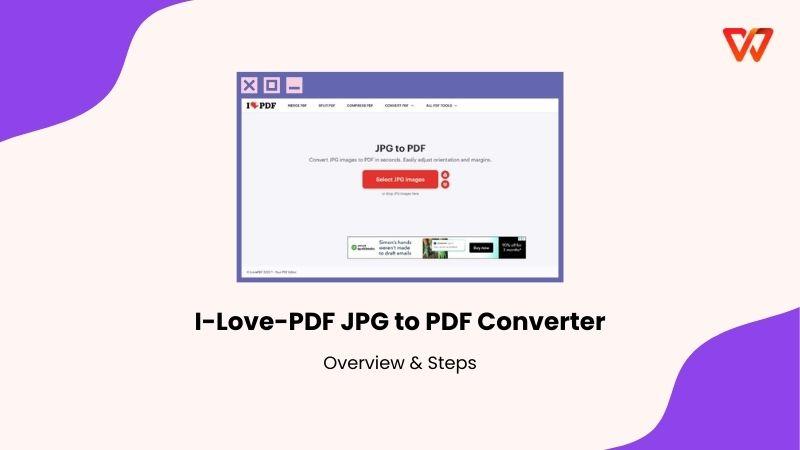
Overview of iLovePDF PDF to JPG Converter
iLovePDF is a widely used online platform designed to help you work with PDF files directly from your browser. It offers a full suite of cloud-based tools for editing, compressing, merging, splitting, converting, and optimizing PDFs. The platform processes millions of files each month and uses server-side encryption with automatic file deletion to keep user data protected, which makes it a dependable choice for quick online tasks. Among those tools, the iLovePDF PDF to JPG converter has become popular for quick image extraction without installation.
iLovePDF’s PDF to JPG tool focuses on simplicity and accessibility. Here’s what it offers:
Convert PDF pages to JPG: You can turn every page of your PDF into a separate high-quality JPG file.
Extract individual PDF images: If your PDF contains embedded images, you can extract them directly instead of converting entire pages.
Bulk conversion: Convert multiple pages or extract multiple images in one go.
Cloud-based and cross-platform: Since the tool works entirely online, it operates on Windows, macOS, Linux, Android, and iOS.
Integration with other PDF tools: When needed, you can quickly switch to merging, compressing, editing, or signing your PDF files.
The free version is enough for simple conversions, but it has some restrictions, whereas paid plans offer more flexibility. If your needs are basic, the free version works fine for occasional tasks. However, if you use the iLovePDF PDF to JPG PDF to JPG converter frequently or need higher file size limits and faster processing, upgrading to a premium plan can make your workflow much smoother.
How to Convert PDF to JPG on iLovePDF
The tool works best when you follow its workflow exactly as intended. The interface is simple, but the platform actually gives you two different conversion modes, and choosing the wrong one can affect the clarity of your output images. File size also matters: iLovePDF tends to compress larger PDFs more aggressively in the free version, which is something worth keeping in mind if you need high-resolution images. Here are the exact steps you should follow when learning how to convert PDF to JPG on iLovePDF.
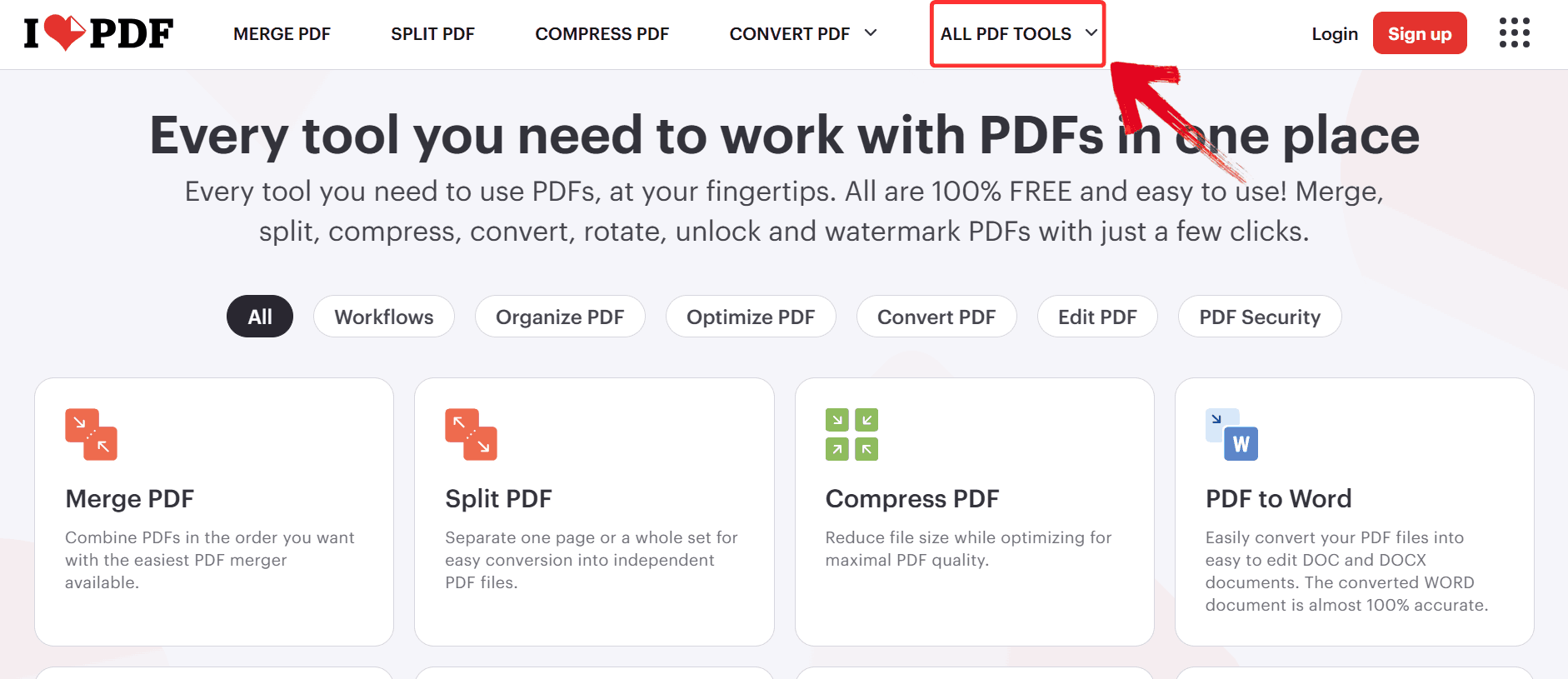
Step 1: Start by visiting the official iLovePDF site and click on the tab labeled “All PDF Tools” to open the full list of features.
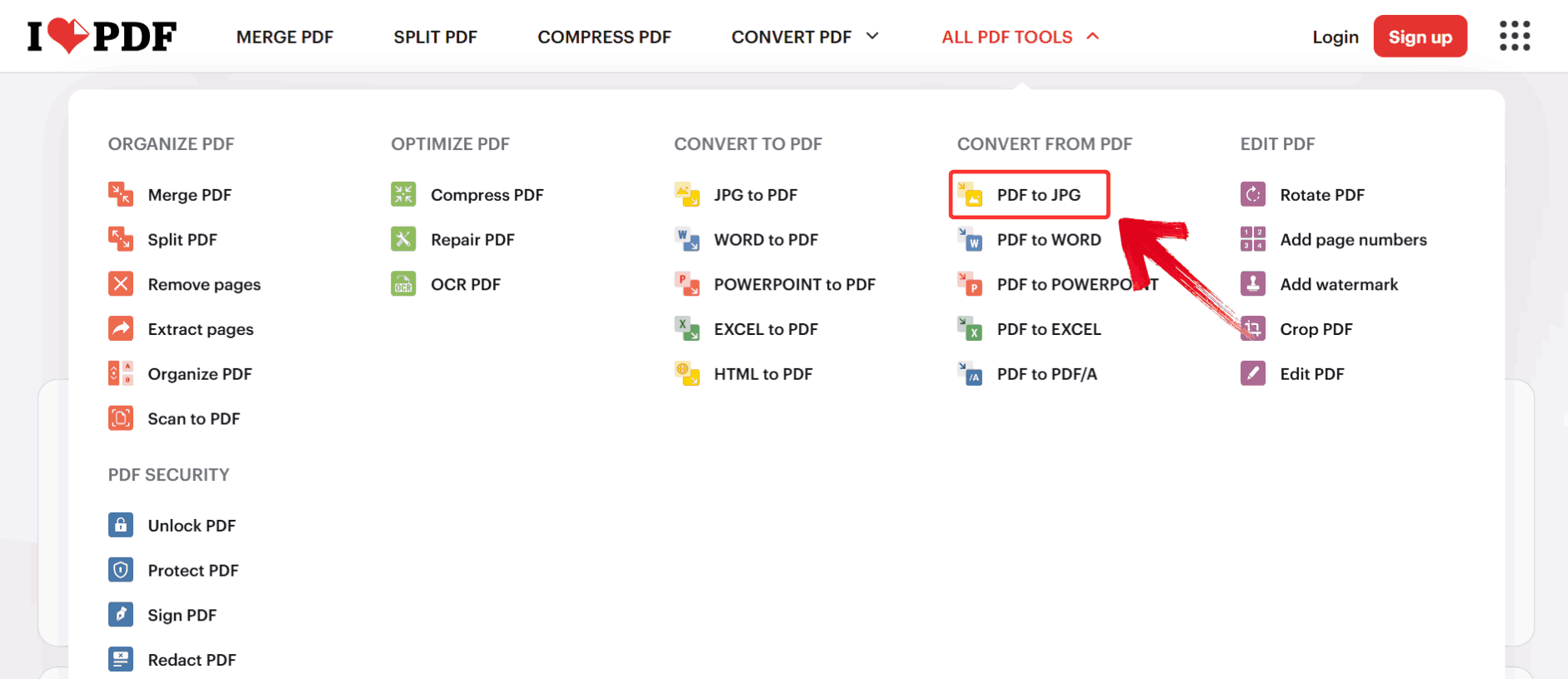
Step 2: Once the tools menu expands, click on “PDF to JPG” and you’ll be taken directly to the conversion page designed specifically for extracting pages or images from a PDF.
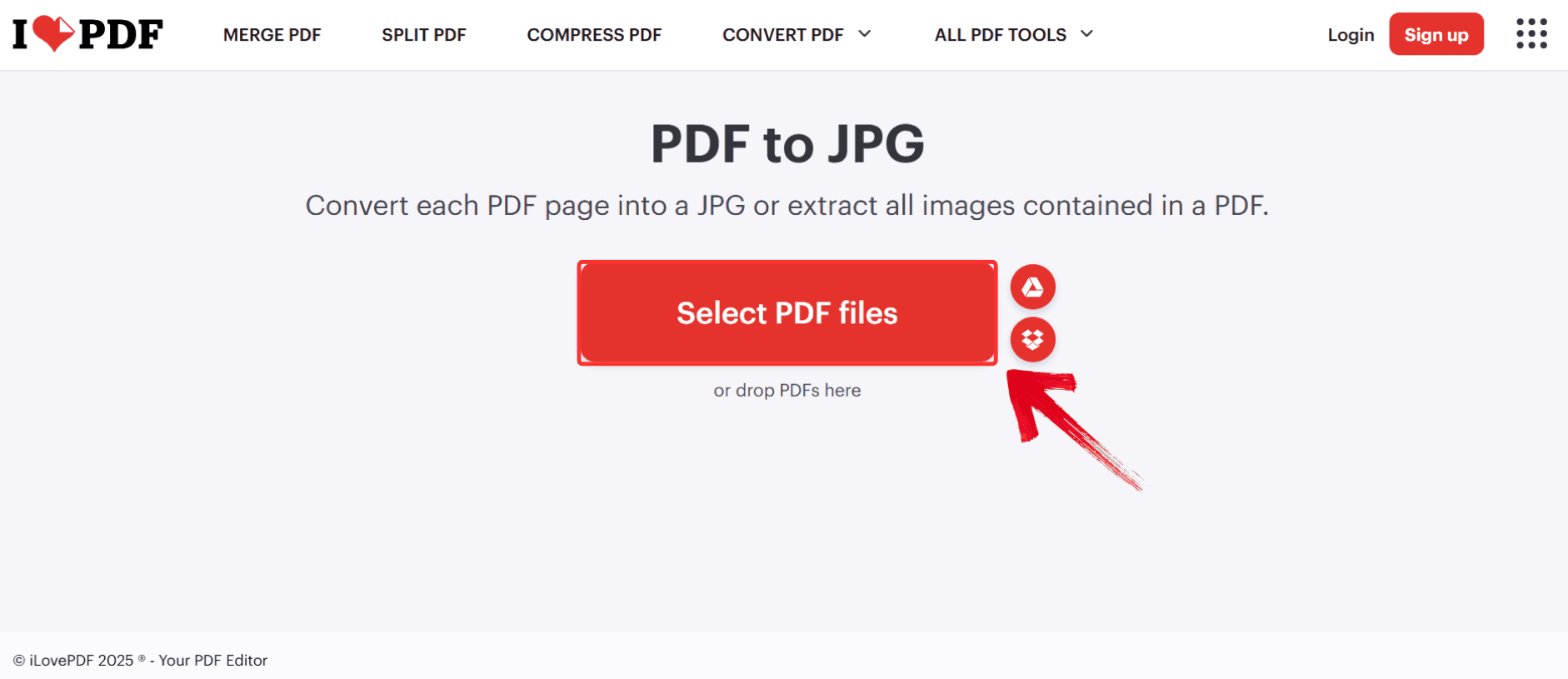
Step 3: On the PDF to JPG page, hit the red “Select PDF files” button. This lets you browse your computer and choose the PDF you want to convert.
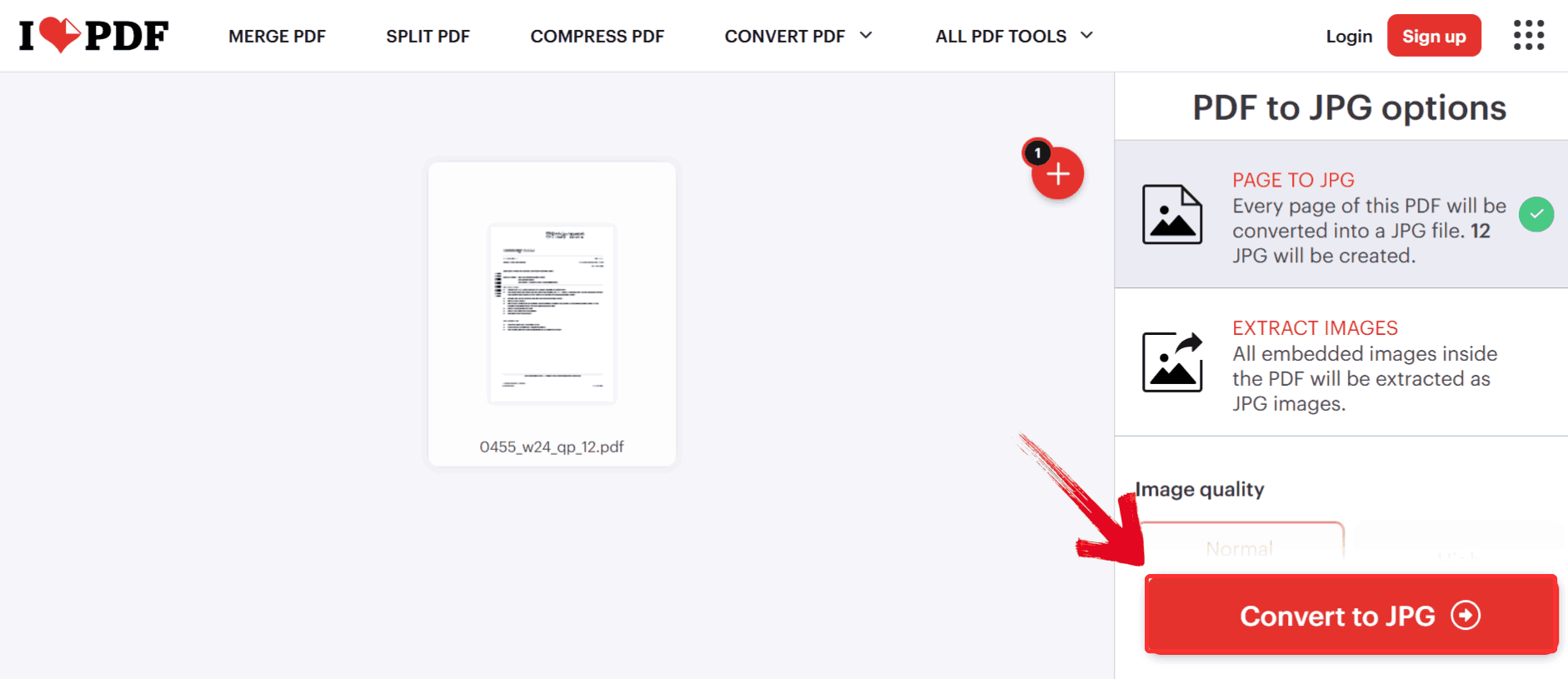
Step 4: After your file uploads, you’ll see a simple interface with your PDF preview. Just click “Convert to JPG”.
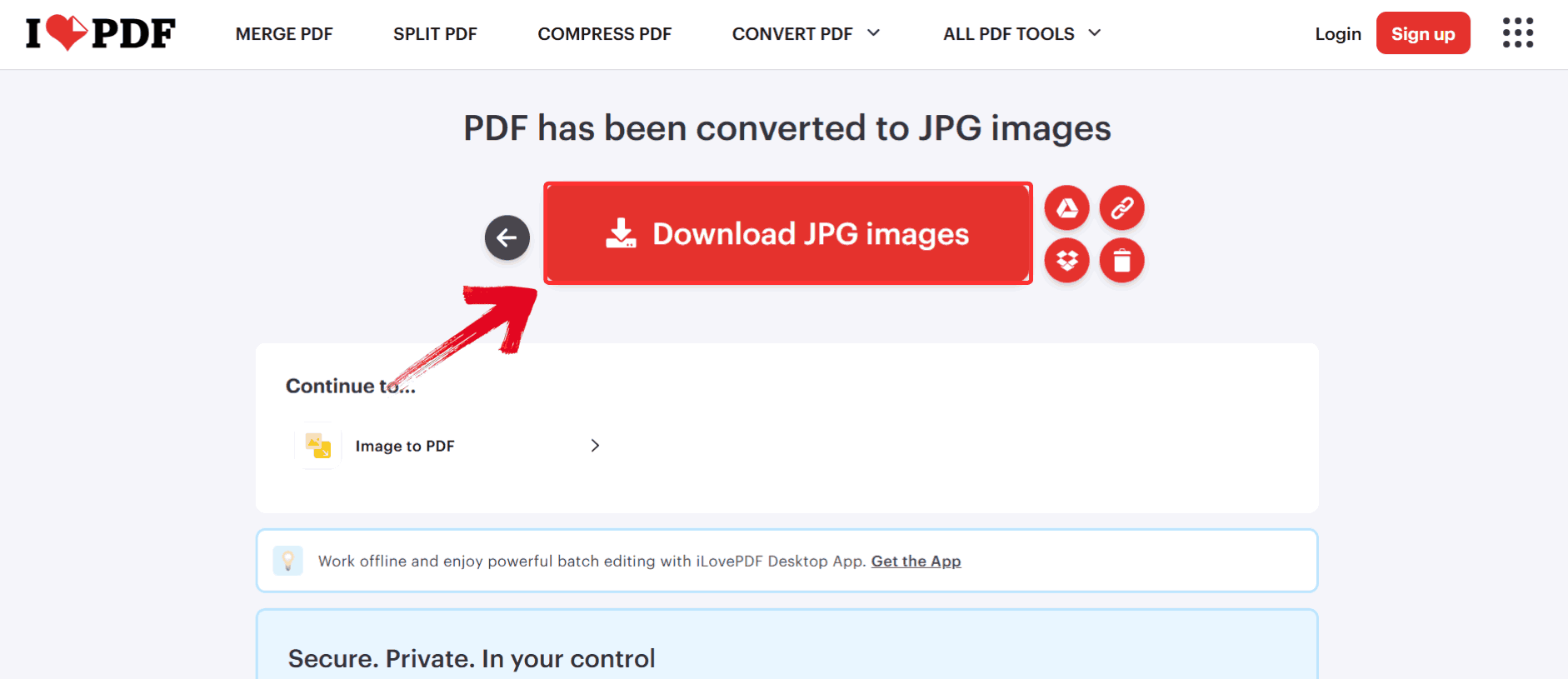
Step 5: When the conversion finishes, click on the “Download JPG Images” button to start saving your image(s) to your computer.
That’s all you need to do. This workflow works the same whether you’re on a laptop or using iLovePDF PDF to JPG PDF to JPG on phone. While the process is straightforward and convenient, it’s also worth considering the platform’s limitations and advantages before relying on it for frequent or large-scale conversions.
These limitations aren’t deal-breakers for occasional users, but if you convert frequently or need larger file support, you may feel constrained.
WPS Online Converter: Best Alternative to iLovePDF PDF to JPG Converter
If you find yourself hitting the file size limits or encountering slower processing on iLovePDF, there’s an alternative that handles PDF to JPG conversions with fewer restrictions and higher image clarity. The WPS PDF to JPG Converter works entirely in your browser, but it also integrates with a full suite of PDF editing and office tools, making it easy to manage documents beyond simple conversions. You can convert large PDFs, extract individual images, or process multiple pages at once without logging in or worrying about daily task limits. Its streamlined interface and focus on preserving layout and quality make it a great choice for individuals who need consistent results for professional or personal projects.
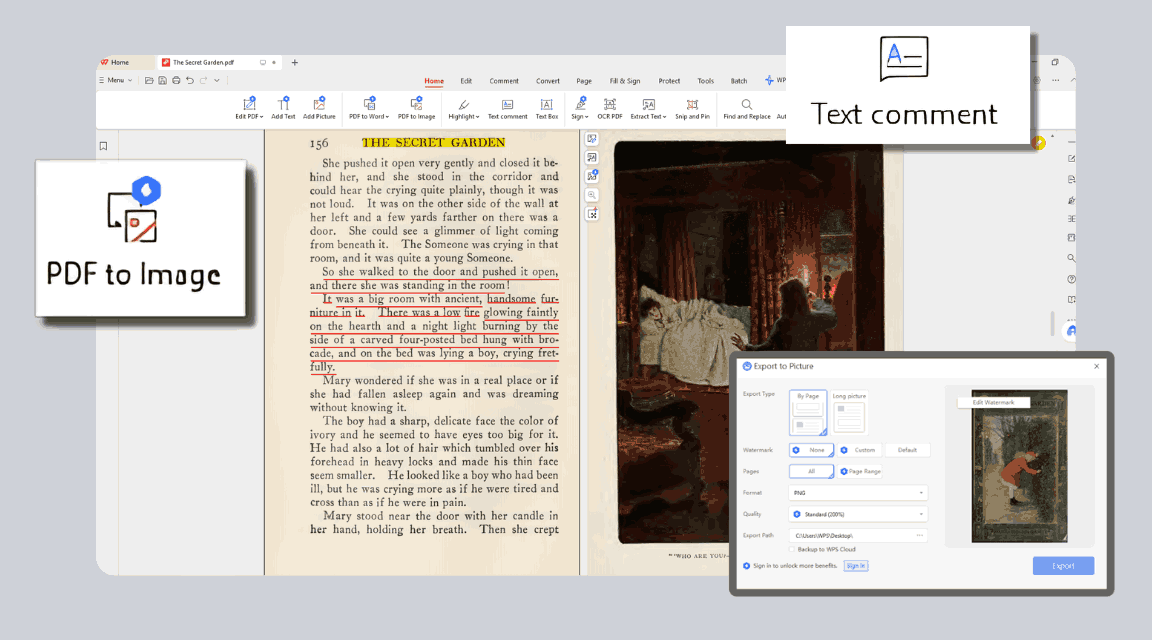
With all these features in mind, converting a PDF to JPG using WPS is not only fast but also straightforward. The interface keeps everything simple, so you don’t need to worry about complicated settings or hidden options. By following a few clear steps, you can upload your PDF, choose how you want it converted, and download high-quality JPG images in just a couple of minutes.
Step 1: Head over to the official WPS PDF website and navigate to the “Online Tools” section, which lists all the available PDF features.
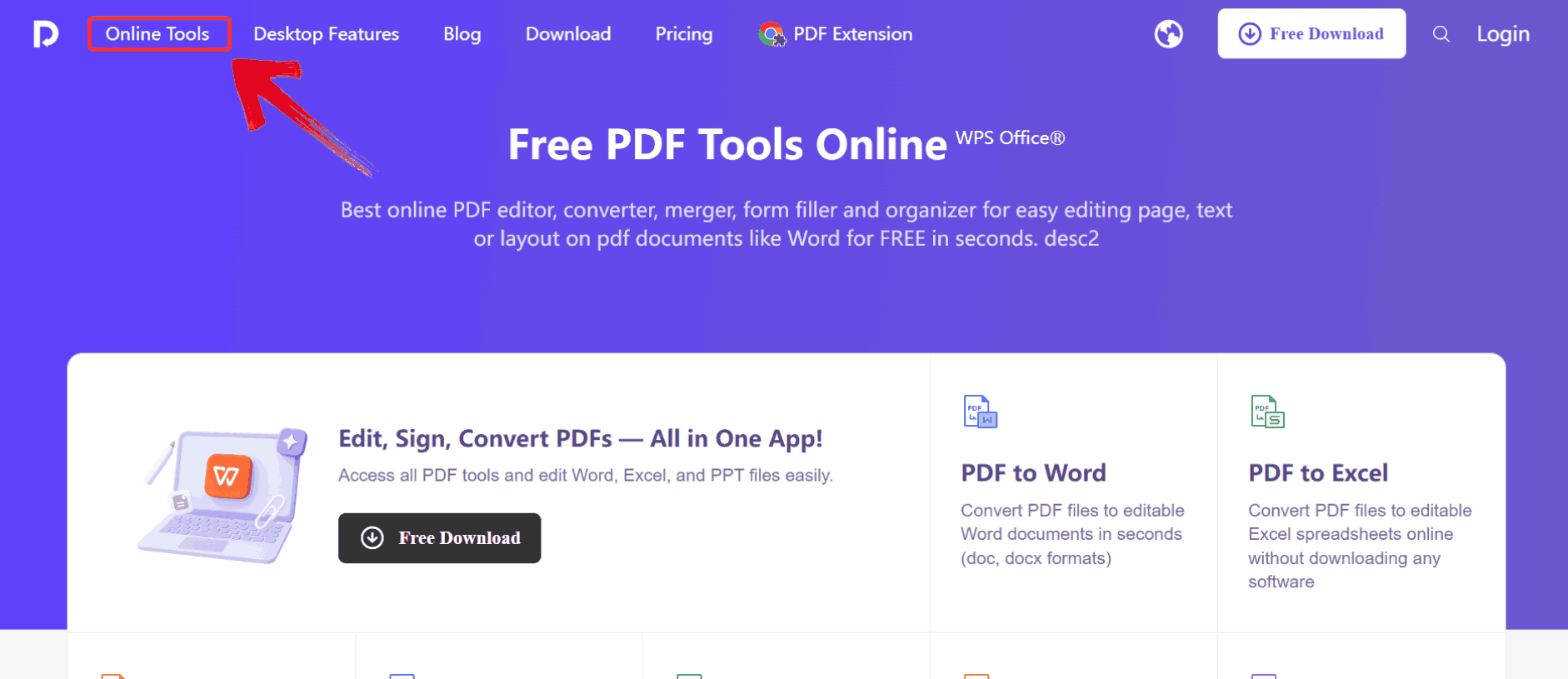
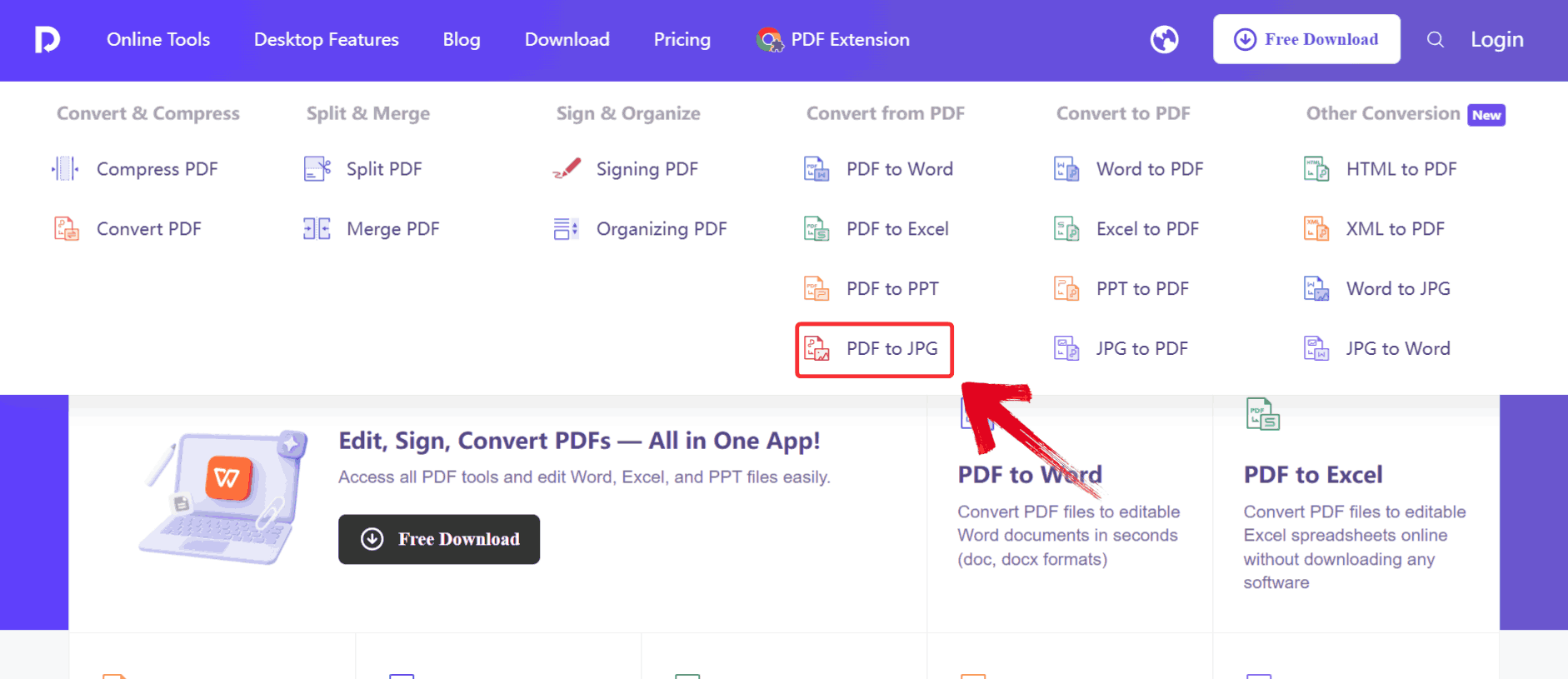
Step 2: Once you’re in the section, browse through the options and click on “PDF to JPG”.
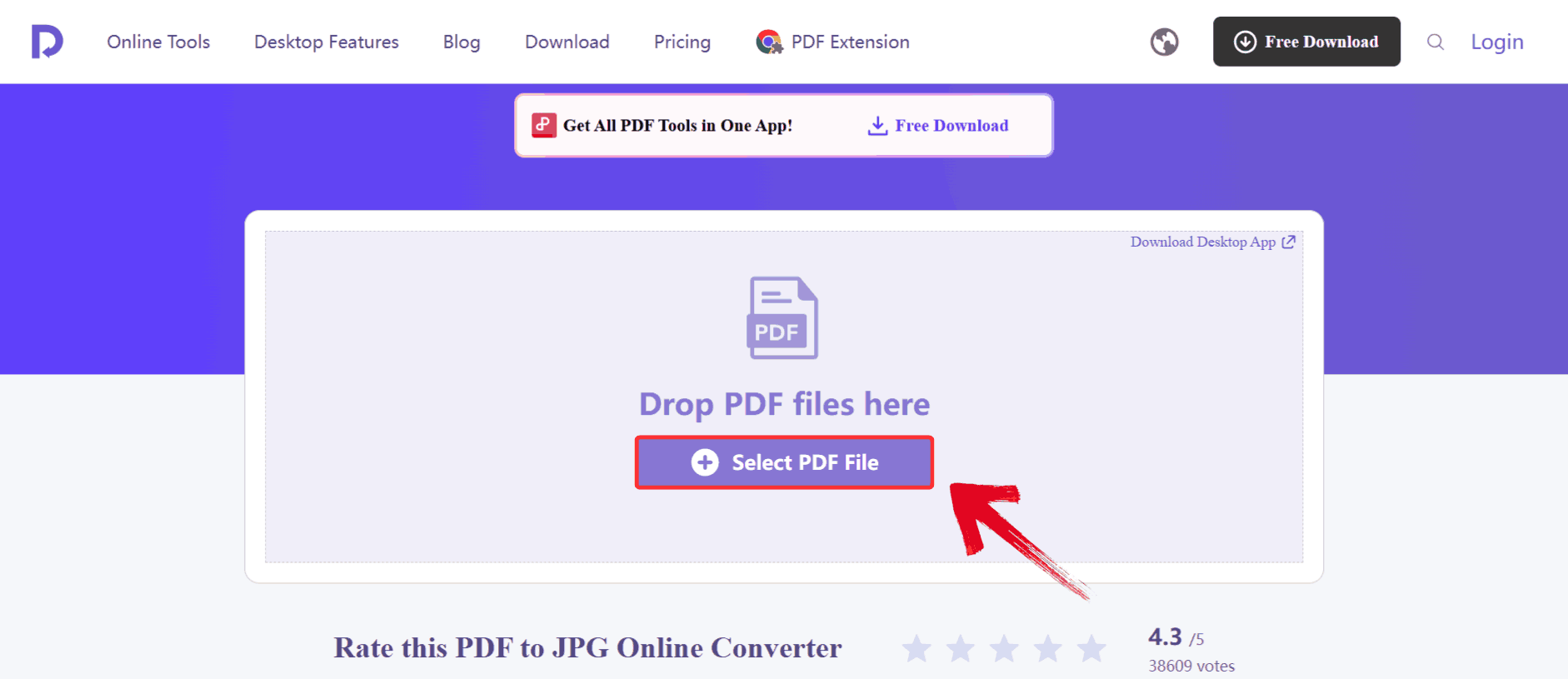
Step 3: On the PDF to JPG converter page, click the “Select PDF File” button. This lets you browse your computer and choose the PDF you want to convert.
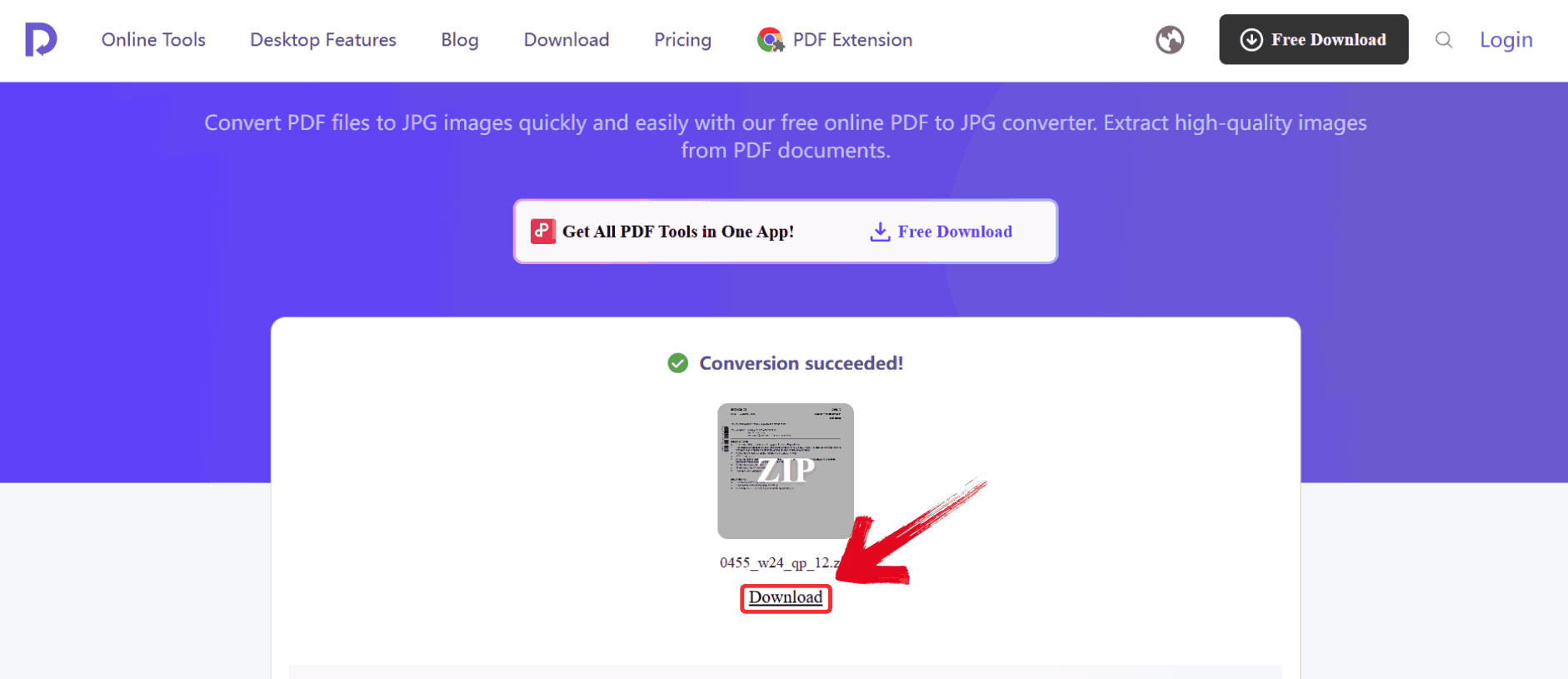
Step 4: Once the conversion is complete, click on “Download” to view your newly created JPG.
WPS Online Converter vs. iLovePDF PDF to JPG Converter
Having used both WPS Online Converter and iLovePDF PDF to JPG for several real-world tasks like converting multi-page reports and preparing visuals for presentations, there are clear differences. WPS delivered sharper image quality and faster conversion times across larger files, whereas iLovePDF sometimes slowed down or compressed visuals on bigger documents. I’ve broken down the strengths and trade‑offs side by side so you can decide which tool better suits your needs.
| Feature | iLovePDF PDF to JPG | WPS Online PDF to JPG |
|---|---|---|
| Ease of use | Simple | Simple |
| Conversion speed | Good | Faster |
| Image quality | Good | Higher clarity |
| File size limits | Restricted on free plan | More generous limits |
| Ads | Yes (free version) | No ads during conversion |
| Need to log in | Sometimes required for features | No login needed |
| Additional tools | Many PDF functions | Full WPS Office ecosystem |
| Device compatibility | Cross-platform | Cross-platform |
iLovePDF works well for quick, small conversions, but the task limits can be frustrating when you're working on multiple documents. WPS, on the other hand, feels smoother and more open. The absence of login requirements and the better image clarity make it a more comfortable daily tool.
FAQs
1. Can I convert files other than PDF to JPG?
Yes. iLovePDF supports limited file types through its suite, while WPS allows PDF to JPG, JPG to PDF, and many other conversions across Word, Excel, and PowerPoint formats.
2. What makes WPS Converter a better alternative to iLovePDF?
WPS offers faster conversions, better image clarity, no login requirements, higher file size limits, and integration with a full-featured PDF editor.
3. Do I need to provide an email to receive my file?
iLovePDF sometimes prompts for login depending on the task, while WPS never requires email sign-in to download your JPGs.
4. Is the converted JPG high quality?
Both platforms provide clear images, but WPS typically preserves resolution and color accuracy better, especially for scanned documents or detailed pages.
5. Is iLovePDF safe to use?
Yes, it deletes files after processing and uses secure connections. Still, for sensitive documents, some users prefer WPS due to its stronger offline ecosystem.

'%3e%3cpath%20d='M19.9911%204.11386V6.471H18.5894C18.0775%206.471%2017.7322%206.57814%2017.5536%206.79243C17.3751%207.00671%2017.2858%207.32814%2017.2858%207.75671V9.44421H19.9019L19.5536%2012.0871H17.2858V18.8639H14.5536V12.0871H12.2769V9.44421H14.5536V7.49779C14.5536%206.39064%2014.8632%205.53201%2015.4822%204.92189C16.1013%204.31177%2016.9257%204.00671%2017.9554%204.00671C18.8304%204.00671%2019.509%204.04243%2019.9911%204.11386Z'%20fill='%23333333'/%3e%3c/g%3e%3cdefs%3e%3cclipPath%20id='clip0_2938_8199'%3e%3crect%20width='16'%20height='16'%20fill='white'%20transform='translate(8%204.00671)'/%3e%3c/clipPath%3e%3c/defs%3e%3c/svg%3e)
'%3e%3cpath%20d='M17.5237%2010.7813L23.4811%204H22.0699L16.8949%209.88693L12.7648%204H8L14.2469%2012.9029L8%2020.0133H9.4112L14.8725%2013.7952L19.2352%2020.0133H24M9.92053%205.04213H12.0885L22.0688%2019.0224H19.9003'%20fill='%23333333'/%3e%3c/g%3e%3cdefs%3e%3cclipPath%20id='clip0_2938_8200'%3e%3crect%20width='16'%20height='16.0134'%20fill='white'%20transform='translate(8%204)'/%3e%3c/clipPath%3e%3c/defs%3e%3c/svg%3e)


