


Email attachments fail when a PDF is too large, when recipients work on phones, or when several people need the latest copy. A shareable URL avoids duplicate attachments and gives you one destination to update or revoke.
This guide shows two reliable ways to turn a PDF into a link: the fastest route inside WPS Office, and a universal cloud-storage method using Google Drive or OneDrive.
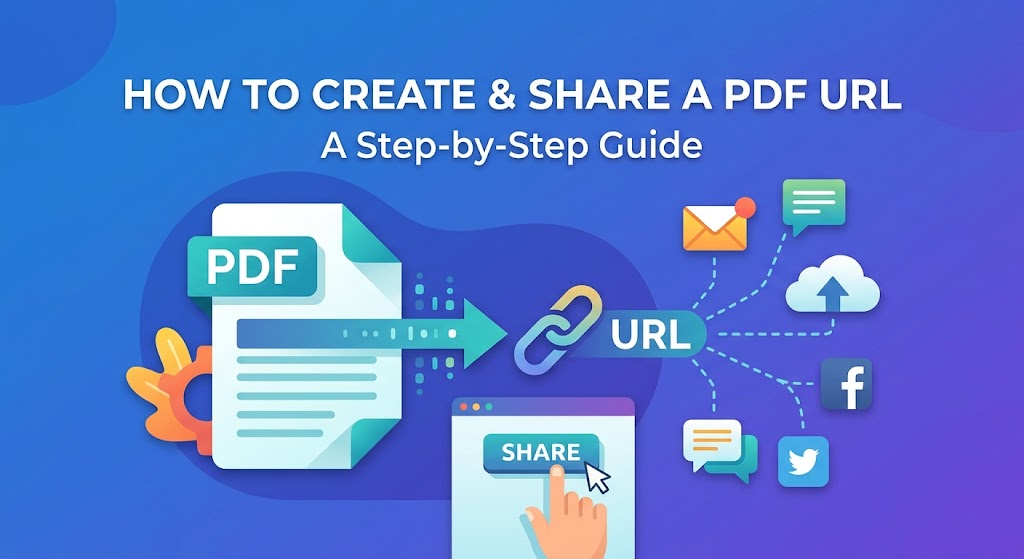
PDF to Link: How to Create and Share a PDF URL
Why Convert a PDF into a Link? (Benefits)
Sharing a file as a link instead of an attachment solves several everyday problems at once, which is why more teams and individuals now distribute documents this way.
Bypass email attachment limits: Gmail and Outlook cap attachment sizes, and oversized PDFs bounce back or clog inboxes. A link points to the hosted file, so a 50 MB proposal sends as smoothly as a one-pager.
Real-time updates: if you fix a typo or add a page after sending, update the source file and the same link serves the latest version. No more emailing 'v3_final_FINAL.pdf' to everyone on the thread.
Access control and security: you decide who can view or edit, add passwords or expiration dates where supported, and revoke access at any time — something an attachment can never do once it lands in someone's inbox.
Cross-device viewing: recipients open the document in a mobile or desktop browser instantly, with no extra software to download and no risk of a corrupted attachment.
Cleaner collaboration: one canonical link means everyone comments on the same copy, and view statistics on some platforms tell you when the document was opened.
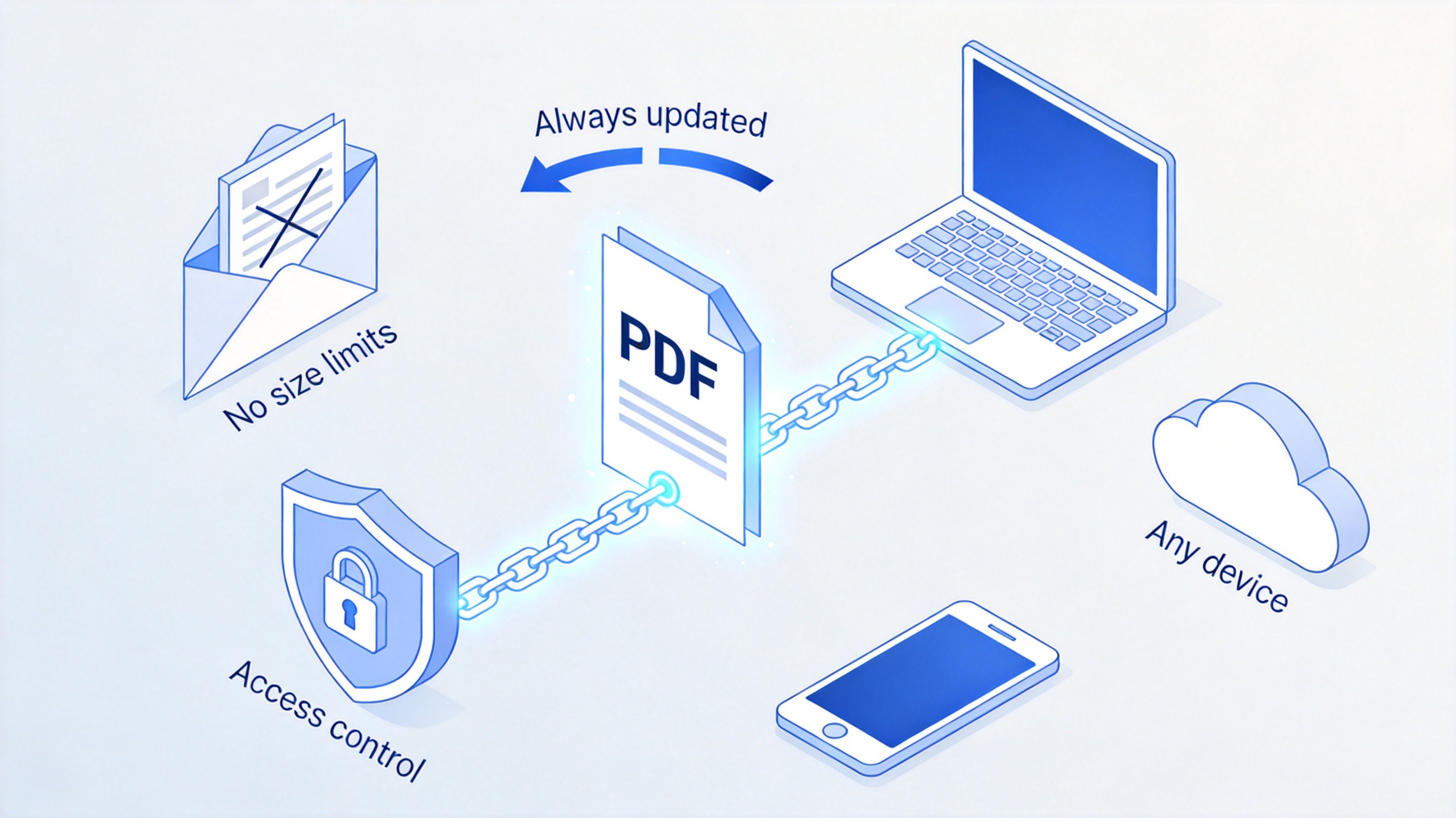
Benefits of sharing PDF as a link


Method 1: Turn a PDF into a Link Using WPS Office (Easiest & Fastest)
If your PDF is already open in WPS Office, you are seconds away from a shareable link. WPS Office works as both a full-featured PDF toolkit and a cloud-sharing hub: the desktop client and WPS Cloud generate the link for you in one click, and you keep full control over permissions, so there is no need to juggle a separate cloud drive, upload page, or third-party file host.
Step 1: Open Your PDF in WPS Office
Launch WPS Office and open the PDF document you want to share.
Step 2: Click the 'Share' Button
Located at the top right corner of the workspace, click Share.
Step 3: Adjust Link Permissions (Optional)
Set privacy preferences, such as 'Anyone with the link can view' or 'Can Edit', and set expiration dates if needed.
Step 4: Copy and Share the Link
Click Copy Link. You can now paste and send the link via email, message, or social media.
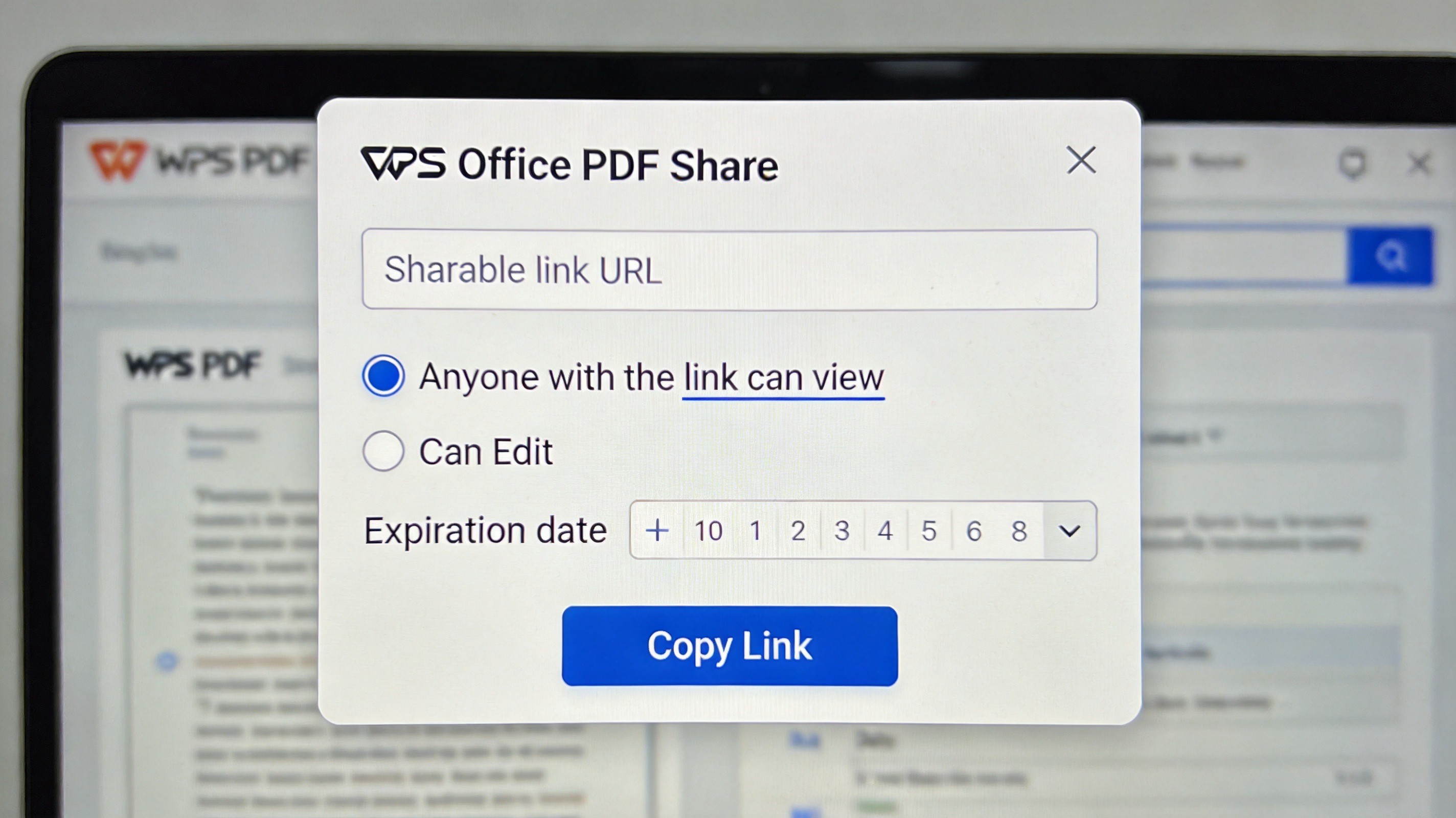
Set link permissions in WPS share dialog
Method 2: Convert PDF to Link via Cloud Storage (Google Drive / OneDrive)
If you do not have a dedicated PDF app installed, a cloud storage service you already use works just as well. This universal method suits anyone sharing occasional files.
Step 1: Upload the PDF
Log in to Google Drive or OneDrive and upload your PDF file.
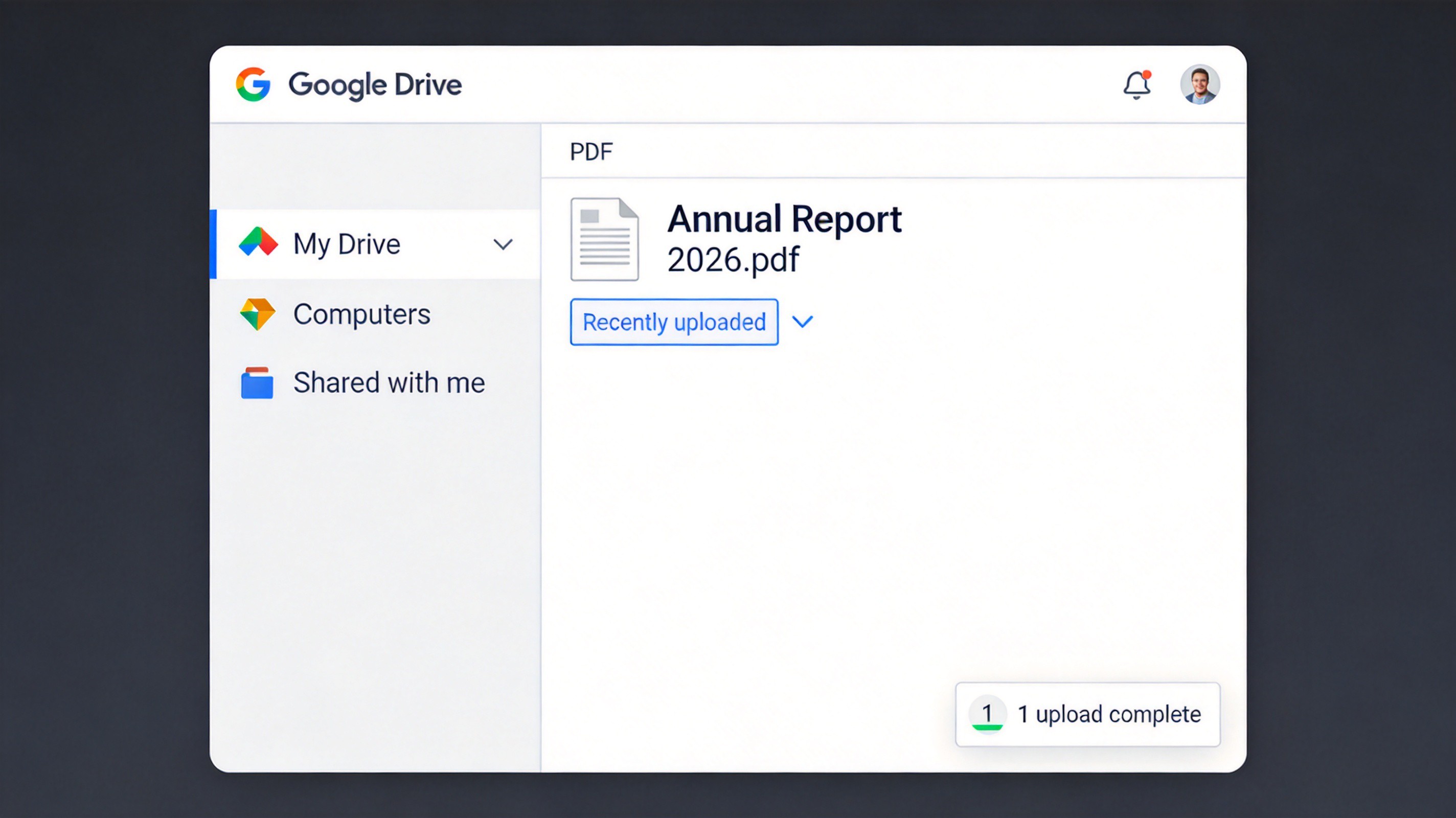
Upload PDF to Google Drive
Step 2: Get Shareable Link
Right-click the uploaded PDF file and select Share or Get Link.
Step 3: Set Access Control
Change access from 'Restricted' to 'Anyone with the link'.
Step 4: Copy the Link
Copy the generated URL link to your clipboard.
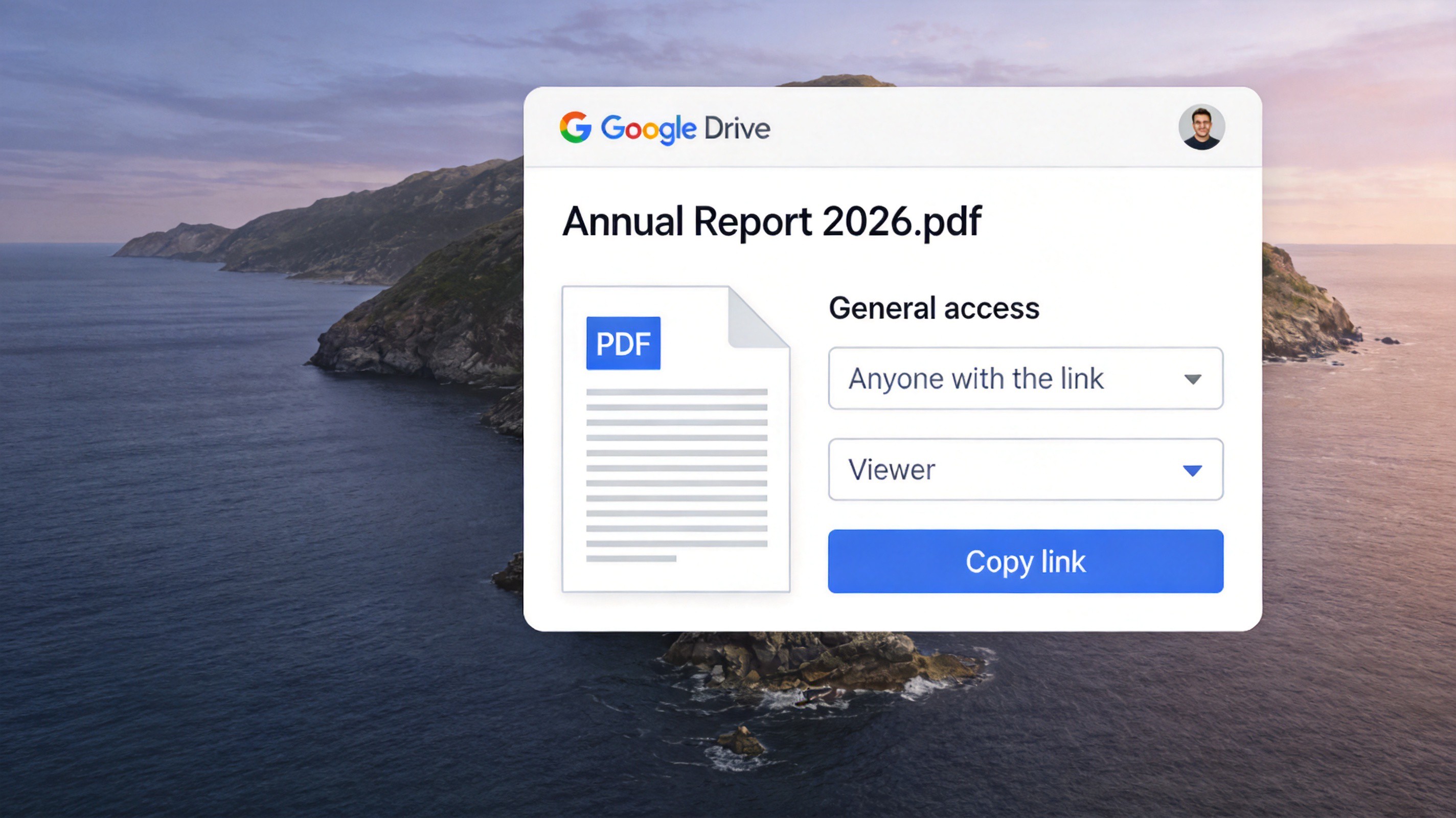
Set Google Drive share link access
The Best Free Alternative: WPS Office for Sharing PDFs as Links
Cloud drives share files, but WPS Office goes further: it is a free office suite with a full PDF toolkit, so the same app opens, edits, converts, compresses, and shares your PDF. Compared with uploading to a third-party drive, generating the link inside WPS via WPS Cloud is faster and gives you finer control:
One-click sharing: the Share button in the PDF workspace creates the link instantly — no separate upload page, no folder juggling, no re-uploading after every edit.
Full permission control: choose 'Anyone with the link can view' or 'Can Edit', set expiration dates, and revoke access whenever you need to.
Built-in PDF toolkit: convert, merge, compress, and annotate the document before you share it, all without installing extra software.
Cross-platform support: the same experience runs on Windows, macOS, Linux, Android, iOS, and in the browser, so you can share from any device.
Free to start: the core PDF reading, sharing, and collaboration features cost nothing, with premium options if your team needs more.
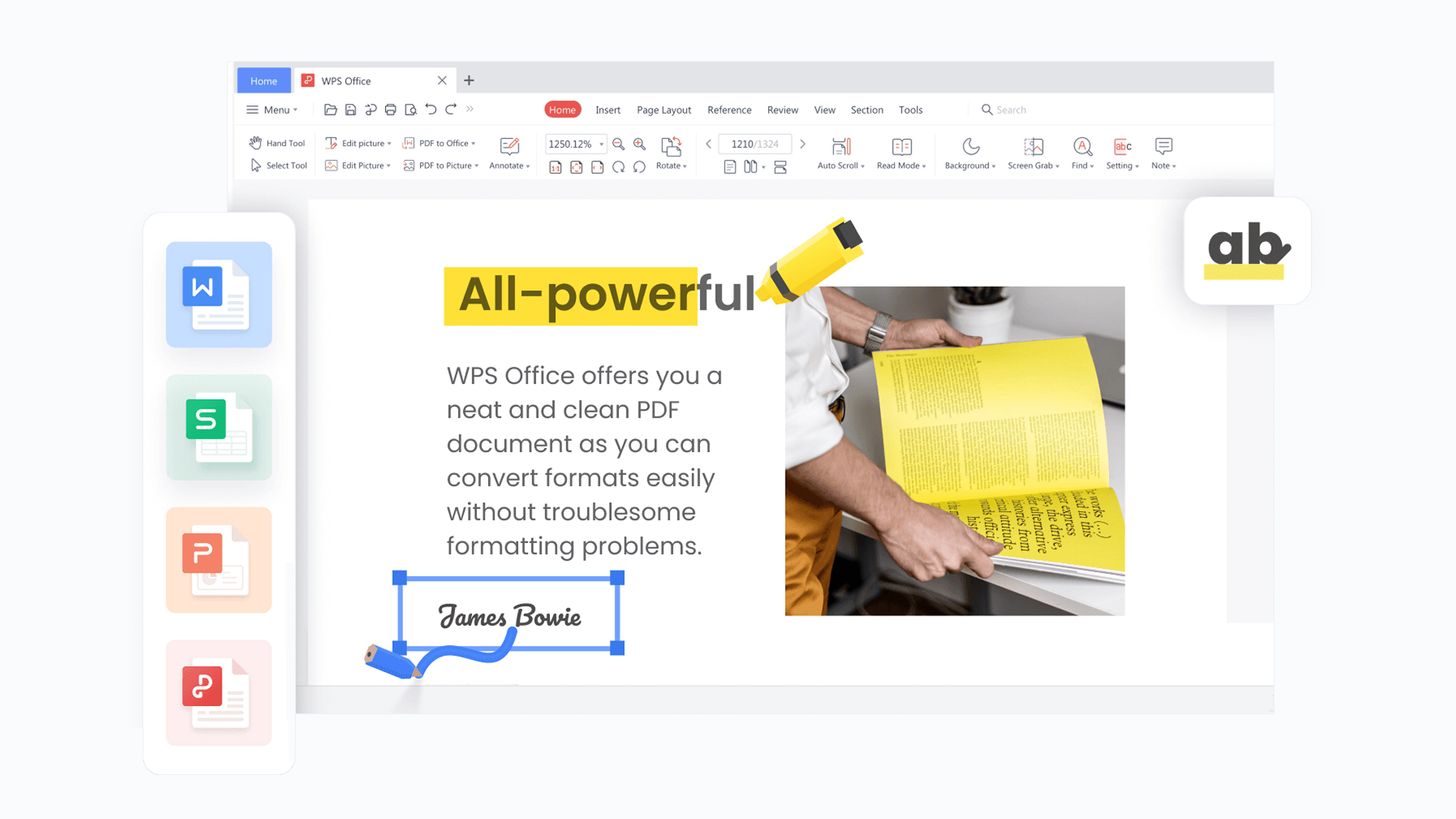
WPS Office
FAQs
Can I turn a PDF into a link without a website?
Yes. WPS Office generates a shareable link directly from the client via WPS Cloud, or you can upload the file to Google Drive or OneDrive and create a link there.
Does renaming .pdf to .html create a URL?
No. A URL requires the file to be hosted on a web-accessible service; changing the file extension does nothing.
Can I update the PDF without changing the link?
WPS Cloud and most cloud drives let you replace or edit the file while keeping the same link, so recipients always see the latest version. Verify this behavior before wide distribution.
How do I stop people from opening the link later?
In WPS Office or your cloud drive, disable sharing, restrict the audience, set an expiration date, or remove the file entirely.
Is a public PDF link safe for confidential documents?
No public 'anyone with the link' setting should be treated as confidential. Use restricted access, passwords, or expiration controls, and follow your organization's sharing policy.



