



'%3e%3cpath%20fill-rule='evenodd'%20clip-rule='evenodd'%20d='M21.4999%2010.9993C21.4999%205.20009%2016.7986%200.498901%2010.9993%200.498901C5.19994%200.498901%200.498657%205.20009%200.498657%2010.9993C0.498657%2016.2404%204.33858%2020.5844%209.35855%2021.3722V14.0346H6.69238V10.9993H9.35855V8.68594C9.35855%206.05427%2010.9262%204.60062%2013.3248%204.60062C14.4736%204.60062%2015.6753%204.80571%2015.6753%204.80571V7.38979H14.3512C13.0468%207.38979%2012.64%208.19921%2012.64%209.0296V10.9993H15.5523L15.0867%2014.0346H12.64V21.3722C17.66%2020.5844%2021.4999%2016.2404%2021.4999%2010.9993Z'%20fill='%231568EA'/%3e%3c/g%3e%3c/svg%3e)


'%3e%3cpath%20d='M2.42045%2022.1876H6.31818V12.7217L0.75%208.54553V20.5171C0.75%2021.4414%201.49892%2022.1876%202.42045%2022.1876Z'%20fill='%234285F4'/%3e%3cpath%20d='M19.682%2022.1876H23.5797C24.5041%2022.1876%2025.2502%2021.4387%2025.2502%2020.5171V8.54553L19.682%2012.7217'%20fill='%2334A853'/%3e%3cpath%20d='M19.682%205.48293V12.7216L25.2502%208.54543V6.31816C25.2502%204.25236%2022.8921%203.07469%2021.2411%204.31361'%20fill='%23FBBC04'/%3e%3cpath%20d='M6.31824%2012.7217V5.48303L13.0001%2010.4944L19.6819%205.48303V12.7217L13.0001%2017.733'%20fill='%23EA4335'/%3e%3cpath%20d='M0.75%206.31816V8.54543L6.31818%2012.7216V5.48293L4.75909%204.31361C3.10534%203.07469%200.75%204.25236%200.75%206.31816Z'%20fill='%23C5221F'/%3e%3c/g%3e%3cdefs%3e%3cclipPath%20id='clip0_2954_7305'%3e%3crect%20width='24.5'%20height='18.375'%20fill='white'%20transform='translate(0.75%203.8125)'/%3e%3c/clipPath%3e%3c/defs%3e%3c/svg%3e)


If you searched for Smallpdf merge, you are looking for one of the most popular online PDF tools on the web. Smallpdf makes it easy to combine files in a browser—no installation required. But once you hit the free tier limits or need to merge sensitive documents offline, understanding how Smallpdf works (and where it falls short) helps you pick the right tool for the job.
This guide walks through the full Smallpdf merge PDF workflow step by step, then breaks down the pros and cons honestly. For every common frustration, we show how WPS Office offers a different outcome—local, free, and without a paywall mid-merge.
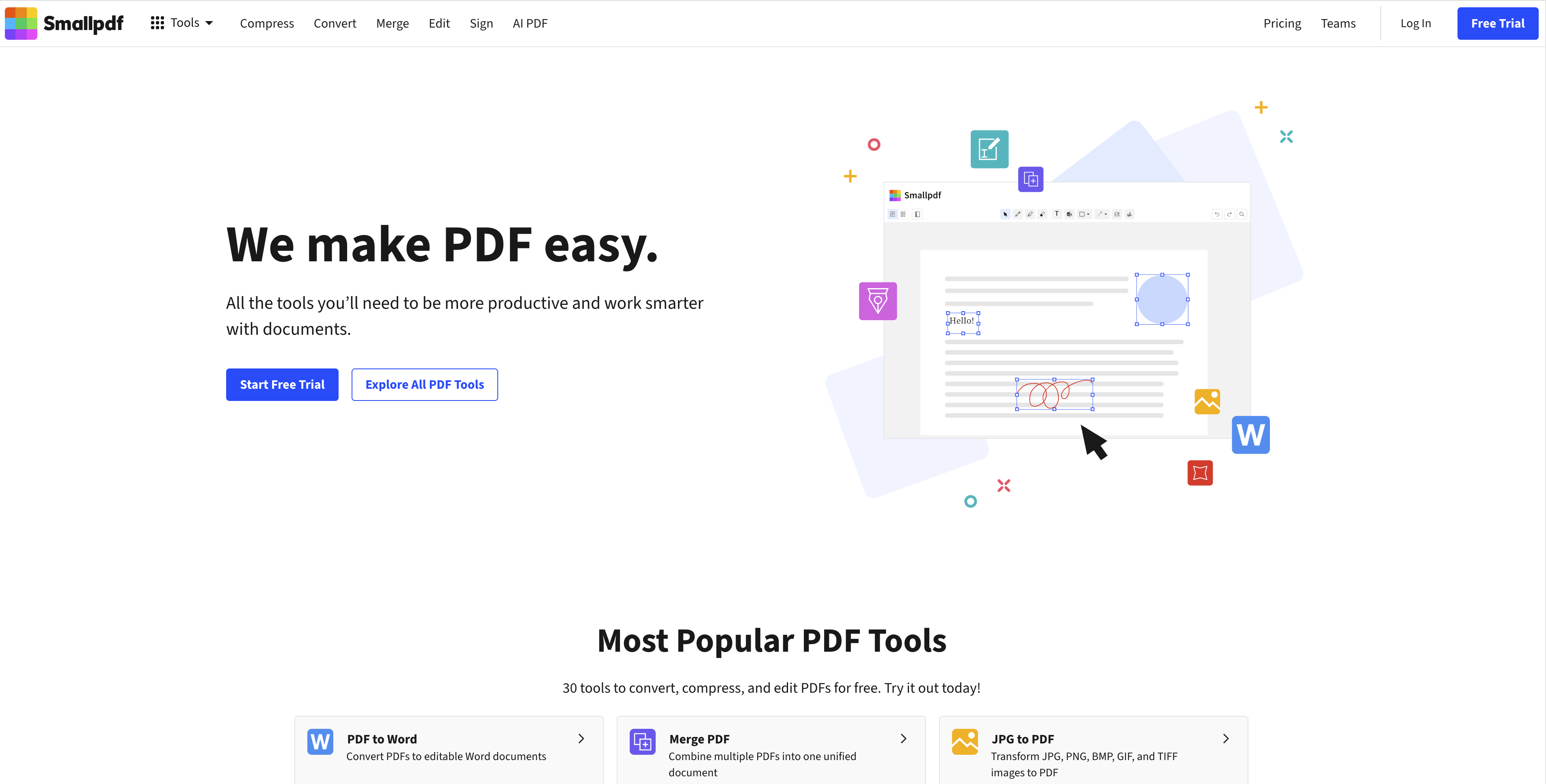
How to Merge PDFs with Smallpdf (smallpdf merge)
Smallpdf is a browser-based PDF suite. The smallpdf merge tool lives at smallpdf.com/merge-pdf and works on Windows, Mac, Linux, Chromebook, and mobile—any device with a modern browser. Here is the standard workflow:
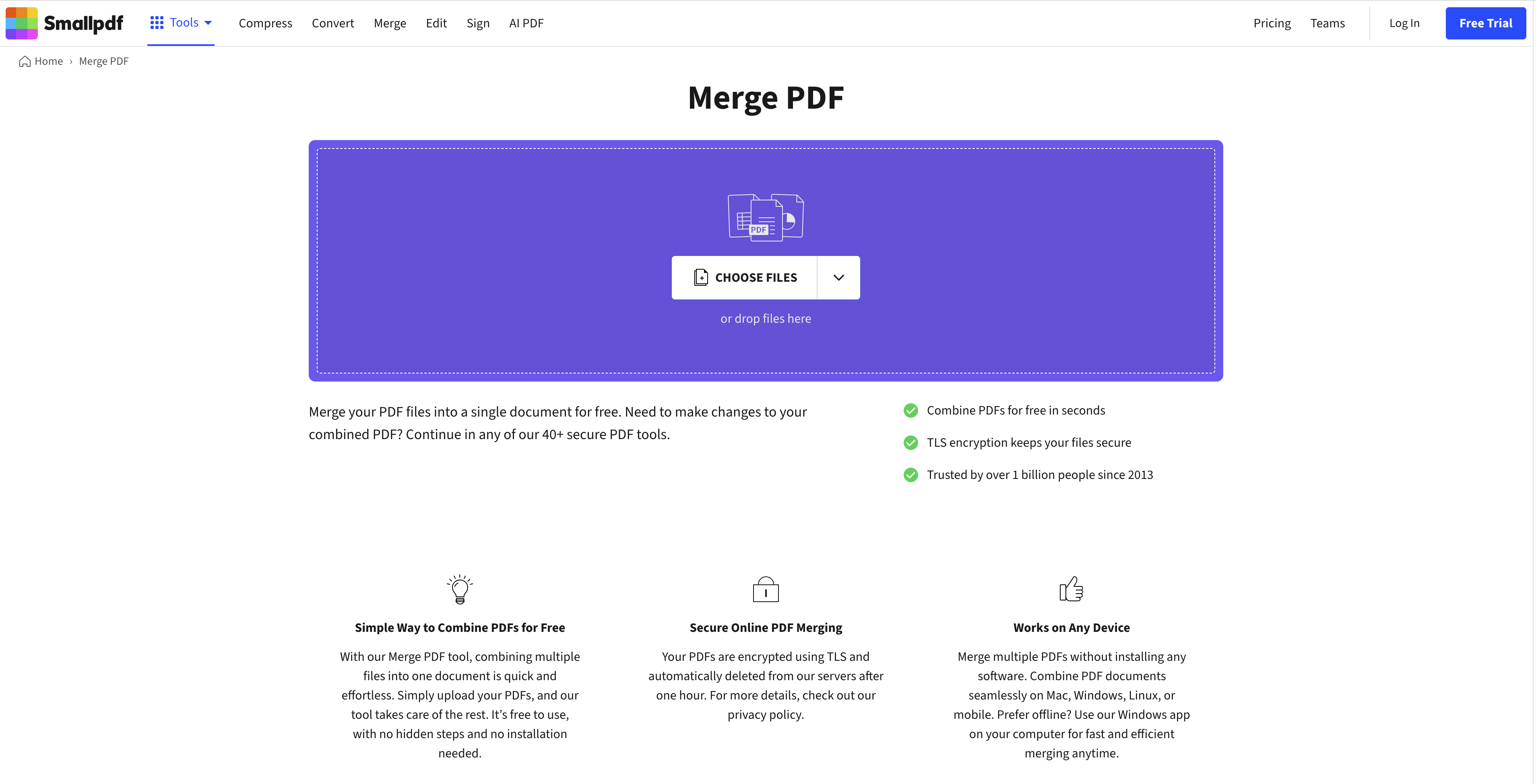
Open your browser and go to smallpdf.com, then select Merge PDF from the tool menu (or go directly to smallpdf.com/merge-pdf).
Click Choose files or drag your PDFs into the upload area. You can add multiple files at once.
Once uploaded, drag the file thumbnails to set the correct order. The file at the top becomes the first pages in the merged output.
Click Merge PDF. Smallpdf processes the files on its cloud servers and builds one combined document.
When processing finishes, click Download to save the merged PDF to your computer.
Optional: sign in with a free Smallpdf account if you want to save files to Smallpdf cloud storage or access them across devices.
Smallpdf Desktop app (optional): Smallpdf also offers a paid desktop app for Windows and Mac that syncs with the web account. The desktop version can work offline for some tasks, but the core free merge experience most users know is the browser workflow above.
That is the complete Smallpdf merge PDF flow—simple, polished, and done in under a minute for small jobs. The question is whether it stays simple once you use it regularly.
Smallpdf Merge: Pros and Cons
Smallpdf earned its popularity for good reasons. It also has real limits that push people toward alternatives like WPS Office.
Pros — why people choose Smallpdf merge
Zero installation — Open a browser, upload, merge, download. No software to install or update.
Clean, intuitive UI — Drag-and-drop upload and visual reordering make the merge flow easy for first-time users.
Works on any device — Windows, Mac, Linux, Chromebook, iOS, and Android all use the same web tool.
Free for light use — Occasional merges (one or two small files per day) cost nothing and carry no watermark on output.
Trusted brand — Smallpdf is one of the most searched PDF tools globally, with a polished experience and clear privacy policy (files deleted from servers after one hour).
Cons — where Smallpdf merge falls short
Daily free limits — The free plan allows about 2 tasks per day and a 10MB file-size cap. Hit the wall mid-project and you must wait until tomorrow or upgrade to Pro (~$12/month).
Paywall mid-task — You can start a merge, arrange files, then get blocked at download when your free quota is gone. That lost time is the top frustration behind "small pdf merge" searches.
Cloud upload required — Files go to Smallpdf's Switzerland-based servers. Fine for public documents; risky for contracts, IDs, financial records, or HR packets.
Slower from some regions — Upload and processing speed depends on your connection to European servers. Users in Asia-Pacific or remote areas often notice lag.
PDF-only input — Smallpdf merge accepts PDF files only. Word, Excel, PowerPoint, or images must be converted elsewhere first.
No built-in office suite — Merge is one tool in a PDF-only stack. Edit a Word doc, merge it with a PDF, and compress the result? That means jumping between apps.
Page order mistakes — Rushed merges can produce wrong page sequences or flatten headers and footers. Re-checking every output becomes a habit.
File size bloat — Combining image-heavy scans can balloon output size, forcing a separate compression step—or another paid tool.


How WPS Office Solves Each Smallpdf Merger Limitation
Every Smallpdf con maps to a concrete WPS advantage. Here is how WPS Office delivers a different outcome for each pain point:
| Smallpdf limitation | WPS Office solution |
|---|---|
| 2 tasks/day free limit | Unlimited local merges — no daily cap on desktop |
| 10MB file-size cap | No artificial size limit for normal desktop merges |
| Paywall mid-merge | Free merge with no upgrade interrupt — finish every job |
| Cloud upload required | 100% local processing — files never leave your device |
| Slow overseas servers | Instant desktop speed — no upload wait, works offline |
| PDF-only input | Merge PDF + Word + Excel + PPT + images in one flow |
| No office suite | Writer, Spreadsheet, Presentation + PDF tools in one app |
| Separate compression step | Built-in Compress PDF after merge—same suite |
| Windows/Mac desktop gap | Win / Mac / Linux desktop + iOS / Android mobile |
WPS Office is a free productivity suite used by more than 500 million people worldwide. You can merge PDF files locally with no watermark, no daily merge limits, and no upload to third-party servers—making it a practical Smallpdf merge alternative for everyday document work.
How to Merge PDF with WPS Desktop (Step by Step)
Install or open WPS Office on your Windows, Mac, or Linux computer.
Go to PDF Tools > Merge PDF (or Combine from the PDF tab).
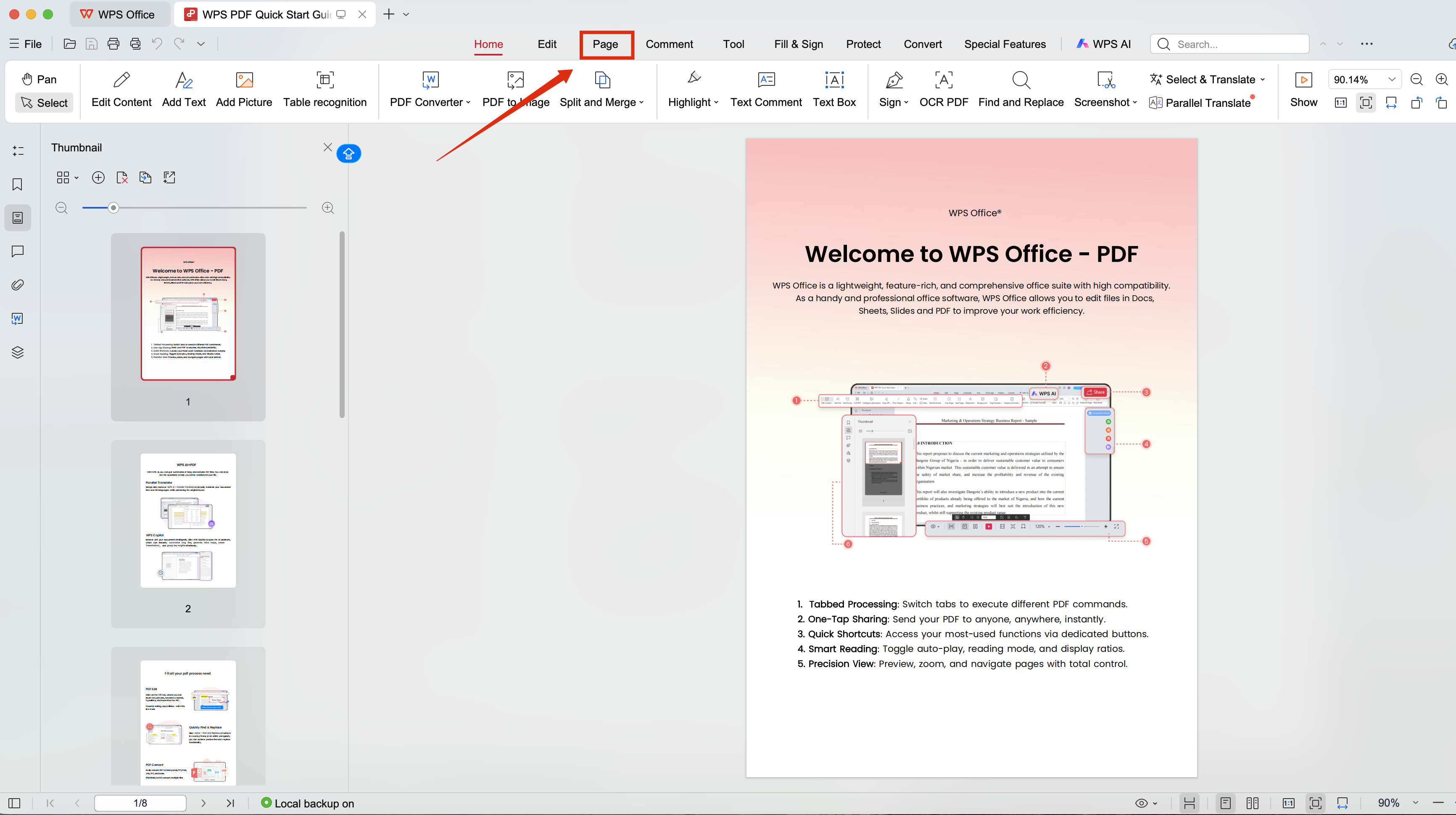
Go to the "page" tool Click Add files and select your PDFs—or mix in Word, Excel, PowerPoint, and image files.
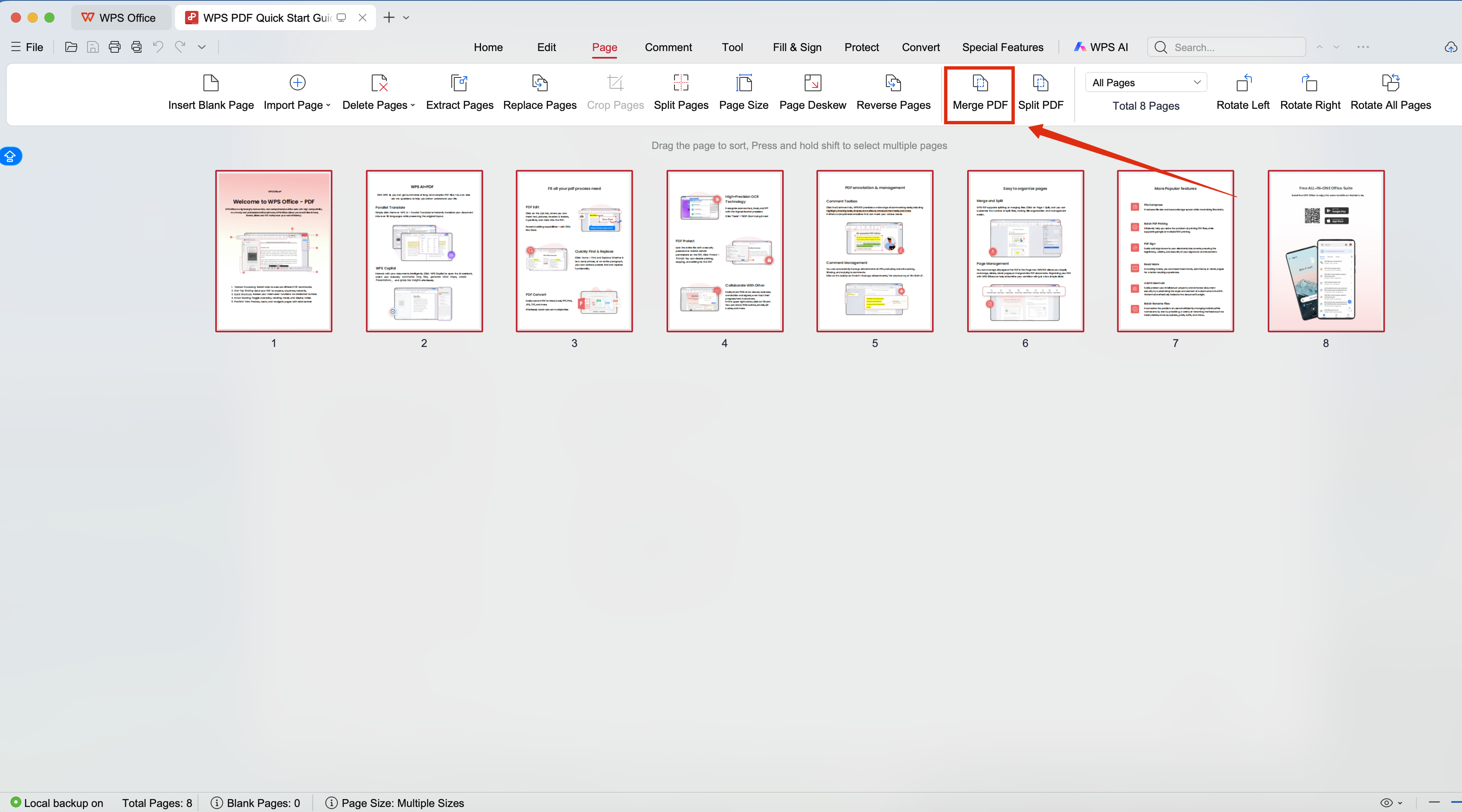
Merge PDF Drag to reorder documents and confirm page order before merging.
Click Merge & Save, choose an output location, and open the result to verify.
Optional: run Compress PDF in the same app if the merged file is too large for email or upload.
Because everything runs on your device, you avoid Switzerland-bound uploads, surprise free limits, and paywalls that appear only after you have already arranged your files.
Smallpdf vs WPS: Quick Comparison for PDF Merging
Still deciding between smallpdf merge and a local alternative? Here is a side-by-side summary:
| Feature | Smallpdf (Free) | WPS Office (Free) |
|---|---|---|
| Install required | No (browser) | Yes (desktop app) |
| Daily merge limit | ~2 tasks/day | Unlimited |
| File size limit | ~10MB | No artificial cap |
| Watermark | None | None |
| Processing | Cloud upload | Local desktop |
| Offline | No (browser) | Yes |
| Merge non-PDF | No | Word/Excel/PPT/images |
| Office suite | PDF tools only | Writer/Sheet/PPT/PDF |
| Platforms | Any browser | Win/Mac/Linux + mobile |
Quick takeaway: Choose Smallpdf for a one-off browser merge on any device with no install. Choose WPS when you merge regularly, handle sensitive files, need larger documents, or want Word/Excel and PDF in one suite.
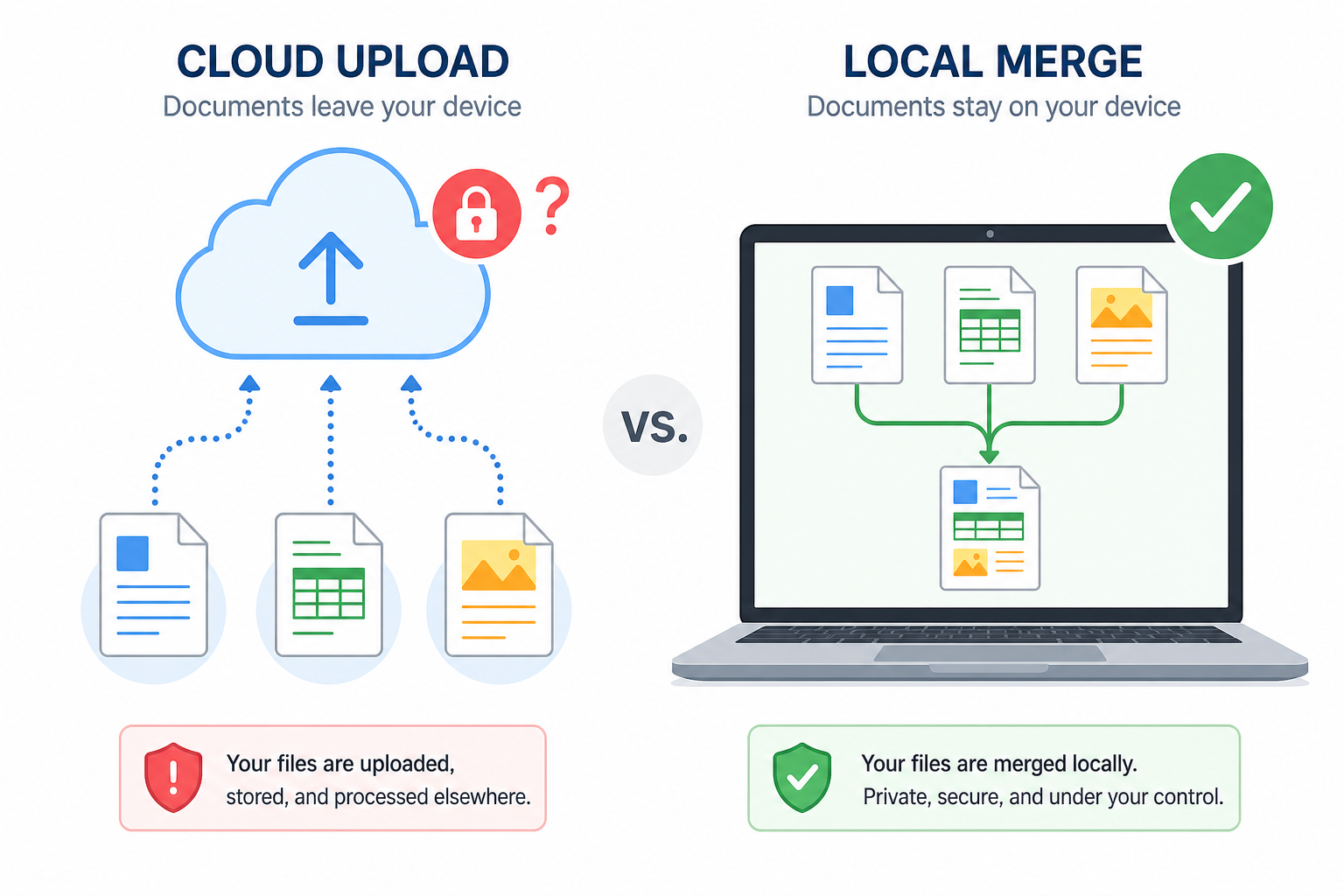
Keep sensitive PDFs on your device with WPS local merge
When to Use Smallpdf vs WPS Office
Use Smallpdf merge when: You need a quick one-off combine on a shared or mobile device, files are small and non-sensitive, and you have free tasks remaining today.
Use WPS Office when: You merge PDFs several times a week, files contain personal or company data, you hit Smallpdf's daily or size limits, you need to combine Word/Excel with PDFs, or you want compress/edit/OCR in the same app.
FAQs
How do I merge PDFs with Smallpdf?
Go to smallpdf.com/merge-pdf, upload your files, drag to reorder, click Merge PDF, then Download. No account required for basic use.
Is Smallpdf merge PDF free?
Yes, within limits—about 2 tasks per day and 10MB per file on the free plan. Pro subscription removes caps.
What is the best Smallpdf merge alternative?
For unlimited local merges without upload, WPS Office is a strong free alternative. It also handles Word, Excel, and images—not just PDF.
Can I merge PDFs offline without Smallpdf?
Yes. WPS Office merges PDFs entirely on your desktop—no internet required after install.
Does WPS add a watermark when merging PDFs?
No. WPS Office merge output is watermark-free on desktop.

'%3e%3cpath%20d='M19.9911%204.11386V6.471H18.5894C18.0775%206.471%2017.7322%206.57814%2017.5536%206.79243C17.3751%207.00671%2017.2858%207.32814%2017.2858%207.75671V9.44421H19.9019L19.5536%2012.0871H17.2858V18.8639H14.5536V12.0871H12.2769V9.44421H14.5536V7.49779C14.5536%206.39064%2014.8632%205.53201%2015.4822%204.92189C16.1013%204.31177%2016.9257%204.00671%2017.9554%204.00671C18.8304%204.00671%2019.509%204.04243%2019.9911%204.11386Z'%20fill='%23333333'/%3e%3c/g%3e%3cdefs%3e%3cclipPath%20id='clip0_2938_8199'%3e%3crect%20width='16'%20height='16'%20fill='white'%20transform='translate(8%204.00671)'/%3e%3c/clipPath%3e%3c/defs%3e%3c/svg%3e)
'%3e%3cpath%20d='M17.5237%2010.7813L23.4811%204H22.0699L16.8949%209.88693L12.7648%204H8L14.2469%2012.9029L8%2020.0133H9.4112L14.8725%2013.7952L19.2352%2020.0133H24M9.92053%205.04213H12.0885L22.0688%2019.0224H19.9003'%20fill='%23333333'/%3e%3c/g%3e%3cdefs%3e%3cclipPath%20id='clip0_2938_8200'%3e%3crect%20width='16'%20height='16.0134'%20fill='white'%20transform='translate(8%204)'/%3e%3c/clipPath%3e%3c/defs%3e%3c/svg%3e)


