

The results for a PNG to JPG converter split into two groups: browser tools with a free counter in the corner, and desktop apps that never mention a price at all. The gap between them is wider than it looks. One charges $11.99 a month for 1,000 conversion credits, another charges $4, and two of the best ones charge nothing because the work never leaves your laptop. Below is what each tool actually costs, where the free tier stops, and which limit you will hit first.
Straight answer: For the cheapest paid browser tool, iLoveIMG wins at $4 a month billed yearly and converts up to 120 images in one go. Convertio and CloudConvert are better when you need control over file size and credits. If you convert more than a handful of files a month, XnConvert and IrfanView cost nothing and never upload your images.
Top PNG to JPG Conversion Apps and What Each One Costs
Eight tools, one job: turn a PNG into a JPG without wrecking the picture. Prices are the published entry tiers, checked in November 2026. Every site here runs promotions and regional pricing, so confirm the number on the checkout page before you enter card details.
| Tool | Free tier | Paid entry price | Batch | Runs |
|---|---|---|---|---|
| iLoveIMG | 30 tasks a month, 200 MB per file | $7/mo, or $4/mo billed yearly | Up to 120 images | Browser |
| Convertio | 100 MB per file, 10 conversion minutes per 24 h | $11.99/mo Lite, $6.99/mo yearly | 2 at a time free | Browser |
| CloudConvert | 10 credits a day, 1 GB per file | Credits from about $10 per 1,000 | 5 at a time free | Browser, API |
| Zamzar | 50 MB per file, 2 conversions per 24 h | $12/mo Basic | 25 at a time | Browser, desktop app |
| Adobe Express | Quick actions, limited premium content | $9.99/mo or $99.99/yr | Limited on free | Browser, mobile |
| XnConvert | Everything, no account | Free (donationware) | Unlimited folders | Win, macOS, Linux |
| IrfanView | Everything, no account | Free for personal use | Unlimited folders | Windows |
| WPS Office | Standard tier, no account | $69.99/yr Pro+ ($5.83/mo) | Yes, via image tools | Desktop and mobile |
iLoveIMG is the cheapest paid browser route and the easiest to explain: drop the files in, press Convert to JPG, download a zip. Premium removes the monthly task cap, lifts the 200 MB ceiling to 4 GB, and takes batch jobs up to 120 images. Convertio charges $11.99 a month for Lite (1 GB files, 1,000 credits) or $6.99 a month if you pay yearly, and even the entry plan allows 1 GB files. CloudConvert is credit-based: 10 credits a day for free, then packages from roughly $10 per 1,000 credits, with 200-plus formats and an API. Zamzar sits at the expensive end at $12 a month for Basic, but it includes a desktop app and 25 concurrent conversions, which matters if a batch is already queued. Adobe Express is not really a converter: at $9.99 a month you are paying for design templates and brand assets, and the conversion is a side door.
How the Pricing Works: Credits, Subscriptions, and Free Forever
The monthly prices look comparable and are not. Each service meters something different, which is why the same folder of images can cost one credit on one site and ten on another.
| Billing model | Who uses it | What it means for a PNG to JPG job |
|---|---|---|
| Conversion minutes | Convertio, Zamzar | Small photos cost seconds; large scans eat the meter |
| Credits | CloudConvert, Convertio | One credit is roughly one small file; big files cost more |
| Task or file count | iLoveIMG | Counting files, not size, so 120 photos a month is fine |
| Subscription bundle | Adobe Express | You pay for editing tools, the conversion comes along |
| One-time purchase | CloudConvert packages | Credits never expire, useful for sporadic work |
| Free offline app | XnConvert, IrfanView, WPS | No meter at all, but you install software |
Practically, that means a subscription is a bad fit if you convert a folder twice a year, and a good fit if you convert product images every week. Credit packages are the opposite: nothing expires, so a $10 package can last a year of occasional work. And the free offline apps are not trials with a paywall, they simply do not have a metered service behind them.
Two costs sit outside the headline number. The first is billing period: every tool in the table discounts 40 to 50 percent for annual payment, and the discount only pays off if you keep converting past the second month. The second is renewal: these are auto-renewing subscriptions, not one-off purchases, so a January project turns into a year of charges if nobody cancels. If a job is genuinely one-off, a credit package or a free desktop tool is the cheaper decision, regardless of which plan looks best per month.
Free Limits Compared: Which Cap You Hit First
Free tiers differ less in generosity than in what they count, and the limit that stops you depends on the file in front of you.
| Tool | File size cap | Free meter | What usually stops you |
|---|---|---|---|
| Zamzar | 50 MB | 2 conversions per 24 h | A single phone photo burst, or one scan |
| Convertio | 100 MB | 10 conversion minutes per 24 h | Several large PNGs in one afternoon |
| iLoveIMG | 200 MB | 30 tasks a month | A monthly product-photo refresh |
| CloudConvert | 1 GB | 10 credits per day | Heavy files, and only 5 tasks at once |
| Adobe Express | No fixed cap | Premium assets locked | The upgrade prompt on export |
| XnConvert, IrfanView | Disk space only | None | Nothing but install time |
A 4 MB screenshot never touches any of these caps. What does trip them is real work: a 60 MB flattened design file breaks Zamzar's 50 MB limit outright, and 40 product PNGs at 8 MB each will burn a day of Convertio's free minutes before the batch finishes. If your job looks like that, price the subscription against ten minutes of a desktop tool, and the maths usually answers itself.
Converting PNG to JPG Without Uploading Your Files
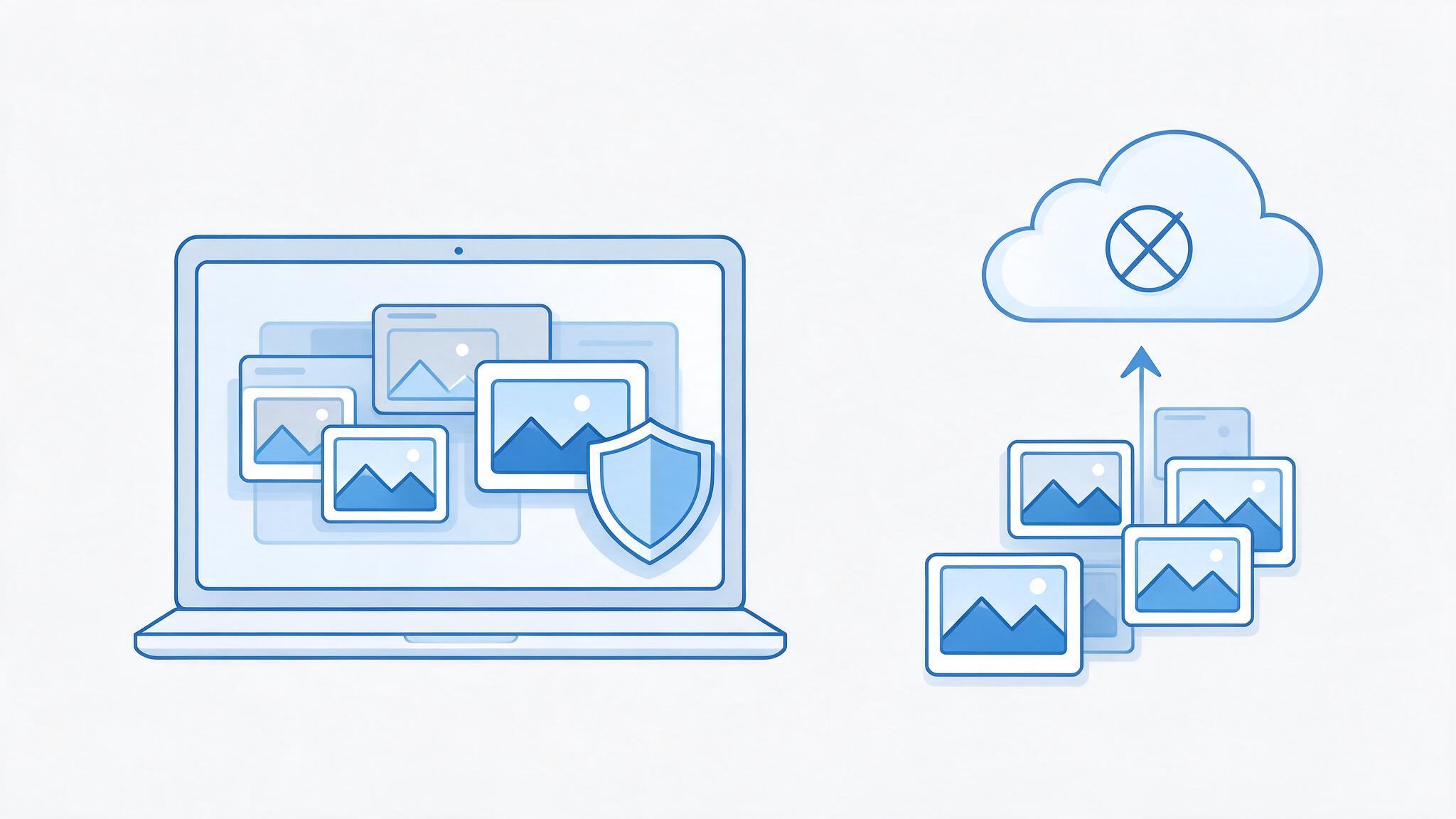
Most browser converters upload your image to a server, convert it, and delete it after a set period. For a holiday photo that is fine. For a signed contract scan, a medical record, or an unreleased product shot, it is an unnecessary risk, and the free desktop tools are the simpler fix.
Way 1: XnConvert (Windows, macOS, Linux)
Free, and the closest thing to a batch console for images: drop a folder in, set output to JPG, add resize, quality, watermark, or rename actions in the same pass, then run. It handles hundreds of files in one go and keeps originals untouched if you point the output at a new folder.
Way 2: IrfanView (Windows)
A few megabytes to install, opens instantly, and hides batch conversion under File > Batch Conversion/Rename. It is the fastest way to convert 50 PNGs on an old laptop, and the quality slider sits right next to the output format.
Way 3: Built-in tools
On macOS, select the images in Finder, right-click, and use Quick Actions > Convert Image to export JPG at a chosen size. On Windows, Paint and the Photos app handle one file at a time, which is enough for a single screenshot and tedious beyond that.
The Best Free Alternative: WPS Office
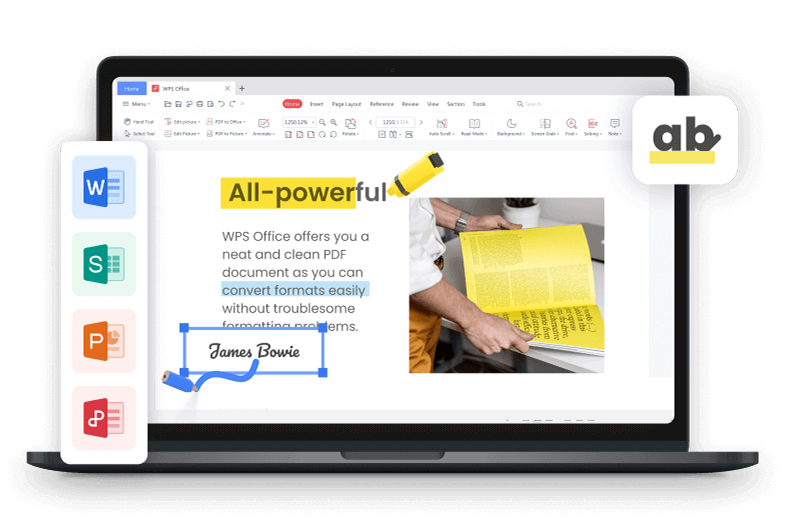
If the image is part of a document job, converting it in a separate app is one more download and one more place your file lives. WPS PNG to JPG converter runs in the browser with no account, and the desktop suite covers the rest: insert the PNG into WPS Writer or WPS Presentation, right-click the picture, save it as JPEG, and it lands in the same folder as the report you are building. No credits, no daily counter.
The free Standard tier includes the suite and basic PDF handling. If you also deal with WPS PDF tools — merging scans, exporting PDF pages as images, OCR — Pro+ is $5.83 a month billed yearly at $69.99, which is less than Convertio's Lite plan and covers documents as well. Related formats work the same way: WebP to JPG and the free JPG and PDF converter guide cover the neighbours of this format question. One free WPS Office download covers desktop and mobile.
How to Convert PNG to JPG Without Losing Quality
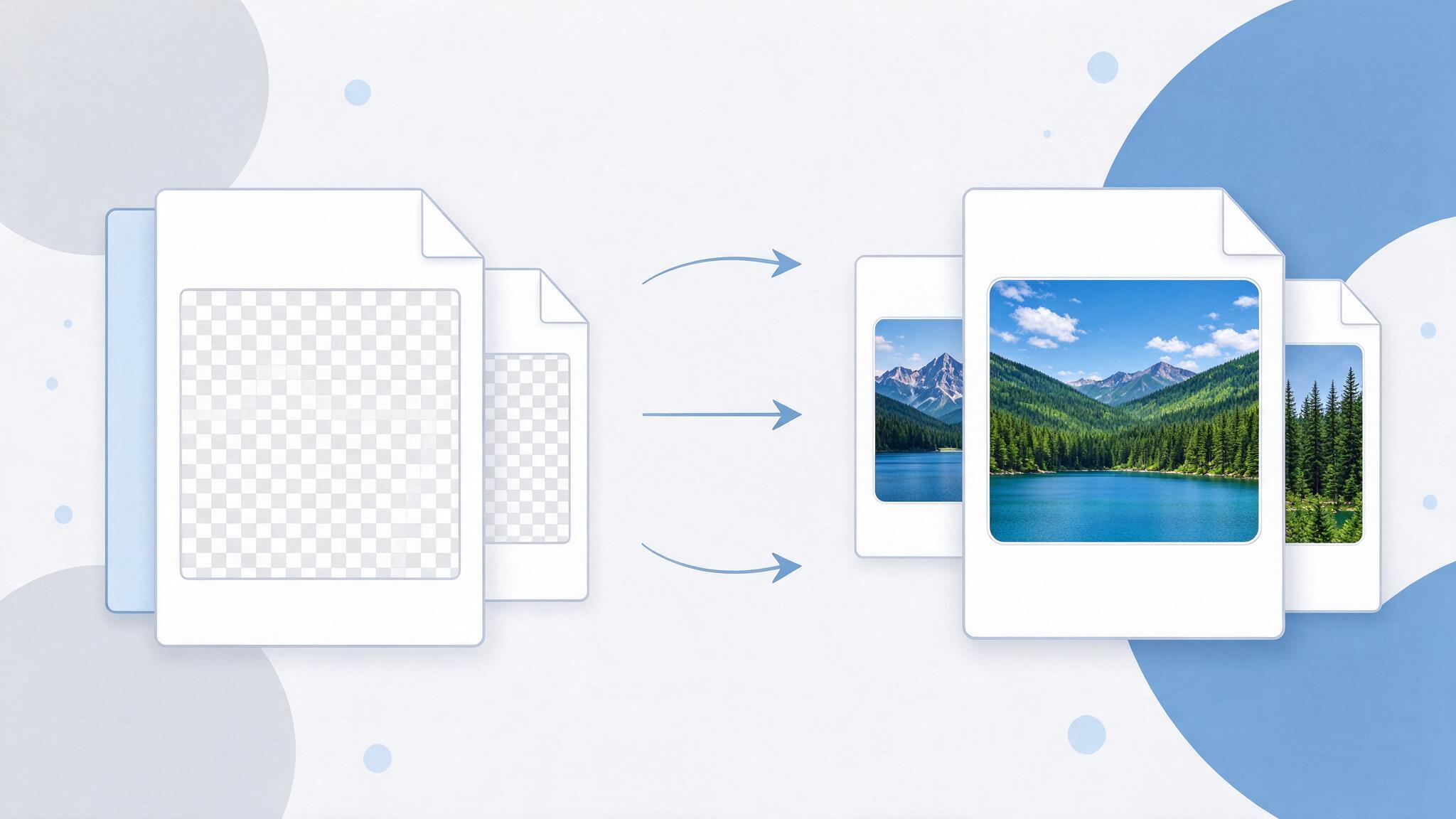
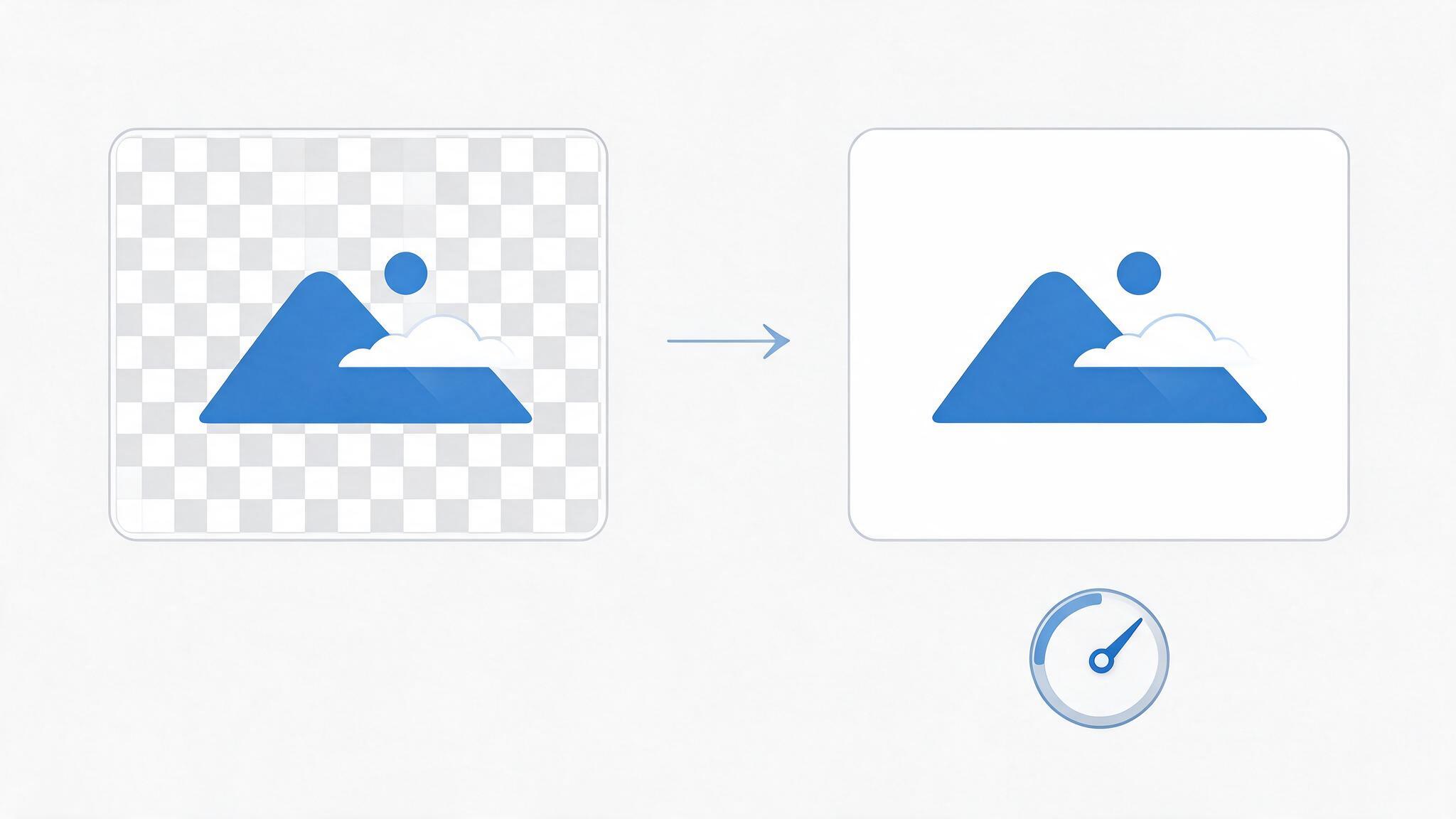
JPG is lossy and has no transparency channel, so two things can go wrong: the picture softens, or every transparent area turns white, black, or a random colour. Both are avoidable with the same five steps, whichever tool you picked above.
Decide whether JPG is the right target. Photos and screenshots with gradients convert cleanly. Logos, icons, and crisp text usually look worse as JPG, so keep those as PNG and convert only the copies that need a small file.
Flatten transparency on purpose. Set the background colour to white before export. Left to the default, some tools fill transparent pixels with black, which ruins a logo on a dark site.
Set quality to 80–85. Above 90 the file grows fast for no visible gain; below 70 text edges start to smear. A quality-85 JPG is typically a quarter of the PNG it came from.
Write to a new folder. Keep the PNG originals. Re-encoding a JPG twice loses quality each time, and you cannot recover a flattened PNG from the JPG.
Check three files, then batch the rest. Open the smallest, the largest, and one with transparency, confirm the background is right, then run the whole folder.
One more decision worth making early: if the target is a website, WebP usually beats both formats at the same visual quality, and every browser that matters supports it. Convert to JPG when a form, a marketplace listing, or an email client demands it.
FAQs
Is there a free PNG to JPG converter with no limits?
Yes, on the desktop. XnConvert and IrfanView convert unlimited files for free, and WPS Office includes conversion in its free tier. Browser tools all meter something: files, minutes, or credits.
Does converting PNG to JPG reduce quality?
It does, because JPG is a lossy format. At quality 80–85 the loss is invisible in photos, while text, thin lines, and flat logos soften noticeably. Keep the PNG and convert a copy.
Why did my transparent PNG turn black or white?
JPG has no transparency channel, so transparent pixels must become a solid colour. Set the background to white before export instead of accepting the tool's default.
Which app converts a whole folder of PNGs at once?
XnConvert and IrfanView both batch whole folders for free, with resize and rename in the same pass. Online, iLoveIMG takes up to 120 images and Zamzar runs 25 conversions at a time.
Is it cheaper to subscribe or to buy credits?
Credits, if you convert occasionally: CloudConvert packages never expire and start around $10. A subscription only makes sense above roughly 100 files a month, where iLoveIMG's $4 yearly rate is the lowest entry point.
Summary
Pick the route that matches your next file, not the one with the best screenshots.