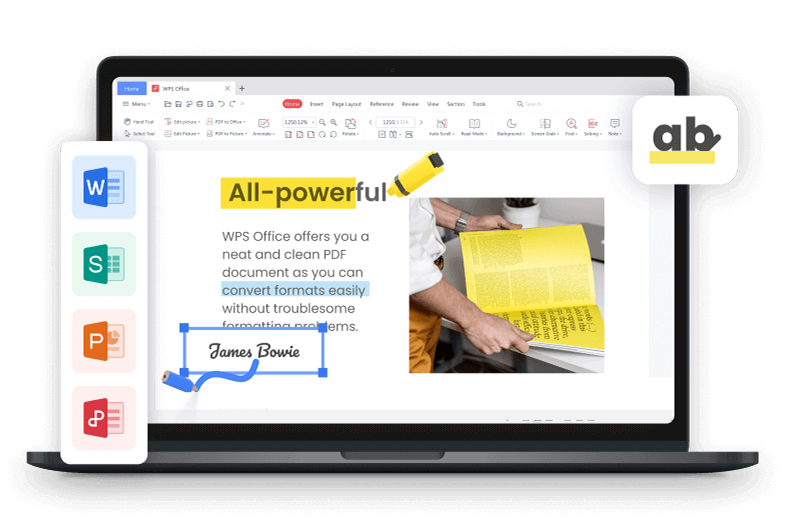


Quick Answer: Short answer: WPS Office is the best all-round free fit for both spreadsheets and slides, because it edits .xlsx and .pptx natively and runs on every major platform. Keynote still has the better animation engine, but iWork is Apple-only. LibreOffice is the most private and the least Office-compatible of the three.
The feature lists of these three suites look almost identical, so they rarely decide anything. What actually changes your working day is whether a shared .xlsx keeps its formulas, whether the deck you built opens the same way on a colleague's laptop, and how much of that you get without paying.

WPS Office vs Apple iWork vs LibreOffice at a Glance
All three ship a spreadsheet and a presentation app, and all three are free in some form. The split appears in file compatibility, platform reach and the price of the extras.
| WPS Office | Apple iWork | LibreOffice | |
|---|---|---|---|
| Spreadsheet app | WPS Spreadsheet | Numbers | Calc |
| Presentation app | WPS Presentation | Keynote | Impress |
| Cost | Free core suite, optional membership | Free with Apple devices | Free, open source |
| Desktop systems | Windows, macOS, Linux | macOS only | Windows, macOS, Linux |
| Mobile | iOS, Android | iPhone, iPad | None official |
| Office formats | Native .xlsx / .pptx editing | Import and export, layout can shift | Open and save, some drift |
| Cloud and co-editing | WPS Cloud, real-time editing | iCloud, shared editing | None built in |
| Built-in AI | Yes, in Writer, Sheets, Slides and PDF | No | No, by design |
Which suite feels most familiar on first launch?
WPS Office feels closest to Microsoft Office: its ribbon, formula bar and slide panes follow the same layout, so Excel and PowerPoint habits carry over. LibreOffice keeps a classic menu-and-toolbar look. iWork breaks the pattern on purpose, putting Numbers tables on a free canvas and hiding Keynote controls in a side inspector, which is elegant once learned and slow on day one.
How WPS Office, Apple iWork and LibreOffice Handle Spreadsheets
WPS Spreadsheet and LibreOffice Calc both handle real list work, from a few hundred rows to a million. Numbers is built for readable reports rather than data analysis, and it shows once the row count climbs.
Formulas and functions
WPS Spreadsheet covers more than 400 functions including XLOOKUP, and opens Excel files without rewriting their formulas, which is why it keeps turning up in comparisons against the free Excel alternative field. Calc has a deep function set and strong array formulas, though a few Excel functions arrive under different names. Numbers offers a smaller library aimed at everyday maths and reporting, so cross-sheet lookup models usually need rework after import.
Pivot tables and large data
WPS handles pivot tables, conditional formatting and million-row sheets with Excel-style speed — the WPS Sheets module also adds smart fill, workbook merge and data-text splitting for bulk cleanup. Calc has pivots too, and version 26.8 added calculated fields, which closes a long-standing gap. Numbers reaches for categories and filters instead of a true pivot table, which is fine for a summary table and painful for a multi-dimension breakdown.
Macros and automation
WPS runs VBA macros and records keystroke macros, so files that arrive with macros usually keep working. Calc has its own Basic macro language with partial VBA compatibility, enough for most recorded routines and not enough for complex Excel add-ins. Numbers has no macro layer at all, only Shortcuts and AppleScript outside the app.

How the Three Suites Handle Presentations
On pure design, Keynote leads: its transitions and build animations still look better than anything PowerPoint or the free suites produce. On getting a client-ready .pptx out the door unchanged, WPS Presentation is the safer bet, and Impress does the basics well without polish.
Design, animation and transitions
Keynote's Magic Move, slide builds and drag-and-drop motion remain its best argument. WPS Presentation includes advanced animations, transitions, presenter view and PDF-to-slide conversion. Impress covers the standard transition set and object animation, enough for internal decks and rarely enough for a conference stage.
Templates and starting points
WPS bundles thousands of free templates inside the app, which matters when a deck has to look finished today. Keynote themes are fewer but cleaner, and they keep their character only inside iWork. Impress ships a modest gallery and leans on community downloads, so most teams end up building a master slide from scratch — the trade-offs listed in this PowerPoint alternative comparison apply to all three.
Presenting and sharing a deck
All three export to .pptx and PDF. Keynote exports animation with visible loss, WPS keeps most transitions and layouts, and Impress keeps structure but often shifts fonts. If someone else has to edit the deck afterwards, send the .pptx from WPS plus a PDF reference.

Microsoft Office Compatibility Across WPS Office, iWork and LibreOffice
Compatibility is the one comparison that shows up in meetings. A suite that renders a slide slightly differently is annoying; a suite that drops a pivot table or a chart series is a lost afternoon.
| Element | WPS Office | Apple iWork | LibreOffice |
|---|---|---|---|
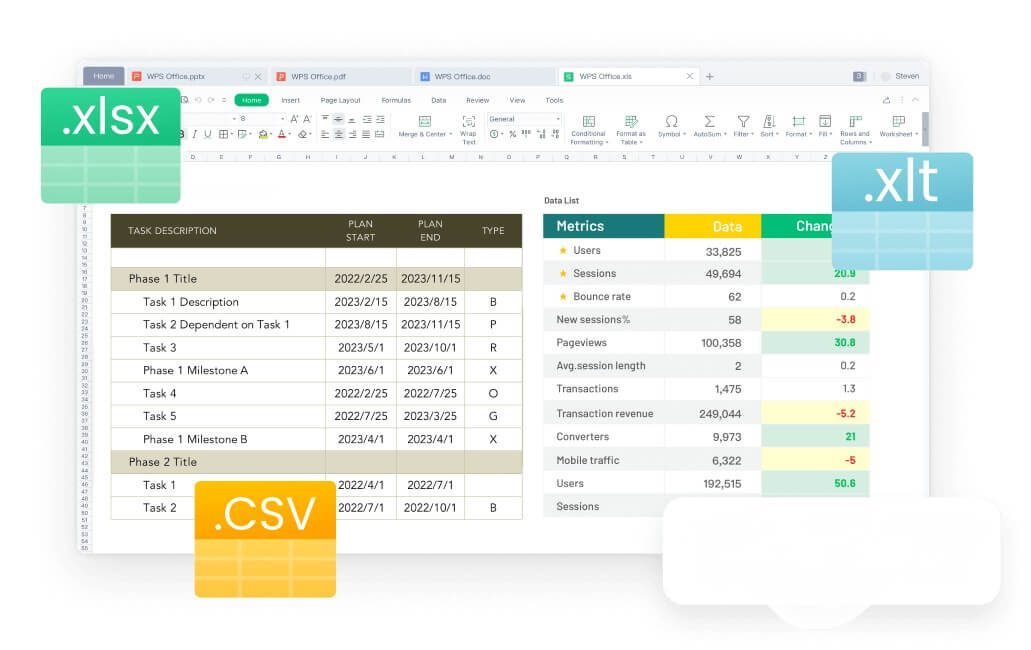
| .xlsx formulas | Kept, including XLOOKUP | Most kept, complex ones rebuild | Most kept, some renamed |
| Pivot tables | Editable as pivots | Flattened to values | Converted, layout can shift |
| VBA macros | Runs | Dropped | Partial support |
| .pptx layouts | Preserved | Usually shifts | Often shifts |
| Animations | Most preserved | Exported with loss | Basic set only |
| Fonts | Full access, Google fonts included | Apple fonts, substitutes elsewhere | System fonts only |
What breaks most often on a round trip?
Four things, in order of frequency: embedded fonts, slide animations, chart ranges and macro references. Exporting does not fail loudly, it quietly simplifies. Open the file once on the receiving machine before sending it anywhere that matters, and keep the suite's own format as the master copy.
Price, Platforms and Collaboration Compared
Free means three different things here, and the difference decides who can join the work.
| WPS Office | Apple iWork | LibreOffice | |
|---|---|---|---|
| Price | Free; AI, extra cloud and advanced PDF are paid | Free on Apple devices | Free forever |
| Account needed | Optional for local files | Apple Account for iCloud | Never |
| Ads | In some free tiers | None | None |
| Real-time co-editing | Yes, in WPS Cloud | Yes, via iCloud | No |
| Windows + Mac together | Yes | Mac plus browser only | Yes |
| Mobile editing | Full apps | Full apps | Not official |
What does free actually include?
WPS gives the full Writer, Spreadsheet, Presentation and PDF tool set with no time limit, and reserves AI credits, cloud storage and bulk PDF tools for membership; the AI office suite is the clearest example of a capability split between tiers. iWork is free only in the sense that it comes with Apple hardware; on Windows the web version is the only route, inside a browser tab. LibreOffice is free without conditions: no account, no telemetry, no paid tier.
Where can you work away from your desk?
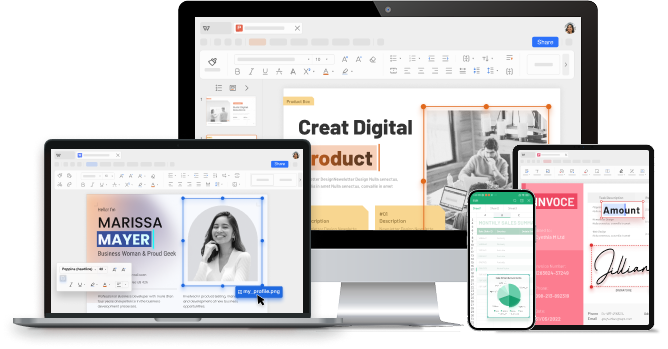
WPS has native phone and tablet apps that open and edit .xlsx and .pptx offline. iWork runs on iPhone and iPad, and iCloud.com adds a browser editor that even a web-only account can use, with 1 GB of free storage. LibreOffice has no official mobile app, so a phone review means converting to PDF or opening the file somewhere else.
Does real-time co-editing work the same way?
No. WPS Cloud and iCloud both give live cursors, comments and shared links inside the app. LibreOffice ships no collaboration service of its own; teams get it by pairing Calc and Impress with a separate server such as Collabora Online or Nextcloud, which adds someone to administer it.
Which Suite Fits Which Workflow
There is no overall winner in this comparison, only a best fit per workflow. These three pairings cover most people who end up weighing WPS Office, Apple iWork and LibreOffice.
Shared .xlsx and .pptx files with Windows colleagues: WPS Office. Native Office editing, pivots and macros, plus a free tier that does not expire, at the cost of membership prompts for AI and extra cloud storage.
Apple-only design work: iWork. Keynote animation and handoff between Mac, iPad and iPhone are the reason to stay, provided the final file leaves as a PDF or a checked .pptx — useful context if you are picking free office software for Mac anyway.
Privacy, offline-only or no-account rules: LibreOffice. No telemetry, no AI, no cloud dependency; accept the weaker Office round-trip and no mobile app. For a wider field of options, this list of free spreadsheet applications puts the three next to Google Sheets and OnlyOffice.
FAQs
Is WPS Office better than Apple iWork for spreadsheets?
Yes for anything involving .xlsx files, pivot tables or large data sets, and yes if you ever work on Windows. Numbers is nicer to look at but flattens pivots on import and has no macro support.
Can LibreOffice open .pptx files without breaking them?
It opens them and keeps the structure, but animations, fonts and spacing often shift. Check the export before sending and keep a PDF copy for reference.
Does Apple iWork work on Windows?
Only through iCloud.com in a browser, and a web-only Apple Account comes with 1 GB of storage. There is no Windows desktop app for Pages, Numbers or Keynote.
Which of the three is best for presentations?
Keynote for design and animation, WPS Presentation for .pptx fidelity, templates and sharing, LibreOffice Impress for internal decks where cost and privacy matter more than polish.
Do all three suites work offline?
WPS and LibreOffice are desktop apps that work fully offline; their cloud features need a connection. iWork works offline on Apple devices, while the browser version at iCloud.com does not.
Pick on the work you actually do: data and shared files point to WPS Office, Apple-only design work points to iWork, and strict no-account, no-AI requirements point to LibreOffice.