

'%3e%3cpath%20d='M8%200C12.4183%200%2016%203.58172%2016%208C16%2012.4183%2012.4183%2016%208%2016C3.58172%2016%200%2012.4183%200%208C0%203.58172%203.58172%200%208%200ZM11.6162%204.38379C11.2257%203.99337%2010.5927%203.99338%2010.2021%204.38379L8%206.58594L5.79785%204.38379C5.40732%203.99334%204.77429%203.99329%204.38379%204.38379C3.99331%204.77429%203.99335%205.40733%204.38379%205.79785L6.58594%208L4.38379%2010.2021C3.99348%2010.5927%203.99341%2011.2257%204.38379%2011.6162C4.77426%2012.0066%205.40734%2012.0065%205.79785%2011.6162L8%209.41406L10.2021%2011.6162C10.5927%2012.0066%2011.2257%2012.0067%2011.6162%2011.6162C12.0067%2011.2257%2012.0066%2010.5927%2011.6162%2010.2021L9.41406%208L11.6162%205.79785C12.0066%205.40735%2012.0066%204.77429%2011.6162%204.38379Z'%20fill='%23080E17'%20fill-opacity='0.46'/%3e%3c/g%3e%3cdefs%3e%3cclipPath%20id='clip0_3761_713'%3e%3crect%20width='16'%20height='16'%20fill='white'/%3e%3c/clipPath%3e%3c/defs%3e%3c/svg%3e)




'%3e%3cpath%20fill-rule='evenodd'%20clip-rule='evenodd'%20d='M21.4999%2010.9993C21.4999%205.20009%2016.7986%200.498901%2010.9993%200.498901C5.19994%200.498901%200.498657%205.20009%200.498657%2010.9993C0.498657%2016.2404%204.33858%2020.5844%209.35855%2021.3722V14.0346H6.69238V10.9993H9.35855V8.68594C9.35855%206.05427%2010.9262%204.60062%2013.3248%204.60062C14.4736%204.60062%2015.6753%204.80571%2015.6753%204.80571V7.38979H14.3512C13.0468%207.38979%2012.64%208.19921%2012.64%209.0296V10.9993H15.5523L15.0867%2014.0346H12.64V21.3722C17.66%2020.5844%2021.4999%2016.2404%2021.4999%2010.9993Z'%20fill='%231568EA'/%3e%3c/g%3e%3c/svg%3e)


'%3e%3cpath%20d='M2.42045%2022.1876H6.31818V12.7217L0.75%208.54553V20.5171C0.75%2021.4414%201.49892%2022.1876%202.42045%2022.1876Z'%20fill='%234285F4'/%3e%3cpath%20d='M19.682%2022.1876H23.5797C24.5041%2022.1876%2025.2502%2021.4387%2025.2502%2020.5171V8.54553L19.682%2012.7217'%20fill='%2334A853'/%3e%3cpath%20d='M19.682%205.48293V12.7216L25.2502%208.54543V6.31816C25.2502%204.25236%2022.8921%203.07469%2021.2411%204.31361'%20fill='%23FBBC04'/%3e%3cpath%20d='M6.31824%2012.7217V5.48303L13.0001%2010.4944L19.6819%205.48303V12.7217L13.0001%2017.733'%20fill='%23EA4335'/%3e%3cpath%20d='M0.75%206.31816V8.54543L6.31818%2012.7216V5.48293L4.75909%204.31361C3.10534%203.07469%200.75%204.25236%200.75%206.31816Z'%20fill='%23C5221F'/%3e%3c/g%3e%3cdefs%3e%3cclipPath%20id='clip0_2954_7305'%3e%3crect%20width='24.5'%20height='18.375'%20fill='white'%20transform='translate(0.75%203.8125)'/%3e%3c/clipPath%3e%3c/defs%3e%3c/svg%3e)


Have you ever received an unfamiliar .indd file and wondered how to open it? Whether you're a designer, publisher, or client receiving a project file, understanding what an INDD file type is can save you hours of confusion. These files are central to professional design workflows, yet often hard to access without the right software. In this article, you’ll learn what INDD files are, how to open them without Adobe InDesign, and how to convert them into practical formats like PDF or JPG for easier sharing and editing.


Part 1: What Are INDD Files? Use, Pros & Cons
An INDD file (InDesign Document) is the standard document format created by Adobe InDesign, a leading layout and desktop-publishing software. An INDD file format stores everything that makes up a publication, page layouts, text frames, fonts, graphics, style sheets, color swatches, and print settings. This makes it a comprehensive project file for both print and digital publishing.
Professionals rely on INDD files for producing magazines, brochures, eBooks, and marketing materials that require precise layout control and advanced typographic design.
Uses and Why Designers Choose INDD
Designers and publishers choose the INDD file type for one main reason: flexibility. It supports multi-page layouts, accurate text alignment, and integration with high-resolution images. You can define master pages, link external assets, and manage color spaces suitable for both digital and print output.
Other reasons to use INDD files include:
Pros and Cons
Personal Insight:
From my experience working with publishers and designers, INDD files offer unmatched control when creating complex print layouts. However, they can be a challenge for clients or collaborators who don’t have Adobe InDesign installed. This is why converting INDD to PDF or other accessible formats is often the best solution, something we’ll explore in the next section.
Part 2: How to Open INDD Files
Opening an INDD file can be straightforward if you have Adobe InDesign, but if not, there are several alternative ways to view or extract content without needing a full Creative Cloud subscription. Let’s explore both official and free solutions.
1. Using Adobe InDesign
The most reliable method to open an INDD file is by using Adobe InDesign, the software it was originally created with. Since .indd files are native to InDesign, this ensures that all layout, fonts, and embedded elements appear exactly as intended.
Steps:
Step 1: Launch Adobe InDesignon your computer.
Step 2: Go to File → Open.
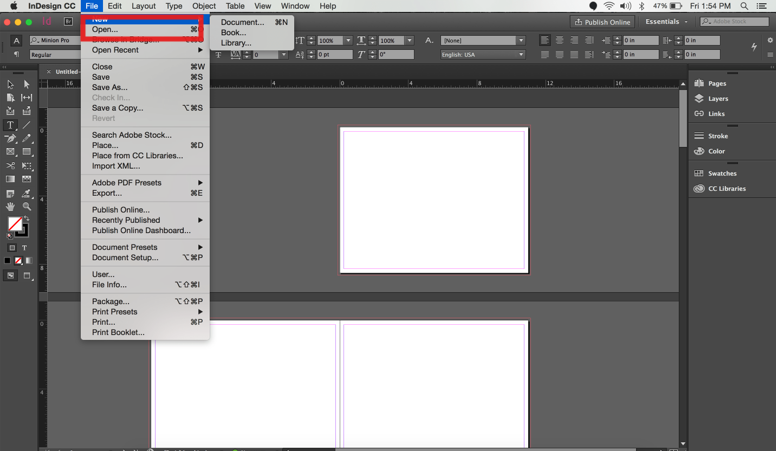
Step 3: Browse and select your .indd file.
Step 4: Click Open to load the project.
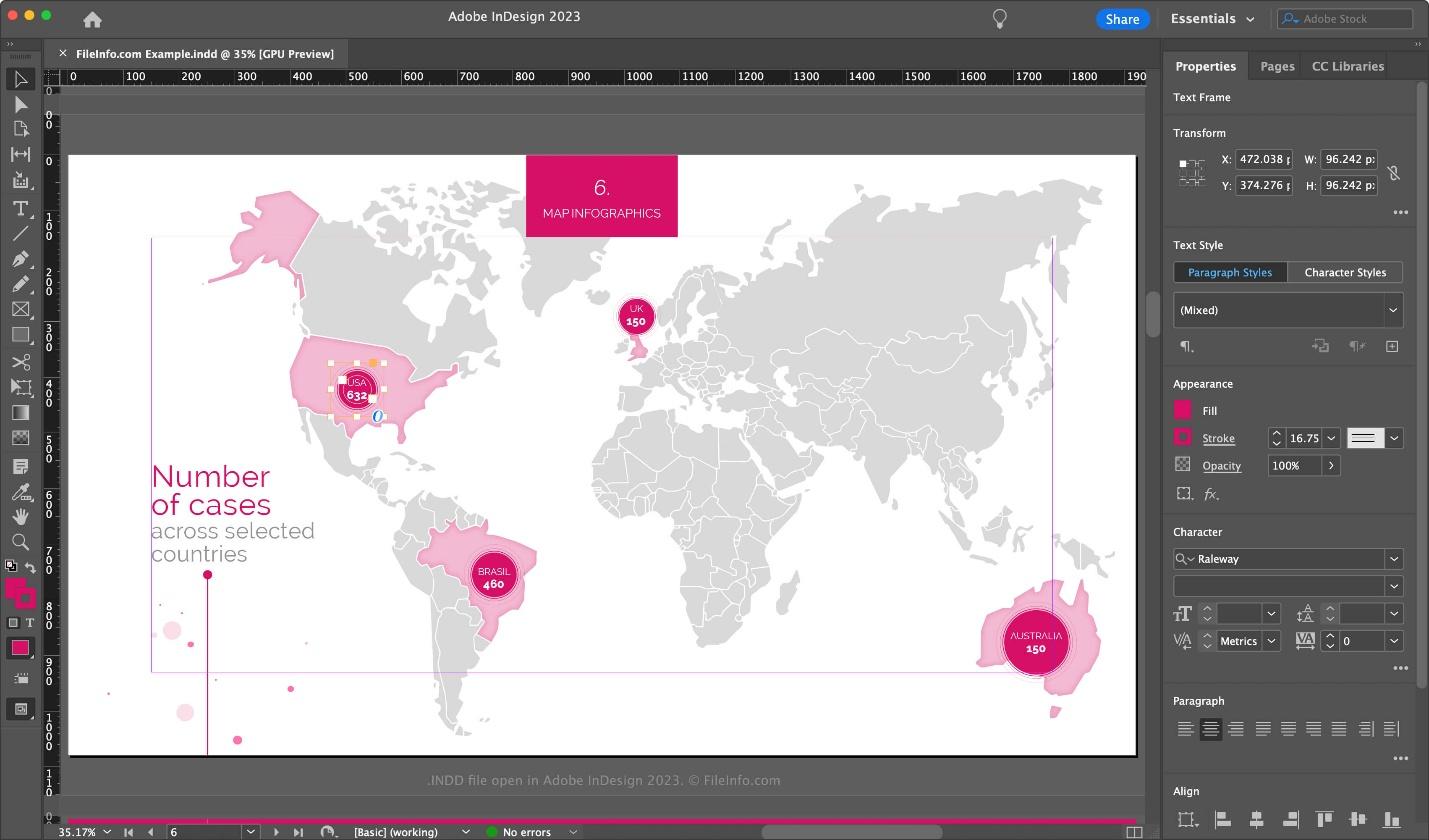
Once opened, you can edit text, reposition graphics, or export the file into formats like PDF or IDML for broader compatibility.
2. Viewing Without Adobe InDesign
If you don’t have InDesign, you can still view or extract content from an INDD file using a few practical workarounds.
Option 1 – Convert via IDML:
Ask the sender to export the file as IDML (InDesign Markup Language). This version can be opened in earlier editions of InDesign or converted using third-party tools.
Option 2 – Use Online INDD File Viewers:
Free online tools like Photopea or Lucidpress allow limited access to INDD file format data. You can view basic layouts or images, though complex formatting may not appear perfectly.
Option 3 – Request a PDF Copy:
If you only need to view or print the document, ask the creator to export the INDD to PDF. This preserves the exact visual design and is accessible on any device.
3. Using an INDD File Converter
If viewing isn’t enough and you want editable content, try an INDD file converter. These tools transform the project into formats compatible with Word, PowerPoint, or other layout software.
Keep in mind that complex layout structures might shift slightly after conversion, so always review the final file carefully.
Personal Insight:
In my experience, while Adobe InDesign remains the gold standard for working with INDD files, free viewers and converters have become surprisingly capable. When clients send me .indd files without providing InDesign access, I often use Photopea or request an IDML export for easy editing. For everyday viewing or printing, converting the INDD file type into a PDF is the simplest, most reliable choice.
Part 3: How to Convert INDD Files
Converting an INDD file is often necessary when you need to share your design with someone who doesn’t have Adobe InDesign. Depending on your goal, whether printing, editing, or web display, you can export INDD files into several different formats, including PDF, IDML, or JPG.
Below are the most practical methods to convert your .indd file safely and effectively.
1. Convert INDD Files Within Adobe InDesign
The most accurate way to convert your INDD file is directly inside Adobe InDesign. This ensures the design layout, fonts, and embedded elements remain intact during conversion.
Steps to convert INDD to PDF:
Step 1: Open your project in Adobe InDesign.
Step 2: Go to File → Export.
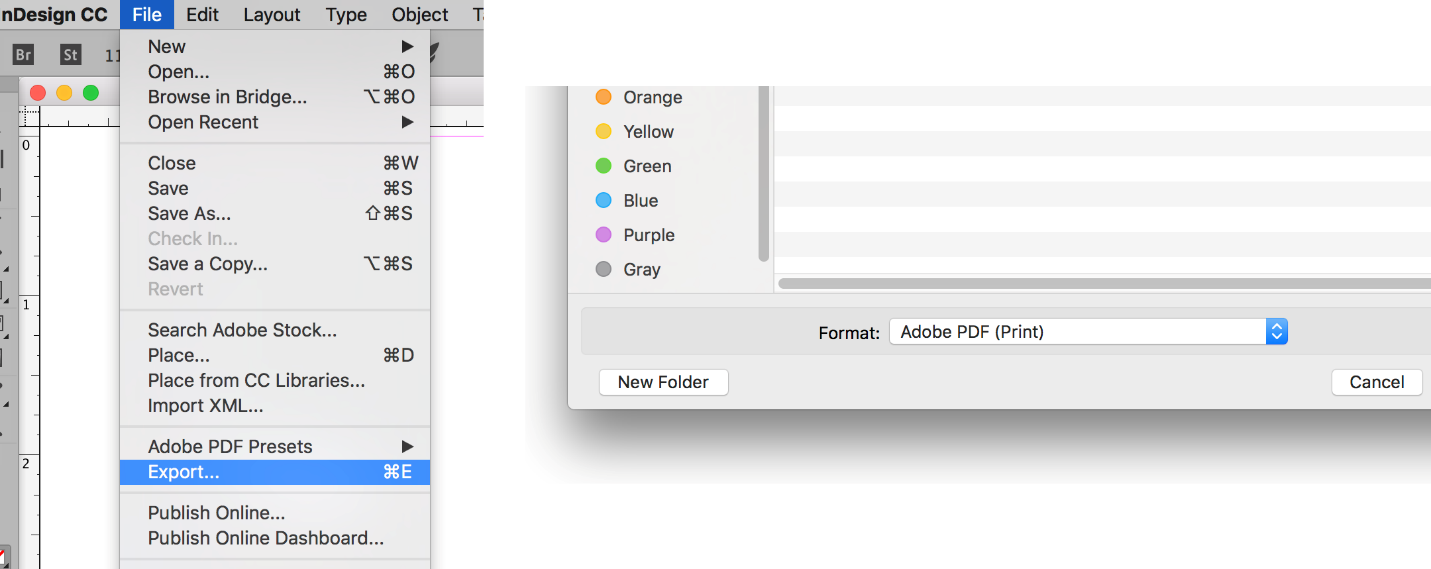
Step 3: Choose Adobe PDF (Print) or Adobe PDF (Interactive) depending on your needs.
Step 4: Adjust settings and export your document.
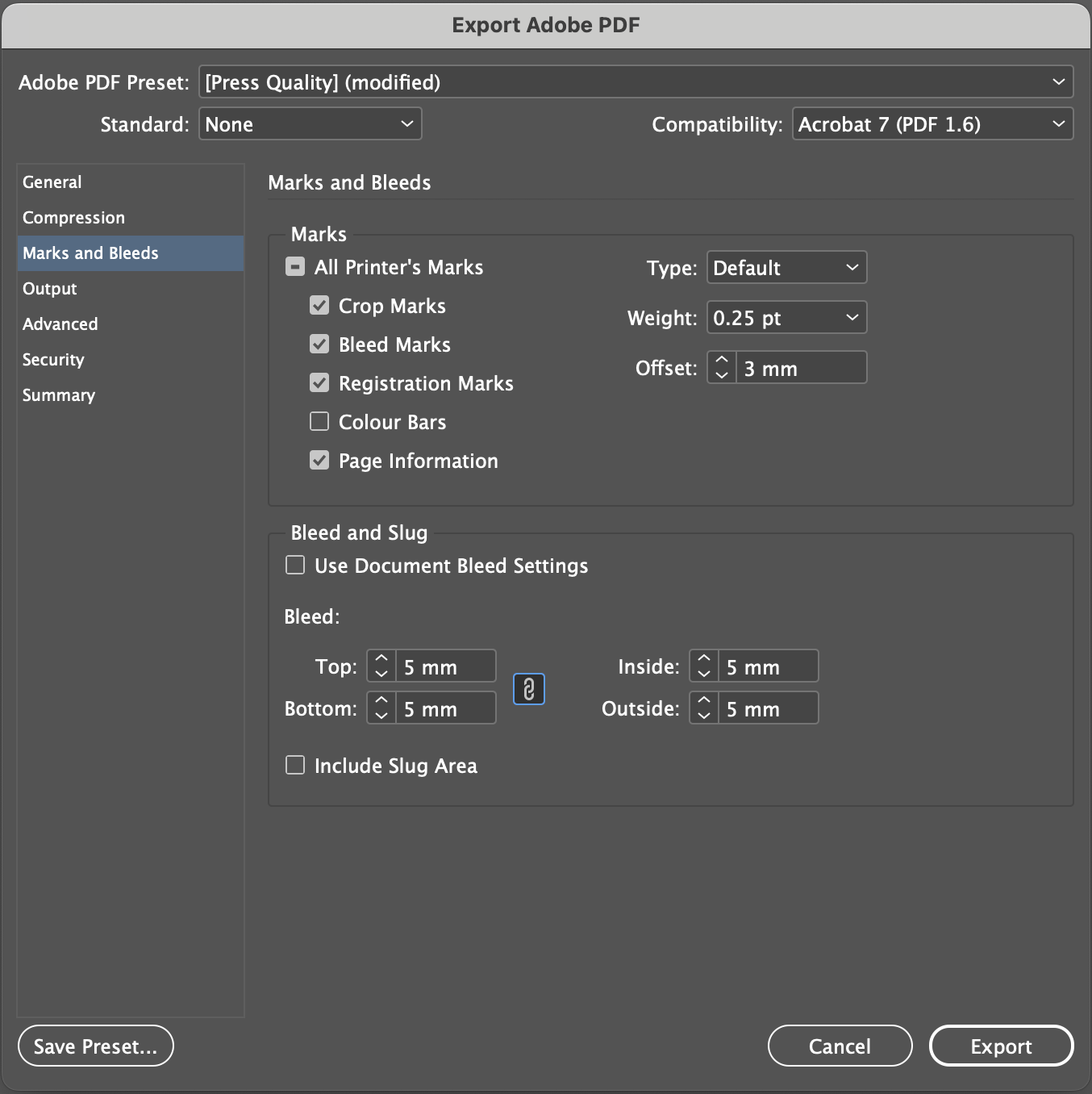
You can also export your INDD file to other formats:
File → Export → Format → IDML for older versions of InDesign.
File → Export → Format → JPEG/PNG if you need visual previews of pages.
This built-in method preserves your original layout and avoids compatibility issues.
2. Recommended Conversion Destinations and When to Use Them
Different formats serve different purposes. Here’s how to decide which format suits your situation:
| Format | When to Use | Advantages |
|---|---|---|
| Best for sharing and printing | Retains full layout and design quality | |
| IDML | For collaboration or version compatibility | Opens in older InDesign versions |
| JPG / PNG | For websites, thumbnails, or previews | Easily shareable and lightweight |
| DOCX / PPTX | When you need editable text | Convert via PDF → Word or PDF → PowerPoint for best results |
For example, if you’re sending a final brochure design to a client, exporting your INDD file as a PDF is the most efficient choice. But if your teammate uses an older version of InDesign, export an IDML file instead; it maintains compatibility without losing layout data.
3. Using Online INDD File Converters
If you don’t have InDesign installed, an INDD file converter can help you change your document format online.
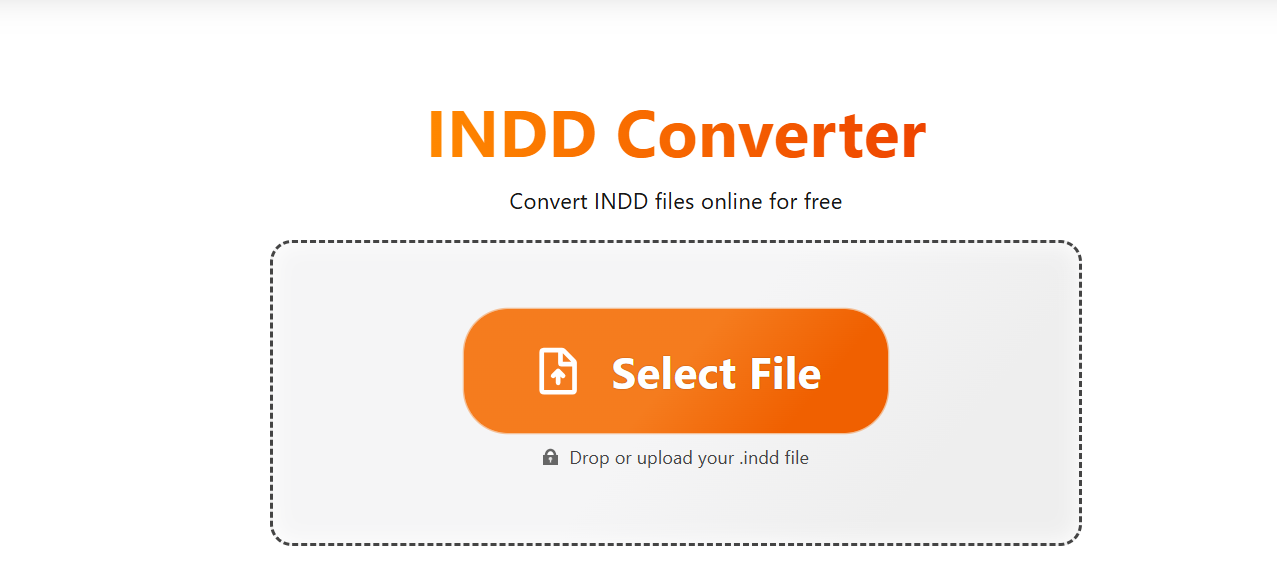
Popular options include:
Zamzar: Simple drag-and-drop conversion from INDD to PDF or INDD to IDML.
Convertio: Supports multiple conversions and batch uploads.
HiPDF or CloudConvert: Offer customizable export quality and file compression.
Always double-check results for alignment or missing fonts, as free converters may not perfectly replicate professional layouts.
Personal Insight:
When handling design files from clients, I often prefer exporting INDD files into IDML first, as it acts as a universal bridge between different InDesign versions. If clients only need to review layouts, I export INDD to PDF, ensuring every element stays perfectly in place. For quick previews or web uploads, converting to JPG or PNG works well.
Each method has its role; the key is choosing the one that matches your workflow and your recipient’s tools.
Part 4: After INDD Files Converted – Editing with WPS Photos
Once you’ve converted your INDD files to formats like PDF, JPG, or PNG, the next step is often improving the visual quality of exported pages or graphics. This is where WPS Photos becomes a powerful addition to your workflow.
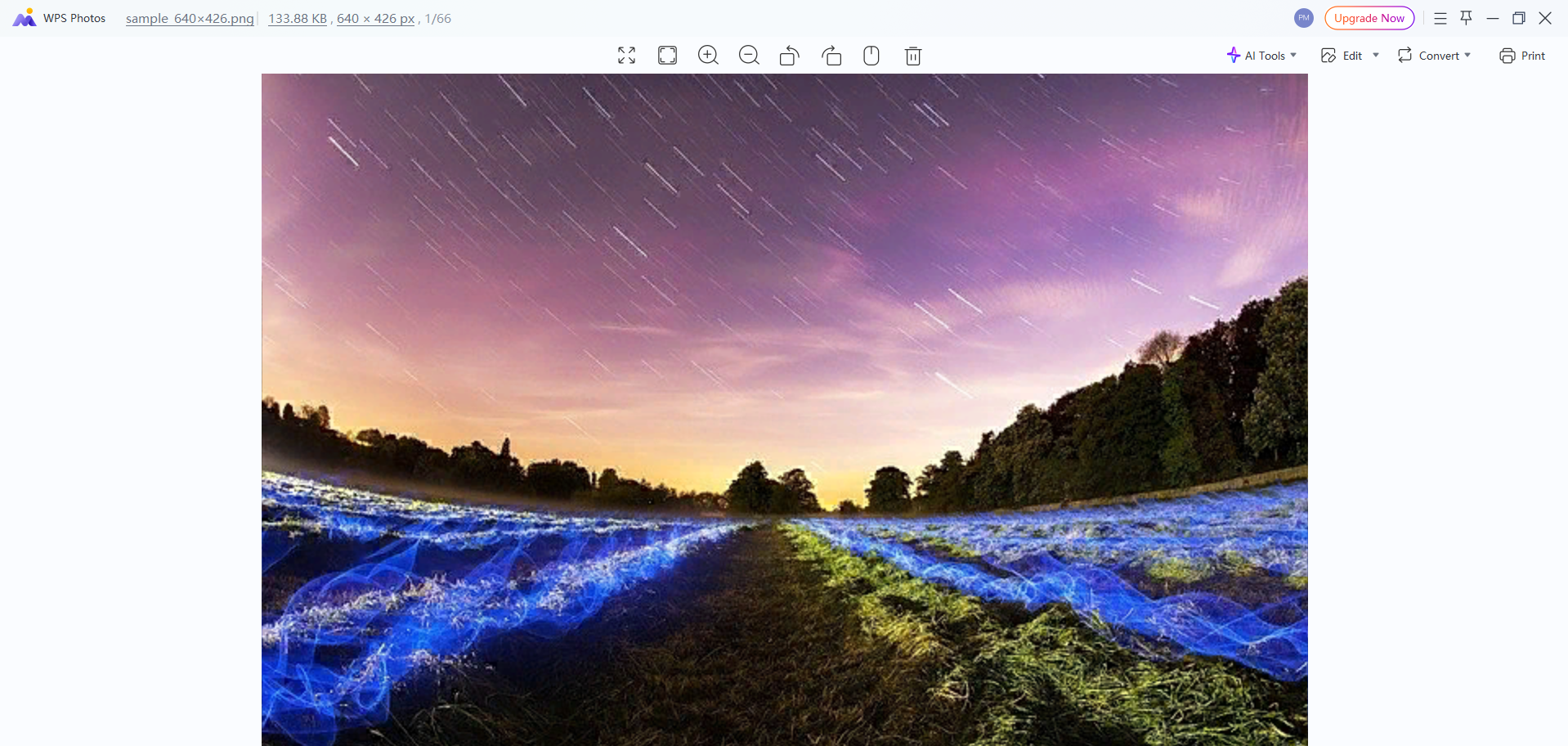
Whether you’ve exported a high-resolution catalog image, a digital magazine cover, or presentation slides, WPS Photos helps you enhance and polish them with ease, even without advanced photo-editing experience.
Why Edit After Conversion?
Even though INDD files deliver professional-quality layouts, the exported versions sometimes lose sharpness, color balance, or lighting accuracy. When converting from an .indd file to an image or document format, slight compression or resolution differences can appear.
Editing your converted files ensures they look equally impressive across print, desktop, and mobile screens.
What Is WPS Photos?
WPS Photos is an AI-powered image enhancement tool developed by WPS Office. It’s designed for professionals and casual users who want to refine images quickly without complicated steps.
With WPS Photos, you can correct lighting, remove imperfections, and batch-edit multiple images at once, all from an intuitive interface. It’s ideal for anyone converting INDD files to image-based formats for websites, digital portfolios, or social media posts.
Each of these tools helps ensure that the graphics you extracted or exported from your INDD file format remain professional and vibrant.
How to Use WPS Photos (Step-by-Step)
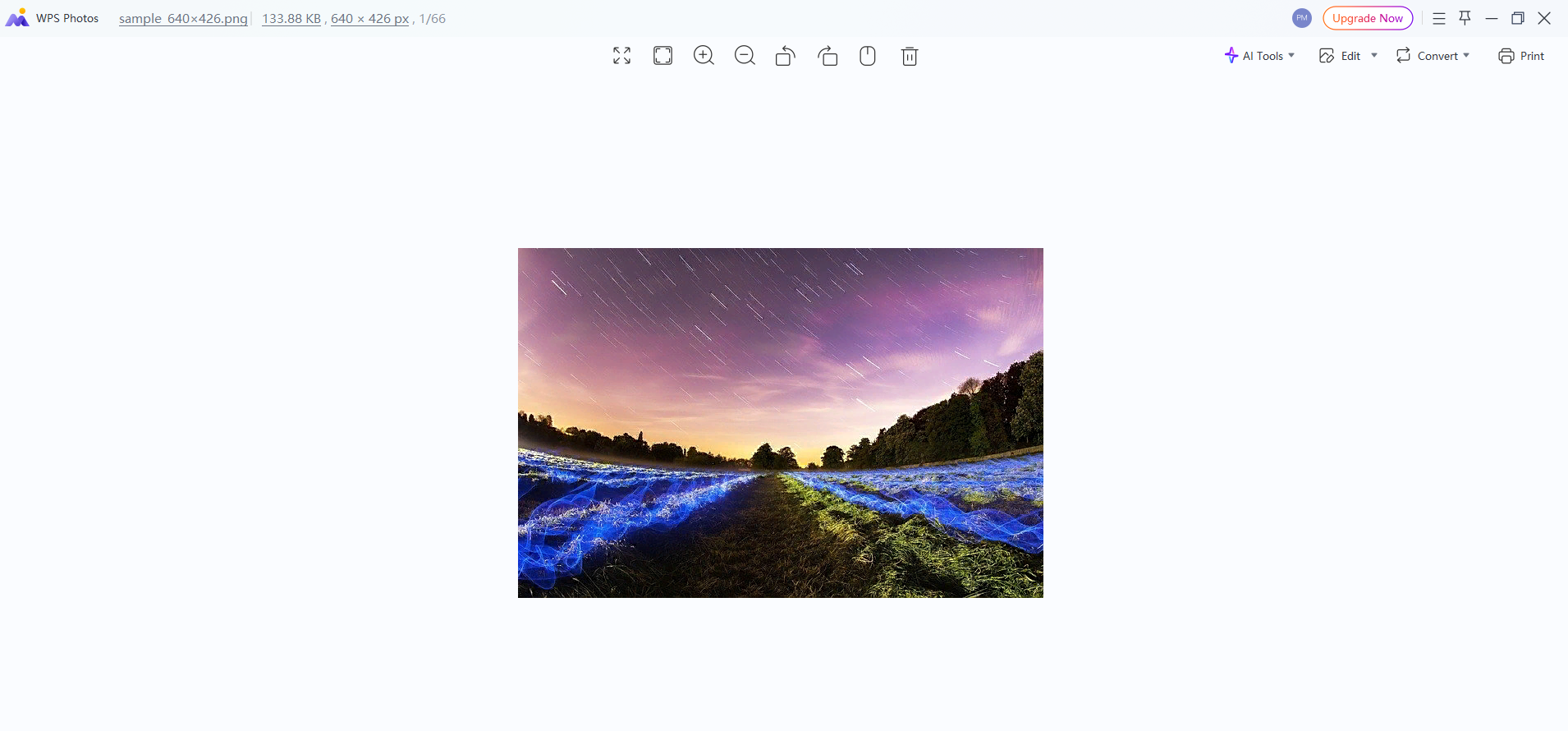
Step 1: Visit WPS Photos and upload your exported image (JPG, PNG, or other formats).
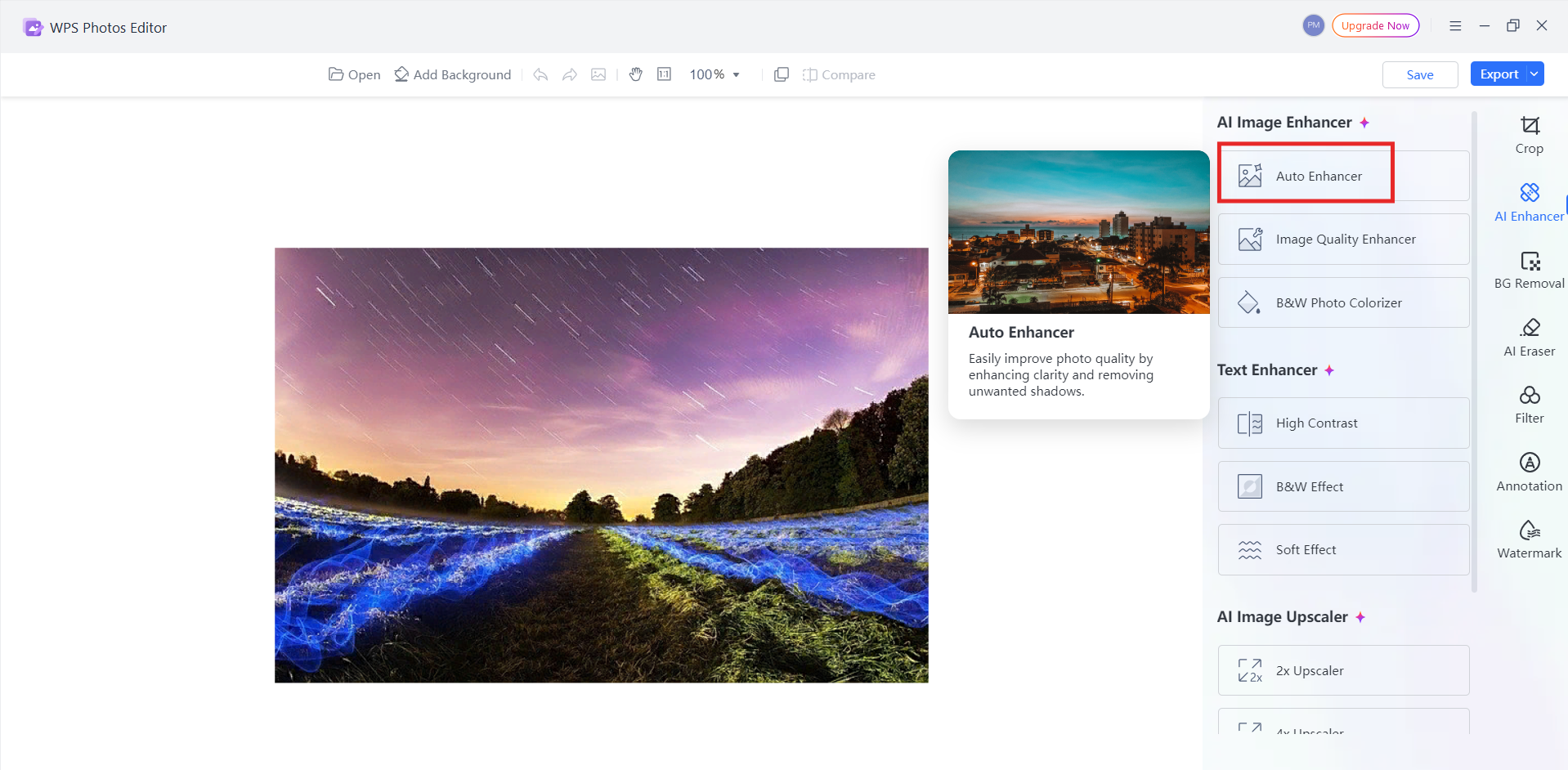
Step 2: Select AI Enhance or Auto Retouch from the main toolbar.
Step 3: Preview the improvement and adjust settings like brightness or contrast.
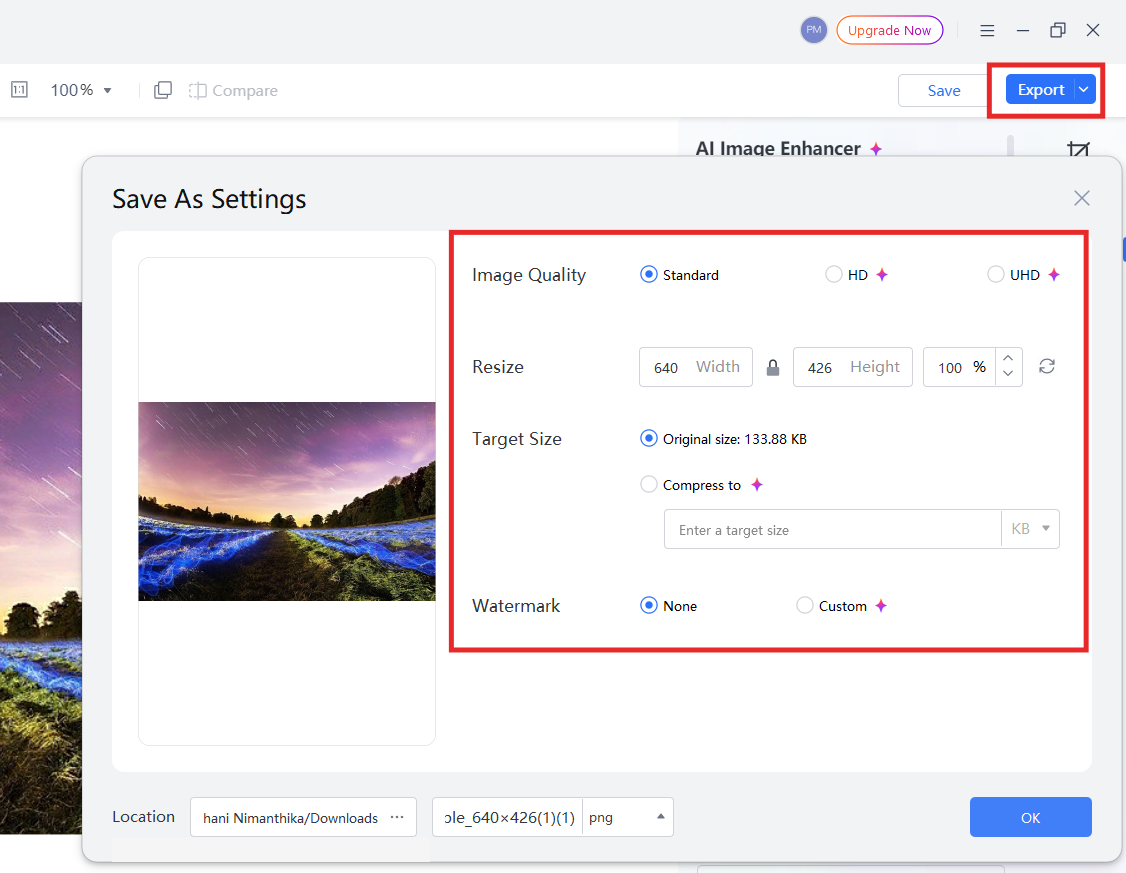
Step 4: Save the enhanced version or apply batch edits to multiple files.
You can also combine this with WPS Office tools, for example, after enhancing images, insert them into WPS Writer or WPS Presentation for publishing-ready documents.
Personal Insight:
I’ve noticed that when I convert INDD files for client presentations, exported images sometimes appear slightly dull. Enhancing them through WPS Photos makes a noticeable difference; it restores clarity and professional sharpness without needing Adobe Photoshop. It’s a great, lightweight tool that keeps your workflow efficient, especially for designers handling multiple exports from InDesign projects.
FAQs About INDD Files
Q1: Can I open an INDD file if I don’t have Adobe InDesign?
Yes, but with some limitations. You can use free online tools like Photopea or Lucidpress to preview the layout of your .indd file, though some fonts or formatting might not display perfectly. Alternatively, you can ask the creator to export the INDD file as a PDF or IDML for easier viewing or editing.
Q2: What happens if I open a newer version of an INDD file in an older version of InDesign?
You may face compatibility issues or receive an “Incompatible File Version” message. To solve this, ask the sender to export it as an IDML file; this format is designed for backwards compatibility between different versions of InDesign.
Q3: Which format should I convert an INDD file to for easy sharing?
If your goal is to share or print the file, convert your INDD to PDF, which preserves layout, fonts, and image quality. For version flexibility, export to IDML, and for web-friendly visuals or previews, convert to JPG or PNG.
Each conversion serves a specific purpose, so choose based on whether you need editability or readability.
Q4: What’s the difference between IDML and INDD?
INDD is the native working file used in InDesign; it contains every layout element and design setting. IDML (InDesign Markup Language), on the other hand, is a simplified version of the same project meant for compatibility. While INDD files are ideal for ongoing design work, IDML files are better for sharing with users on older software versions.
Q5: Why use WPS Photos after converting INDD files?
After converting INDD files to images or PDFs, you may notice slight quality loss or dullness in exported visuals. WPS Photos helps correct this by applying AI-based photo enhancement, improving lighting, contrast, and color tone in seconds. It’s an ideal post-conversion step for designers who want to ensure every exported page looks polished before publication.

'%3e%3cpath%20d='M19.9911%204.11386V6.471H18.5894C18.0775%206.471%2017.7322%206.57814%2017.5536%206.79243C17.3751%207.00671%2017.2858%207.32814%2017.2858%207.75671V9.44421H19.9019L19.5536%2012.0871H17.2858V18.8639H14.5536V12.0871H12.2769V9.44421H14.5536V7.49779C14.5536%206.39064%2014.8632%205.53201%2015.4822%204.92189C16.1013%204.31177%2016.9257%204.00671%2017.9554%204.00671C18.8304%204.00671%2019.509%204.04243%2019.9911%204.11386Z'%20fill='%23333333'/%3e%3c/g%3e%3cdefs%3e%3cclipPath%20id='clip0_2938_8199'%3e%3crect%20width='16'%20height='16'%20fill='white'%20transform='translate(8%204.00671)'/%3e%3c/clipPath%3e%3c/defs%3e%3c/svg%3e)
'%3e%3cpath%20d='M17.5237%2010.7813L23.4811%204H22.0699L16.8949%209.88693L12.7648%204H8L14.2469%2012.9029L8%2020.0133H9.4112L14.8725%2013.7952L19.2352%2020.0133H24M9.92053%205.04213H12.0885L22.0688%2019.0224H19.9003'%20fill='%23333333'/%3e%3c/g%3e%3cdefs%3e%3cclipPath%20id='clip0_2938_8200'%3e%3crect%20width='16'%20height='16.0134'%20fill='white'%20transform='translate(8%204)'/%3e%3c/clipPath%3e%3c/defs%3e%3c/svg%3e)


