

'%3e%3cpath%20d='M8%200C12.4183%200%2016%203.58172%2016%208C16%2012.4183%2012.4183%2016%208%2016C3.58172%2016%200%2012.4183%200%208C0%203.58172%203.58172%200%208%200ZM11.6162%204.38379C11.2257%203.99337%2010.5927%203.99338%2010.2021%204.38379L8%206.58594L5.79785%204.38379C5.40732%203.99334%204.77429%203.99329%204.38379%204.38379C3.99331%204.77429%203.99335%205.40733%204.38379%205.79785L6.58594%208L4.38379%2010.2021C3.99348%2010.5927%203.99341%2011.2257%204.38379%2011.6162C4.77426%2012.0066%205.40734%2012.0065%205.79785%2011.6162L8%209.41406L10.2021%2011.6162C10.5927%2012.0066%2011.2257%2012.0067%2011.6162%2011.6162C12.0067%2011.2257%2012.0066%2010.5927%2011.6162%2010.2021L9.41406%208L11.6162%205.79785C12.0066%205.40735%2012.0066%204.77429%2011.6162%204.38379Z'%20fill='%23080E17'%20fill-opacity='0.46'/%3e%3c/g%3e%3cdefs%3e%3cclipPath%20id='clip0_3761_713'%3e%3crect%20width='16'%20height='16'%20fill='white'/%3e%3c/clipPath%3e%3c/defs%3e%3c/svg%3e)




'%3e%3cpath%20fill-rule='evenodd'%20clip-rule='evenodd'%20d='M21.4999%2010.9993C21.4999%205.20009%2016.7986%200.498901%2010.9993%200.498901C5.19994%200.498901%200.498657%205.20009%200.498657%2010.9993C0.498657%2016.2404%204.33858%2020.5844%209.35855%2021.3722V14.0346H6.69238V10.9993H9.35855V8.68594C9.35855%206.05427%2010.9262%204.60062%2013.3248%204.60062C14.4736%204.60062%2015.6753%204.80571%2015.6753%204.80571V7.38979H14.3512C13.0468%207.38979%2012.64%208.19921%2012.64%209.0296V10.9993H15.5523L15.0867%2014.0346H12.64V21.3722C17.66%2020.5844%2021.4999%2016.2404%2021.4999%2010.9993Z'%20fill='%231568EA'/%3e%3c/g%3e%3c/svg%3e)


'%3e%3cpath%20d='M2.42045%2022.1876H6.31818V12.7217L0.75%208.54553V20.5171C0.75%2021.4414%201.49892%2022.1876%202.42045%2022.1876Z'%20fill='%234285F4'/%3e%3cpath%20d='M19.682%2022.1876H23.5797C24.5041%2022.1876%2025.2502%2021.4387%2025.2502%2020.5171V8.54553L19.682%2012.7217'%20fill='%2334A853'/%3e%3cpath%20d='M19.682%205.48293V12.7216L25.2502%208.54543V6.31816C25.2502%204.25236%2022.8921%203.07469%2021.2411%204.31361'%20fill='%23FBBC04'/%3e%3cpath%20d='M6.31824%2012.7217V5.48303L13.0001%2010.4944L19.6819%205.48303V12.7217L13.0001%2017.733'%20fill='%23EA4335'/%3e%3cpath%20d='M0.75%206.31816V8.54543L6.31818%2012.7216V5.48293L4.75909%204.31361C3.10534%203.07469%200.75%204.25236%200.75%206.31816Z'%20fill='%23C5221F'/%3e%3c/g%3e%3cdefs%3e%3cclipPath%20id='clip0_2954_7305'%3e%3crect%20width='24.5'%20height='18.375'%20fill='white'%20transform='translate(0.75%203.8125)'/%3e%3c/clipPath%3e%3c/defs%3e%3c/svg%3e)


In today’s digital workspace, dealing with multiple file formats is unavoidable. While PDFs are ideal for preserving formatting, JPG files are more flexible for web uploads, presentations, and quick sharing. Yet the moment you need to extract an image from a PDF, the process can feel unexpectedly frustrating.
So, the question becomes straightforward: How can you convert a PDF file into a clean, high-quality JPG image instantly, securely, and without technical knowledge?
In this article, we will walk through how the Zamzar PDF to JPG converter works, including its features and limitations, and then introduce a better, faster alternative for users who need a more efficient workflow.


Part 1. Overview of Zamzar PDF to JPG Converter
Zamzar is an online file conversion tool that supports over 1,200 file types, making it one of the most versatile converters available. It operates entirely through the browser, so you do not have to download or install any software. Users can convert documents, images, audio files, videos, and ebooks simply by uploading a file and selecting their preferred output format.
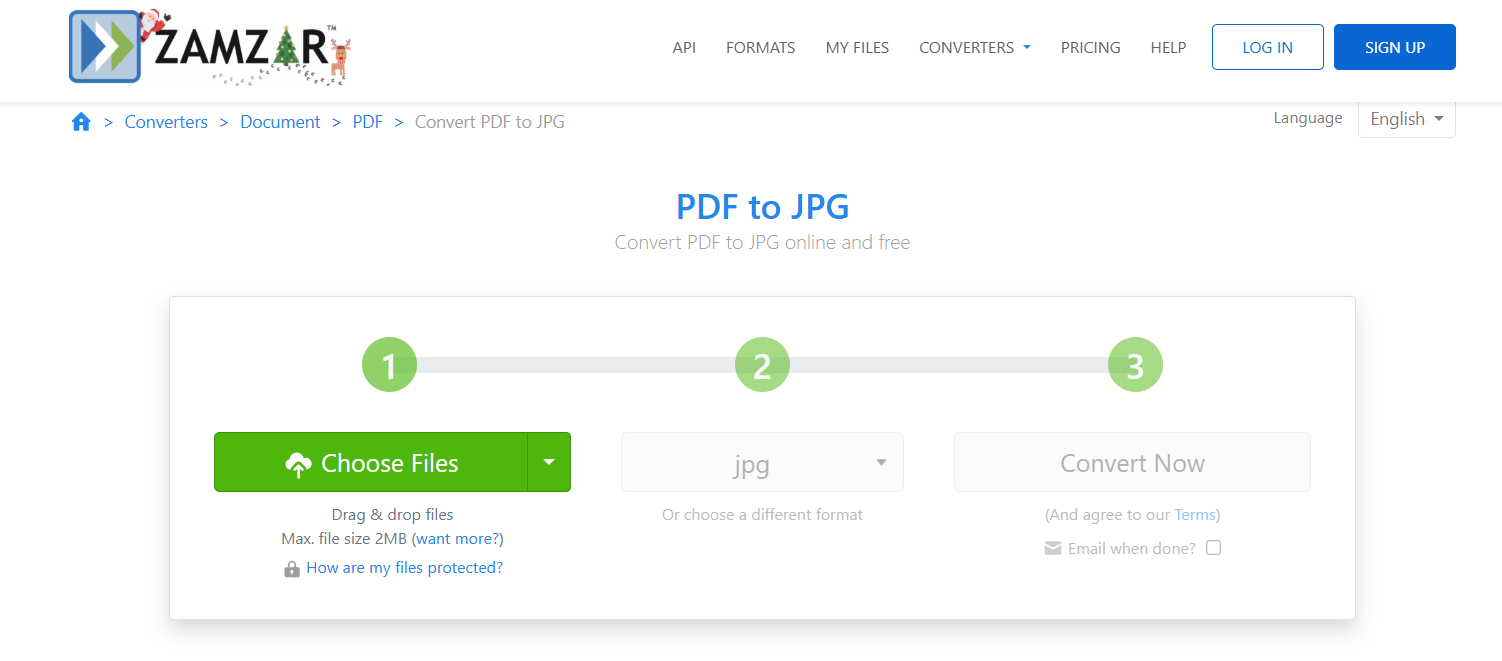
For PDF-to-image workflows, Zamzar aims to provide a quick, streamlined experience suitable for occasional users, students, and office workers who need fast, one-off conversions.
In my experience, the main appeal of Zamzar is its accessibility. Even users who are not familiar with conversion tools can complete a task in seconds. However, the platform focuses heavily on conversion rather than additional functionality, which may limit users who need editing features or automation.
Pricing
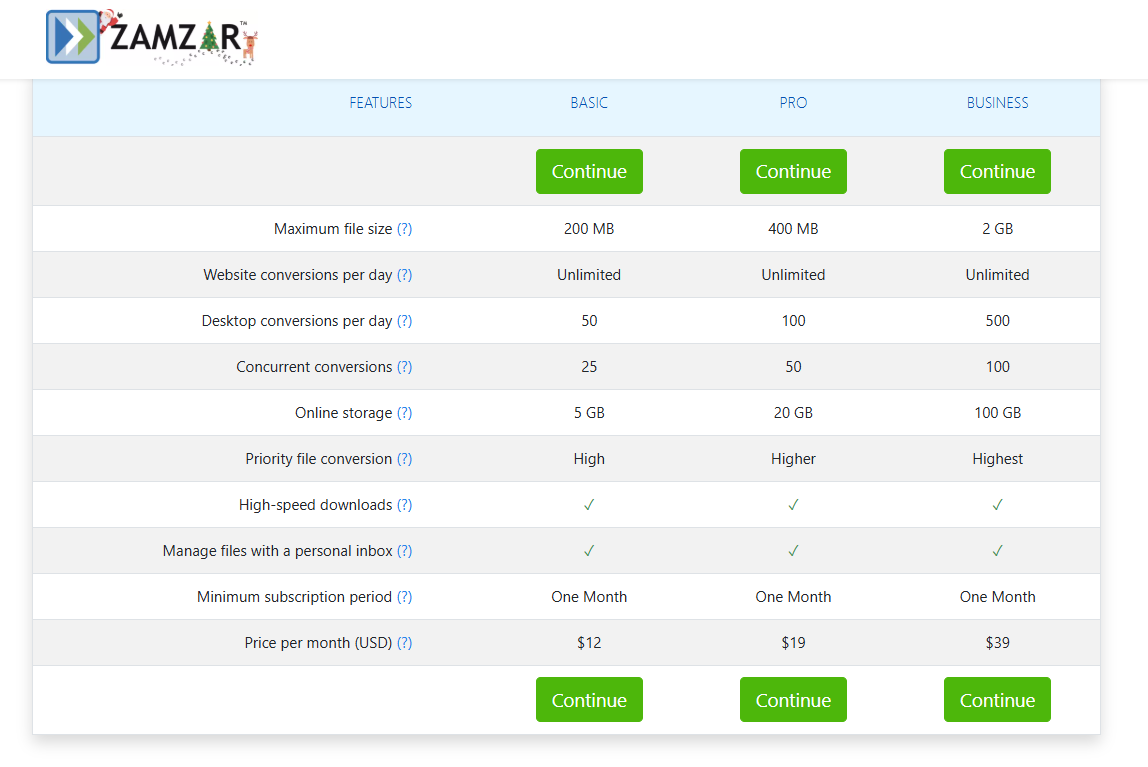
Zamzar provides both free and paid tiers:
Although the free tier is sufficient for occasional use, frequent users or those handling larger PDFs may find the limits restrictive. This is often when users begin looking for an alternative that provides faster speeds and fewer barriers.
Part 2. How to Convert PDF to JPG on Zamzar
Converting a PDF to a JPG on Zamzar is designed to be a quick and accessible process. The platform works entirely in the browser, so you can follow the steps on any device, including phones, laptops, or tablets. Below is a clear guide that reflects what most users experience when using Zamzar’s web-based converter.
Step 1. Visit the Zamzar PDF to JPG Conversion Page
Navigate to the official Zamzar converter at: https://www.zamzar.com/convert/pdf-to-jpg/
When you arrive, you’ll see a clean layout with a file upload button and a dropdown to choose your output format.
Step 2. Upload Your PDF File
Click Add Files and select the PDF you want to convert. You can upload from your device or drag the file directly into the upload area.
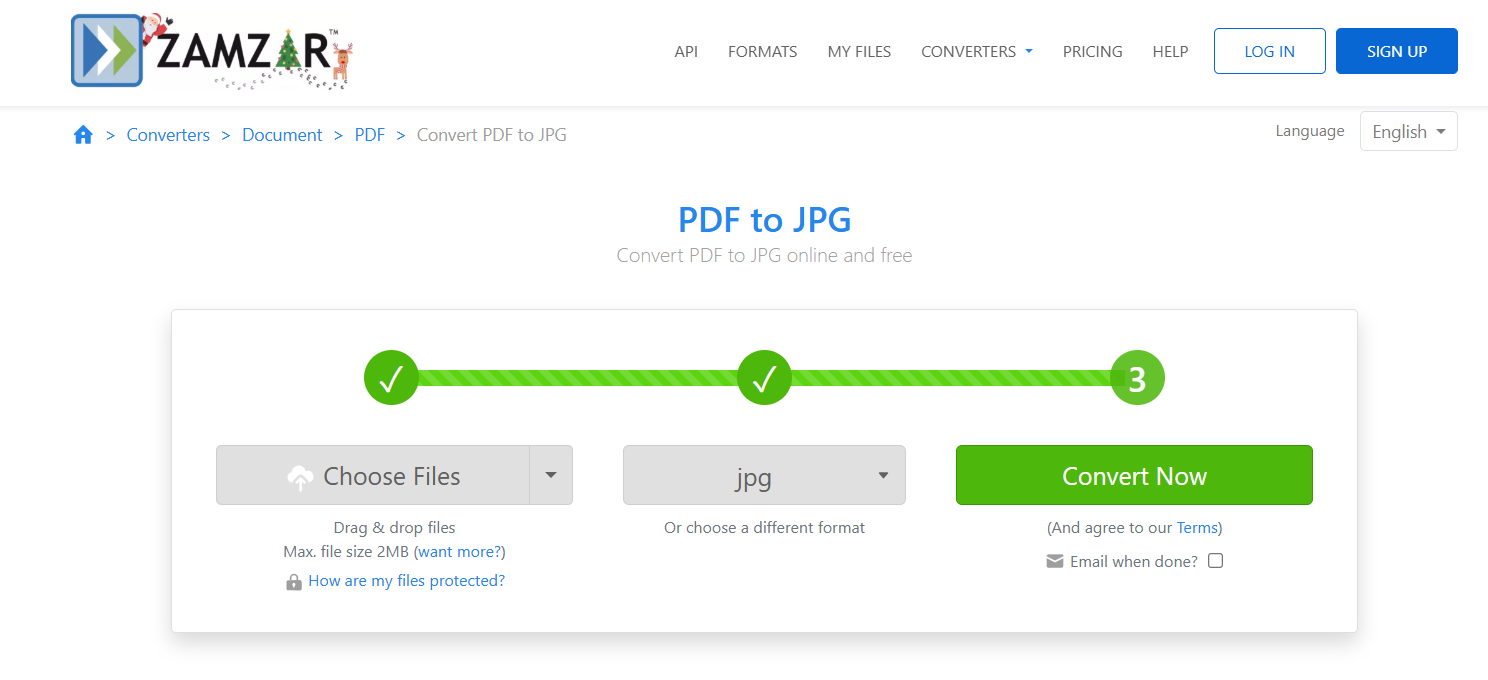
If you're converting from a phone, Zamzar accepts files from mobile storage as well, which is why users often search for tools like “zamzar pdf to jpg pdf to jpg on phone.”
Step 3. Choose JPG as the Output Format
Open the Convert To dropdown menu and select JPG as the target output format.
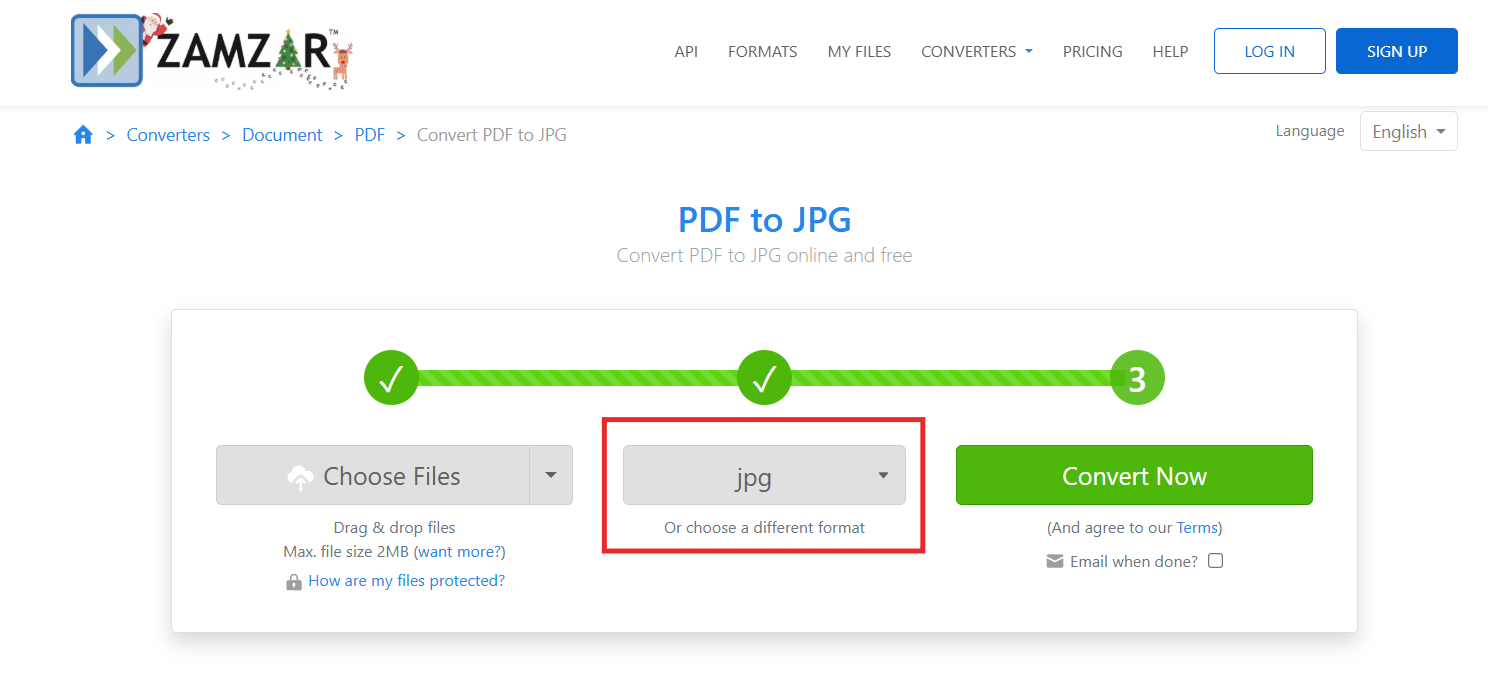
Zamzar will typically suggest JPG automatically since the PDF-to-image workflow is one of its most common conversions.
Step 4. Start the Conversion
Click the Convert Now button. Your file will be uploaded to Zamzar’s server and be queued for processing.
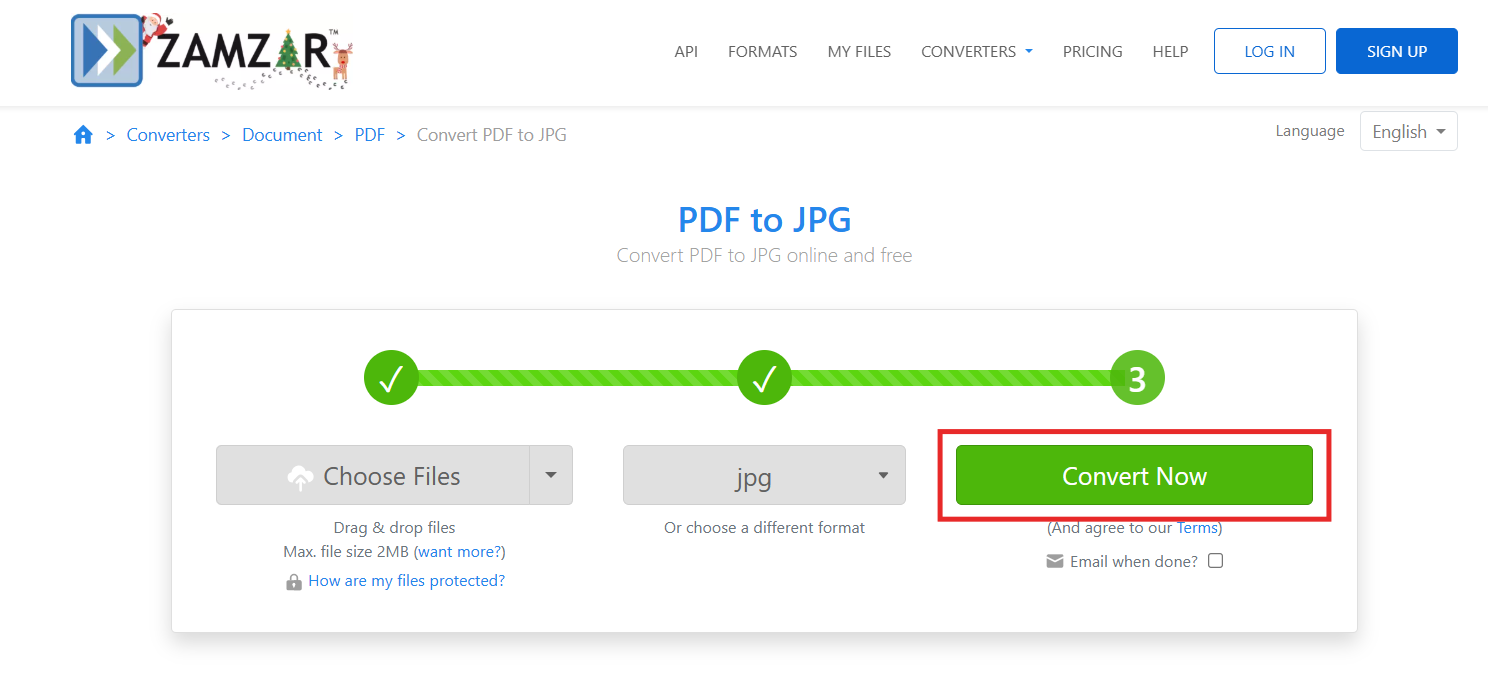
On free accounts, conversions may take a little longer during peak usage hours.
Step 5. Download Your JPG File
Once the conversion is complete, click Download to save the JPG file to your device.
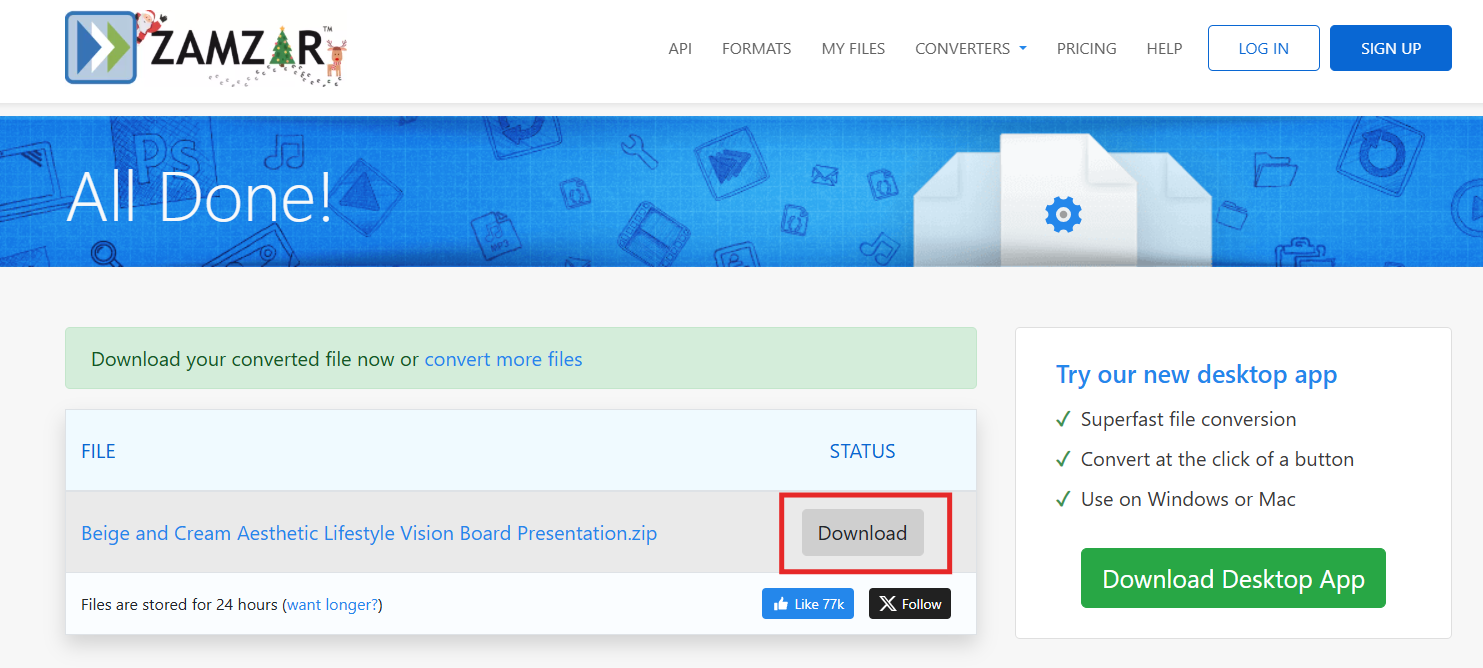
If you choose to receive your file via email, Zamzar will send a download link to your inbox, although this adds an extra step compared to direct downloads.
Part 3. Pros and Cons of Converting PDF to JPG on Zamzar
Zamzar is widely used for quick online conversions, and its PDF-to-JPG tool is one of the platform’s most frequently accessed features. However, like any online converter, it comes with advantages and limitations worth considering before committing to it for regular use.
My Personal Experience with Zamzar
In my experience, Zamzar works well for occasional, single-file conversions. Its convenience is its strongest selling point, especially when I need a quick PDF-to-JPG conversion without installing software. However, the restrictions on file size and speed usually become noticeable when handling larger PDFs or when I need multiple conversions in a short period. At those times, the workflow feels slower than expected. This is often when I prefer using a tool with faster processing and no upload limitations, especially for more demanding or time-sensitive projects.
Part 4. WPS Online Converter: Best Alternative to Zamzar PDF to JPG Converter
For users who need faster processing, higher quality output, and more flexibility, the WPS Online Converter is one of the most reliable tools available today.
The WPS Online PDF to JPG Converter is a browser-based tool built into the WPS Office ecosystem, delivering high-speed and high-quality conversions without requiring users to sign up or provide an email address. It is designed for users who want clean image output, consistent formatting, and a fast, distraction-free workflow. Because the converter is part of the WPS Office suite, it naturally aligns with PDF tasks such as merging, splitting, editing, compressing, and OCR, offering a complete document management solution.
Unique Advantage
What sets the WPS Online Converter apart is its integration with the full WPS Office suite. This connection gives users access to a range of PDF functions that go far beyond simple conversion. Instead of only turning your PDF into an image, you can:
Edit the PDF before converting
Extract specific pages
Merge or split documents
Use OCR to convert scanned pages into editable text
Maintain layout consistency across formats
This level of control makes WPS especially helpful for office workers, students, and anyone handling regular PDF tasks.
In my experience, the key advantage is speed. Conversions finish almost instantly, even for larger files, and you can download your JPGs directly without waiting for a link or entering an email. The workflow feels much smoother compared to many traditional online converters.
Functions/Features
Here are the primary features of the WPS Online Converter:
Converts PDF to JPG with high-resolution output
Supports bulk conversion
No watermark on converted images
Allows direct download without email verification
Includes additional PDF tools such as editing, compression, merging, splitting, and OCR
Compatible with all major systems and works directly in any modern browser
Secured with SSL encryption to protect uploaded files
WPS maintains clear image quality, preserving diagrams, charts, and text without compression issues. This is especially useful for users preparing images for presentations, professional documents, or printing.
How to Convert PDF to JPG Using WPS Online Converter
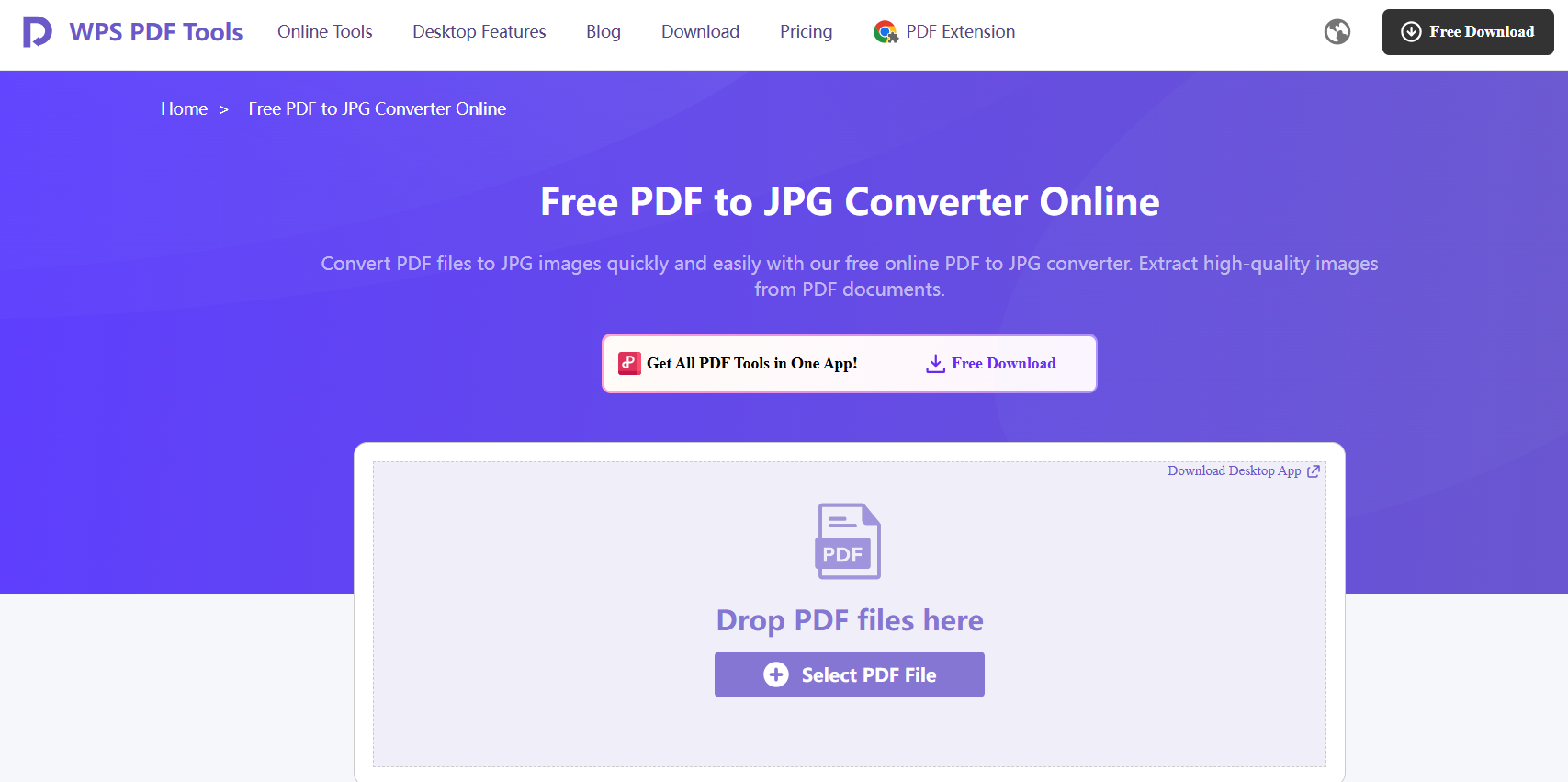
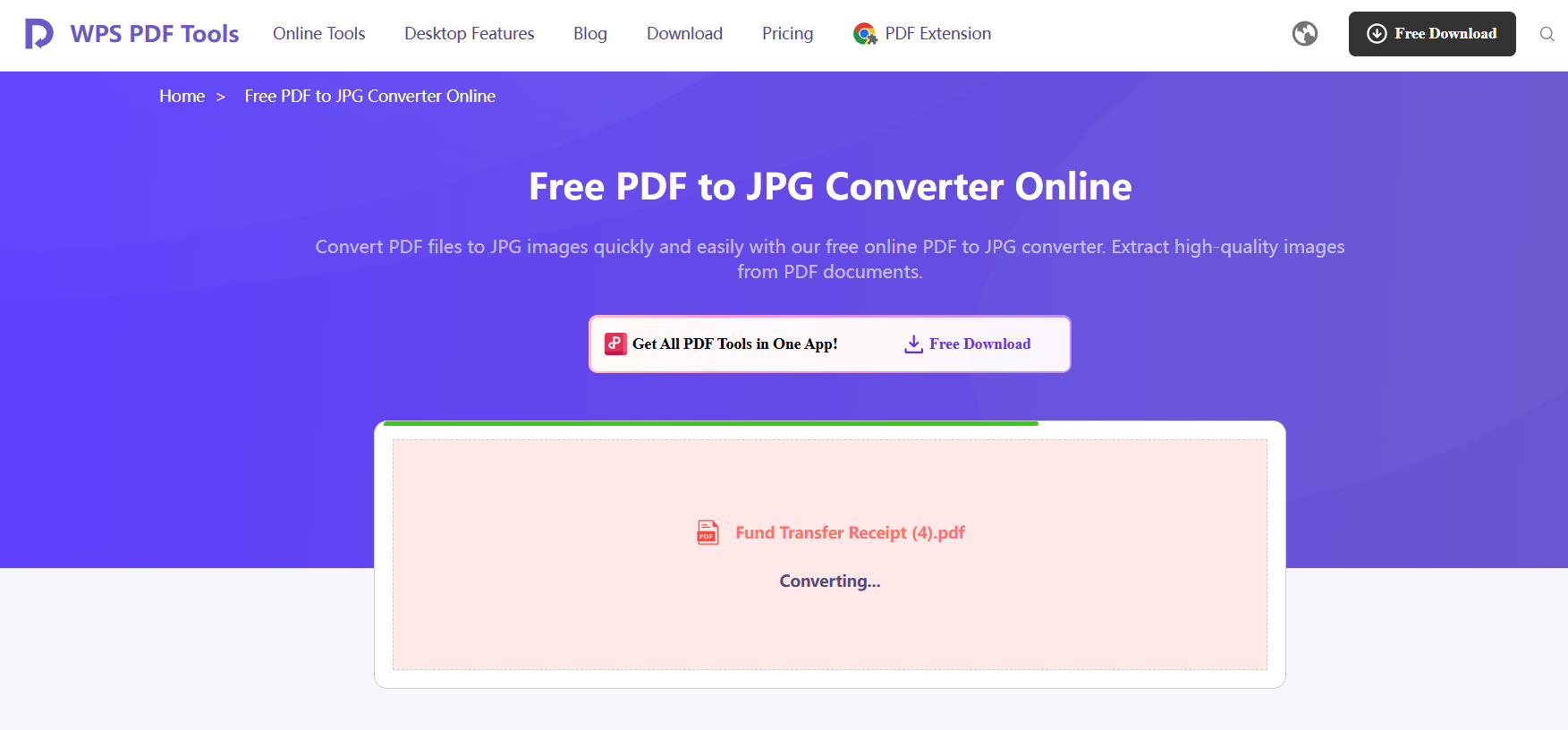
Step 1: Open the WPS PDF to JPG page
Visit: https://pdf.wps.com/convert-pdf-to-jpg/
Step 2: Upload your PDF file
Click Select File and upload the PDF you want to convert. WPS will automatically start the conversion.
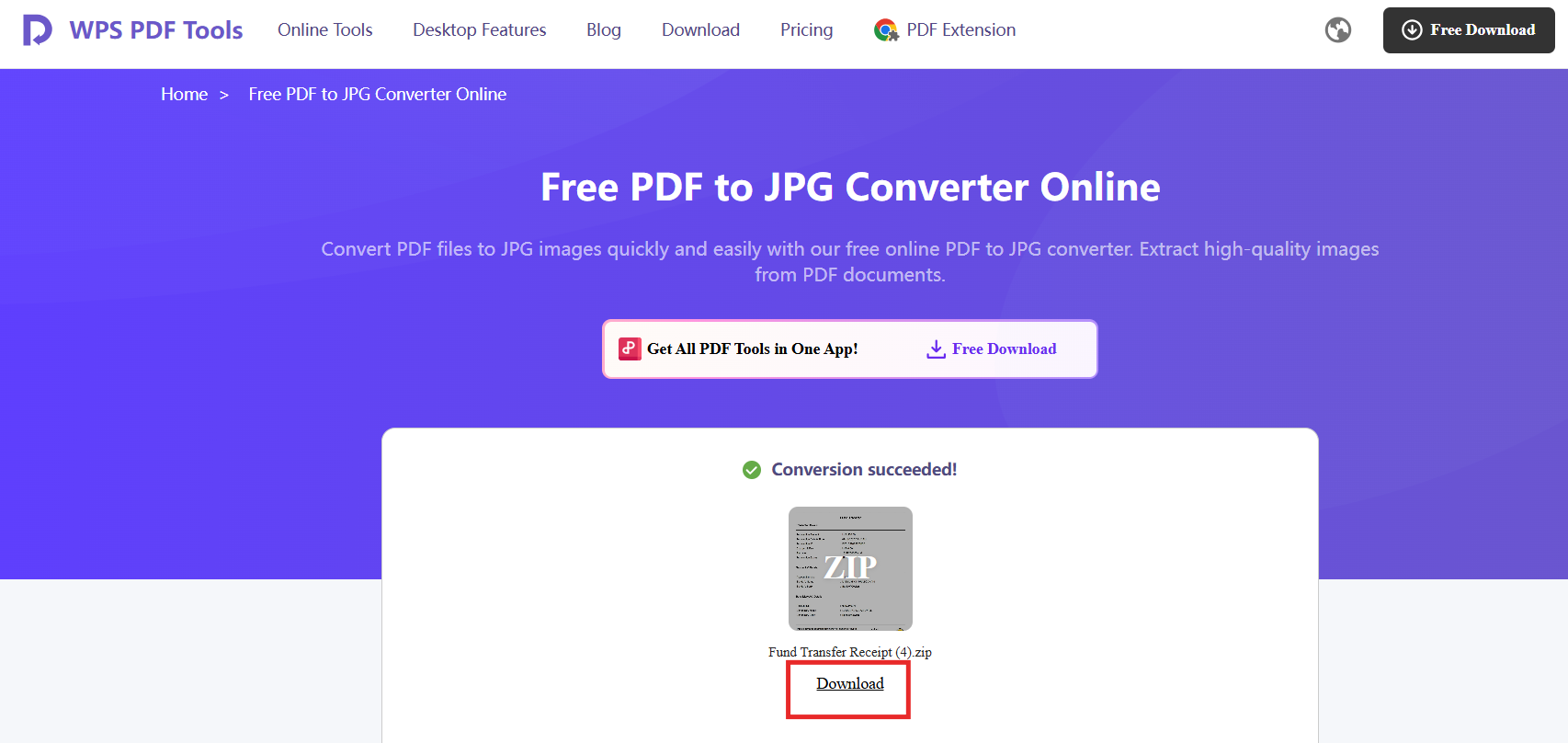
Step 3: Download the ZIP file
Save the output directly to your device without entering an email or creating an account.
My Personal Experience Using WPS Online Converter
From my perspective, WPS consistently delivers higher-quality JPG output compared to basic converters. I appreciate how the images retain sharpness, and the workflow feels significantly faster. The absence of file size limits on normal tasks and the ability to use additional PDF tools within the same ecosystem save a lot of time. When dealing with large project reports or multi-page PDFs, the WPS converter offers a smoother and more dependable experience.
Part 5. WPS Online Converter vs. Zamzar Converter
When choosing between WPS Online Converter and Zamzar for converting PDF to JPG, the differences become clear once you compare speed, quality, limitations, and ease of workflow. Both tools are popular, but they serve different types of users. Below is a detailed comparison to help you understand which converter is better for daily use.
Comparison Table: WPS Online Converter vs. Zamzar Converter
| Feature | WPS Online Converter | Zamzar Converter |
|---|---|---|
| Ease of Use | Simple interface with instant download; no email required | Easy interface, but may require email for some conversions |
| Format Preservation | High accuracy; maintains sharpness and layout | Quality depends on file size and compression levels |
| Conversion Speed | Very fast, even for large PDFs | Slower for free users during peak times |
| File Size Limitations | No strict limits for common document sizes | Free version limits upload size (often 5 MB) |
| Compatibility | Works smoothly on all systems and browsers | Also cross-platform, but speed varies |
| Batch Conversion | Supported without heavy restrictions | Only available on paid plans |
| Additional Tools | PDF editing, merging, splitting, OCR, and annotation | Primarily focused on file conversion |
| Privacy Workflow | Direct download without email submission | Email is sometimes required for receiving converted files |
| Overall Flexibility | Best for professional workflows and repeated use | Best for occasional one-off conversions |
Why WPS Has the Advantage
WPS stands out because it is more than a converter. It is part of a complete document ecosystem designed for office productivity. Users can convert, edit, manage, annotate, and organize PDFs in one place. This significantly improves workflow efficiency, especially for people who convert files multiple times a week.
Meanwhile, Zamzar works well for simple conversions but lacks advanced controls, making it less suitable for users needing consistent, professional-quality outputs.
My Personal Experience When Comparing the Two Tools
After using both tools extensively, my preference leans toward WPS for any work-related or recurring PDF tasks. The conversion speed is noticeably faster, and the lack of file size restrictions makes it more dependable. The additional PDF tools built into the WPS ecosystem save me from switching between platforms, which improves productivity. Zamzar is convenient for a quick, single-file conversion, but WPS offers a smoother overall experience and consistently better image clarity.
FAQs
1. Can I convert files other than PDF to JPG?
Yes. Both Zamzar and WPS support multiple file types. Zamzar offers conversions across over 1,200 formats, while WPS focuses on document and image formats within its office ecosystem, ensuring stable performance for common office tasks.
2. What makes WPS Converter a better alternative to Zamzar?
WPS Converter is part of a complete office suite, offering more than simple conversion. Users can edit PDFs, merge pages, split documents, apply OCR, and adjust formatting. This all-in-one workflow creates a faster, more efficient experience than standalone converters.
3. Do I need to provide an email address to receive my converted file?
With Zamzar’s free service, you may need to provide an email address to receive a download link. WPS Converter does not require any email submission. You can download the converted JPG file instantly after processing.
4. Does Zamzar or WPS compress the image quality during conversion?
Zamzar may compress images slightly depending on the PDF’s size and the conversion queue. WPS focuses on maintaining the original resolution and layout, resulting in sharper JPG output suitable for presentations and print.
5. Can I convert multiple PDF files to JPG at once?
Zamzar only supports batch conversion with a paid subscription. WPS allows multi-file conversion without the strict limitations typically found in free tools, making it more convenient for repeated workflows.
6. Are my files safe when converting online?
Both Zamzar and WPS use encrypted connections to protect uploaded documents. However, WPS provides a direct-download approach without email storage, which reduces data exposure during the workflow.
7. Can I use Zamzar or WPS on a mobile device?
Yes. Both tools run smoothly on mobile browsers. WPS tends to load faster and offers a more responsive interface, which is especially helpful when performing tasks like PDF-to-JPG conversion on a phone.

'%3e%3cpath%20d='M19.9911%204.11386V6.471H18.5894C18.0775%206.471%2017.7322%206.57814%2017.5536%206.79243C17.3751%207.00671%2017.2858%207.32814%2017.2858%207.75671V9.44421H19.9019L19.5536%2012.0871H17.2858V18.8639H14.5536V12.0871H12.2769V9.44421H14.5536V7.49779C14.5536%206.39064%2014.8632%205.53201%2015.4822%204.92189C16.1013%204.31177%2016.9257%204.00671%2017.9554%204.00671C18.8304%204.00671%2019.509%204.04243%2019.9911%204.11386Z'%20fill='%23333333'/%3e%3c/g%3e%3cdefs%3e%3cclipPath%20id='clip0_2938_8199'%3e%3crect%20width='16'%20height='16'%20fill='white'%20transform='translate(8%204.00671)'/%3e%3c/clipPath%3e%3c/defs%3e%3c/svg%3e)
'%3e%3cpath%20d='M17.5237%2010.7813L23.4811%204H22.0699L16.8949%209.88693L12.7648%204H8L14.2469%2012.9029L8%2020.0133H9.4112L14.8725%2013.7952L19.2352%2020.0133H24M9.92053%205.04213H12.0885L22.0688%2019.0224H19.9003'%20fill='%23333333'/%3e%3c/g%3e%3cdefs%3e%3cclipPath%20id='clip0_2938_8200'%3e%3crect%20width='16'%20height='16.0134'%20fill='white'%20transform='translate(8%204)'/%3e%3c/clipPath%3e%3c/defs%3e%3c/svg%3e)


