



'%3e%3cpath%20fill-rule='evenodd'%20clip-rule='evenodd'%20d='M21.4999%2010.9993C21.4999%205.20009%2016.7986%200.498901%2010.9993%200.498901C5.19994%200.498901%200.498657%205.20009%200.498657%2010.9993C0.498657%2016.2404%204.33858%2020.5844%209.35855%2021.3722V14.0346H6.69238V10.9993H9.35855V8.68594C9.35855%206.05427%2010.9262%204.60062%2013.3248%204.60062C14.4736%204.60062%2015.6753%204.80571%2015.6753%204.80571V7.38979H14.3512C13.0468%207.38979%2012.64%208.19921%2012.64%209.0296V10.9993H15.5523L15.0867%2014.0346H12.64V21.3722C17.66%2020.5844%2021.4999%2016.2404%2021.4999%2010.9993Z'%20fill='%231568EA'/%3e%3c/g%3e%3c/svg%3e)


'%3e%3cpath%20d='M2.42045%2022.1876H6.31818V12.7217L0.75%208.54553V20.5171C0.75%2021.4414%201.49892%2022.1876%202.42045%2022.1876Z'%20fill='%234285F4'/%3e%3cpath%20d='M19.682%2022.1876H23.5797C24.5041%2022.1876%2025.2502%2021.4387%2025.2502%2020.5171V8.54553L19.682%2012.7217'%20fill='%2334A853'/%3e%3cpath%20d='M19.682%205.48293V12.7216L25.2502%208.54543V6.31816C25.2502%204.25236%2022.8921%203.07469%2021.2411%204.31361'%20fill='%23FBBC04'/%3e%3cpath%20d='M6.31824%2012.7217V5.48303L13.0001%2010.4944L19.6819%205.48303V12.7217L13.0001%2017.733'%20fill='%23EA4335'/%3e%3cpath%20d='M0.75%206.31816V8.54543L6.31818%2012.7216V5.48293L4.75909%204.31361C3.10534%203.07469%200.75%204.25236%200.75%206.31816Z'%20fill='%23C5221F'/%3e%3c/g%3e%3cdefs%3e%3cclipPath%20id='clip0_2954_7305'%3e%3crect%20width='24.5'%20height='18.375'%20fill='white'%20transform='translate(0.75%203.8125)'/%3e%3c/clipPath%3e%3c/defs%3e%3c/svg%3e)


Need a quick way to fix text, add notes, or rearrange pages in a PDF—or to edit pdf online free without login? The Smallpdf PDF Editor is a browser-based tool many people reach for when they want light edits without installing software.
This guide walks through what Smallpdf offers, how to edit a PDF online with the Smallpdf PDF Editor step by step, and when WPS Office is a stronger everyday alternative—especially if you hit free-plan limits or need deeper local editing.
Features of the Smallpdf PDF Editor
Smallpdf PDF Editor is part of the Smallpdf online toolkit. Like other web-based alternatives such as i love pdf edit pdf, it focuses on common PDF tasks—editing text, adding images or shapes, annotating, and exporting—directly in your browser on Windows, Mac, or mobile.
Beyond the editor itself, Smallpdf also bundles related tools for convert, merge, split, compress, e-sign, and more. The table below summarizes the main capabilities you will see most often:
| Feature | What It Does | Best For |
|---|---|---|
| Edit text & images | Change wording, fonts, and embedded images in supported PDFs | Quick corrections on digital PDFs |
| Annotate & mark up | Highlight, underline, add sticky notes or shapes | Reviews and feedback |
| Add pages / reorder | Insert, delete, or rearrange pages (via related tools) | Light document cleanup |
| Convert PDF | PDF to Word, Excel, JPG, and reverse conversions | One-off format changes |
| Merge / Split / Compress | Combine files, extract pages, shrink file size | Sharing and packing PDFs |
| E-Sign | Place signatures and request signing | Simple contracts and forms |
| OCR (Pro) | Recognize text in scanned PDFs | Image-based documents |
| Cloud import | Open files from Google Drive, Dropbox, and similar | Files already in the cloud |
Pros: Fast to start in any modern browser; clear UI; covers many everyday PDF jobs in one place.
Cons: Free use is capped (tasks/file size); work depends on uploading files online; heavy or sensitive documents may need a local editor such as WPS PDF.
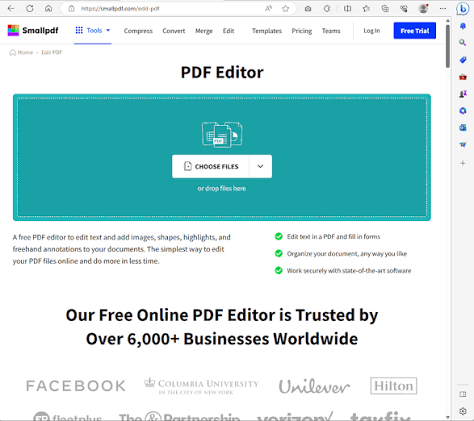
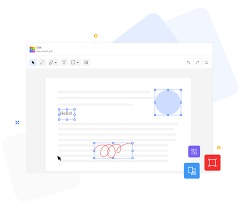


How to Use the Online Smallpdf PDF Editor to Edit a PDF
Follow these steps to edit a PDF with the online Smallpdf PDF Editor. Each step includes a screenshot so you can match the UI as you go.
Step 1: Open Smallpdf in your browser, or go directly to the Edit PDF page.

Step 2: From the tools list, select Edit PDF (or open Edit PDF if you landed on the dedicated page).

Step 3: Drag and drop your PDF into the upload area, or click to browse and select a file from your computer, Google Drive, or Dropbox.
Step 4: Wait for the upload to finish. Large files may take a few seconds depending on your connection.

Step 5: Use the editor toolbar to make changes—edit text, add images or shapes, highlight content, or insert annotations. Keep fonts and alignment consistent so the page still looks clean.
Step 6: When you are done, download the updated PDF. Review the file at 100% zoom before sharing or submitting it.

Note: Free plans may limit how many tasks you can run per day or how large a file you can process. For confidential documents, prefer a local workflow—or confirm Smallpdf's retention policy before uploading.
Best Alternative to Smallpdf PDF Editor: WPS Office
If Smallpdf's free limits interrupt your work—or you prefer editing PDFs locally without uploading every file—WPS Office is a strong alternative. See how to edit pdf in wps office for free with its built-in WPS PDF toolkit.

Here is how WPS compares for everyday editing:
| Feature | Smallpdf PDF Editor | WPS Office |
|---|---|---|
| Where you edit | Mostly online in the browser | Desktop, mobile, and online tools |
| Text & layout edits | Good for light browser edits | Robust PDF editing plus Word/Excel/PPT follow-up |
| Free-plan friction | Daily task / file-size caps are common | Practical everyday PDF + office work with freer local flow |
| Privacy | Files are uploaded to the service | Local editing keeps sensitive files on your device |
| OCR & forms | Available (often Pro) | Available in WPS PDF workflows |
| Best for | Quick one-off online edits | Frequent PDF + office document work |
In short: keep Smallpdf for occasional browser edits; switch to WPS when you need freer, deeper, or more private PDF editing alongside Word, Excel, and PPT.
How to Use WPS Office to Edit PDF
Use WPS Office when you want to edit a PDF on your computer without relying on an online editor mid-task.
Step 1: Download and install WPS Office, then launch the app.
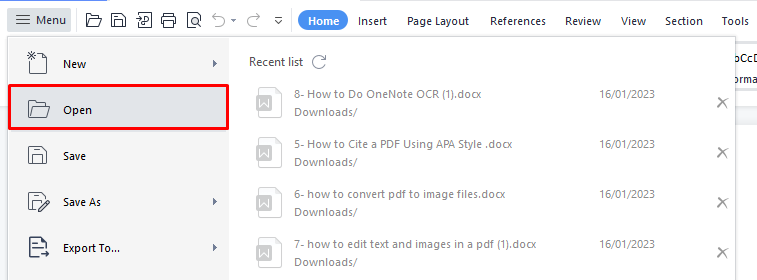
Step 2: Open your PDF (Menu → Open, or drag the file onto WPS). The document opens in WPS PDF.

Step 3: Switch to edit mode and update text, images, or annotations as needed. Adjust fonts carefully so spacing stays consistent.
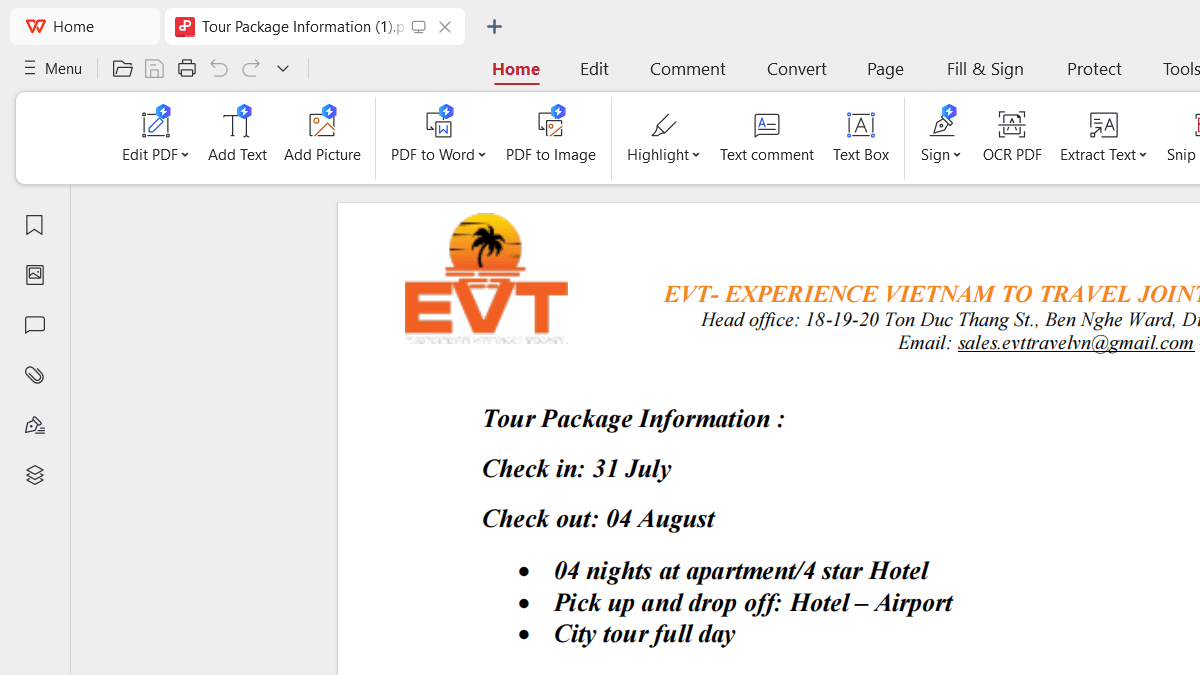
Step 4: Optional—if you need heavier rewriting, convert the PDF to Word in WPS Tools, edit in WPS Writer, then export back to PDF.
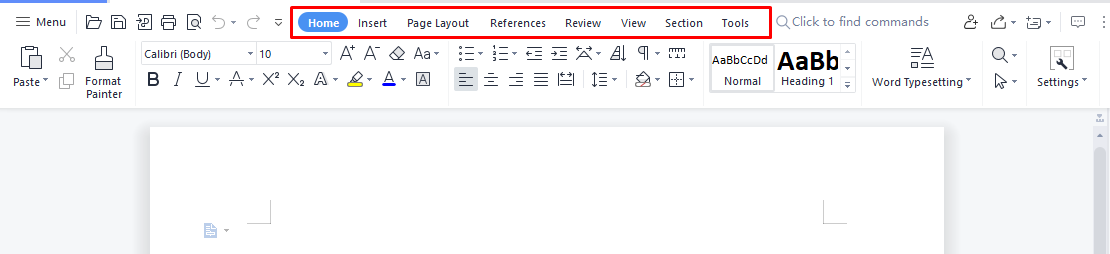
Step 5: Save or export the finished PDF, then review every edited page before sharing.
Frequently Asked Questions (FAQs)
Is Smallpdf PDF Editor free?
Yes, with limits. You can try core online tools on a free plan, but daily tasks, larger files, OCR, and some advanced edits usually need Pro. For freer everyday editing, use WPS Office locally.
Can I edit scanned PDFs in Smallpdf?
Scanned (image-only) PDFs typically need OCR first. Smallpdf offers OCR on paid plans. In WPS, you can also run OCR-oriented PDF workflows and then edit the recognized text.
Is it safe to upload PDFs to Smallpdf?
Smallpdf processes files online and states that files are deleted after a short period. Still, avoid uploading highly confidential documents to any third-party web tool—prefer WPS local editing for sensitive files.
Does Smallpdf PDF Editor work on Mac and mobile?
Yes. The online editor works in modern browsers on Windows, Mac, and mobile. For a fuller mobile/desktop experience with office apps included, install WPS Office.
When should I choose WPS over Smallpdf?
Choose WPS when you edit PDFs often, hit Smallpdf free limits, need local privacy, or want to continue in Word/Excel/PPT after the PDF task.



'%3e%3cpath%20d='M19.9911%204.11386V6.471H18.5894C18.0775%206.471%2017.7322%206.57814%2017.5536%206.79243C17.3751%207.00671%2017.2858%207.32814%2017.2858%207.75671V9.44421H19.9019L19.5536%2012.0871H17.2858V18.8639H14.5536V12.0871H12.2769V9.44421H14.5536V7.49779C14.5536%206.39064%2014.8632%205.53201%2015.4822%204.92189C16.1013%204.31177%2016.9257%204.00671%2017.9554%204.00671C18.8304%204.00671%2019.509%204.04243%2019.9911%204.11386Z'%20fill='%23333333'/%3e%3c/g%3e%3cdefs%3e%3cclipPath%20id='clip0_2938_8199'%3e%3crect%20width='16'%20height='16'%20fill='white'%20transform='translate(8%204.00671)'/%3e%3c/clipPath%3e%3c/defs%3e%3c/svg%3e)
'%3e%3cpath%20d='M17.5237%2010.7813L23.4811%204H22.0699L16.8949%209.88693L12.7648%204H8L14.2469%2012.9029L8%2020.0133H9.4112L14.8725%2013.7952L19.2352%2020.0133H24M9.92053%205.04213H12.0885L22.0688%2019.0224H19.9003'%20fill='%23333333'/%3e%3c/g%3e%3cdefs%3e%3cclipPath%20id='clip0_2938_8200'%3e%3crect%20width='16'%20height='16.0134'%20fill='white'%20transform='translate(8%204)'/%3e%3c/clipPath%3e%3c/defs%3e%3c/svg%3e)


